Setup TLS for FTP
This guide explains how to enable Explicit FTP over TLS (FTPS) in OpenPanel using VSFTPD.
OpenPanel Enterprise supports FTP access. Once enabled, a shared FTP server becomes available for all users. First follow this guide on how to enable FTP in OpenPanel: How to configure FTP server
Step 1: Add a Domain
To use TLS, you must have an SSL certificate available on the server. Start by adding a domain in one of the following ways:
As an OpenAdmin user (for OpenPanel/OpenAdmin access): https://openpanel.com/docs/admin/settings/general/#domain
As an OpenPanel user: https://openpanel.com/docs/panel/domains/new/
Once added, OpenPanel will automatically generate an SSL certificate for the domain (if supported).
Step 2: Verify SSL Certificate Files
Make sure the SSL certificate and private key files exist on the server. If the certificate was auto-generated, the paths should look like this:
/etc/openpanel/caddy/ssl/acme-v02.api.letsencrypt.org-directory/DOMAIN_NAME/DOMAIN_NAME.crt
/etc/openpanel/caddy/ssl/acme-v02.api.letsencrypt.org-directory/DOMAIN_NAME/DOMAIN_NAME.key
Replace DOMAIN_NAME with your actual domain name.
Step 3: Enable TLS in VSFTPD
Go to OpenAdmin → Services → FTP → Configuration
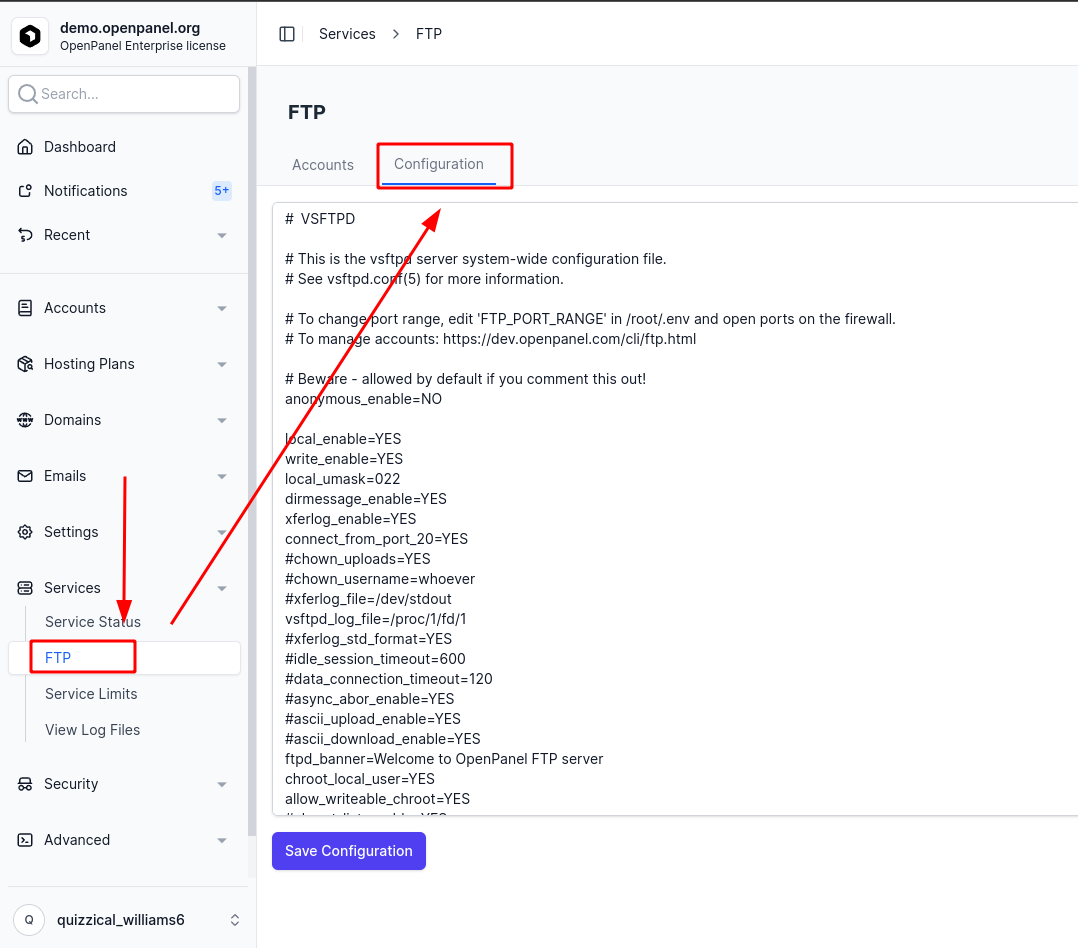
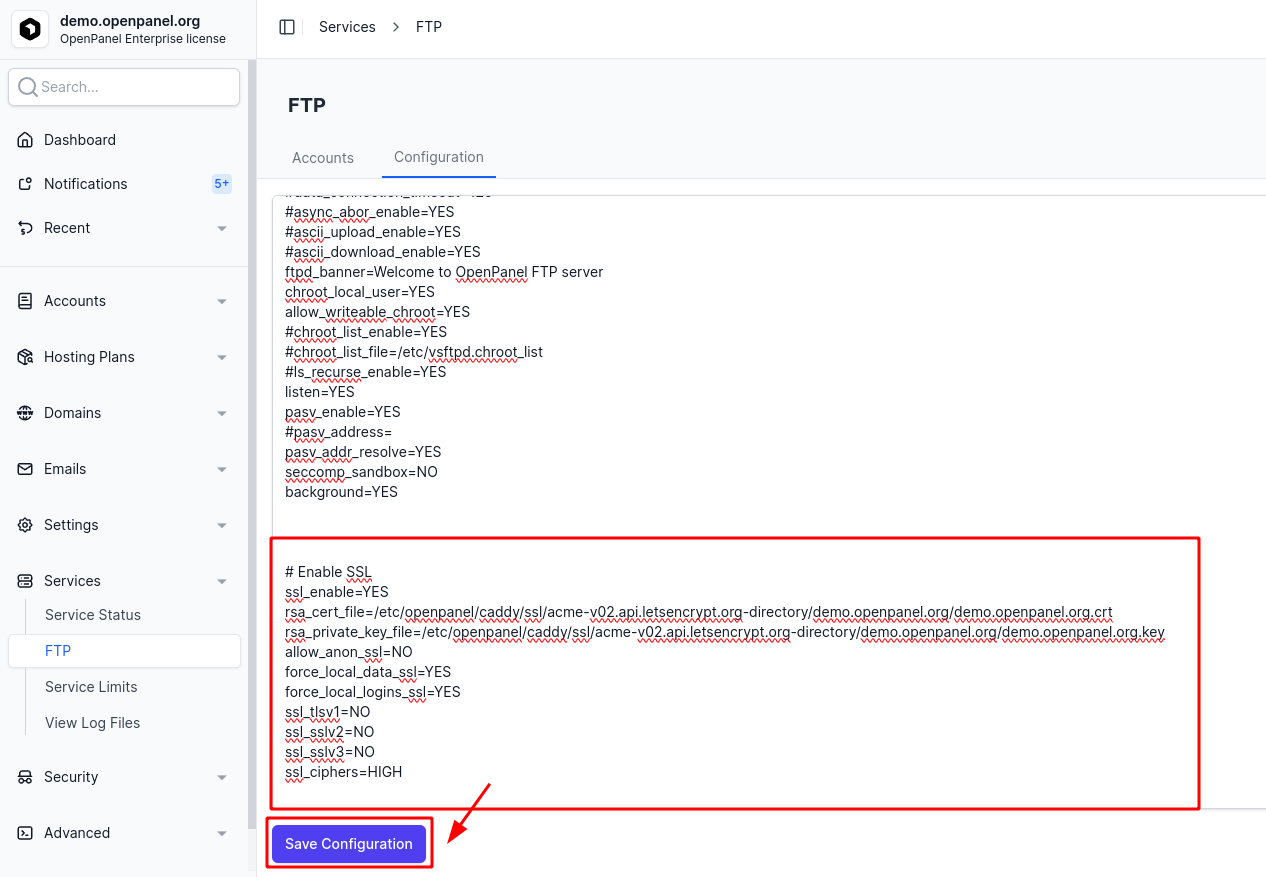
Paste the following configuration options to enable TLS:
⚠️ Important: Replace
DOMAIN_NAMEwith your domain name in both file paths.# Enable SSL
ssl_enable=YES
rsa_cert_file=/etc/openpanel/caddy/ssl/acme-v02.api.letsencrypt.org-directory/DOMAIN_NAME/DOMAIN_NAME.crt
rsa_private_key_file=/etc/openpanel/caddy/ssl/acme-v02.api.letsencrypt.org-directory/DOMAIN_NAME/DOMAIN_NAME.key
allow_anon_ssl=NO
force_local_data_ssl=YES
force_local_logins_ssl=YES
ssl_tlsv1=NO
ssl_sslv2=NO
ssl_sslv3=NO
ssl_ciphers=HIGHClick Save to apply the changes.
Step 4: Restart the FTP Service
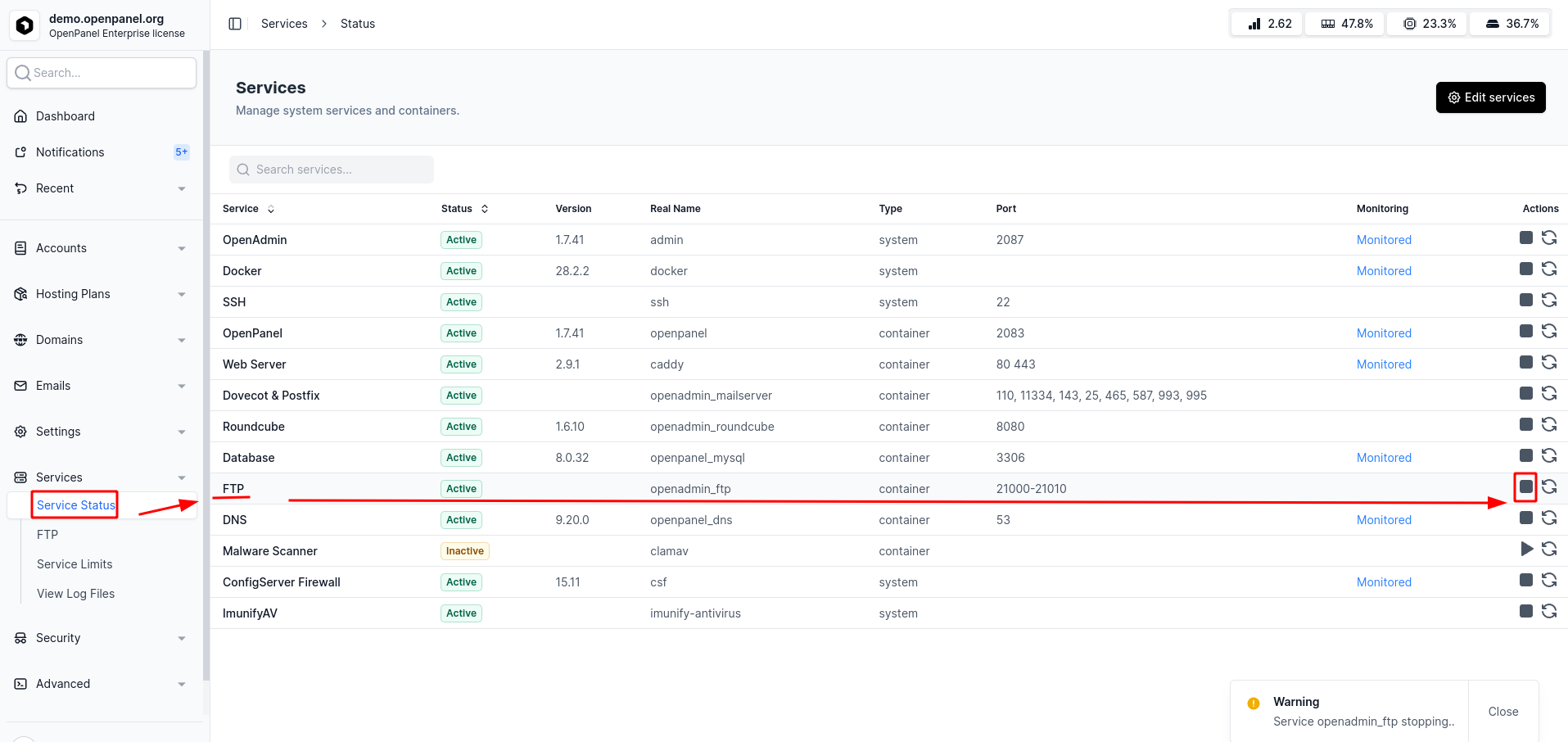
- Navigate to OpenAdmin → Services → Services Status.
- Locate the FTP service.
- Click Stop, then Start to restart the service.