// File: admin/000_intro
# Get Started
The OpenAdmin offers an administrator-level interface where you can efficiently handle tasks such as creating and managing users, setting up hosting plans, enabling features, and editing OpenPanel settings.
## Requirements
Minimum Requirements:
- A blank full virtual machine or bare metal server
- Minimum of 1GB RAM and 20GB storage (4GB RAM and 50GB is recommended)
- AMD64(x86_64) or ARM(AArch64) architecture
- IPv4 address
Not sure how big the server should be? See [System Requirements & Sizing](/docs/articles/install-update/system-requirements/) or use the [resource calculator](/calculator).
Supported operating systems:
- **Ubuntu 22, 24, 26** (24.04 is recommended)
- **Debian 10, 11, 12, 13**
- **AlmaLinux 9.5 and 10** (9.5 is recommended for ARM CPU, 10 has a known issue [#744](https://github.com/stefanpejcic/OpenPanel/issues/744))
- **RockyLinux 9.6, 10**
- **CentOS 9.5**
On AlmaLinux 10 and RockyLinux 10, you must switch from `nftables` to `iptables`. See [#1472](https://github.com/docker/for-linux/issues/1472) and [#745](https://github.com/stefanpejcic/OpenPanel/issues/745#issuecomment-3451272947).
:::info
If you are using external firewall, the following ports should be opened:
- for dns: `53`
- for email: `25` `465` `993`
- for websites: `80` `443`
- for panels: `2083` `2087`
- for phpmyadmin: `2053` `8888`
- for user services: `32768:60999`
:::
## Installation
OpenPanel can be installed on both VPS and bare-metal servers.
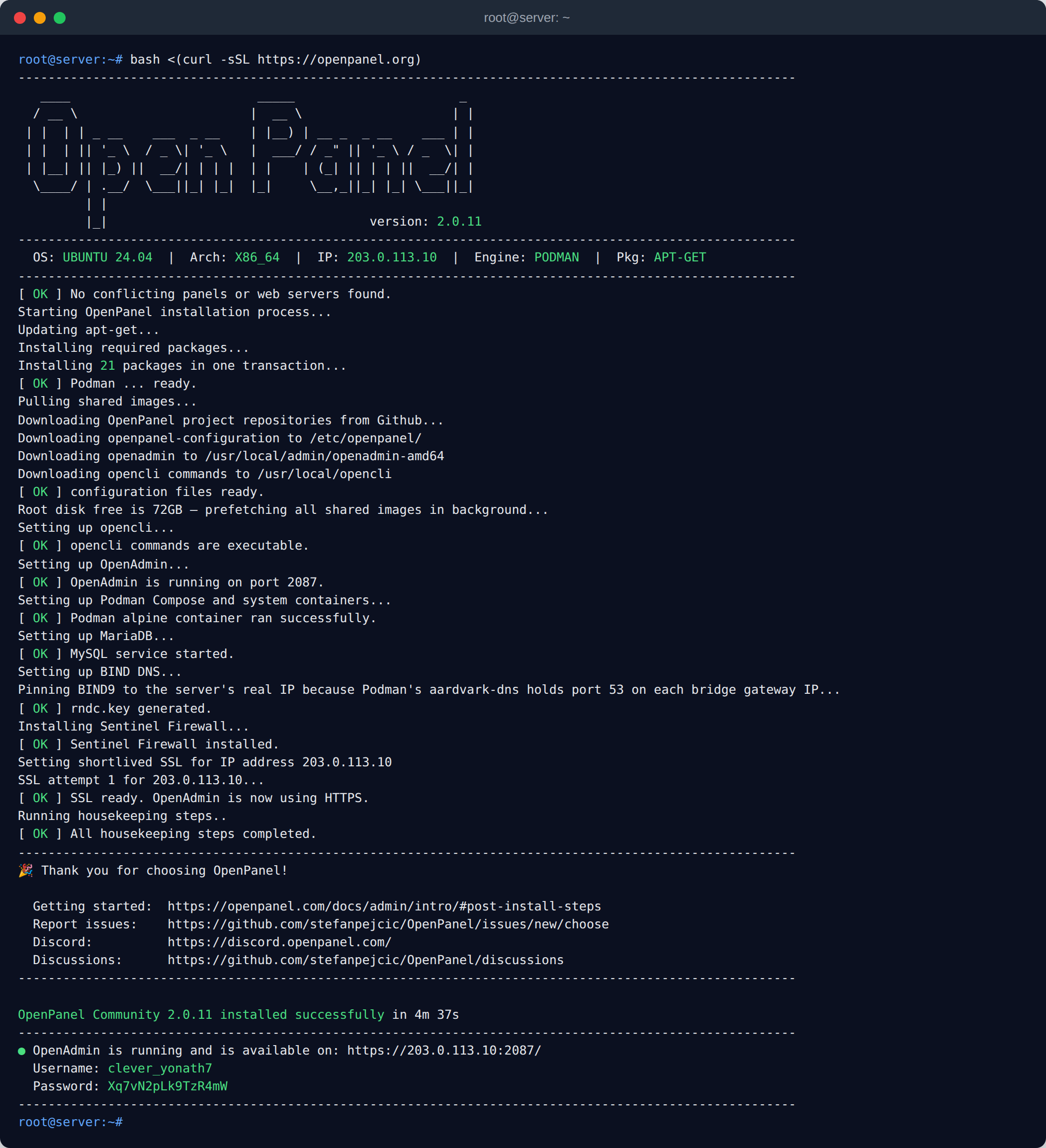
The installation process takes about 5 minutes. To install openpanel follow these steps:
1. Log in to your new server;
- as root via SSH or
- as a user with sudo privileges and type "sudo -i"
2. Copy and paste openpanel installation command into the terminal
```shell
bash <(curl -sSL https://openpanel.org)
```
The installation script supports [optional flags](/install) that can be used to configure openpanel, skip certain installation steps or simply display debugging information.
If you encountered any errors while running the installation script, please copy & paste the installation log file to [GitHub Discussions](https://github.com/stefanpejcic/OpenPanel/discussions).
[Amazon Web Services (AWS)](/docs/articles/install-update/install-on-aws)
[Contabo](/docs/articles/install-update/install-on-contabo)
[DigitalOcean](/docs/articles/install-update/install-on-digitalocean)
[Google Cloud Platform (GCP)](/docs/articles/install-update/install-on-google-cloud)
[Hetzner](/docs/articles/install-update/install-on-hetzner)
[Linode (Akamai Cloud)](/docs/articles/install-update/install-on-linode)
[Microsoft Azure](/docs/articles/install-update/install-on-microsoft-azure)
[OVHcloud](/docs/articles/install-update/install-on-ovh)
[Oracle Cloud (Always Free)](/docs/articles/install-update/install-on-oracle-cloud)
[Vultr](/docs/articles/install-update/install-on-vultr)
[CloudInit](/docs/articles/install-update/install-using-cloudinit)
[Ansible](/docs/articles/install-update/install-using-ansible)
[Proxmox VE](/docs/articles/install-update/install-on-proxmox)
[Home Server](/docs/articles/install-update/install-on-home-server)
[Raspberry Pi](/docs/articles/install-update/install-on-raspberry-pi)
[Virtualizor](/docs/articles/install-update/install-on-virtualizor)
## Post Install Steps
Recommended steps after installing OpenPanel:
- [Access the OpenAdmin panel](/docs/articles/dev-experience/how-to-access-openadmin)
- [Configure Domain and SSL for OpenPanel](/docs/admin/settings/general/#domain)
- [Enable Modules (features) in OpenPanel UI](/docs/admin/settings/modules/)
- [Configure Custom Nameservers](/docs/articles/domains/how-to-configure-nameservers-in-openpanel/)
- [Create Hosting Packages](/docs/admin/plans/hosting_plans#create-a-plan)
- [Create New User Accounts](/docs/admin/accounts/users/#create-users)
- [Set Email address to receive Alerts](/docs/admin/settings/notifications/#email)
- [Change Update Preferences](/docs/admin/settings/updates)
- [Secure OpenPanel for Production Use](/docs/articles/security/securing-openpanel/)
- [Manage User Containers from the Terminal](/docs/articles/containers/context/)
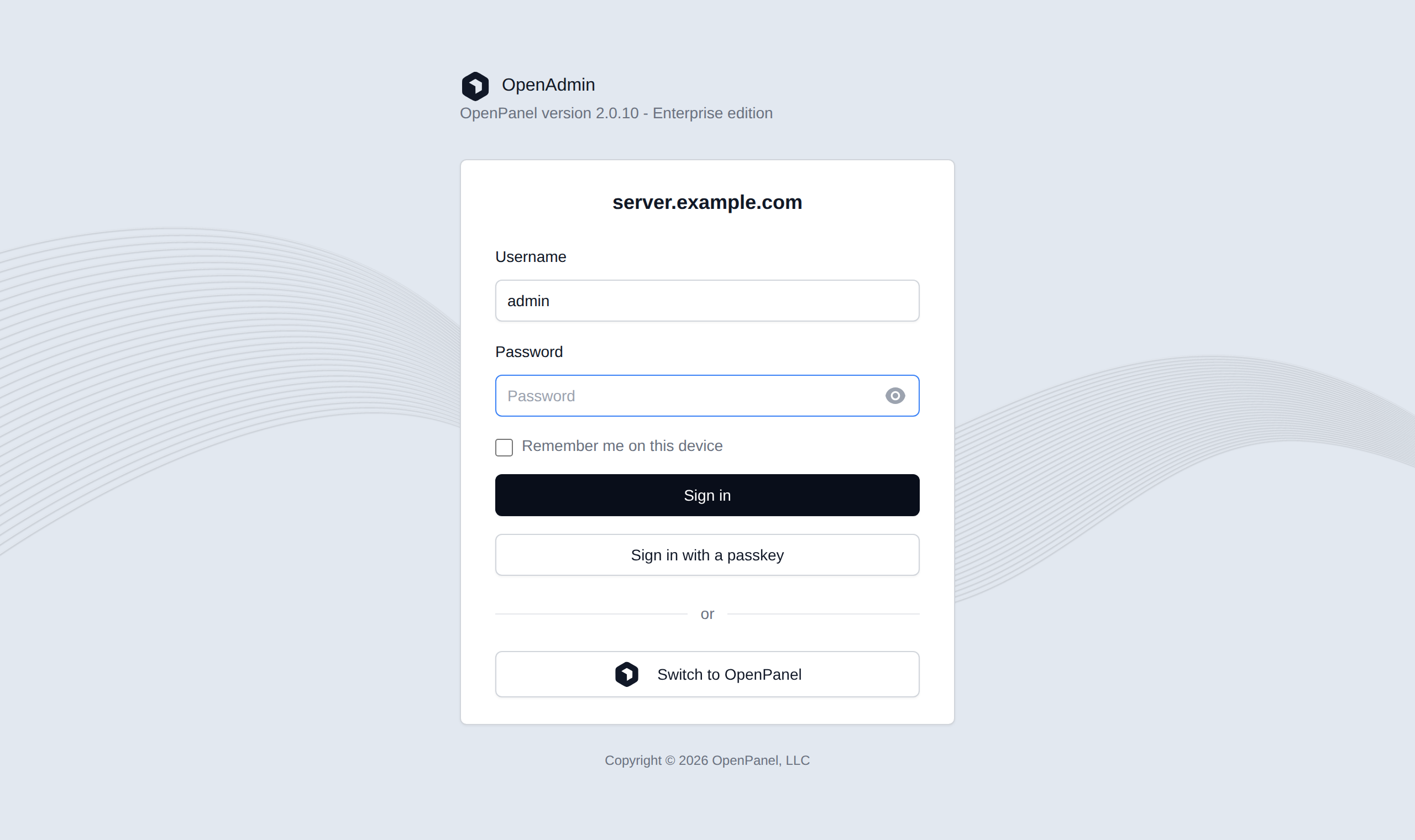
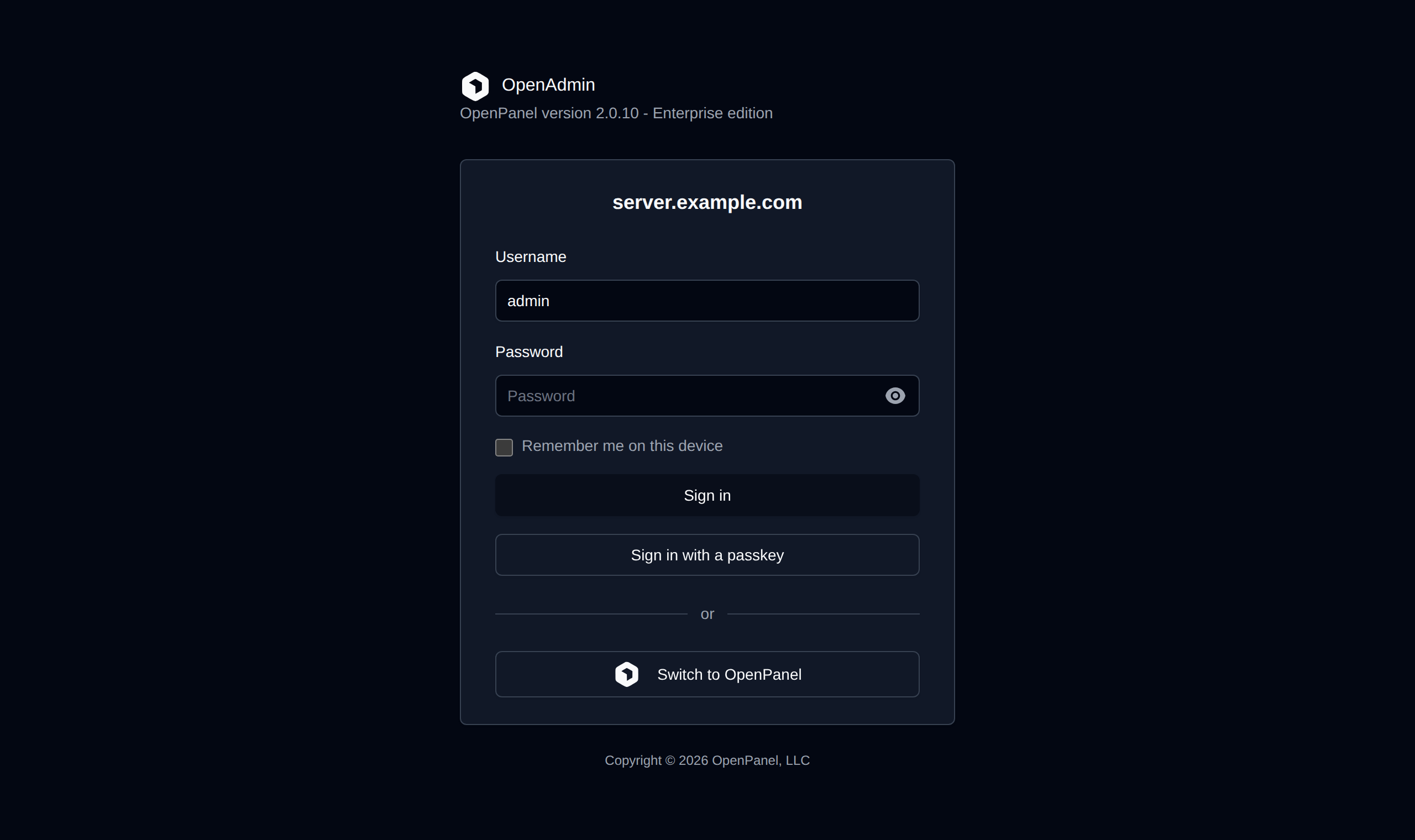
OpenAdmin is available on port `2087` of your server (for example `https://server.example.com:2087`):
---
// File: admin/001_dashboard
# Dashboard
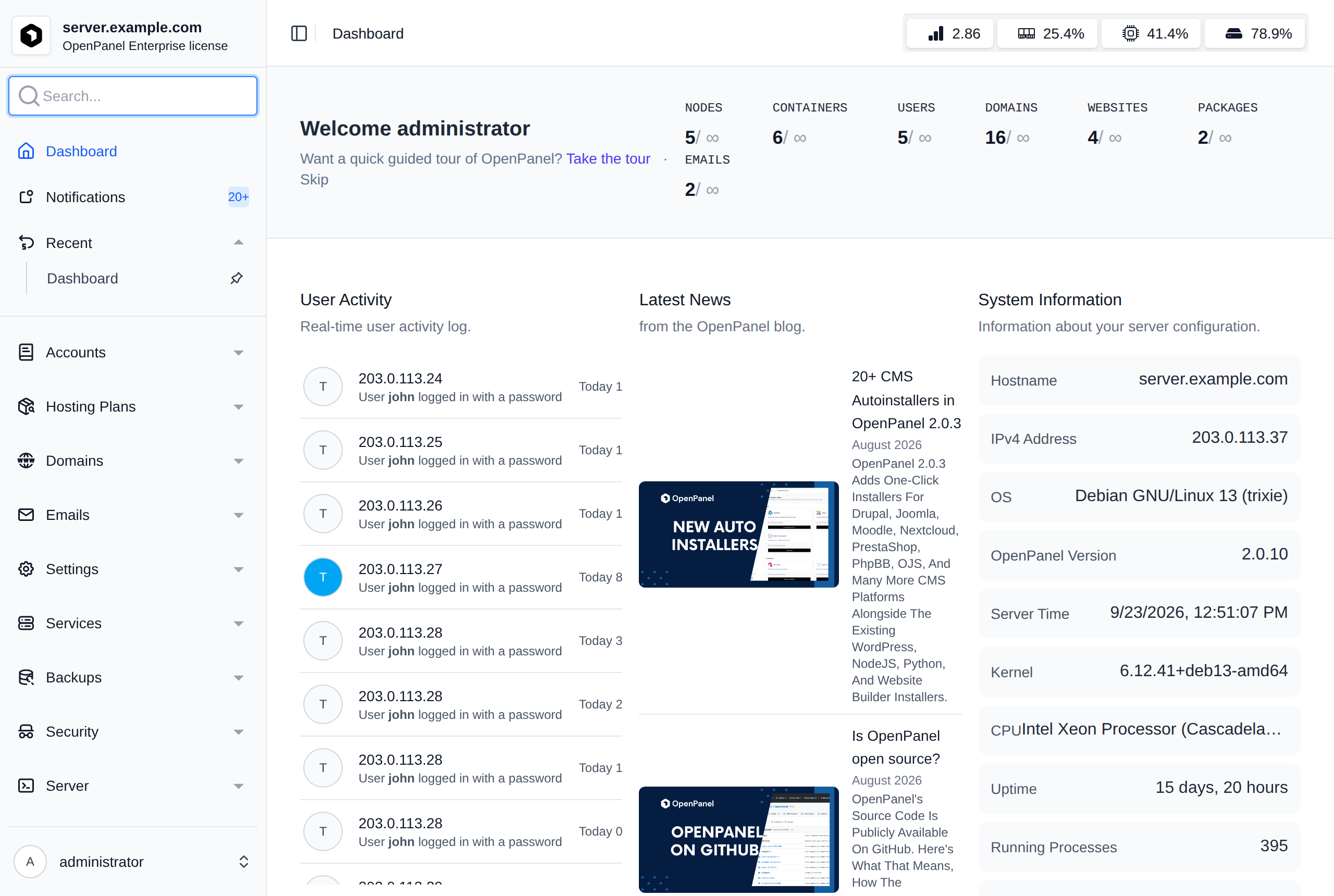
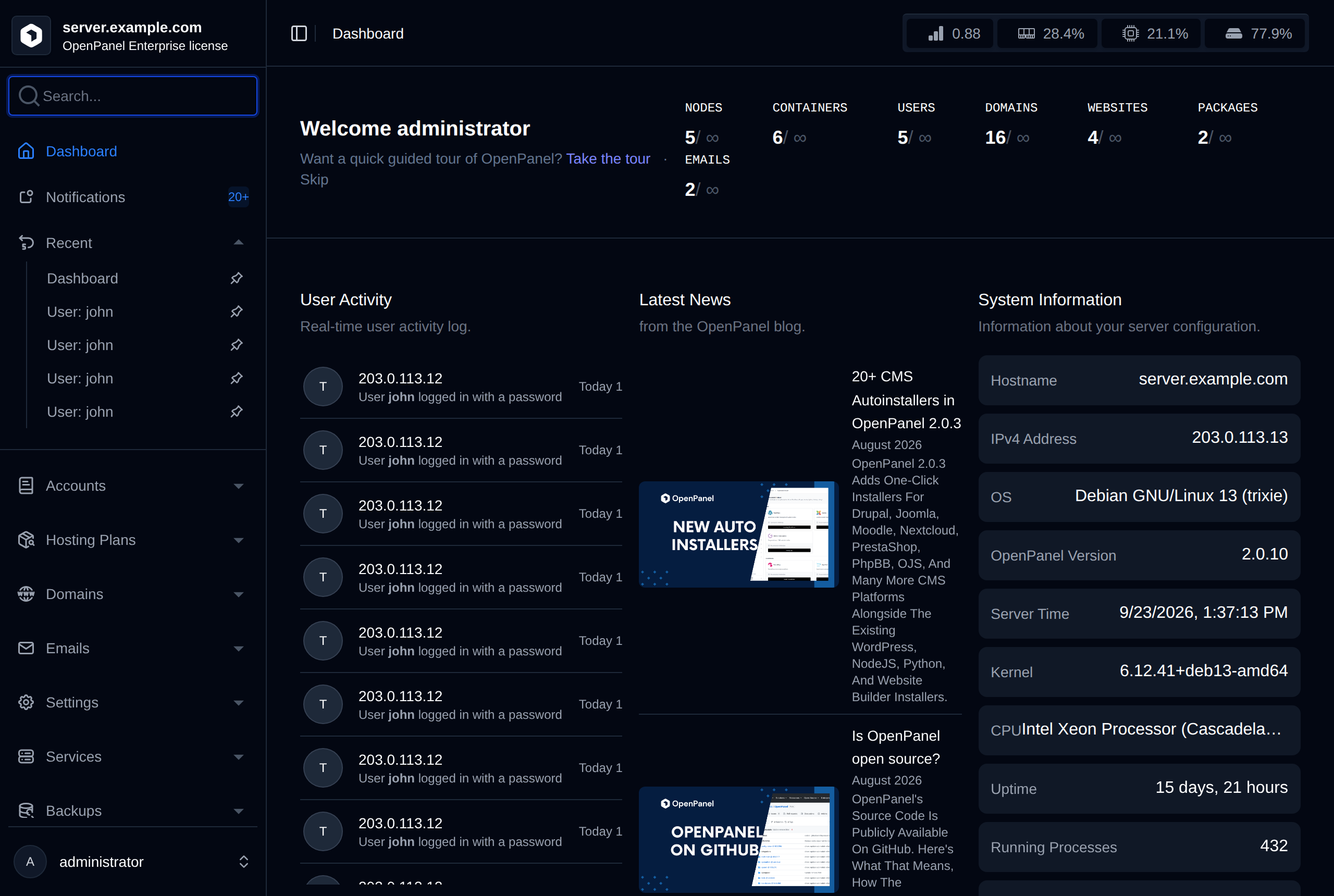
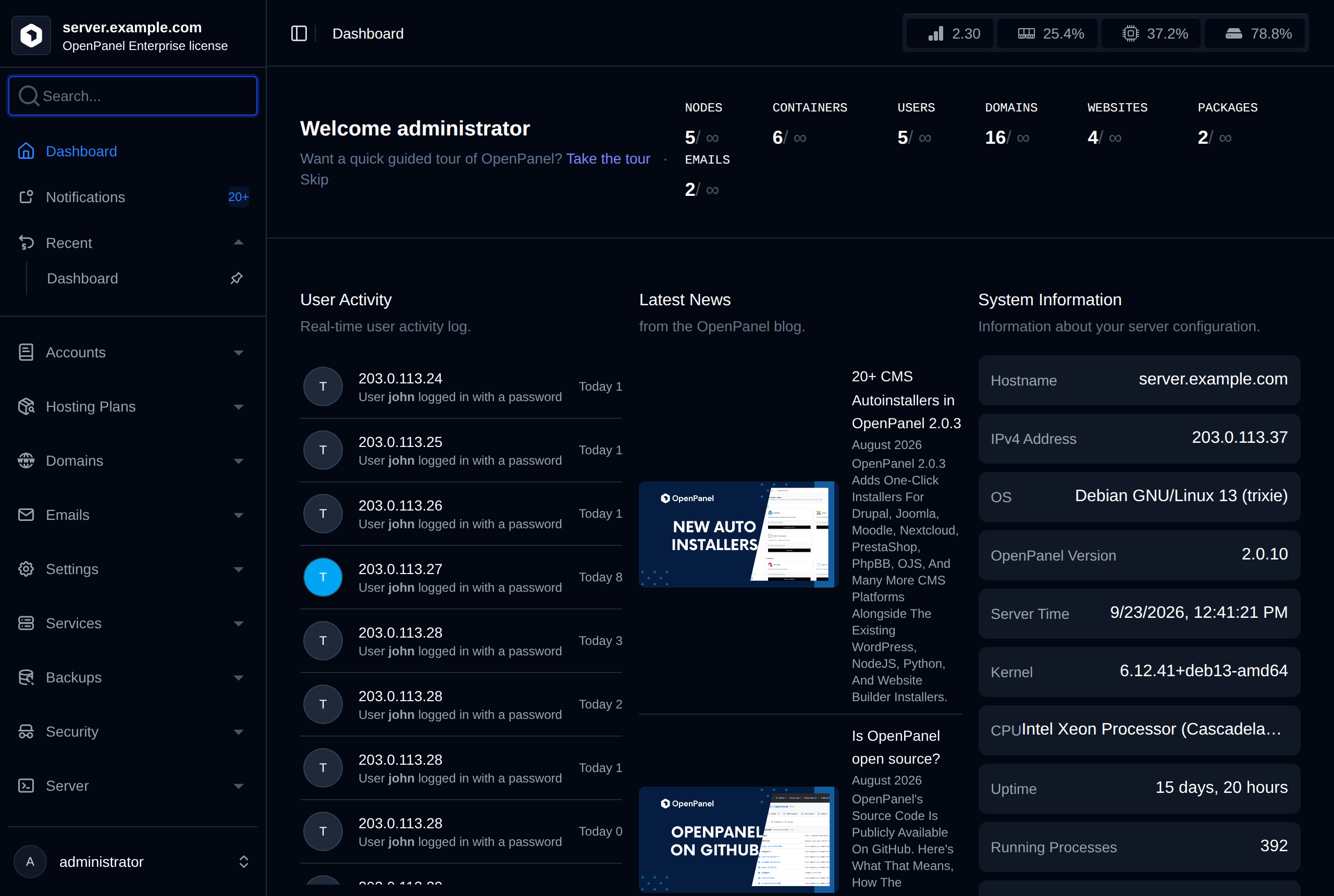
The dashboard page is the hub of the OpenAdmin interface and provides the overview of the current server performance and usage.
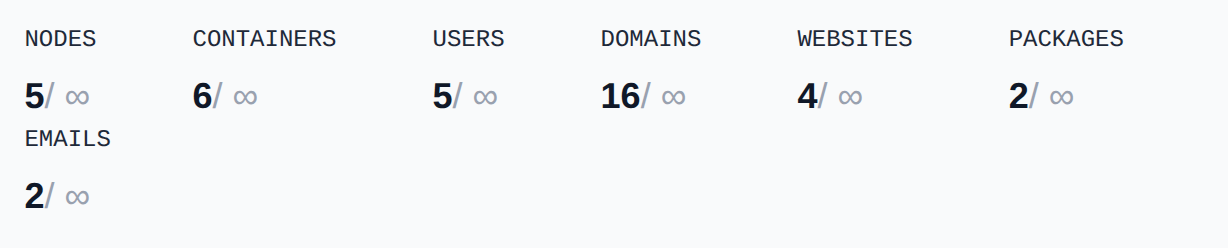
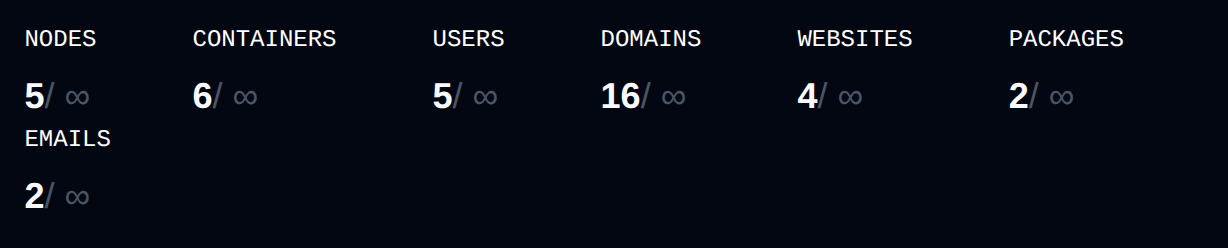
For administrator accounts, the dashboard also displays a quick summary bar with counts for **Nodes**, **Containers**, **Users**, **Domains**, **Websites**, **Packages**, and **Emails** (each showing current usage against the license's limit, if any). Reseller accounts instead see their own **OpenPanel Accounts** and **Disk Space Used** usage against the limits set by the administrator.
Below the welcome message, quick action buttons open the most common tasks: **Create User**, **Add Domain**, **New Plan** and **Check for Updates** (resellers see **Create User** and **New Plan**).
The dashboard page contains widgets:
- **Daily Summary** widget: Displays yesterday's traffic and issues for all accounts combined. Shown only when the [Daily Summary module](/docs/admin/settings/modules/#daily-summary) is enabled.
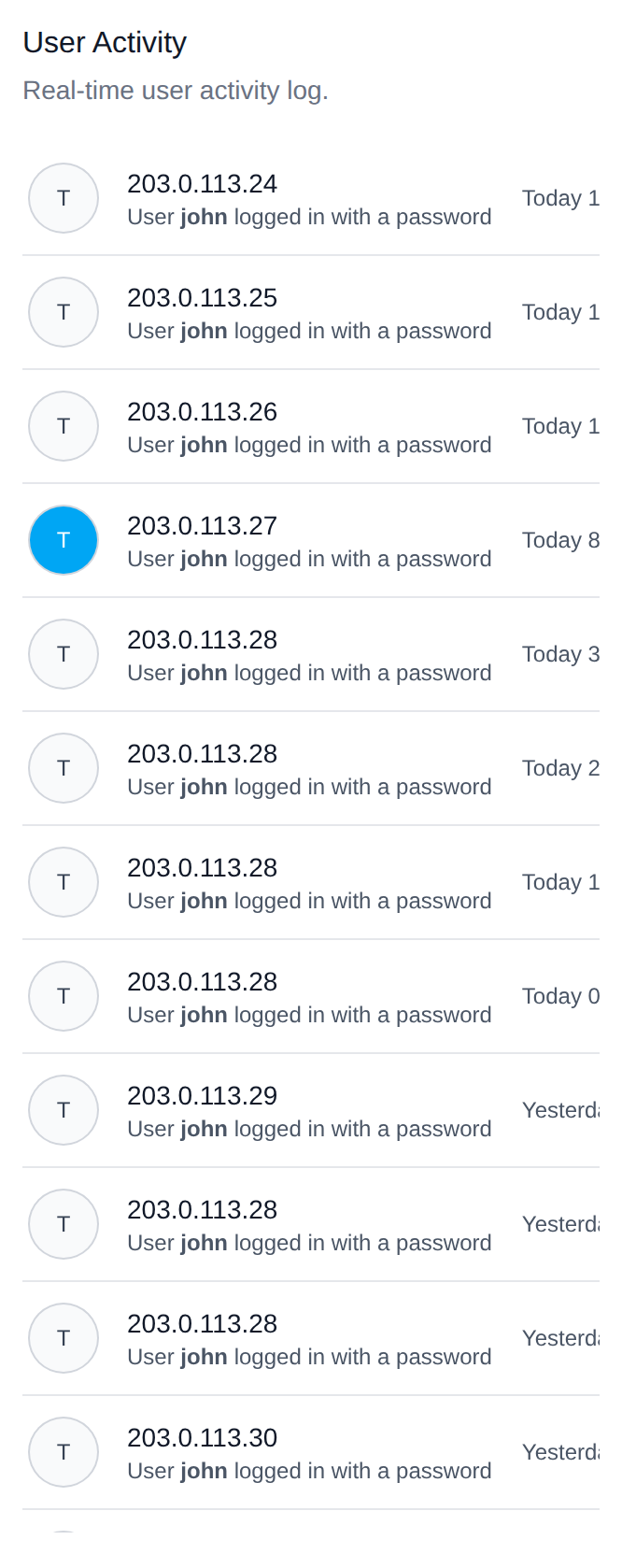
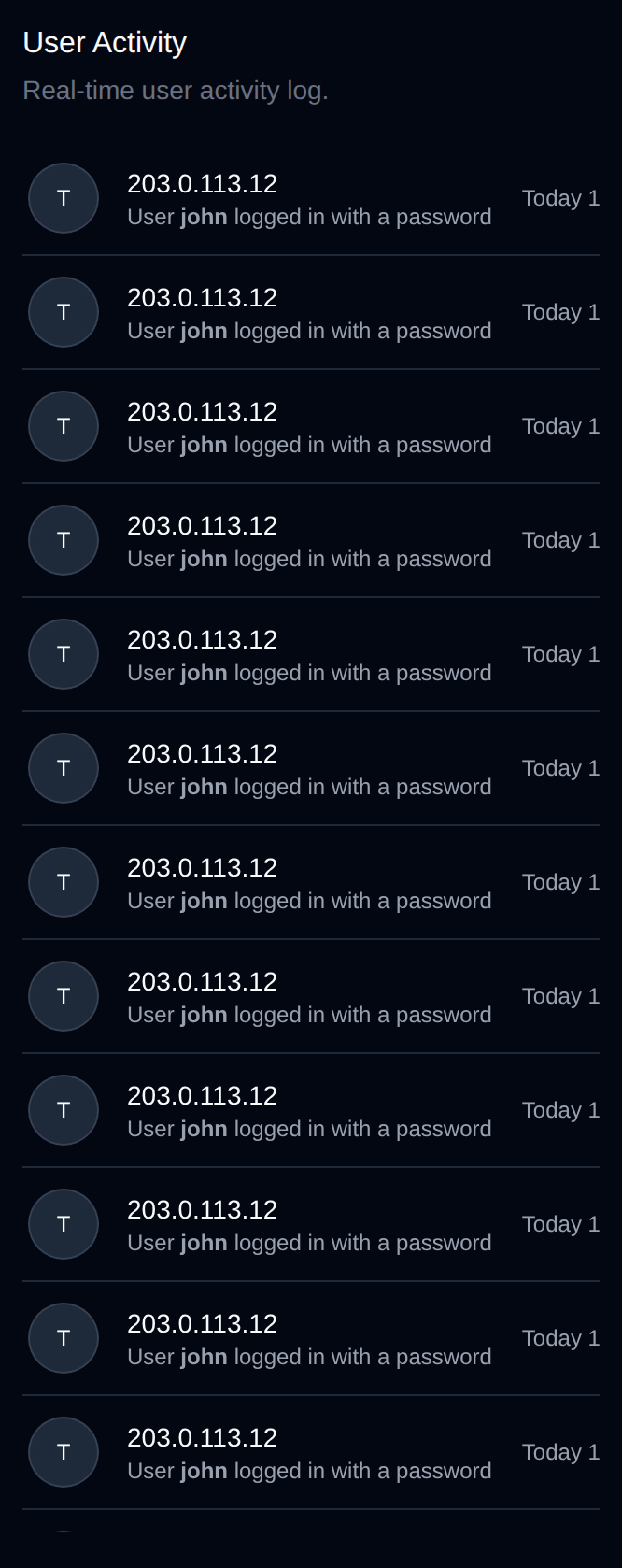
- **User Activity** widget: Displays real-time combined activity log of all OpenPanel users.
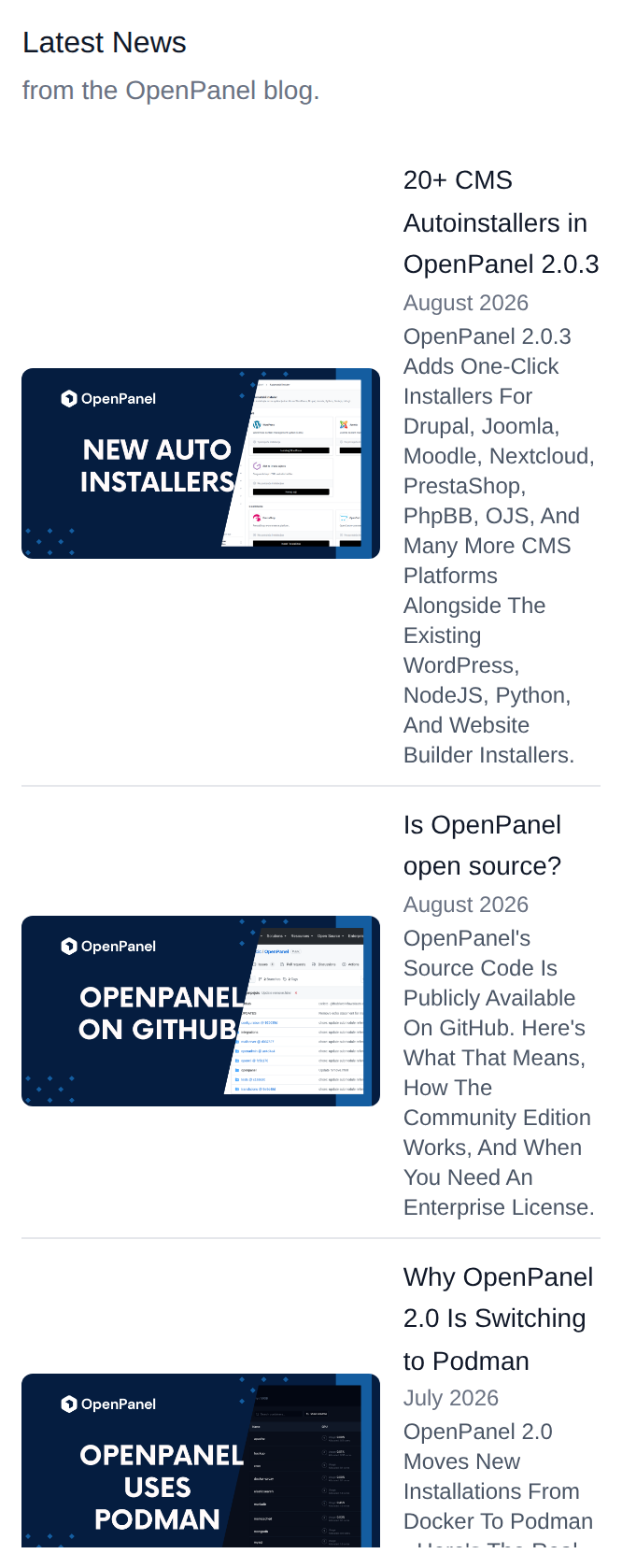
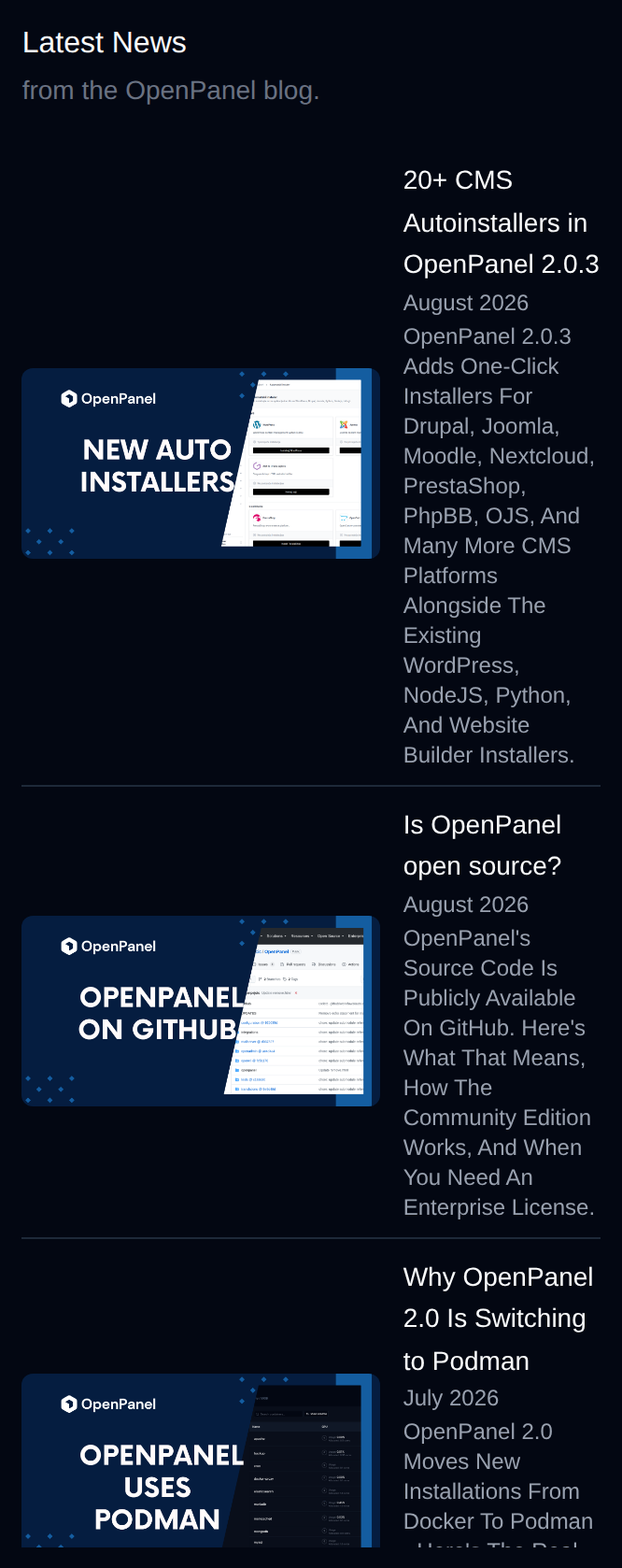
- **Latest News** widget: Displays blog articles from the OpenPanel blog.
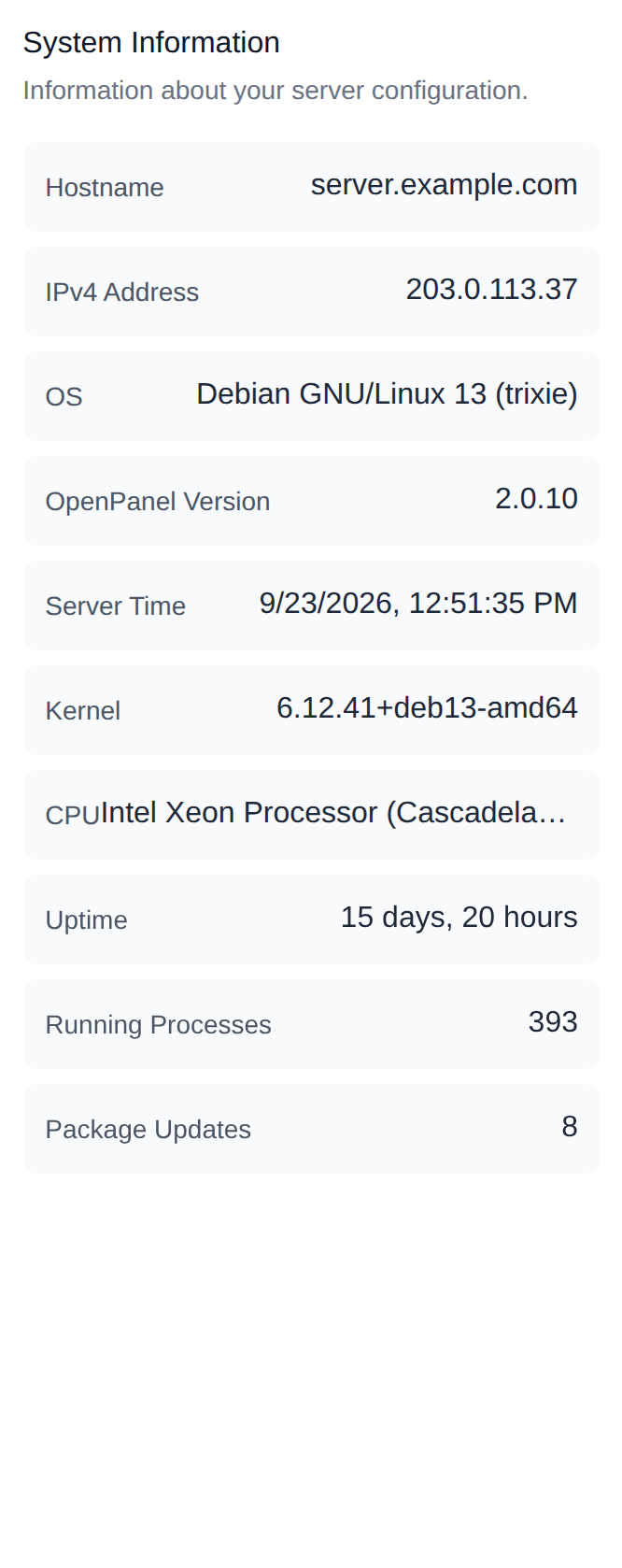
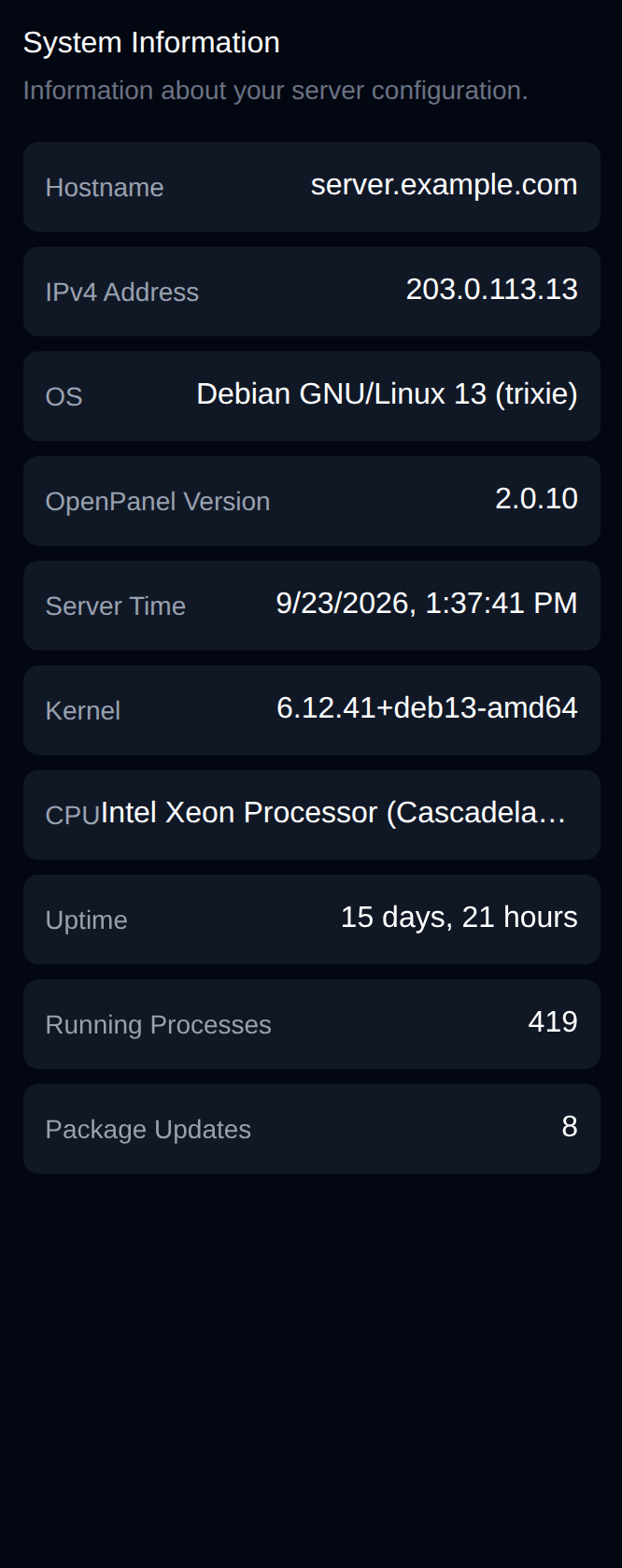
- **System Information** widget: Displays Information about your server configuration: Hostname, IPv4 address, OS, OpenPanel version, Server Time, Kernel, CPU type, Uptime, Number of Running Processes and available Package Updates.
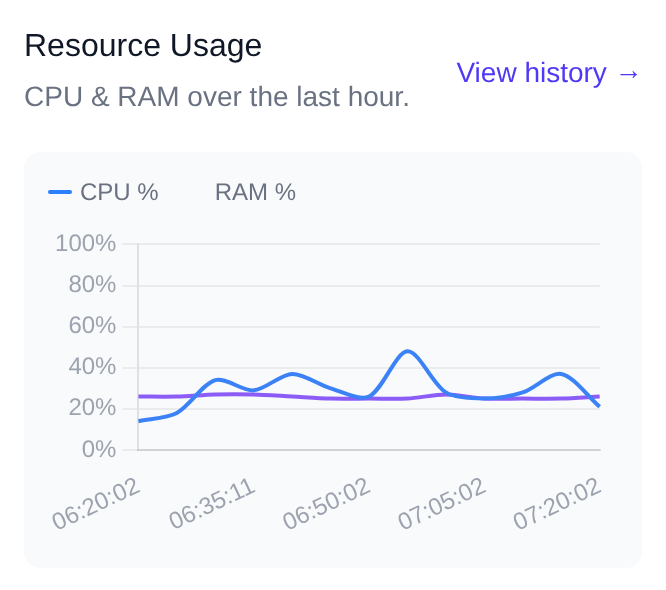
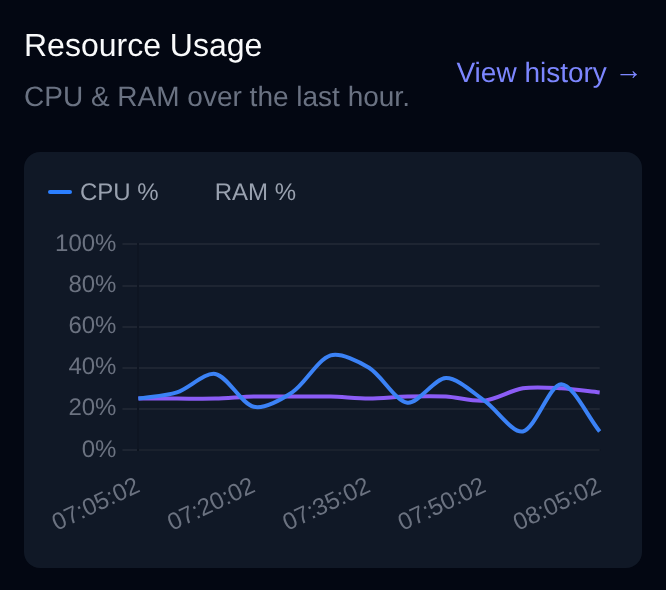
- **Resource Usage** widget: Displays a CPU % and RAM % chart for the last hour, with a link to view the full resource usage history.
## Usage
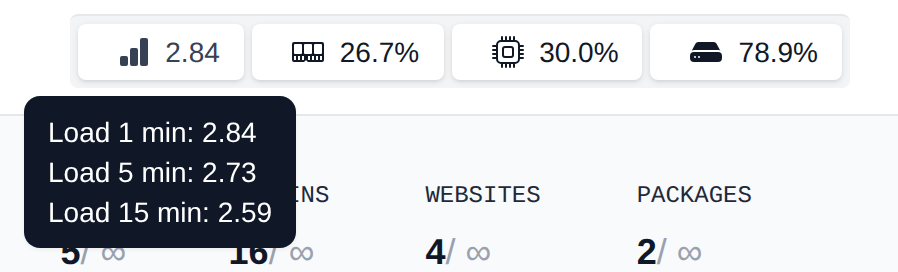
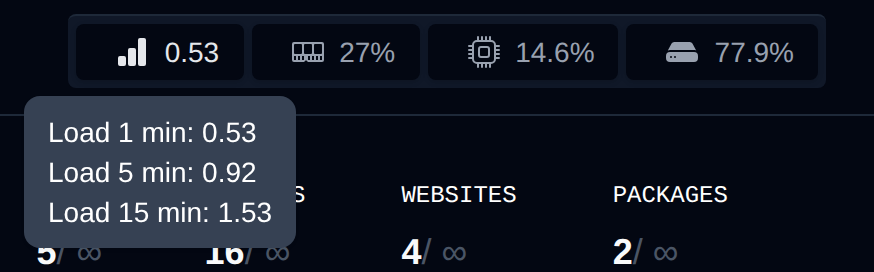
In the top-right corner of every page in **OpenAdmin**, administrators can monitor real-time resource usage, including **Load**, **Memory**, **CPU**, and **Disk**.
Hovering over each metric provides detailed information:
* **Load** – Average system load over 1, 5, and 15 minutes
* **Memory** – Usage of physical memory and SWAP
* **CPU** – Usage per CPU core
* **Disk** – Usage per disk partition
## Daily Summary
The **Daily Summary** widget adds up the [daily summaries](/docs/panel/statistics/daily_summary/) of all OpenPanel accounts for the most recent day that has them (up to 7 days back). Resellers see only their own accounts.
It shows:
- **Requests** (with the change from the day before), **Visitors**, **Data sent**, **Server errors** and **WAF blocks**
- **Needs attention**: issues found on user accounts, each with a link to the user
- **Busiest websites**: the top 5 websites by number of requests
The widget is shown only when:
- the **`summary`** module is enabled on [**Settings > Modules**](/docs/admin/settings/modules/#daily-summary), and
- at least one user has the **summary** feature in their [feature set](/docs/admin/plans/feature-manager/) and already has a saved summary (they are saved each day at 06:15 for the previous day).
## User Activity
The **User Activity** widget provides a combined list of latest actions from all OpenPanel users (their activity logs).
## Latest News
The **Latest News** widget displays news from [OpenPanel Blog](https://openpanel.com/blog).
## System Information
The **System Information** widget displays information about your server:
- Hostname
- IPv4 address
- OS
- OpenPanel version
- Server Time
- Kernel version
- CPU model
- Uptime
- Number of running processes
- Available Package updates
## Resource Usage
The **Resource Usage** widget displays a chart of CPU % and RAM % usage over the last hour. Click **View history** to open the full Resource Usage history page (**Server > Resource Usage**).
## Tasks
The **Tasks** widget lists background tasks that are currently running on the server. Click **View all** to open the full list of tasks, where you can tick running tasks and **Kill** them all at once from the bulk actions bar.
## Found a Bug
By default, every page in both the OpenPanel and OpenAdmin UIs includes a **"Found a bug? Let us know"** link at the bottom. This link allows users to report issues directly to our [GitHub Issues](https://github.com/stefanpejcic/OpenPanel/issues) page and includes basic information to help reproduce the problem.
For the OpenPanel UI, administrators can disable this link by going to **Settings > OpenPanel** and toggling off the **"Display link to report bugs"** option.
## Dark Mode
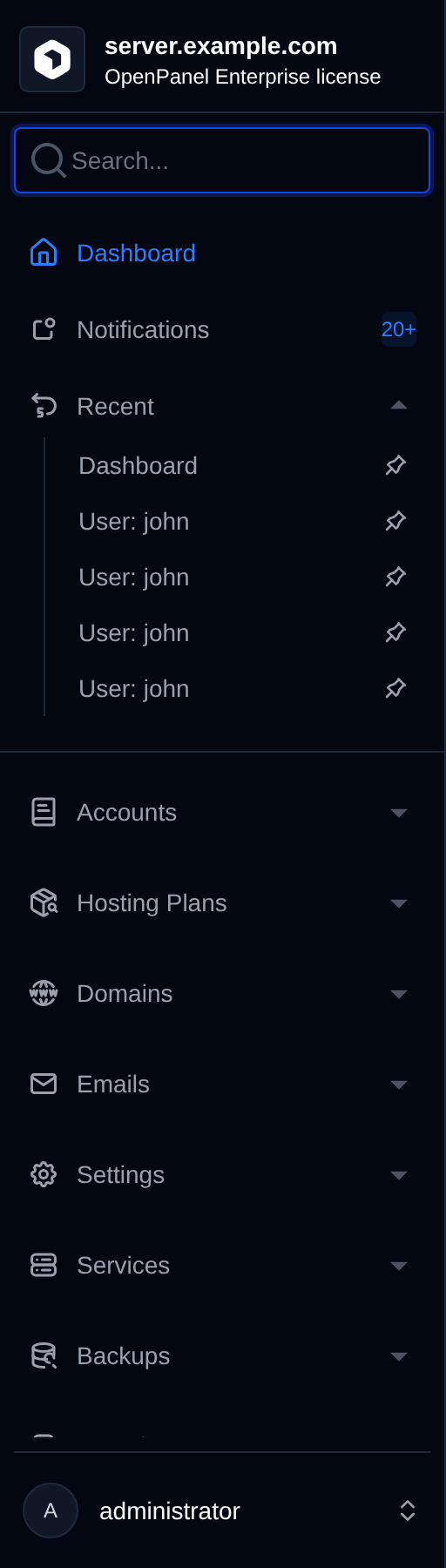
To enable Dark Mode, click your username in the bottom-left corner and select the Moon icon. To switch back to Light Mode, click the Sun icon.
## Menu
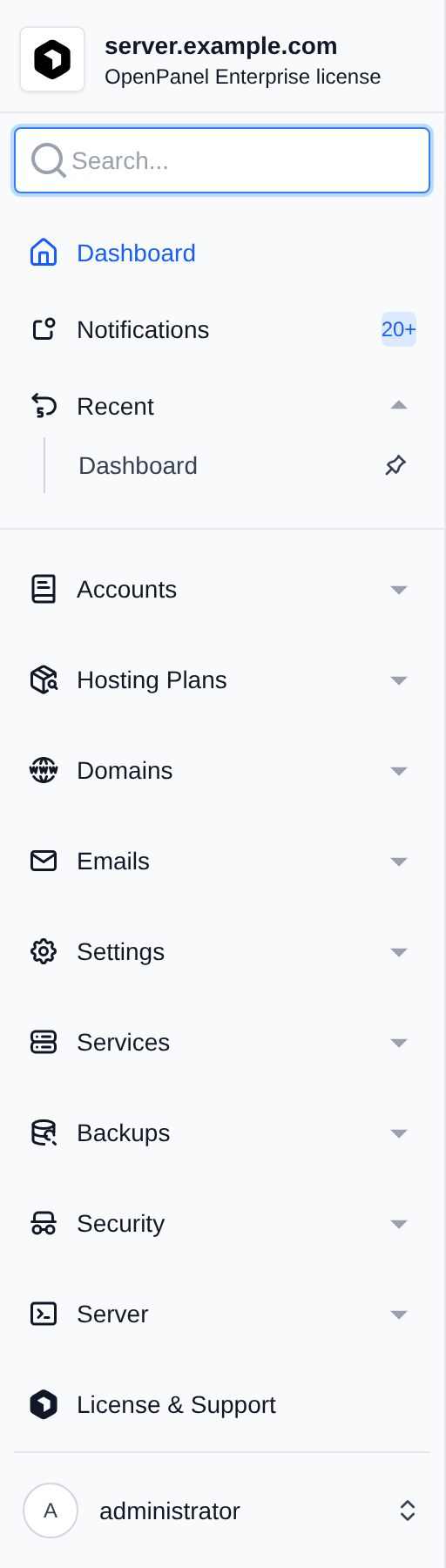
OpenAdmin menu lists all available options in the OpenAdmin interface. Simply click on a menu item to open it.
The menu comes in two styles, set by the **Menu Style** option on [**Settings > OpenPanel**](/docs/admin/settings/openpanel/#display) (the same option sets the default for OpenPanel users):
- **Classic** (default): items are grouped in expandable sections, like the screenshot below.
- **Modern**: the sidebar has one link per area - Accounts, Hosting Plans, Domains, Emails, Backups, then **Server** (Services, Security, Server, System) and **Settings** (Settings, License & Support) - and the pages of that area are shown as tabs at the top of each page.
These docs use the Modern names, so a path like **System > Server Time** means: click **System** in the sidebar, then the **Server Time** tab. In the Classic menu the same pages are in the expandable groups, for example **Server > Server Time**.
In the Modern menu, a colored dot next to a sidebar item flags something that needs attention - hover it to see what:
- **Services** (red): a monitored service is down, according to an unread notification.
- **Settings** (orange): changes are waiting for an OpenPanel or OpenAdmin restart.
Settings pages (General, OpenPanel, User Defaults, PHP, Notifications, Updates, Custom Code and Service Limits) ask for confirmation before you leave with changes that weren't saved.
## Search
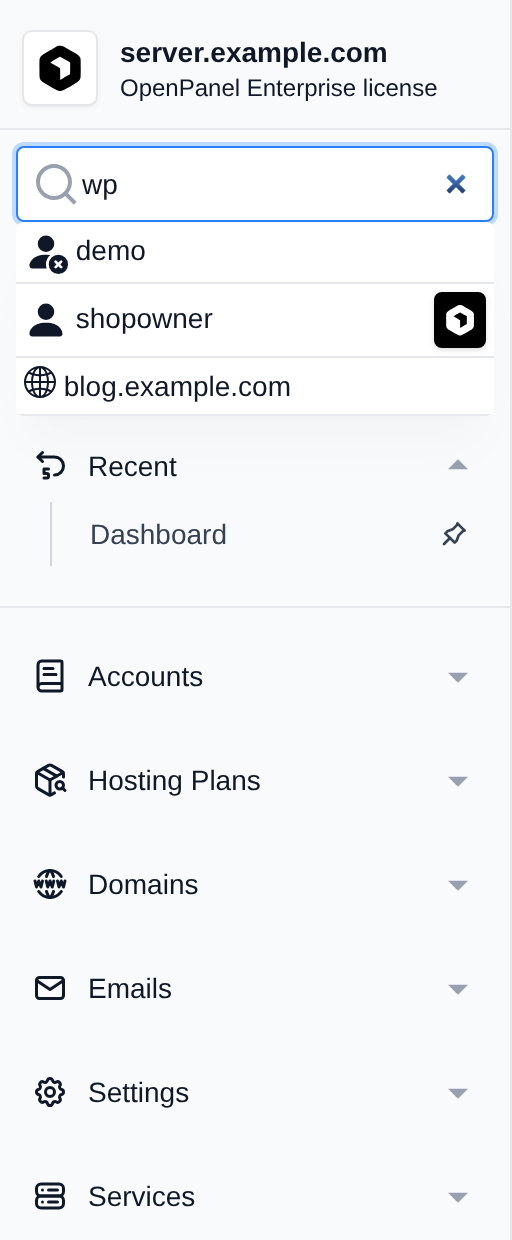
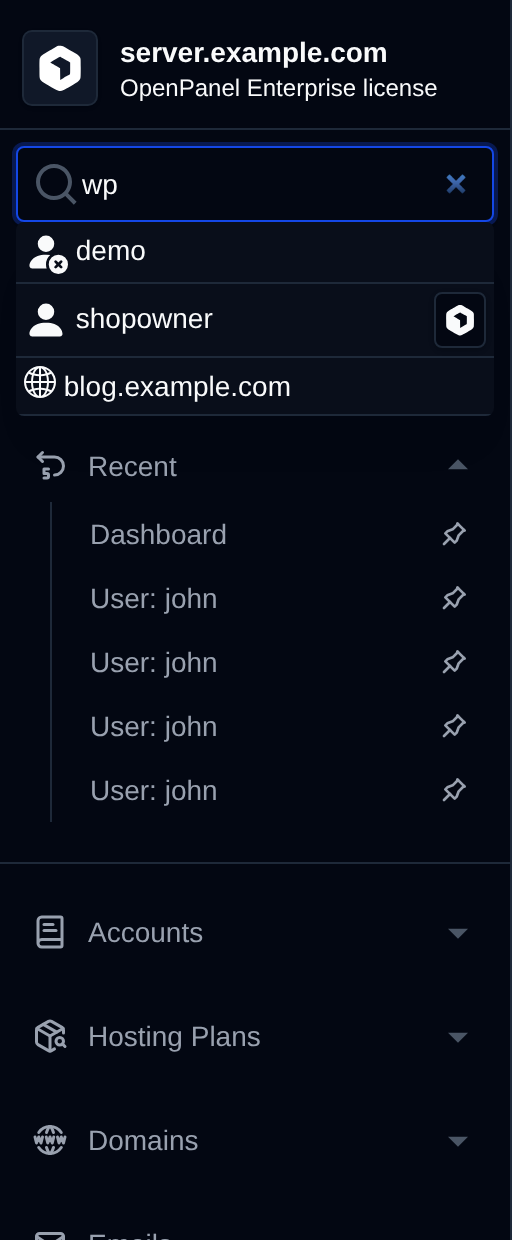
Search returns:
- OpenPanel users with login link for their OpenPanel
- Website/Domains of users
- Features/pages in the Admin interface, shown as **Area › Page** - pages can be found by their current name, their previous name (for example **General Settings** or **CorazaWAF**) or the menu area they are in
## Keyboard Shortcuts
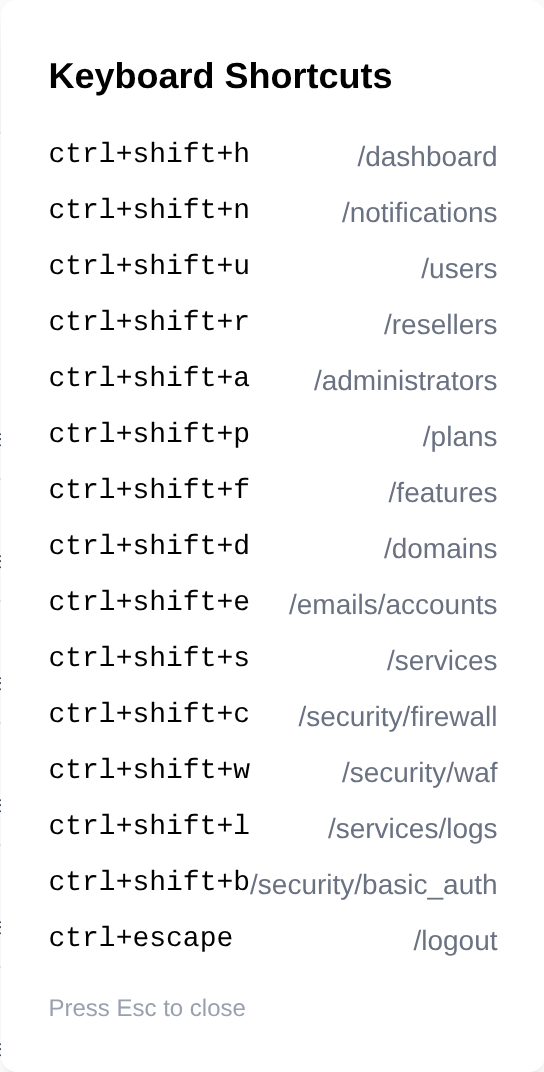
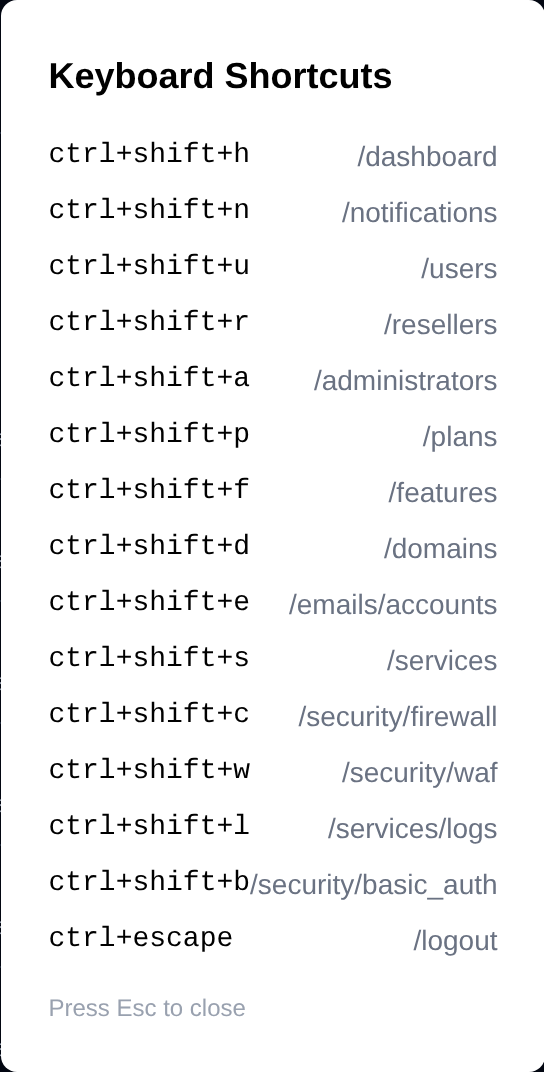
OpenAdmin UI can be navigated using keyboard shortcuts: [view documentation](/docs/articles/dev-experience/openadmin-keyboard-shortcuts/).
Press **Ctrl + K** (or **Cmd + K** on macOS) on any page to show the list of available shortcuts:
## Logout
To log out of the OpenAdmin account, click your username in the bottom-left corner and select 'Sign out' option.
---
// File: admin/002_notifications
# Notifications
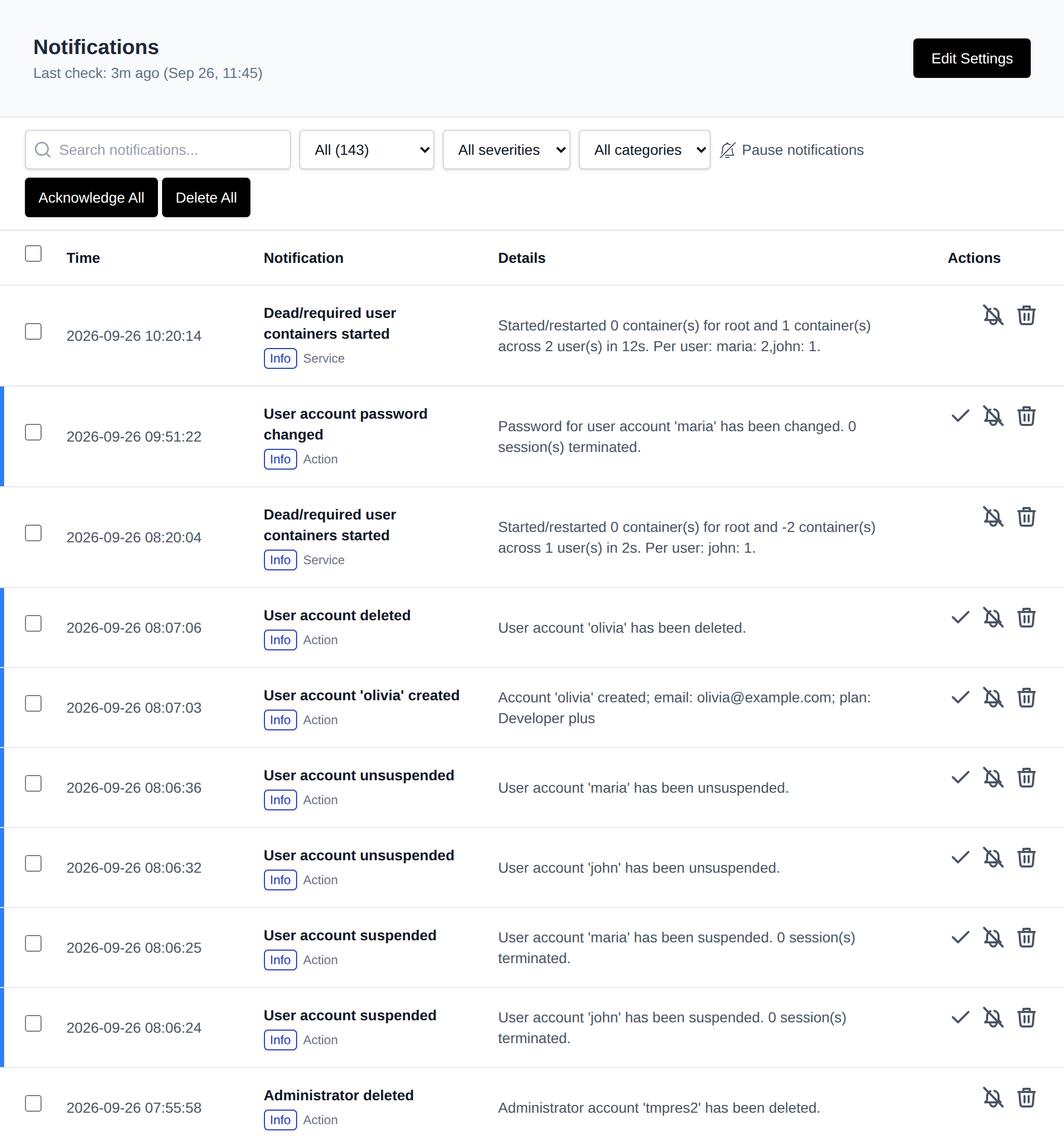
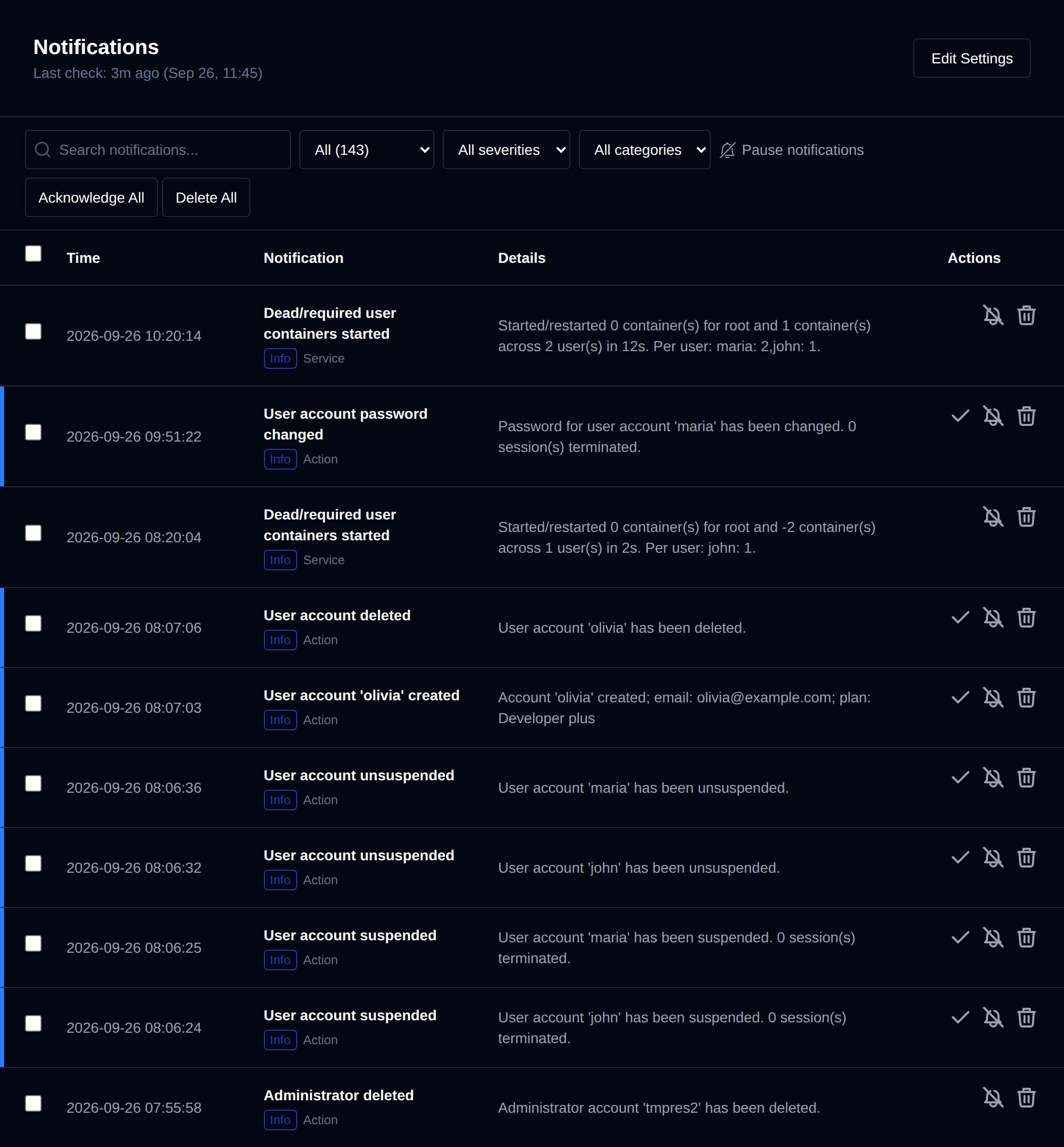
Notifications are accessible via the 'Notifications' menu item in OpenAdmin.
OpenPanel tracks and notifies you of these events, grouped into categories:
* **Services**: OpenPanel, OpenAdmin, Caddy, MySQL, Podman, BIND9, or Sentinel Firewall becoming unresponsive
* **Resource Usage**: Load average, CPU, Memory, Disk, and SWAP usage exceeding a set threshold
* **Server actions**: Server reboot, unusual traffic or SYN flood, Out of Memory (OOM) errors, DNS issues (misconfigured/unresolving domain or nameservers), OpenAdmin login from a new IP address, SSH login from a new IP address, and new version available
* **Website traffic**: Total connections or connections per IP exceeding a set threshold
* **User actions**: account and domain changes, such as admin/reseller/user accounts being created, suspended, renamed, or having their password changed; domains being added, removed, suspended, or having SSL/HSTS toggled; FTP accounts being created or deleted; and WAF being enabled or disabled
Each notification type can be individually disabled, and admins can set custom threshold limits.
Each notification has a severity: **Critical** (e.g. a service is down and Sentinel couldn't restart it), **Warning** (e.g. high resource usage or a DNS issue) or **Info** (e.g. an update finished, a user action, or something Sentinel fixed on its own). The severity and category are shown under each title, and unread notifications have a colored bar matching their severity.
Use the filters next to the search box to show only unread or resolved notifications, a single severity, or a single category (Service, Resources, Security, DNS, Traffic, System, Update, Action).
Notifications are shown 100 per page, newest first, with **Previous** and **Next** below the table.
Notifications that need attention are shown as unread. When Sentinel detects the same issue again while it's still unread, the notification shows how many times it was detected and when it was last seen, instead of adding a new one. Once the issue is gone, Sentinel marks it as read and shows a **Resolved after …** badge. Things Sentinel fixed on its own, like restarting a stopped container, are added as already-read Info entries for history and are not emailed. See [opencli sentinel](/docs/articles/opencli/sentinel) for details.
Under the page title, **Last check** shows when [`opencli sentinel`](/docs/articles/opencli/sentinel) last completed its checks (it runs from cron every 5 minutes). The line turns amber if Sentinel hasn't run in over 15 minutes, which usually means its cron job is disabled or failing.
Click the bell icon next to the search box to pause email/webhook alerts for a set time (10 min up to 1 day) — see [Pause Notifications](/docs/admin/settings/notifications#pause-notifications).
To manage notification settings, click the **Edit Settings** button on the Notifications page or navigate to: [Settings > Notifications](/docs/admin/settings/notifications).
## Bulk Actions
Tick the checkbox of one or more notifications, or the checkbox in the table header to select all notifications on the current page. A bar appears at the bottom of the page with the number selected, a **Clear** link and these actions:
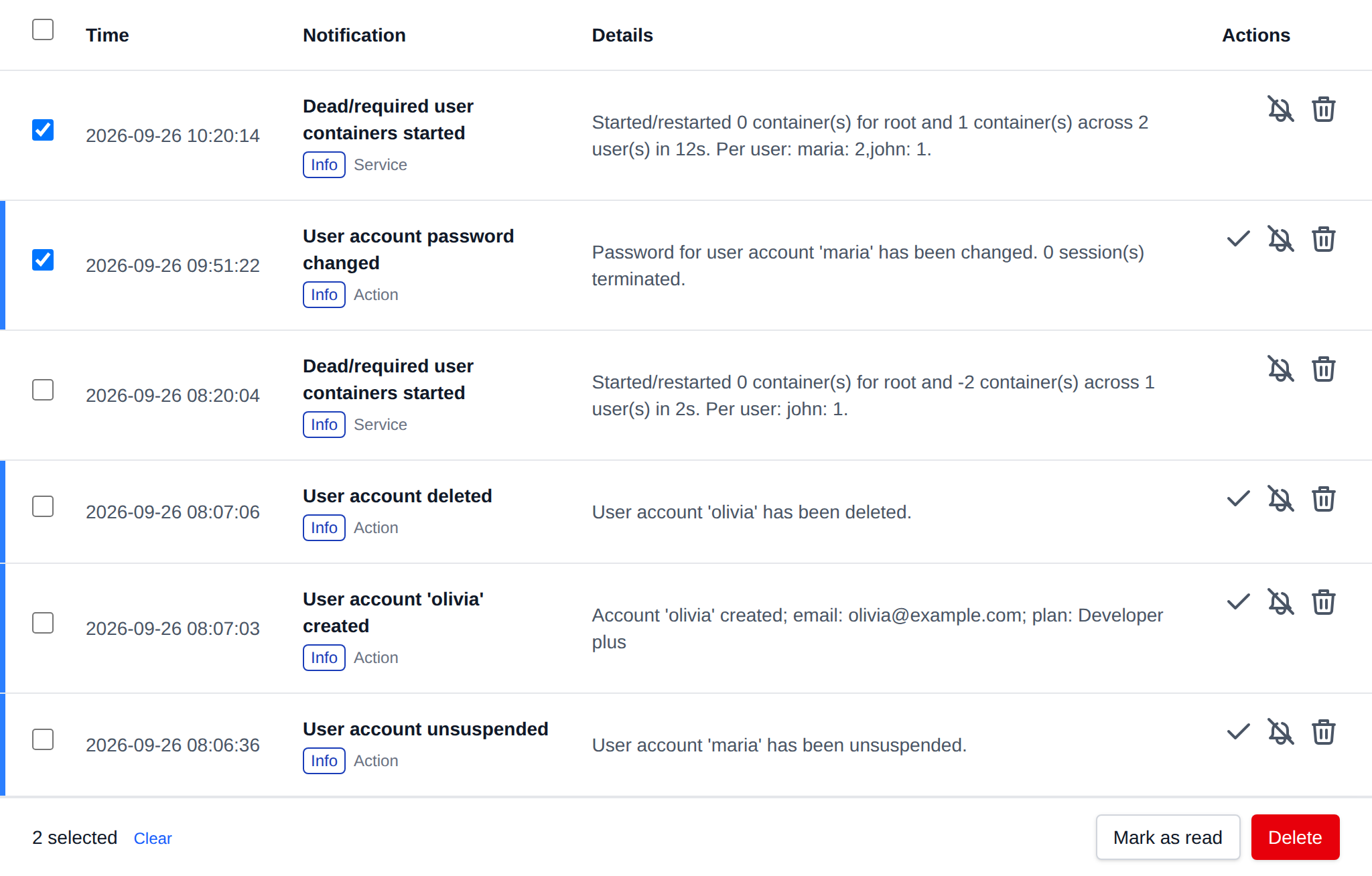
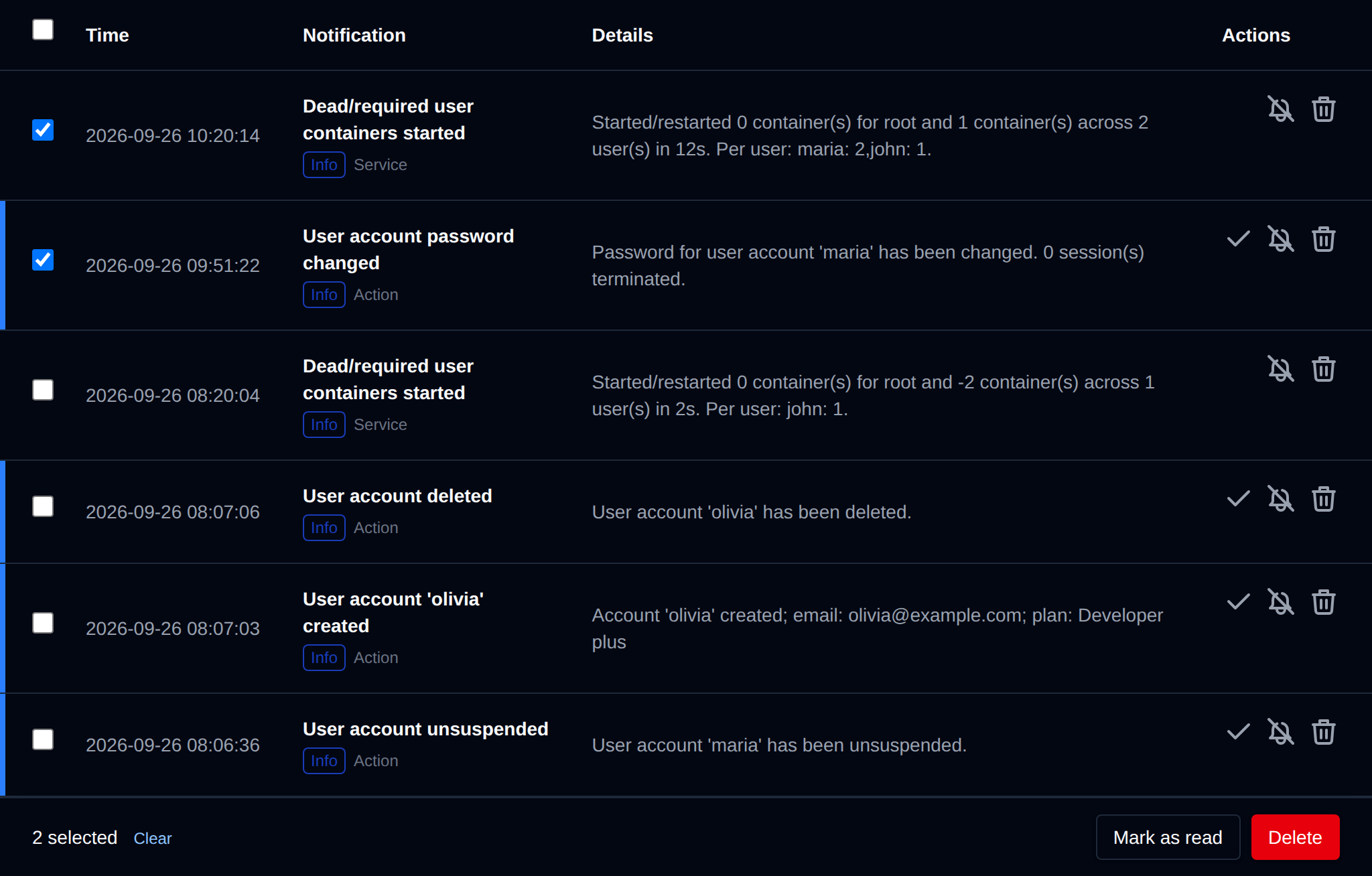
| Action | What it does |
|---|---|
| **Mark as read** | Marks the selected unread notifications as read. |
| **Delete** | Deletes the selected notifications. |
Click an action, confirm it, and it runs on the selected notifications one after another. When it's done the page reloads with a notice listing the notifications it worked for, or which ones failed and why.
---
// File: admin/license
# License
Add your OpenPanel Enterprise license key to unlock premium features.
## License Key
Enter your [OpenPanel Enterprise edition](https://my.openpanel.com/clientarea.php?action=products) license key here. Activating the license enables advanced capabilities such as:
* Email and FTP account management
* Reseller management
* API access
* Billing integrations with WHMCS, FOSSBilling, and more
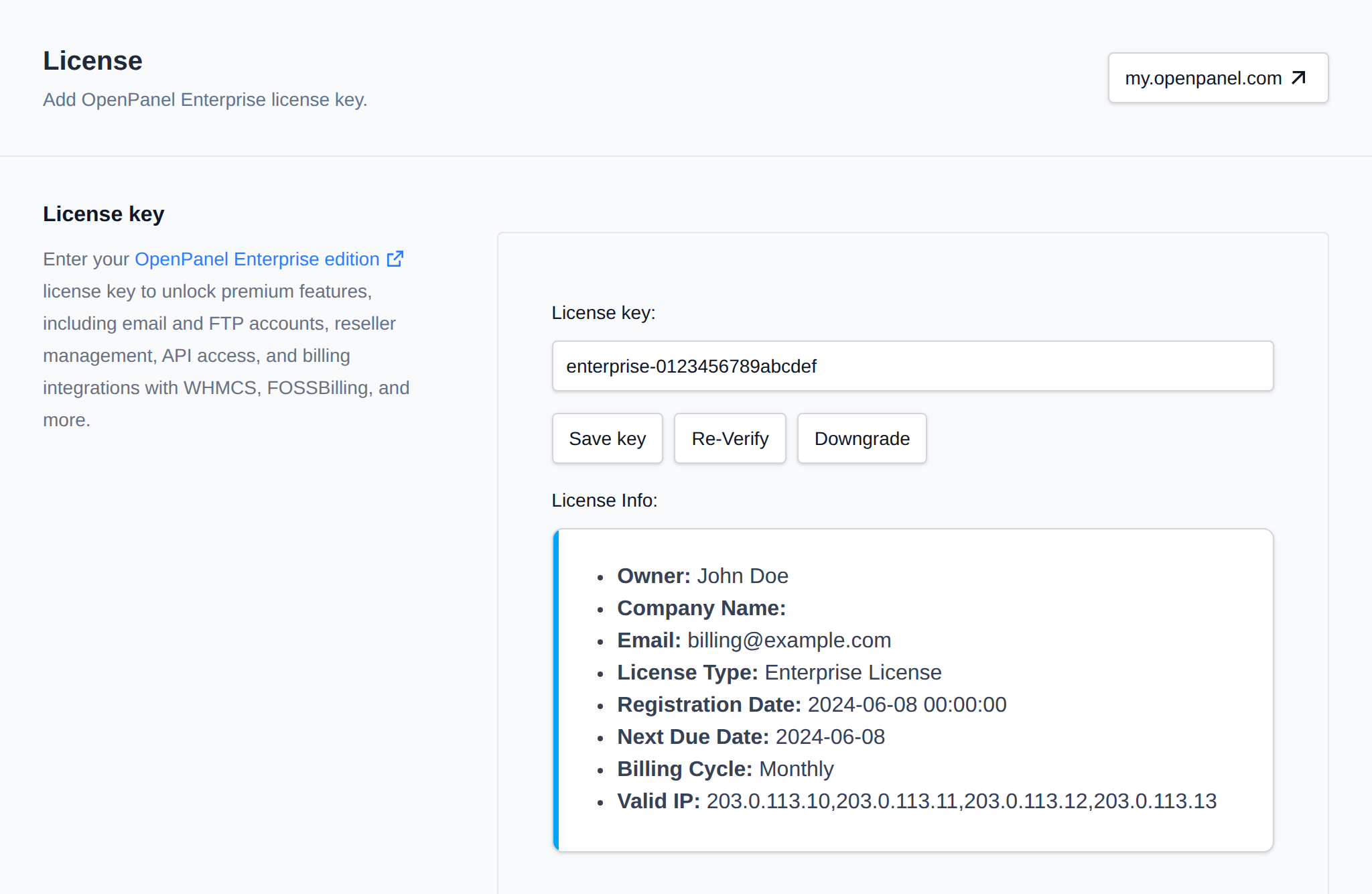
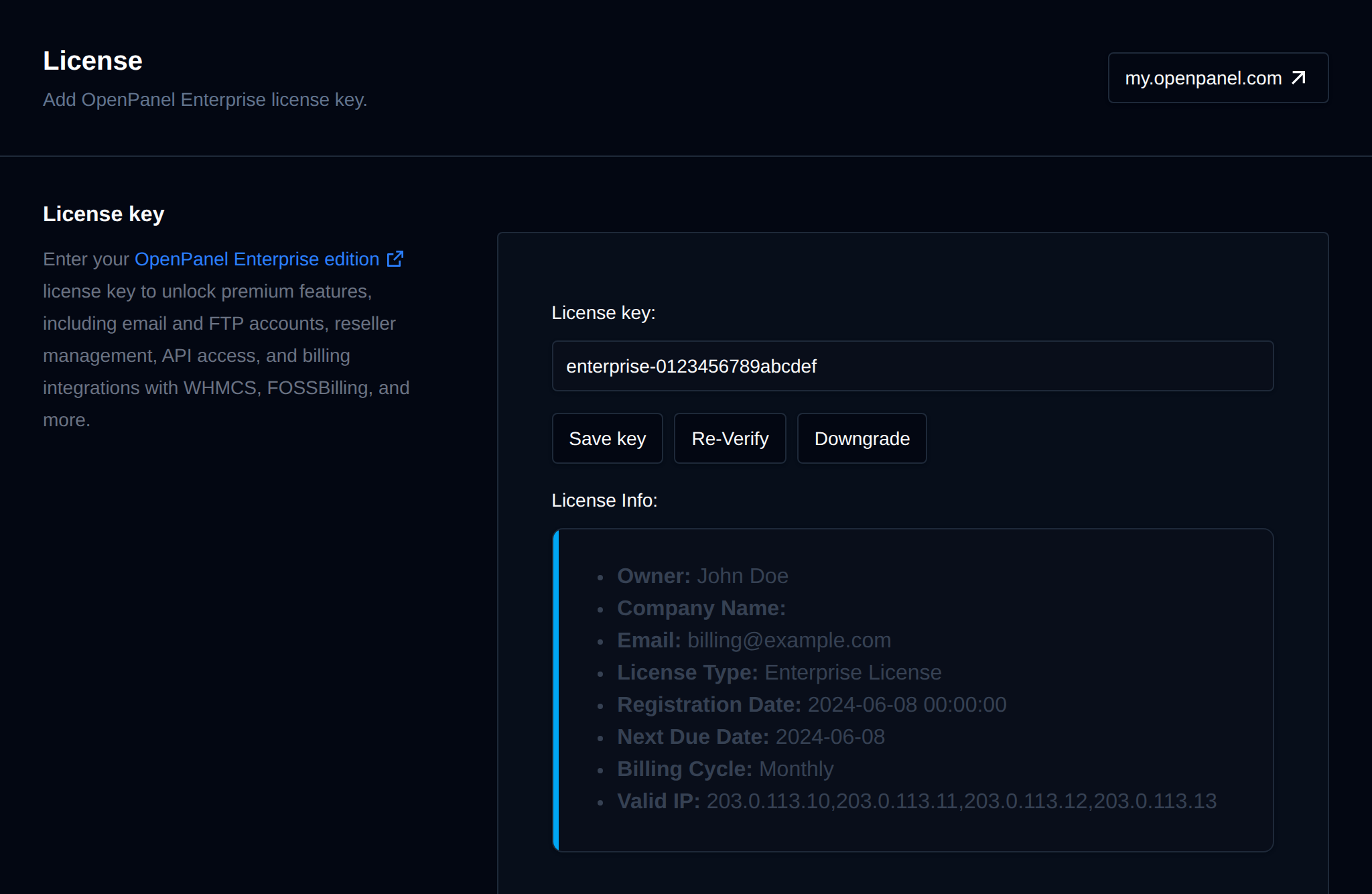
For a step-by-step activation process, see the [Upgrading to OpenPanel Enterprise and activating License guide](/docs/articles/license/upgrade_to_openpanel_enterprise_and-activate_license/).
When the license's next due date is 3 days away or less, a warning is shown under the license details: the license gets suspended on that date, so either renew it or remove the license key to downgrade to the Community edition.
## Contact Support
When reaching out to support, generate a system report to provide detailed information about your setup.


---
// File: admin/accounts/users
# Users
OpenPanel has a single user role named **User** that can only manage their docker container and inherits settings specified by the Admin user.
## List Users
To access all OpenPanel users, navigate to **Accounts > Users**.
The Users page displays a table with user information and buttons to manage it.
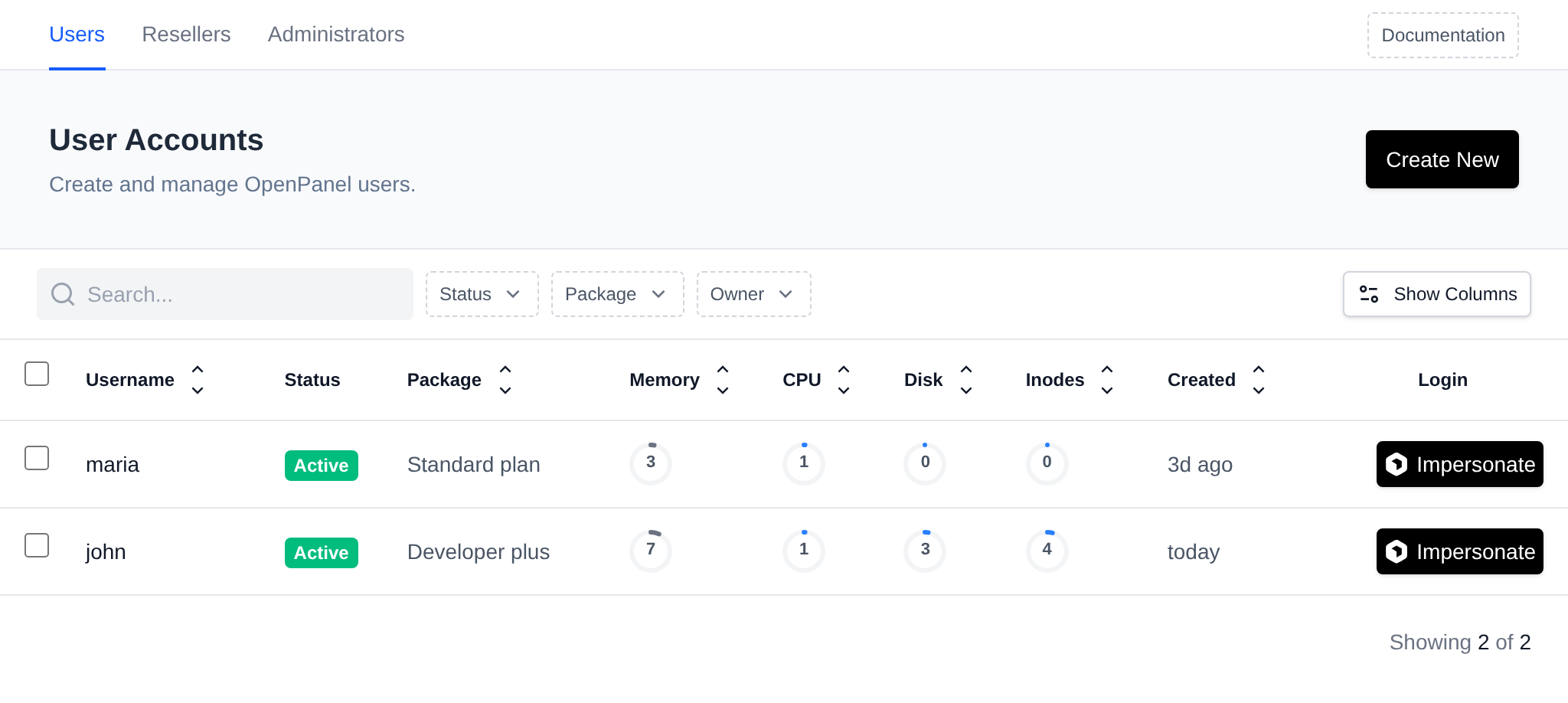
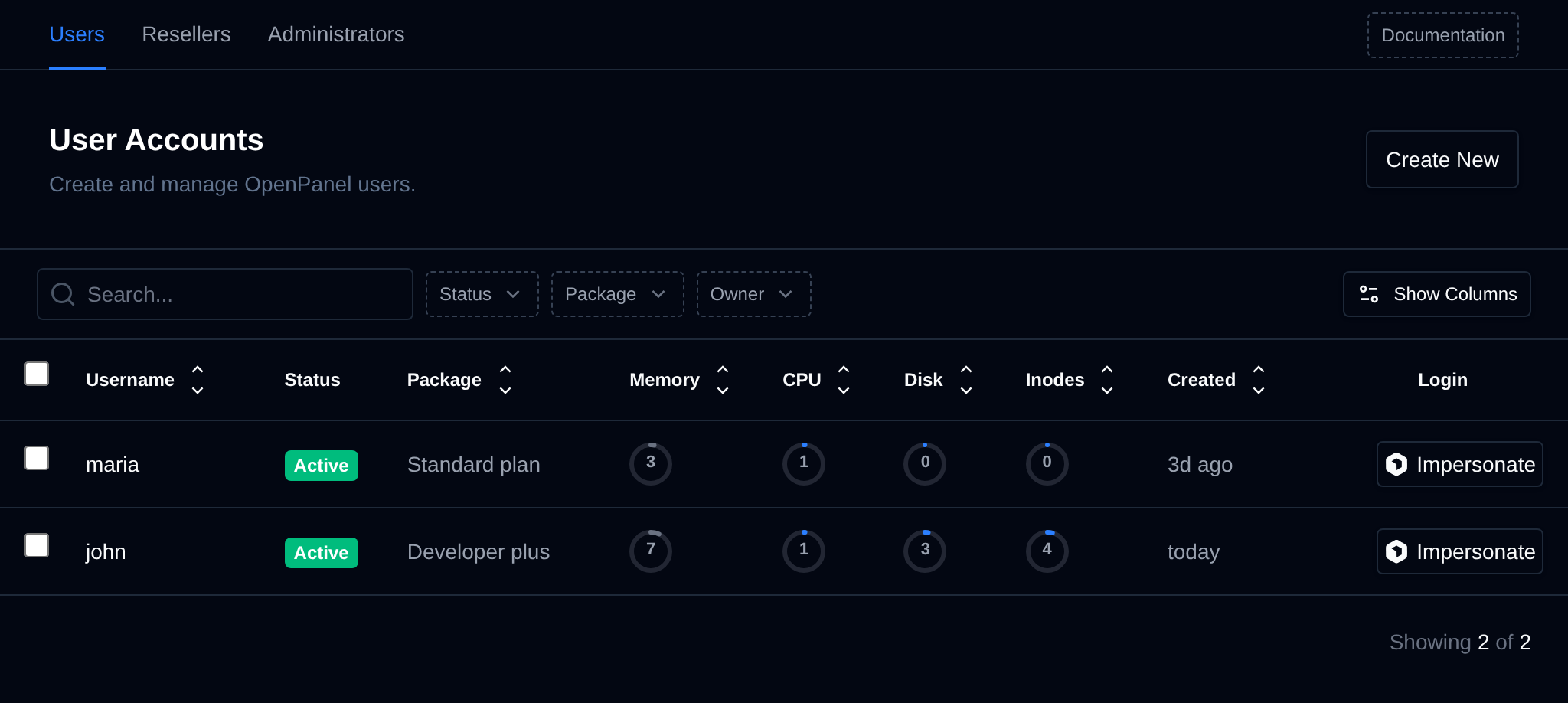
The **Memory**, **CPU**, **Disk** and **Inodes** columns show the user's current usage as a percentage of their plan limit. Hover over a ring to see the exact usage and limit, click the Memory or CPU ring to open the user's processes, or the Disk ring to open their Storage tab. A **?** means there is no disk usage data for that user yet.
The **Created** column shows how long ago the account was created, like *5d ago* or *3mo ago*. Hover over it to see the exact date and time.
Use the filters above the table to narrow down the list:
- **Status** – show active users, suspended users, or both.
- **Package** – show only users on the selected hosting plan. The list includes every plan that has at least one user.
- **Owner** (Enterprise license only, not shown to resellers) – show only users owned by the selected reseller, or users with no reseller.


Filters work together with the search box, and **Showing X of Y** below the table counts the users that match. The selected Package and Owner are kept in the page address (for example `/users?plan=Standard+plan`), so a filtered list can be bookmarked or shared. The user count on the **Hosting Plans** page links to the Users page with that plan already selected.
Click the arrows next to a column name to sort the table by that column. Sorting works for Username, Email, 2FA, Passkeys, Package, Domains, Memory, CPU, Disk, Inodes, Context, Created and Owner. The usage columns sort by the percentage shown in the ring.
Additional columns can be displayed using the 'Show Columns' button.
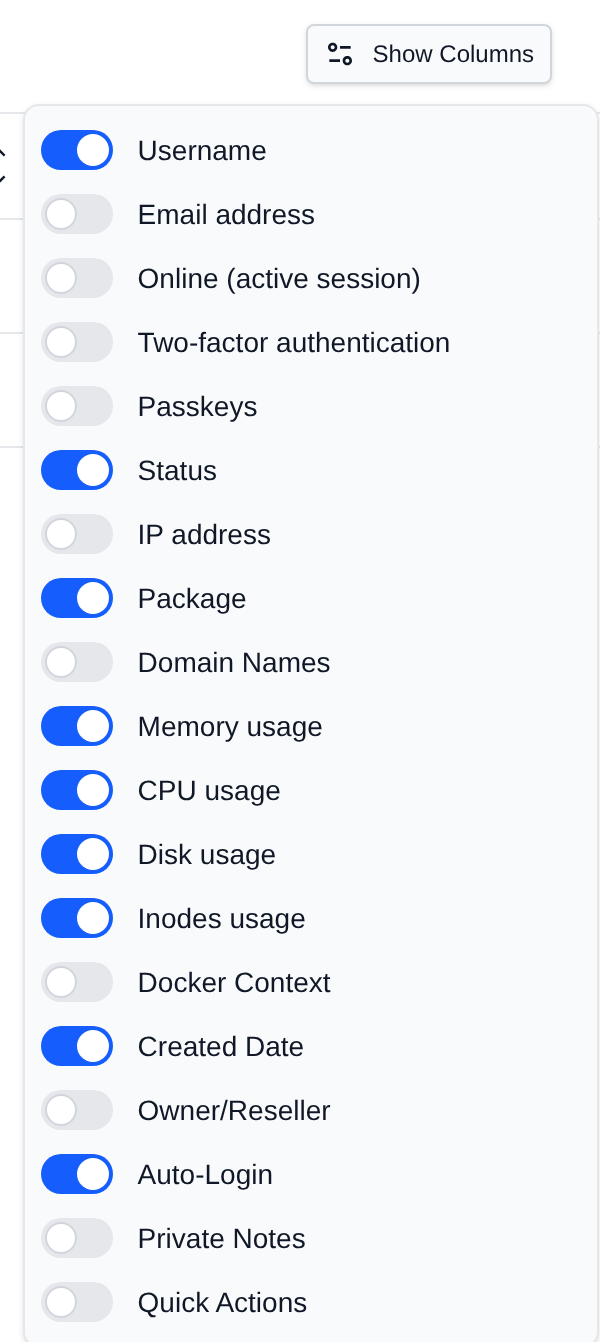
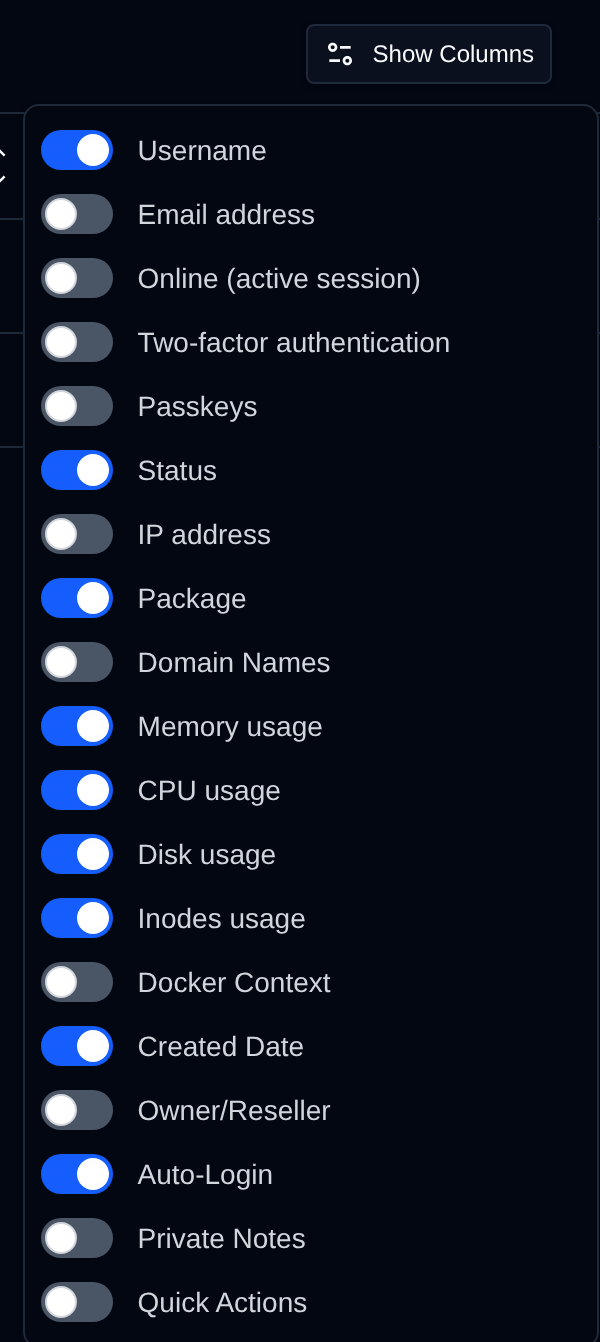
- **2FA** – whether the user has two-factor authentication enabled.
- **Passkeys** – how many passkeys the user has registered, empty if they have none.
Suspended users are highlighted in red.
To list all users, use the following command:
```bash
opencli user-list
```
Example output:
```bash
opencli user-list
+----+----------------------------------+----------------------+----------------+------------------+-------+---------------------+
| id | username | email | plan_name | server | owner | registered_date |
+----+----------------------------------+----------------------+----------------+------------------+-------+---------------------+
| 3 | forums | stefan@openpanel.com | Standard plan | forums | NULL | 2025-05-08 19:25:47 |
| 7 | pcx3 | stefan@pejcic.rs | Developer Plus | pcx3 | NULL | 2025-05-09 12:26:20 |
| 9 | openpanelwebsite | info@openpanel.com | Standard plan | openpanelwebsite | NULL | 2025-05-09 14:47:27 |
| 19 | SUSPENDED_20250529173435_radovan | radovan@jecmenica.rs | Standard plan | radovan | NULL | 2025-05-29 07:47:15 |
+----+----------------------------------+----------------------+----------------+------------------+-------+---------------------+
```
You can also format the data as JSON:
```bash
opencli user-list --json
```
To list all users, use the following api endpoint:
```bash
curl -X GET http://PANEL:2087/api/users -H "Authorization: Bearer JWT_TOKEN_HERE"
```
## Bulk Actions
Tick the checkbox of one or more users, or the checkbox in the table header to select all users shown by the current search. A bar appears at the bottom of the page with the number selected, a **Clear** link and these actions:
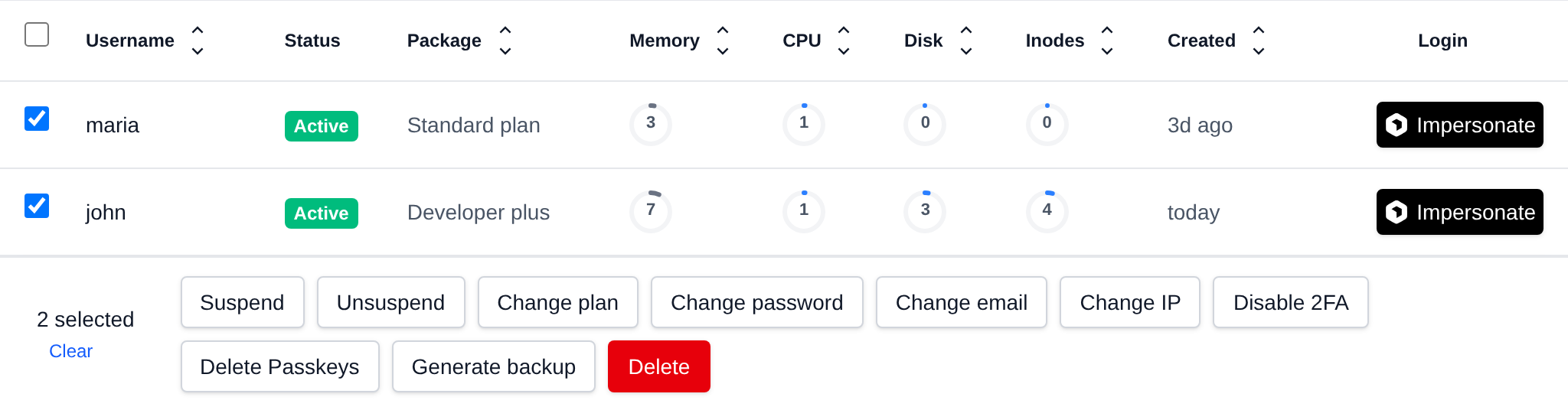
| Action | What it does |
|---|---|
| **Suspend** | Suspends the selected users, their websites stop working until they are unsuspended. |
| **Unsuspend** | Unsuspends the selected users. |
| **Change plan** | Moves the selected users to the hosting plan you pick, resellers only see their allowed plans. |
| **Change password** | Sets the password you enter (at least 8 characters) for all selected users. |
| **Change email** | Sets the email address you enter for all selected users. |
| **Change IP** | Moves the selected users to a dedicated IP address of the server, or back to the shared IP. |
| **Disable 2FA** | Turns off two-factor authentication, users without 2FA are skipped. |
| **Delete Passkeys** | Deletes all passkeys of the selected users, they have to register them again to log in with a passkey. Users without passkeys are skipped. |
| **Generate backup** | Starts a full account backup for each selected user in the background, the same as **Export > Generate full account backup**. |
| **Delete** | Permanently deletes the selected users with all their websites, databases, emails and files. |
Only the action that fits a user runs on it: suspended users are skipped by **Suspend** and active ones by **Unsuspend**.
Actions that need a value, like **Change plan**, ask for it in the bar before you confirm:
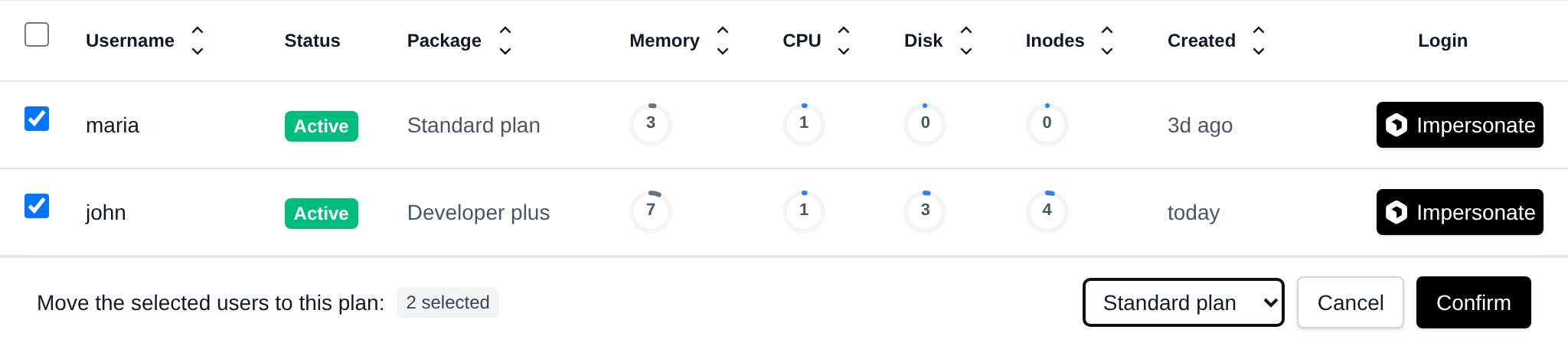
Click an action, confirm it, and it runs on the selected users one after another. When it's done the page reloads with a notice listing the users it worked for, or which ones failed and why.
## Create Users
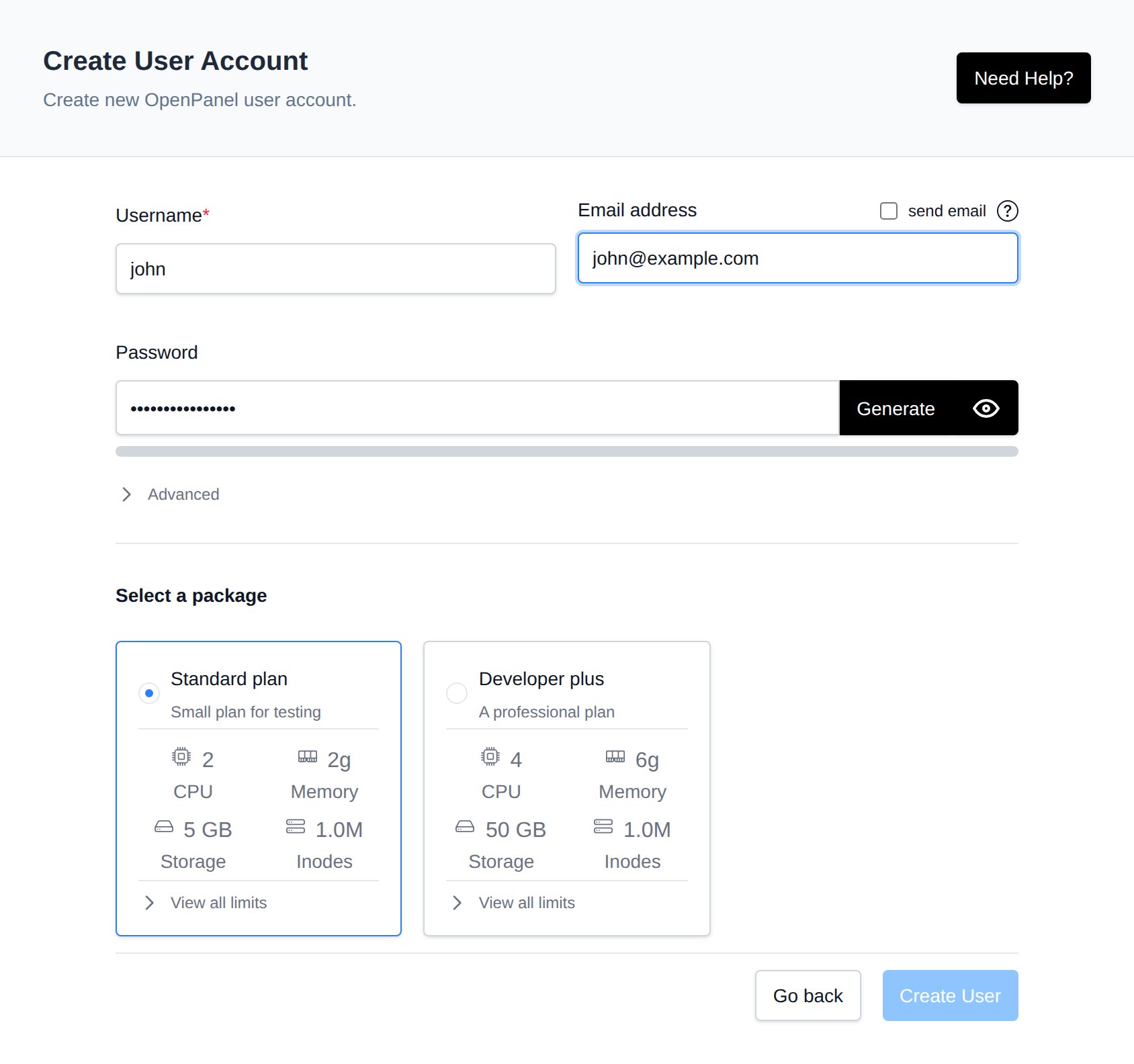
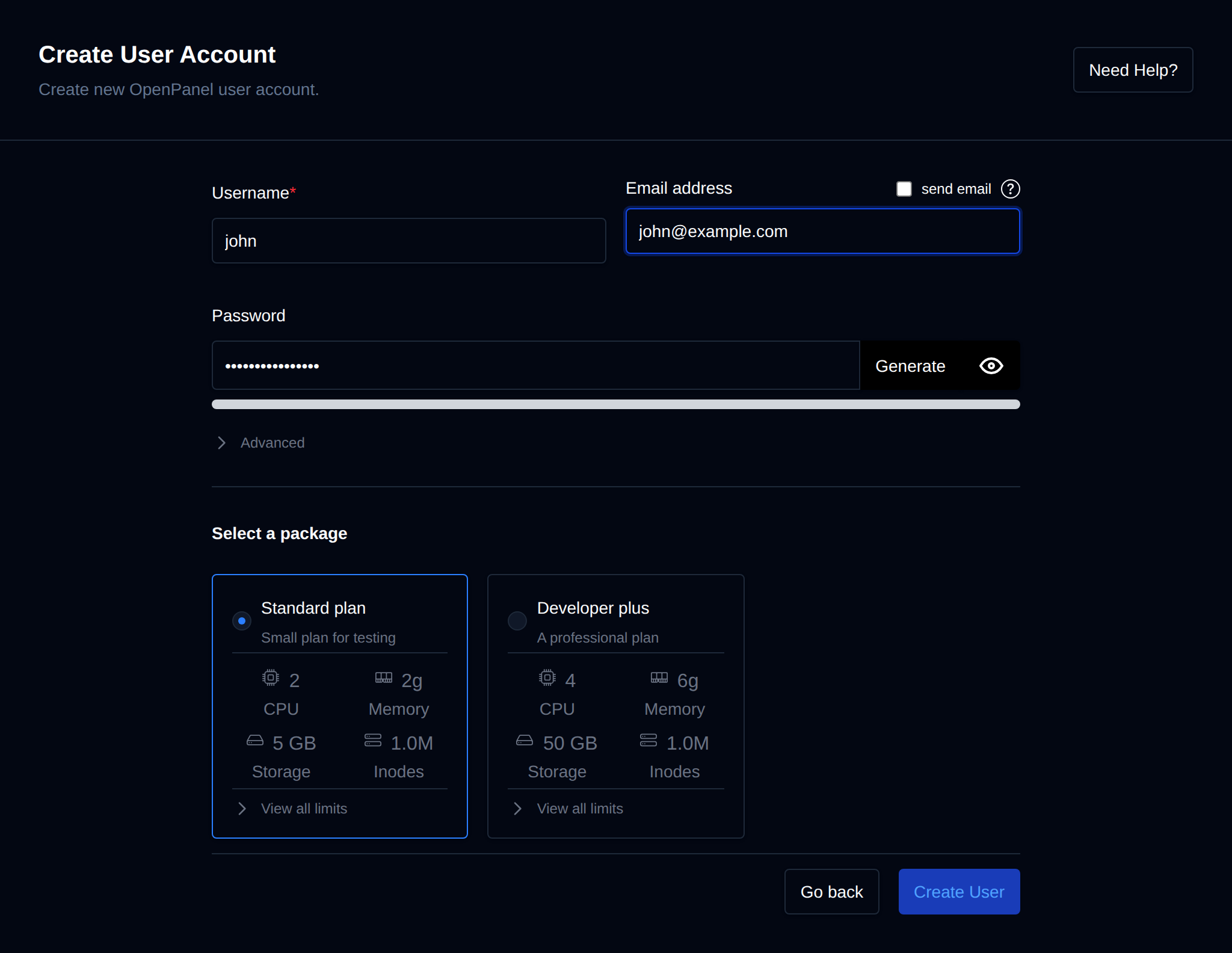
To create a new user, click on the **Create New** button on the Users page. A form is displayed where you can set the username, email address (optionally sending the user a welcome email with their login credentials), and generate a strong password.
You can also choose the webserver for the account (and optionally enable Varnish Cache), the database type (MySQL or MariaDB), assign a reseller as the account's owner (Enterprise license only, and only when creating the user as a Super Admin/Admin), and select a hosting plan to assign to the user.
To create a new user run the following command:
```bash
opencli user-add
```
Example:
```bash
opencli user-add filip password1234 filip@openadmin.com default_plan_apache
```
:::tip
Provide `generate` as password to generate a strong random password.
:::
To create a new user use the following api call:
```bash
curl -X POST -H "Content-Type: application/json" -H "Authorization: Bearer JWT_TOKEN_HERE" -d '{"email": "EMAIL_HERE", "username": "USERNAME_HERE", "password": "PASSWORD_HERE", "plan_name": "PLAN_NAME_HERE"}' http://PANEL:2087/api/users
```
Example:
```bash
curl -X POST "http://PANEL:2087/api/users" -H "Authorization: Bearer eyJ0eXAiOiJKV1QiLCJhbGcBns" -H "Content-Type: application/json" -d '{"username":"stefan","password":"strongishpassword1234","email":"stefan@pejcic.rs","plan_name":"default_plan_nginx"}'
```
Example response:
```json
{
"response": {
"message": "Successfully added user stefan password: strongishpassword1234"
},
"success": true
}
```
- The OpenPanel username must be 3 to 20 characters long and can only contain letters and numbers.
- The OpenPanel password must be 6 to 30 characters long and cannot contain an apostrophe (`'`).
## Single User
To view detailed information about a user, and edit their settings, click on their username in the users table. The user page has a menu on the left with these tabs: Overview, Services, Storage, Edit, Permissions, Export, Suspend (replaced by a single Unsuspend action if the account is already suspended), Delete, Activity Log and Login Log.
### Statistics
Overview is the default tab. Its top part displays current usage statistics:
- Storage used
- Inodes used
- CPU usage
- Memory usage
- Number of running containers
- Disk I/O
- Network I/O
- Number of PIDs
- Time statistics usage was last update
- Historical usage
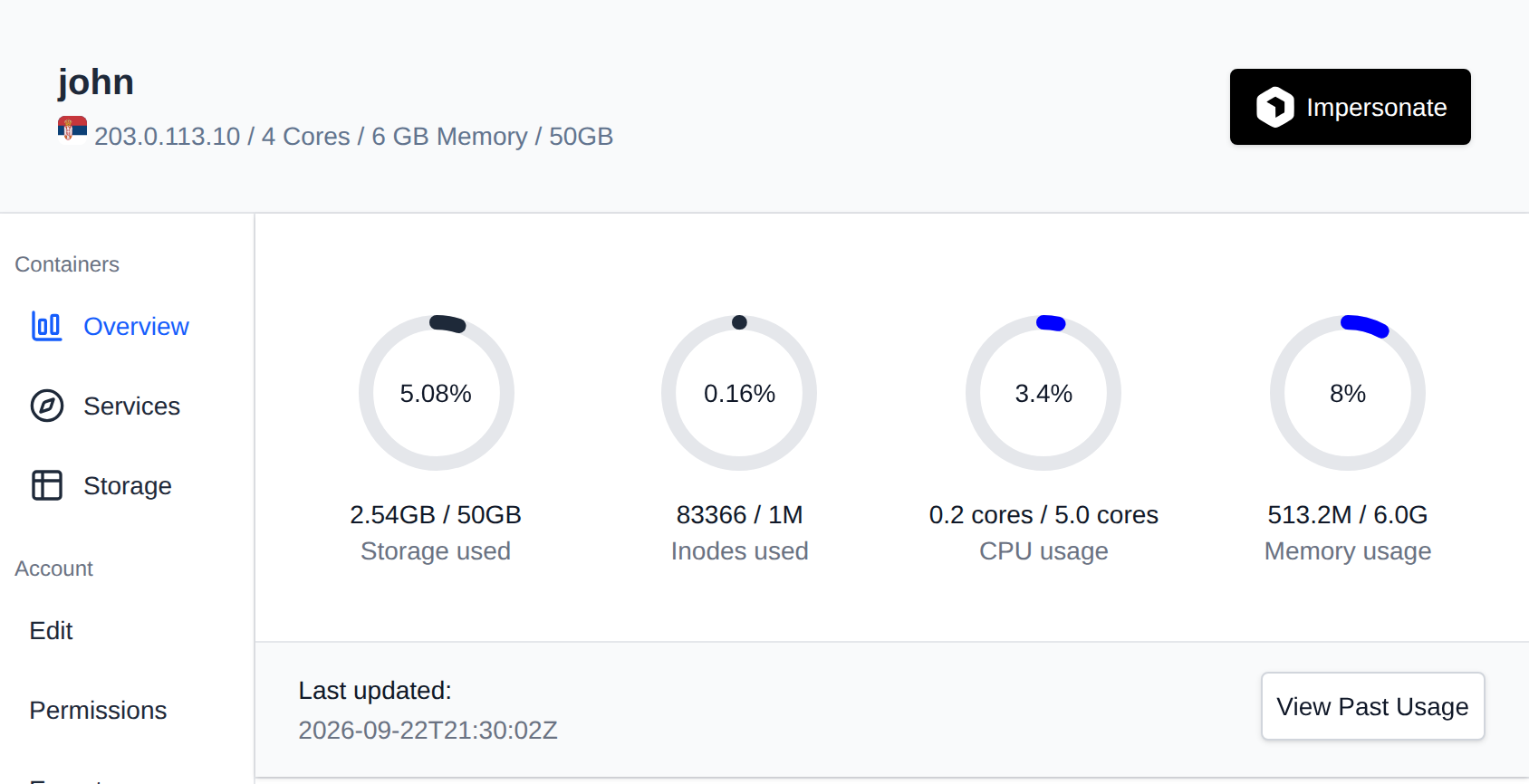
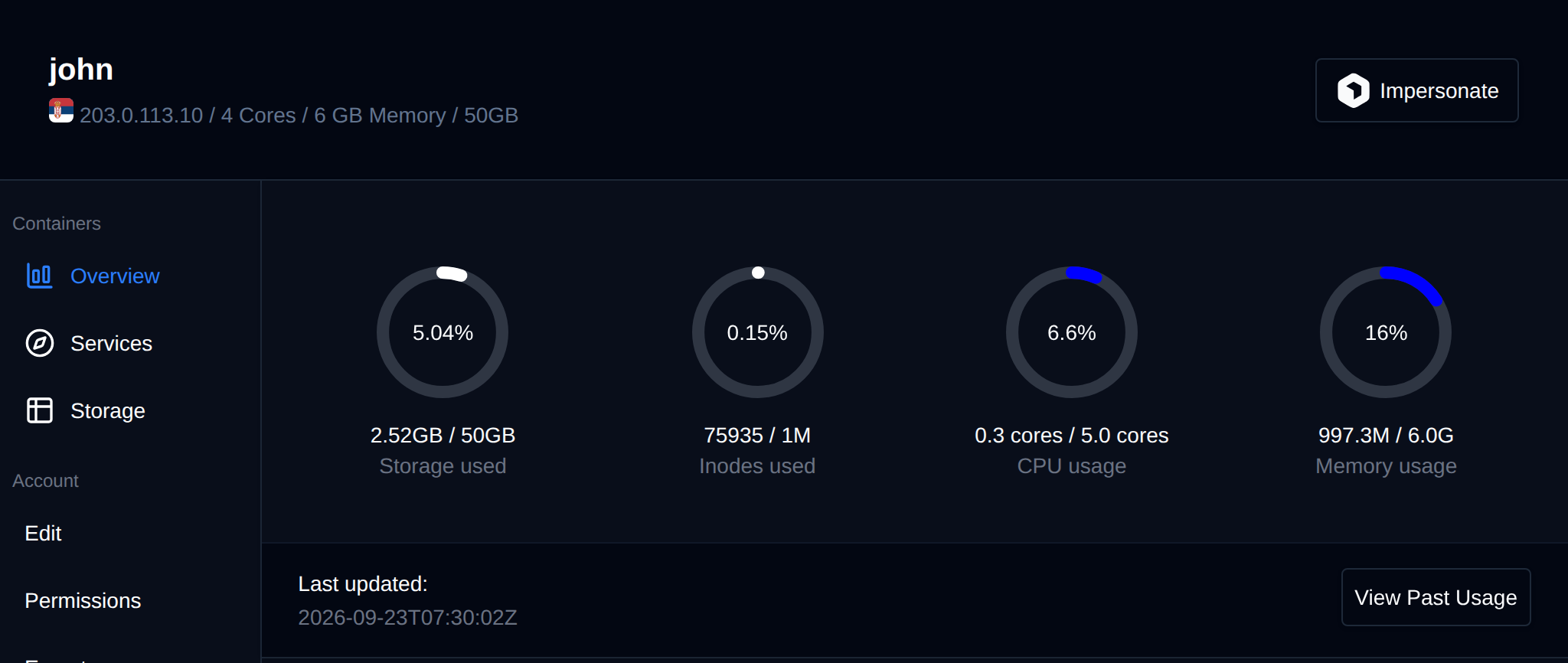
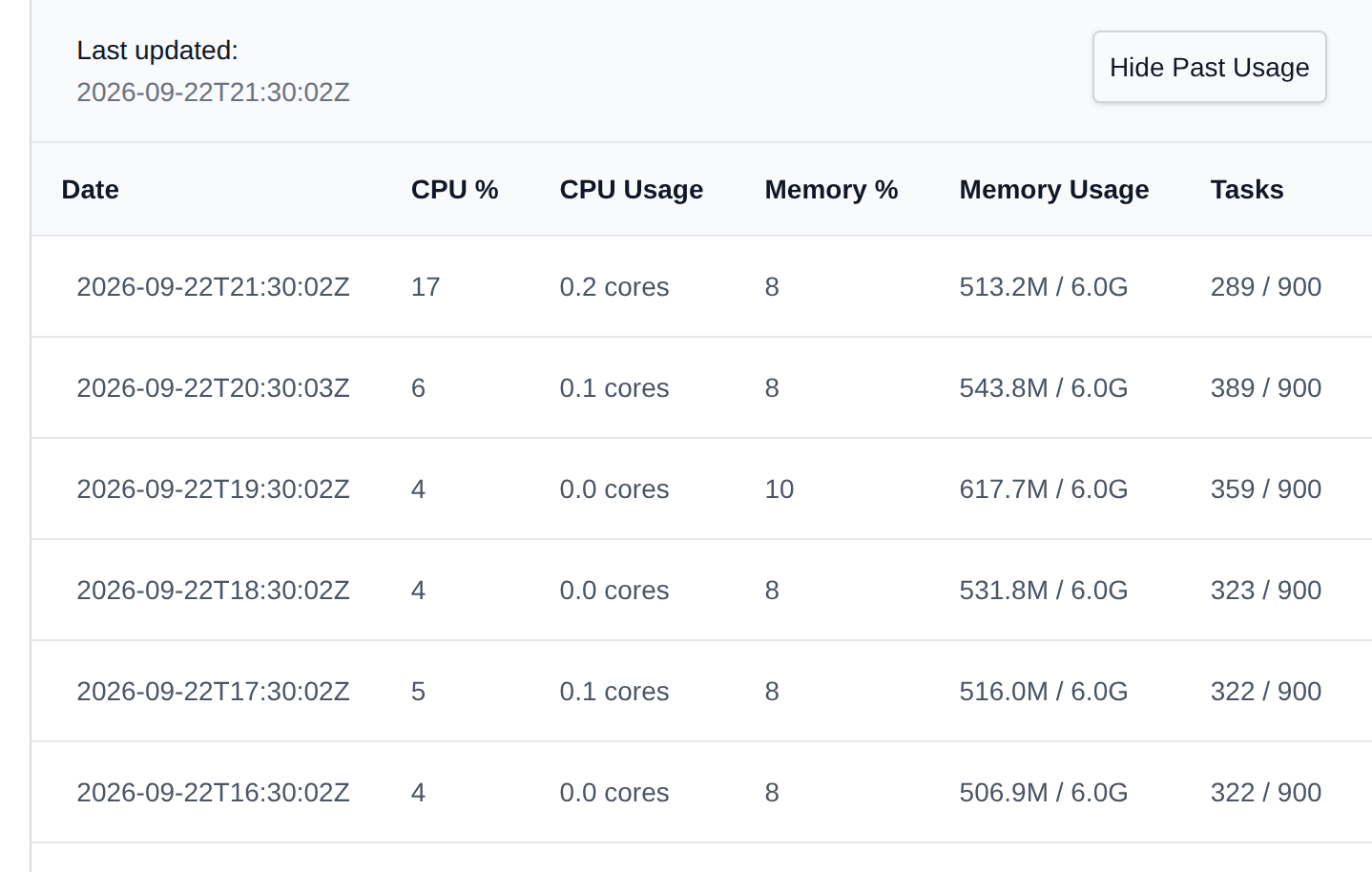
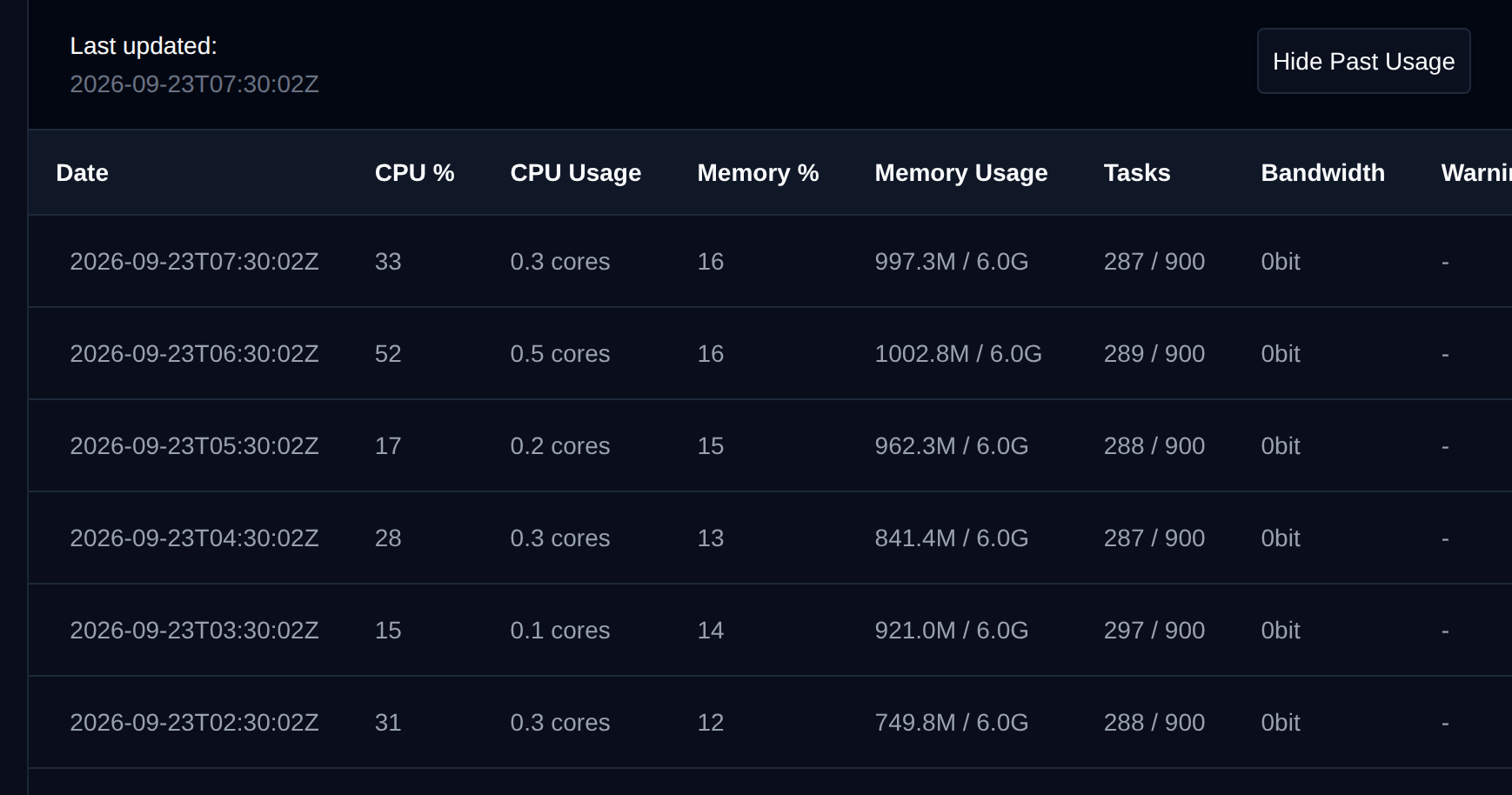
Clicking on 'View Past Usage' will display a table with past resource usage for the user: Date, CPU %, CPU usage, Memory %, Memory usage and Tasks.
### Services
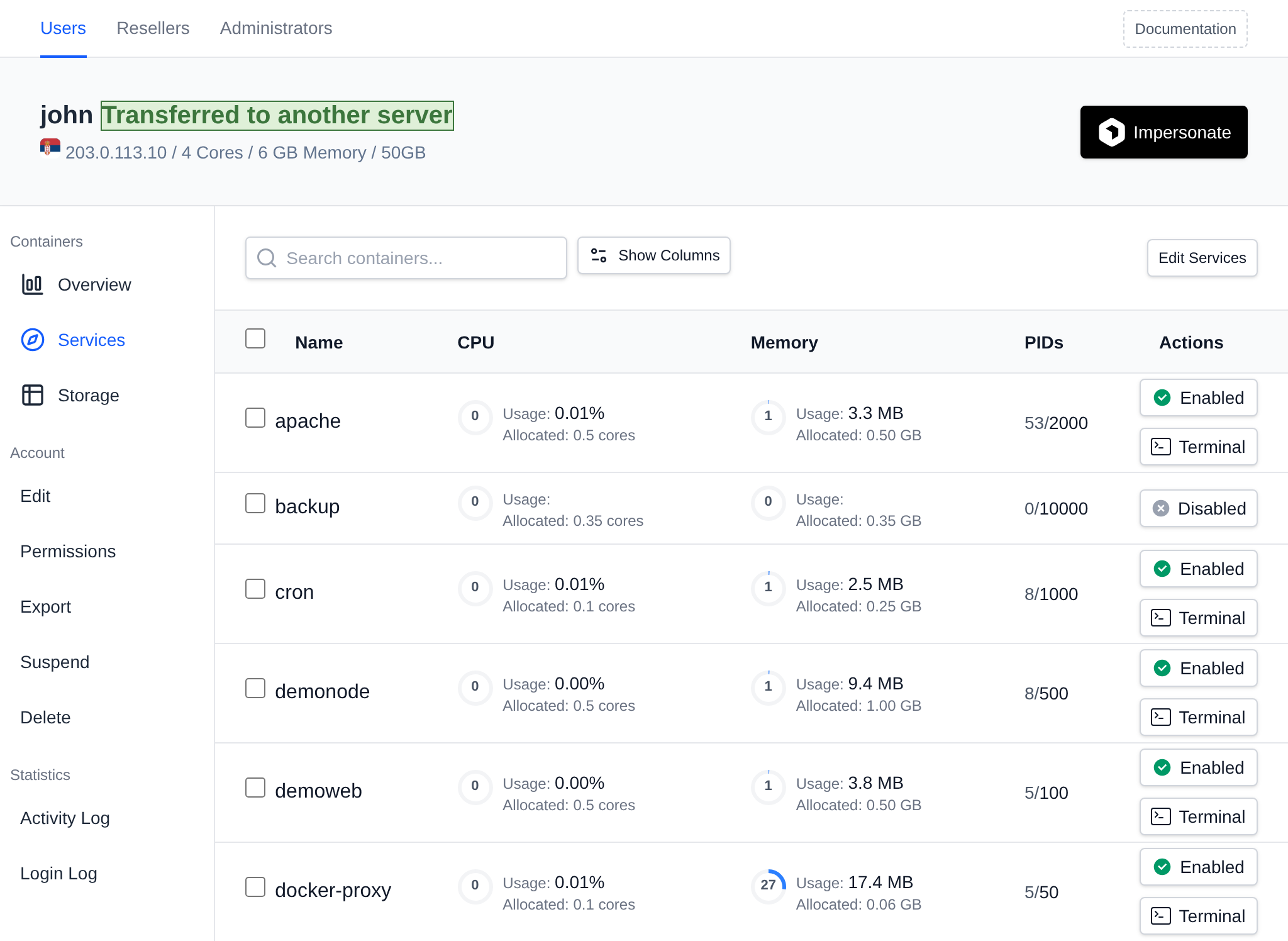
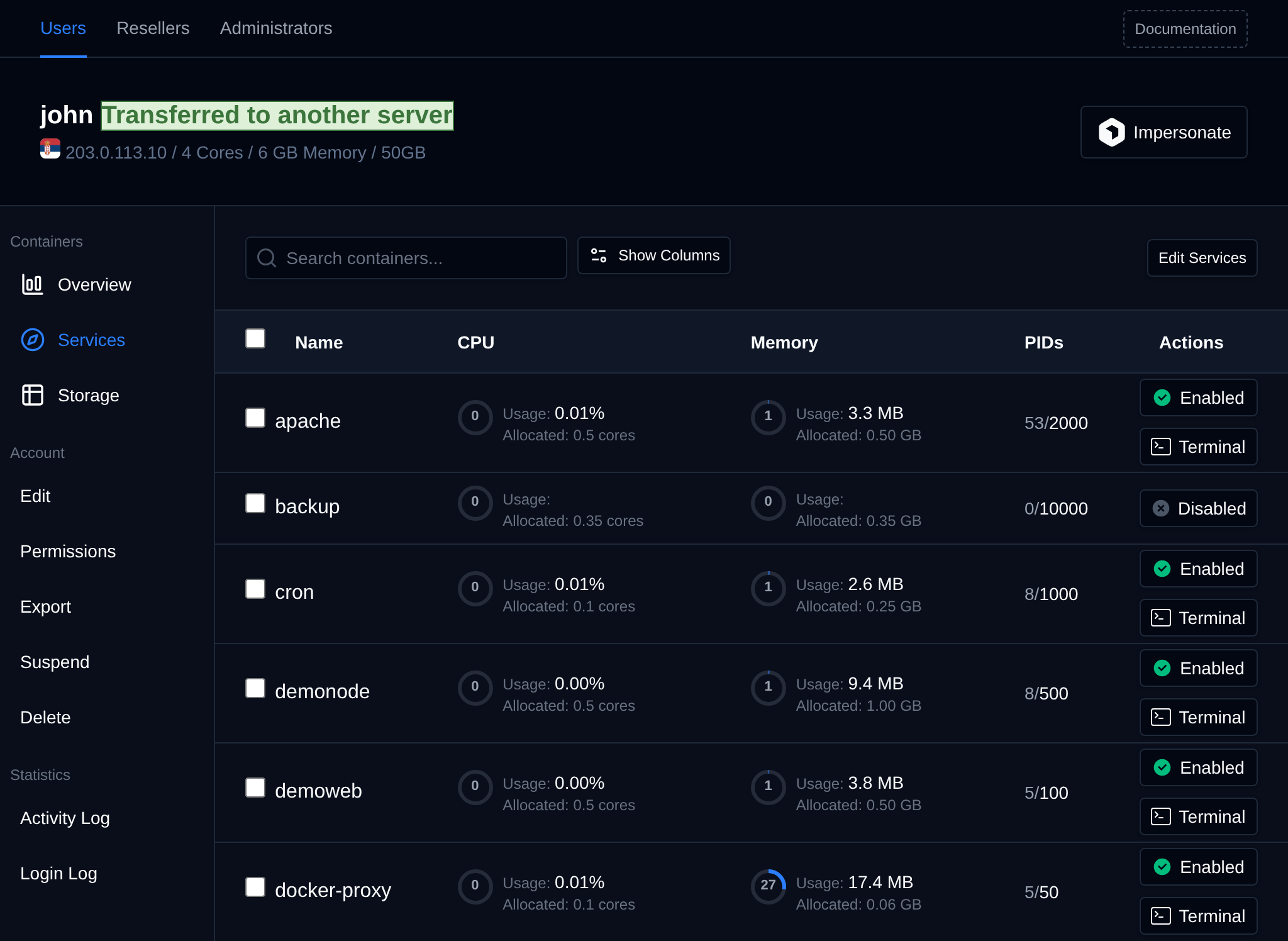
Services tab displays all user services (docker containers). Columns can be toggled with the 'Show Columns' button and include:
- Service name
- Docker Image name and tag
- Published ports
- Environment variables (sensitive values such as passwords are masked and can be revealed on click)
- Current CPU usage
- Current Memory usage
- Actions, including a terminal link to run podman exec commands in that service.
An 'Edit Services' button also lets Administrators edit the raw service configuration.
#### Bulk Actions
Tick the checkbox of one or more services, or the checkbox in the table header to select all services shown by the current search. A bar appears at the bottom of the page with the number selected, a **Clear** link and these actions:
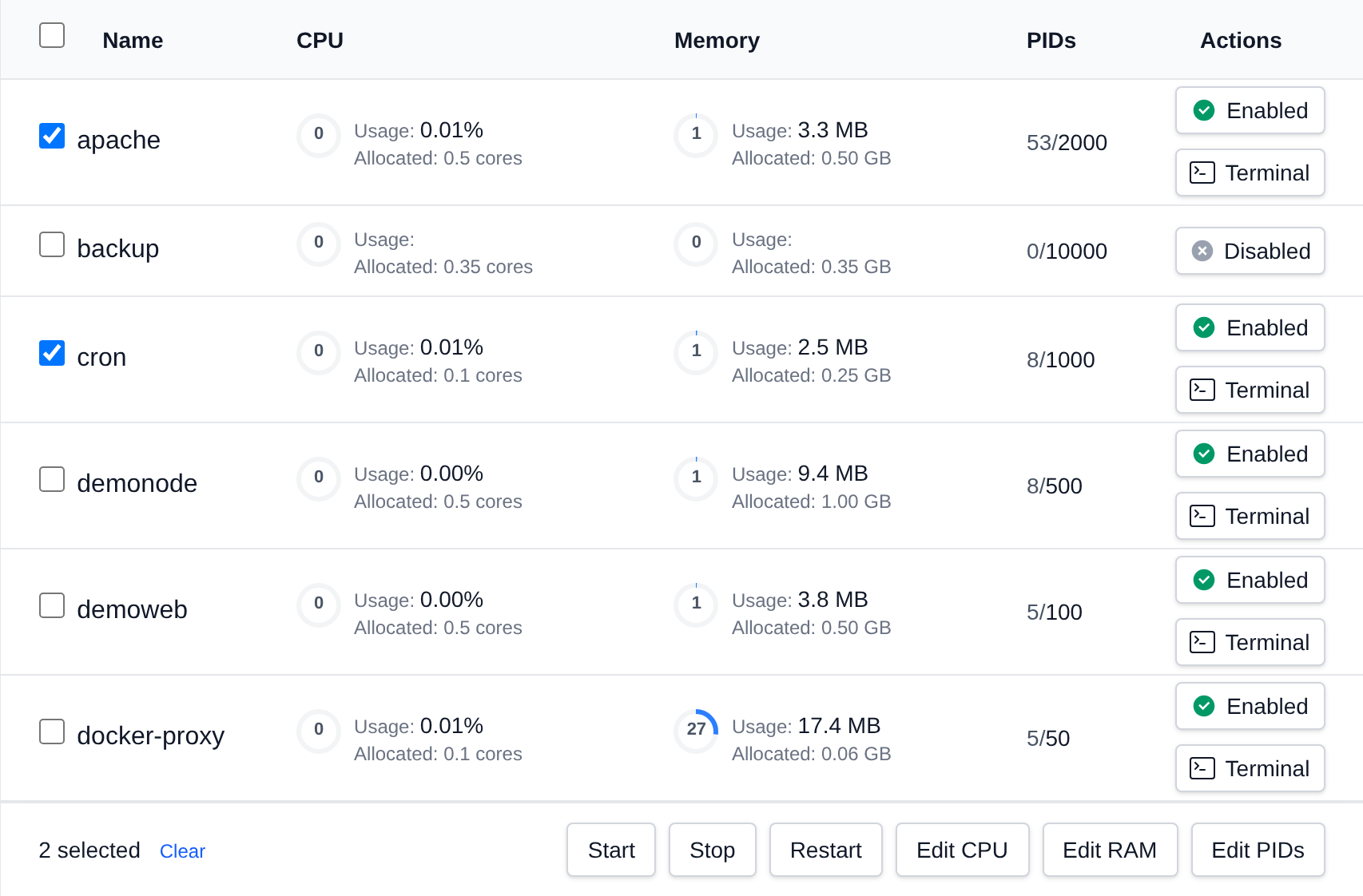
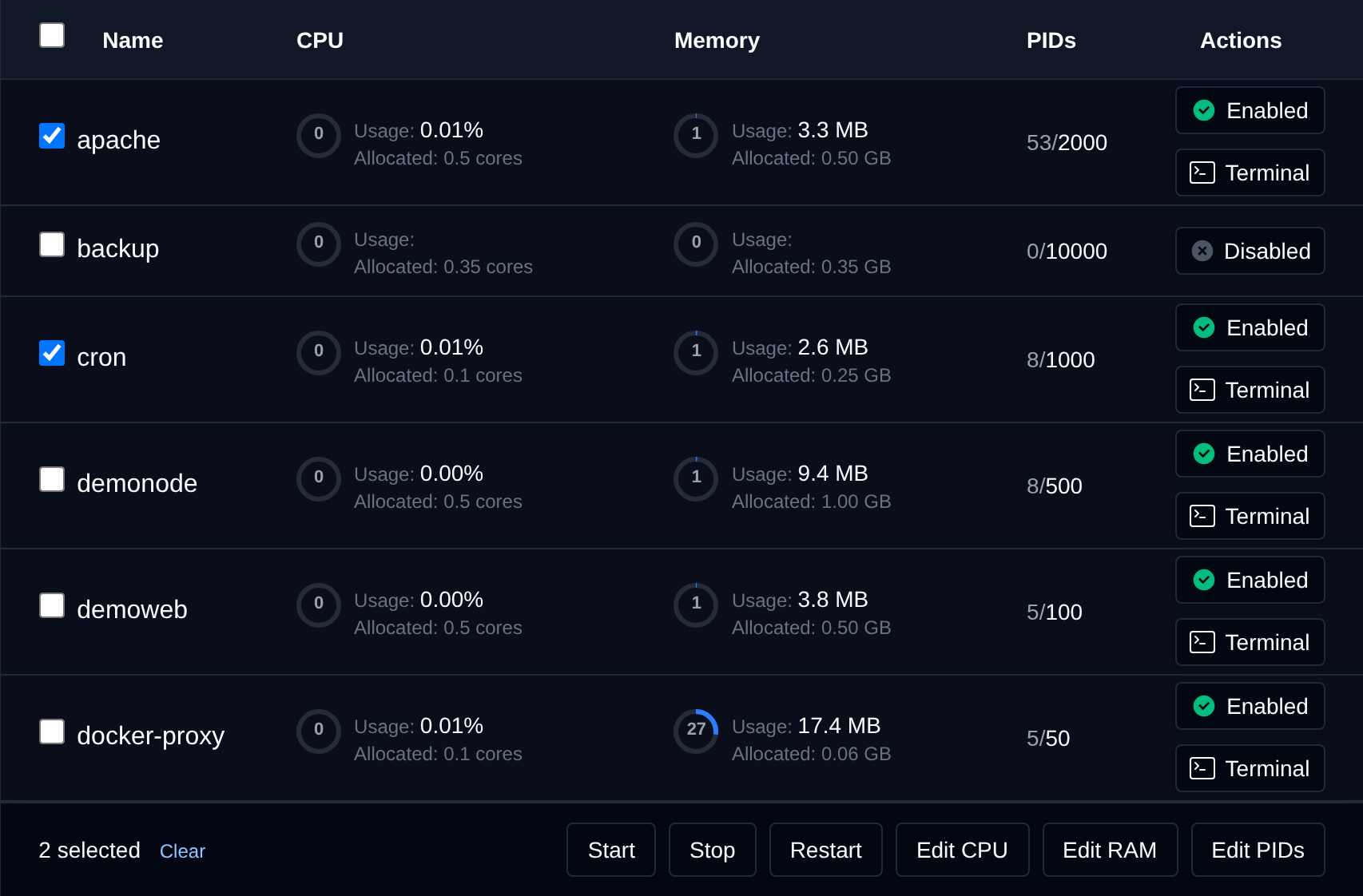
| Action | What it does |
|---|---|
| **Start** | Starts the selected services. |
| **Stop** | Stops the selected services. |
| **Restart** | Restarts the selected services. |
| **Edit CPU** | Sets the CPU limit (cores) you enter, `0` means unlimited. |
| **Edit RAM** | Sets the memory limit in GB you enter, `0` means unlimited. |
| **Edit PIDs** | Sets the max number of processes you enter, `0` means unlimited. |
Click an action, confirm it, and it runs on the selected services one after another. When it's done the page reloads with a notice listing the services it worked for, or which ones failed and why.
### Storage
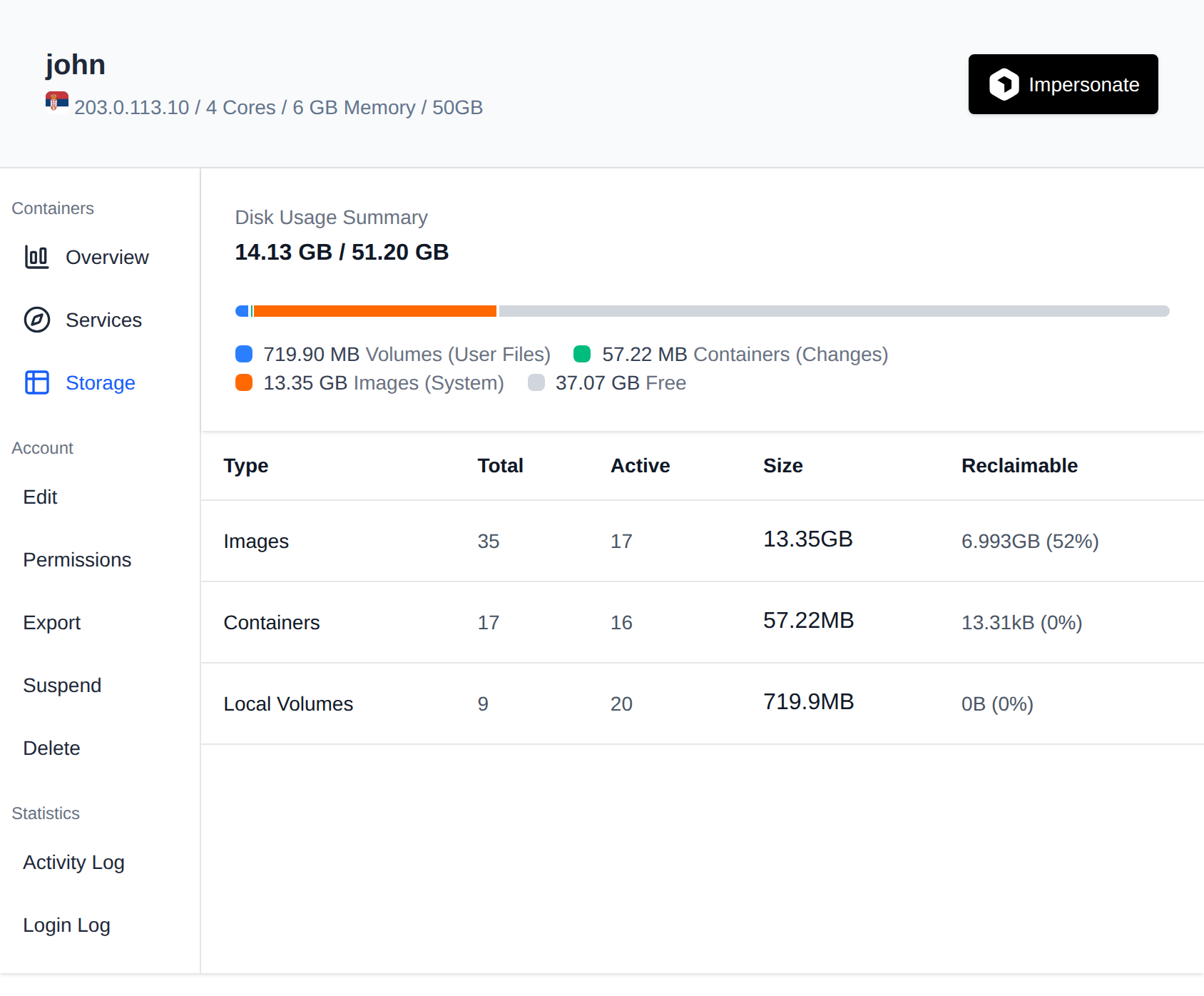
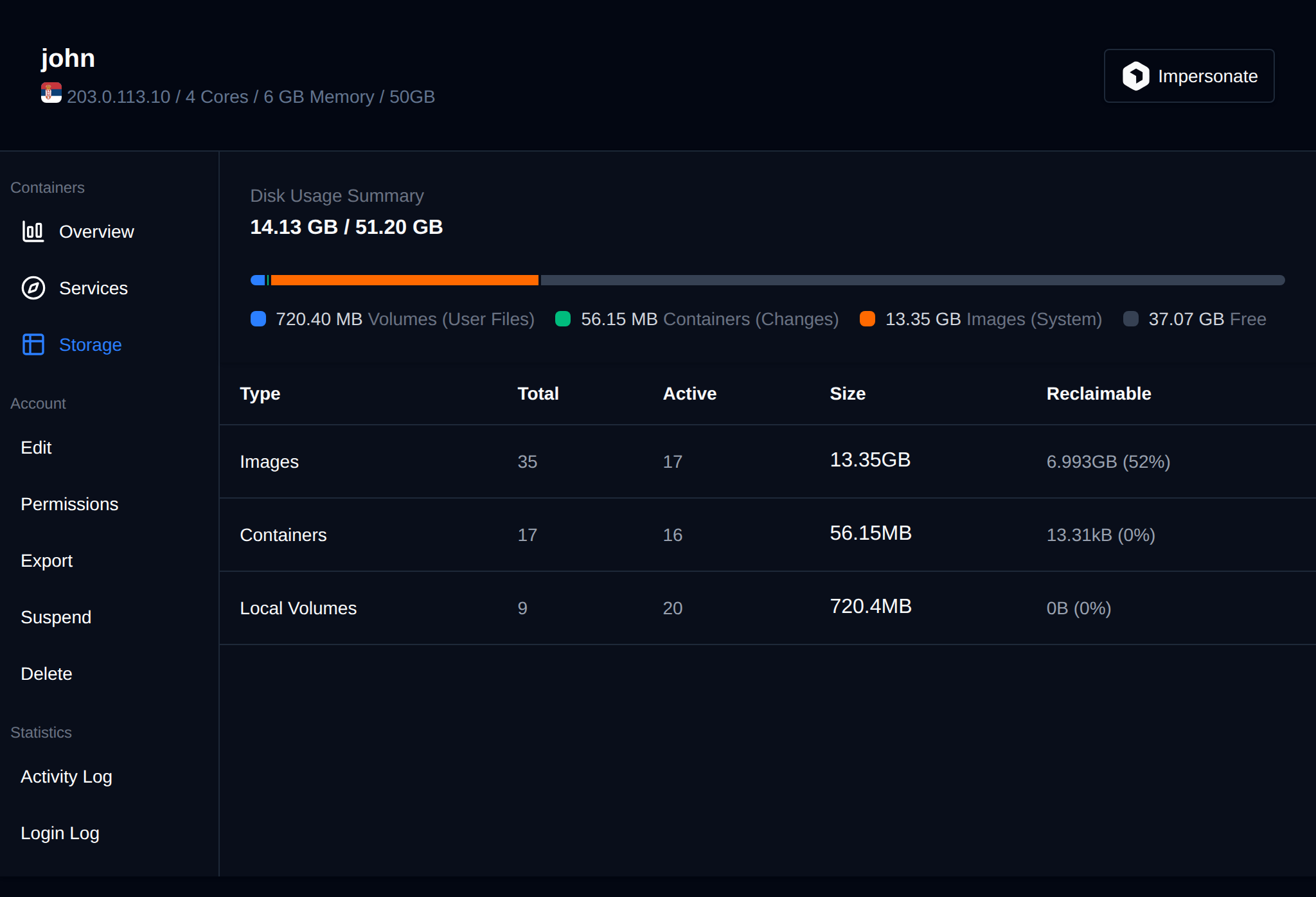
Storage tab displays data from the [docker system df](https://docs.docker.com/reference/cli/docker/system/df/) command.
- Volumes
- Containers
- Images
### Overview
Below the usage statistics, the Overview tab displays detailed user information.
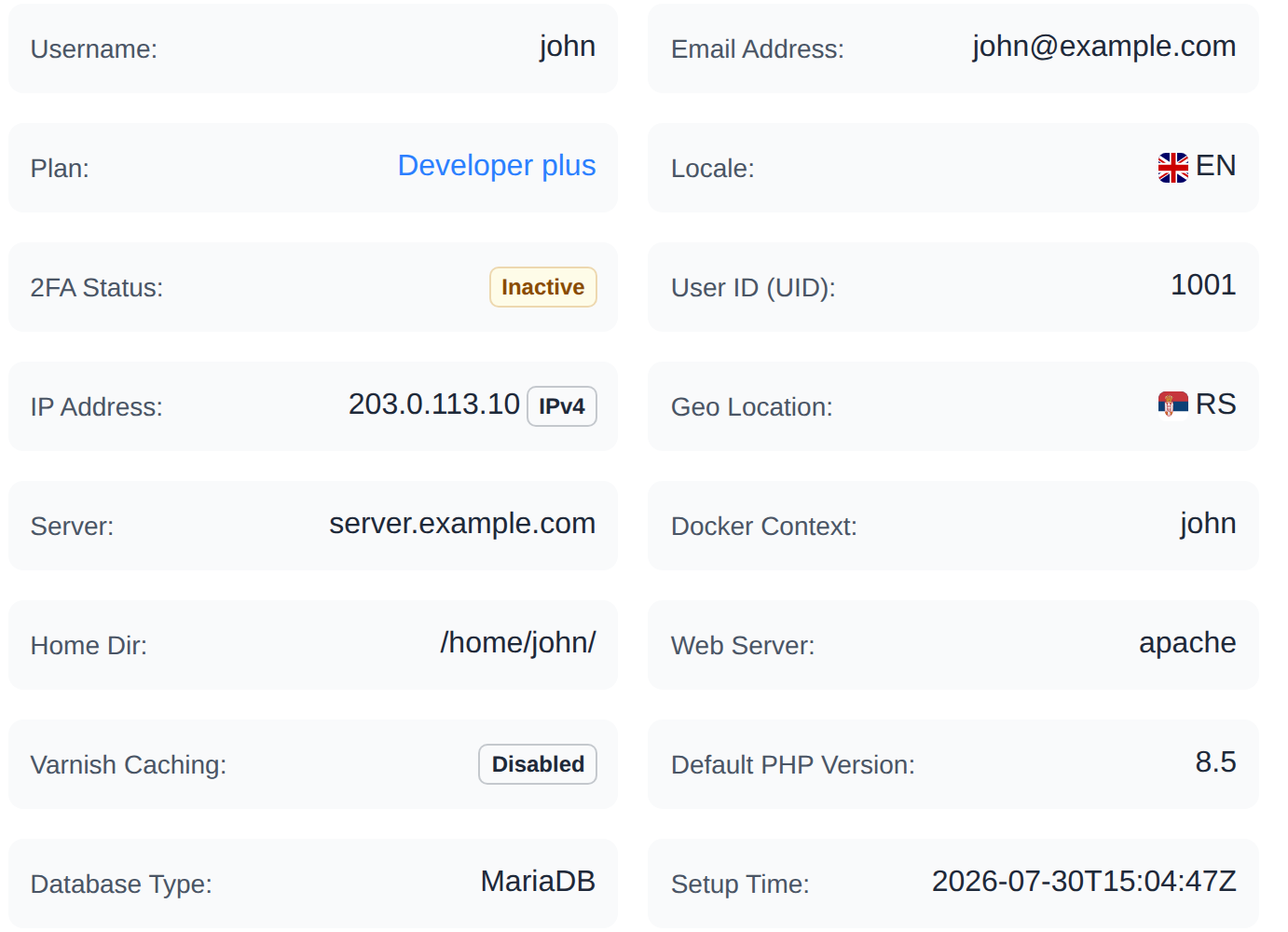
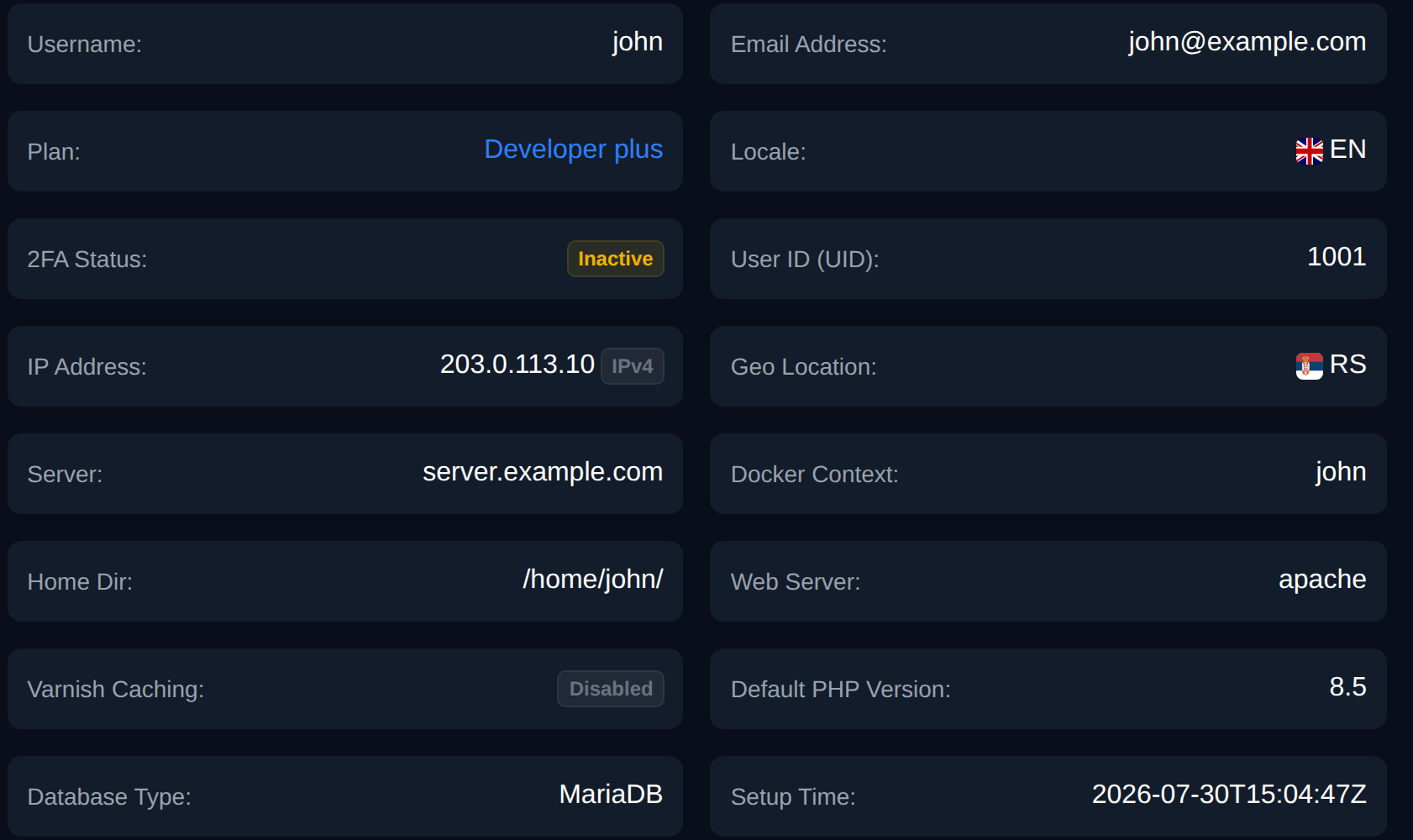
Displayed information:
- Username
- Email Address
- User ID
- IP Address
- Geo Location for the IP
- Server Name
- Docker Context
- 2FA status
- Reseller (if the user is owned by a reseller)
- Setup Time
### Permissions
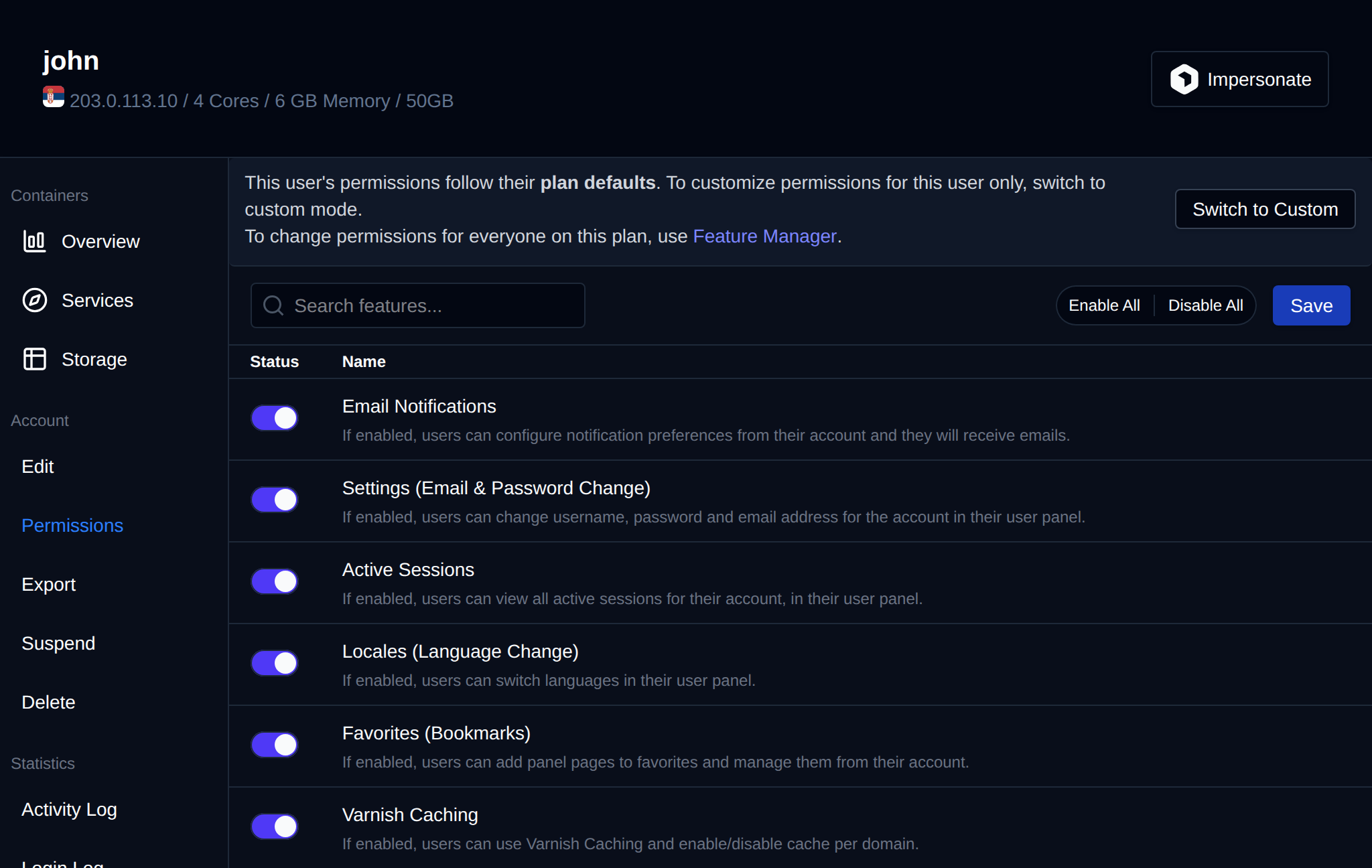
The Permissions tab lets Administrators view and, for individual users, override which OpenPanel features/pages are enabled. By default a user's permissions follow their hosting plan's defaults; switching to **Custom** mode allows enabling or disabling individual features for that user only, independent of the plan. Plan-wide feature defaults are managed separately in Feature Manager.
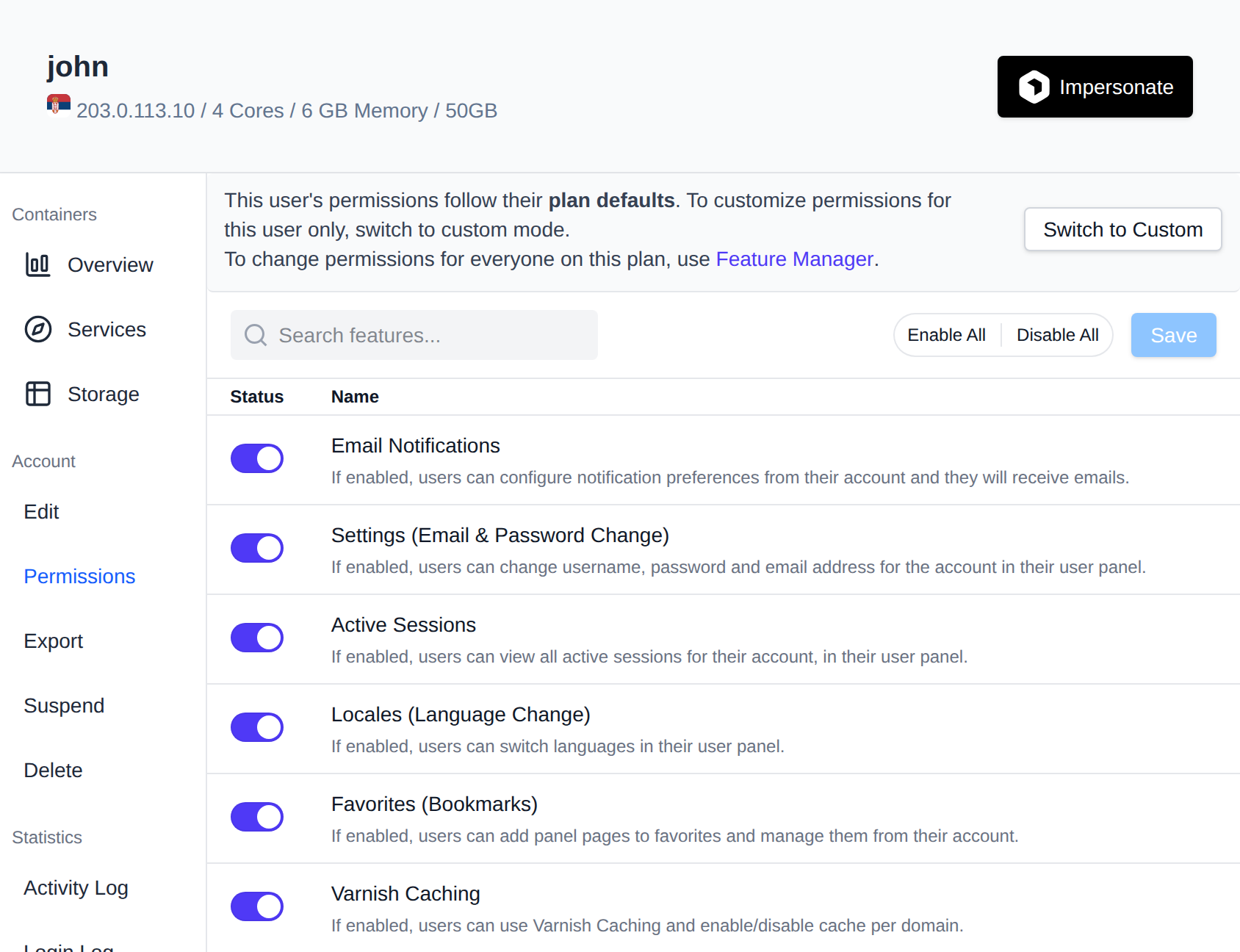
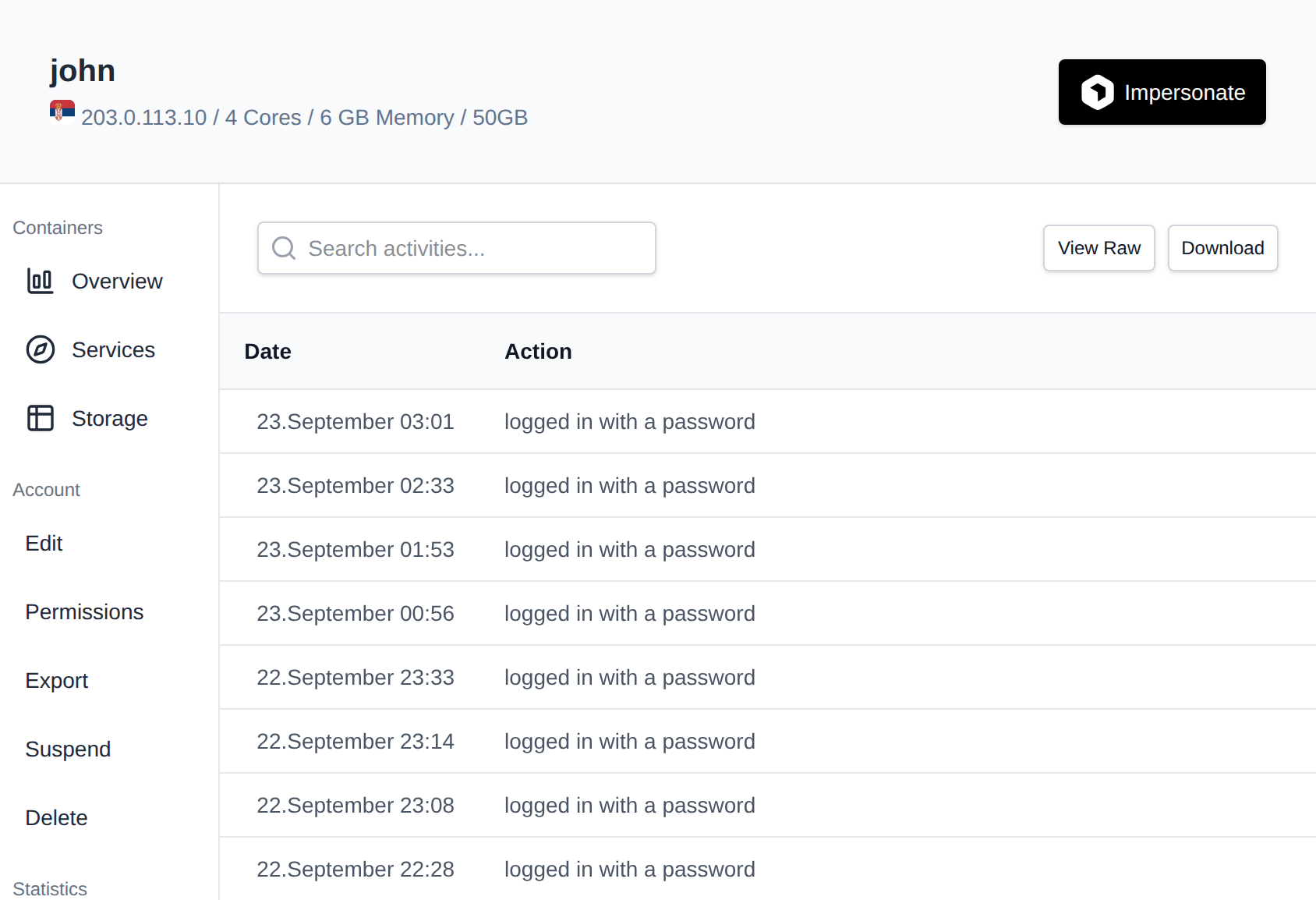
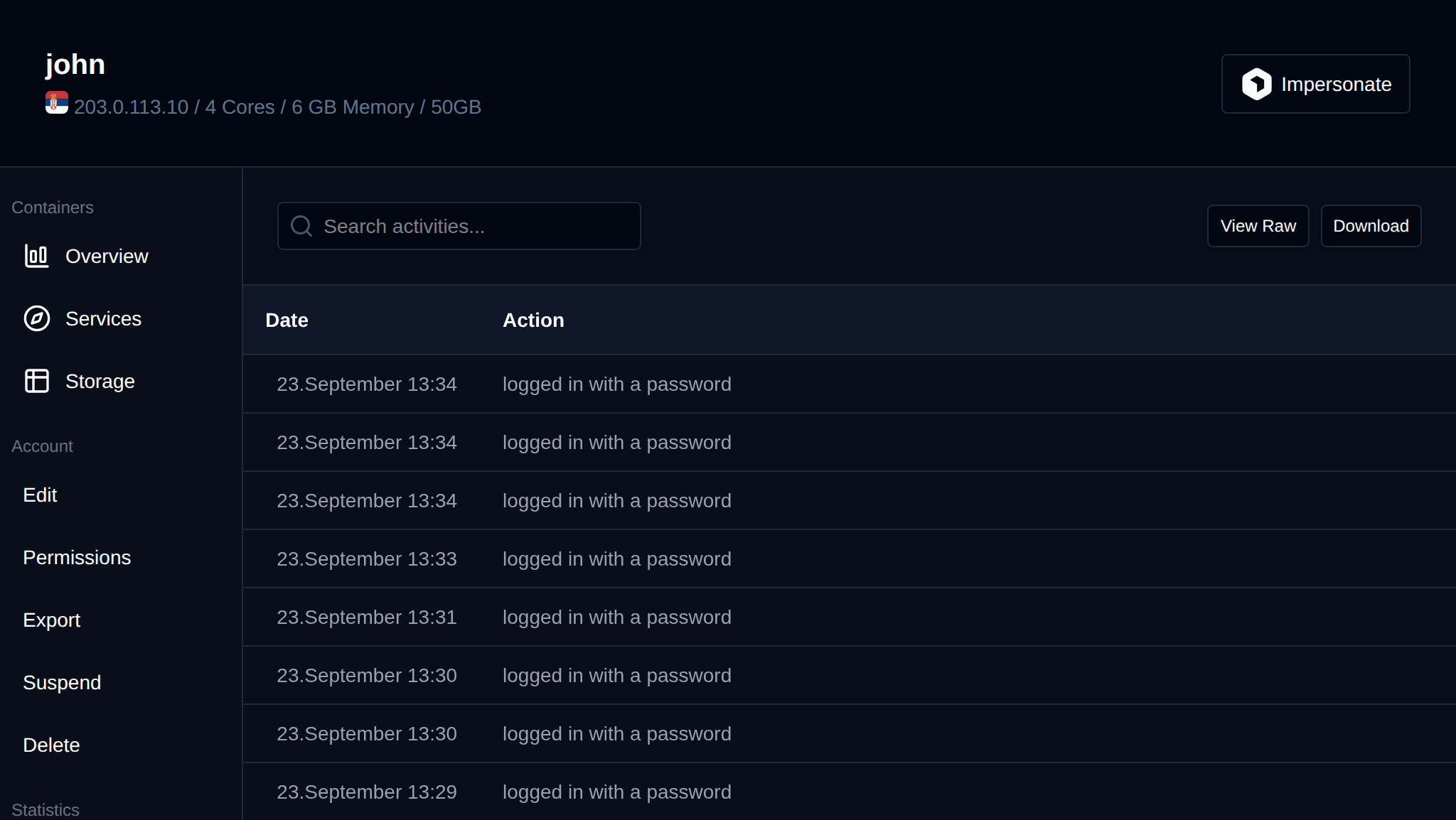
### Activity
Displays [users activity log](/docs/panel/security/account_activity/).
- Date
- Action performed
- IP Address
### Login Log
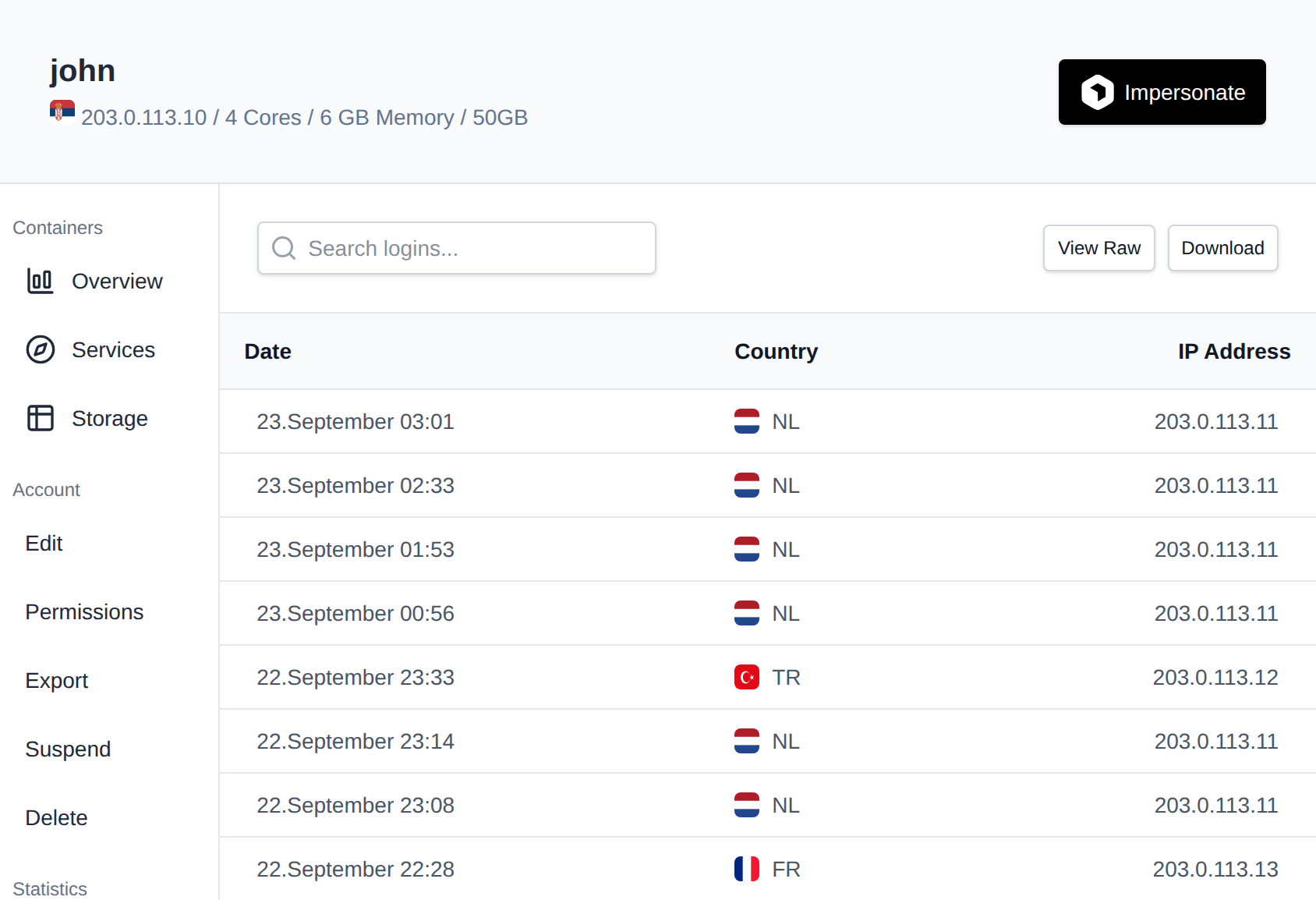
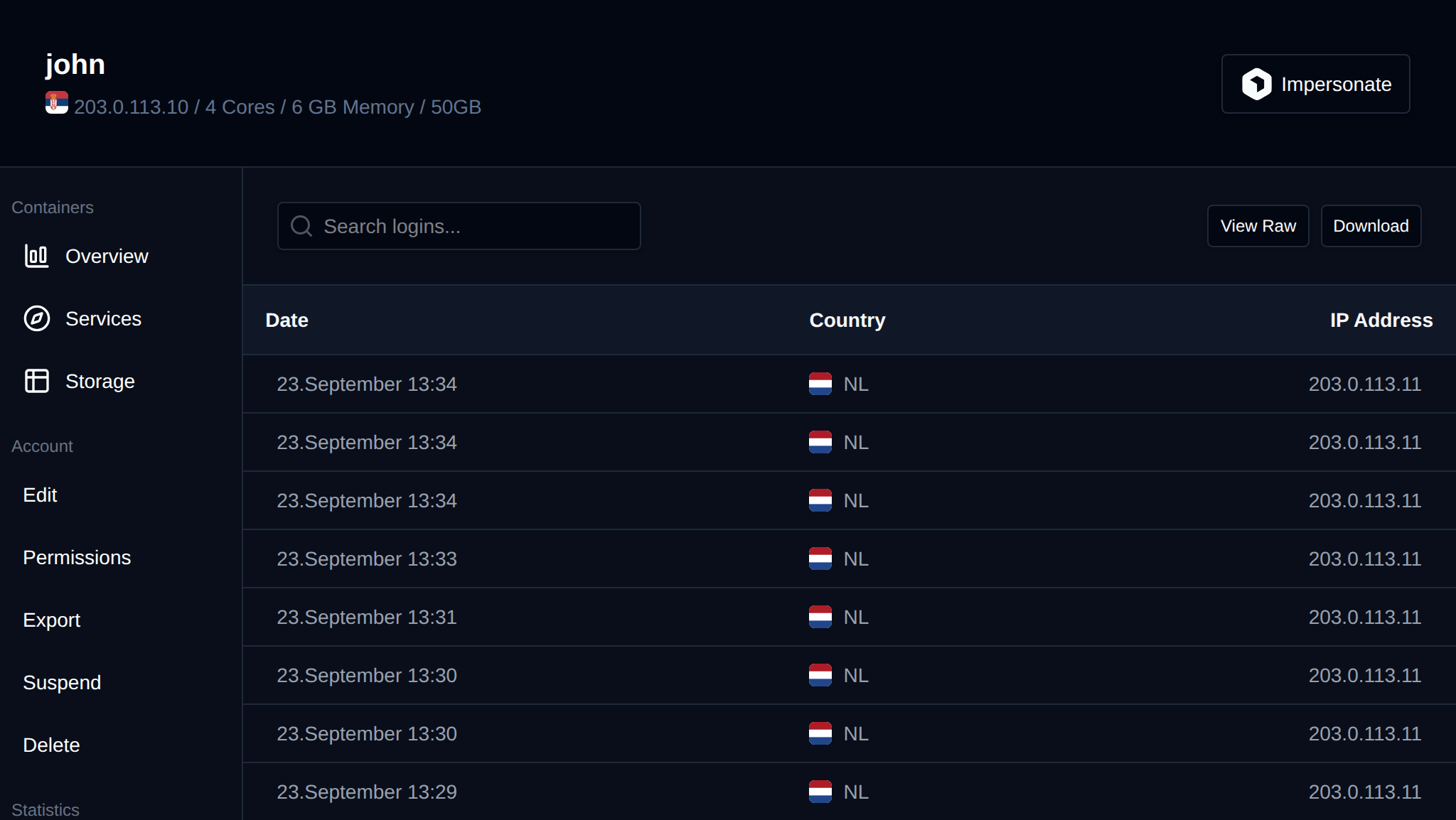
Displays a log of successful logins for the user, separate from the general Activity log:
- Date
- Country
- IP Address
### Edit
From the Edit tab, Administrators can edit user information:
- Username
- Email address
- Password (leave empty to keep the current password)
- IP address
- Reseller (change the account's owner/reseller)
- Hosting Package
Click **Save** to apply the changes.
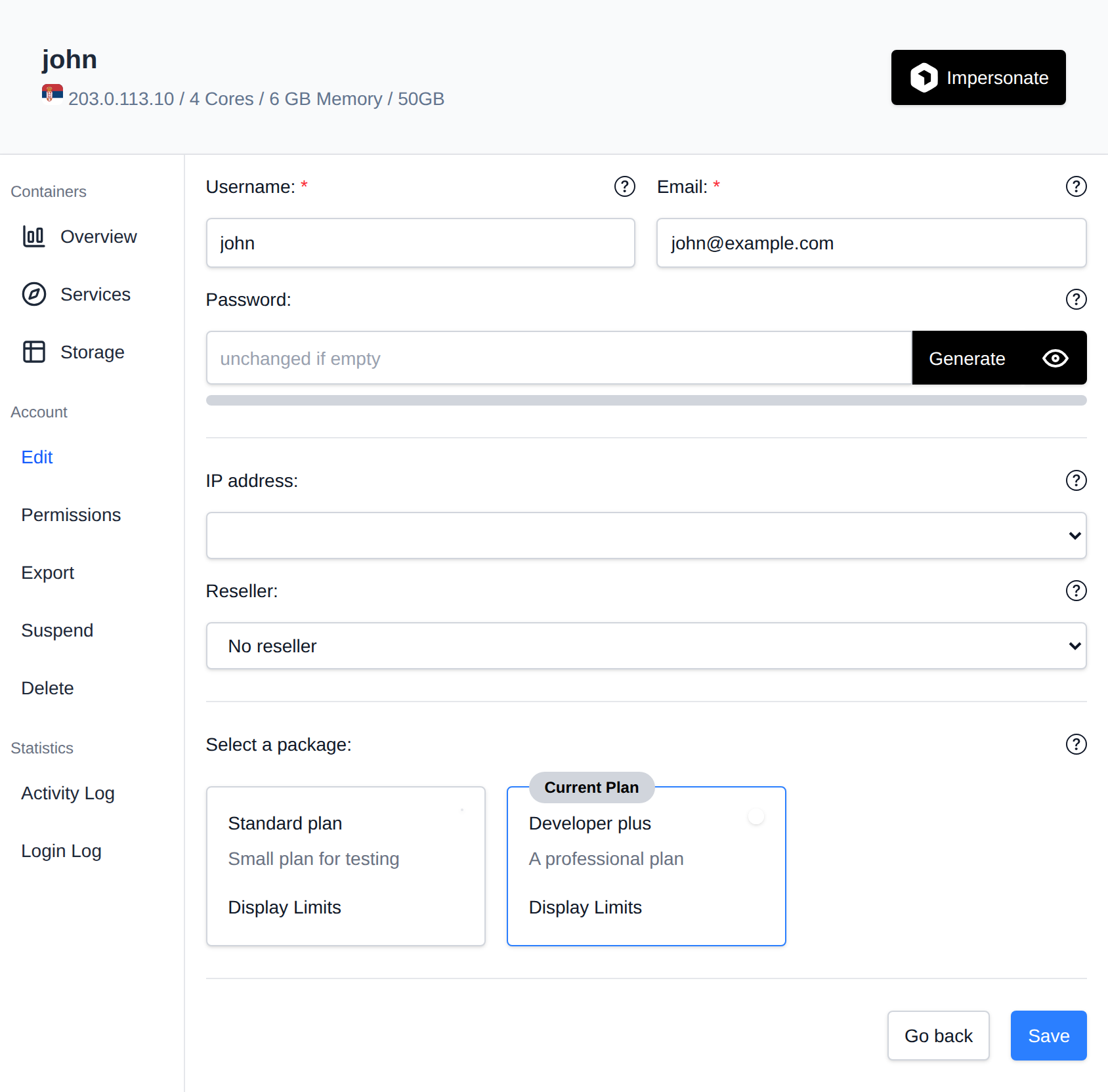
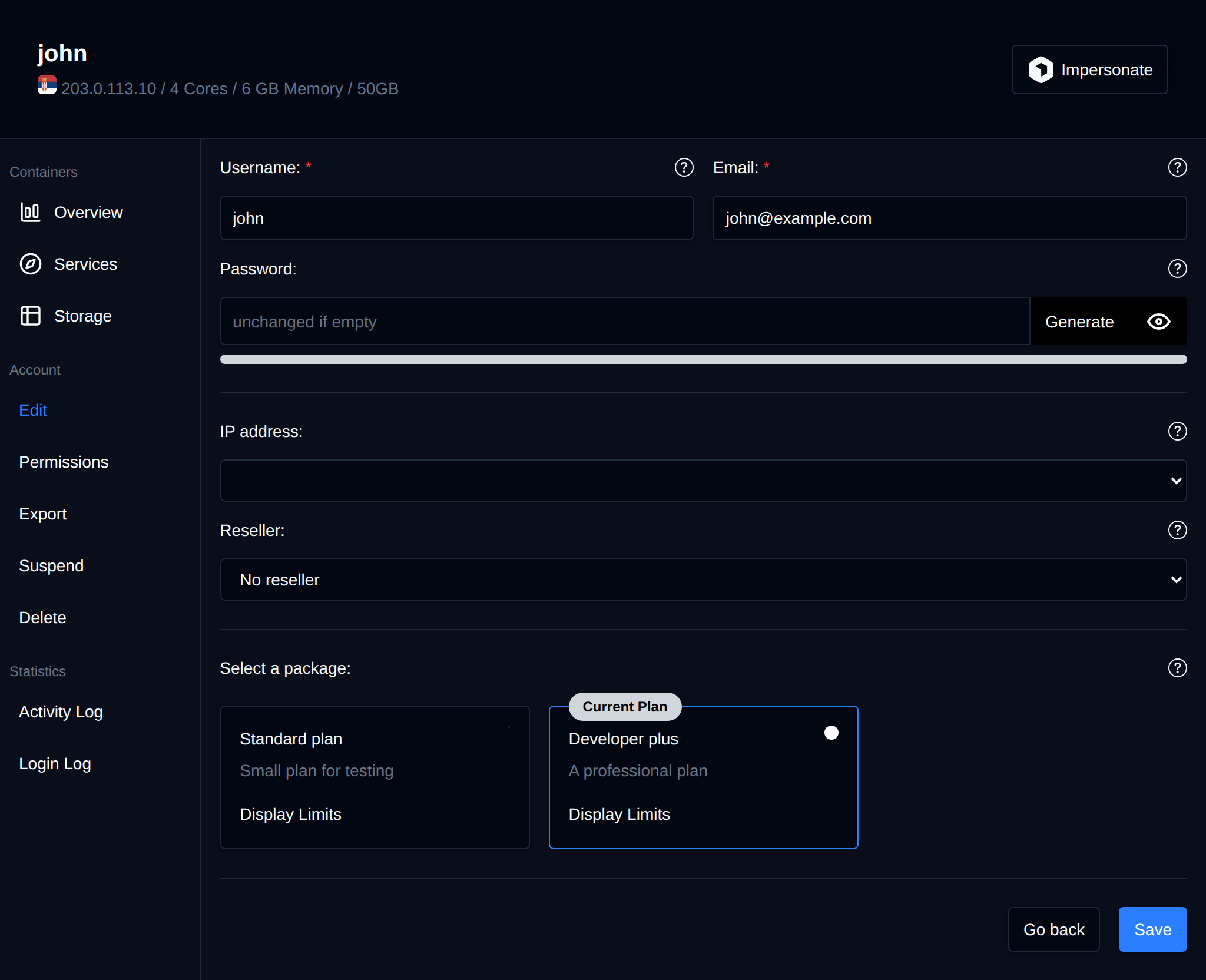
Below the form, the Edit tab also lets Administrators set a custom message that is shown to this user in OpenPanel.
### Export
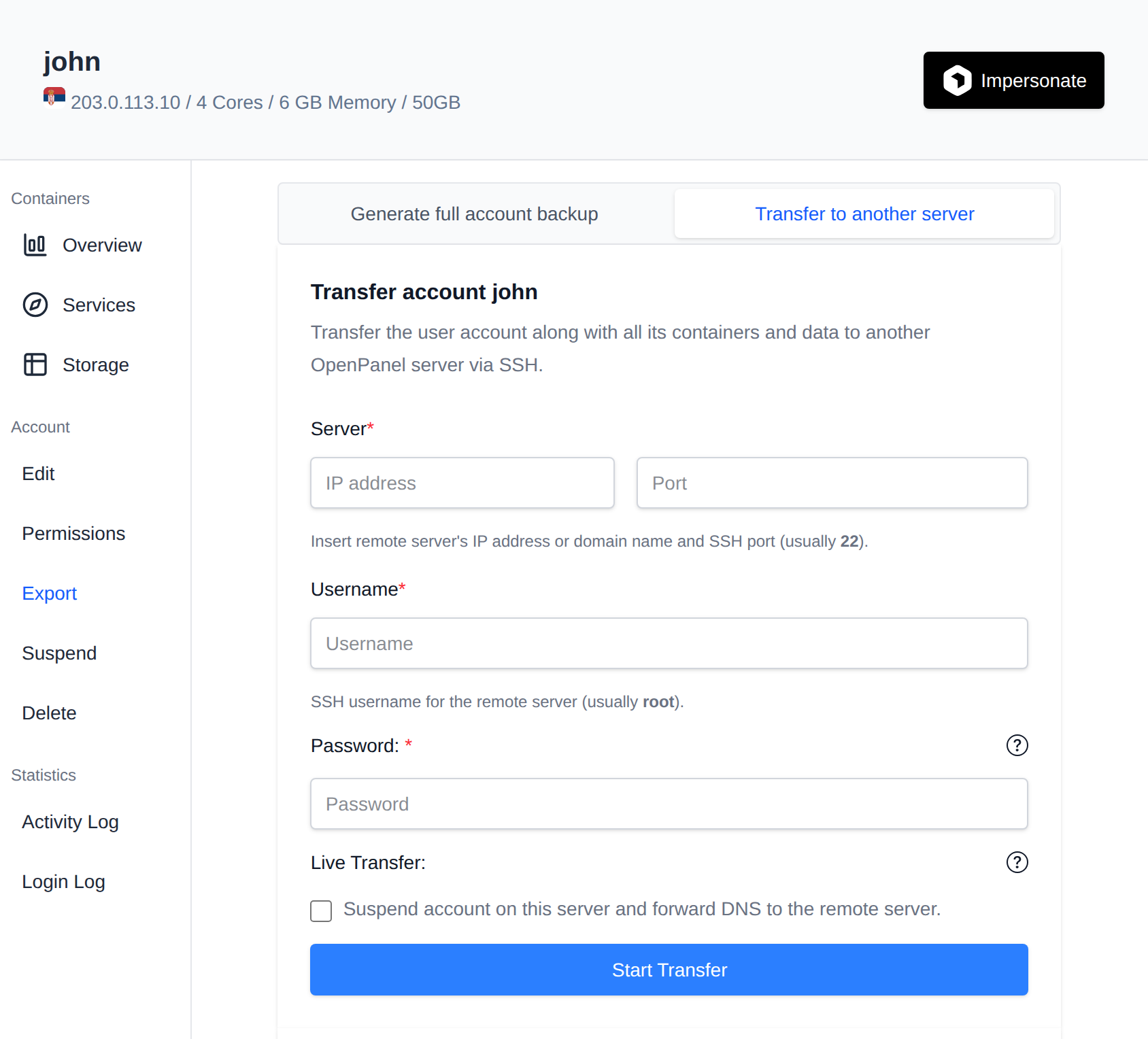
The Export tab has two options:
- **Generate full account backup** – Creates a compressed archive of the account's home directory, databases, domains, websites, email, FTP, DNS zones, SSL certificates, cronjobs and containers/images. Previously generated backups are listed below, where they can be downloaded or deleted.
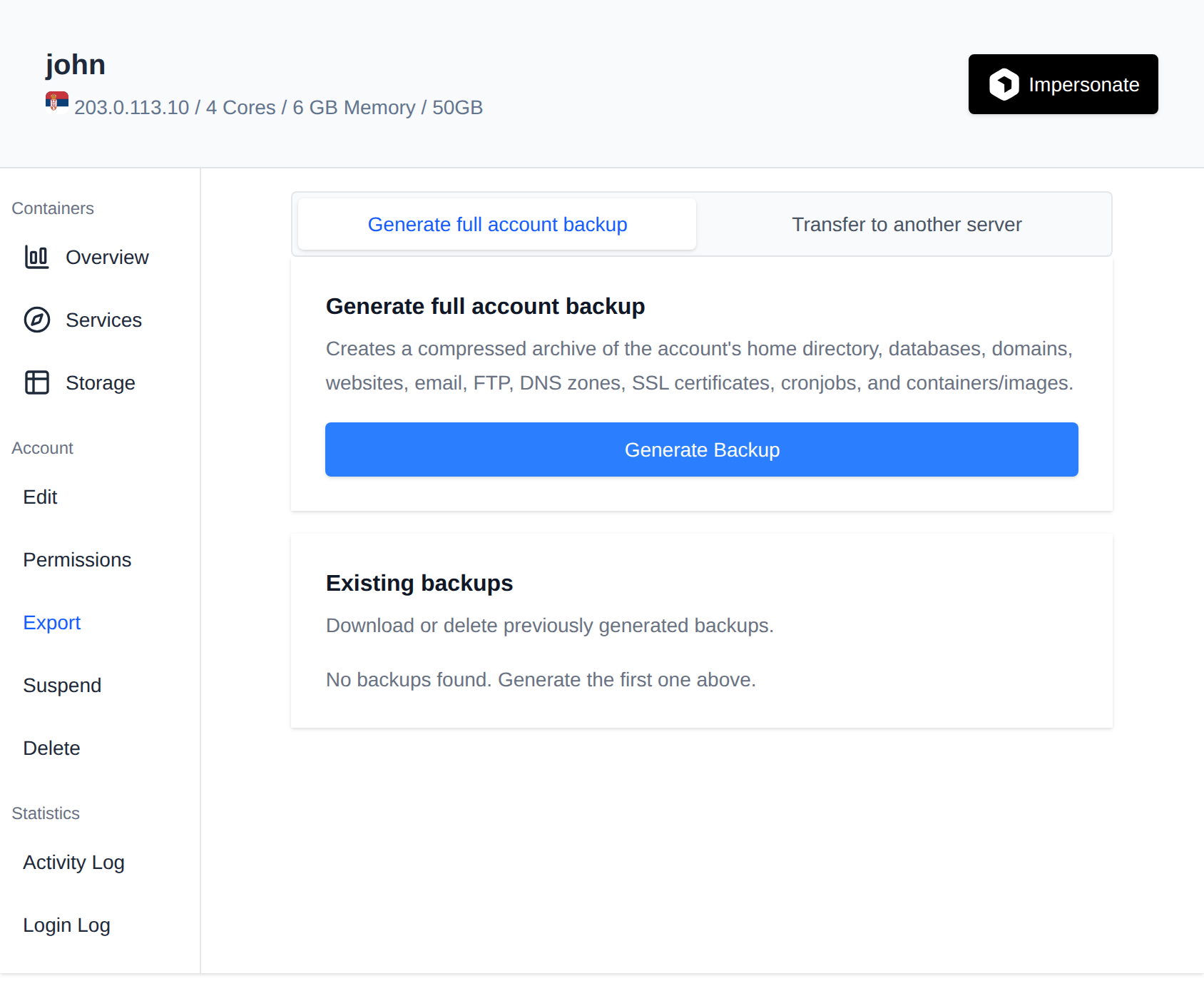
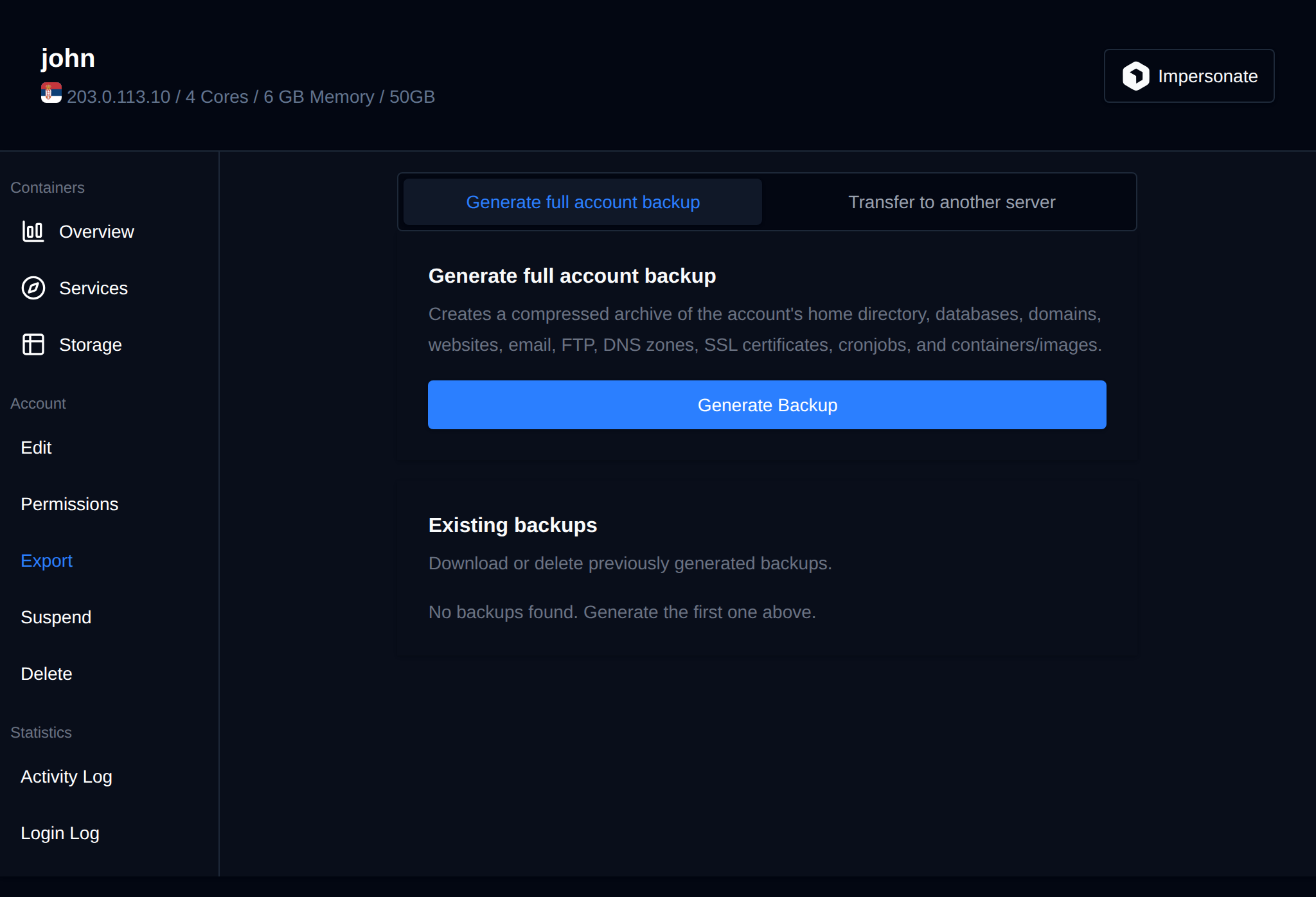
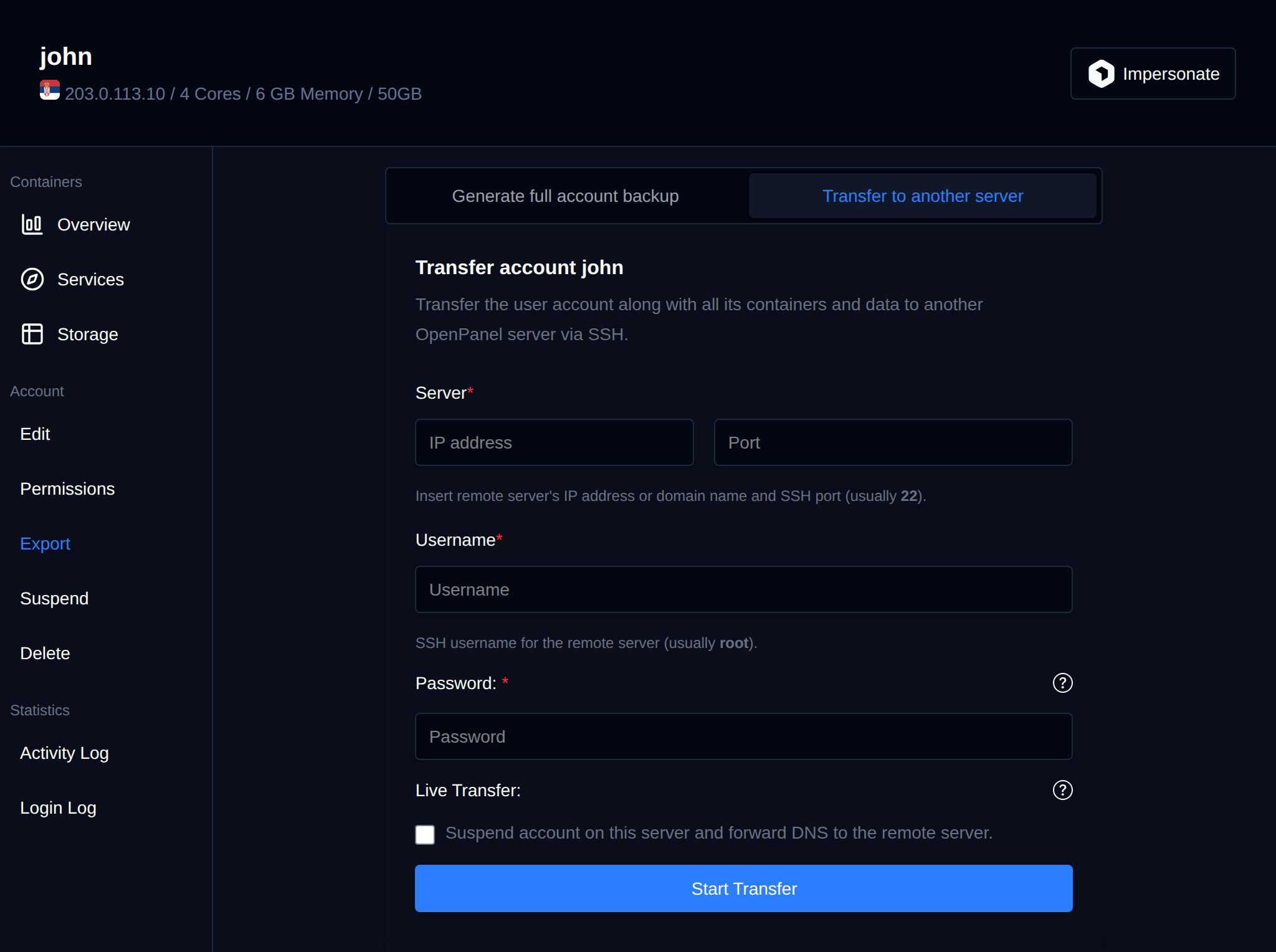
- **Transfer to another server** (Enterprise license only) – Migrates the user account, along with all its containers and data, to another OpenPanel server over SSH. You provide the remote server's address/port and root SSH credentials, and can optionally enable "Live Transfer" so that once the migration completes, the account is automatically suspended on the current server and its domains' DNS is updated to point to the new server.
### Suspend
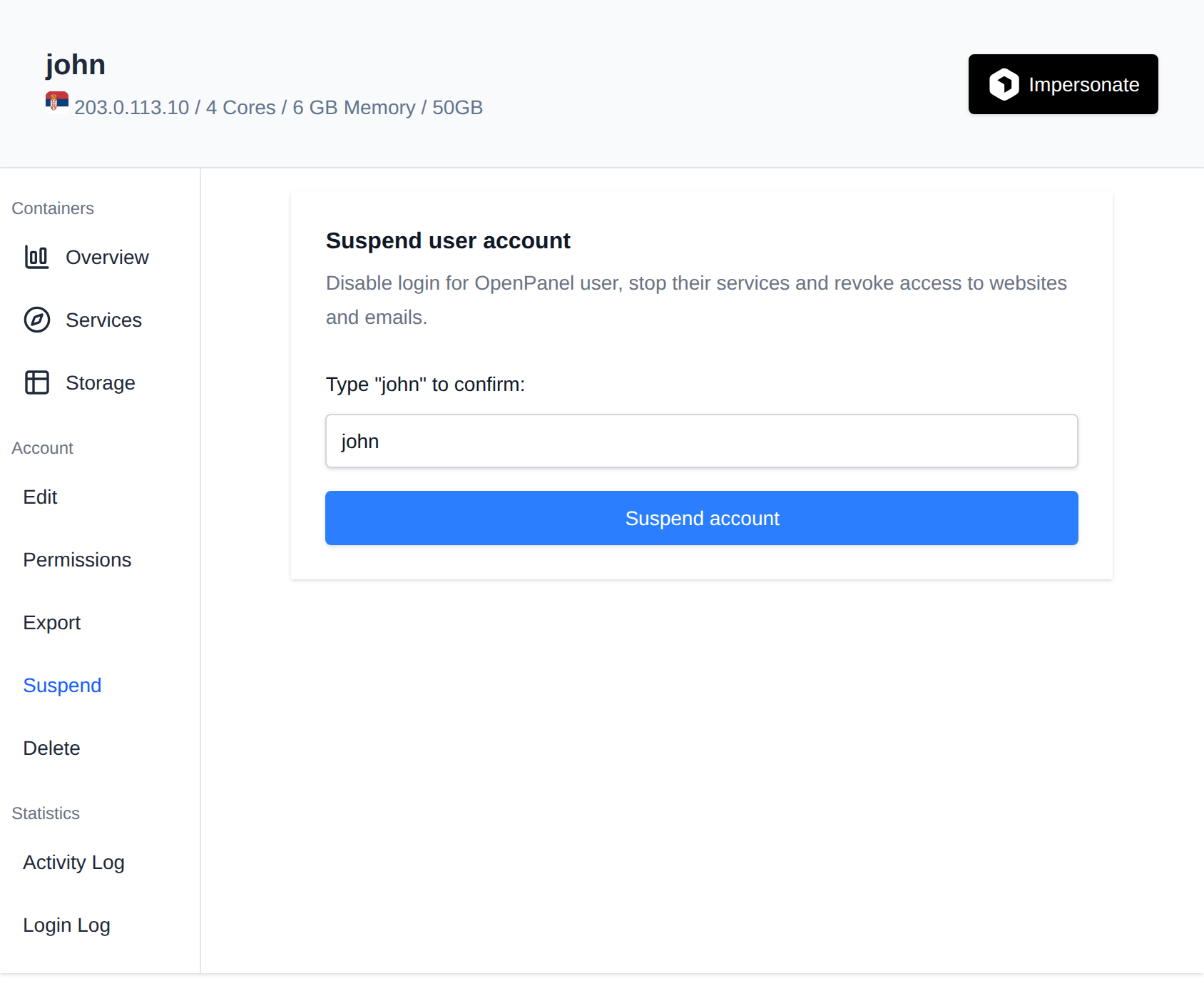
Suspending an account will immediately disable the user's access to the OpenPanel. This action involves pausing the user's Docker container and revoking access to their email, website, and other associated services. Please be aware of the immediate impact before proceeding.
To suspend a user, open the "Suspend" tab on that user's page and type the username to confirm, then click the **Suspend account** button.
To suspend (temporary disable access) to user, run the following command:
```bash
opencli user-suspend
```
Example:
```bash
opencli user-suspend filip
```
### Unsuspend
For a suspended user, the row of tabs on the user's page is replaced with a single **Unsuspend** button. Click it to restore access for the user.
To unsuspend (enable access) to user, run the following command:
```bash
opencli user-unsuspend
```
Example:
```bash
opencli user-unsuspend filip
```
### Reset Password
To reset password for a user, click on the "Edit" tab and set the new password in the Password field (leave it empty to keep the current password) then click **Save**.


To reset the password for a OpenPanel user, you can use the `user-password` command:
```bash
opencli user-password
```
Use the `--ssh` flag to also change the password for the SSH user in the container.
Example:
```bash
opencli user-password filip Ty7_K8_M2 --ssh
```
To reset password for an OpenPanel user, use the following api call:
```bash
curl -X PATCH http://PANEL:2087/api/users/USERNAME_HERE -H "Content-Type: application/json" -H "Authorization: Bearer JWT_TOKEN_HERE" -d '{"password": "NEW_PASSWORD_HERE"}'
```
### Rename
To rename a user, click on the "Edit" tab for the user, then change the 'Username' field and click **Save**.
To change username for a user run the following command:
```bash
opencli user-rename
```
Example:
```bash
#opencli user-rename stefan pejcic
User 'stefan' successfully renamed to 'pejcic'.
```
### Change Package
To change a package for a user, click on the "Edit" tab for the user, then select the new hosting plan and click **Save**.
To change a package for a user run the following command:
```bash
opencli user-change_plan ''
```
### Change Email
To change email address for a user, click on the "Edit" tab for the user, then change the 'Email' field and click **Save**.
To change email address for a user run the following command:
```bash
opencli user-email
```
Example:
```bash
#opencli user-email stefan stefan@pejcic.rs
Email for user stefan updated to stefan@pejcic.rs.
```
### Login to OpenPanel
To auto-login to a user's OpenPanel account, click on the **Impersonate** button in the top-right corner of the user's page.
### Delete User
To delete a user, open the "Delete" tab for that user, type the username to confirm, then click **Delete account permanently**.
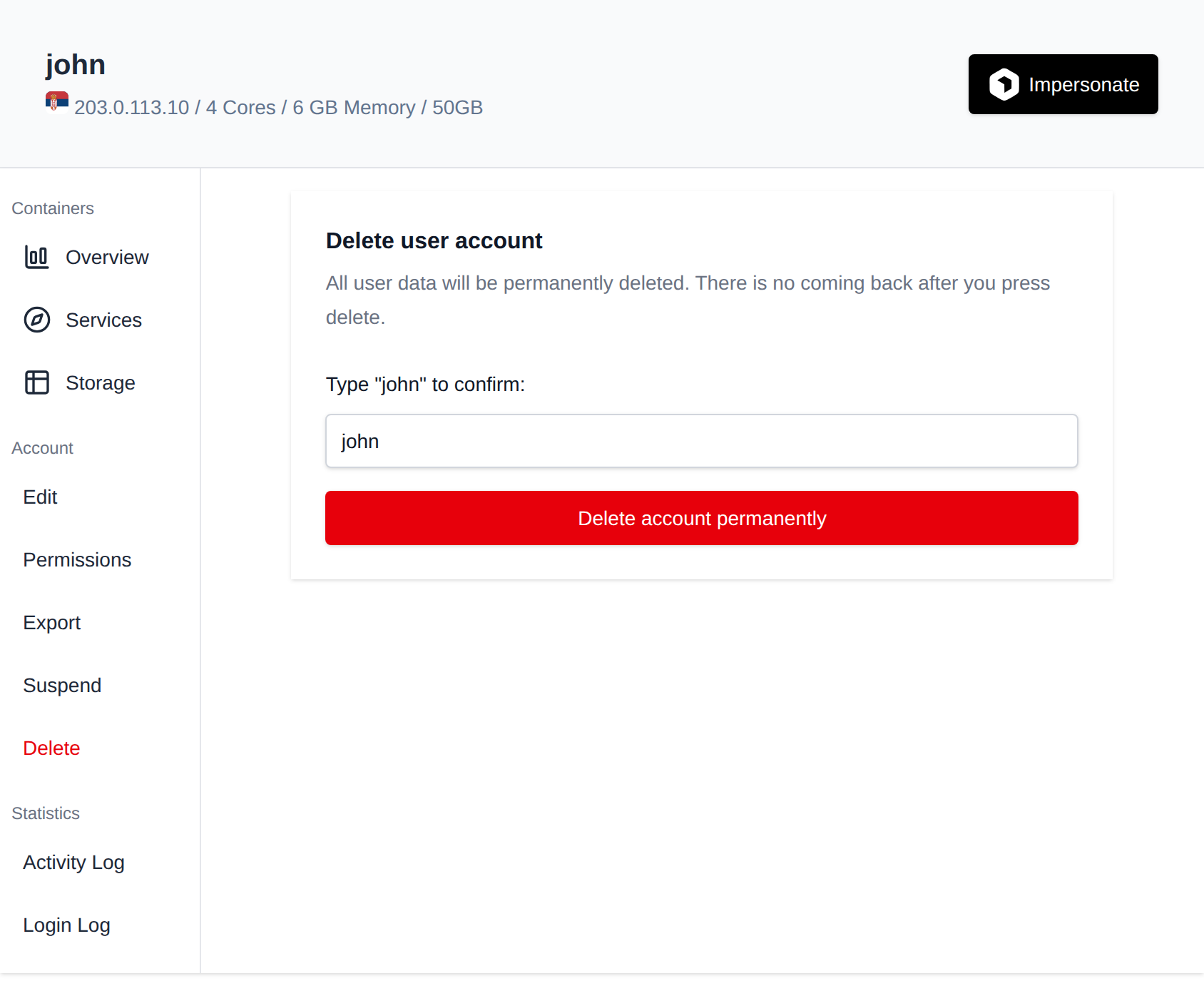
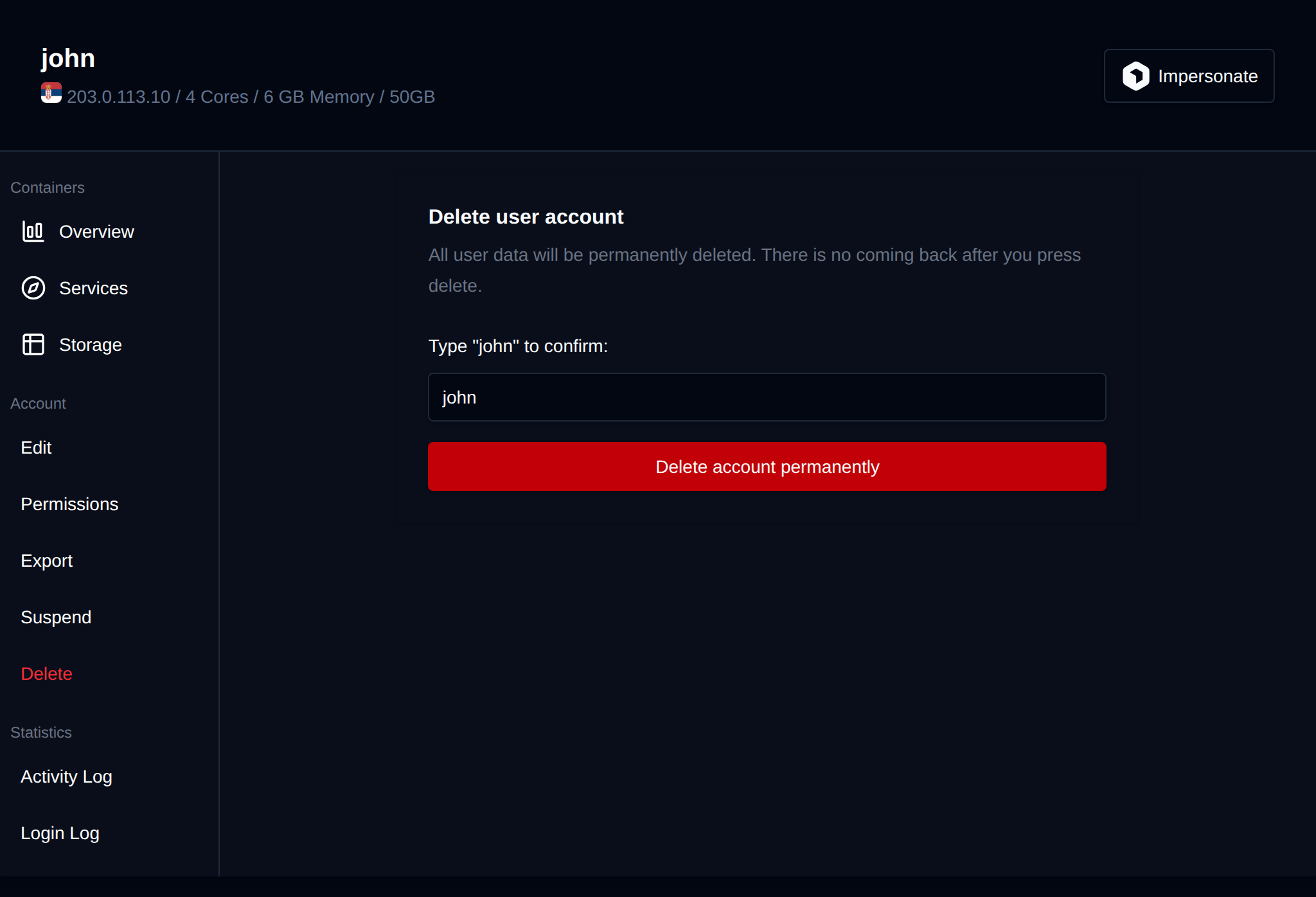
To delete a user and all his data run the following command:
```bash
opencli user-delete
```
add `-y` flag to disable prompt.
Example:
```bash
opencli user-delete filip -y
```
:::danger
This action is irreversible and will permanently delete all user data.
:::
---
// File: admin/accounts/resellers
# Resellers
The **Resellers** feature allows administrators to create and manage Reseller users within OpenPanel. Resellers can act as sub-administrators, managing their own set of user accounts within the limits defined by the root administrator.
This feature is useful for hosting providers who want to delegate control to third-party resellers, while still maintaining overall control and isolation.
:::info
Resellers is an Enterprise-only feature.
:::
Resellers are managed from **Accounts > Resellers**. Reseller logins do not see this page - they instead manage their own account from **Reseller Account** at `/account`.
---
## Reseller Management Interface
The interface displays a table of existing reseller users with the following columns:
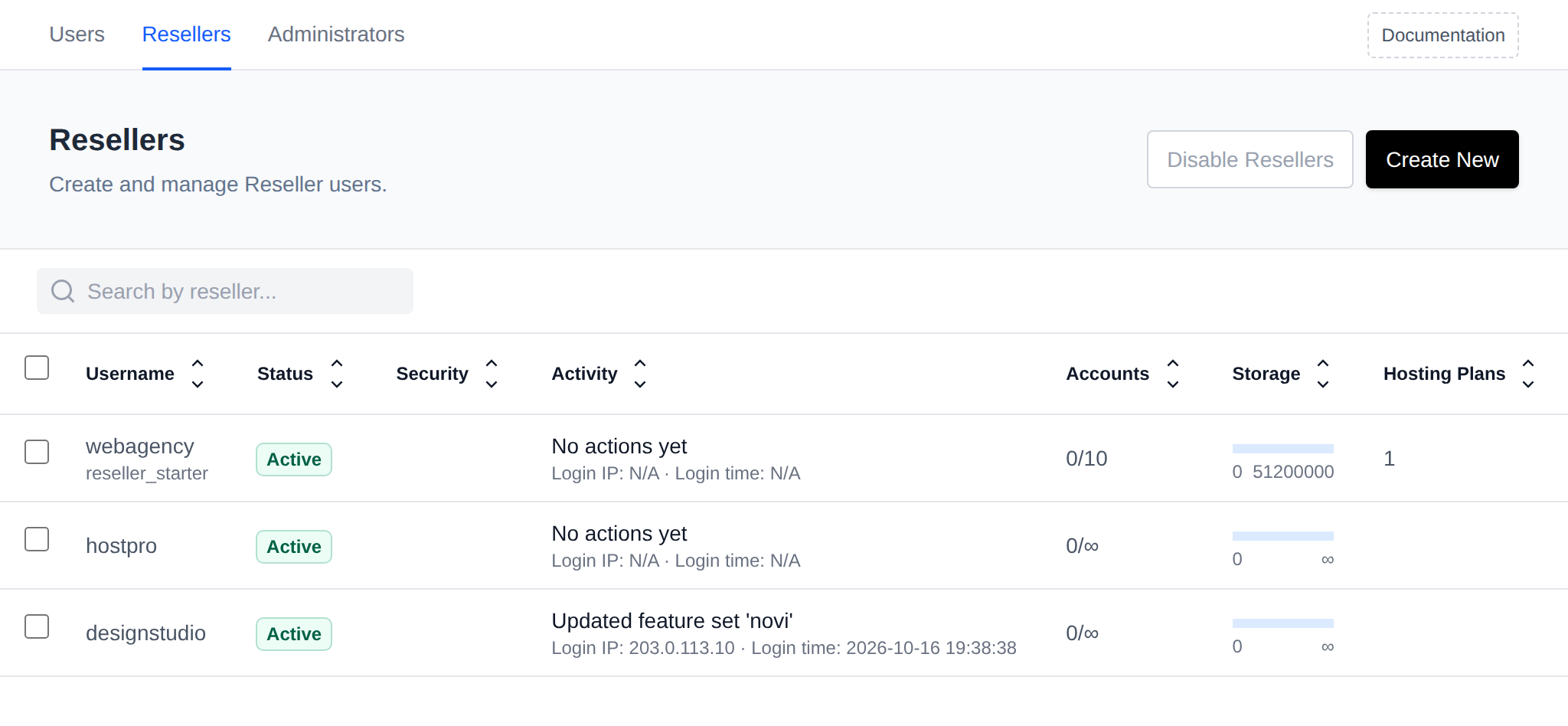
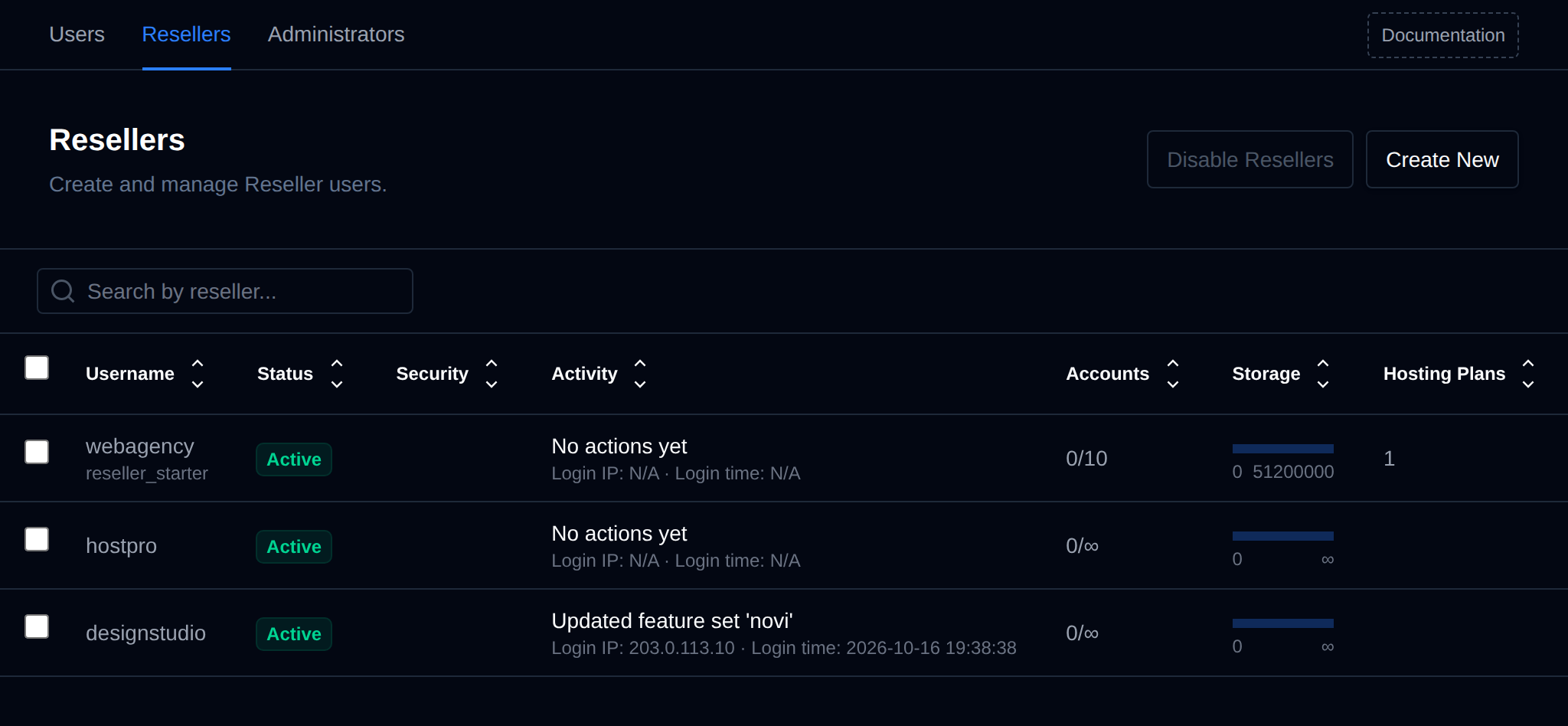
- **Username**
The unique identifier of the reseller user, with the name of their [Reseller Package](/docs/admin/plans/reseller_packages) below it when they're on one.
- **Status**
Indicates whether the reseller account is active or suspended.
- **Security**
A green **2FA** badge when the reseller has Two-Factor Authentication enabled and a green **Passkeys** badge when they have a passkey registered; the one that isn't set up is shown in grey. Empty when the reseller has neither.
- **Activity**
The last change the reseller made, linking to their [Activity Log](/docs/admin/accounts/activity), with the IP address and time of their last login below it. Hover the action to see when it happened.
- **Accounts**
The number of user accounts currently managed by the reseller, shown as current/maximum (for example `3/10`, or `3/∞` when there is no limit). The current count links to the reseller's users on the Users page, and the maximum links to the reseller's Edit Plans & Limits page.
- **Storage**
A progress bar showing how much of the reseller's disk usage allowance is currently used.
- **Hosting Plans**
The number of hosting plans available to the reseller for assigning to their users.
Click the arrows next to a column name to sort the table by that column.
Each row also has an Edit menu with the available actions:
- **Edit Plans & Limits** - move the reseller to another [Reseller Package](/docs/admin/plans/reseller_packages) with **Apply Package**, or set their Max Accounts, Max Disk Usage (in blocks), and the hosting plans they're allowed to assign to their users by hand. Limits set by hand are replaced when the reseller's package is edited or another package is applied.
- **Rename** - change the reseller's username.
- **Change Password** - set a new password for the reseller.
- **Activity Log** - open the reseller's [Activity Log](/docs/admin/accounts/activity).
- **Disable 2FA** / **Disable Passkeys** - shown only when enabled for that reseller; lets the Super Admin remove it.
- **Suspend** / **Unsuspend** - temporarily disable the reseller's access.
- **Delete** - permanently remove the reseller account.
To create a new reseller, click **Create New**, set a username and password, optionally pick a **Reseller Package**, and click **Create**. The package's limits are applied to the new reseller. Without a package, or before any packages exist, the reseller gets the default limits from `/etc/openpanel/openadmin/config/reseller_template.json`.
Resellers can be turned off for the whole server with the **Disable Resellers** button next to **Create New**, and turned back on with **Enable Resellers**. While reseller accounts exist the **Disable Resellers** button is greyed out, hover it to see how many reseller accounts have to be deleted first.
---
Reseller users have access only to the features and account management tools assigned to them by the root administrator. They cannot exceed the limits defined in their reseller settings (Max Accounts, Max Disk Usage, and the Hosting Plans made available to them), see [How limits are enforced](/docs/admin/plans/reseller_packages#how-limits-are-enforced).
---
## Bulk Actions
Tick the checkbox of one or more resellers, or the checkbox in the table header to select all resellers shown by the current search. A bar appears at the bottom of the page with the number selected, a **Clear** link and these actions:
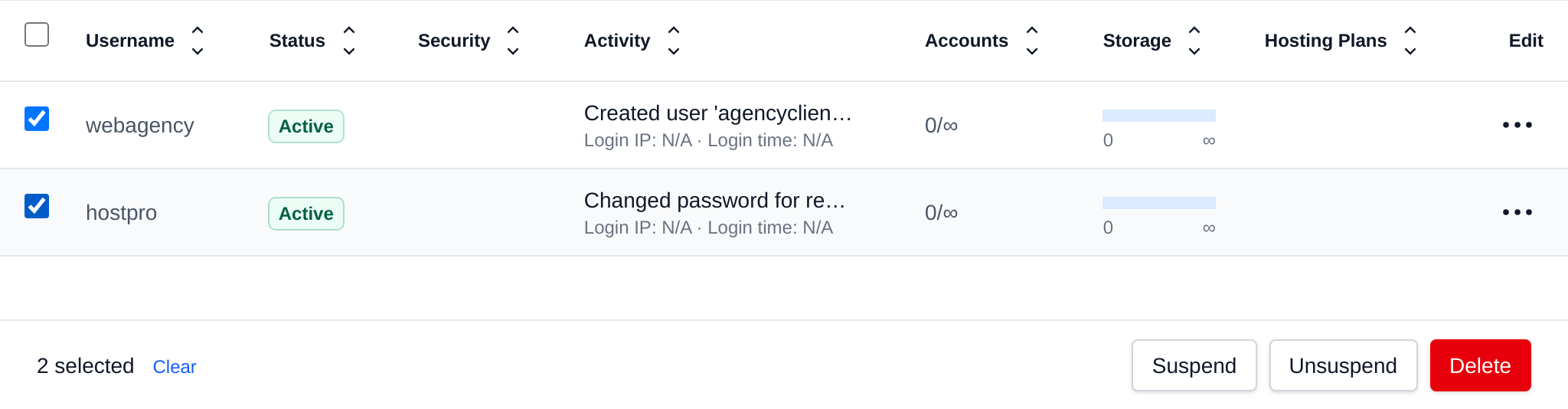
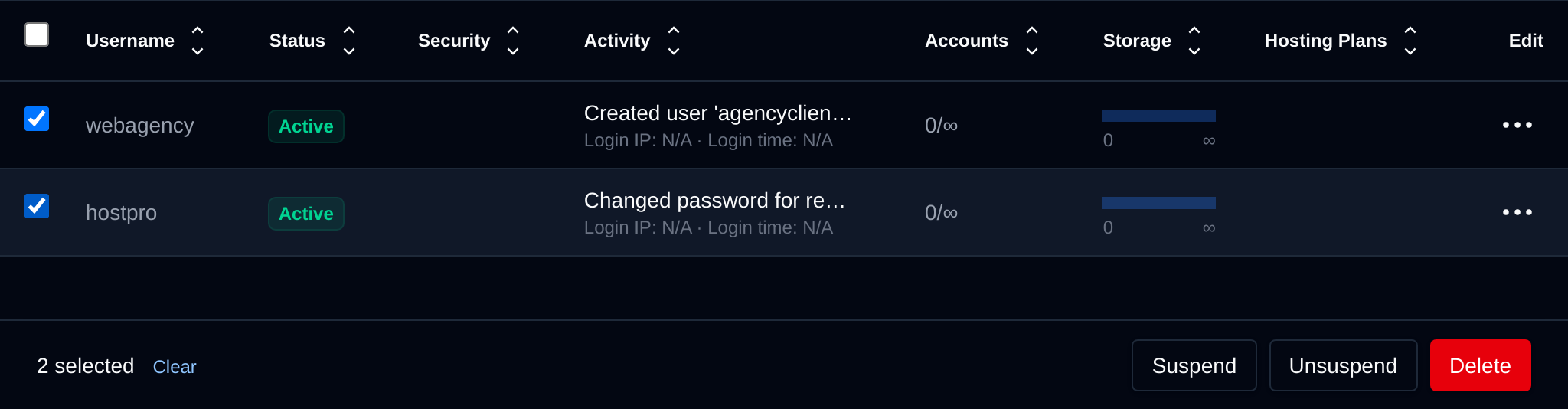
| Action | What it does |
|---|---|
| **Suspend** | Suspends the selected resellers, they can't log in until unsuspended. |
| **Unsuspend** | Unsuspends the selected resellers. |
| **Delete** | Permanently deletes the selected reseller accounts. |
Click an action, confirm it, and it runs on the selected resellers one after another. When it's done the page reloads with a notice listing the resellers it worked for, or which ones failed and why.
## Reseller Account
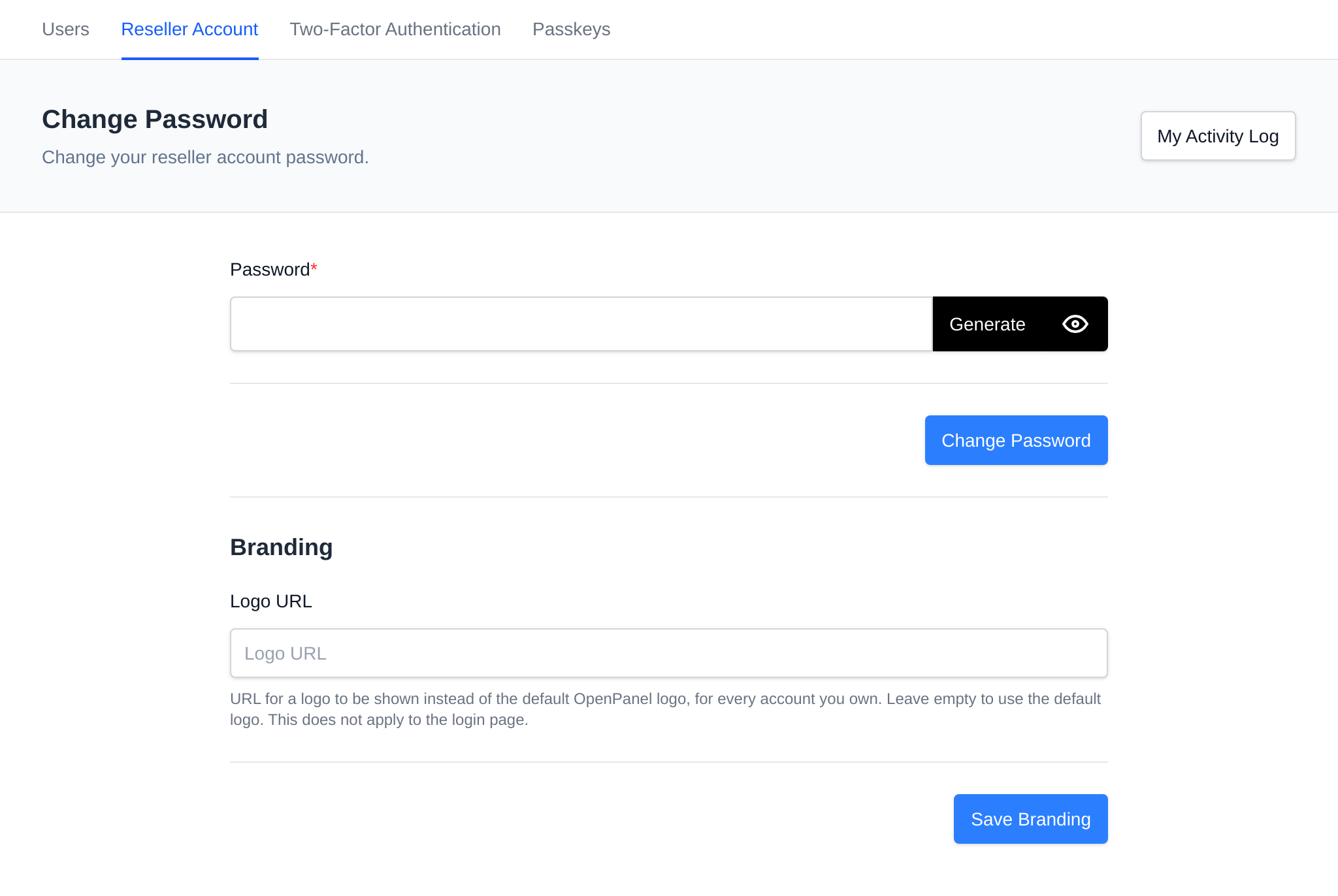
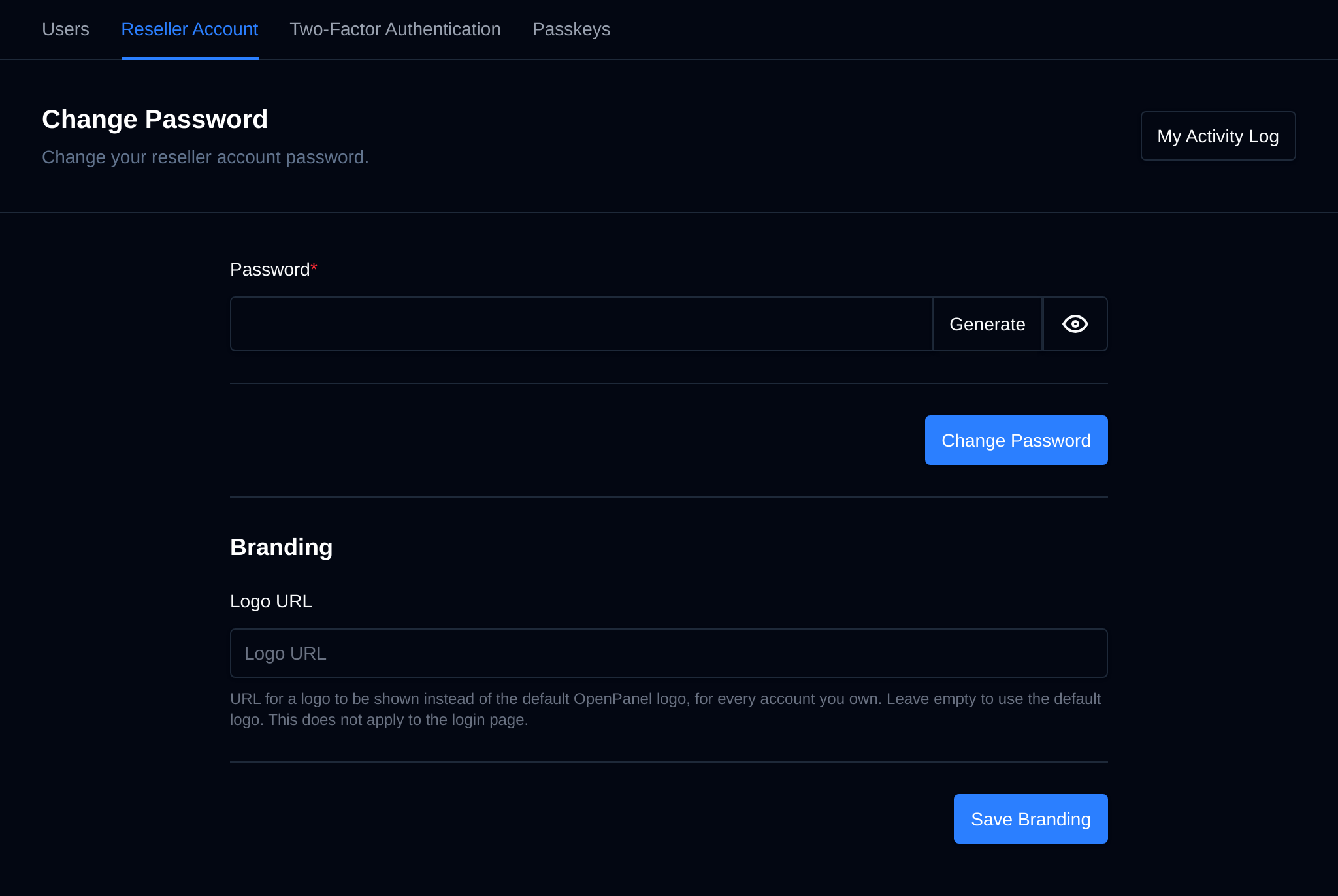
When a Reseller logs in, they see a **Reseller Account** page (`/account`) instead of the full Accounts section, where they can:
- **Change Password** – Set a new password for their own login.
- **Branding** – Set a custom **Logo URL** shown instead of the default OpenPanel logo on every account they own (does not apply to the login page).
- **My Activity Log** – The button in the top right opens their own [Activity Log](/docs/admin/accounts/activity). Resellers can only see their own log, not the logs of other resellers or administrators.
Resellers also have their own **Two-Factor Authentication** and **Passkeys** pages under Security, scoped to their own login only.
## Pages resellers can use
Besides their users, [User Packages](/docs/admin/plans/hosting_plans), the Feature Manager and their own account, resellers can open these OpenAdmin pages. Each one only shows the users a reseller owns, those users' domains, databases and the emails on those domains:
| Page | What resellers can do |
|---|---|
| **Domains > Domains** | List, add, suspend, unsuspend and delete their users' domains, change PHP version, WAF, HSTS, Cloudflare and DNS for them, and use the bulk actions. The SSL, VirtualHost, Caddy and config file editors stay with administrators. |
| **Domains > DNS Zone Editor** | Edit the DNS zones of their users' domains. |
| **Domains > Rate Limiting** | Set default, custom or no rate limits for their users' domains. The server default can only be changed by administrators. |
| **Databases** | See the MySQL, MariaDB, PostgreSQL and MongoDB databases of their users, and export, import or open them in phpMyAdmin. See [MySQL Databases](/docs/admin/databases/mysql). |
| **Emails > Accounts** | Add email accounts on their users' domains, change their password, quota and send/receive restrictions, delete them and open webmail. |
| **Emails > Queue** | See queued messages sent from their users' domains or sent only to their users, and retry or delete them. Retry all and Delete all only act on those messages. |
| **Emails > Email Deliverability** | See the DKIM, SPF and DMARC status of their users' domains. See [Email Deliverability](/docs/admin/emails/deliverability). |
| **Backups > Import Account** | Upload and restore OpenPanel backups as their own users, within their limits, and see the logs of their own imports. See [Imports by resellers](/docs/admin/backups/cpanel#imports-by-resellers). |
| **Services > FTP** | See FTP accounts on their users' domains and set their quota. The Configuration tab isn't shown. |
| **Security > Web Firewall (Coraza)** | The Domains and Logs tabs for their users' domains, including per domain and per user WAF rules. The overview and server wide rules stay with administrators. |
| **Security > ImunifyAV** | A list of their users with the last scan and infected files. **Scan** queues a scan of the user's files and **Open** opens ImunifyAV logged in as that user, so only that user's files are shown. Installing ImunifyAV is up to the administrator. |
| **Server > Resource Usage** | View server load, memory, CPU, disk and network usage, without the links to the process manager or the Drop Cache buttons. |
| **Server > Scheduled Actions** | View the system jobs and their schedule, read only. |
| **Settings > Locales** | Install and update locales. Setting the default locale and deleting locales stays with administrators. |
The same rules apply to the API endpoints behind these pages when they're called with a reseller's token, see the [OpenAdmin API](/docs/articles/dev-experience/openadmin-api/).
Business guide: [How to offer reseller hosting with OpenPanel](/docs/articles/hosting-business/reseller-hosting/)
---
// File: admin/accounts/administrators
import Tabs from '@theme/Tabs';
import TabItem from '@theme/TabItem';
# Administrators
The admin panel has three user roles:
| Role | Description |
| ------------------ | ------------------------------------------------------------------------- |
| **Super Admin** | Has unrestricted privileges, created on OpenPanel installation. |
| **Admin** | Has restricted privileges, can not access all OpenAdmin UI pages and can not edit the SuperAdmin user. |
| **Reseller** | Has restricted privileges, manages only the users assigned to them. Reseller users are managed from the separate [Resellers](/docs/admin/accounts/resellers) page and are not listed on the Administrators page. |
## Manage Admin users
Manage administrative users with access to the OpenAdmin interface via **Accounts > Administrators**.
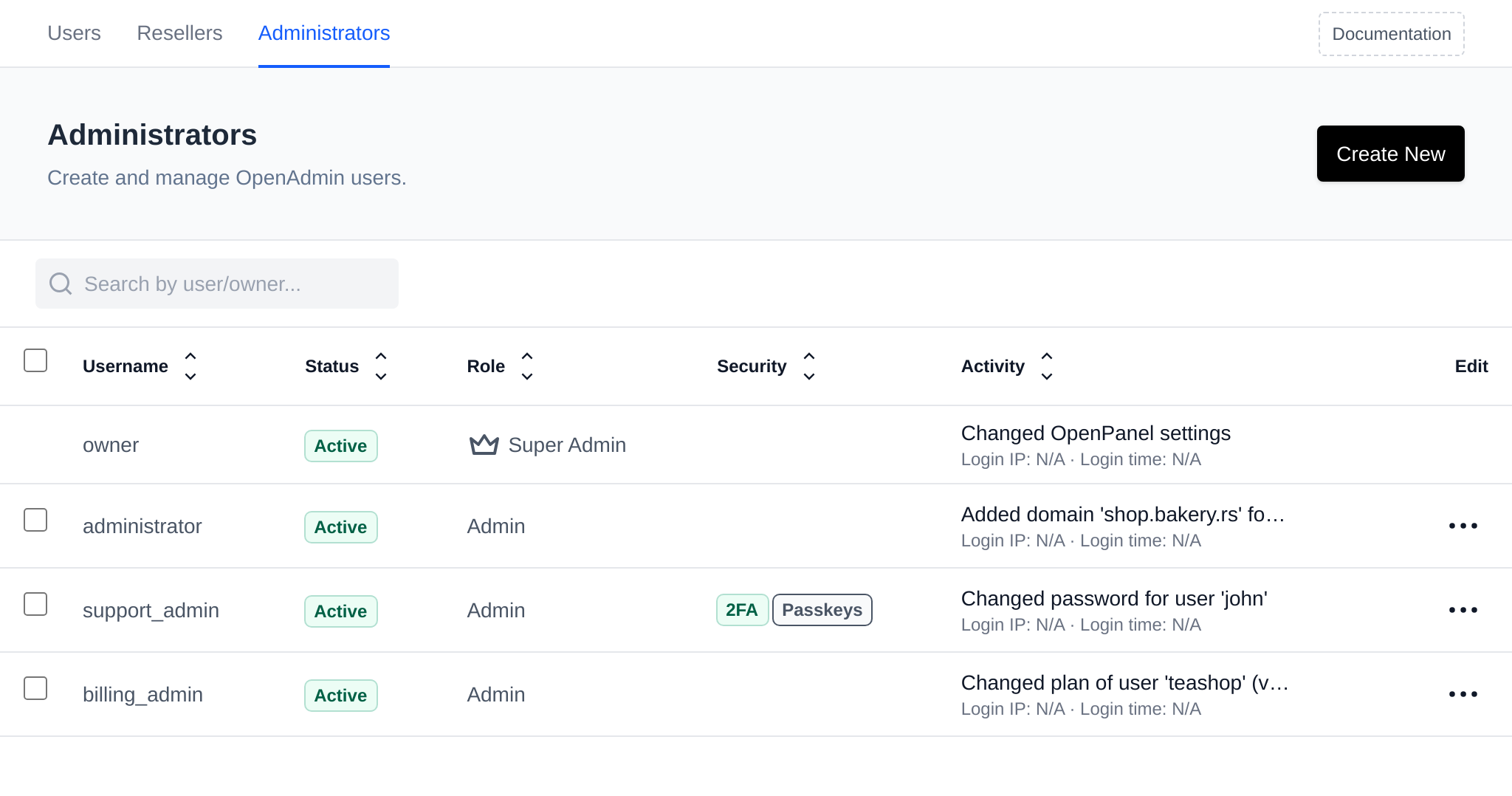
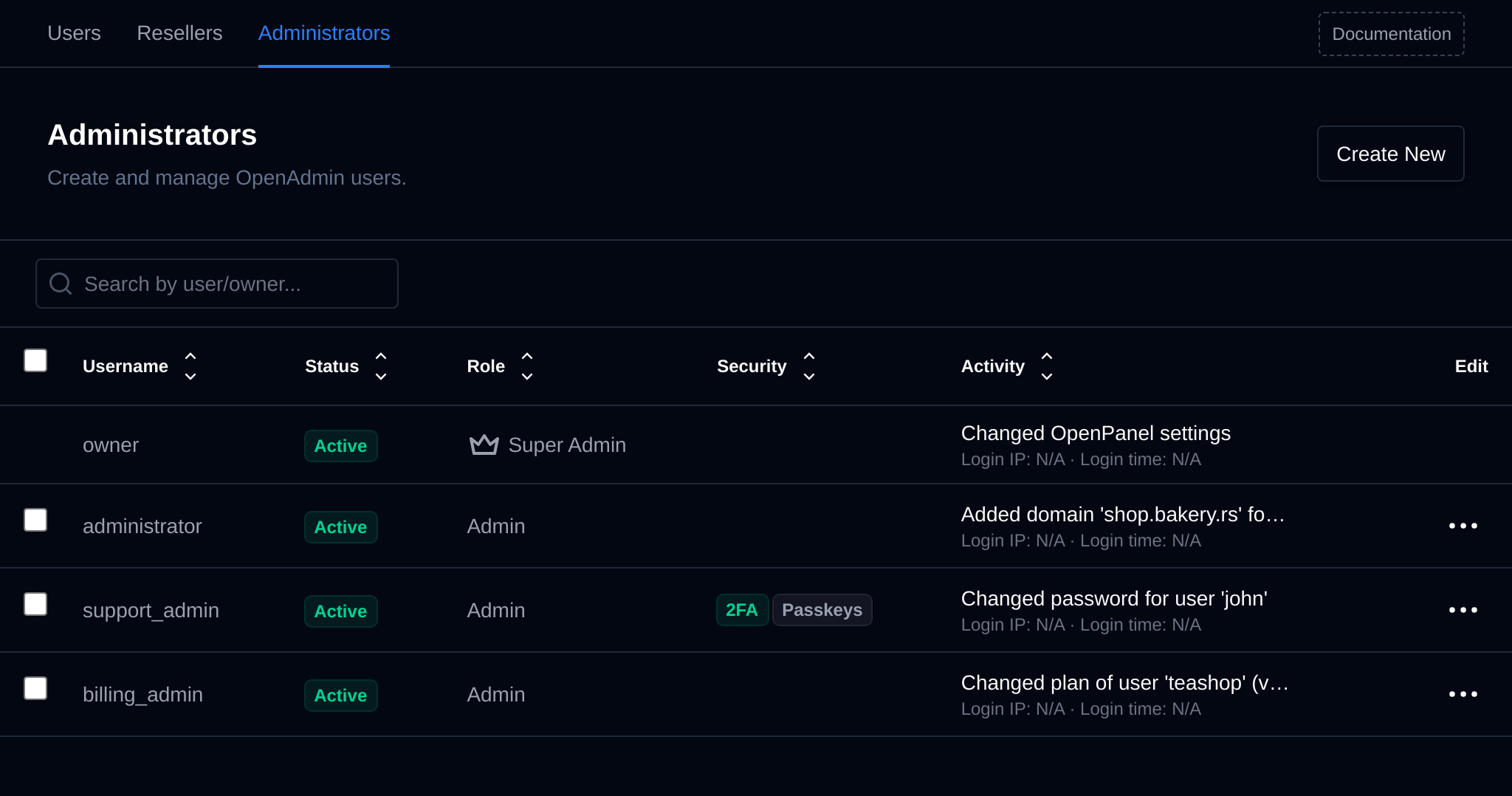
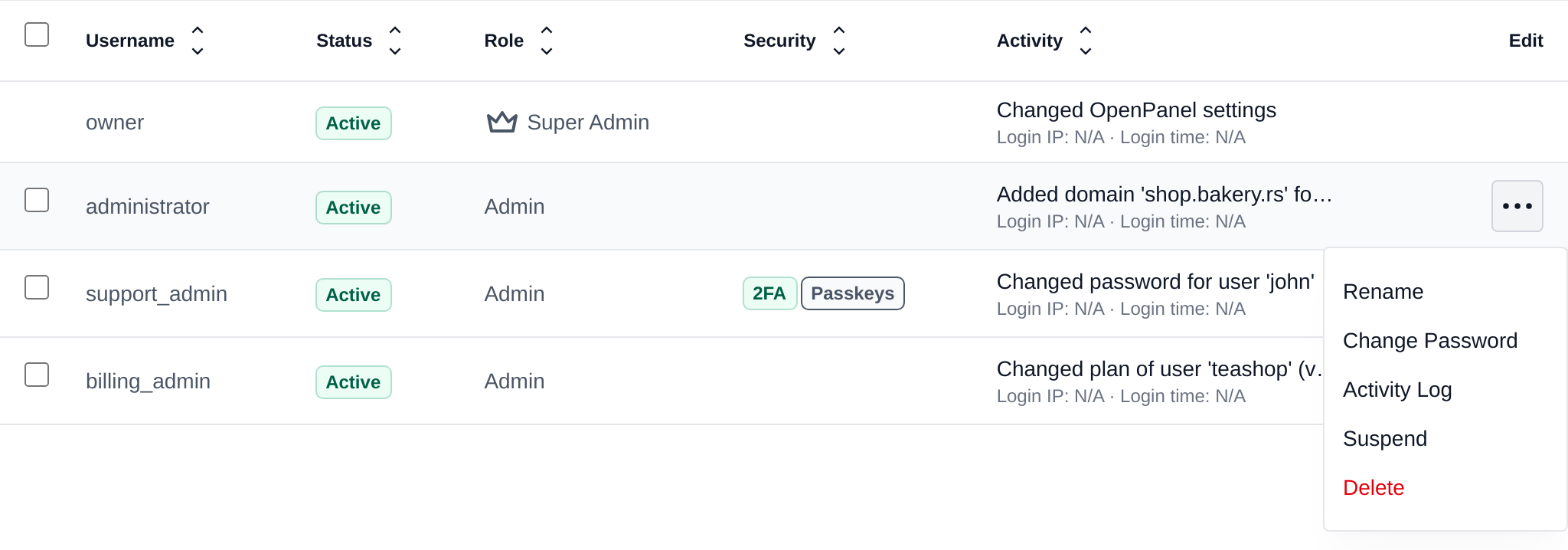
For each admin user, the table shows:
- **Username** and **Status** (active or suspended).
- **Role** - Super Admin or Admin.
- **Security** - a green **2FA** badge when two-factor authentication is enabled and a green **Passkeys** badge when a passkey is registered, the one that isn't set up is grey. Empty when the admin has neither.
- **Activity** - the last change the admin made, linking to their [Activity Log](/docs/admin/accounts/activity), with the IP address and time of their last login below it.
- **Edit** - a menu with the available actions for that user.
Click the arrows next to a column name to sort the table by that column.
Reseller users are not listed on this page - they are managed separately under **Accounts > Resellers**.
To list admin users use command:
```bash
opencli admin list
```
## Bulk Actions
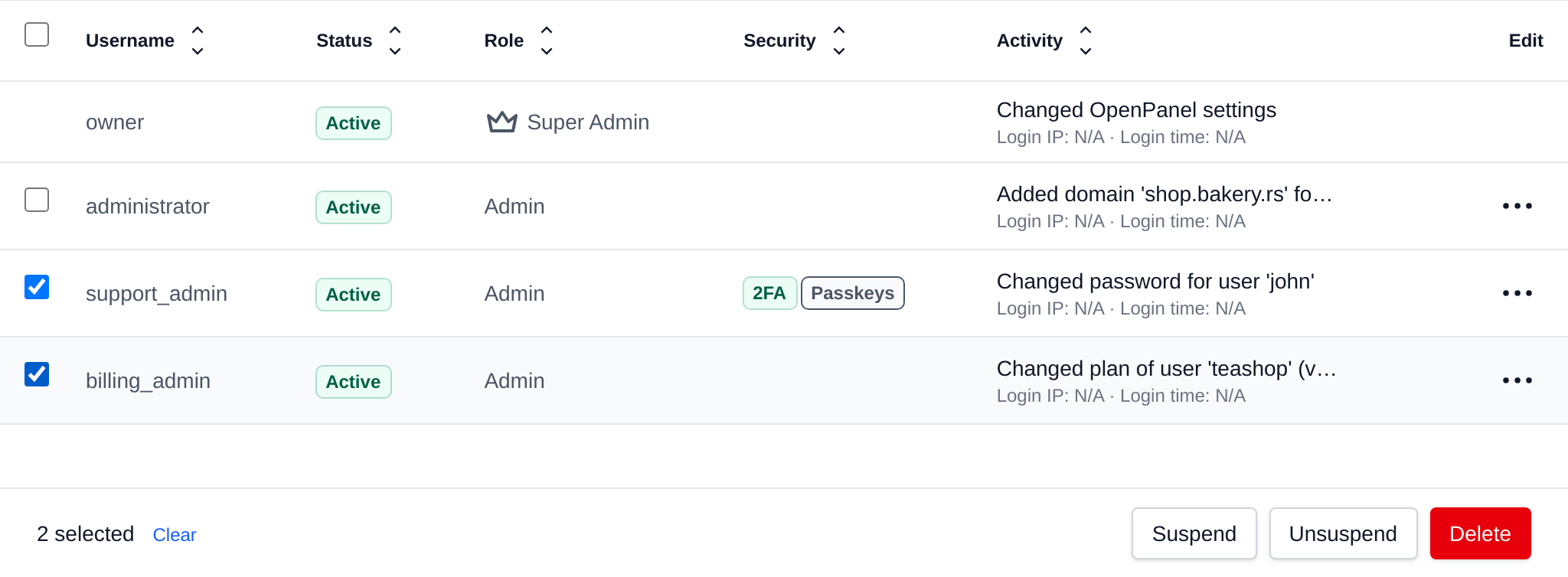
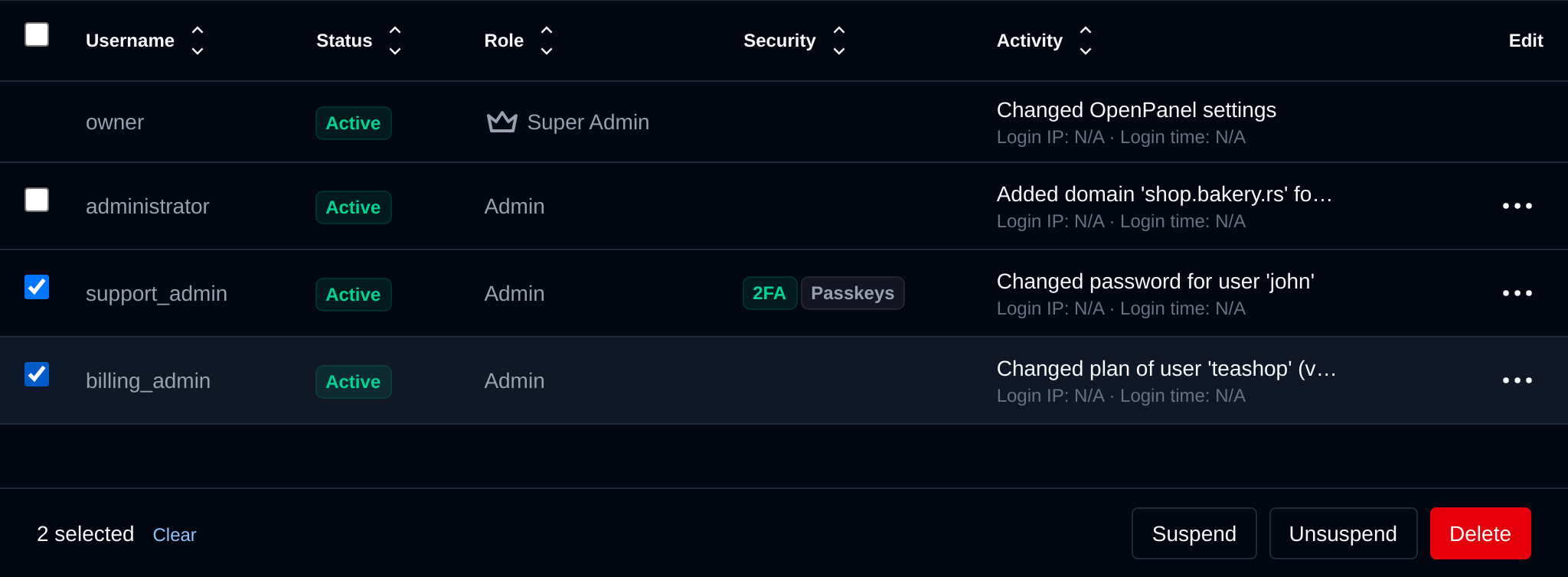
Tick the checkbox of one or more administrators, or the checkbox in the table header to select all administrators shown by the current search. A bar appears at the bottom of the page with the number selected, a **Clear** link and these actions:
| Action | What it does |
|---|---|
| **Suspend** | Suspends the selected administrators, they can't log in until unsuspended. |
| **Unsuspend** | Unsuspends the selected administrators. |
| **Delete** | Permanently deletes the selected administrators. |
Super Admins and your own account have no checkbox, they can't be suspended or deleted from here.
Click an action, confirm it, and it runs on the selected administrators one after another. When it's done the page reloads with a notice listing the administrators it worked for, or which ones failed and why.
## Activity Log
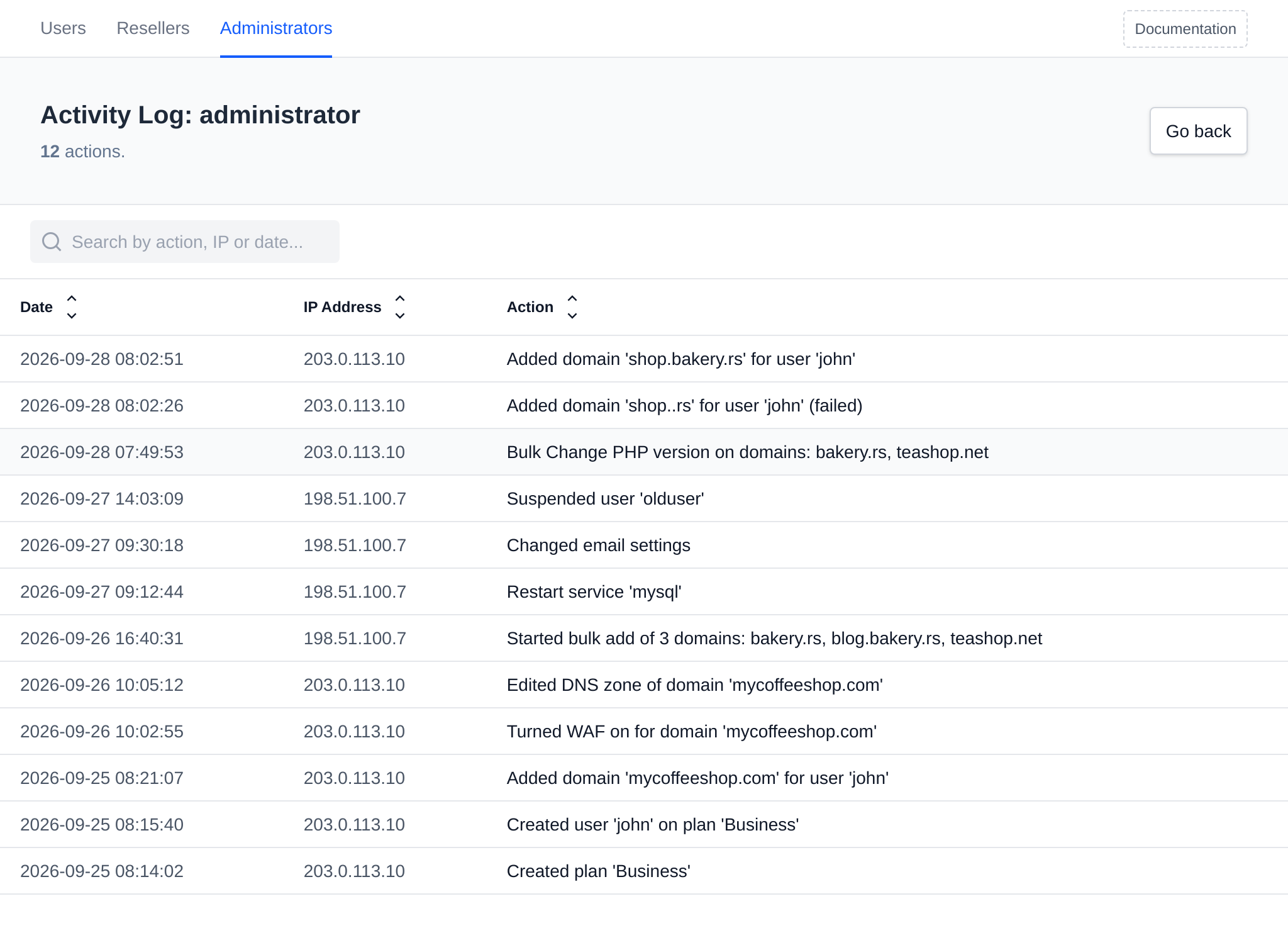
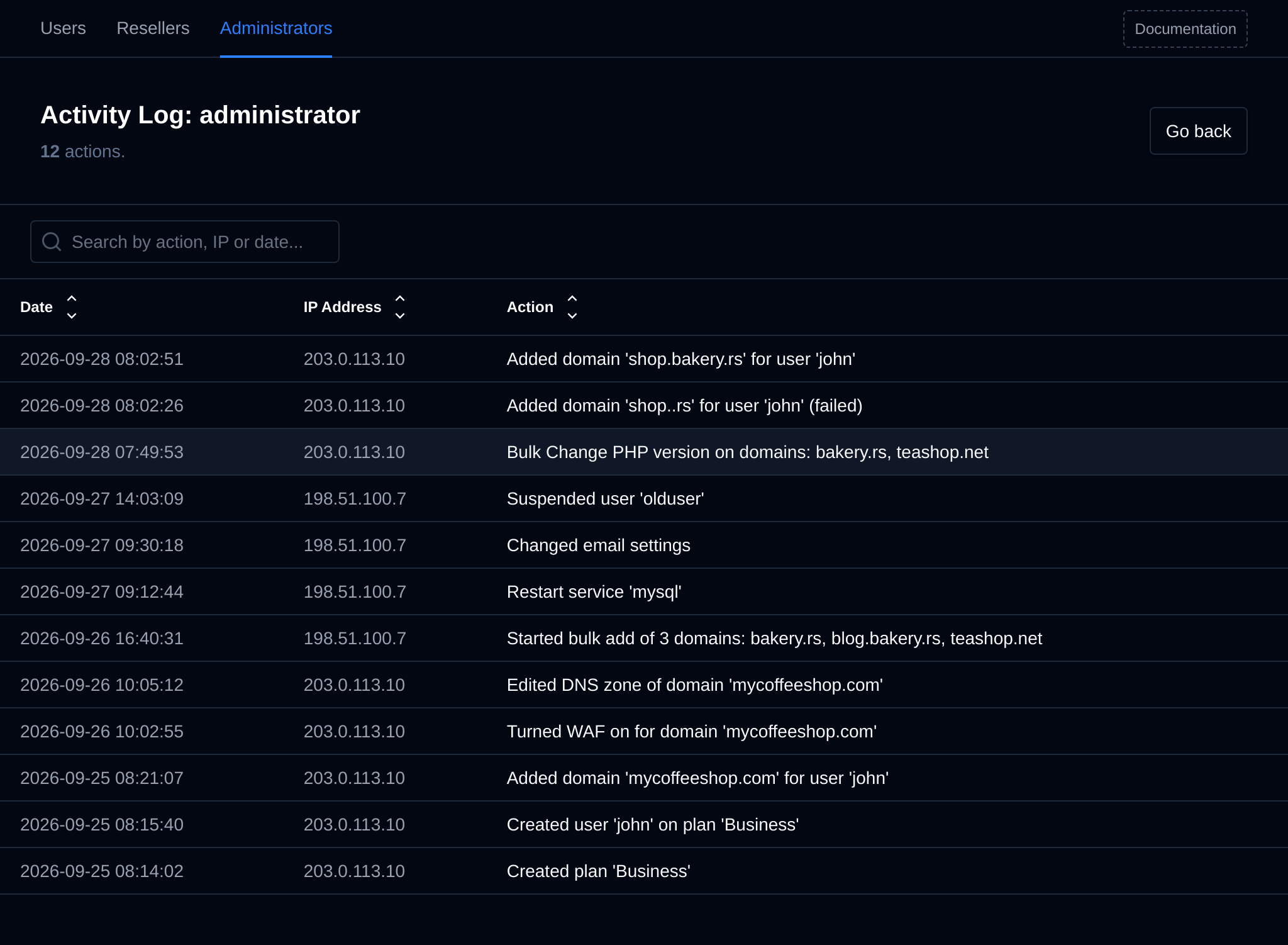
Every change an administrator makes in OpenAdmin is recorded in their own activity log. Open it from the **Activity** column or from **Activity Log** in the Edit menu, see [Activity Log](/docs/admin/accounts/activity) for what is recorded.
## Reset Admin Password
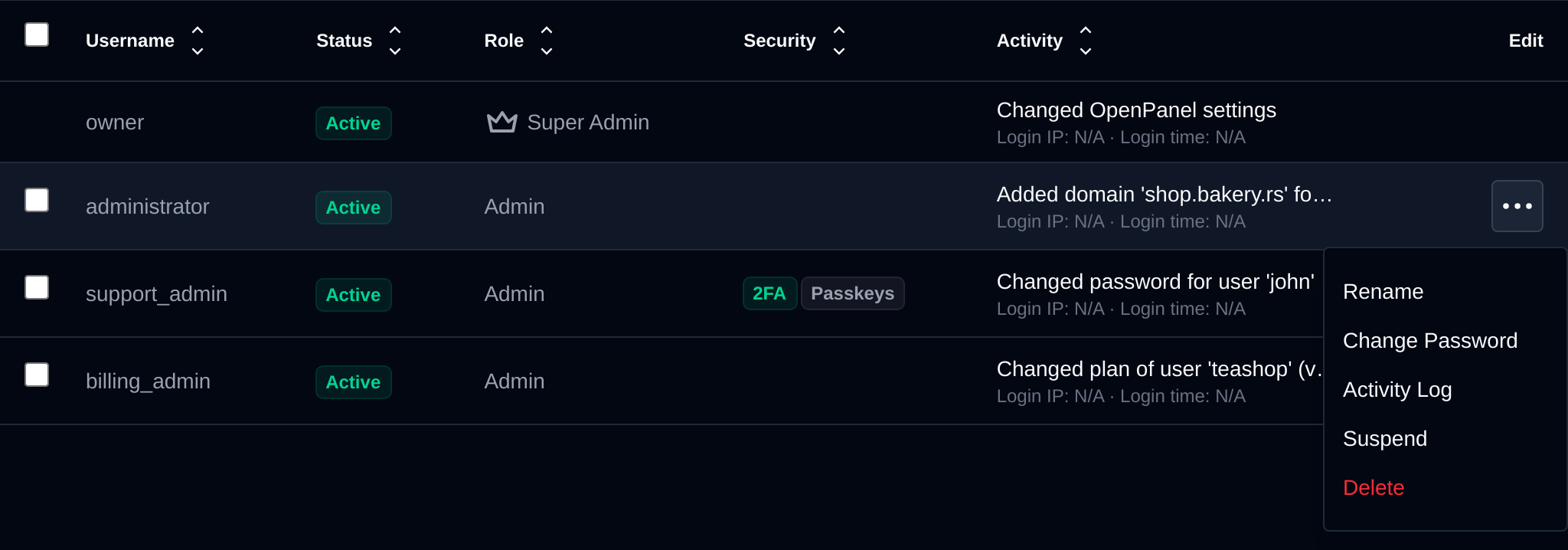
To reset an admin's password, open the Edit menu for that user on the **Accounts > Administrators** page, select **Change Password**, then set the new password and click **Change Password**.
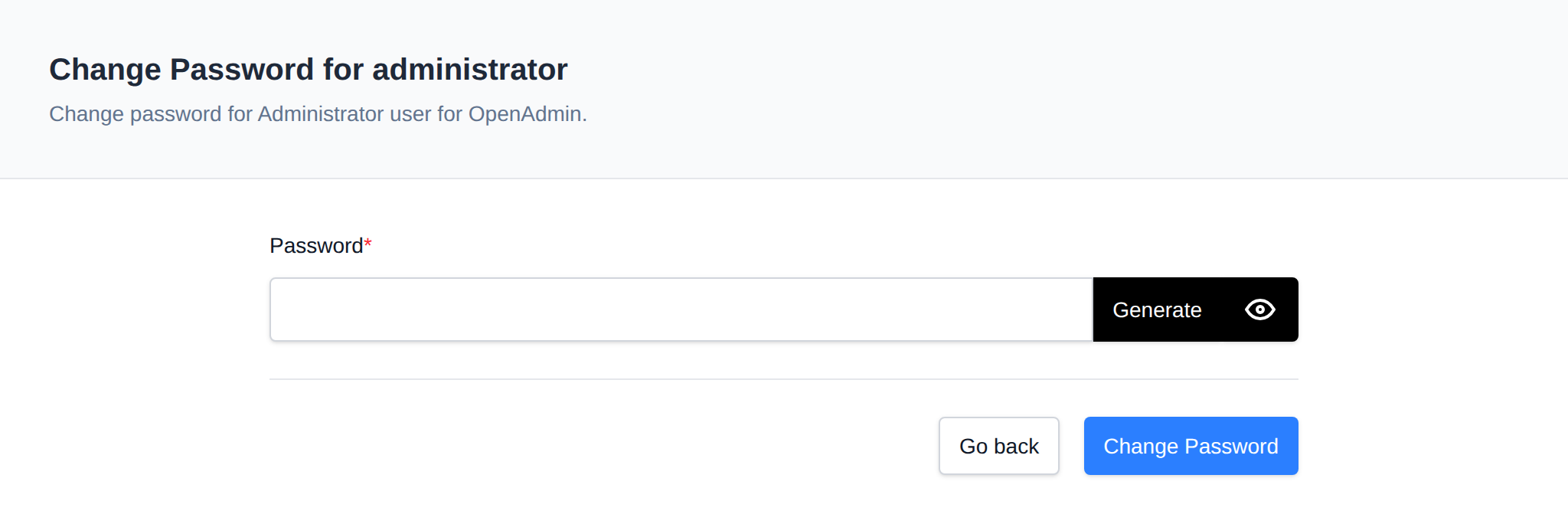
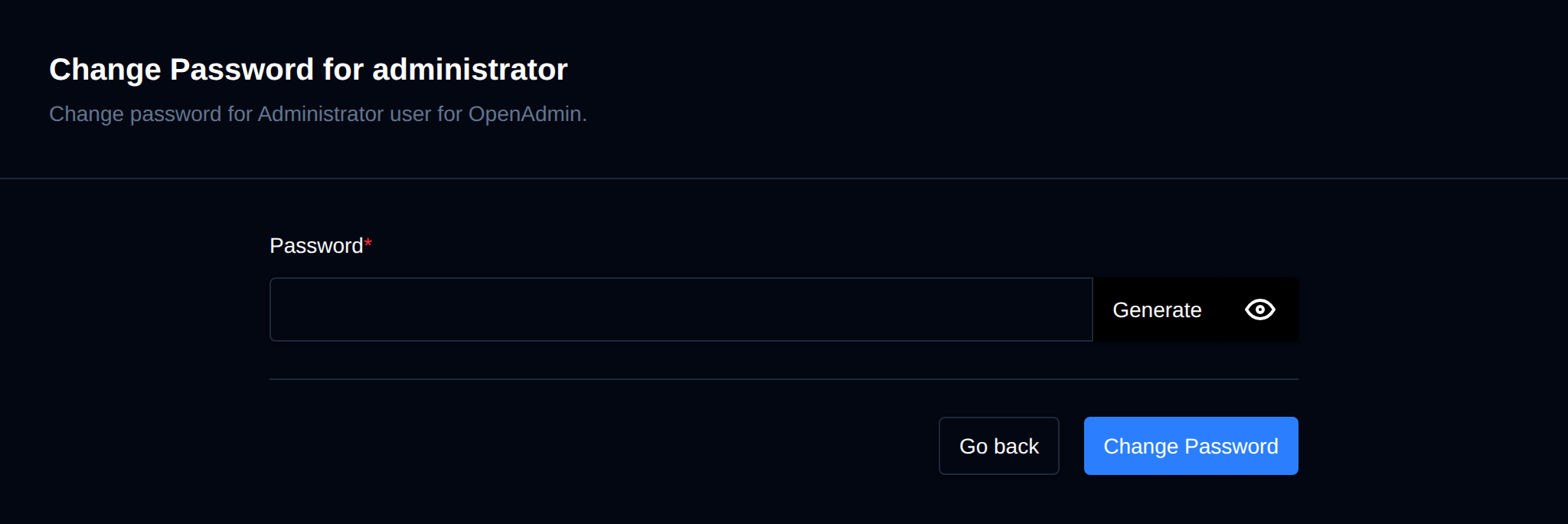
To reset the password for an admin user:
```bash
opencli admin password
```
Example, reset password for and Admin user:
```bash
opencli admin password admin Pyl7_L2M1
```
## Create new Admin
To create a new admin user, click on the **Create New** button on the **Accounts > Administrators** page, set the username and password and click on **Create**.
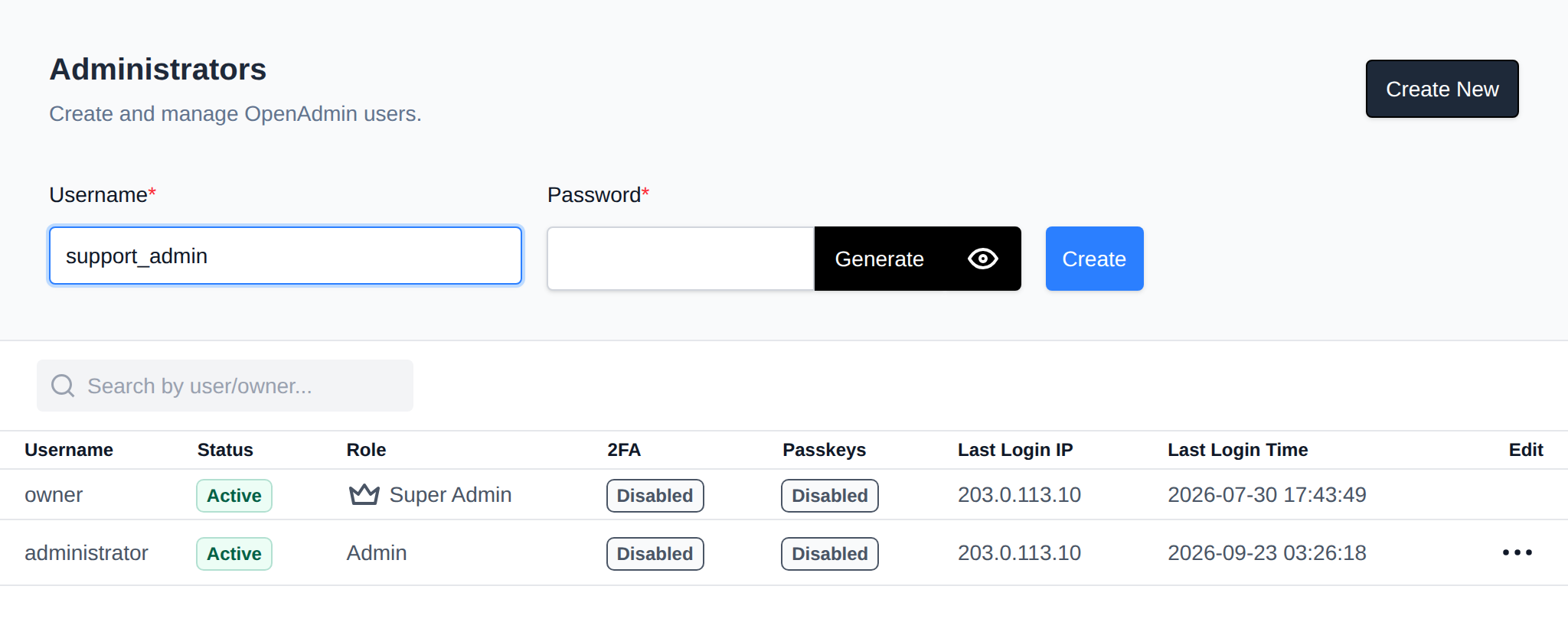
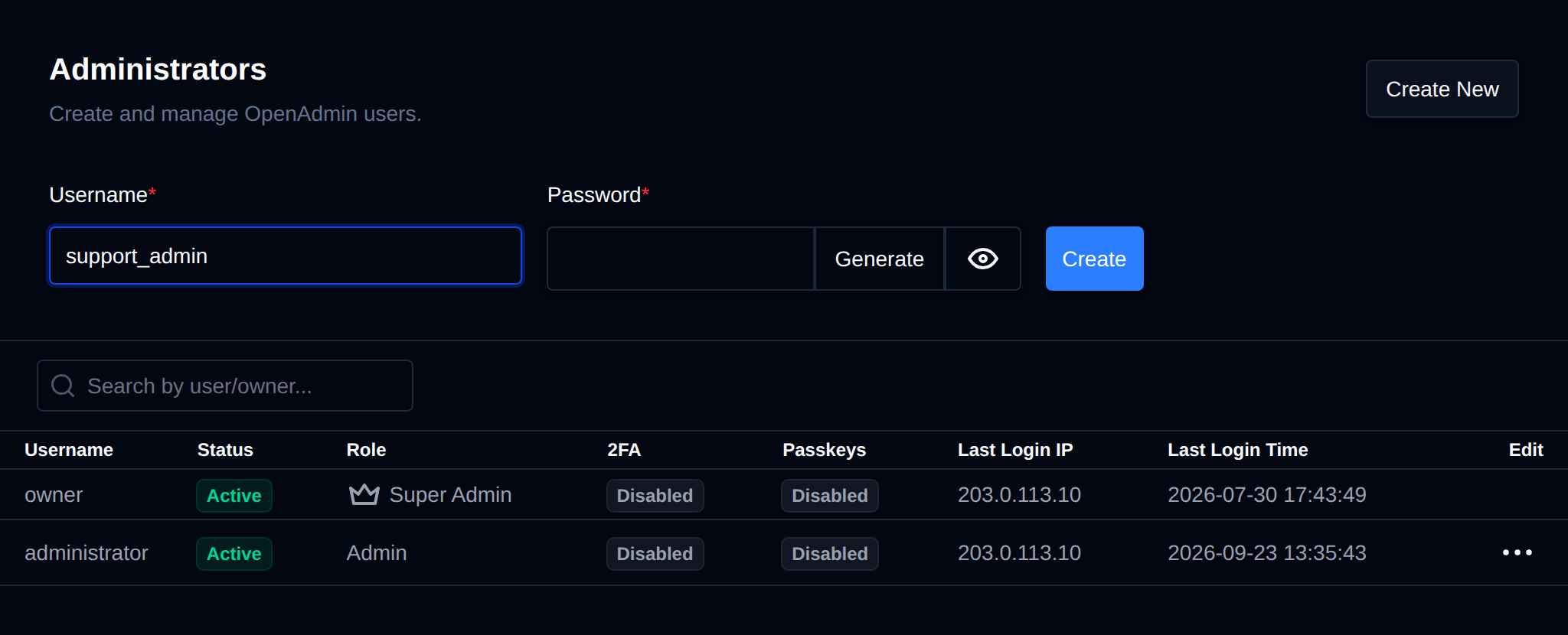
:::info
Creating additional Administrator accounts requires an Enterprise license - Community edition supports only a single Administrator (the Super Admin) and does not display the **Create New** button. New admin users created this way are always assigned the **Admin** role; the **Super Admin** role can only be assigned during OpenPanel installation.
:::
To create new admin accounts:
```bash
opencli admin new
```
Example:
```bash
opencli admin new filip Pyl7_L2M1
```
## Rename Admin user
To rename an Admin user, open the Edit menu for that user on the **Accounts > Administrators** page, select **Rename**, set the new username and click **Change Username**.
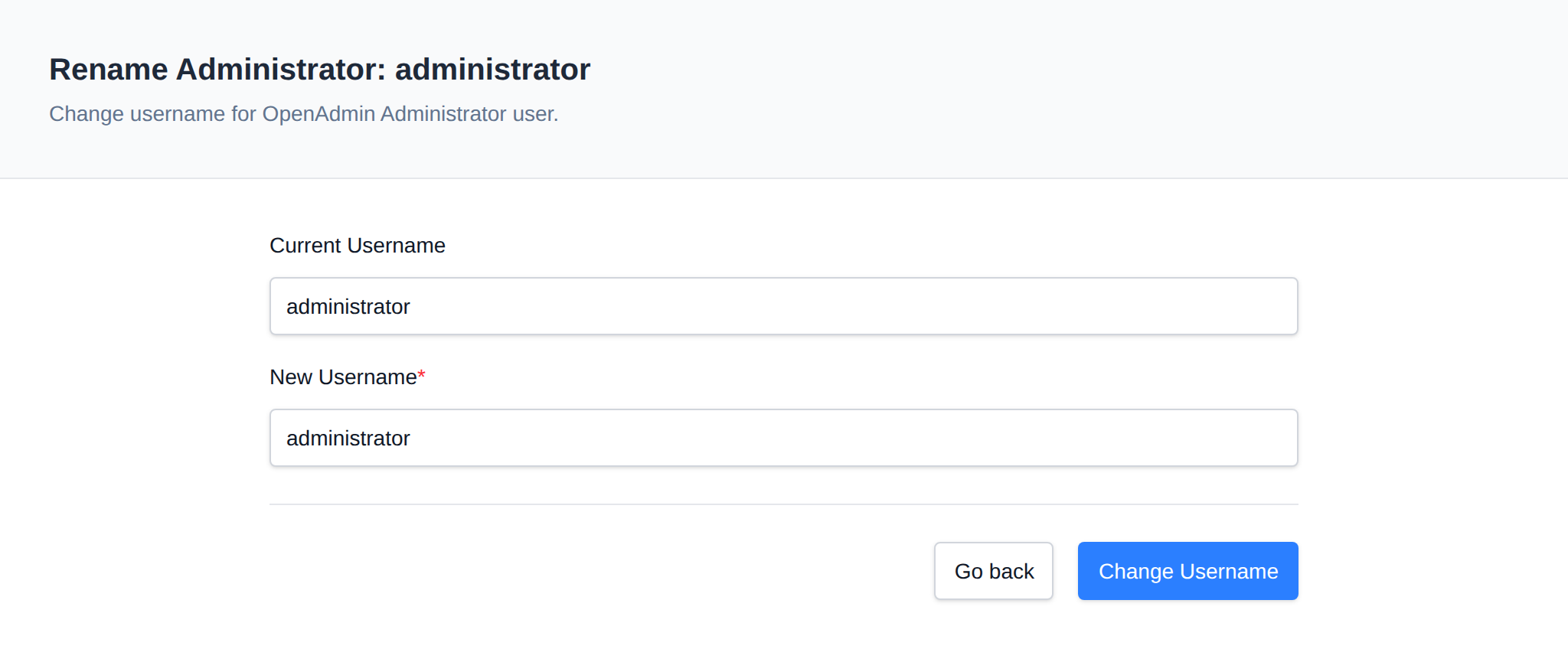
To rename admin user:
```bash
opencli admin rename
```
Example:
```bash
opencli admin rename filip filip2
```
## Suspend Admin user
To suspend an Admin user, open the Edit menu for that user on the **Accounts > Administrators** page and click **Suspend**. To unsuspend the user, open the Edit menu again and click **Unsuspend**.
:::info
Only users with the **Admin** role can be suspended from this page. The **Super Admin** user cannot be suspended, and an admin cannot suspend their own account.
:::
```bash
opencli admin suspend
```
Example:
```bash
opencli admin suspend filip
```
---
To unsuspend admin user:
```bash
opencli admin unsuspend
```
Example:
```bash
opencli admin unsuspend filip
```
## Delete Admin user
Open the Edit menu for the user on the **Accounts > Administrators** page and click **Delete**, then confirm.
From the terminal:
To delete admin user:
```bash
opencli admin delete
```
Example:
```bash
opencli admin delete filip
```
:::info
The Super Admin user can not be deleted.
:::
## Disable Two-Factor Authentication or Passkeys
If an admin user has Two-Factor Authentication or a Passkey enabled (shown in the **2FA** and **Passkeys** columns on the **Accounts > Administrators** page), the Super Admin can open that user's Edit menu and select **Disable 2FA** or **Disable Passkeys** to remove it, for example if the user is locked out of their authenticator or security key. Only the Super Admin can perform this action, and it cannot be used on the Super Admin's own account.
---
// File: admin/accounts/activity
# Activity Log
OpenAdmin records every change made by Administrators and Resellers in a separate activity log for each account. Only requests that change something are recorded, opening or browsing pages is not.
Each entry has the date and time, the IP address it was made from and a short description of the action, for example:
```
2026-09-28 08:02:51 203.0.113.10 Added domain 'shop.bakery.rs' for user 'john'
```
- Actions that failed end with `(failed)`, for example a domain that could not be added.
- Actions made through the [OpenAdmin API](/docs/articles/dev-experience/openadmin-api) are recorded in the log of the administrator the API token belongs to and end with `(via API)`.
- Passwords and other values typed into forms are never written to the log.
- Logins are not part of the activity log, they are shown in the **Activity** column and kept in `/var/log/openpanel/admin/login.log`.
## Viewing the Activity Log


The **Activity** column on the [Administrators](/docs/admin/accounts/administrators) and [Resellers](/docs/admin/accounts/resellers) pages shows the last action of each account, with the IP address and time of their last login below it. Click the action, or pick **Activity Log** from the Edit menu, to open the full log:
- `/administrators/activity/` for administrators
- `/resellers/activity/` for resellers
The newest actions are shown first, 50 per page. Use the search to filter by action, IP address or date, and the arrows next to the column names to sort.
| Role | Can view |
|---|---|
| **Super Admin** | The activity log of every account. |
| **Admin** | The activity log of every account. |
| **Reseller** | Only their own, from **My Activity Log** on their [Reseller Account](/docs/admin/accounts/resellers#reseller-account) page. |
## Log files
The logs are stored in `/var/log/openpanel/admin/activity/.log`, one line per action. Once a log grows past 2 MB, the oldest entries are removed so that about the newest 1 MB is kept.
When an account is renamed with `opencli admin rename` (or from OpenAdmin), its log file is renamed too, and when an account is deleted with `opencli admin delete` its log file is deleted.
## Actions recorded for Administrators
Administrators can use every page in OpenAdmin, so every change below can appear in their log. Values in `<>` are replaced with the actual names.
**Administrators**
- `Created administrator ''`
- `Renamed administrator '' to ''`
- `Changed password for administrator ''`
- `Suspended / Unsuspended administrator ''`
- `Deleted administrator ''`
- `Disabled 2FA / Removed passkeys for administrator ''`
**Resellers**
- `Created reseller ''`
- `Renamed reseller '' to ''`
- `Changed password for reseller ''`
- `Updated limits for reseller ''`
- `Updated branding for reseller ''`
- `Suspended / Unsuspended / Deleted reseller ''`
- `Disabled 2FA / Removed passkeys for reseller ''`
**Own account**
- `Disabled 2FA for own account`
- `Enabled 2FA for own account`
- `Deleted a passkey`
- `Added a passkey`
- `Renamed a passkey`
**Users**
- `Start / Stop / Restart container '' of user ''`
- `Edited custom message for user ''`
- `Edited notes for user ''`
- `Started an account transfer`
- `Imported an account from `
- `Changed default PHP version for user ''`
- `Exported user ''`
- `Deleted an export of user ''`
- `Created user '' on plan ''`
- `Suspended / Unsuspended / Deleted user ''`
- `Edited user ''`
- `Changed / Reset feature permissions for user ''`
- `Changed for user ''`
**Plans & Features**
- `Updated feature sets`
- `Updated feature set ''`
- `Deleted plan ''`
- `Updated plans`
- `Created plan ''`
- `Edited plan ''`
**Domains**
- `Started bulk add of domains: , `
- `Added domain '' for user ''`
- `Changed DNS cluster settings`
- `Edited domain file templates`
- `Edited VirtualHost of domain ''`
- `Edited DNS zone templates`
- `Turned WAF / HSTS on or off for domain ''`
- `Changed DNS status for domain ''`
- `Edited DNS zone of domain ''`
- `Edited Caddyfile of domain ''`
- `Edited webserver config of user ''`
- `Changed SSL of domain ''`
**Emails**
- `Changed email accounts`
- `Deleted an email account`
- `Removed quota of an email account`
- `Set quota of an email account`
- `Changed sending/receiving restrictions of an email account`
- `Changed password of an email account`
- `Changed email rate limits`
- `Edited email rate limits`
- `Changed the mail queue`
- `Mail queue action `
- `Changed email settings`
**Services**
- `Emptied a crash log`
- `Emptied a log file`
- `Emptied update log`
- `Start / Stop / Restart service ''`
- `Changed services`
- `Changed crash logs`
- `Edited a crash log`
- `Edited a service`
- `Changed FTP accounts`
- `Refreshed FTP accounts`
- `Changed FTP settings`
- `Changed service resource limits`
- `Changed log settings`
- `Edited a log file`
- `Container images: `
- `Pull / Delete container image ''`
- `Edited update log`
**Backups**
- `Changed system backup settings`
- `Deleted system backup ''`
- `Restored system backup ''`
- `Started a system backup`
- `Changed user backup configuration`
- `Started a user backup`
- `Changed user backup settings`
**Server**
- `Changed scheduled actions`
- `Changed demo mode`
- `Dropped memory caches`
- `Cleared swap`
- `Started a server migration`
- `Changed cluster nodes`
- `Kill process `
- `Rebooted the server`
- `Changed root password`
- `Changed SSH access`
- `Edited SSH configuration`
- `Swap: `
- `Changed server timezone`
**Security**
- `Changed ConfigServer Firewall`
- `Changed ImunifyAV`
- `Changed Basic Authentication`
- `Edited blocked user agents`
- `Disabled OpenAdmin`
- `Changed WAF settings`
- `Changed WAF rules`
**Notifications**
- `Deleted a notification`
- `Marked a notification as read`
- `Paused notifications`
- `Resumed notifications`
- `Snoozed a notification`
- `Unsnoozed a notification`
- `Changed notification settings`
**Settings**
- `Removed license key`
- `Deleted a default file for new users`
- `Changed license key`
- `Verified license`
- `Changed PHP `
- `Changed API access`
- `Changed Caddy settings`
- `Edited custom code`
- `Changed default settings for new users`
- `Added a default file for new users`
- `Copied default files to user ''`
- `Changed general settings`
- `Changed locales`
- `Changed enabled modules`
- `Changed OpenPanel settings`
- `Changed PHP settings`
- `Changed update settings`
- `Changed update log`
- `Started an OpenPanel update`
- `Edited a default file for new users`
**Bulk actions**
- `Bulk on : , ` - one line for the whole run, listing the selected rows. For example `Bulk Suspend on users: john, mary`.
Any other change that is not in this list is recorded as the request method and path, for example `POST /settings/example`.
## Actions recorded for Resellers
Resellers can only use the pages for their own users, plans and emails, so these are the actions that can appear in their log:
**Own reseller account**
- `Changed password for reseller ''`
- `Updated branding for reseller ''`
**Own account**
- `Disabled 2FA for own account`
- `Enabled 2FA for own account`
- `Deleted a passkey`
- `Added a passkey`
- `Renamed a passkey`
**Users**
- `Start / Stop / Restart container '' of user ''`
- `Edited custom message for user ''`
- `Edited notes for user ''`
- `Changed default PHP version for user ''`
- `Exported user ''`
- `Deleted an export of user ''`
- `Created user '' on plan ''`
- `Suspended / Unsuspended / Deleted user ''`
- `Edited user ''`
- `Changed / Reset feature permissions for user ''`
- `Changed for user ''`
**Plans & Features**
- `Updated feature sets`
- `Updated feature set ''`
- `Deleted plan ''`
- `Updated plans`
- `Created plan ''`
- `Edited plan ''`
**Emails**
- `Changed email accounts`
- `Deleted an email account`
- `Removed quota of an email account`
- `Set quota of an email account`
- `Changed sending/receiving restrictions of an email account`
- `Changed password of an email account`
- `Changed email rate limits`
- `Edited email rate limits`
- `Changed the mail queue`
- `Mail queue action `
- `Changed email settings`
**Bulk actions**
- `Bulk on : , ` - on the Users, Plans, Emails and container pages they have access to.
---
// File: admin/advanced/resource-usage
# Resource Usage
Real-time server-wide resource usage, for the whole physical/virtual machine OpenPanel runs on (not a single user's account).
Use **OpenAdmin > Server > Resource Usage** to view it.
## Tabs
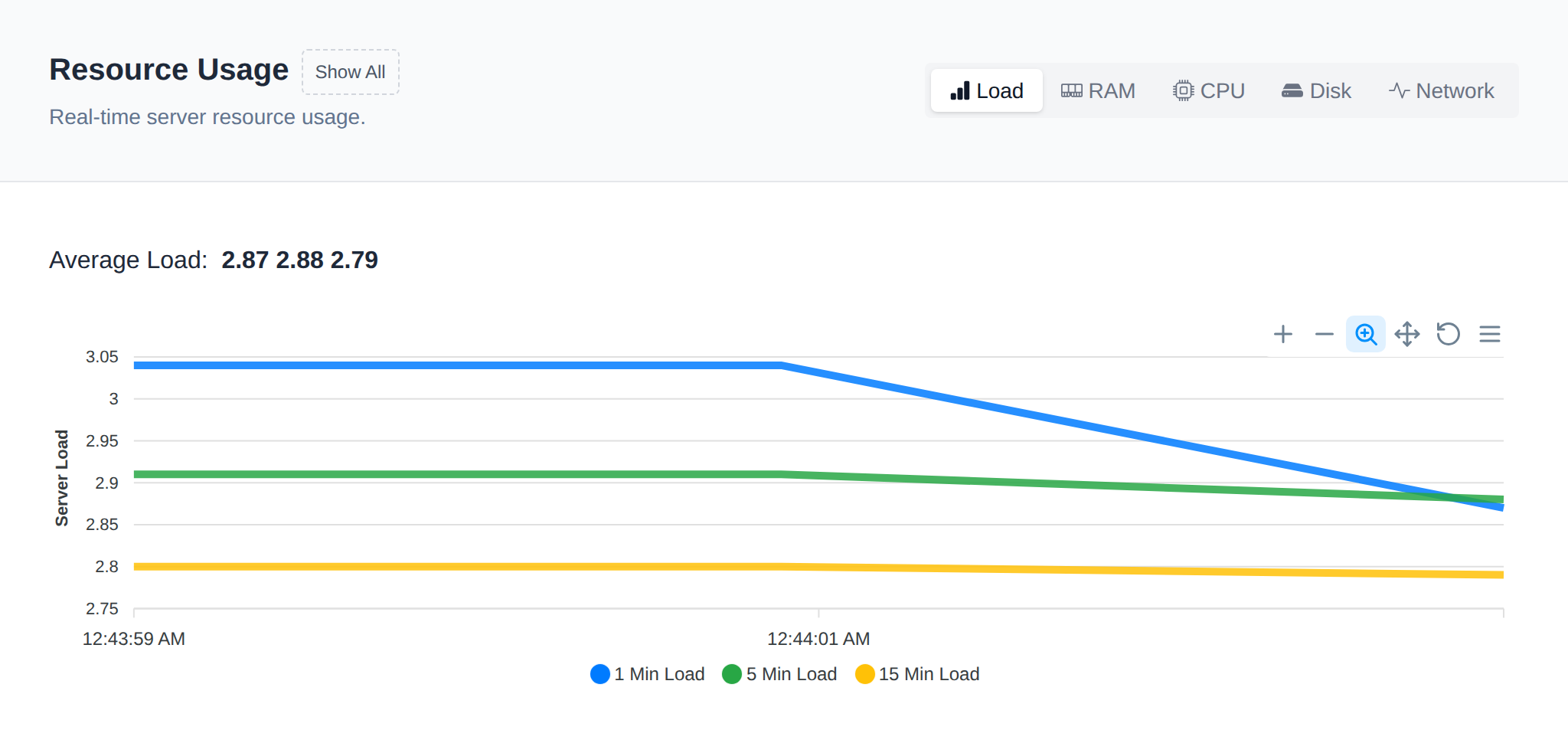
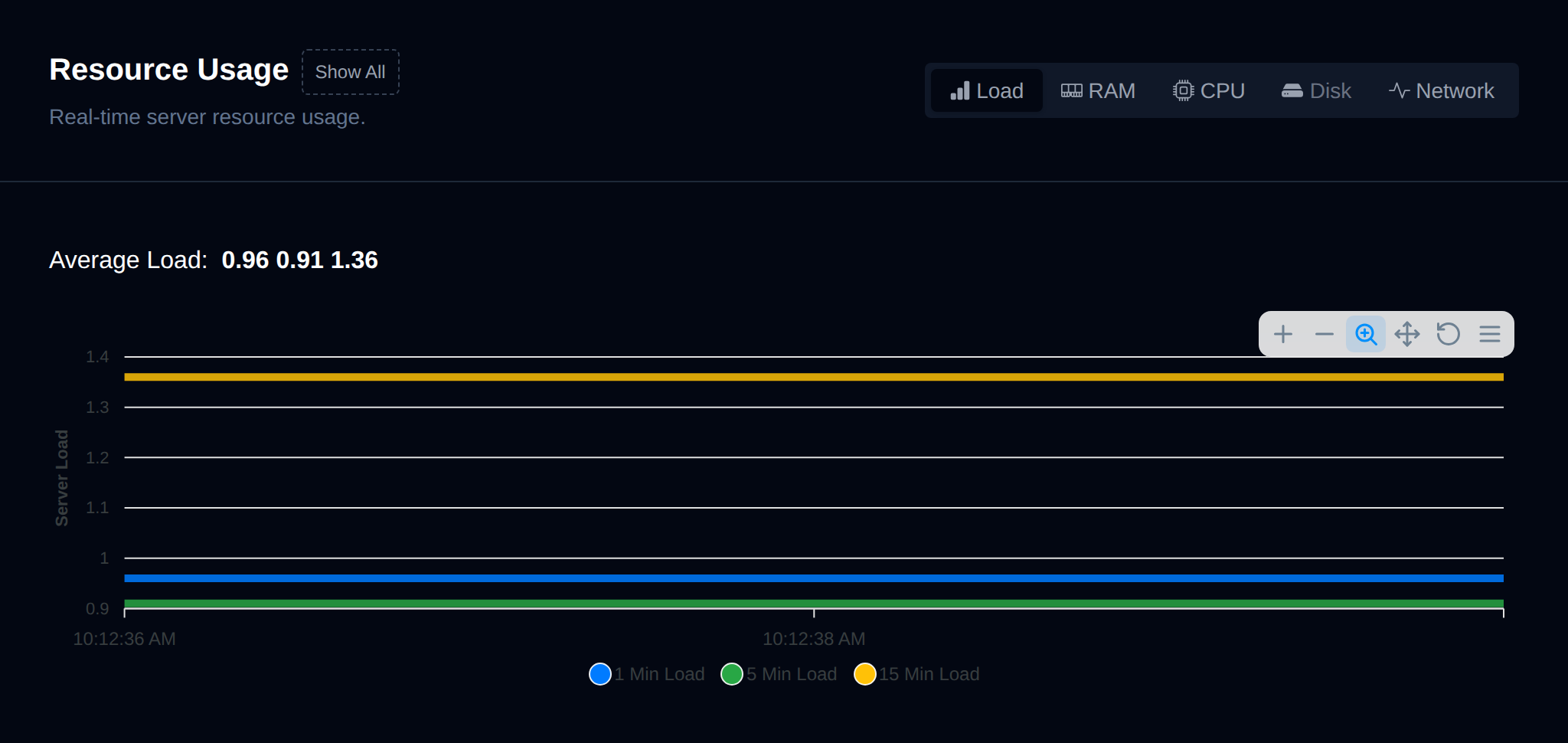
- **Load** – Current system load averages.
- **CPU** – Per-core CPU usage.
- **RAM** – Memory usage: used, total, and available.
- **Disk** – Disk space usage per mounted volume.
- **Network** – Network I/O.
A warning is shown above the tabs, and updates live, when CPU, RAM, swap or disk `/` usage is at 90% or more, or when the 5-minute load average is at 90% or more of the number of CPU cores.
## History
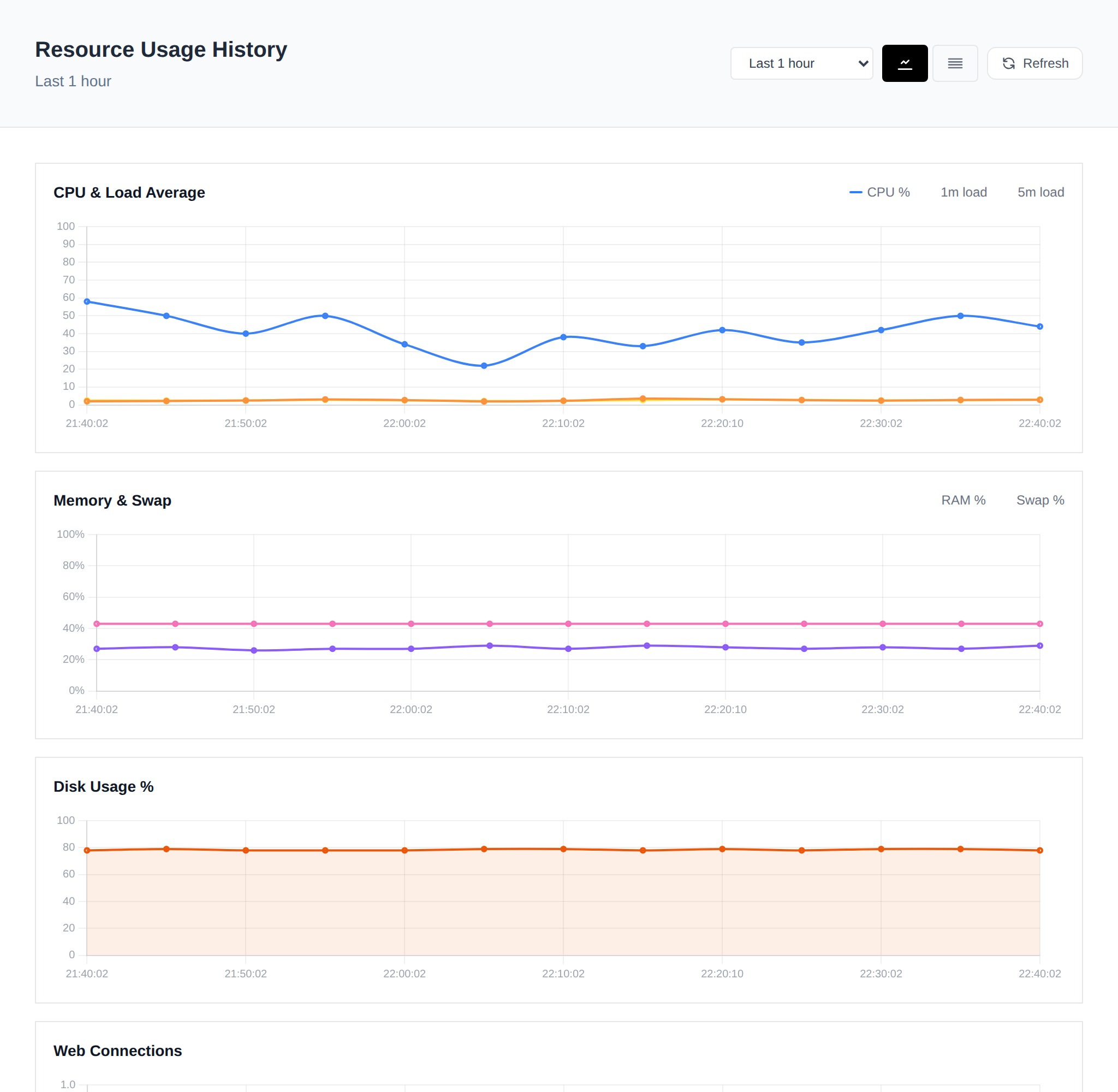
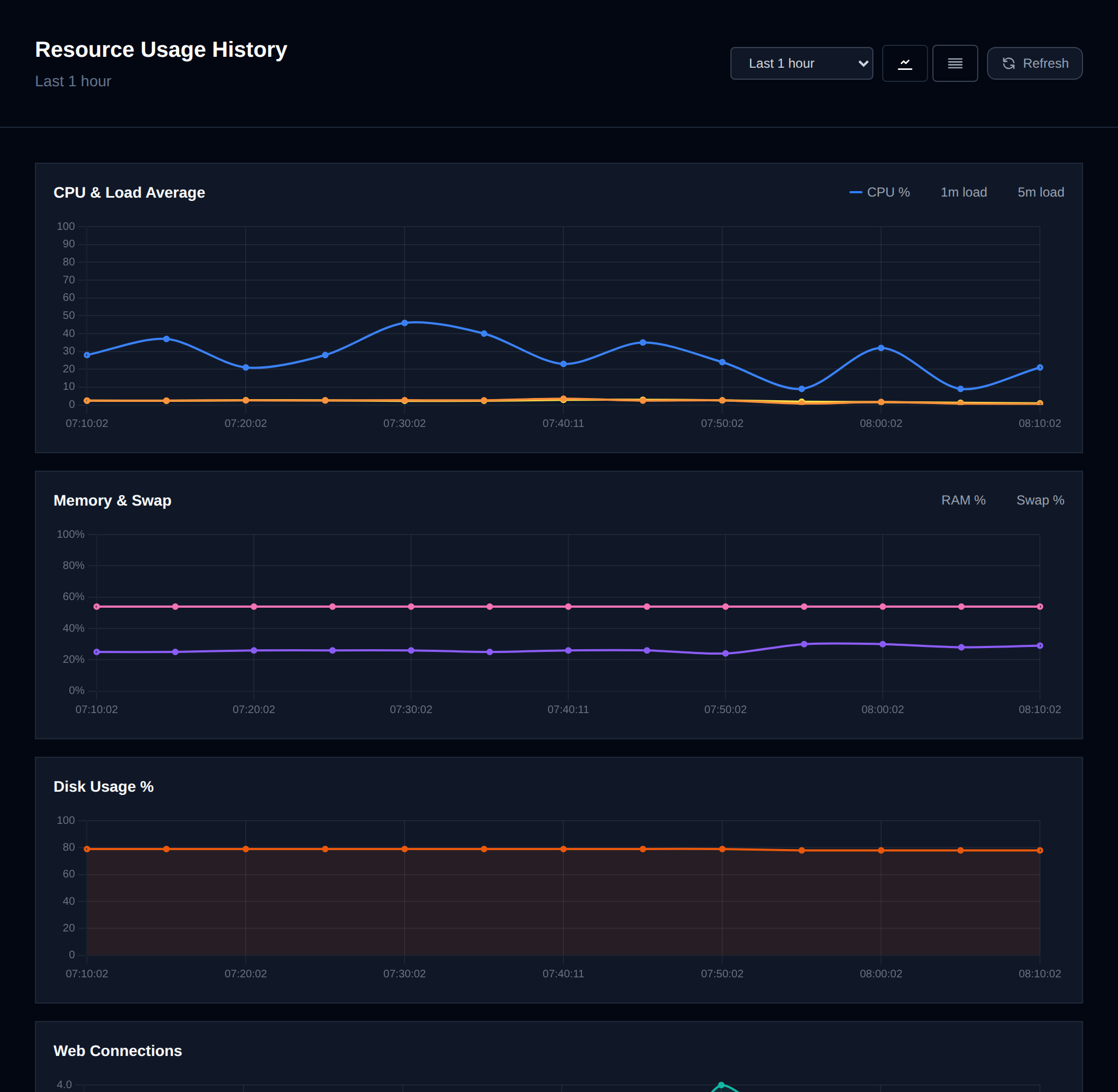
Click **View Usage History** to open the historical resource usage page, which charts CPU and memory usage over a selectable time range and lists every recorded snapshot in a table below the charts.
---
// File: admin/advanced/crons
# Cron jobs
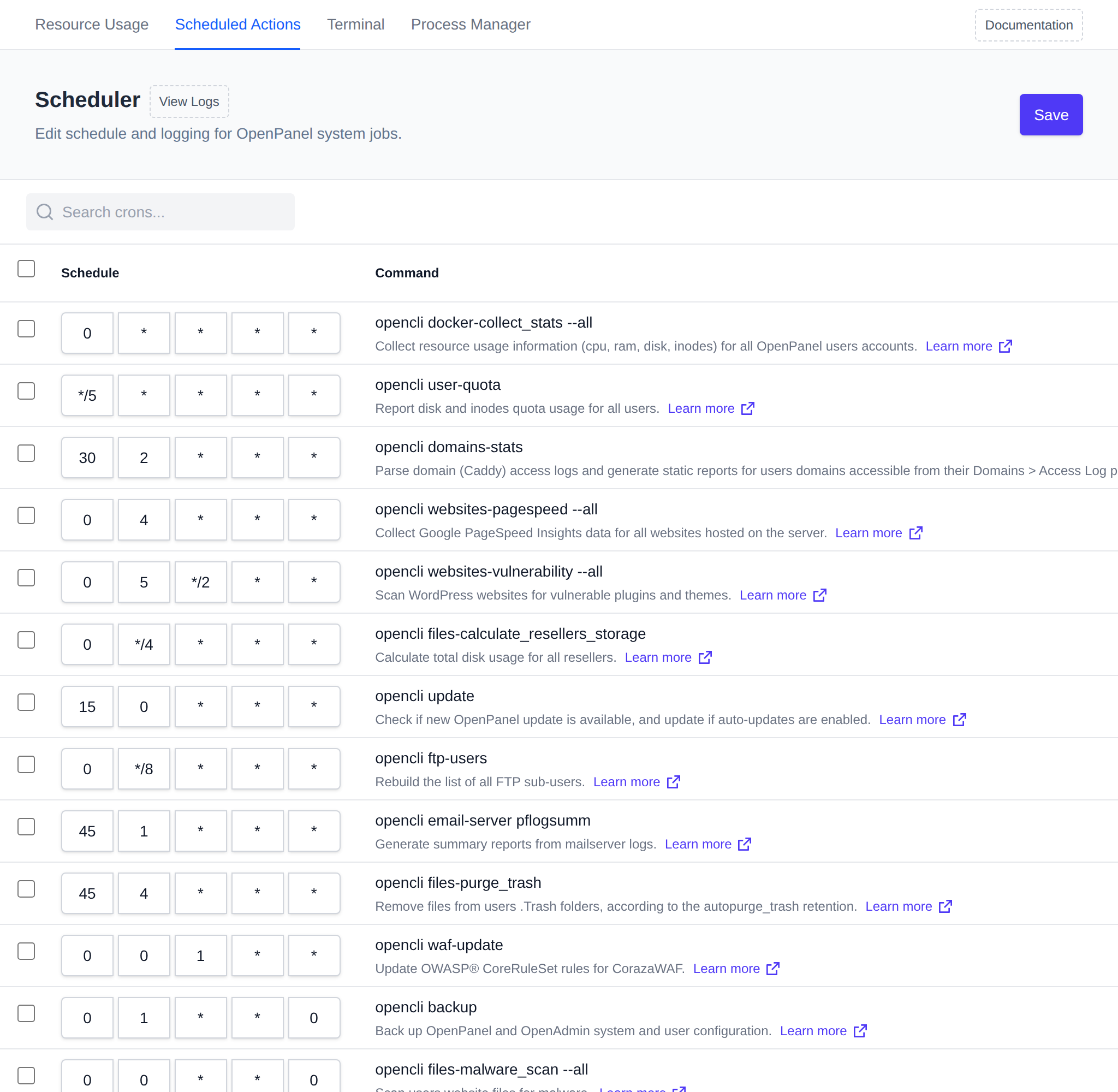
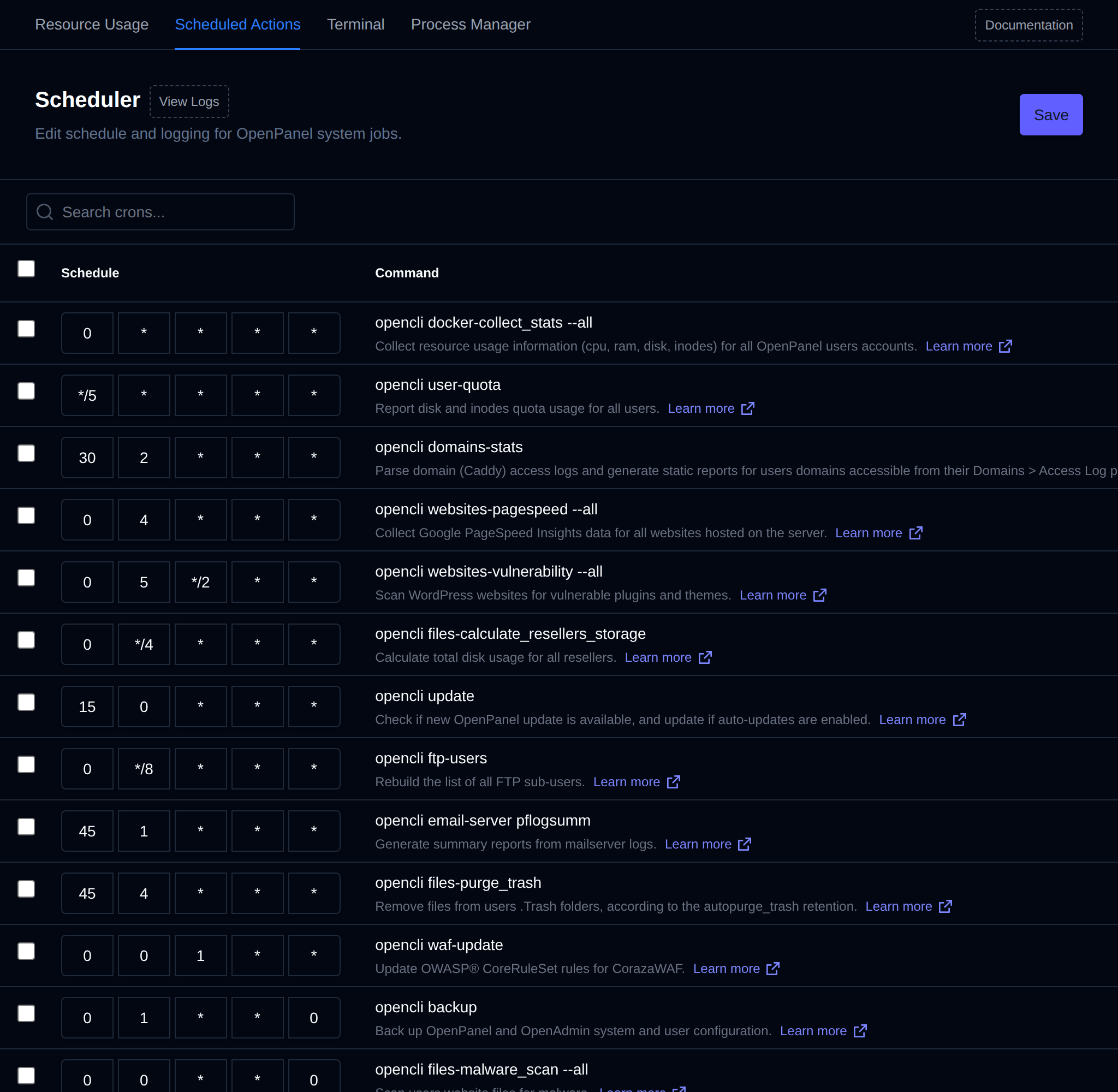
**OpenAdmin > Server > Scheduled Actions** lets Administrators view the scheduled cron tasks used by OpenPanel, modify their schedules, or enable/disable logging to the file `/var/log/openpanel-cron.log`.
Each job shows a one-line description of what that command does and a **Learn more** link to its [OpenCLI](/docs/articles/opencli/) docs page.
A warning is shown above the table for any job with an invalid schedule, or a schedule that can never run (for example `59 23 31 2 *`, the 31st of February), since that job is effectively disabled. `opencli docker-backup` is skipped when it uses its default *Disabled* schedule, since admin-configured backups are off by default.
Changing schedules may cause some OpenPanel features to stop working correctly. Only adjust these settings if:
- You need to fine-tune execution on servers with limited resources, or
- You have been advised to do so by OpenPanel support.
These cron jobs are essential for OpenPanel’s internal operations.
If you want to add your own custom cron jobs, use the root user’s crontab.
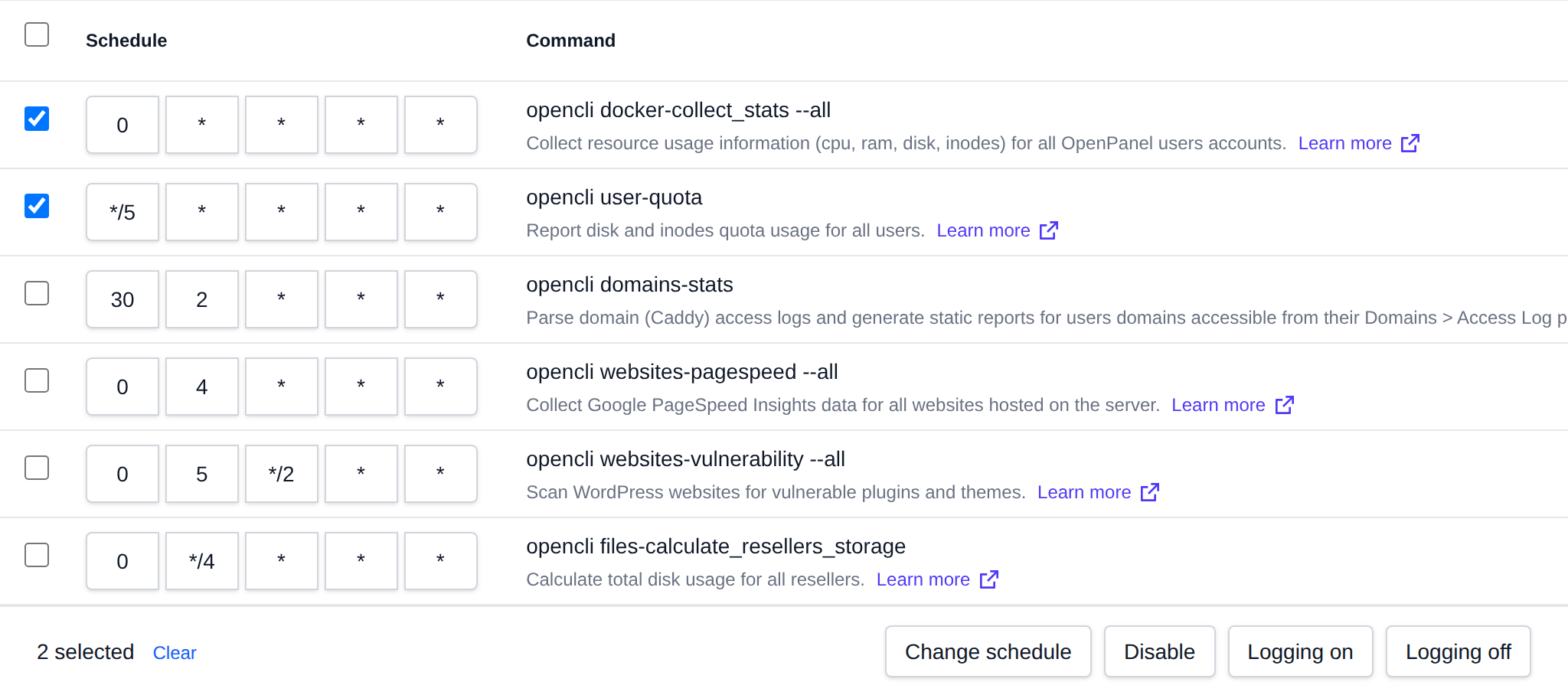
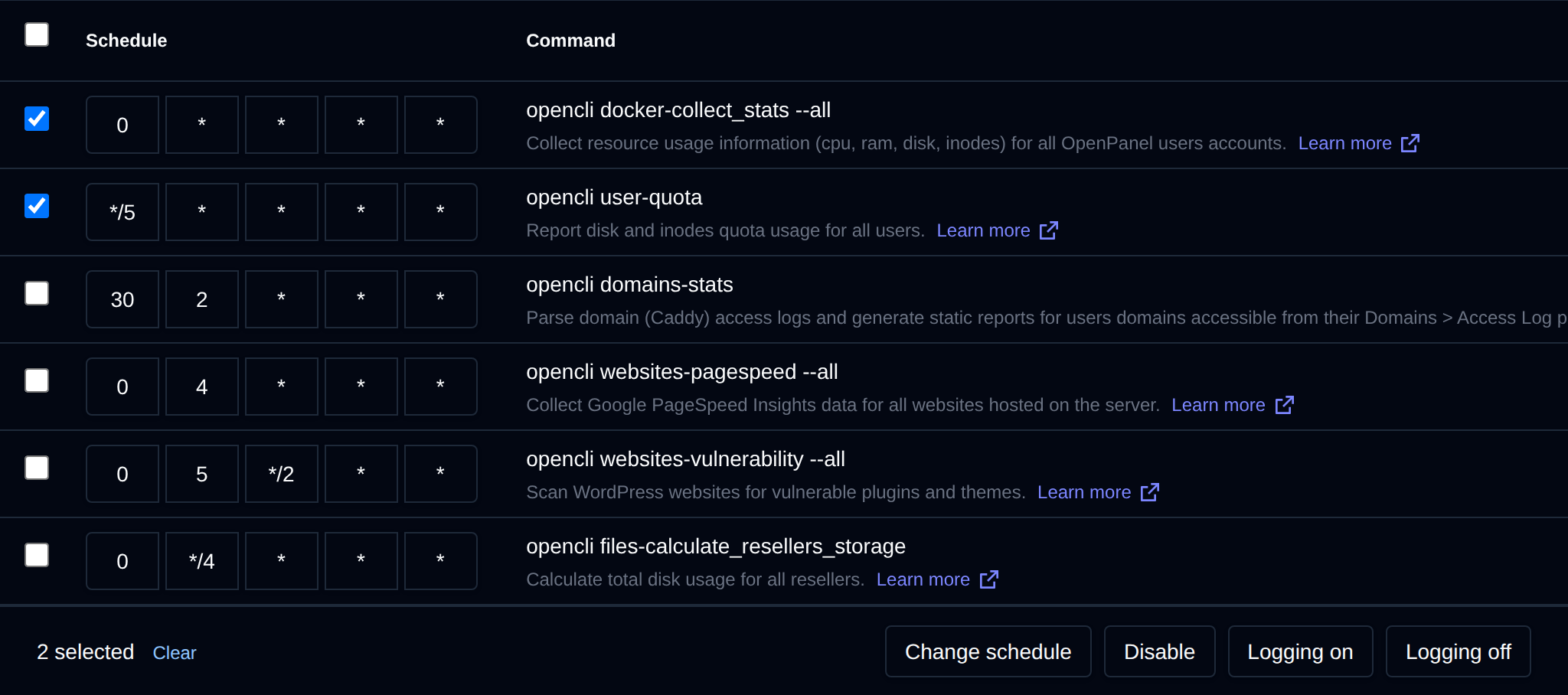
## Bulk Actions
Tick the checkbox of one or more cron jobs, or the checkbox in the table header to select all cron jobs shown by the current search. A bar appears at the bottom of the page with the number selected, a **Clear** link and these actions:
| Action | What it does |
|---|---|
| **Change schedule** | Sets the schedule you enter as 5 fields, like `0 3 * * *` (minute hour day month weekday). |
| **Disable** | Sets the schedule to `59 23 31 2 *` (February 31st), so the job never runs until you give it a new schedule. |
| **Logging on** | Logs each run of the selected jobs to `/var/log/openpanel-cron.log`. |
| **Logging off** | Stops logging the runs of the selected jobs. |
A job keeps its logging setting when you change its schedule, and its schedule when you turn logging on or off. Click an action, confirm it, and it runs on the selected cron jobs one after another. When it's done the page reloads with a notice listing the cron jobs it worked for, or which ones failed and why.
---
// File: admin/advanced/terminal
# Terminal
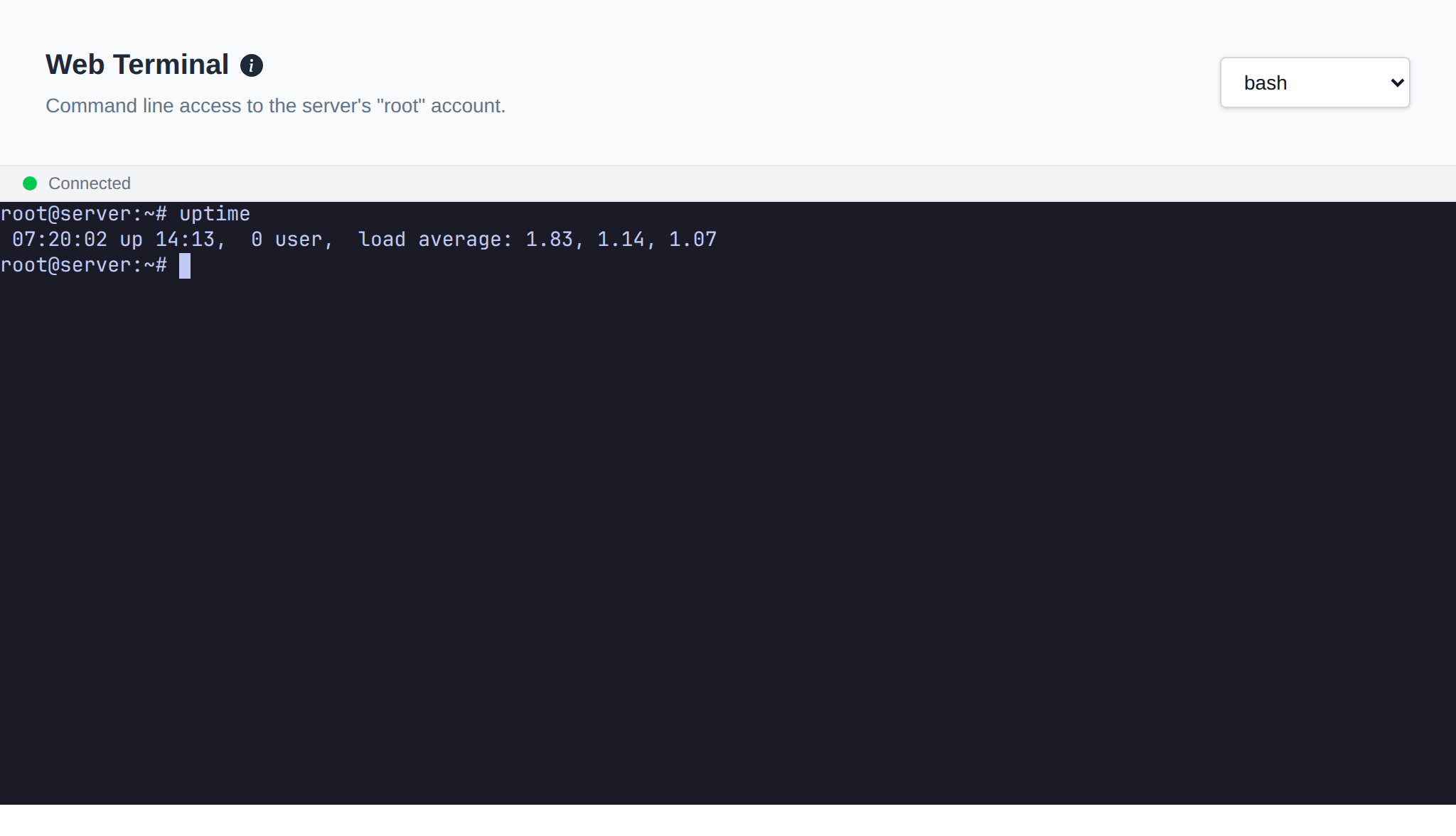
The Web Terminal is available in **OpenAdmin**, allowing Administrators to manage their server environment directly from the browser.
1. Log in to your OpenAdmin panel.
2. Navigate to **Server > Terminal**.
3. Use the dropdown menu or selector to choose your preferred shell type: `sh` or `bash`.
4. The terminal interface will load, and you can begin typing commands immediately.
Other sessions already open on the server are shown next to the page description: web terminals with the admin, IP and start time, and SSH sessions with the IP they're from. On a user's container terminal, other web terminals open on the same container are shown.
## Open with a command
Add `?cmd=` to the terminal address to type a command as soon as the shell is ready, for example `/terminal?cmd=uptime` or `/terminal/john/mariadb?cmd=mariadb%20wp_blog`. The [Terminal action on the Databases page](/docs/admin/databases/mysql#terminal) uses it to open a database client.
The command is run right away only when you came from a link inside OpenAdmin. When the link comes from anywhere else, like an email or chat, the command is typed but not run, and the terminal asks you to check it and press Enter.
:::info
The web terminal is available to Super Admin and Admin (staff) logins. Reseller logins will see a 403 error on this page.
To disable the web terminal entirely, refer to [How to disable the Terminal feature in OpenAdmin](/docs/articles/dev-experience/disable-openadmin-web-terminal/)
:::
---
// File: admin/advanced/processes
# Process Manager
The Process Manager allows you to view and manage running system processes directly from the OpenPanel interface. It's a powerful tool for monitoring system activity and taking quick action when needed.
The process table includes the following details:
- **PID** – Process ID. Options are available to trace the process or kill it directly.
- **Owner** – The user that owns the process.
- **Priority** – The process's current scheduling priority.
- **CPU** – Percentage of CPU usage.
- **Memory** – Percentage of Memory usage.
- **Command** – The command or service that launched the process.
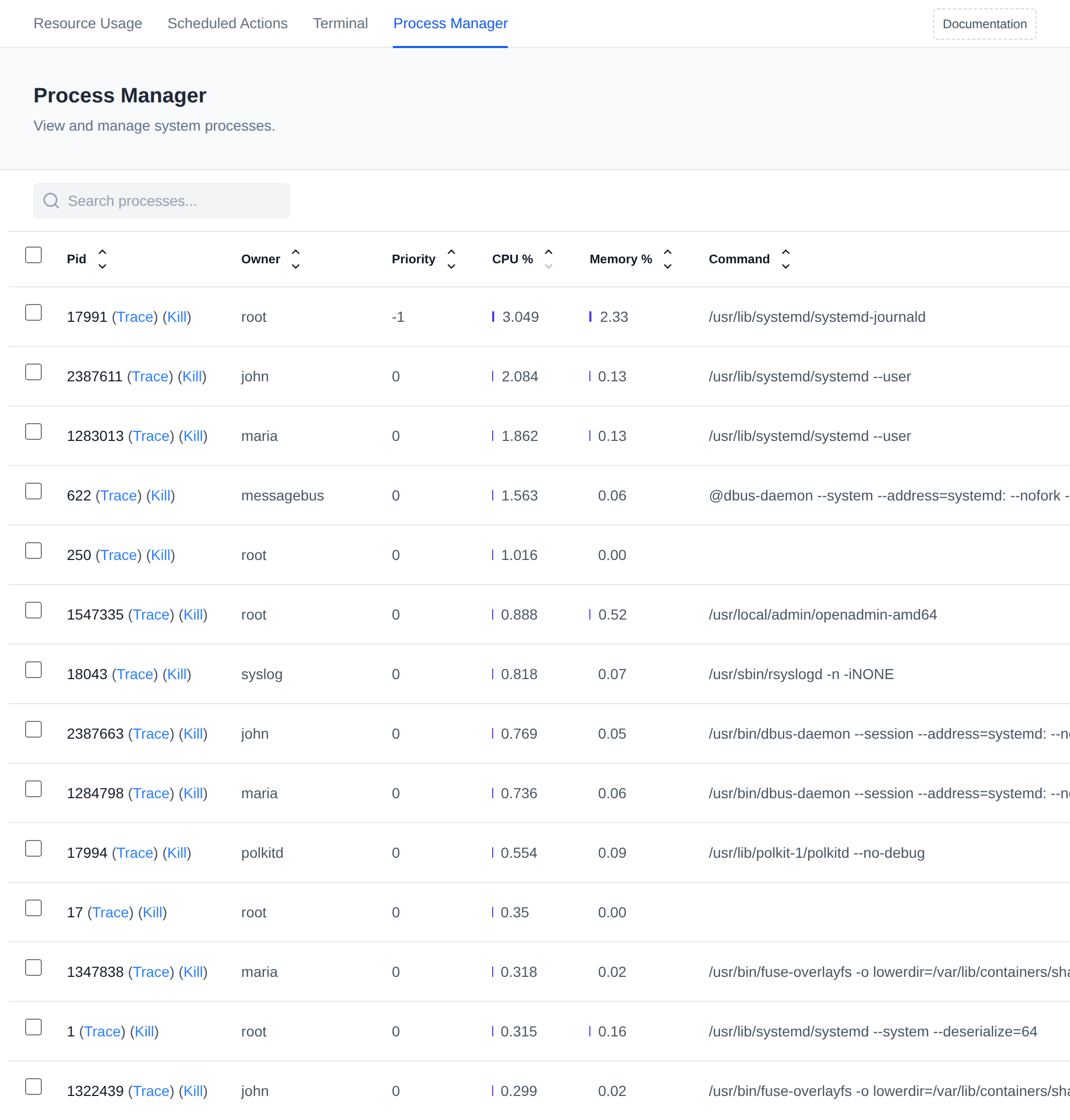
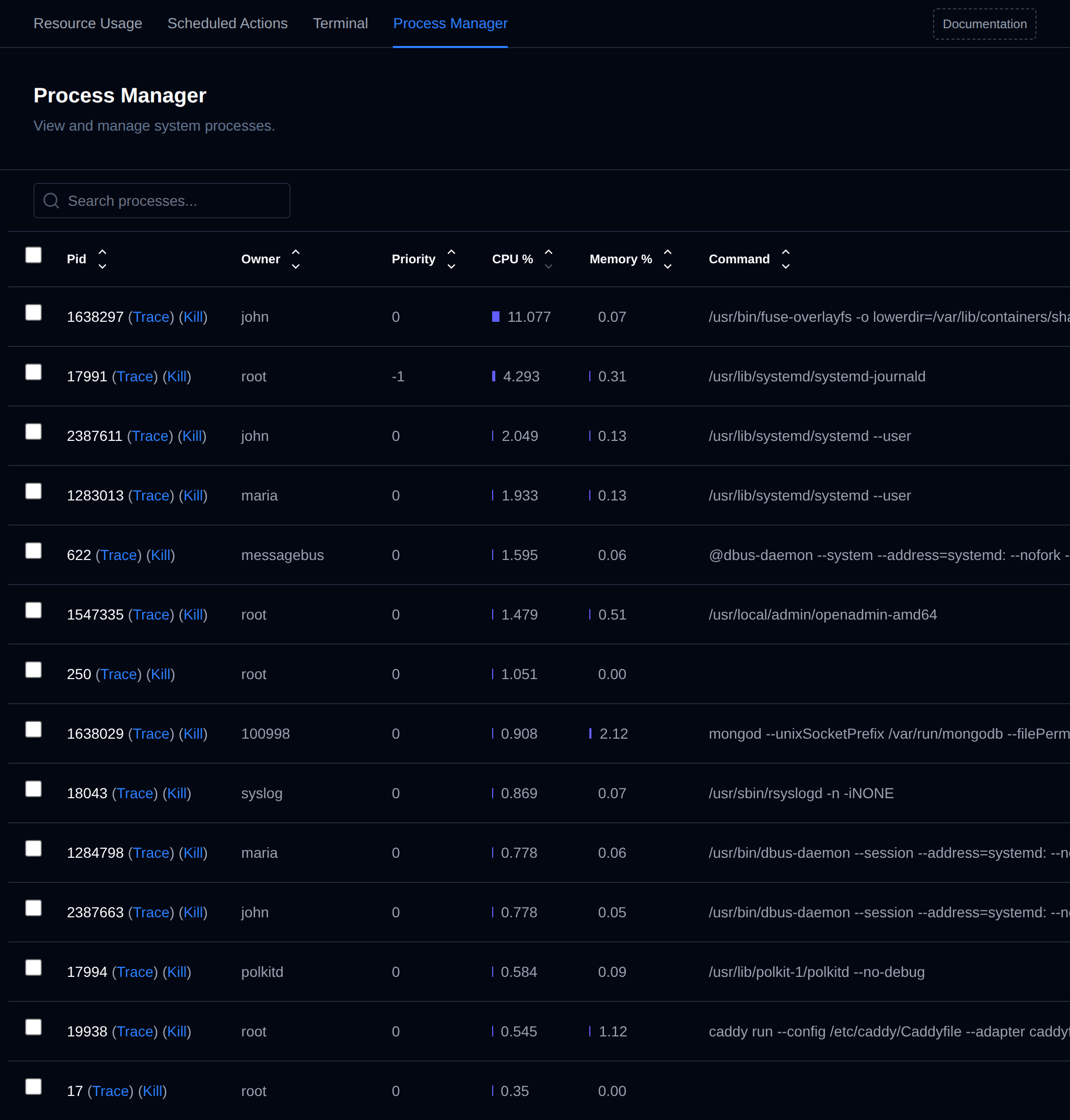
Use this tool to identify resource-heavy or suspicious processes, manage system load, or terminate unresponsive services.
Processes using 90% or more CPU, or 20% or more RAM, are listed above the table:
- for a process in an OpenPanel user's container (owned by the user, or by a UID in their range in `/etc/subuid`), it links to the user and recommends checking their container limits for a misconfiguration or their sites for unusual traffic.
- for a system process, it links to trace the process to see what it's doing, or recommends restarting its service.
CPU usage is measured between page loads, so a process using a lot of CPU is listed from the second time the page is opened.
## Bulk Actions
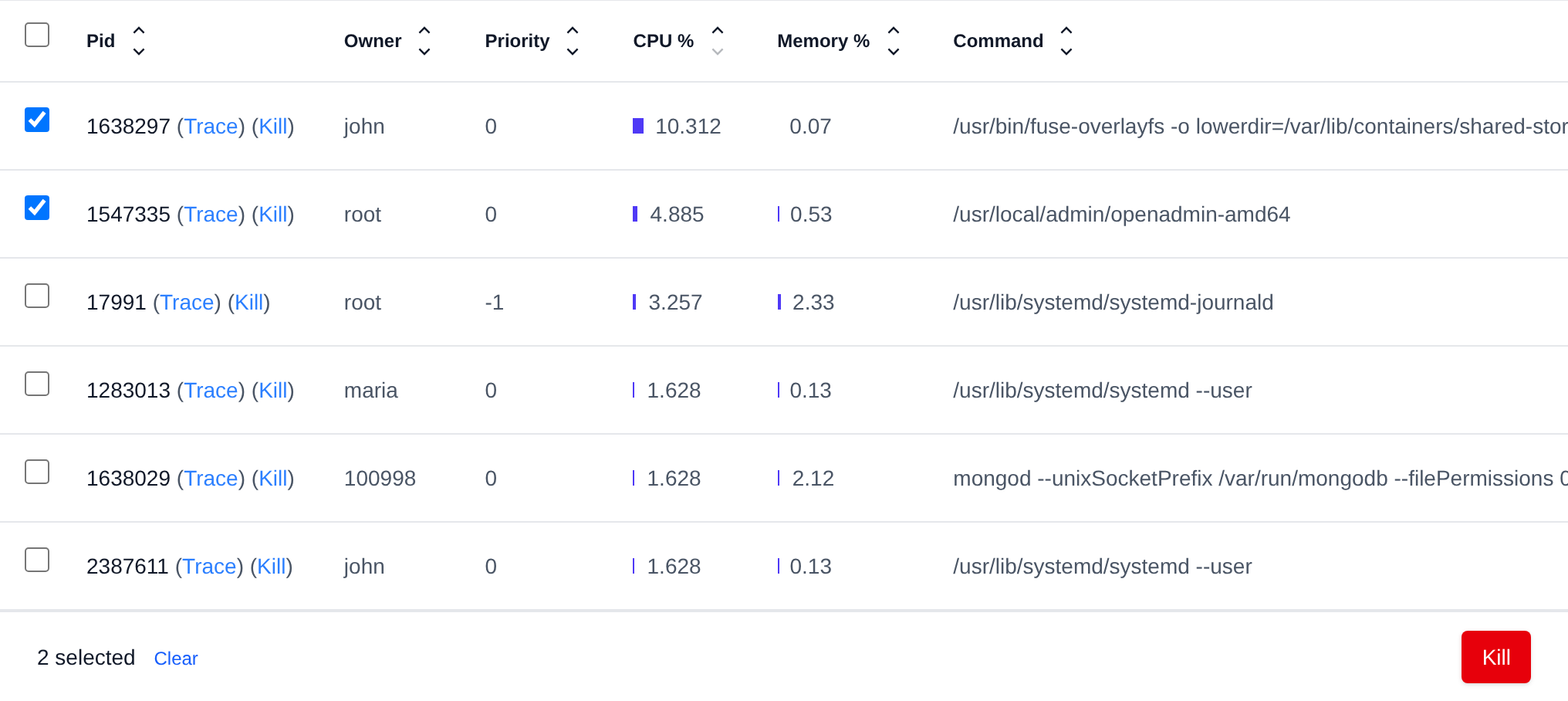
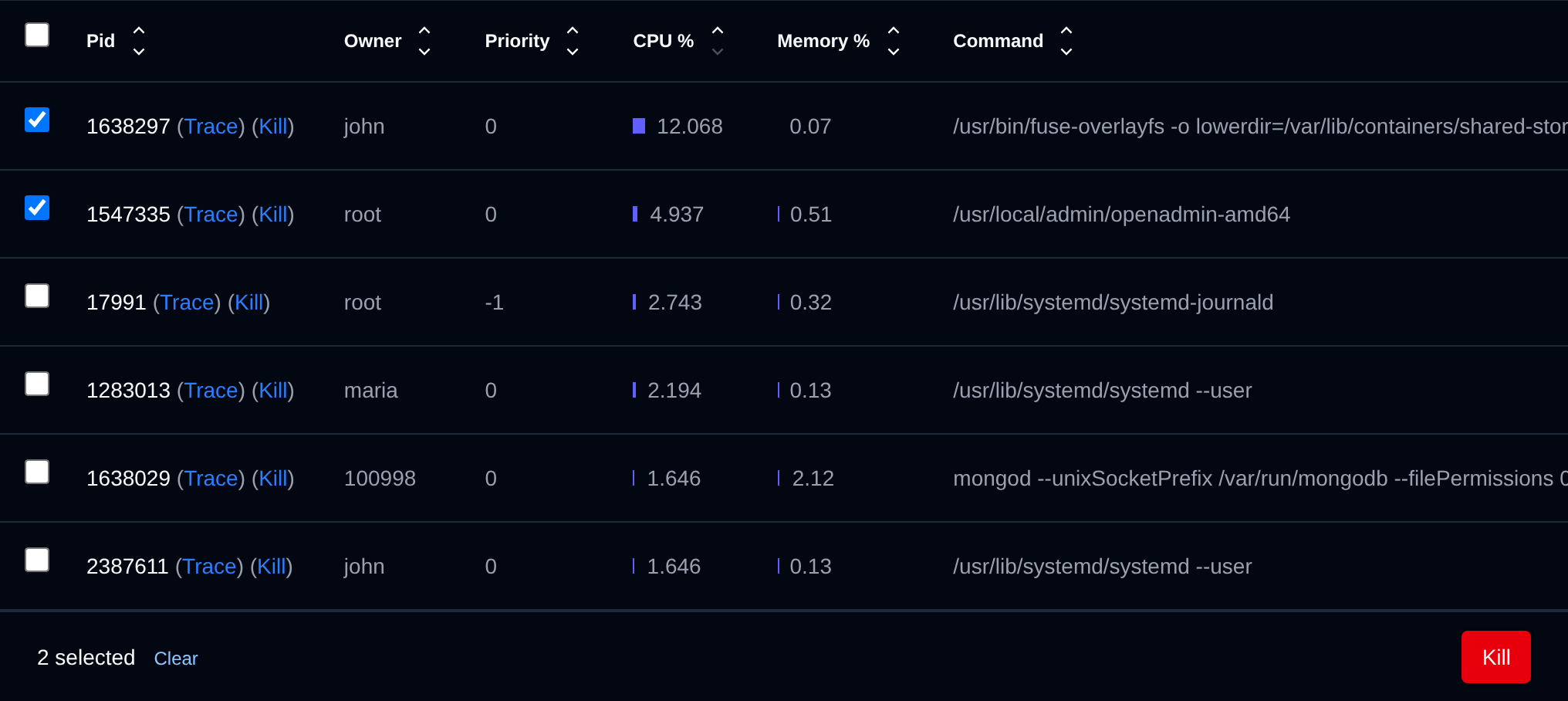
Tick the checkbox of one or more processes, or the checkbox in the table header to select all processes shown by the current search. A bar appears at the bottom of the page with the number selected, a **Clear** link and these actions:
| Action | What it does |
|---|---|
| **Kill** | Kills the selected processes. |
The same **Kill** bulk action is on the **Tasks** page for running background tasks.
Click an action, confirm it, and it runs on the selected processes one after another. When it's done the page reloads with a notice listing the processes it worked for, or which ones failed and why.
---
// File: admin/backups/user
# User Backups
*OpenAdmin > Backups > Users* controls how hosting users' own account backups (websites, databases, etc. — via each user's `docker-volume-backup` service) run. It's only available to Administrators and Users, not Resellers. It has three tabs: **Settings**, **Configuration**, and **Runs**.
There are two mutually exclusive modes, controlled entirely by the schedule of the `opencli docker-backup` [System Cron Job](/docs/admin/advanced/crons/):
- **User Configured** (default) — each user manages their own backup from their own account, when the Backups module is enabled for them. Nothing runs centrally; the cron entry is set to a disabled placeholder schedule.
- **Admin Configured** — the Administrator runs backups centrally, on one schedule, via `opencli docker-backup`, for every account it manages: the accounts with an `admin.backups` marker (see below). Users of those accounts can no longer view or change their own backup destination or settings in the panel — they can still list existing backups and restore from them (their **Backups** page opens the Restore & Download page directly), but where and how backups are stored is entirely up to the Administrator.
See the [Configuring OpenPanel Backups](/docs/articles/backups/configuring-backups/) article for the fuller comparison between the two approaches.
### Settings
A single dropdown decides the mode:
- **Disabled** — user configured (the default).
- **Daily** / **Weekly** / **Monthly** — admin configured, all running at 03:00 server time. Fine-tune the exact time afterward from [Scheduled Actions](/docs/admin/advanced/crons/).
Saving updates the `opencli docker-backup` cron entry's schedule accordingly.
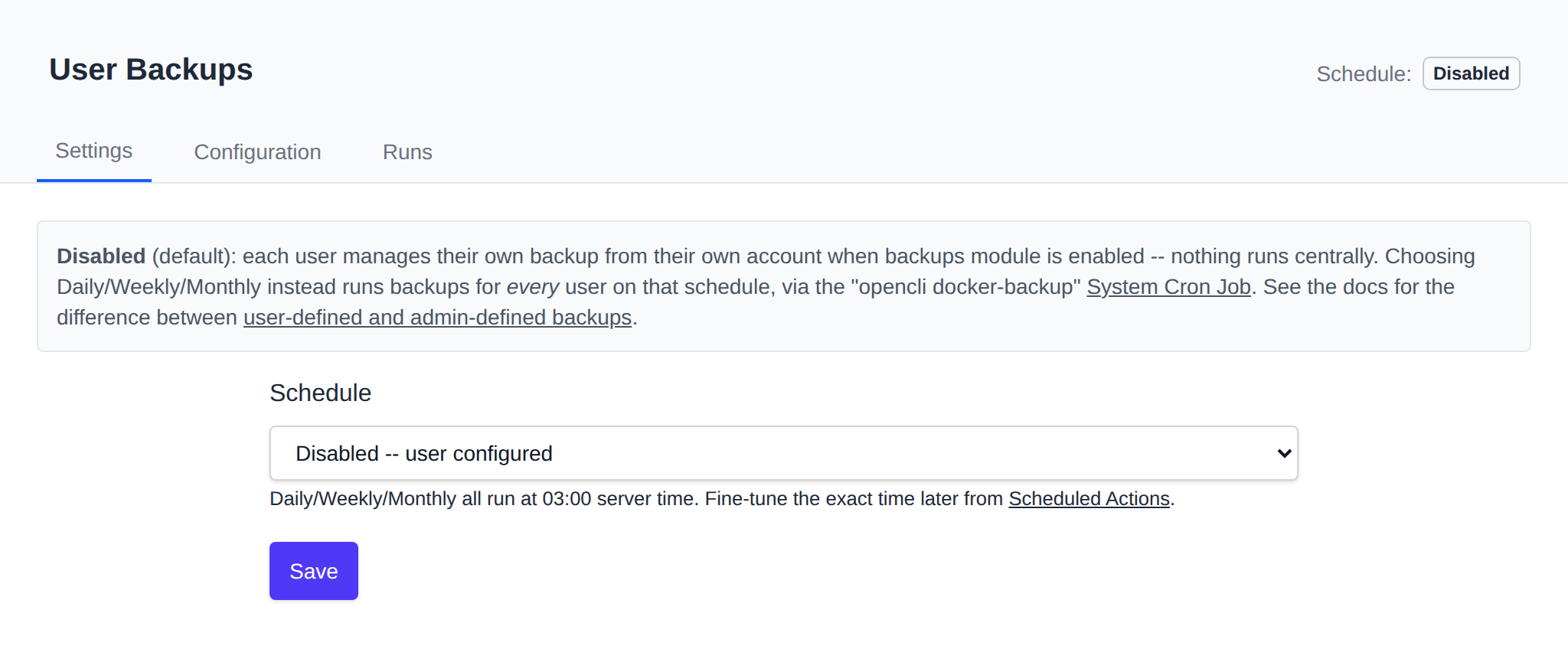
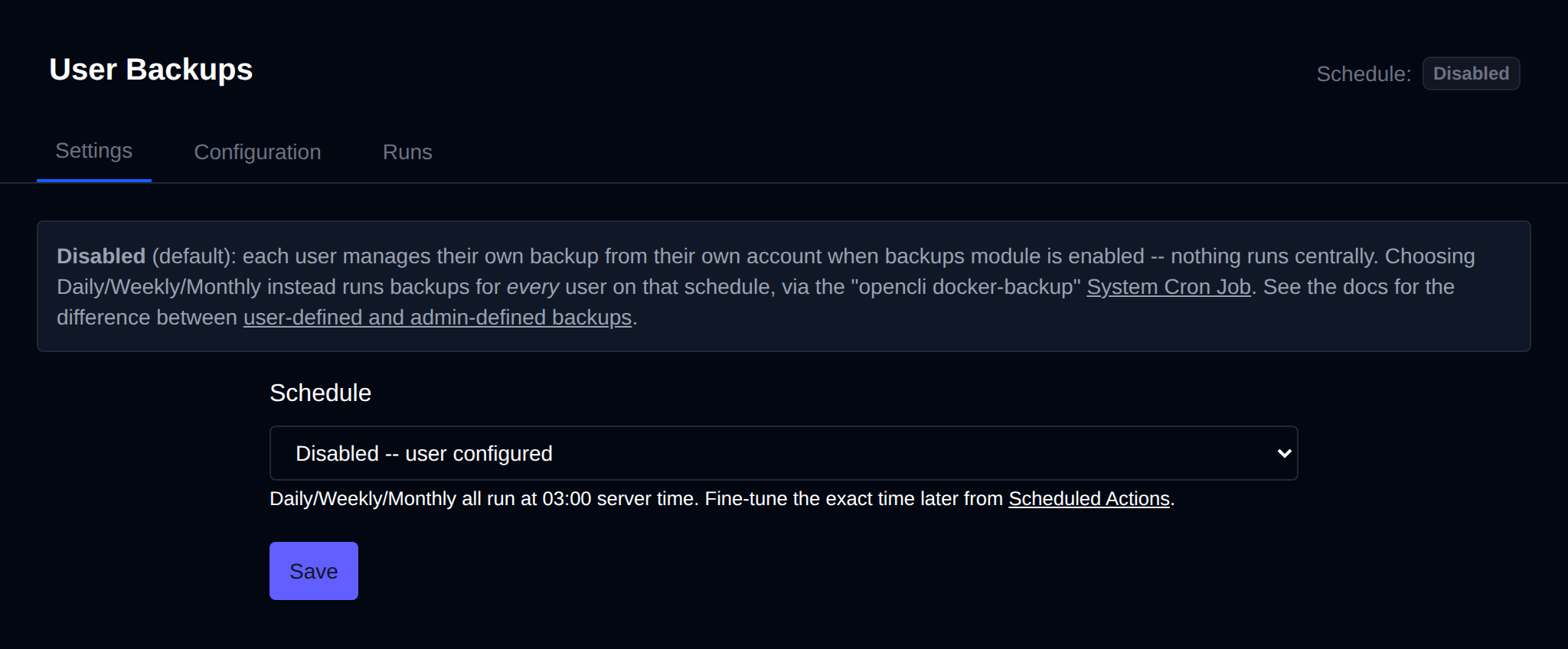
Saving to Daily/Weekly/Monthly also drops an empty `admin.backups` marker file into `/etc/openpanel/skeleton/`, so every account created *from then on* is provisioned admin-configured (its Backups > Destinations and Backups > Settings pages are locked, per-account, from the moment it's created). Switching back to Disabled removes the marker from the skeleton, so accounts created afterward go back to fully user-configured.
This only affects **new** accounts — it doesn't touch any account that already exists. To hand an existing account's backups to the Administrator after the fact, create an empty `admin.backups` file yourself in that account's own config directory:
```bash
touch /etc/openpanel/openpanel/core/users//admin.backups
```
`opencli docker-backup` only backs up accounts that have this file, accounts without it manage their own backups and are skipped. Removing the file returns the account to user-configured (assuming the Backups module itself is still enabled for it).
### Configuration
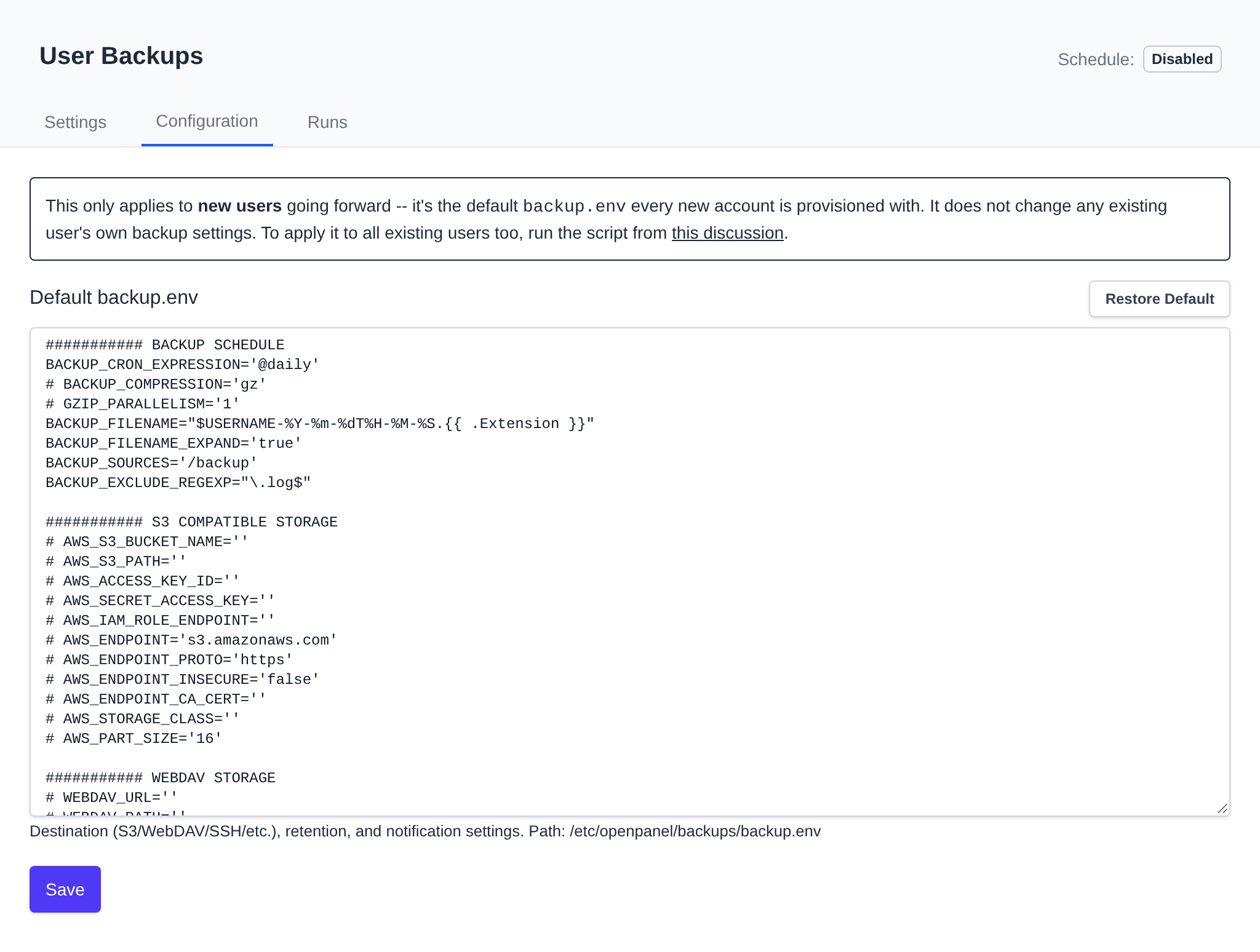
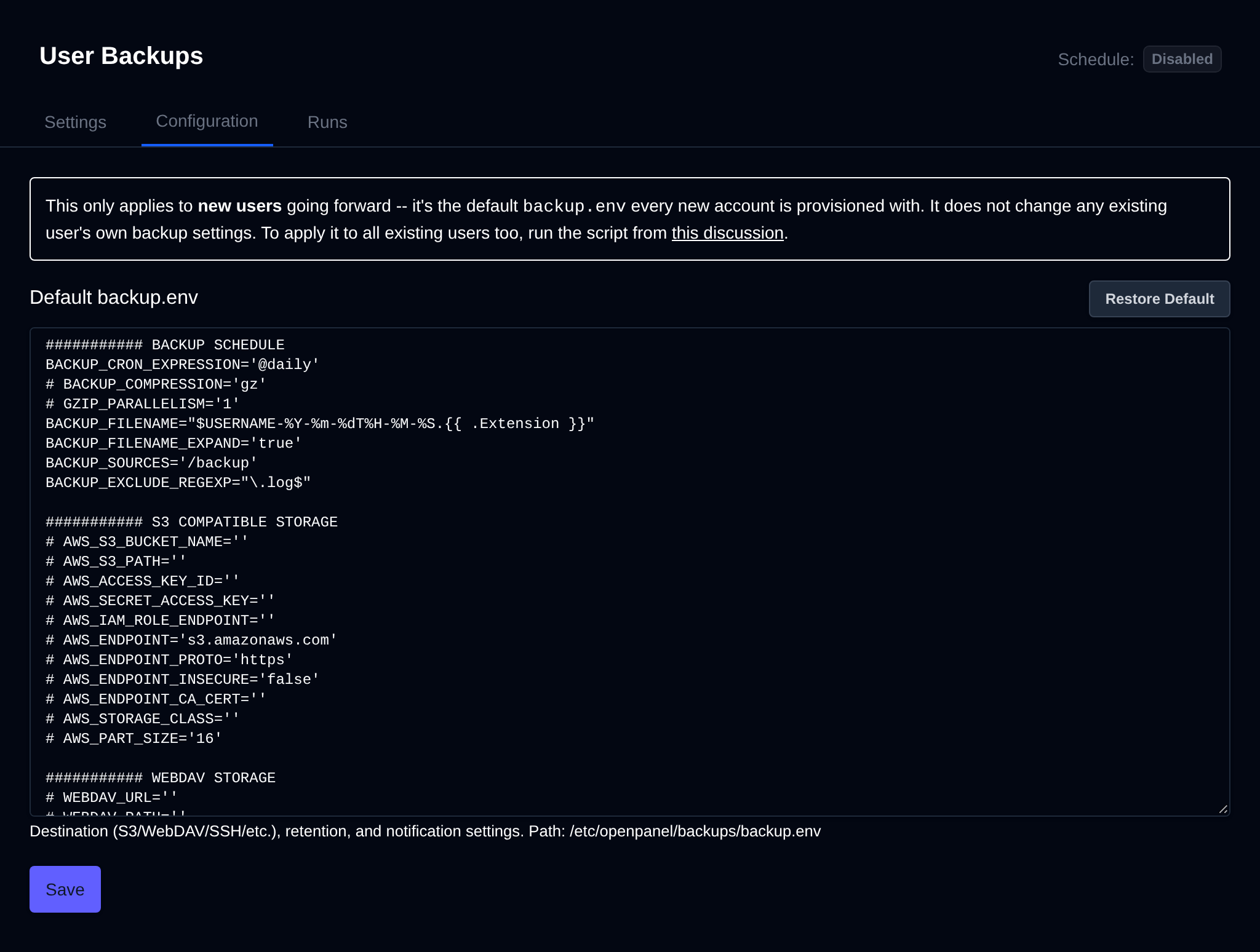
Edits `/etc/openpanel/backups/backup.env` — the default `docker-volume-backup` settings (destination, retention, notifications, etc.) every **new** user account is provisioned with. This does not change any existing user's own backup settings, only what future accounts start with.
A **Restore Default** button fetches OpenPanel's shipped default `backup.env` from GitHub into the field (client-side, no server round trip) — click **Save** afterward to actually apply it.
### Runs
Raw log of every `opencli docker-backup` run (`/var/log/openpanel/admin/docker-backup.log`).
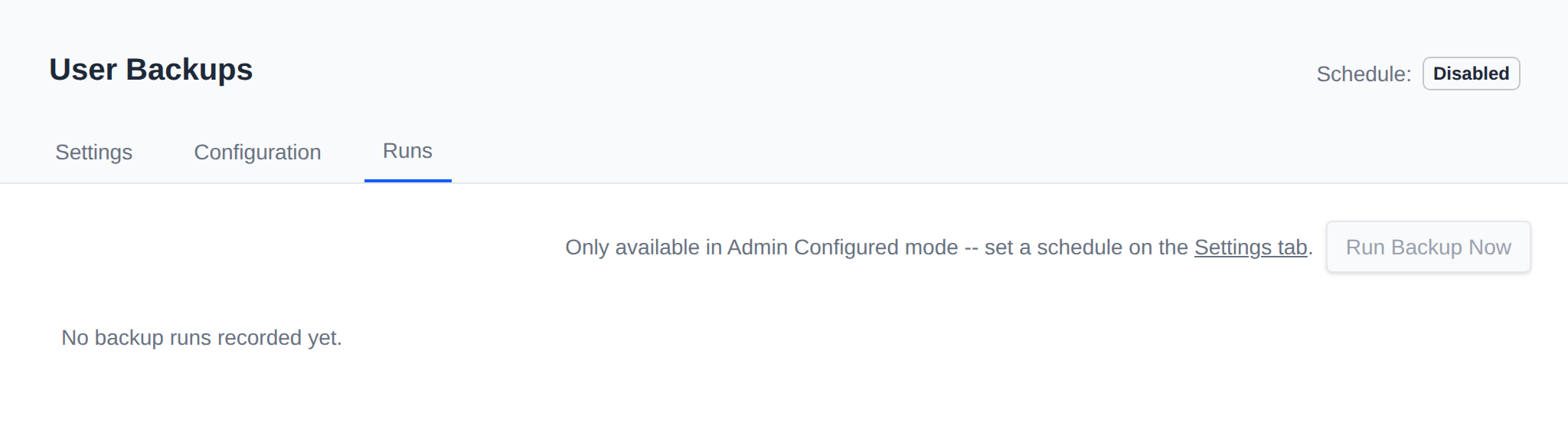
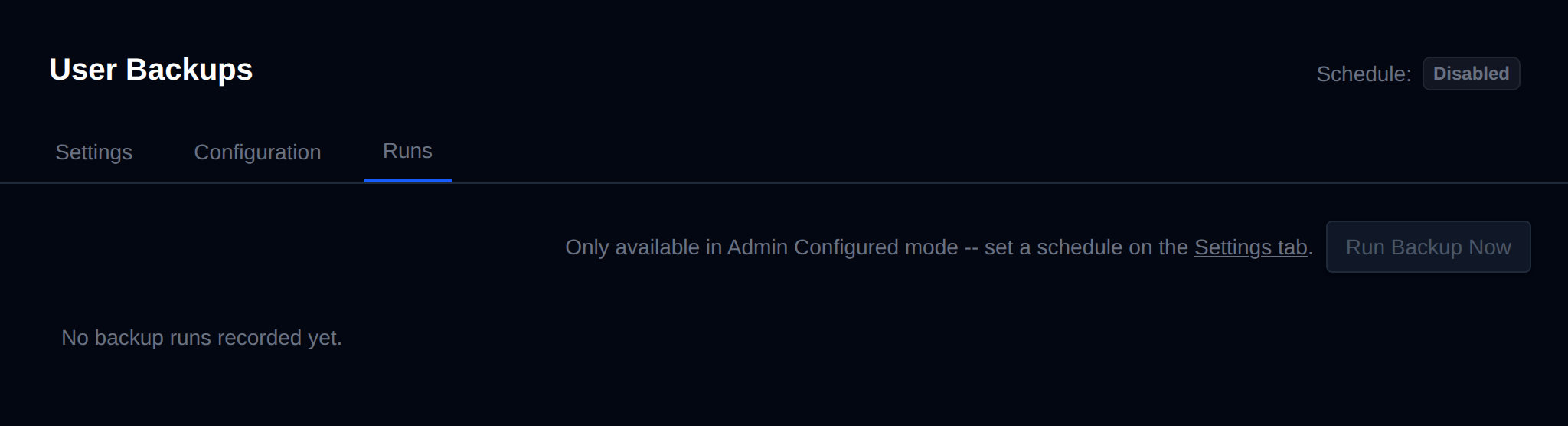
**Run Backup Now** triggers `opencli docker-backup` immediately for every account the Administrator manages. It's only available in **Admin Configured** mode — in Disabled mode there's no central schedule for it to act on, since each user's own settings apply instead.
---
// File: admin/backups/system
# System Backups
*OpenAdmin > Backups > System* backs up the server's own **configuration** — not website files, databases, or mailbox contents. It's for disaster recovery of the panel and its services, and is only available to Administrators and Users, not Resellers. It has three tabs: **Backups**, **Runs**, and **Settings**.
Everything here is driven by `opencli backup`, which archives a curated set of paths under `/etc/openpanel/`, plus `/root/docker-compose.yml` and `/root/.env`, plus the mail server's `compose.yml`, `.env`, and `mailserver.env` (but not mail accounts or DKIM keys). Real user data (site files, databases, mailboxes) and large downloadable assets (CMS installer archives, the GeoIP database, the vendored WAF ruleset, etc.) are deliberately excluded.
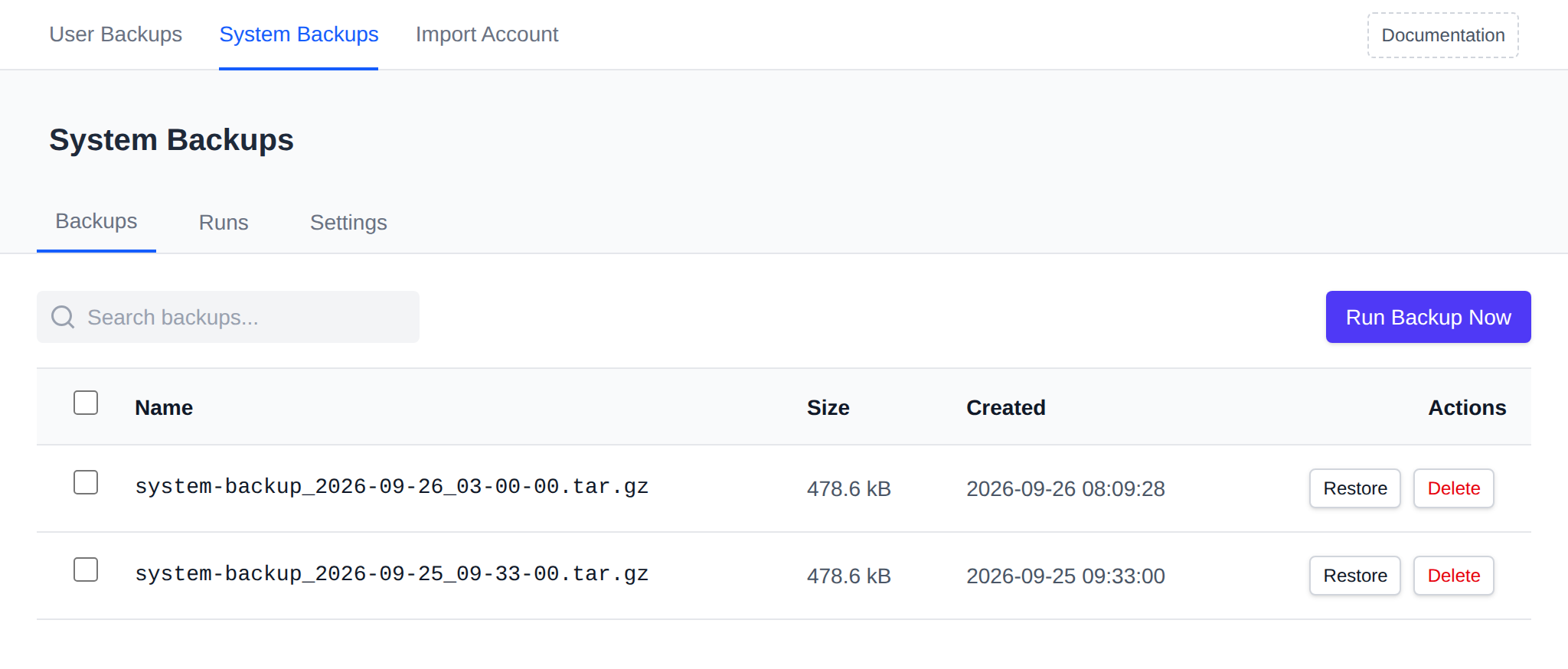
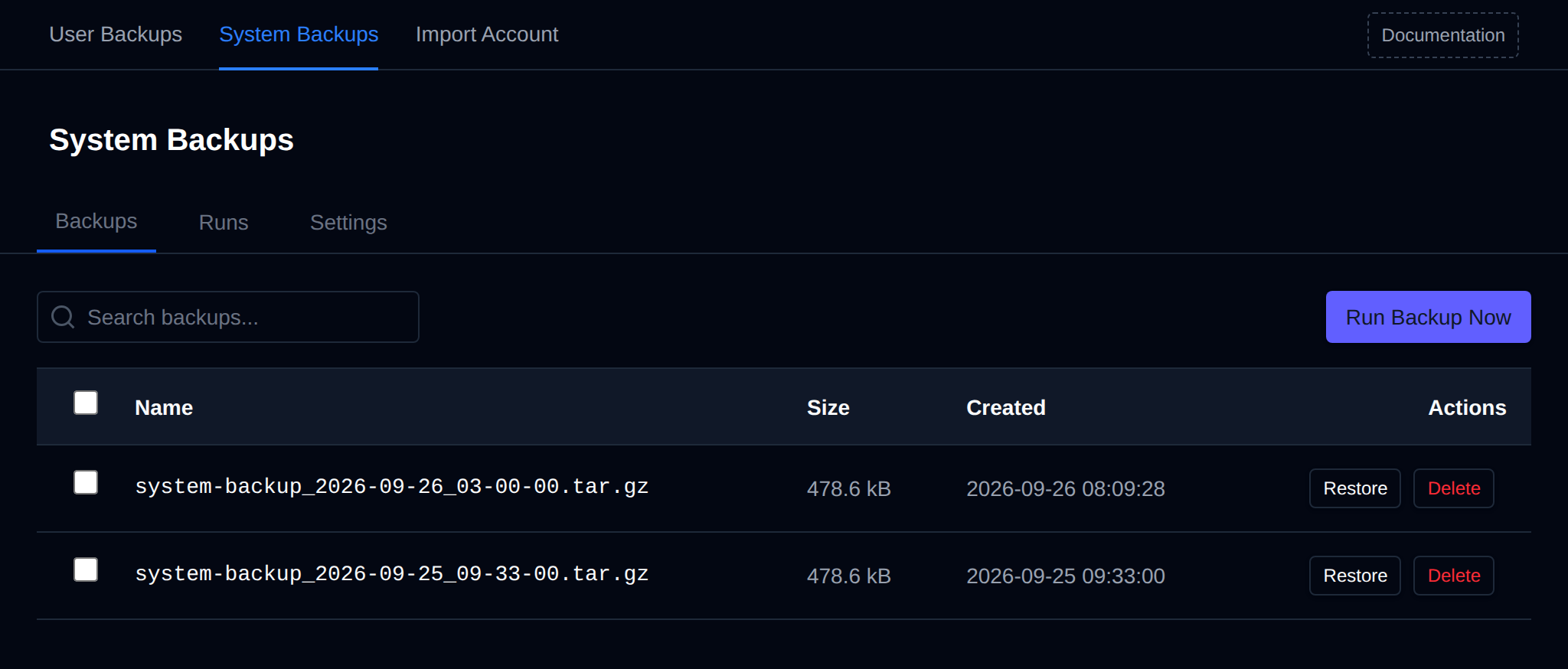
### Backups
Lists every archive in the configured destination directory, with:
- **Name**, **Size**, **Created**
- **Restore** — extracts the archive back over the live paths it came from. Affected services may need a restart afterward to pick up the restored config.
- **Delete** — removes the archive file. Confirms first; cannot be undone.
**Run Backup Now** creates a new backup immediately (in the background, with a progress toast).
#### Bulk Actions
Tick the checkbox of one or more backups, or the checkbox in the table header to select all backups shown by the current search. A bar appears at the bottom of the page with the number selected, a **Clear** link and these actions:
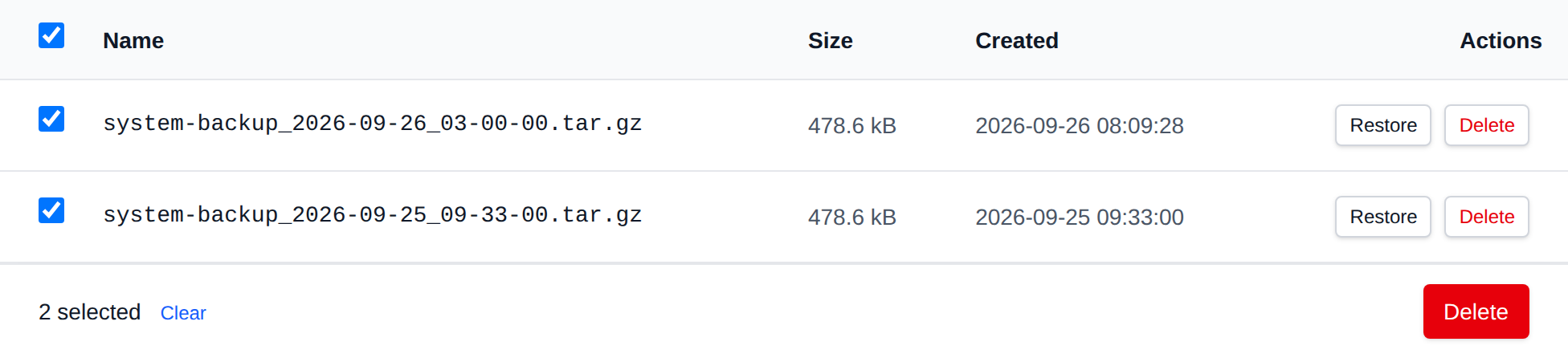
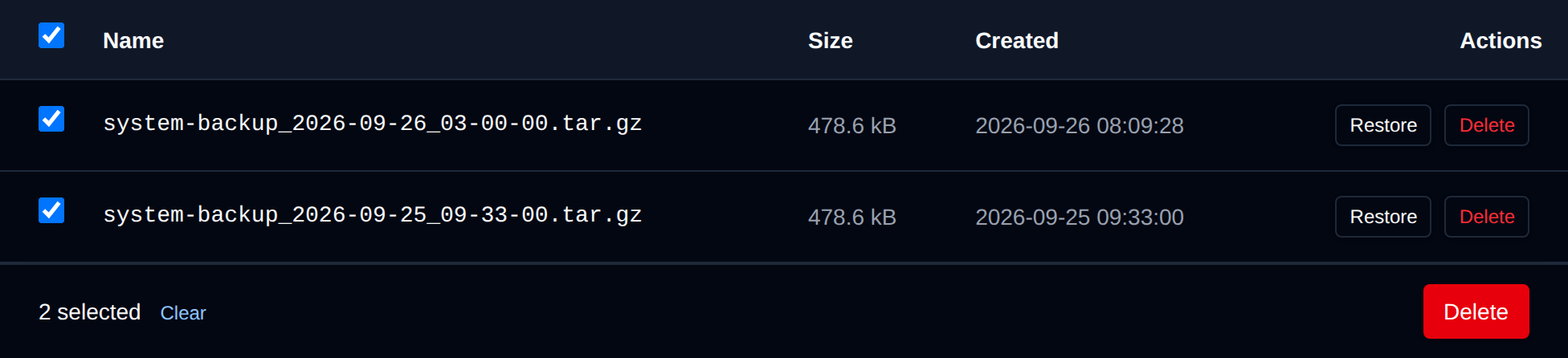
| Action | What it does |
|---|---|
| **Delete** | Permanently deletes the selected backup archives. |
Click an action, confirm it, and it runs on the selected backups one after another. When it's done the page reloads with a notice listing the backups it worked for, or which ones failed and why.
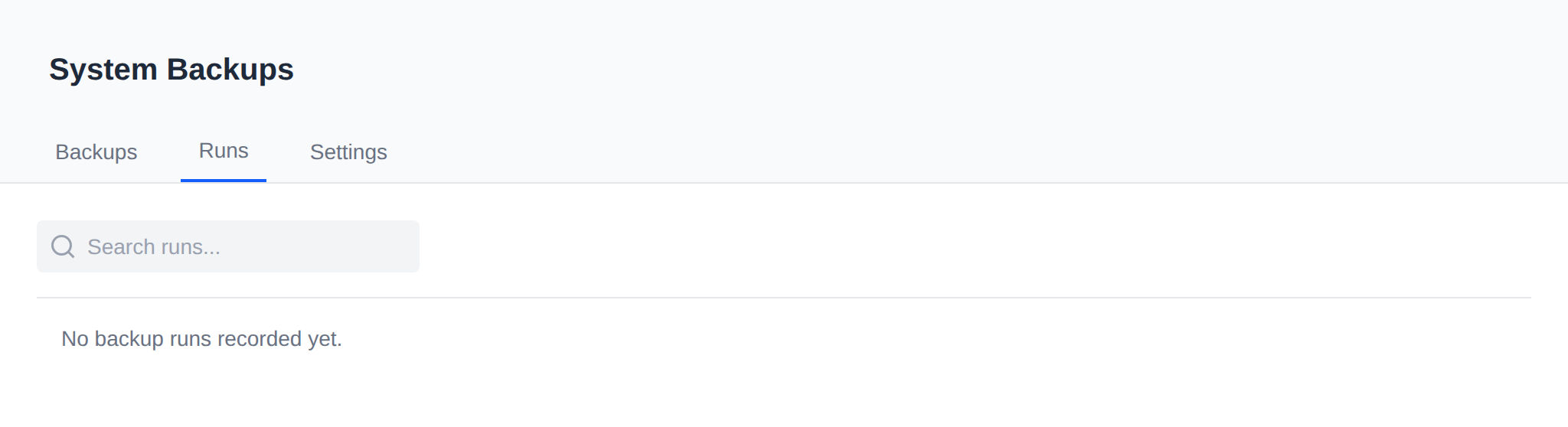
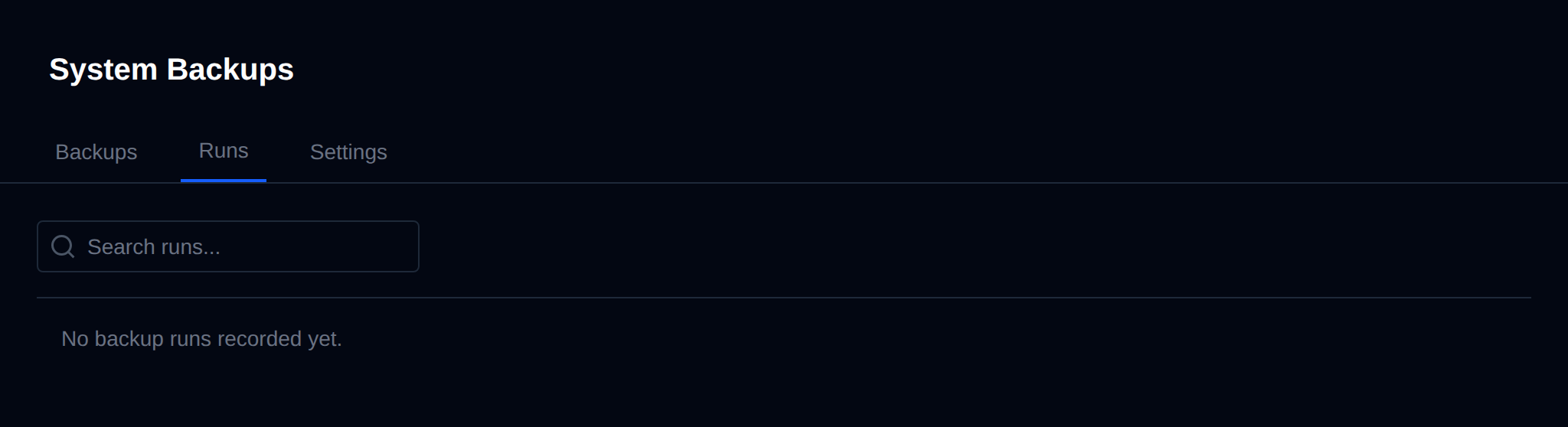
### Runs
History of every backup/restore/delete action taken from this page — timestamp, action, success/failure, archive name, duration, and detail.
### Settings
- **Destination** — directory where backup archives are stored. Created automatically if it doesn't exist.
- **Retention (days)** — backups older than this are pruned after each new run. `-1` keeps every backup indefinitely.
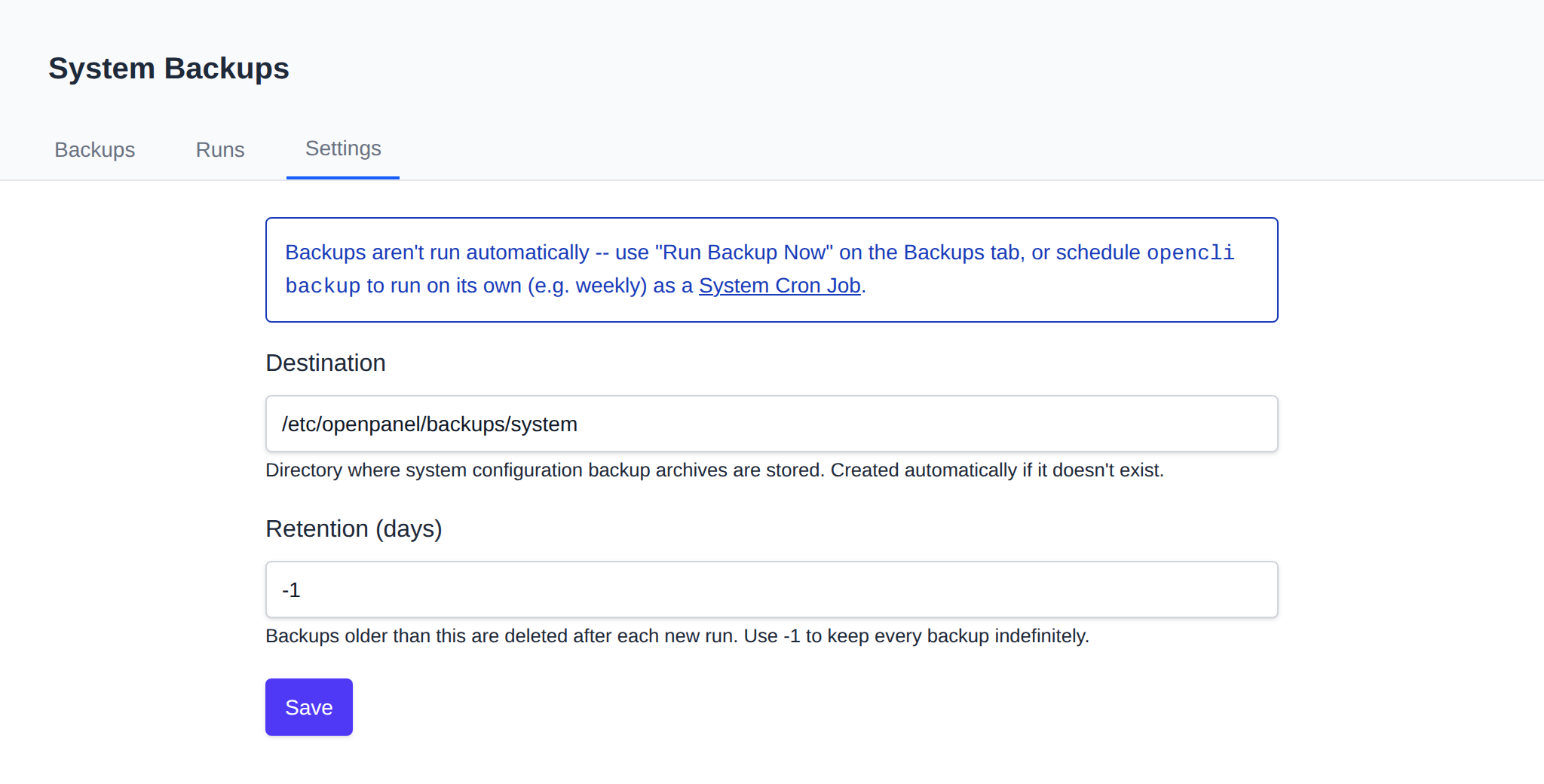
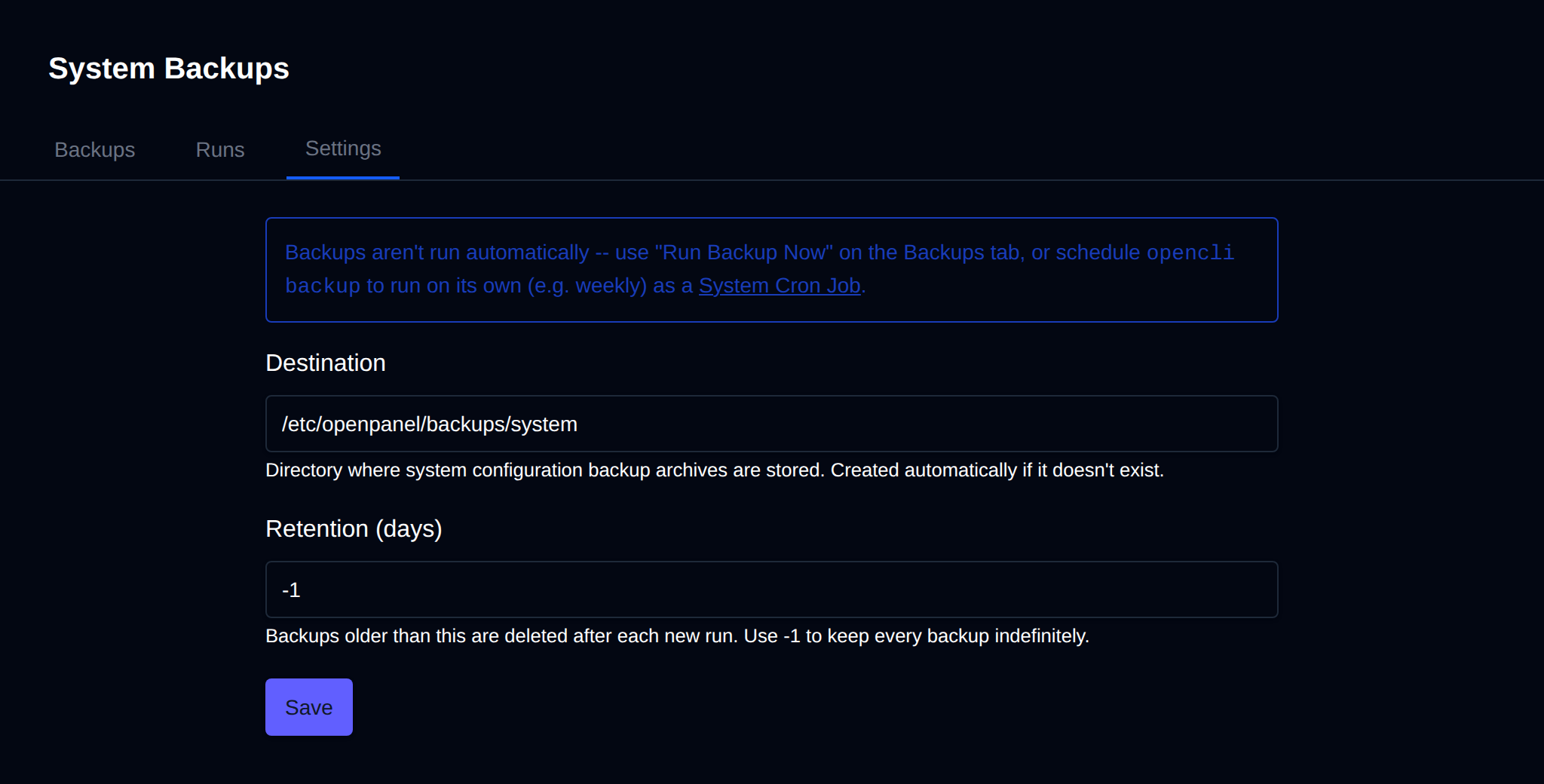
Automatic scheduling isn't built into this page — schedule `opencli backup` to run on its own (e.g. weekly) as a [System Cron Job](/docs/admin/advanced/crons/).
Settings are stored in `/etc/openpanel/openadmin/config/backups.ini`, which `opencli backup` itself reads at run time.
---
// File: admin/backups/cpanel
# Import cPanel Account
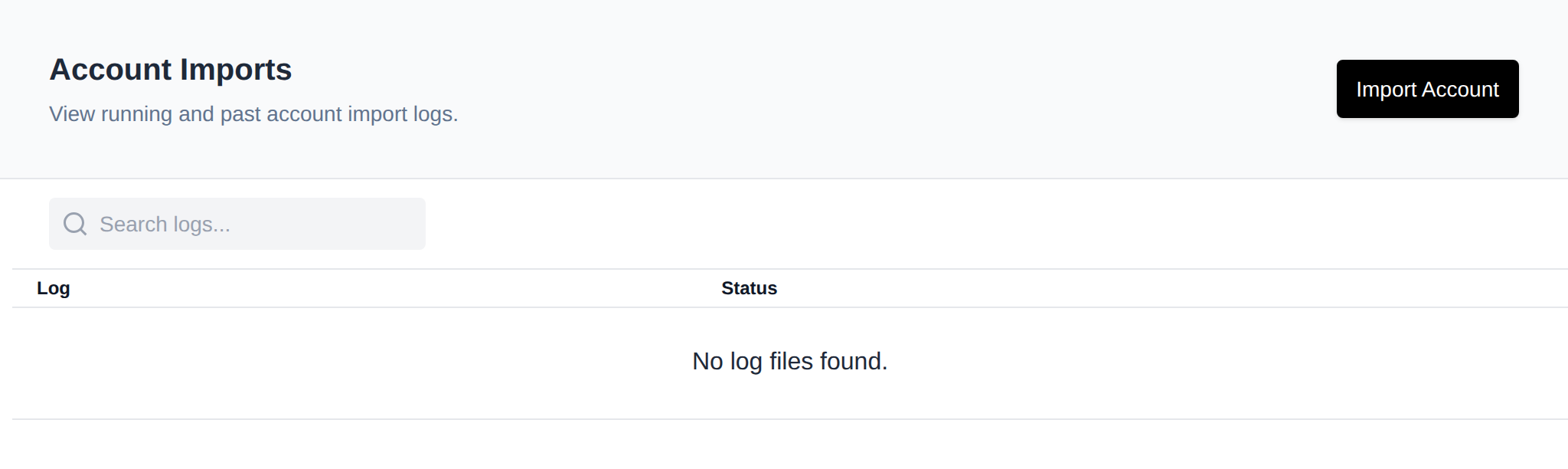
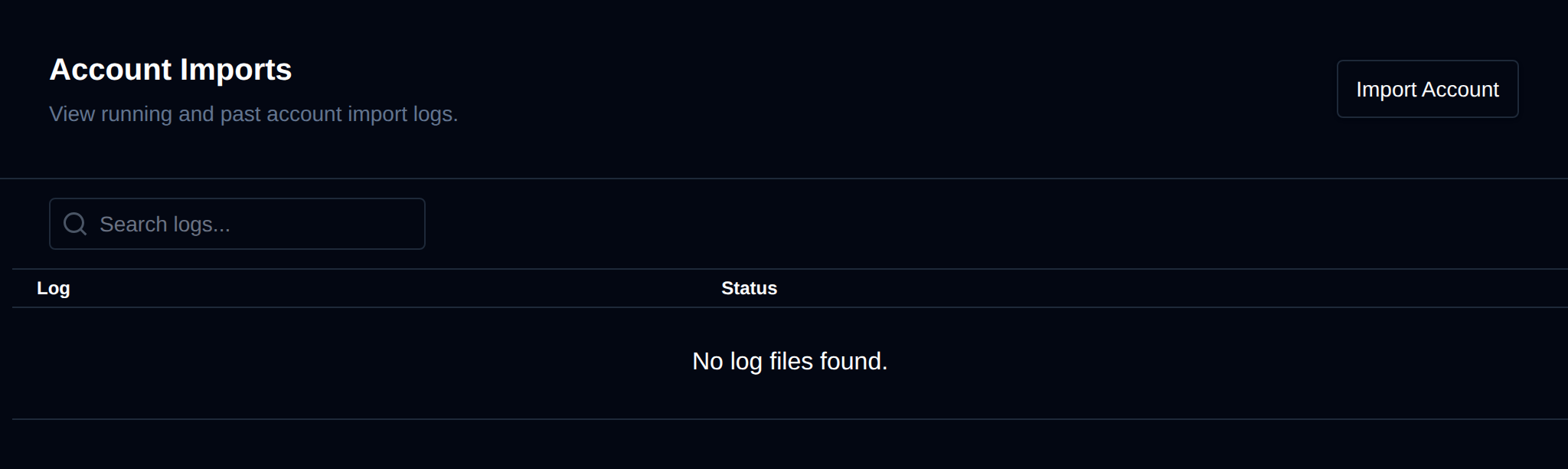
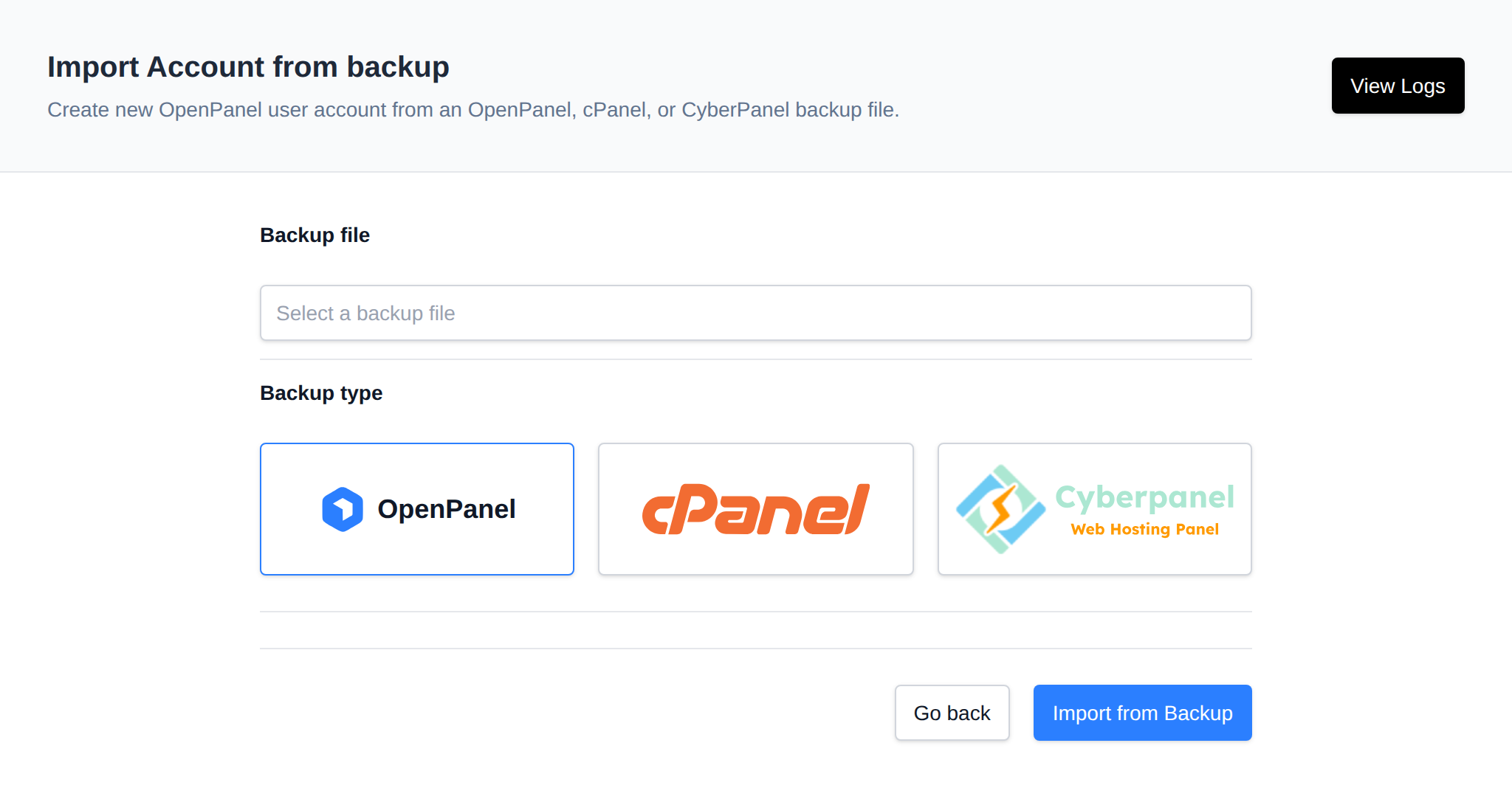
Use **OpenAdmin > Backups > Import Account** to create an OpenPanel account from a cPanel, CyberPanel, or OpenPanel backup. On the import page, select the backup file and choose the backup type (**OpenPanel**, **cPanel**, or **CyberPanel**) before starting the import.
:::info
This menu item is only available with an **Enterprise** license. A **View Logs** button on the same page links to the account import history.
:::
Instead of picking a backup that's already on the server you can upload one: choose the `.tar.gz` file under **Backup file**, click **Upload** and it's selected once the upload finishes. Uploads are saved to `/home/reseller_imports//`.
### Imports by resellers
Resellers can import **OpenPanel** backups too, cPanel and CyberPanel imports are only available to administrators.
- A reseller can only restore backups they uploaded themselves.
- The restored account belongs to the reseller and counts toward their limits: the import is refused when the reseller has reached Max Accounts or Max Disk Usage, or when the plan from the backup doesn't exist on this server or isn't assigned to the reseller.
- An existing account is never overwritten.
- Resellers only see the logs of their own imports.
For detailed instructions, see the [Import cPanel backup guide](https://openpanel.com/docs/articles/transfers/import-cpanel-backup-to-openpanel/)
---
// File: admin/databases/mysql
# MySQL Databases
The MySQL tab lists the MySQL and MariaDB databases of every user on the server.
Use **OpenAdmin > Databases > MySQL** to access it.
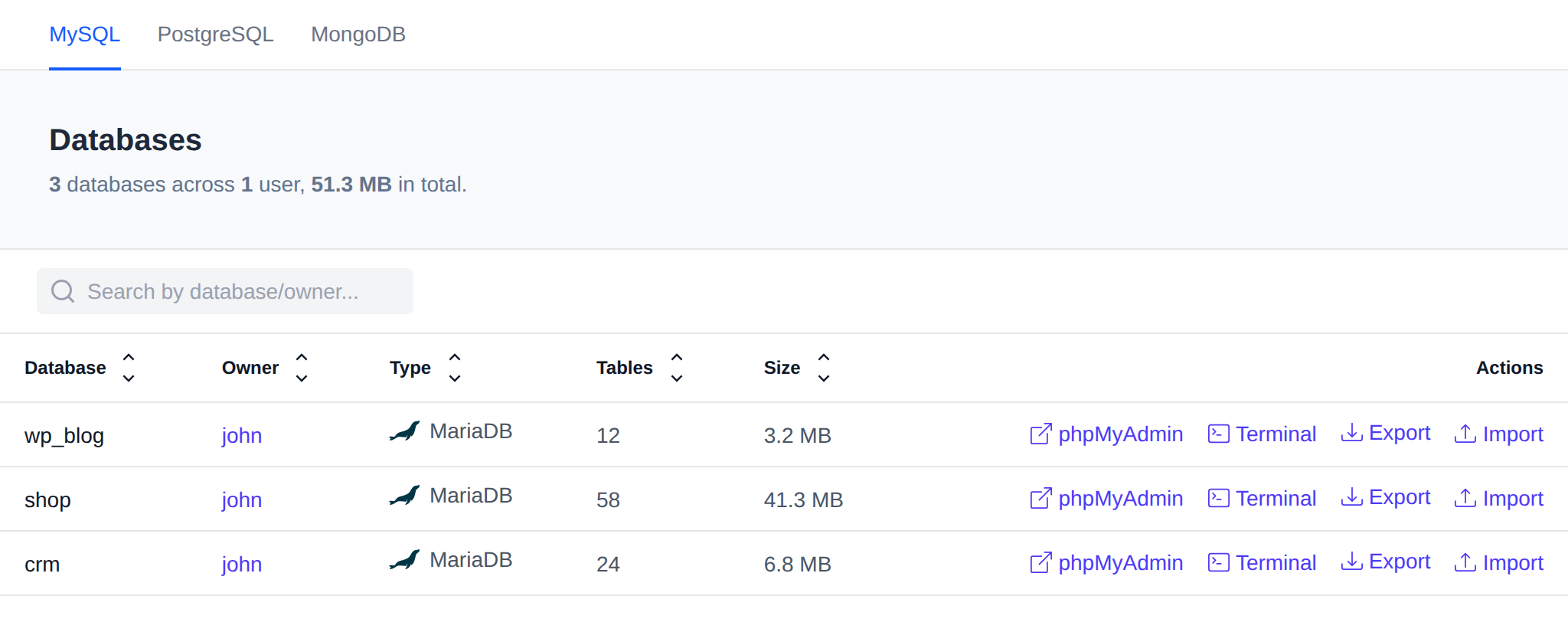
Every user has their own MySQL or MariaDB service. The list is read from the files of each user's database, so OpenAdmin doesn't connect to any of them and users whose service is stopped are listed too. The header shows how many databases there are, across how many users, and their total size.
| Column | Description |
|---|---|
| **Database** | Name of the database. |
| **Owner** | The OpenPanel user the database belongs to. Click it to open the user. |
| **Type** | **MySQL** or **MariaDB**, the service the user runs. |
| **Tables** | Number of tables in the database. |
| **Size** | Size of the database files on disk. |
| **Actions** | [phpMyAdmin](#phpmyadmin), [Terminal](#terminal), [Export](#export) and [Import](#import). |
Use the search box to filter the list by database or owner, and click a column name to sort by it.
System databases like `mysql`, `sys` and `performance_schema` are not listed.
## phpMyAdmin
**phpMyAdmin** logs you in to the owner's OpenPanel in a new tab and opens the database in phpMyAdmin, the same as when the user clicks phpMyAdmin themselves. It's shown only when the phpMyAdmin module is enabled.
## Terminal
**Terminal** opens a terminal in the owner's MySQL or MariaDB container, already inside the database's `mysql` or `mariadb` client. It's shown to Super Admin and Admin logins only, like [Terminal](/docs/admin/advanced/terminal).
## Export
Click **Export** and pick **SQL (.sql)** or **Gzip (.sql.gz)**. The dump is downloaded straight to your browser, also for big databases, and nothing is saved on the server.


If the dump fails before it starts, the page shows the error instead. If it fails in the middle, the browser marks the download as failed so you don't keep a cut off file.
## Import
Click **Import**, choose a `.sql` or `.sql.gz` file and click **Import**. The file runs against the existing database while it uploads, a `.gz` file is unpacked on the fly, and the progress bar shows how much is uploaded. Tables in the dump replace the ones with the same name.
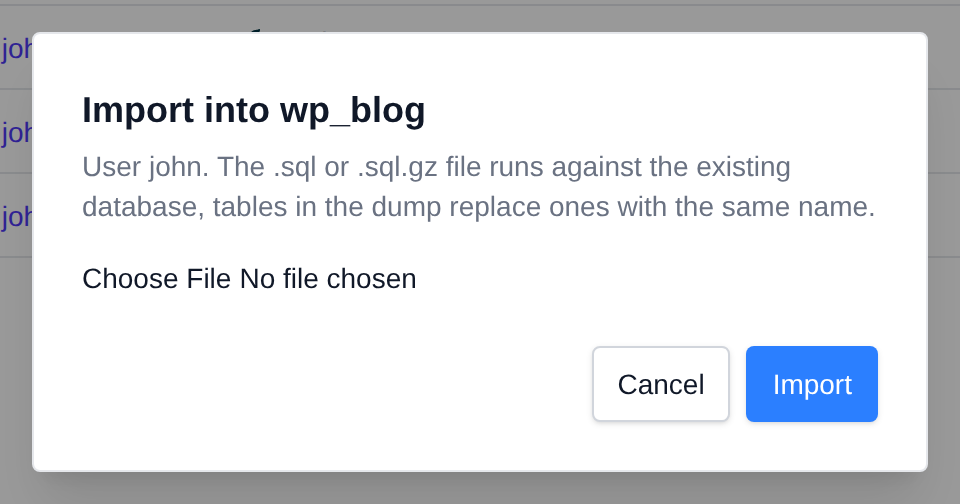
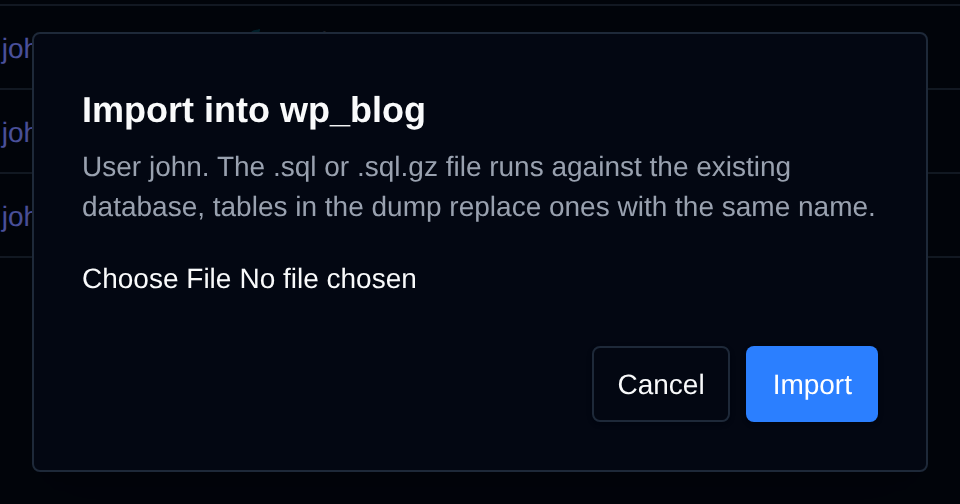
Export and Import need the owner's MySQL or MariaDB service to be running. When it's stopped they show an error, and the service is not started for you.
## Resellers
Resellers can open the Databases page too. They only see the databases of their own users, and can export and import them. The Terminal action is not shown to resellers.
---
// File: admin/databases/postgresql
# PostgreSQL Databases
The PostgreSQL tab lists the PostgreSQL databases of every user on the server.
Use **OpenAdmin > Databases > PostgreSQL** to access it.
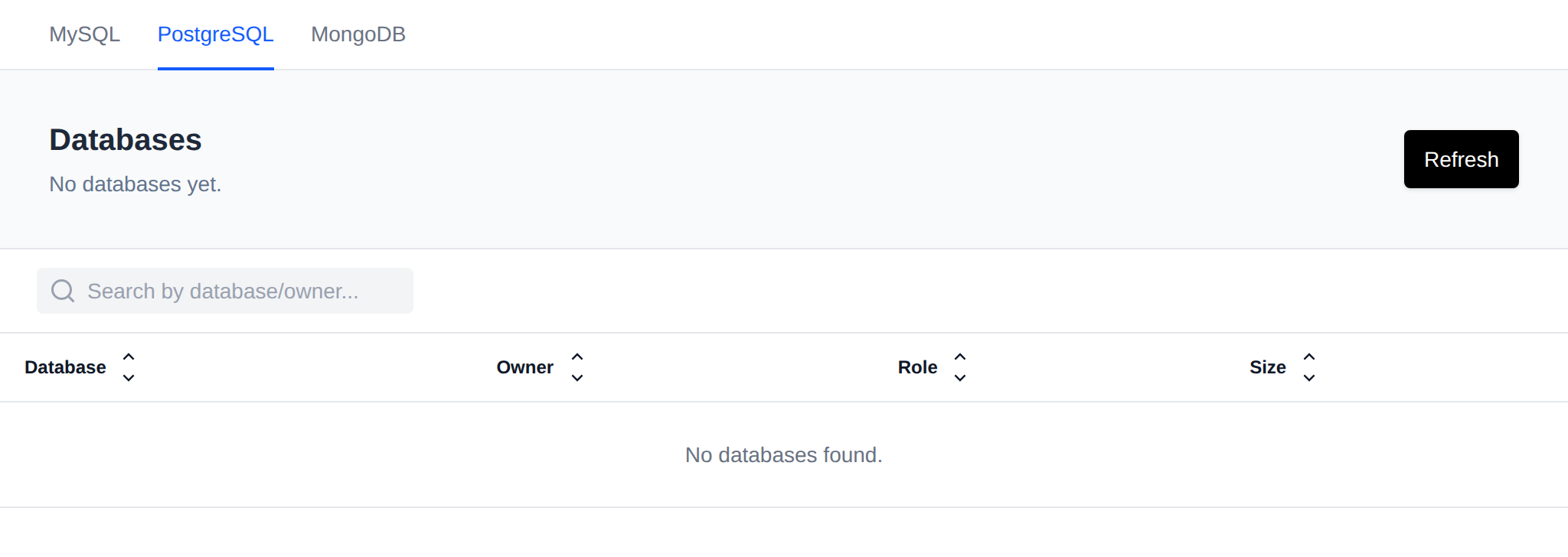
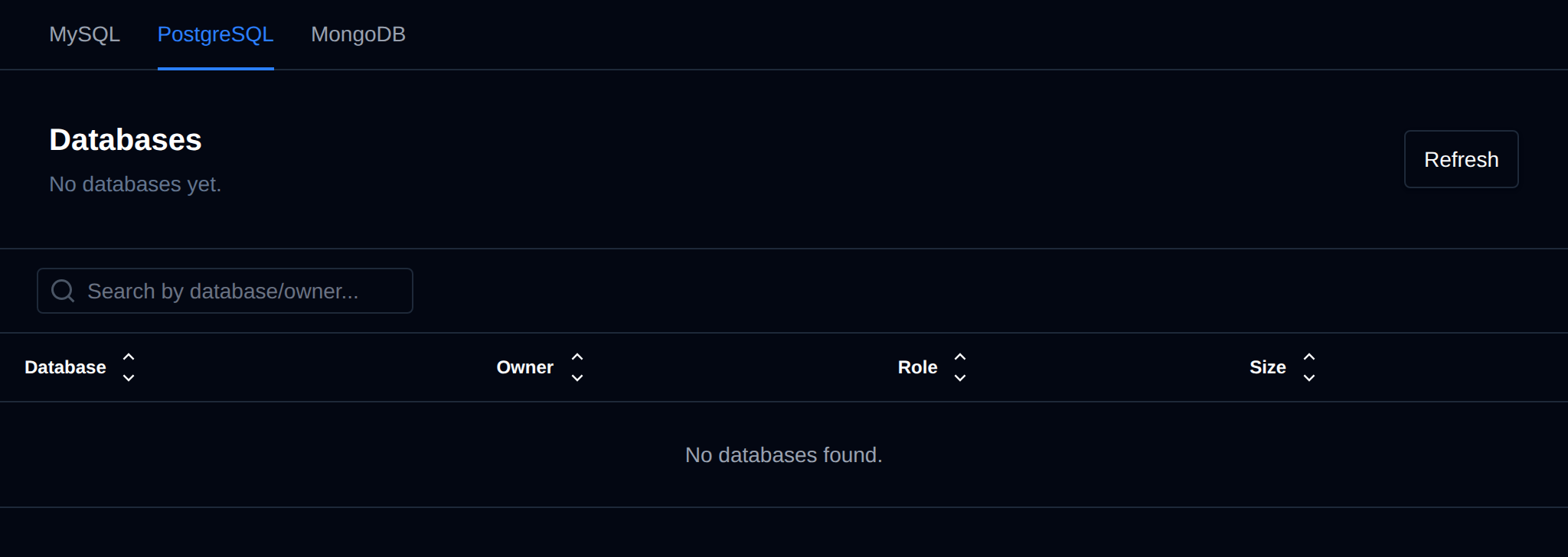
PostgreSQL doesn't keep database names in a form that can be read from its files, so OpenAdmin asks each user's PostgreSQL service for them. Only users with a running service are checked, a few at a time, and the result is kept for 2 minutes. Click **Refresh** to check again right away.
| Column | Description |
|---|---|
| **Database** | Name of the database. |
| **Owner** | The OpenPanel user the database belongs to. |
| **Role** | The PostgreSQL role that owns the database. |
| **Size** | Size of the database. |
Users who have PostgreSQL but whose service is stopped are listed above the table under **Not running**. Their service is not started to list the databases. Users whose service didn't answer are listed with the error.
Resellers can open this tab too, and only see the databases of their own users.
---
// File: admin/databases/mongodb
# MongoDB Databases
The MongoDB tab lists the MongoDB databases of every user on the server.
Use **OpenAdmin > Databases > MongoDB** to access it.
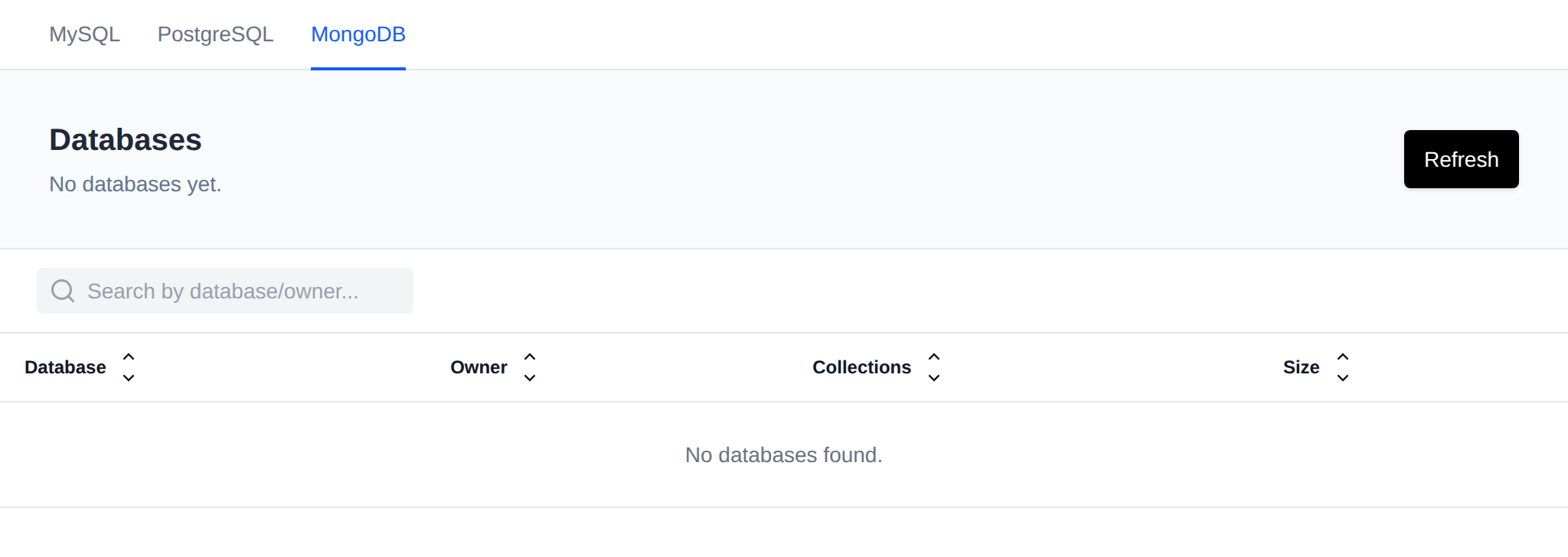
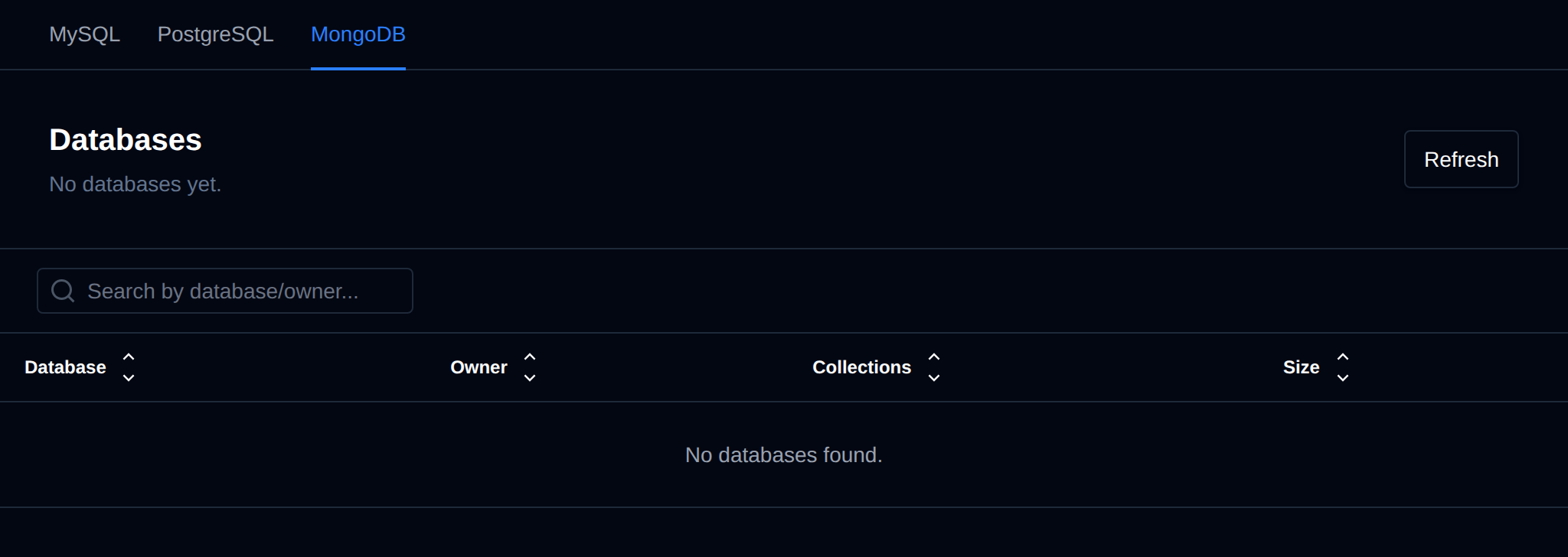
MongoDB doesn't keep database names in a form that can be read from its files, so OpenAdmin asks each user's MongoDB service for them. Only users with a running service are checked, a few at a time, and the result is kept for 2 minutes. Click **Refresh** to check again right away.
| Column | Description |
|---|---|
| **Database** | Name of the database. |
| **Owner** | The OpenPanel user the database belongs to. |
| **Collections** | Number of collections in the database. |
| **Size** | Size of the database on disk. |
The `admin`, `local` and `config` databases are not listed. Users who have MongoDB but whose service is stopped are listed above the table under **Not running**. Their service is not started to list the databases. Users whose service didn't answer are listed with the error.
Resellers can open this tab too, and only see the databases of their own users.
---
// File: admin/domains/domains
# Manage Domains
Domains page displays all domains currently hosted on server.
## List domains
To list all current domains navigate to Domains page.
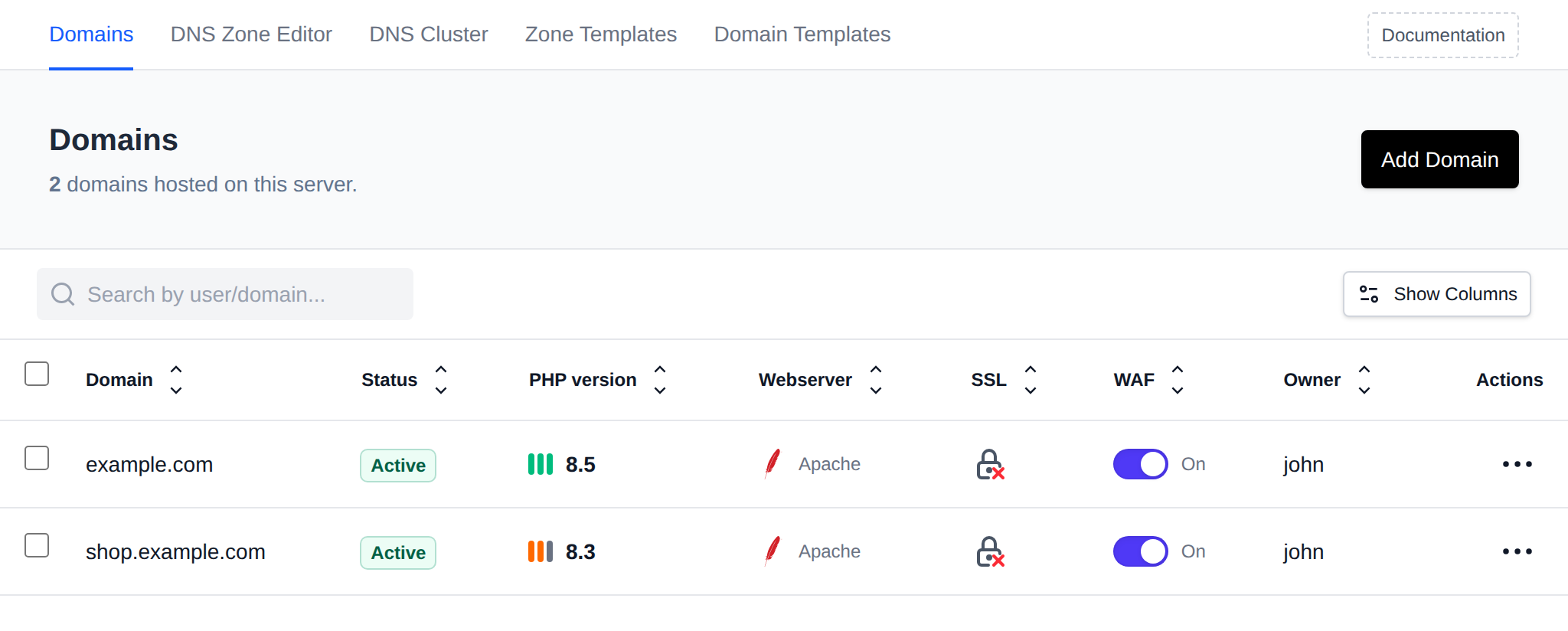
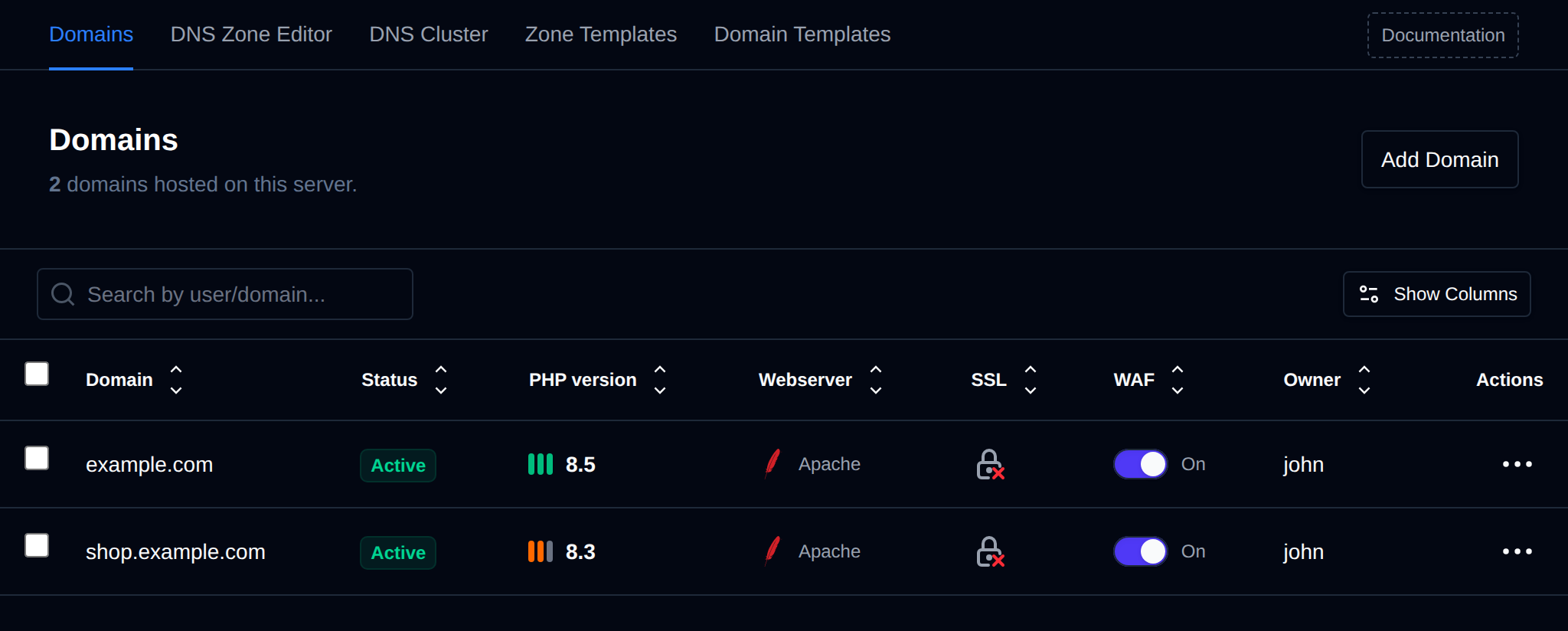
The table shows these columns by default:
| Column | Description |
|-----------------|-----------------------------------------------------------------------------|
| **Domain** | The domain name. |
| **Status** | **Active**, or **Suspended by admin** / **Suspended by user** with the [suspension reason](#suspend-a-domain) below it. Hover over the badge to see the comment. |
| **PHP version** | The PHP version configured for the domain. Hover over it and click the pencil icon to change it. |
| **Webserver** | The webserver of the account that owns the domain (Apache, Nginx, OpenResty or OpenLiteSpeed). |
| **SSL** | Whether the domain has an SSL certificate. |
| **WAF** | Toggle to enable or disable Coraza WAF for the domain. |
| **Owner** | The OpenPanel user who owns the domain. |
| **Actions** | Menu with the [domain actions](#domain-actions). |
Click **Show Columns** to show or hide columns. These optional columns are hidden by default:
| Column | Description |
|-------------------------------------------|----------------------------------------------------------------|
| **ID** | The internal ID of the domain. |
| **Docroot** | The document root directory of the domain. |
| **HTTP Strict Transport Security (HSTS)** | Toggle to enable or disable HSTS for the domain, like WAF. |
| **Rate limit** | **Default**, **Custom** or **Off**, click it to open [Rate Limiting](/docs/admin/domains/ratelimit). |
Any default column except Actions can be hidden the same way. Column visibility is remembered for your browser.
Use the search box (**Search by user/domain...**) to filter the list by domain name or owning username.
To list all current domains run:
```bash
opencli domains-all
```
Example output:
```bash
root@server:~# opencli domains-all
openpanel.com
openpanel.org
demo.openpanel.com
api.openpanel.com
support.openpanel.org
ip.openpanel.com
my.openpanel.com
```
## Bulk Actions
Tick the checkbox of one or more domains, or the checkbox in the table header to select all domains shown by the current search. A bar appears at the bottom of the page with the number selected, a **Clear** link and these actions:
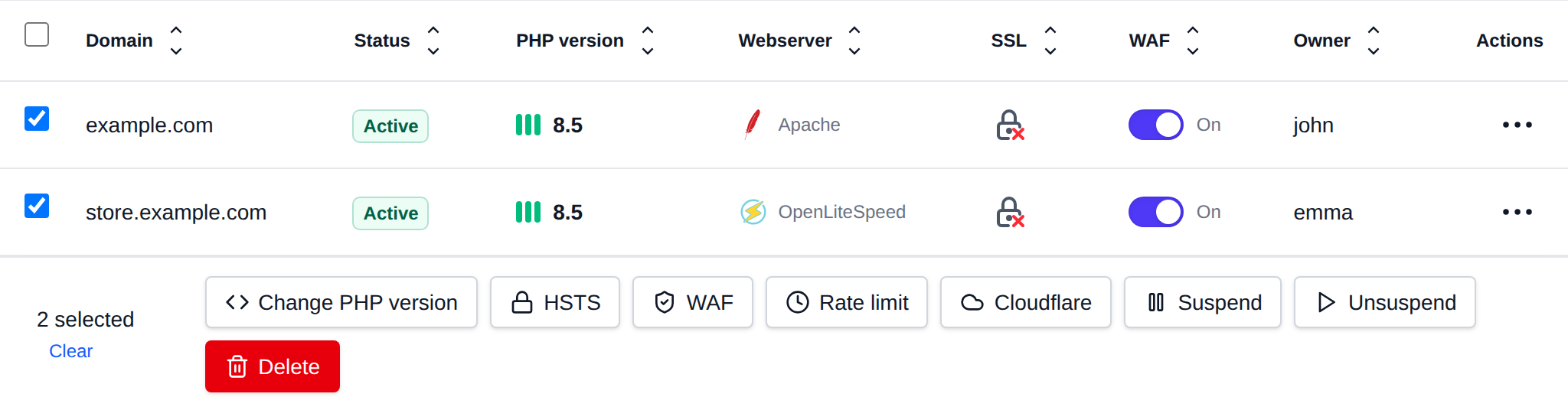
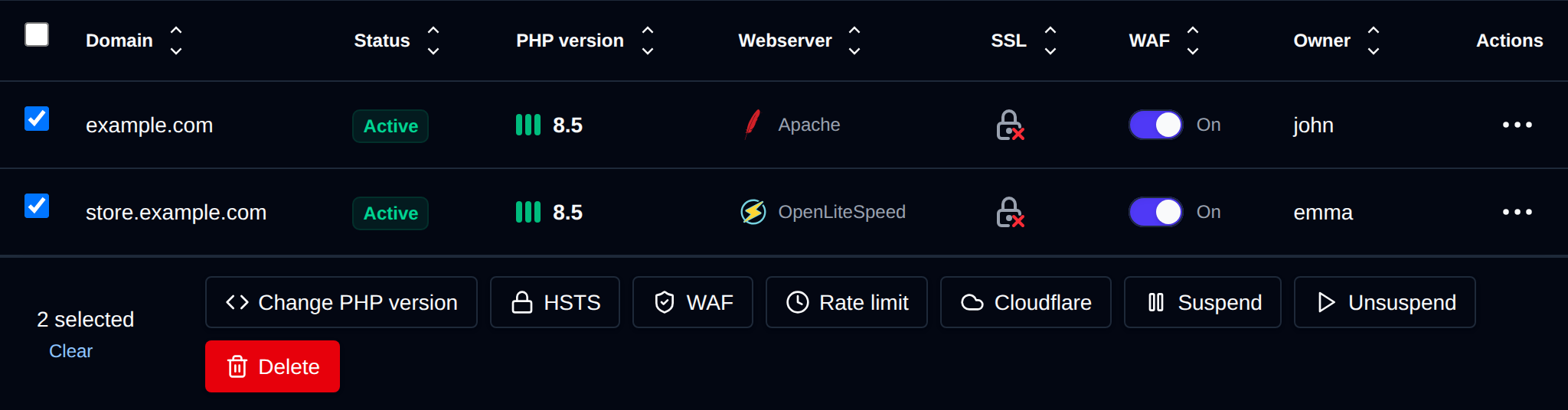
| Action | What it does |
|---|---|
| **Change PHP version** | Sets the PHP version you pick from the versions installed for the domains' owners. A domain whose owner doesn't have that version is skipped with an error. |
| **HSTS** | Turns HSTS on or off for the selected domains. |
| **WAF** | Turns the CorazaWAF on or off for the selected domains. |
| **Rate limit** | Puts the selected domains on the server default [rate limit](/docs/admin/domains/ratelimit), or removes their limits. Custom limits are set on the Rate Limiting page. |
| **Cloudflare** | Restricts the selected domains to Cloudflare, or removes the restriction. Restricted domains that aren't proxied through Cloudflare return 403 to visitors. |
| **Suspend** | Suspends the selected domains with the [reason](#suspend-a-domain) you pick. Users can't unsuspend or change them. |
| **Unsuspend** | Unsuspends the selected domains. |
| **Delete** | Deletes the selected domains with their DNS zones, SSL and web server configuration, the files are kept. |
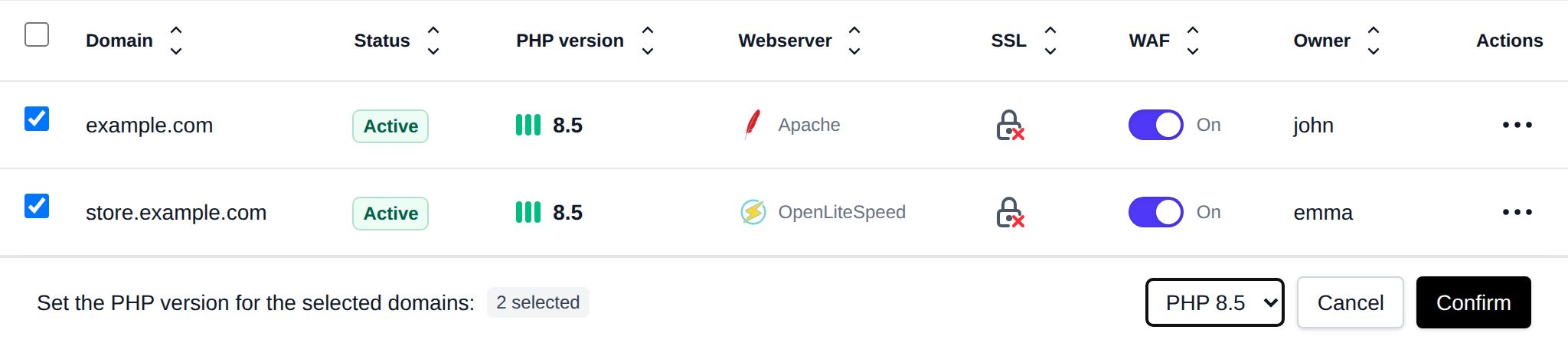
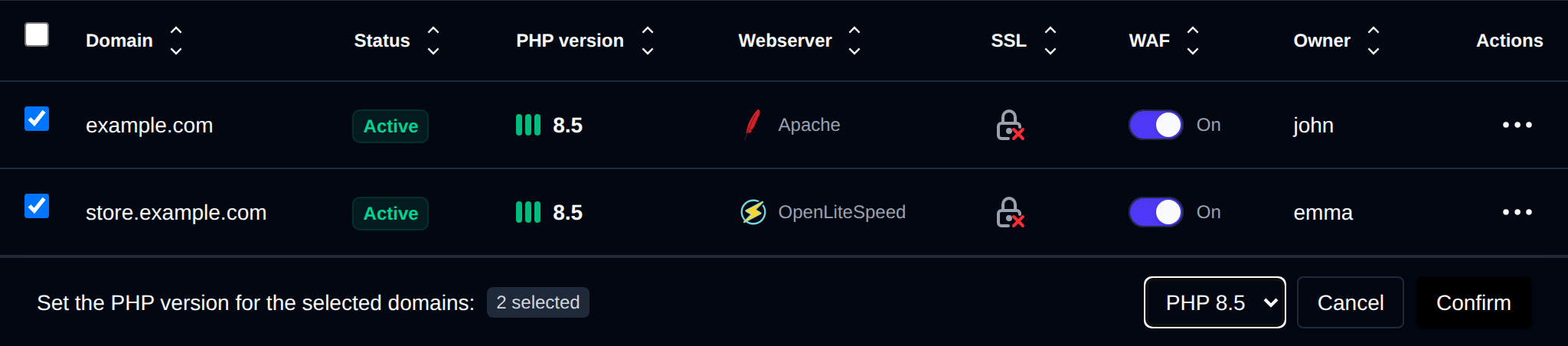
Click an action, confirm it, and it runs on the selected domains one after another. When it's done the page reloads with a notice listing the domains it worked for, or which ones failed and why.
## Add domain
Click on 'Add Domain' button, insert the domain and select the user to add it, then click on 'Add Domain'.
With an **Enterprise** license the form also has a **Docroot** field next to the username. It starts as `/var/www/html/` and fills in `/var/www/html/` as you type the domain, so you only need to change it for a custom folder, for example `/var/www/html/shop/public`. The docroot must start with `/var/www/html/`, can only contain letters, numbers, dots, dashes, underscores and slashes, and can't contain `..`. On Community edition the docroot is always `/var/www/html/`.
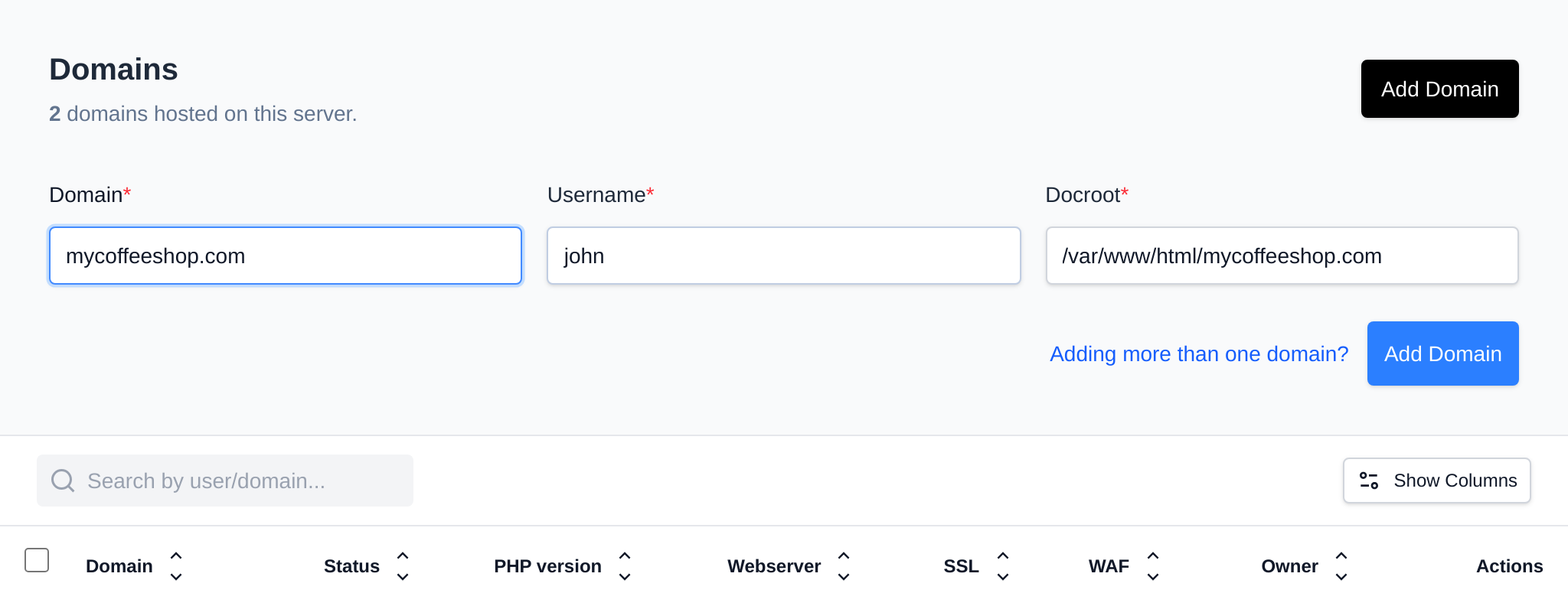
To add a new domain run the following command:
```bash
opencli domains-add [--docroot /var/www/html/] [--debug]
```
Without `--docroot`, the domain uses `/var/www/html/`.
Example:
```bash
root@stefan:/usr/local/admin# opencli domains-add pejcci.rs wzs11p2i --debug
Checking if domain already exists on the server
Adding pejcci.rs to the domains database
Purging cached list of domains for the account
Creating document root directory /home/wzs11p2i/pejcci.rs
Checking webserver configuration
Checking if default vhosts file exists for Nginx
Checking IPv4 address for the account
Creating /etc/nginx/sites-available/pejcci.rs.conf
Restarting nginx to apply changes
Creating vhosts proxy file for Nginx
Webserver is running, reloading configuration
Creating DNS zone file: /etc/bind/zones/pejcci.rs.zone
DNS service is running, adding the zone
Adding the newly created zone file to the DNS server
Checking and setting nginx service to automatically start on reboot
Starting service for the default PHP version 8.2
Checking and setting PHP service to automatically start on reboot
Checking and starting the ssl generation service
Starting Let'sEncrypt SSL generation in background
Domain pejcci.rs added successfully
```
## Bulk add domains
To add several domains at once, click on 'Add Domain' and then on **Adding more than one domain?** next to the submit button. The form turns into a text area where you enter one domain per line:
```
|||
```
The docroot and PHP version are optional, and spaces can be used instead of `|`. For example:
```
mycoffeeshop.com|john
bakery.rs|john|/var/www/html/bakery/public
blog.bakery.rs|john|/var/www/html/bakery/blog|8.3
teashop.net stefan 8.4
```
- A docroot starts with `/` and a PHP version looks like `8.3`, so you can leave out either one, for example `domain.com|john|8.3`.
- A custom docroot requires an **Enterprise** license, with the same rules as the single [Add domain](#add-domain) form. Without a docroot the domain uses `/var/www/html/`.
- Empty lines and lines starting with `#` are skipped. Up to 500 domains can be added at once.
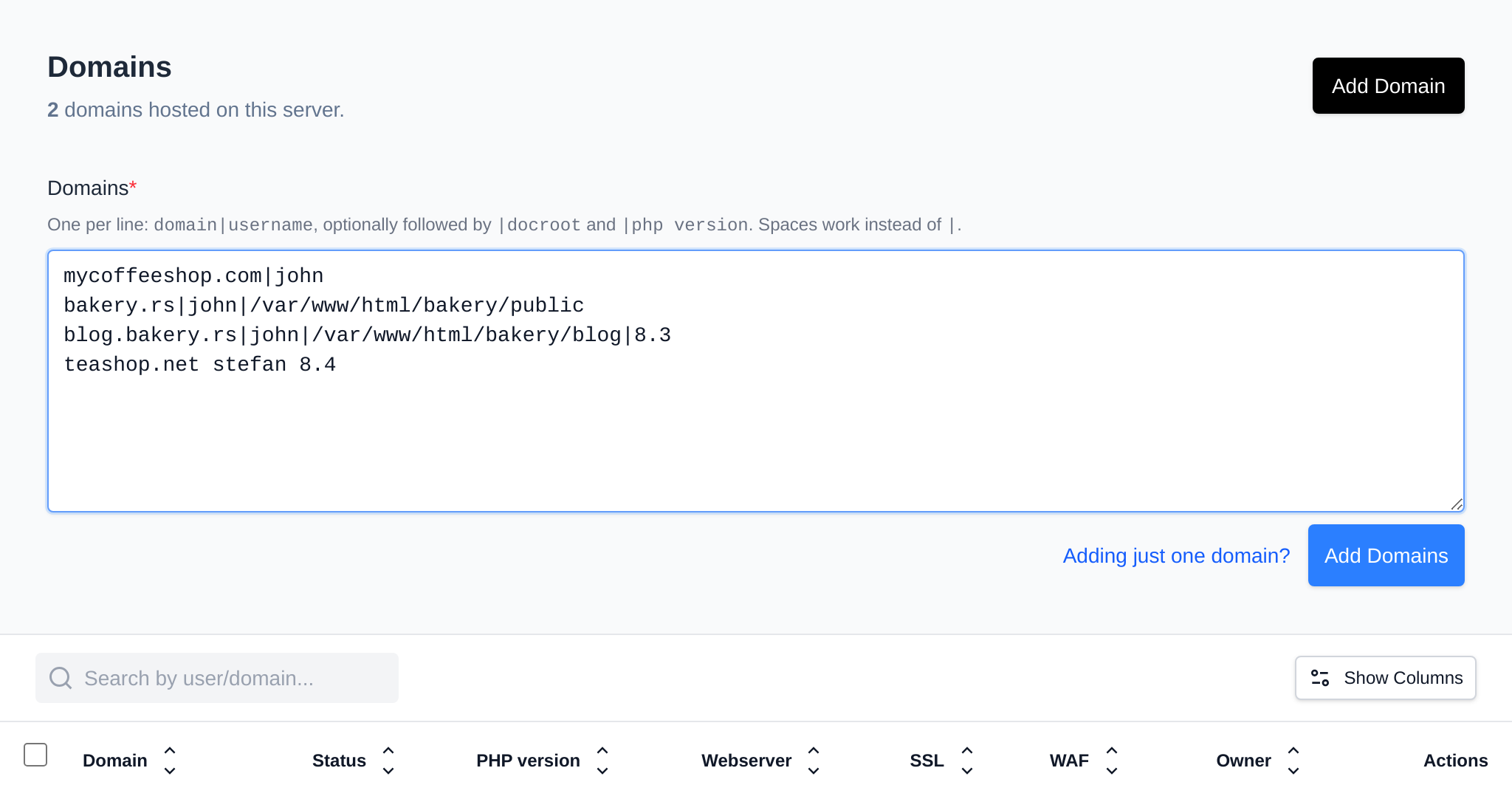
The list is checked when you leave the text area and again on the server before anything is added: every line with a problem is listed with its line number, along with users that don't exist or are suspended, and domains that appear twice. If any line is wrong, no domains are added.
When the list is valid, the domains are added one after another and the form shows the progress. When all of them are added the page reloads. If some fail (for example because the domain already exists on the server), the form lists each failed line with the error and the rest are still added.
Click **Adding just one domain?** to go back to the single domain form.
## Domain actions
Each row in the Domains table has an actions menu (the `⋮` button) with the following options:
- **Edit DNS Zone** — opens the [DNS Zone Editor](/docs/admin/domains/dns) for this domain. Only shown if the **dns** module is enabled.
- **Suspend domain** / **Unsuspend domain** — suspends the domain with a reason, see [Suspend a domain](#suspend-a-domain) below, or unsuspends it.
- **Manage SSL** — opens the SSL page for the domain. Not shown for suspended domains.
- **Edit Virtual Host** — opens the VirtualHost config editor for the domain.
- **Edit Apache Config** — opens the webserver configuration file of the domain owner (the label follows the owner's webserver).
- **Edit Caddyfile** — opens the Caddy config editor for the domain.
- **Delete domain** — permanently deletes the domain, see [Delete domain](#delete-domain) below.
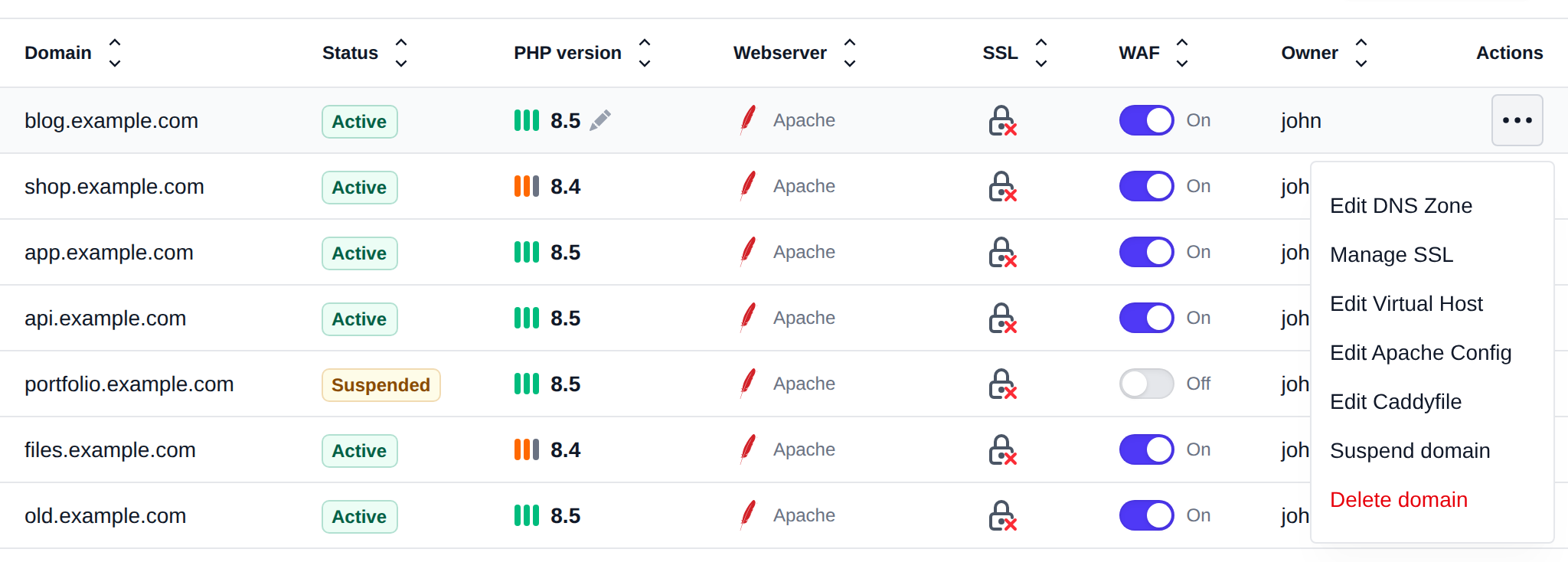
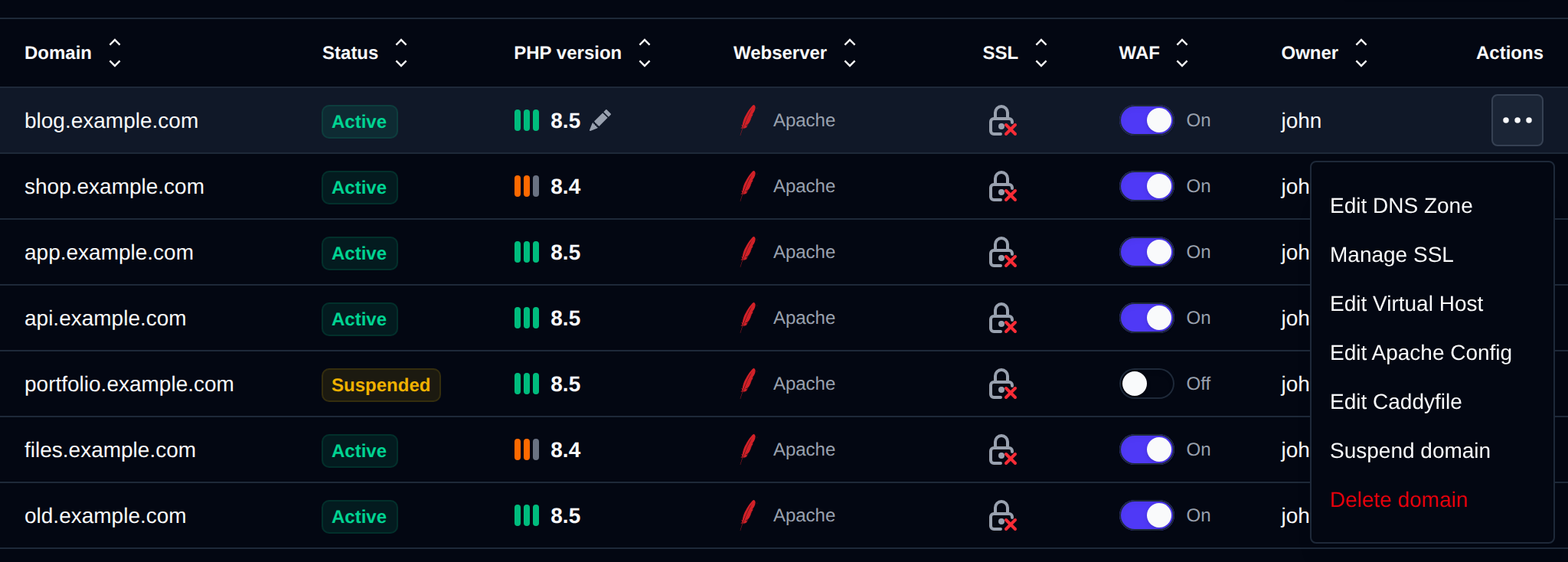
## Suspend a domain
Suspending a domain replaces its website with a suspended page, email and other services keep working. To suspend a domain:
1. Open the domain's actions menu (`⋮`) and click **Suspend domain**.
2. Pick a **Reason**. **Default suspended page** shows the [Suspended Website](/docs/admin/domains/file_templates/#suspended-website) page, the other options are the [suspension reasons](/docs/admin/domains/file_templates/#suspension-reasons) from **Domains > Domain Templates**, such as *Copyright / DMCA Violation* or *Overdue Payment / Billing*.
3. Optionally enter a **Comment**, for example a ticket number. The user sees it in OpenPanel.
4. Click **Suspend**.
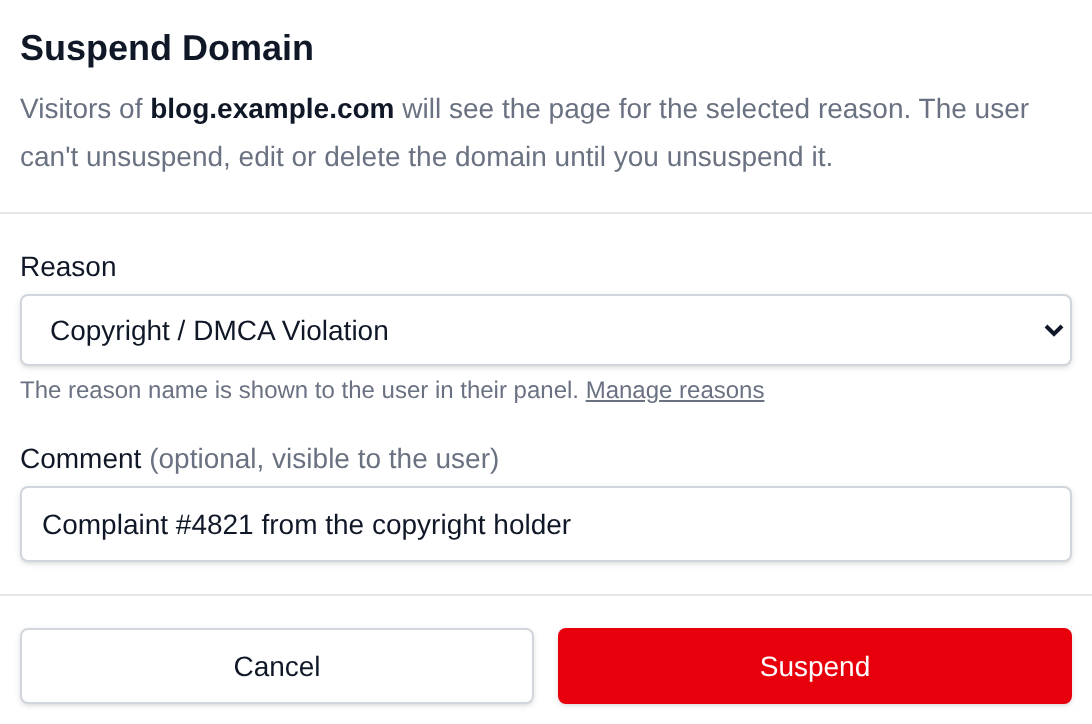
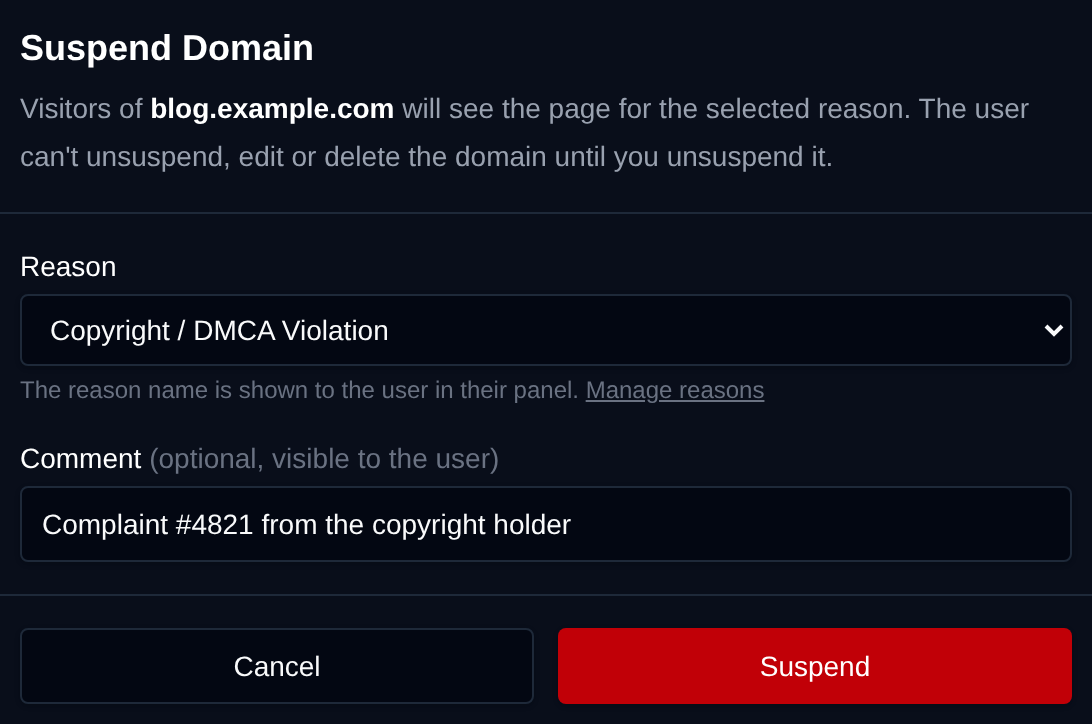
The Status column then shows **Suspended by admin** with the reason below it:
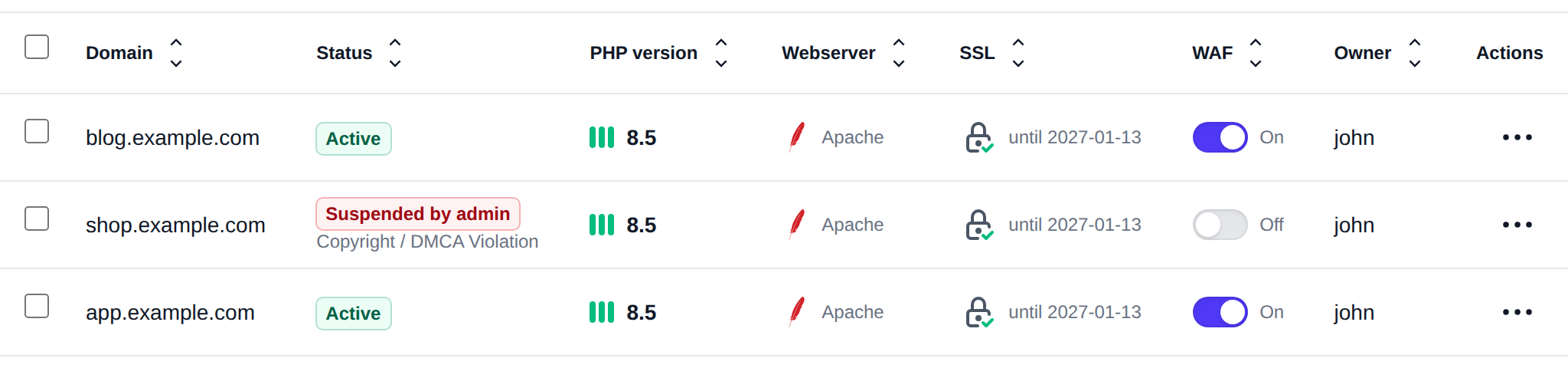
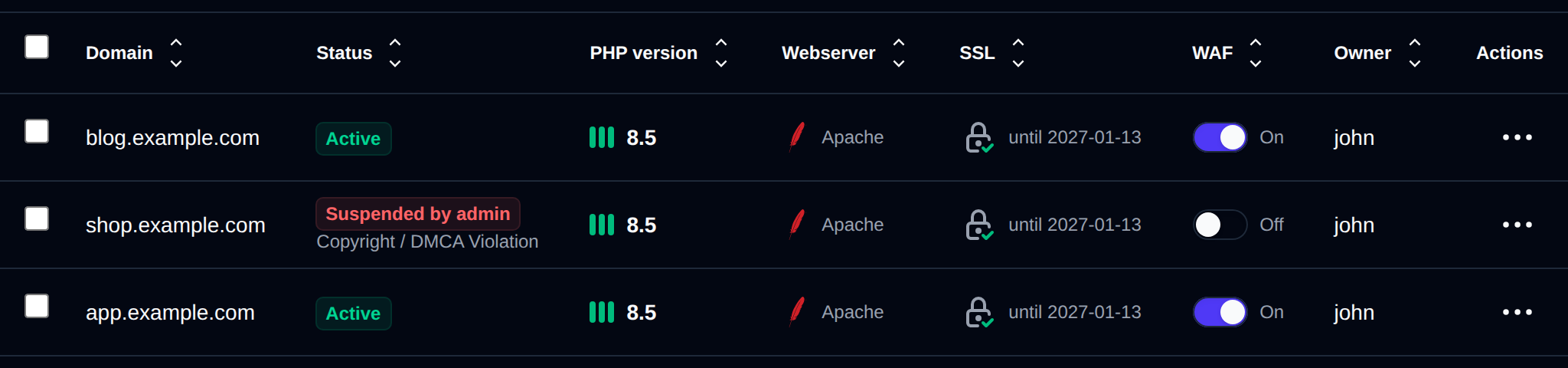
A domain suspended by an Administrator is locked for the user. In OpenPanel the user sees **Suspended by Admin** and the reason, and can't unsuspend, delete or edit the domain: changing its docroot, VirtualHost, redirect, SSL, Cloudflare setting or DNS zone is refused, from the panel and from the API, until an Administrator unsuspends it. Users can still suspend and unsuspend their own domains, these show as **Suspended by user**. Suspending a domain the user already suspended turns it into an admin suspension.
To unsuspend, open the actions menu and click **Unsuspend domain**. The domain's original configuration is put back.
From the terminal, use [`opencli domains-suspend`](/docs/articles/opencli/domains/#suspend) with `--by=admin`, `--template=` and `--comment="..."`, and `opencli domains-unsuspend --by=admin`. Without `--by=admin` the suspension counts as the user's own.
## Move domain
This is currently not possible.
## Delete domain
Domains can be deleted directly from OpenAdmin:
1. Open the domain's actions menu (`⋮`) in the Domains table and click **Delete domain**.
2. A confirmation dialog lists what will be removed: VHost configuration files, Caddyfile entries, SSL certificates, and email accounts & redirects. Website files and the docroot directory are **not** deleted.
3. Type the domain name to confirm, then click **Delete Permanently**.
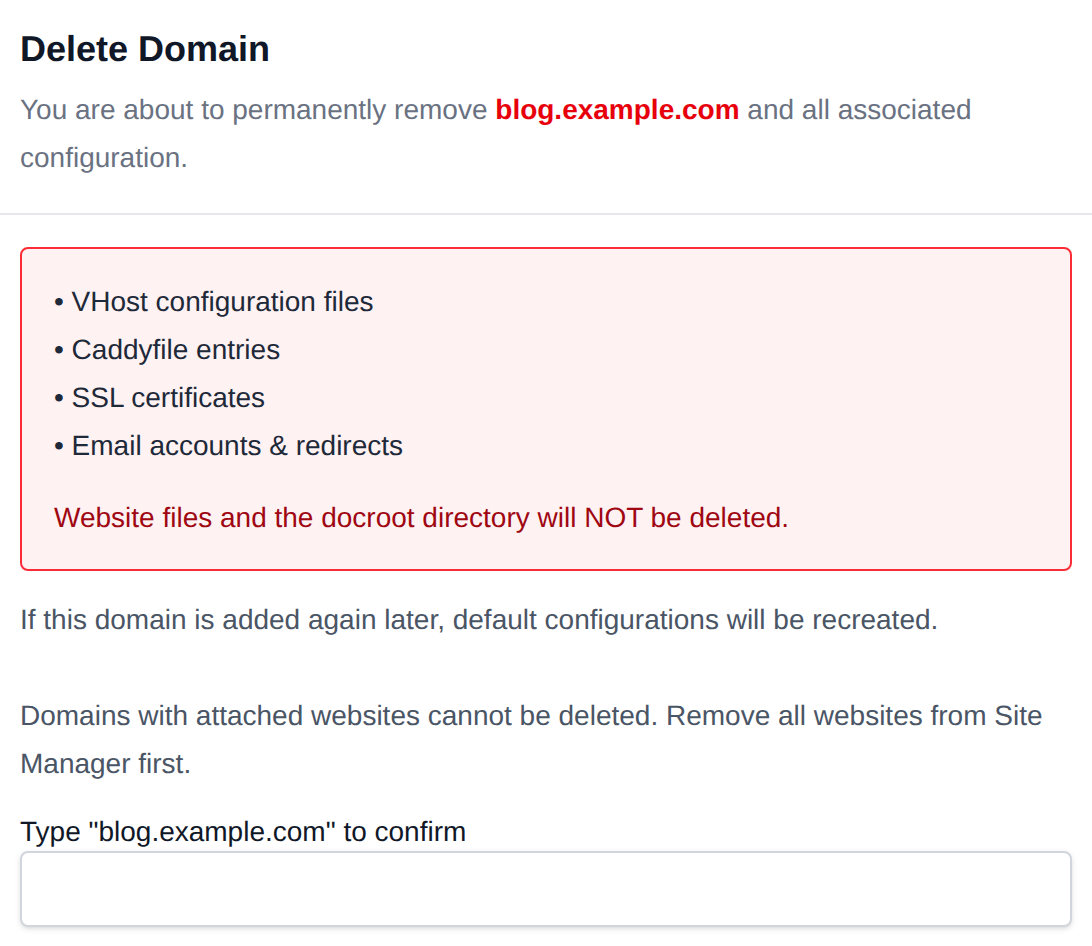
> Domains with attached websites cannot be deleted — remove all websites from Site Manager first. If the domain is added again later, default configurations are recreated.
---
// File: admin/domains/dns
# DNS Zone Editor
Edit the DNS zone for any domain hosted on the server.
:::info
The DNS Zone Editor in OpenAdmin is only shown in the **Domains** sidebar group when the **dns** module is enabled on the server.
:::
1. Navigate to **OpenAdmin > Domains > DNS Zone Editor**.
2. Select the domain whose zone you want to edit.
3. Make your changes in the editor and click **Save** when done.
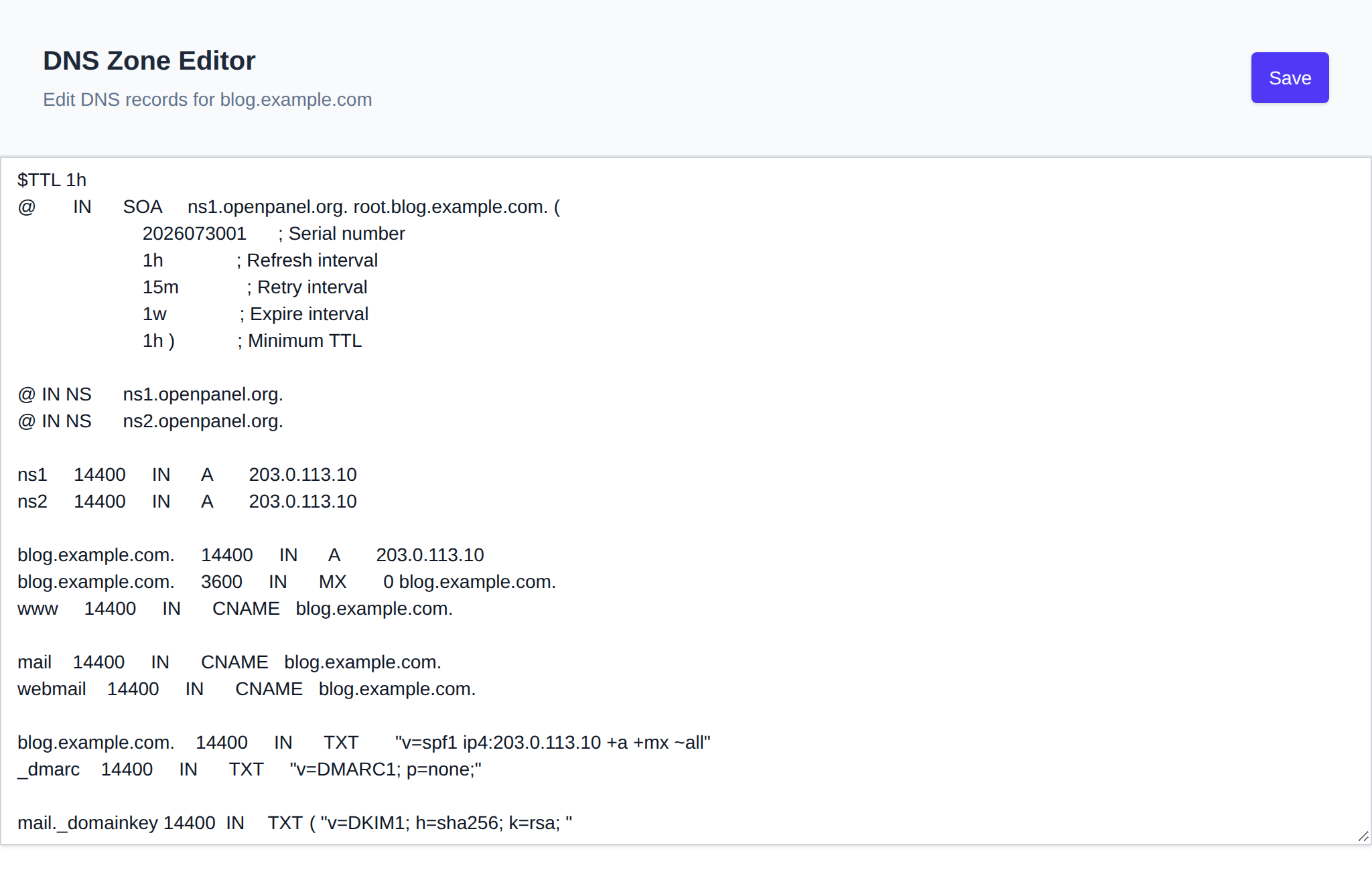
Before overwriting the zone file, OpenAdmin automatically creates a temporary backup of the previous version. The new content is validated (`named-checkzone`) before it is applied:
- ✅ If validation passes, the zone file is saved, BIND is reloaded (`rndc reload`), and propagation begins immediately.
- ⚠️ If there are syntax errors, the save is rejected and the zone file is automatically reverted to its previous version — your changes are **not** applied.
> If you reload the page after a failed save with unsaved changes still pending, OpenAdmin will offer to restore your last edited (but not yet valid) version from its temporary backup so you don't lose your work.
Click **Show Columns** to also display **ID**, **Docroot**, and **HTTP Strict Transport Security (HSTS)** — HSTS can be toggled on/off directly from that column, the same way WAF can. Column visibility is remembered for your browser.
DNS zone files are stored in `/etc/bind/zones/`:
Edit the zone file `/etc/bind/zones/.zone` with your text editor, save, and to reload:
```bash
opencli domains-dns check
opencli domains-dns reload
```
---
// File: admin/domains/dns-cluster
# DNS Cluster
DNS clustering allows you to synchronize DNS records from one OpenPanel server to other machines.
To use this feature, **all machines in the cluster must be running BIND9** — either through the OpenPanel installation or as a standalone service/container.
:::info
DNS Cluster is only shown in the **Domains** sidebar group when an **Enterprise license** is active **and** the **dns** module is enabled on the server.
:::
:::info
Only **IPv4** slave server addresses are currently supported.
:::
---
## Enable Clustering
Click **Enable DNS Clustering** to activate the feature.
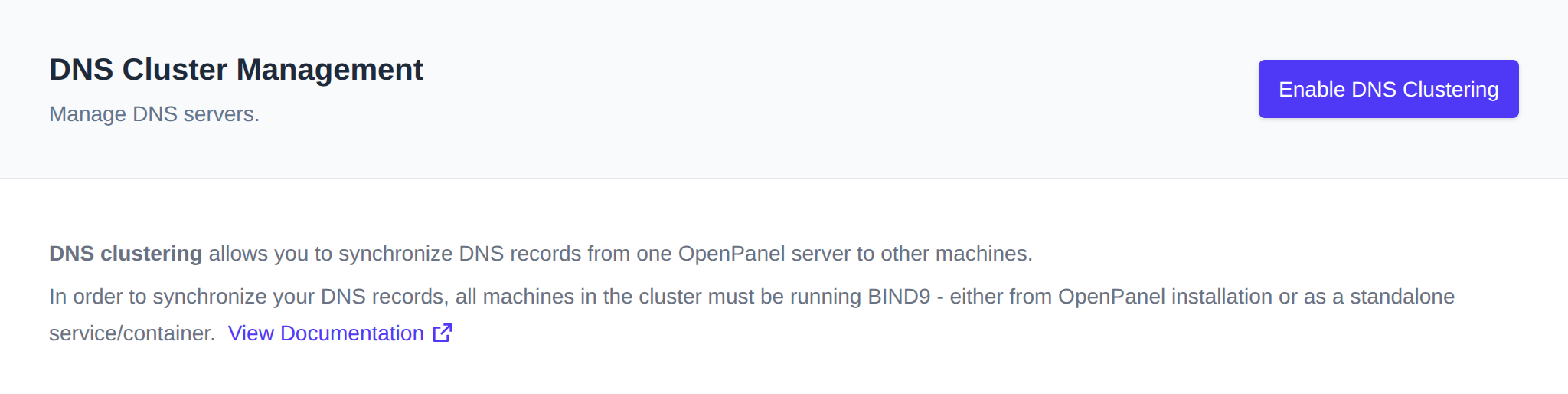
---
### Add Slave Servers
To set up a slave BIND9 server, follow the instructions in [How-to Guides > DNS Clustering](/docs/articles/domains/how-to-setup-dns-cluster-in-openpanel/).
Once the slave is ready:
1. Click **Add Server** and enter the slave server's IPv4 address in the form on the master server.
2. As you type, OpenAdmin checks connectivity to the slave over `rndc` before allowing you to submit — the **Add** button stays disabled until the connection succeeds.
3. Click **Add**. OpenAdmin adds the slave's IP to the `allow-transfer`/`also-notify` directives, restarts the DNS service, and syncs all existing DNS zones to the new slave in the background.
4. All future domains and DNS changes made by users will be automatically propagated to the slave server.
> To confirm the setup is working, check that the DNS zones appear on the slave server.
---
### Remove Slave Server
There is currently no **Remove** button in the DNS Cluster page — slave servers can only be removed via the terminal (or the API).
---
## Disable Clustering
Click **Disable DNS Clustering** to turn off the feature.
---
// File: admin/domains/ratelimit
# Rate Limiting
Limit how many requests per minute a single visitor and a whole domain can make, so one busy site or bot can't slow down the server.
Use **OpenAdmin > Domains > Rate Limiting** to access it.
Requests above a limit get HTTP `429 Too Many Requests` until the minute passes. There are two limits:
- **Per IP**: requests per minute from one visitor. This stops scrapers, bots and single attackers.
- **Per domain**: requests per minute for the whole domain, from all visitors together. This caps how much of the server one domain can use.
`0` turns a limit off. Visitors behind Cloudflare are counted by their real IP address, not by Cloudflare's.
## Server Default
Click **Server Default** to set the limits used by every domain set to **Default**. New installations start with 300 requests per minute per IP and 6000 per domain. On servers updated from an older version, rate limiting stays off until you set a default.
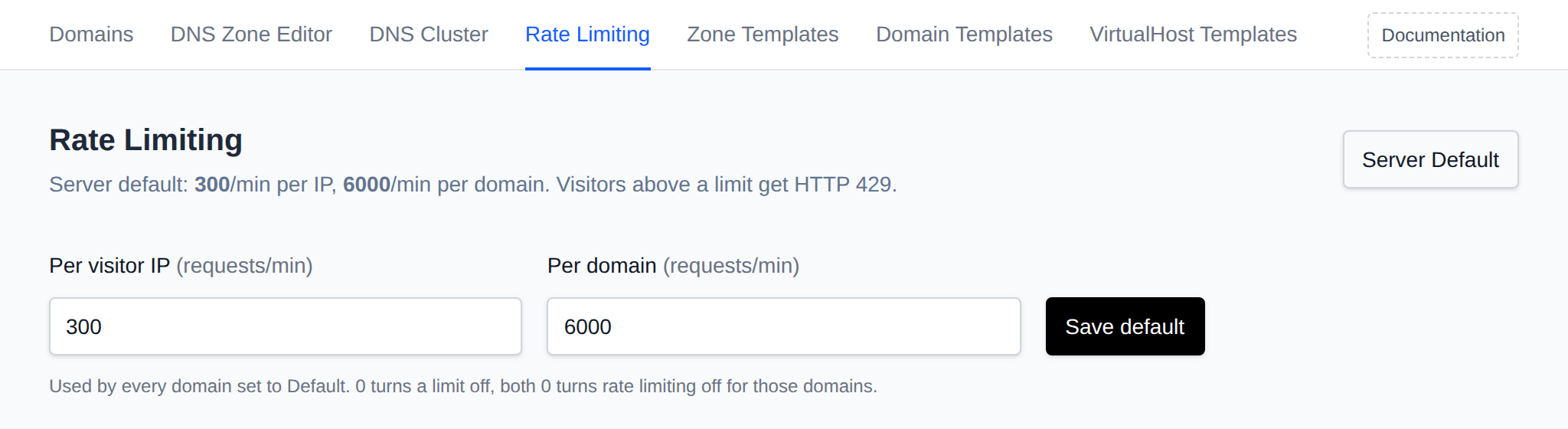
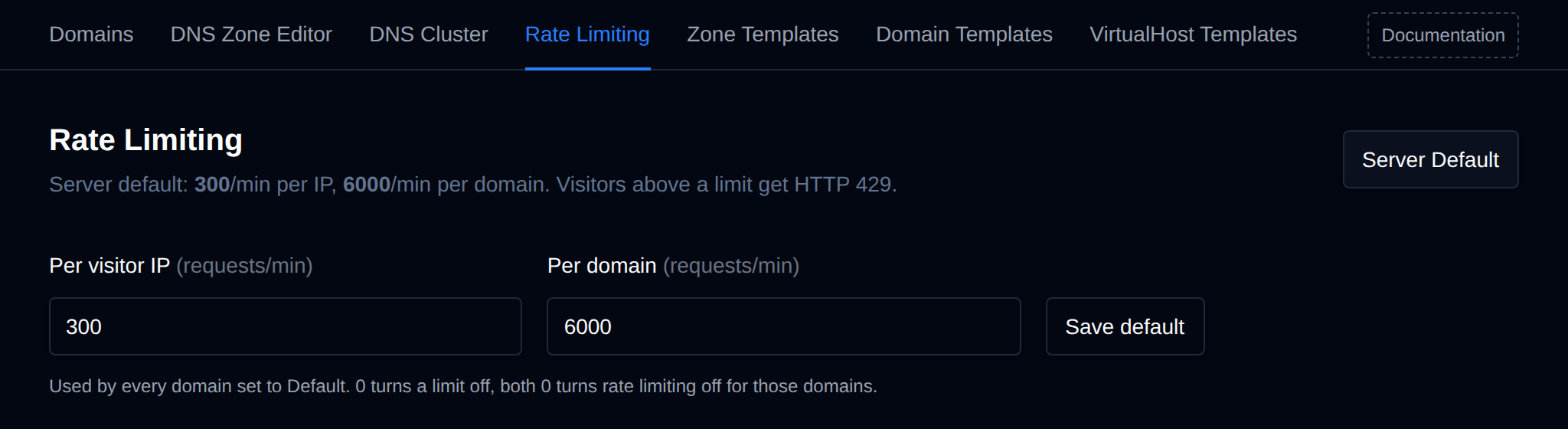
## Domains Table
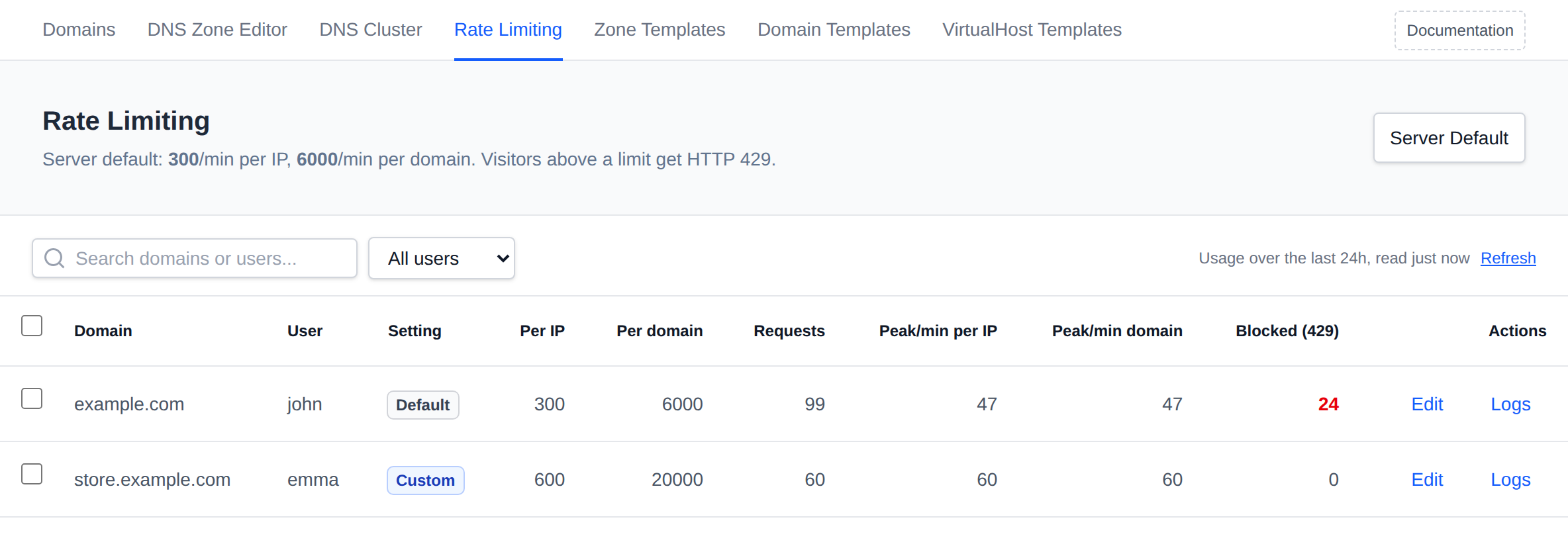
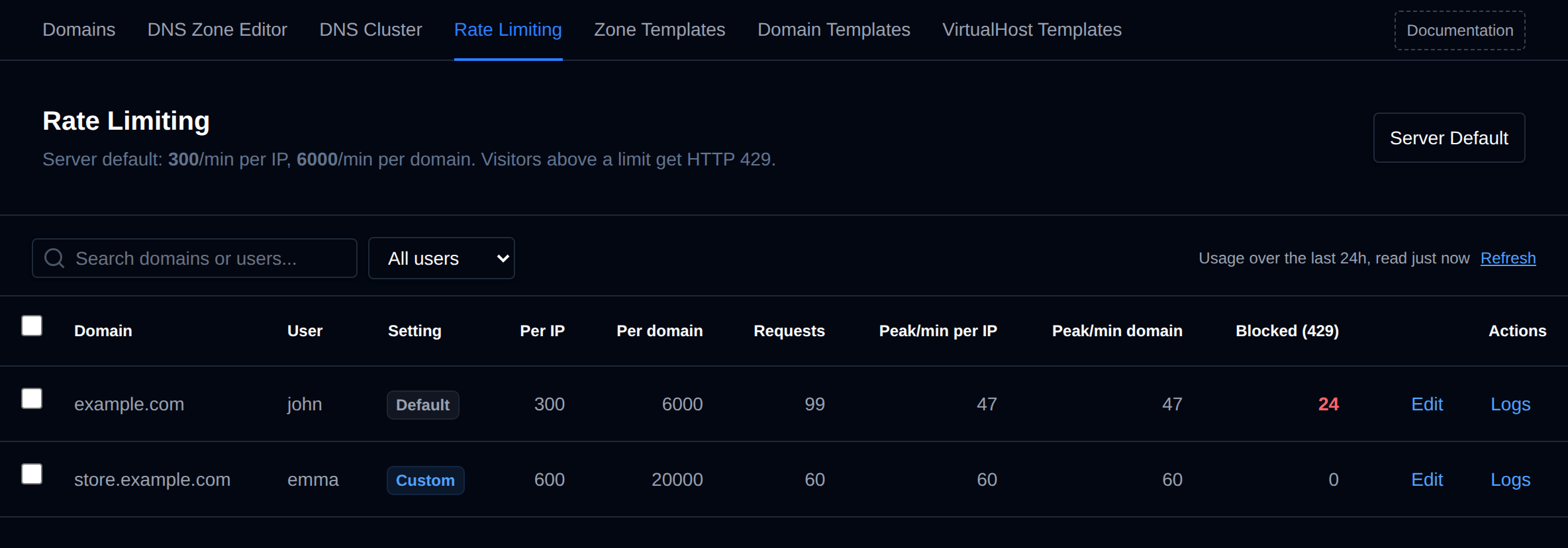
Each domain shows its setting (**Default**, **Custom** or **Off**), the limits that apply to it, and its usage over the last 24 hours:
- **Requests**: all requests to the domain.
- **Peak/min per IP**: the most requests a single IP made in one minute. Compare it to the **Per IP** limit.
- **Peak/min domain**: the busiest minute for the whole domain. Compare it to the **Per domain** limit.
- **Blocked (429)**: requests answered with 429.
A peak turns yellow when it came within 20% of its limit, and red when it went over it, which means visitors were blocked. If real visitors are hitting the limit, raise it for that domain.
Usage is read from the domain's access logs and refreshed every 5 minutes, click **Refresh** to read it again.
## Change a Domain
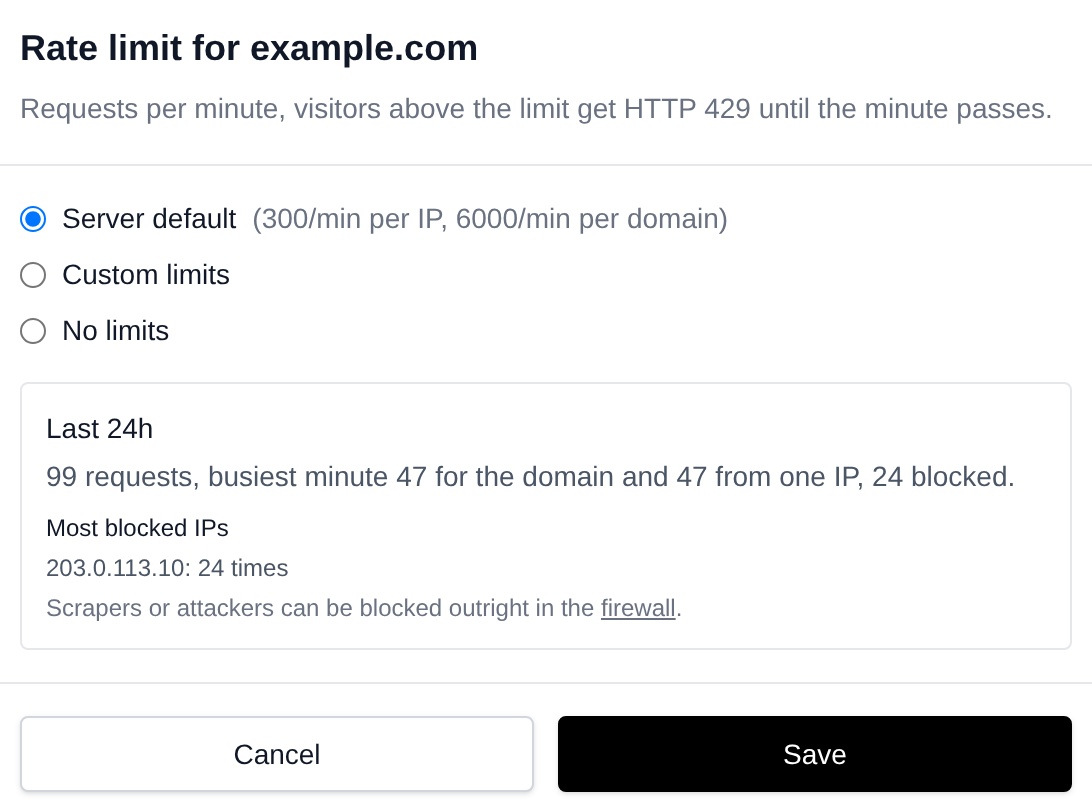
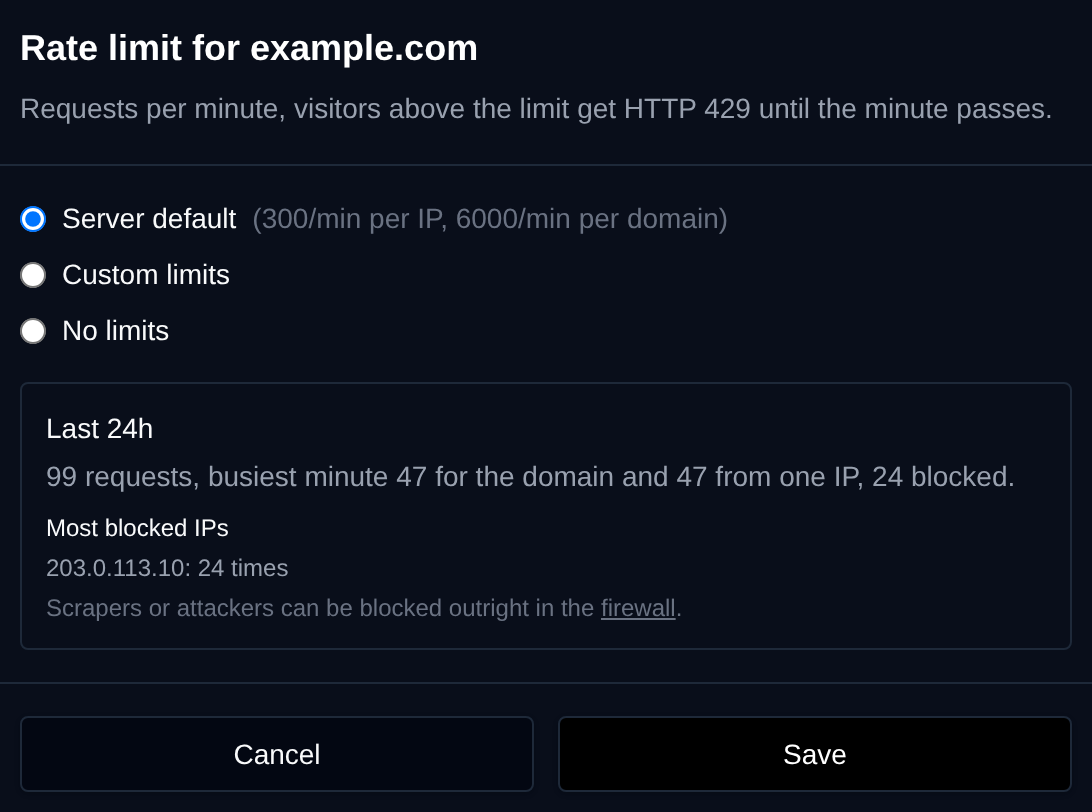
Click **Edit** on a domain and pick:
- **Server default**: use the limits from **Server Default**.
- **Custom limits**: set this domain's own limits per IP and per domain.
- **No limits**: turn rate limiting off for this domain.
The window also shows the domain's usage and the IP addresses that were blocked most often. A scraper or attacker can be blocked completely in the [firewall](/docs/admin/security/firewall).
## Bulk Actions
Tick the checkbox of one or more domains, or the one in the table header to select all shown, and use **Use server default**, **Custom limits** or **No limits** in the bar at the bottom. All selected domains are changed with a single Caddy reload.


**Custom limits** takes both limits as `per IP/per domain`, for example `600/20000`:


## From the Terminal
```bash
opencli domains-ratelimit # show the server default and every domain
opencli domains-ratelimit default 300 6000 # set the server default
opencli domains-ratelimit example.com 600 20000 # custom limits for a domain
opencli domains-ratelimit --user john default # all of a user's domains back to the default
opencli domains-ratelimit --all off # no limits on any domain
opencli domains-ratelimit stats # usage over the last 24 hours
```
---
// File: admin/domains/dns_templates
# Edit Zone Templates
This interface allows you to edit the DNS zone file templates that OpenPanel uses when creating zones for new domains.
It is useful if you require custom DNS configurations.
:::info
Edit Zone Templates is only shown in the **Domains** sidebar group when the **dns** module is enabled on the server.
:::
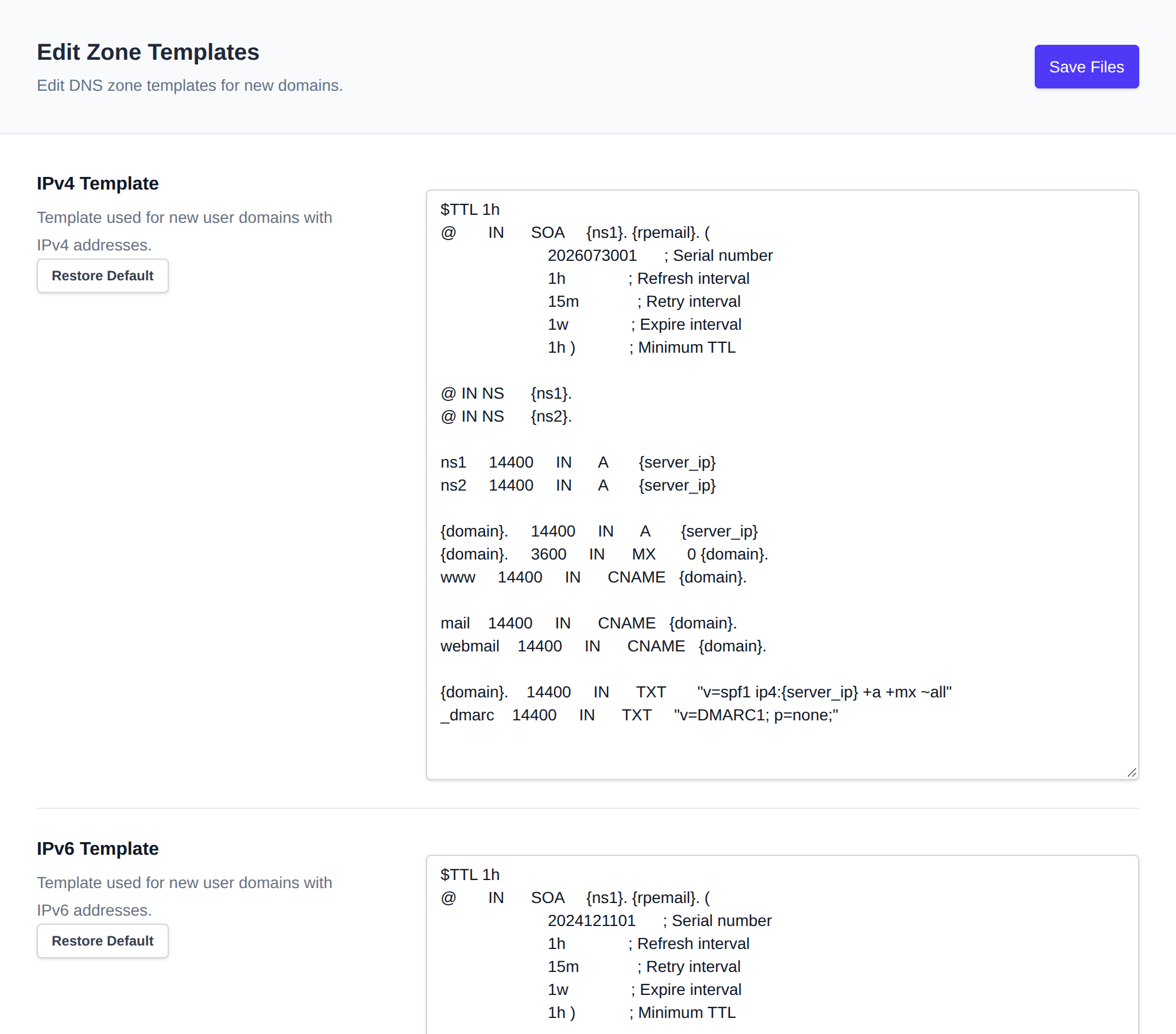
- **IPv4 Template** – Used for new domains assigned IPv4 addresses.
- **IPv6 Template** – Used for new domains assigned IPv6 addresses.
---
## Available Template Variables
You can include the following variables in your DNS zone templates:
| Variable | Description |
|----------------|-----------------------------------------------------------------------------|
| `{domain}` | The domain name the zone is being created for. |
| `{ns1}` | Hostname of the primary nameserver (used in the NS record). |
| `{ns2}` | Hostname of the secondary nameserver. |
| `{ns3}` | Hostname of the tertiary nameserver. |
| `{ns4}` | Hostname of the quaternary nameserver. |
| `{server_ip}` | IP address of the domain (either IPv4 or IPv6, depending on the template). |
| `{rpemail}` | Contact email address from OpenAdmin, or `root@domain`. |
> The nameservers used for `{ns1}`–`{ns4}` are configured under the panel's Nameservers/Branding settings. The default templates only reference `{ns1}` and `{ns2}`; `{ns3}`/`{ns4}` are available if your custom template needs additional NS records.
---
## Restore Defaults
To reset a template to its default version:
1. Click **Restore Default** for the corresponding section.
2. Then click **Save Files** to apply the changes.
> ⚠️ Defaults are pulled from the official GitHub repository. Always review before saving.
---
// File: admin/domains/file_templates
# Edit Domain Templates
**Domains > Domain Templates** holds the HTML pages visitors see on domains without a website and on suspended domains and accounts:
- **Default Page**: shown on new domains without any content.
- **Suspended Website**: shown on domains the user suspends, and on domains an Administrator suspends without picking a reason.
- **Suspension Reasons**: pages an Administrator can pick when suspending a domain, such as DMCA or overdue payment.
- **Suspended User**: shown on all domains of a suspended account.
The webserver, Varnish and Caddy configuration templates are on the [VirtualHost Templates](/docs/admin/domains/vhost_templates/) tab.
## Default Page
This is the HTML page shown on new domains that do **not** have `index.html` or `index.php` in their document root.
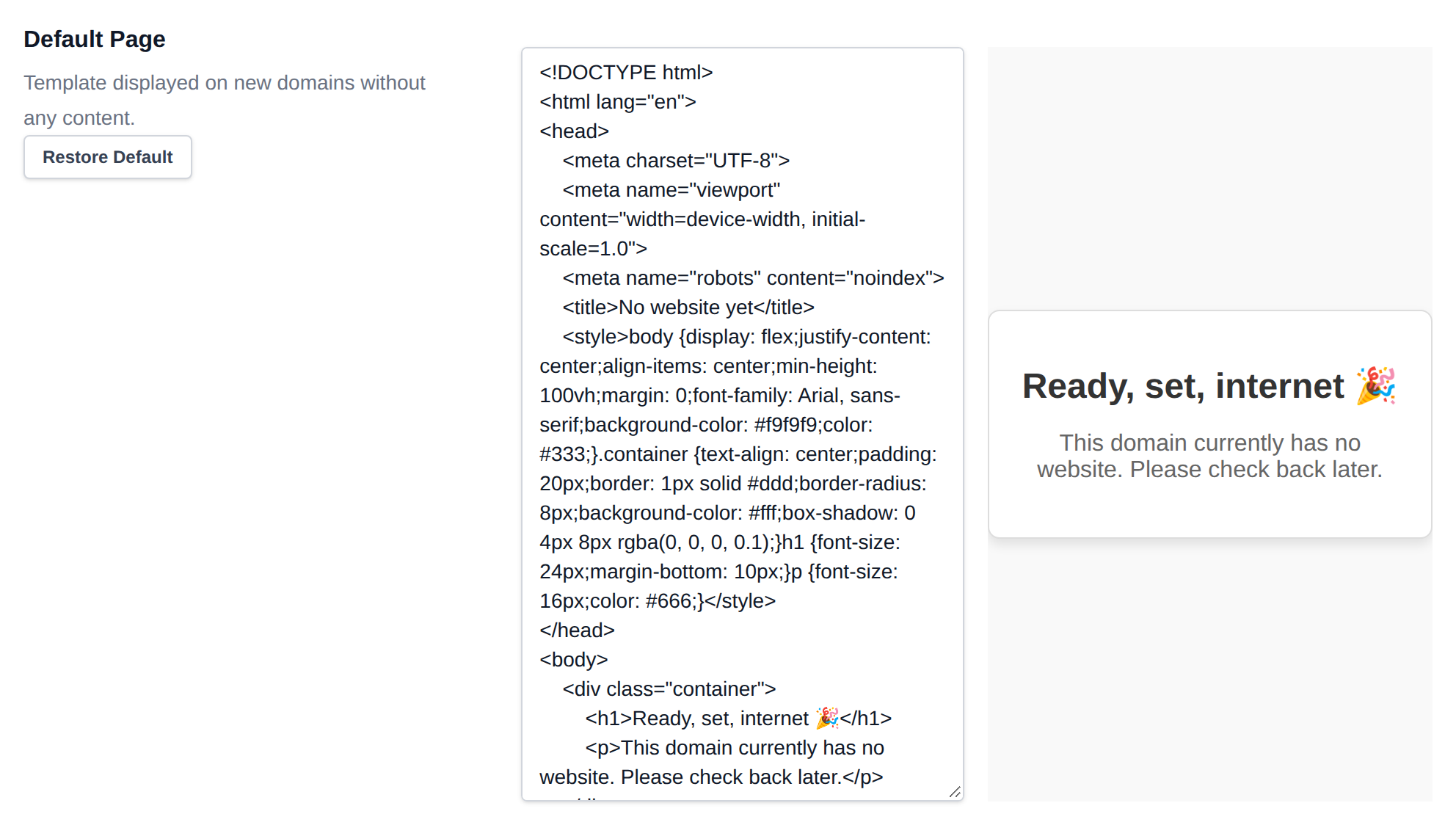
```html
No website yet
Reaaady, set, internet 🎉
This domain currently has no website. Please check back later.
```
- Edit the code on the **left side** of the editor.
- Preview live changes on the **right side**.
- When finished, click **Save Files** to apply your changes.
To revert to the original template:
1. Click **Restore Default** to reload the version from GitHub.
2. Don’t forget to click **Save Files** afterward to confirm the reset.
## Suspended Website
This is the HTML page shown on domains that users suspend **manually**, and on domains an Administrator suspends with the **Default suspended page** reason.
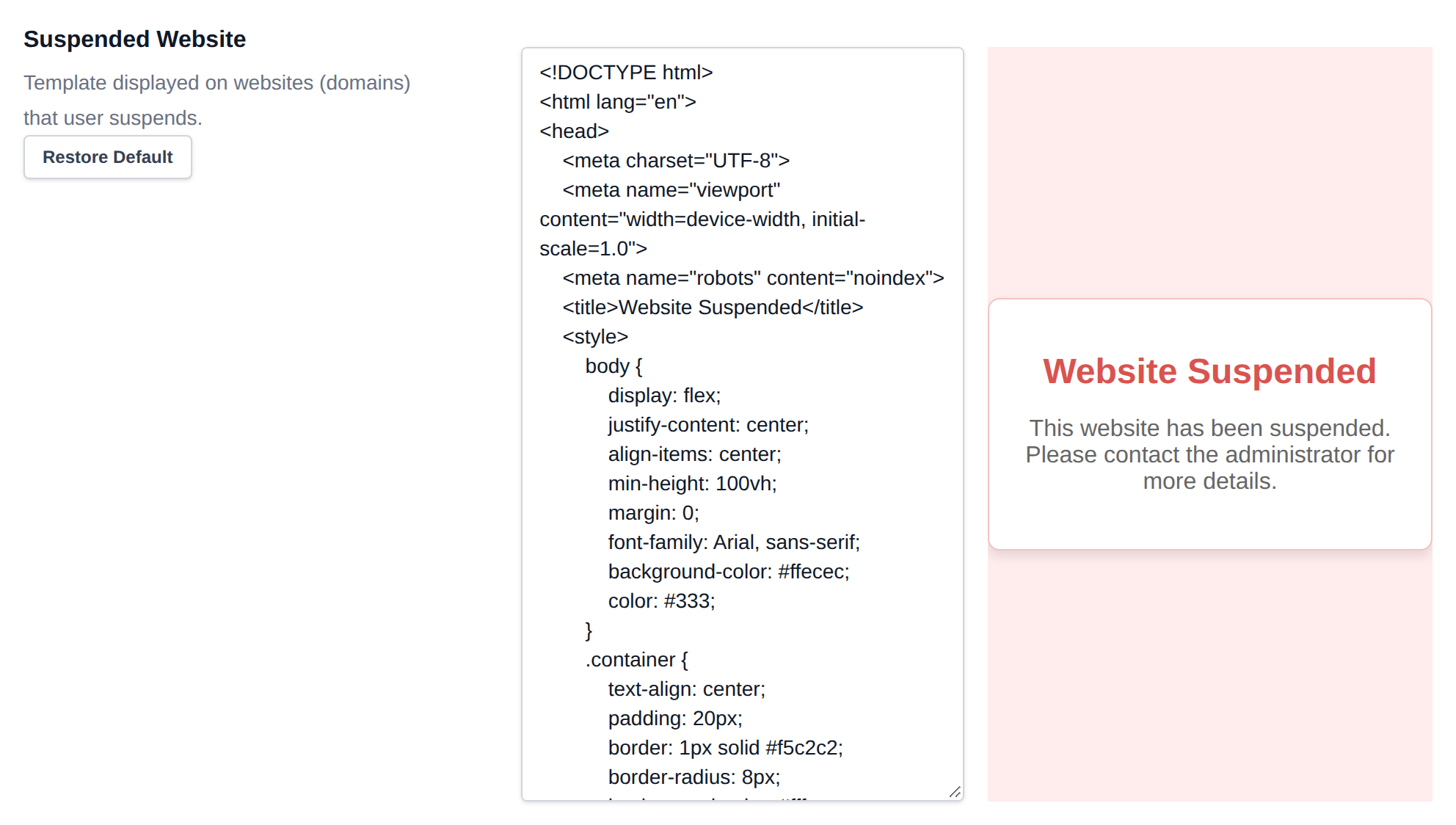
```html
Website Suspended
Website Suspended
This website has been suspended. Please contact the administrator for more details.
```
- Edit the code on the **left side** of the editor.
- Preview live changes on the **right side**.
- When finished, click **Save Files** to apply your changes.
To revert to the original template:
1. Click **Restore Default** to reload the version from GitHub.
2. Don’t forget to click **Save Files** afterward to confirm the reset.
## Suspension Reasons
Suspension reasons are pages an Administrator can pick when [suspending a domain](/docs/admin/domains/domains/#suspend-a-domain). Visitors of the suspended domain see the reason's page, and the user sees the reason's name next to the domain in OpenPanel.
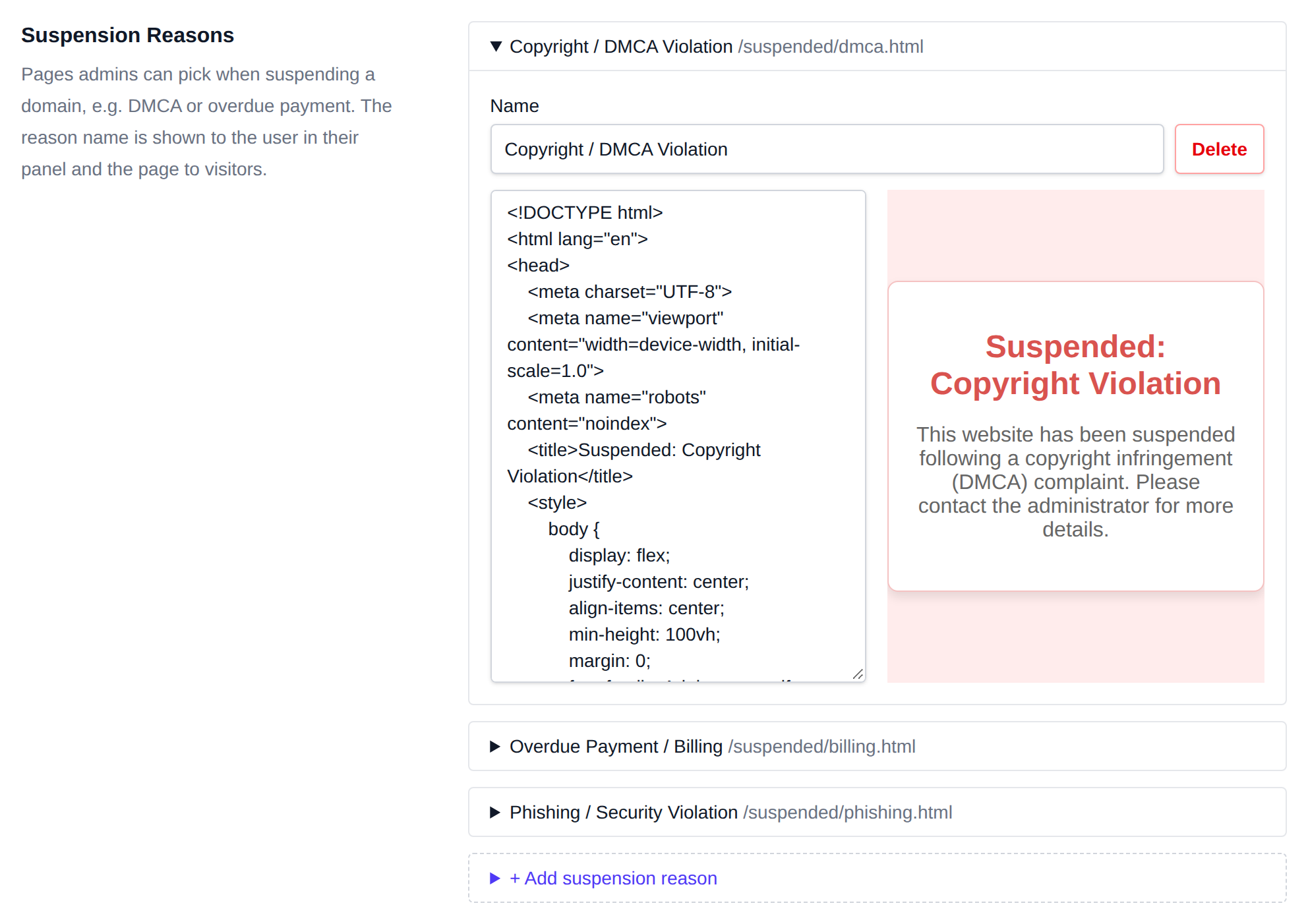
OpenPanel comes with three reasons:
| Reason | File |
|---|---|
| Copyright / DMCA Violation | `/etc/openpanel/caddy/templates/suspended/dmca.html` |
| Overdue Payment / Billing | `/etc/openpanel/caddy/templates/suspended/billing.html` |
| Phishing / Security Violation | `/etc/openpanel/caddy/templates/suspended/phishing.html` |
Click a reason to open it, then change its **Name** or HTML and click **Save Files**. The preview on the right updates as you type. The name is saved in the first line of the file as ``, renaming a reason keeps its file, so domains already suspended with it keep their page.
To add a reason:
1. Click **+ Add suspension reason**.
2. Enter a **Name**, for example *Spam / Abuse Complaint*. The file name is made from it, so this one is saved as `spam-abuse-complaint.html`.
3. Paste the HTML of the page, or leave it empty to start from a copy of the Suspended Website page.
4. Click **Save Files**.
To remove a reason, open it and click **Delete**. A reason can't be deleted while any domain is suspended with it, the error lists those domains so you can unsuspend them or suspend them with another reason first.
:::info
Servers updated from an older version get the three default reasons with the 2.0.16 update, only when the file isn't there yet, so reasons you already edited are kept.
:::
## Suspended User
This is the HTML page shown on all domains owned by the user when their account is suspended **by the Administrator**.
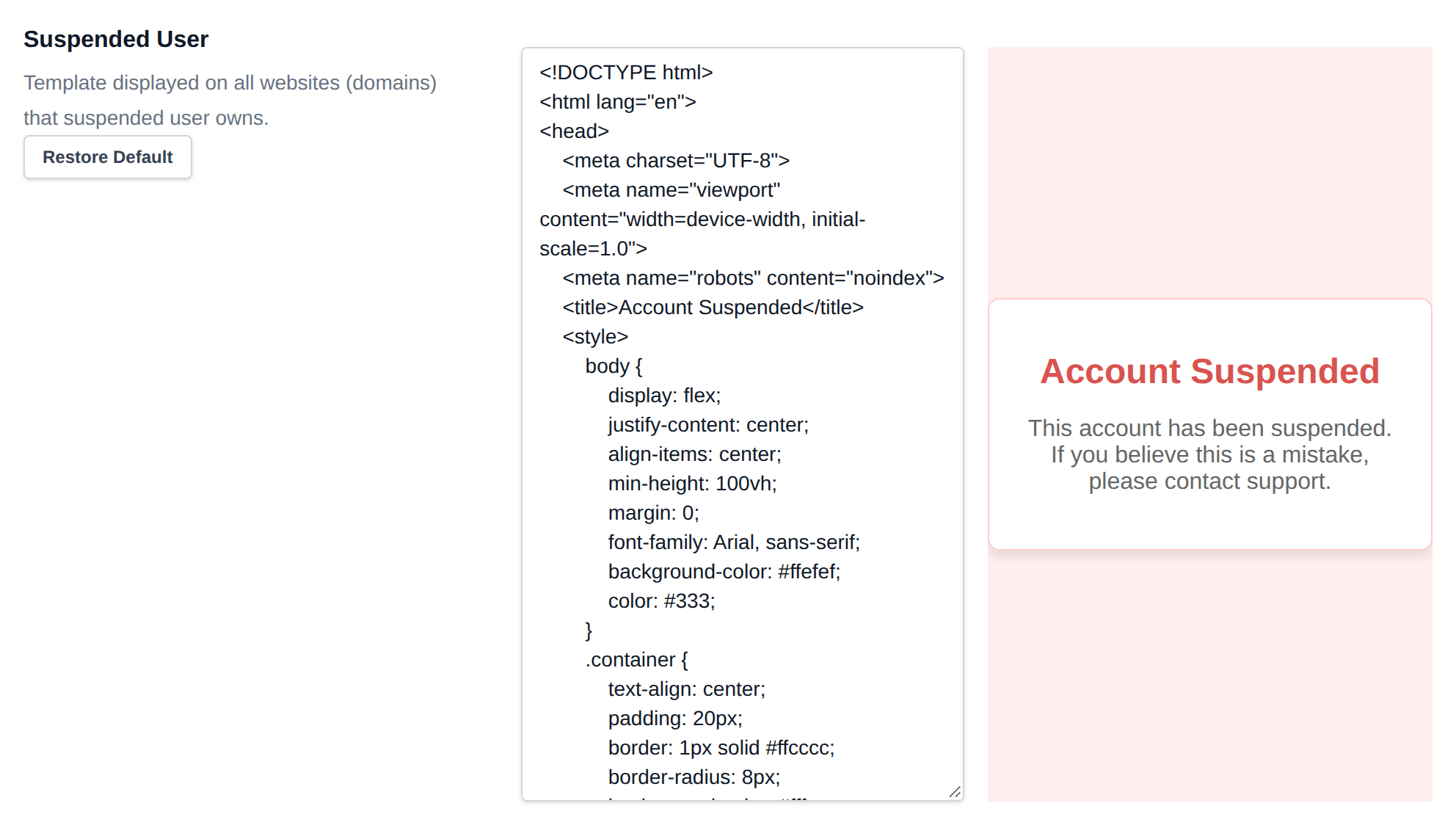
```html
Account Suspended
Account Suspended
This account has been suspended. If you believe this is a mistake, please contact support.
```
- Edit the code on the **left side** of the editor.
- Preview live changes on the **right side**.
- When finished, click **Save Files** to apply your changes.
To revert to the original template:
1. Click **Restore Default** to reload the version from GitHub.
2. Don’t forget to click **Save Files** afterward to confirm the reset.
---
// File: admin/domains/vhost_templates
# Edit VirtualHost Templates
**Domains > VirtualHost Templates** holds the configuration templates used when a domain is added:
- **Apache VirtualHost**: VirtualHost of domains added by users with the Apache webserver.
- **Nginx VirtualHost**: VirtualHost of domains added by users with the Nginx webserver.
- **OpenResty VirtualHost**: VirtualHost of domains added by users with the OpenResty webserver.
- **Varnish Template**: the `default.vcl` applied to Varnish instances created for new user accounts.
- **Caddy VHosts**: the template applied to all newly added domains for the front-facing Caddy webserver.
Changes apply only to domains added after you save, existing domains keep their configuration.
These templates have no live preview, so when any of them is changed from its default a warning is shown under the editor: editing them is recommended for advanced users only, and after changing one you should test that everything still works by adding a new user and domain.
The default page and the pages shown on suspended domains and accounts are on the [Domain Templates](/docs/admin/domains/file_templates/) tab.
## Apache VirtualHost
This is the template used for creating VirtualHosts of domains added by users **when using the Apache webserver**.
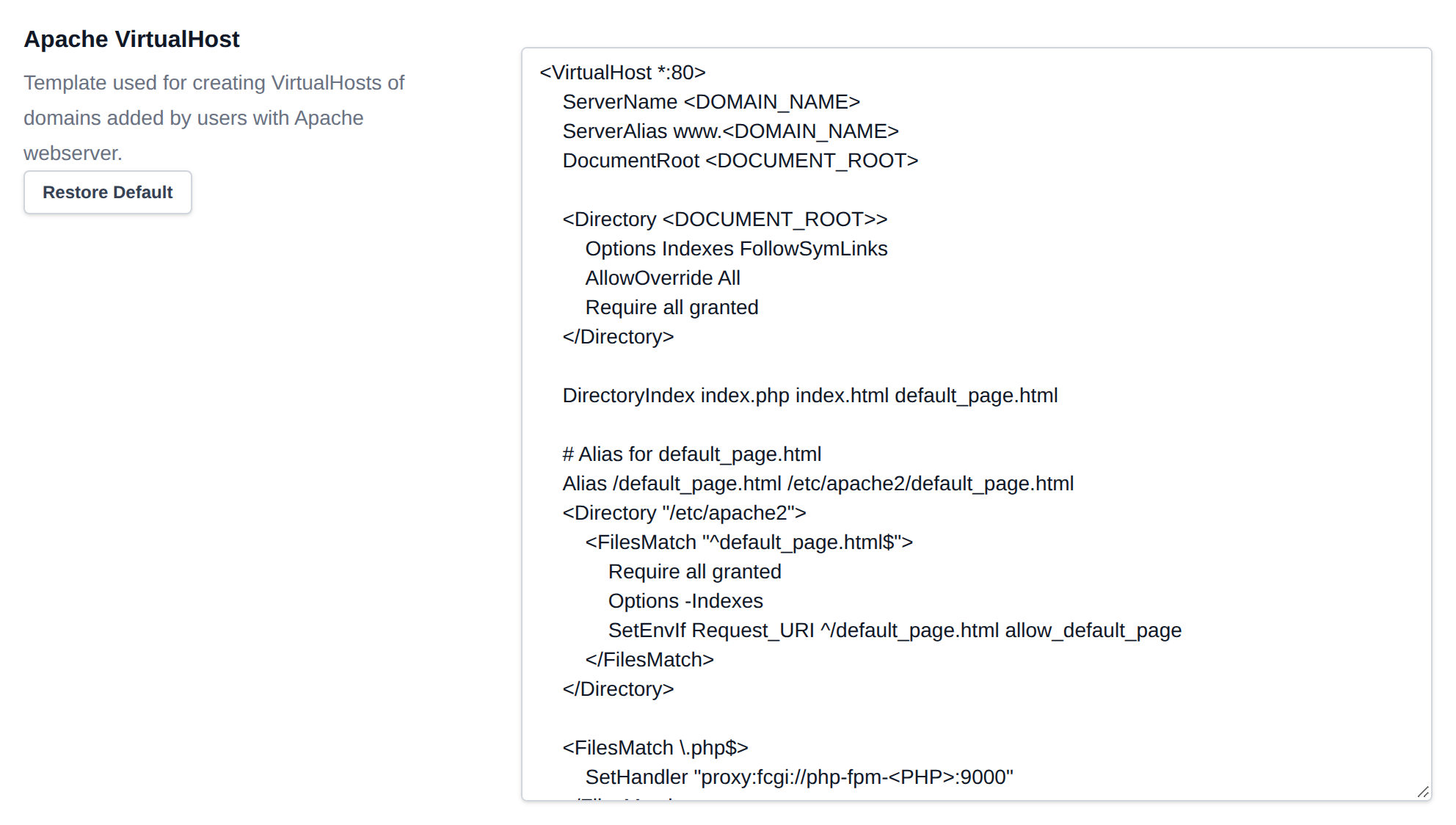
```bash
ServerName
ServerAlias www.
DocumentRoot >
Options Indexes FollowSymLinks
AllowOverride All
Require all granted
DirectoryIndex index.php index.html default_page.html
# Alias for default_page.html
Alias /default_page.html /etc/apache2/default_page.html
Require all granted
Options -Indexes
SetEnvIf Request_URI ^/default_page.html allow_default_page
SetHandler "proxy:fcgi://php-fpm-:9000"
ServerName
ServerAlias www.
DocumentRoot
SSLEngine on
SSLCertificateFile /etc/apache2/ssl/cert.crt
SSLCertificateKeyFile /etc/apache2/ssl/cert.key
>
Options Indexes FollowSymLinks
AllowOverride All
Require all granted
DirectoryIndex index.php index.html default_page.html
# Alias for default_page.html
Alias /default_page.html /etc/apache2/default_page.html
Require all granted
Options -Indexes
SetEnvIf Request_URI ^/default_page.html allow_default_page
SetHandler "proxy:fcgi://php-fpm-:9000"
```
- Edit the code in the editor.
- When finished, click **Save Files** to apply your changes.
To revert to the original Apache template:
1. Click **Restore Default** to reload the version from GitHub.
2. Don’t forget to click **Save Files** afterward to confirm the reset.
## Nginx VirtualHost
This is the template used for creating VirtualHosts of domains added by users **when using the Nginx webserver**.
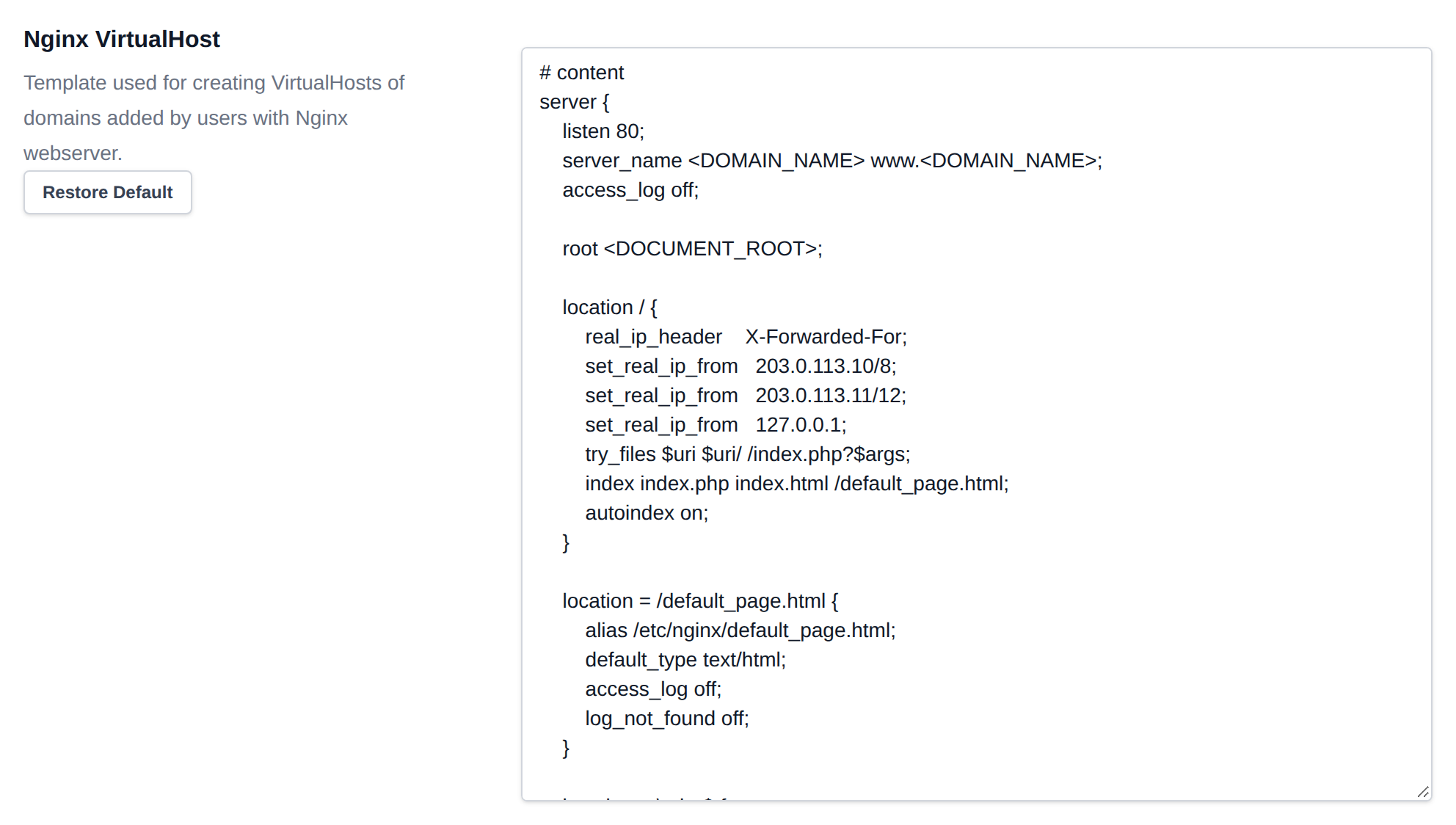
```bash
# content
server {
listen 80;
server_name www.;
access_log off;
root ;
location / {
real_ip_header X-Forwarded-For;
set_real_ip_from 172.17.0.0/16;
try_files $uri $uri/ /index.php?$args;
index index.php index.html /default_page.html;
autoindex on;
}
location = /default_page.html {
alias /etc/nginx/default_page.html;
default_type text/html;
access_log off;
log_not_found off;
}
location ~ \.php$ {
include fastcgi_params;
fastcgi_pass php-fpm-:9000;
fastcgi_param SCRIPT_FILENAME $document_root$fastcgi_script_name;
include fastcgi_params;
}
location ~* \.(js|css|png|jpg|jpeg|gif|ico)$ {
expires max;
log_not_found off;
}
location = /favicon.ico {
log_not_found off;
access_log off;
}
location = /robots.txt {
allow all;
log_not_found off;
access_log off;
}
}
server {
listen 443 ssl;
http2 on; #nginx >= 1.25.1
server_name www.;
access_log off;
root ;
# SSL Configuration
ssl_certificate /etc/nginx/ssl/cert.crt;
ssl_certificate_key /etc/nginx/ssl/cert.key;
ssl_protocols TLSv1.2 TLSv1.3;
ssl_prefer_server_ciphers on;
ssl_ciphers "EECDH+AESGCM:EDH+AESGCM:AES256+EECDH:AES256+EDH";
location / {
real_ip_header X-Forwarded-For;
set_real_ip_from 172.17.0.0/16;
try_files $uri $uri/ /index.php?$args;
index index.php index.html /default_page.html;
autoindex on;
}
location = /default_page.html {
alias /etc/nginx/default_page.html;
default_type text/html;
access_log off;
log_not_found off;
}
location ~ \.php$ {
include fastcgi_params;
fastcgi_pass php-fpm-:9000;
fastcgi_param SCRIPT_FILENAME $document_root$fastcgi_script_name;
include fastcgi_params;
}
location ~* \.(js|css|png|jpg|jpeg|gif|ico)$ {
expires max;
log_not_found off;
}
location = /favicon.ico {
log_not_found off;
access_log off;
}
location = /robots.txt {
allow all;
log_not_found off;
access_log off;
}
}
```
- Edit the code in the editor.
- When finished, click **Save Files** to apply your changes.
To revert to the original Nginx template:
1. Click **Restore Default** to reload the version from GitHub.
2. Don’t forget to click **Save Files** afterward to confirm the reset.
## OpenResty VirtualHost
This is the template used for creating VirtualHosts of domains added by users **when using the OpenResty webserver**.
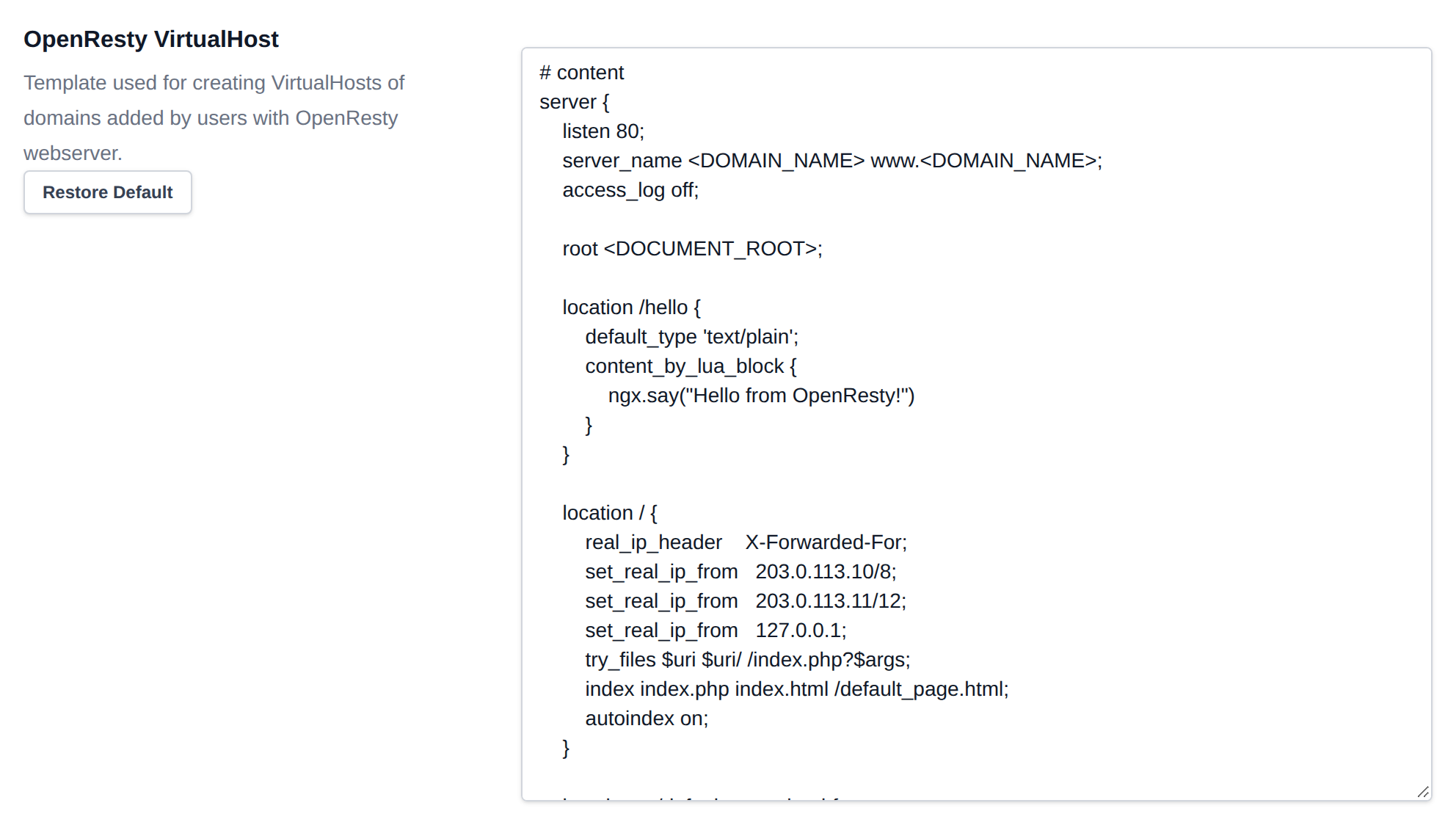
```bash
# content
server {
listen 80;
server_name www.;
access_log off;
root ;
location /hello {
default_type 'text/plain';
content_by_lua_block {
ngx.say("Hello from OpenResty!")
}
}
location / {
real_ip_header X-Forwarded-For;
set_real_ip_from 172.17.0.0/16;
try_files $uri $uri/ /index.php?$args;
index index.php index.html /default_page.html;
autoindex on;
}
location = /default_page.html {
alias /etc/nginx/default_page.html;
default_type text/html;
access_log off;
log_not_found off;
}
location ~ \.php$ {
include fastcgi_params;
fastcgi_pass php-fpm-:9000;
fastcgi_param SCRIPT_FILENAME $document_root$fastcgi_script_name;
include fastcgi_params;
}
location ~* \.(js|css|png|jpg|jpeg|gif|ico)$ {
expires max;
log_not_found off;
}
location = /favicon.ico {
log_not_found off;
access_log off;
}
location = /robots.txt {
allow all;
log_not_found off;
access_log off;
}
}
server {
listen 443 ssl;
http2 on; #nginx >= 1.25.1
server_name www.;
access_log off;
root ;
# SSL Configuration
ssl_certificate /etc/nginx/ssl/cert.crt;
ssl_certificate_key /etc/nginx/ssl/cert.key;
ssl_protocols TLSv1.2 TLSv1.3;
ssl_prefer_server_ciphers on;
ssl_ciphers "EECDH+AESGCM:EDH+AESGCM:AES256+EECDH:AES256+EDH";
location /hello {
default_type 'text/plain';
content_by_lua_block {
ngx.say("Hello from OpenResty!")
}
}
location / {
real_ip_header X-Forwarded-For;
set_real_ip_from 172.17.0.0/16;
try_files $uri $uri/ /index.php?$args;
index index.php index.html /default_page.html;
autoindex on;
}
location = /default_page.html {
alias /etc/nginx/default_page.html;
default_type text/html;
access_log off;
log_not_found off;
}
location ~ \.php$ {
include fastcgi_params;
fastcgi_pass php-fpm-:9000;
fastcgi_param SCRIPT_FILENAME $document_root$fastcgi_script_name;
include fastcgi_params;
}
location ~* \.(js|css|png|jpg|jpeg|gif|ico)$ {
expires max;
log_not_found off;
}
location = /favicon.ico {
log_not_found off;
access_log off;
}
location = /robots.txt {
allow all;
log_not_found off;
access_log off;
}
}
```
- Edit the code in the editor.
- When finished, click **Save Files** to apply your changes.
To revert to the original OpenResty template:
1. Click **Restore Default** to reload the version from GitHub.
2. Don’t forget to click **Save Files** afterward to confirm the reset.
## Varnish Template
This is the template used for creating `default.vcl` file for users **when using the Varnish Caching**.
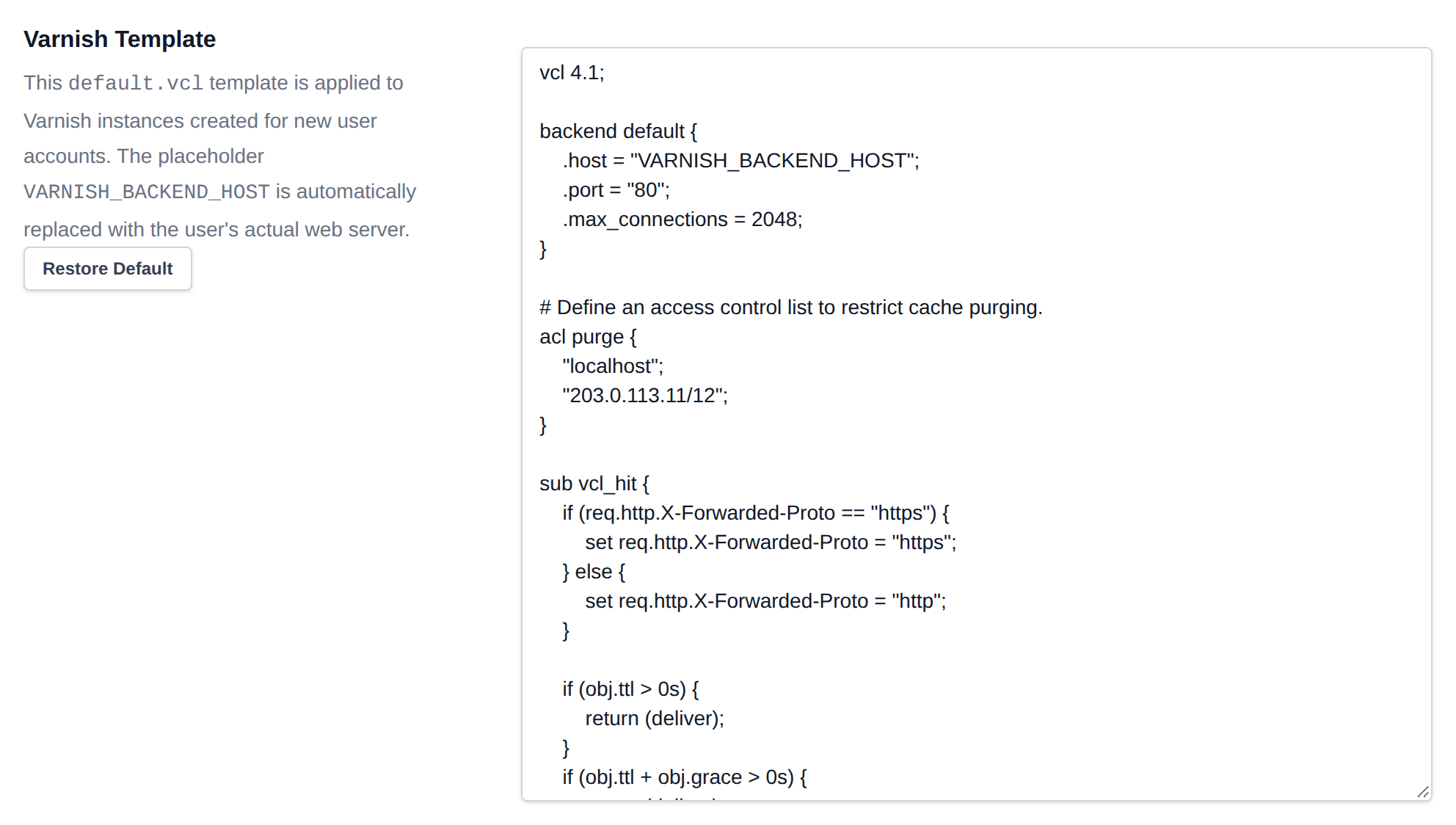
The placeholder `VARNISH_BACKEND_HOST` is automatically replaced with the user's actual web server - Nginx, Apache, or OpenResty.
```bash
vcl 4.1;
backend default {
.host = "VARNISH_BACKEND_HOST";
.port = "80";
.max_connections = 2048;
}
# Define an access control list to restrict cache purging.
acl purge {
"localhost";
"172.16.0.0/12";
}
sub vcl_hit {
if (req.http.X-Forwarded-Proto == "https") {
set req.http.X-Forwarded-Proto = "https";
} else {
set req.http.X-Forwarded-Proto = "http";
}
if (obj.ttl > 0s) {
return (deliver);
}
if (obj.ttl + obj.grace > 0s) {
return (deliver);
}
return (miss); # Use "miss" instead of "fetch"
}
sub vcl_recv {
# Remove empty query string parameters
# e.g.: www.example.com/index.html?
if (req.url ~ "\?$") {
set req.url = regsub(req.url, "\?$", "");
}
# Remove port number from host header
set req.http.Host = regsub(req.http.Host, ":[0-9]+", "");
# Remove the proxy header to mitigate the httpoxy vulnerability
# See https://httpoxy.org/
unset req.http.proxy;
# Purge logic to remove objects from the cache.
# Tailored to the Proxy Cache Purge WordPress plugin
# See https://wordpress.org/plugins/varnish-http-purge/
if(req.method == "PURGE") {
if(!client.ip ~ purge) {
return(synth(405,"PURGE not allowed for this IP address"));
}
if (req.http.X-Purge-Method == "regex") {
ban("obj.http.x-url ~ " + req.url + " && obj.http.x-host == " + req.http.host);
return(synth(200, "Purged"));
}
ban("obj.http.x-url == " + req.url + " && obj.http.x-host == " + req.http.host);
return(synth(200, "Purged"));
}
# Only handle relevant HTTP request methods
if (
req.method != "GET" &&
req.method != "HEAD" &&
req.method != "PUT" &&
req.method != "POST" &&
req.method != "PATCH" &&
req.method != "TRACE" &&
req.method != "OPTIONS" &&
req.method != "DELETE"
) {
return (pipe);
}
# Remove tracking query string parameters used by analytics tools
if (req.url ~ "(\?|&)(_branch_match_id|_bta_[a-z]+|_bta_c|_bta_tid|_ga|_gl|_ke|_kx|campid|cof|customid|cx|dclid|dm_i|ef_id|epik|fbclid|gad_source|gbraid|gclid|gclsrc|gdffi|gdfms|gdftrk|hsa_acc|hsa_ad|hsa_cam|hsa_grp|hsa_kw|hsa_mt|hsa_net|hsa_src|hsa_tgt|hsa_ver|ie|igshid|irclickid|matomo_campaign|matomo_cid|matomo_content|matomo_group|matomo_keyword|matomo_medium|matomo_placement|matomo_source|mc_[a-z]+|mc_cid|mc_eid|mkcid|mkevt|mkrid|mkwid|msclkid|mtm_campaign|mtm_cid|mtm_content|mtm_group|mtm_keyword|mtm_medium|mtm_placement|mtm_source|nb_klid|ndclid|origin|pcrid|piwik_campaign|piwik_keyword|piwik_kwd|pk_campaign|pk_keyword|pk_kwd|redirect_log_mongo_id|redirect_mongo_id|rtid|s_kwcid|sb_referer_host|sccid|si|siteurl|sms_click|sms_source|sms_uph|srsltid|toolid|trk_contact|trk_module|trk_msg|trk_sid|ttclid|twclid|utm_[a-z]+|utm_campaign|utm_content|utm_creative_format|utm_id|utm_marketing_tactic|utm_medium|utm_source|utm_source_platform|utm_term|vmcid|wbraid|yclid|zanpid)=") {
set req.url = regsuball(req.url, "(_branch_match_id|_bta_[a-z]+|_bta_c|_bta_tid|_ga|_gl|_ke|_kx|campid|cof|customid|cx|dclid|dm_i|ef_id|epik|fbclid|gad_source|gbraid|gclid|gclsrc|gdffi|gdfms|gdftrk|hsa_acc|hsa_ad|hsa_cam|hsa_grp|hsa_kw|hsa_mt|hsa_net|hsa_src|hsa_tgt|hsa_ver|ie|igshid|irclickid|matomo_campaign|matomo_cid|matomo_content|matomo_group|matomo_keyword|matomo_medium|matomo_placement|matomo_source|mc_[a-z]+|mc_cid|mc_eid|mkcid|mkevt|mkrid|mkwid|msclkid|mtm_campaign|mtm_cid|mtm_content|mtm_group|mtm_keyword|mtm_medium|mtm_placement|mtm_source|nb_klid|ndclid|origin|pcrid|piwik_campaign|piwik_keyword|piwik_kwd|pk_campaign|pk_keyword|pk_kwd|redirect_log_mongo_id|redirect_mongo_id|rtid|s_kwcid|sb_referer_host|sccid|si|siteurl|sms_click|sms_source|sms_uph|srsltid|toolid|trk_contact|trk_module|trk_msg|trk_sid|ttclid|twclid|utm_[a-z]+|utm_campaign|utm_content|utm_creative_format|utm_id|utm_marketing_tactic|utm_medium|utm_source|utm_source_platform|utm_term|vmcid|wbraid|yclid|zanpid)=[-_A-z0-9+(){}%.*]+&?", "");
set req.url = regsub(req.url, "[?|&]+$", "");
}
# Only cache GET and HEAD requests
if (req.method != "GET" && req.method != "HEAD") {
set req.http.X-Cacheable = "NO:REQUEST-METHOD";
return(pass);
}
# Mark static files with the X-Static-File header, and remove any cookies
# X-Static-File is also used in vcl_backend_response to identify static files
if (req.url ~ "^[^?]*\.(7z|avi|bmp|bz2|css|csv|doc|docx|eot|flac|flv|gif|gz|ico|jpeg|jpg|js|less|mka|mkv|mov|mp3|mp4|mpeg|mpg|odt|ogg|ogm|opus|otf|pdf|png|ppt|pptx|rar|rtf|svg|svgz|swf|tar|tbz|tgz|ttf|txt|txz|wav|webm|webp|woff|woff2|xls|xlsx|xml|xz|zip)(\?.*)?$") {
set req.http.X-Static-File = "true";
unset req.http.Cookie;
return(hash);
}
# No caching of special URLs, logged in users and some plugins
if (
req.http.Cookie ~ "wordpress_(?!test_)[a-zA-Z0-9_]+|wp-postpass|comment_author_[a-zA-Z0-9_]+|woocommerce_cart_hash|woocommerce_items_in_cart|wp_woocommerce_session_[a-zA-Z0-9]+|wordpress_logged_in_|comment_author|PHPSESSID" ||
req.http.Authorization ||
req.url ~ "add_to_cart" ||
req.url ~ "edd_action" ||
req.url ~ "nocache" ||
req.url ~ "^/addons" ||
req.url ~ "^/bb-admin" ||
req.url ~ "^/bb-login.php" ||
req.url ~ "^/bb-reset-password.php" ||
req.url ~ "^/cart" ||
req.url ~ "^/checkout" ||
req.url ~ "^/control.php" ||
req.url ~ "^/login" ||
req.url ~ "^/logout" ||
req.url ~ "^/lost-password" ||
req.url ~ "^/my-account" ||
req.url ~ "^/product" ||
req.url ~ "^/register" ||
req.url ~ "^/register.php" ||
req.url ~ "^/server-status" ||
req.url ~ "^/signin" ||
req.url ~ "^/signup" ||
req.url ~ "^/stats" ||
req.url ~ "^/wc-api" ||
req.url ~ "^/wp-admin" ||
req.url ~ "^/wp-comments-post.php" ||
req.url ~ "^/wp-cron.php" ||
req.url ~ "^/wp-login.php" ||
req.url ~ "^/wp-activate.php" ||
req.url ~ "^/wp-mail.php" ||
req.url ~ "^/wp-login.php" ||
req.url ~ "^\?add-to-cart=" ||
req.url ~ "^\?wc-api=" ||
req.url ~ "^/preview=" ||
req.url ~ "^/\.well-known/acme-challenge/"
) {
set req.http.X-Cacheable = "NO:Logged in/Got Sessions";
if(req.http.X-Requested-With == "XMLHttpRequest") {
set req.http.X-Cacheable = "NO:Ajax";
}
return(pass);
}
# Remove any cookies left
unset req.http.Cookie;
return(hash);
}
sub vcl_hash {
if(req.http.X-Forwarded-Proto) {
# Create cache variations depending on the request protocol
hash_data(req.http.X-Forwarded-Proto);
}
}
sub vcl_pipe {
if (req.http.upgrade) {
set bereq.http.upgrade = req.http.upgrade;
}
return (pipe);
}
sub vcl_backend_response {
# Inject URL & Host header into the object for asynchronous banning purposes
set beresp.http.x-url = bereq.url;
set beresp.http.x-host = bereq.http.host;
# https://support.torproject.org/onionservices/onion-location/
set beresp.http.Onion-Location = beresp.http.Onion-Location;
# If we dont get a Cache-Control header from the backend
# we default to 1h cache for all objects
if (!beresp.http.Cache-Control) {
set beresp.ttl = 1h;
set beresp.http.X-Cacheable = "YES:Forced";
}
# If the file is marked as static we cache it for 1 day
if (bereq.http.X-Static-File == "true") {
unset beresp.http.Set-Cookie;
set beresp.http.X-Cacheable = "YES:Forced";
set beresp.ttl = 1d;
}
set beresp.grace = 6h;
set beresp.keep = 24h;
# Compress cacheable dynamic responses the backend didn't already gzip
if (beresp.http.content-type ~ "text|application/javascript|application/json|application/xml|image/svg") {
set beresp.do_gzip = true;
}
# Remove the Set-Cookie header when a specific Wordfence cookie is set
if (beresp.http.Set-Cookie ~ "wfvt_|wordfence_verifiedHuman") {
unset beresp.http.Set-Cookie;
}
if (beresp.http.Set-Cookie) {
set beresp.http.X-Cacheable = "NO:Got Cookies";
} elseif(beresp.http.Cache-Control ~ "private") {
set beresp.http.X-Cacheable = "NO:Cache-Control=private";
}
}
sub vcl_deliver {
# Debug header
if(req.http.X-Cacheable) {
set resp.http.X-Cacheable = req.http.X-Cacheable;
} elseif(obj.uncacheable) {
if(!resp.http.X-Cacheable) {
set resp.http.X-Cacheable = "NO:UNCACHEABLE";
}
} elseif(!resp.http.X-Cacheable) {
set resp.http.X-Cacheable = "YES";
}
### uncomment to remove from responses ###
# unset resp.http.X-Powered-By;
# unset resp.http.Server;
# unset resp.http.server;
# unset resp.http.via;
# unset resp.http.x-powered-by;
# unset resp.http.x-runtime;
# unset resp.http.x-varnish;
unset resp.http.x-url;
unset resp.http.x-host;
return (deliver);
}
```
- Edit the code in the editor.
- When finished, click **Save Files** to apply your changes.
To revert to the original Varnish template:
1. Click **Restore Default** to reload the version from GitHub.
2. Don’t forget to click **Save Files** afterward to confirm the reset.
## Caddy VHosts
This is the template applied to **all** newly added domains for the front-facing Caddy webserver (Caddy handles TLS termination and reverse-proxies traffic to the domain's Apache/Nginx/OpenResty container, and enforces Coraza WAF when enabled).
The variables ``, ``, and `` are automatically replaced by OpenPanel during domain creation. Do not modify the comments in the file, as they are used as markers for Dedicated IP and Varnish Caching.
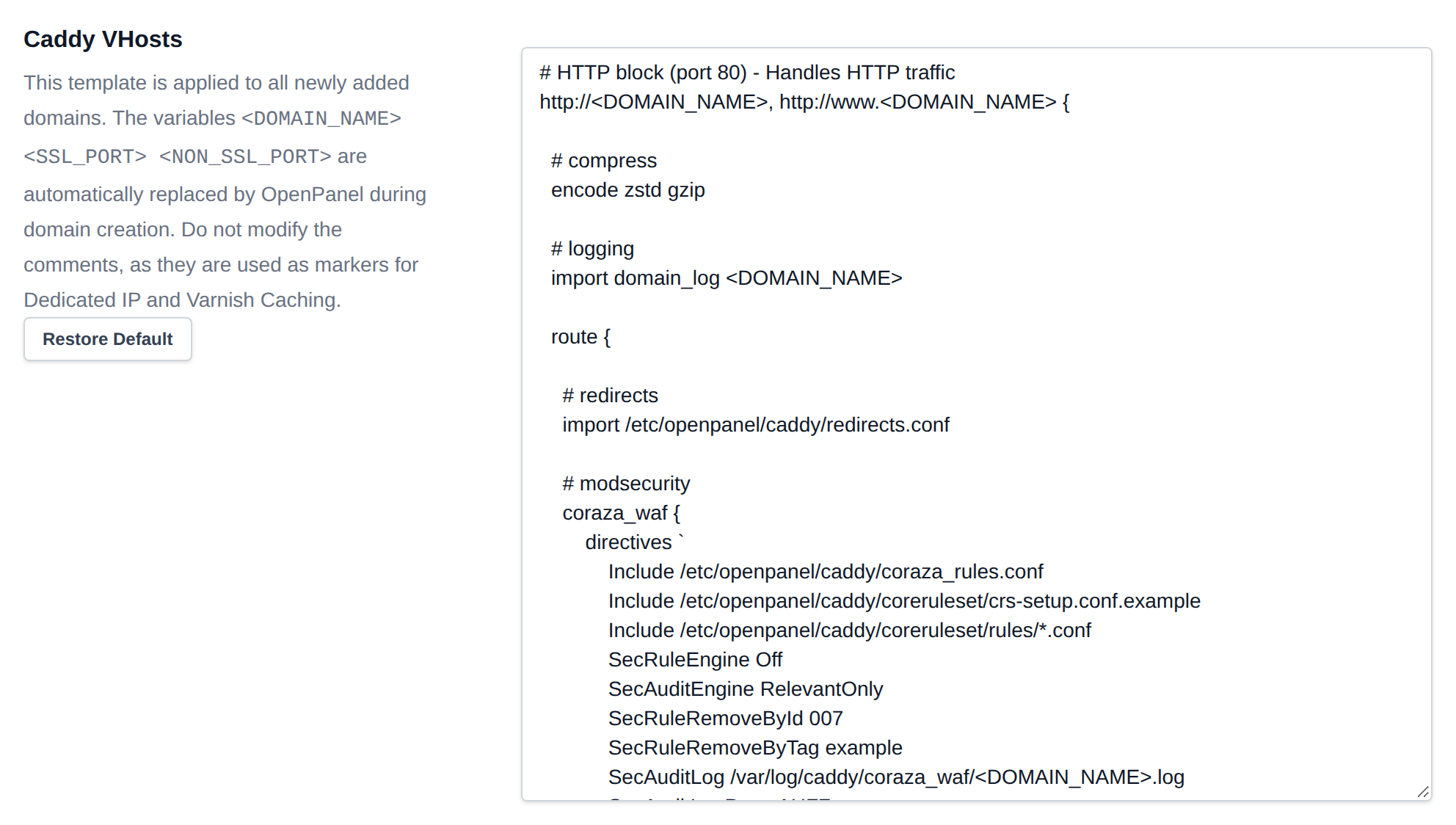
```bash
# HTTP block (port 80) - Handles HTTP traffic
http://, http://www. {
# compress
encode zstd gzip
# logging
import domain_log
route {
# redirects
import /etc/openpanel/caddy/redirects.conf
# modsecurity
coraza_waf {
load_owasp_crs
directives `
Include /etc/openpanel/caddy/coraza_rules.conf
Include /etc/openpanel/caddy/coreruleset/crs-setup.conf.example
Include /etc/openpanel/caddy/coreruleset/rules/*.conf
SecRuleEngine Off
SecAuditEngine RelevantOnly
SecRuleRemoveById 007
SecRuleRemoveByTag example
SecAuditLog /var/log/caddy/coraza_waf/.log
SecAuditLogParts AHFZ
SecAuditLogFormat json
`
}
# Handle HTTP traffic (port 80)
reverse_proxy http://127.0.0.1: {
header_up Host {host}
}
}
}
# HTTPS block (port 443) - Handles HTTPS traffic
https://, https://www. {
# compress
encode zstd gzip
# logging
import domain_log
route {
# redirects
import /etc/openpanel/caddy/redirects.conf
# modsecurity
coraza_waf {
load_owasp_crs
directives `
Include /etc/openpanel/caddy/coraza_rules.conf
Include /etc/openpanel/caddy/coreruleset/crs-setup.conf.example
Include /etc/openpanel/caddy/coreruleset/rules/*.conf
SecRuleEngine Off
SecAuditEngine RelevantOnly
SecRuleRemoveById 007
SecRuleRemoveByTag example
SecAuditLog /var/log/caddy/coraza_waf/.log
SecAuditLogParts AHFZ
SecAuditLogFormat json
`
}
# Handle HTTPS traffic (port 443)
reverse_proxy https://127.0.0.1: {
transport http {
tls_insecure_skip_verify
}
header_up Host {host}
}
# # Terminate TLS and pass to Varnish
# reverse_proxy http://127.0.0.1: {
# header_up Host {host}
# }
}
# SSL (only when SSL certificate is requested)
tls {
on_demand
}
}
```
- Edit the code in the editor.
- When finished, click **Save Files** to apply your changes.
To revert to the original Caddy template:
1. Click **Restore Default** to reload the version from GitHub.
2. Don’t forget to click **Save Files** afterward to confirm the reset.
---
// File: admin/emails/emails
# Email Accounts
The Emails > Accounts page provides an overview of all email accounts managed through OpenPanel.
Use this interface to review usage, access webmail, and manage individual or multiple email accounts.
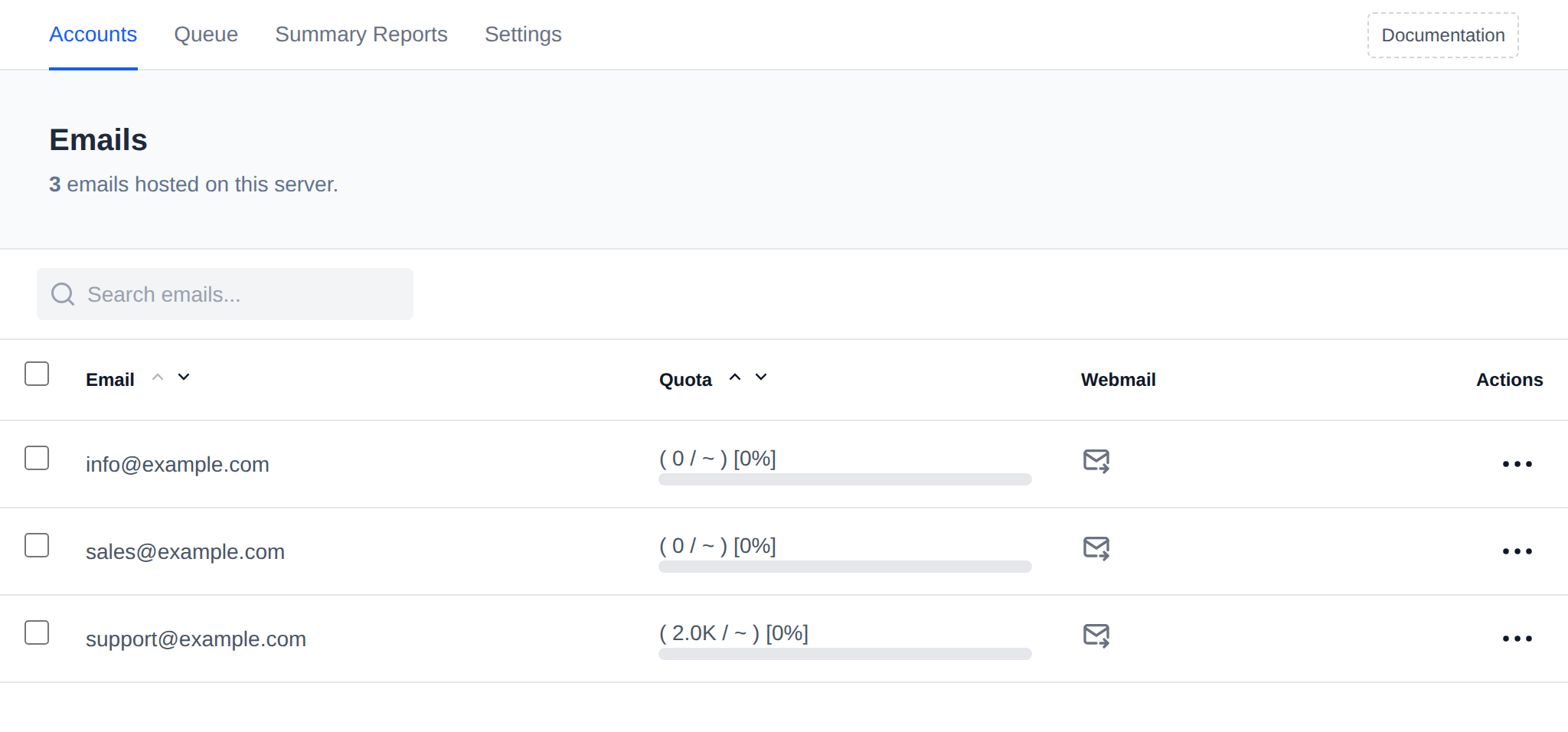
The table includes the following information:
- **Email** – The full email address of the account.
- **Quota** – The storage limit assigned to the account, together with a usage progress bar.
- **Webmail** – A quick-access button to log in directly to the webmail interface for that account.
- **Actions** – A per-row menu with:
- **Change Password** – set a new password for the mailbox.
- **Set Quota** – set or remove the mailbox storage quota.
- **Restrictions** – restrict the account from sending and/or receiving mail.
- **Delete Account** – permanently remove the mailbox.
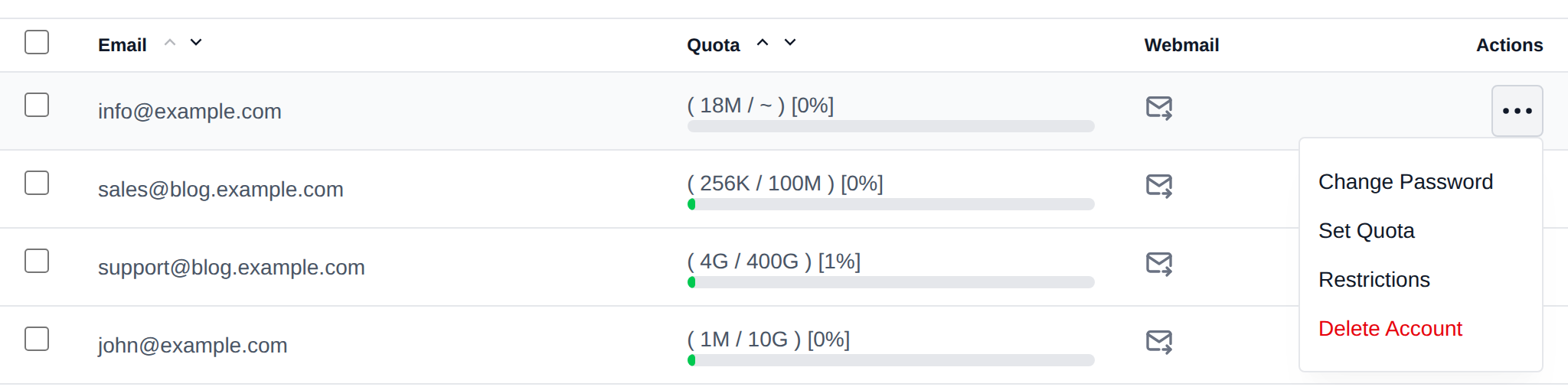
A search box is also available to filter the list by email address.
## Add an Email Account
Click **Add Email** in the top right to open the form:
- **Email**: the part before the @, and the domain picked from the domains on the server. The domain's owner is shown below it.
- **Password**: type one, or click **Generate** for a random one and **Show** to see it.
- **Storage quota**: the mailbox size in KiB, MiB, GiB or TiB, 0 for unlimited.
- **Send welcome email**: sends the new mailbox a welcome message.
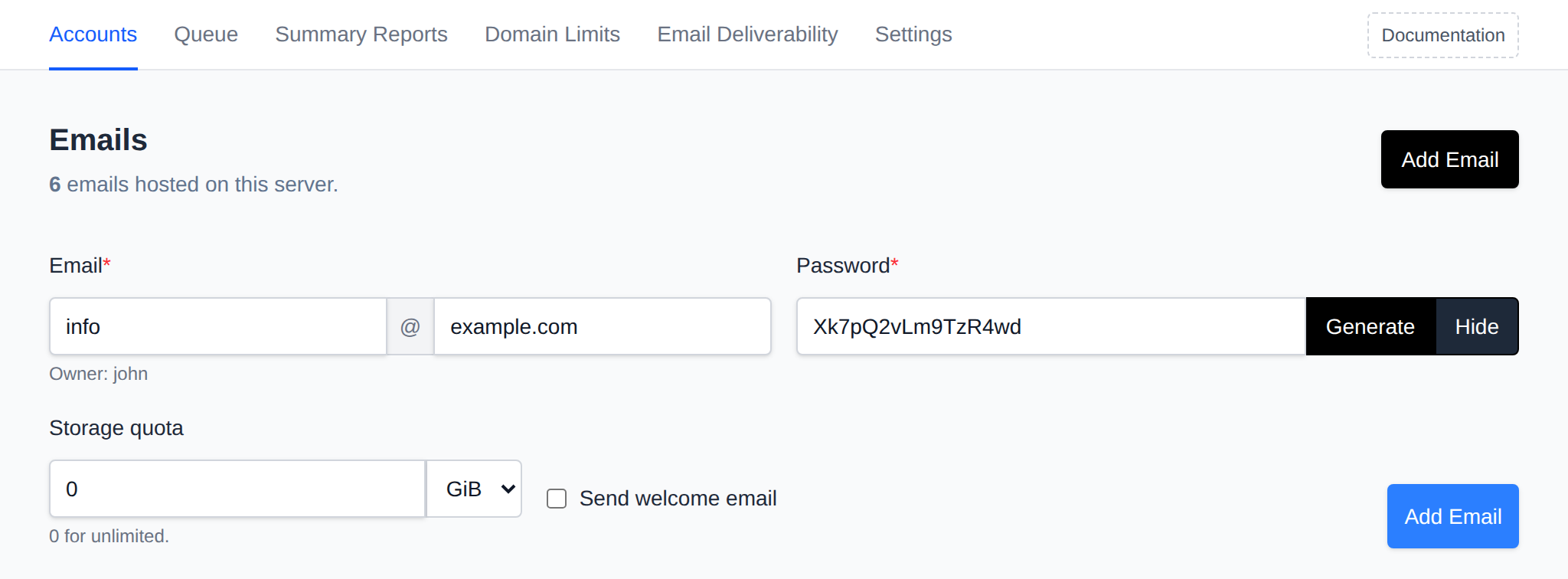
Click **Add Email** to create it. The account is created the same way as when the user adds it in OpenPanel, with `opencli email-setup email add`, and the quota is set right after. The mail server has to be running.
## Bulk Actions
Tick the checkbox of one or more email accounts, or the checkbox in the table header to select all email accounts shown by the current search. A bar appears at the bottom of the page with the number selected, a **Clear** link and these actions:
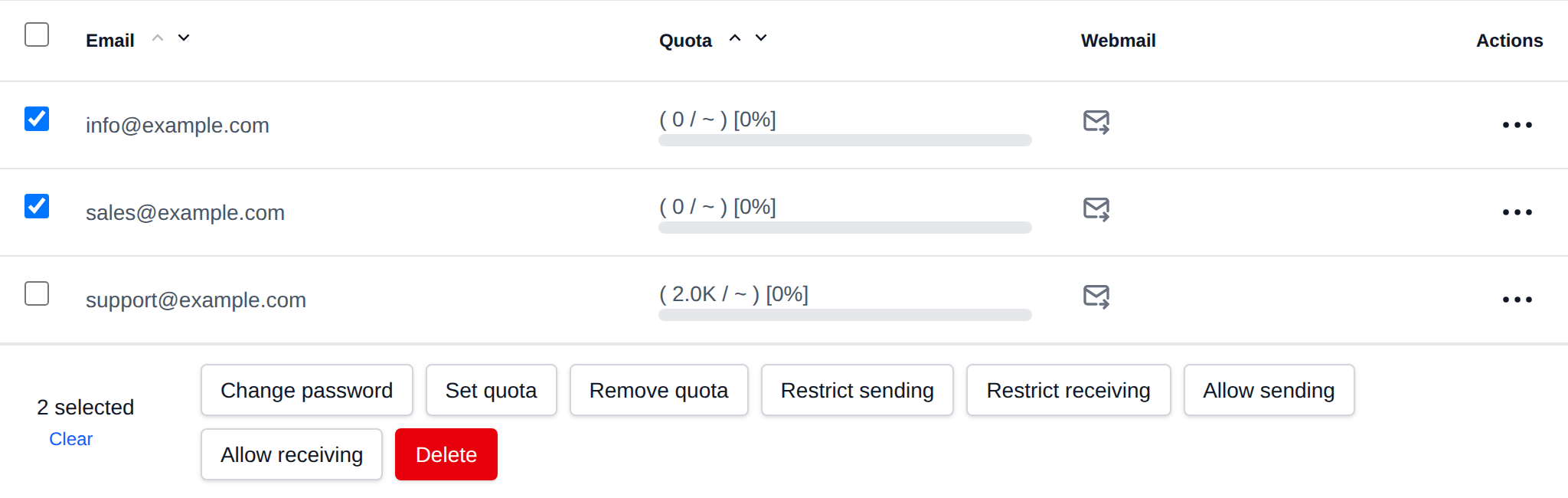
| Action | What it does |
|---|---|
| **Change password** | Sets the password you enter for all selected accounts. |
| **Set quota** | Sets the mailbox quota you enter, a number with K, M, G or T like `512M` or `2G`. |
| **Remove quota** | Removes the mailbox quota limit. |
| **Restrict sending** | Blocks the selected accounts from sending mail. |
| **Restrict receiving** | Blocks the selected accounts from receiving mail. |
| **Allow sending** | Removes the sending restriction. |
| **Allow receiving** | Removes the receiving restriction. |
| **Delete** | Permanently deletes the selected accounts and their mail. |
Click an action, confirm it, and it runs on the selected email accounts one after another. When it's done the page reloads with a notice listing the email accounts it worked for, or which ones failed and why.
This section is useful for monitoring email resource usage and offering users easy access to their inbox.
Outgoing/incoming mail that is queued but not yet delivered can be reviewed separately on the **Queue** page (*Emails > Queue*), where messages can be retried or deleted individually, in bulk, or all at once.
:::info
Emails are only available on [OpenPanel Enterprise edition](/enterprise)
:::
---
// File: admin/emails/queue
# Queue
View and manage mail that's queued but not yet delivered by the mailserver (Postfix).
Use **OpenAdmin > Emails > Queue** to access it.
## Queue Table
Each row shows one queued message, including its queue ID, sender, recipient(s), size, and the reason delivery is being retried.
## Actions
- **Retry** – Force an immediate delivery retry, for a **selected** message or for **all** queued messages.
- **Delete** – Permanently remove a message from the queue, for a **selected** message or for **all** queued messages.
Bulk actions (retry/delete **all**) apply to the entire queue at once — use with care.
---
// File: admin/emails/summary
# Summary Reports
The *Emails > Summary Reports* page (`/emails/reports`) shows daily summaries of the mail server log (Postfix), generated every 24 hours.
The page shows a calendar for each month of the selected year. The badge next to each month is the number of daily reports available for it, and the header shows when the reports were last updated and for which server. Click a day that has a report to open that day's summary.
:::info
Emails are only available on [OpenPanel Enterprise edition](/enterprise)
:::
---
// File: admin/emails/settings
# Email Settings
The Email Settings section allows you to configure various parameters for the MailServer stack to ensure efficient and secure email management.
:::info
Emails are only available on [OpenPanel Enterprise edition](/enterprise)
:::
## MailServer Status
The status of the Mail Server service is displayed at the top of the page, where administrators can start, stop, or restart the service as needed.
If the mail server is running but the Emails module is disabled, a warning links to [Modules](/docs/admin/settings/modules), since users can't manage email in OpenPanel until it's enabled.


## Accounts
Displays the total number of email accounts currently active on the server. This includes all accounts across all domains configured on the system.


## Webmail
- Status - displays current webmail service status
- Current Software - displays current selected client
- Select Webmail Client - Choose the webmail client your users will interact with. The service will be restarted to apply any changes made.
- Set Webmail domain - Configure domain to be used for webmail service. Webmail will be available on this domain and /webmail on every user domain will redirect to this domain.
If webmail isn't running but email accounts exist, a warning links to [Service Status](/docs/admin/services/status) to start it, since users can't read their mail in the browser until then.
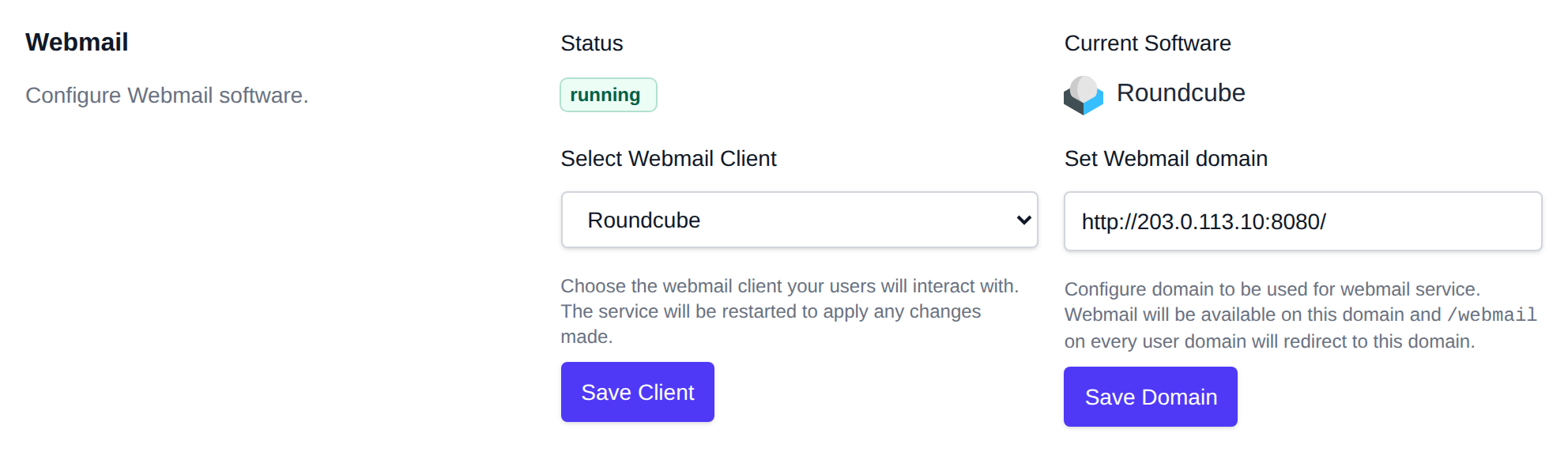
## Storage
Configure where email data (mailboxes) is stored on disk.
- **Email storage location** – Choose between:
- **docker volume (legacy)** – emails are stored in each user's home directory, e.g. `/home//docket-data/volumes/_mail_data/_data///`. This is **not recommended**, since adding or removing a domain will require the mail server to restart.
- **custom path** – store all mailboxes under a single custom path on the host, e.g. `/var/mail/`.
- **Custom path** – Only shown when *custom path* is selected. Example values: `/var/mail/`, `/email`, `/storage`.
The storage location is locked (cannot be changed) once email accounts already exist. Click **Save Storage** to apply the change.
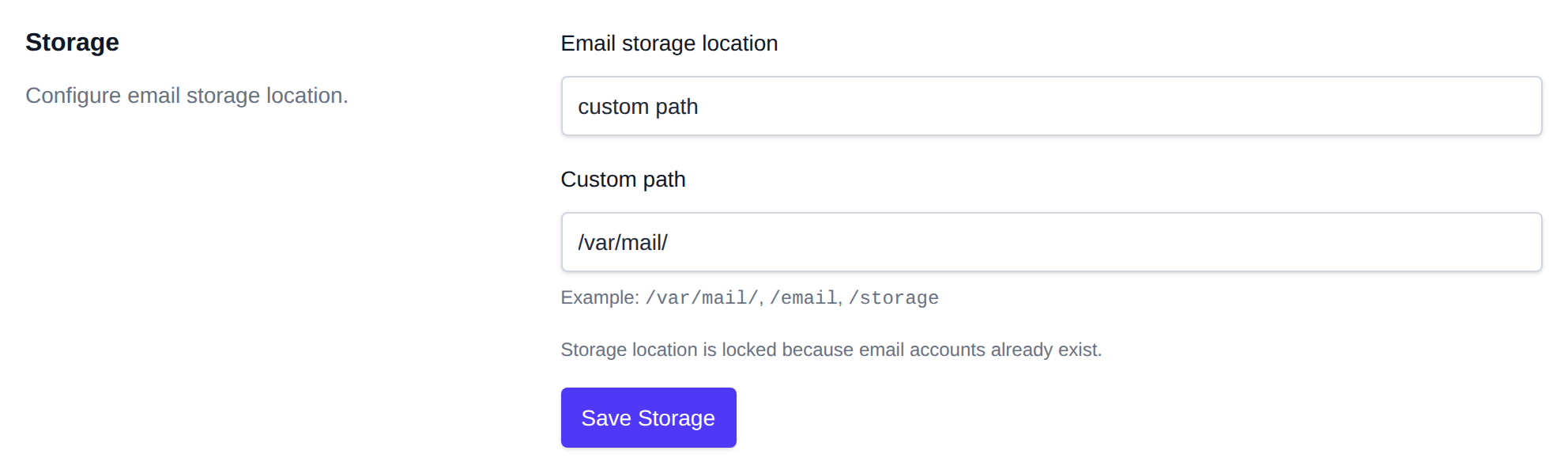
## Enable Services
Administrators can set and configure different services based on their needs.
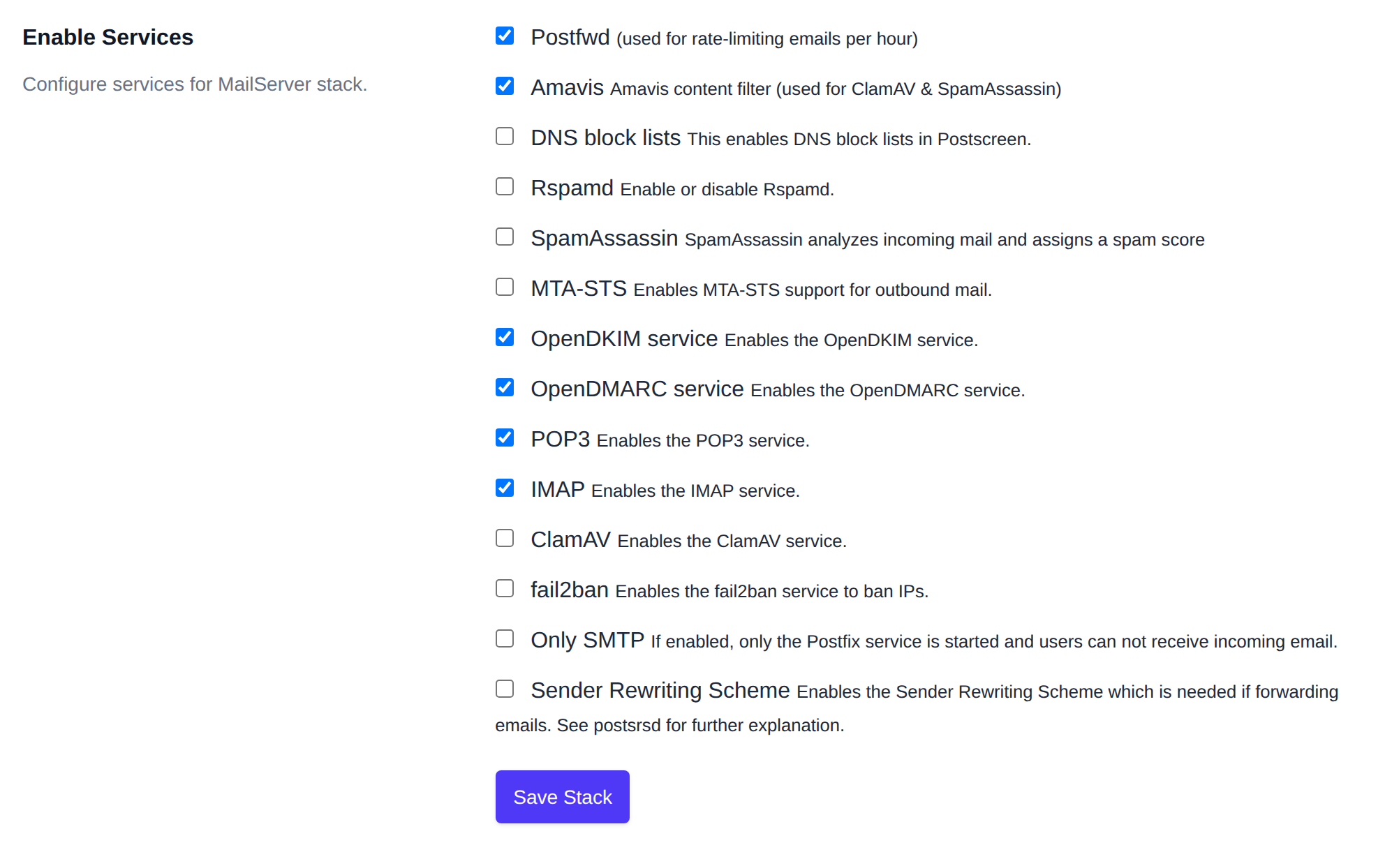
Configure services for the MailServer stack:
| Service | Description |
|----------------------------------------|-----------------------------------------------------------------------------|
| **Postfwd** | Postfwd policy weight daemon used for Postfix policy/rate checks. |
| **Amavis** | Amavis content filter (used for ClamAV & SpamAssassin). |
| **DNS block lists** | Enables DNS block lists in Postscreen. |
| **Rspamd** | Enable or disable Rspamd. |
| **SpamAssassin** | Analyzes incoming mail and assigns a spam score. |
| **MTA-STS** | Enables MTA-STS support for outbound mail. |
| **OpenDKIM service** | Enables the OpenDKIM service for email signing. |
| **OpenDMARC service** | Enables the OpenDMARC service for email domain-based message authentication. |
| **POP3** | Enables the POP3 service for email retrieval. |
| **IMAP** | Enables the IMAP service for email retrieval. |
| **ClamAV** | Enables the ClamAV antivirus service. |
| **fail2ban** | Enables the fail2ban service to ban IPs based on suspicious activity. |
| **Only SMTP** | If enabled, only the Postfix service is started, and users cannot receive incoming email. |
| **Sender Rewriting Scheme** | Enables the Sender Rewriting Scheme, needed for email forwarding (see [postsrsd](https://github.com/roehling/postsrsd/blob/main/README.rst) for explanation). |
Changes to this service will interrupt current email traffic and restart the mailserver.
A warning is shown as you toggle the services:
- **Postfwd** off: the hourly email limits set on plans and in [Domain Limits](/docs/admin/emails/domain-limits) aren't enforced, so domains and users can send any number of emails.
- **Only SMTP** on: receiving email won't work, since IMAP and POP3 are disabled.
- **Rspamd**, **Amavis** and **ClamAV** all off: incoming mail isn't checked for spam or viruses, so enabling at least one of them is recommended.
## Relay Hosts
The **Relay Hosts** feature allows you to configure an SMTP relay service (also known as a relay host or smarthost) for relaying (forwarding) outbound email on behalf of third parties. This service does not manage mail domains but helps in routing emails through an external SMTP server.
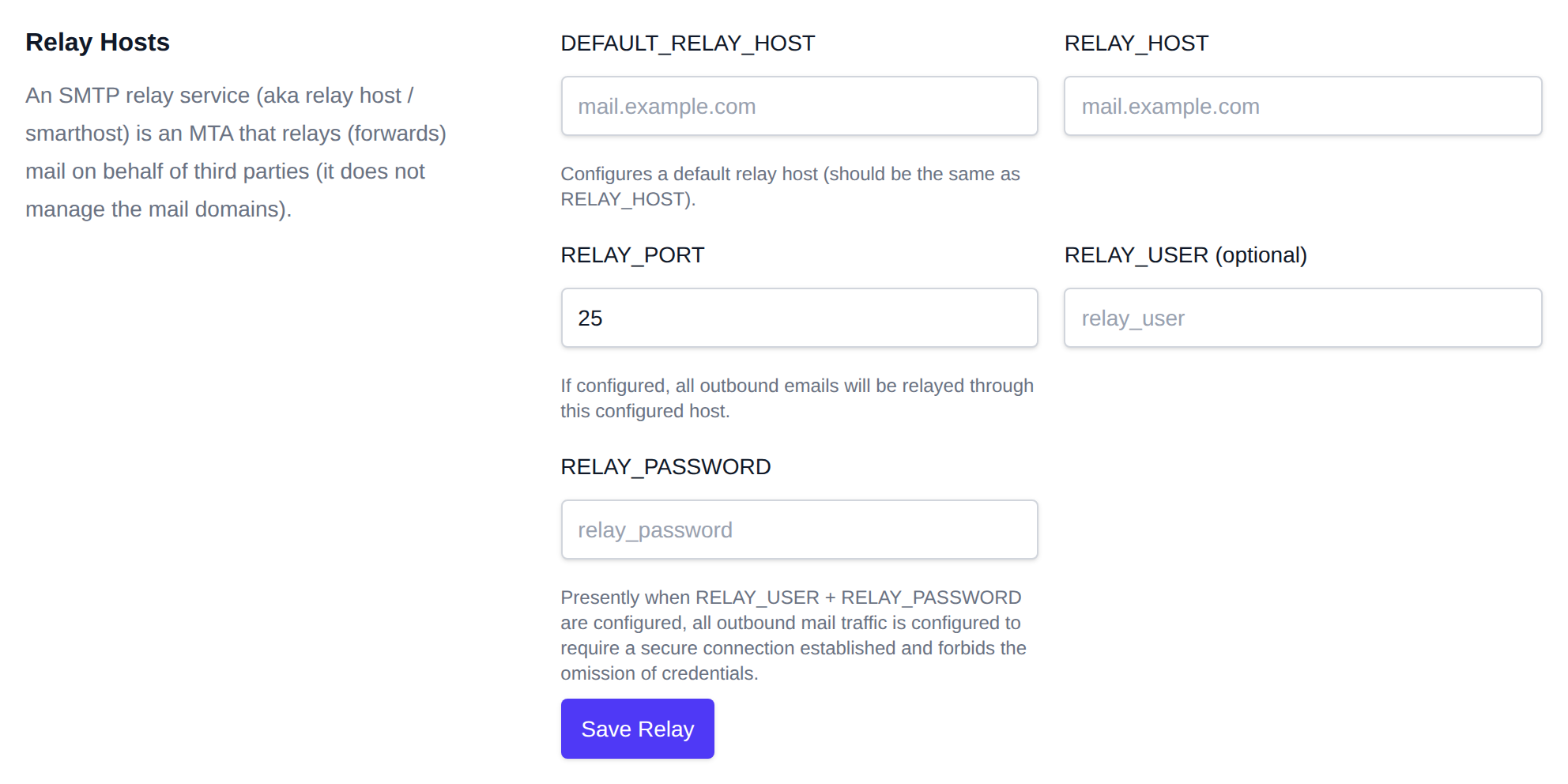
This feature is useful for organizations that need to route their outgoing email traffic through a trusted third-party service or SMTP server for better deliverability and security.
The following parameters are used to configure the relay host settings:
- **DEFAULT_RELAY_HOST**
Default relay host for outgoing emails. This should match the **RELAY_HOST**.
- Example: `mail.example.com`
- **RELAY_HOST**
The SMTP relay host that all outbound emails will be routed through.
- Example: `mail.example.com`
- **RELAY_PORT**
The port to be used for connecting to the SMTP relay host.
- Example: `25`
- **RELAY_USER (optional)**
The username for authenticating with the relay host. If this is set, secure connections will be required for outbound mail traffic.
- Example: `relay_user`
- **RELAY_PASSWORD**
The password for authenticating with the relay host, used alongside the **RELAY_USER**.
- Example: `relay_password`
When both **RELAY_USER** and **RELAY_PASSWORD** are configured, all outbound mail traffic will require a secure connection and the credentials will be mandatory.
Once configured, click the **Save Relay** button to apply the settings and begin routing outbound emails through the specified relay host.
See also: [Port 25 blocked? Use an SMTP relay](/docs/articles/email/port-25-blocked-smtp-relay/) · [Why emails go to spam](/docs/articles/email/why-emails-go-to-spam/)
---
// File: admin/emails/domain-limits
# Domain Limits
Set how many emails each domain can send per hour.
Use **OpenAdmin > Emails > Domain Limits** to access it.
Every domain gets the hourly email limit of its owner's plan. The limits are enforced by Postfwd, so it has to be enabled in [Emails > Settings](/docs/admin/emails/settings). A domain without a rule can send any number of emails.
## Domains Table
Each row is one domain with its owner, the emails sent this hour, its hourly limit and the Postfwd rule ID. Search by domain or user, filter by owner, and click a column name to sort by it.
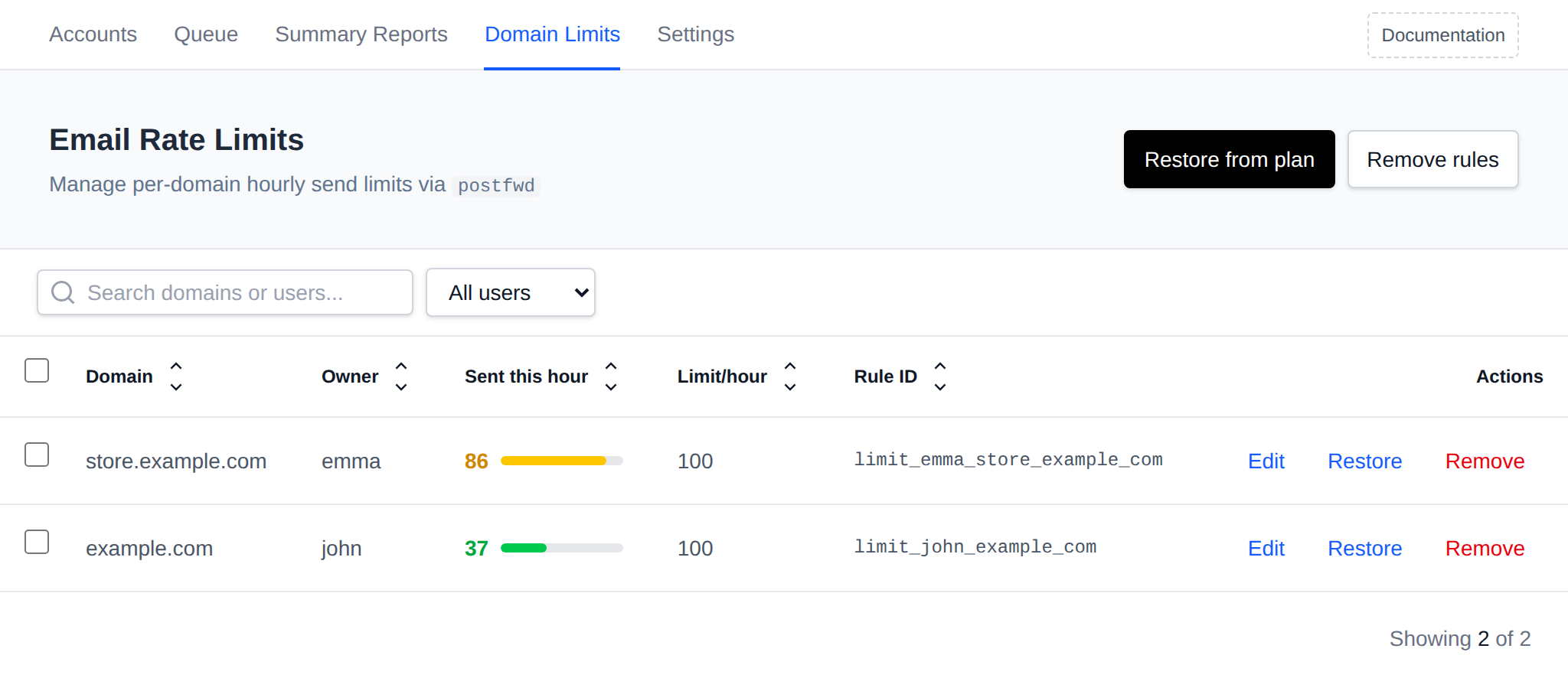
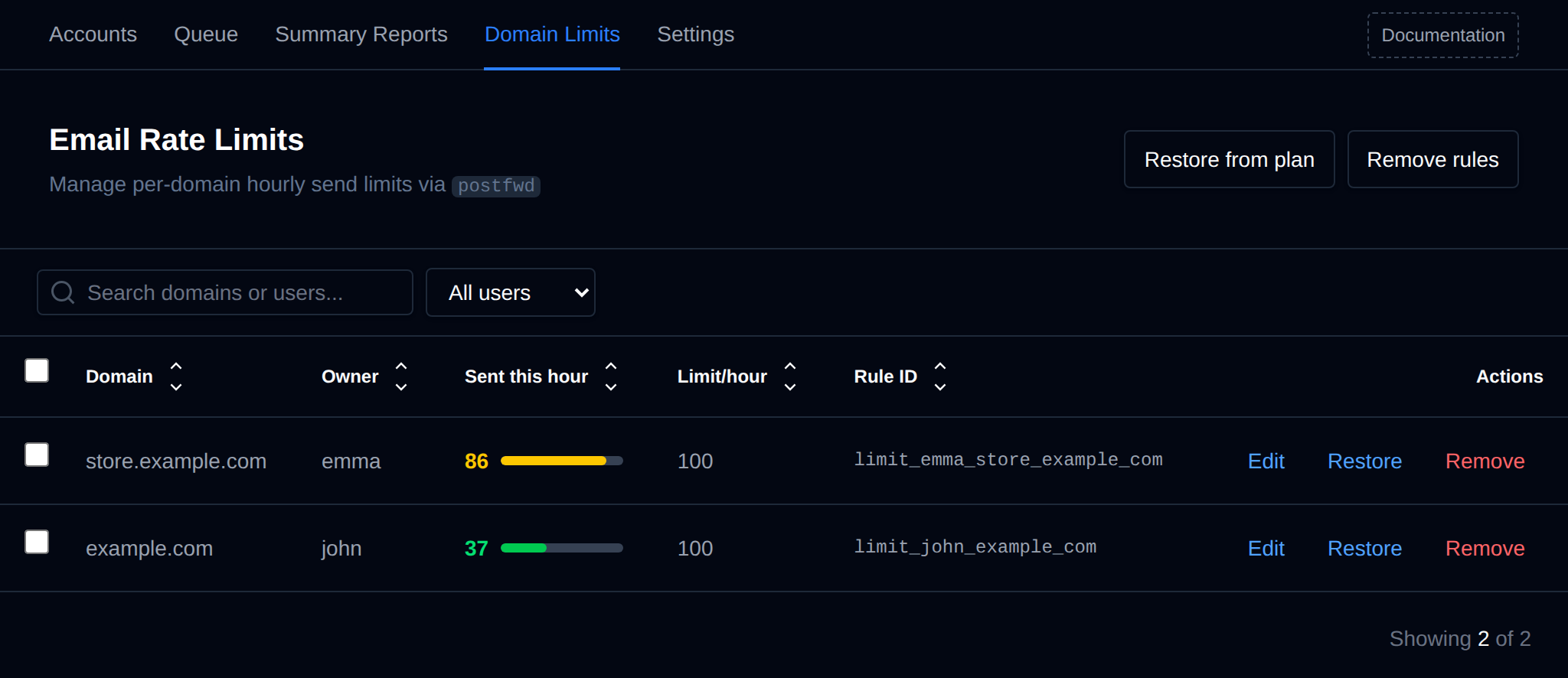
The bar next to **Sent this hour** turns yellow at 80% of the limit and red once it's reached. The count comes from Postfwd and is shared by all domains of the same user.
When a domain hits its limit, a **Limit hit** label appears. Click it to show the last lines from the mail log where Postfwd rejected that domain's emails.
## Change a Limit
- **Edit**: set a custom hourly limit for one domain, then click **Save**.
- **Restore**: set the domain's limit from its owner's plan again.
- **Remove**: delete the domain's rule. Click it a second time to confirm.
## Bulk Actions
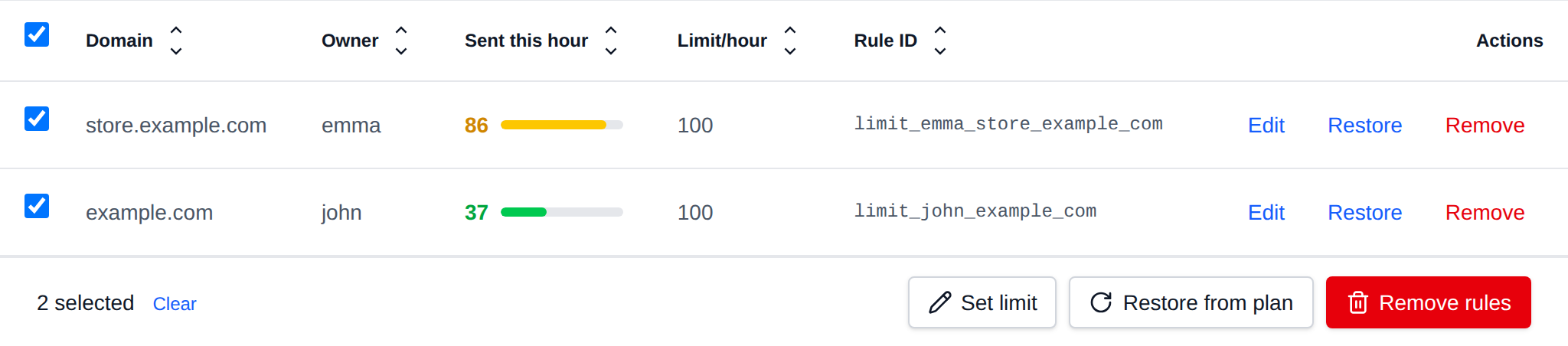
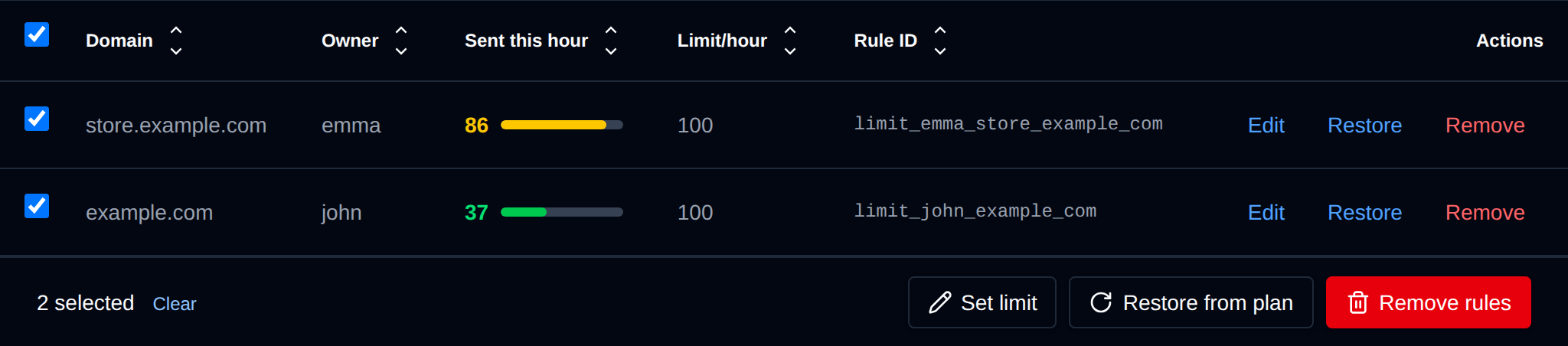
Tick the checkbox of one or more domains, or the one in the table header to select all shown. A bar appears at the bottom of the page with:
| Action | What it does |
|---|---|
| **Set limit** | Sets the hourly limit you enter on the selected domains. A domain without a rule is skipped, restore it from the plan first. |
| **Restore from plan** | Sets the limit of the selected domains from their owner's plan again. |
| **Remove rules** | Deletes the rules of the selected domains, they can send any number of emails until restored. |
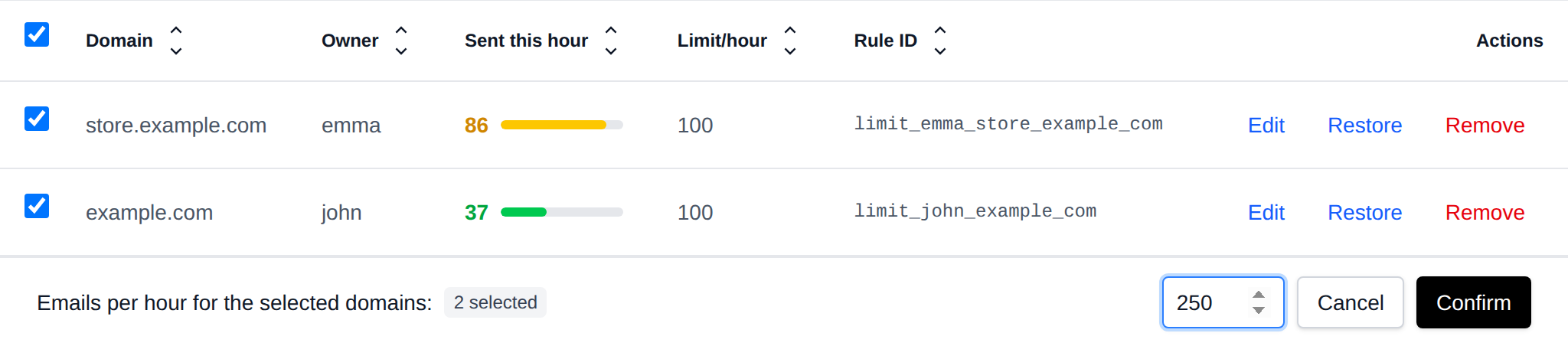
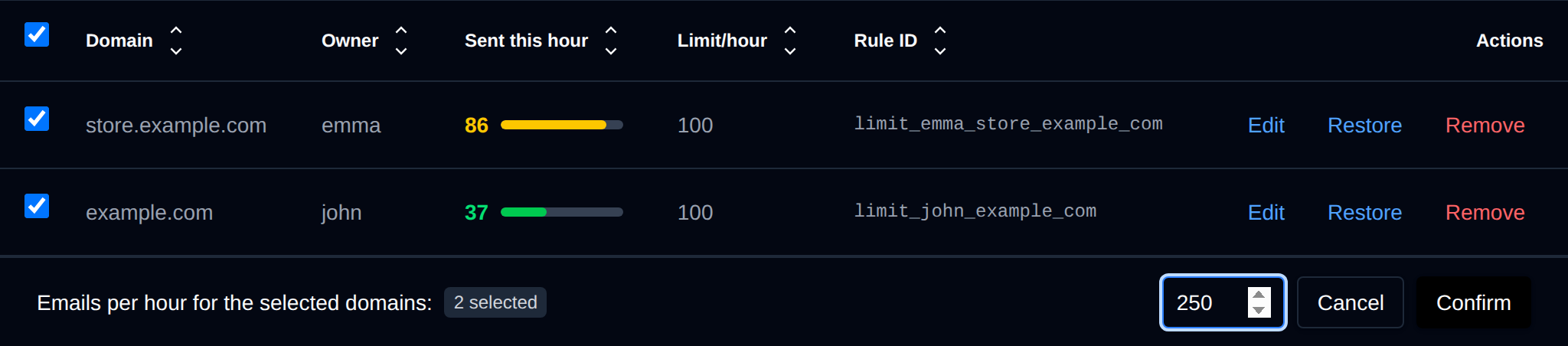
Postfwd is reloaded once after the whole selection is changed.
## Restore from Plan
Click **Restore from plan**, pick **All users** or one user, and click **Restore**. Every domain of the selection gets the limit from its owner's plan again, and custom limits are replaced.
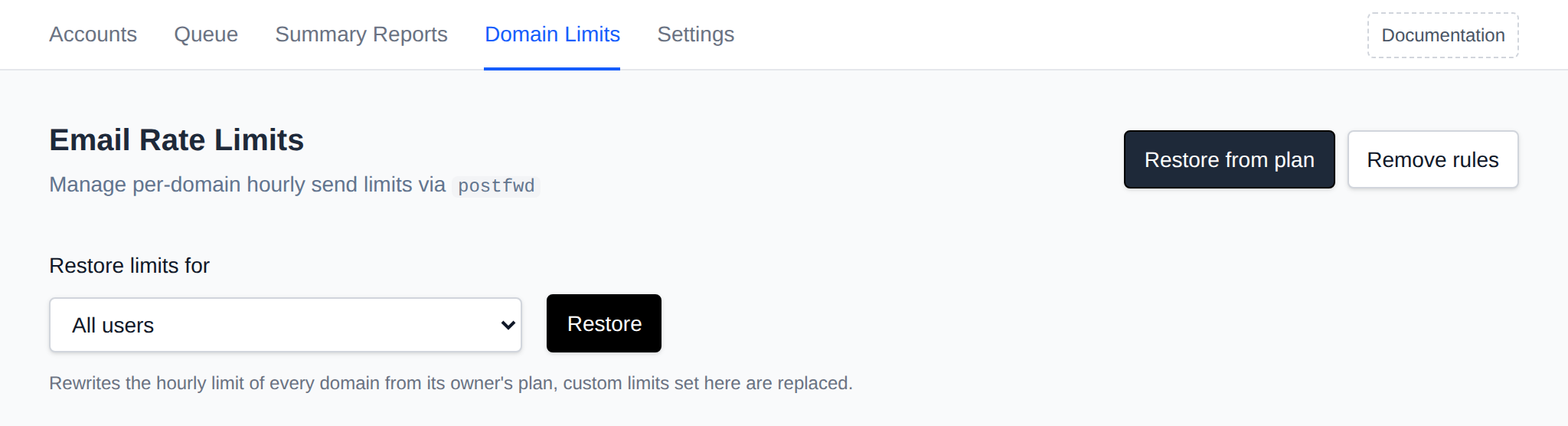
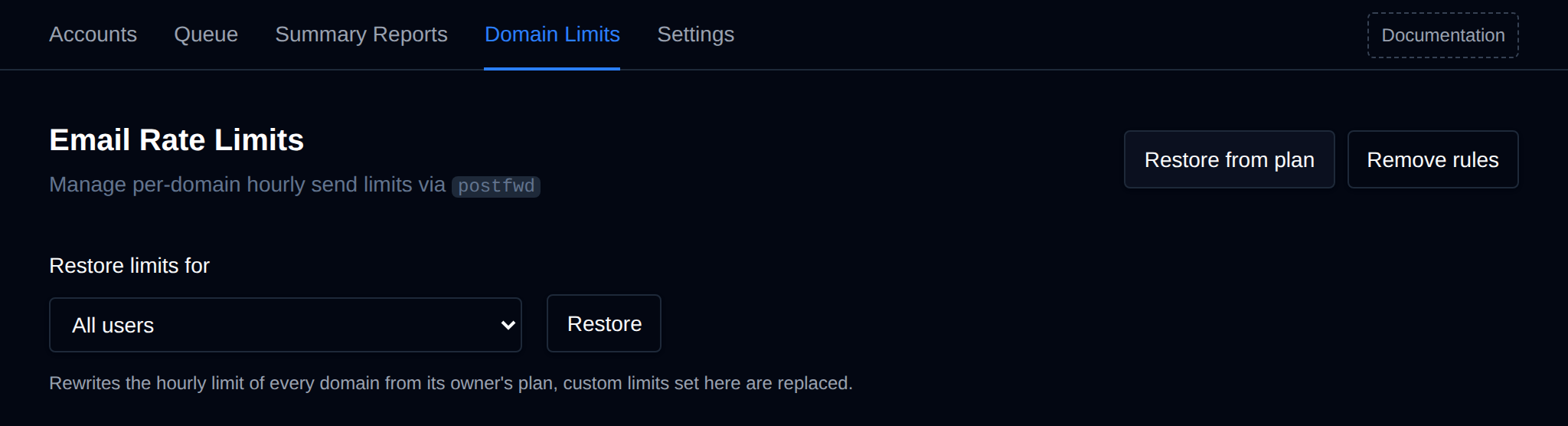
Use it after changing the hourly email limit of a plan, or to create the rules when the table is empty.
## Remove Rules
Click **Remove rules**, pick **All users** or one user, and click **Remove** twice to confirm. Those domains can send any number of emails until their rules are restored from their plan.
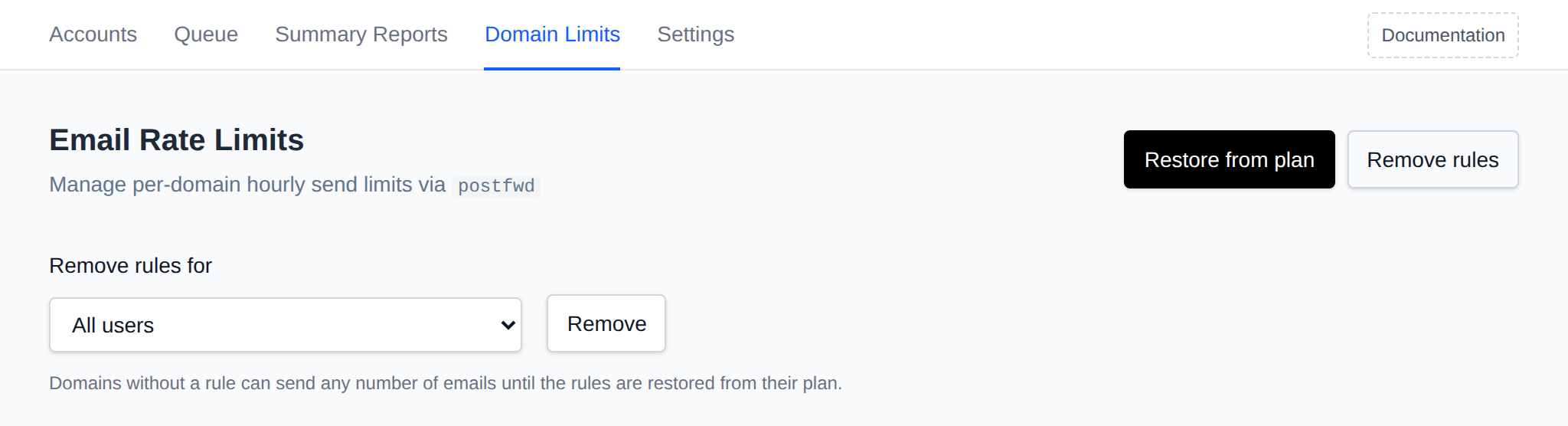
---
// File: admin/emails/deliverability
# Email Deliverability
Email Deliverability shows which domains need DNS changes so their emails don't end up in spam.
Use **OpenAdmin > Emails > Email Deliverability** to access it.
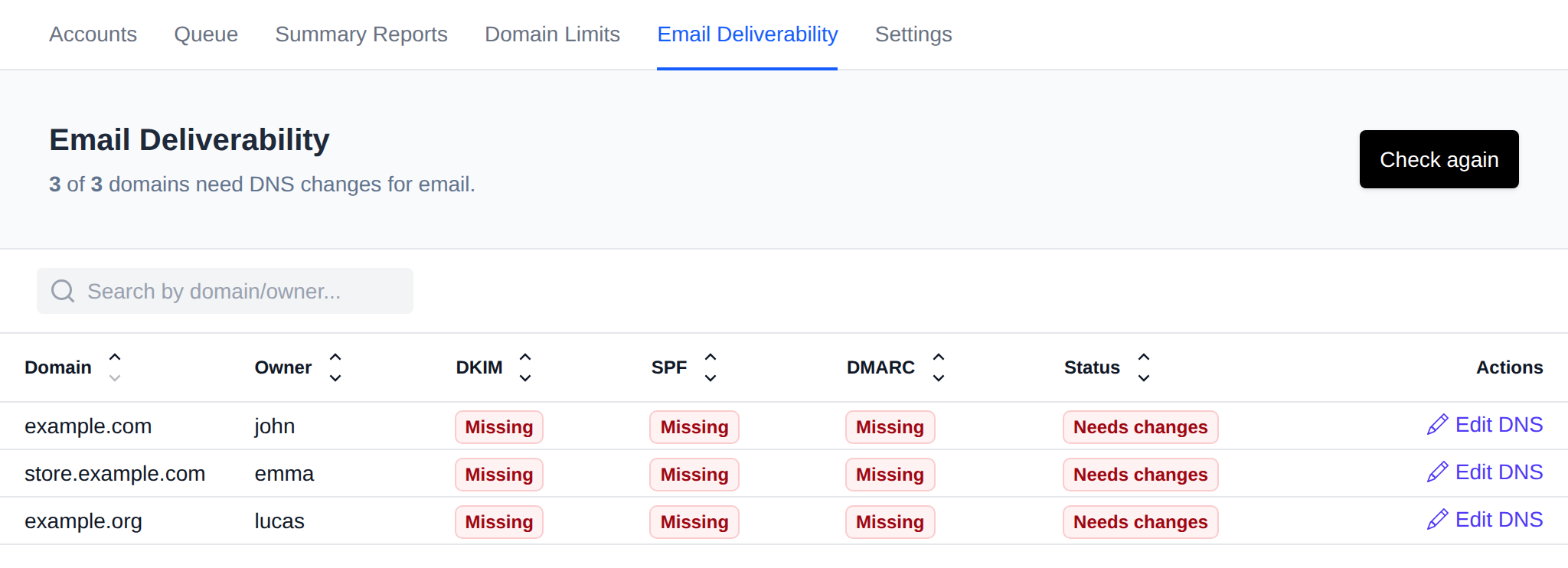
Every domain on the server is checked the same way as on the user's own **Emails > Deliverability** page in OpenPanel. The header shows how many domains need changes.
| Record | OK when |
|---|---|
| **DKIM** | The `mail._domainkey` TXT record matches the DKIM key the mail server generated for the domain. **Mismatch** means a different key is published. |
| **SPF** | The domain's SPF record allows the owner's dedicated IP address, or the server's IP when the user has none. **Wrong IP** means an SPF record exists but doesn't include that address. |
| **DMARC** | A `_dmarc` TXT record exists. |
**Status** is **Good** when all three are OK, otherwise **Needs changes**. Click **Edit DNS** to open the domain in the [DNS Zone Editor](/docs/admin/domains/dns).
Use the search box to filter by domain or owner, and click a column name to sort by it.
The records are looked up in DNS a few domains at a time and the results are kept for 5 minutes. Click **Check again** to look them up right away, for example after changing a DNS zone.
## Domain Details
Click a domain to see the record that is published now and the one it should be, ready to copy into the DNS zone.
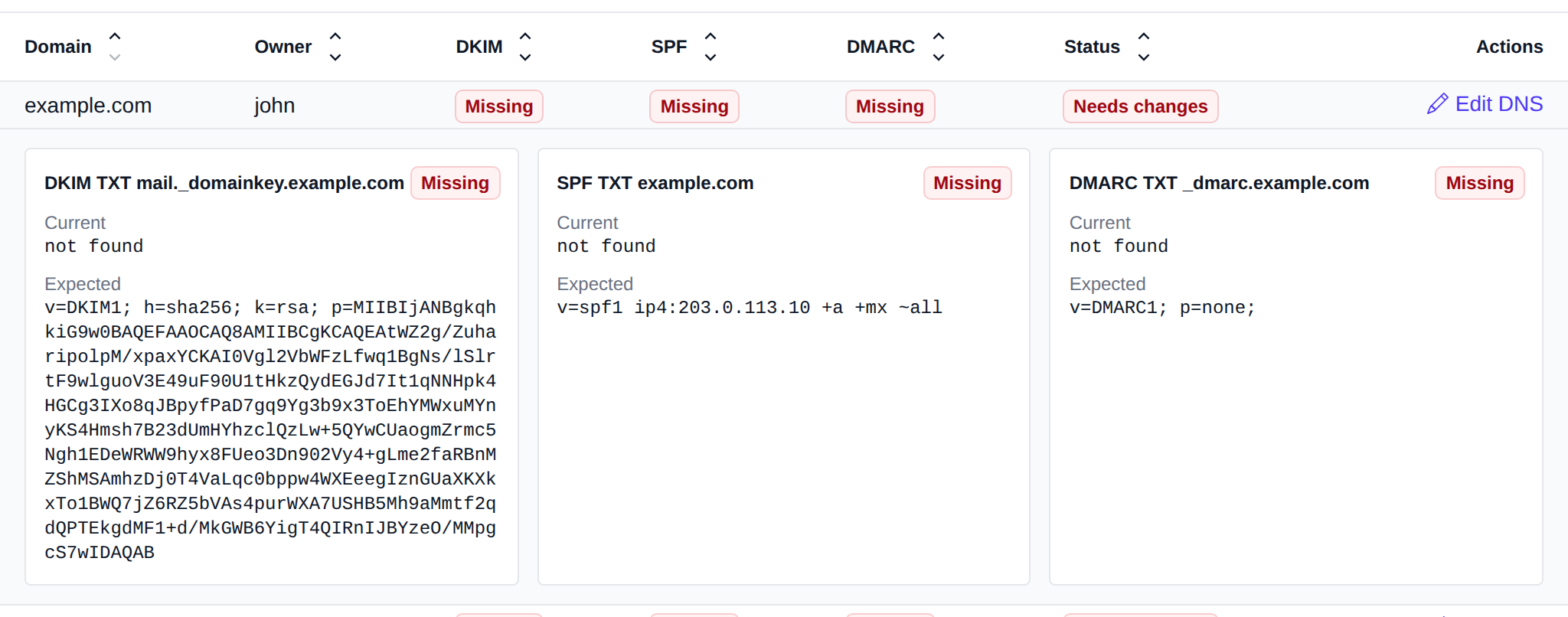
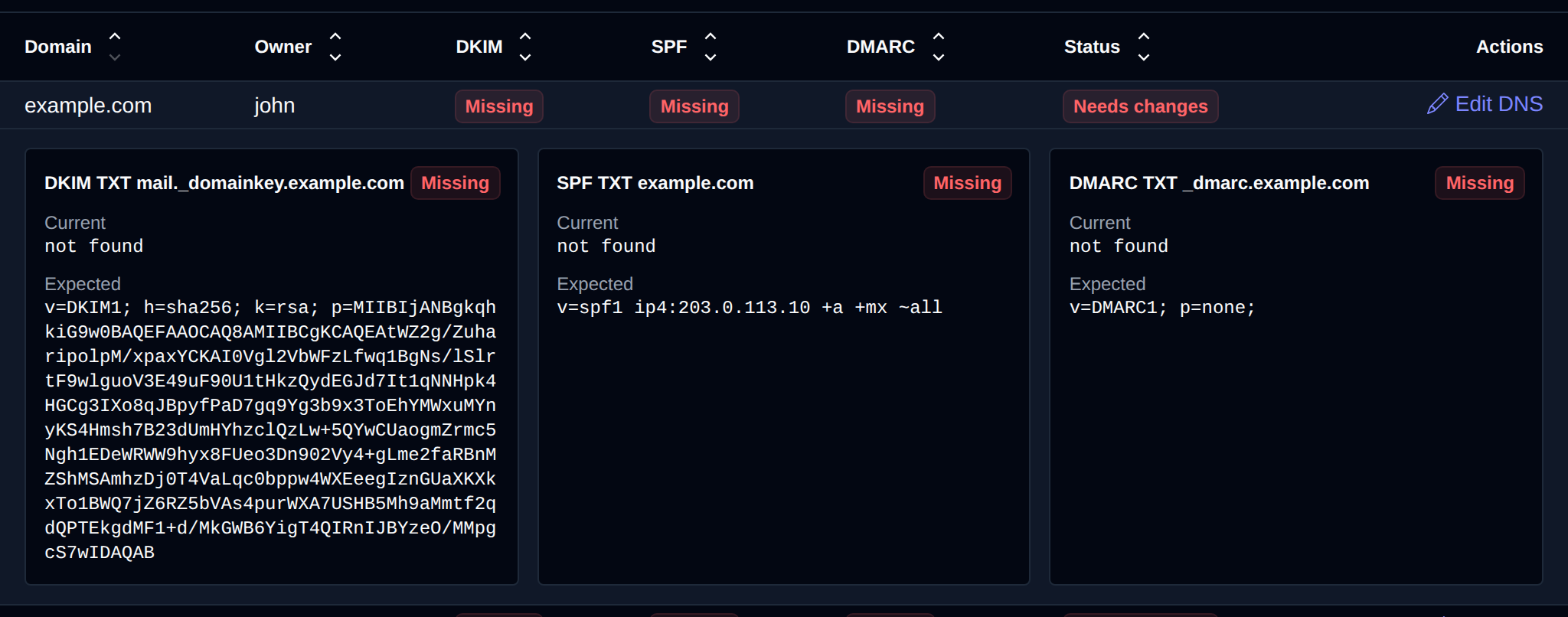
The expected SPF and DMARC records come from the server's DNS zone template. A domain without email has no DKIM key yet, so there is no expected DKIM record for it.
## Resellers
Resellers can open Email Deliverability too, and only see the domains of their own users.
:::info
Emails are only available on [OpenPanel Enterprise edition](/enterprise)
:::
---
// File: admin/plans/hosting_plans
# User Packages
Hosting plans set limits for users.
## List hosting plans
To list existing plans navigate to **OpenAdmin > Hosting Plans > User Packages**:
| Field | Description |
| ------------------ | ------------------------------------------------------------------------- |
| **Name** | Display name of the plan. |
| **Description** | Optional plan description, shown to users on their Server Information page. |
| **Memory** | Physical Memory (RAM) in GB allocated to the user on this hosting plan. |
| **CPU** | Number of CPU cores dedicated to the user on this hosting plan. |
| **Disk** | Disk space in GB allocated for all user files. |
| **Inodes** | Limits the total number of files allowed for the user. |
| **Port Speed** | Maximum bandwidth (port speed) for the user, in mbit/s. |
| **Domains** | Total number of domain names allowed per user on the plan. |
| **Websites** | Total number of websites (WordPress, Website Builder, NodeJS, Python) per user on the plan. |
| **Databases** | Total number of MySQL and PostgreSQL databases allowed per user on the plan. The limit applies separately to each database engine. |
| **Email accounts** | Total number of email accounts that user can create on the plan. |
| **Mailbox quota** | Max mailbox size for email accounts that user can set on this plan. |
| **Max hourly emails** | Max number of emails that all addresses under this account can send within one hour. |
| **FTP accounts** | Total number of ftp accounts that user can create on the plan. |
| **Feature Set** | [Feature Sets](/docs/admin/plans/feature-manager) determine which pages users can access from the OpenPanel interface. |
| **Used by** | Number of users currently on this plan. Click the number to view those users. |
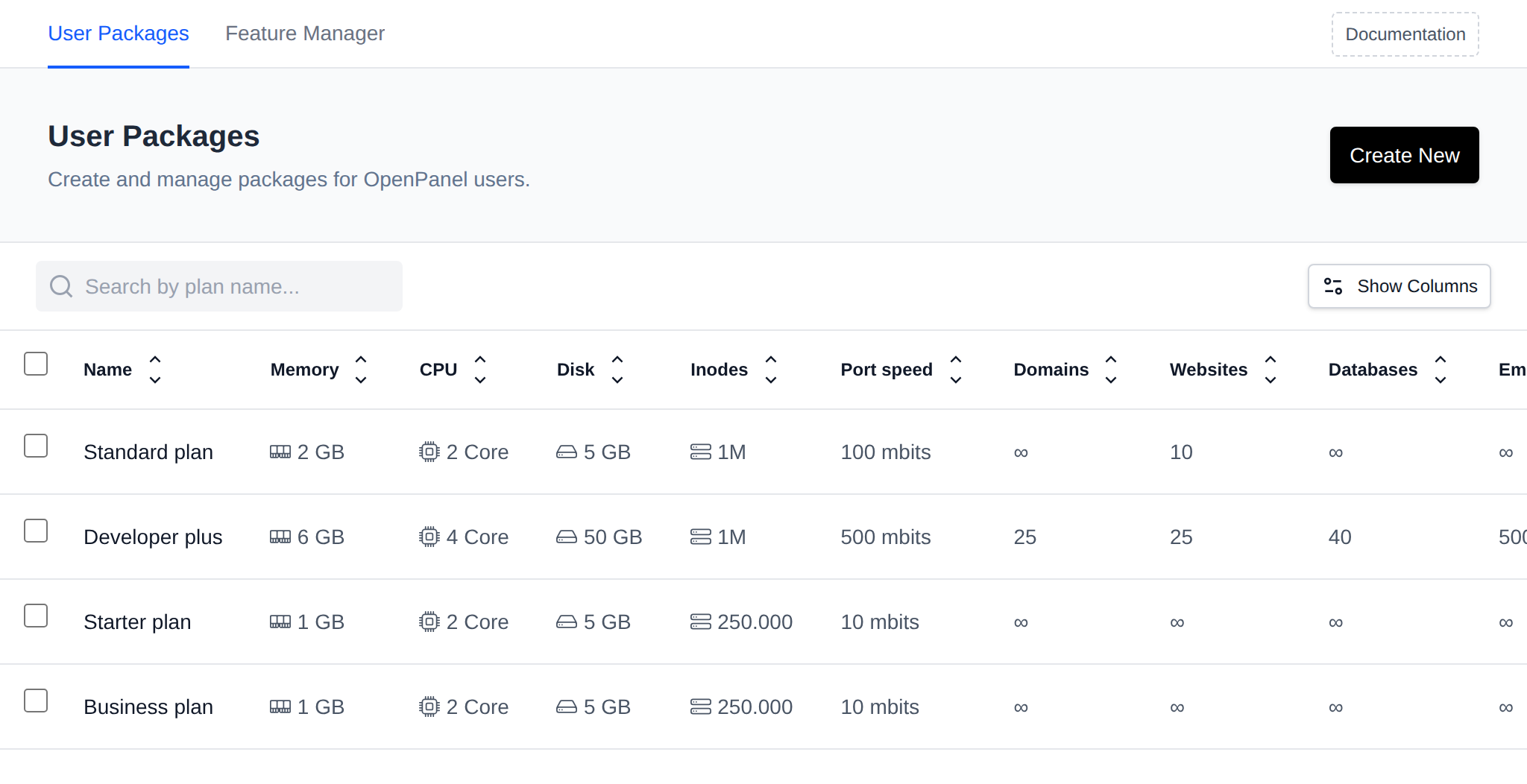
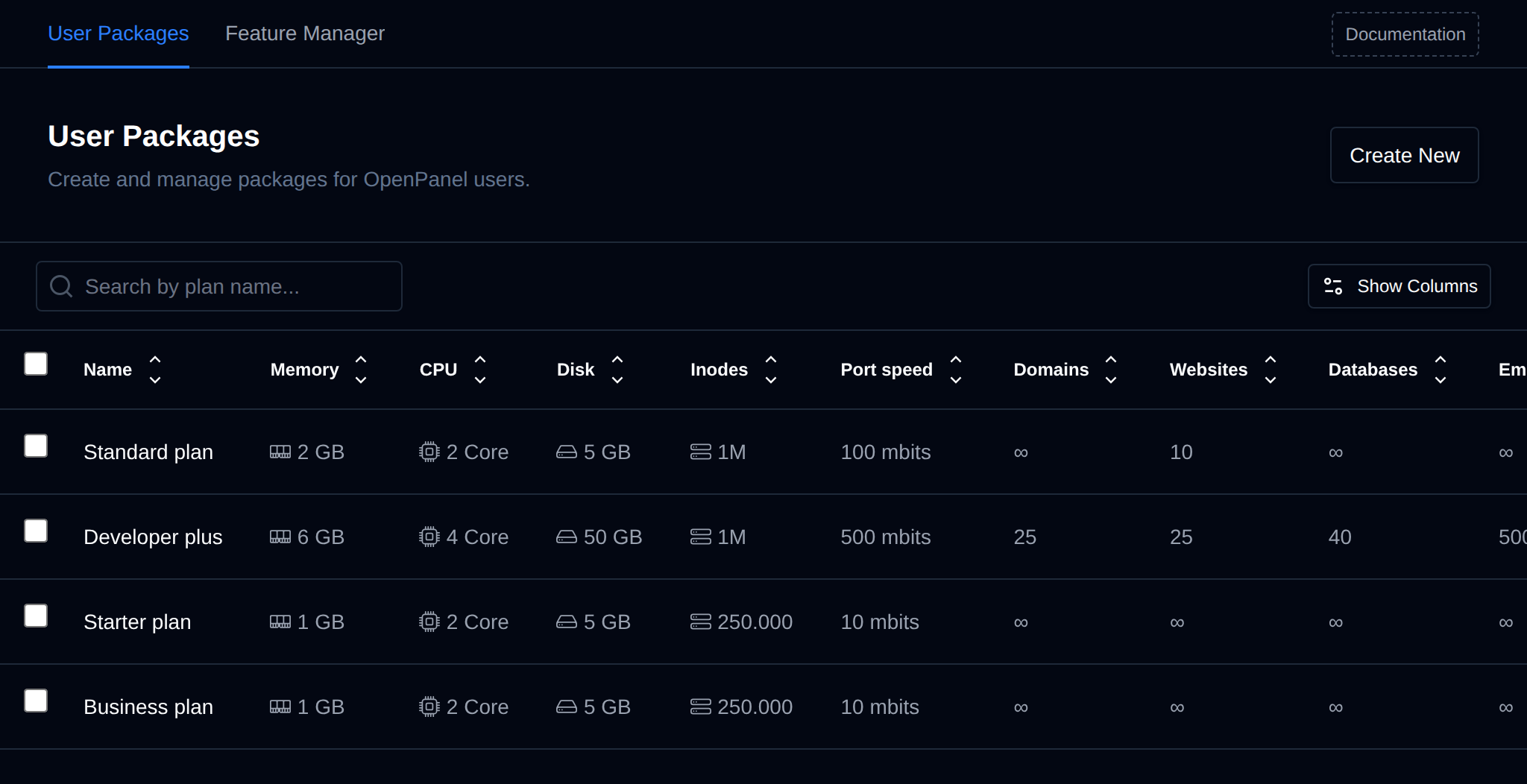
To list all current hosting packages (plans) run:
```bash
opencli plan-list
```
Example output:
```bash
[root@fajlovi ~]# opencli plan-list
+----+----------------+------------------------+---------------+----------------+-------------+-----------+------------+--------------+----------+------+------+-----------+-------------+-----------------+------------------+
| id | name | description | domains_limit | websites_limit | email_limit | ftp_limit | disk_limit | inodes_limit | db_limit | cpu | ram | bandwidth | feature_set | max_email_quota | max_hourly_email |
+----+----------------+------------------------+---------------+----------------+-------------+-----------+------------+--------------+----------+------+------+-----------+-------------+-----------------+------------------+
| 1 | Standard plan | Small plan for testing | 0 | 10 | 0 | 0 | 5 GB | 1000000 | 0 | 2 | 2g | 10 | basic | 0 | 0 |
| 2 | Developer Plus | 4 cores, 6G ram | 0 | 10 | 0 | 0 | 20 GB | 2500000 | 0 | 4 | 6g | 100 | default | 0 | 1000 |
+----+----------------+------------------------+---------------+----------------+-------------+-----------+------------+--------------+----------+------+------+-----------+-------------+-----------------+------------------+
```
You can also format the data as JSON:
```bash
opencli plan-list --json
```
## Bulk Actions
Tick the checkbox of one or more plans, or the checkbox in the table header to select all plans shown by the current search. A bar appears at the bottom of the page with the number selected, a **Clear** link and these actions:
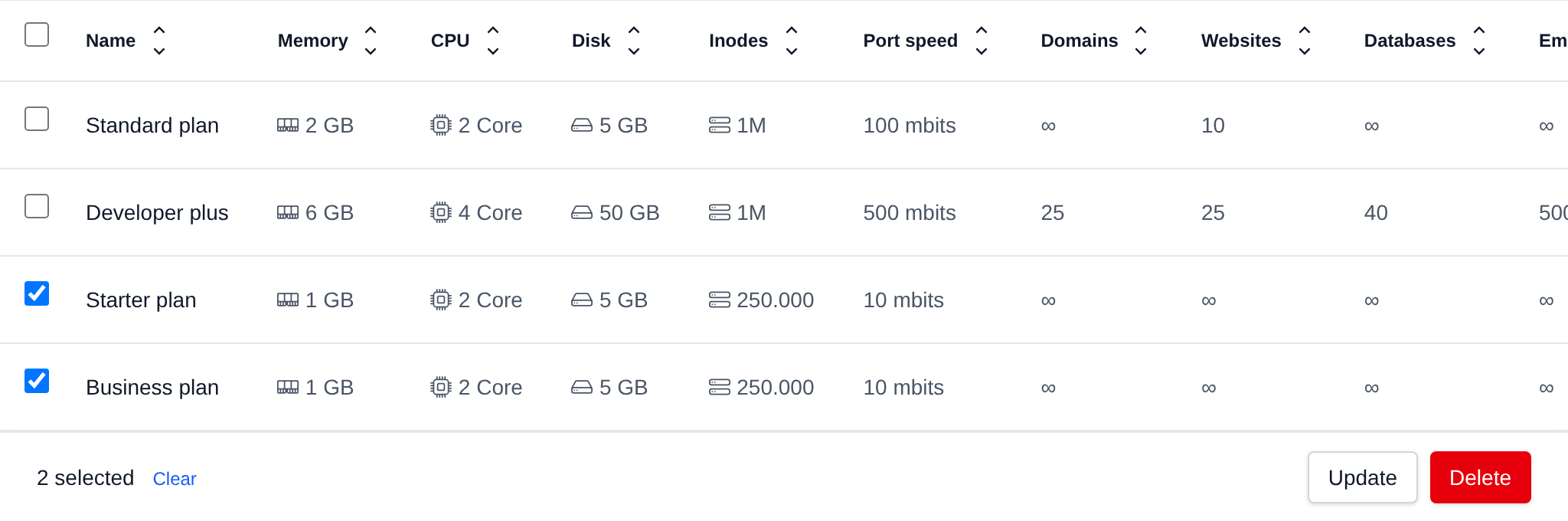
| Action | What it does |
|---|---|
| **Update** | Sets one limit on all selected plans: pick the limit (disk, inodes, CPU, memory, port speed, domains, websites, databases, email accounts, max email quota, max emails per hour, FTP accounts or feature set) and enter the new value. The other limits of each plan stay as they are, and users on the plans get the new limit too. |
| **Delete** | Deletes the selected plans. Plans that still have users on them are skipped, move their users to another plan first. |
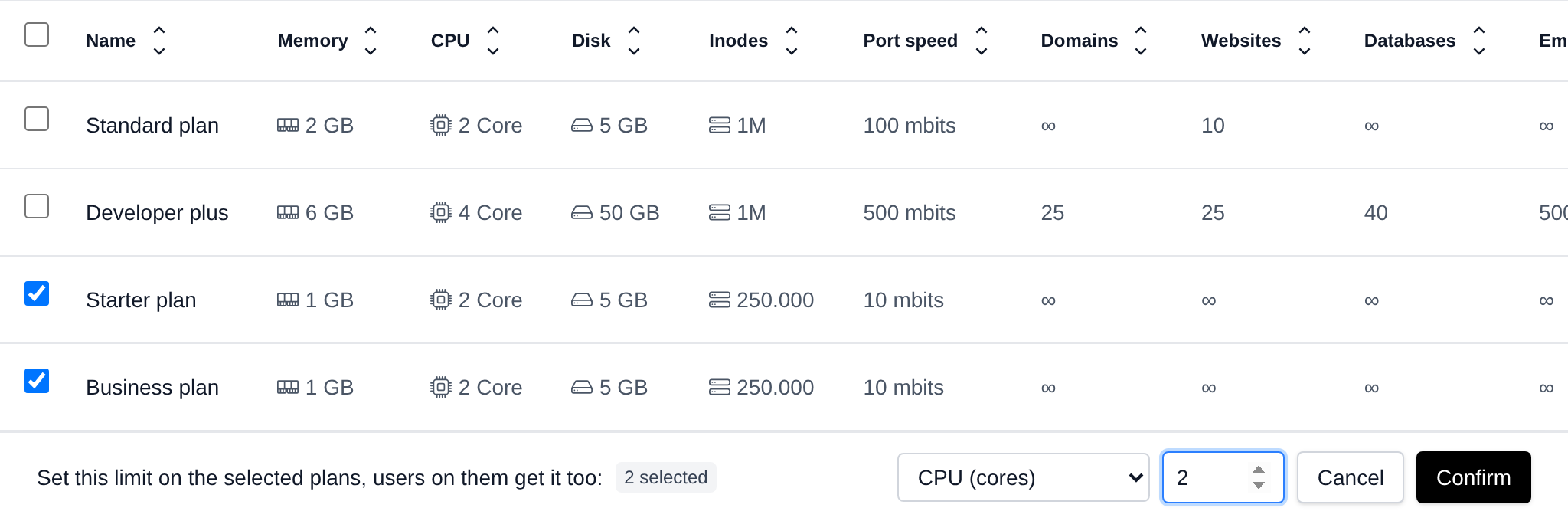
Values are checked the same way as on the Edit plan page: limits are whole numbers of 0 or more, and the max email quota is a number followed by K, M, G or T, like `1G`.
Click an action, confirm it, and it runs on the selected plans one after another. When it's done the page reloads with a notice listing the plans it worked for, or which ones failed and why.
## Create a plan
To create a new hosting package, click the **'Create New'** button and configure the desired limits:
* **Name** – Plan name.
* **Description** – Optional plan description. It is visible to users on their Server Information page, not just to admins.
* **Disk** – Disk space in GB to allocate for user services, files and logs. Use `0` for unlimited.
* **Inodes** – Total number of files to allow the user on this plan. Use `0` for unlimited.
* **CPU cores** – Limits the total CPU (cores) used by all of the user's running services combined. Set to `0` for unlimited, the user can then use all cores but 2.
* **Memory** – Limits the total memory (in GB) used by all of the user's running services combined, swap isn't used. Set to `0` for unlimited, the user is then slowed down above 80% of the server's RAM and stopped at 90%. The process limit follows the memory limit.
* **Port Speed** – Bandwidth (port speed) limit, in Mbit/s, for the user's services.
* **Domains** – Total number of domains: primary, addons, aliases. Subdomains are excluded.
* **Websites** – Max number of websites the user can install/manage on this plan. Includes WordPress, NodeJS, Python and Website Builder. Use `0` for unlimited.
* **Databases** – Max number of MySQL and PostgreSQL databases the user can have on this plan. The limit applies separately to each engine (e.g. a value of `10` allows up to 10 MySQL databases *and* up to 10 PostgreSQL databases). Use `0` for unlimited.
* **Email Accounts** – Max number of email accounts the user can create and manage on this plan. Use `0` for unlimited.
* **Mailbox quota** – Max mailbox size for email accounts that user can set on this plan. Examples: `100k`, `250M`, `3G`, `1T`, or `0` for unlimited.
* **Max hourly emails** – Max number of emails that all addresses under this account can send within one hour. Use `0` for unlimited. The limit of each domain can be changed in [Emails > Domain Limits](/docs/admin/emails/domain-limits).
* **FTP Accounts** – Max number of FTP accounts the user can create and manage on this plan. Use `0` for unlimited.
* **Feature set** – Feature set that determines which features users on this plan have access to.
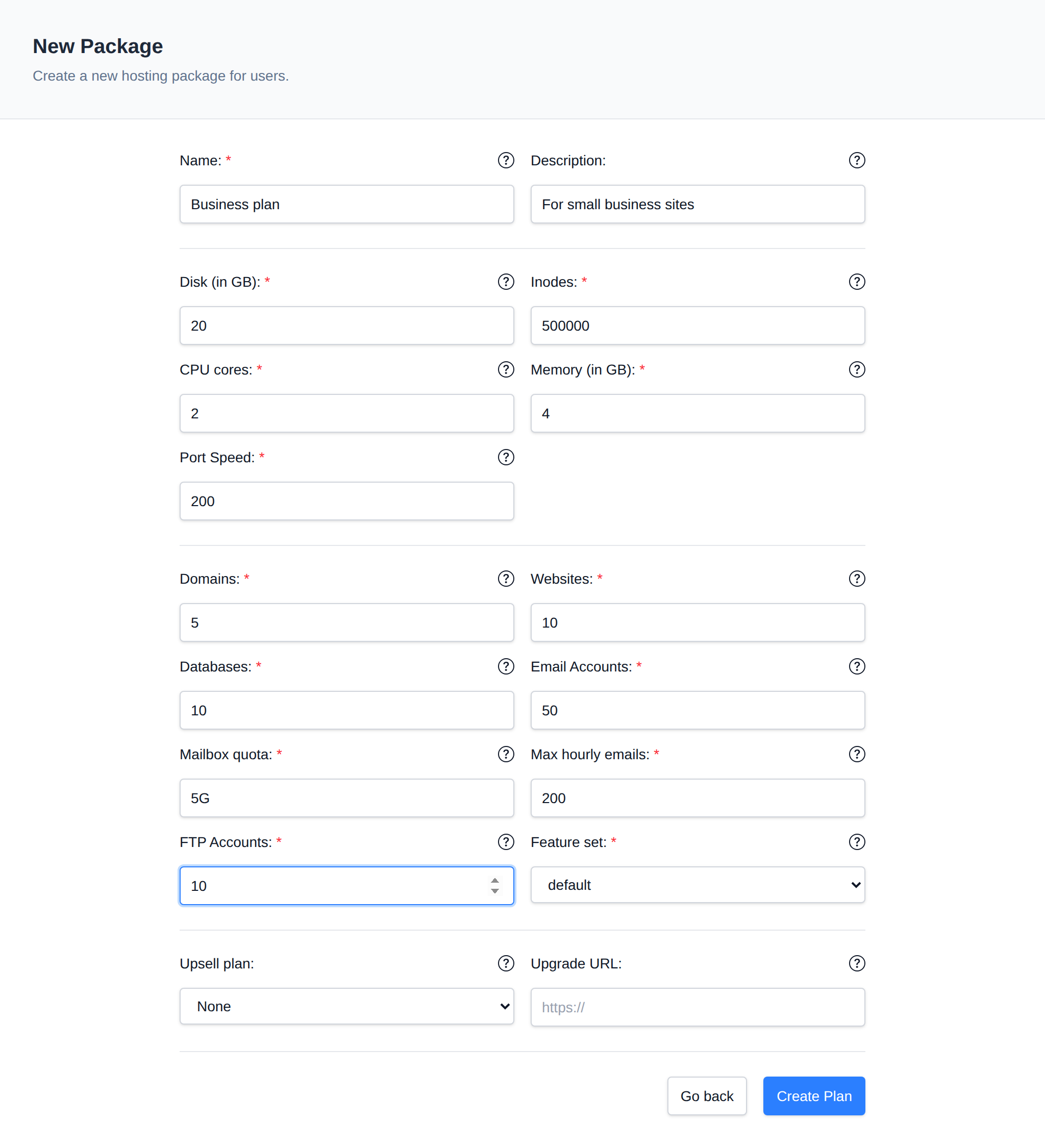
To create a new plan run the following command:
```bash
pencli plan-create name"" description="" emails= ftp= domains= websites= disk= inodes= databases= cpu= ram= bandwidth= feature_set= max_email_quota= max_hourly_email=
```
Example:
```bash
opencli plan-create name="New Plan" description="This is a new plan" emails=100 ftp=50 domains=20 websites=30 disk=100 inodes=100000 databases=10 cpu=4 ram=8 bandwidth=100 feature_set=default max_email_quota=2G max_hourly_email=1000
```
## Modify plan
To change plan limits, go to **OpenAdmin > Hosting Plans > User Packages**, click the **...** (kebab) menu at the end of the plan's row, choose **Edit**, and set the new limits.


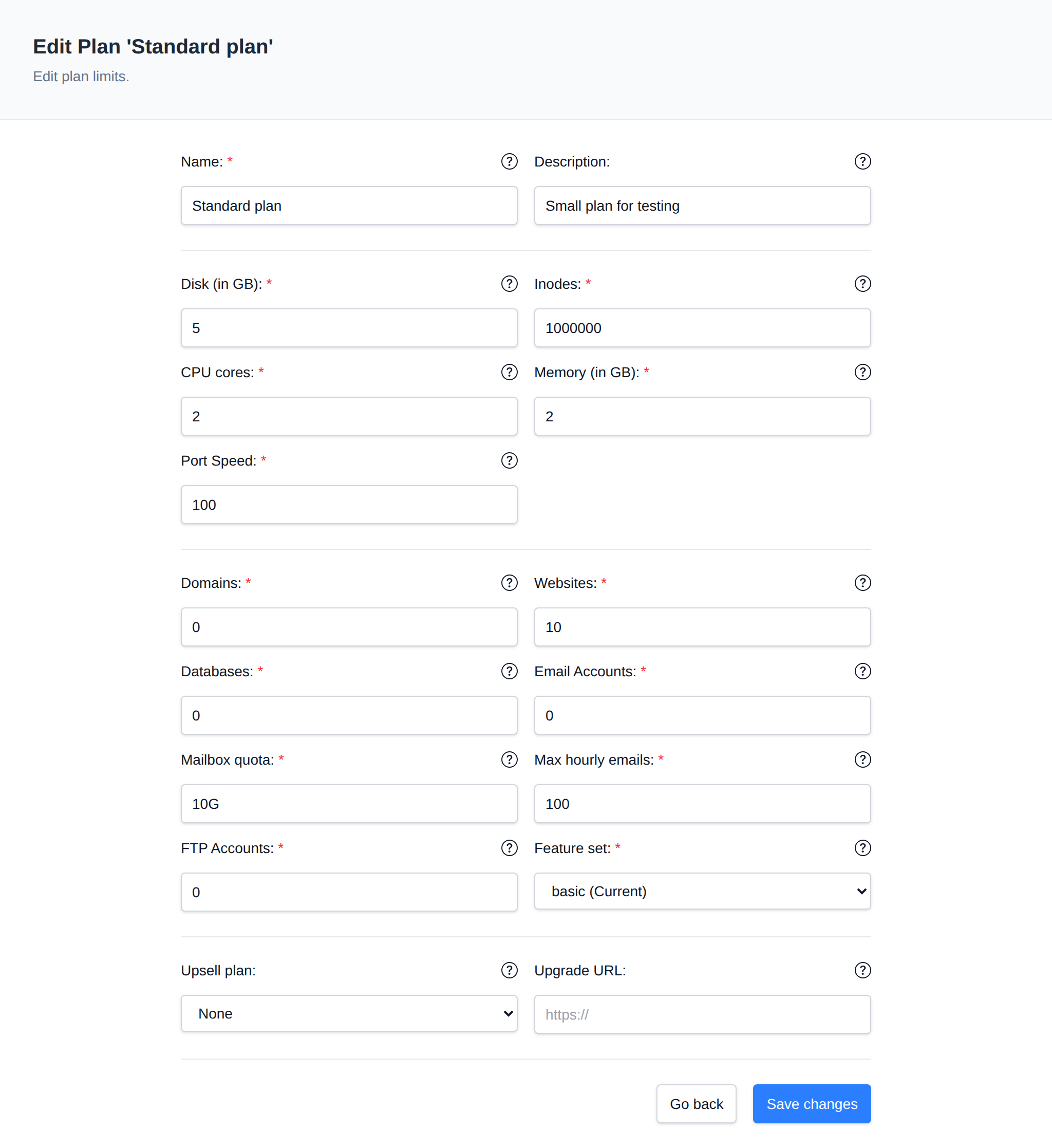
The new limits will be applied immediately to all accounts using the package.
## List Users on Plan
To view all users that are currently using a hosting package, click the number shown in the **Used by** column for that plan on the User Packages page - this opens the Users list already filtered to that package. Alternatively, on the Users page, sort the table by the **Package** column, or type the package name in the search field.
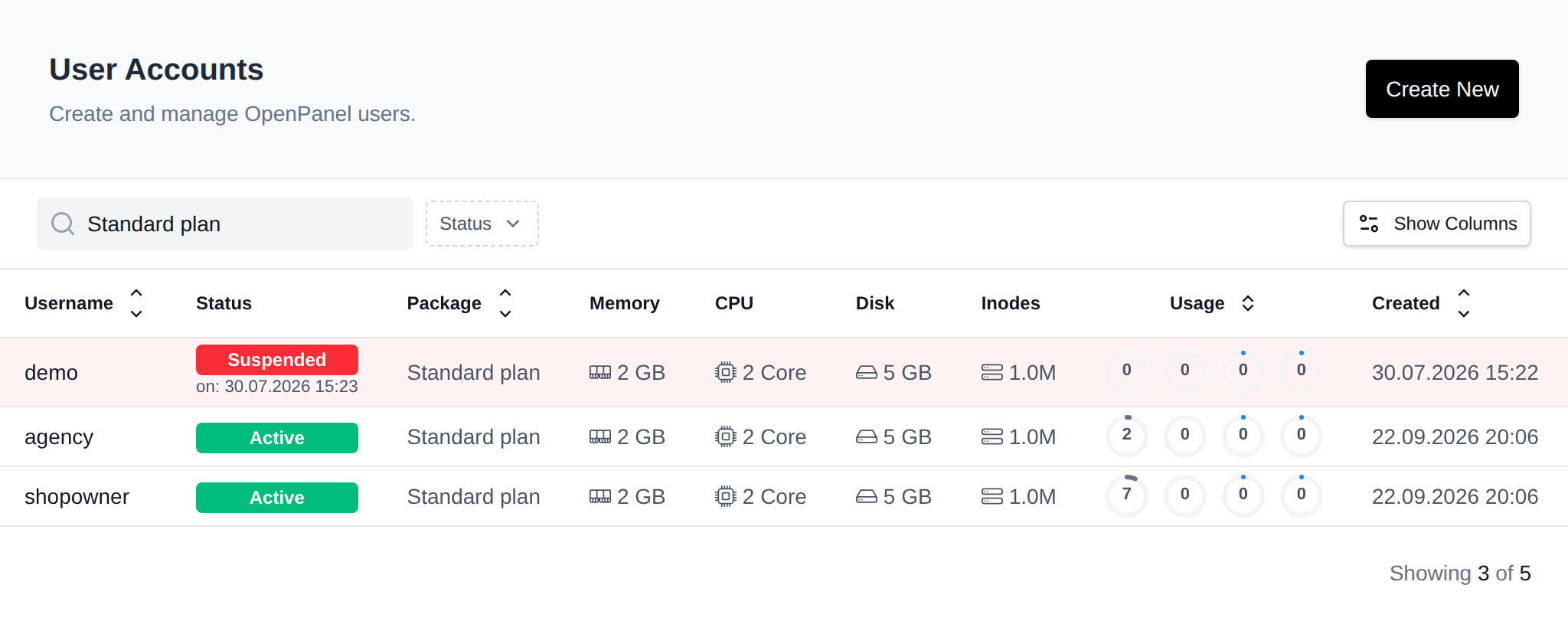
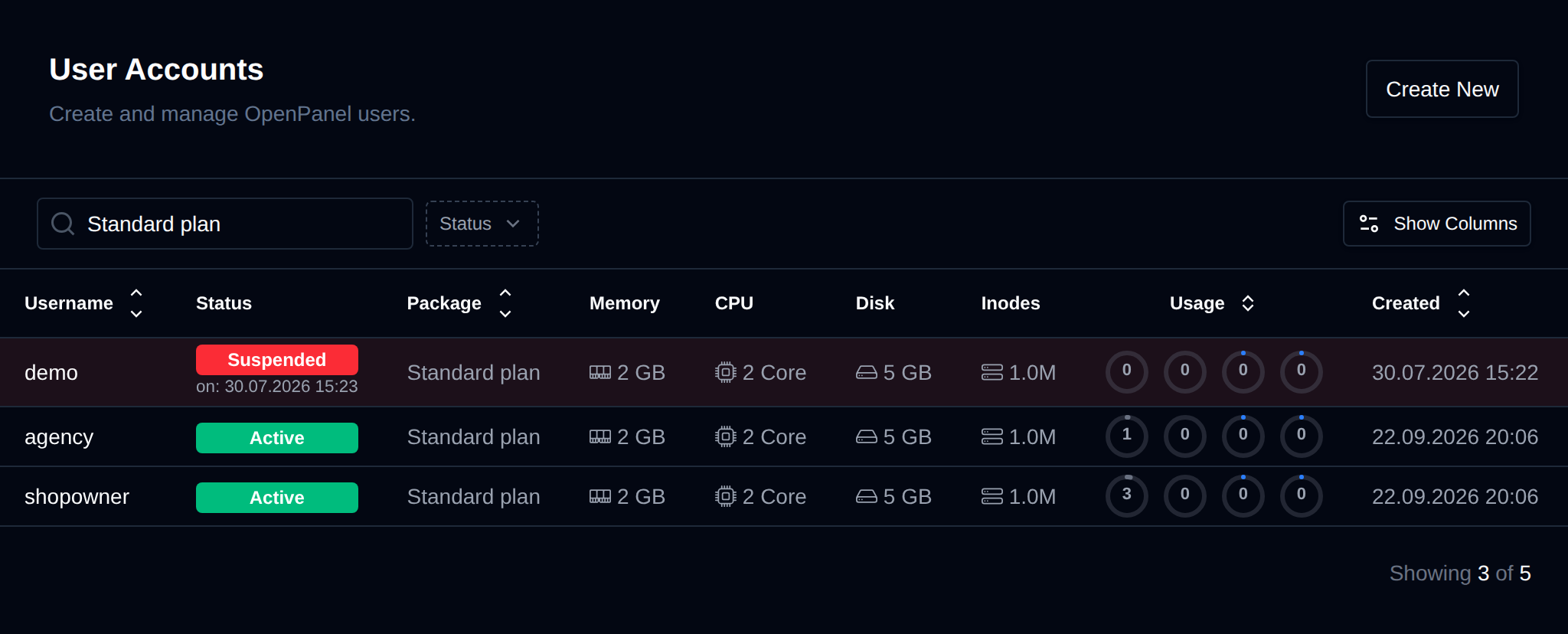
List all users that are currently using a plan:
```bash
opencli plan-usage
```
Example:
```bash
[root@fajlovi ~]# opencli plan-usage 'Standard plan'
+----+----------------------------------+----------------------+---------------+---------------------+
| id | username | email | plan_name | registered_date |
+----+----------------------------------+----------------------+---------------+---------------------+
| 3 | forums | stefan@openpanel.com | Standard plan | 2025-05-08 19:25:47 |
| 19 | radovan | radovan@jecmenica.rs | Standard plan | 2025-05-29 07:47:15 |
+----+----------------------------------+----------------------+---------------+---------------------+
```
You can also format the data as JSON:
```bash
opencli plan-usage --json
```
## Delete Plan
To delete a hosting package, click the **...** (kebab) menu at the end of the package's row and choose **Delete**. The **Delete** option only appears in the menu when the package has no users assigned to it.


To delete a hosting plan:
```bash
opencli plan-delete
```
Example:
```bash
opencli plan-delete 'Standard plan'
```
Note: A package cannot be deleted if it has users assigned to it.
Need a starting point? See [Suggested hosting plan limits](/docs/articles/hosting-business/hosting-plan-templates/).
---
// File: admin/plans/reseller_packages
# Reseller Packages
Reseller packages are limit templates for [reseller accounts](/docs/admin/accounts/resellers), the same way [User Packages](/docs/admin/plans/hosting_plans) are for users. Pick a package when creating a reseller, or let your billing system create resellers on a package through the API, and its limits are applied automatically.
:::info
Resellers is an Enterprise-only feature.
:::
Each package sets:
| Field | Description |
|---|---|
| **Name** | Used to pick the package in OpenAdmin, OpenCLI, the API and billing systems. Letters, numbers, `-` and `_` only, up to 64 characters. |
| **Description** | Optional note, for example `10 accounts, 50 GB`. |
| **Max Accounts** | How many user accounts resellers on this package can have. `0` means unlimited. |
| **Max Disk Usage** | Total disk space for all accounts of the reseller, in GB. `0` means unlimited. |
| **User Packages** | Which [User Packages](/docs/admin/plans/hosting_plans) resellers on this package can assign to their users. |
Resellers created without a package get the default limits from `/etc/openpanel/openadmin/config/reseller_template.json`.
## List reseller packages
Navigate to **OpenAdmin > Hosting Plans > Reseller Packages**. The table shows each package's name and description, Max Accounts, Max Disk, the number of User Packages it allows and how many resellers are on it (hover the number to see who). Click the arrows next to a column name to sort the table by that column, unlimited (`0`) sorts as the largest value.
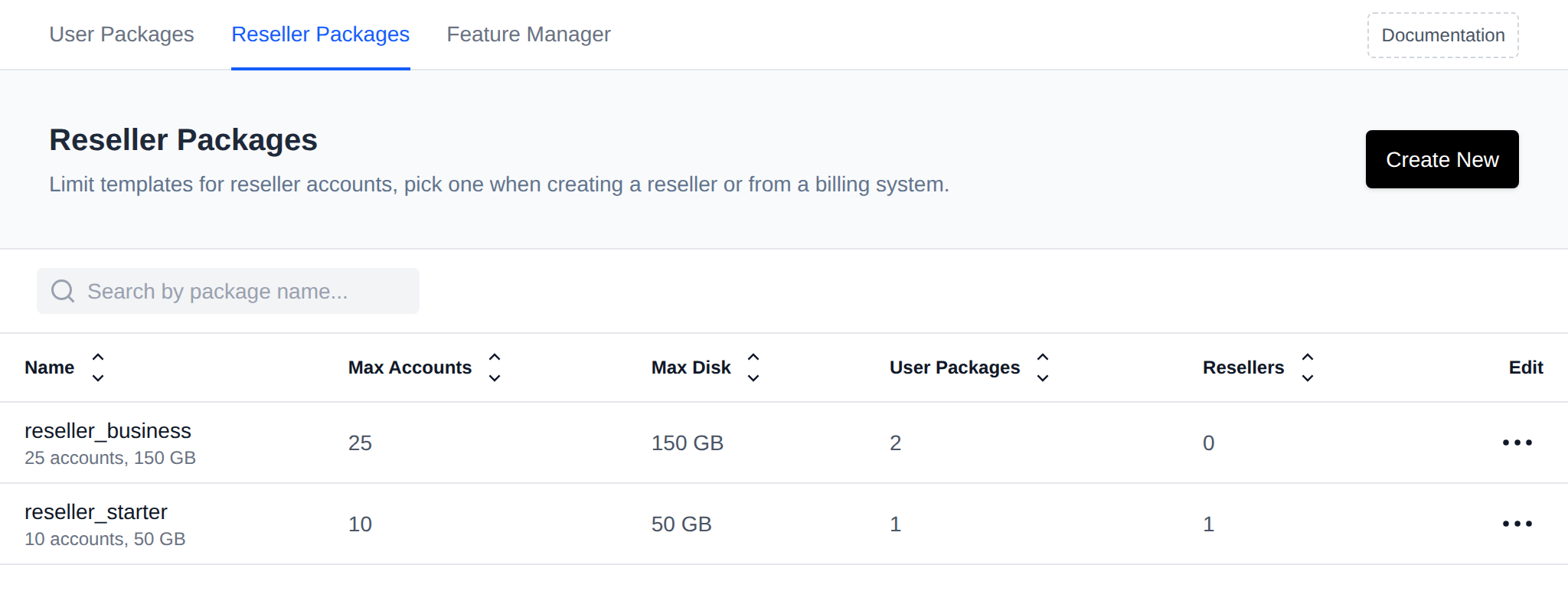
```bash
curl -X GET https://SERVER:2087/api/plans/resellers -H "Authorization: Bearer TOKEN_HERE"
```
Example output:
```json
[
{
"name": "reseller_basic",
"description": "10 accounts, 50 GB",
"max_accounts": 10,
"max_disk_blocks": 51200000,
"allowed_plans": [1, 2],
"resellers": ["reseller1"]
}
]
```
## Create a reseller package
On **OpenAdmin > Hosting Plans > Reseller Packages** click **Create New**, fill in the name, description, Max Accounts and Max Disk Usage, tick the User Packages resellers on it can assign, and click **Create**.
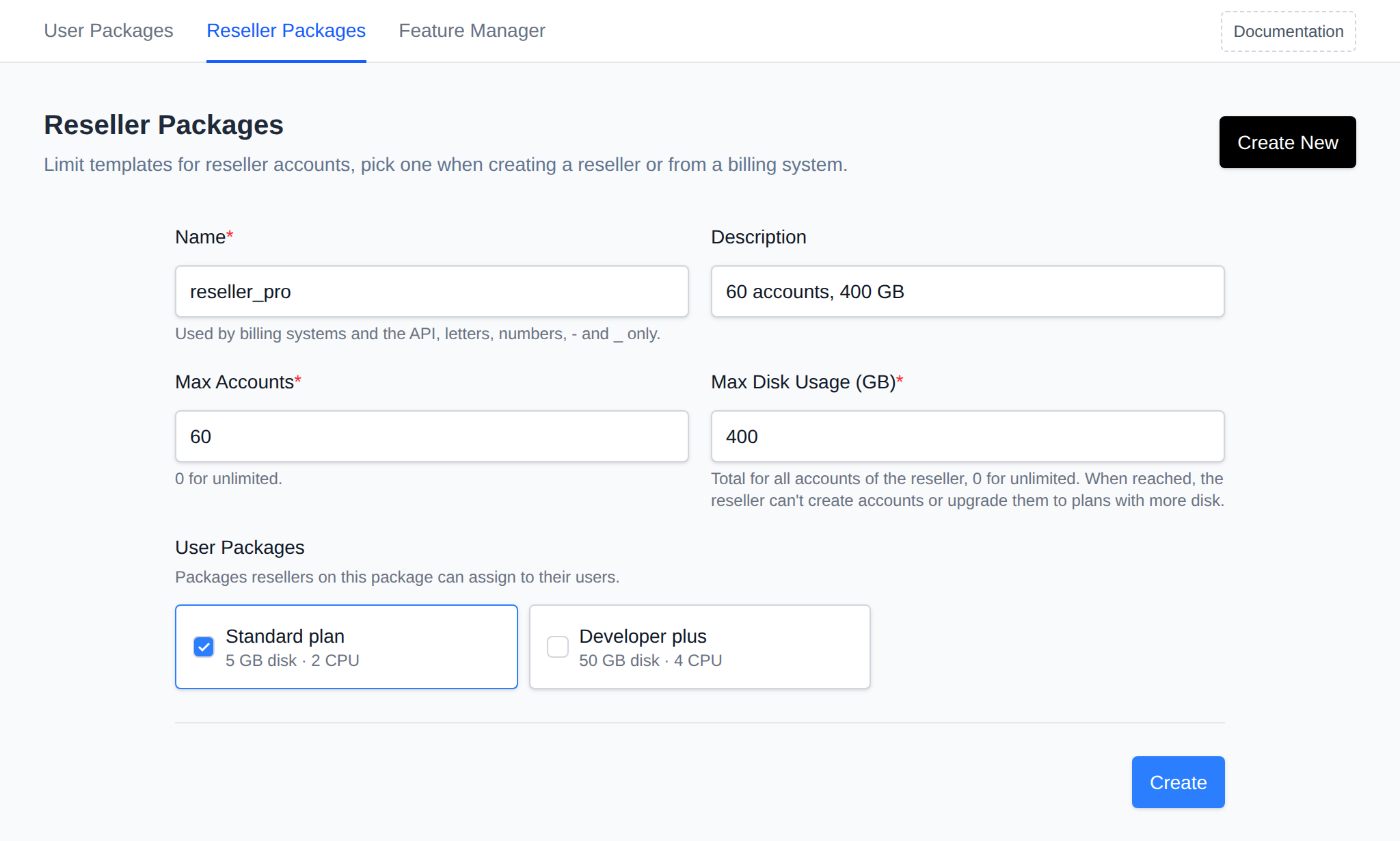
```bash
curl -X POST https://SERVER:2087/api/plans/resellers \
-H "Authorization: Bearer TOKEN_HERE" -H "Content-Type: application/json" \
-d '{"action":"create","name":"reseller_basic","description":"10 accounts, 50 GB","max_accounts":10,"max_disk_blocks":51200000,"allowed_plans":[1,2]}'
```
Over the API the disk limit is set in blocks, 1 GB is `1024000` blocks. `allowed_plans` takes plan IDs, as a list (`[1,2]`) or a string (`"1,2"`).
## Edit a reseller package
Click the package name, or open the package's **Edit** menu and click **Edit**, change the limits and click **Save**. The page header lists the resellers on the package.
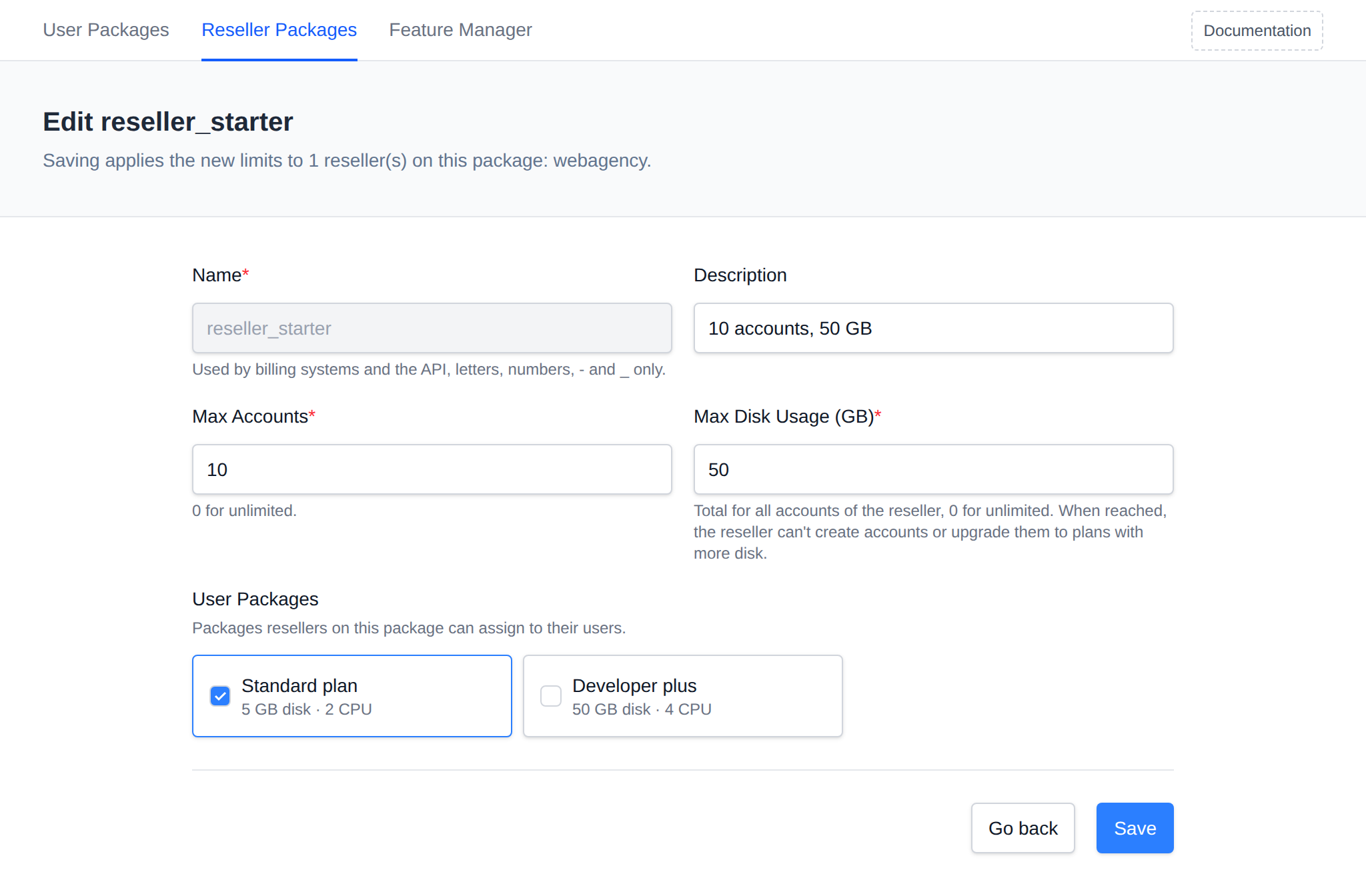
```bash
curl -X POST https://SERVER:2087/api/plans/resellers \
-H "Authorization: Bearer TOKEN_HERE" -H "Content-Type: application/json" \
-d '{"action":"update","name":"reseller_basic","max_accounts":20,"max_disk_blocks":102400000,"allowed_plans":[1,2,3]}'
```
`update` replaces all limits of the package, send every field.
Saving a package applies the new limits to every reseller on it. If a reseller already has more accounts or uses more disk than the new limits allow, they keep their old limits and the notice lists them.
## Delete a reseller package
Open the package's **Edit** menu, click **Delete** and confirm. **Delete** isn't shown while resellers are on the package, move them to another package first.
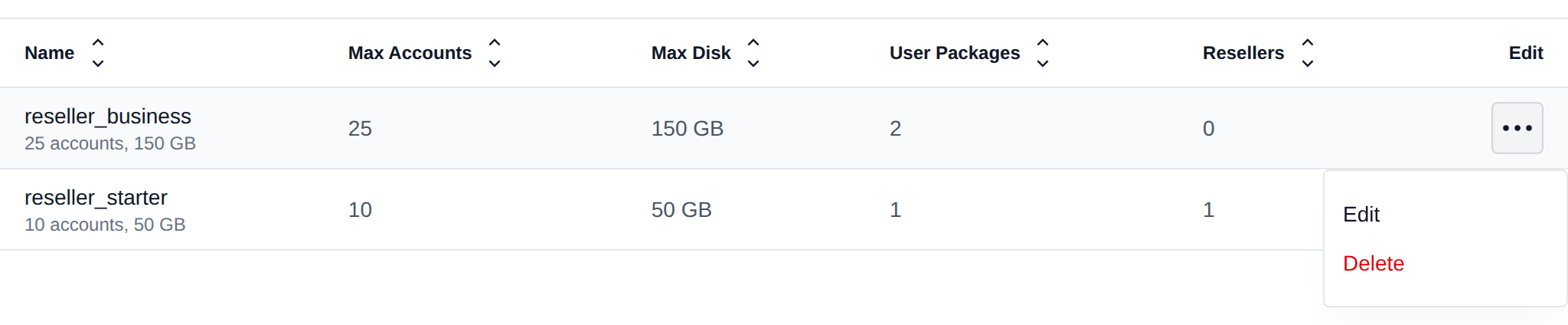
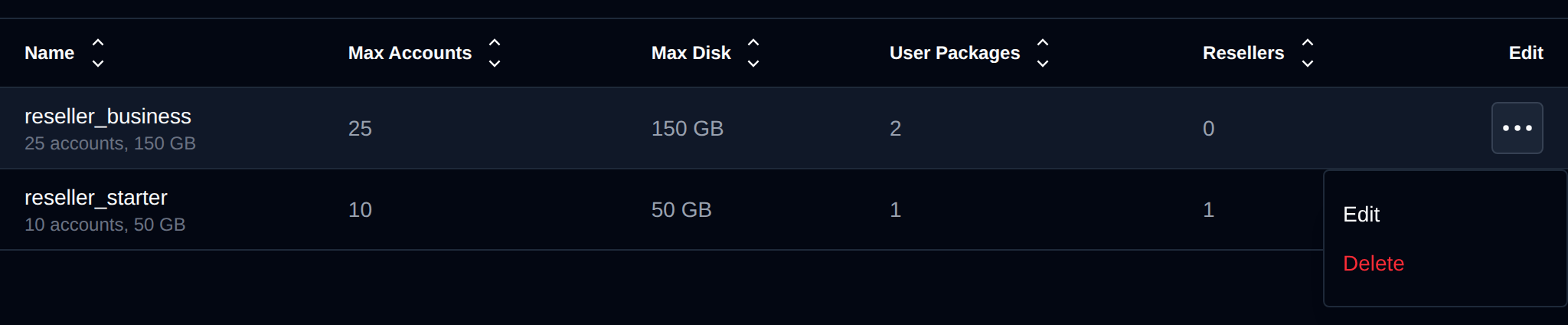
```bash
curl -X POST https://SERVER:2087/api/plans/resellers \
-H "Authorization: Bearer TOKEN_HERE" -H "Content-Type: application/json" \
-d '{"action":"delete","name":"reseller_basic"}'
```
## Create a reseller on a package
On **Accounts > Resellers** click **Create New**, set the username and password, pick the package from **Reseller Package** and click **Create**.
```bash
opencli admin new --reseller --plan=
```
```bash
curl -X POST https://SERVER:2087/api/settings/resellers \
-H "Authorization: Bearer TOKEN_HERE" -H "Content-Type: application/json" \
-d '{"action":"create","username":"reseller1","password":"secret123","plan":"reseller_basic"}'
```
## Move a reseller to another package
Use this to upgrade or downgrade a reseller. Moving to a package with fewer accounts or less disk than the reseller already uses is refused with a message saying what to free up first.
On **Accounts > Resellers** open **Edit Plans & Limits** for the reseller, pick the package under **Reseller Package** and click **Apply Package**.
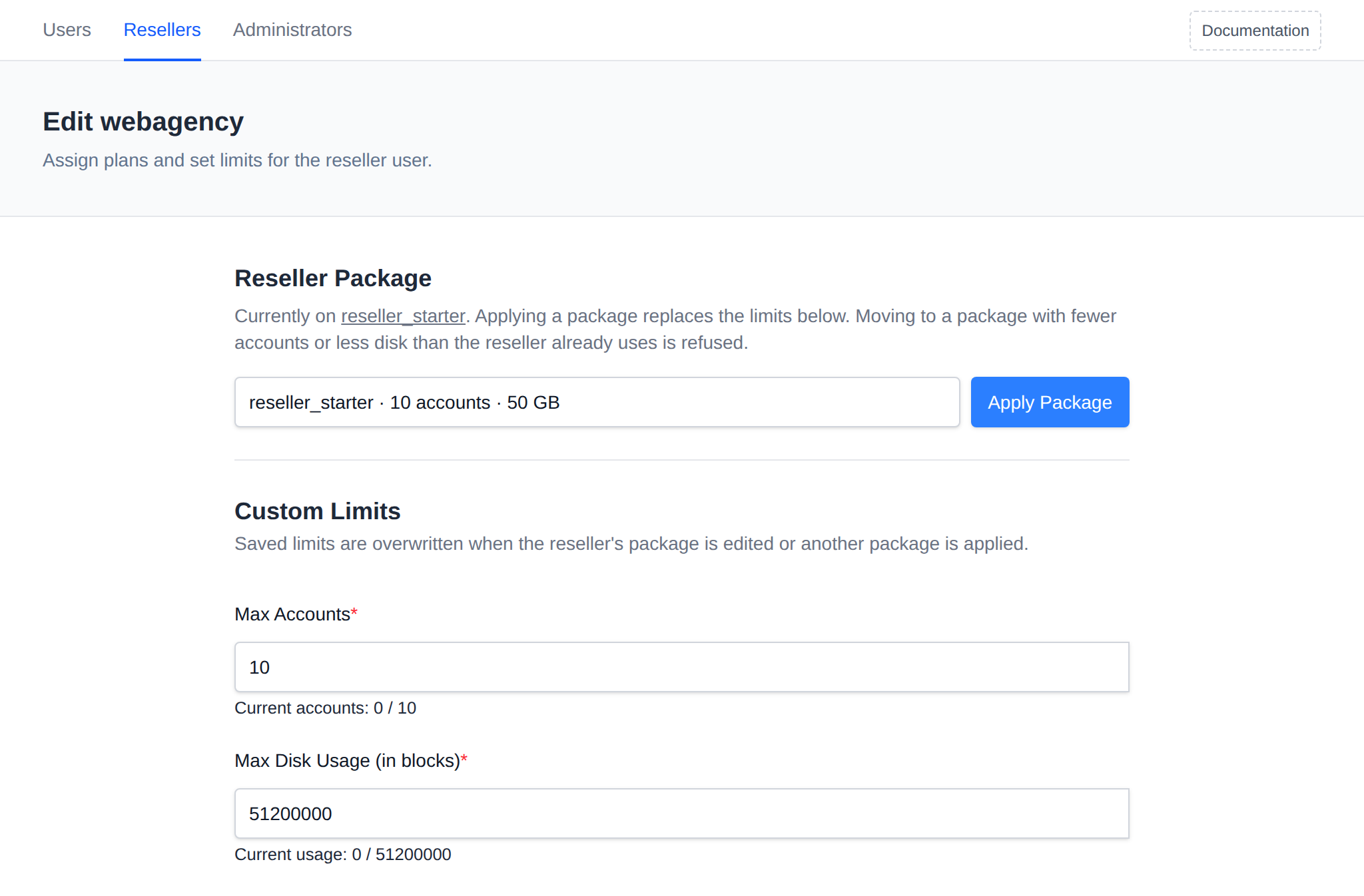
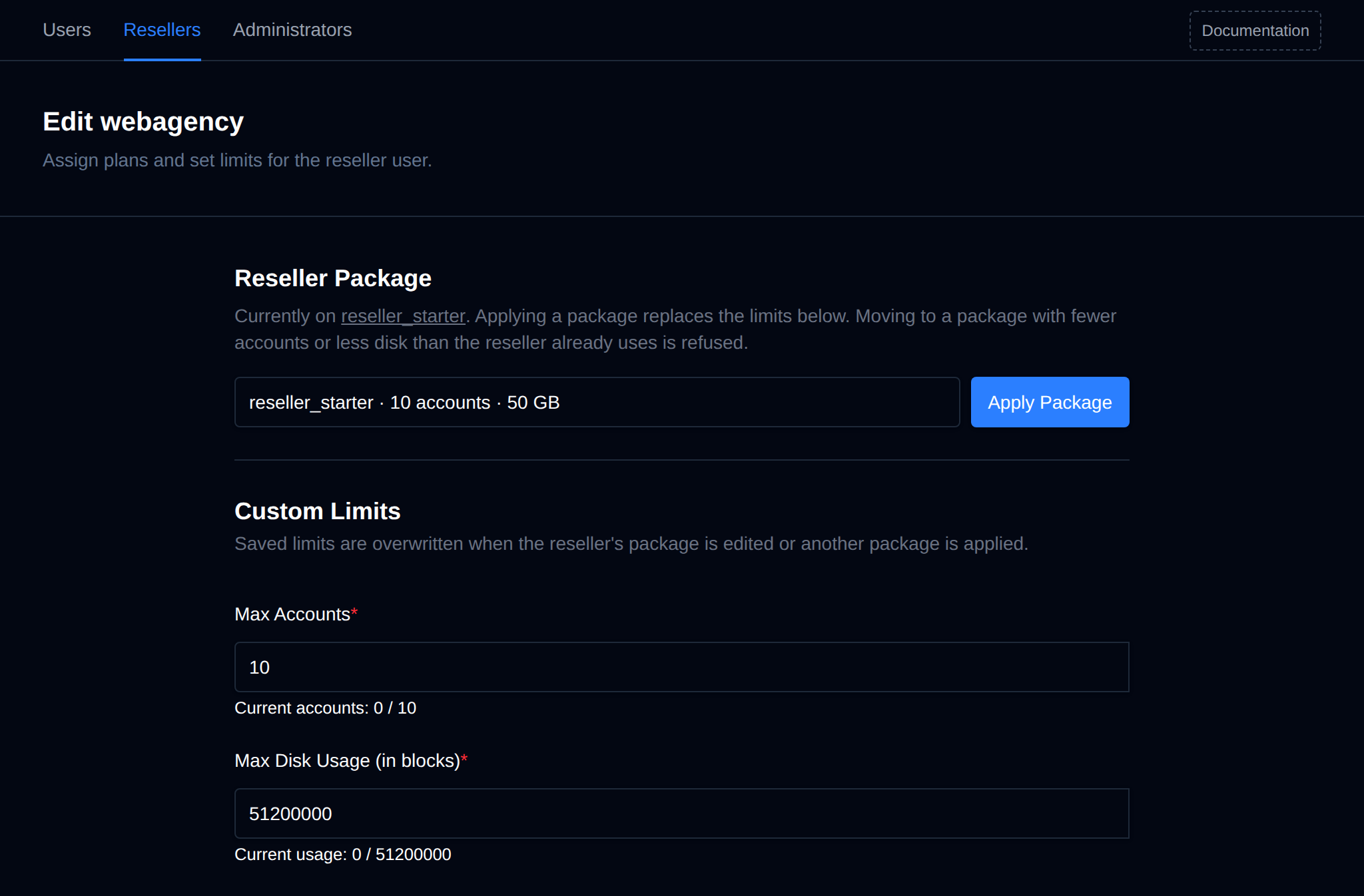
```bash
opencli admin update --plan=
```
```bash
curl -X POST https://SERVER:2087/api/settings/resellers \
-H "Authorization: Bearer TOKEN_HERE" -H "Content-Type: application/json" \
-d '{"action":"change_plan","username":"reseller1","plan":"reseller_pro"}'
```
Limits changed by hand on **Edit Plans & Limits** stay until the reseller's package is edited or another package is applied, then they're replaced by the package's limits.
## How limits are enforced
- **Max Accounts** - the reseller can't create a new user, and no user can be moved to them, once they have this many accounts.
- **User Packages** - users of the reseller can only be created on, or changed to, the allowed packages. This also applies when an administrator does it for the reseller.
- **Max Disk Usage** - a soft limit. Once the reseller's users together reach it, the reseller can't create new users, users can't be moved to them, and their users can't be changed to a package with more disk space. Existing accounts keep working. Disk usage is recalculated by the [files-calculate_resellers_storage](/docs/articles/server/openadmin-system-crons/#files-calculate_resellers_storage) cron job, so it can take a while to catch up.
---
// File: admin/plans/feature-manager
# Feature Manager
The Feature Manager allows administrators to enable or disable specific features (pages) within the OpenPanel UI. This is useful for customizing the control panel experience based on user roles, security policies, or hosting plans.
Enabled/disabled features are grouped into **Feature Sets** - named collections of toggles that are then assigned to a [hosting plan](/docs/admin/plans/hosting_plans). Each feature set is its own list, so different plans can expose a different set of pages to their users.
## Navigating the Feature Manager
Go to **OpenAdmin > Hosting Plans > Feature Manager**. The index page has two sections:
* **Create** - type a name and click **Create** to create a new, empty feature set.
* **Manage** - pick an existing feature set from the **Manage feature set** dropdown to open and edit it.
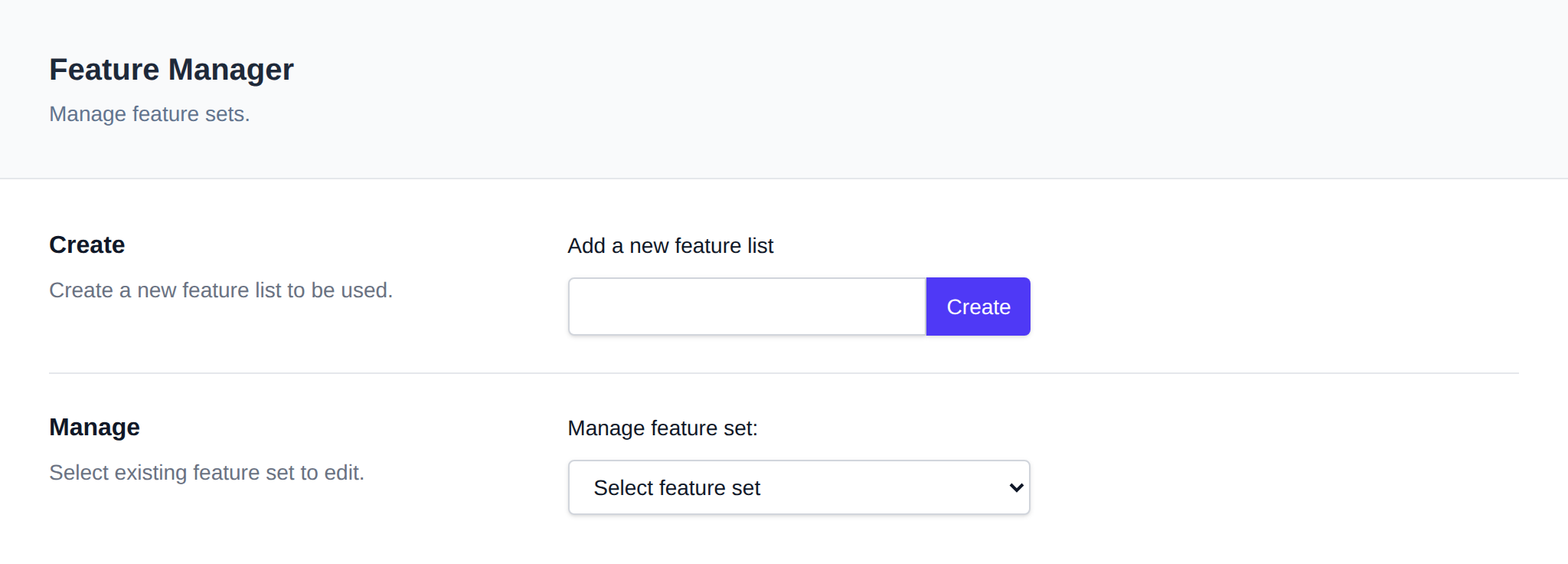
Selecting or creating a feature set opens its edit page, where every available feature is listed in a table:
| Column | Description |
| ---------- | ----------------------------------------------------------------------------- |
| **Status** | Toggle switch to enable/disable the feature for this feature set. |
| **Name** | Feature title and a short description. |
| **Type** | `Community`, `Enterprise`, or `Beta`. Enterprise features can only be toggled on when an Enterprise license is active - otherwise the toggle is disabled. |
| **Page** | The OpenPanel page/route the feature controls. |
| **Module** | Whether the underlying [module](/docs/admin/settings/modules/) is enabled. If it shows **Disabled**, the feature has no effect for users even when toggled on here - click it to go enable the module. |
Use the search box to filter features by name or description, and **Enable All** / **Disable All** to toggle every feature at once. Click **Save** to apply your changes - they take effect for users on plans assigned to this feature set right away. The **default** feature set cannot be deleted, and a feature set that is currently assigned to a hosting plan cannot be deleted either.
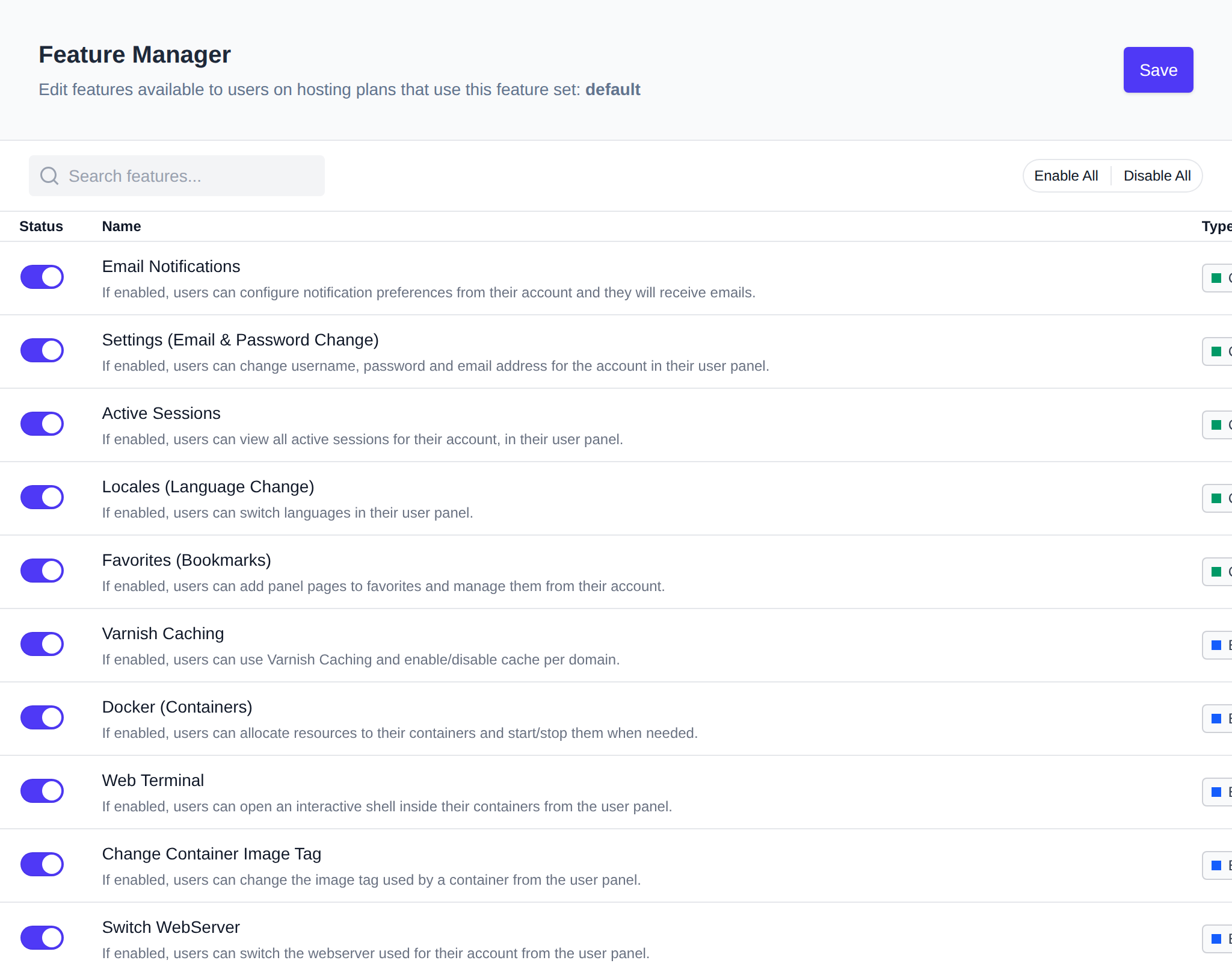
---
## Available Features
| **Name** | **Page** | **Type** | **Description** |
| --- | --- | --- | --- |
| Email Notifications | `/account/notifications` | Community | Users can configure notification preferences from their account and they will receive emails. |
| Settings (Email & Password Change) | `/account` | Community | Users can change username, password and email address for the account in their user panel. |
| Active Sessions | `/account/sessions` | Community | Users can view all active sessions for their account, in their user panel. |
| Locales (Language Change) | `/account/language` | Community | Users can switch languages in their user panel. |
| Favorites (Bookmarks) | `/account/favorites` | Community | Users can add panel pages to favorites and manage them from their account. |
| Varnish Caching | `/cache/varnish` | Enterprise | Users can use Varnish Caching and enable/disable cache per domain. |
| Docker (Containers) | `/containers` | Enterprise | Users can allocate resources to their containers and start/stop them when needed. |
| Web Terminal | `/containers/terminal` | Enterprise | Users can open an interactive shell inside their containers from the user panel. |
| Change Container Image Tag | `/containers/image/change` | Enterprise | Users can change the image tag used by a container from the user panel. |
| Switch WebServer | `/containers/webserver` | Enterprise | Users can switch the webserver used for their account from the user panel. |
| Switch MySQL Type | `/containers/mysql` | Enterprise | Users can switch between MySQL, MariaDB and Percona for their account from the user panel. |
| FTP accounts | `/ftp` | Enterprise | Users can create and manage FTP accounts. The FTP server must be configured separately. |
| Webmail (Roundcube) | `/webmail` | Enterprise | Users can auto-login to webmail (Roundcube) for email accounts. The Roundcube service must be configured separately. |
| Email accounts | `/emails` | Enterprise | Users can create and manage email accounts. The mail server must be configured separately. |
| Email Deliverability | `/emails/deliverability` | Enterprise | Users can check SPF, DKIM and DMARC for their domains. |
| Email Filters | `/emails/filter` | Enterprise | Users can configure filters and forwarders for their emails. |
| Email Aliases | `/emails/aliases` | Enterprise | Users can manage aliases (forward from a non-existing address). |
| Address Importer | `/emails/import` | Enterprise | Users can import email addresses from a CSV file. |
| Email Migration | `/emails/migrate` | Enterprise | Users can copy emails from another IMAP server into their email accounts. |
| Address Exporter | `/emails/export` | Enterprise | Users can export email addresses into a CSV file. |
| Default Address | `/emails/default` | Enterprise | Users can create default (catch-all) email addresses. |
| MySQL | `/mysql` | Community | Users can manage MySQL databases and users. |
| Remote MySQL | `/mysql/remote-mysql` | Community | Users can enable/disable remote access to MySQL databases. |
| Import MySQL Databases | `/mysql/import` | Community | Users can import .sql files into MySQL databases from their user panel. |
| MySQL Configuration | `/mysql/configuration` | Community | Users can edit MySQL configuration from their user panel. |
| MySQL Process List | `/mysql/processlist` | Community | Users can view the MySQL processlist from the user panel. |
| MySQL Root Password | `/mysql/root-password` | Community | Users can change the password for their MySQL root user from the user panel. |
| MongoDB | `/mongodb` | Enterprise | Users can manage MongoDB databases. |
| Import MongoDB Databases | `/mongodb/import` | Enterprise | Users can import files into MongoDB databases from their user panel. |
| PostgreSQL | `/postgresql` | Enterprise | Users can manage PostgreSQL databases and users. |
| Remote PostgreSQL | `/postgresql/remote-postgresql` | Enterprise | Users can enable/disable remote access to PostgreSQL databases. |
| Import PostgreSQL Databases | `/postgresql/import` | Enterprise | Users can import .sql files into PostgreSQL databases from their user panel. |
| PostgreSQL Configuration | `/postgresql/configuration` | Enterprise | Users can edit PostgreSQL configuration from their user panel. |
| PHP | `/php` | Community | Users can change the PHP version for domains, set limits, and set the default version for new domains. |
| PHP Options | `/php/options` | Community | Users can edit configured `php.ini` directives using the Options page. |
| PHP.INI Editor | `/php/php_ini_editor` | Community | Users can directly edit the `php.ini` file for any PHP version. |
| PHP Extensions | `/php/extensions` | Enterprise | Users can manage extensions for their PHP versions. |
| phpMyAdmin | `/mysql/phpmyadmin` | Community | Users can manage phpMyAdmin and use it to connect to their MySQL databases. |
| Cronjobs | `/cronjobs` | Community | Users can configure cronjobs. |
| Backups | `/backups` | Enterprise | Users can configure backups. |
| Backup Wizard | `/backup-wizard` | Community | Users can generate and download a full account backup. |
| WordPress | `/wordpress` | Community | WordPress can be installed via the AutoInstaller and users can manage sites with the WP Manager. |
| Drupal | `/drupal/install` | Enterprise | Drupal can be installed using the Autoinstaller and users can use the Site Manager to manage websites. |
| Flarum | `/flarum/install` | Enterprise | Flarum can be installed using the Autoinstaller and users can use the Site Manager to manage websites. |
| SofaWiki | `/sofawiki/install` | Enterprise | SofaWiki can be installed using the Autoinstaller and users can use the Site Manager to manage websites. |
| TinyPhotoGallery | `/tinyphotogallery/install` | Community | TinyPhotoGallery can be installed using the Autoinstaller and users can use the Site Manager to manage websites. |
| TinyFileManager | `/tinyfilemanager/install` | Community | TinyFileManager can be installed using the Autoinstaller and users can use the Site Manager to manage websites. |
| OJS | `/ojs/install` | Enterprise | Open Journal Systems can be installed using the Autoinstaller and users can use the Site Manager to manage websites. |
| MediaWiki | `/mediawiki/install` | Enterprise | MediaWiki can be installed using the Autoinstaller and users can use the Site Manager to manage websites. |
| DokuWiki | `/dokuwiki/install` | Community | DokuWiki can be installed using the Autoinstaller and users can use the Site Manager to manage websites. |
| phpBB | `/phpbb/install` | Community | phpBB can be installed using the Autoinstaller and users can use the Site Manager to manage websites. |
| OpenCart | `/opencart/install` | Enterprise | OpenCart can be installed using the Autoinstaller and users can use the Site Manager to manage websites. |
| PrestaShop | `/prestashop/install` | Enterprise | PrestaShop can be installed using the Autoinstaller and users can use the Site Manager to manage websites. |
| NextCloud | `/nextcloud/install` | Community | NextCloud can be installed using the Autoinstaller and users can use the Site Manager to manage websites. |
| Matomo | `/matomo/install` | Community | Matomo can be installed using the Autoinstaller and users can use the Site Manager to manage websites. |
| Moodle | `/moodle/install` | Enterprise | Moodle can be installed using the Autoinstaller and users can use the Site Manager to manage websites. |
| Joomla | `/joomla/install` | Enterprise | Joomla Content Management System (CMS) can be installed using the Autoinstaller and managed via Site Manager. |
| Website Builder | `/website-builder` | Community | Users can create HTML websites using the GrapesJS drag-and-drop editor. |
| Python Applications | `/python` | Enterprise | Containerized Python applications can be set up from the AutoInstaller. |
| NodeJS Applications | `/nodejs` | Enterprise | Containerized NodeJS applications can be set up from the AutoInstaller. |
| Ruby Applications | `/ruby` | Enterprise | Containerized Ruby applications can be setup from the Autoinstaller. |
| Java Applications | `/java` | Enterprise | Containerized Java applications can be setup from the Autoinstaller. |
| AutoInstaller | `/auto-installer` | Community | Users can use the Auto-Installer page to manage websites and install applications. |
| n8n | `/n8n` | Enterprise | n8n can be set up from the Autoinstaller. |
| Disk Usage Explorer | `/disk-usage` | Enterprise | Users can access the Disk Usage page to browse current disk usage per directory. |
| Inodes Explorer | `/inodes-explorer` | Enterprise | Users can access the Inodes Usage page to browse current inode usage per directory. |
| Resources Usage | `/server/usage` | Community | Docker stats are collected for containers and users can browse the data on the Resource Usage page. |
| Server Info | `/server/info` | Community | Users can view their hosting plan limits and server information on the Server Information page. |
| Webserver Configuration | `/server/webserver_conf` | Community | Users can edit the Nginx/Apache configuration for their webserver containers. |
| Coraza WAF | `/waf` | Enterprise | Coraza WAF is automatically enabled for new domains, and users can enable/disable protection per domain. |
| File Manager | `/files` | Community | Users have access to the File Manager to manage website files (`/var/www/html/`). Disable this feature for 'Email-only' or 'DNS-only' plans. |
| Trash | `/files.trash` | Enterprise | Users can view and manage the Trash folder. |
| ClamAV (Malware Scanner) | `/malware-scanner` | Enterprise | The ClamAV service is started and users can run scans against their files. |
| Fix Permissions | `/fix-permissions` | Community | Users have access to the Fix Permissions tool to change owner and permissions for website files. |
| Git | `/git` | Enterprise | Users can deploy websites from Git repositories: clone from GitHub, GitLab or Bitbucket, or push to repositories hosted on the server over HTTPS. |
| AI Assistant | `` | Enterprise | Users get an AI chat assistant in the top bar that answers questions using the OpenPanel documentation and, if allowed on Settings > OpenPanel, looks things up or makes changes in their account after they approve them. |
| DNS | `/domains/edit-dns-zone` | Community | BIND9 runs locally and a DNS zone is created for new domains. Users manage records via the Zone Editor. |
| Dynamic DNS | `/domains/dynamic-dns` | Enterprise | Users can create subdomains that are updated via webhooks. |
| Domain Redirects | `/domains/redirect` | Enterprise | Users can create and manage redirects for their domains. |
| Edit VirtualHosts | `/domains/vhosts` | Enterprise | Users can edit Virtual Host files for their domains. |
| Domains | `/domains` | Community | Users can add and manage domains. Disable this feature for 'Email-only' or 'DB-only' plans. |
| Suspend domains | `/domains/suspend` | Enterprise | Users can suspend a domain to temporarily disable website access. |
| SSL | `/domains/ssl` | Community | Users can view SSL configuration for domains and add custom certificates. |
| Docroot | `/domains/docroot` | Community | Users can set and change the document root (folder) for their domains. |
| Capitalize Domains | `/domains/capitalize` | Enterprise | Users can capitalize letters in their domain names. |
| Domain Logs | `/domains/log` | Community | Users can view raw webserver access logs for their domains. |
| GoAccess | `/domains/stats` | Community | GoAccess runs on a schedule to generate HTML reports from domain logs, viewable from the Domain Logs page. |
| Error Logs | `/error-logs` | Community | Users can view PHP, webserver, database and HTTP 5xx errors for their websites from a single Error Logs page. |
| Daily Summary | `/summary` | Community | A summary of each day is saved for users: what needs their attention with links to fix it, website traffic, logins and account changes. Users can also get it by email. |
| Process Manager | `/process-manager` | Community | Users can view/kill processes from the Process Manager page. |
| Redis | `/cache/redis` | Community | Users can configure Redis from their user panel. |
| Valkey | `/cache/valkey` | Community | Users can configure Valkey from their user panel. |
| Memcached | `/cache/memcached` | Community | Users can configure Memcached from their user panel. |
| Services | `/services` | Community | Users can start/stop and view logs for any service. |
| Elasticsearch | `/cache/elasticsearch` | Community | Users can configure Elasticsearch from their user panel. |
| Opensearch | `/cache/opensearch` | Community | Users can configure Opensearch from their user panel. |
| Temporary Links | `/sites` | Enterprise | Users can test websites using temporary OpenPanel subdomains. Links expire after 15 minutes. |
| Login History | `/account/login-history` | Community | Users can view recent logins to their account, the number kept is set by the admin. |
| 2FA | `/account/2fa` | Community | Users can enable Two-Factor Authentication (2FA) for their account. |
| Passkeys | `/account/passkeys` | Enterprise | Users can configure Passkeys for their account. |
| Activity Log | `/account/activity` | Community | Users can browse all recorded actions for their account. |
| IP Blocker | `/security/ip-blocker` | Enterprise | Users can block IP addresses from accessing their websites. |
| API | `/api/login` | Enterprise | Users can use JWT tokens to perform panel actions via the API. |
| MCP | `/account/mcp` | Enterprise | Users can use the MCP server to perform panel actions. |
:::info
Enterprise-type features can only be enabled while the server has an active Enterprise license - on Community licenses their toggle is disabled (grayed out) in the Feature Manager.
:::
## Use Cases
**Feature Sets** are used to control which UI features users can access based on their assigned hosting package. This allows for clear separation between user types and service levels.
### Example 1: Database-Only Plans
Create a feature set named **"MySQL Only"** and enable only MySQL-related features within it.
Assign this feature set to all database-focused hosting packages. For instance:
* One package allows up to **10 databases**.
* Another package allows **unlimited databases** (`0` for no limit).
Despite the difference in limits, all users under these plans will see **only MySQL-related pages** in the UI.
### Example 2: Beginner vs. Advanced Users
Create two separate feature sets:
* **Advanced Users Set**:
Enable features like **Docker** and **PHP.INI Editor** to give experienced users full control—such as setting custom resource limits, restarting services, etc.
* **Beginner Users Set**:
Do **not** enable advanced features. Instead, allow access to a **PHP selector** with limited options. This keeps the UI simple and safe for users with minimal technical experience.
## Feature not showing?
Features are accessible to users [only if the corresponding **Module** is active](/docs/admin/settings/modules/). Modules control which OpenPanel features are available, while **Feature Sets** determine access based on the user's hosting package.
For example, adding the "Docker" feature to a feature set does **not** grant access to the Docker (Containers) page in the UI unless the **Docker module** is also activated under **OpenAdmin > Settings > Modules**. The **Module** column on the feature set's edit page shows the current status of each feature's module, and links straight to the Modules page when it's disabled.
Also double check that the feature's **Type** isn't `Enterprise` while running on a Community license - Enterprise features cannot be toggled on without an active Enterprise license.
---
// File: admin/security/firewall
# Firewall
OpenPanel supports [Sentinel Firewall](https://sentinelfirewall.org/) - a fork of the *ConfigServer Security and Firewall* (CSF).
## CSF
Firewall (CSF) UI is displayed on **OpenAdmin > Security > Firewall**.
For instructions on how to use the CSF UI, please refer to [Sentinel Firewall official documentation](https://sentinelfirewall.org/docs/usage/introduction/).
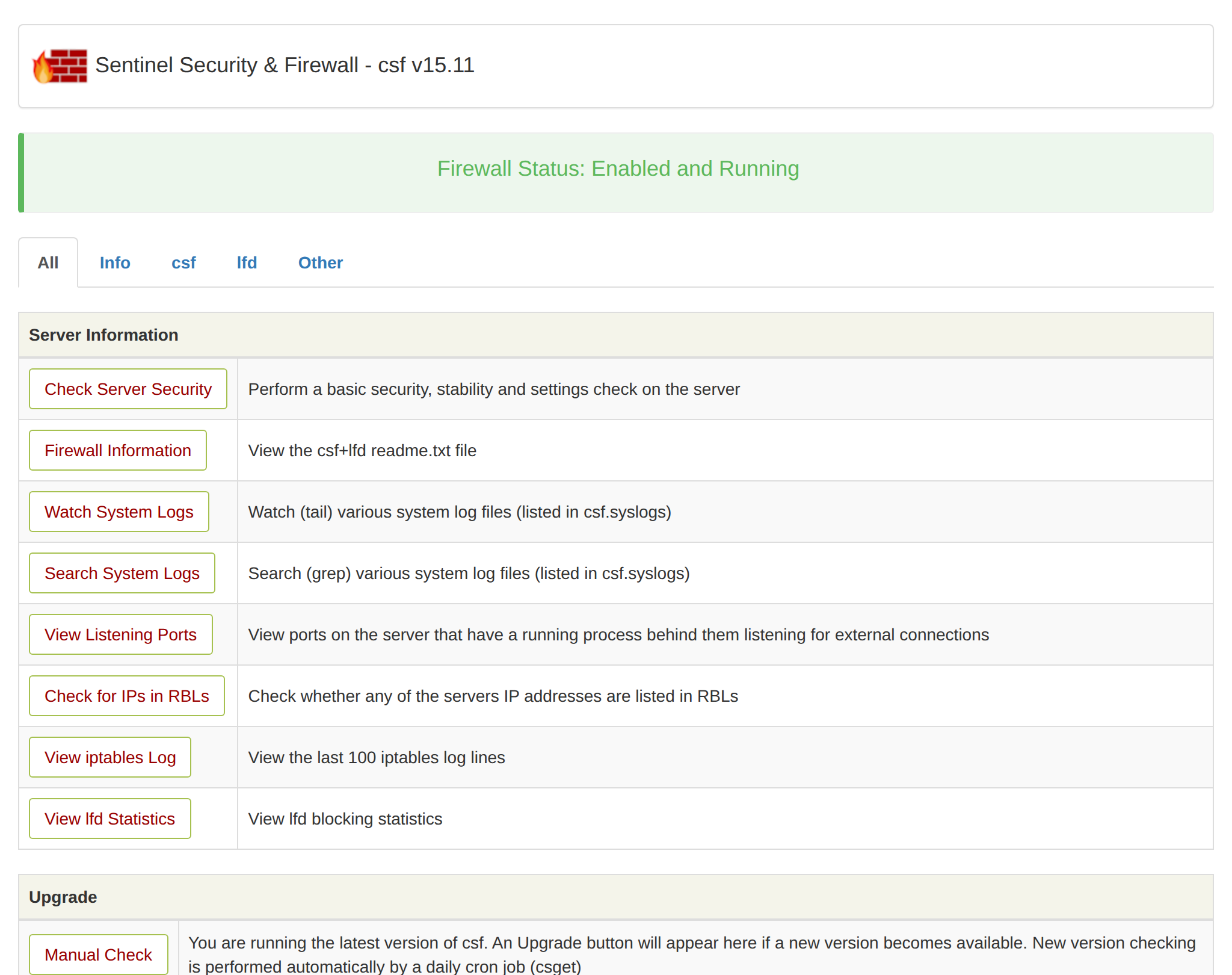
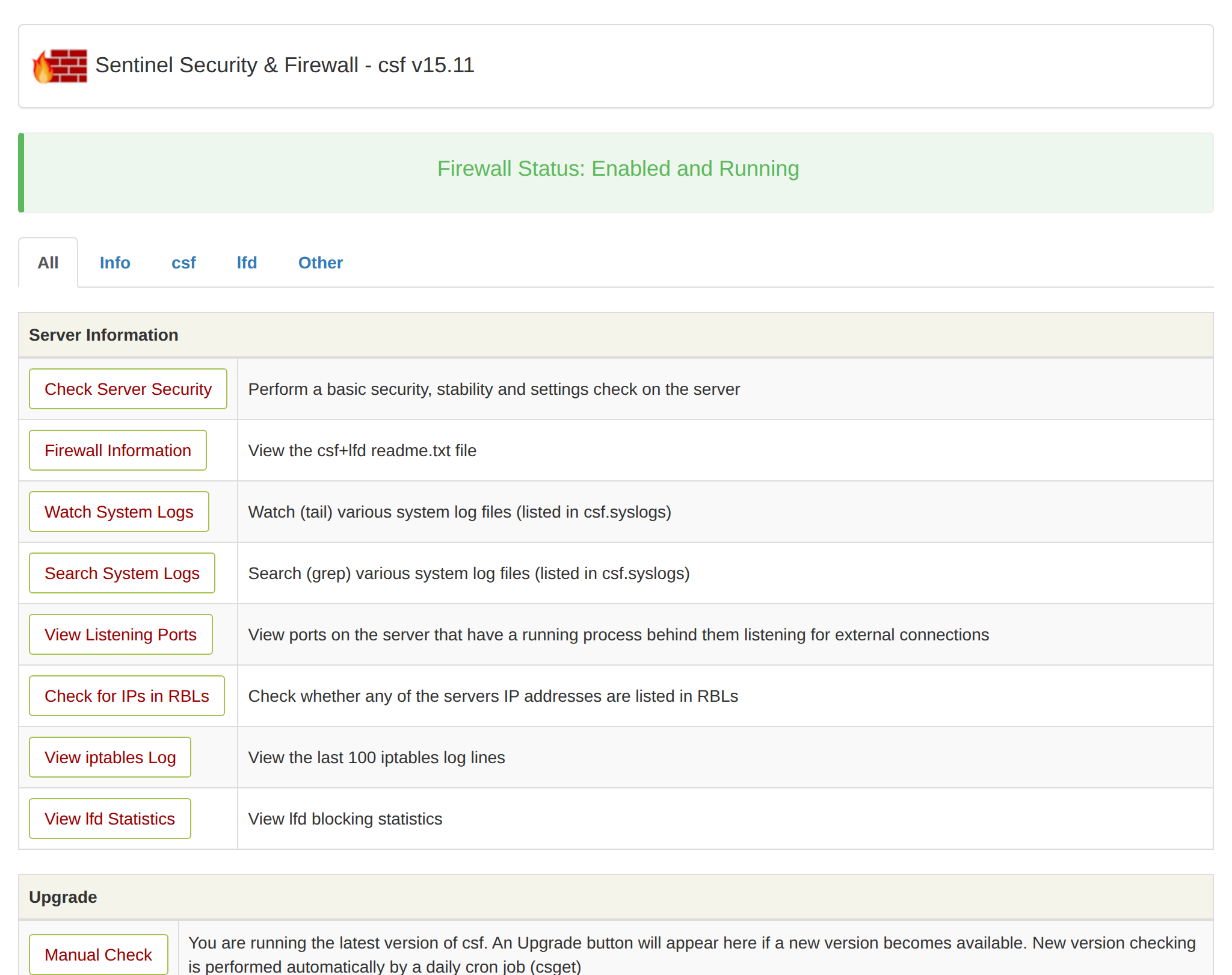
## External Firewall
Some cloud providers, like [Hetzner](https://docs.hetzner.com/robot/dedicated-server/firewall/), offer their own external firewalls. If you are using an external firewall, ensure the following ports are open for OpenPanel services to be accessible: `53` `80` `443` `2083` `2087` `32768:60999`
If you are [using a custom port for OpenPanel instead of the default 2083](/docs/admin/settings/general/#ports), ensure that port is open as well.
---
// File: admin/security/waf
# Web Firewall (Coraza)
The **Security > Web Firewall (Coraza)** page manages CorazaWAF, the Web Application Firewall built into OpenPanel. It inspects every request to your users' websites and blocks common attacks such as SQL injection, cross-site scripting (XSS) and access to restricted files, using the [OWASP Core Rule Set](https://coreruleset.org/) (CRS).
The page has four tabs:
- **[Overview](#overview)** – turn the firewall on or off, update the rules, manage app profiles and see which domains are attacked the most.
- **[Rules](#rules)** – enable or disable whole rule sets, and turn off single rules on every domain.
- **[Domains](#domains)** – change the firewall mode and disabled rules of one domain, or of all domains of a user.
- **[Logs](#logs)** – see what the firewall blocked, for the whole server, one user or one domain.
The **Documentation** button on each tab opens the part of this page about that tab.
## Overview
The Overview tab shows the state of the firewall at a glance:
- **Module** – whether CorazaWAF is enabled.
- **Domains** – how many domains have a WAF config, and how many of them are in each mode: protect, monitor only or off.
- **Rule sets** – active rule sets out of all installed ones, and how many rules and tags are [disabled on all domains](#disabled-on-all-domains).
- **Recent requests stopped** – requests blocked in the newest 500 log entries of each domain, plus the ones that would have been blocked by domains in monitor only mode and the ones that were only flagged.
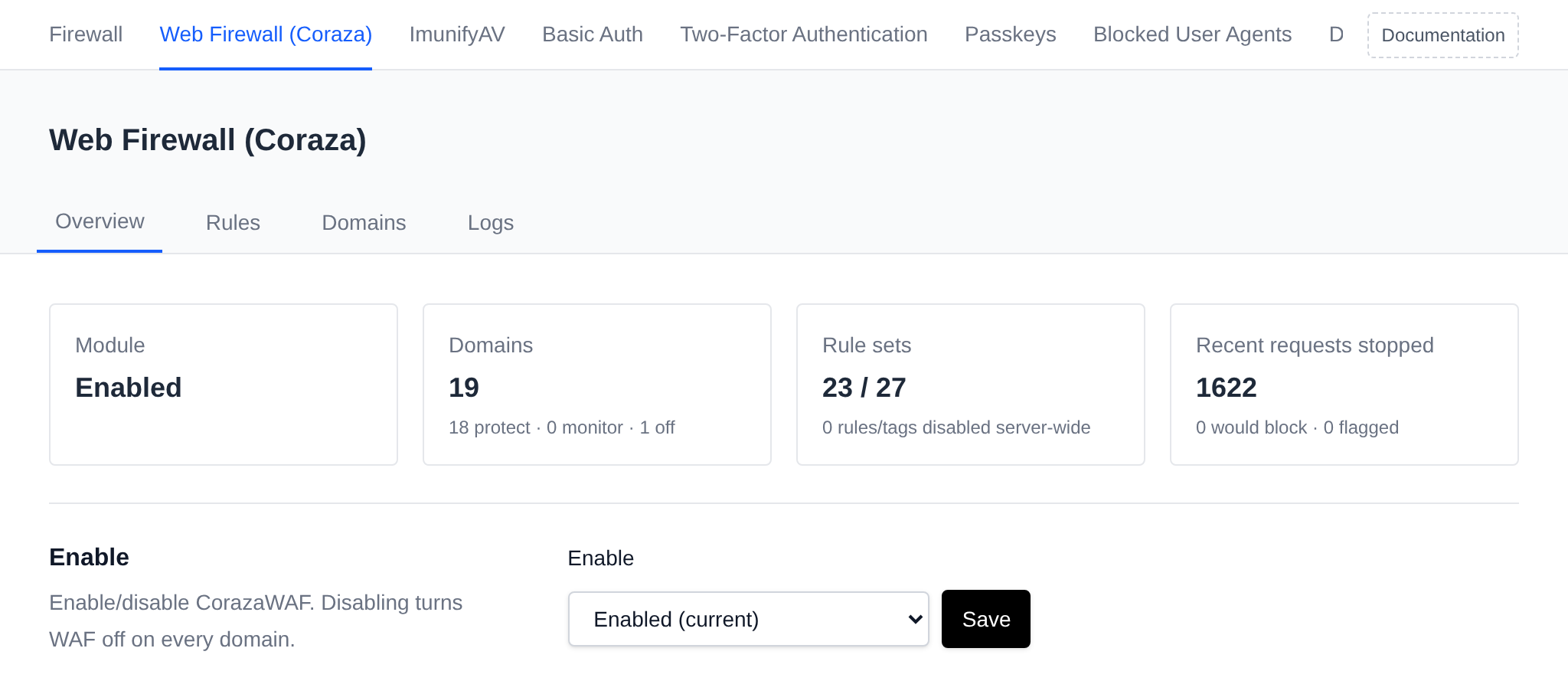
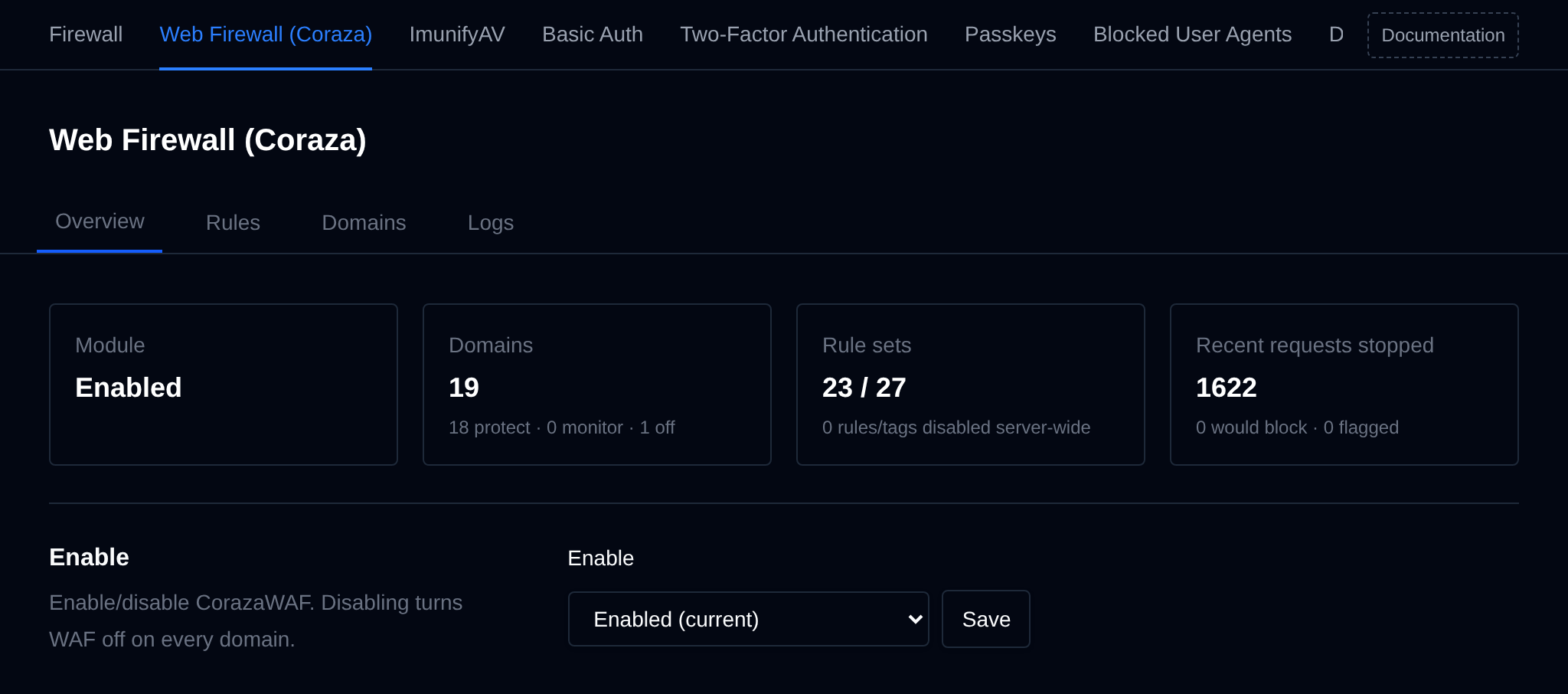
### Enable
Pick **Enabled** or **Disabled** and click **Save** next to the dropdown.
- **Enabled** runs `opencli waf enable`: it downloads the rules and app profiles, enables [the WAF module](/docs/admin/settings/modules/#waf) so users can manage the firewall, turns the firewall on for every domain (except domains of users turned off with [`opencli waf user USERNAME disable`](/docs/articles/opencli/waf/#user)) and restarts the web server with the Coraza image. New domains get the firewall automatically.
- **Disabled** runs `opencli waf disable -y`: it disables the WAF module and turns the firewall off on all existing and new domains.
While **Disabled** is selected, a recommendation to enable it is shown, since the WAF blocks common attacks like SQL injection and XSS before they reach user sites.
### OWASP Core Rule Set
Shows the installed CRS version. OpenAdmin checks GitHub for new rules in the background every few hours, and **Check for updates** checks right away.


When the rules are up to date, only the installed version and the time of the last check are shown. When updates are available, the section lists the incoming changes and shows an **Update rules** button. It runs `opencli waf update`, which pulls the new CRS rules and app profiles and reloads the web server. Rule sets you [disabled](#rule-sets) stay disabled after an update.
### App profiles
App profiles are the official CRS rule exclusion plugins for popular apps. Users turn them on per domain in OpenPanel, to stop false blocks when they edit posts, upload files or save settings in that app.
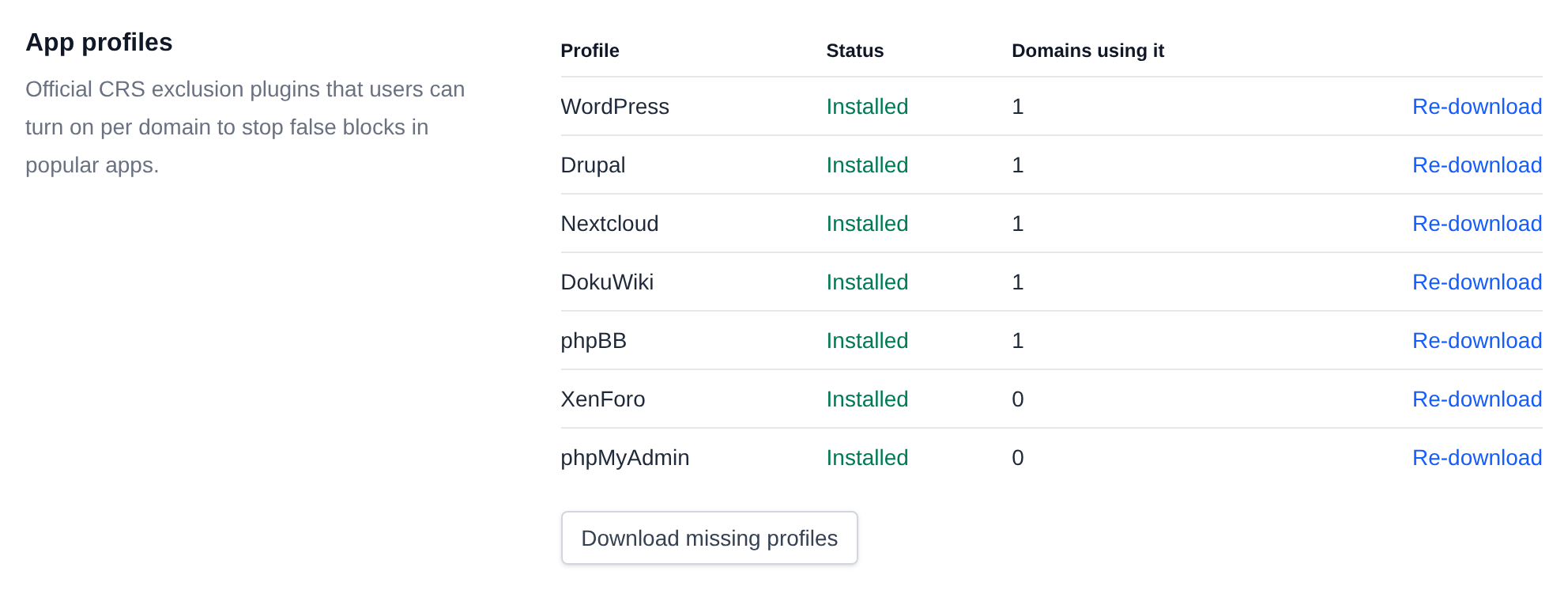
The table lists WordPress, Drupal, Nextcloud, DokuWiki, phpBB, XenForo and phpMyAdmin with:
- **Status** – **Installed**, or **Missing** when the plugin wasn't downloaded.
- **Domains using it** – how many domains have the profile turned on.
- **Re-download** (or **Download** for a missing one) – downloads the plugin again, for example when its files were changed or deleted. If the download fails, the old copy is kept, so domains using the profile keep working.
When any profile is missing, a recommendation to install them is shown above the table.
**Download missing profiles** downloads every profile that isn't installed yet.
### Most hit domains
The domains blocked the most and the rules that blocked the most requests, from the newest 500 log entries of each domain. Click a domain to open [its logs](#logs-of-a-user-or-domain), or **View all logs** to open the [Logs](#logs) tab.
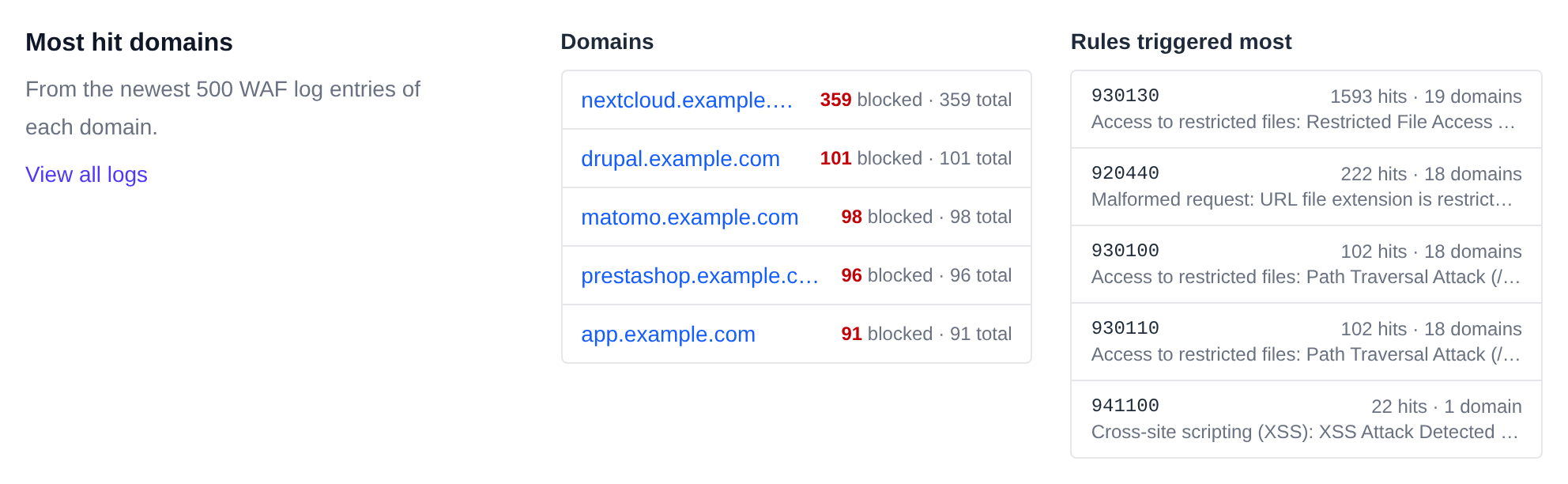
## Rules
The Rules tab manages the rule sets from the OWASP Core Rule Set and the rules turned off on all domains.
### Rule sets
Each rule set is a file of rules for one kind of attack, like `REQUEST-942-APPLICATION-ATTACK-SQLI`. The table shows:
- **Name** – the rule set name, hover it to see the file path.
- **Number of Rules** – the number of lines in the rule set.
- **Status** – **Enabled** or **Disabled**.
- **Actions** – **View** opens the rule set's contents, and **Enable** or **Disable** toggles it.
`REQUEST-901-INITIALIZATION` shows **Required** instead of a toggle: every other rule set depends on it, so without it every request would be blocked.
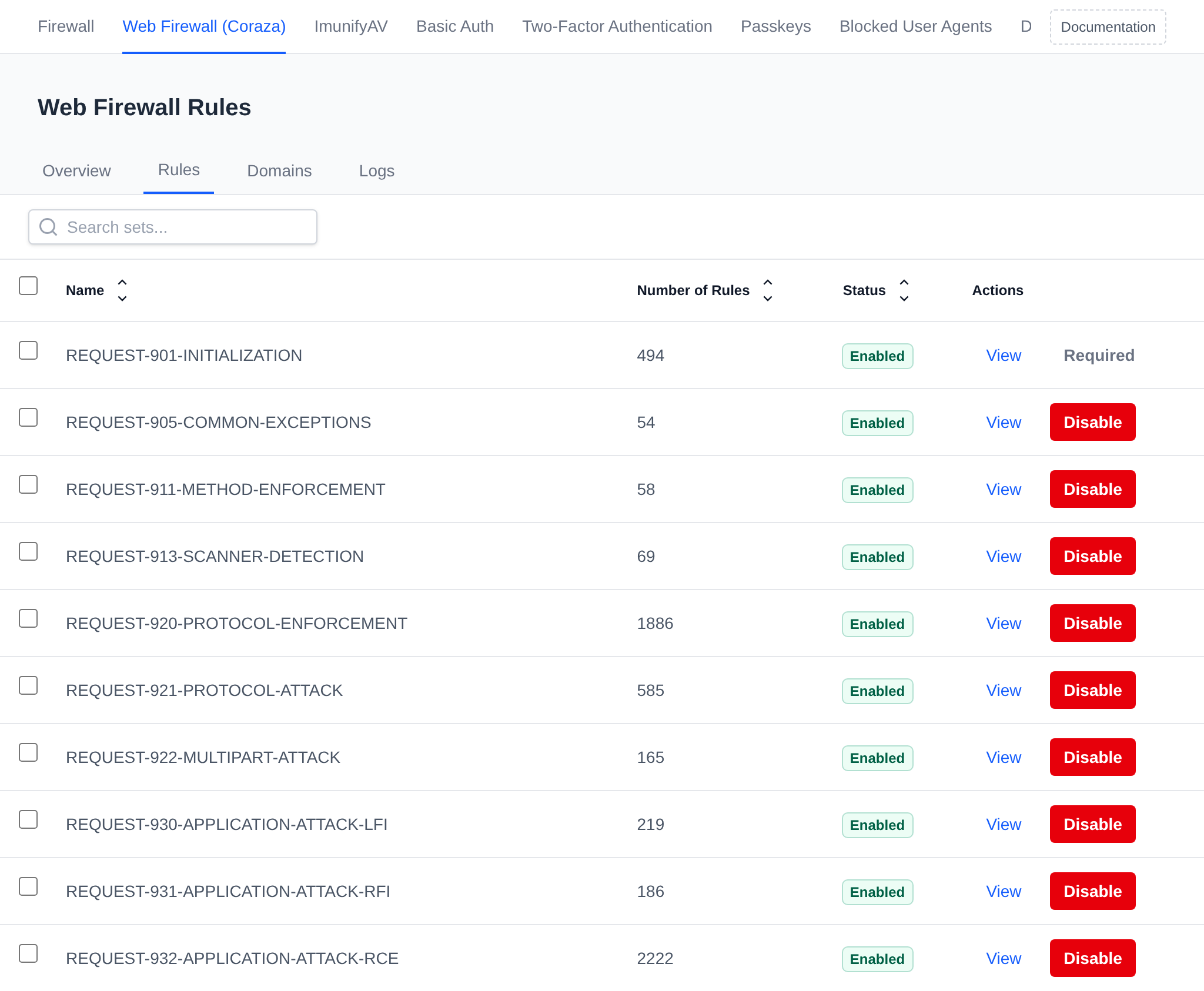
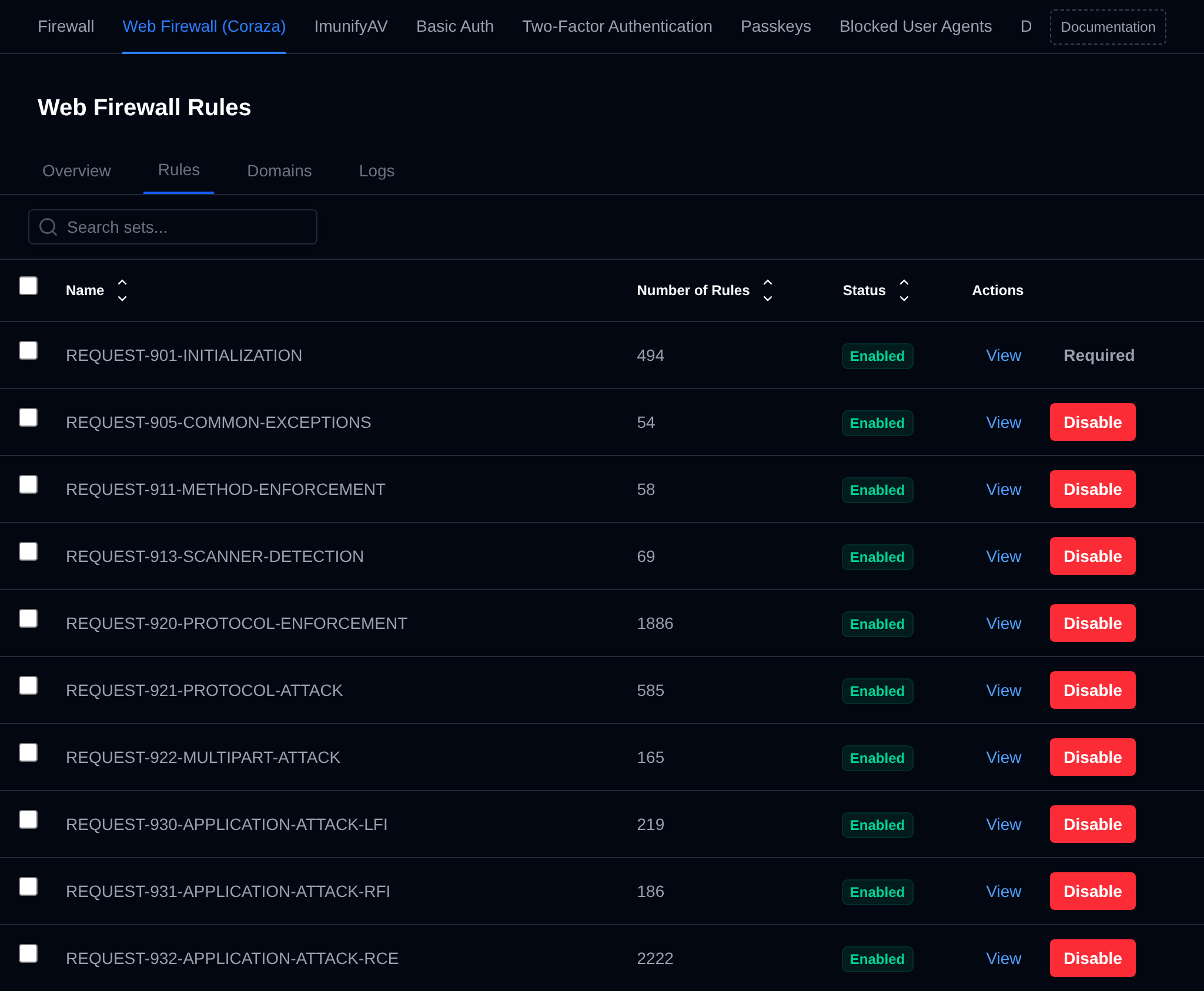
Click a column header to sort the table, and use the search box to find a rule set by name. Restart Caddy after enabling or disabling rule sets to apply the changes.
### Bulk Actions
Tick the checkbox of one or more rule sets, or the checkbox in the table header to select all rule sets shown by the current search. A bar appears at the bottom of the page with the number selected, a **Clear** link and these actions:
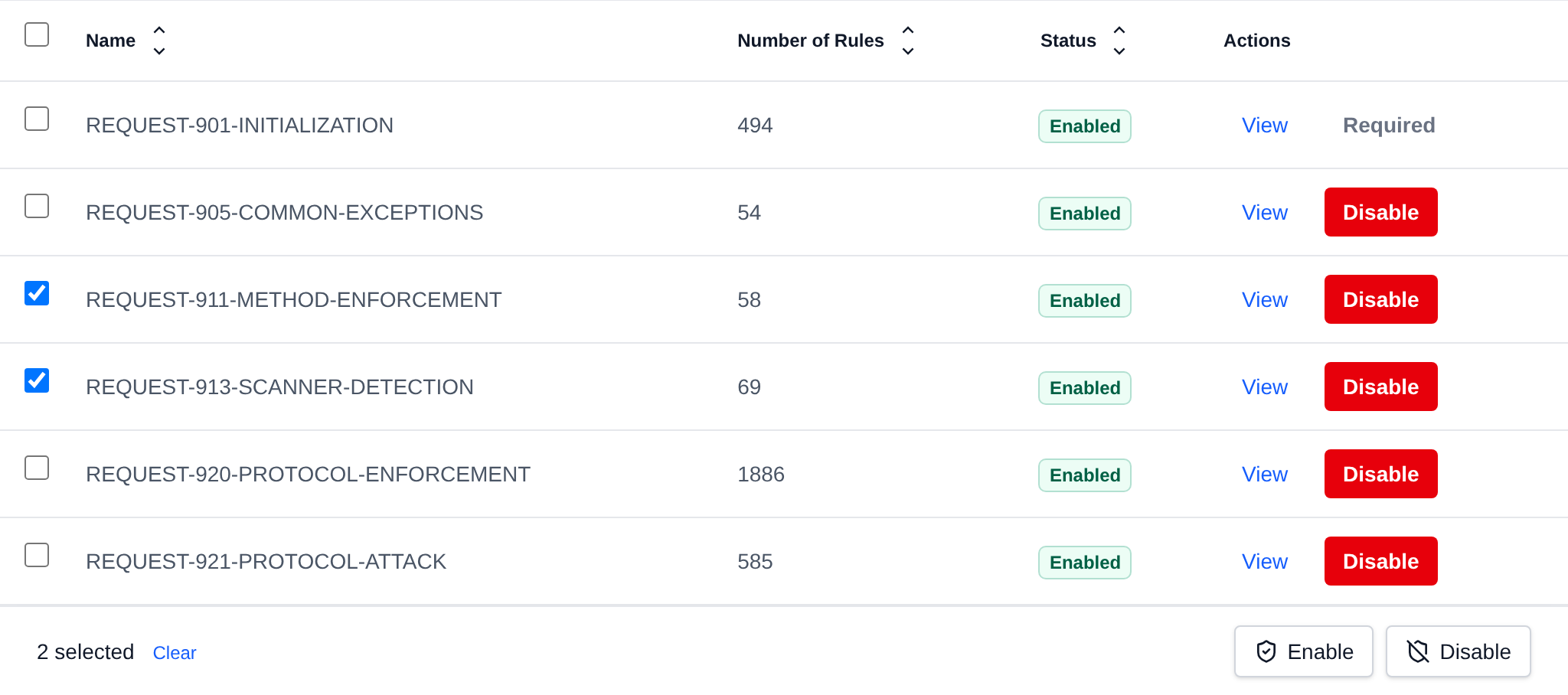
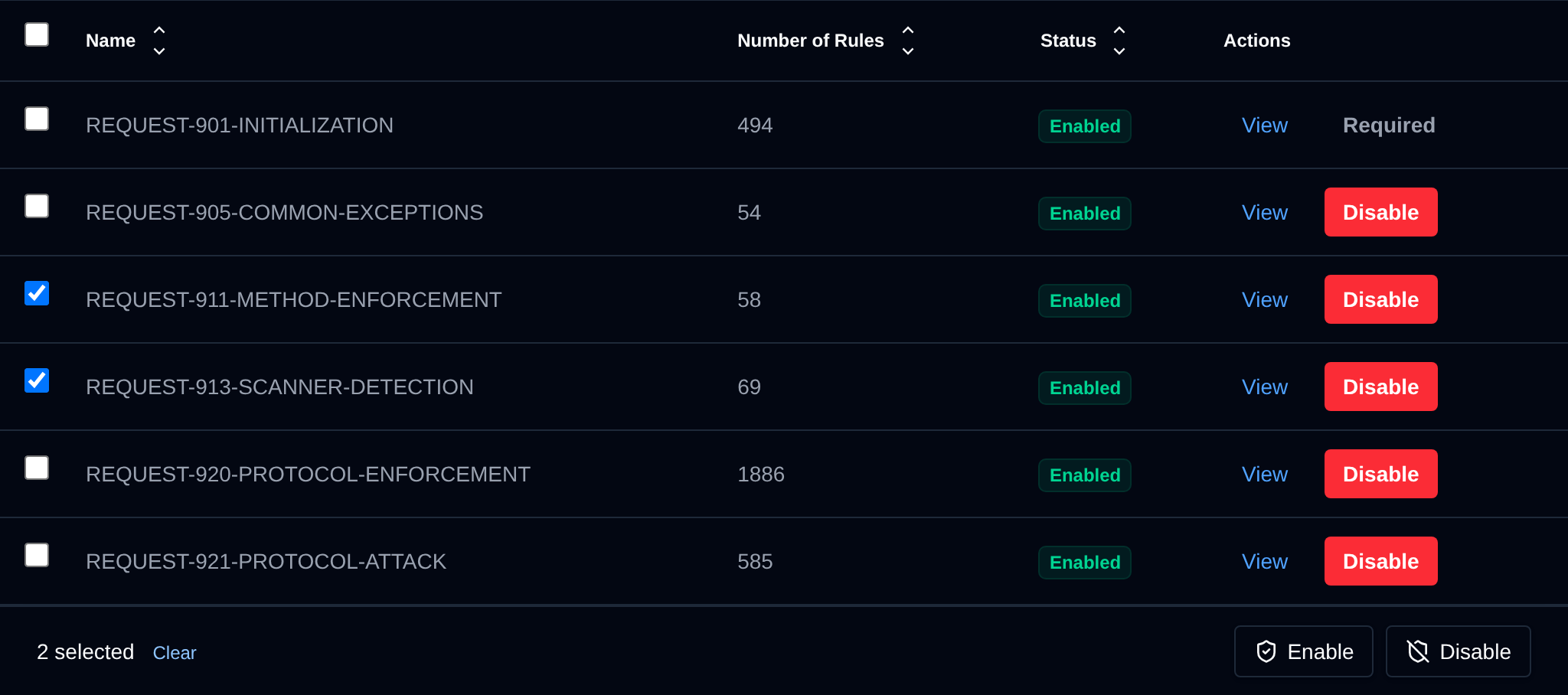
| Action | What it does |
|---|---|
| **Enable** | Enables the selected rule sets. |
| **Disable** | Disables the selected rule sets. |
Click an action, confirm it, and it runs on the selected rule sets one after another. When it's done the page reloads with a notice listing the rule sets it worked for, or which ones failed and why.
### Disabled on all domains
Turn off single rules or whole tags on every domain on the server, for example a rule that blocks normal visitors on most of your sites.
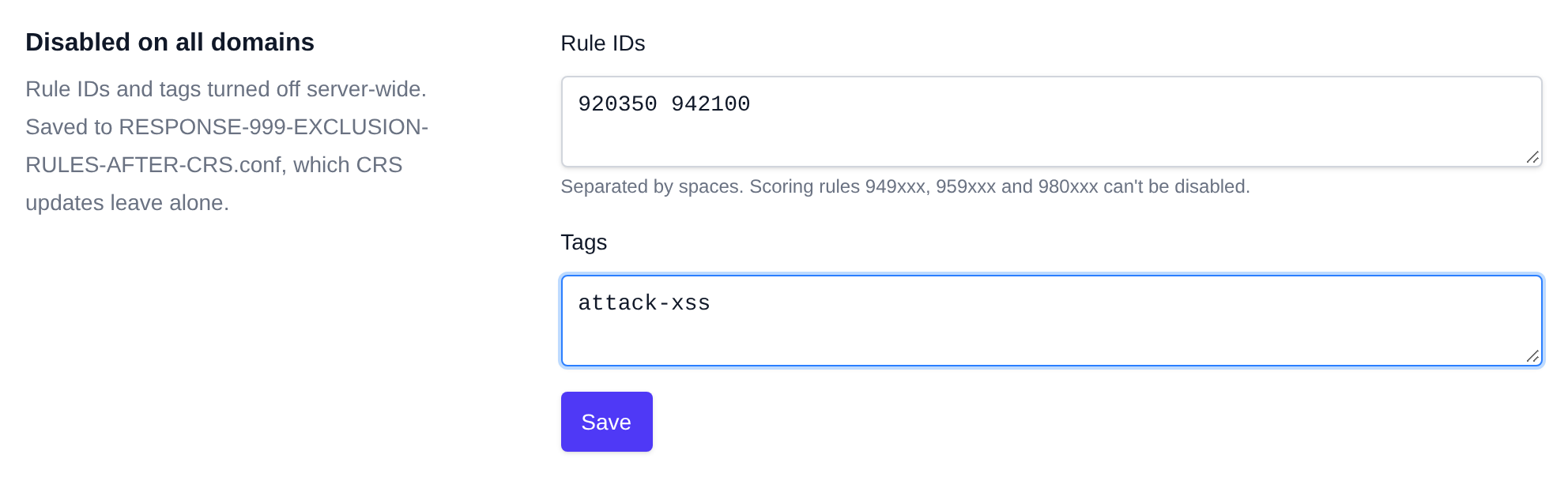
- **Rule IDs** – rule numbers separated by spaces, like `920350 942100`. The scoring rules `949xxx`, `959xxx` and `980xxx` can't be disabled: they add up the scores of the other rules, so turning them off would turn off blocking completely.
- **Tags** – CRS tags separated by spaces, like `attack-xss` or `language-java`. Every rule with that tag is turned off.
Click **Save** to apply them. They're saved to `RESPONSE-999-EXCLUSION-RULES-AFTER-CRS.conf` in the CRS rules folder, which every domain loads and which rule updates don't overwrite. You can also disable a rule on all domains straight from the [Logs](#rules-triggered) tab.
## Domains
The Domains tab lists every domain with a WAF config:
- **Domain** and **User** – the domain and the user who owns it. Click the user to manage [all their domains](#all-domains-of-a-user) at once.
- **Mode** – **Protect** blocks attacks, **Monitor only** logs them without blocking, **Off** disables the firewall for the domain.
- **Level** – the protection level the user picked in OpenPanel: Compatibility, Standard or Strict, with one, two or three dots. **Custom** means the level was edited by hand.
- **Disabled rules/tags** – how many rules and tags are turned off for the domain.
- **Actions** – **Manage** opens the domain's [WAF settings](#settings-of-a-domain), **Logs** opens [its logs](#logs-of-a-user-or-domain).
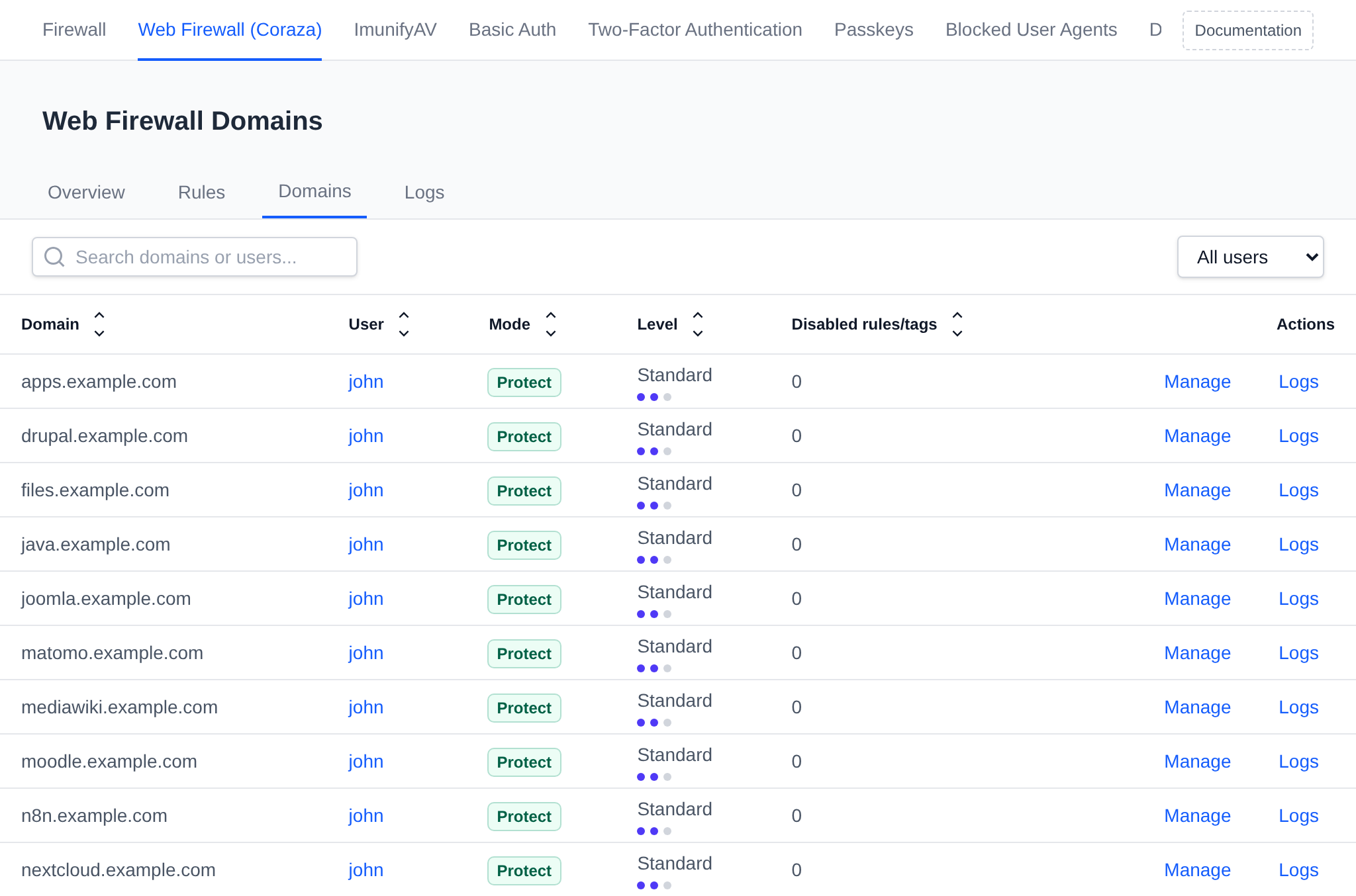
Search by domain or user, pick a user from the dropdown to show only their domains, and click a column header to sort the table.
### Settings of a domain
Click **Manage** next to a domain to open its WAF settings.
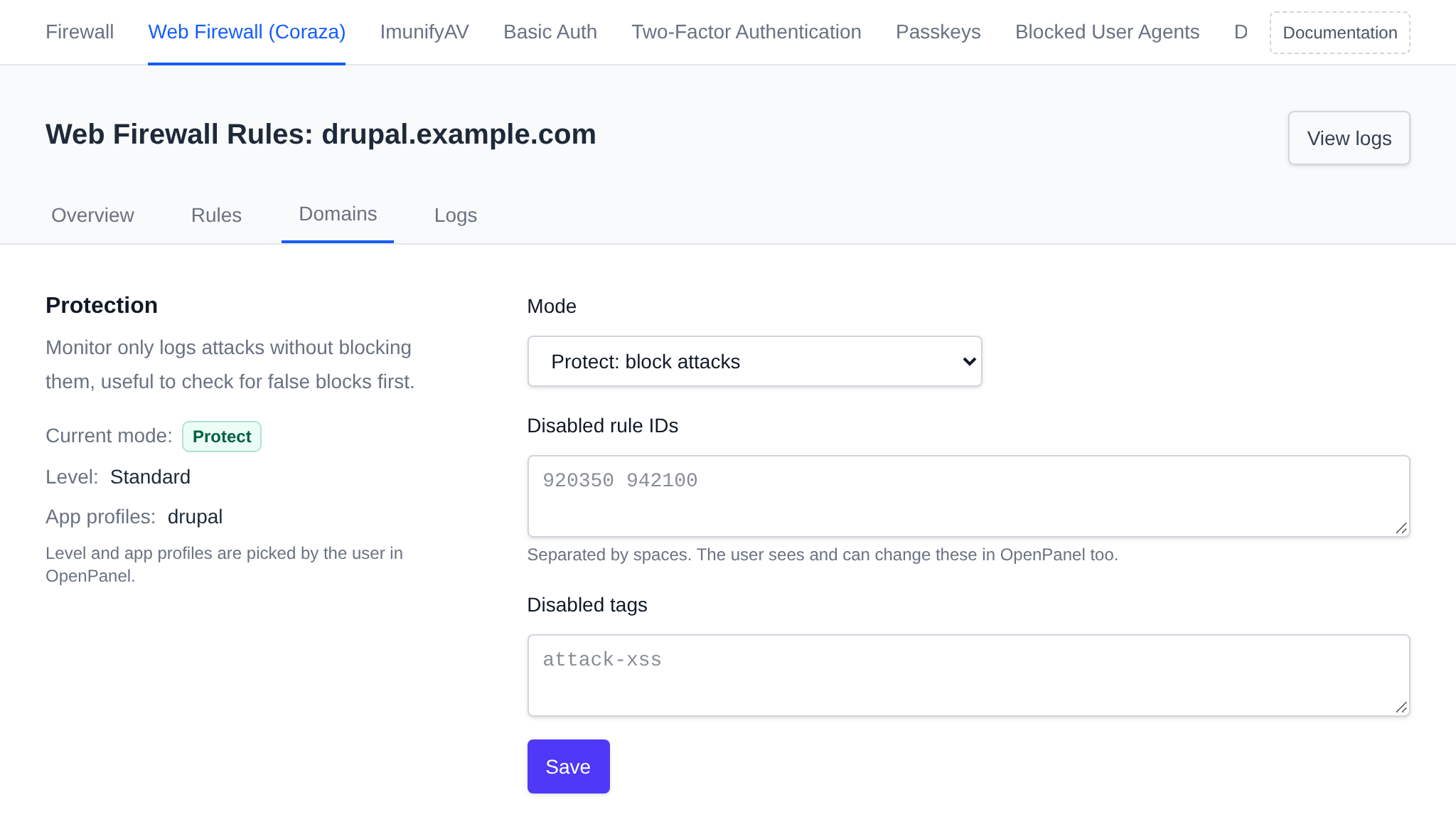
- **Mode** – Protect, Monitor only or Off. Monitor only is useful to check a site for false blocks before turning blocking on.
- **Disabled rule IDs** – rule numbers turned off for this domain, separated by spaces.
- **Disabled tags** – CRS tags turned off for this domain.
Click **Save** to apply the changes, the web server reloads on its own. The domain owner sees the same disabled rules and tags in OpenPanel and can change them there too. The protection level and app profiles are shown on the left, they're picked by the user in OpenPanel. **View logs** opens the domain's logs.
### All domains of a user
Click a user on the Domains tab to change the firewall for all of their domains at once.
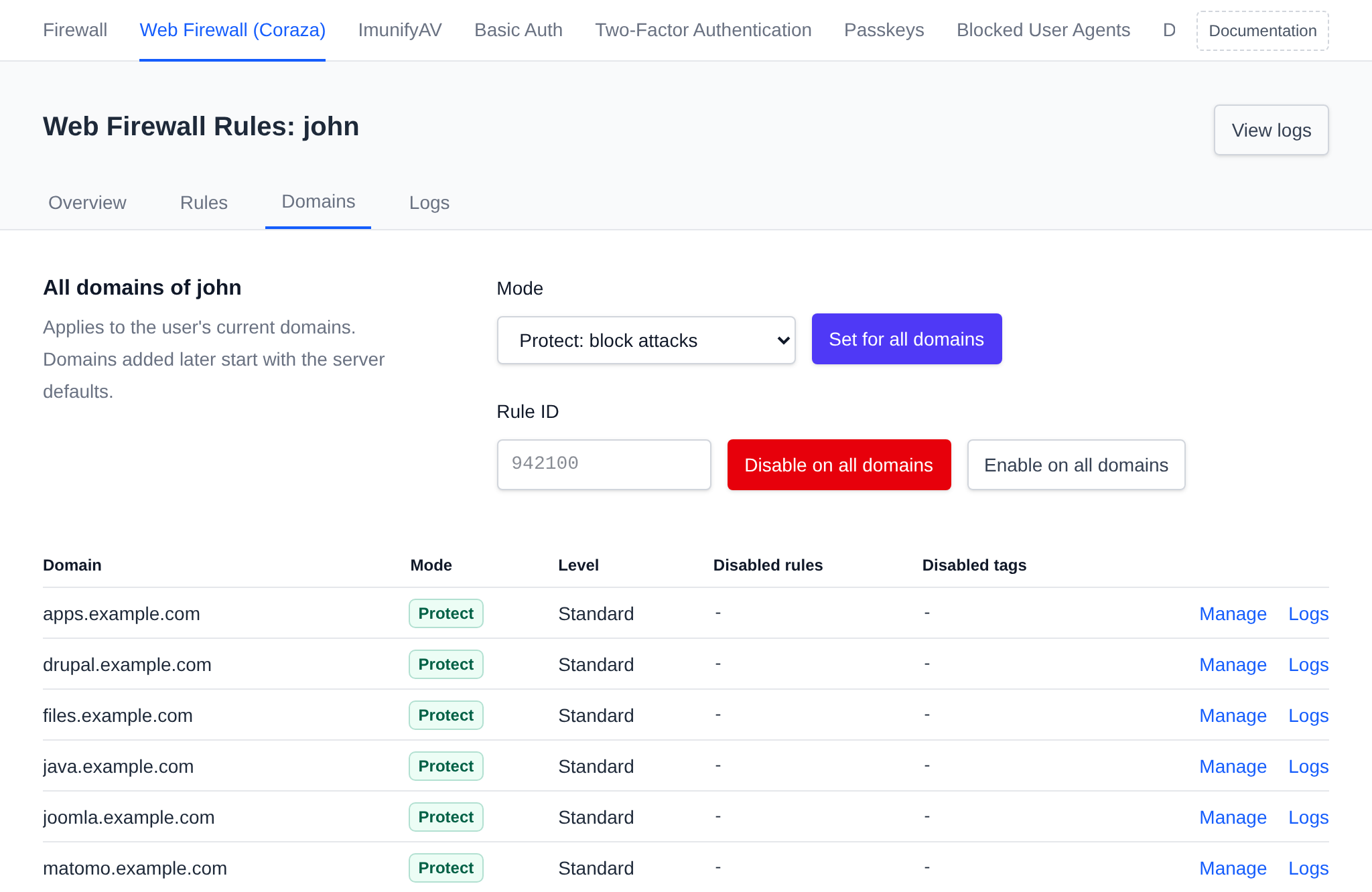
- **Mode** – pick a mode and click **Set for all domains**.
- **Rule ID** – enter a rule number and click **Disable on all domains** or **Enable on all domains**.
The table below shows the mode, level, disabled rules and disabled tags of each of the user's domains. The changes apply to the domains the user has now, domains they add later start with the server defaults.
## Logs
The Logs tab shows what the firewall stopped across all domains on the server, from the newest 500 log entries of each domain. Pick a user from the dropdown to see only their domains.
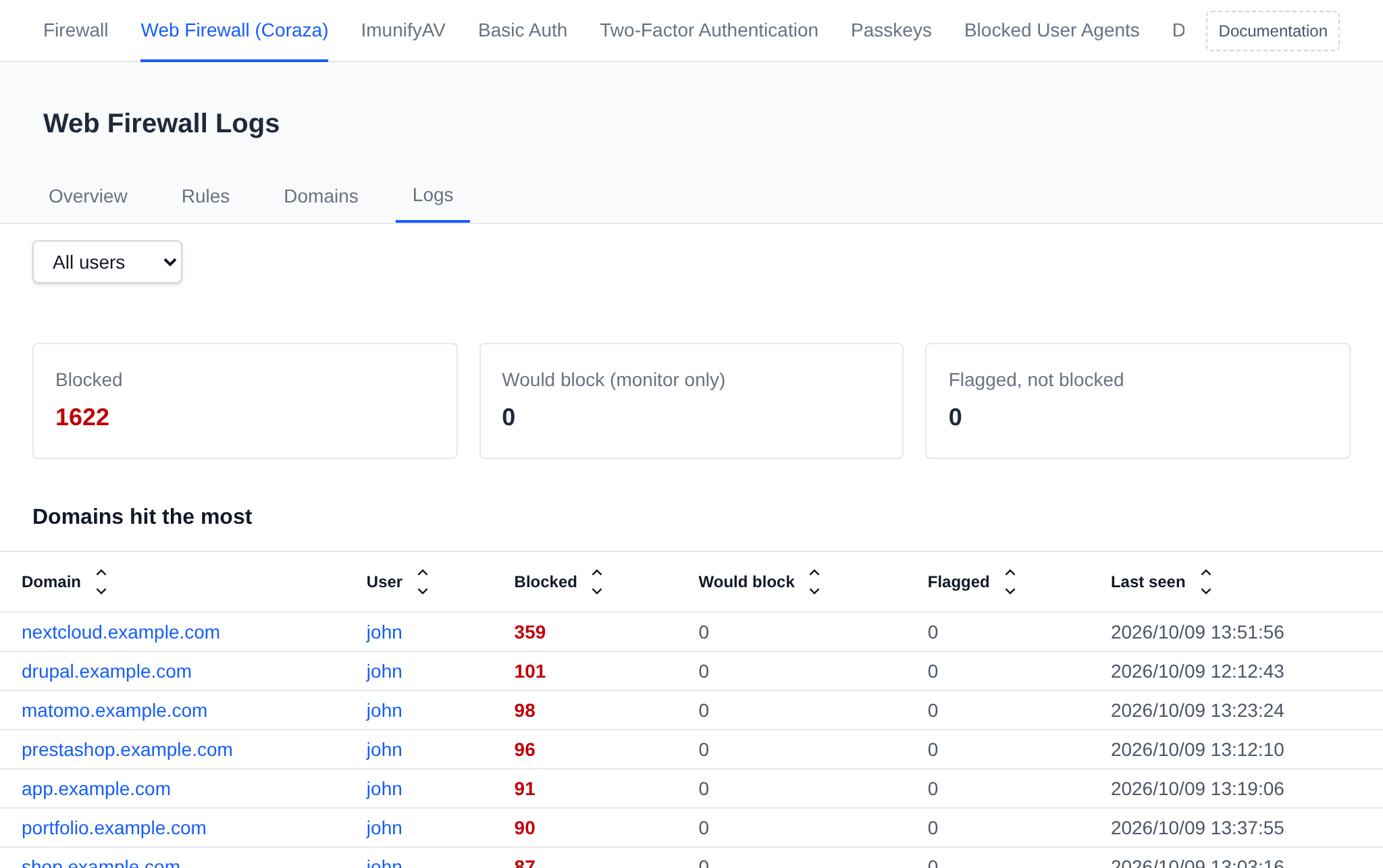
The three totals at the top count requests that were:
- **Blocked** – stopped by the firewall.
- **Would block (monitor only)** – attacks on domains in monitor only mode, which would have been blocked in protect mode.
- **Flagged, not blocked** – requests that matched a rule but didn't score high enough to be blocked.
**Domains hit the most** lists the domains with the most blocked requests, with the owner, the number of blocked, would block and flagged requests, and when the last one happened. Click a domain or user to open their logs.
### Rules triggered
The rules that matched the most requests, with the rules behind actual blocks first.
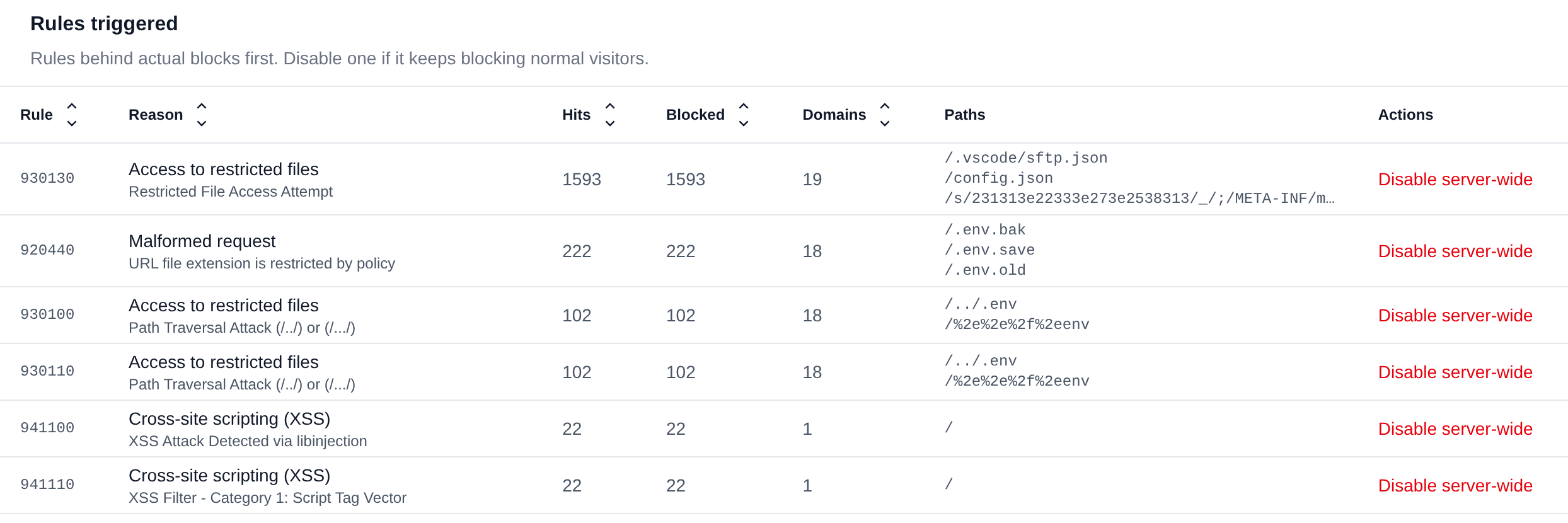
For each rule the table shows the rule ID, the kind of attack in plain words and the rule's message, how many requests it matched and blocked, on how many domains, and up to three of the paths it matched. If a rule keeps blocking normal visitors:
- **Disable server-wide** adds it to the rules [disabled on all domains](#disabled-on-all-domains). **Enable server-wide** turns it back on.
- On the logs of a user or a domain, **Disable for user** or **Disable for domain** turns it off only there.
### Top IP addresses and latest requests
**Top IP addresses** lists the 20 addresses with the most flagged requests and how many of them were blocked.
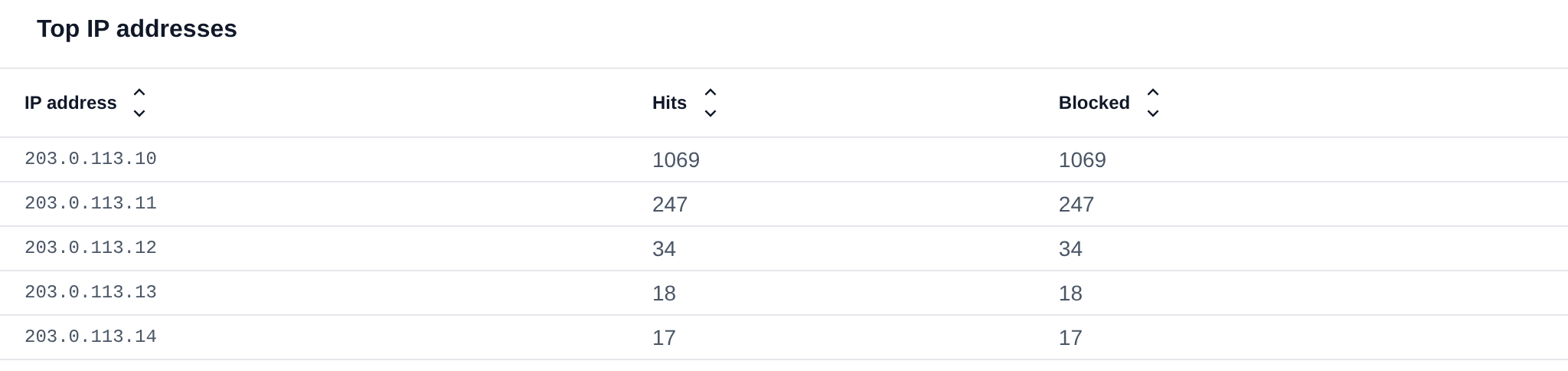
**Latest requests** lists the newest requests the firewall flagged: the time, domain, IP address, method and path, the response status, the result and the IDs of the rules that matched. Hover a rule ID to see what it detected. The status shows `-` when the firewall stopped the request before the website sent a response.
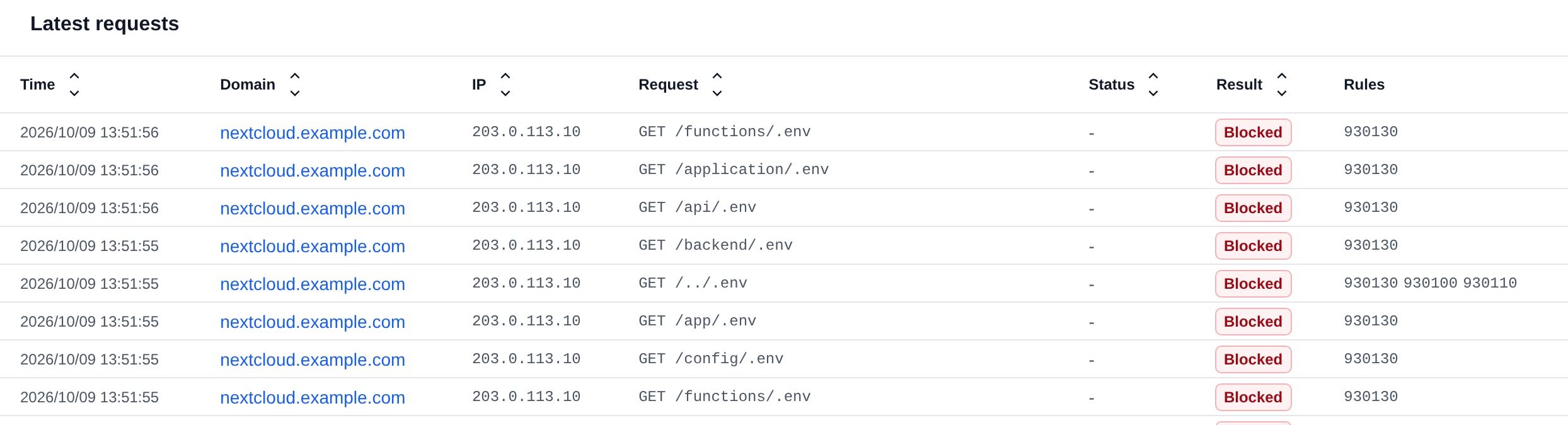
Every table on the Logs tab can be sorted by clicking a column header.
### Logs of a user or domain
Pick a user from the dropdown, or click a domain or user anywhere on the WAF pages, to see only their logs.
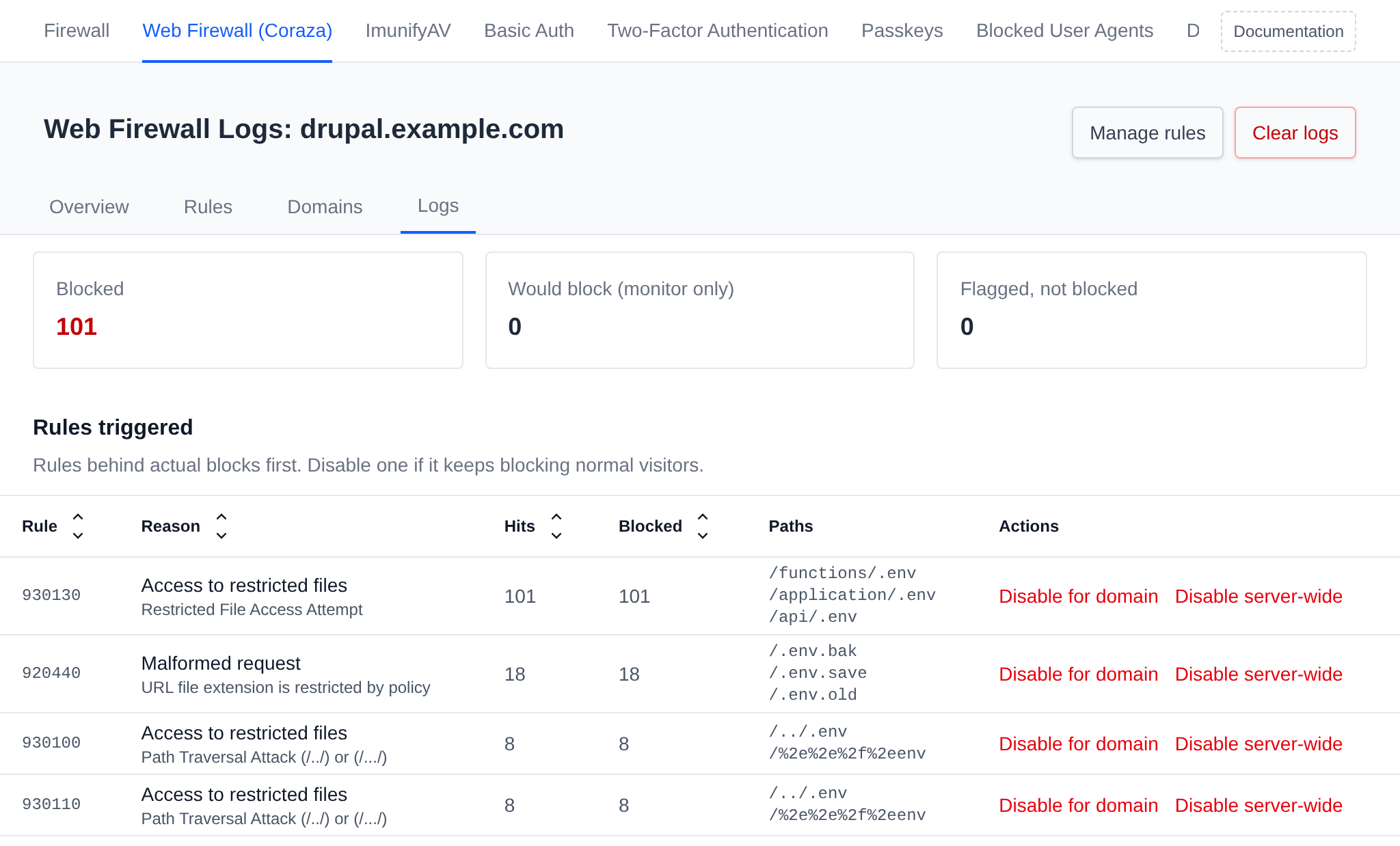
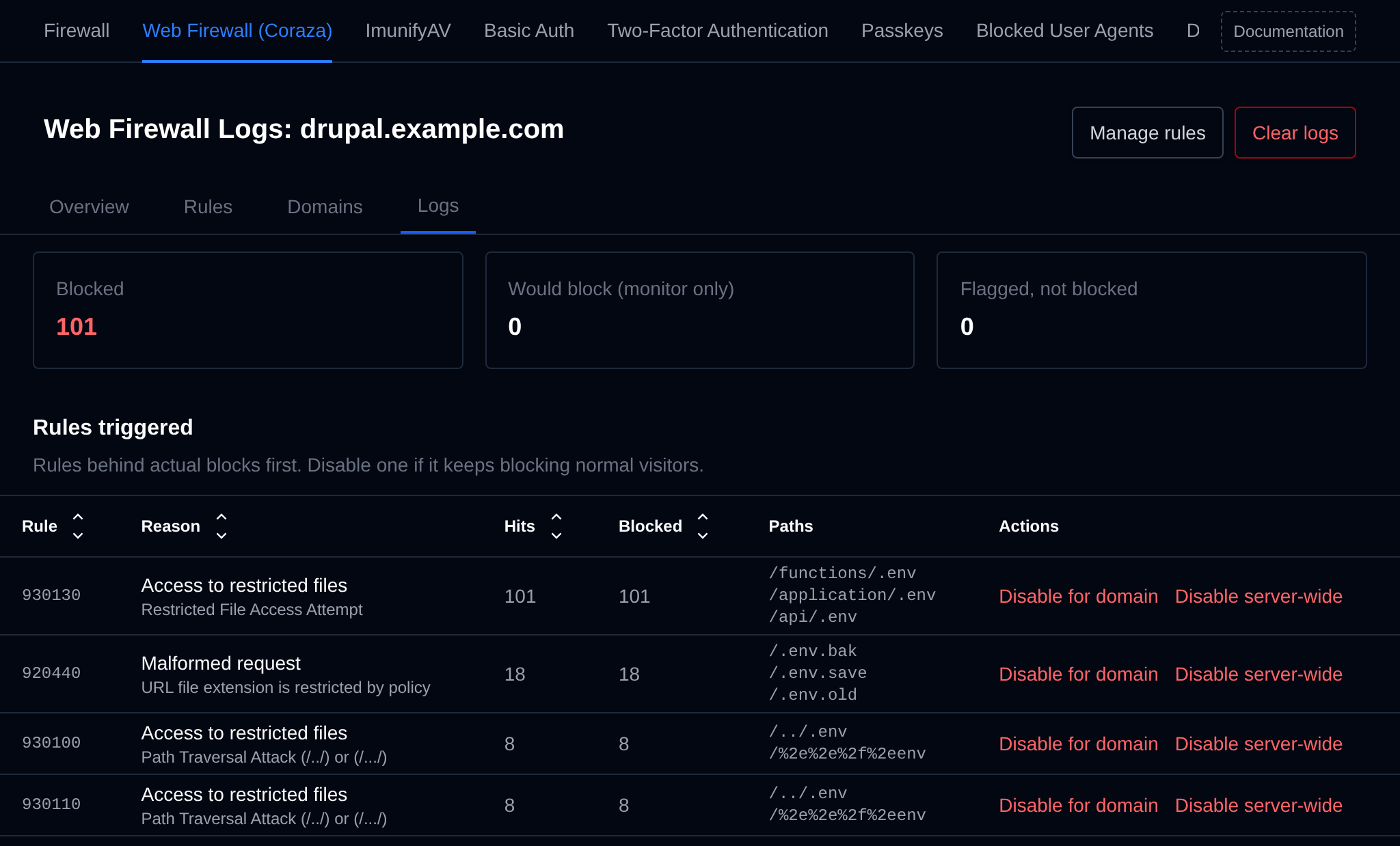
- **Manage rules** opens the [settings of the domain](#settings-of-a-domain) or [of all the user's domains](#all-domains-of-a-user).
- **Clear logs** empties the WAF logs of the domain, or of every domain of the user, after a confirmation.
- **Disable for domain** (or **Disable for user**) next to a rule turns it off only for that domain or user, **Enable for domain** turns it back on.
The domain's owner sees the same logs in OpenPanel, on their own WAF page.
---
// File: admin/security/imunify
# ImunifyAV
[ImunifyAV](https://cloudlinux.zendesk.com/hc/en-us/articles/4716287786396-Imunify360-Standalone-installation-guide-with-integration-conf-examples) enhances your server’s security by allowing you to scan user website files for malicious content.
> Note: Imunify, its trademarks, and all related assets are the property of [CloudLinux Zug GmbH](https://cloudlinux.com/).
## Install
Starting version 1.5.4 - ImunifyAV is included with OpenPanel by default.
If you are using an older version, to install, run:
```bash
opencli imunify install
```
This command installs the latest PHP version, the *imunify360-agent*, and configures access through OpenAdmin.
If ImunifyAV is not installed, opening the ImunifyAV page in OpenAdmin shows a **Not Configured** message with instructions to run this command.
## Start
OpenAdmin automatically attempts to start the ImunifyAV service the first time you open its page. If the service is still not running afterwards, a **Not Running** message is shown, prompting you to start it manually from the terminal:
```bash
opencli imunify start
```
## Login
Access the ImunifyAV GUI from **OpenAdmin > Security > ImunifyAV**. OpenAdmin automatically logs you in using a generated token; if token generation fails, a warning is shown and you'll need to log in manually using the server's SSH username and password.
## Manage
Imunify allows you to scan user files and detect any malicious content.
----
> For more usage examples refer to [How-to Guides > Setting Up ImunifyAV](/docs/articles/security/setup-imunifyav/).
---
// File: admin/security/basic_auth
# Basic Auth
Enable [Basic Access Authentication](https://en.wikipedia.org/wiki/Basic_access_authentication) as an additional security layer for the OpenAdmin interface.
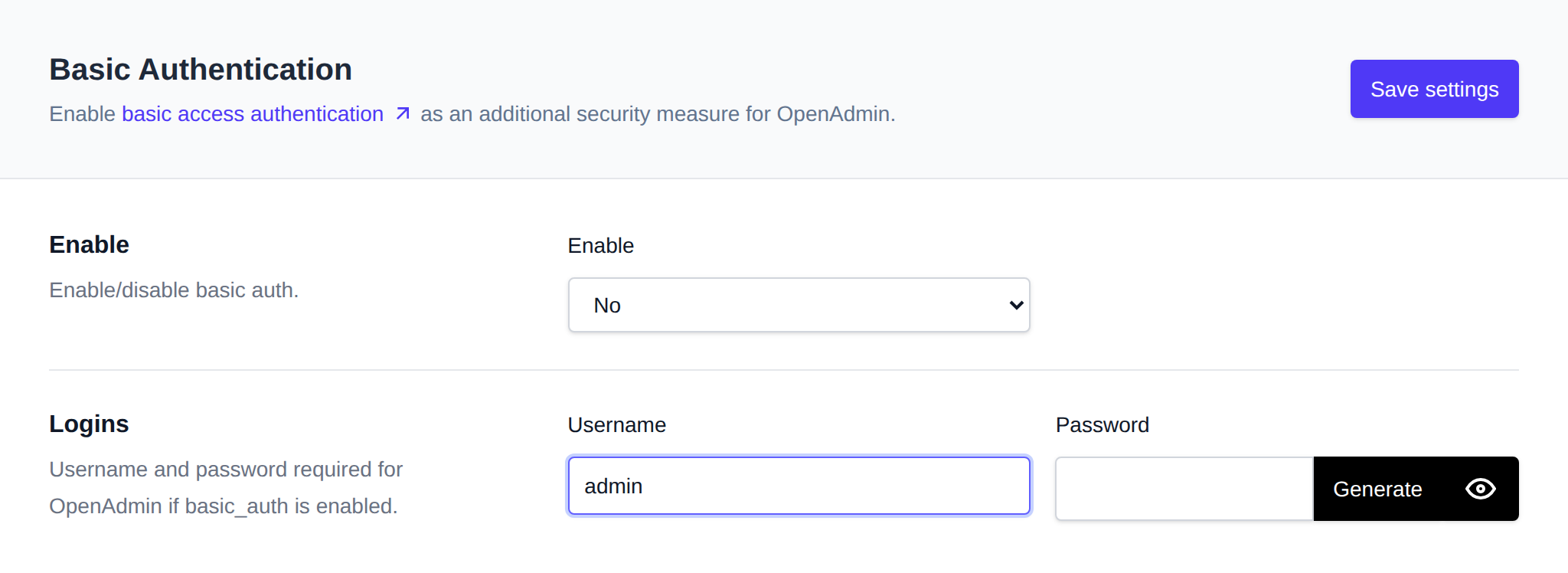
## Enable
To enable Basic Auth, select **Yes** under **Enable** and click **Save settings**.
To disable Basic Auth, select **No** under **Enable** and click **Save settings**.
While Basic Auth is off and the OpenAdmin port is open to everyone in the [firewall](/docs/admin/security/firewall) (listed in CSF's `TCP_IN`, or there's no CSF), enabling it is recommended as an extra login step in front of OpenAdmin.
## Logins
When Basic Auth is enabled, a username and password are required.
Configure the **Username** and **Password** fields, then click **Save settings** to apply. The password must be 6-30 characters and cannot contain an apostrophe (`'`).
Use the **Generate** button next to the password field to create a random strong password, and the eye icon to toggle its visibility.
---
// File: admin/security/2fa
# Two-Factor Authentication
Two-Factor Authentication (2FA) adds a second login step for your own OpenAdmin account — a time-based one-time password (TOTP) from an authenticator app, in addition to your password.
Use **OpenAdmin > Security > Two-Factor Authentication** to set it up.
## Enable 2FA
1. Open the **Two-Factor Authentication** page.
2. Scan the displayed QR code with an authenticator app (e.g. Google Authenticator), or manually enter the shown secret key.
3. Enter the generated code to confirm and enable 2FA.
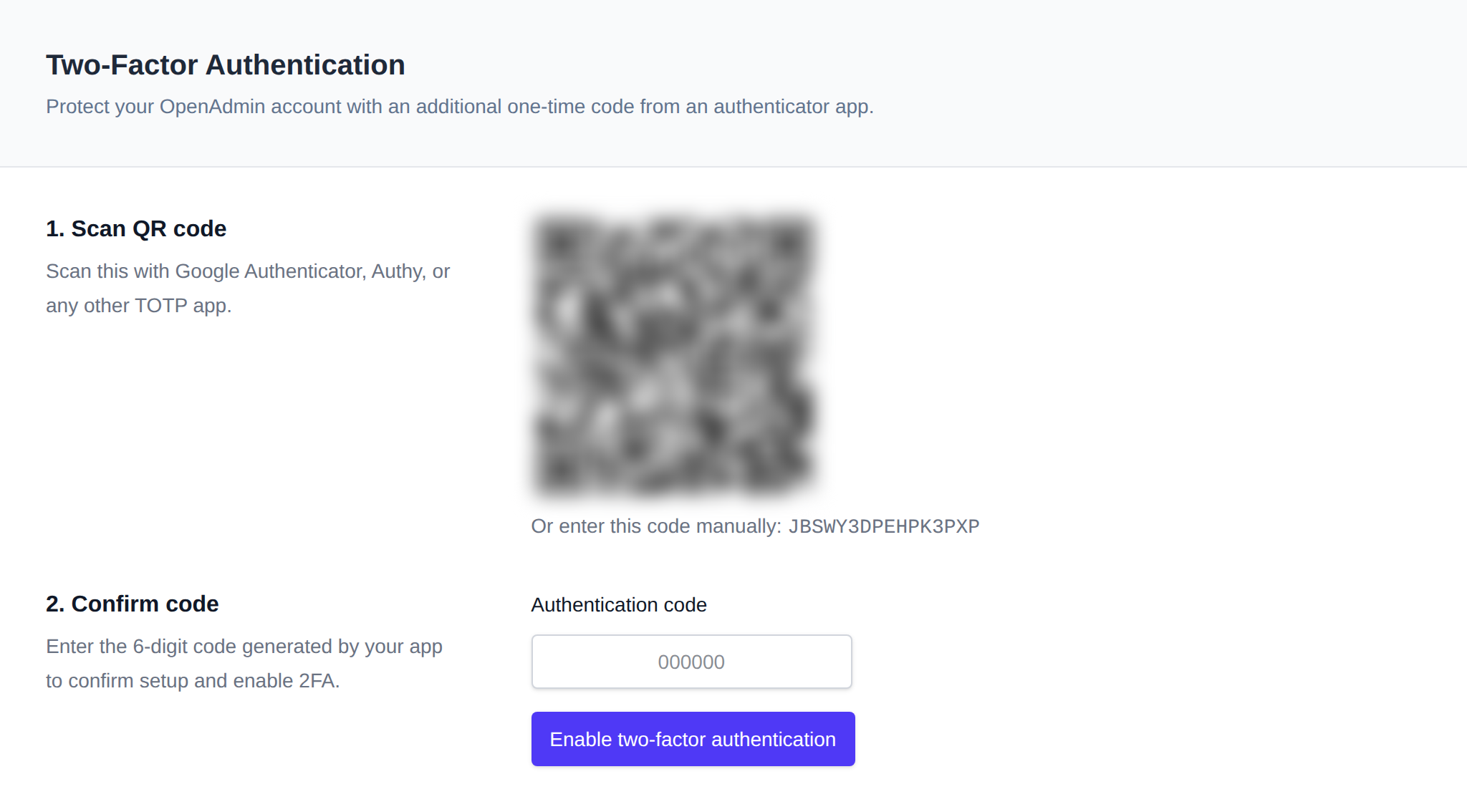
## Disable 2FA
From the same page, disable 2FA for your account at any time.
:::info
This page manages 2FA for your **own** login. To disable 2FA for a Reseller or Administrator, use the **Disable 2FA** action on their row in [Accounts](/docs/admin/accounts/administrators/) or [Resellers](/docs/admin/accounts/resellers/).
:::
---
// File: admin/security/passkeys
# Passkeys
Passkeys let you sign in to your own OpenAdmin account using your device's built-in authentication (fingerprint, face recognition, security key, or PIN) instead of, or in addition to, a password.
Use **OpenAdmin > Security > Passkeys** to manage them.
## Register a Passkey
1. Open the **Passkeys** page.
2. Click to register a new passkey and follow your browser/OS prompt (Windows Hello, Touch ID, a hardware security key, etc.).
3. Optionally rename the passkey to something recognizable (e.g. "Work laptop").
You can register multiple passkeys for the same account, and remove any of them from this page at any time.
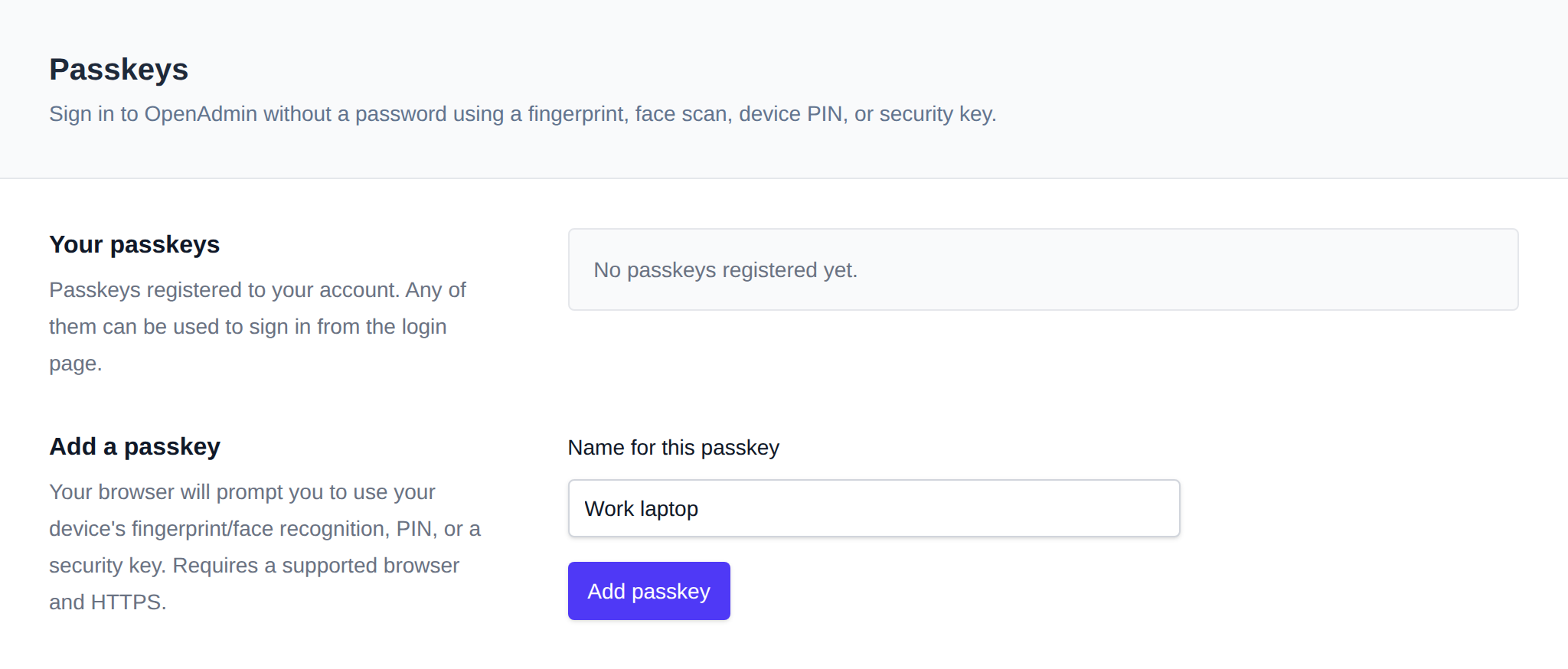
:::info
This page manages passkeys for your **own** login. To disable passkeys for a Reseller or Administrator, use the **Disable Passkeys** action on their row in [Accounts](/docs/admin/accounts/administrators/) or [Resellers](/docs/admin/accounts/resellers/).
:::
---
// File: admin/security/blacklist-useragents
# Blocked User Agents
Block requests to the OpenPanel user panel whose HTTP `User-Agent` header matches an entry on a blacklist, useful for keeping vulnerability scanners and known bad bots away from the login page.
It protects the panel itself (port 2083), not the websites hosted on the server. To limit bots on websites, use [Rate Limiting](/docs/admin/domains/ratelimit) or block user agents in the domain's VirtualHost.
Use **OpenAdmin > Security > Blocked User Agents** to manage it. The page is available to the **Super Admin** and **Admin** roles - resellers can't access it.
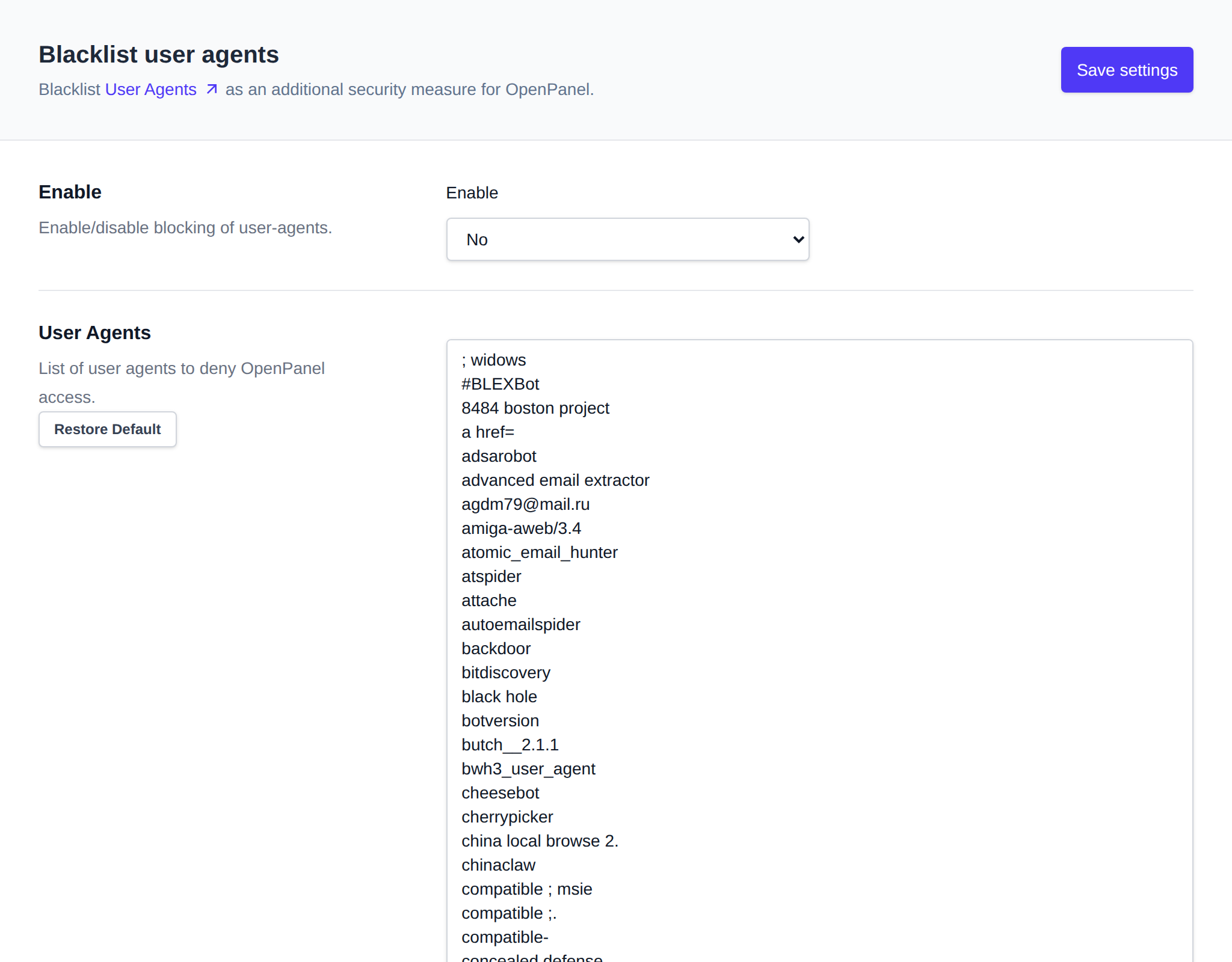
## Enable
Set **Enable** to **Yes** and click **Save settings** to turn user-agent blocking on server-wide. Set it to **No** to disable it.
## Editing the List
Edit the list of blocked user-agent strings (one per line) in the text area, then click **Save settings**.
A request is blocked when its `User-Agent` contains any line of the list, ignoring case. Empty lines and lines starting with `#` are skipped, so `#BLEXBot` keeps that entry in the list without blocking it. Blocked requests get a `403 Forbidden`. Changes to the list and to **Enable** apply within a few seconds, OpenPanel doesn't need to be restarted.
The list is stored at `/etc/openpanel/openpanel/conf/blacklist_useragents.txt` on the server.
---
// File: admin/security/disable-admin
# Disable OpenAdmin
As an advanced security measure, OpenPanel allows you to completely disable the OpenAdmin interface and its related admin service.
By enabling this option, access to OpenAdmin will be blocked, preventing any further administrative changes through the UI. This is particularly useful for hardened production environments where direct UI access is unnecessary or unwanted.
Navigate to **Security > Disable OpenAdmin**, then click **Confirm** to disable OpenAdmin, or **Cancel** to return to the dashboard without making changes.
Use this feature with caution — re-enabling OpenAdmin access will require manual intervention via server-side configuration. To enable access to the OpenAdmin: `opencli admin on`
---
// File: admin/services/status
# Service Status
The Service Status section allows you to view and control the status of system services and containers running on your server.
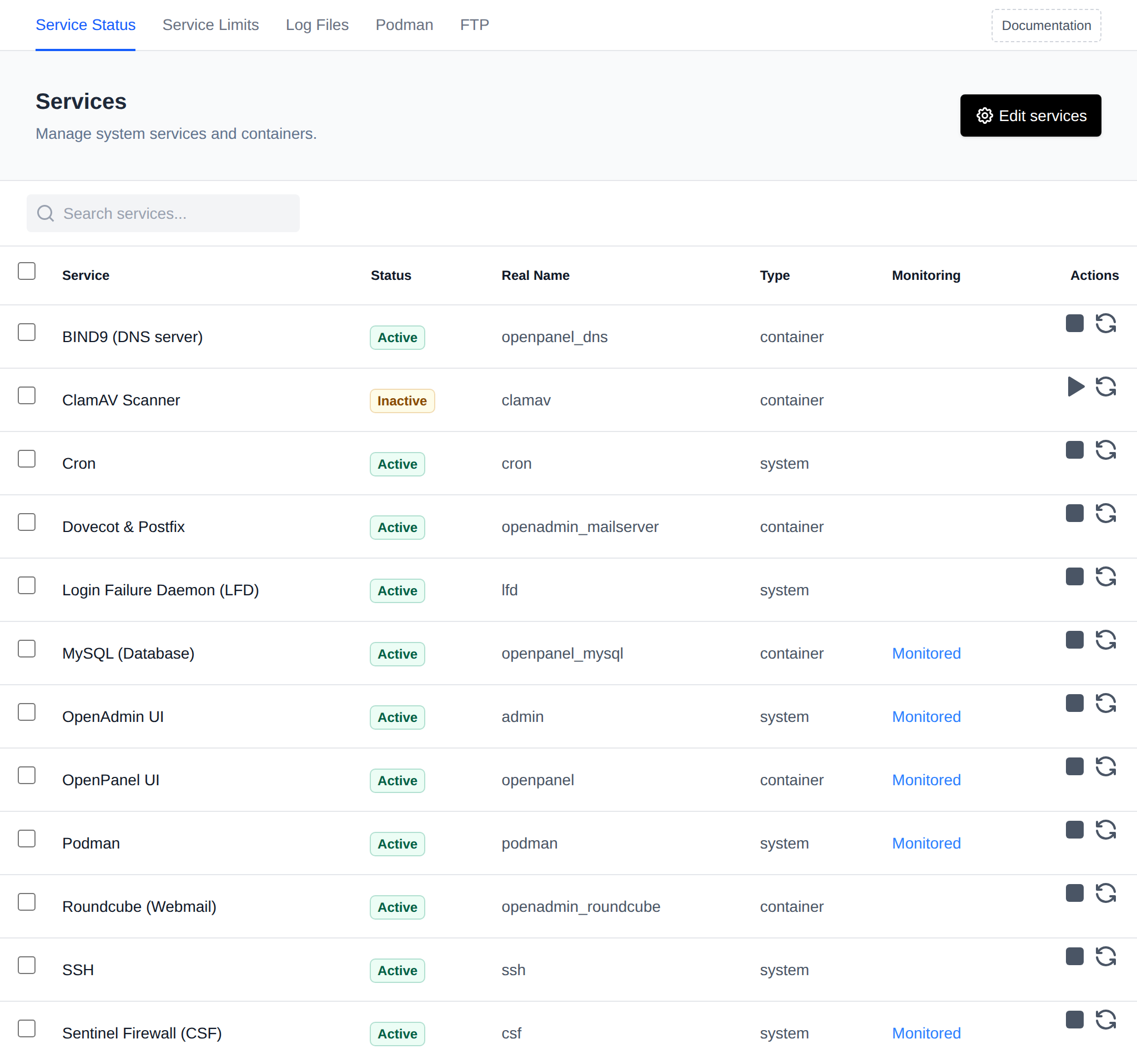
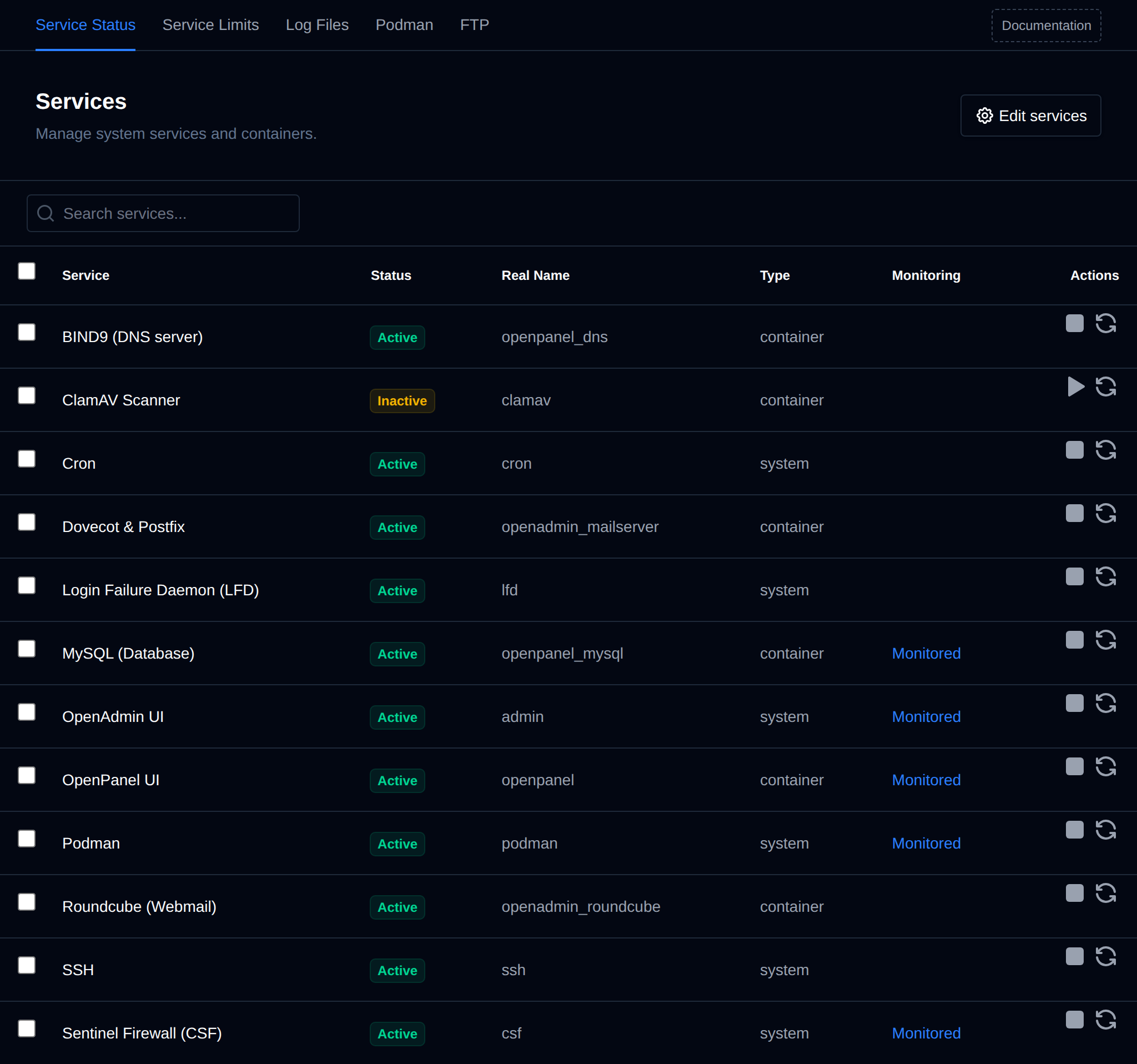
This table provides key details for each service:
* **Service** – Display name of the service.
* **Status** – Indicates if the service is active (running) or inactive.
* **Version** – Reserved for the service's current version; not populated in the current release.
* **Real Name** – Internal service name or container name (e.g., admin for OpenAdmin).
* **Type** – Identifies whether the service is a `system` process or a `docker` container (shown in the table as "container").
* **Port** – Reserved for the ports used by the service; not populated in the current release.
* **Monitoring** – Shows whether the service is actively being monitored and logged.
* **Action** – Options to start, stop, or restart the service.
## Bulk Actions
Tick the checkbox of one or more services, or the checkbox in the table header to select all services shown by the current search. A bar appears at the bottom of the page with the number selected, a **Clear** link and these actions:
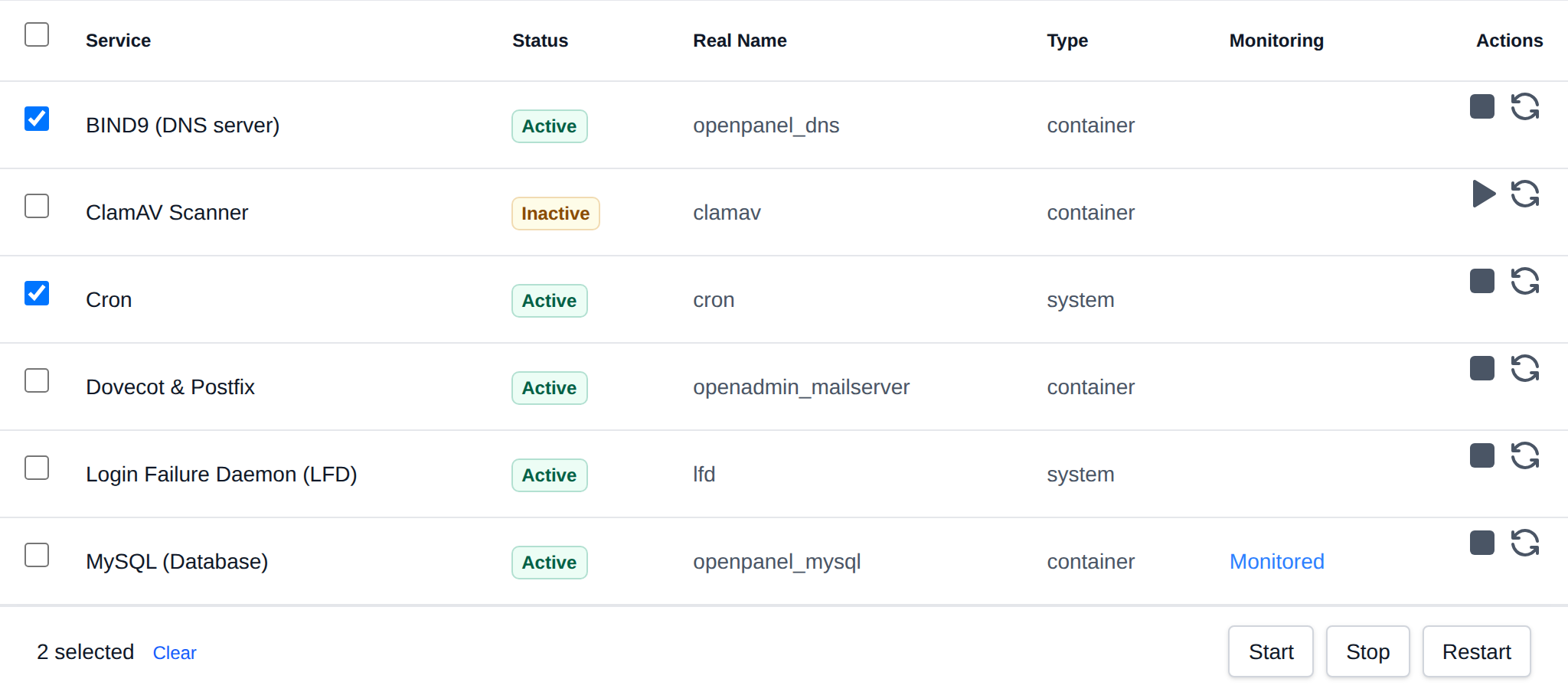
| Action | What it does |
|---|---|
| **Start** | Starts the selected services, running ones are skipped. |
| **Stop** | Stops the selected services, stopped ones are skipped. |
| **Restart** | Restarts the selected services. |
OpenAdmin itself (`admin`) can only be started from here, stopping or restarting it would end the request that runs the bulk action.
Click an action, confirm it, and it runs on the selected services one after another. When it's done the page reloads with a notice listing the services it worked for, or which ones failed and why.
## Edit Services
You can customize which services appear and are manageable from this section by clicking the **Edit Services** button.
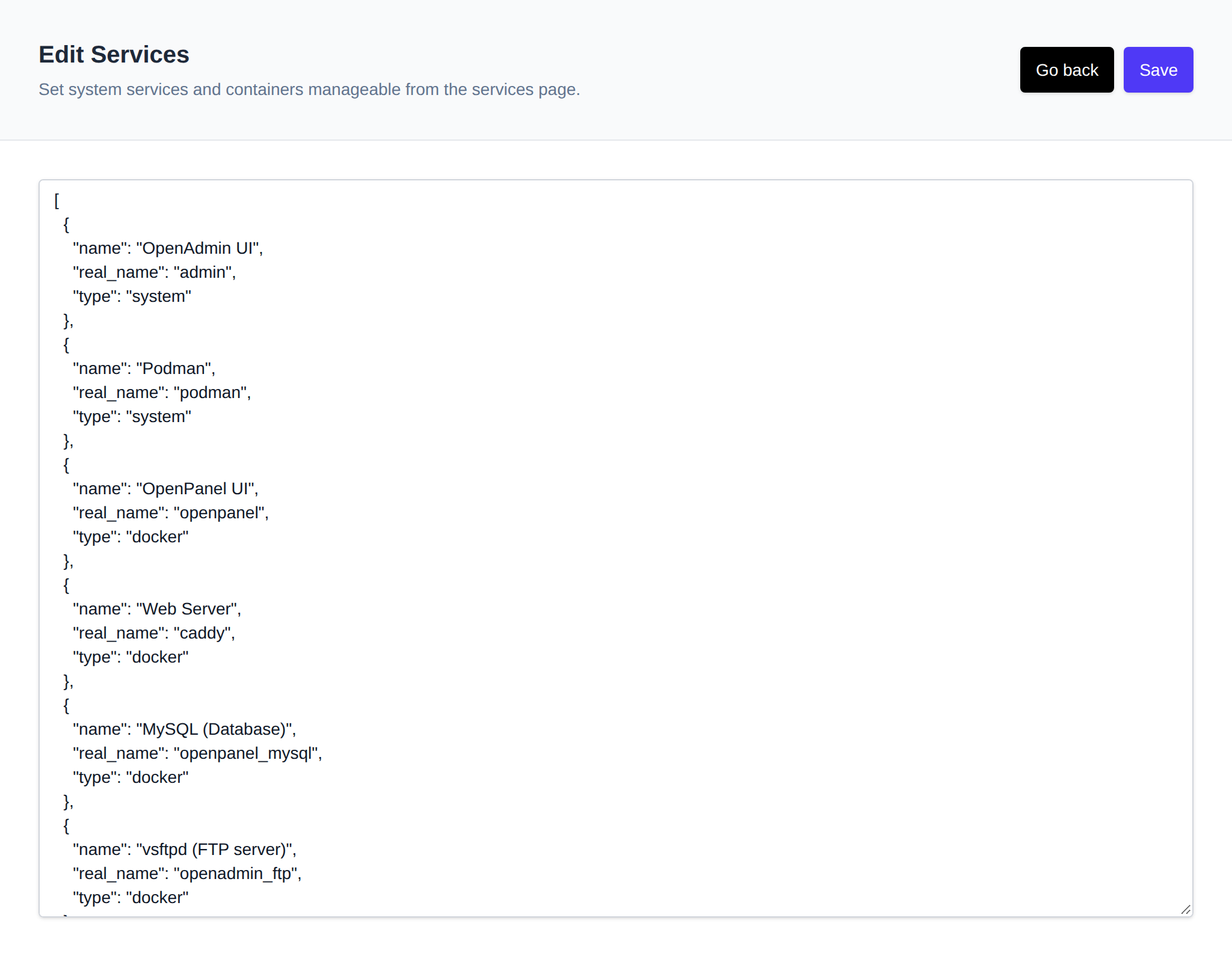
Services are configured in JSON format:
* **name** – Display name for the service.
* **type** – Either `system` or `docker` (services of type `docker` are labeled "container" in the table).
* **real_name** – Internal service or container identifier.
Core services (as listed under the **Monitoring** column) are tracked and, when one of them becomes unresponsive, an alert is sent to administrators. If you intentionally stop a monitored service, remember to disable the corresponding alert via the [OpenAdmin Notifications](/docs/admin/notifications/) page to avoid unnecessary alerts.
---
// File: admin/services/limits
# Service Limits
The **Service Limits** section allows Administrators to view and adjust the allocated CPU and Memory resources for system services.
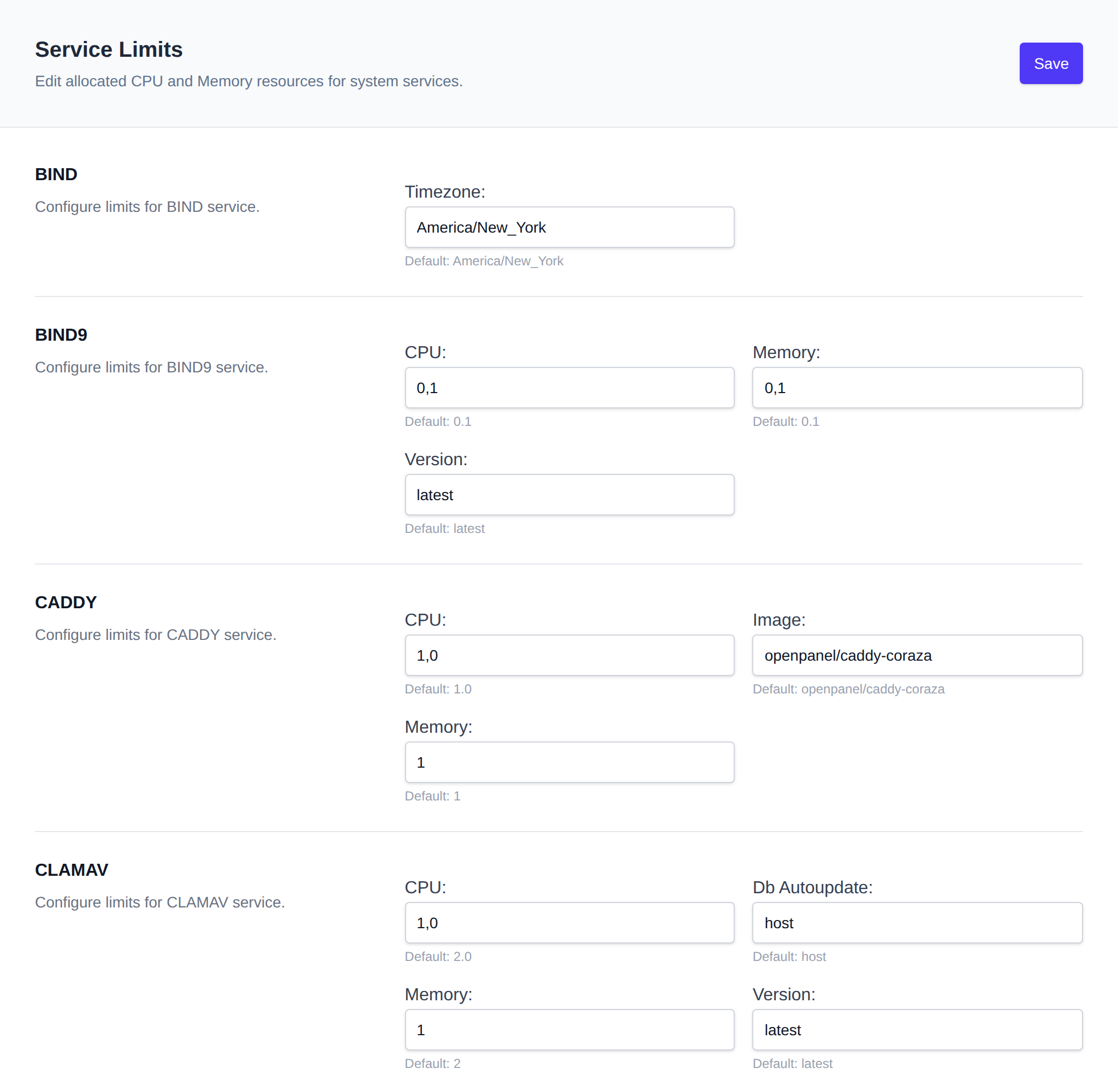
---
To update limits, enter new values in the fields for the appropriate service.
> **Note:** The service must be stopped and restarted for the new limits to take effect.
**Available Services** (by default):
- openpanel
- caddy
- mysql
- clamav
- redis
- bind9
- ftp
- phpmyadmin
This list reflects the CPU/RAM entries currently present in `/root/.env` — the page is built dynamically from that file, so any additional `*_CPU`/`*_RAM` (or `*_CPUS`/`*_RAM`) pairs added there will also appear as editable services.
### Recommendations
Under each limit a recommendation is shown when the value is below the recommended minimum or above the recommended maximum, based on the server's CPU and RAM, the enabled modules and the number of users and domains. `0` means unlimited and never shows a recommendation. CPU is in cores, RAM in GB.
| Service | Recommended |
|---|---|
| **openpanel** | at least 2 on servers with over 4 GB RAM, otherwise at least 1 |
| **caddy** | at least 1 per 20 domains so SSL certificates can be issued and renewed, or a third of the server's RAM/CPU on servers under 10 GB RAM. No more than 8 GB RAM and 6 CPU |
| **mysql** | 0.5 per 10 users, no more than a third of the openpanel container's limit |
| **bind9** | at least 0.1, only when the DNS module is enabled |
| **clamav** | 4 (2 is the minimum), no more than 6, only when the malware scanner module is enabled |
| **ftp** | 0.5 plus 0.1 per 10 users, no more than 3 GB RAM and 2 CPU, only when the FTP module is enabled |
| **phpmyadmin** | at least 2 CPU, and RAM of at least 1 GB or more to fit `PHPMYADMIN_MEMORY_LIMIT` and `PHPMYADMIN_UPLOAD_LIMIT`, only when the phpMyAdmin module is enabled |
`CLAMD_STARTUP_DELAY` is recommended between 30 and 600 seconds, since ClamAV downloads its malware signature database on startup.
---
To edit limits via the terminal, modify the `/root/.env` file directly.
---
// File: admin/services/logs
# View Log Files
The *OpenAdmin > Services > Log Files* feature enables Administrators to access and monitor logs for both OpenPanel and system services.
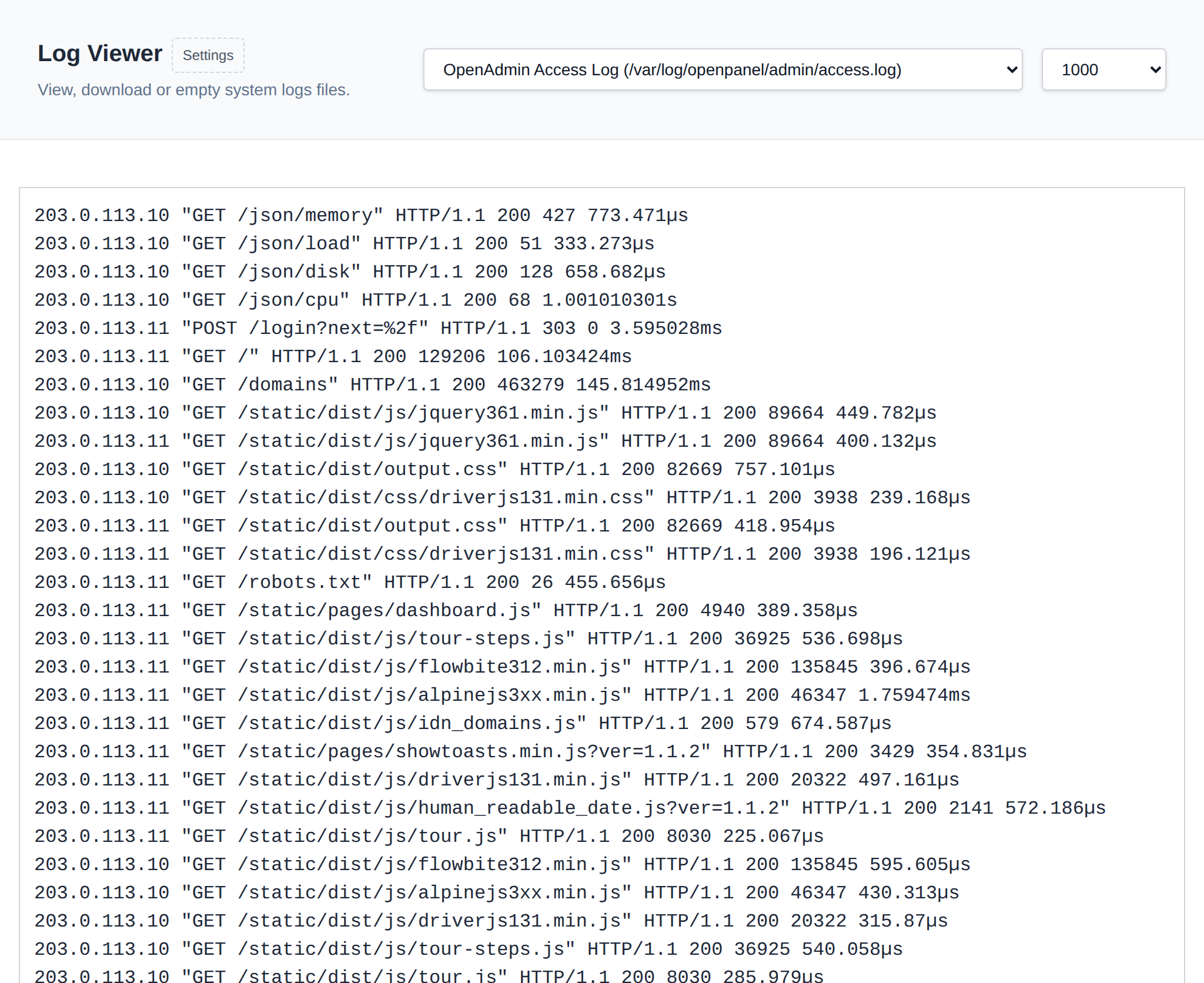
## How to View Log Files
Navigate to *Services > Log Files*
Select the log file you would like to view from the dropdown, which groups entries under **OpenAdmin Logs**, **OpenPanel Logs**, and **Other Logs**, and optionally choose the number of lines to display: 20, 100, 500, 1000 (default), 2000, or ALL.
After selecting a log file, two new buttons appear under the log content:
- *Delete* - will empty the file contents
- *Download* - will download the entire log file to your browser.
## Settings
This functionality supports modularity by allowing customization of the log files displayed in the viewer.
List of default log files: https://raw.githubusercontent.com/stefanpejcic/openpanel-configuration/main/openadmin/config/log_paths.json
To define custom log files for the viewer, click on the 'Settings' link next ot the heading. IN the form edit the json and click on 'Save'.
---
// File: admin/services/podman
# Podman
*OpenAdmin > Services > Podman* gives Administrators visibility into the host's Podman installation and lets them manage the shared image store. It's only available to Administrators and Users — not Resellers. It has five tabs: **Info**, **Images**, **Volumes**, **Networks**, and **Disk Usage**.
### Info
Raw output of `podman info`, exactly as it would appear on the terminal.
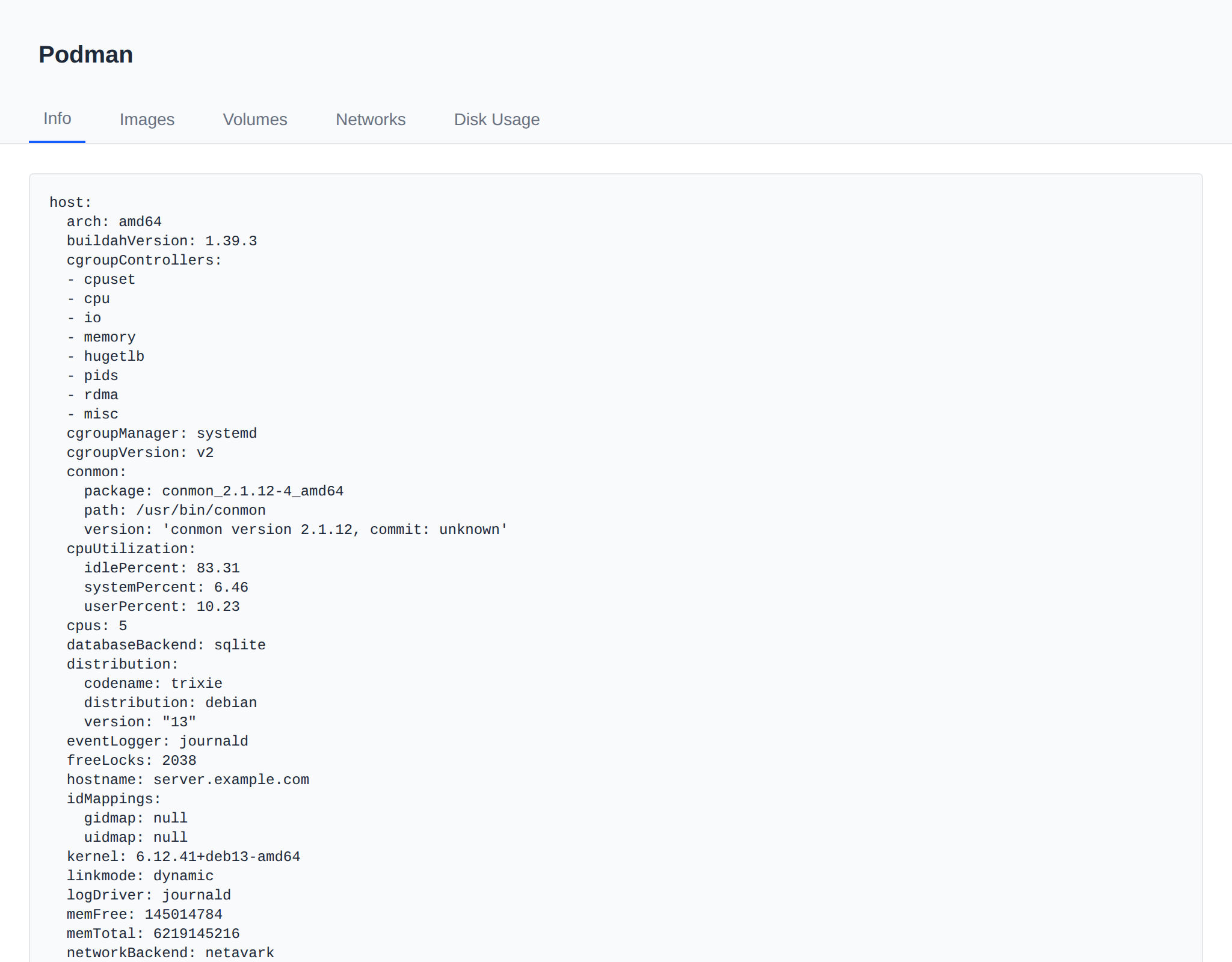
### Images
Lists every image in the shared image store — the same store every hosting user's rootless Podman instance reads from, so an image only needs to be pulled once to be available to all users. The table shows:
- **Repository** / **Tag** / **Image ID** / **Size** / **Created**
- **Containers** — how many containers currently use the image, split into **N system** (root's own containers, e.g. the mail server) and **N user** (summed across every hosting user's own containers). An image with neither shows **Unused**.
- **Update** — **Check** compares the local image's digest against the registry's current one (no download, just a manifest fetch). If a newer digest is available it shows **Update available** with an **Update** button to re-pull; otherwise **Up to date** with a **Recheck** option. Pulling an update does **not** affect already-running containers — they keep using the content they started with until stopped/recreated.
- **Delete** — only offered for images with 0 system and 0 user containers using them.
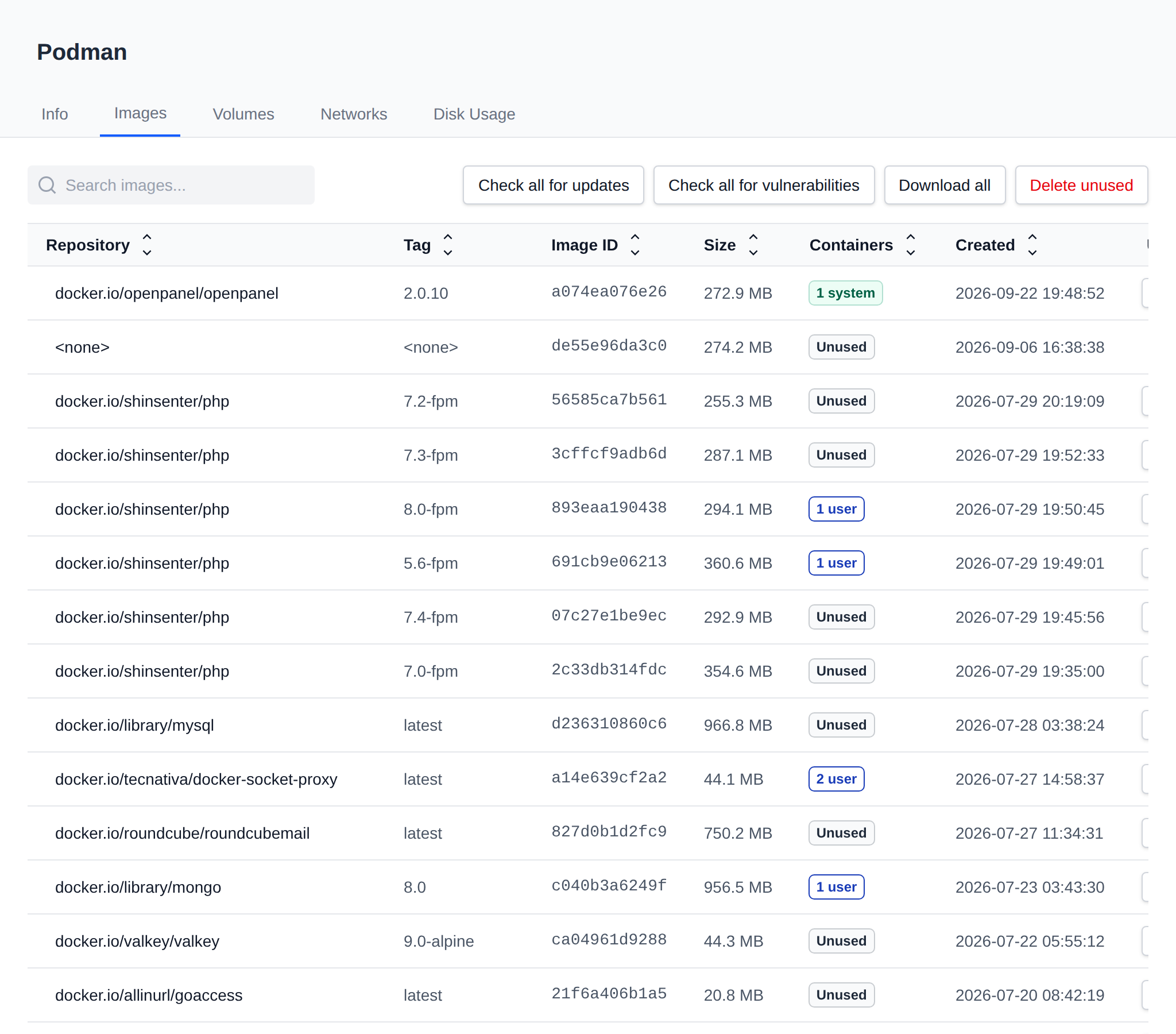
The table also cross-references the compose stack used to provision new users (`/etc/openpanel/docker/compose/1.0/docker-compose.yml`). Any image that stack references but that isn't in the shared store yet shows as **Not downloaded**, with a one-click **Pull**.
Three bulk actions sit above the table:
- **Check all for updates** — runs the digest check against every downloaded image.
- **Download all** — pulls every image the stack references that's currently missing.
- **Delete unused** — removes every currently-downloaded image with 0 system and 0 user containers.
All of these (per-image and bulk) run in the background with a progress toast, since a pull can take a while for a large image.
### Volumes / Networks
Read-only listings of `podman volume ls` / `podman network ls` for the local context.
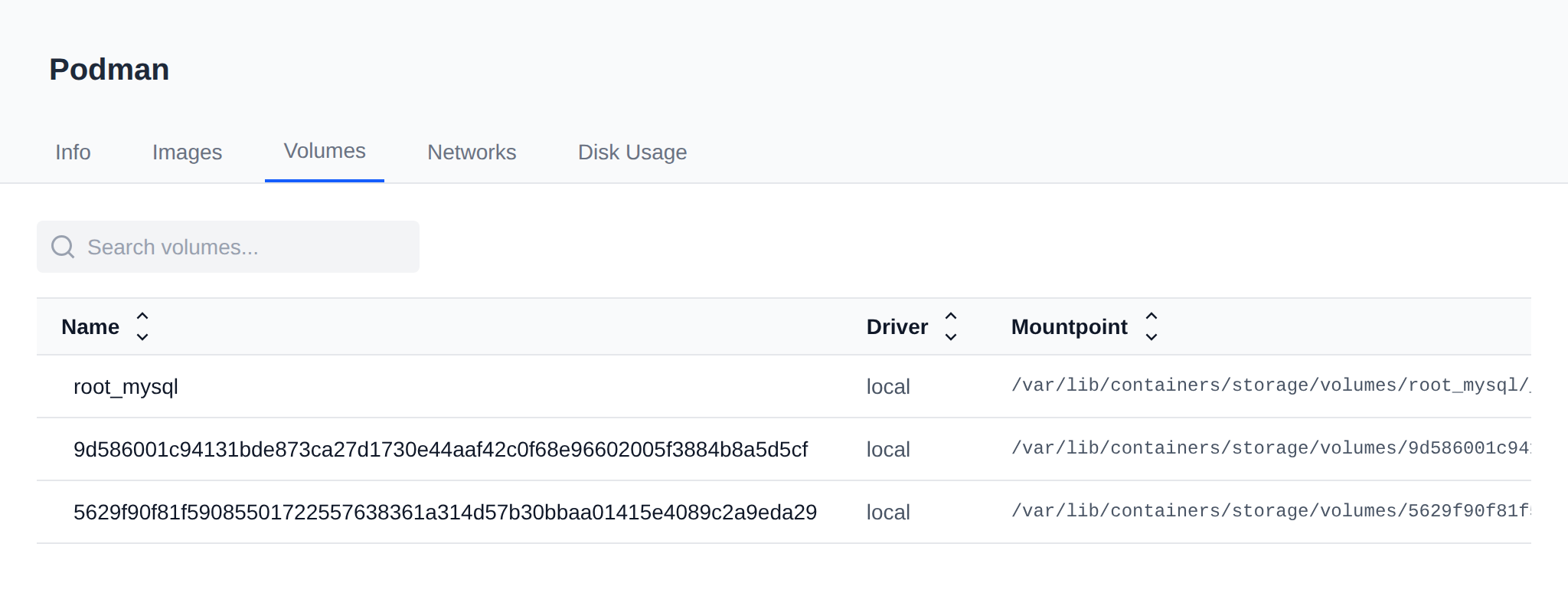
### Disk Usage
`podman system df` output — Images reflects the whole shared store (every hosting user's images), while Containers and Volumes are root's own local Podman only, not aggregated across hosting users.
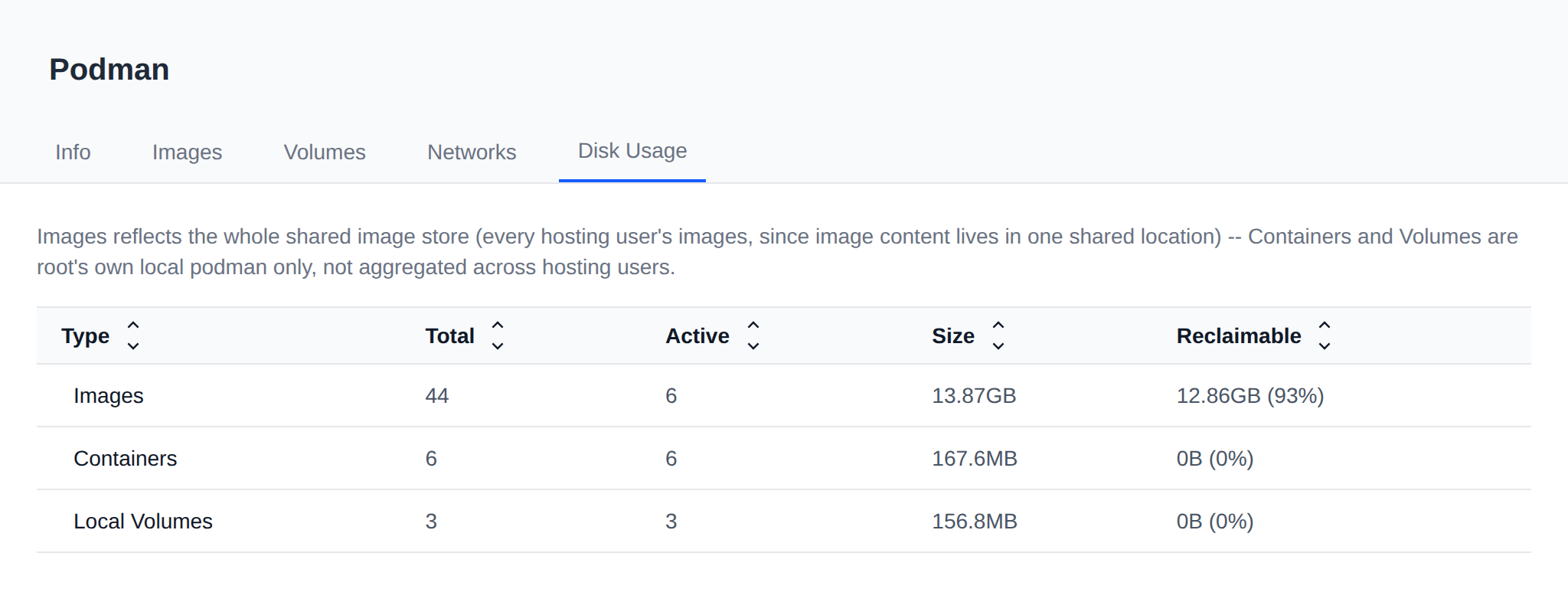
### Sorting and search
Every table column has click-to-sort arrows (frontend-only, no page reload), and each tab has a search box that filters across every visible column.
---
// File: admin/services/ftp
# FTP Accounts
:::info
FTP management in OpenAdmin is only available on [OpenPanel Enterprise edition](/enterprise)
:::
The *Services > FTP* page lets you review the FTP sub-accounts associated with OpenPanel users, and edit the FTP server configuration. It has two tabs: **Accounts** (`/services/ftp`) and **Configuration** (`/services/ftp/settings`).
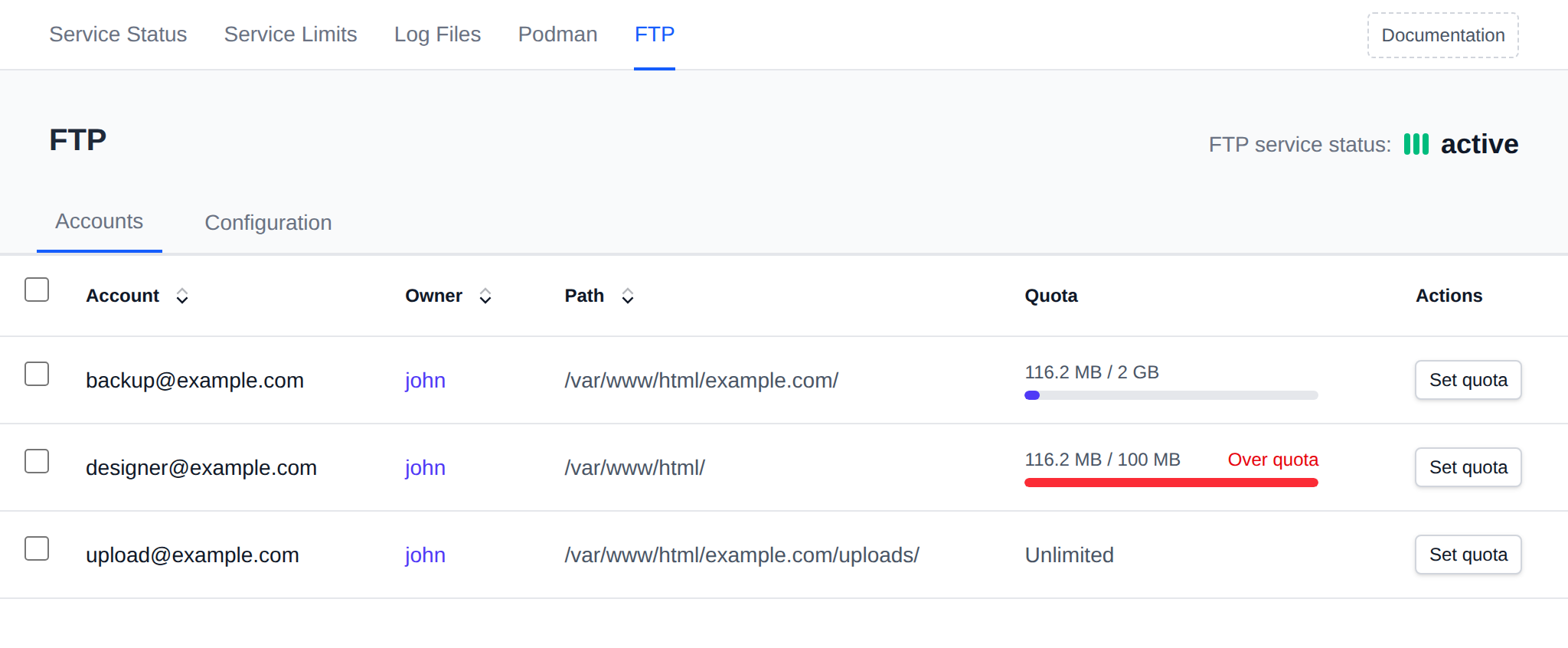
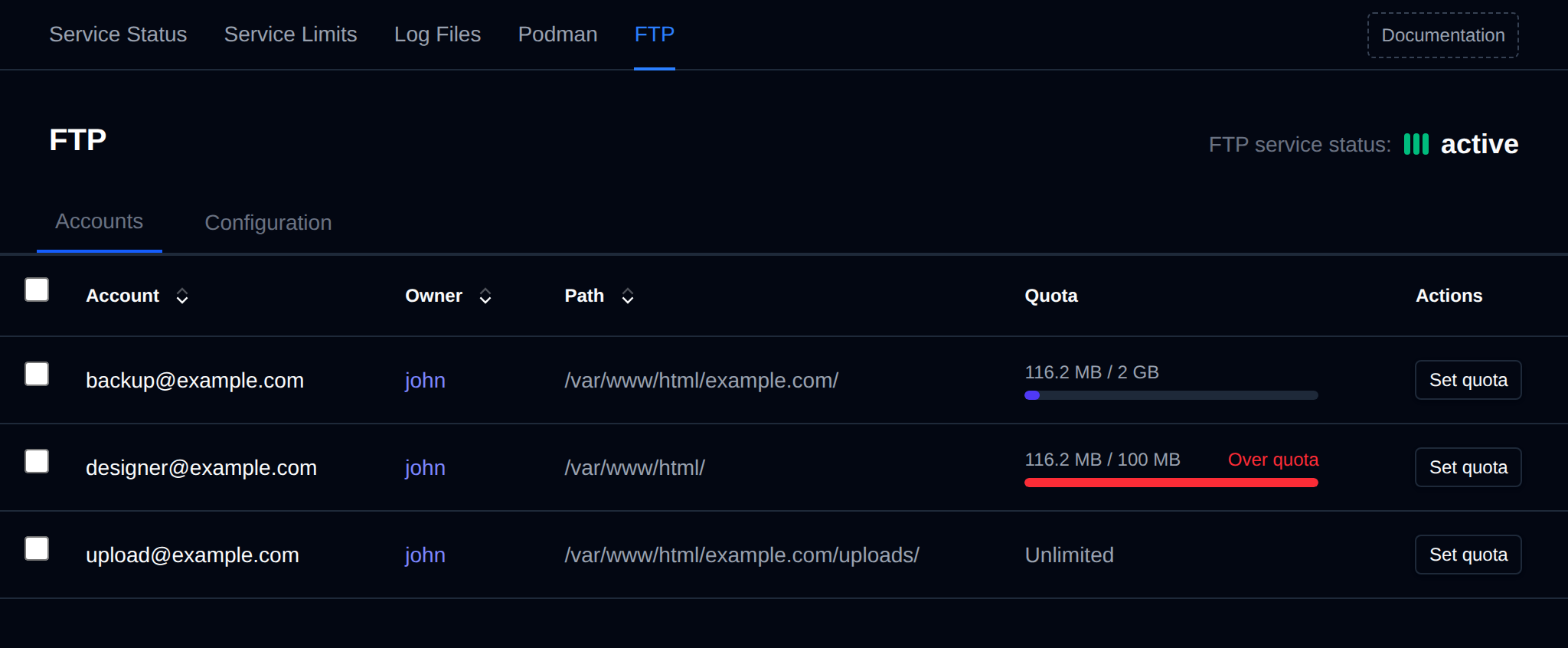
The FTP service must be running for the accounts list to be available.
The **Accounts** tab table includes the following details:
- **Account** – Username of the FTP account.
- **Owner** – The OpenPanel user that owns the FTP account, linking to that user's page. For accounts named `ftpuser@domain.com` this is the owner of that domain, the same user shown for it on the **Domains** page. If the domain no longer exists, the owner is shown as `-`.
- **Path** – The file system path to which the FTP account has access.
- **Quota** – Space used and the disk quota of the account, or **Unlimited**. Accounts over their quota are marked **Over quota**.
- **Actions** – **Set quota** opens a field next to the account: enter the quota in MB (`500`) or with a unit (`500M`, `2G`) and click **Save**. Enter `0` to remove the quota.
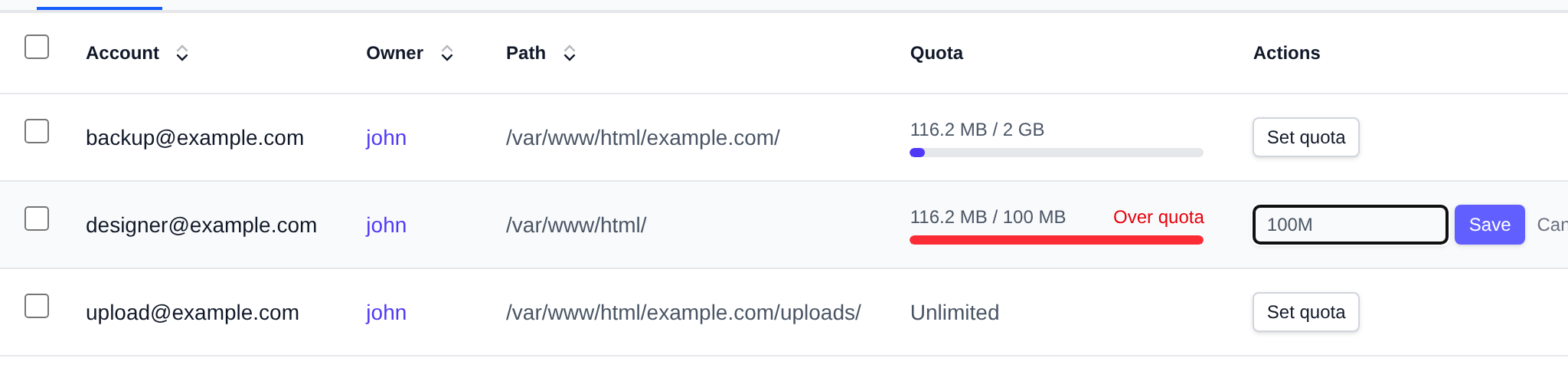
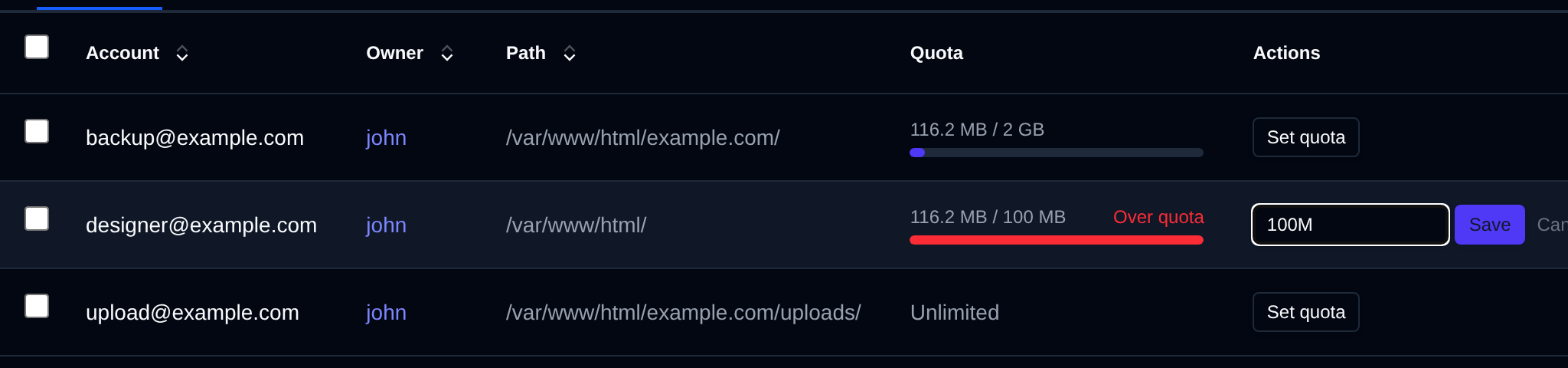
To change many accounts at once, tick their checkboxes (or the one in the table header) and use the bar at the bottom of the page: **Set quota** sets the same quota on all of them, **Remove quota** makes them unlimited.
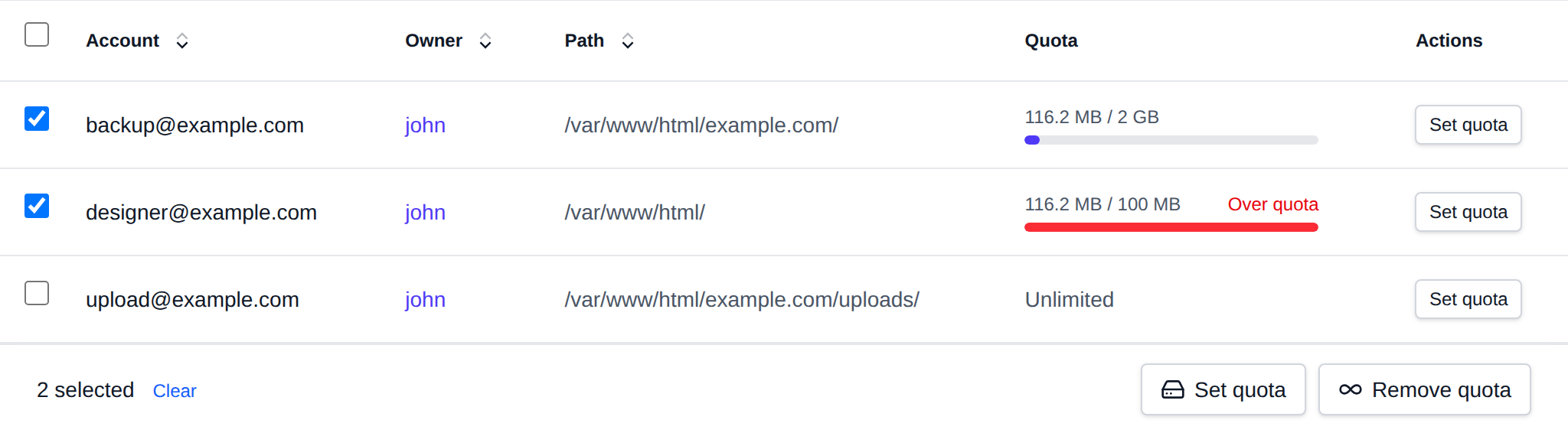
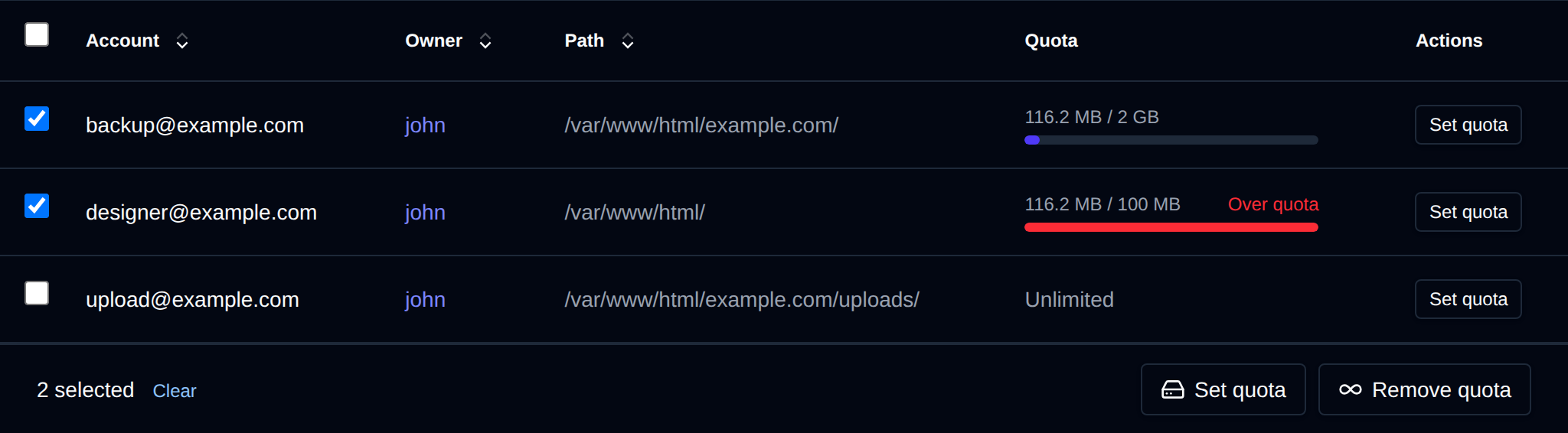
The quota is the size of the account's folder, checked by the FTP service every 60 seconds. Once the folder is over the quota, uploads and new folders are refused and the account's open sessions are closed, downloads and deletes still work. Quotas can also be set with [`opencli ftp-quota`](/docs/articles/opencli/ftp/#quota).
Accounts themselves are created and removed from the OpenPanel user interface, not from here. The data shown is populated by the `opencli ftp-users` command; if no accounts are shown yet, click **Click to refresh data** to run it manually, or wait for its periodic cronjob run.
The **Configuration** tab exposes the raw FTP server configuration file in an editable text area. Edit the file contents and click **Save Configuration** to apply changes.
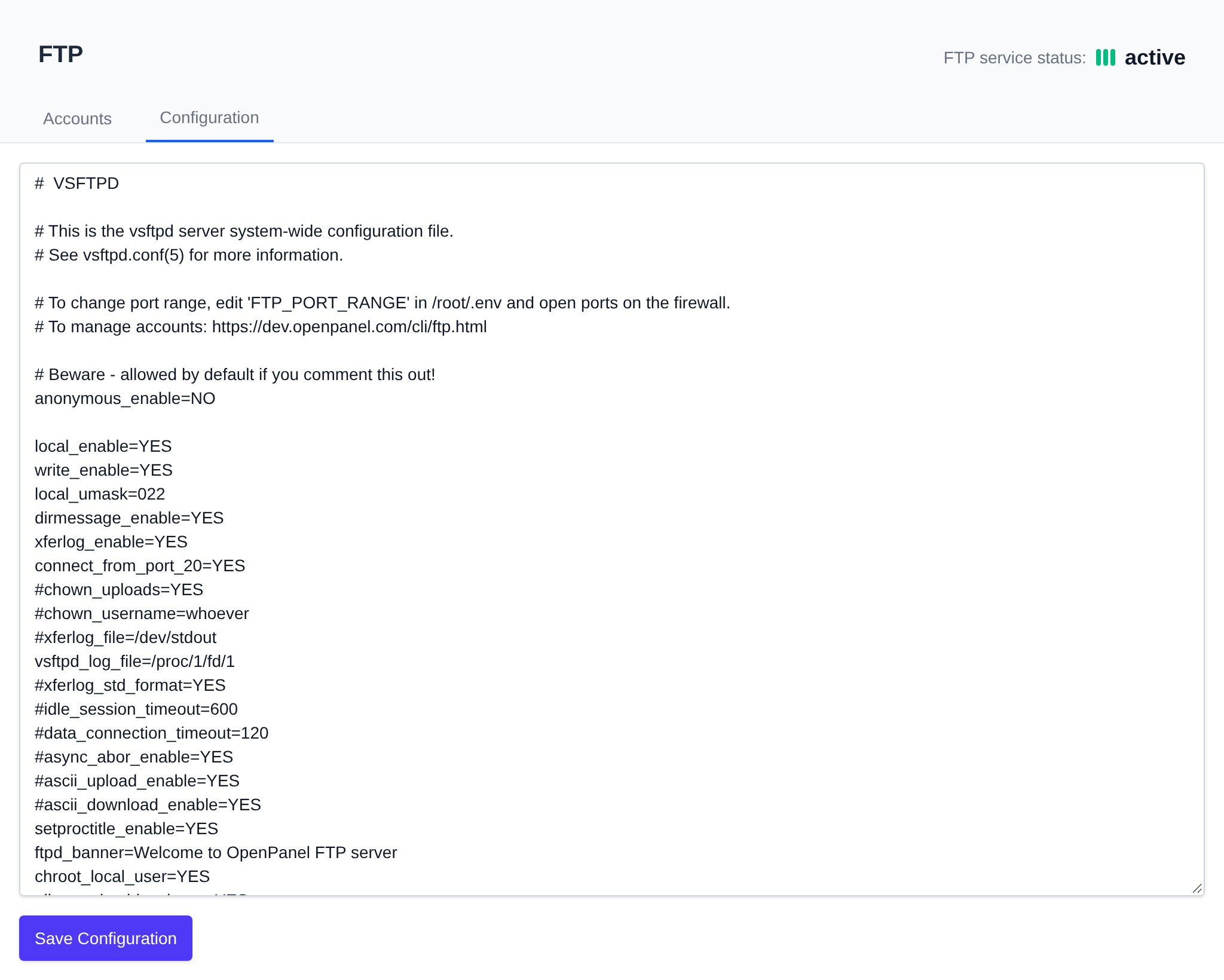
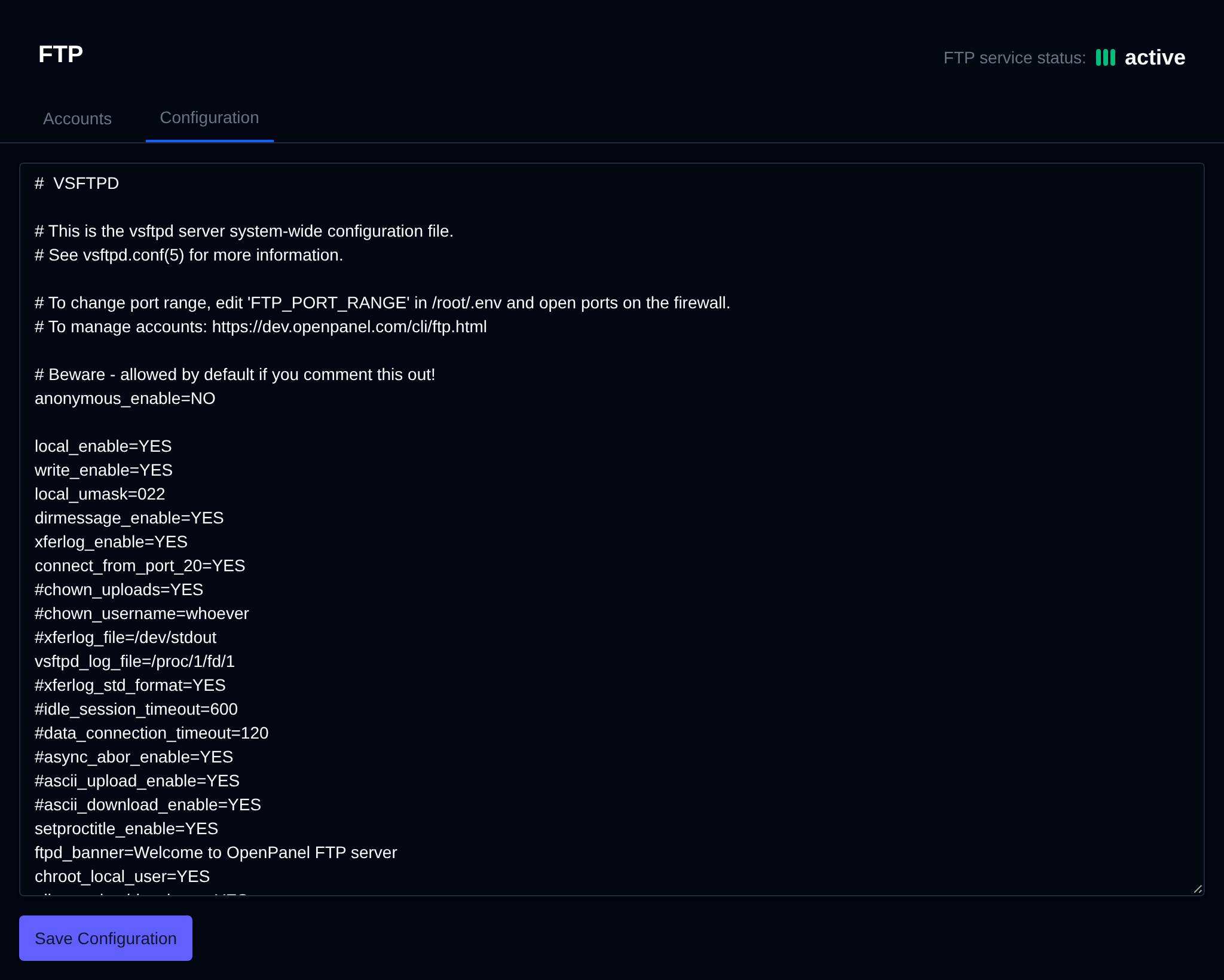
---
// File: admin/settings/general
# General Settings
From this page Administrators can configure the domain to access both OpenPanel and OpenAdmin interfaces, as well as ports for those services.
## Domain
Both OpenAdmin and OpenPanel are accessed through the same single **Hostname** field: enter either a domain name or the server's IP address there, and both interfaces become reachable at `https://HOSTNAME:PORT/`.


If the Hostname is an IP address, a recommendation is shown to use a domain instead if the mail server will be used, since the hostname is also used for the SSL certificate on SMTP.
To enable access to both OpenAdmin and OpenPanel through a domain name, such as srv.your-domain.com:2083, follow these three steps:
1. Set hostname:
Set the desired subdomain as server hostname:
```
hostnamectl set-hostname server.example.net
```
2. Configure DNS:
Point the subdomain to the public IP of the server.
Use a tool such as https://www.whatsmydns.net/ to check that domain is pointed to server ip.
3. Set in General Settings
Set the domain name in the **Hostname** field on *OpenAdmin > Settings > General*.
:::info
You can also [set a separate domain just for OpenPanel UI](/docs/articles/dev-experience/separate-domain-for-openpanel-access)
:::
The **SSL** row below the hostname shows the current SSL status of the panel domain; **Manage SSL** opens its certificate page.


## Set IP address for OpenPanel
To access OpenPanel and OpenAdmin via the server's public IP address, enter the IP address in the same **Hostname** field in *OpenAdmin > Settings > General* (this field accepts either a domain name or an IP address).
## Ports
Port configurations for OpenAdmin and OpenPanel interfaces can be modified from their default settings (`2087` for OpenAdmin and `2083` for OpenPanel).


- To change the port for the OpenPanel from the default `2083` to another value, set the desired port in the "OpenPanel port" field.
- To change the port for the OpenAdmin from the default `2087` to another value, set the desired port in the "OpenAdmin port" field.
## Redirect
By default, when users add a domain, the addition of "/openpanel" to the domain URL will redirect them to the OpenPanel interface. However, you have the flexibility to customize this, such as changing it to "/awesome," allowing users to access their OpenPanel via "their-domain.com/awesome".


To change the "/openpanel" to something else, simply set the value in the "/openpanel" field and click on save. Changes take effect instantly without service interruption.
## Debugging (Dev Mode)
Toggle **Dev mode** to enable verbose/detailed logging for OpenPanel and OpenAdmin, useful for error diagnostics. Logs can be viewed under *OpenAdmin > Services > Log Files*.


:::info
After saving, an OpenAdmin restart is needed for the new value to take effect.
:::
---
// File: admin/settings/openpanel
# OpenPanel
Configure nameservers, branding, and UI display settings for the OpenPanel interface.
---
## Branding
Customize the appearance of OpenPanel to match your brand:
- **Brand Name**
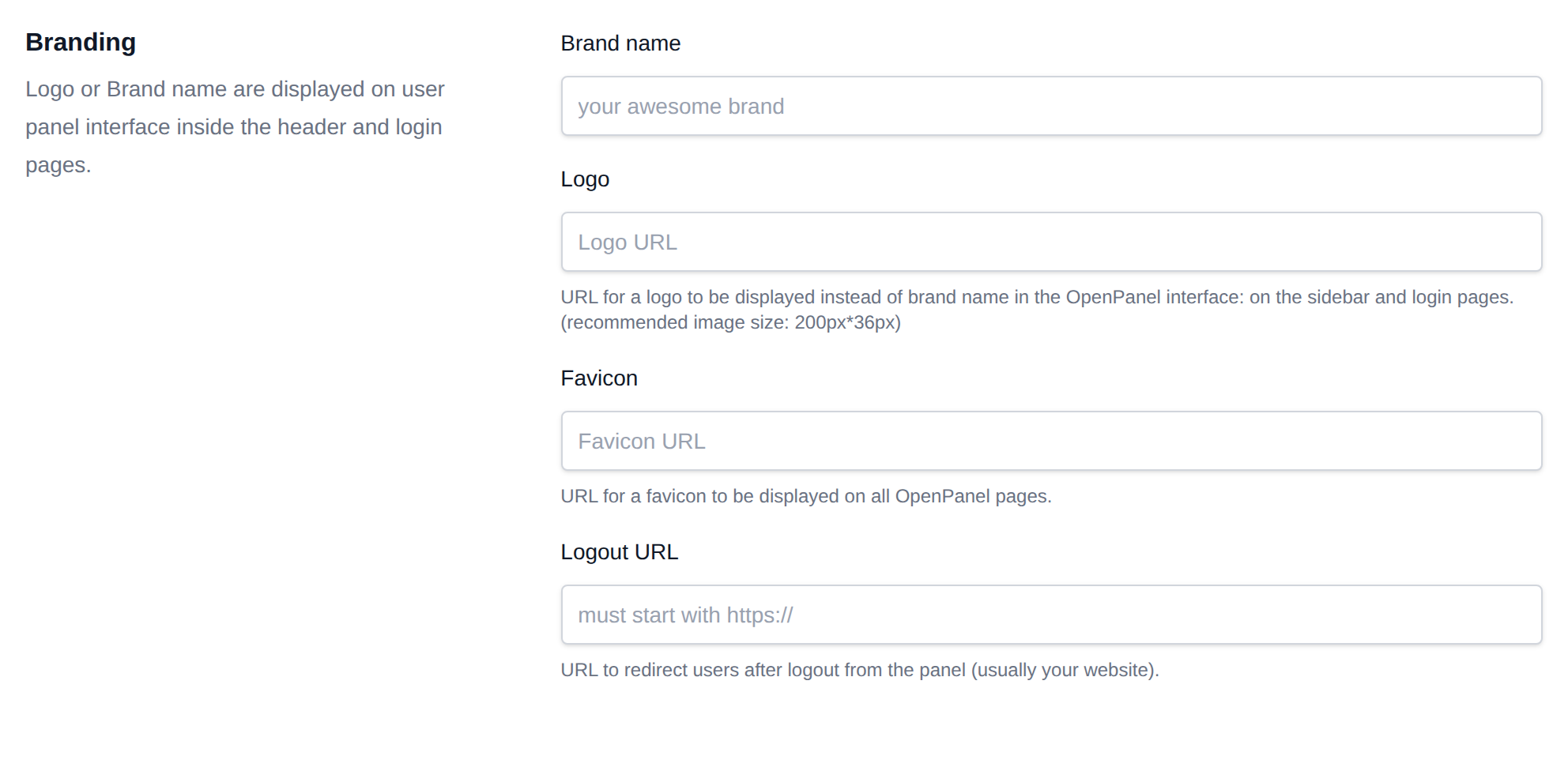
Set a custom name to appear in the OpenPanel sidebar and on login pages by entering it in the **"Brand name"** field.
- **Logo**
Display a logo instead of the brand name by providing a URL to the image in the **"Logo image"** field.
Supported formats: `.png` or `.svg`
**Recommended size:** `200px × 36px`
- **Logout URL**
Specify the URL users are redirected to after logging out from the panel (typically your main website).
## Nameservers
- ns1
- ns2
- ns3
- ns4
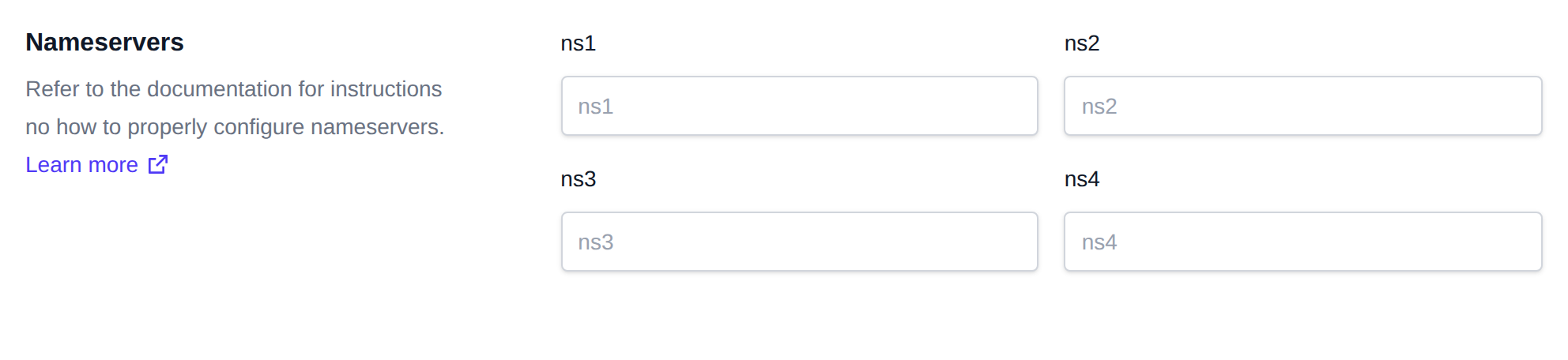
[Guide on how to properly configure nameservers](/docs/articles/domains/how-to-configure-nameservers-in-openpanel)
If no nameservers are set but the DNS module is enabled, a recommendation is shown to either set at least ns1 and ns2, or [disable the DNS module](/docs/admin/settings/modules) if it won't be used, so BIND9 isn't autostarted and DNS zone files aren't created for every domain.
## Users
Settings for OpenPanel user accounts:
- **Allow Users to Change Username:** If allowed, users can change their username from the *Account > Settings* page.
- **Allow Subdomain Sharing:** If allowed, users can add subdomains for domains that another user owns.
- **Forbidden Usernames:** List of usernames that can not be used, one per line.
- **Restricted Domains:** List of domains that can not be used, one per line.
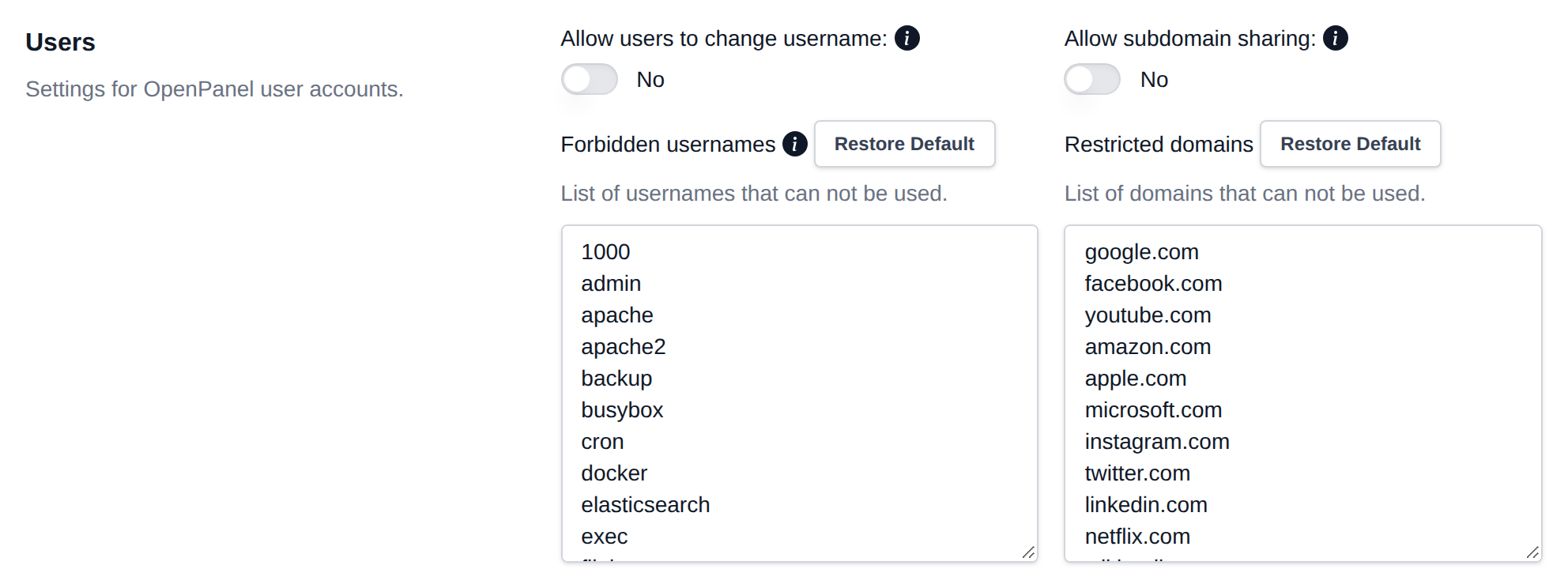
## Display
Additional display settings include:
- **Menu Style:** The default menu for OpenPanel users - **Classic** (expandable groups) or **Modern** (one link per area, with that area's pages as tabs at the top of each page). Users can still switch to the other style for themselves, see [Menu Style](/docs/panel/dashboard/menu-style/). The same setting also switches OpenAdmin's own menu, right after saving.
- **Avatar Type:** Choose between Gravatar, Letter, or Icon for user avatars.
- **Charts Mode for Resource Usage:** Select to show 1 chart, 2 charts, or no charts on the Resource Usage page.
- **Enable Password Reset:** Allow users to reset passwords via the login form (not recommended for security reasons). When enabled without SMTP configured, a warning links to [SMTP settings](/docs/admin/settings/notifications#smtp-settings), since reset emails won't reach users until it's set up.
- **Display 2FA Widget:** Show a message on users' dashboards encouraging them to enable Two-Factor Authentication for enhanced security.
- **Display How-to Guides Widget:** Display helpful how-to articles on users’ dashboard pages. When enabled, a **How-to Articles** field appears below to edit the Knowledge Base articles shown (requires an active Enterprise license and a non-reseller account to edit).
- **Display Link to Report Bugs:** Show a “Found a bug? Let us know” link at the bottom of all user pages for easy bug reporting.
- **Display Country Flag Icons:** Show country flags next to the last login IP in the OpenPanel dashboard.
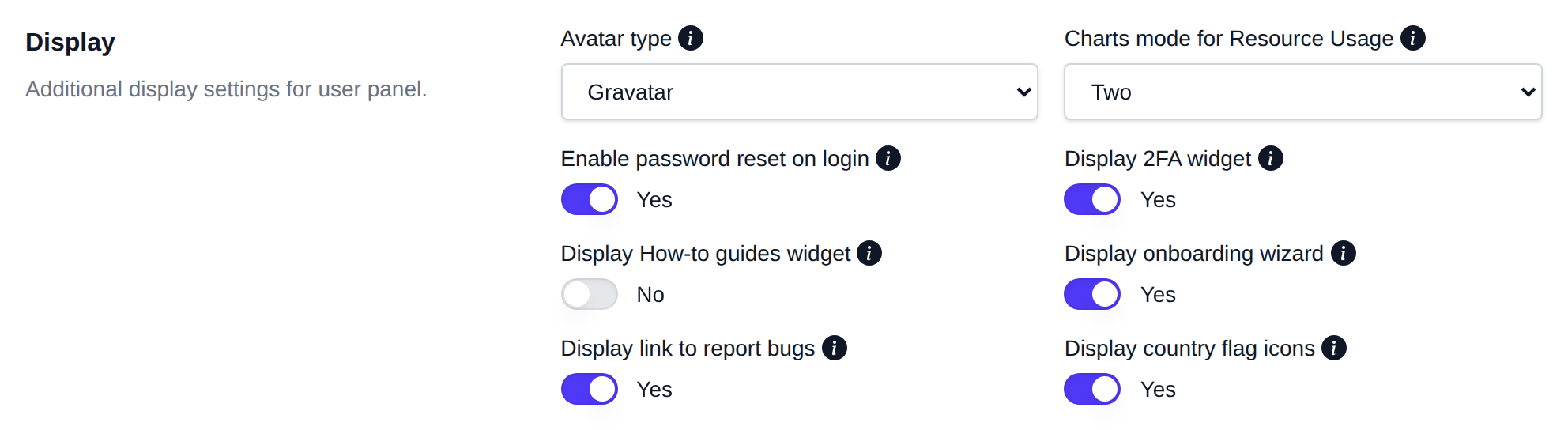
## Onboarding
- **Enable Onboarding Wizard:** Show a short guided setup wizard to new users on their first login. Steps the user has already set up are skipped (Webserver once they have a domain, Database once they have a database, Backups once a destination is configured, 2FA once it's enabled). See the [Onboarding page](/docs/panel/dashboard/onboarding) for what users see.
The wizard doesn't have its own separate list of steps to configure - each step just mirrors a feature already enabled in [Feature Manager](/docs/admin/plans/feature-manager) (Webserver, PHP, Database, Varnish, Backups, WAF, IP Blocker, 2FA, Passkeys). Disable a feature there for a plan and its onboarding step disappears too for users on that plan.
To reset the wizard for a single user (for testing, or if they ask to see it again), delete their marker file over SSH:
```bash
rm /home/USERNAME/onboarding.completed
```
They'll be offered the wizard again next time they log in, minus any steps they've already set up.
You can also add your own custom steps to the wizard - for example, a step to enable Redis - without modifying OpenPanel itself. See [Add Custom Steps to the Onboarding Wizard](/docs/articles/dev-experience/add-custom-steps-to-onboarding-wizard).
## File Manager
Configure the following settings for the File Manager:
- **Files per Page:** Number of files/folders displayed per page in the File Manager.
- **Max File Size for Viewer:** Maximum file size (in MB) allowed to be opened in the Viewer. Recommended maximum is 20 MB.
- **Max File Size for Editor:** Maximum file size (in MB) allowed to be opened in the Code Editor. Recommended maximum is 10 MB.
- **Max File Size for Upload:** Maximum file size (in MB) allowed to be uploaded via the File Manager. Recommended maximum is 2000 MB.
- **Max File Size for Download:** Maximum file size (in MB) allowed to be downloaded via the File Manager. Recommended maximum is 2000 MB.
- **Auto-Purge Trash After:** Number of days files remain in the user’s trash bin before automatic deletion. Setting to 0 disables auto-purge. Recommended setting is 30 days.
- **Max Time for Compress Process:** Maximum number of minutes before aborting archive compression processes. Recommended to keep this to a few minutes.
- **Max Time for Extract Process:** Maximum number of minutes before aborting archive extraction processes. Recommended to keep this to a few minutes.
- **Max Time for Download Process:** Maximum number of minutes before aborting file download processes. Recommended to keep this to a few minutes.
- **Enable View and Edit Options for (textual) Extensions:** Specify file extensions allowed to be opened and edited in the File Manager (should be textual file types).
- **Enable View Option for (base64 image) Extensions:** Specify image file extensions that can be displayed using base64 encoding in the Viewer.
- **Enable Extract and Archive Options for (archives) Extensions:** Specify archive file extensions that can be extracted using the File Manager.
A warning is shown when:
- a max file size for the Viewer, Editor, Upload or Download is bigger than the RAM limit of the OpenPanel container (set on [Service Limits](/docs/admin/services/limits)), since files that big can fail.
- Auto-Purge Trash is set to 0, since deleted files then pile up in users' Trash folders until they empty it themselves.
- Auto-Purge Trash is over 30 days, recommending to change the `opencli files-purge_trash` schedule to weekly on [Scheduled Actions](/docs/admin/advanced/crons).
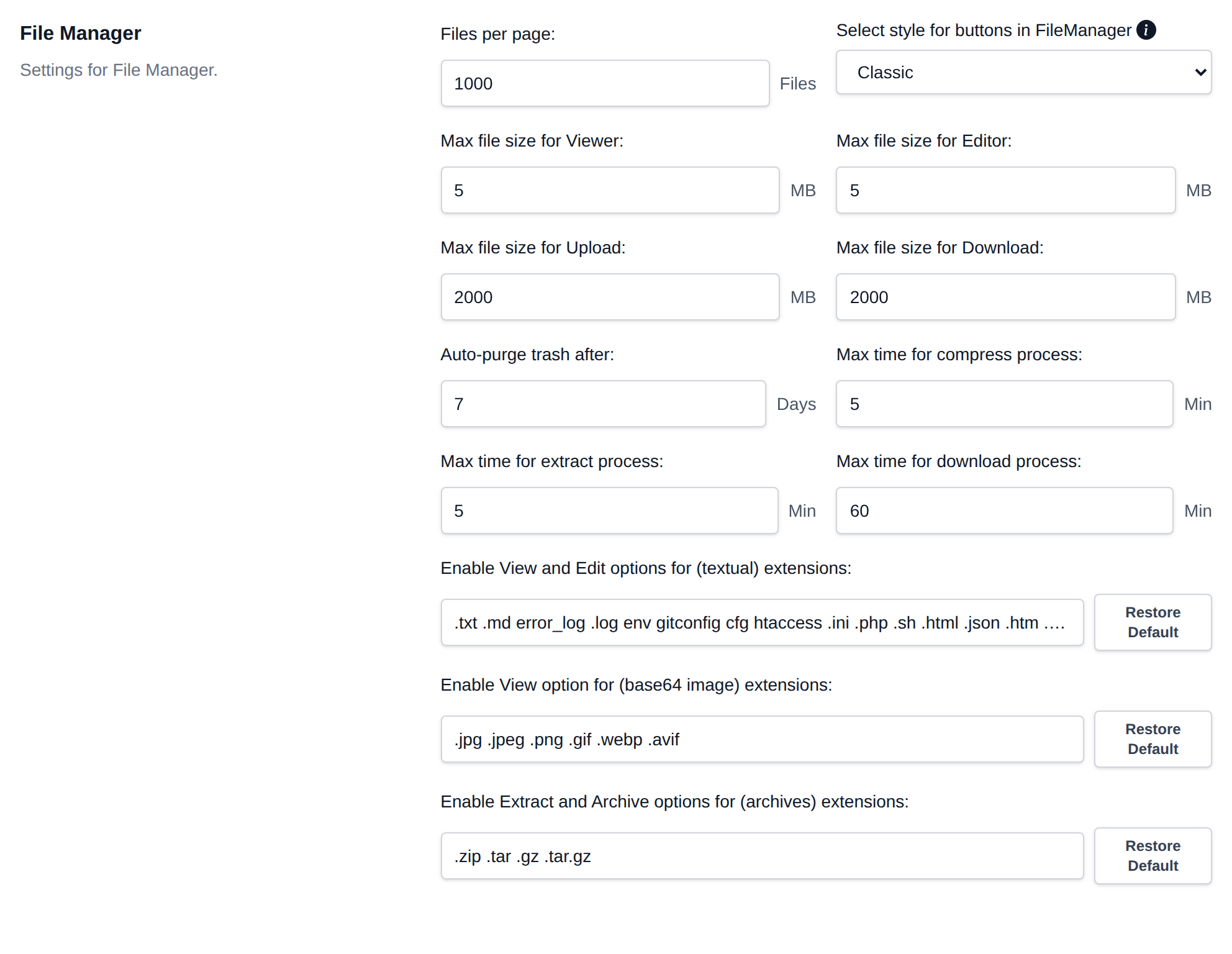
## Databases
Settings for user's databases:
- **Max Startup Time for MySQL:** Maximum number of seconds to wait for MySQL to initialize before timing out.
- **Max File Size for MySQL Import:** Maximum file size (in GB) allowed for a MySQL import.
- **Restricted MySQL (system) Users:** List of MySQL usernames that users are not allowed to access/manage.
- **Restricted MySQL (system) Databases:** List of MySQL databases that users are not allowed to access/manage.
A warning is shown when:
- Max Startup Time for MySQL is under 10 seconds, since MySQL needs time to initialize on first start. If a custom `MYSQL_VERSION` is set for new users, at least 60 seconds is recommended, since the first start downloads that image from Docker Hub.
- Max File Size for MySQL Import is bigger than the RAM limit of the OpenPanel container.
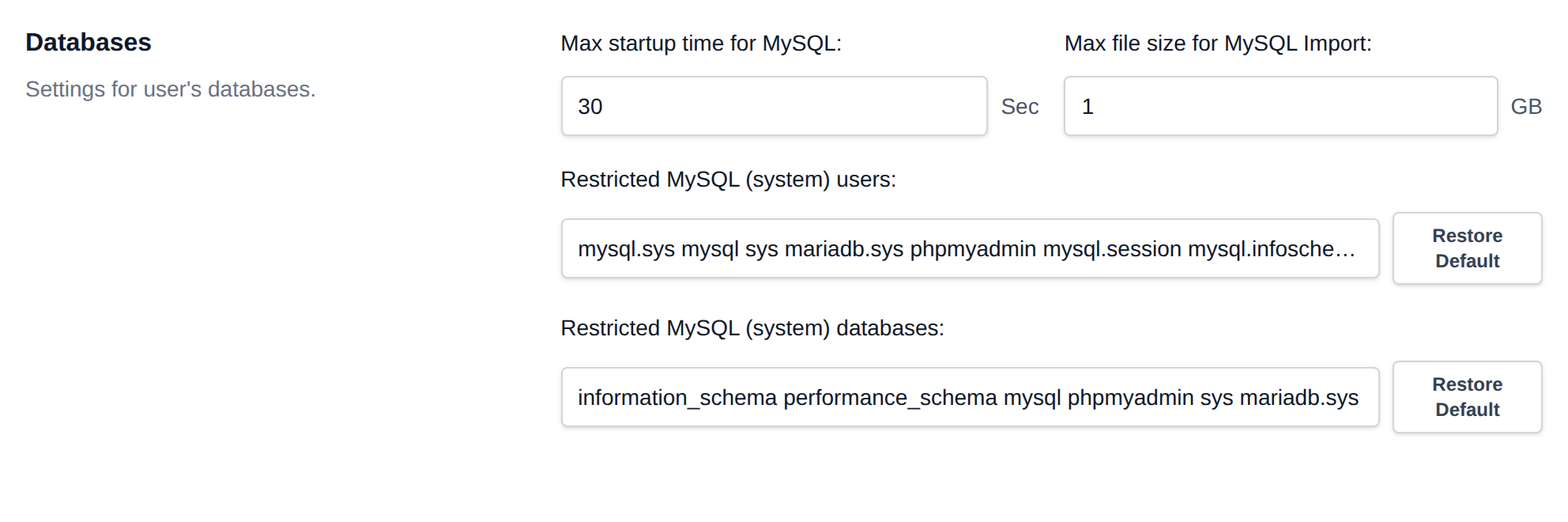
## Security
Captcha, 2FA, and password protections for login and signup forms:
- **Captcha Provider:** Choose between Disabled, Google reCAPTCHA, Cloudflare Turnstile, or Custom.
- Depending on the provider selected, enter the corresponding **site key** and **secret key** (or custom site key for the Custom provider).
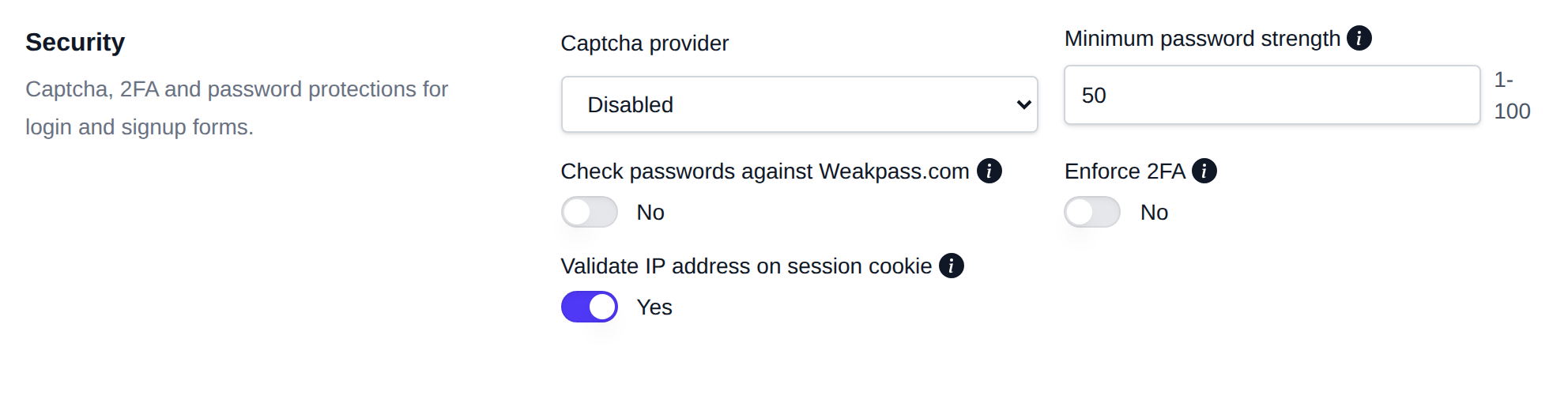
:::info
Captcha requires the [captcha plugin](https://github.com/stefanpejcic/captcha/) to be installed — these settings have no effect until it is installed.
:::
- **Minimum Password Strength:** A value between 1-100 setting the minimum password strength required for all password input fields in OpenPanel (account, FTP, Emails, Databases, etc).
- **Check Passwords Against Weakpass.com:** When enabled, user passwords during account creation and reset are verified against Weakpass.com’s list of compromised passwords.
- **Enforce 2FA:** On login redirects users to 2FA setup page and prevents them from accessing other pages until 2FA is configured.
- **Validate IP Address on Session Cookie:** When enabled, a session cookie is rejected if the request's IP address doesn't match the IP it was issued to.
A warning is shown when Minimum Password Strength is below 50 (weak passwords are accepted), when the Weakpass.com check is off (passwords found in data breaches can be used), and when Validate IP Address on Session Cookie is off (a cookie stolen from a user, for example through phishing, can be reused from any IP).
## Statistics
Configure the following settings related to user login attempts, session management, and data retention:
- **Failed Logins per Minute Before User is Rate-Limited:** Number of failed login attempts allowed per minute from a single IP before that IP is temporarily rate-limited to prevent brute-force attacks.
- **Failed Logins per Minute Before User is Blocked for 1 Hour:** Threshold of failed login attempts per minute that triggers a 1-hour block for the offending IP address.
- **Session Duration (in Minutes):** Length of time a user session remains active before requiring re-authentication.
- **Session Lifetime (in Minutes):** Total maximum lifetime of a session, after which the user will be logged out regardless of activity.
- **Login Records to Keep per User:** Number of recent login attempts stored per user for audit and security tracking purposes.
- **Activity Records to Store per User:** Maximum number of user activity logs retained for reviewing past actions within the panel.
- **Activity Items per Page:** Number of activity log entries displayed per page in the user interface.
- **Resource Usage Items to Display per Page:** Number of resource usage records shown per page when viewing user or system resource statistics.
- **Resource Usage Items to Log per User:** Number of resource usage entries recorded and stored per user for historical analysis.
- **Domains per Page:** Number of domain entries displayed per page in domain management lists.
- **Terminal Commands Timeout (in Seconds):** Maximum number of seconds a Docker Terminal command can run before being timed out.
- **PageSpeed API Key:** If set, this API key is used to fetch data from Google PageSpeed Insights.
A warning is shown when Terminal Commands Timeout is under 30 seconds (it applies to both the OpenPanel web terminal and OpenAdmin), and when there are more than 10 sites on the server but no PageSpeed API key.
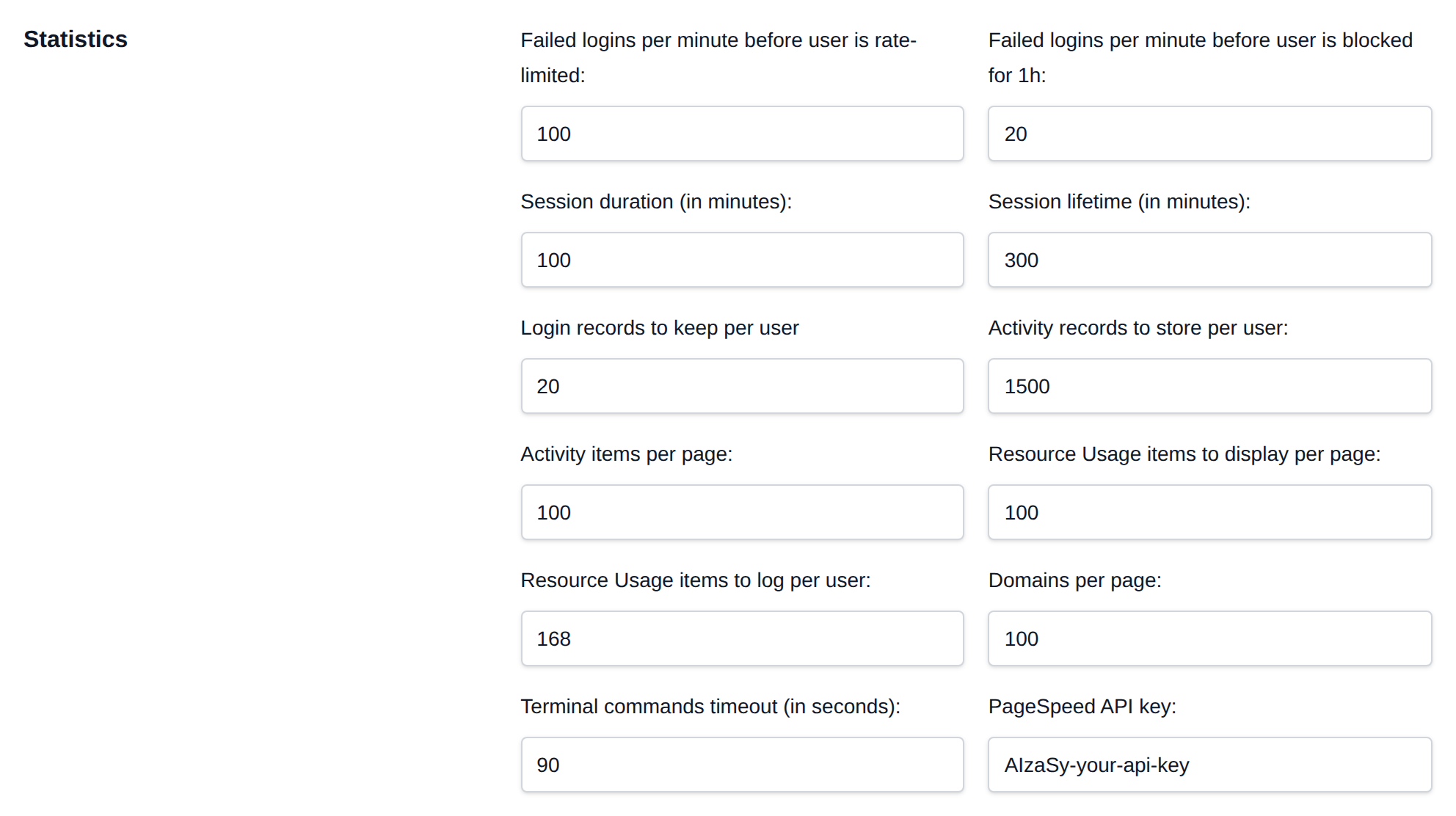
## AI Assistant
Settings for the [AI Assistant](/docs/panel/dashboard/dashboard#ai-assistant), the chat users open from the **AI** button in the OpenPanel header. It answers questions about the panel using the OpenPanel documentation, the user's plan features and the page they're on, and can look things up or make changes in the user's account.
To use it, enable the **AI Assistant** module on [Settings > Modules](/docs/admin/settings/modules/), add it to the feature sets of the plans that should have it, and set an API key here.
- **What the assistant can do:**
- *Answer questions only*: it can't see the user's data, it only explains how to do things.
- *Answer questions and look up account data* (default): it can list domains, websites, email accounts, usage and similar, but can't change anything.
- *Answer questions, look up data and make changes*: it can also add, edit and remove things, after the user approves each change.
- **Provider:** OpenRouter, OpenAI, Anthropic (Claude), or Custom for any OpenAI-compatible API such as Ollama.
- **API key:** The key from your provider. Optional for Custom providers that don't need one.
- **Model:** Model name, for example `gpt-5-mini`. Leave empty to use `openrouter/auto` with OpenRouter or `claude-opus-5-5` with Anthropic. Required for OpenAI and Custom.
- **API base URL:** Only for Custom, the URL that serves `/chat/completions`, for example `http://ollama:11434/v1`.
- **Assistant name:** Shown at the top of the chat. Defaults to *AI Assistant*.
- **Requests per user per month:** How many questions each user can ask per month, `0` for unlimited. Default is 100.
- **Max tokens per answer:** Upper limit for the length of each answer. Default is 2048.
- **Extra instructions:** Added to the assistant's instructions, for example your support email or policies.
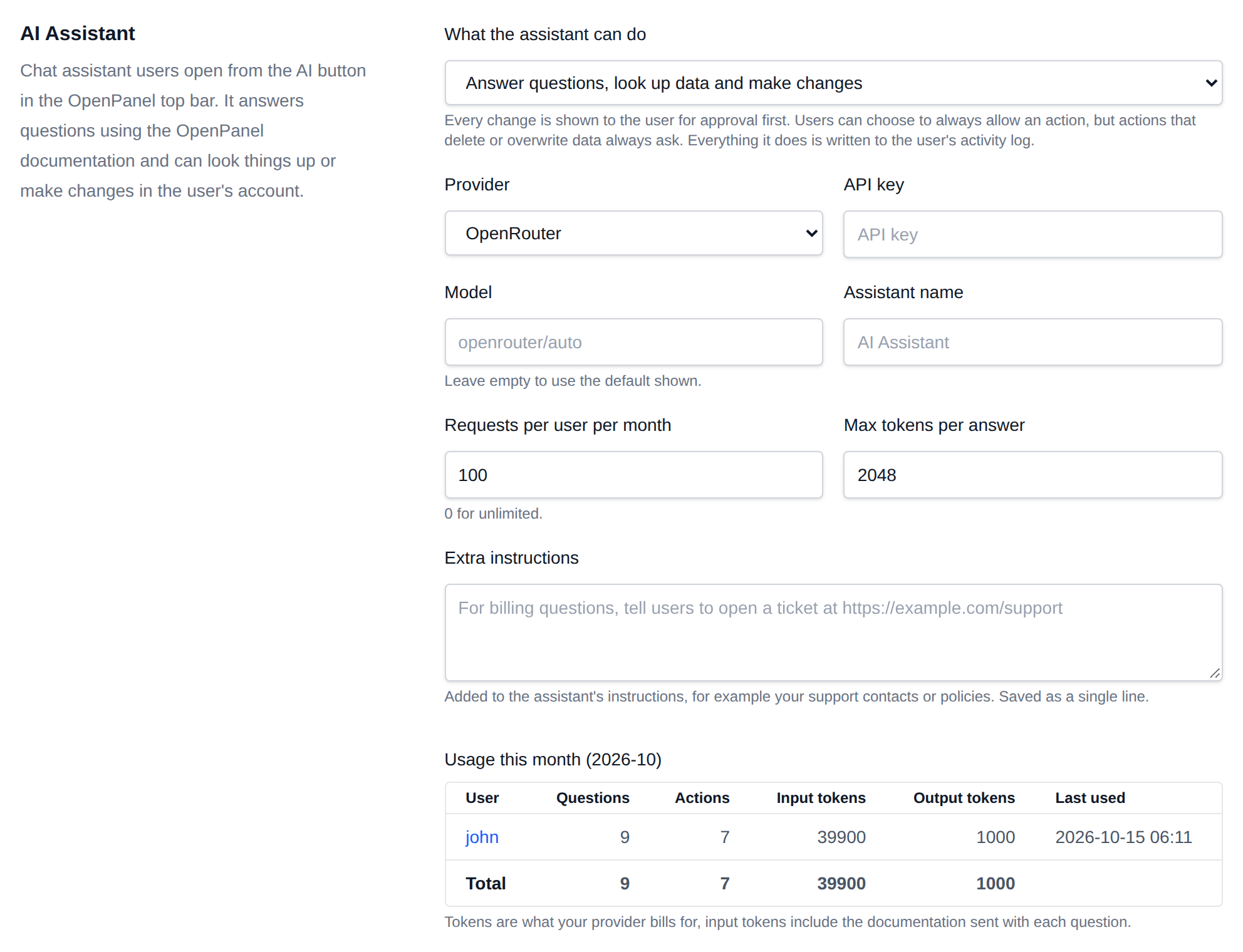
### Actions
The assistant uses the same actions as the [OpenPanel API](/docs/panel/account/api/), but only those for features on the user's plan, and every action goes through the same checks as the API. Logins, account email and password changes, 2FA, passkeys, sessions, MCP tokens, the MySQL root password, autologin links, downloads and uploads are never available to it.
- Looking things up runs right away.
- Changes are shown to the user as a card with the exact values, and run only after they click **Approve**. Users can click **Always allow** to skip the card next time for the same kind of action.
- Actions that delete or overwrite data, like removing a domain, deleting files, restoring backups or changing passwords, always ask and can't be set to **Always allow**.
- After the assistant reads content others can write, like files or logs, every change asks again for the rest of that question, even if the user set it to **Always allow**. This stops text hidden in a file from triggering changes.
- Each question can run at most 12 actions.
Everything the assistant does is written to the user's activity log, for example `used the AI Assistant to run: Add a new domain (POST /api/domains {"domain":"example.com"}), approved by the user`. Passwords and other secrets are hidden.
### Usage
Below the settings, **Usage this month** lists every user who used the assistant this month, with the number of questions, actions, input and output tokens, and when they last used it. Tokens are what your provider bills for, so this shows who uses the assistant most and what it costs you.
The settings are saved in the `[AI]` section of `/etc/openpanel/openpanel/conf/openpanel.config`. OpenPanel needs a restart to use the new values.
Each question sends the matching parts of the documentation along with the conversation to the provider, and every action adds another call, so API usage is billed by your provider. Use **Requests per user per month** to keep costs in check.
---
// File: admin/settings/defaults
# Defaults
From **OpenAdmin > Settings > User Defaults** Administrators can edit values for the `docker-compose.yml` and `.env` files used for new users.
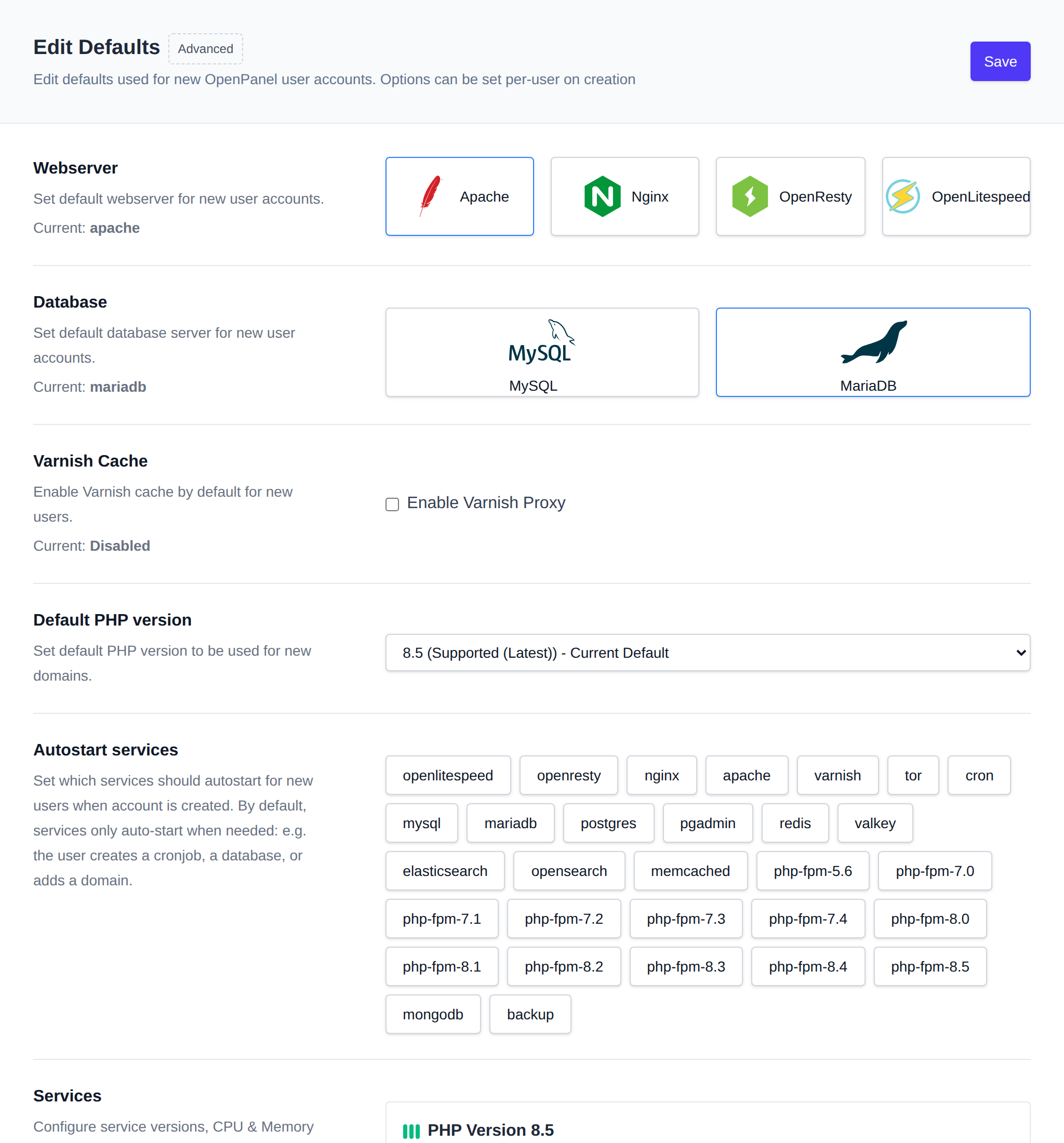
These files determine services and limits for new users.
### Recommendations
The page shows recommendations based on the sites, plans and services already on the server, only when the current setting differs from them:
- **Webserver:** based on the most common site type on the server. WordPress sites perform best on OpenLiteSpeed, or Apache if they rely on `.htaccess` rules. Node.js and Python apps run best behind Nginx, the fastest reverse proxy. Java and Ruby apps run best on OpenResty, since it can be scripted with Lua. Other CMS and PHP sites run well on Apache or Nginx.
- **Database:** MySQL uses about 100 MB more RAM per user than MariaDB, so MariaDB is recommended.
- **Varnish Cache:** recommended for new users when there are WordPress sites on the server, since WordPress pages cache well behind it.
- **Default PHP version:** the latest stable PHP version installed on the server.
- **Autostart services:** recommended to leave off, since autostarted services use resources on every new account whether it uses them or not. By default services only start when needed, for example when the user creates a cronjob, a database or adds a domain.
- **Service CPU/RAM limits:** for PHP-FPM, the webservers and MySQL/MariaDB, a limit below the smallest plan in use (by CPU and RAM) means that service can't use everything the plan allows, so the plan's values are recommended as the minimum. `0` means unlimited and never shows a recommendation.
> [How to setup Apache, Nginx, OpenResty, OpenLiteSpeed, and Varnish as default webserver](/docs/articles/containers/how-to-set-nginx-apache-varnish-per-user-in-openpanel/)
> [How to setup MySQL, MariaDB or Percona for default database type](/docs/articles/containers/how-to-set-mysql-mariadb-per-user-in-openpanel/)
### Available webservers
The webservers offered on this page, on the **Add User** form and to users are the ones defined in the `docker-compose.yml` template, not a fixed list. A service counts as a webserver if it mounts the `webserver_data` volume and publishes ports.
To stop offering a webserver, for example OpenLiteSpeed, remove its service block from the default `docker-compose.yml` using the 'Advanced' option. New accounts won't get it and it disappears from the Defaults page and the Add User form. Existing accounts keep their own copy of the file, so their current webserver isn't affected. To hide it from one existing user, remove the block from that user's `docker-compose.yml`.
---
Using the 'Advanced' option you can directly edit the files.
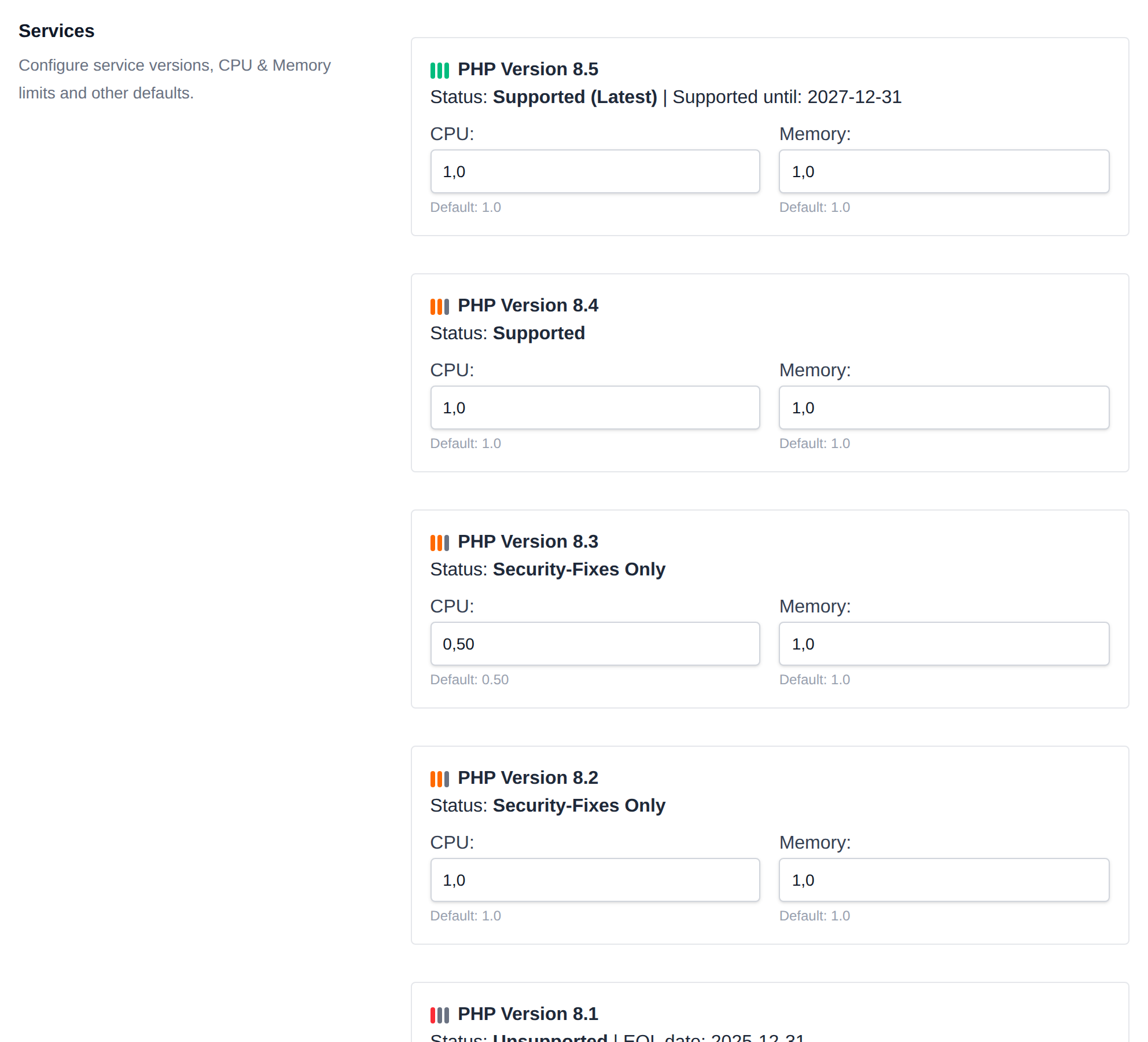
In these files you can configure additional services (docker containers) and change defaults for existing services.
Keep in mind that this is intended for advanced users and misconfiguration can cause exposed system ports, user hogging resources or exceeding disk limits.
For more information refer to [How to add custom container images](/docs/articles/containers/how-to-add-custom-docker-image-for-openpanel-user)
---
// File: admin/settings/modules
# Modules
Modules extend the OpenPanel UI by adding new features and pages. To make a feature available to a user or plan, it must first be activated as a module.
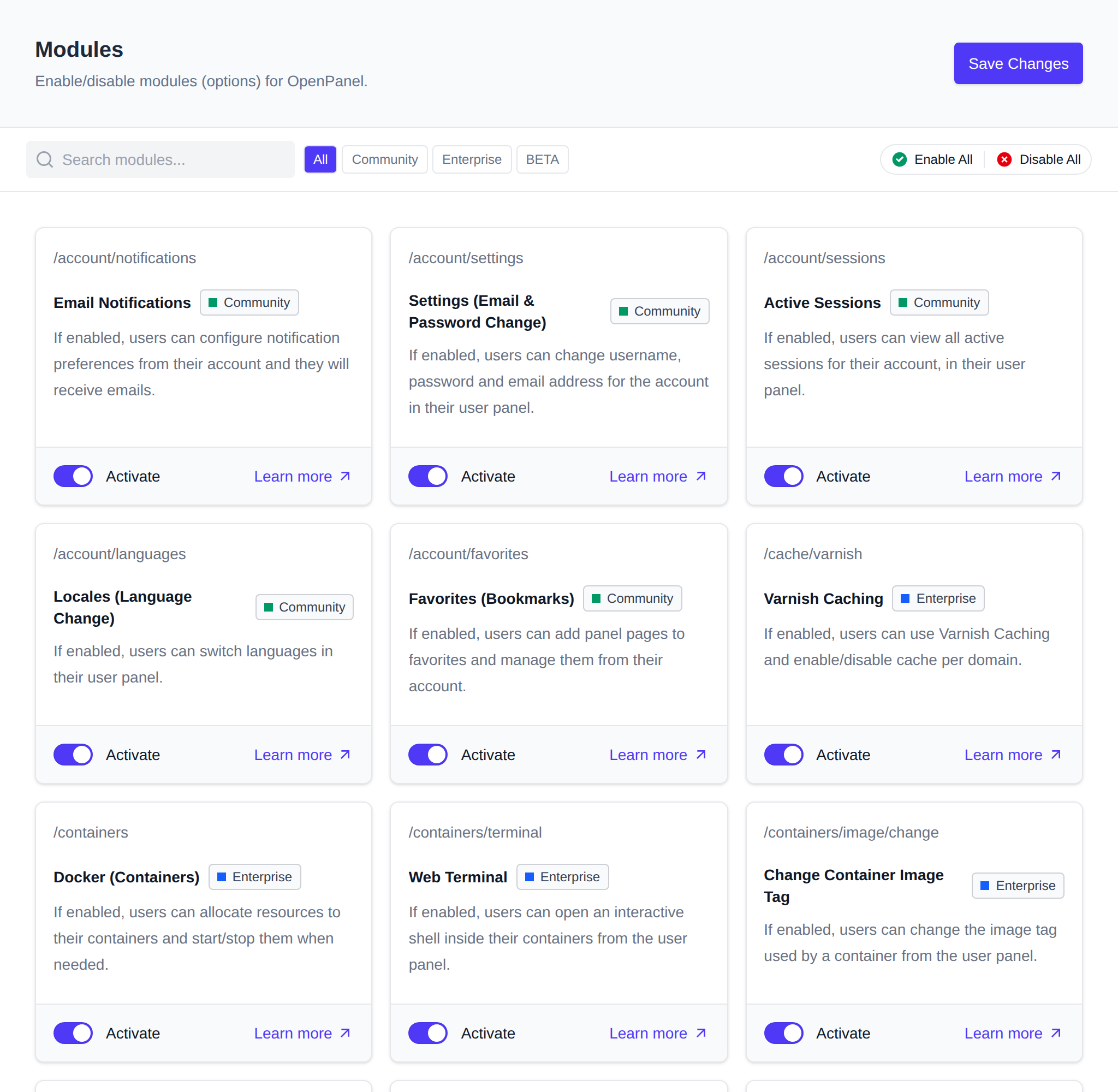
- Modules are **core features** that are already available on installation and are developed by OpenPanel.
Available Modules:
## Notifications
The **`notifications`** module is required to send email notifications to users.
When enabled:
* Emails are sent according to each user’s notification preferences.
* Users can manage their preferences through the OpenPanel UI at: [**Account > Notifications**](/docs/panel/account/notifications/).
When disabled:
* No emails will be sent, regardless of user preferences.
Customize email notifications:
* To **set default preferences for new users** edit the [`/etc/openpanel/skeleton/notifications.yaml`](https://github.com/stefanpejcic/openpanel-configuration/blob/main/skeleton/notifications.yaml) file.
* To **customize email templates** refer to [Customizing OpenAdmin Email Templates](/docs/articles/dev-experience/customizing-openadmin-email-templates/).
* To **configure custom SMTP** use [OpenAdmin > Settings > Notifications page](/docs/admin/settings/notifications/).
## Account
The **`account`** module is required for users to change their email, password or username.
When enabled:
* Users can change their email, password and username through the OpenPanel UI at: [**Account > Login Details**](/docs/panel/account/).
When disabled:
* Users can not change their passwords from OpenPanel UI, only from 'Password Reset' on login form, if this option is enabled.
Customize password and username changes:
* To **enable or disable password reset on login forms** edit 'Enable password reset on login' setting from [OpenAdmin > Settings > OpenPanel](/docs/admin/settings/openpanel/).
* To **prevent users from changing their username** edit 'Allow users to change username' setting from [OpenAdmin > Settings > OpenPanel](/docs/admin/settings/openpanel/).
## Sessions
The **`sessions`** module allows users to view and manage their active sessions.
When enabled:
* Users can view all their active sessions, logs and terminate any session through the OpenPanel UI at: [**Security > Active Sessions**](/docs/panel/security/active_sessions/).
When disabled:
* Users can not access the *Security > Active Sessions* page.
Customize sessions duration:
* To **control session duration** edit 'Session duration' setting from [OpenAdmin > Settings > OpenPanel](/docs/admin/settings/openpanel/#statistics).
* To **control session lifetime** edit 'Session lifetime' setting from [OpenAdmin > Settings > OpenPanel](/docs/admin/settings/openpanel/#statistics).
## Locale
The **`locale`** (Languages) module allows users to change panel language.
When enabled:
* Users can change their preferred language for OpenPanel UI from the [**Account > Language** page](/docs/panel/account/language/).
When disabled:
* Users can not access the *Account > Language* page to change their locale.
* Users are forced to the Admin defined default locale.
Customize locales:
* To **set the default locale** use [OpenAdmin > Settings > Locales](/docs/articles/accounts/default-user-locales/).
* To **install new locales for users** use the [OpenAdmin > Settings > Locales](/docs/admin/settings/locales/#install-locale).
* To **create a new translation** please see [How to Create a New Locale](/docs/admin/settings/locales/#edit-locale)
## Favorites
The **`favorites`** module allows users to *pin* items in their sidebar menu for quick navigation.
When enabled:
* Users can add pages to favorites with **left-click** on ⭐ icon in top-right corner of the page.
* Users can remove pages from favorites with **right-click** on ⭐ icon in top-right corner of the page.
* Users can access favorites from sidebar menu.
* Users can access the [**Account > Favorites** page](/docs/panel/account/favorites/).
When disabled:
* Users can not access the *Account > Favorites* page to manage favorites.
* Users do not see favorites in the sidebar nor the ⭐ icon in top-right corner of pages.
Customize favorites:
* To **control the total number of favorites for user** (default is 10) use [`favorites_items` config](https://dev.openpanel.com/cli/config.html#favorites-items).
* To **edit user's favorites from terminal** edit their: `/etc/openpanel/openpanel/core/users/{current_username}/favorites.json` file.
## Varnish
The **`varnish`** module allows users to control varnish caching for their domains.
When enabled:
* Varnish server starts for user and proxies traffic back to their webserver.
* Users can access the [**Cache & Search > Varnish** page](/docs/panel/caching/varnish/).
* Users can enable/disable Varnish service.
* Users can enable/disable Varnish caching per domain.
* Users can view logs for the Varnish service.
When disabled:
* Users do not have access to the *Cache & Search > Varnish* page.
* Varnish is used only if Administrator enabled it for user when creating the account.
Customize options:
* To **enable/disable Varnish for all new users** use [*OpenAdmin > Settings > User Defaults* page and *Enable Varnish Proxy* option](/docs/admin/settings/defaults/).
* To **enable/disable Varnish for a single user** when creating their account use the [**Enable Varnish Cache** option](/docs/articles/containers/how-to-set-nginx-apache-varnish-per-user-in-openpanel/).
* To **change default CPU/RAM for service** use the [*OpenAdmin > Settings > User Defaults* page](/docs/admin/settings/defaults/).
* To **edit the default.vcl file for Varnish** use the [*OpenAdmin > Domains > VirtualHost Templates* page](/docs/admin/domains/vhost_templates/#varnish-template) or edit file: [`/etc/openpanel/varnish/default.vcl`](https://github.com/stefanpejcic/openpanel-configuration/blob/main/varnish/default.vcl).
* To **purge Varnish cache** refer to [How-to Guides > Purging Varnish Cache](/docs/articles/websites/purge-varnish-cache-from-terminal/)
## Docker
The **`docker`** module allows users to manage and add new docker containers.
When enabled:
* Users can access the [**Containers**](/docs/panel/containers/) page to view and manage services.
* Users can use the **Add Service** form on the [**Containers**](/docs/panel/containers/#adding-new-services) page to add new services.
* Users can access [**Containers > Logs**](/docs/panel/containers/logs/) page to view service logs.
When disabled:
* Users can not access any of the *Containers* pages.
The web terminal, changing a service's image tag, and switching the webserver/MySQL type each live behind their own module below rather than `docker` - see **Web Terminal**, **Change Container Image Tag**, **Switch WebServer**, and **Switch MySQL Type**.
## Web Terminal {#terminal}
The **`terminal`** module allows users to run podman exec commands from an interactive shell inside their containers.
When enabled:
* Users can access [**Containers > Terminal**](/docs/panel/containers/terminal/) page to run podman exec commands.
When disabled:
* Users do not have access to the *Containers > Terminal* page.
Customize options:
* [Disable the Terminal](/docs/articles/dev-experience/disable-openpanel-web-terminal/)
## Change Container Image Tag {#change-image}
The **`change_image`** module allows users to change the image tag used by a container.
When enabled:
* Users can access [**Containers > Software Versions**](/docs/panel/containers/change/) page to change images tag.
When disabled:
* Users do not have access to the *Containers > Software Versions* page.
## Switch WebServer {#change-ws}
The **`change_ws`** module allows users to switch the webserver used for their account.
When enabled:
* Users can access [**Web Server Config > Web Server Type**](/docs/panel/webserver/webserver_type/) page to switch webservers.
When disabled:
* Users do not have access to the *Web Server Config > Web Server Type* page.
## Switch MySQL Type {#change-db}
The **`change_db`** module allows users to switch between MySQL, MariaDB and Percona for their account.
When enabled:
* Users can access [**MySQL > Server Type**](/docs/panel/mysql/server_type/) page to switch between MySQL, MariaDB and Percona.
When disabled:
* Users do not have access to the *MySQL > Server Type* page.
## Fix Permissions
The **`fix_permissions`** module allows users to reset file/folder permissions.
When enabled:
* Users can access the [**Files > Fix Permissions** page](/docs/panel/files/fix_permissions/).
When disabled:
* Users can not access the *Files > Fix Permissions* page.
## FTP
The **`ftp`** module allows users to create and manage FTP sub-accounts.
When enabled:
* Users can access the [**Files > FTP Accounts** page](/docs/panel/files/FTP/) to manage FTP accounts.
When disabled:
* Users can not create and manage FTP accounts.
Customize options:
* To **configure FTP server** refer to [*How-to Guides > Setup FTP](/docs/articles/user-experience/how-to-setup-ftp-in-openpanel/).
* To **edit VSFTPD configuration** edit the [`/etc/openpanel/ftp/vsftpd.conf` file](https://github.com/stefanpejcic/openpanel-configuration/blob/main/ftp/vsftpd.conf).
* To **view all ftp accounts on a server** use the [*OpenAdmin > Services > FTP* page](/docs/admin/services/ftp/).
* To **limit number of ftp accounts per user** edit the ftp accounts limit when creating/editing hosting packages.
## Emails
The **`emails`** module allows users to create and manage Email accounts.
When enabled:
* Users can access the [**Email > Accounts** page](/docs/panel/emails/) to manage Email accounts.
When disabled:
* Users can not create and manage Email accounts.
Customize options:
* To **configure email server** refer to [*How-to Guides > Configure Email Server*](/docs/articles/user-experience/how-to-setup-email-in-openpanel/).
* To **configure email client** refer to [*How-to Guides > How to setup your email client*](/docs/articles/email/how-to-setup-your-email-client/).
* To **view all email accounts on a server** use the [*OpenAdmin > Emails > Accounts* page](/docs/admin/emails/).
* To **set up fail2ban** refer to [*How-to Guides > Setup Fail2ban](/docs/articles/email/how-to-setup-fail2ban-mailserver-openpanel/).
* To **set up Rspamd** refer to [*How-to Guides > RSPAMD GUI](/docs/articles/email/rspamd-gui-port-11334/).
* To **set up DKIM for a domain** refer to [*How-to Guides > Setup DKIM](/docs/articles/email/how-to-setup-dkim-for-mailserver/).
* To **limit number of email accounts per user** edit the email accounts limit when creating/editing hosting packages.
## Webmail
The **`webmail`** module allows users to auto-login to Roundcube webmail for their Email accounts.
When enabled:
* Users can open Roundcube from the [**Email > Webmail**](/docs/panel/emails/webmail/) link and are logged in automatically.
When disabled:
* Users can not auto-login to webmail.
Customize options:
* To **set webmail domain or relay hosts** use the [*OpenAdmin > Emails > Email Settings* page](/docs/admin/emails/settings/).
## Email Filters
The **`email_filters`** module allows users to configure filters and forwarders for their emails.
When enabled:
* Users can access the [**Email > Filters** page](/docs/panel/emails/filters/).
When disabled:
* Users can not access the *Email > Filters* page.
## Email Aliases
The **`email_aliases`** module allows users to forward mail from a non-existing address to one or more destinations.
When enabled:
* Users can access the [**Email > Aliases** page](/docs/panel/emails/aliases/).
When disabled:
* Users can not access the *Email > Aliases* page.
## Address Importer {#email-import}
The **`email_import`** module allows users to import email addresses from a CSV file.
When enabled:
* Users can access the [**Email > Import** page](/docs/panel/emails/import/).
When disabled:
* Users can not access the *Email > Import* page.
## Email Migration
The **`email_migrate`** module allows users to copy emails from another IMAP server into their email accounts.
When enabled:
* Users can access the [**Email > Migrate** page](/docs/panel/emails/migrate/).
When disabled:
* Users can not access the *Email > Migrate* page.
## Address Exporter {#email-export}
The **`email_export`** module allows users to export all their email addresses to a CSV file.
When enabled:
* Users can export email addresses by visiting: `/emails/export`
When disabled:
* Users can not export their email addresses.
## Default Address
The **`email_default`** module allows users to create default (catch-all) email addresses.
When enabled:
* Users can access the [**Email > Catch-all Address** page](/docs/panel/emails/default_address/).
When disabled:
* Users can not access the *Email > Catch-all Address* page.
## Email Deliverability
The **`email_deliverability`** module allows users to check and validate SPF, DKIM and DMARC records for their domains.
When enabled:
* Users can access the [**Email > Deliverability** page](/docs/panel/emails/email_deliverability/) to view DNS records.
When disabled:
* Users can not access the *Email > Deliverability* page.
## MySQL
The **`mysql`** module allows users to create and manage mysql databases.
When enabled:
* MySQL/MariaDB auto-starts when user accesses Databases section, opens phpMyAdmin or installs WordPress.
* Users can access the [**MySQL > Databases** page](/docs/panel/mysql/databases/) to manage databases.
* Users can access the [**MySQL > Databases > New Database** page](/docs/panel/mysql/new_db/) to create databases.
* Users can access the [**MySQL > Databases > Database Wizard** page](/docs/panel/mysql/wizard/) to create database, user and assign privileges.
* Users can access the [**MySQL > Users** page](/docs/panel/mysql/users/) to manage users.
* Users can access the [**MySQL > Users > Create User** page](/docs/panel/mysql/new_user/) to create users.
* Users can access the [**MySQL > Users > Change Password** page](/docs/panel/mysql/users/#change-user-password) to change password for a user.
* Users can access the [**MySQL > Users > Assign User** page](/docs/panel/mysql/assign/) to assign all privileges to user over a database.
* Users can access the [**MySQL > Users > Remove User** page](/docs/panel/mysql/remove/) to revoke all privileges to user over a database.
When disabled:
* Users do not have access to the *MySQL* section.
Customize options:
* To **set mysql or mariadb for all new users** use [*OpenAdmin > Settings > User Defaults* page and *MySQL type* option](/docs/admin/settings/defaults/).
* To **set mysql, percona or mariadb for a single user** when creating their account use the [**MySQL Type** option](/docs/articles/containers/how-to-set-mysql-mariadb-per-user-in-openpanel/).
* To **change default CPU/RAM for service** use the [*OpenAdmin > Settings > User Defaults* page](/docs/admin/settings/defaults/).
* To **restrict access to system users** edit the [`mysql_restricted_usernames`](https://dev.openpanel.com/cli/config.html#mysql-restricted-usernames) setting.
* To **restrict access to system databases** edit the [`mysql_restricted_databases`](https://dev.openpanel.com/cli/config.html#mysql-restricted-databases) setting.
* To **increase the startup time allowed for waiting MySQL to initalize** increase [`mysql_startup_time`](https://dev.openpanel.com/cli/config.html#mysql-startup-time).
How-to guides:
* To **connect to a database** refer to [*How-to Guides > Connecting to MySQL Server from Applications in OpenPanel](/docs/articles/databases/how-to-connect-to-mysql-from-php-applications-in-openpanel/).
* To **troubleshoot errors** refer to [*How-to Guides > How to troubleshoot: Error establishing a database connection](/docs/articles/databases/how-to-troubleshoot-error-establishing-a-database-connection/).
## MySQL Root Password
The **`mysql_root_password`** module allows users to change password for their MySQL root user from the user panel.
When enabled:
* Users can access the [**MySQL > Root Password** page](/docs/panel/mysql/root-password/) to change root user password.
When disabled:
* Users do not have access to the *MySQL > Root Password* page.
## MySQL Show Processes {#mysql-show-processlist}
The **`mysql_processlist`** module allows users to view the MySQL process list.
When enabled:
* Users can access the [**MySQL > Running Queries** page](/docs/panel/mysql/processlist/) to view all active processes.
When disabled:
* Users do not have access to the *MySQL > Running Queries* page.
## Remote MySQL
The **`remote_mysql`** module allows users to enable/disable remote access to mysql.
When enabled:
* Remote access is disabled by default.
* Random port is allocated per user for their mysql instances.
* Users can access the [**MySQL > Remote Access** page](/docs/panel/mysql/remote/) to enable/disable remote access.
* Users can connect to any database from remote location once the option is enabled.
When disabled:
* Remote access is disabled.
Customize options:
* None
## phpMyAdmin
The **`phpmyadmin`** module allows users to manage phpMyAdmin service.
When enabled:
* Users can open phpMyAdmin from the [**MySQL > phpMyAdmin**](/docs/panel/mysql/phpmyadmin/) link (opens in a new tab, logged in automatically).
* phpMyAdmin is available on a `https://DOMAIN:2053` when domain is set, or `http://IP:8888` when IP is set for panel access.
When disabled:
* Users do not have access to the *phpMyAdmin* service.
Customize options:
* To **change CPU/RAM for phpMyAdmin service** or values: **php_max_execution_time, php_memory_limit, php_upload_limit** use [*OpenAdmin > Services > Service Limits](/docs/admin/services/limits/).
How-to guides:
* To **import tables into a database** refer to [**the Documentation**](/docs/panel/mysql/phpmyadmin/#import-sql-files).
## MySQL Import
The **`mysql_import`** module allows users to import files into their databases.
When enabled:
* Users can access the [**MySQL > Import** page](/docs/panel/mysql/import/) to import files into a database.
When disabled:
* Users can not access the *MySQL > Import* page.
Customize options:
* To **set the max file size allowed for import** increase [`mysql_import_max_size_gb`](https://dev.openpanel.com/cli/config.html#mysql-import-max-size-gb) value.
How-to guides:
* To **import into a database** refer to [*How-to Guides > Importing a Database](/docs/articles/containers/import-database/).
## MySQL Conf
The **`mysql_conf`** module allows users to edit mysql server configuration.
When enabled:
* Users can access the [**MySQL > Configuration** page](/docs/panel/mysql/configuration/) to edit service .cnf file.
When disabled:
* Users can not access the *MySQL > Configuration* page.
Customize options:
* To **set available options for configuration** edit file: [`/etc/openpanel/mysql/keys.txt`](https://github.com/stefanpejcic/openpanel-configuration/blob/main/mysql/keys.txt).
* To **edit the mysql.cnf file for a single user** edit file: `/home/${username}/custom.cnf`.
* To **edit the mysql.cnf file for all new users** edit file: [`/etc/openpanel/mysql/user.cnf`](https://github.com/stefanpejcic/openpanel-configuration/blob/main/mysql/user.cnf).
## MongoDB
The **`mongodb`** module allows users to create and manage MongoDB databases.
When enabled:
* Users can access the [**MongoDB** section](/docs/panel/mongodb/databases/) to manage databases and users.
* Users can view active queries on the [**MongoDB > Running Queries** page](/docs/panel/mongodb/processlist/).
When disabled:
* Users do not have access to the *MongoDB* section.
## MongoDB Import
The **`mongodb_import`** module allows users to import files into their MongoDB databases.
When enabled:
* Users can access the [**MongoDB > Import** page](/docs/panel/mongodb/import/) to import files into a database.
When disabled:
* Users can not access the *MongoDB > Import* page.
## PostgreSQL
The **`postgresql`** module allows users to create and manage PostgreSQL databases and users.
When enabled:
* Users can access the [**PostgreSQL** section](/docs/panel/postgresql/databases/) to manage databases and users.
* Users can view active queries on the [**PostgreSQL > Running Queries** page](/docs/panel/postgresql/processlist/).
When disabled:
* Users do not have access to the *PostgreSQL* section.
## Remote PostgreSQL
The **`remote_postgresql`** module allows users to enable/disable remote access to PostgreSQL.
When enabled:
* Remote access is disabled by default.
* Random port is allocated per user for their PostgreSQL instances.
* Users can access the [**PostgreSQL > Remote Access** page](/docs/panel/postgresql/remote/) to enable/disable remote access.
* Users can connect to any database from remote location once the option is enabled.
When disabled:
* Remote access is disabled.
Customize options:
* None
## PostgreSQL Import
The **`postgresql_import`** module allows users to import files into their databases.
When enabled:
* Users can access the [**PostgreSQL > Import** page](/docs/panel/postgresql/import/) to import files into a database.
When disabled:
* Users can not access the *PostgreSQL > Import* page.
Customize options:
* None
## PostgreSQL Conf
The **`postgresql_conf`** module allows users to edit PostgreSQL server configuration.
When enabled:
* Users can access the [**PostgreSQL > Configuration** page](/docs/panel/postgresql/configuration/) to edit `postgresql.conf` settings.
When disabled:
* Users can not access the *PostgreSQL > Configuration* page.
## Crons
The **`crons`** module allows users to schedule [Ofelia](https://hub.docker.com/r/mcuadros/ofelia) cron jobs.
When enabled:
* Users can access the [**Cron Jobs** page](/docs/panel/cronjobs/).
* Users can [add cronjobs](/docs/panel/cronjobs/#add)
* Users can [edit cronjobs](/docs/panel/cronjobs/#edit)
* Users can [view logs for cronjobs](/docs/panel/cronjobs/#logs)
* Users can [edit crons file](/docs/panel/cronjobs/#file-editor)
* Users can [import and export cronjobs](/docs/panel/cronjobs/#import--export)
When disabled:
* Users can not access the *Cron Jobs* pages nor modify crons.
Customize options:
* To **pre-set cronjobs for new users** edit the `/etc/openpanel/ofelia/users.ini` file.
* To **set max file size for the cron file to be editable via OpenPanel UI** set the [`cron_max_file_size_kb`](https://dev.openpanel.com/cli/config.html#cron-max-file-size-kb) value.
## Process Manager
The **`process_manager`** module allows users to view and terminate processes from all running services.
When enabled:
* Users can access the [**Processes & Services > Processes** page](/docs/panel/processes/process_manager/).
When disabled:
* Users can not access the *Processes & Services > Processes* page.
Customize options:
* None
## Server Info
The **`info`** module allows users to view server information, hosting plan information and OpenPanel information.
When enabled:
* Users can access the [**Server Info** page](/docs/panel/server_info/).
When disabled:
* Users can not access the *Server Info* page.
Customize options:
* None
## Temporary Links
The **`temporary_links`** module allows users to test their websites using temporary subdomains (links are valid for 15 minutes).
When enabled:
* Users can access the [**Live Preview** button on the Site Manager](/docs/panel/applications/wordpress/#temporary-link).
When disabled:
* Users can not access the *Live Preview* button on the Site Manager page.
Customize options:
* To **self-host a proxy service** - refer to [How-to Guides > Temporary Links API](/docs/articles/dev-experience/selfhosted-temporary-links-api/).
* To **configure a custom domain** - update the [`temporary_links` option](https://dev.openpanel.com/cli/config.html#temporary-links).
## Login History
The **`login_history`** module allows users to view login history for their account.
When enabled:
* Users can access the [**Security > Login History** page](/docs/panel/security/login_history/).
When disabled:
* Users can not access the *Security > Login History* page.
Customize options:
* To **control number of logins stored per user** edit 'Login records to keep per user' setting from [OpenAdmin > Settings > OpenPanel](/docs/admin/settings/openpanel/#statistics).
## 2FA
The **`twofa`** module allows users to enable 2 factor authentication for their account.
When enabled:
* Users can access the [**Security > Two-Factor Auth** page](/docs/panel/security/2fa).
* 2FA is required on login page if account has enabled it.
When disabled:
* Users can not access the *Security > Two-Factor Auth* page nor manage 2FA.
Customize options:
* To **enable 2FA widget** use [*OpenAdmin > Settings > OpenPanel* page and *Display 2FA widget* option](/docs/admin/settings/openpanel/).
* To **enforce 2FA for all users** use [*OpenAdmin > Settings > OpenPanel* page and *Enforce 2FA* option](/docs/admin/settings/openpanel/).
## Passkeys
The **`passkeys`** module allows users to set up [Passkeys](https://safety.google/intl/en_in/safety/authentication/passkey/) for their account.
NOTE: Passkeys require that a domain name is used for panel access.
When enabled:
* Users can access the [**Security > Passkeys** page](/docs/panel/security/passkeys).
* 'Sign in with a passkey' is shown on the login page.
When disabled:
* Users can not login using Passkeys.
## Activity
The **`activity`** module allows users to view their activity logs.
When enabled:
* Users can access the [**Security > Activity Log** page](/docs/panel/security/account_activity).
When disabled:
* Users can not access the *Security > Activity Log* page.
Customize options:
* To **edit activity log from terminal** open file: `/etc/openpanel/openpanel/core/users/{username}/activity.log`.
* To **set total number of lines per user** edit `activity_lines_retention` setting.
* To **set total size of log per user** edit `activity_max_size_bytes` setting.
## Backups
The **`backups`** module allows users to configure their own backups: what to backup, destination, retention, schedule, etc.
When enabled:
* Users can access the [**Backups** page](/docs/panel/backups/).
* Users can configure backup schedule, encryption, retention and destination.
When disabled:
* Users do not have access to the *Backups > Overview*, *Configuration* and *Destination* pages.
* [Administrators need to configure backups for the user](/docs/articles/backups/configuring-backups/#1-admin-configured).
## Backup Wizard
The **`backup_wizard`** module allows users to generate and download a full account backup.
When enabled:
* Users can access the [**Backups > Backup Wizard** page](/docs/panel/backups/backup-wizard/) to generate and download a full backup of their account.
When disabled:
* Users can not access the *Backups > Backup Wizard* page.
## Services
The **`services`** module allows users to enable/disable services without the Docker module.
When enabled:
* Users can access the [**Processes & Services > Services** page](/docs/panel/processes/services/).
* Users can enable/disable services.
* Users can view current service status, resource usage (CPU%, Memory%, Disk I/O, PIDs..), container name (to be used to connect to service from other containers).
* Users can view logs for services.
When disabled:
* Users do not have access to the *Processes & Services > Services* page.
## Memcached
The **`memcached`** module allows users to enable/disable Memcached service.
When enabled:
* Users can access the [**Cache & Search > Memcached** page](/docs/panel/caching/Memcached/).
* Users can enable/disable Memcached service.
* User can connect to the instance from other containers using: `memcached:11211`
* Users can view logs for the Memcached service.
When disabled:
* Users do not have access to the *Cache & Search > Memcached* page.
## Redis
The **`redis`** module allows users to enable/disable Redis service.
When enabled:
* Users can access the [**Cache & Search > Redis** page](/docs/panel/caching/Redis/).
* Users can enable/disable Redis service.
* User can connect to the instance from other containers using: `redis:6379`
* Users can view logs for the Redis service.
When disabled:
* Users do not have access to the *Cache & Search > Redis* page.
## Valkey
The **`valkey`** module allows users to enable/disable Valkey service.
When enabled:
* Users can access the [**Cache & Search > Valkey** page](/docs/panel/caching/valkey/).
* Users can enable/disable Valkey service.
* User can connect to the instance from other containers using: `valkey:6379`
* Users can view logs for the Valkey service.
When disabled:
* Users do not have access to the *Cache & Search > Valkey* page.
## ElasticSearch
The **`elasticsearch`** module allows users to enable/disable ElasticSearch service.
When enabled:
* Users can access the [**Cache & Search > Elasticsearch** page](/docs/panel/caching/elasticsearch/).
* Users can enable/disable ElasticSearch service.
* User can connect to the instance from other containers using: `elasticsearch:9200`
* Users can view logs for the ElasticSearch service.
When disabled:
* Users do not have access to the *Cache & Search > ElasticSearch* page.
## OpenSearch
The **`opensearch`** module allows users to enable/disable OpenSearch service.
When enabled:
* Users can access the [**Cache & Search > OpenSearch** page](/docs/panel/caching/opensearch/).
* Users can enable/disable OpenSearch service.
* User can connect to the instance from other containers using: `opensearch:9200`
* Users can view logs for the OpenSearch service.
When disabled:
* Users do not have access to the *Cache & Search > OpenSearch* page.
## Disk Usage Explorer
The **`disk_usage`** module allows users to view disk usage per-directory.
When enabled:
* Users can access the [**Statistics > Disk Usage** page](/docs/panel/statistics/disk_usage/).
When disabled:
* Users do not have access to the *Statistics > Disk Usage* page.
## Inodes Explorer
The **`inodes`** module allows users to view inode usage per-directory.
When enabled:
* Users can access the [**Statistics > Inode Usage** page](/docs/panel/statistics/inodes_explorer/).
When disabled:
* Users do not have access to the *Statistics > Inode Usage* page.
## AutoInstaller
The **`autoinstaller`** module allows users to open the *Install App* page. Each application on it (WordPress, Website Builder, Drupal, NodeJS, Python, n8n, etc.) is shown only when its own module is enabled.
When enabled:
* Users can access the [**Websites > Install App** page](/docs/panel/applications/autoinstaller/).
When disabled:
* Users do not have access to the *Websites > Install App* page.
## Drupal
The **`drupal`** module allows users to install and manage Drupal websites.
When enabled:
* Drupal is available on the Autoinstaller page.
* Users can install Drupal using Auto Installer.
* Users can manage Drupal websites using Site Manager: clone a site, run/restore backups, generate a one-time admin login link, rebuild the cache, and view watchdog logs.
* Users can update Drupal core in place using the *Update* tab (drush-based, one click).
When disabled:
* Drupal is not available on the Autoinstaller page.
* Drupal websites can not be managed via Openpanel.
## Joomla
The **`joomla`** module allows users to install and manage Joomla websites.
When enabled:
* Joomla is available on the Autoinstaller page.
* Users can install Joomla using Auto Installer.
* Users can manage Joomla websites using Site Manager: clone a site and run/restore backups.
* The *Update* tab shows whether a newer Joomla version is available and links directly into the site's own Joomla Admin to run the update (Joomla has no safe unattended CLI updater).
When disabled:
* Joomla is not available on the Autoinstaller page.
* Joomla websites can not be managed via Openpanel.
## OpenCart
The **`opencart`** module allows users to install and manage OpenCart websites.
When enabled:
* OpenCart is available on the Autoinstaller page.
* Users can install OpenCart using Auto Installer.
* Users can manage OpenCart websites using Site Manager: clone a site and run/restore backups.
* The *Update* tab shows whether a newer OpenCart version is available and links directly into the site's own admin panel to run the update.
When disabled:
* OpenCart is not available on the Autoinstaller page.
* OpenCart websites can not be managed via Openpanel.
## Nextcloud
The **`nextcloud`** module allows users to install and manage Nextcloud websites.
When enabled:
* Nextcloud is available on the Autoinstaller page.
* Users can install Nextcloud using Auto Installer.
* Users can manage Nextcloud websites using Site Manager: clone a site, run/restore backups, and view logs.
* Users can update Nextcloud in place using the *Update* tab (one click).
When disabled:
* Nextcloud is not available on the Autoinstaller page.
* Nextcloud websites can not be managed via Openpanel.
## PrestaShop
The **`prestashop`** module allows users to install and manage PrestaShop websites.
When enabled:
* PrestaShop is available on the Autoinstaller page.
* Users can install PrestaShop using Auto Installer.
* Users can manage PrestaShop websites using Site Manager: clone a site and run/restore backups.
* The *Update* tab shows whether a newer PrestaShop version is available and links directly into the site's own admin panel to run the update.
When disabled:
* PrestaShop is not available on the Autoinstaller page.
* PrestaShop websites can not be managed via Openpanel.
## Matomo
The **`matomo`** module allows users to install and manage Matomo websites.
When enabled:
* Matomo is available on the Autoinstaller page.
* Users can install Matomo using Auto Installer.
* Users can manage Matomo websites using Site Manager: clone a site and run/restore backups.
* Users can update Matomo in place using the *Update* tab (one click).
When disabled:
* Matomo is not available on the Autoinstaller page.
* Matomo websites can not be managed via Openpanel.
## Moodle
The **`moodle`** module allows users to install and manage Moodle websites.
When enabled:
* Moodle is available on the Autoinstaller page.
* Users can install Moodle using Auto Installer.
* Users can manage Moodle websites using Site Manager: clone a site and run/restore backups.
* Users can update Moodle in place using the *Update* tab (one click).
When disabled:
* Moodle is not available on the Autoinstaller page.
* Moodle websites can not be managed via Openpanel.
## OJS
The **`ojs`** module allows users to install and manage Open Journal Systems (OJS) websites.
When enabled:
* OJS is available on the Autoinstaller page, under Education.
* Users can install OJS using Auto Installer, choosing a specific release from the version dropdown.
* Users can manage OJS websites using Site Manager: clone a site, run/restore backups, view logs, purge caches, and log in as the site administrator with one click (auto-login).
* Users can update OJS in place using the *Update* tab (one click).
When disabled:
* OJS is not available on the Autoinstaller page.
* OJS websites can not be managed via Openpanel.
> **NOTE:** OJS requires PHP 8.2+. Its own release tarballs aren't published as GitHub Releases, and a plain GitHub source download would be missing several required submodules, so installs and updates download the official bundled package from PKP's own release server instead.
## MediaWiki
The **`mediawiki`** module allows users to install and manage MediaWiki websites.
When enabled:
* MediaWiki is available on the Autoinstaller page.
* Users can install MediaWiki using Auto Installer, choosing a specific release from the version dropdown.
* Users can manage MediaWiki websites using Site Manager: clone a site and run/restore backups.
* Users can update MediaWiki in place using the *Update* tab (one click).
When disabled:
* MediaWiki is not available on the Autoinstaller page.
* MediaWiki websites can not be managed via Openpanel.
## Flarum
The **`flarum`** module allows users to install and manage Flarum forums.
When enabled:
* Flarum is available on the Autoinstaller page.
* Users can install Flarum using Auto Installer, choosing a specific version from the version dropdown.
* Users can manage Flarum forums using Site Manager: clone a forum, run/restore backups, and view logs.
* Users can update Flarum in place using the *Update* tab (Composer-based, one click).
When disabled:
* Flarum is not available on the Autoinstaller page.
* Flarum forums can not be managed via Openpanel.
## SofaWiki
The **`sofawiki`** module allows users to install and manage SofaWiki wikis.
When enabled:
* SofaWiki is available on the Autoinstaller page.
* Users can install SofaWiki using Auto Installer.
* Users can manage SofaWiki wikis using Site Manager: clone a wiki and run/restore backups.
When disabled:
* SofaWiki is not available on the Autoinstaller page.
* SofaWiki wikis can not be managed via Openpanel.
> **NOTE:** SofaWiki has no database, no tagged releases, and no CLI installer - the *Update* tab is not available for this type; the site owner completes SofaWiki's own setup wizard in the browser after install.
## TinyPhotoGallery
The **`tinyphotogallery`** module allows users to install and manage TinyPhotoGallery photo galleries.
When enabled:
* TinyPhotoGallery is available on the Autoinstaller page.
* Users can install TinyPhotoGallery using Auto Installer.
* Users can remove TinyPhotoGallery installations using Site Manager.
When disabled:
* TinyPhotoGallery is not available on the Autoinstaller page.
* TinyPhotoGallery installations can not be managed via Openpanel.
> **NOTE:** TinyPhotoGallery has no database, no admin account, no tagged releases, and no CLI installer - install is just downloading a single `index.php` file and creating an empty `photos/` folder next to it. Files-only backup/restore is supported (whole-docroot tar/untar); there is no clone support and no *Update* tab.
## TinyFileManager
The **`tinyfilemanager`** module allows users to install and manage TinyFileManager instances.
When enabled:
* TinyFileManager is available on the Autoinstaller page.
* Users can install TinyFileManager using Auto Installer.
* Users can remove TinyFileManager installations using Site Manager.
When disabled:
* TinyFileManager is not available on the Autoinstaller page.
* TinyFileManager installations can not be managed via Openpanel.
> **NOTE:** TinyFileManager has no database, no tagged releases, and no CLI installer - install downloads a single `tinyfilemanager.php` file and writes the admin username/password provided on the install form directly into that file's `$auth_users` array (bcrypt-hashed). Files-only backup/restore is supported; there is no clone support and no *Update* tab.
## DokuWiki
The **`dokuwiki`** module allows users to install and manage DokuWiki wikis.
When enabled:
* DokuWiki is available on the Autoinstaller page.
* Users can install DokuWiki using Auto Installer - the admin account and site configuration are created automatically, no browser setup wizard needed.
* Users can manage DokuWiki wikis using Site Manager: clone a wiki and run/restore backups.
* Users can update DokuWiki in place using the *Update* tab (one click) - `conf/`, `data/` and `lib/plugins/` are always preserved.
When disabled:
* DokuWiki is not available on the Autoinstaller page.
* DokuWiki wikis can not be managed via Openpanel.
## phpBB
The **`phpbb`** module allows users to install and manage phpBB forums.
When enabled:
* phpBB is available on the Autoinstaller page.
* Users can install phpBB using Auto Installer, choosing a specific version from the version dropdown (populated from phpBB's GitHub releases).
* Users can manage phpBB forums using Site Manager: clone a forum and run/restore backups.
* The *Update* tab links directly into the site's own Admin Control Panel to run phpBB's Automatic Update Package (phpBB has no safe unattended CLI updater).
When disabled:
* phpBB is not available on the Autoinstaller page.
* phpBB forums can not be managed via Openpanel.
## n8n
The **`n8n`** module allows users to install [n8n](https://n8n.io/) workflow automation in its own container on one of their domains.
When enabled:
* n8n is available on the Autoinstaller page.
* Users can [install n8n using Auto Installer](/docs/panel/applications/n8n/): OpenPanel sets up the container, the reverse proxy with WebSocket support, the webhook URL and the n8n owner account.
* Users can manage n8n applications using Site Manager.
When disabled:
* n8n is not available on the Autoinstaller page.
How-to guides:
* To **self-host n8n step by step** refer to [*How-to Guides > How to Self-Host n8n*](/docs/articles/apps/install-n8n/).
## PHP.INI Editor
The **`php_ini`** module allows users to edit the PHP.INI files using a text editor.
When enabled:
* Users can access the [**PHP > php.ini Editor** page](/docs/panel/php/php_ini_editor/).
When disabled:
* Users do not have access to the *PHP > php.ini Editor* page.
> **NOTE:** This page is part of the PHP section, so the [`php`](#php) module must be enabled too.
## WordPress
The **`wordpress`** module allows users to install and manage WordPress websites.
When enabled:
* Users can access the [**Websites > WordPress** page](/docs/panel/applications/wordpress/).
* Users can [manage WordPress websites using WP Manager](/docs/panel/applications/wordpress/#site-manager).
* WordPress is available on the Autoinstaller page.
* Users can [install WordPress using Auto Installer](/docs/panel/applications/wordpress/#install-wordpress).
* Users can [scan and import existing installations](/docs/panel/applications/wordpress/#scanning-importing-installations).
* Users can [set themes and plugins to auto-install](/docs/panel/applications/wordpress/#themes-and-plugins-sets).
When disabled:
* Users can not access the *Websites > WordPress* page.
* WordPress is not available in Autoinstaller.
* WordPress websites can not be managed via Openpanel.
Customize options:
* To **auto install themes or plugins on new installations** refer to: [*WordPress Themes and Plugins Sets*](/docs/articles/websites/wordpress-plugins-themes-sets-in-openpanel/)
* To **add a custom Google PageSpeed Insights API Key** refer to: [*How-to Guides > Google PageSpeed Insights API Key*](/docs/articles/websites/google-pagespeed-insights-api-key/)
* To **setup a mu-plugin on all new websites** edit `/etc/openpanel/wordpress/mu-plugin.php` file.
* To **set a custom WP-CLI for all websites** replace the `/etc/openpanel/wordpress/wp-cli.phar` file.
* To **customize .htaccess files used for new websites** edit files in `/etc/openpanel/wordpress/htaccess/` folder.
## Website Builder
The **`website_builder`** module allows users to create simple websites using the HTML Drag & Drop Website Builder.
When enabled:
* Users can access the [**Websites > Install App > Website Builder** page](/docs/panel/applications/builder/).
* Users can [manage static websites using Site Manager](/docs/panel/applications/builder/#edit-website).
* Website Builder is available on the Autoinstaller page.
* Users can [create static websites using Auto Installer](/docs/panel/applications/builder/#create-a-website).
When disabled:
* Users can not access the *Websites > Website Builder* page.
* Website Builder is not available in Autoinstaller.
* Static websites can not be managed via Openpanel.
## Git
The **`git`** module allows users to deploy websites from Git repositories: clone from GitHub, GitLab, Bitbucket or any other Git server, or create a repository on the server and push to it over HTTPS.
When enabled:
* Users can access the [**Websites > Git** page](/docs/panel/applications/git/) to add and deploy repositories.
* The [Git tab](/docs/panel/applications/git/#git-tab-in-the-site-manager) is shown in the Site Manager for each website.
* Repositories are stored outside the websites, so the `.git` folder is never in a public directory.
When disabled:
* Users can not access the *Websites > Git* page and the Git tab is not shown in the Site Manager.
## ClamAV
The **`malware_scan`** module starts a ClamAV service and allows users to scan files.
When enabled:
* Users can access the [**Security > Malware Scanner** page](/docs/panel/security/malware-scanner/).
* ClamAV service is started on the server.
When disabled:
* Users can not access the *Security > Malware Scanner* page.
* ClamAV service is not started on the server.
Customize options:
* To **customize the cpu/memory limits for the ClamAV service** refer to: [*OpenAdmin > Services > Service Limits*](/docs/admin/services/limits/).
## Files {#filemanager}
The **`filemanager`** module allows users to manage files and folders using the File Manager.
When enabled:
* Users can access the [**Files > File Manager** page](/docs/panel/files/).
* Users can access the [**Files > Download from URL** page](/docs/panel/files/wget/).
* File Manager links are available on other pages: Domains, WP Manager, etc.
When disabled:
* Users can not access the *Files > File Manager* and *Files > Download from URL* pages.
* No links to manage files are shown on other pages.
## Trash
The **`trash`** module allows users to manage their Trash folder.
When enabled:
* Users can access the [**Files > Trash** page](/docs/panel/files/trash/).
* User can delete to trash instead of permanently deleting files.
When disabled:
* Users can not access the *Files > Trash* page.
## Domains
The **`domains`** module allows users to add and manage domains.
When enabled:
* Users can access the [**Domains** page](/docs/panel/domains/).
* Users can manage domains.
* Users can access the 'Domains' sub-pages in the menu.
When disabled:
* Users can not access the *Domains* page.
* Users can not manage domains.
Customize options:
* To **enable HSTS for a domain** refer to: [*How-to Guides > How to Enable HSTS on a Domain in OpenPanel*](/docs/articles/domains/how-to-enable-hsts-on-a-domain-in-openpanel/)
* To **customize default pages** refer to: [*OpenAdmin > Domains > Domain Templates*](/docs/admin/domains/file_templates/)
## SSL
The **`ssl`** module allows users to view SSL configuration for their domains and add custom certificates.
When enabled:
* Users can access the [**Domains > SSL Certificates** page](/docs/panel/domains/ssl/) to view SSL status and add custom certificates.
When disabled:
* Users can not access the *Domains > SSL* page.
## Suspend Domains
The **`domain_suspend`** module allows users to suspend/unsuspend website access.
When enabled:
* Users can access the [**Suspend a Domain** page](/docs/panel/domains/suspend/).
* Users can access the [**Unsuspend a Domain** page](/docs/panel/domains/unsuspend/).
* *Suspend* and *Unsuspend* bulk actions are available on the *Domains* page.
When disabled:
* Users can not suspend/unsuspend domains.
Customize options:
* To **customize the suspended domain template** use: [*OpenAdmin > Domains > Domain Templates*](/docs/admin/domains/file_templates/#suspended-website)
## Raw Access Logs
The **`domain_logs`** module allows users to view the raw access log for their domains.
When enabled:
* Users can access the [**Statistics > Access Logs** page](/docs/panel/statistics/logs/).
When disabled:
* Users can not access the *Statistics > Access Logs* page.
## GoAccess
The **`goaccess`** module runs GoAccess on a schedule to process raw domain logs and produce HTML reports accessible through the OpenPanel UI.
When enabled:
* The `domains-stats` cron job generates the reports every day at 02:30.
* Users can access the [**Statistics > Visitor Statistics** page](/docs/panel/statistics/goaccess/).
When disabled:
* Users can not access the *Statistics > Visitor Statistics* page.
* The `domains-stats` cron job skips report generation.
Customize options:
* To **disable GoAccess report generation** disable this module.
* To **change how often the reports are generated (default = daily at 02:30)** edit the schedule for the `domains-stats` cron job.
* To **generate the data manually** run `opencli domains-stats`, or `opencli domains-stats USERNAME` for a single user.
* To **force regeneration of the reports** refer to: [*OpenCLI Documentation > Parse domain access logs*](https://dev.openpanel.com/cli/domains.html#Parse-domain-access-logs).
## Error Logs
The **`error_logs`** module lets users see PHP, web server, database, application and HTTP 5xx errors for all of their websites on a single page, without opening individual containers.
When enabled:
* Users can access the [**Statistics > Error Logs** page](/docs/panel/statistics/error_logs/).
* WordPress sites show their latest errors on the Debugging tab of the site manager.
* Users can turn on the **Daily error report** email on the [Notifications](/docs/panel/account/notifications/#daily-error-report) page, sent by the `opencli user-error_report --all` cron job at 07:30.
* The same data is available from the `/api/error-logs` API endpoint.
When disabled:
* Users can not access the *Statistics > Error Logs* page and get no error report emails.
Errors are read live from the user's PHP-FPM, web server, database and application containers (for OpenLiteSpeed and LiteSpeed, from `/usr/local/lsws/logs/error.log` inside the container) and from the Caddy domain access logs (5xx responses only), so nothing extra runs in the background.
## Daily Summary
The **`summary`** module saves a summary of each day for every user: what needs their attention first, with a link to the page that fixes it, then the day's traffic, logins and account changes.
When enabled:
* The `opencli user-daily_summary --all` cron job saves the previous day's summary for each user at 06:15, kept for 90 days.
* Users can access the [**Statistics > Daily Summary** page](/docs/panel/statistics/daily_summary/).
* Users can turn on the **Daily summary** email on the [Notifications](/docs/panel/account/notifications/#daily-summary) page.
When disabled:
* No summaries are saved, and users can not access the *Statistics > Daily Summary* page.
The checks in a summary follow the user's features, for example vulnerable plugins are only checked when the user has WordPress, and backups are left out when you [manage backups](/docs/admin/backups/user/) for the user.
## Docroot
The **`docroot`** module allows users to set a custom docroot (folder) when adding domains, and later change the path.
When enabled:
* Users can access the [**Domains > Change Docroot** page](/docs/panel/domains/docroot/).
* Users can set a custom docroot when adding a domain.
When disabled:
* Users can not set a custom docroot when adding a domain, and can not later change the docroot.
## Redirects
The **`redirects`** module allows users to create redirects for domains.
When enabled:
* Users can access the [**Domains > Redirects** page](/docs/panel/domains/redirects/).
When disabled:
* Users can not access the *Domains > Redirects* page.
## Capitalize Domains
The **`capitalize_domains`** module allows users to set a capitalized version of the domain for display in OpenPanel.
When enabled:
* Users can access the [**Domains > Capitalize Domains** page](/docs/panel/domains/capitalize/).
When disabled:
* Users can not access the *Domains > Capitalize Domains* page.
## Edit VirtualHosts
The **`edit_vhost`** module allows users to edit the VirtualHosts files for their domains.
When enabled:
* Users can access the [**Web Server Config > Domain VHosts** page](/docs/panel/webserver/vhosts/).
When disabled:
* Users can not access the *Web Server Config > Domain VHosts* page.
Customize options:
* To **customize the vhost files for Apache/Nginx/OpenLiteSpeed** refer to: [*OpenAdmin > Domains > VirtualHost Templates*](/docs/admin/domains/vhost_templates/#apache-virtualhost)
## Webserver
The **`webserver_conf`** module allows users to edit the main configuration files for their webservers.
When enabled:
* Users can access the [**Web Server Config > Server Settings** page](/docs/panel/webserver/webserver_settings/).
* Users can edit the `httpd.conf` file for Apache.
* Users can edit the `nginx.conf` file for Nginx/OpenResty.
* Users can edit the `openlitespeed.conf` file for OpenLiteSpeed.
When disabled:
* Users can not access the *Web Server Config > Server Settings* page.
Customize options:
* To **customize the default `httpd.conf` file for Apache** edit `/etc/openpanel/apache/httpd.conf` file.
* To **customize the default `nginx.conf` file for Nginx** edit `/etc/openpanel/nginx/nginx.conf` file.
* To **customize the default `openlitespeed.conf` file for OpenLiteSpeed** edit `/etc/openpanel/openlitespeed/httpd_config.conf` file.
* To **customize the default `nginx.conf` file for OpenResty** edit `/etc/openpanel/openresty/nginx.conf` file.
## DNS
The **`dns`** module runs a local BIND9 service, creates zone files for domains and allows users to manage DNS records.
When enabled:
* BIND9 service is run on the server.
* Users can access the [**Domains > DNS Zone Editor** page](/docs/panel/domains/dns/).
* DNS zone files are created for new domains.
* Users can manage DNS records.
* 'Edit Zone' links are available for domains under the *OpenPanel > Domains* page.
* Administrators can access the [**OpenAdmin > Domains > DNS Cluster** page](/docs/admin/domains/dns-cluster/).
* Administrators can access the [**OpenAdmin > Domains > Zone Templates** page](/docs/admin/domains/dns_templates/).
* Administrators can access the [**OpenAdmin > Domains > DNS Zone Editor** page](/docs/admin/domains/dns/).
When disabled:
* Users can not access the *Domains > DNS Zone Editor* page.
* Administrators can not access the *DNS Zone Editor*, *Edit Zone Templates*, and *DNS Cluster* pages in OpenAdmin.
Customize options:
* To **configure nameservers** refer to: [*How-to Guides > Configure Nameservers*](/docs/articles/domains/how-to-configure-nameservers-in-openpanel/)
* To **customize DNS zone templates** refer to: [OpenAdmin > Domains > Zone Templates](/docs/admin/domains/dns_templates/)
* To **configure a DNS cluster** refer to: [*How-to Guides > DNS Clustering*](/docs/articles/domains/how-to-setup-dns-cluster-in-openpanel/)
## Dynamic DNS
The **`dynamic_dns`** module allows users to create subdomains that will be updated via webhooks.
When enabled:
* Users can access the [**Domains > Dynamic DNS** page](/docs/panel/domains/dynamic-dns/).
When disabled:
* Users can not access the *Domains > Dynamic DNS* page.
## IP Blocker
The **`ip_blocker`** module allows users to block IP addresses from accessing their websites.
When enabled:
* Users can access the [**Security > IP Blocker** page](/docs/panel/security/ip-blocker/).
When disabled:
* Users can not access the *Security > IP Blocker* page.
## WAF
The **`waf`** module runs a custom Caddy image with CorazaWAF and allows users to manage WAF rules and on/off protection per domain.
When enabled:
* `SecRuleEngine On` is set for new domains.
* Users can access the [**Security > Web Firewall** page](/docs/panel/security/waf/).
* [OWASP CRS](https://github.com/coreruleset/coreruleset) is setup on installation.
* Users can edit WAF rules and enable/disable protection per domain.
* ['Firewall' widget is displayed in Site Manager](/docs/panel/applications/wordpress/#firewall).
When disabled:
* `SecRuleEngine Off` is set for new domains.
* `SecRuleEngine On` is replaced with `SecRuleEngine Off` for all existing domains.
* Users can not access the *Security > Web Firewall* page.
* 'Firewall' widget is not displayed in Site Manager.
Customize options:
* [**WAF commmands**](https://dev.openpanel.com/cli/waf.html#CorazaWAF)
## PHP
The **`php`** module allows users to manage PHP versions and settings.
When enabled:
* Users can access the [**PHP > Version per Domain** page](/docs/panel/php/domains/).
* Users can access the [**PHP > Default Version** page](/docs/panel/php/default/).
* Users can set PHP version per domain and the default version for new domains.
* The [PHP Options](#php-options), [PHP Extensions](#php-extensions), [PHP.INI Editor](#phpini-editor) and [phpMyAdmin](#phpmyadmin) modules can be used (each still needs to be enabled on its own).
When disabled:
* Users can not access any of the *PHP* pages, nor phpMyAdmin, even if those modules are enabled.
* Users can not set PHP version per domain or the default version for new domains.
Customize options:
* To **set the default PHP version to be used for new users** refer to: [*OpenAdmin > Settings > User Defaults > Default PHP version*](/docs/admin/settings/defaults/)
* To **set default cpu/memory limits for PHP versions and additional PHP options** refer to: [*OpenAdmin > Settings > User Defaults > Services*](/docs/admin/settings/defaults/)
* To **install a PHP extension** refer to: [*How-to Guides > How to install a PHP extension in OpenPanel*](/docs/articles/websites/how-to-install-php-extensions-in-openpanel/).
* To **increase PHP INI memory_limit** refer to: [*How-to Guides > How to set or increase PHP INI memory_limit or other values?*](/docs/articles/websites/how-to-set-or-increase-PHP-INI-memory-limit-or-other-values/).
* To **set PHP settings per website** refer to: [*How-to Guides > PHP settings per website (folder)*](/docs/articles/websites/php-user-ini-files/).
* To **edit default .INI files** refer to: **OpenAdmin > Settings > PHP > Default PHP.INI Files** or edit files in `/etc/openpanel/php/ini` folder.
## PHP Options
The **`php_options`** module allows users to manage options (limits) for their PHP versions.
When enabled:
* Users can access the [**PHP > Options** page](/docs/panel/php/options/).
When disabled:
* Users can not access the *PHP > Options* page.
Customize options:
* To **customize PHP options available to users** refer to: **OpenAdmin > Settings > PHP > Available Options** or edit */etc/openpanel/php/options.txt* file.
## PHP Extensions
The **`php_extensions`** module allows users to manage extensions for their PHP versions.
When enabled:
* Users can access the [**PHP > Extensions** page](/docs/panel/php/extensions/).
When disabled:
* Users can not access the *PHP > Extensions* page.
## NodeJS
The **`nodejs`** module allows users to setup and manage containerized NodeJS applications. It is toggled independently from the [Python](#python) module below.
When enabled:
* Users can [manage NodeJS applications using Site Manager](/docs/panel/applications/nodejs/#manage-applications).
* NodeJS is available on the Autoinstaller page.
* Users can [setup NodeJS applications using Auto Installer](/docs/panel/applications/nodejs/#create-an-application).
When disabled:
* NodeJS is not available on the Autoinstaller page.
* NodeJS applications can not be managed via Openpanel.
Customize options:
* To **customize docker service template for new Node.JS applications** edit `/etc/openpanel/docker/compose/nodejs.yml` file.
* To **customize headers for Nginx proxy of new NodeJS applications** edit `/etc/openpanel/nginx/vhosts/1.1/nginx_proxy_headers.txt` file.
* To **add a custom Google PageSpeed Insights API Key** refer to: [*How-to Guides > Google PageSpeed Insights API Key*](/docs/articles/websites/google-pagespeed-insights-api-key/)
## Python
The **`python`** module allows users to setup and manage containerized Python applications. It is toggled independently from the [NodeJS](#nodejs) module above.
When enabled:
* Users can [manage Python applications using Site Manager](/docs/panel/applications/python/#manage-applications).
* Python is available on the Autoinstaller page.
* Users can [setup Python applications using Auto Installer](/docs/panel/applications/python/#create-an-application).
When disabled:
* Python is not available on the Autoinstaller page.
* Python applications can not be managed via Openpanel.
Customize options:
* To **customize docker service template for new Python applications** edit `/etc/openpanel/docker/compose/python.yml` file.
* To **customize headers for Nginx proxy of new Python applications** edit `/etc/openpanel/nginx/vhosts/1.1/nginx_proxy_headers.txt` file.
* To **add a custom Google PageSpeed Insights API Key** refer to: [*How-to Guides > Google PageSpeed Insights API Key*](/docs/articles/websites/google-pagespeed-insights-api-key/)
## Ruby
The **`ruby`** module allows users to setup and manage containerized Ruby applications. It is toggled independently from the [NodeJS](#nodejs) and [Python](#python) modules above.
When enabled:
* Users can [manage Ruby applications using Site Manager](/docs/panel/applications/ruby/#manage-applications).
* Ruby is available on the Autoinstaller page.
* Users can [setup Ruby applications using Auto Installer](/docs/panel/applications/ruby/#create-an-application), choosing a Ruby version from Docker Hub's official `ruby` image tags.
When disabled:
* Ruby is not available on the Autoinstaller page.
* Ruby applications can not be managed via Openpanel.
Customize options:
* To **customize docker service template for new Ruby applications** edit `/etc/openpanel/docker/compose/ruby.yml` file.
* To **customize headers for Nginx proxy of new Ruby applications** edit `/etc/openpanel/nginx/vhosts/1.1/nginx_proxy_headers.txt` file.
## Java
The **`java`** module allows users to setup and manage containerized Java applications. It is toggled independently from the [NodeJS](#nodejs), [Python](#python) and [Ruby](#ruby) modules above.
When enabled:
* Users can [manage Java applications using Site Manager](/docs/panel/applications/java/#manage-applications).
* Java is available on the Autoinstaller page.
* Users can [setup Java applications using Auto Installer](/docs/panel/applications/java/#create-an-application), choosing a JDK version (Docker Hub's official `eclipse-temurin` LTS tags).
When disabled:
* Java is not available on the Autoinstaller page.
* Java applications can not be managed via Openpanel.
Customize options:
* To **customize docker service template for new Java applications** edit `/etc/openpanel/docker/compose/java.yml` file.
* To **customize headers for Nginx proxy of new Java applications** edit `/etc/openpanel/nginx/vhosts/1.1/nginx_proxy_headers.txt` file.
> **NOTE:** Java apps run via Java 11+'s single-file source-code launch (`java Main.java`) by default - no build step needed for a simple app. Projects with a `pom.xml` can enable the "Run Maven install before starting the app" option to run `mvn install` first.
## Resources Usage
The **`usage`** module allows users to view resource usage for their services.
When enabled:
* Users can access the [**Statistics > Resource Usage** page](/docs/panel/statistics/resource_usage/).
When disabled:
* Users can not access the *Statistics > Resource Usage* page.
Customize options:
* To **edit page settings** refer to: [**OpenAdmin > Settings > OpenPanel > Statistics** page](/docs/admin/settings/openpanel/#statistics).
* To **change how often the stats are collected (default = @hourly)** edit the schedule for `docker-collect_stats --all` cron.
* To **display one combined or separate charts for cpu/ram** edit [`resource_usage_charts_mode` value](https://dev.openpanel.com/cli/config.html#resource-usage-charts-mode).
* To **change the number of items per page** edit [`resource_usage_items_per_page` value](https://dev.openpanel.com/cli/config.html#resource-usage-items-per-page).
* To **set how many hourly records are kept per user** (default 168, one week) edit [`resource_usage_retention` value](https://dev.openpanel.com/cli/config.html#resource-usage-retention).
## API
The **`api`** module allows users to access the OpenPanel API using JWT tokens.
When enabled:
* Users can access the [**Account > API** page](/docs/panel/account/api/) with all endpoints and examples.
* Users can use the [OpenPanel API](/docs/panel/api/) with a JWT Bearer token.
When disabled:
* Users can not access the *Account > API* page.
* API requests are rejected, and so are [MCP](#mcp) requests, which go through the same API.
## MCP
The **`mcp`** module allows users to use the Model Context Protocol (MCP) to perform panel actions.
When enabled:
* Users can access the [**Account > AI Assistant (MCP)** page](/docs/panel/account/mcp/).
When disabled:
* Users can not access the *Account > AI Assistant (MCP)* page.
> **NOTE:** MCP requests run through the OpenPanel API, so the [`api`](#api) module must be enabled too.
## AI Assistant
The **`ai_assistant`** module adds an AI chat assistant to OpenPanel that answers questions using the OpenPanel documentation, the user's plan features and the page they are on.
When enabled:
* An [**AI** button](/docs/panel/dashboard/dashboard#ai-assistant) is shown in the header next to the search icon, on every page.
* If allowed in settings, the assistant can also look things up or make changes in the user's account, after the user approves each action.
When disabled:
* The AI button is not shown and the assistant can not be used.
Customize options:
* To **set the provider, API key, model, limits and allowed actions** use [*OpenAdmin > Settings > OpenPanel > AI Assistant*](/docs/admin/settings/openpanel/#ai-assistant).
---
// File: admin/settings/api
# API Access
:::info
The API Access page is only available with an **Enterprise** license. It is also disabled while HTTP Basic Authentication is enabled for OpenAdmin — disable Basic Authentication first to use API Access.
:::
Use the API Access page to browse every API endpoint, test API calls, and see request and response examples.
To begin:
1. **Enable API Access**
Click **Enable API access** to turn on the API and the interactive reference.
2. **Browse the API reference**
Once enabled, the page shows the interactive OpenAdmin API reference, with every endpoint grouped by section (Authentication, Users, Domains, Plans, Containers, DNS, Email, and more). Use **Download spec** to download the OpenAPI specification file, or **Disable API access** to turn the API off again.
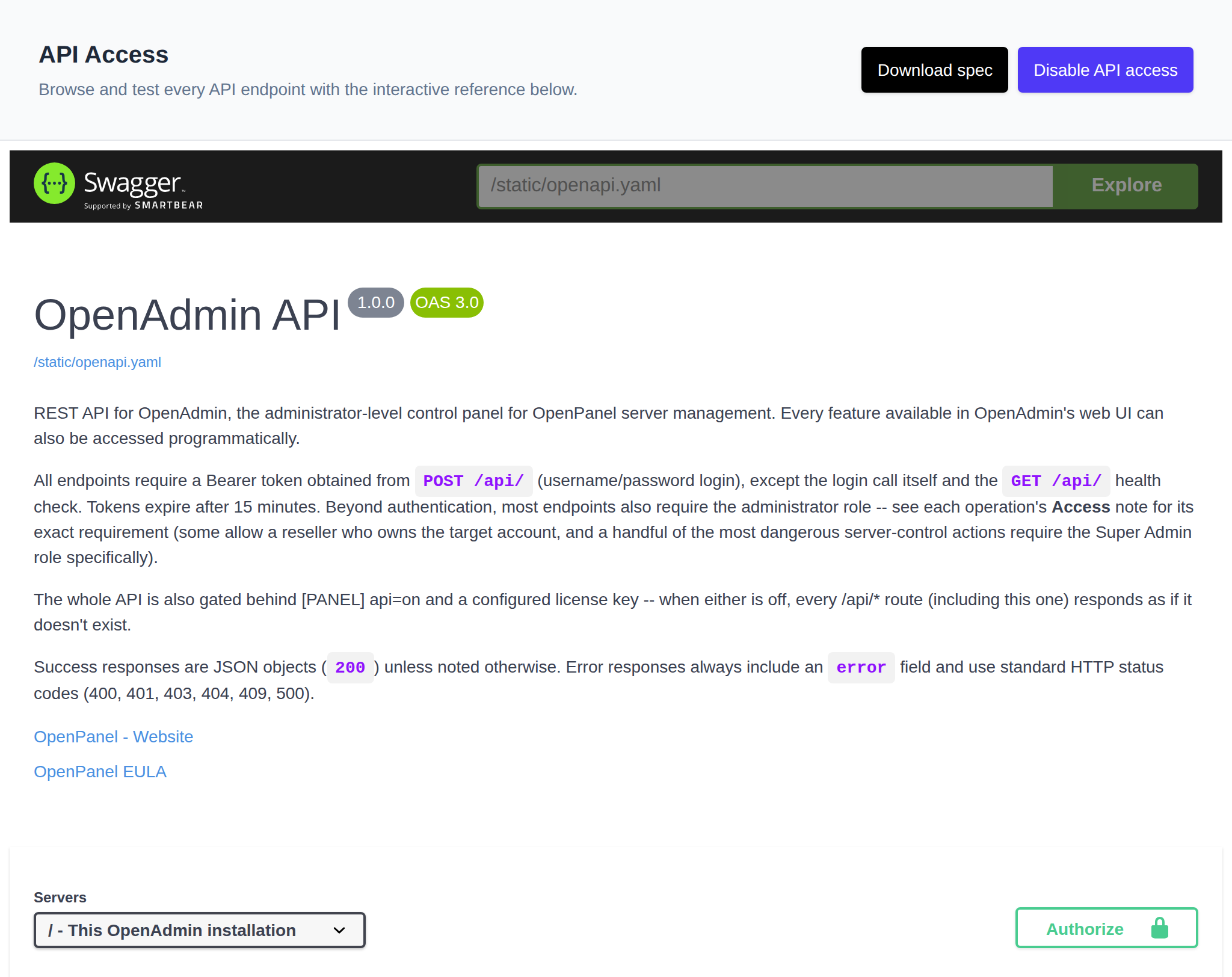
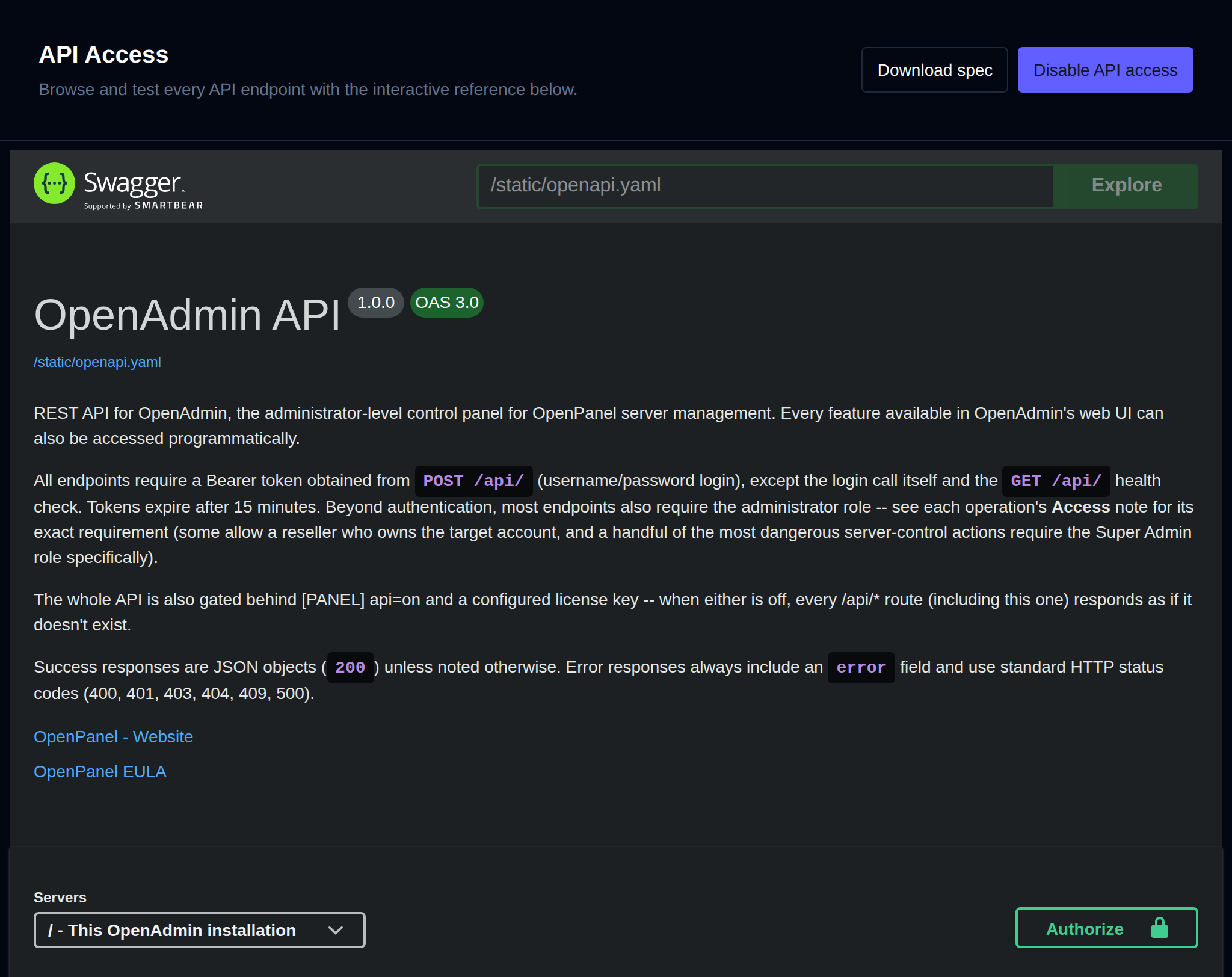
3. **Authorize**
Most endpoints require a Bearer token. Expand **POST /api/** in the Authentication section, click **Try it out**, enter an admin username and password, and click **Execute** to get a token. Then click **Authorize**, paste the token, and confirm. Tokens expire after 15 minutes.
4. **Send a request**
Expand any endpoint, click **Try it out**, fill in its parameters, and click **Execute**.
5. **View the response and curl command**
Below the request you'll see the equivalent curl command, the request URL, and the server response with its status code, body and headers.
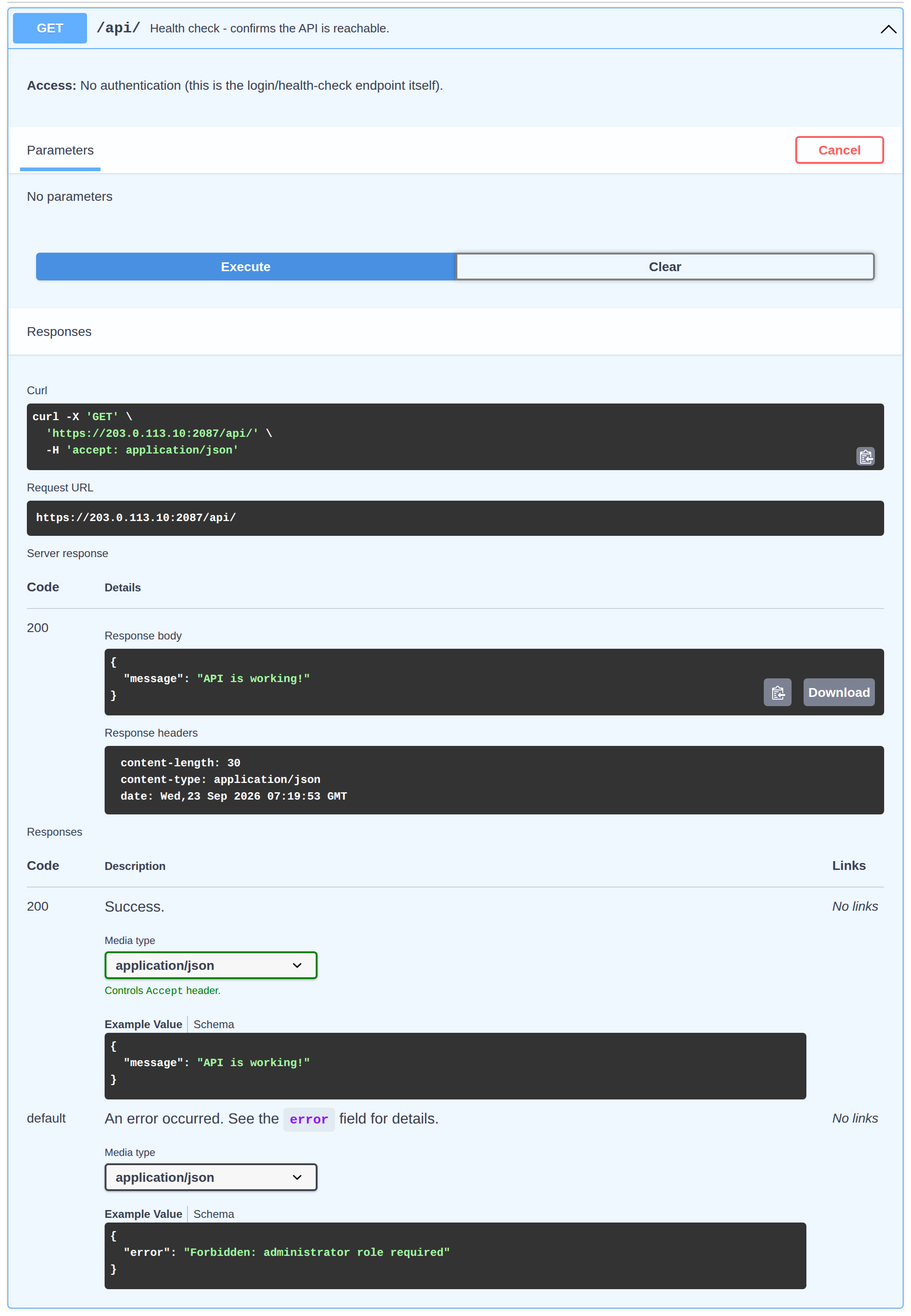
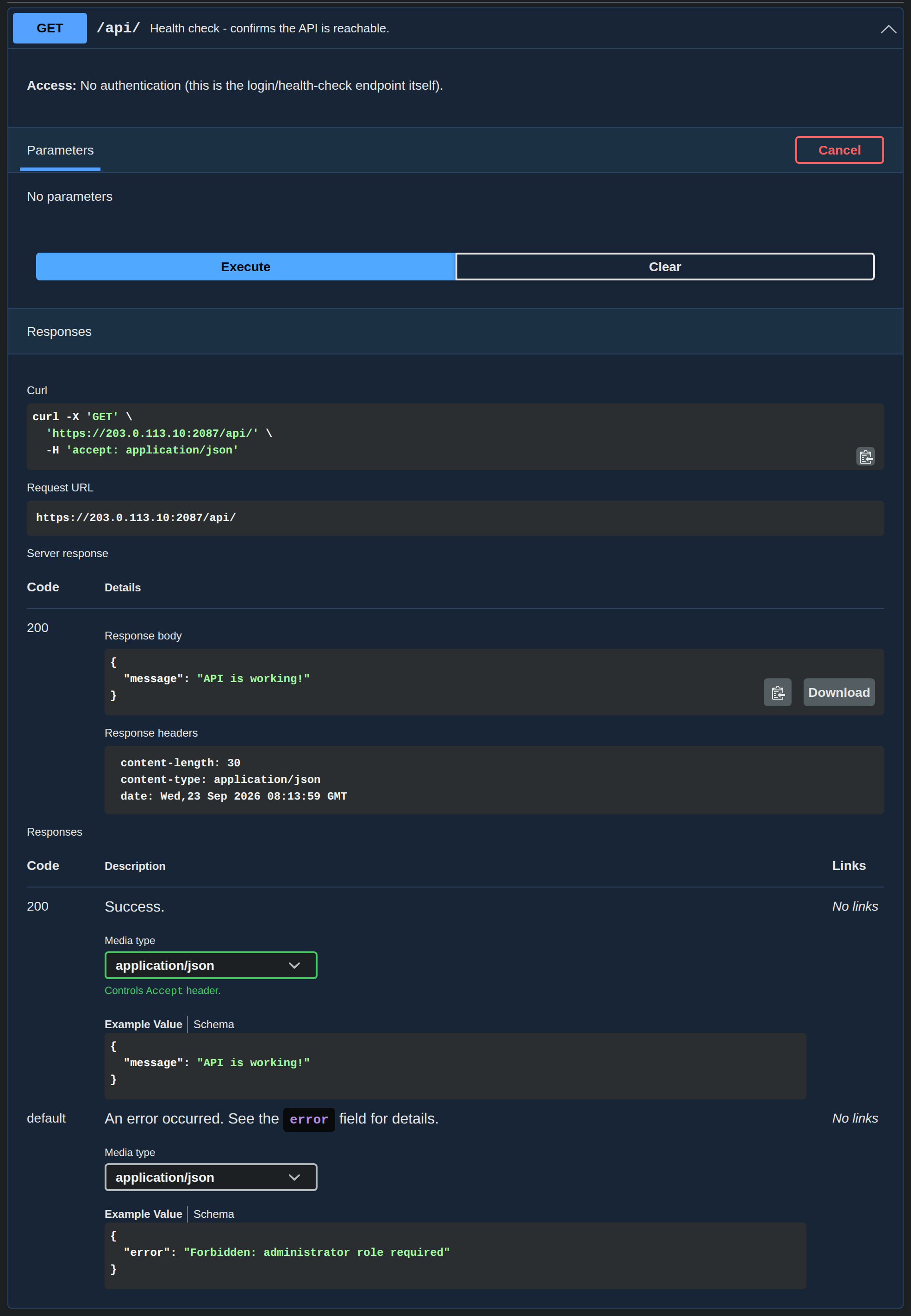
For full API reference and additional endpoints, please refer to [OpenAdmin API Specification](/docs/articles/dev-experience/openadmin-api).
---
// File: admin/settings/php
# PHP Settings
Manage the default PHP version and configuration files for new user accounts.
### Default Version
The default PHP version used for new user accounts is not set on this page — it is configurable from the [Edit User Defaults](/docs/admin/settings/defaults/) page.


### Available Options
These options determine which PHP settings users can modify from their **OpenPanel > PHP > Options** page.


The default editable options include:
```
allow_url_fopen
date.timezone
disable_functions
display_errors
error_reporting
file_uploads
log_errors
max_execution_time
max_input_time
max_input_vars
memory_limit
open_basedir
output_buffering
post_max_size
short_open_tag
upload_max_filesize
zlib.output_compression
```
### Default PHP.INI Files
Here you can edit the PHP.INI configuration files that will be applied to new user accounts.
If a PHP version that is released and still supported has no PHP.INI file on the server, a recommendation lists it with a link to install it with [`opencli update --php`](/docs/articles/opencli/update/#php). The supported versions come from the same list the [Edit User Defaults](/docs/admin/settings/defaults/) page uses. Unreleased and end-of-life versions aren't recommended.
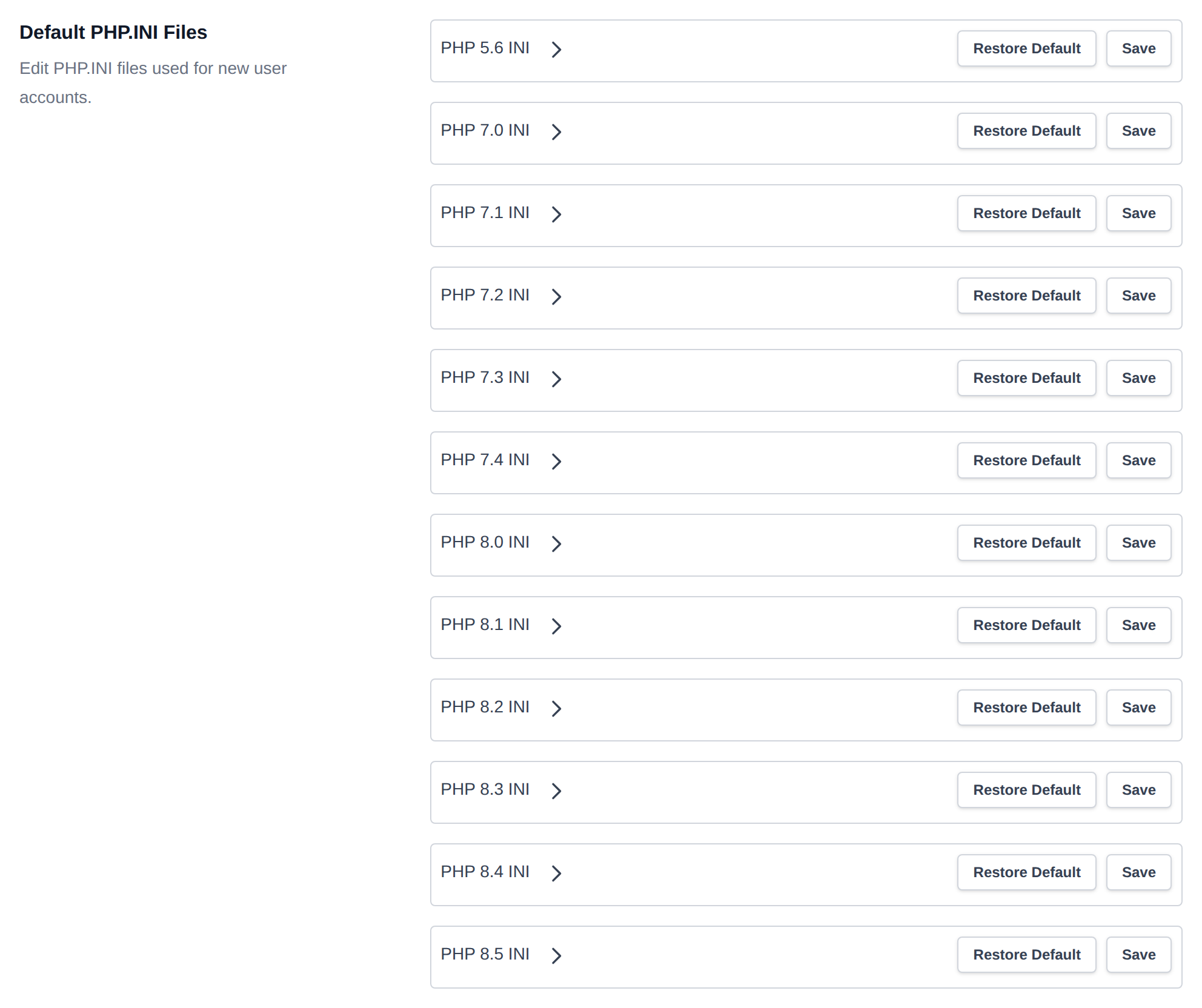
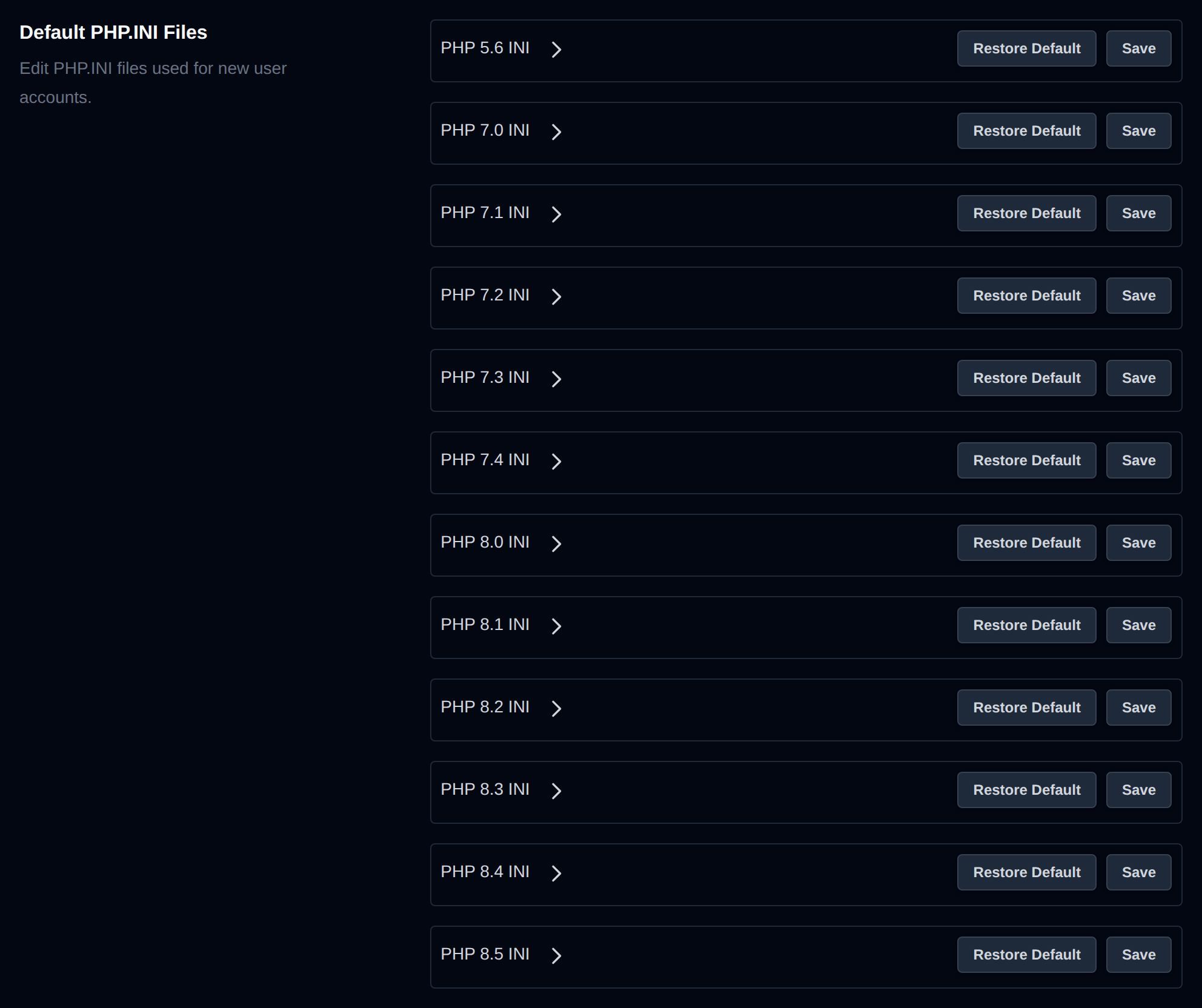
Select a PHP version to open its php.ini file for editing. After making changes, click **Save** to apply them.
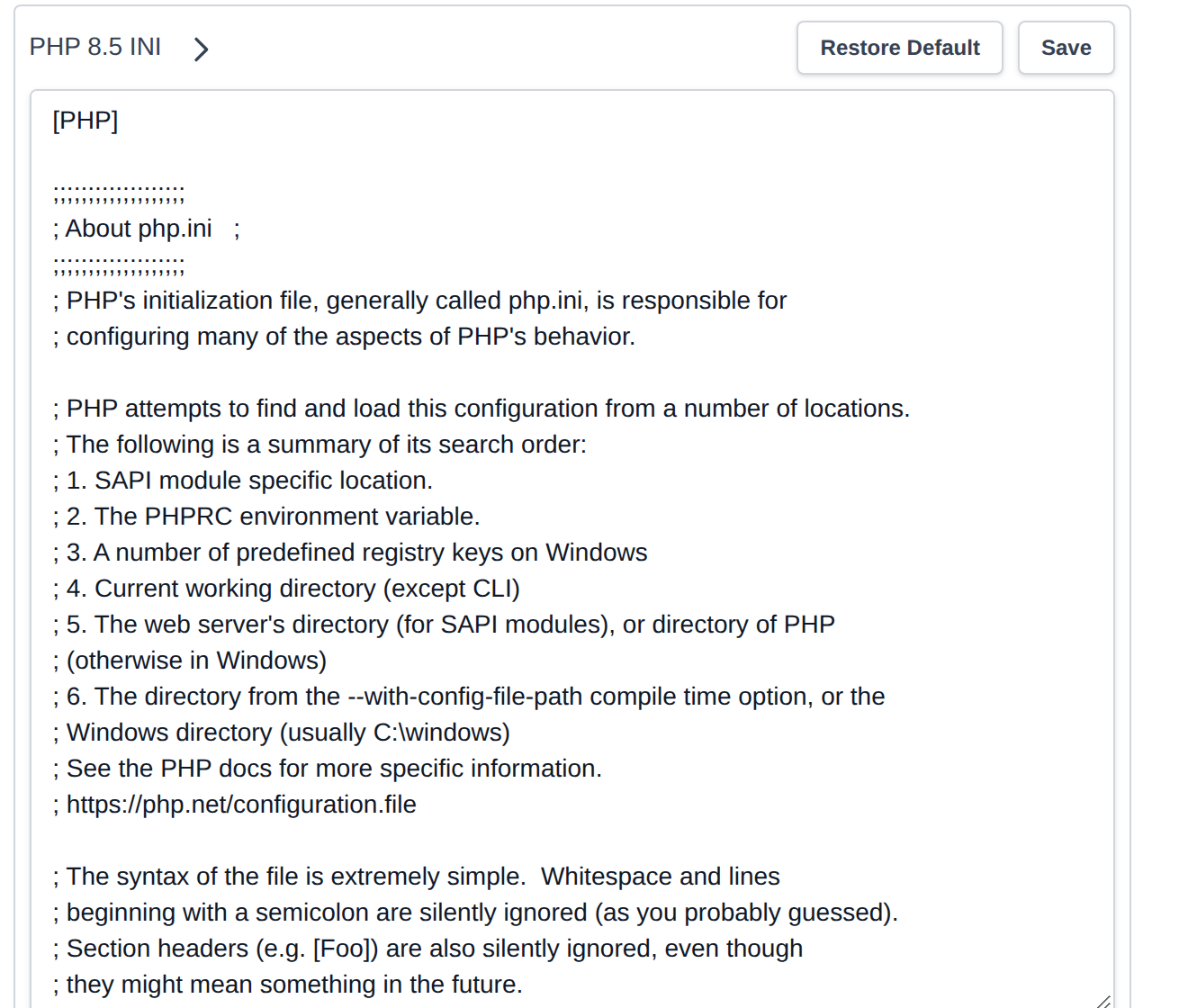
To revert to the original PHP.INI settings, click **Restore Default**, then click **Save**.
---
// File: admin/settings/notifications
# Notifications
Configure OpenAdmin notifications and Email alerts settings.
To view or edit current notification settings, go to **OpenAdmin > Settings > Notifications** or click the 'Edit Settings' button on the Notification page.


To view notification settings, run:
```bash
opencli admin notifications get
---
## Pause Notifications
Temporarily silence email and webhook alerts without changing any of the settings below — useful during planned maintenance so a batch of expected service restarts doesn't flood your inbox.
The control lives on the **Notifications** page itself (next to the search box), not here — click the bell icon to pick a duration: 10 minutes, 30 minutes, 1 hour, 6 hours, or 1 day. While paused, the bell shows "Paused until \" and doubles as a button to resume immediately.
Pausing only skips the email/webhook sends — notifications still get logged and show up on the Notifications page as usual, and the pause always expires on its own even if you never click resume.
Under the hood this writes a timestamp to a flag file (`/tmp/openpanel_notifications_paused`) that `opencli sentinel` checks before sending any alert. See [`GET/POST /api/notifications/pause`](/docs/admin/settings/api) and [`POST /api/notifications/resume`](/docs/admin/settings/api) to control it via the API.
---
## Email
Configure email address to be used for receiving system notifications and alerts.
Enter your email address in the **Email address** field. Leave it empty to disable email alerts.
To send alerts to more than one person, click **+** below the field to add another address, and **−** next to an address to remove it. Every address gets the same email. They're stored comma separated, so with `opencli config update email` or the API use `admin@example.com,ops@example.com`. If the mail server rejects one of the addresses, the email is still sent to the rest and the rejected address is skipped.
If email address is set, daily usage report will be sent to the address, schedule is configurable from 'Server > Scheduled Actions'.
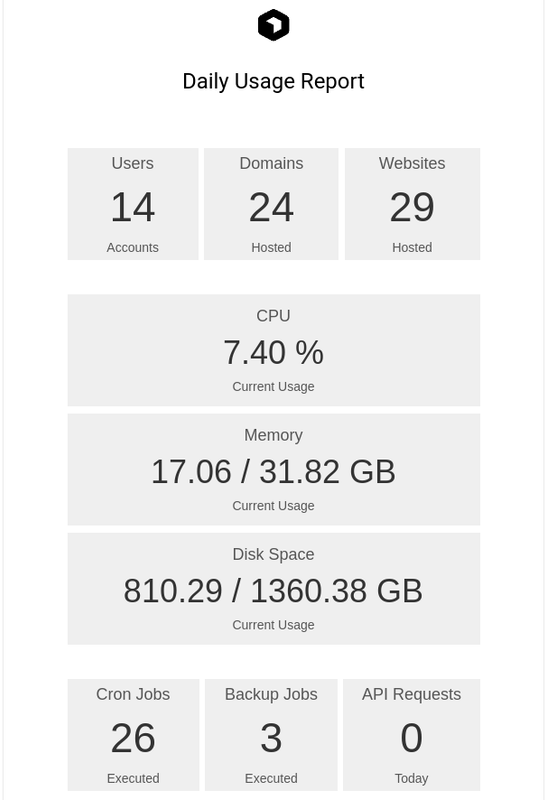
---
## Webhook
Send notifications to one or more webhook URLs (Discord, Slack or any other service that accepts a JSON POST).
- Each webhook has its own field. Once a field has a URL, a **+** button shows below it to add another one.
- Click **−** next to a field to remove that webhook (the first field can't be removed, leave it empty to disable webhooks).
- Click **Test** next to a field to send a test notification to that URL right away, even before saving. The result is shown under the field, with the error or HTTP status if the webhook didn't accept it.
Every alert is sent to all of the webhooks. Only `http://` and `https://` URLs are accepted.


---
## Services
Receive notifications when services are down or unresponsive. Services are checked every 5 minutes.


- **OpenPanel:** Notification if OpenPanel UI fails.
- **OpenAdmin:** Notification if OpenAdmin UI fails.
- **Caddy:** Notification if webserver is not responding.
- **MySQL:** Notification if database is unreachable.
- **Podman:** Notification if Podman service is down.
- **BIND9:** Notification if DNS service is down or unresponsive.
- **Sentinel Firewall:** Notification if Sentinel (CSF) is disabled.
When a service is turned off but should be monitored, a recommendation is shown under it: the core services (OpenPanel, OpenAdmin, Caddy, MySQL, Podman), BIND9 when the DNS module is enabled, and Sentinel Firewall when CSF is installed. A note is also shown when BIND9 is on but the DNS module is disabled, or Sentinel Firewall is on but CSF isn't installed.
---
## Resource Usage
Get alerts when resource usage exceeds thresholds (checked every 5 minutes):
* **Load Average** - recommended at least 2× the number of CPU cores (max 100).
* **CPU %** - recommended 85-95%.
* **RAM %** - recommended 85-95%, cache isn't counted as used.
* **Disk Usage %** - recommended 85-95% of the `/` disk, leaving at least 5 GB (or 10% on small disks) when the alert fires.
* **SWAP %** - recommended 40-80%, above it Sentinel clears swap if there's enough free RAM. Skipped on servers without swap.
Under each field the recommended value is calculated for your server (CPU cores, RAM, disk and swap size), and a warning is shown when the value is set too low (alerts on normal usage) or, for disk, too high to react in time.


---
## Server actions
Receive notifications when specific server-level actions are detected:
* **Server reboot:** Triggered when the server is restarted.
* **Unusual traffic or SYN flood:** Fires when suspicious traffic or DDoS attacks are detected. When enabled, an additional **Website traffic** section appears where you can set the **Max total connections** and **Max connections per IP** thresholds (on ports 80/443) that trigger the notification.
Under each field the highest value recorded by Sentinel (it saves the number of connections every 5 minutes, for up to 30 days) is shown with a recommended limit of 2× that peak, at least 500 total and 50 per IP. Click **Use** to fill it in. A warning shows if the limit is at or below the recorded peak, since you'd have been alerted then. Recommendations show once there are domains on the server and Sentinel has collected at least 24 hours of data.
* **Visitors blocked by rate limit:** Checked every 6 hours, fires when visitors to a domain got **429 Too Many Requests** from the [request rate limits](/docs/admin/domains/ratelimit/). The notification lists each domain with how many requests were blocked and the IPs blocked the most. Users who turned on **Visitors blocked by rate limit** on their [Notifications](/docs/panel/account/notifications/#visitors-blocked-by-rate-limit) page also get an email about their own domains. Off by default.
* **Out of Memory (OOM) errors:** Checks journal logs for system services and user processes killed by OOM in the last 24 hours.
* **DNS issue detected:** Triggered when the panel domain or nameservers are misconfigured or not resolving to this server. Disable if using external nameservers or a Cloudflare proxy.
* **OpenAdmin login from new IP:** Triggered when the OpenAdmin panel is accessed from an unrecognized IP address.
* **SSH login from new IP:** Triggered when root SSH access is detected from an unknown IP address. The IP can be whitelisted in the SSH Allowlist section below.
* **New update available:** Triggered when a new version of OpenPanel is available for update.


---
## User Actions
Get notified whenever an action occurs in the admin or user panels.
Actions are grouped into **OpenAdmin**, **Web Firewall**, **Users**, **FTP**, **Domains**, **ImunifyAV** and **Backups**. Each group shows how many are on and has **All on** / **All off** buttons to toggle the whole group at once.


- OpenAdmin enabled/disabled
- API access enabled/disabled
- Admin account created
- Reseller account created
- Admin password changed
- Admin/Reseller renamed
- Admin/Reseller suspended
- Admin/Reseller unsuspended
- WAF enabled/disabled for a domain
- WAF enabled/disabled on the server
- User added
- User deleted
- User suspended/unsuspended
- User email changed
- User IP changed
- User password changed
- User renamed
- User transferred
- FTP account created
- FTP account deleted
- FTP account password change
- Domain added
- Domain deleted
- Domain suspended/unsuspended
- SSL type changed
- HSTS enabled/disabled
- ImunifyAV scan started/finished
- Backup failed (the scheduled `opencli docker-backup` run failed for one or more users)
---
## SSH Allowlist
Specify IP addresses (or CIDRs) that will be exempt from SSH and OpenAdmin login checks.
Below the list, your current IP and the IPs that logged into OpenAdmin before (from `/var/log/openpanel/admin/login.log`, with the usernames and the last login date) are suggested. Click one to add it to the list. IPs already covered by the list aren't suggested.


---
## SMTP Settings
No SMTP server is configured by default — email notifications will **not** be sent until you set one up here.


To configure an SMTP server for email delivery, configure the following:
Set server port, TLS or SSL, Username and Password to use for authentication.
Configure each value via `opencli config update` commands, for example:
```bash
opencli config update mail_server example.net
```
```bash
opencli config update mail_port 465
```
```bash
opencli config update mail_use_tls False
```
```bash
opencli config update mail_use_ssl True
```
```bash
opencli config update mail_username user@example.net
```
```bash
opencli config update mail_password strongpassword123
```
```bash
opencli config update mail_default_sender user@example.net
```
---
// File: admin/settings/updates
# Update Preferences
The Update Preferences page in OpenPanel allows you to manage and control how updates are applied. It is organized into sections: Current Version, Auto Updates, Update Logs, and Rollback.
## Current Version
This section displays information about the version of OpenPanel currently installed on your system, as well as the latest available version.


- **Installed Version:** Shows the version of OpenPanel currently running.
- **Latest Version:** Shows the most recent version available for update.
If the installed version matches the latest version, OpenPanel is fully up to date. If not, you can initiate a manual update via a button to upgrade to the latest version.
## Auto Updates
The Auto Updates section lets you configure how OpenPanel should handle updates automatically.
You can select the update policy that best fits your needs:
- **Minor Versions Only:** Automatically apply updates that include only bug fixes and security patches. Major feature updates must be installed manually.
- **Both Minor and Major Versions:** Automatically apply all updates, including new features, bug fixes, and security enhancements.
- **Major Versions Only:** Automatically apply updates that introduce major new features. Bug fixes and security patches will require manual updates.
- **Never:** Disable automatic updates. You will need to manually check for and install all updates.


Choosing the appropriate auto-update setting ensures that OpenPanel remains as stable, secure, and feature-rich as you need it to be.
A recommendation is shown under the dropdown for the two options that skip security patches:
- **Never:** update manually at least once a month.
- **Major Versions Only:** update manually at least once a quarter, to get the minor versions with bug fixes and security patches.
Both link to [how to update manually](/docs/articles/opencli/update/), and also say how many days ago the last update ran when that's over a month (Never) or 90 days (Major Versions Only).
## Update Logs
The Update Logs section provides a record of all updates that have been applied to OpenPanel.


## Rollback
The Rollback section lets you revert the OpenPanel UI to an earlier version by selecting it from the list of available versions. Be sure to also disable automatic updates when rolling back, otherwise OpenPanel may automatically update again.


## Control Updates
For more information about updates, check:
- [How to Enable Automatic Updates for OpenPanel](/docs/articles/install-update/how-to-enable-auto-update-openpanel/)
- [How to Disable Automatic Updates for OpenPanel](/docs/articles/install-update/how-to-disable-auto-update-openpanel/)
- [How to Manually Update OpenPanel](/docs/articles/install-update/how-to-enable-auto-update-openpanel/)
- [How to Skip a Specific OpenPanel Version Update](/docs/articles/install-update/skip-specific-openpanel-version-update)
- [How to Check OpenPanel Version from Terminal](/docs/articles/install-update/how-to-check-openpanel-version)
---
// File: admin/settings/locales
# Locales (Languages)
Manage the languages available to OpenPanel users.


## Bulk Actions
Tick the checkbox of one or more locales, or the checkbox in the table header to select all locales shown by the current search. A bar appears at the bottom of the page with the number selected, a **Clear** link and these actions:


| Action | What it does |
|---|---|
| **Install** | Downloads and installs the selected locales. |
| **Update** | Downloads the latest translations for the selected locales that have an update. |
| **Delete** | Deletes the selected locales, the default locale can't be deleted. |
Click an action, confirm it, and it runs on the selected locales one after another. When it's done the page reloads with a notice listing the locales it worked for, or which ones failed and why.
## Install Locale
By default, only the **EN** locale is installed. To enable other locales, they must be installed first.
OpenAdmin also recommends locales to install, based on the country of each user's last login to OpenPanel (from their `.lastlogin` file). For example, if users log in from Serbia, it recommends installing `sr-rs` with an **Install** button, listing those users. Only locales that are available and not yet installed are recommended, and logins from the server's own IP (OpenAdmin's autologin) or private IPs are skipped.
To install a locale, go to **OpenAdmin > Settings > Locales** and click the **Install** button next to the desired locale.
To install every available locale at once, click **Install All** at the top of the page. This downloads all locales from GitHub (about 11 MB in total) and re-downloads ones that are already installed, so it also updates them. Once finished, a notification lists which locales were installed and which failed.
Install a single locale with [`POST /api/settings/locales`](/docs/admin/settings/api):
```bash
curl -X POST https://panel.example.com:2087/api/settings/locales \
-H "Authorization: Bearer " \
-H "Content-Type: application/json" \
-d '{"locale": "tr-tr"}'
```
Pass `"all"` as the locale to install every available locale:
```bash
curl -X POST https://panel.example.com:2087/api/settings/locales \
-H "Authorization: Bearer " \
-H "Content-Type: application/json" \
-d '{"locale": "all"}'
```
The response lists what was installed and what failed. `success` is `false` if any locale failed:
```json
{
"success": true,
"message": "Installed 17 locales: bg-bg, de-de, en-us, ...",
"installed": ["bg-bg", "de-de", "en-us", "..."],
"failed": []
}
```
To install a locale from the terminal, use its locale prefix from [Github](https://github.com/stefanpejcic/openpanel-translations/tree/main) and run:
```bash
opencli locale
```
Example: Install Turkish locale:
```bash
opencli locale tr-tr
```
Example: Install multiple locales:
```bash
opencli locale sr-rs tr-tr zh-cn
```
Example: Install all available locales:
```bash
opencli locale $(curl -s "https://api.github.com/repos/stefanpejcic/openpanel-translations/contents" | jq -r '.[] | select(.type=="dir" and (.name|test("^[a-z]{2}-[a-z]{2}$"))) | .name' | tr '\n' ' ')
```
## Update Locale
Each time the **Locales** page is opened, OpenAdmin compares every installed locale file with the latest version on GitHub. If a newer version exists, a notification lists the locales with updates, the locale shows an **Update available** badge, and an **Update** button appears in its **Actions** column.
Click **Update** next to a locale to download its latest version, or click **Update All** at the top of the page to update every outdated locale at once. **Update All** is only shown when at least one update is available.
`GET /api/settings/locales` returns `update_available` for each locale. To update one locale:
```bash
curl -X POST https://panel.example.com:2087/api/settings/locales \
-H "Authorization: Bearer " \
-H "Content-Type: application/json" \
-d '{"update": "tr-tr"}'
```
Pass `"all"` to update every locale that has an update available:
```bash
curl -X POST https://panel.example.com:2087/api/settings/locales \
-H "Authorization: Bearer " \
-H "Content-Type: application/json" \
-d '{"update": "all"}'
```
The response lists updated locales under `installed` and failed ones under `failed`.
Installing a locale again downloads its latest version:
```bash
opencli locale tr-tr
```
## Delete Locale
Click **Delete** next to an installed locale and confirm. The default locale can't be deleted; set another locale as default first.
```bash
curl -X POST https://panel.example.com:2087/api/settings/locales \
-H "Authorization: Bearer " \
-H "Content-Type: application/json" \
-d '{"delete": "tr-tr"}'
```
Remove the locale's directory, named after its two-letter prefix:
```bash
rm -rf /etc/openpanel/openpanel/translations/tr
```
:::info
Users who had selected a deleted locale will see untranslated (English) text instead.
:::
## Default Locale
To make a specific locale the default, go to **OpenAdmin > Settings > Locales** and click the **Set as Default** button next to the desired locale.
To set a default locale from the terminal:
```bash
echo > /etc/openpanel/openpanel/default_locale
```
Example: Set Turkish as the default:
```bash
echo tr > /etc/openpanel/openpanel/default_locale
```
:::info
Changing the default will **not** automatically update existing users’ settings; their browser preferences and account configurations will take precedence.
For more details, see [How-to Guides > Setting the Default Locale](/docs/articles/accounts/default-user-locales/#setting-the-default-locale).
:::
## Edit Locale
To edit a locale, click the GitHub icon next to it in the table. This opens the source on GitHub, where you can fork the repository and edit the translation file.
## Create a Locale
To create a new locale:
1. Fork [the translations repository](https://github.com/stefanpejcic/openpanel-translations/).
2. Copy the `en_us` folder to a new locale folder, e.g., `es_es`.
3. Translate the `messages.pot` file.
4. Submit a pull request.
---
// File: admin/settings/custom_code
# Custom Code
The Custom Code section, accessible via OpenAdmin > Settings > Custom Code, allows you to inject and manage custom code that extends or modifies the behavior and appearance of the OpenPanel UI.
:::info
Custom CSS, Custom JS, Code in Header, Code in Footer, Custom Section, and Welcome Email below require an active **Enterprise** license (and a non-reseller account) to edit. The remaining options on this page (WordPress Plugins/Themes Sets, After Update, Before Startup) are available on all license types.
:::
:::info
How-to Articles, PageSpeed API Key, Forbidden Usernames, and Restricted Domains moved to [OpenAdmin > Settings > OpenPanel](/docs/admin/settings/openpanel).
:::
## Custom CSS
Inject your own CSS styles that will be applied across all pages of the OpenPanel UI.


Stored in `/etc/openpanel/openpanel/custom_code/custom.css` file.
## Custom JS
Add custom JavaScript to all pages. This is ideal for extending UI functionality, adding widgets, or integrating third-party tools.


Stored in `/etc/openpanel/openpanel/custom_code/custom.js` file.
## Code in Header
Insert custom code directly into the head tag of every page. Useful for meta tags, analytics scripts, and global settings.


Stored in `/etc/openpanel/openpanel/custom_code/in_header.html` file.
## Code in Footer
Insert custom code directly into the footer section of all pages. This is commonly used for tracking scripts, analytics, or deferred JavaScript.


Stored in `/etc/openpanel/openpanel/custom_code/in_footer.html` file.
## Custom Section
You can add a **custom section** with icon-based items to the *Dashboard* in **OpenPanel**.


custom section supports the following fields:
* **`section_title`** *(string)*:
The title displayed at the top of your custom section.
* **`section_position`** *(string)*:
Determines where your section appears relative to other built-in sections.
Acceptable values:
* `before_files`
* `before_domains`
* `before_mysql`
* `before_postgresql`
* `before_applications`
* `before_emails`
* `before_cache`
* `before_php`
* `before_docker`
* `before_advanced`
* `before_account`
* **`items`** *(array of objects)*:
A list of clickable items shown as cards with icons. Each item has:
* **`label`** *(string)* – The text shown on the card.
* **`icon`** *(string)* – The icon class from [Bootstrap Icons](https://icons.getbootstrap.com/). Example: `bi bi-person-fill-gear`.
* **`url`** *(string)* – The link to navigate to when the item is clicked.
Example:
```json
{
"section_title": "Billing Account",
"section_position": "before_domains",
"items": [
{
"label": "Manage Profile",
"icon": "bi bi-person-fill-gear",
"url": "https://panel.hostio.rs/clientarea.php?action=details"
},
{
"label": "Manage Billing Information",
"icon": "bi bi-credit-card",
"url": "https://panel.unlimited.rs/clientarea.php?action=details"
},
{
"label": "View Email History",
"icon": "bi bi-envelope-open",
"url": "https://panel.unlimited.rs/clientarea.php?action=emails"
},
{
"label": "News & Announcements",
"icon": "bi bi-megaphone-fill",
"url": "https://panel.unlimited.rs/index.php?rp=/announcements"
},
{
"label": "Knowledgebase",
"icon": "bi bi-book-half",
"url": "https://panel.unlimited.rs/index.php?rp=/knowledgebase"
},
{
"label": "Server Status",
"icon": "bi bi-hdd-network",
"url": "https://panel.unlimited.rs/serverstatus.php"
},
{
"label": "Invoices",
"icon": "bi bi-receipt",
"url": "https://panel.unlimited.rs/clientarea.php?action=invoices"
},
{
"label": "Support Tickets",
"icon": "bi bi-life-preserver",
"url": "https://panel.unlimited.rs/supporttickets.php"
},
{
"label": "Open Ticket",
"icon": "bi bi-journal-plus",
"url": "https://panel.unlimited.rs/submitticket.php"
},
{
"label": "Register New Domain",
"icon": "bi bi-globe",
"url": "https://panel.unlimited.rs/cart.php?a=add&domain=register"
},
{
"label": "Transfer Domain",
"icon": "bi bi-arrow-repeat",
"url": "https://panel.unlimited.rs/cart.php?a=add&domain=transfer"
}
]
}
```
## Welcome Email
HTML message that is placed straight into a new mailbox when the user ticks **Send a welcome email with instructions to set up a mail client** on *OpenPanel > Emails > New*. It is saved into the inbox on the server with `doveadm`, so it is never sent over the internet and doesn't go to any external address.
Click **Restore Default** to load the [default template](https://raw.githubusercontent.com/stefanpejcic/openpanel-configuration/refs/heads/main/openpanel/custom_code/welcome.html) into the editor, then click Save.
A live preview of the HTML is shown next to the editor and updates as you type. The preview is sandboxed, so scripts in the HTML don't run.
These placeholders are replaced when the message is created:
| Placeholder | Replaced with |
|---|---|
| `{{EMAIL}}` | the new email address, also used as the username |
| `{{DOMAIN}}` | the domain of the email address |
| `{{MAIL_HOST}}` | the mail server hostname, same as *Emails > Connect Devices* in OpenPanel |
| `{{IMAP_PORT}}` | `993` if the hostname has an SSL certificate, otherwise `143` |
| `{{SMTP_PORT}}` | `465` if the hostname has an SSL certificate, otherwise `587` |
| `{{SECURITY}}` | `SSL/TLS` or `STARTTLS` |
| `{{WEBMAIL_URL}}` | the webmail link |
If the file is empty or missing, no welcome message is added and the email account is still created.
Stored in `/etc/openpanel/openpanel/custom_code/welcome.html` file.
## WordPress Plugins Set
List the WordPress plugins you want to automatically install on all new WordPress sites.
Enter one item per row. Supported formats:
* **wp\_org\_slug** — the plugin slug from the WordPress.org plugin page
* **URL** — a direct link to a `.zip` plugin file hosted online


## WordPress Themes Set
List the WordPress themes to automatically install for all new WordPress sites.
Enter one item per row. Supported formats:
* **wp\_org\_slug** — the theme slug from the WordPress.org themes page
* **URL** — a direct link to a `.zip` theme file hosted online


## After Update
Define custom bash commands that will automatically run after each OpenPanel update. Ideal for restoring customizations or triggering automation scripts.


This powerful customization layer helps ensure OpenPanel fits seamlessly into your environment.
Examples:
- [Custom email templates](/docs/articles/dev-experience/customizing-openadmin-email-templates/)
Stored in `/root/openpanel_run_after_update` file.
## Before Startup
Add custom bash code to be executed before starting OpenPanel.


Stored in `/root/openpanel_run_on_startup` file.
---
// File: admin/system/timezone
# Server Time
Use the Server Time section to update the system-wide timezone for both the host operating system and the OpenPanel user interface.
Changing the timezone ensures that logs, scheduled tasks, and UI timestamps align with your desired regional time settings.


:::info
After changing timezone, we recommend to restart the server or at least the OpenAdmin and Cron services: `systemctl restart admin cron`.
:::
---
// File: admin/system/root-password
# Change Root Password
Use **OpenAdmin > System > Root Password** to securely update the SSH password for the root user.
:::info
This page is available only to the Super Admin. Admin and Reseller logins will see a 403 error on this page.
:::
To ensure strong security, your new password must meet the following requirements:
- Length: 8–20 characters
- Must include both letters and numbers
- No spaces, special characters, or emoji are allowed


This action updates the root user's credentials used for direct SSH access to the server. Always store your new password securely and avoid using easily guessable combinations.
---
// File: admin/system/ssh
# SSH Access
*OpenAdmin > System > SSH Access* allows Administrators to view and modify current server SSH configuration. The current SSH service status (active/inactive) is shown in the top-right of the page.
### Basic SSH Settings


This tab displays:
- **SSH Port** - current SSH port
- **Permit Root Login** - allow login for *root* user (`PermitRootLogin`)
- **Password Authentication** - enable usage of passwords for ssh (`PasswordAuthentication`)
- **Public Key Authentication** - enable usage of ssh keys (`PubkeyAuthentication`)
You can change any value and click on the save button to apply.
A recommendation is shown as you change the values:
- **SSH Port** 22: the default port is the first one bots try, so block it in the [firewall](/docs/admin/security/firewall) and allow it only for the IPs admins connect from, or move SSH to another port.
- **Password Authentication** on: turn it off once public key authentication is on, so passwords can't be brute-forced. If there are no authorized keys yet, add yours first or you'll be locked out.
- **Public Key Authentication** off: enable it, since key logins can't be brute-forced like passwords.
### Authorized Keys
This tab is only shown when **Public Key Authentication** is enabled. Here you can view current authorized ssh keys, remove them, or add a new key.


### Advanced
Here you can edit the raw SSH configuration file: `/etc/ssh/sshd_config`


---
// File: admin/system/reboot
# Server Reboot
Initiate a reboot of the server. Depending on the situation, you can perform either a **graceful reboot** or a **forceful reboot**.
- **Graceful Server Reboot** attempts to safely stop running processes and allow the operating system to cleanly shut down services before restarting.
- **Forceful Server Reboot** immediately restarts the system at the kernel level and should only be used if the server is unresponsive.


## Graceful
A graceful reboot tells the operating system to restart normally. Services and user processes are given a chance to shut down cleanly.
Command used:
```bash
reboot
```
## Forceful
A forceful reboot bypasses the normal shutdown procedure and immediately reboots the kernel. This may result in **data loss** or **filesystem inconsistencies**, so it should only be used when the server is completely unresponsive.
Command used:
```bash
echo b > /proc/sysrq-trigger
```
:::danger
⚠️ Use with caution. This command forces an immediate reboot without syncing disks or safely stopping processes.
:::
---
// File: admin/system/swap
# Swap
*OpenAdmin > System > Swap* lets Administrators view current swap usage, change the swap file allocation, and drop (clear) swap.
Step-by-step guide: [How to Add or Resize Swap](/docs/articles/server/how-to-add-swap/)
### Current usage
Shows total/used/free swap (as reported by `free -m`) and a table of every active swap device (name, type, size, used, priority, from `swapon --show`). The alert threshold shown here is the same `swap=` value used by Sentinel's own swap check.
When swap is more than 90% used, a warning is shown: the server is short on memory, so add RAM, lower memory usage on [Processes](/docs/admin/advanced/processes), or increase swap.


### Change allocation
Recreates the managed swap file (`/swapfile` by default) at the requested size and re-enables it, adding it to `/etc/fstab` if it isn't already there. This briefly disables swap while the file is recreated.
A recommended swap size is shown when the size is smaller than it, or no swap is set up: 2× RAM on servers with up to 2 GB RAM, otherwise the square root of the RAM in GB (at least 2 GB), for example 4 GB for 16 GB RAM.
### Drop swap
Runs `swapoff -a; swapon -a`, the same cleanup Sentinel performs automatically when swap usage crosses its threshold. This moves swapped-out pages back into RAM without changing the swap size.
See also: [High CPU or RAM usage: find the culprit](/docs/articles/server/high-cpu-ram-usage/)
---
// File: admin/system/migrate
# Migrate
OpenPanel is fully OS-agnostic, running smoothly on any Linux distribution. This makes migrating the panel along with all user data from one server to another easy and efficient.
Use **OpenAdmin > System > Migrate** to transfer all server data to a fresh OpenPanel installation on a new server.


> ⚠️ This feature is intended only for full server migrations.
For detailed instructions, see the [Migrate OpenAdmin to new server guide](https://openpanel.com/docs/articles/transfers/migrate-openadmin-to-new-server/)
---
// File: admin/system/demo-mode
# Demo Mode
Enable Demo Mode to lock both the OpenPanel and OpenAdmin interfaces in read-only mode.
This mode is ideal for hosting providers who want to showcase OpenPanel in a secure, public demo environment. Users will be able to explore the UI, but no changes can be made—all actions are disabled across both the admin and user panels.
Once enabled, Demo Mode cannot be turned off via the admin panel.
To disable it, run the following command in your terminal:
```
opencli config update demo_mode off
```


Make sure to configure your demo content and secure the server before enabling this mode. 📘 [Learn more](https://dev.openpanel.com/cli/config.html#demo-mode)
:::info
This page is currently not linked in the OpenAdmin sidebar. It can still be reached directly at `/server/demo-mode`.
:::
---
// File: admin/websites/websites
# Manage Websites
Websites page lists every website in Site Manager across all users on the server: WordPress and other CMS installs, Website Builder sites and Node.js, Python, Ruby or Java apps.
## List websites
To list all websites navigate to **Websites** in OpenAdmin.
The table shows these columns:
| Column | Description |
|---------------------|-----------------------------------------------------------------------------|
| **Site** | Favicon and address of the website, with its folder on the server below it. Click the address to open the site. |
| **Type** | Icon of the application, for example WordPress, Joomla, Website Builder or Node.js. Hover over it to see the name. |
| **Owner** | The OpenPanel user who owns the website, marked **SUSPENDED** when that user is suspended. |
| **Version** | Installed version of the application. WordPress sites show when a newer WordPress version is available. |
| **Git** | Name and branch of the [Git](/docs/panel/applications/git/) repository that deploys to the website, whether it's remote or local, its deploy mode and when it was last deployed. **Error** marks a failed pull (hover for details) and **+N more** other repositories deploying to the same site. Shown only when the Git module is enabled. |
| **Vulnerabilities** | Known vulnerable plugins, themes or core versions from the last [vulnerability scan](#scan-for-vulnerabilities). WordPress only. |
| **ImunifyAV** | Result of the last [ImunifyAV scan](#scan-with-imunifyav) of the owner's files. Shown only when ImunifyAV is installed. |
| **PageSpeed** | Google PageSpeed score from the last [PageSpeed check](#check-pagespeed). |
| **Created** | When the website was added to Site Manager. |
| **Actions** | Menu with the [website actions](#website-actions). |
Click **Show Columns** to show or hide any column except Site and Actions. All columns are shown by default and your choice is remembered for your browser.
Use the search box (**Search sites, owners, domains...**) to filter the list by site address, owner, domain, admin email or type. When more than one type of website exists, buttons above the table (**All**, **WordPress**, **Website Builder**...) filter the list by type.
Click a column header to sort by it.
To list all websites run:
```bash
opencli websites-all
```
## Scan for websites
Websites installed by users outside of Site Manager, for example uploaded over FTP or the File Manager, are not listed until they are detected.
Click **Scan for Websites**, enter a username or leave the field empty to scan all users, and click **Start Scan**. The scan runs in the background and new sites show up in the list once it finishes.
To scan a single user run:
```bash
opencli websites-scan
```
To scan all users run:
```bash
opencli websites-scan -all
```
## Website actions
Click the **⋯** button at the end of a row to open the actions menu:
| Action | Description |
|------------------------------|-----------------------------------------------------------------------------|
| **Visit site** | Opens the website in a new tab. |
| **Log in to wp-admin** | Logs you in to the WordPress dashboard as an administrator. WordPress only. |
| **Manage as owner** | Logs in to OpenPanel as the owner and opens this website in Site Manager. |
| **Owner account** | Opens the owner's account page in OpenAdmin. |
| **Edit Virtual Host** | Opens the web server configuration of the website's domain. |
| **Check PageSpeed** | Runs a [Google PageSpeed check](#check-pagespeed). |
| **Scan with ImunifyAV** | Queues an [ImunifyAV scan](#scan-with-imunifyav) of the owner's files. Shown only when ImunifyAV is installed. |
| **Scan for vulnerabilities** | Runs a [vulnerability scan](#scan-for-vulnerabilities). WordPress only. |
| **Detach** | Removes the website from Site Manager. Its files and databases are kept and it can be added back with [Scan for websites](#scan-for-websites). |
## Check PageSpeed
Hover over the PageSpeed score to see the Performance score, First Contentful Paint, Speed Index and Time to Interactive for desktop and mobile, and click **Update** to run the check again.
Select **Check PageSpeed** from the actions menu, or select several websites and use the bulk action with the same name.
To check a single website run:
```bash
opencli websites-pagespeed
```
To check all websites run:
```bash
opencli websites-pagespeed -all
```
## Scan for vulnerabilities
WordPress sites can be scanned for known vulnerabilities in their core version, plugins and themes. When something is found, the Vulnerabilities column shows how many vulnerabilities were found in how many components. Click it to see each vulnerable plugin or theme with details from Wordfence, WPScan, Patchstack and CVE.
Select **Scan for vulnerabilities** from the actions menu, or select several websites and use the bulk action with the same name. Websites that are not WordPress are skipped.
To scan a single website run:
```bash
opencli websites-vulnerability
```
To scan all WordPress websites run:
```bash
opencli websites-vulnerability --all
```
## Scan with ImunifyAV
When [ImunifyAV](/docs/admin/security/imunify/) is installed, the ImunifyAV column shows the result of the last malware scan of the owner's files: **Clean**, the number of infected files, or **Scanning...** while a scan is running. Click the number of infected files to open ImunifyAV and handle them.
ImunifyAV scans the whole home directory of a user, so the result is the same for every website of that user.
To start a scan, click the scan icon in the ImunifyAV column or select **Scan with ImunifyAV** from the actions menu. To scan several users at once, select their websites and use the **Scan with ImunifyAV** bulk action. Each owner is scanned once, even when several of their websites are selected.
Users can also be scanned from the **Users** page by selecting them and using the **Scan with ImunifyAV** bulk action.
## Bulk actions
Select websites with the checkboxes, or select all with the checkbox in the table header, and choose an action from the bar at the bottom of the page:
| Action | Description |
|------------------------------|-------------------------------------------------------------------|
| **Check PageSpeed** | Runs a PageSpeed check for each selected website. |
| **Scan for vulnerabilities** | Scans each selected WordPress website, other types are skipped. |
| **Scan with ImunifyAV** | Queues an ImunifyAV scan for the owners of the selected websites. Shown only when ImunifyAV is installed. |
| **Detach** | Removes the selected websites from Site Manager, keeping their files and databases. |
---
// File: articles/000_intro
# Start Here
- [Frequently Asked Questions](/docs/articles/faq/)
- [Test OpenPanel Demo](/docs/articles/support/how-to-access-openpanel-demo/)
- [How to access OpenAdmin](/docs/articles/dev-experience/how-to-access-openadmin/)
- [How to access Openpanel](/docs/articles/dev-experience/how-to-access-openpanel/)
- [How to Reset a OpenPanel Account Password](/docs/articles/accounts/how-to-reset-openpanel-account-password)
# Hosting Business
- [Start a Web Hosting Business with OpenPanel](/docs/articles/hosting-business/start-web-hosting-business/)
- [Suggested Hosting Plan Limits](/docs/articles/hosting-business/hosting-plan-templates/)
- [Reseller Hosting](/docs/articles/hosting-business/reseller-hosting/)
- [White-Label OpenPanel](/docs/articles/hosting-business/white-label-openpanel/)
# Billing Integrations
- [FOSSBilling](/docs/articles/extensions/openpanel-and-fossbilling/)
- [WHMCS](/docs/articles/extensions/openpanel-and-whmcs/)
- [Blesta](/docs/articles/extensions/openpanel-and-blesta/)
- [ClientExec](/docs/articles/extensions/openpanel-and-clientexec/)
- [WISECP](/docs/articles/extensions/openpanel-and-wisecp/)
# Transfers
- [Import account from cPanel backup](/docs/articles/transfers/import-cpanel-backup-to-openpanel/)
- [Transfer OpenPanel accounts to another server](/docs/articles/transfers/transfer-openpanel-account-to-another-server/)
- [Migrate all data to another server](/docs/articles/transfers/migrate-openadmin-to-new-server/)
# Websites
- [Hosting a Static Website with OpenPanel](/docs/articles/websites/hosting-a-static-website-with-openpanel/)
- [How to Install WordPress® With OpenPanel](/docs/articles/websites/how-to-install-wordpress-with-openpanel/)
- [Hosting a PHP Website with OpenPanel](/docs/articles/websites/hosting-a-php-website-with-openpanel/)
- [How to Migrate a WordPress® Installation to OpenPanel](/docs/articles/websites/how-to-upload-wordpress-website-to-openpanel)
- [How to install a PHP extension in OpenPanel](/docs/articles/websites/how-to-install-php-extensions-in-openpanel)
- [Connecting to MySQL Server from Applications in OpenPanel](/docs/articles/databases/how-to-connect-to-mysql-from-php-applications-in-openpanel/)
- [How to set or increase PHP INI memory_limit or other values?](/docs/articles/websites/how-to-set-or-increase-PHP-INI-memory-limit-or-other-values/)
- [403 Error Troubleshooting Guide](/docs/articles/domains/error-on-website-disable-coraza-waf/)
- [404 Error Troubleshooting Guide](/docs/articles/domains/not-found-404-error-troubleshooting)
- [502 Error Troubleshooting Guide](/docs/articles/domains/bad-gateway-502-error-troubleshooting)
- [504 Error Troubleshooting Guide](/docs/articles/domains/gateway-timeout-504-error-troubleshooting)
- [WordPress Themes and Plugins Sets](/docs/articles/websites/wordpress-plugins-themes-sets-in-openpanel)
- [Configure Apache, Nginx, OpenLitespeed per user](/docs/articles/containers/how-to-set-nginx-apache-varnish-per-user-in-openpanel/)
- [Purging Varnish Cache for a Website](/docs/articles/websites/purge-varnish-cache-from-terminal/)
- [WordPress HTTPS behind Varnish Cache](/docs/articles/containers/https-wordpress-behind-varnish-proxy/)
# Databases
- [Configure MySQL, MariaDB or Percona per user](/docs/articles/containers/how-to-set-mysql-mariadb-per-user-in-openpanel/)
- [Set Custom Domain for phpMyAdmin](/docs/articles/databases/phpmyadmin-domain/)
- [Import MySQL Database](/docs/articles/containers/import-database)
- [Which DB_HOST to use: `localhost` for PHP, `mysql` or `mariadb` for other apps](/docs/articles/databases/how-to-connect-to-mysql-from-php-applications-in-openpanel/)
- [Troubleshooting: Error establishing a database connection](/docs/articles/databases/how-to-troubleshoot-error-establishing-a-database-connection/)
# Configuration
- [Branding and White-Label](/docs/articles/dev-experience/customizing-openpanel-user-interface/)
- [Add a Custom Message for OpenPanel User](/docs/articles/accounts/how-to-add-custom-message-in-openpanel/)
- [Add Custom section with icons in Dashboard](/docs/articles/dev-experience/add-custom-icons-in-openpanel-dashboard/)
- [Troubleshooting OpenPanel UI Errors](/docs/articles/support/how-to-troubleshoot-openpanel-error)
- [Troubleshooting OpenAdmin UI Errors](/docs/articles/support/how-to-troubleshoot-openadmin-error)
# Enterprise
- [Pricing](/docs/articles/license/pricing/)
- [Upgrading license](/docs/articles/license/upgrade_to_openpanel_enterprise_and-activate_license/)
- [Downgrading license](/docs/articles/license/how_to_downgrade_openpanel_license/)
- [How license expiration affects OpenPanel](/docs/articles/license/what_happens_when_openpanel_enterprise_license_expires/)
- [How to cancel a license](/docs/articles/license/how_to_cancel_openpanel_license/)
- [Refund Policy](/docs/articles/license/openpanel-refund-policy/)
- [Licenses for educational or non-profit organizations](/docs/articles/license/openpanel_enterprise_for_nonprofits/)
# Domains
- [Domain Shows Default Page](/docs/articles/domains/domain-shows-default-page/)
- [How to configure Nameservers](/docs/articles/domains/how-to-configure-nameservers-in-openpanel)
- [How to configure a DNS Cluster](/docs/articles/domains/how-to-setup-dns-cluster-in-openpanel)
- [How to Enable HSTS on a Domain in OpenPanel](/docs/articles/domains/how-to-enable-hsts-on-a-domain-in-openpanel)
- [Troubleshooting DNS](/docs/articles/domains/troubleshooting-dns)
- [Troubleshooting Caddy Webserver](/docs/articles/containers/troubleshooting-caddy-webserver)
# Files
- [How to configure FTP server](/docs/articles/user-experience/how-to-setup-ftp-in-openpanel/)
- [How to configure TLS for the FTP server](/docs/articles/user-experience/how-to-setup-tls-ftp-in-openpanel/)
# Security
- [Configuring ImunifyAV](/docs/articles/security/setup-imunifyav/)
- [Rate-limiting access to OpenPanel or OpenAdmin](/docs/articles/dev-experience/rate_limiting_for_openpanel/)
- [Restrict access to OpenAdmin](/docs/articles/dev-experience/limit_access_to_openadmin/)
- [Disable the Terminal feature in OpenPanel](/docs/articles/dev-experience/disable-openpanel-web-terminal/)
- [Disable the Terminal feature in OpenAdmin](/docs/articles/dev-experience/disable-openadmin-web-terminal/)
- [Disable the Server Reboot feature in OpenAdmin](/docs/articles/dev-experience/disable-openadmin-server-reboot/)
- [Limiting Connections with CSF](/docs/articles/security/how-to-limit-connections-csf)
- [CSF Blocklists](/docs/articles/security/csf-blocklists/)
# Emails
- [How to setup email on iPhone](/docs/articles/email/how-to-setup-email-on-iphone)
- [How to setup email on Android](/docs/articles/email/how-to-setup-email-on-android)
- [How to setup email on Apple Mail app](/docs/articles/email/how-to-setup-email-on-apple-mail-app)
- [How to setup email on Thunderbird](/docs/articles/email/how-to-setup-email-on-thunderbird)
- [How to setup email on Outlook 365 desktop app](/docs/articles/email/how-to-setup-email-on-outlook-365-desktop-app)
- [How to setup email on Gmail using desktop / browser](/docs/articles/email/how-to-setup-email-in-gmail)
- [IMAP vs POP3 - which to use?](/docs/articles/email/imap-vs-pop3)
- [How to configure Email server](/docs/articles/user-experience/how-to-setup-email-in-openpanel/)
- [How to enable and access RSPAMD GUI](/docs/articles/email/rspamd-gui-port-11334/)
- [Setup DKIM for Mailserver](/docs/articles/email/how-to-setup-dkim-for-mailserver/)
- [Setup Fail2ban for Mailserver](/docs/articles/email/how-to-setup-fail2ban-mailserver-openpanel/)
- [Offload Email Storage to a Remote NFS Server](/docs/articles/email/how-to-use-remote-server-for-emails-in-openpanel/)
- [Troubleshooting Email Errors](/docs/articles/email/troubleshooting-email-errors/)
# Updates
- [Check Installed Version](/docs/articles/install-update/how-to-check-openpanel-version/)
- [Enable Automatic Updates](/docs/articles/install-update/how-to-enable-auto-update-openpanel/)
- [Disable Automatic Updates](/docs/articles/install-update/how-to-disable-auto-update-openpanel/)
- [Update Manually](/docs/articles/install-update/how-to-manually-update-openpanel/)
- [Skip a specific version](/docs/articles/install-update/skip-specific-openpanel-version-update/)
# Advanced
- [Set Default User Locale](/docs/articles/accounts/default-user-locales/)
- [Configure unlimited CPU and Memory for user](/docs/articles/containers/how-to-remove-resource-limits-for-user-service-containers/)
- [Auto-start Services](/docs/articles/dev-experience/autostart-services/)
- [Restricted Usernames for services](/docs/articles/accounts/forbidden-usernames/)
- [Network Isolation in OpenPanel](/docs/articles/containers/network-isolation-openpanel/)
- [Volume Management in OpenPanel](/docs/articles/containers/volume-management-openpanel/)
- [Keyboard Shortcuts for OpenAdmin UI](/docs/articles/dev-experience/openadmin-keyboard-shortcuts/)
- [Uninstall OpenPanel](/docs/articles/support/how-to-unlinstall-openpanel/)
---
// File: articles/001_faq
import { FaqSchema } from "@site/src/refine-theme/faq-schema";
export const faq = [
{
question: "Is OpenPanel free?",
answer: "Yes. OpenPanel Community edition is free forever, with no trial period and no credit card required. It is limited to 3 user accounts and 50 domains and is meant for personal use. For commercial hosting, OpenPanel Enterprise is a paid license.",
link: { href: "/docs/articles/license/pricing/", label: "Community vs Enterprise" },
},
{
question: "How much does OpenPanel Enterprise cost?",
answer: "OpenPanel Enterprise costs €14.95 per server per month (less with yearly billing), with unlimited user accounts. Pricing is per server, not per account, so the price does not grow as you add customers.",
link: { href: "/enterprise/", label: "Enterprise pricing" },
},
{
question: "Is there a free trial of OpenPanel Enterprise?",
answer: "Yes. You can try OpenPanel Enterprise free for 30 days, no credit card required. If you don't buy a license when the trial ends, you are not charged. Websites keep working, and after you remove the trial key the server goes back to Community edition limits.",
link: { href: "/trial", label: "Start a free trial" },
},
{
question: "Is OpenPanel open source?",
answer: "The full source code of OpenPanel is published on GitHub. OpenCLI and the configuration files are licensed under CC BY-NC 4.0, while the OpenPanel and OpenAdmin web interfaces are covered by an End User License Agreement.",
link: { href: "https://github.com/stefanpejcic/OpenPanel", label: "OpenPanel on GitHub" },
},
{
question: "Does OpenPanel support Windows?",
answer: "No. OpenPanel runs only on Linux servers and cannot be installed on Windows or Windows Server. You can still manage OpenPanel from any browser on Windows, macOS or Linux. If your hardware runs Windows, you can install OpenPanel inside a Linux virtual machine, for example with Hyper-V.",
},
{
question: "Can I install OpenPanel on shared hosting?",
answer: "No. OpenPanel needs root access to a blank server, so it cannot be installed on a shared hosting account. You need a VPS, a cloud server or a dedicated server with a fresh Linux installation.",
link: { href: "/docs/admin/intro/#requirements", label: "System requirements" },
},
{
question: "Can I install OpenPanel on an OpenVZ or LXC container?",
answer: "OpenPanel requires a full virtual machine (such as KVM, VMware or Hyper-V) or a bare metal server. Container-based VPS types like OpenVZ or LXC are not supported.",
},
{
question: "What are the minimum system requirements for OpenPanel?",
answer: "OpenPanel needs at least 1 GB of RAM, 20 GB of disk space and a public IPv4 address on a blank virtual machine or bare metal server. 4 GB of RAM and 50 GB of disk space are recommended.",
link: { href: "/docs/articles/install-update/system-requirements/", label: "System requirements and sizing" },
},
{
question: "Which Linux distributions does OpenPanel support?",
answer: "OpenPanel supports Ubuntu 22.04, 24.04 and 26.04, Debian 10 to 13, AlmaLinux 9.5 and 10, Rocky Linux 9.6 and 10, and CentOS 9.5. Ubuntu 24.04 is recommended.",
link: { href: "/docs/admin/intro/#requirements", label: "Supported operating systems" },
},
{
question: "Does OpenPanel run on ARM servers?",
answer: "Yes. OpenPanel runs on both x86_64 (AMD64) and ARM (AArch64) servers.",
},
{
question: "How do I install OpenPanel?",
answer: "Log in to a fresh Linux server as root and run a single command: bash <(curl -sSL https://openpanel.org). The installer sets up everything automatically.",
link: { href: "/docs/articles/install-update/install/", label: "Installation guide" },
},
{
question: "How do I log in to OpenPanel after installation?",
answer: "The admin panel (OpenAdmin) is available on port 2087 and the user panel (OpenPanel) on port 2083 of your server's IP address. The admin username and password are randomly generated during installation and shown when the installer finishes. You can also set a custom domain and remove the port.",
link: { href: "/docs/articles/dev-experience/how-to-access-openadmin/", label: "How to access OpenAdmin" },
},
{
question: "Can I migrate from cPanel to OpenPanel?",
answer: "Yes. OpenPanel Enterprise can import cPanel account backups (including JetBackup 5 downloads) directly from OpenAdmin. Community users can move websites over manually.",
link: { href: "/docs/articles/transfers/import-cpanel-backup-to-openpanel/", label: "Import a cPanel backup" },
},
{
question: "Does OpenPanel include free SSL certificates?",
answer: "Yes. OpenPanel issues and renews free Let's Encrypt SSL certificates for every domain automatically.",
link: { href: "/docs/articles/domains/ssl-troubleshooting-guide/", label: "SSL troubleshooting" },
},
{
question: "Does OpenPanel include email hosting?",
answer: "Yes, in OpenPanel Enterprise. Once enabled, it provides mailboxes, webmail, spam filtering and DKIM signing for all users on the server.",
link: { href: "/docs/articles/user-experience/how-to-setup-email-in-openpanel/", label: "Enable email hosting" },
},
{
question: "Can I host WordPress with OpenPanel?",
answer: "Yes. WordPress can be installed in a few clicks from the auto installer, and existing WordPress sites can be imported.",
link: { href: "/docs/articles/websites/how-to-install-wordpress-with-openpanel/", label: "Install WordPress" },
},
{
question: "Can I host Node.js or Python applications?",
answer: "Yes. OpenPanel Enterprise can create and manage containerized Node.js and Python applications, in addition to PHP websites.",
link: { href: "/docs/panel/applications/nodejs/", label: "Node.js applications" },
},
{
question: "Can I use OpenPanel to sell web hosting?",
answer: "Yes, with OpenPanel Enterprise. It has unlimited accounts, hosting plans, resellers, an API and integrations with WHMCS, Blesta, FOSSBilling, ClientExec and WISECP for automated provisioning. The Community edition is for personal use only.",
link: { href: "/docs/articles/extensions/openpanel-and-whmcs/", label: "WHMCS integration" },
},
{
question: "How does OpenPanel isolate users?",
answer: "Each user gets their own isolated set of containers for the web server, PHP, databases and other services, with individual CPU and RAM limits. One user's sites, load or security issues do not affect other users on the same server.",
link: { href: "/docs/articles/containers/how-does-openpanel-isolate-users/", label: "User isolation explained" },
},
{
question: "Does OpenPanel use Docker or Podman?",
answer: "Existing OpenPanel installations run user services in rootless Docker. Starting with OpenPanel 2.0, new installations use Podman, which uses less RAM because it has no background daemon per user.",
link: { href: "/blog/podman-switch-openpanel-2", label: "Why OpenPanel is switching to Podman" },
},
{
question: "Is there an OpenPanel demo?",
answer: "Yes. You can try both the admin and user interfaces on the live demo without installing anything.",
link: { href: "/demo/", label: "Open the demo" },
},
{
question: "How do I uninstall OpenPanel?",
answer: "OpenPanel has no official uninstaller. The only safe way to remove it is to reinstall the server's operating system.",
link: { href: "/docs/articles/support/how-to-unlinstall-openpanel/", label: "Uninstall guide" },
},
];
({ question, answer }))} />
# OpenPanel FAQ
Short answers to the questions we get asked most often. Each answer links to the full guide.
{faq.map((item) => (
))}
---
// File: articles/accounts/default-user-locales
# How to Set the Default Language (Locale) for New Users
**OpenPanel** is fully localization-ready, but currently ships only with English (`en`) as the default language.
Additional languages can be installed by the System Administrator from ***OpenAdmin → Settings → Locales***, and they will become immediately available in the user interface.
If your preferred locale isn’t available yet, you can help by contributing a translation: 👉 [OpenPanel Translations on GitHub](https://github.com/stefanpejcic/openPanel-translations)
---
## Setting the Default Locale
In OpenPanel, there are **five** different sources that determine which locale is applied to a user.
They are checked in the following priority order:
| Priority | Source | Example Path / Data |
| -------- | ----------------------------- | ----------------------------------------------------- |
| 1️⃣ | Session (`session['locale']`) | `'fr'` |
| 2️⃣ | User-specific file | `/home//locale` |
| 3️⃣ | Browser best match | `Accept-Language: es-ES,es;q=0.9` |
| 4️⃣ | Default locale file | `/etc/openpanel/openpanel/default_locale` → e.g. `de` |
| 5️⃣ | Hardcoded final fallback | `'en'` |
---
### 1. Session Locale
When a user visits OpenPanel, the system first checks the session for a stored locale.
A session locale is created when the user logs in.
For example, if the user selects `'de'` (German) on the login page, that locale is set for the current session.
> **Note:** This setting overrides all other locale sources.
---
### 2. User-Specific File
After logging in, users can change their preferred language — if the `locale` module and feature are enabled for them.
Navigate to: ***OpenPanel → Account → Change Language*** ([Docs link](/docs/panel/account/language/)) - this view lists all languages installed by the Administrator.
The user’s chosen locale overrides their browser settings and the system default.
The user’s preference is stored in a per-user file:
```
/home//locale
```
---
### 3. Browser Best Match
If the user hasn’t set a locale yet, OpenPanel checks the browser’s [`Accept-Language` header](https://developer.mozilla.org/en-US/docs/Web/HTTP/Reference/Headers/Accept-Language).
If the preferred language is installed on the server, it will be temporarily applied for that session.
> **NOTE**: This only affects the **current session** and does not persist as a user preference.
> It overrides the Administrator’s default locale for that session only.
Example header:
```
Accept-Language: es-ES,es;q=0.9
```
---
### 4. Default Locale
The Administrator can set a global default locale by creating a configuration file at:
```
/etc/openpanel/openpanel/default_locale
```
For example, to set Spanish (`es`) as the default:
```bash
echo 'es' > /etc/openpanel/openpanel/default_locale
```
---
### 5. Fallback Locale
If no other locale setting is found, OpenPanel defaults to English (`en`), which is included by default.
---
## Checking Which Locale Is Active
To verify which locale is being used for a user, you can temporarily enable developer mode and check the logs.
1. Enable `dev_mode`:
```bash
opencli config update dev_mode on
```
2. Repeat the user action in the browser.
3. Tail the logs:
```bash
podman logs -f openpanel
```
Look for log lines similar to:
```
APP - Using locale..
```
---
// File: articles/accounts/forbidden-usernames
# Reserved Usernames That Cannot Be Used for Hosting Accounts
## Basic restrictions
### OpenPanel
OpenPanel applies the following rules when you create or modify a OpenPanel username:
Usernames may **only** use lowercase letters (`a–z`) and digits (`0–9`).
- Usernames cannot contain less than **3** characters.
- Usernames cannot contain more than **20** characters.
### OpenAdmin
OpenAdmin applies the following rules when you create or modify an admin username:
Usernames may **only** use lowercase letters (`a–z`) and digits (`0–9`).
- Usernames cannot contain less than **5** characters.
- Usernames cannot contain more than **30** characters.
Passwords may **only** use lowercase letters (`a–z`) and digits (`0–9`).
- Passwords cannot contain less than **6** characters.
- Passwords cannot contain more than **30** characters.
:::info
If admin or reseller accounts are created via OpenAdmin, passwords can contain all characters except space.
:::
### SSH
OpenAdmin applies the following rules when you modify an SSH password:
Passwords may **only** use lowercase letters (`a–z`) and digits (`0–9`).
- Passwords cannot contain less than **8** characters.
- Passwords cannot contain more than **20** characters.
### MySQL / MariaDB
OpenPanel applies the following rules when you create databases and users:
Database names may **only** use lowercase letters (`a–z`) and digits (`0–9`).
- Database name cannot contain less than **1** character.
- Database name cannot contain more than **64** characters.
Database users may **only** use lowercase letters (`a–z`) and digits (`0–9`).
- Usernames cannot contain less than **1** characters.
- Usernames cannot contain more than **32** characters.
Database User's Passwords may contain **any** characters.
- Passwords cannot contain less than **8** characters.
- Passwords cannot contain more than **32** characters.
### FTP
OpenPanel applies the following rules when you create FTP sub-accounts:
FTP sub-users **must end** with dot (`.`) followed by the OpenPanel username - example: `ftpuser.openpaneluser`.
- Usernames cannot contain less than **3** characters.
- Usernames cannot contain more than **32** characters.
FTP User's Passwords must contain **at least one** uppercase letters (`A-Z`), lowercase letters (`a–z`), digits (`0–9`) and special symbols (`!`, `.`, `,`, `@`, `#`, `_`, `-`).
- Passwords cannot contain less than **8** characters.
- Passwords cannot contain more than **32** characters.
### Emails
OpenPanel applies the following rules when you create email accounts:
Email accounts may **only** use lowercase letters (`a–z`), dashes (`-`), underscores (`_`) and digits (`0–9`).
Email accounts **must contain** `@` symbol followed by the domain name - example: `account@example.net`.
- Usernames cannot contain less than **1** character.
- Usernames cannot contain more than **32** characters.
Email accounts passwords can contain **only** uppercase letters (`A-Z`), lowercase letters (`a–z`), underscores (`_`) and digits (`0–9`).
- Passwords cannot contain less than **8** characters.
- Passwords cannot contain more than **32** characters.
## Reserved usernames
OpenPanel reserves some usernames for the system’s use, and you cannot use them for OpenPanel accounts. This list of reserved usernames can grow over time, and new versions of OpenPanel may add to this list.
OpenPanel checks the following file to determine whether to reserve or restrict a username:
```bash
/etc/openpanel/openadmin/config/forbidden_usernames.txt
```
Currently reserved usernames:
- 1000
- admin
- apache
- apache2
- backup
- busybox
- cron
- docker
- elasticsearch
- exec
- filebrowser
- ftp
- httpd
- litespeed
- openlitespeed
- lsws
- mariadb
- memcached
- minecraft
- mssql
- mysql
- mysqld
- nginx
- openadmin
- openpanel
- openresty
- opensearch
- pgadmin
- php
- php-fpm-5.6
- php-fpm-7.0
- php-fpm-7.1
- php-fpm-7.2
- php-fpm-7.3
- php-fpm-7.4
- php-fpm-8.0
- php-fpm-8.1
- php-fpm-8.2
- php-fpm-8.3
- php-fpm-8.4
- php-fpm-8.5
- phpmyadmin
- podman
- postgres
- reboot
- redis
- restart
- root
- shutdown
- test
- user_service
- varnish
- vsftpd
- www-data
To reserve a certain username, simply add it to the forbidden_usernames.txt file.
---
// File: articles/accounts/how-to-add-custom-message-in-openpanel
# How to Show a Custom Message or Announcement to Hosting Users
OpenPanel supports both **per-user** and **global** custom messages that can be displayed in your users’ OpenPanel interfaces.
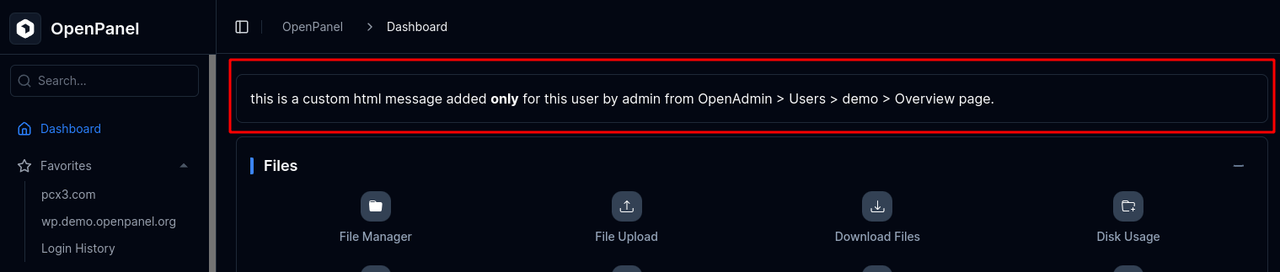
## Custom Message for a Specific User
To display a custom message in **OpenPanel > Dashboard** for a specific user:
1. Navigate to **OpenAdmin > Accounts > Users > *username* > Overview**.
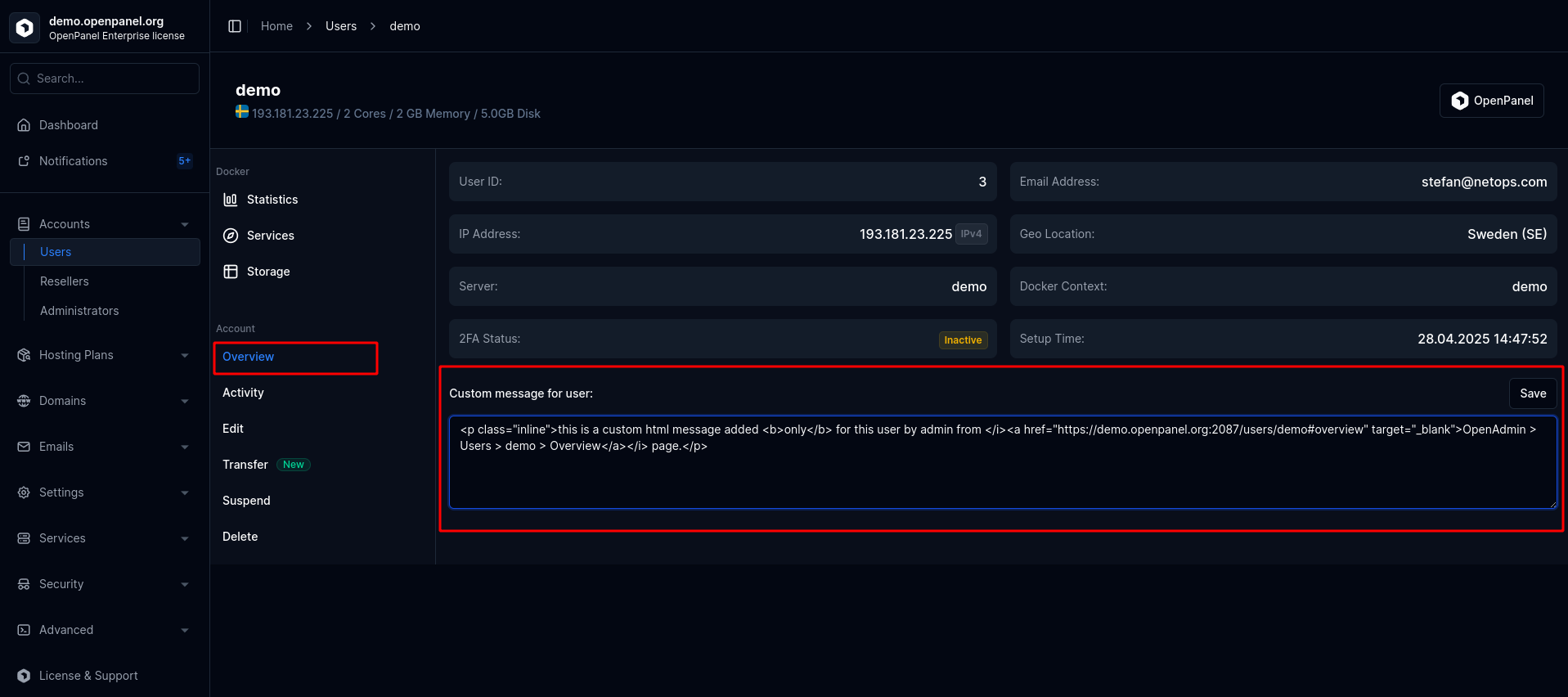
2. Enter the message — either plain text or HTML — in the **'Custom message for user'** area.
3. Click **Save**.
The message will appear immediately in the user’s Dashboard.
### Adding a Message via Terminal
You can also add a custom message by creating a file:
```bash
/etc/openpanel/openpanel/core/users/USERNAME/custom_message.html
```
Replace `USERNAME` with the actual user’s username.
---
## Global Message for All Users
To display a message for **all users**, copy or create a symbolic link of the custom message file in each user’s directory: `/etc/openpanel/openpanel/core/users/USERNAME/custom_message.html`.
---
// File: articles/accounts/how-to-delete-accounts
# How to Delete Multiple Hosting Accounts at Once
The `opencli user-delete` command lets you delete OpenPanel user accounts in bulk. **Use caution**-it's easy to accidentally delete the wrong users.
### Delete a Single User
```bash
opencli user-delete USERNAME
```
You’ll be prompted for confirmation. To skip confirmation, use the `-y` flag:
```bash
opencli user-delete USERNAME -y
```
### Delete All Users
To delete **all** users on the server:
```bash
opencli user-delete -all
```
By default, you'll be prompted to confirm each deletion. To skip all confirmations, use the `-y` flag:
```bash
opencli user-delete -all -y
```
---
// File: articles/accounts/how-to-reset-openpanel-account-password
# How to Reset a Hosting Account Password
If you forget your Openpanel account password, follow these steps:
1. Click the **Forgot password?** link on the login page.
> **NOTE:** If the **Forgot Password?** link does not appear on the login form, email-based password reset is disabled by your hosting provider. In this case, you must either:
>
> 1. Auto-login to OpenPanel through their billing panel and reset your password via [Account > Settings](/docs/panel/account/#changing-password), or
> 2. Contact your hosting provider to reset the password for you.
2. Enter your **email address** and click **Send Reset Link**.
3. If your email is associated with an account, you will receive a password reset email (link valid for 15 minutes).
4. Open the email and click the reset link.
5. Enter your **new password**, confirm it, and click **Change Password**.
You can now log in using your newly set password.
---
// File: articles/accounts/set-dedicated-ip-address-for-user
# Assigning a Dedicated IP Address to a User
A dedicated IP address can then be assigned to a user through **OpenAdmin** or **OpenCLI**.
Changing IP updates all related configuration files — including DNS zones and Caddy VirtualHosts — ensuring that the user’s all current and newly added domains are bound to the new IP address.
The updated IP address will also be reflected immediately in the user’s OpenPanel interface.
## Using OpenAdmin
The OpenAdmin interface lists all IP addresses currently assigned to the server — these can also be viewed using the `hostname -I` command.
If you need to add additional IP addresses to the server, **follow the official network configuration documentation for your operating system distribution**.
No special configuration is required from the OpenPanel side — newly added IPs will appear automatically in the interface.
To change IP address for a user from OpenAdmin:
1. Navigate to **OpenAdmin → Accounts → Users → *username* → Edit**.
2. Update the **IP Address** field with the desired dedicated IP.
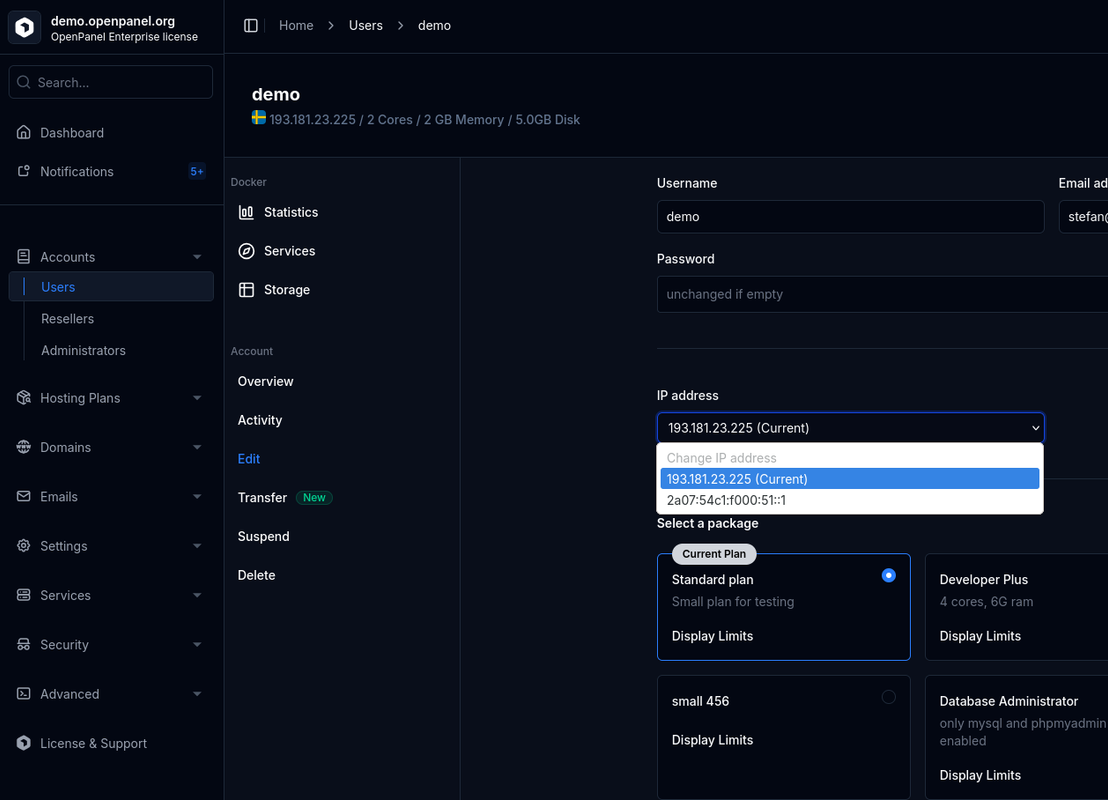
3. Click **Save** to apply the changes.
## Using OpenCLI
To change a user’s IP address from the command line, use the [`opencli user-ip`](https://dev.openpanel.com/cli/users.html#Assign-Remove-IP-to-User) command:
```bash
opencli user-ip
```
If the specified IP address is already assigned to another user, the command will abort with a warning.
To override this behavior and force the reassignment, include the `-y` flag:
```bash
opencli user-ip -y
```
To remove a dedicated IP from a user and restore them to the [main (shared) IP](/docs/articles/install-update/openpanel-main-ip-address), use:
```bash
opencli user-ip delete
```
---
// File: articles/accounts/troubleshooting-openpanel-login-errors
# How to Fix Control Panel Login Errors
The following error messages may appear on the OpenPanel login page. Here's what each one means and how to resolve it:
### `Username and password are required.`
This error indicates that one or both of the login fields were left empty.
**Solution:** Please enter both your username and password.
---
### `Unable to connect to database.`
This suggests that the MySQL service is not running, or the `users` table may be corrupted.
**Solution:** Check the database service status in **OpenAdmin > Services** and ensure MySQL is running correctly.
---
### `Your account is suspended. Please contact support.`
Your OpenPanel user account has been suspended, and login is currently disabled.
**Solution:** Contact your hosting provider to reactivate your account.
---
### `Unrecognized account. Please check username.`
The username you entered does not exist on the server.
**Solution:** Verify that you're using the correct login link and username. If the issue persists, contact your hosting provider’s support team.
---
### `Invalid password. Please try again.`
The password entered is incorrect.
**Solution:** If you’ve forgotten your password or continue to have issues, contact your hosting provider to request a password reset.
---
### `Invalid 2FA code. Please try again.`
The Two-Factor Authentication (2FA) code provided is not valid.
**Solution:** Generate a new 2FA code using your authentication app and try again.
---
### `Too many failed login attempts. Please try again later.`
Too many incorrect login attempts have been made from your IP address.
**Solution:** Contact your server administrator to review the log file at `/var/log/openpanel/user/failed_login.log`. They can unblock your IP or adjust the failed login attempt limits.
---
// File: articles/apps/install-dokuwiki
# How to Install DokuWiki (Wiki Without a Database)
[DokuWiki](https://www.dokuwiki.org/) is a simple, reliable wiki that stores all pages as plain text files - **no database needed**. It's ideal for documentation, team notes and small knowledge bases, and it's very easy to back up and move.
---
## Requirements
- OpenPanel Community or Enterprise - the **DokuWiki** module must be enabled for your hosting plan.
- A domain or subdomain, e.g. `docs.example.com`.
---
## Install DokuWiki
1. Add the domain in **OpenPanel → Domains** ([Add a new domain](/docs/panel/domains/new/)).
2. Go to **OpenPanel → Websites → Install App** and click **Install DokuWiki**.
3. Fill in the **domain**, **site title**, and the **admin username, password, full name and email**.
4. Start the installation.


OpenPanel always installs the current stable DokuWiki release and creates the admin account for you - there's no setup wizard to complete.
Open `https://docs.example.com` and log in with the admin account.
---
## Configure the Wiki
Everything is done from the wiki's **Admin** menu:
- **Access Control List** - decide who can read and edit. For a private wiki, give the `@ALL` group **None** on the root namespace `*` and `@user` **Read** or **Edit**.
- **Configuration Settings** - disable self-registration (**Disable DokuWiki actions → Register**) if only you should create accounts.
- **Extension Manager** - install plugins and templates (for example the *Bootstrap3* template, or *Move* and *Tag* plugins) with one click.
### Pretty URLs
To get `docs.example.com/page` instead of `doku.php?id=page`, set **Use nice URLs** to **.htaccess** in Configuration Settings. This works on Apache and OpenLiteSpeed; on Nginx and OpenResty, add DokuWiki's rewrite rules in **Domains → Edit VHosts File** (Enterprise, see [Edit VHosts](/docs/panel/webserver/vhosts/)).
---
## Managing the Wiki
The wiki's manage page in **OpenPanel → Websites → Sites** has:
- **Update** - installs the newest stable release while keeping `conf/`, `data/` (your pages) and `lib/plugins/`.
- **Clone** - copies the wiki to another domain.
- **Backups** - files-only backups (that's everything, since there's no database) with one-click restore.
- **Remove** - deletes the wiki.
More: [DokuWiki in OpenPanel](/docs/panel/applications/dokuwiki/).
---
## Related
- [Install MediaWiki](/docs/articles/apps/install-mediawiki/)
- [Install SofaWiki](/docs/articles/apps/install-sofawiki/)
- [All installable apps](/docs/panel/applications/autoinstaller/)
---
// File: articles/apps/install-drupal
# How to Install Drupal (with Composer and Drush)
[Drupal](https://www.drupal.org/) is a powerful open-source CMS for complex websites. OpenPanel installs it the recommended, **Composer-based** way - with **Drush** included - so updates and modules are managed properly from day one.
---
## Requirements
- **OpenPanel Enterprise** - the **Drupal** module must be enabled for your hosting plan.
- A domain pointed to the server.
- PHP 8.3 for Drupal 11 (PHP 8.1+ for Drupal 10).
---
## Install Drupal
1. Add the domain in **OpenPanel → Domains** ([Add a new domain](/docs/panel/domains/new/)).
2. Go to **OpenPanel → Websites → Install App** and click **Install Drupal**.
3. Fill in:
- **Domain** (and optional subfolder),
- **Site name**,
- **Drupal version** - *Latest* (Drupal 11) or Drupal 10,
- **Admin username, password and email**.
4. Start the installation.


Behind the scenes, OpenPanel runs `composer create-project drupal/recommended-project`, adds `drush/drush`, creates a MySQL/MariaDB database and runs `drush site:install`.
Log in at `https://example.com/user/login`.
---
## Running Drush and Composer
Open **OpenPanel → Containers → Terminal**, select the domain's PHP container (e.g. `php-fpm-8.3`) and go to the project folder:
```bash
cd /var/www/html/example.com
vendor/bin/drush status # site status
vendor/bin/drush cr # rebuild caches
vendor/bin/drush uli # one-time admin login link
composer require drupal/pathauto # add a module
vendor/bin/drush en pathauto -y # enable it
```
The web terminal is an **Enterprise** feature and must be enabled for your plan - see [Terminal](/docs/panel/containers/terminal/).
---
## Cron
Drupal runs cron on page visits by default (*Automated Cron*). For reliable scheduled tasks, disable the **Automated Cron** module and add a job in **OpenPanel → Cron Jobs**:
- **Container**: `php-fpm-8.3`
- **Schedule**: **Hourly**
- **Command**: `/var/www/html/example.com/vendor/bin/drush --root=/var/www/html/example.com/web cron`
---
## Updating Drupal
Update core and modules with Composer, then run the database updates:
```bash
cd /var/www/html/example.com
composer update "drupal/core-*" --with-all-dependencies
vendor/bin/drush updatedb -y
vendor/bin/drush cr
```
Take an account [backup](/docs/panel/backups/backups/) first.
---
## Trusted Host Settings
If Drupal's status report warns about **Trusted Host Settings**, add your domain to `web/sites/default/settings.php`:
```php
$settings['trusted_host_patterns'] = [
'^example\.com$',
'^www\.example\.com$',
];
```
---
## Managing Drupal
Drupal appears in **OpenPanel → Websites → Sites**, showing the document root, installed version (from `composer.lock`) and database details. **Remove** uninstalls the site including its database.
More: [Drupal in OpenPanel](/docs/panel/applications/drupal/).
---
## Related
- [Install Joomla](/docs/articles/apps/install-joomla/)
- [Deploy a Laravel app](/docs/articles/websites/deploy-laravel-app/)
- [All installable apps](/docs/panel/applications/autoinstaller/)
---
// File: articles/apps/install-flarum
# How to Install Flarum (Modern Forum Software)
[Flarum](https://flarum.org/) is a fast, modern and mobile-friendly forum - a lightweight alternative to phpBB and Discourse. OpenPanel installs it with Composer in one click and can update it for you.
---
## Requirements
- **OpenPanel Enterprise** - the **Flarum** module must be enabled for your hosting plan.
- A domain or subdomain, e.g. `community.example.com`.
- PHP 8.1 or newer for the domain.
---
## Install Flarum
1. Add the domain in **OpenPanel → Domains** ([Add a new domain](/docs/panel/domains/new/)).
2. Go to **OpenPanel → Websites → Install App** and click **Install Flarum**.
3. Fill in the **domain**, **Flarum version** (*Latest* stable), **forum title**, and **admin username, password and email**.
4. Start the installation.


OpenPanel runs `composer create-project flarum/flarum`, creates a MySQL/MariaDB database, runs Flarum's installer and links the domain's document root to Flarum's `public/` folder, so the rest of the code isn't reachable from the web.
Open `https://community.example.com` and log in with the admin account. The admin dashboard is at `/admin`.
---
## Install Extensions
Flarum extensions are installed with Composer. Open **OpenPanel → Containers → Terminal**, select the domain's PHP container (e.g. `php-fpm-8.3`) and run:
```bash
cd /var/www/html/community.example.com
composer require fof/upload # example: file uploads
php flarum cache:clear
```
Then enable the extension in **Admin → Extensions**. The web terminal is an **Enterprise** feature - see [Terminal](/docs/panel/containers/terminal/). Browse extensions at [extiverse.com](https://extiverse.com/) or [discuss.flarum.org](https://discuss.flarum.org/t/extensions).
---
## Email
Flarum sends email confirmations and notifications. In **Admin → Email**, choose **SMTP** and enter a mailbox from your domain. See [Why do my emails go to spam?](/docs/articles/email/why-emails-go-to-spam/).
---
## Scheduler
Some extensions (digests, cleanups) use Flarum's scheduler. Add a job in **OpenPanel → Cron Jobs**:
- **Container**: `php-fpm-8.3`
- **Schedule**: **Every Minute**
- **Command**: `php /var/www/html/community.example.com/flarum schedule:run`
---
## Managing the Forum
The forum's manage page in **OpenPanel → Websites → Sites** has:
- **Update** - updates `flarum/core` with Composer, runs migrations and clears the cache.
- **Cache** - runs `php flarum cache:clear`.
- **Logs** - the tail of `storage/logs/flarum.log`.
- **Remove** - uninstalls the forum and its database.
Take an account [backup](/docs/panel/backups/backups/) before updating or installing extensions.
More: [Flarum in OpenPanel](/docs/panel/applications/flarum/).
---
## Related
- [Install phpBB](/docs/articles/apps/install-phpbb/)
- [All installable apps](/docs/panel/applications/autoinstaller/)
---
// File: articles/apps/install-joomla
# How to Install Joomla
[Joomla](https://www.joomla.org/) is a popular open-source CMS for websites, portals and online magazines. OpenPanel installs Joomla in one click and gives you a one-click admin login from the panel.
---
## Requirements
- **OpenPanel Enterprise** - the **Joomla** module must be enabled for your hosting plan.
- A domain pointed to the server.
- A PHP version supported by your Joomla version (PHP 8.1+ for Joomla 5).
---
## Install Joomla
1. Add the domain in **OpenPanel → Domains** ([Add a new domain](/docs/panel/domains/new/)).
2. Go to **OpenPanel → Websites → Install App** and click **Install Joomla**.
3. Fill in:
- **Domain** (leave the subfolder empty to install at the root),
- **Site name**,
- **Joomla version** - *Latest* is recommended,
- **Admin full name, username, password and email** - the Super User account.
4. Start the installation.


OpenPanel downloads the official Joomla package, creates a MySQL/MariaDB database and runs Joomla's CLI installer. The site is ready at `https://example.com` and the administrator at `https://example.com/administrator/`.
---
## After Installing
### Log in without a password
On the site's manage page in **OpenPanel → Websites → Sites**, click **Login as Admin** to open the Joomla administrator already logged in. Each link works once and expires after 10 minutes.
### Enable search-engine friendly URLs
In **System → Global Configuration → Site**, enable **Search Engine Friendly URLs** and **Use URL Rewriting**:
- On **Apache** and **OpenLiteSpeed**, rename `htaccess.txt` to `.htaccess` in the site folder.
- On **Nginx** and **OpenResty**, no file is needed - requests are already routed through `index.php`.
### PHP settings
Joomla's **System Information** page shows recommended PHP settings. To raise upload limits or memory, see [How to increase PHP limits](/docs/articles/websites/how-to-set-or-increase-PHP-INI-memory-limit-or-other-values/).
### Email
Configure **System → Global Configuration → Server → Mail** to send through SMTP for better delivery.
---
## Managing Joomla
The manage page shows the Joomla, PHP and database versions, files and database details, and has:
- **Cache** - clears Joomla's system cache.
- **Logs** - PHP warnings and errors from `administrator/logs/`.
- **Remove** - uninstalls Joomla, including the database and files.
Update Joomla itself from **System → Update → Joomla** in the administrator. For backups, use the account-level [Backups](/docs/panel/backups/backups/).
More: [Joomla in OpenPanel](/docs/panel/applications/joomla/).
---
## Related
- [Install WordPress](/docs/articles/websites/how-to-install-wordpress-with-openpanel/)
- [Install Drupal](/docs/articles/apps/install-drupal/)
- [All installable apps](/docs/panel/applications/autoinstaller/)
---
// File: articles/apps/install-matomo
# How to Self-Host Matomo Analytics (Google Analytics Alternative)
[Matomo](https://matomo.org/) is an open-source web analytics platform and the most popular self-hosted alternative to Google Analytics. Because the data stays on your server, it's easier to comply with GDPR - and you own 100% of your data.
OpenPanel installs and configures Matomo in one click.
---
## Requirements
- OpenPanel Community or Enterprise - the **Matomo** module must be enabled for your hosting plan.
- A domain or subdomain for the dashboard, e.g. `analytics.example.com`.
- MySQL or MariaDB (Matomo doesn't support PostgreSQL).
---
## Install Matomo
1. Add `analytics.example.com` in **OpenPanel → Domains** ([Add a new domain](/docs/panel/domains/new/)).
2. Go to **OpenPanel → Websites → Install App** and click **Install Matomo**.
3. Choose the **Matomo version** (*Latest*), the **domain**, and the **admin login, email and password**.
4. Optionally expand **Database settings** - the name, user and password are generated for you.
5. Start the installation.


OpenPanel downloads Matomo, creates the database, and completes Matomo's setup wizard for you - no browser wizard needed.
Open `https://analytics.example.com`, or click **Login as Admin** on the app's manage page.
---
## Track Your Websites
1. In Matomo, go to **Administration → Websites → Manage** and add each website you want to track.
2. Open **Administration → Websites → Tracking Code** and copy the JavaScript snippet.
3. Paste it before `` on every page of the tracked website.
- For **WordPress**, use the official *Connect Matomo* plugin or paste the code in your theme's header.
You'll see visits in the Matomo dashboard within a few seconds.
---
## Set Up Report Archiving (Recommended)
By default, Matomo builds reports when someone opens the dashboard, which gets slow on busy sites. Switch to cron-based archiving:
1. In Matomo, go to **Administration → System → General settings** and set **Archive reports when viewed from the browser** to **No**.
2. In **OpenPanel → Cron Jobs**, create a job:
- **Container**: the domain's PHP container, e.g. `php-fpm-8.3`
- **Schedule**: **Hourly**
- **Command**:
```bash
php /var/www/html/analytics.example.com/console core:archive --url=https://analytics.example.com/
```
See [Cron Jobs](/docs/panel/cronjobs/).
---
## Managing Matomo
Matomo appears in **OpenPanel → Websites → Sites**. Its manage page has:
- **Login as Admin** - one-click login to the dashboard.
- **Cache** - runs `core:clear-caches`.
- **Update** - checks for a new release and updates it, including the database schema.
- **Backups** - full or partial backups and restores.
- **Clone** - copies Matomo to another domain, updating `trusted_hosts` automatically.
- **Logs** - Matomo's own log files.
More: [Matomo in OpenPanel](/docs/panel/applications/matomo/).
---
## Tips
- **Exclude your own visits**: in **Administration → Websites → Manage**, add your IP address to the excluded IPs.
- **Privacy**: in **Administration → Privacy**, enable IP anonymization and respect Do Not Track to reduce the need for cookie banners.
- **Disk usage** grows with traffic - check it now and then in [Disk Usage](/docs/panel/statistics/disk_usage/).
---
## Related
- [View visitor statistics (GoAccess)](/docs/panel/statistics/goaccess/)
- [Self-host n8n](/docs/articles/apps/install-n8n/)
- [All installable apps](/docs/panel/applications/autoinstaller/)
---
// File: articles/apps/install-mediawiki
# How to Install MediaWiki (Wikipedia's Wiki Software)
[MediaWiki](https://www.mediawiki.org/) is the free software that powers Wikipedia. It's a great fit for documentation, knowledge bases and community wikis. OpenPanel installs it in one click and includes backups, cloning and one-click updates.
---
## Requirements
- **OpenPanel Enterprise** - the **MediaWiki** module must be enabled for your hosting plan.
- A domain or subdomain, e.g. `wiki.example.com`.
- A PHP version that meets the MediaWiki release's minimum - OpenPanel checks this before installing and tells you if the domain's PHP version is too old.
---
## Install MediaWiki
1. Add the domain in **OpenPanel → Domains** ([Add a new domain](/docs/panel/domains/new/)).
2. Go to **OpenPanel → Websites → Install App** and click **Install MediaWiki**.
3. Choose the **domain**, **MediaWiki version** (*Latest*), **site name**, and the **admin username, password and email**.
4. Start the installation.


OpenPanel downloads the official release, creates a MySQL/MariaDB database, runs MediaWiki's installer, and adds a cron job for MediaWiki's job queue.
Open `https://wiki.example.com`, or click **Login as Admin** on the wiki's manage page.
---
## Common Configuration
All wiki settings live in `LocalSettings.php` in the wiki folder. Edit it with the [File Manager](/docs/panel/files/files/).
### Allow file uploads
```php
$wgEnableUploads = true;
```
Uploaded files go to the `images/` folder. Raise PHP's `upload_max_filesize` if you need larger files - see [How to increase PHP limits](/docs/articles/websites/how-to-set-or-increase-PHP-INI-memory-limit-or-other-values/).
### Restrict who can edit
For a private or company wiki:
```php
$wgGroupPermissions['*']['createaccount'] = false; // no public sign-ups
$wgGroupPermissions['*']['edit'] = false; // only logged-in users edit
$wgGroupPermissions['*']['read'] = false; // make the wiki private
```
### Install extensions
Download an extension into `extensions/` and enable it in `LocalSettings.php`:
```php
wfLoadExtension( 'VisualEditor' );
```
Many popular extensions (VisualEditor, Cite, ParserFunctions) are already bundled with MediaWiki - just add the `wfLoadExtension` line.
### Caching
For busy wikis, enable the **Redis** service and set `$wgMainCacheType` to use it - see [Redis](/docs/panel/caching/Redis/) (use `redis` as the host).
---
## Managing the Wiki
The wiki's manage page in **OpenPanel → Websites → Sites** has:
- **Login as Admin** - a one-time admin login link.
- **Update** - updates MediaWiki core and runs the database update script; `LocalSettings.php` and `images/` are kept.
- **Clone** - copies the wiki to another domain, for example for testing an upgrade.
- **Backups** - on-demand backups of the database, files or both, with one-click restore.
- **Logs** and **Remove**.
:::tip
Before **Update**, create a backup in the **Backups** tab - and check that your extensions support the new MediaWiki version.
:::
More: [MediaWiki in OpenPanel](/docs/panel/applications/mediawiki/).
---
## Related
- [Install DokuWiki](/docs/articles/apps/install-dokuwiki/) - a simpler wiki without a database
- [Install SofaWiki](/docs/articles/apps/install-sofawiki/)
- [All installable apps](/docs/panel/applications/autoinstaller/)
---
// File: articles/apps/install-moodle
# How to Install Moodle (LMS) on Your Own Server
[Moodle](https://moodle.org/) is the world's most popular open-source learning management system (LMS), used by schools, universities and companies for online courses. OpenPanel installs Moodle in one click, including its database, data folder and cron job.
---
## Requirements
- **OpenPanel Enterprise** - the **Moodle** module must be enabled for your hosting plan.
- A domain or subdomain, e.g. `learn.example.com`, pointed to the server.
- A PHP version supported by the Moodle release (PHP 8.2 or 8.3 for Moodle 4.5 / 5.x).
- At least **1 GB of RAM** for small sites; more for many concurrent students.
---
## Install Moodle
1. Add the domain in **OpenPanel → Domains** ([Add a new domain](/docs/panel/domains/new/)).
2. Go to **OpenPanel → Websites → Install App** and click **Install Moodle**.
3. Fill in:
- **Domain** (and optional subfolder),
- **Site name** and **short name**,
- **Moodle version** - *Latest* is recommended,
- **Admin username, password and email** - leave the password empty to generate one.
4. Start the installation.


OpenPanel downloads the official Moodle package, creates a MySQL/MariaDB database, runs Moodle's CLI installer and registers Moodle's **cron job** automatically.
Log in at `https://learn.example.com/login/` with the admin account.
---
## How the Files Are Laid Out
Moodle keeps its code and its data separately:
- **App root** - the Moodle code, next to your domain folder. Moodle 5.x serves only its `public/` subfolder, so the domain's document root is linked to `/public` and `config.php` stays outside the web root.
- **moodledata** - uploaded files, course materials, caches and sessions. This is where the real content lives.
When you back up or move the site, you need the **database** and **moodledata** - the code can always be downloaded again.
---
## Recommended Settings
### Upload limits for course files
Moodle's maximum upload size is capped by PHP. For videos and large SCORM packages, raise the limits in **OpenPanel → PHP → PHP.INI Editor**:
```ini
upload_max_filesize = 512M
post_max_size = 512M
max_execution_time = 300
memory_limit = 512M
```
Then set **Site administration → Security → Site security settings → Maximum uploaded file size** in Moodle. See [How to increase PHP limits](/docs/articles/websites/how-to-set-or-increase-PHP-INI-memory-limit-or-other-values/).
### Caching with Redis
For sites with many users, enable the **Redis** service and add a Redis cache store in **Site administration → Plugins → Caching → Configuration**, using `redis` as the server (not `localhost`). See [Redis](/docs/panel/caching/Redis/).
### Outgoing email
Moodle sends enrolment and forum emails. Configure **Site administration → Server → Email → Outgoing mail configuration** with your mailbox or an SMTP relay - see [Why do my emails go to spam?](/docs/articles/email/why-emails-go-to-spam/).
---
## Managing Moodle
Moodle appears in **OpenPanel → Websites → Sites**. Its manage page offers:
- **Cache** - purges all Moodle caches.
- **Maintenance mode** - shows a maintenance page to students while you work.
- **Backups** - back up and restore the database, `moodledata`, or both.
- **Clone** - copy the site to a new domain (e.g. a staging site), including the database, data and cron.
- **Update** - updates to the latest release, with maintenance mode turned on automatically.
- **Logs** - PHP errors from `moodledata`.
:::tip
Take a backup from the **Backups** tab before running **Update**, and test big upgrades on a clone first.
:::
More: [Moodle in OpenPanel](/docs/panel/applications/moodle/).
---
## Related
- [Self-host Nextcloud](/docs/articles/apps/install-nextcloud/)
- [Install OJS (Open Journal Systems)](/docs/articles/apps/install-ojs/)
- [All installable apps](/docs/panel/applications/autoinstaller/)
---
// File: articles/apps/install-n8n
# How to Self-Host n8n (Workflow Automation) on Your Own Server
[n8n](https://n8n.io/) is an open-source workflow automation tool - a self-hosted alternative to Zapier and Make. With OpenPanel you can install it on your own domain in a few clicks, with HTTPS and webhooks working out of the box.
---
## Why Self-Host n8n?
- **No per-execution pricing** - run as many workflows as your server can handle.
- **Your data stays on your server** - credentials and workflow data never leave it.
- **Full access to community nodes** and custom code.
---
## Requirements
- The **n8n** module enabled for your hosting plan. n8n support is currently in **beta**. If you don't see **Install n8n** in the auto installer, ask your hosting provider or administrator to enable it.
- A domain or subdomain for n8n, e.g. `n8n.example.com`, pointed to the server.
- At least **1 GB of RAM** available for the n8n container.
---
## Step 1: Add a Domain
Add the domain or subdomain in **OpenPanel → Domains** - see [Add a new domain](/docs/panel/domains/new/). A dedicated subdomain like `n8n.example.com` is recommended, so n8n's editor and webhooks have their own address.
Wait until the domain resolves to the server, so the SSL certificate can be issued.
---
## Step 2: Install n8n
Go to **OpenPanel → Websites → Install App** and click **Install n8n**. Fill in:
| Field | Description |
|---|---|
| **Name** | Name of the app and its container, e.g. `n8n` |
| **Domain** | The domain (and optional subfolder) where n8n will be available |
| **Version** | An n8n release from Docker Hub - pick the latest stable |
| **First name / Last name / Email / Password** | The n8n **owner** account |
| **CPU / Memory / PIDs** | Resource limits for the container - at least 1 CPU and 1 GB RAM |


Click **Start Installation**. OpenPanel will:
1. Create an `n8nio/n8n` container with its own persistent data volume.
2. Set `N8N_HOST`, `WEBHOOK_URL` and `N8N_EDITOR_BASE_URL` to your domain, so webhooks use your real HTTPS address.
3. Configure the web server as a reverse proxy to n8n (with WebSocket support for the live editor).
4. Create the owner account, so you land directly on the n8n login page instead of the setup wizard.
When it finishes, open `https://n8n.example.com` and log in with the email and password you entered.
---
## Webhooks
Webhook URLs in n8n use your domain automatically, for example:
```
https://n8n.example.com/webhook/your-webhook-id
```
The SSL certificate is issued and renewed automatically, so services like Stripe, GitHub or Telegram can call your webhooks without extra setup.
---
## Managing n8n
n8n appears in **OpenPanel → Websites → Sites**. Click **Manage** to:
- **Start, stop or restart** the container.
- View **Logs** - useful when a workflow or node fails to load.
- Change the **CPU and memory** limits. Increase memory if large workflows fail or the container restarts.
- Add custom **environment variables** in the **Env Vars** tab (for example `GENERIC_TIMEZONE` or SMTP settings), then restart.


### Updating n8n
Change the **version** on the app's manage page to a newer n8n release and restart the app. Your workflows and credentials are stored on the persistent data volume and are kept.


:::tip
Before a major n8n upgrade, export your workflows (**Workflows → ... → Download**) or take an account [backup](/docs/panel/backups/backups/).
:::
---
## Connecting n8n to Your Databases
n8n runs inside your account's network, so its MySQL, PostgreSQL and Redis nodes can connect to your account's databases using the service names as the host:
| Service | Host | Port |
|---|---|---|
| MySQL | `mysql` | `3306` |
| MariaDB | `mariadb` | `3306` |
| PostgreSQL | `postgres` | `5432` |
| Redis | `redis` | `6379` |
---
## Troubleshooting
| Problem | Fix |
|---|---|
| **502 Bad Gateway** right after install | n8n needs 20-60 seconds to start and run its migrations. Wait and reload. |
| Editor shows "Connection lost" | Check that the domain is accessed over `https://`, then restart the app. |
| Container keeps restarting | Increase the memory limit - n8n needs at least 1 GB. Check **Logs** for the exact error. |
| Webhooks show `localhost` URLs | Reinstall n8n on the correct domain; the webhook URL is set from the domain chosen during installation. |


---
## Related
- [Deploy a Node.js app](/docs/articles/websites/deploy-nodejs-app/)
- [Self-host Nextcloud](/docs/articles/apps/install-nextcloud/)
- [n8n in OpenPanel (reference)](/docs/panel/applications/n8n/)
- [All installable apps](/docs/panel/applications/autoinstaller/)
---
// File: articles/apps/install-nextcloud
# How to Self-Host Nextcloud on Your Own Server
[Nextcloud](https://nextcloud.com/) is an open-source alternative to Google Drive, Dropbox and OneDrive - file sync and sharing, calendars, contacts and more, on your own server. OpenPanel installs it in one click and handles the domain, database and SSL for you.
---
## Requirements
- OpenPanel Community or Enterprise - the **Nextcloud** module must be enabled for your hosting plan.
- A domain or subdomain, e.g. `cloud.example.com`, pointed to the server.
- A PHP version supported by the Nextcloud release you install (PHP 8.2 or 8.3 for current releases).
- Enough **disk space** for your files - check your plan's disk quota.
---
## Step 1: Add the Domain
Add `cloud.example.com` in **OpenPanel → Domains** ([Add a new domain](/docs/panel/domains/new/)) and make sure it resolves to the server so SSL is issued.
---
## Step 2: Install Nextcloud
1. Go to **OpenPanel → Websites → Install App** and click **Install Nextcloud**.
2. Select the **domain** and leave the subfolder empty to install at the root.
3. Choose the **Nextcloud version** - *Latest* is recommended.
4. Enter the **admin username**, **password** (leave empty to generate one) and **email**.
5. Start the installation.


OpenPanel downloads the official release, creates a dedicated MySQL/MariaDB database, runs Nextcloud's installer, and sets `trusted_domains` and `overwrite.cli.url` to your domain.
Open `https://cloud.example.com` and log in - or use **Login as Admin** on the app's manage page.
---
## Step 3: Recommended Settings
After installing, open **Administration settings → Overview** in Nextcloud. It lists any warnings; the fixes below cover the common ones.
### Background jobs (cron)
Nextcloud should run its background jobs every 5 minutes with cron instead of on page loads (AJAX).
1. In Nextcloud, go to **Administration settings → Basic settings** and select **Cron (Recommended)**.
2. In **OpenPanel → Cron Jobs**, create a job:
- **Container**: the domain's PHP container, e.g. `php-fpm-8.3`
- **Schedule**: **Every 5 Minutes**
- **Command**: `php -f /var/www/html/cloud.example.com/cron.php`
See [Cron Jobs](/docs/panel/cronjobs/).
### PHP memory and upload limits
Nextcloud recommends at least **512 MB** of PHP memory. For large uploads, raise the upload limits too. In **OpenPanel → PHP → PHP.INI Editor**, set for the domain's PHP version:
```ini
memory_limit = 512M
upload_max_filesize = 2G
post_max_size = 2G
max_execution_time = 3600
```
See [How to increase PHP limits](/docs/articles/websites/how-to-set-or-increase-PHP-INI-memory-limit-or-other-values/). The desktop and mobile apps upload large files in chunks, so these limits mostly affect uploads through the browser.
### Redis caching
Enable the **Redis** service in **OpenPanel → Cache → Redis**, then add this to `config/config.php`:
```php
'memcache.local' => '\OC\Memcache\APCu',
'memcache.distributed' => '\OC\Memcache\Redis',
'memcache.locking' => '\OC\Memcache\Redis',
'redis' => [
'host' => 'redis',
'port' => 6379,
],
```
Use `redis` as the host, not `localhost` - see [Redis](/docs/panel/caching/Redis/). If APCu isn't available, remove the `memcache.local` line and use Redis for it instead.
---
## Connecting Clients
- **Desktop**: install the [Nextcloud desktop client](https://nextcloud.com/install/#install-clients) and log in with `https://cloud.example.com`.
- **Mobile**: install the Nextcloud app for Android or iOS.
- **Calendar and contacts**: use the CalDAV/CardDAV URL `https://cloud.example.com/remote.php/dav`.
---
## Managing Nextcloud
Nextcloud appears in **OpenPanel → Websites → Sites**. Its manage page shows the version, PHP version, database details and folder size, and has:
- **Login as Admin** - one-click login without the password.
- **Cache** - clears the preview/thumbnail cache.
- **Logs** - the tail of `data/nextcloud.log`.
- **Remove** - uninstalls Nextcloud, including its database and files.
Update Nextcloud from **Administration settings → Overview** using the built-in updater, one major version at a time.
More: [Nextcloud in OpenPanel](/docs/panel/applications/nextcloud/).
---
## Troubleshooting
| Problem | Fix |
|---|---|
| "Access through untrusted domain" | Add the domain to `trusted_domains` in `config/config.php`. |
| Uploads fail above a certain size | Raise `upload_max_filesize` and `post_max_size`, or use the desktop app. |
| "Last background job execution ran ... ago" | Create the cron job above and select **Cron** in Basic settings. |
| Slow file listing | Enable Redis caching. |
---
## Related
- [Self-host n8n](/docs/articles/apps/install-n8n/)
- [Configure backups](/docs/panel/backups/backups/)
- [All installable apps](/docs/panel/applications/autoinstaller/)
---
// File: articles/apps/install-ojs
# How to Install Open Journal Systems (OJS) for Academic Publishing
[Open Journal Systems (OJS)](https://pkp.sfu.ca/software/ojs/) from the Public Knowledge Project is the most widely used open-source software for managing and publishing scholarly journals - submissions, peer review, editing and publishing in one place. OpenPanel installs it in one click.
---
## Requirements
- **OpenPanel Enterprise** - the **OJS** module must be enabled for your hosting plan.
- A domain or subdomain, e.g. `journal.example.edu`.
- A PHP version supported by the OJS release (PHP 8.1+ for OJS 3.4 / 3.5).
---
## Install OJS
1. Add the domain in **OpenPanel → Domains** ([Add a new domain](/docs/panel/domains/new/)).
2. Go to **OpenPanel → Websites → Install App** and click **Install OJS**.
3. Fill in the **domain**, **OJS version** (*Latest*), and the **admin username, password and email** - this becomes the *Site Administrator*.
4. Start the installation.


OpenPanel downloads the complete release package from PKP, creates a MySQL/MariaDB database, runs OJS's installer and registers the scheduled-tasks cron job. Uploaded submission files are stored in a separate **files directory** next to the app, outside the web root, as PKP recommends.
Log in at `https://journal.example.edu/login`, or use **Login as Admin** on the site's manage page.
---
## Create Your First Journal
1. Go to **Administration → Hosted Journals → Create Journal**.
2. Enter the journal title, initials, path (for example `jcs` → `https://journal.example.edu/index.php/jcs`) and languages.
3. Open the journal's **Settings Wizard** to set up masthead, submission guidelines, review forms and users.
One OJS installation can host multiple journals.
---
## Recommended Settings
### Upload size for manuscripts
Raise PHP's limits so authors can upload larger files - in **OpenPanel → PHP → PHP.INI Editor**:
```ini
upload_max_filesize = 64M
post_max_size = 64M
memory_limit = 256M
```
See [How to increase PHP limits](/docs/articles/websites/how-to-set-or-increase-PHP-INI-memory-limit-or-other-values/).
### Email
OJS sends a lot of workflow email (submission, review requests, decisions). Configure SMTP in the `[email]` section of `config.inc.php` with a mailbox on your domain, and set up SPF and DKIM - see [Why do my emails go to spam?](/docs/articles/email/why-emails-go-to-spam/).
### Scheduled tasks
OJS uses scheduled tasks for review reminders, statistics and other background work. OpenPanel registers this cron job automatically during installation (it runs `lib/pkp/tools/scheduler.php run` every minute in the PHP container) - you can see it in **OpenPanel → Cron Jobs**. If the installer warned that it couldn't add the job, create it there manually with the same command.
---
## Managing OJS
The site's manage page in **OpenPanel → Websites → Sites** has **Login as Admin**, **Cache** (clears OJS's template and data cache - useful after changing themes or plugins), **Logs**, **Backups** and **Remove**.
More: [OJS in OpenPanel](/docs/panel/applications/ojs/).
---
## Related
- [Install Moodle](/docs/articles/apps/install-moodle/)
- [All installable apps](/docs/panel/applications/autoinstaller/)
---
// File: articles/apps/install-opencart
# How to Install OpenCart and Launch an Online Store
[OpenCart](https://www.opencart.com/) is a lightweight, free and open-source shopping cart. It's simple to run and fast on modest hardware. OpenPanel installs it in one click.
---
## Requirements
- **OpenPanel Enterprise** - the **OpenCart** module must be enabled for your hosting plan.
- A domain pointed to the server.
- A PHP version supported by your OpenCart release (PHP 8.0+ for OpenCart 4.x).
---
## Install OpenCart
1. Add the domain in **OpenPanel → Domains** ([Add a new domain](/docs/panel/domains/new/)).
2. Go to **OpenPanel → Websites → Install App** and click **Install OpenCart**.
3. Choose the **domain**, **OpenCart version** (*Latest*), and the **admin username, password and email**.
4. Start the installation.


OpenPanel downloads the official release, creates a MySQL/MariaDB database, prepares `config.php` and `admin/config.php`, runs OpenCart's CLI installer, and deletes the `install/` folder afterwards.
The store opens at `https://example.com`, the admin at `https://example.com/admin/`. You can also use **Login as Admin** on the store's manage page in **OpenPanel → Websites → Sites**.
---
## Recommended Settings
### Use HTTPS everywhere
SSL is issued automatically. Make sure `HTTP_SERVER` and `HTTPS_SERVER` in `config.php` and `admin/config.php` start with `https://`.
### SEO-friendly URLs
In the admin, go to **System → Settings → Edit store → Server** and enable **Use SEO URLs**.
- On **Apache** and **OpenLiteSpeed**, rename `.htaccess.txt` to `.htaccess` in the store folder.
- On **Nginx** and **OpenResty**, add OpenCart's rewrite rules in **Domains → Edit VHosts File** (Enterprise, see [Edit VHosts](/docs/panel/webserver/vhosts/)).
### Move the storage folder (OpenCart 4)
After the first login, OpenCart suggests moving `system/storage/` outside the web root. Follow the dashboard notice - it moves the folder for you and updates the config.
### Email
In **System → Settings → Mail**, choose **SMTP** and enter your mailbox details so order emails are delivered - see [Why do my emails go to spam?](/docs/articles/email/why-emails-go-to-spam/).
---
## Managing the Store
The manage page shows versions, files and database details, and has:
- **Login as Admin** - one-time login link, valid for 10 minutes.
- **Cache** - the same as *Refresh cache* in the admin; use it after installing extensions.
- **Logs** - `system/storage/logs/error.log`.
- **Remove** - uninstalls the store and its database.
Use the account-level [Backups](/docs/panel/backups/backups/) before updating OpenCart or installing extensions.
More: [OpenCart in OpenPanel](/docs/panel/applications/opencart/).
---
## Related
- [Install PrestaShop](/docs/articles/apps/install-prestashop/)
- [Increase PHP limits](/docs/articles/websites/how-to-set-or-increase-PHP-INI-memory-limit-or-other-values/)
- [All installable apps](/docs/panel/applications/autoinstaller/)
---
// File: articles/apps/install-phpbb
# How to Install a phpBB Forum
[phpBB](https://www.phpbb.com/) is one of the most widely used open-source forum systems. OpenPanel installs a ready-to-use board in one click, with backups and cloning built in.
---
## Requirements
- OpenPanel Community or Enterprise - the **phpBB** module must be enabled for your hosting plan.
- A domain or subdomain, e.g. `forum.example.com`.
- A PHP version supported by your phpBB release.
---
## Install phpBB
1. Add the domain in **OpenPanel → Domains** ([Add a new domain](/docs/panel/domains/new/)).
2. Go to **OpenPanel → Websites → Install App** and click **Install phpBB**.
3. Fill in the **domain**, **phpBB version** (*Latest*), **board name and description**, and the **admin username, password and email**.
4. Start the installation.


OpenPanel downloads the official release, creates a MySQL/MariaDB database, runs phpBB's CLI installer and removes the `install/` folder.
Open `https://forum.example.com` and log in with the admin account. The **Admin Control Panel (ACP)** link is at the bottom of every page.
---
## First Steps After Installing
### Stop spam registrations
New forums attract spam bots quickly. In **ACP → General → Board configuration → Spambot countermeasures**, enable a CAPTCHA plugin (reCAPTCHA or Q&A) and set **User registration → Account activation** to **By user (email verification)** or **By admin**.
### Configure email
phpBB sends activation and notification emails. In **ACP → General → Client communication → Email settings**, enable SMTP and enter a mailbox from your domain. See [Why do my emails go to spam?](/docs/articles/email/why-emails-go-to-spam/).
### Board settings
In **ACP → General → Board settings**, set your time zone, default language and board style. Install extra language packs and styles from [phpbb.com](https://www.phpbb.com/customise/db/).
---
## Updating phpBB
phpBB doesn't have a safe automatic CLI updater, so updates are done from the forum itself:
1. Create a **backup** from the forum's manage page in OpenPanel.
2. The manage page's **Update** tab shows the installed version and opens the ACP.
3. In **ACP → System → Automation**, follow phpBB's update procedure with the **Automatic Update Package**.
---
## Managing the Forum
The manage page in **OpenPanel → Websites → Sites** has:
- **Backups** - database, files or both, with one-click restore.
- **Clone** - copy the board to another domain, e.g. to test an update or new style.
- **Update** - installed version and a shortcut to the ACP.
- **Remove** - uninstalls the forum and its database.
More: [phpBB in OpenPanel](/docs/panel/applications/phpbb/).
---
## Related
- [Install Flarum](/docs/articles/apps/install-flarum/) - a modern forum alternative
- [All installable apps](/docs/panel/applications/autoinstaller/)
---
// File: articles/apps/install-prestashop
# How to Install PrestaShop and Start an Online Store
[PrestaShop](https://www.prestashop.com/) is a free, open-source e-commerce platform used by hundreds of thousands of online stores. OpenPanel installs it in one click, with a database, SSL and a secure admin folder.
---
## Requirements
- **OpenPanel Enterprise** - the **PrestaShop** module must be enabled for your hosting plan.
- A domain pointed to the server.
- A PHP version supported by your PrestaShop version (PHP 8.1 for PrestaShop 8.x).
- At least **1 GB of RAM** for the account - stores use more memory than simple websites.
---
## Install PrestaShop
1. Add the domain in **OpenPanel → Domains** ([Add a new domain](/docs/panel/domains/new/)).
2. Go to **OpenPanel → Websites → Install App** and click **Install PrestaShop**.
3. Choose the **domain**, the **PrestaShop version** (*Latest*), and enter the **admin first name, last name, email and password**.
4. Start the installation.


OpenPanel downloads the official release, creates a MySQL/MariaDB database, runs PrestaShop's CLI installer, removes the `install/` folder and renames the `admin/` folder to a random name for security.
---
## Log in to the Back Office
Because the admin folder has a random name, the easiest way in is the **Login as Admin** button on the store's manage page in **OpenPanel → Websites → Sites**. It opens the back office already logged in.
The back-office URL (with the random folder name) is also shown in the File Manager - look for the folder starting with `admin` in the store's directory. Bookmark it.
---
## Recommended Settings
### Force HTTPS
SSL is issued automatically. In the back office, go to **Shop Parameters → General** and enable **Enable SSL** and **Enable SSL on all pages**.
### Friendly URLs
Go to **Shop Parameters → Traffic & SEO** and enable **Friendly URL**.
- On **Apache** and **OpenLiteSpeed**, PrestaShop writes the rewrite rules to `.htaccess` automatically.
- On **Nginx** and **OpenResty**, PrestaShop needs extra rewrite rules in the domain's vhost - add them in **Domains → Edit VHosts File** (Enterprise, see [Edit VHosts](/docs/panel/webserver/vhosts/)), or switch the account to Apache for simpler setup.
### PHP limits
For large product imports, raise `memory_limit` to `512M` and `max_execution_time` to `300` - see [How to increase PHP limits](/docs/articles/websites/how-to-set-or-increase-PHP-INI-memory-limit-or-other-values/).
### Email
Configure **Advanced Parameters → E-mail** to send through SMTP, so order confirmations don't land in spam. See [Why do my emails go to spam?](/docs/articles/email/why-emails-go-to-spam/).
### Cron tasks
Some modules (currency rates, abandoned carts, feeds) need cron. Install the **Cron tasks manager** module, then add its URL as a job in **OpenPanel → Cron Jobs** with `curl`, for example:
```bash
curl -s "https://example.com/modules/cronjobs/cron.php?token=YOUR_TOKEN"
```
---
## Managing the Store
The store's manage page shows the PrestaShop, PHP and database versions, and has:
- **Login as Admin** - one-click back-office login.
- **Cache** - clears PrestaShop's production cache (do this after changing themes or modules).
- **Logs** - PrestaShop's daily log files from `var/logs/`.
- **Remove** - uninstalls the store, including the database.
Back up the store with the account-level [Backups](/docs/panel/backups/backups/) before installing modules or updating.
More: [PrestaShop in OpenPanel](/docs/panel/applications/prestashop/).
---
## Related
- [Install OpenCart](/docs/articles/apps/install-opencart/)
- [Install WordPress (for WooCommerce)](/docs/articles/websites/how-to-install-wordpress-with-openpanel/)
- [All installable apps](/docs/panel/applications/autoinstaller/)
---
// File: articles/apps/install-sofawiki
# How to Install SofaWiki (Lightweight File-Based Wiki)
[SofaWiki](https://github.com/bellenuit/sofawiki) is a small, file-based wiki and CMS with its own scripting language. It needs no database, which makes it quick to set up and easy to back up.
---
## Requirements
- **OpenPanel Enterprise** - the **SofaWiki** module must be enabled for your hosting plan.
- A domain or subdomain.
- **PHP 7.4 or older** for the domain. SofaWiki doesn't run on PHP 8+ - OpenPanel blocks the install if the domain uses PHP 8. Set the version first in **OpenPanel → PHP** - see [changing the PHP version per domain](/docs/articles/websites/change-php-version-per-domain/).
---
## Install SofaWiki
1. Add the domain in **OpenPanel → Domains** and set it to PHP 7.4.
2. Go to **OpenPanel → Websites → Install App** and click **Install SofaWiki**.
3. Select the **domain** and enter an **admin email** (used as the contact in Site Manager).
4. Start the installation.


OpenPanel downloads SofaWiki from GitHub and fixes file ownership. There is no database to create.
---
## Finish Setup in the Browser
SofaWiki has its own first-visit setup wizard. Open your domain in the browser and follow the steps - it checks folder permissions and creates the configuration file and your admin user.
The site's manage page shows a **Setup** reminder until the wizard is completed.
---
## Managing the Wiki
The manage page in **OpenPanel → Websites → Sites** has:
- **Clone** - copy the wiki to another domain (update the site URL in `inc/configuration.php` of the copy afterwards).
- **Backups** - files-only backups with one-click restore.
- **Remove** - **Detach** (keep files) or **Delete Application**.
More: [SofaWiki in OpenPanel](/docs/panel/applications/sofawiki/).
---
## Related
- [Install DokuWiki](/docs/articles/apps/install-dokuwiki/) - works on current PHP versions
- [Install MediaWiki](/docs/articles/apps/install-mediawiki/)
---
// File: articles/apps/install-tinyfilemanager
# How to Install TinyFileManager (Web-Based File Manager)
[TinyFileManager](https://github.com/prasathmani/tinyfilemanager) is a single-file, password-protected web file manager. Install it on a domain to upload, download, edit and share files from any browser - for example to give a client access to one folder without giving them your OpenPanel login.
:::info
TinyFileManager is a separate app that runs on your website. For managing your own hosting files, OpenPanel already has a built-in [File Manager](/docs/panel/files/files/).
:::
---
## Install TinyFileManager
1. Add a domain or subdomain in **OpenPanel → Domains**, e.g. `files.example.com`.
2. Go to **OpenPanel → Websites → Install App** and click **Install TinyFileManager**.
3. Select the **domain** (and optional subfolder) and set the **admin username and password** - this is the login TinyFileManager asks for.
4. Start the installation.


OpenPanel downloads `tinyfilemanager.php` and stores the password as a secure hash. Open `https://files.example.com` and log in - no further setup needed.
---
## Tips
- **Use a strong password.** Anyone with the login can read and change the files.
- **Restrict by IP** or add a second password layer with [password-protected directories](/docs/articles/websites/password-protect-directory/).
- **Share a single folder**: install TinyFileManager in a subfolder (e.g. `example.com/client-files`) so it only shows that folder.
- Keep it **off your main website's root**, so a leaked password can't touch your site files.
---
## Managing TinyFileManager
The app's manage page in **OpenPanel → Websites → Sites** has **Backups** (files-only, with restore) and **Remove**, which deletes `tinyfilemanager.php` but leaves your other files.
More: [TinyFileManager in OpenPanel](/docs/panel/applications/tinyfilemanager/).
---
## Related
- [Self-host Nextcloud](/docs/articles/apps/install-nextcloud/) - for full file sync and sharing
- [Install TinyPhotoGallery](/docs/articles/apps/install-tinyphotogallery/)
---
// File: articles/apps/install-tinyphotogallery
# How to Create a Simple Photo Gallery Website
[TinyPhotoGallery](https://github.com/stefanpejcic/tinyphotogallery) turns a folder of images into a clean photo gallery website. There's no database, no admin panel and nothing to configure - upload photos and they appear.
---
## Install TinyPhotoGallery
1. Add a domain or subdomain in **OpenPanel → Domains**, e.g. `photos.example.com`.
2. Go to **OpenPanel → Websites → Install App** and click **Install TinyPhotoGallery**.
3. Select the **domain** (and optional subfolder) and start the installation.


OpenPanel downloads the gallery's `index.php` and creates an empty `photos/` folder.
---
## Add Photos
Upload images into the `photos/` folder:
- with the [File Manager](/docs/panel/files/files/) (**Upload** button), or
- with [FTP](/docs/panel/files/FTP/) for many photos at once.
Open `https://photos.example.com` - the photos are shown immediately. The manage page shows a **Setup** hint until the first photo is uploaded.
:::tip
Resize large camera photos (e.g. to 2000 px wide) before uploading - the gallery loads much faster and uses less disk space.
:::
To make the gallery private, [password-protect the directory](/docs/articles/websites/password-protect-directory/).
---
## Managing the Gallery
The manage page in **OpenPanel → Websites → Sites** has **Backups** (files-only, including your photos) and **Remove**, which deletes the gallery and the `photos/` folder.
More: [TinyPhotoGallery in OpenPanel](/docs/panel/applications/tinyphotogallery/).
---
## Related
- [Install TinyFileManager](/docs/articles/apps/install-tinyfilemanager/)
- [Build a website with the Website Builder](/docs/articles/apps/website-builder/)
---
// File: articles/apps/website-builder
# How to Build a Website Without Coding (Drag-and-Drop Website Builder)
OpenPanel includes a drag-and-drop **Website Builder** based on [GrapesJS](https://grapesjs.com/). You can design a page visually and publish it as a fast, static HTML website styled with [Tailwind CSS](https://tailwindcss.com/) - no WordPress, database or coding needed.
It's a good fit for landing pages, "coming soon" pages, portfolios and simple business sites.
---
## Create a Website
1. Add the domain in **OpenPanel → Domains** ([Add a new domain](/docs/panel/domains/new/)).
2. Go to **OpenPanel → Websites → Install App** and, under **Website Builder**, click **Create website**.
3. Choose the **domain** and, optionally, a **subdirectory**.
4. Click **Open Website Builder**.


---
## Edit the Page
- Click the **blocks** icon in the top-right corner to browse sections (headers, text, images, buttons, columns) and drag them onto the page.
- Click any element to edit its text, links and styles in the panel on the right.
- Use the device icons to check how the page looks on **desktop, tablet and mobile**.
- **Save** to publish. The site is written as `index.html` and `style.css` in the domain folder and is live immediately.
To edit later, open **OpenPanel → Websites → Sites** and click **Open Editor** next to the site.
For more editing features, see the [GrapesJS documentation](https://grapesjs.com/docs/).
---
## Backups
On the site's page in **Sites**, open the **Backups** tab:
- **Generate Backup** saves the current website files.
- **Display Backups** → pick a date → **Start Restore** brings back an earlier version.
---
## Removing the Site
In the **Remove** tab, **Detach website** stops managing it in the builder but keeps the files; **Delete website** removes the files.
More: [Website Builder in OpenPanel](/docs/panel/applications/builder/).
---
## Related
- [Host a static HTML website](/docs/articles/websites/hosting-a-static-website-with-openpanel/)
- [Install WordPress](/docs/articles/websites/how-to-install-wordpress-with-openpanel/)
---
// File: articles/backups/configuring-backups
# How to Configure Automatic Server and Account Backups
OpenPanel has a unique feature where end-users can configure their remote backups. This provides users with more freedom and control over the schedule, what to backup and finally more privacy as Admin does not have access to their destination.
Backups can be configured either by the system administrator (admin-configured) or by end users (user-configured). Each mode has distinct setup and restore procedures.
---
## Configuration Options
| Feature | Admin-Configured Backups | User-Configured Backups |
| -------------------------- | ------------------------------------------------------ | ------------------------------------- |
| Backup configuration | Admin edits `backup.env` | Users configure via Backups page |
| Backup module status | Enabled - Destinations/Settings pages locked for users | Enabled, fully self-service |
| Who sets backup schedule | Admin | User |
| Backup destination control | Admin | User |
| Who lists/restores backups | User (from their own panel) | User |
| Admin access to backups | Full | None |
### 1. Admin-Configured
In this mode, the **admin has full control** over backup scheduling, retention, and destination settings. End users can still browse and restore their own backups from the panel, but they **can't view or change** the destination or its credentials.
---
#### 1: Set the Central Schedule
**Path:**
`OpenAdmin > Backups > Users > Settings`
**Action:** Set the schedule dropdown to **Daily**, **Weekly**, or **Monthly** and save.
This does two things: it schedules `opencli docker-backup` to run centrally for every account the admin manages (the accounts with an `admin.backups` marker), and it locks the Backups **Destinations** and **Settings** pages in the panel for accounts created from then on (via an `admin.backups` marker - see [User Backups](/docs/admin/backups/user/) for details, including how to apply it to an existing account). Their **List Backups** and **Restore Logs** pages stay available, so users can still restore from the backups the admin is taking.
---
#### 2: Edit Template
Modify the backup configuration template that applies to new accounts. This file defines default backup settings, such as remote storage destinations.
**File path:**
`/etc/openpanel/backups/backup.env`
To enable and configure a remote SSH destination, uncomment and update the following variables. Don't wrap values in quotes, podman passes them to the backup container as they are.
```env
########### SSH/SFTP STORAGE
# SSH_HOST_NAME=
# SSH_PORT=22
# SSH_REMOTE_PATH=
# SSH_USER=
# SSH_PASSWORD=
# SSH_IDENTITY_FILE=/var/www/html/id_rsa
# SSH_IDENTITY_PASSPHRASE=
```
**Example:**
```env
########### SSH/SFTP STORAGE
SSH_HOST_NAME=185.119.22.54
SSH_PORT=22
SSH_REMOTE_PATH=/backups/
SSH_USER=root
SSH_PASSWORD=NotSoStrongP@ssword
# SSH_IDENTITY_FILE=/var/www/html/id_rsa
# SSH_IDENTITY_PASSPHRASE=
```
> 🔗 For more destination types and examples, see [Backups Documentation](/docs/panel/backups/#destinations)
---
#### 3: Edit Schedule
To set the backup frequency, go to:
**Path:**
`OpenAdmin > Server > Scheduled Actions`
Locate the cron job for the command:
```bash
opencli docker-backup
```
Adjust the schedule as needed. This command will trigger backups according to your defined schedule for every active account with the `admin.backups` marker. Accounts without it manage their own backups and are skipped.
---
### 2. User-Configured
In this mode, the **Backups module is enabled** to allow users to configure their own backups based on their needs.
**Setup:**
* The admin must **enable the Backups module** in OpenPanel.
* Backups feature must be enabled on all relevant feature sets tied to hosting plans to allow user access.
* End users can set:
* Backup destination (e.g., remote storage, custom paths)
* Backup schedule (when backups run)
* What data to back up (files, databases, or both)
* Resource limits (e.g., bandwidth or CPU used during backup)
> 🔗 For end-user configuration, see [Backups Documentation](/docs/panel/backups/)
**Notes:**
* Users are responsible for managing their backups.
* Users can manually trigger backup process at any time if *Docker* feature is enabled.
* Admins do **not** have access to users' backup destinations or configurations.
---
## Restore Procedures
### Restore in Admin-Configured Backup Mode
* Users restore their own backups the same way as in User-Configured mode: **Backups > Restore** in the panel, which stays available even though Destinations/Settings are locked - see [Restore & Download](/docs/panel/backups/#restore--download).
* The admin can also restore on a user's behalf manually, either via terminal commands or through the OpenPanel UI terminal:
* For databases: dropping the relevant tables and importing the database dump from backup files.
* For files: using FileManager or command line to delete corrupted files and re-upload backup copies.
---
### Restore in User-Configured Backup Mode
* End users are responsible for restoring their own backups, as backups are stored in user-defined destinations inaccessible to admins.
* Users follow similar restore steps as in the admin mode but must perform actions themselves using provided tools or instructions.
* Admins cannot restore or access backups on behalf of users in this mode.
---
---
// File: articles/containers/are-plan-limits-hard-or-soft-limits
# Are Hosting Plan CPU and RAM Limits Hard or Soft Limits?
Each user plan has fixed resource usage limits - these are **hard limits**, meaning users cannot exceed them under any circumstances.
- **Disk** and **Inode** [quotas](https://docs.redhat.com/en/documentation/red_hat_enterprise_linux/7/html/storage_administration_guide/ch-disk-quotas) are hard limits enforced by the the Linux kernel.
- **CPU** and **Memory** allocations are also enforced as hard limits using Docker. These resources are strictly capped to prevent overuse.
> **Note:** CPU usage percentages can be misleading on systems with multiple CPU cores. For example, if a service is allocated 1.5 CPU cores, its maximum usage may appear as **150%**, not **100%**.
> For further details, see: [Docker CLI Issue #2134](https://github.com/docker/cli/issues/2134)
---
// File: articles/containers/context
# Managing User Containers from the Terminal
In OpenPanel, each user has their own [rootless Podman](https://docs.podman.io/en/latest/markdown/podman.1.html#rootless-mode) instance. If you are familiar with Docker or Podman, you can manage a user’s files and services directly from the terminal.
SSH access as the **root user** on the server is required to manage another user's containers.
---
## Compose Setup
Each user’s environment is based on:
* **`docker-compose.yml`** – defines services, networks, and volumes.
* **`.env`** – defines CPU/memory limits, image tags, and custom ports.
> ⚠️ Always edit these files via the OpenAdmin interface. The interface validates your changes. Editing directly from the terminal bypasses validation and can break services. Make a backup before any modifications.
* [Volume Management in OpenPanel](/docs/articles/containers/volume-management-openpanel/)
* [Network Isolation in OpenPanel](/docs/articles/containers/network-isolation-openpanel/)
---
## File Structure
Each user’s home directory is located at:
```
/home/USERNAME/
```
It contains configuration files and user data. Example structure:
```
├── .env # Environment variables: versions, ports, CPU/memory limits
├── backup.env # Backup configuration
├── crons.ini # Cron jobs
├── custom.cnf # MySQL configuration
├── default.vcl # Varnish cache configuration
├── docker-compose.yml # Service definitions
├── docker-data # Podman storage (graphroot)
│ ├── libpod # Podman state database
│ ├── networks # Container networks
│ ├── overlay # Overlay filesystem storage
│ ├── overlay-containers # Individual container data
│ ├── overlay-images # User's own images (shared images are reused from /var/lib/containers/shared-storage)
│ └── volumes # Persistent data volumes
│ ├── _html_data # Website files (/var/www/html/)
│ └── _mysql_data # MySQL database files (/var/lib/mysql/)
├── .config/containers/ # Podman config for the user (storage.conf, containers.conf)
├── httpd.conf # Apache configuration
├── my.cnf # MySQL root credentials for service commands
├── nginx.conf # NGINX configuration
├── openlitespeed.conf # OpenLiteSpeed configuration
├── openresty.conf # OpenResty configuration
├── php.ini/ # PHP configuration files
├── pma.php # phpMyAdmin entry point
└── sockets # Sockets (MySQL, Redis, PostgreSQL, etc.)
```
* Website files are stored in the volume `USERNAME_html_data` and physically located at:
```
/home/USERNAME/docker-data/volumes/USERNAME_html_data/_data/
```
* The folder is still called `docker-data` for compatibility with older installations - it holds the user's Podman storage.
* File ownership should match the OpenPanel user ID. Check with:
```bash
id -u USERNAME
```
* Podman runs in **rootless mode**, mapping the user UID to `root` inside containers. This avoids permission issues while giving the user root-level permissions in their services.
* Disk quotas are enforced using the [quota](https://linux.die.net/man/2/quotactl) tool. To check disk and inodes usage for user:
```bash
quota -u USERNAME
```
---
## Managing Services
Services are defined in `/home/USERNAME/docker-compose.yml`. You can extend this file with custom services, but to maintain compatibility with the OpenPanel UI, [follow the guidelines](#).
As root, load the OpenPanel Podman helpers first - they run `podman` and `podman-compose` against the user's own rootless instance:
```bash
source /usr/local/opencli/lib/podman.sh
```
Examples:
* **List running services:**
```bash
podman_user USERNAME ps -a
```
* **Stop a service:**
```bash
podman_user USERNAME stop mysql
```
* **Restart a service:**
```bash
cd /home/USERNAME && \
podman_compose_user USERNAME down mysql && \
podman_compose_user USERNAME up -d mysql
```
* **Open a shell in a service:**
```bash
opencli docker USERNAME mysql
```
Run `opencli docker USERNAME` without a container name to pick one from a list. See [opencli docker](/docs/articles/opencli/docker/).
* **View resource usage:**
```bash
podman_user USERNAME stats --no-stream
```
* **View a service's logs:**
```bash
podman_user USERNAME logs --tail 100 mysql
```
---
## Domains
Domain configuration files are stored in:
* **Caddy configuration:**
```
/etc/openpanel/caddy/domains/.conf
```
Each domain has its own Caddyfile. Caddy handles SSL certificates and acts as a reverse proxy to the user’s web server.
For more information, see: [How Web Traffic Flows with User Containers](https://openpanel.com/docs/articles/containers/how-traffic-flows-in-openpanel/)
* **BIND9 zone file:**
```
/etc/bind/zones/.zone
```
Contains the DNS records for the domain.
---
## Backups
OpenPanel uses [offen/docker-volume-backup](https://offen.github.io/docker-volume-backup/) for backups. Configuration is stored in `/home/{CONTEXT}/backup.env`.
* Administrators can schedule automatic backups for users.
* Users can also enable and manage their own backups if permitted.
* Only volumes are backed up, which include the actual user data (website files and databases).
For detailed instructions, see: [Configuring OpenPanel Backups](/docs/articles/backups/configuring-backups)
---
## Crons
OpenPanel uses [mcuadros/ofelia](https://github.com/mcuadros/ofelia) for cron jobs. Configuration is stored in `/home/{CONTEXT}/crons.ini`.
---
## Ports
Ports are defined in the user’s `.env` file:
```bash
root@stefan:/# grep _PORT /home/stefan/.env
HTTP_PORT="127.0.0.1:32780:80"
HTTPS_PORT="127.0.0.1:32781:443"
PROXY_HTTP_PORT="127.0.0.1:32782:80"
MYSQL_PORT="127.0.0.1:32777:3306"
PMA_PORT="32779:80"
POSTGRES_PORT="0:5432"
```
* Ports are generated during user creation but can be modified by the administrator. After changes, run `podman_compose_user USERNAME down` and `podman_compose_user USERNAME up -d` from `/home/USERNAME` for the changes to take effect.
* ⚠️ Rootless Podman prevents the use of ports under **1024**.
* Services should not expose ports externally unless remote access is required (e.g., phpMyAdmin, or remote MySQL).
---
---
// File: articles/containers/how-does-openpanel-isolate-users
# How Hosting Users Are Isolated from Each Other
OpenPanel is built with **security-first architecture**, enforcing multiple levels of isolation to protect user environments.
Isolation Layers:
* **System Isolation**
Each OpenPanel user corresponds to a system user on the host machine. These users have no login access or passwords and are strictly used for enforcing **storage quotas and ownership**.
* **User Isolation**
Every OpenPanel account runs inside a **dedicated Docker context**. This ensures one user cannot access, interfere with, or even detect the existence of other users or their containers.
* **Service Isolation**
Each service within a user’s environment (e.g., PHP, MySQL, Redis) runs in its **own container**. Services are sandboxed even from each other, so if one is compromised (e.g., MySQL), it **cannot affect other containers**, even within the same user.
* **Network Isolation**
User services are segmented into **internal Docker networks**, such as:
* `www` for web-facing components (PHP, Nginx, file manager)
* `db` for databases (MySQL, MariaDB, PostgreSQL)
* `none` for isolated services (Redis, Memcached)
This design allows fine-grained control over what services can communicate and also supports **per-user bandwidth throttling**.
```
╔════════════════════════════════════════════════════════════════╗
║ 🖥️ OPENPANEL SERVER ║
╠════════════════════════════════════════════════════════════════╣
║ • 🎛️ OpenPanel - user control panel ║
║ • ⚙️ OpenAdmin - administration panel ║
║ • 🌐 Caddy – Reverse Proxy & SSL ║
║ • 🔍 BIND9 – DNS Server ║
║ • 🗄️ MySQL – User Management & Metadata ║
║ • 🐳 Docker Engine – Container Orchestration ║
╚════════════════════════════════════════════════════════════════╝
│
┌──────────────────────────────────────────┼──────────────────────────────────────────┐
│ │ │
▼ ▼ ▼
┌─────────────────────────────────┐ ┌─────────────────────────────────┐ ┌─────────────────────────────────┐
│ 👤 USER 1 │ │ 👤 USER 2 │ │ 👤 USER 3 │
├─────────────────────────────────┤ ├─────────────────────────────────┤ ├─────────────────────────────────┤
│ 🌐 Web Server: │ │ 🌐 Web Server: │ │ 🌐 Web Server: │
│ • Nginx + Varnish │ │ • Apache │ │ • OpenResty + Varnish │
│ │ │ │ │ │
│ ⚡ Applications: │ │ ⚡ Applications: │ │ ⚡ Applications: │
│ • site1.com → PHP 8.4 │ │ • api.site.com → Node.js 20.1 │ │ • classic.com → PHP 7.0 │
│ • site2.com → PHP 8.2 │ │ • main.site.com → PHP 7.4 │ │ • modern.com → PHP 8.1 │
│ • legacy.com → PHP 7.0 │ │ │ │ • vintage.com → PHP 5.6 │
│ │ │ │ │ • api.site.com → Python 3.11 │
│ │ │ │ │ │
│ 🗄️ Databases: │ │ 🗄️ Databases: │ │ 🗄️ Databases: │
│ • MySQL 8.0 │ │ • MariaDB 10.11 │ │ • PostgreSQL │
│ • phpMyAdmin │ │ • phpMyAdmin │ │ │
├─────────────────────────────────┤ ├─────────────────────────────────┤ ├─────────────────────────────────┤
│ 📊 Resource Limits: │ │ 📊 Resource Limits: │ │ 📊 Resource Limits: │
│ • CPU: 2 cores │ │ • CPU: 4 cores │ │ • CPU: 1 core │
│ • RAM: 4 GB │ │ • RAM: 8 GB │ │ • RAM: 2 GB │
│ • Storage: 50 GB SSD │ │ • Storage: 100 GB SSD │ │ • Storage: 25 GB SSD │
└─────────────────────────────────┘ └─────────────────────────────────┘ └─────────────────────────────────┘
```
---
// File: articles/containers/how-to-add-custom-docker-image-for-openpanel-user
# How to Use a Custom Docker Image for a Hosting User
Each user has a Docker service running in [Rootless mode](https://docs.docker.com/engine/security/rootless/) and a single `docker-compose.yml` file that has all their services defined.
For each user you can edit their `/home/USER/docker-compose.yml` file to specify custom services.
## Default services
To edit services for all new users that you create, edit the template files:
- `/etc/openpanel/docker/compose/1.0/docker-compose.yml` - services for users, volumes and networks.
- `/etc/openpanel/docker/compose/1.0/.env` - limits for services.
## Guidelines
You can add **any Docker image** by including its Compose configuration. However, there are a few important **rules** to follow so that OpenPanel can:
* Recognize the service as valid
* Allow editing of resource limits from the GUI
* Enable service start/stop control from the GUI
* Monitor usage statistics
* Enforce resource restrictions
Make sure your service definition follows the required structure to ensure full OpenPanel integration.
| **Name** | **Description** | **Example** |
| ----------------- | ------------------------------------------------------------------------------------------------------------------------------------------------------------------------------------------------------------------------------------------------------------------------------------------------------------------------ | ------------------------------------------------------------------------------------------------------------------------------------- |
| **service name** | The service name must exactly match the container_name and **cannot contain spaces**. | For uptimekuma: `container_name: uptimekuma` |
| **env variables** | All variables in the `.env` file must start with the service name in **uppercase**, followed by an underscore. Each service must define `_CPU` and `_RAM` to allow OpenPanel to restrict and monitor resource usage. | `UPTIMEKUMA_VERSION="1"` `UPTIMEKUMA_CPU="0.5"` `UPTIMEKUMA_RAM="0.5G"` |
| **image tag** | The image tag should be a variable, allowing it to be changed via the OpenPanel UI. If not provided, a fallback value is used. | `image: louislam/uptime-kuma:${UPTIMEKUMA_VERSION:-1}` |
| **volumes** | Mounting host OS paths can expose the server. Use relative paths (e.g., `./data`) for app data. To use existing data like `/var/www/html/`, mount the appropriate volume. If Docker socket access is needed, mount `/hostfs/run/user/${USER_ID}/docker.sock` as **read-only** to prevent privilege escalation. | `- ./data:/app/data` `- html_data:/var/www/html/` `- /hostfs/run/user/${USER_ID}/docker.sock:/var/run/docker.sock:ro` |
| **resources** | Define `cpus`, `memory`, and `pids` under the `deploy.resources.limits` section. Without `pids`, services are vulnerable to fork bombs. Use variables with fallback values for `cpus` and `memory`. | `cpus: "${BUSYBOX_CPU:-0.1}"` `memory: "${BUSYBOX_RAM:-0.1G}"` pids: 100 |
| **networks** | Only add networks if the service needs access to other containers. Use either `www` or `db` networks. `www` is for app/webserver access; `db` is for database-only access. | `- www` `- db` |
| **environment** | Use the `environment` section to pass custom environment variables. | `EULA: "TRUE"` `ENABLE_QUERY: "${MINECRAFT_ENABLE_QUERY:-true}"` |
| **ports** | Only define ports if external access is required. For internal-only services (e.g., Redis, Memcached), **do not expose ports**. | `- "${MYSQL_PORT}"` `- "${MINECRAFT_PORT:-25565}:25565"` |
| **labels** | Labels are optional and ignored by OpenPanel but can be used for external tools or metadata. | `- docker-volume-backup.archive-pre=/bin/sh -c '/dump.sh'` |
| **healthcheck** | Optional. If defined, OpenPanel respects the health check and uses it to manage restarts. | `test: ['CMD-SHELL', 'mysqladmin ping -h localhost']` `interval: 1s` `timeout: 5s` `retries: 10` |
| restart policy | restart policy should be explicitly set to [unless-stopped](https://docs.docker.com/engine/containers/start-containers-automatically/#use-a-restart-policy) so that OpenPanel can auto-restart services in case of failure, except when user account is suspended. | `restart: unless-stopped` |
## Examples
These examples are **drop-in snippets** you can insert into your files to add a new service for an OpenPanel user.
### FileBrowser
To add [FileBrowser](https://github.com/filebrowser/filebrowser) as a service for user in OpenPanel:
add to .env file:
```bash
# FILEBROWSER
FILEBROWSER_VERSION="s6"
FILEBROWSER_CPU="0.25"
FILEBROWSER_RAM="0.35"
```
add to `docker-compose.yml` file in the **services** section:
```bash
filebrowser:
image: filebrowser/filebrowser:${FILEBROWSER_VERSION:-s6}
container_name: filebrowser
volumes:
- html_data:/srv
- ./filebrowser/config/:/config/
- ./filebrowser/database/:/database/
environment:
- PUID=${USER_ID:-0}
- PGID=${USER_ID:-0}
restart: unless-stopped
deploy:
resources:
limits:
cpus: "${FILEBROWSER_CPU:-0.35}"
memory: "${FILEBROWSER_RAM:-0.35G}"
pids: 100
networks:
- www
```
### Minecraft
To add [Minecraft](https://github.com/itzg/docker-minecraft-server) as a service for user in OpenPanel:
add to .env file:
```bash
# MINECRAFT
MINECRAFT_VERSION="latest"
MINECRAFT_PORT="25565"
MINECRAFT_CPU="1.0"
MINECRAFT_RAM="1.0G"
MINECRAFT_ENABLE_QUERY="true"
MINECRAFT_MAX_PLAYERS="20"
MINECRAFT_MAX_WORLD_SIZE="10000"
MINECRAFT_ALLOW_NETHER="false"
MINECRAFT_ANNOUNCE_PLAYER_ACHIEVEMENTS="false"
MINECRAFT_ENABLE_COMMAND_BLOCK="false"
```
add to `docker-compose.yml` file in the **volumes** section:
```bash
mc_data:
driver: local
labels:
description: "This volume holds the minecraft data directory."
purpose: "storage"
```
add to `docker-compose.yml` file in the **services** section:
```bash
minecraft:
image: itzg/minecraft-server:${MINECRAFT_VERSION:-latest}
container_name: minecraft
tty: true
stdin_open: true
ports:
- "${MINECRAFT_PORT:-25565}:25565"
environment:
EULA: "TRUE"
ENABLE_QUERY: "${MINECRAFT_ENABLE_QUERY:-true}"
QUERY_PORT: "${MINECRAFT_PORT:-25565}"
volumes:
- mc_data:/data
deploy:
resources:
limits:
cpus: "${MINECRAFT_CPU:-1.0}"
memory: "${MINECRAFT_RAM:-1.0G}"
pids: 100
healthcheck:
test: mc-health
start_period: 1m
interval: 5s
retries: 20
networks:
- www
```
### MsSQL
To add [MsSQL](https://hub.docker.com/r/microsoft/mssql-server) as a service for user in OpenPanel:
add to .env file:
```bash
# MSSQL
MSSQL_IMAGE="mcr.microsoft.com/mssql/server"
MSSQL_VERSION="latest"
MSSQL_PID="Standard"
MSSQL_PORT="0:1433"
MSSQL_CPU="1.0"
MSSQL_RAM="1.0G"
MSSQL_SA_PASSWORD="rootpassword"
```
add to `docker-compose.yml` file in the **volumes** section:
```bash
mssql_data:
driver: local
labels:
description: "This volume holds the MSSQL databases."
purpose: "database"
```
add to `docker-compose.yml` file in the **services** section:
```bash
mssql:
image: ${MSSQL_IMAGE}:${MSSQL_VERSION:-latest}
container_name: mssql
restart: unless-stopped
environment:
ACCEPT_EULA: "Y"
MSSQL_SA_PASSWORD: ${MSSQL_SA_PASSWORD:-StrongPassword!}
MSSQL_PID: ${MSSQL_PID:-Developer} # Options: Developer, Express, Standard, Enterprise
ports:
- "${MSSQL_PORT}"
volumes:
- mssql_data:/var/opt/mssql # MSSQL data
- ./sockets/mssql:/var/opt/mssql/sockets # MSSQL socket
- ./mssql.conf:/etc/mssql/mssql.conf:ro # Custom MSSQL config
deploy:
resources:
limits:
cpus: "${MSSQL_CPU:-1}"
memory: "${MSSQL_RAM:-2G}"
pids: 100
networks:
- db
healthcheck:
test: ['CMD-SHELL', 'sqlcmd -S localhost -U sa -P "$$MSSQL_SA_PASSWORD" -Q "SELECT 1" || exit 1']
interval: 10s
timeout: 5s
retries: 5
```
### UptimeKuma
To add [UtimeKuma](https://github.com/louislam/uptime-kuma) as a service for user in OpenPanel:
add to .env file:
```bash
# UPTIMEKUMA
UPTIMEKUMA_VERSION="1"
UPTIMEKUMA_CPU="0.5"
UPTIMEKUMA_RAM="0.5G"
```
add to `docker-compose.yml` file in the **services** section:
```bash
uptimekuma:
image: louislam/uptime-kuma:${UPTIMEKUMA_VERSION:-1}
container_name: uptimekuma
volumes:
- ./data:/app/data
- /hostfs/run/user/${USER_ID}/docker.sock:/var/run/docker.sock:ro
restart: unless-stopped
deploy:
resources:
limits:
cpus: "${UPTIMEKUMA_CPU:-0.35}"
memory: "${UPTIMEKUMA_RAM:-0.35G}"
pids: 100
networks:
- www
```
### BusyBox
This example adds busybox container, its an example on how to add any docker compose service:
add to .env file:
```bash
# BUSYBOX
BUSYBOX_CPU="0.1"
BUSYBOX_RAM="0.1G"
```
add to `docker-compose.yml` file in the **services** section:
```bash
busybox:
image: busybox
container_name: busybox
restart: unless-stopped
working_dir: /var/www/html
deploy:
resources:
limits:
cpus: "${BUSYBOX_CPU:-0.1}"
memory: "${BUSYBOX_RAM:-0.1G}"
pids: 100
volumes:
- html_data:/var/www/html/
```
---
// File: articles/containers/how-to-remove-resource-limits-for-user-service-containers
# How to Remove CPU and RAM Limits for User Services
Setting unlimited CPU and RAM resources allows an OpenPanel user account to consume all available CPU cores and physical memory on the server.
**This is strongly discouraged**, even on a single-user VPS, as a rogue process or compromised website could destabilize the entire system. It's important to set resource limits to ensure the system has enough capacity for essential services such as monitoring, container orchestration, DNS, and more.
If you still want to enable unlimited resources, follow these steps carefully:
## Remove Limits from the User Plan
Set both the CPU and RAM limits to `0` (zero) in the plan settings to remove restrictions:

----
## Remove Docker Resource Limits
### For existing user
Run this command to remove CPU, memory, and PID limits from all services defined in the user's Docker Compose file. Replace `dorotea` with the actual username:
```bash
USERNAME=dorotea && \
sed -i '/deploy:/,/^[^[:space:]]/{
/deploy:/d
/resources:/d
/limits:/d
/cpus:/d
/memory:/d
/pids:/d
}' /home/$USERNAME/docker-compose.yml
```
If the user already has running services, stop and restart them to apply the changes (replace `dorotea` with the username):
```bash
source /usr/local/opencli/lib/podman.sh
USERNAME=dorotea && \
cd /home/$USERNAME && \
running_services=$(podman_user $USERNAME ps --format '{{.Names}}') && \
podman_compose_user $USERNAME down && \
podman_compose_user $USERNAME up -d $running_services
```
### For All new users
To ensure all new users have unlimited CPU and RAM by default, apply the same `sed` commands to the Docker Compose template used for new accounts:
```bash
sed -i '/deploy:/,/^[^[:space:]]/{
/deploy:/d
/resources:/d
/limits:/d
/cpus:/d
/memory:/d
/pids:/d
}' /etc/openpanel/docker/compose/1.0/docker-compose.yml
```
---
Once these changes are applied, any new or restarted services will be able to consume all available system resources. The control panel will display a warning to users indicating that CPU and RAM limits are disabled:

---
// File: articles/containers/how-to-set-mysql-mariadb-per-user-in-openpanel
# How to Choose MySQL, MariaDB or Percona per User
When creating a user, you can select which MySQL-compatible database type to use:
* **MySQL**
* **MariaDB**
Users also have the *Change MySQL Type* option, which allows switching between these types after creation.
Administrators can configure the default database type for new users from [**OpenAdmin > Settings > User Defaults**](/docs/admin/settings/defaults/).
---
## MySQL
[MySQL](https://www.mysql.com/) can be assigned either to all new users by default or to individual users during creation.
### Set for a Single User
To set MySQL for a single user during creation:
1. Open the **New User** form.
2. Under the **Advanced** section, select **MySQL** as the database type.

### Set as Default
To make MySQL the default for all newly created users:
* Go to [**OpenAdmin > Settings > User Defaults**](/docs/admin/settings/defaults/) and select **MySQL** as the default database type.

---
## MariaDB
[MariaDB](https://mariadb.org/) can be assigned either to all new users by default or to individual users during creation.
### Set for a Single User
To set MariaDB for a single user during creation:
1. Open the **New User** form.
2. Under the **Advanced** section, select **MariaDB** as the database type.

### Set as Default
To make MariaDB the default for all newly created users:
* Go to [**OpenAdmin > Settings > User Defaults**](/docs/admin/settings/defaults/) and select **MariaDB** as the default database type.

---
## Percona
[Percona Server for MySQL](https://www.percona.com/mysql/software) is a drop-in replacement for MySQL - same `mysql` service, same databases/users/privileges tooling, just a different Docker image (`percona/percona-server`). Selecting it no longer requires manually editing the user's Compose file - the panel swaps the image (and the container settings Percona needs to run correctly) for you.
### Set During Onboarding
New users are shown the [onboarding wizard](/docs/panel/dashboard/onboarding/) on their first dashboard visit, where **Percona** is offered alongside MySQL and MariaDB as a database option - picking it wipes any existing (empty, default) database and starts the account on Percona right away.
### Set for an Existing User
Existing users switch their database engine from **MySQL > Server Type**. That page currently only offers a single-click toggle between MySQL and MariaDB; to move an existing account to Percona (or back), submit the switch request directly:
```
POST /containers/mysql?output=json
new_sql=percona
```
This is the same endpoint the onboarding wizard itself calls, so the result is identical: all existing databases and users must first be removed (same requirement as switching between MySQL and MariaDB), then the account's `mysql` container is stopped, its data volume wiped, its Compose image swapped to Percona, and restarted.
### Set as Default
Percona isn't currently offered as a **User Defaults** option in [**OpenAdmin > Settings > User Defaults**](/docs/admin/settings/defaults/) - new users still default to MySQL or MariaDB there. To provision a new account on Percona from the start, create it as MySQL and switch it via the wizard or the API call above right after creation.
---
// File: articles/containers/how-to-set-nginx-apache-varnish-per-user-in-openpanel
# How to Switch Between Nginx, Apache, OpenResty, OpenLiteSpeed and Varnish per User
Configuring Nginx, Apache, OpenResty, OpenLiteSpeed, and Varnish per user in OpenPanel.
When creating a user, you can set the webserver type to be used:
- Apache
- Apache + Varnish
- Nginx
- Nginx + Varnish
- OpenResty
- OpenResty + Varnish
- OpenLitespeed
- OpenLitespeed + Varnish
**Web servers comparison**:
| Feature / Webserver | Apache | Nginx | OpenResty | OpenLiteSpeed |
| -------------------------------- | ---------------------------------- | ---------------------------------------- | ---------------------------------------- | ------------------------------------------------ |
| **Varnish Support** | Yes | Yes | Yes | Yes |
| **.htaccess Support** | Full | None (requires editing VHost files) | None (requires editing VHost files) | Full ([with some limitations](https://docs.openlitespeed.org/config/rewriterules/)) |
| **Multiple PHP Versions** | Yes | Yes | Yes | No, just 1 version |
| **Performance (static content)** | Moderate | High | High | High |
| **Performance (dynamic PHP)** | Moderate | High | High | Very High |
| **Ease of User Overrides** | .htaccess or VHost Editor | Only via VHost Editor | Only via VHost Editor | .htaccess or VHost Editor |
| **Memory Footprint** | Moderate (~50–100 MB per process) | Low (~10–30 MB per worker) | Low (~15–40 MB per worker) | Moderate (~30–60 MB per process) |
| **Docker Size** | ~200 MB | ~120 MB | ~150 MB | ~1000 MB || **Recommended Use Cases** | Legacy apps, .htaccess-heavy sites | High-performance static or dynamic sites | Advanced Lua scripting, high concurrency | High-performance PHP hosting, WordPress, Laravel |
> **Notes:**
>
> * Memory / disk footprint values are approximate and depend on configuration and traffic.
> * Varnish can offload static content, reducing webserver load significantly.
> * With 'docker' module, users can switch webserver type anytime via **Change Webserver Type** page.
> * OpenLiteSpeed is generally best for high-performance PHP apps that need .htaccess support.
---
Administrators can select the default webserver to be used from [*OpenAdmin > Settings > User Defaults*](/docs/admin/settings/defaults/) page.
---
## Apache
[Apache](https://httpd.apache.org/) can be assigned either to all new users by default or to individual users during account creation.
### Set for a Single User
To set Apache for a single user during creation:
1. Open the **New User** form.
2. Under the **Advanced** section, select **Apache** as the webserver.

> **Tip:** To enable Varnish for this user, simply turn **Varnish Cache ON** on the same page.
### Set as Default
To make Apache the default for all newly created users:
* Go to [**OpenAdmin > Settings > User Defaults**](/docs/admin/settings/defaults/) and select **Apache** as the default webserver.
---
## Nginx
[Nginx](https://httpd.apache.org/) can be assigned either to all new users by default or to individual users during account creation.
### Set for a Single User
1. Open the **New User** form.
2. Under **Advanced**, select **Nginx** as the webserver.

> **Tip:** Enable Varnish Cache ON if you want to use **Nginx + Varnish**.
### Set as Default
* Go to [**OpenAdmin > Settings > User Defaults**](/docs/admin/settings/defaults/) and select **Nginx** as the default webserver.
---
## OpenResty
[OpenResty](https://openresty.org/) can be assigned either to all new users by default or to individual users during account creation.
### Set for a Single User
1. Open the **New User** form.
2. Under **Advanced**, select **OpenResty**.

> **Tip:** Turn **Varnish Cache ON** for **OpenResty + Varnish**.
### Set as Default
* Go to [**OpenAdmin > Settings > User Defaults**](/docs/admin/settings/defaults/) and select **OpenResty** as default.
---
## OpenLiteSpeed
[OpenLiteSpeed](https://openlitespeed.org/) can be assigned either to all new users by default or to individual users during account creation.
### Set for a Single User
1. Open the **New User** form.
2. Under **Advanced**, select **OpenLiteSpeed**.

> **Tip:** Enable **Varnish Cache ON** to combine OpenLiteSpeed with Varnish.
### Set as Default
* Go to [**OpenAdmin > Settings > User Defaults**](/docs/admin/settings/defaults/) and select **OpenLiteSpeed** as default.
---
// File: articles/containers/how-to-troubleshoot-services-with-openpanel
# How to Troubleshoot User Services (Web Server, MySQL, PHP)
If you've run into issues with a service that is managed by OpenPanel and your account has the Docker feature enabled you can use it to restart the service container and check the logs for further troubleshooting.
Simpy go to Openpanel > Containers and try stopping/starting the service container:

To check logs go to Openpanel > Containers > Logs and select a container from the dropdown menu to view it's logs:

If the Docker feature is not enabled for your account contact your administrator so they can check further.
## Troubleshooting service issues as an Administrator
Login to OpenAdmin on port 2087 , go to Users and click on an username start managing that account:

Within the user management page go to the Services tab and Enable/Disable the service:

If restarting the container doesn't solve the issue you'll need to troubleshoot further, access the server via SSH and investigate by running the following commands:
`machinectl shell $username@ /bin/bash -c 'systemctl --user status'` (replace $username with the OpenPanel user)
A status overview of the user’s own systemd service manager will be displayed:

`machinectl shell $username@ /bin/bash -c 'journalctl --user -u $docker'` (replace $username with the OpenPanel user)
The Docker service logs will be displayed:

In case you don't find any errors or potential causes within the output of these commands you should start the service container manually and watch the logs with the command:
`source /usr/local/opencli/lib/podman.sh && cd /home/$username && podman_compose_user $username up SERVICE_NAME` (replace $username with the OpenPanel user and SERVICE_NAME with the name of the service you are troubleshooting)
---
// File: articles/containers/how-traffic-flows-in-openpanel
# How Web Traffic Reaches a Website: Proxy, Web Server and Containers Explained
Caddy is the **entry point** for all incoming web traffic.
When the first domain is added, Caddy automatically starts and begins listening on ports **80** (HTTP) and **443** (HTTPS).
Caddy is responsible for:
* **SSL certificates & renewals**
* **Redirects (HTTP → HTTPS)**
* **Web Application Firewall (CorazaWAF)**
* **Reverse proxying to user webservers**
---
## Per-User Webservers
Each user runs their own isolated **webserver instance** on a unique local port.
Supported webservers include:
* **Nginx**
* **Apache**
* **OpenResty**
* **OpenLiteSpeed**
* **Varnish**
Caddy forwards requests to the correct user’s webserver, based on domain configuration.
---
## Application Containers
The user’s webserver then proxies requests into **application containers**, such as:
* **PHP-FPM (multiple versions supported)**
* **Node.js**
* **Python / Django / Flask**
* **Docker containers**
Example flow for a PHP app:
```
Client → Caddy → Nginx → PHP-FPM container
```
Example flow for a Node.js app:
```
Client → Caddy → Nginx → Node.js container
```
---
## Handling Multiple PHP Versions
Each user runs its own **PHP-FPM container version**, ensuring compatibility with different frameworks or legacy apps. Multiple PHP versions (7.4, 8.0, 8.1, 8.2, 8.3, etc.) can coexist safely for a userL
Example:
```
Site A
Client → Caddy → Nginx → PHP-FPM-8.2
Site B
Client → Caddy → Nginx → PHP-FPM-7.4
Site C
Client → Caddy → Nginx → PHP-FPM-8.3
```
---
## Using Varnish (Optional)
If a user enables **Varnish caching**, it sits between Caddy and the webserver:
```
Client → Caddy → Varnish → Webserver → php container
```
This allows caching and performance acceleration before hitting the backend.
---
## Example Flows
### PHP (Nginx + PHP-FPM-8.2)
```
Client → Caddy (SSL, WAF, redirects)
→ Nginx (per-user webserver)
→ PHP-FPM-8.2 (specific PHP version)
```
### PHP (with Varnish + PHP-FPM-8.1)
```
Client → Caddy (SSL, WAF, redirects)
→ Varnish (caching)
→ Nginx (per-user webserver)
→ PHP-FPM-8.1 (specific PHP version)
```
### Node.js
```
Client → Caddy (SSL, WAF, redirects)
→ Nginx (per-user webserver)
→ Node.js (user’s container)
```
### OpenLiteSpeed (with built-in LSPHP)
```
Client → Caddy (SSL, WAF, redirects)
→ OpenLiteSpeed (VHost + lsphp runtime)
```
---
✅ **In short:**
**Caddy is always the first entry point** → routes traffic to a user’s **webserver** → which proxies requests to the user’s **application container (PHP version, Node.js, etc.)**.
---
// File: articles/containers/https-wordpress-behind-varnish-proxy
# How to Fix HTTPS and Redirect Loops for WordPress Behind Varnish
Varnish does not support SSL, so you need to terminate TLS before passing requests to it, then after receiving http from Varnish, use again https.
For WordPress, adding the following code in wp-config.php is enough:
```
define('FORCE_SSL_ADMIN', true); if ($_SERVER['HTTP_X_FORWARDED_PROTO'] == 'https') $_SERVER['HTTPS']='on';
```
> **EDIT**: From version 1.5.7 this is automatically added for new WP installations.
---
// File: articles/containers/import-database
# Importing a Database
You can import tables into a MySQL/MariaDB database using one of the following methods:
* **Import Database** feature (via OpenPanel)
* **phpMyAdmin** interface
* **Terminal** feature (via OpenPanel)
---
## 1. Import Database (via OpenPanel)
The **Import Database** feature must be enabled on your plan for the option to appear in your OpenPanel dashboard.
Once available, follow the guide here: [Database Import Documentation](/docs/panel/mysql/import/)
---
## 2. Using phpMyAdmin
If the **phpMyAdmin** feature is enabled:
* Open phpMyAdmin from your dashboard.
* Select your target database.
* Use the **Import** tab to upload and execute your `.sql` file.
Alternatively, you can upload the SQL file using the **File Manager** to the `/var/www/html` directory. The uploaded files will then be visible on the phpMyAdmin import page.
Documentation: [phpMyAdmin Import Guide](https://openpanel.com/docs/panel/mysql/phpmyadmin/)
---
## 3. Using Terminal (Docker)
To use terminal access:
* The **Docker** feature must be enabled on your plan for container access to be visible in OpenPanel.
* Once enabled, select your MySQL/MariaDB container from the dashboard.
* Open the terminal and run the following commands to import your SQL file:
```bash
mysql
USE your_database_name;
wget https://example.com/some_file.sql
SOURCE ./your_file.sql;
```
---
// File: articles/containers/network-isolation-openpanel
# How Network Isolation Works Between Hosting Users
OpenPanel uses containers to isolate services for each user. These containers are then further segregated into local networks, providing an additional layer of isolation.
This setup ensures that containers within the same network can communicate securely, without exposing ports to the public internet.
## Available Networks
Containers can be assigned to one of three networks:
* **`db`** – containers that need database access
* **`www`** – containers that need webserver or caching access
* **`no network`** – containers with no access to other containers
Communication between containers in the same network can be done using container names as hostnames. For example, PHP containers can connect to MySQL simply by using `mysql` or `mariadb` as the hostname. PHP can also use `localhost`, which goes through the MySQL Unix socket shared with the PHP containers instead of the network, see [Connecting to MySQL from applications](/docs/articles/databases/how-to-connect-to-mysql-from-php-applications-in-openpanel/).
---
## `db` Network
The **db** network is designed for services that need access to databases.
By default, this network includes:
* MySQL
* MariaDB
* phpMyAdmin
* PostgreSQL
* Tor
* PHP-FPM services
If you are adding a custom service (container) that needs to connect to a database, you should attach it to the `db` network.
---
## `www` Network
The **www** network is used for services that need access to webservers, caching, or search engines.
By default, this network includes:
* OpenLiteSpeed
* Apache
* Nginx
* Varnish
* Tor
* Redis
* Memcached
* Elasticsearch
* OpenSearch
* PHP-FPM services
If you are adding a custom service (container) that needs to communicate with a webserver, Redis, or Memcached, you should attach it to the `www` network.
---
## `no network`
Containers without a network are completely isolated and cannot communicate with other containers.
These containers are typically only accessible through the terminal or the OpenPanel UI. They are ideal for services that do not require interaction with databases, webservers, or other containers.
---
// File: articles/containers/restart-service-with-cron
# How to Restart a Service Automatically with a Cron Job
Sometimes you want a service restarted on a schedule - for example PHP-FPM every night, or a Node.js app that slowly leaks memory. In OpenPanel you can do this with a regular **cron job**, no terminal access needed.
---
## How It Works
Every service in your OpenPanel account (web server, PHP, MySQL, Redis, your apps, ...) runs in its own container with a **restart policy**. When the container's main process stops, the container is started again automatically.
The main process of a container always has the process ID **1**. So to restart a service, a cron job only needs to stop PID 1 inside that container:
```bash
kill 1
```
The service shuts down and comes straight back up a moment later.
---
## Create the Cron Job
1. Go to **OpenPanel → Cron Jobs** and click **Create New**.
2. **Container**: select the service you want to restart, e.g. `php-fpm-8.3`, `nginx`, `mysql` or your app's container.
3. **Schedule**: choose when it should run, e.g. **Daily**, or a cron expression like `0 0 4 * * *` for every day at 04:00 (OpenPanel cron schedules have 6 fields - the first one is seconds).
4. **Command**:
```bash
kill 1
```
5. Save.


Use the **Run** button next to the job to test it right away - the service should restart within a few seconds.
See [Cron Jobs](/docs/panel/cronjobs/) for all options.
---
## `kill 1` or `kill -9 1`?
| Command | What it does | When to use |
|---|---|---|
| `kill 1` | Asks the service to shut down cleanly (SIGTERM) | Default - lets databases and apps finish what they're doing |
| `kill -9 1` | Stops the process immediately (SIGKILL) | Only if the service is stuck and ignores `kill 1` |
Prefer `kill 1`, especially for **MySQL/MariaDB** and **PostgreSQL** - a forced stop can interrupt writes.
---
## Tips
- Schedule restarts at a **quiet time**, such as early morning - visitors get an error for the few seconds the service is down.
- Restarting a **web server** or **PHP** container briefly takes all sites that use it offline, not just one site.
- A service you stopped manually from the **Services** page stays stopped - the restart policy only brings back services that stopped on their own.
- If a service needs regular restarts because it runs out of memory, consider raising its limits instead - see [Services](/docs/panel/processes/services/).
---
## Related
- [Cron Jobs](/docs/panel/cronjobs/)
- [Cron troubleshooting guide](/docs/articles/websites/cron-troubleshooting-guide/)
- [How to troubleshoot services](/docs/articles/containers/how-to-troubleshoot-services-with-openpanel/)
---
// File: articles/containers/troubleshooting-caddy-webserver
# How to Troubleshoot the Caddy Web Server
OpenPanel uses Caddy webserver to handle SSL and reverse proxy to per-user webservers.
If Caddy is disabled, all websites hosted on the server are down.
To troubleshoot Caddy-related issues:
## 1. Check if Caddy is running
Run:
```bash
curl -I localhost
```
You should see `Server: Caddy` in the response, for example:
```
root@demo:~# curl -I localhost
HTTP/1.1 308 Permanent Redirect
Connection: close
Location: https://localhost/
Server: Caddy
Date: Thu, 23 Oct 2025 13:11:03 GMT
```
If it appears, **Caddy is running properly**. If a specific website or domain isn’t working, troubleshoot that domain individually.
---
## 2. Check Caddy status
Check if Caddy is 'active' or 'running':
```bash
podman ps -a
```
If the status is `exited`, `restarting`, or `starting`, it indicates an issue with the container.
---
## 3. Validate the configuration
If Caddy has a syntax error in the main configuration file or any domain configuration, it may exit on startup and restart repeatedly.
To validate the configuration:
```bash
podman exec caddy caddy validate --config /etc/caddy/Caddyfile
```
* `warn` or `info` messages are fine.
* Any `error` messages must be resolved before Caddy will start correctly.
Main configuration file for Caddy is: `/etc/openpanel/caddy/Caddyfile` and per-domain files are stored in: `/etc/openpanel/caddy/domains/*.conf`
---
## 4. Increase resource limits
By default, Caddy is limited to 1 CPU core and 1GB RAM. To increase the limits:
1. Edit the `.env` file:
```bash
nano /root/.env
```
2. Adjust the values:
```
CADDY_CPU="1.0"
CADDY_RAM="1.0G"
```
3. Save the file and rebuild the container:
```bash
cd /root
podman-compose down caddy
podman-compose up -d caddy
```
---
## 5. View logs
If the above steps don’t resolve the issue, check the logs:
```bash
podman logs -f caddy
```
Copy any errors and search online or post them on [our Discord channel](https://discord.openpanel.com/) or [GitHub Discussions](https://github.com/stefanpejcic/OpenPanel/discussions) for help.
---
// File: articles/containers/volume-management-openpanel
# How User Data Volumes Are Stored and Managed
OpenPanel uses **volumes** to persist important user data across container restarts and updates.
Unlike container storage, which is ephemeral, volumes ensure that your databases, website files, and configurations remain intact even if containers are removed or recreated.
This setup provides both **data persistence** and **logical separation of responsibilities**, so each service stores its data in a dedicated, isolated volume.
---
## Available Volumes
OpenPanel provides several pre-configured volumes, each serving a specific purpose:
| Volume Name | Description | Physical Location on OS |
| ---------------- | ----------------------------------------------------------- | ------------------------------------------------------------------- |
| `mysql_data` | Persistent storage for MySQL/MariaDB databases | `/home/USERNAME/docker-data/volumes/USERNAME_mysql_data/_data/` |
| `mysql_dumps` | Storage for database backups in `.sql` format | `/home/USERNAME/docker-data/volumes/USERNAME_mysql_dumps/_data/` |
| `html_data` | Persistent storage for website files under `/var/www/html/` | `/home/USERNAME/docker-data/volumes/USERNAME_html_data/_data/` |
| `mail_data` | Persistent storage for mailboxes under `/var/mail/` | `/home/USERNAME/docker-data/volumes/USERNAME_mail_data/_data/` |
| `webserver_data` | Storage for webserver vhost configurations | `/home/USERNAME/docker-data/volumes/USERNAME_webserver_data/_data/` |
| `pg_data` | Persistent storage for PostgreSQL databases | `/home/USERNAME/docker-data/volumes/USERNAME_pg_data/_data/` |
---
## `mysql_data` Volume
The **mysql_data** volume is where MySQL and MariaDB databases are stored.
It ensures that database data persists even if the database container is restarted or rebuilt.
* Path inside container: `/var/lib/mysql`
* Purpose: **Database persistence**
---
## `mysql_dumps` Volume
The **mysql_dumps** volume holds backup `.sql` dumps generated during backup operations.
It is separate from the main database volume to keep live data and backups isolated.
* Typical contents: `.sql` dump files
* Purpose: **Backup storage**
---
## `html_data` Volume
The **html_data** volume maps to the `/var/www/html/` directory used by web servers.
This is where website source files (PHP, HTML, JS, assets) are stored.
* Path inside container: `/var/www/html/`
* Purpose: **Website storage**
---
## `mail_data` Volume
The **mail_data** volume stores all email data, including user mailboxes.
This ensures mail persists independently of the mail service container lifecycle.
* Path inside container: `/var/mail/`
* Purpose: **Mail persistence**
---
## `webserver_data` Volume
The **webserver_data** volume is used to store configuration files for webservers such as Nginx or Apache.
This allows vhost configurations to persist across restarts and be easily modified.
* Typical contents: Virtual host configs, SSL configs
* Purpose: **Webserver configuration storage**
---
## `pg_data` Volume
The **pg_data** volume holds PostgreSQL database files.
Like `mysql_data`, this ensures database persistence and durability.
* Path inside container: `/var/lib/postgresql/data`
* Purpose: **Database persistence**
---
✅ With these volumes, OpenPanel cleanly separates **data**, **backups**, **configurations**, and **service-specific files**, ensuring both persistence and maintainability.
---
// File: articles/databases/error-establishing-a-database-connection
# Error Establishing a Database Connection
If you see the error **“Error establishing a database connection”** in the OpenAdmin interface, it indicates that the database connection has failed.
---
## MySQL Service
OpenPanel and OpenAdmin use a MySQL Docker service defined in `/root/docker-compose.yml`.
First, ensure that the service is running:
**From OpenAdmin:**
1. Go to **Services > Services Status**.
2. Check the status of the MySQL service.
3. Restart it from this page if necessary.
**From the terminal:**
```bash
podman ps -a
```
Look for the `openpanel_mysql` service in the output.
---
## MySQL Fails to Start
If the MySQL service fails to start, Podman will keep restarting it. You can observe this from the `podman ps -a` output.
Example:
```bash
root@openpanel:~# podman ps -a
CONTAINER ID IMAGE COMMAND CREATED STATUS PORTS NAMES
6d9885164cba mysql/mysql-server "/entrypoint.sh mysql…" 30 minutes ago Restarting (1) 22 seconds ago openpanel_mysql
```
* If the uptime is only a few seconds and the status shows **not running** or **unhealthy**, check the service logs:
```bash
podman logs -f openpanel_mysql
```
Example:
```bash
root@openpanel:~# podman logs -f openpanel_mysql
[Entrypoint] MySQL Docker Image 8.0.32-1.2.11-server
[Entrypoint] Starting MySQL 8.0.32-1.2.11-server
2025-10-17T15:36:55.291441Z 0 [Warning] [MY-011068] [Server] The syntax '--skip-host-cache' is deprecated and will be removed in a future release. Please use SET GLOBAL host_cache_size=0 instead.
2025-10-17T15:36:55.293565Z 0 [System] [MY-010116] [Server] /usr/sbin/mysqld (mysqld 8.0.32) starting as process 1
2025-10-17T15:36:55.304336Z 1 [System] [MY-013576] [InnoDB] InnoDB initialization has started.
2025-10-17T15:36:55.546466Z 1 [System] [MY-013577] [InnoDB] InnoDB initialization has ended.
2025-10-17T15:36:55.852133Z 0 [Warning] [MY-010068] [Server] CA certificate ca.pem is self signed.
2025-10-17T15:36:55.852166Z 0 [System] [MY-013602] [Server] Channel mysql_main configured to support TLS. Encrypted connections are now supported for this channel.
2025-10-17T15:36:55.852534Z 0 [ERROR] [MY-010259] [Server] Another process with pid 60 is using unix socket file.
2025-10-17T15:36:55.852547Z 0 [ERROR] [MY-010268] [Server] Unable to setup unix socket lock file.
2025-10-17T15:36:55.852555Z 0 [ERROR] [MY-010119] [Server] Aborting
2025-10-17T15:36:57.431776Z 0 [System] [MY-010910] [Server] /usr/sbin/mysqld: Shutdown complete (mysqld 8.0.32) MySQL Community Server - GPL.
```
In this example, error is: *Another process with pid 60 is using unix socket file.*
[Googling the error](https://stackoverflow.com/questions/36103721/docker-db-container-running-another-process-with-pid-id-is-using-unix-socket) we get the solution: `cd /root && podman-compose down --volumes` **NOTE: this will remove all existing mysql data including users, plans, domains.. only run it on a fresh installation, ie. if this mysql error occurs after installing openpanel**.
* Copy any error messages and search online. Common issues include:
* Problem with the latest mysql image tag
* MySQL not running properly on ARM CPUs
---
## MySQL command not working
You can test the connection directly from the terminal using the `mysql` command.
Example error:
```bash
root@openpanel:~# mysql
ERROR 2026 (HY000): TLS/SSL error: SSL is required, but the server does not support it
```
To resolve this error *TLS/SSL error: SSL is required, but the server does not support it* run: `echo "skip-ssl = true" >> /etc/my.cnf` [SOURCE](https://stackoverflow.com/questions/78677369/mariadb-11-also-mysql-cli-error-2026-hy000-tls-ssl-error-ssl-is-required)
---
Example error:
```bash
root@openpanel:~# mysql
ERROR 2003 (HY000): Can't connect to MySQL server on '127.0.0.1:3306' (111)
```
If this is a fresh installation and there are no users or plans yet, MySQL may fail to initialize during setup. To fix this:
```
cd /root
podman-compose down
podman volume rm root_mysql # DANGER: this will delete all users and plans, only run it on a fresh install!
podman-compose up -d openpanel_mysql openpanel
```
Otherwise, check if credentials stored in `/etc/my.cnf` are correct:
```bash
root@demo:~# cat /etc/my.cnf
[client]
user = panel
database = panel
password = e391ac94321d110c
host = 127.0.0.1
protocol = tcp
```
---
## Firewall
Outgoing connections on **port 3306** must be allowed. Ensure this port is open in the Sentinel Firewall (CSF).
Check `/etc/csf/csf.conf` for the `TCP_OUT=` setting and confirm that port `3306` is included. If not, add it and restart CSF:
```bash
csf -r
```
---
If none of these steps resolve the issue, contact us via the forums or open a support ticket, and we will help troubleshoot the problem.
---
// File: articles/databases/how-to-connect-to-mysql-from-php-applications-in-openpanel
# How to Connect to MySQL from PHP Applications (Hostname, Port, Credentials)
OpenPanel runs each user service inside its own container. The MySQL/MariaDB container shares its Unix socket with the PHP containers (PHP-FPM and OpenLiteSpeed) of the same user, so PHP applications can connect to the database on `localhost` just like on a regular server. Other applications (Node.js, Python, Ruby, Java...) run in their own containers and connect through the container hostname instead.
For more information about networks: [Network Isolation in OpenPanel](/docs/articles/containers/network-isolation-openpanel/)
| Application | Hostname | Port |
|---|---|---|
| **PHP** (WordPress, Joomla, Laravel, custom PHP...) | `localhost` | not needed, it uses the Unix socket |
| **Node.js, Python, Ruby, Java** and other non-PHP apps | `mysql` (for MySQL) or `mariadb` (for MariaDB) | `3306` |
**Username/Password:** created for the database from OpenPanel UI.
:::info
`mysql` / `mariadb` as the hostname keeps working for PHP apps too, so existing sites don't need to be changed.
On accounts created before the Unix socket was added, `localhost` is not available in PHP yet, use `mysql` or `mariadb` there. Websites installed from OpenPanel pick the right host for the account automatically.
:::
⚠️ **Important:** Never use `127.0.0.1` as the database host. It connects over TCP inside the PHP container itself, where no database is listening.
---
## Example: WordPress
When setting up WordPress inside OpenPanel, use the following database configuration in `wp-config.php`:
```php
define( 'DB_HOST', 'localhost' );
```
WordPress connects to the database through the Unix socket shared with the PHP container. On older accounts use `mysql` or `mariadb` instead.
---
## Example: Custom PHP Application
In a custom PHP app, you can connect like this:
```php
getMessage();
}
```
With `localhost`, PHP connects through the `/var/run/mysqld/mysqld.sock` socket, which is set as the default in `php.ini` (`mysqli.default_socket` and `pdo_mysql.default_socket`).
---
## Example: Node.js Application
For Node.js using `mysql2` or `sequelize`:
```js
const mysql = require('mysql2');
const connection = mysql.createConnection({
host: 'mysql', // or "mariadb"
user: 'my_user',
password: 'my_password',
database: 'my_database'
});
connection.connect(err => {
if (err) {
console.error('Connection error:', err);
return;
}
console.log('Connected successfully!');
});
```
---
## Example: Python Application
Using `mysql-connector-python`:
```python
import mysql.connector
conn = mysql.connector.connect(
host="mysql", # or "mariadb"
user="my_user",
password="my_password",
database="my_database"
)
cursor = conn.cursor()
cursor.execute("SELECT DATABASE();")
print("Connected to:", cursor.fetchone())
```
---
✅ **Summary:**
* PHP apps: use `localhost` (or `mysql` / `mariadb` on older accounts).
* Node.js, Python and other non-PHP apps: use `mysql` or `mariadb` on port `3306`, they reach the database through [the `db` network](/docs/articles/containers/network-isolation-openpanel/).
* Never use `127.0.0.1`.
---
// File: articles/databases/how-to-troubleshoot-error-establishing-a-database-connection
# How to troubleshoot: Error establishing a database connection
If your website/application is alerting you that there was an error establishing database connection you should take the following steps in order to troubleshoot the issue:
## Check the configuration file for errors
OpenPanel runs each user service inside its own container. PHP applications reach the database through a Unix socket shared between the MySQL/MariaDB and PHP containers, so the database host in their config should be:
* `localhost` - the default for PHP apps, connects through the socket
* `mysql` or `mariadb` - the database container name, works too, and is required on accounts created before the socket was added
* never `127.0.0.1` - that connects over TCP inside the PHP container, where no database is listening
Non-PHP apps (Node.js, Python...) always use `mysql` or `mariadb` on port `3306`. More details: [Connecting to MySQL from applications](/docs/articles/databases/how-to-connect-to-mysql-from-php-applications-in-openpanel/).
Compare this with the website's configuration file, in this example we are editing the wp-config.php file of a WordPress installation using File Manager:
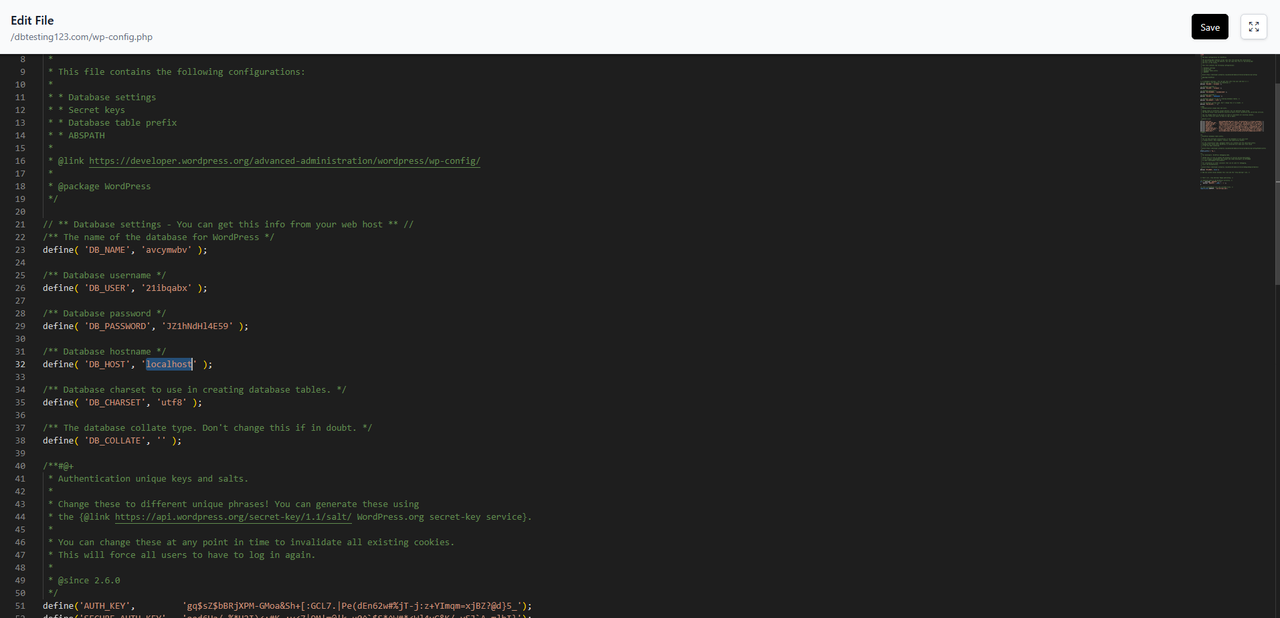
If the host is `127.0.0.1`, or `localhost` on an older account, the connection fails. To fix it, set the host to `localhost` (or to the database container name, `mariadb` in our case) and click save at the top right corner of the editor:
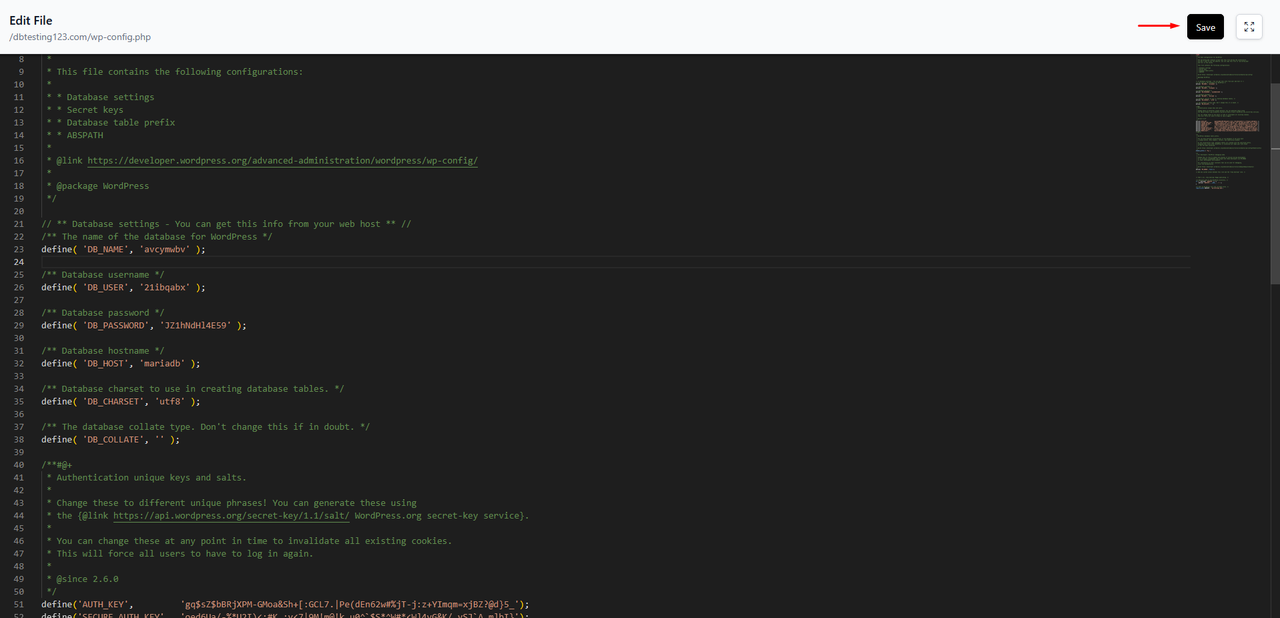
After saving this change the new configuration is applied and our WordPress instalation connects to the database successfully:
## Make sure the database service (container) is running
The easiest way to make sure the database service is running is by accessing the Openpanel > MySQL/Databases page, if your databases are listed on that page that means the container is healthy and running.
If you get a blank page or an empty table instead it means that the database container is inactive, simply accessing this page will send a trigger to start the container automatically.
However if data doesn't appear on the page in a couple of minutes there's an issue with the database container.
If the Docker feature is enabled for your plan you can check the database container's logs on OpenPanel > Containers/Logs , you can also stop and start the container on OpenPanel > Containers .
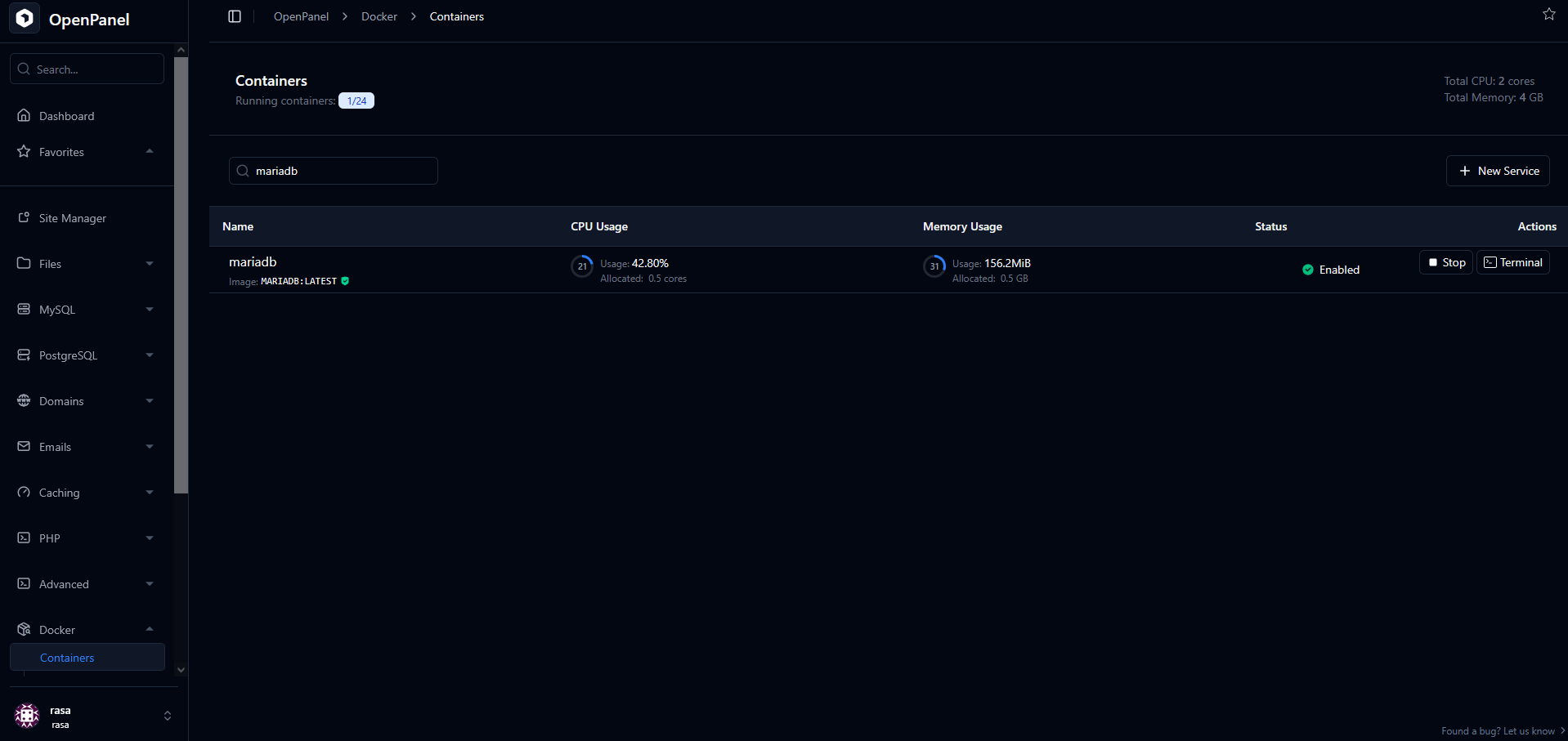
If the Docker feature is not enabled for your plan and data doesn't appear on the Openpanel > MySQL/Databases page contact your server administrator so that they can check further.
## Make sure that the website's database user is properly assigned to the database
You can reassign a user to a database at any time on OpenPanel > MySQL/Assign User to DB:
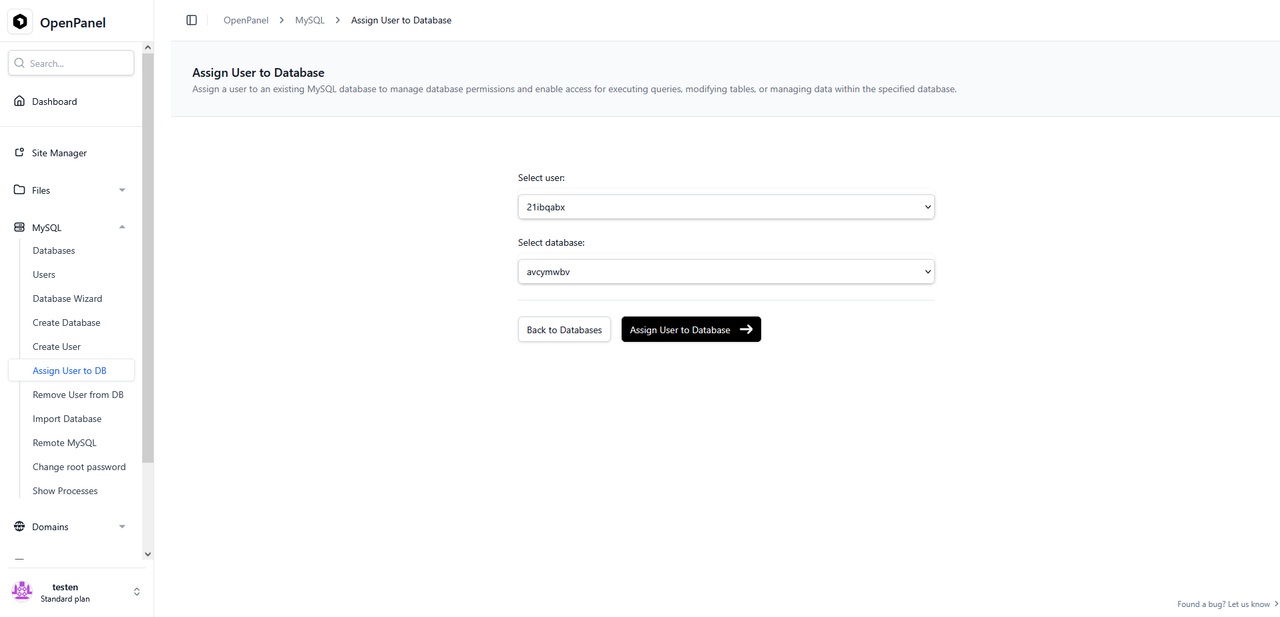
Simply select your user and database from the dropdown menus and click the "Assign User to Database" button.
## Try Resetting the password of your database user
You can change your database user's password on OpenPanel > MySQL/Users:
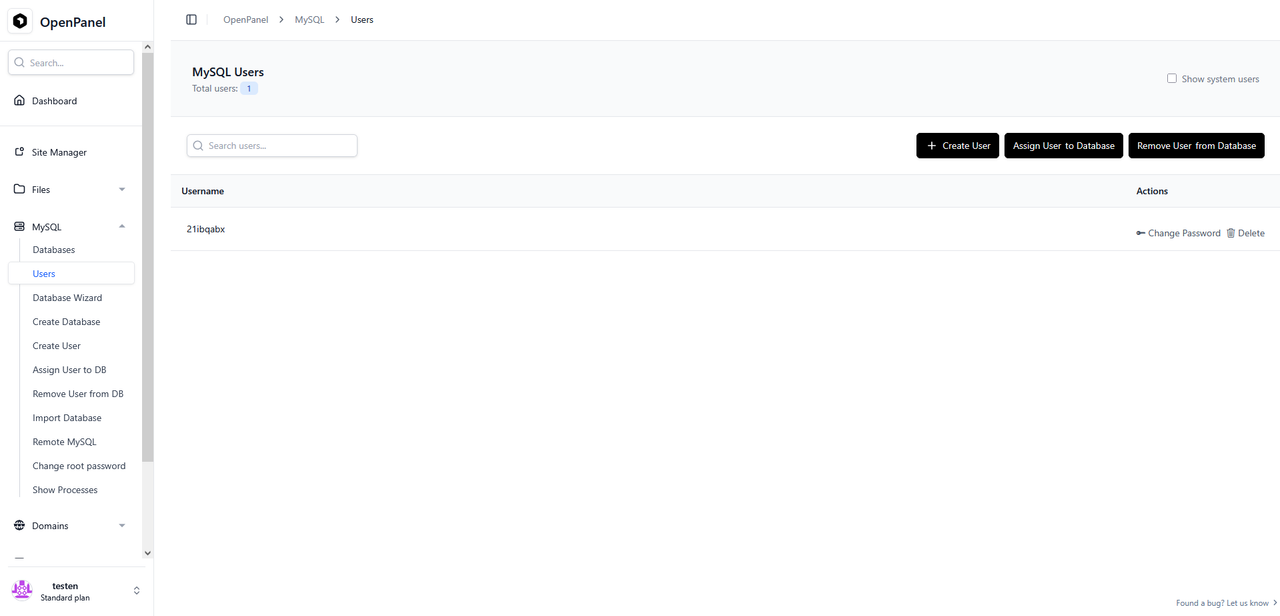
Click on the "Change Password" button next to your database user, you will be taken to the password reset page.
On this page make sure to copy the new password before clicking the "Change Password" button to confirm the change.
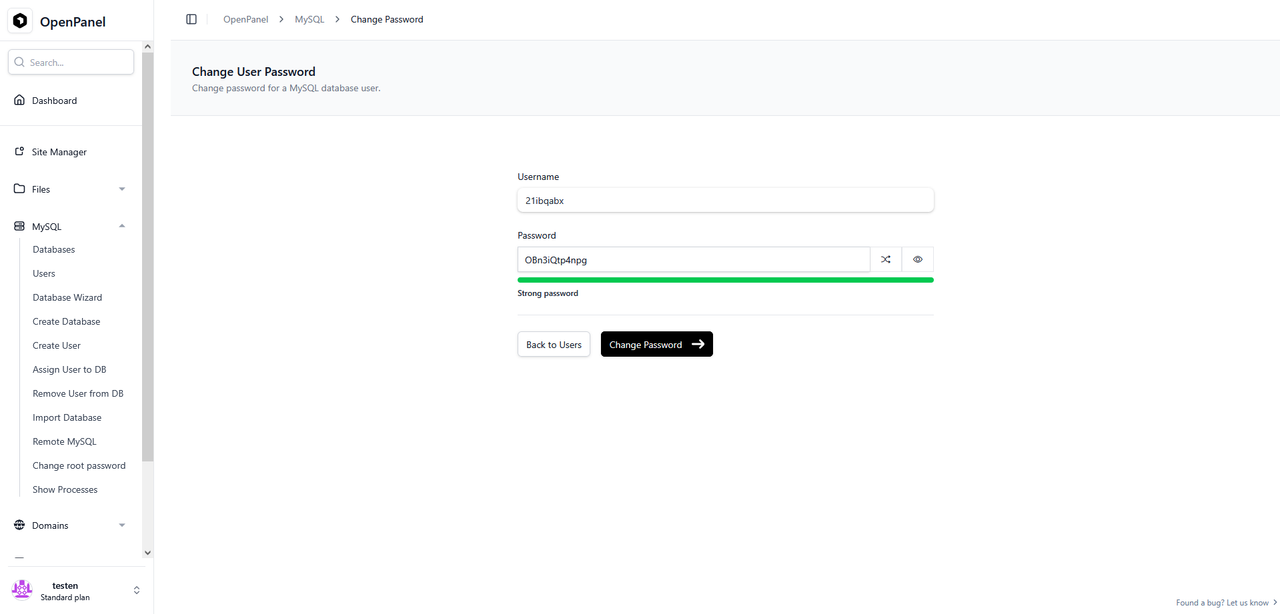
Edit your website's configuration file using File Manager and switch the existing password with the new one that you've just set, click save at the top right corner of the editor when you're done.
## Test the connection manually
In order to connect to your database from a remote location you'll first need to open the following page: OpenPanel > MySQL/Remote MySQL .
To enable remote database access click on the "Click to Enable" button and wait for confirmation that the remote access feature has been enabled.
Next open your database client, in our example we'll be using DBeaver for Windows.
Create a new remote connection within your client, copy the server and port parameters from the "Remote" section of the Remote MySQL page on OpenPanel and paste them inside your client.
Fill the database, user and password with your db parameters and attempt the connection via the client for this test.
---
// File: articles/databases/phpmyadmin-domain
# How to Access phpMyAdmin on a Custom Domain
Domain set for OpenPanel interface is also used for phpMyAdmin access:
- `https://`DOMAIN:`2053` is used for phpmyadmin access when panel domain is set and has an SSL
- `http://`IP:`8888` is used for phpmyadmin access when IP is set for panel access
---
// File: articles/dev-experience/add-custom-icons-in-openpanel-dashboard
# How to Add a Custom Links Section to the User Dashboard
To add custom section in *OpenPanel > Dashboard* page, navigate to **OpenAdmin > Settings > Custom Code** and edit the 'Custom Section'.
Example code:
```json
{
"section_title": "my.openpanel.com",
"section_position": "before_domains",
"items": [
{
"label": "Manage Profile",
"icon": "bi bi-person-fill-gear",
"url": "https://panel.hostio.rs/clientarea.php?action=details"
},
{
"label": "Manage Billing Information",
"icon": "bi bi-credit-card",
"url": "https://panel.hostio.rs/clientarea.php?action=details"
},
{
"label": "View Email History",
"icon": "bi bi-envelope-open",
"url": "https://panel.hostio.rs/clientarea.php?action=emails"
},
{
"label": "News & Announcements",
"icon": "bi bi-megaphone-fill",
"url": "https://panel.hostio.rs/index.php?rp=/announcements"
},
{
"label": "Knowledgebase",
"icon": "bi bi-book-half",
"url": "https://panel.hostio.rs/index.php?rp=/knowledgebase"
},
{
"label": "Server Status",
"icon": "bi bi-hdd-network",
"url": "https://panel.hostio.rs/serverstatus.php"
},
{
"label": "Invoices",
"icon": "bi bi-receipt",
"url": "https://panel.hostio.rs/clientarea.php?action=invoices"
},
{
"label": "Support Tickets",
"icon": "bi bi-life-preserver",
"url": "https://panel.hostio.rs/supporttickets.php"
},
{
"label": "Open Ticket",
"icon": "bi bi-journal-plus",
"url": "https://panel.hostio.rs/submitticket.php"
},
{
"label": "Register New Domain",
"icon": "bi bi-globe",
"url": "https://panel.hostio.rs/cart.php?a=add&domain=register"
},
{
"label": "Transfer Domain",
"icon": "bi bi-arrow-repeat",
"url": "https://panel.hostio.rs/cart.php?a=add&domain=transfer"
}
]
}
```
---
// File: articles/dev-experience/add-custom-services-to-openadmin
# How to Add Custom Services to the Admin Panel
Custom services can be added to OpenAdmin to be run and monitored from the admin panel.
In this example, We will add [netdata](https://learn.netdata.cloud/docs/netdata-agent/installation/docker) container image.
## Add service
```
cd /root
nano docker-compose.yml
```
and add the netdata section:
```
netdata:
image: netdata/netdata
container_name: netdata
pid: host
network_mode: host
restart: unless-stopped
cap_add:
- SYS_PTRACE
- SYS_ADMIN
security_opt:
- apparmor:unconfined
environment:
- DO_NOT_TRACK=1
- NETDATA_CLOUD_ENABLE=no
volumes:
- ./netdata/config:/etc/netdata
- ./netdata/lib:/var/lib/netdata
- ./netdata/cache:/var/cache/netdata
- /:/host/root:ro,rslave
- /etc/passwd:/host/etc/passwd:ro
- /etc/group:/host/etc/group:ro
- /etc/localtime:/etc/localtime:ro
- /proc:/host/proc:ro
- /sys:/host/sys:ro
- /etc/os-release:/host/etc/os-release:ro
- /var/log:/host/var/log:ro
- /var/run/docker.sock:/var/run/docker.sock:ro
- /run/dbus:/run/dbus:ro
```
save and exit the file. then start the service:
```
cd /root && podman-compose up -d netdata
```
now, I suggest just whitelisting your IP on the firewall instead of opening the port to the internet.
Then open the IP:19999 in your browser:
## Monitor service
Next step is to make the netdata service available from **OpenAdmin > Services** page so we can view its status, start/stop or restart it.
For this, we need to add the netdata service in `/etc/openpanel/openadmin/config/services.json` file:
```
{
"name": "Netdata",
"type": "docker",
"on_dashboard": false,
"real_name": "netdata"
},
```
`real_name` is the service/container name, and `name` is the human-readable name displayed in OpenAdmin services.
Save the file and refresh the page in OpenAdmin - service is immediately visible and we can start/stop it from the panel.
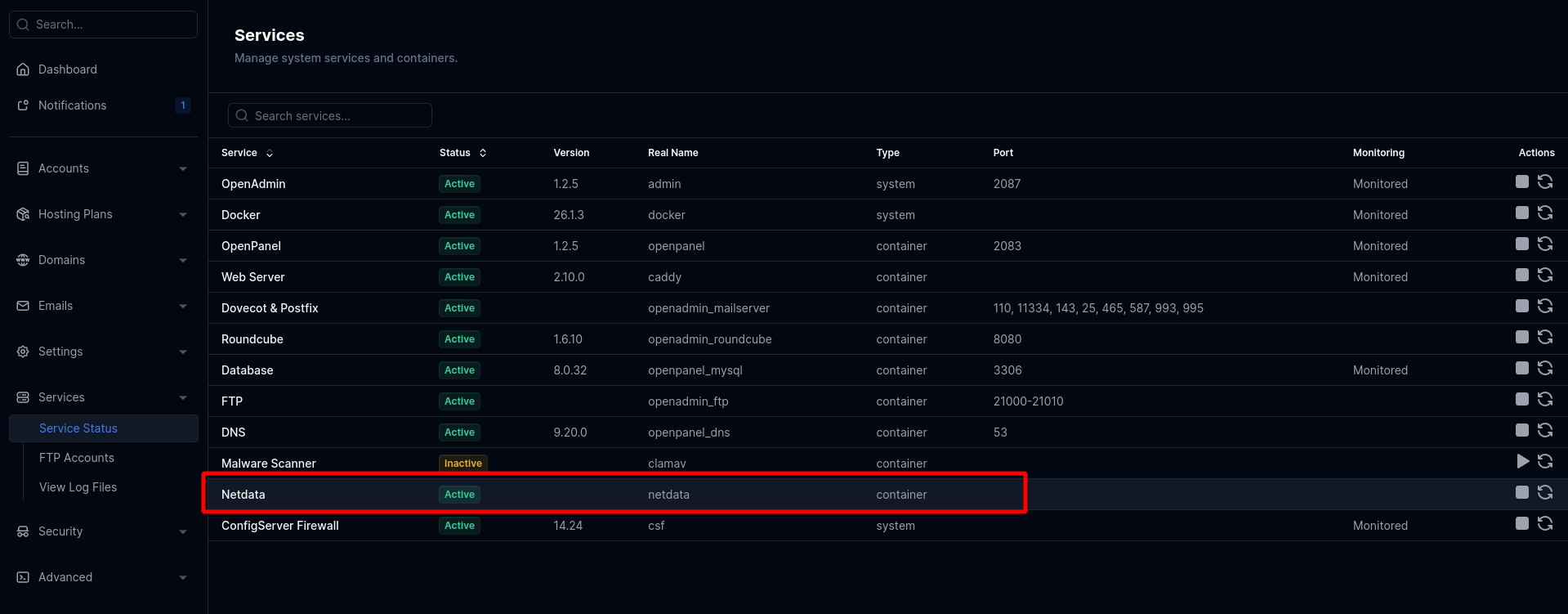
We can also receive notifications when the service is not running. For this edit the file: `/etc/openpanel/openadmin/config/notifications.ini` and add service name (`netdata`) under services:
```
services=panel,admin,caddy,mysql,docker,csf,netdata
```
save the file and exit. Sentinel service will now also check if the netdata container is running and if not, send alerts to **OpenAdmin > Notifications** and if emails are enabled then to email as well.
---
// File: articles/dev-experience/add-custom-steps-to-onboarding-wizard
# Add Custom Steps to the Onboarding Wizard
OpenPanel's [Onboarding wizard](/docs/panel/dashboard/onboarding) walks new users through the features already built into the panel - webserver, PHP, database, Varnish, backups, and security. If you want to guide users through setting up something that isn't part of that list - for example, enabling Redis as a cache - you can register an extra step from custom JavaScript, without patching or forking OpenPanel.
## How it works
The wizard reads a global array, `window.OPOnboardingSteps`, when it initializes, and adds one wizard step per entry it finds there. Each entry is a plain object:
| Key | Required | Description |
| --- | --- | --- |
| `key` | Yes | A unique string identifying the step. |
| `render(host, wizard)` | Yes | Called to draw the step. `host` is an empty `
` to fill with your markup; `wizard` is the onboarding wizard's Alpine component instance. |
| `title` | No | Label shown in the wizard's step tabs. Falls back to `key`. |
| `enabled(opts)` | No | Return `false` to hide the step for a given user. `opts` mirrors the same feature flags the built-in steps use (`opts.php`, `opts.mysql`, etc.) - use it if you want your step gated on an existing feature. |
| `init(wizard)` | No | Called once, when the wizard opens, before the user reaches your step - use it to prefetch current state (e.g. whether a service is already running). Can be async. |
| `submit(wizard)` | No | Called when the user clicks **Continue** on your step. Return `false` (or reject) to keep the user on the step with `wizard.error` set to a message; return `true` to advance. Can be async. If omitted, the step always advances. |
Your step appears right before the final "Finish" screen, after Security.
## Where to add the code
Edit (or create) the custom JS override file:
```bash
nano /etc/openpanel/openpanel/custom_code/custom.js
```
This file is always loaded by the OpenPanel interface, so anything you put there runs on every page - not just onboarding. If the file didn't already exist, restart the `openpanel` container once so it picks up the new override:
```bash
cd /root && podman-compose up -d openpanel
```
Further edits to an existing `custom.js` take effect immediately on page reload - no restart needed.
## Example: add a Redis step
Redis already has a full page in OpenPanel (`/cache/redis`) with a same-origin JSON API the panel's own pages use (`GET`/`POST /cache/redis?output=json`), but it isn't one of the wizard's built-in steps. Here's a complete step that lets users enable or disable it during onboarding:
```js
// Adds a "Redis" step to the account-setup onboarding wizard.
window.OPOnboardingSteps = window.OPOnboardingSteps || [];
window.OPOnboardingSteps.push({
key: 'redis',
title: 'Redis',
// Prefill from the current container state before the wizard shows it.
async init(wizard) {
const { ok, data } = await wizard.getJSON('/cache/redis?output=json');
this._choice = ok && data.container_state === 'running' ? 'enabled' : 'disabled';
},
render(host, wizard) {
const choice = this._choice || 'disabled';
host.innerHTML = `
Enable Redis as an in-memory cache for your applications.
`;
host.querySelectorAll('input[name="onb_redis"]').forEach(input => {
input.addEventListener('change', () => { this._choice = input.value; });
});
},
async submit(wizard) {
const action = this._choice === 'enabled' ? 'enable' : 'disable';
const { ok, data } = await wizard.formPost('/cache/redis?output=json', { action });
if (!ok) { wizard.error = (data && data.error) || 'Failed to update Redis.'; return false; }
return true;
}
});
```
A few things worth noting about the example:
- `wizard.getJSON(url)` and `wizard.formPost(url, params)` are the same helpers the built-in steps use to talk to OpenPanel's own session-authenticated page routes (not the Bearer-token `/api/*` routes) - they already attach the CSRF token, so you don't need to handle that yourself.
- Setting `wizard.error` reuses the wizard's existing error banner, shown above the step content.
- `this` inside the step definition refers to the object you pushed onto `window.OPOnboardingSteps`, so it's a convenient place to stash per-step state (like `_choice` above) between `init`, `render`, and `submit`.
## Gating a custom step
To only show your step for users who have a specific feature enabled, add an `enabled` function. For example, to only offer the Redis step to users who also have the (built-in) Varnish step:
```js
enabled(opts) {
return !!opts.varnish;
}
```
If you need a condition that isn't one of the wizard's existing `opts` flags, call your own endpoint from `enabled` or `init` and store the result before deciding.
## Testing
The wizard only shows automatically until the user finishes or dismisses it. To see your changes without creating a throwaway account, delete the onboarding marker file for a test user and reload the dashboard - see [resetting onboarding for a user](/docs/admin/settings/openpanel/#onboarding).
---
// File: articles/dev-experience/autostart-services
# Which Services Start Automatically (and How to Auto-Start Others)
Services in OpenPanel start only when they are actually needed, to avoid wasting resources.
## Auto-start Services in OpenAdmin
Upon installing OpenPanel, only the following services are started:
- **OpenAdmin** – For managing the entire server and users.
- **Docker** – Needed for all other containerized services and user accounts.
- **Database** – MySQL database is created and initialized. This database holds Plans, Websites, Domains, and Users.
- **Firewall** – [Sentinel Firewall](https://sentinelfirewall.org/) is installed and started.
Other services are installed and started only when required.
| Service | Installed | Auto-start |
|------------------------|-----------|---------------------------|
| OpenAdmin | ✔ | On installation |
| Docker | ✔ | On installation |
| Database | ✔ | On installation |
| Sentinel Firewall | ✔ | On installation |
| OpenPanel | ✘ | After adding first user account |
| BIND9 | ✘ | After adding first domain name |
| Caddy | ✘ | After adding first domain name |
| ImunifyAV | ✘ | When enabled by Administrator |
| Dovecot & Postfix | ✘ | When enabled by Administrator |
| FTP | ✘ | When enabled by Administrator, after first FTP account is created |
| phpMyAdmin | ✘ | When enabled by Administrator, after first MySQL database is created by a user |
## Auto-start Services in OpenPanel
Similar to OpenAdmin, services in OpenPanel also start only when they are needed. This allows for better resource management.
Services that auto-start for each user:
| Service | Installed | Auto-start |
|--------------------|-----------|---------------------------------------------------|
| Apache / Nginx / OpenLitespeed | ✔ | After the user adds the first domain | |
| REDIS | ✘ | After the user activates it |
| Memcached | ✘ | After the user activates it |
| Elasticsearch | ✘ | After the user activates it |
| MySQL / MariaDB | ✔ | After the user adds at least 1 database |
| Cron | ✔ | After the user adds at least 1 cron job |
| PHP versions | ✘ | After the user sets it for at least 1 domain |
---
// File: articles/dev-experience/customizing-openadmin-email-templates
# Customizing OpenAdmin Email Templates
OpenAdmin sends outbound notification emails (new user welcome emails, password/login alerts, admin notifications, and the daily usage report) using HTML templates built into the `admin` binary.
Administrators can override any of these templates with their own HTML, without editing any code and without recompiling: OpenAdmin picks up overrides once, at startup.
## Override directory
**Directory:** `/etc/openpanel/openadmin/email_templates/`
This directory doesn't exist by default. To customize a template, copy the original file below into the directory (creating it if needed) under the exact same name, then edit it as you like:
| File name | Used for | Original file |
| --- | --- | --- |
| `email_new_user.html` | Welcome email sent when a new user account is created | [view on GitHub](https://github.com/stefanpejcic/openadmin/blob/main/internal/webtemplates/email_new_user.html) |
| `email_user_notifications.html` | Password-change and new-login alerts sent to a user | [view on GitHub](https://github.com/stefanpejcic/openadmin/blob/main/internal/webtemplates/email_user_notifications.html) |
| `email_admin_notifications.html` | Generic admin notification emails | [view on GitHub](https://github.com/stefanpejcic/openadmin/blob/main/internal/webtemplates/email_admin_notifications.html) |
| `email_daily_system_report.html` | The daily usage report email (CPU/RAM/disk usage, user/domain/website counts) | [view on GitHub](https://github.com/stefanpejcic/openadmin/blob/main/internal/webtemplates/email_daily_system_report.html) |
Each file is a standard Go `html/template` file and can use the same `{{.Field}}` placeholders as the built-in template it replaces (e.g. `{{.Title}}`, `{{.Message}}`, `{{.Hostname}}`).
## Applying changes
Overrides are only read once, at `admin` service startup. After adding or editing a file in the override directory, restart the service:
```bash
systemctl restart admin
```
## Fallback behavior
- If a file for a given template name isn't present, OpenAdmin uses its built-in default for that email.
- If a file is present but fails to parse as a valid template, OpenAdmin logs the error and falls back to the built-in default for that email — a broken override never blocks outbound mail.
- You only need to add the files for the templates you want to change; the rest keep using the built-in defaults.
---
// File: articles/dev-experience/customizing-openpanel-user-interface
# How to White-Label and Rebrand the Control Panel
Everything in OpenPanel is modular and can easily be modified or disabled without breaking the rest of the functionalities.
To customize OpenPanel, you have the following options:
- [Display personalized message per user](#personalized-messages)
- [Enable/disable features and pages from the OpenPanel interface](#enabledisable-features)
- [Add custom icons in Dashboard page](/docs/articles/dev-experience/add-custom-icons-in-openpanel-dashboard)
- [Customize Default, Suspended User and Suspended Domain pages](#customize-templates)
- [Localize the interface](#localize-the-interface)
- [Set custom branding](#set-custom-branding)
- [Set a custom color scheme](#set-a-custom-color-scheme)
- [Replace How-to articles with your knowledge base](#replace-how-to-articles-with-your-knowledge-base)
- [Add custom CSS or JS code to the interface](#add-custom-css-or-js-code)
- [Create a custom module for OpenPanel](#create-openpanel-module)
- [Self-hosted temporary links for SiteManager](/docs/articles/dev-experience/selfhosted-temporary-links-api/)
- [Self-hosted screenshots for SiteManager](/docs/articles/dev-experience/selfhosted-screenshots-api/)
- [Customize robots.txt and security.txt](/docs/articles/security/robots-and-security-txt/)
## Personalized messages
Administrators can set a custom message to be displayed for any OpenPanel uer from their **OpenAdmin > Accounts > Users** page.
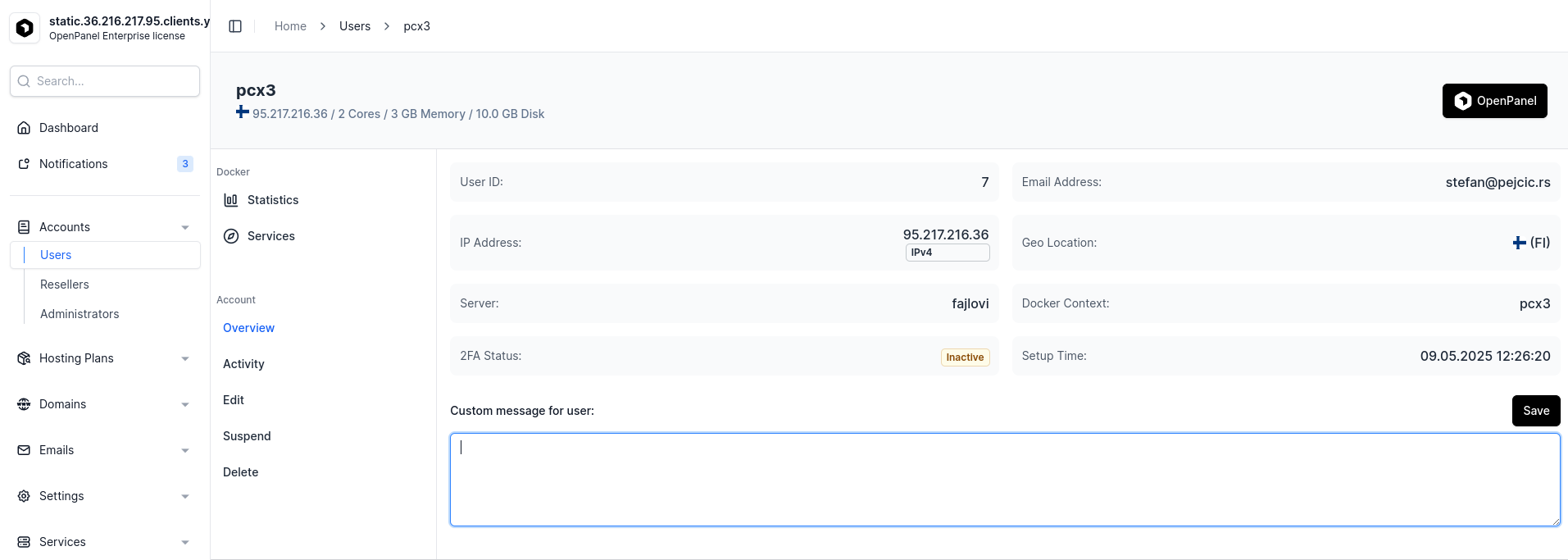
## Enable/disable features
Administrators have the ability to enable or disable each feature (page) in the OpenPanel interface per plan or per-user base.
Once enabled, the feature becomes instantly available to all users, appearing in the OpenPanel interface sidebar, search results, and dashboard icons.
## Set pre-installed services
OpenPanel uses compose files as the base for each user. Based on the container images in those compose files, different services can be set per plan/user.
## Localize the interface
OpenPanel is localization ready and can easily be translated into any language.
OpenPanel is shipped with the EN locale, [additional locales can be installed by the Administrator](https://dev.openpanel.com/localization.html#How-to-translate).
## Set custom branding
Custom brand name and logo can be set from [OpenAdmin > Settings > OpenPanel](/docs/admin/settings/openpanel/#branding) page.
To set a custom name visible in the OpenPanel sidebar and on login pages, enter the desired name in the "Brand name" option. Alternatively, to display a logo instead, provide the URL in the "Logo image" field and save the changes.
## Customize Templates
You can customize all templates that are displayed to users, from [OpenAdmin > Domains > Domain Templates](/docs/admin/domains/file_templates/):
- [Default Landing Page](/docs/admin/domains/file_templates/#default-page)
- [Suspended Website Template](/docs/admin/domains/file_templates/#suspended-website)
- [Suspended User Template](/docs/admin/domains/file_templates/#suspended-user)
- [Apache VirtualHost Template](/docs/admin/domains/vhost_templates/#apache-virtualhost)
- [Nginx VirtualHost Template](/docs/admin/domains/vhost_templates/#nginx-virtualhost)
- [OpenResty VirtualHost Template](/docs/admin/domains/vhost_templates/#openresty-virtualhost)
## Create OpenPanel Module
To create a custom module (plugin) for OpenPanel follow this guide: [Example Module](https://dev.openpanel.com/modules/#Example-Module)
## Set a custom color scheme
To set a custom color-scheme for OpenPanel interface, edit the `/etc/openpanel/openpanel/custom_code/custom.css` file and in it set your preferred color scheme.
```bash
nano /etc/openpanel/openpanel/custom_code/custom.css
```
Set the custom css code, save and restart openpanel to apply changes:
```bash
cd /root && podman-compose up -d openpanel
```
Example:
## Replace How-to articles with your knowledge base
[OpenPanel Dashboard page](/docs/panel/dashboard) displays [How-to articles](/docs/panel/dashboard/#how-to-guides) from the OpenPanel Docs, however these can be changed to display your knowledgebase articles instead.
Edit the file `/etc/openpanel/openpanel/conf/knowledge_base_articles.json` and in it set your links:
```json
{
"how_to_topics": [
{"title": "How to install WordPress", "link": "https://openpanel.com/docs/panel/applications/wordpress#install-wordpress"},
{"title": "Publishing a Python Application", "link": "https://openpanel.com/docs/panel/applications/python#create-an-application"},
{"title": "How to edit Nginx / Apache configuration", "link": "https://openpanel.com/docs/panel/webserver/webserver_settings"},
{"title": "How to create a new MySQL database", "link": "https://openpanel.com/docs/panel/mysql/new_db"},
{"title": "How to add a Cronjob", "link": "https://openpanel.com/docs/panel/cronjobs#add-a-cronjob"},
{"title": "How to enable Redis caching", "link": "https://openpanel.com/docs/panel/caching/Redis"}
],
"knowledge_base_link": "https://openpanel.com/docs/panel/intro/?source=openpanel_server"
}
```
## Add custom CSS or JS code
To add custom CSS code to the OpenPanel interface, edit the file `/etc/openpanel/openpanel/custom_code/custom.css`:
```bash
nano /etc/openpanel/openpanel/custom_code/custom.css
```
To add custom JavaScript code to the OpenPanel interface, edit the file `/etc/openpanel/openpanel/custom_code/custom.js`:
```bash
nano /etc/openpanel/openpanel/custom_code/custom.js
```
To insert custom code within the `` tag of the OpenPanel interface, modify the content of the file located at `/etc/openpanel/openpanel/custom_code/in_header.html` and include your custom code within it:
```bash
nano /etc/openpanel/openpanel/custom_code/in_header.html
```
To insert custom code within the `