General Settings
From this page Administrators can configure the domain to access both OpenPanel and OpenAdmin interfaces, as well as ports for those services.
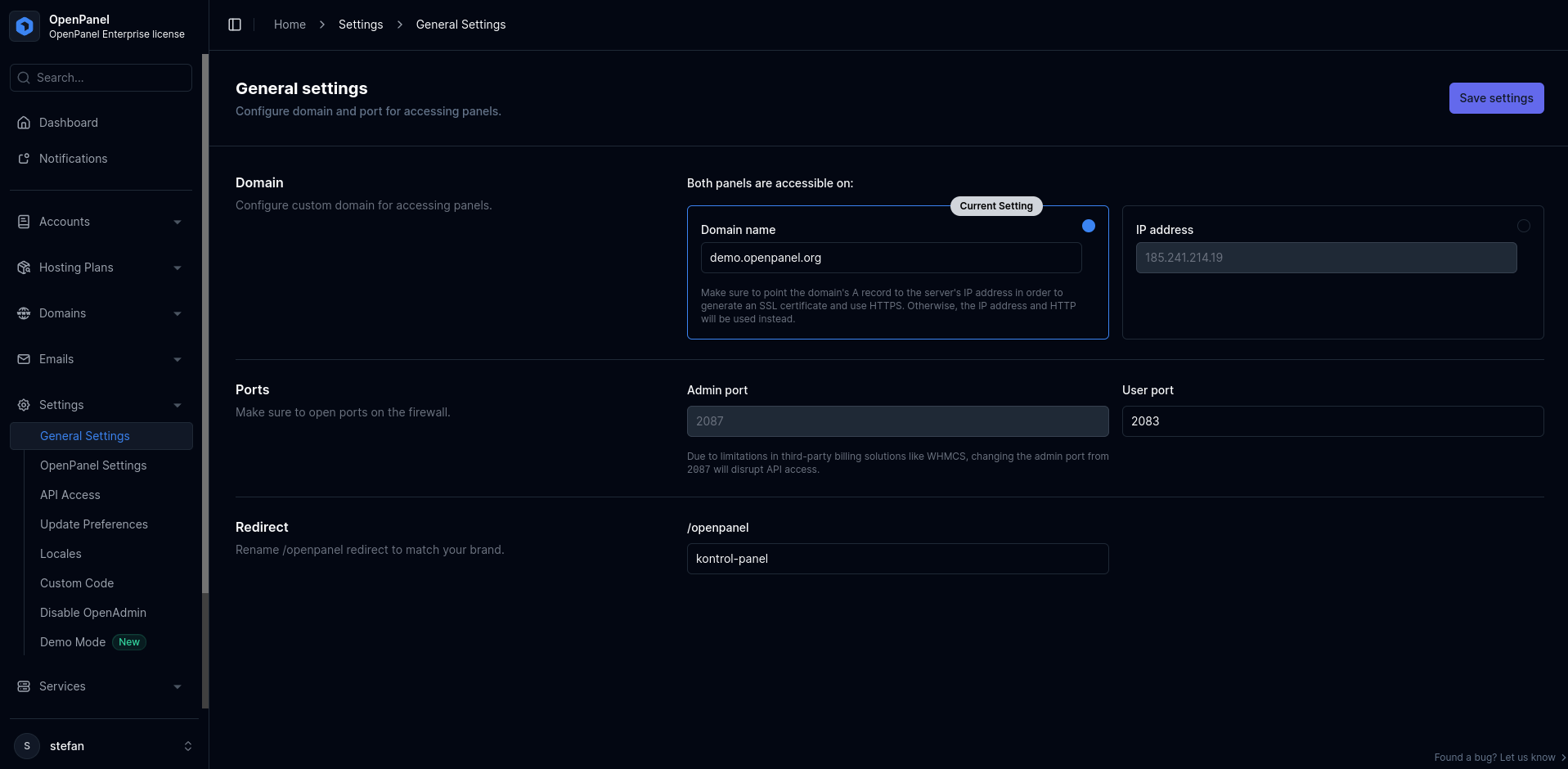
Domain
To enable access to both OpenAdmin and OpenPanel through a domain name, such as srv.your-domain.com:2083, follow these three steps:
-
Set hostname: Set the desired subdomain as server hostname:
hostnamectl set-hostname server.example.net -
Configure DNS: Point the subdomain to the public IP of the server. Use a tool such as https://www.whatsmydns.net/ to check that domain is pointed to server ip.
-
Set in General Settings Set the domain name in OpenAdmin > Settings > General Settings.
You can also set a separate domain just for OpenPanel UI
Set IP address for OpenPanel
To access OpenPanel and OpenAdmin via server public IP address, set IP address in OpenAdmin > Settings > General Settings.
Ports
Port configurations for OpenAdmin and OpenPanel interfaces can be modified from their default settings (2087 for OpenAdmin and 2083 for OpenPanel).
- To change the port for the OpenPanel from the default
2083to another value, set the desired port in the "OpenPanel Port" field. - To change the port for the OpenAdmin from the default
2087to another value, set the desired port in the "OpenAdmin Port" field.
Redirect
By default, when users add a domain, the addition of "/openpanel" to the domain URL will redirect them to the OpenPanel interface. However, you have the flexibility to customize this, such as changing it to "/awesome," allowing users to access their OpenPanel via "their-domain.com/awesome".
To change the "/openpanel" to something else, simply set the value for the "OpenPanel is also available on:" field and click on save. Changes take effect instantly without service interruption.