Suspend a domain
You can temporarily suspend a domain from the Domains page. When a domain is suspended, its website content is replaced with a Suspended Website page, as configured by the Administrator.
This feature is useful for quickly disabling a website while keeping all other services—such as email, FTP, and more - fully functional.
To suspend a domain:
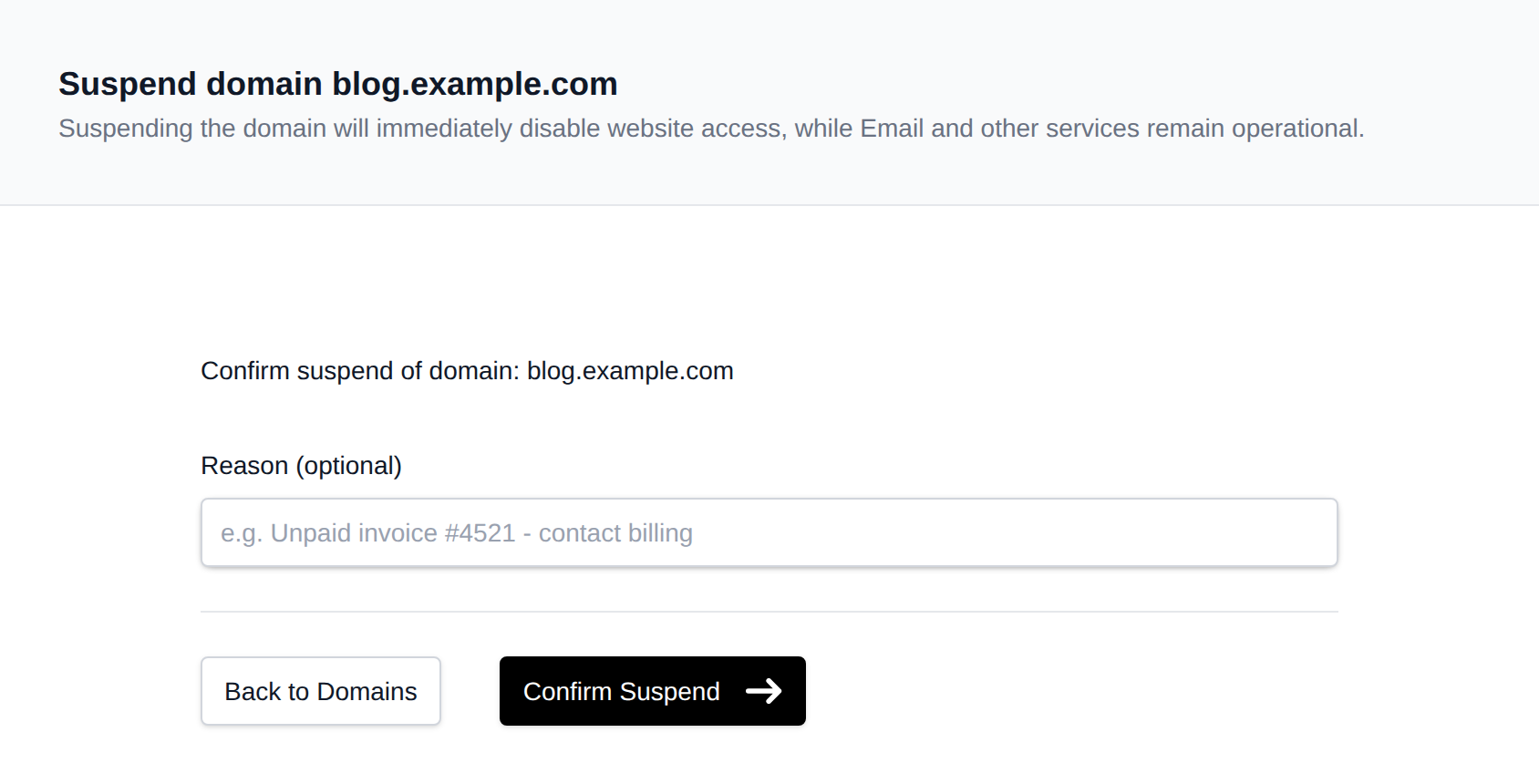
- Open the Actions menu for the domain on the Domains page and click Suspend.
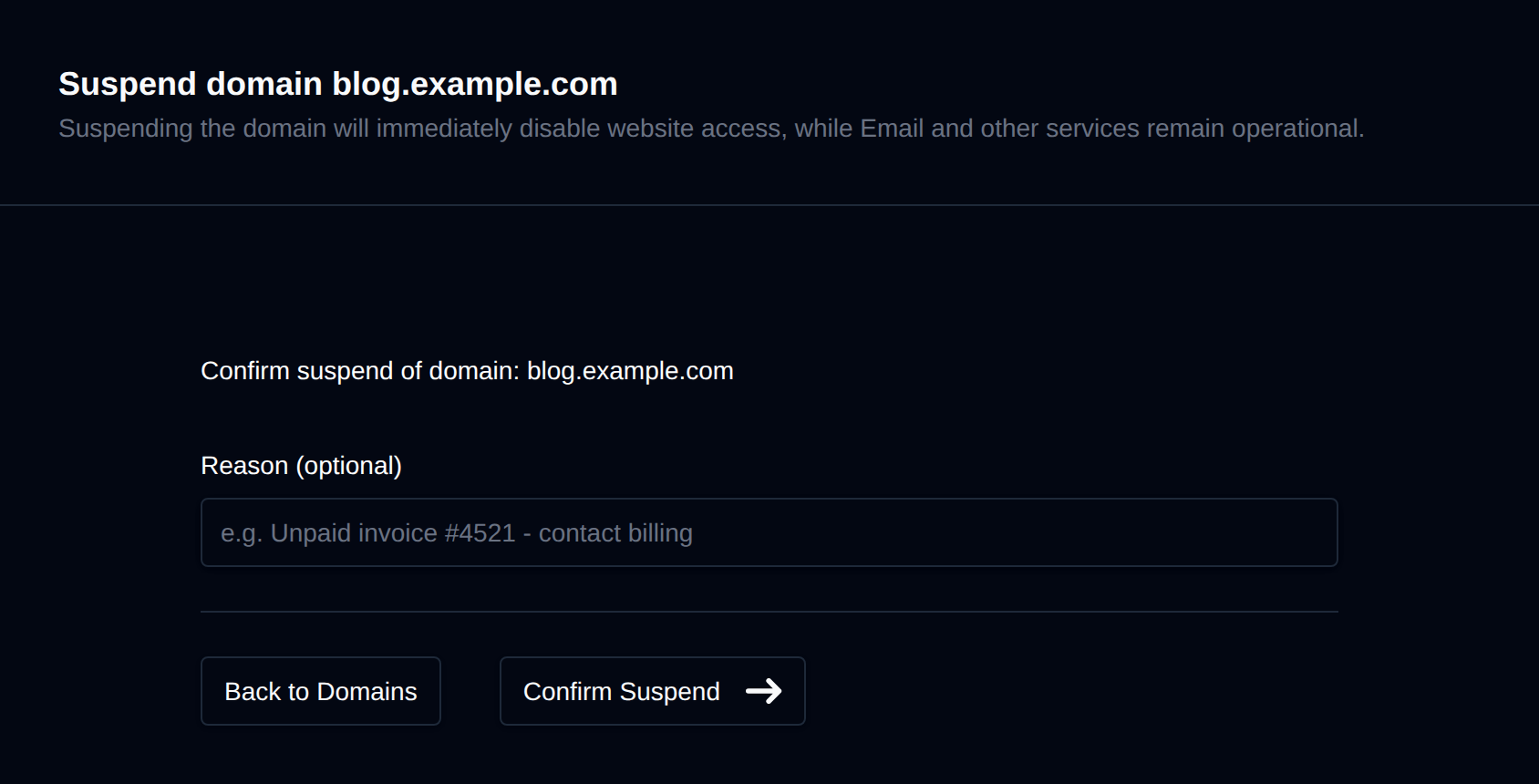
- Optionally enter a Reason (e.g. "Unpaid invoice #4521 - contact billing"). This is shown next to the domain's status on the Domains page.
- Click Confirm Suspend.
Suspended by the Administrator
The Administrator can also suspend a domain, for example after a copyright complaint or an overdue payment. The domain's status then shows Suspended by Admin with the reason below it, and the Administrator's comment if there is one. Visitors see the page for that reason.
While a domain is suspended by the Administrator it is locked: the Actions menu only says Suspended by the administrator, contact support to make changes., and unsuspending, deleting, or changing the domain's docroot, VirtualHosts, redirect, SSL, Cloudflare setting or DNS zone is refused, also through the API and bulk actions. Contact support to have it unsuspended.