File Manager
The File Manager interface allows you to manage files for all your domains located inside the /var/www/html/ directory.
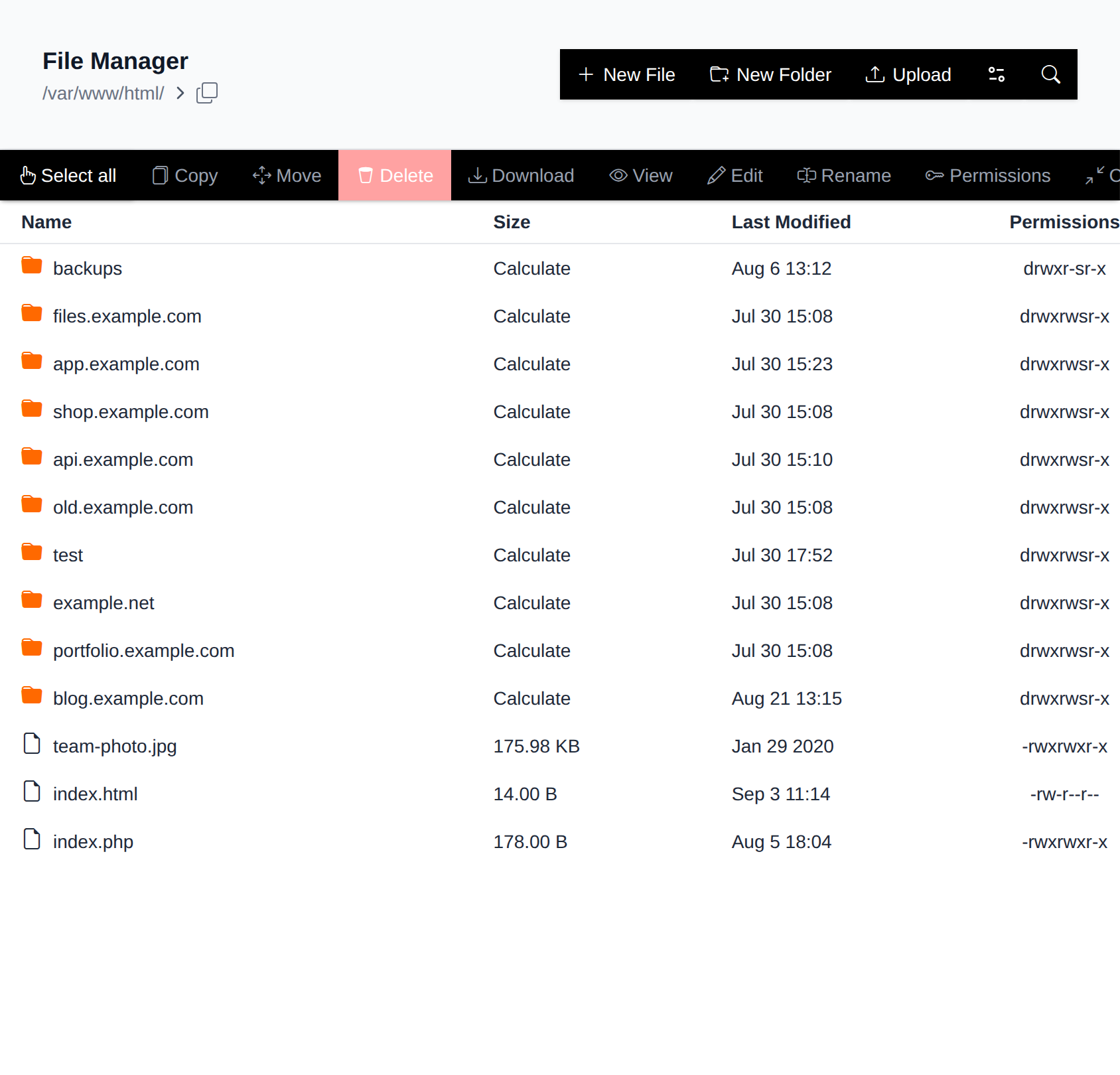
In the table, you can see the following information:
- Name
- Size – Displays the size for files. For folders, click Calculate to fetch their size.
- Last Modified – Shows the timestamp of the last modification.
- Permissions – Displays symbolic file permissions (e.g.,
drwxr-xr-x). Hover over them to view the octal (numeric) equivalent (e.g.,0755).
Clicking the Toggle icon reveals additional details:
- Owner – The UID of the file or folder owner.
- Group – The GID of the group that owns the file or folder.
- Links – The number of hard links to the file or directory.
- Link Target – If it’s a symlink, this shows the target it points to.
- Type – Indicates whether it's a directory, file, or symbolic link.
Create File
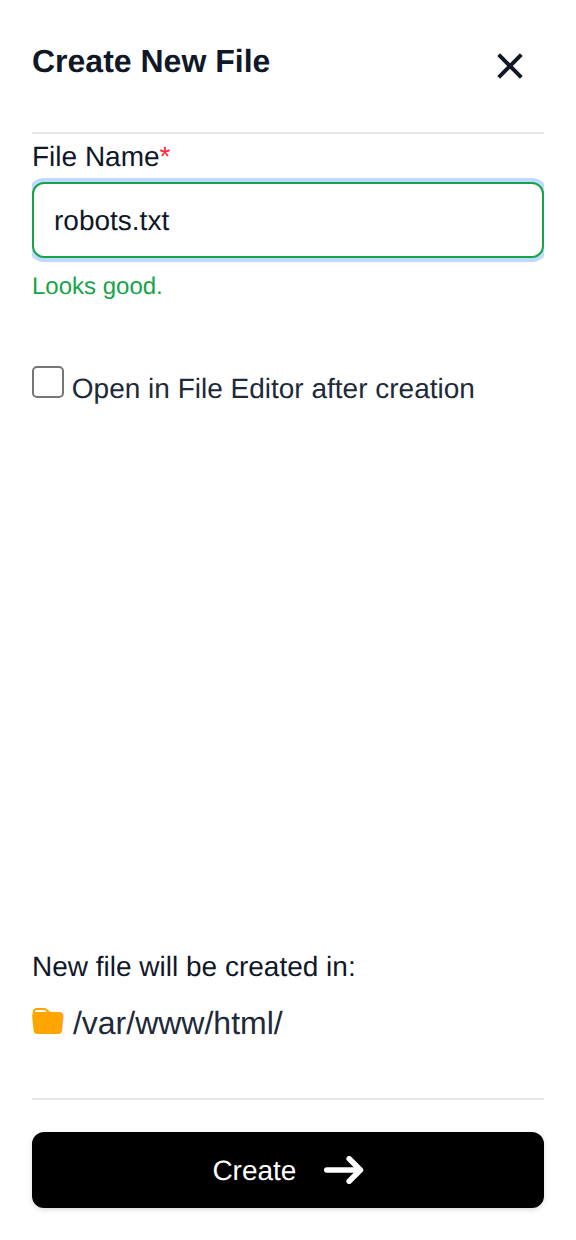
To create a new file, navigate to the desired directory and click the New File button. In the modal, enter the filename and click Create.
Optionally, if you want to open the file in the Editor immediately after creation, check the Open in File Editor after creation option.
Create Folder
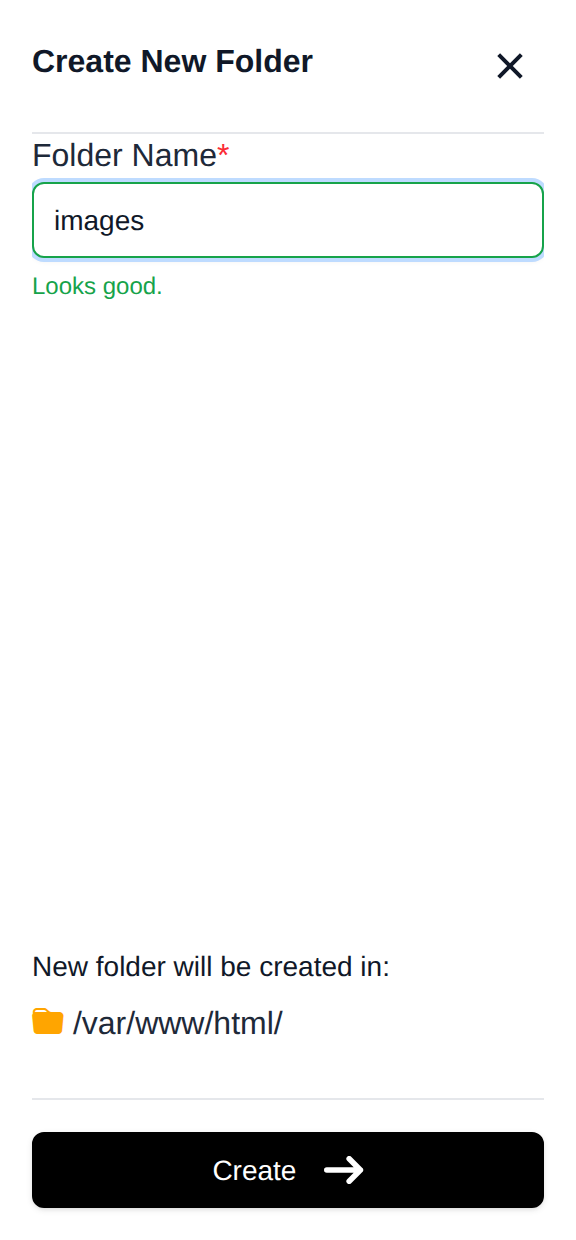
To create a new folder, navigate to the desired directory and click the New Folder button. In the modal, enter the folder name and click Create.
Upload Files
The File Manager allows you to upload multiple files at once. You can upload files using one of the following methods:
- Drag&Drop in File Manager: Navigate to the desired folder and drag and drop files into the file list table.
- Upload from device: Click the 'Upload' button, then drag and drop or select files from your device on the new page.
- Download from URL: Click 'Download from URL instead', then enter the link to the file you want to download.
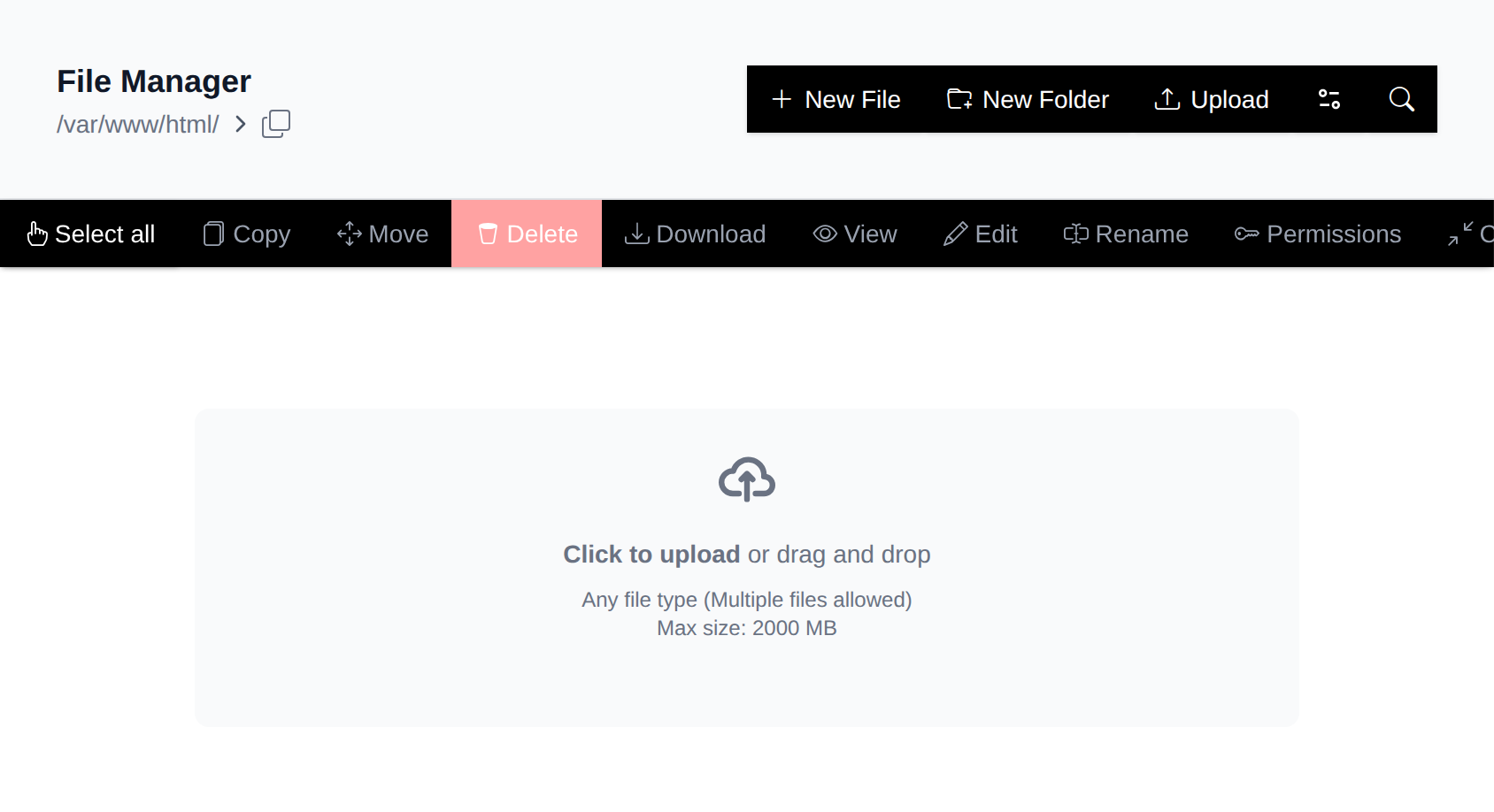
Upload size limits are configurable by the Administrator.
Button Style: Classic vs Modern
The File Manager's action buttons (Copy, Move, Delete, etc.) can be displayed in two styles: Classic, a toolbar fixed above the file list, or Modern, a floating pill bar that appears at the bottom of the screen once you select something.
To switch between them, open the account menu in the bottom left of the sidebar (only shown while you're on the Files page) and pick Classic or Modern next to "Buttons style".
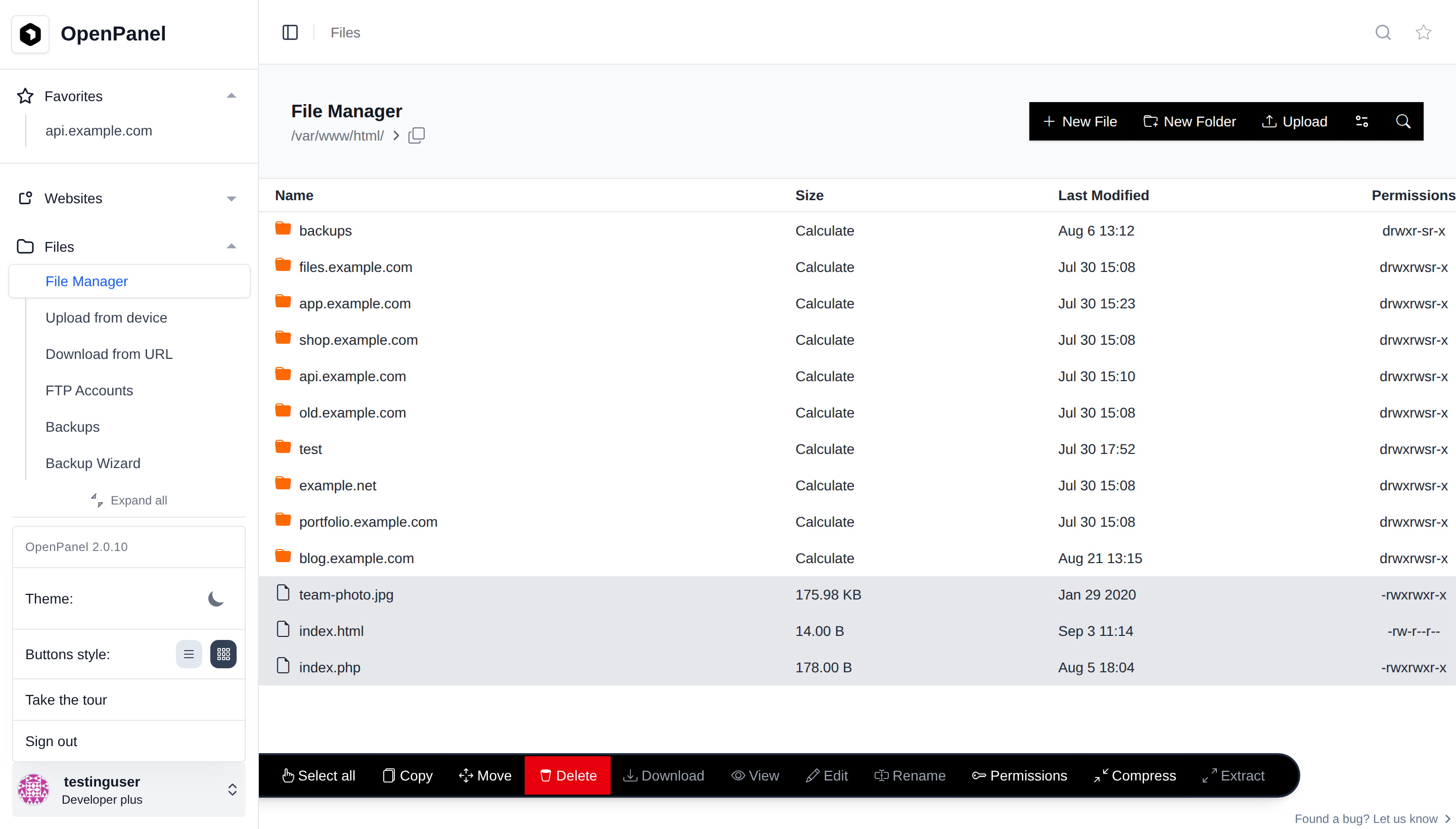
Select all
Use your mouse cursor to select multiple files and folders. Click and drag, then click again to release the selection.
To select multiple files, one by one, click and hold Ctrl key while clicking on the rows.
To select all files in the directory at once, click on the 'Select All' button. To deselect all files, click on the 'Deselect' button.
Right-click Menu
When using the Classic button style, right-clicking a file or folder opens a context menu with the same actions as the toolbar (Copy, Move, Rename, Download, View, Edit, Permissions, Compress, Extract, Delete). Only the actions that apply to the selected item(s) are shown - for example, Extract only appears for archives, and View/Edit only appear for files that support them.
Right-clicking an item that isn't already selected selects just that item; right-clicking within an existing multi-selection keeps the whole selection, so you can act on multiple files or folders at once.
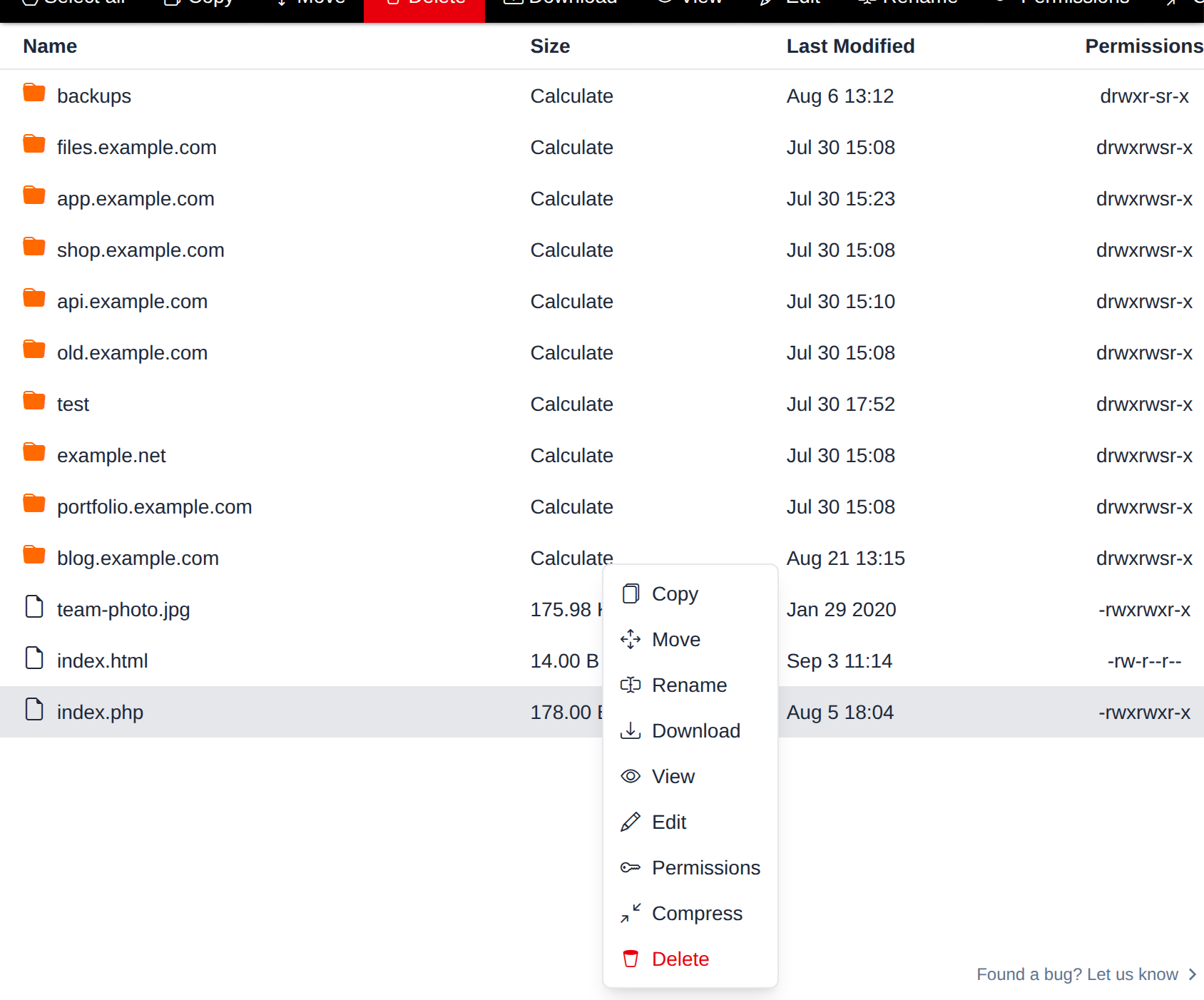
The right-click menu is only available in the Classic button style.
Delete
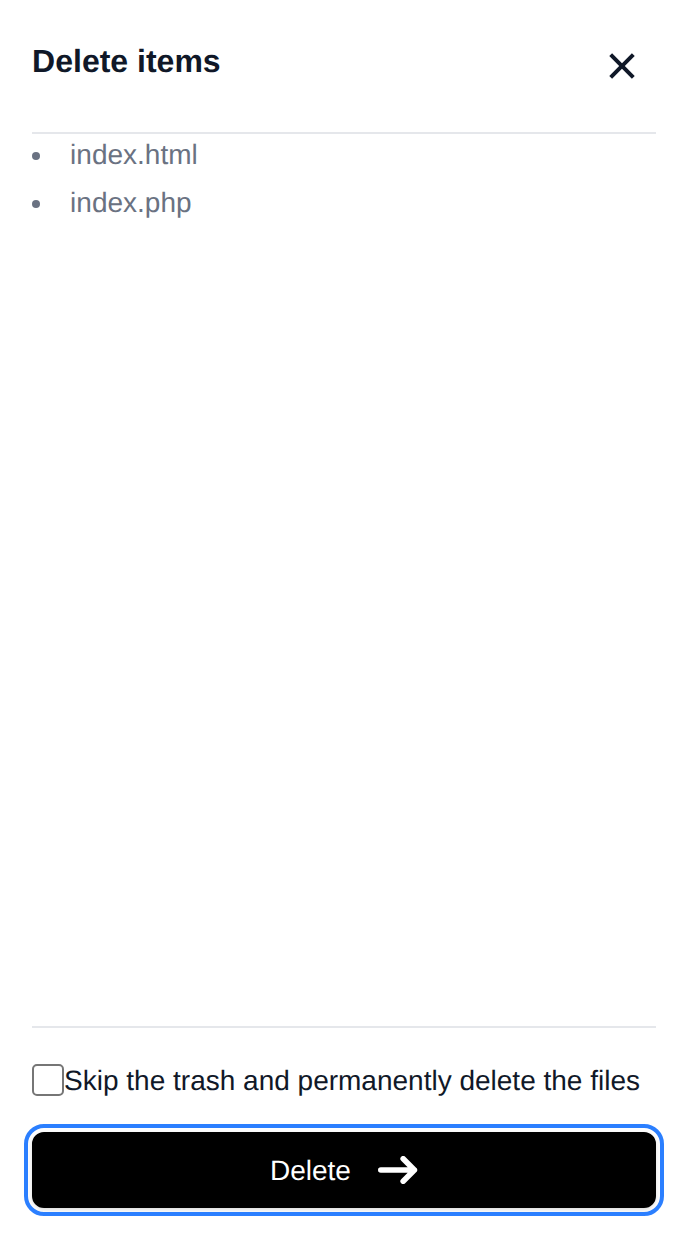
To delete files or folders click on the 'Delete' button. If multiple files or folders are selected, you will see the list in the modal and click 'Delete' to permanently delete the selected files.
Download File
To download a file, click on the Download button when the file is selected.
Downloading multiple files at once is not supported. Instead, the 'Compress' option should be used to create an archive of files, and then download that archive.
View File
To view the content of a file that can be edited in a text editor or opened as an image, click on the file, then on the View button.
Edit File
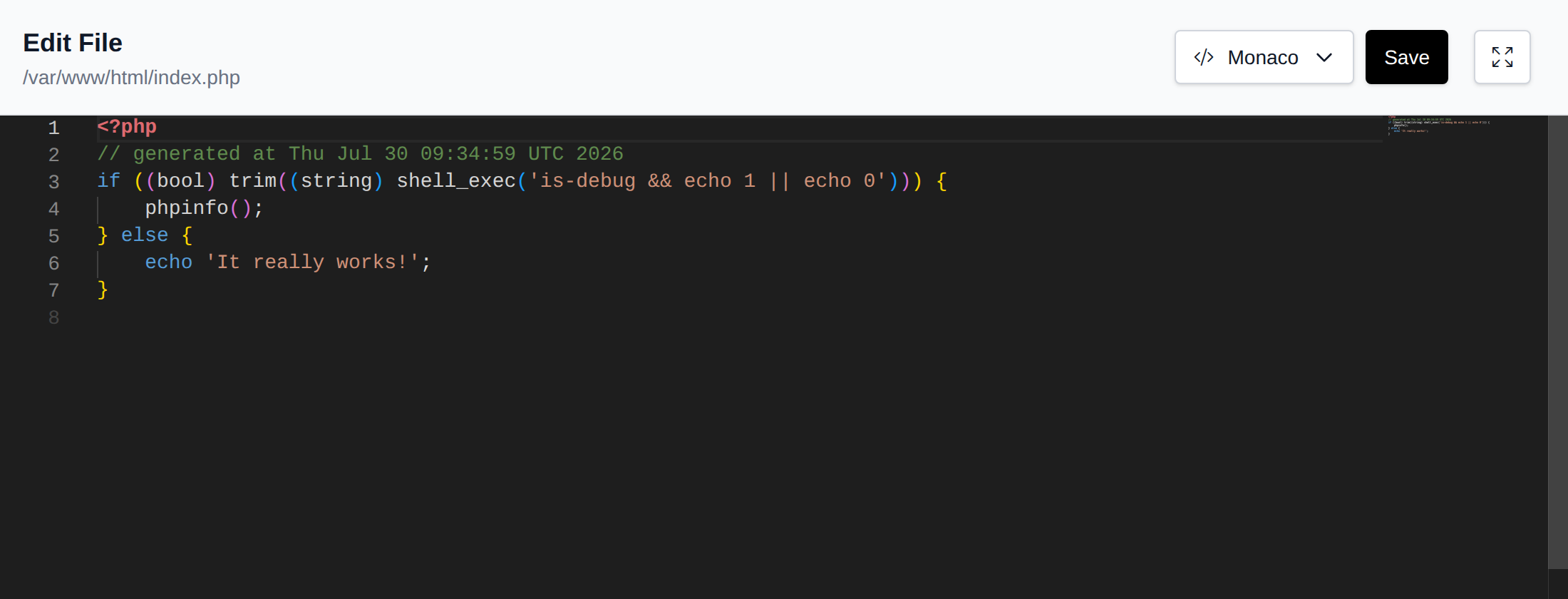
To edit the content of a file that can be edited in a text editor, click on the file, then on the Edit button. A new page will open with a text editor where you can edit the file content.
Using the button in top-right corner you can switch between one of the 4 available editors: Monaco (defualt), Ace, CodeMirror, Plain Text.
Rename File
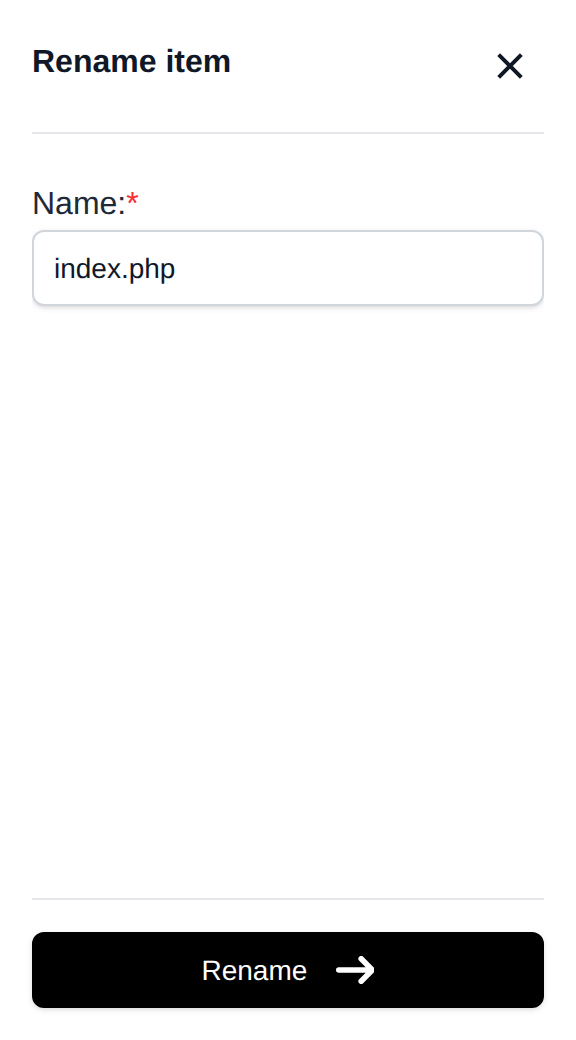
To rename a file or folder, click on it, then click on the Rename button, and set the new name.
Copy Files
To copy files from one folder to another, first select the desired files and click on the Copy button. The new modal will display a list of all selected file names and allow you to set the destination name of the folder where the files will be copied.
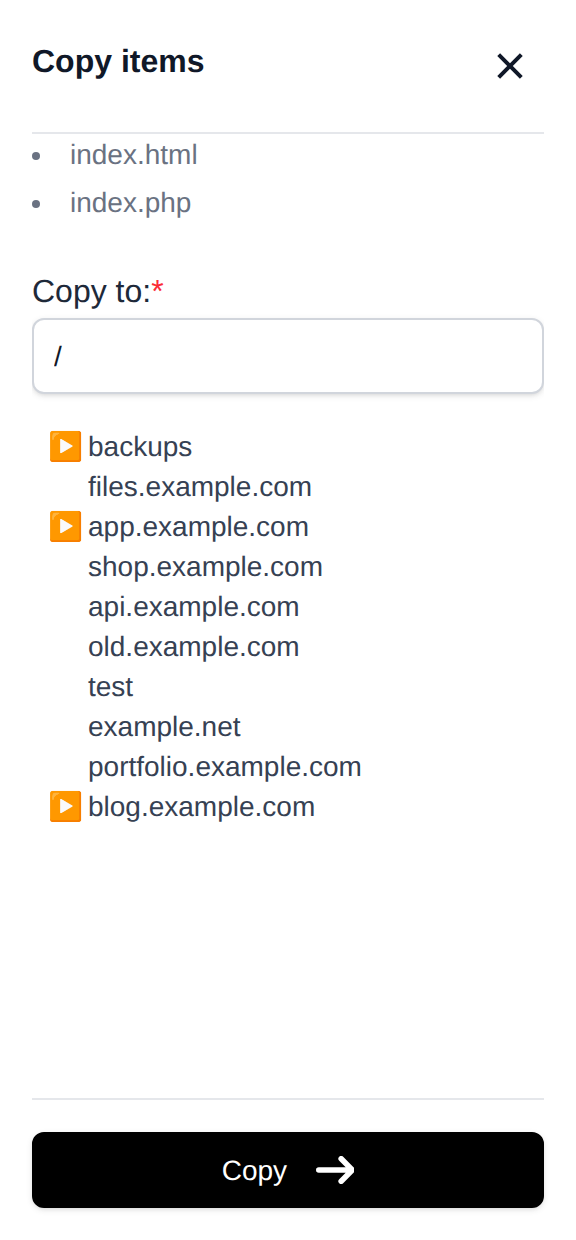
To initiate the copying process, click on the 'Copy' button in the modal. A progress bar will appear, indicating the progress made, and a 'Copy complete' message will be displayed when the process is finished.
Move Files
To move files from one folder to another, first select the desired files and click on the Move button. The new modal will display a list of all selected file names and allow you to set the destination name of the folder where the files will be moved to.
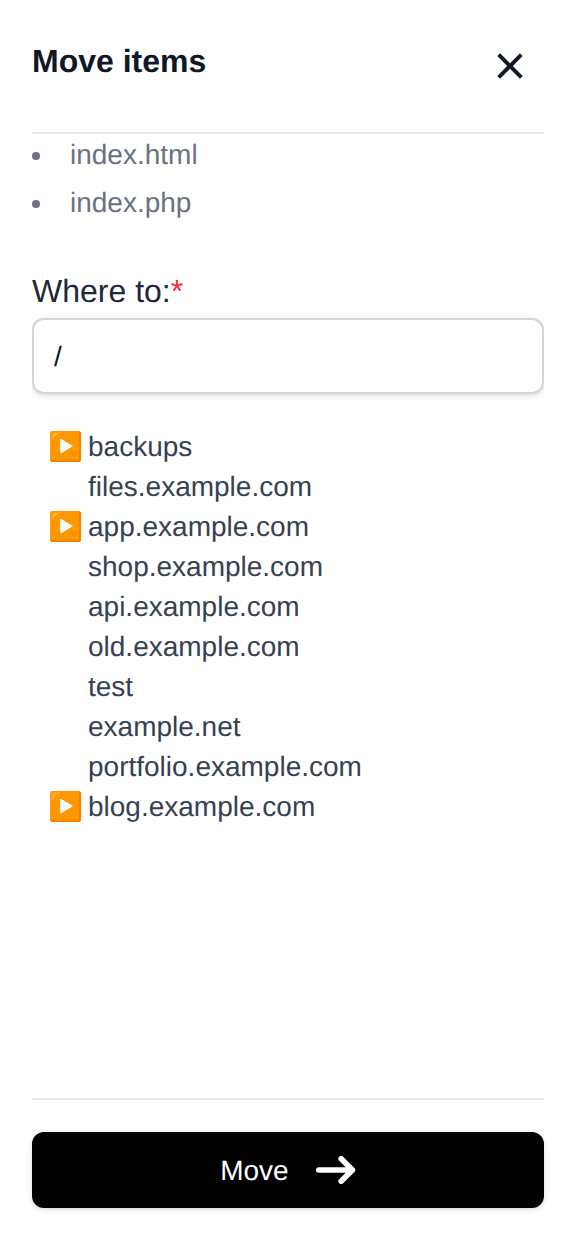
To initiate the move process, click on the 'Move' button in the modal. A progress bar will appear, indicating the progress made, and a 'Complete' message will be displayed when the process is finished.
Extract Archive
To extract an uploaded archive (.zip, .tar, .tar.gz), select the file, and then click on the 'Extract' button in the menu.
In the modal, set the archive name and the destination folder where files will be extracted, and click on Extract to start the process.
Compress to Archive
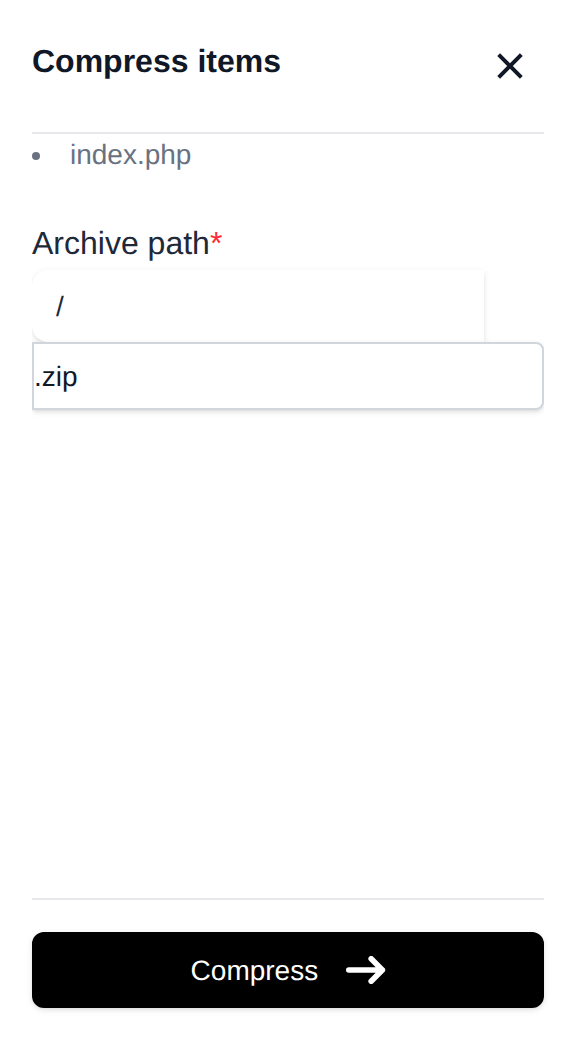
To create an archive of files, first, select the desired files or folders, and then click on the Compress button. The new modal will display a list of all selected file names and allow you to set the archive name and extension (.zip, .tar, or .tar.gz).
Change Permissions
To change permissions for files or folders, select the desired items and click on the Permissions button. In the modal, enter the octal permission value (e.g. 755) and click Confirm to apply it to all selected items.
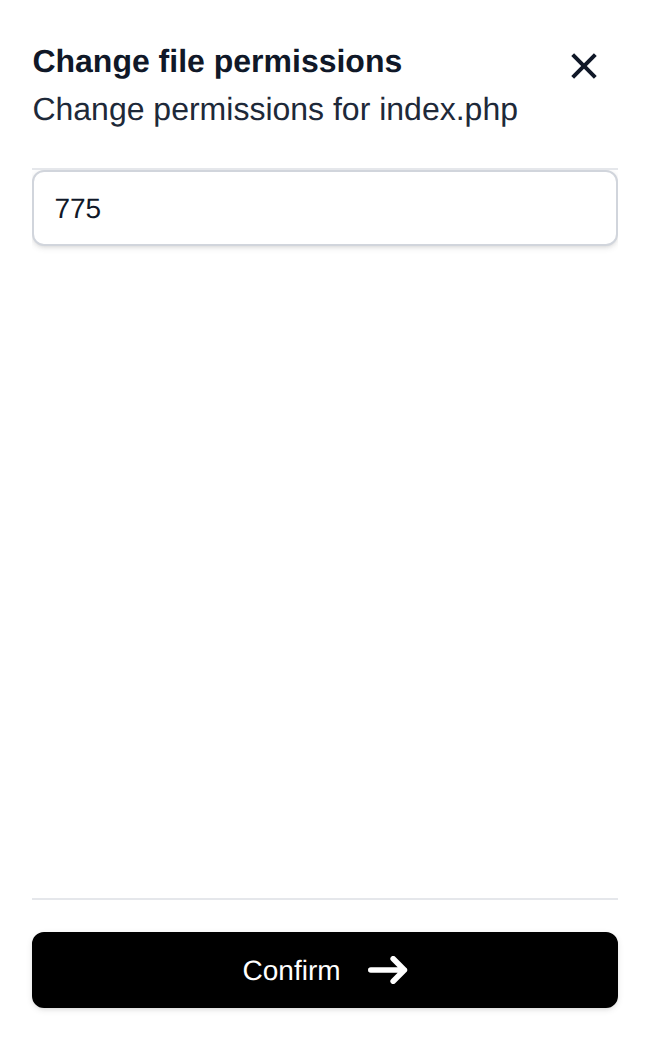
If at least one selected item is a folder, an Apply recursively to subdirectories checkbox appears in the modal. Check it to apply the permission value to the folder and everything inside it, instead of just the folder itself.
Empty Folder
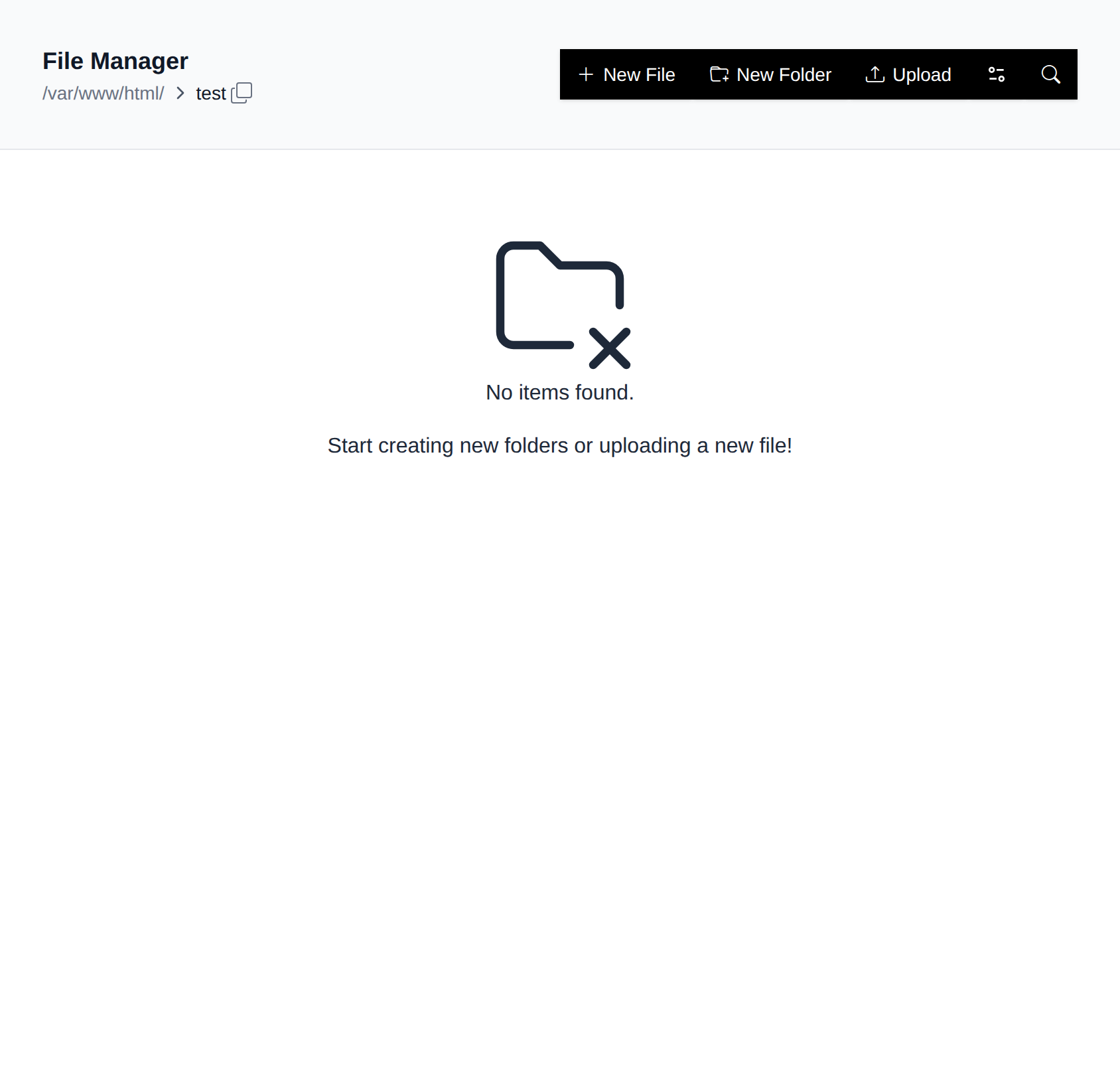
If a folder is empty, you will see the 'No items found.' message and the menu with file options will be hidden. Only the options to create a new file, folder, or upload files will be available.
Search Files and Folders
To activate the search field, click the magnifying glass icon in the File Manager toolbar (not the one in the page header). Clicking on the Toggle icon will display options to search only files or only folders, and path to search in.
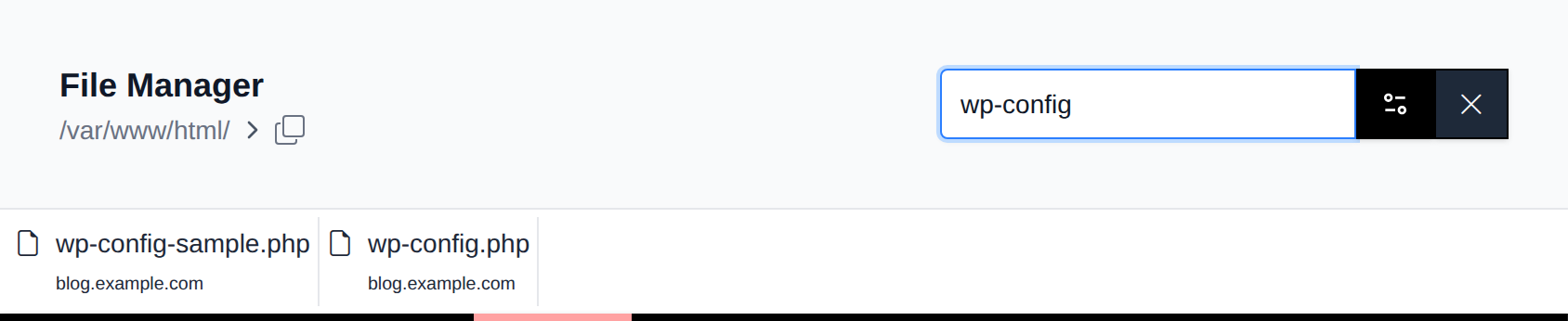
For performance reasons, search results are limited to a maximum of 10 results for files and 10 results for folders.