Version: 1.X.X
SSL
OpenPanel automatically generates and renews SSL certificates for all domains using Let's Encrypt or ZeroSSL.
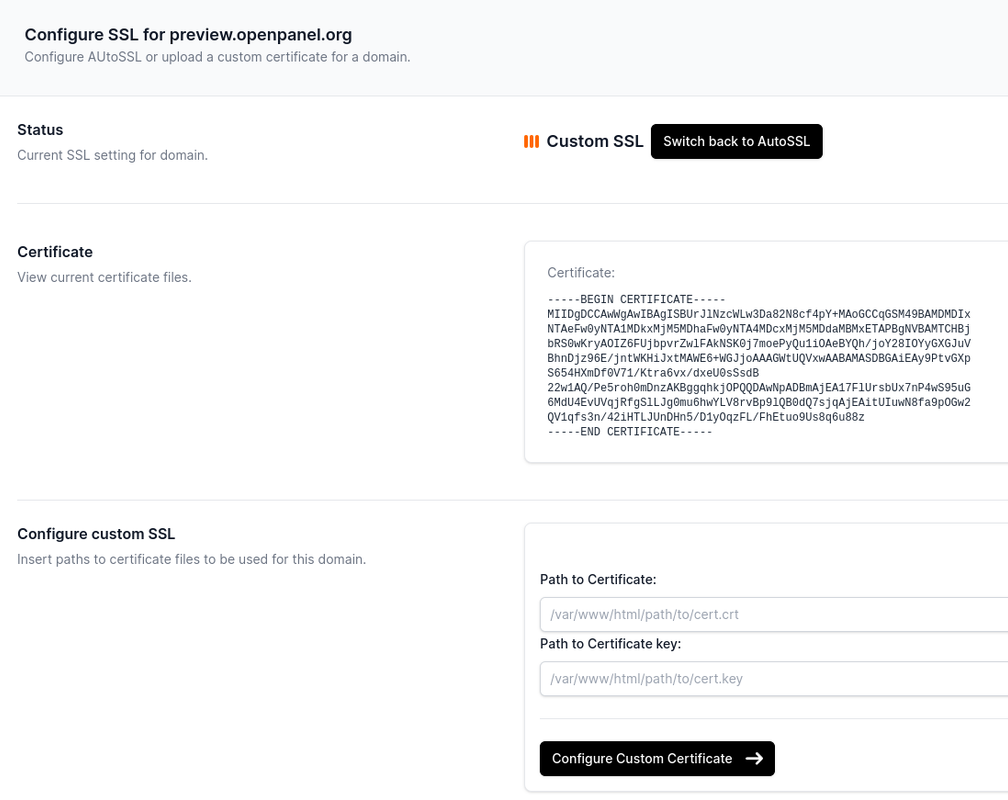
You can also configure a custom SSL certificate for any domain via OpenPanel > Domains > SSL.
Custom SSL
To use your own SSL certificate:
- Upload your certificate files via OpenPanel > FileManager.
- Go to OpenPanel > Domains, then click SSL next to the domain.
- Under Configure custom SSL, enter the file paths for:
- Certificate file (
.crt) - Private key file (
.key)
- Certificate file (
- Click Configure.
Once configured, your custom certificate details will appear on the same page.
AutoSSL
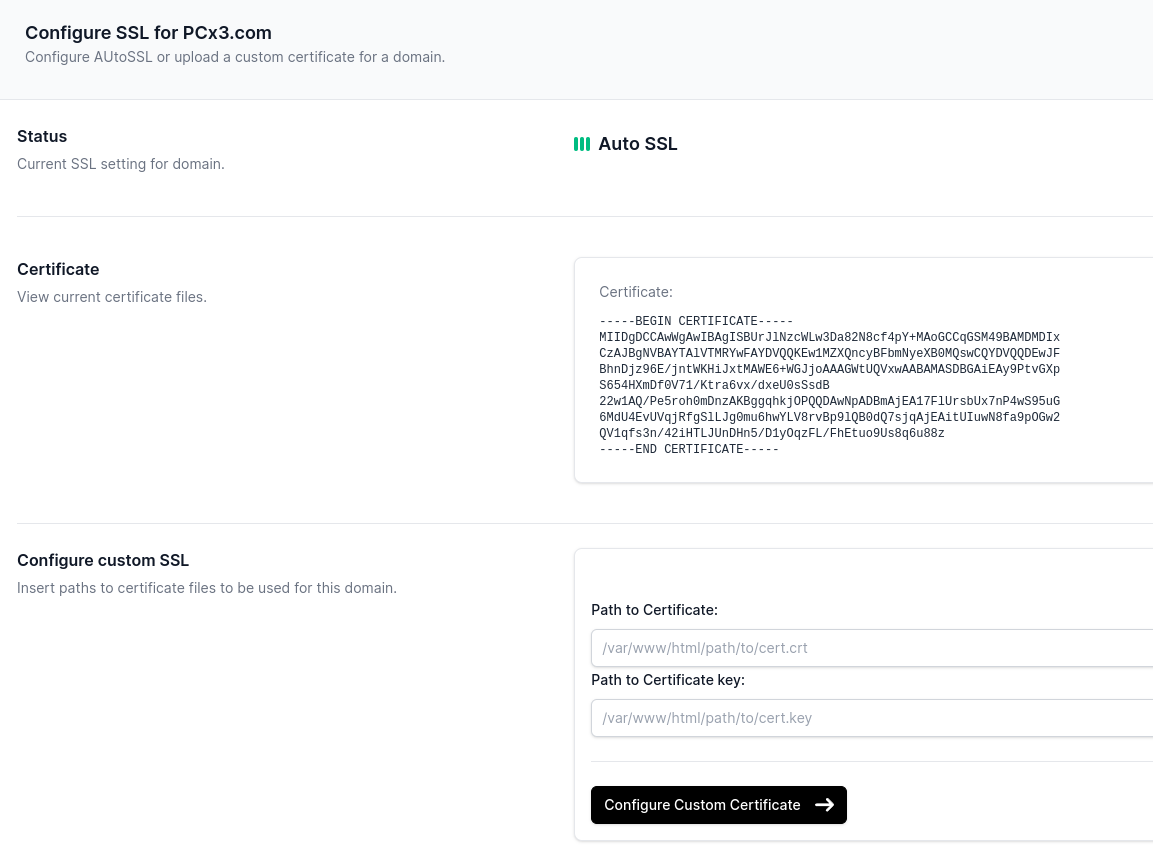
AutoSSL is the default option in OpenPanel. If you're adding a new domain, no action is required.
To switch from a custom certificate back to AutoSSL:
- Navigate to OpenPanel > Domains and click SSL for the domain.
- Click Switch back to AutoSSL.
The certificate will be re-issued automatically after the domain is accessed via https://. Once generated, it will be displayed on the same page.
Requirements
To ensure successful SSL generation:
- The A record for the domain must point to the server's IPv4 address.
- The DNS must be fully propagated. Use tools like whatsmydns.net to check.
- The domain must be accessed via
https://at least once to trigger certificate generation. Open the domain in a browser usinghttps.
If:
- The domain was just added,
- DNS is not yet pointed to the server, or
- The domain has not been accessed over
https://,
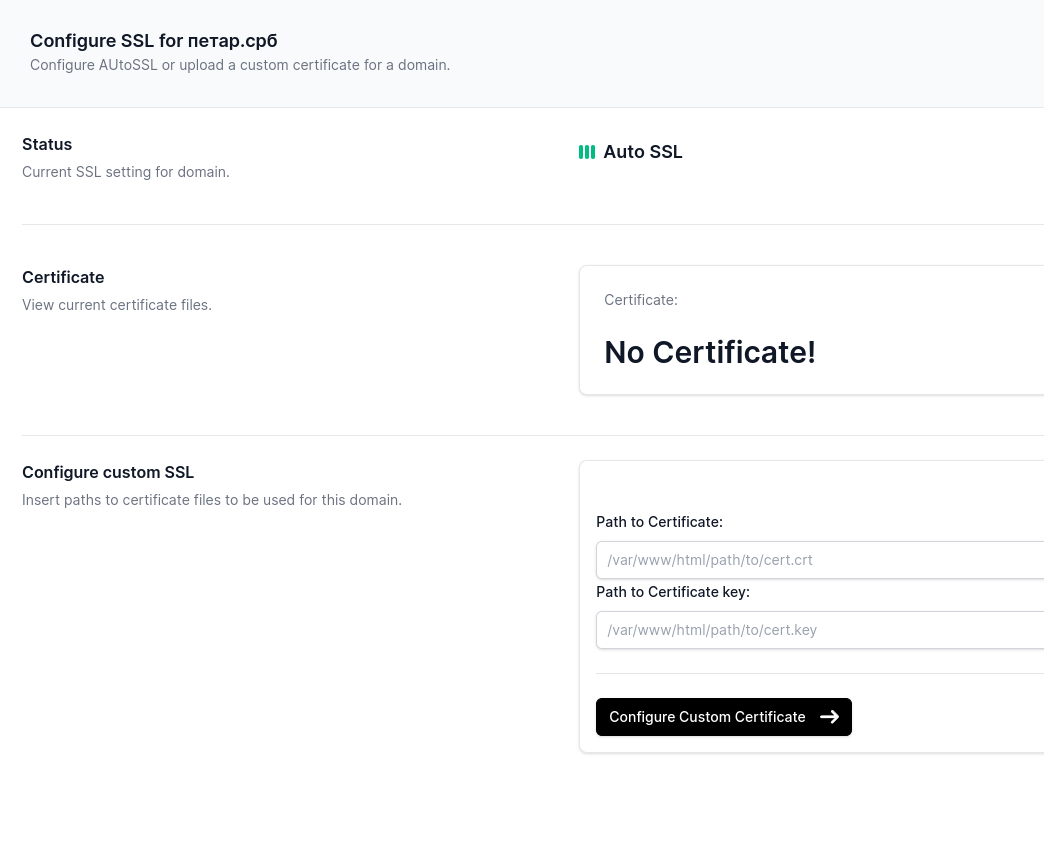
Then the SSL section will show “No certificate found.”
Was this helpful?