SSL
OpenPanel automatically generates and renews SSL certificates for all domains using Let's Encrypt.
You can also configure a custom SSL certificate for any domain via OpenPanel > Domains > SSL Certificates.
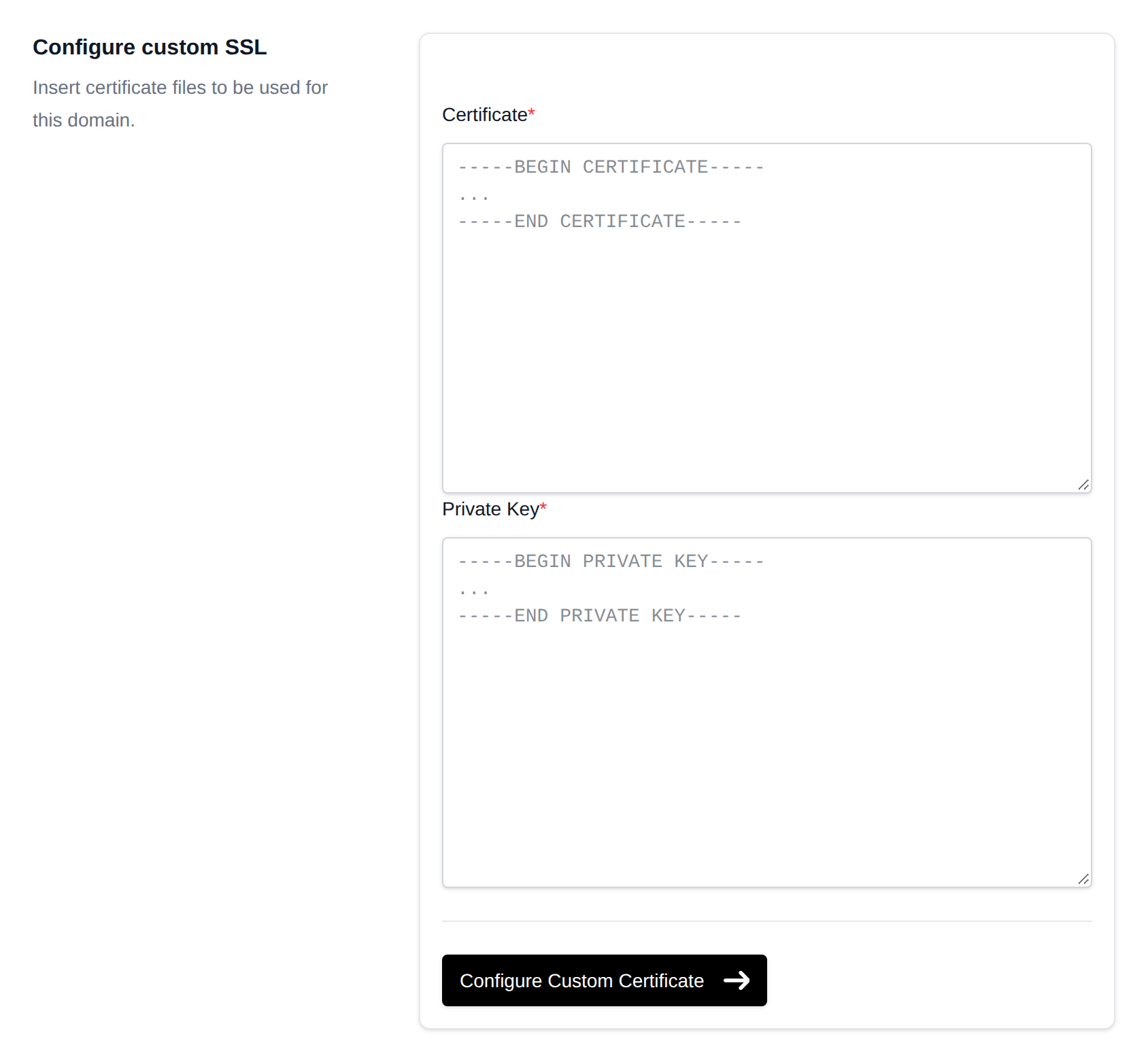
Custom SSL
To use your own SSL certificate:
- Go to OpenPanel > Domains, then click SSL next to the domain.
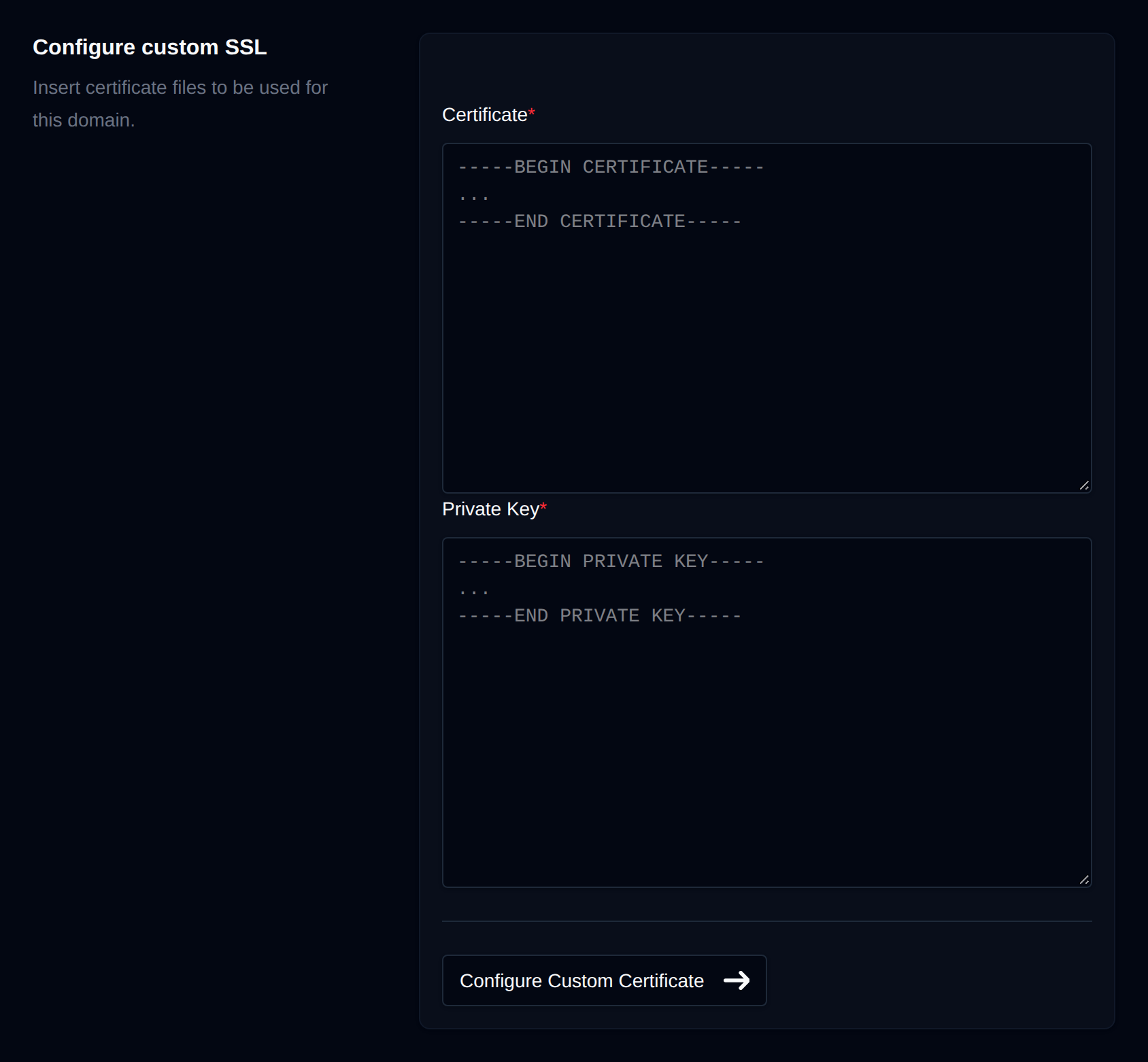
- Under Configure custom SSL, paste the contents of your certificate and private key (PEM format, including the
-----BEGIN CERTIFICATE-----/-----BEGIN PRIVATE KEY-----lines) into the Certificate and Private Key fields. - Click Configure Custom Certificate.
Once configured, your custom certificate details will appear on the same page, and the SSL status will change to Custom SSL.
AutoSSL
AutoSSL is the default option in OpenPanel.
If you're adding a new domain, no action is required — a certificate is requested automatically the first time the domain is accessed over https://.
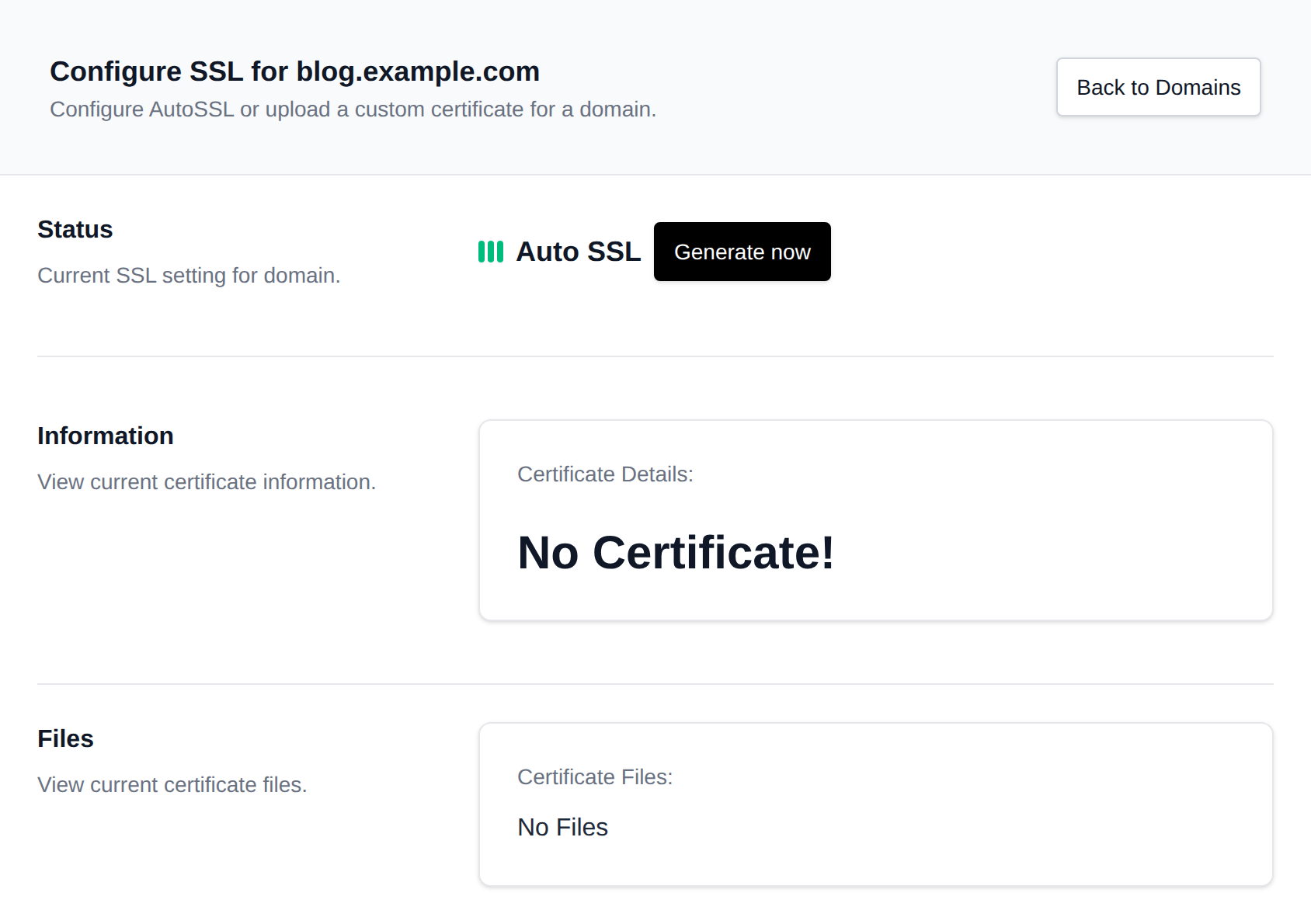
If the status shows Auto SSL but no certificate has been issued yet, click Generate now to reload the webserver and trigger issuance immediately.
To switch from a custom certificate back to AutoSSL:
- Navigate to OpenPanel > Domains and click SSL for the domain.
- Click Switch to Let's Encrypt and generate.
This switches the domain back to AutoSSL and immediately attempts to generate the certificate. Once issued, it will be displayed on the same page.


Requirements
To ensure successful SSL generation:
- The A record for the domain must point to the server's IPv4 address.
- The DNS must be fully propagated. Use tools like whatsmydns.net to check.
- The domain must be accessed via
https://at least once to trigger certificate generation. Open the domain in a browser usinghttps.
If:
- The domain was just added,
- DNS is not yet pointed to the server, or
- The domain has not been accessed over
https://,
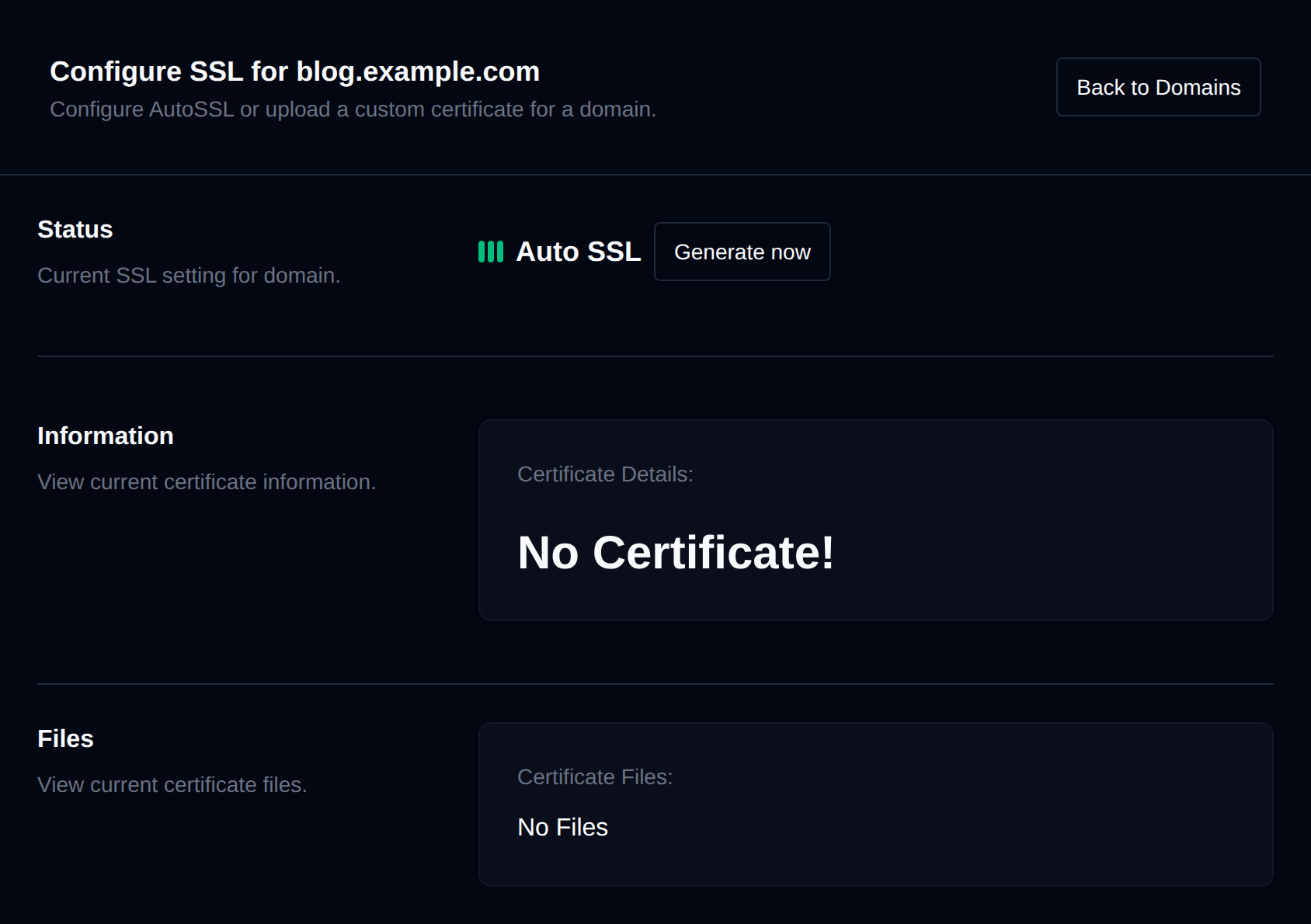
Then the SSL section will show “No Certificate!”
Related guides: Install a custom or paid SSL certificate · Let's Encrypt rate limits and renewal failures · Wildcard SSL certificates · Use Cloudflare with OpenPanel