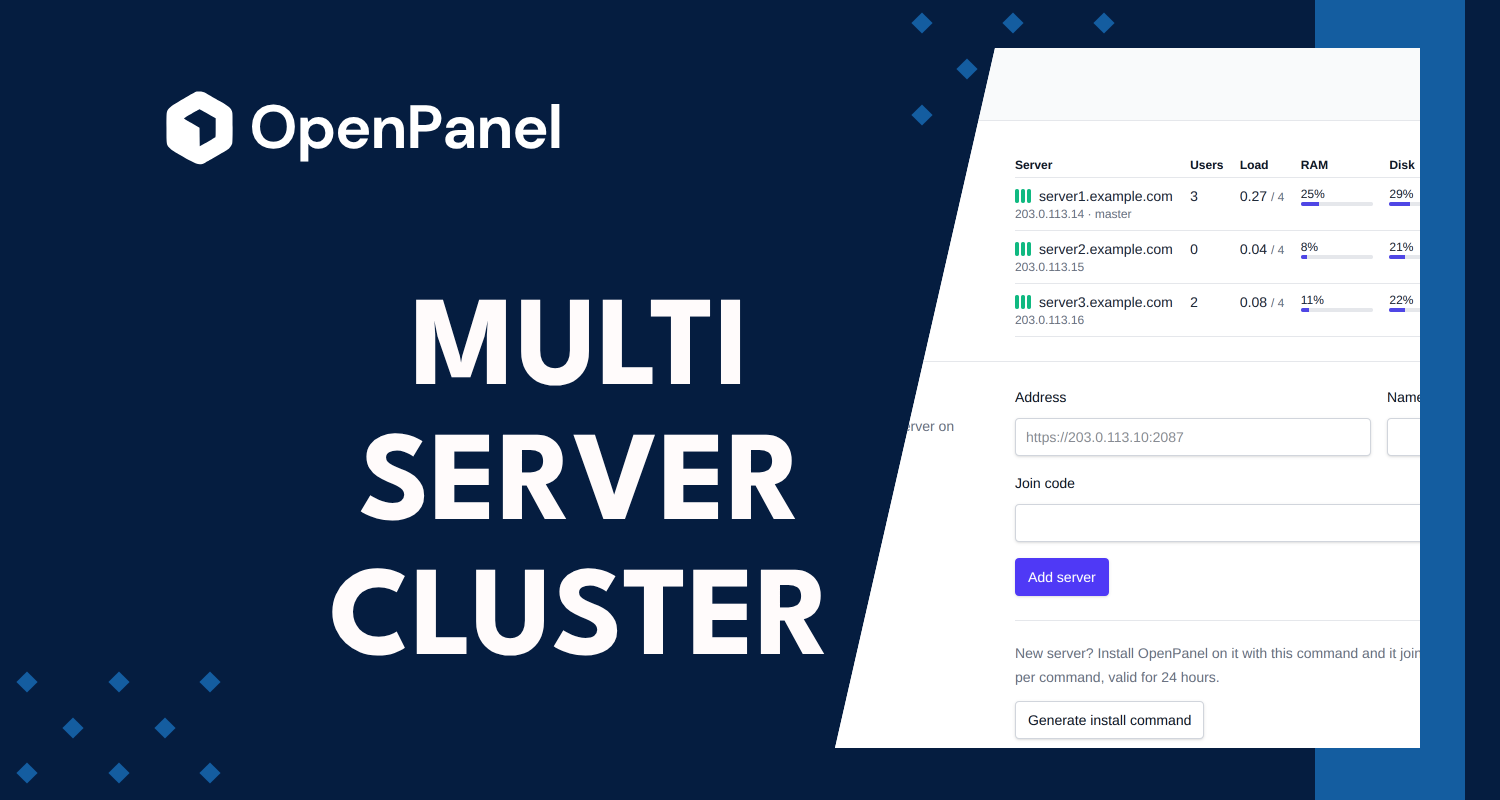
Once a hosting business outgrows one server, the work multiplies: one OpenAdmin login per server, the same setting changed three times, users you have to look for on every machine, and moving an account means SSH, a transfer command and a lot of checking.
OpenPanel 2.0.20 adds Multi-Server to the Enterprise edition. You pick one server as the master and manage every other server from its OpenAdmin, with one login. The price doesn't change.
Why we built it
Most OpenPanel Enterprise customers who run more than one server asked for the same things:
- One place to see everything. Which server is that user on? Which server is running out of disk? Which one needs a restart?
- Change a setting once. Feature sets, plans, custom code, the WAF, PHP defaults, notification settings: these are usually meant to be the same on every server.
- Move accounts without the hassle. When a server fills up or gets retired, accounts need to go somewhere else without the customer noticing.
- Add servers quickly. A new server should be ready to use, with your settings, as soon as it's installed.
How it works
Every server stays a complete OpenPanel install with its own users, domains, mail, DNS and database. Nothing is shared between them, and there is no central database that can take all servers down.
One server is the master. It reaches the OpenAdmin of every other server, the slaves, over HTTPS and shows their pages inside its own. When you open a slave, the master logs you in there with an account named after you, so the activity log on the slave still shows who did what.
The servers trust each other through a one-time join code that carries the new server's certificate fingerprint, and every request between them is signed. If the master is down, the slaves keep serving websites and mail as before, and you can still log in on each one directly.
A slave that doesn't answer within 10 seconds is left out of lists until it's back, so one broken server can't slow down the master.
What you can do from the master
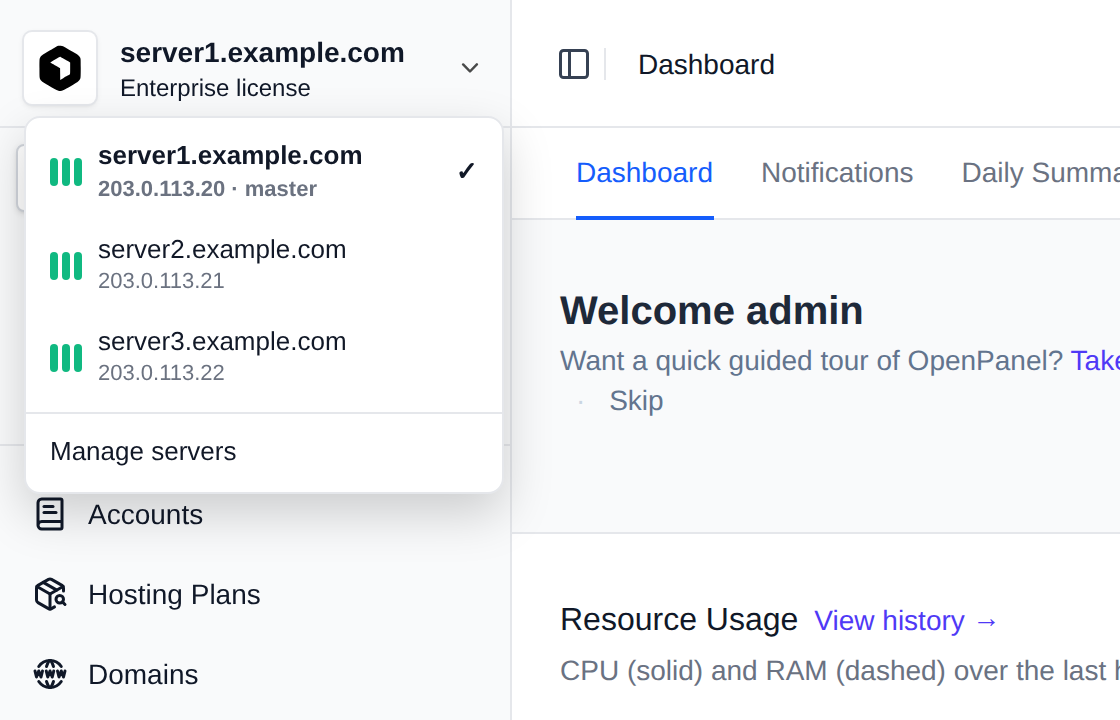
Switch servers from the server name at the top of the sidebar. Every page you open after that belongs to the selected server.
See data from all servers at once:
- Users, domains, websites, plans, email accounts, FTP accounts and notifications are listed together, with a Server column you can filter and sort by.
- Search finds accounts on every server, and shows where each one lives, like
john (server2). - The dashboard totals, the daily summary, the resource usage chart and running tasks cover all servers.
- Services shows every service with a column per server, so you see right away which server needs a restart.
- The resource usage in the header shows the busiest server, and its tooltip lists each one.
- Notifications from all servers are in one list, and Acknowledge all clears them everywhere.
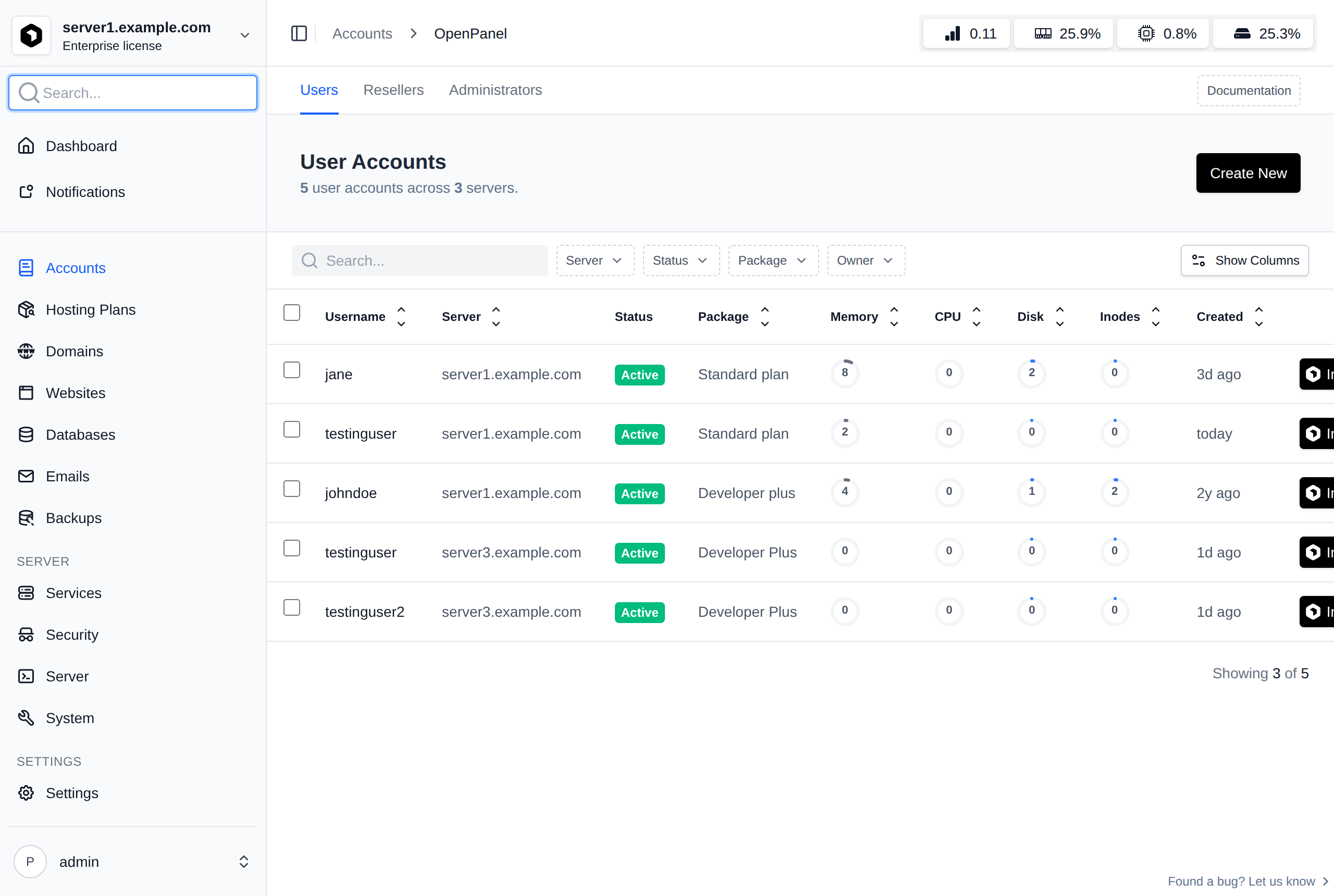
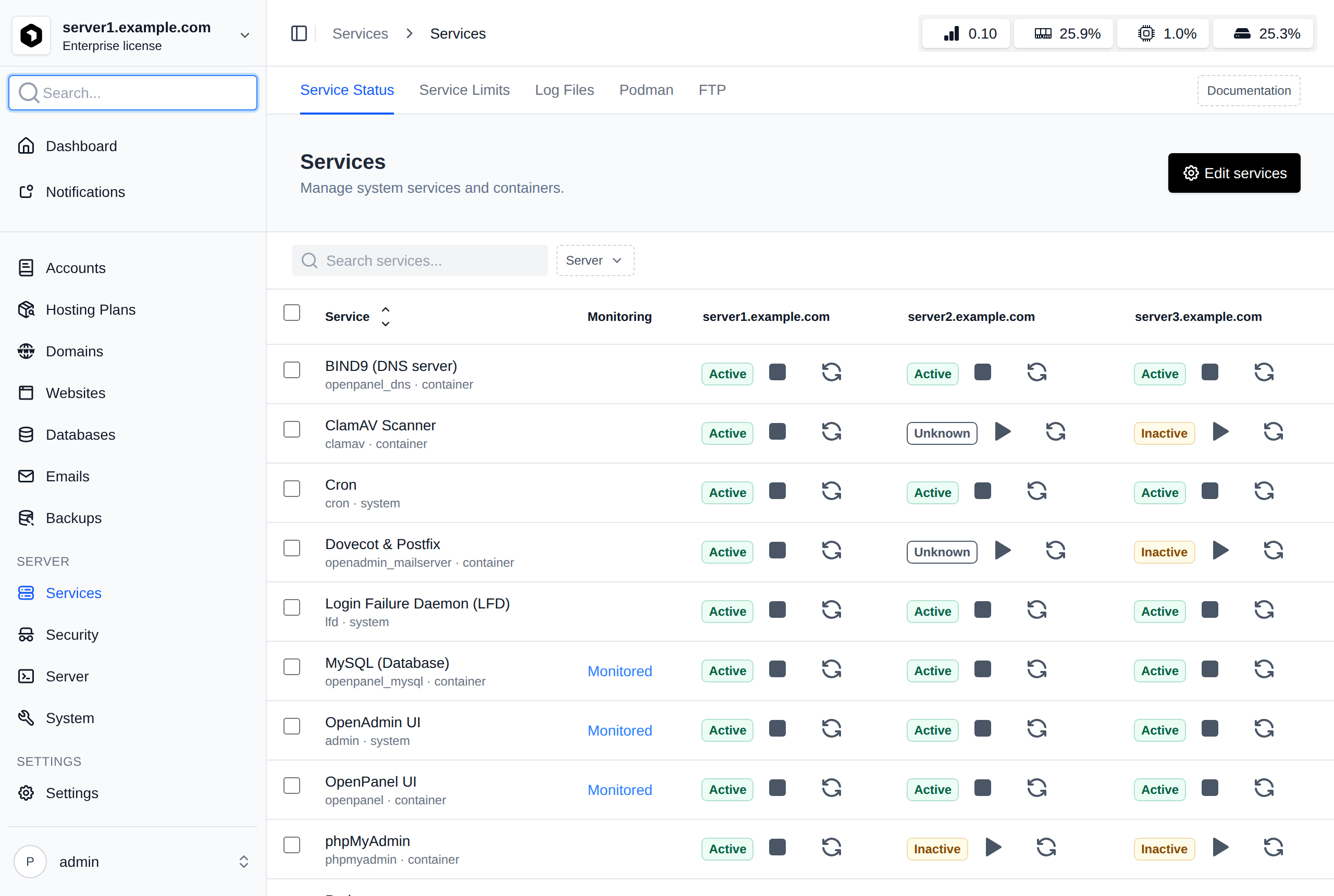
Act on any server from the same list. Links, menus and bulk actions in a row run on the server that row belongs to. Select users from three servers, suspend them, and each server suspends its own.
Apply settings everywhere. Settings pages have an Apply on all servers box next to Save, checked by default. Save once and the change is made on every server, and a notice tells you how it went on each of them. To use a different value on one server, clear the box or log in on that server directly. Settings that have to differ, like the domain, ports and SSL, always stay on one server.

Pause a server to leave it out of everything for a while, for example to roll a change out to all other servers first. It comes back with one click.
What gets synced
Apart from applying single changes, you can sync a whole server to the master. That's useful for a newly added server, or one that was edited directly. Sync covers:
- OpenPanel and OpenAdmin options, like user limits, logs, statistics, apps and the panel template
- Feature sets
- Custom code
- Blocked user agents, forbidden usernames and restricted domains
- Notification settings
- DNS zone templates
- Optionally SMTP, captcha, AI and Cloudflare credentials, and nameservers
License, ports, domains and SSL never sync. Before every sync the slave backs up the files it's about to change, so Undo last sync on the slave restores them.
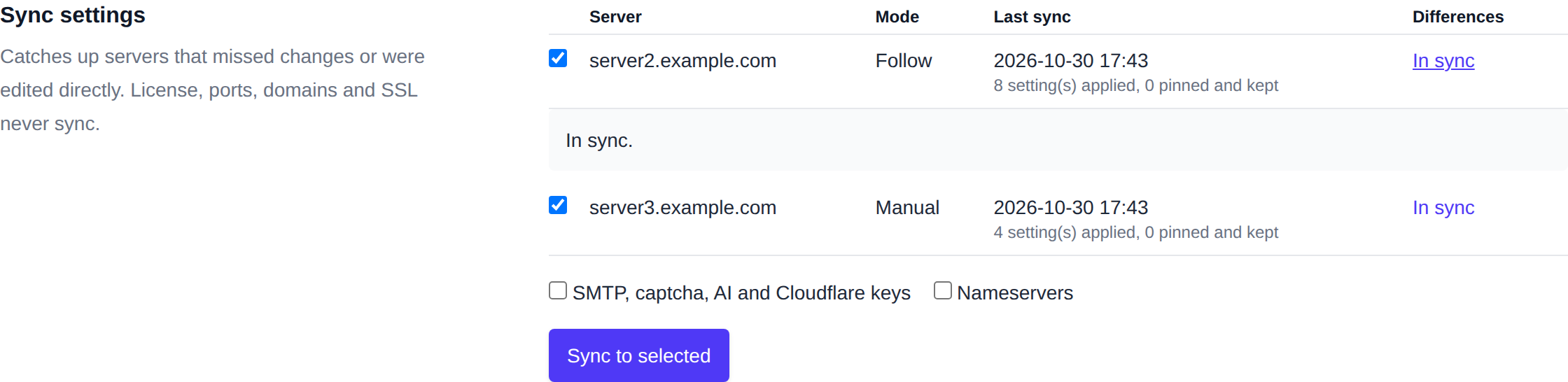
A slave can also follow the master: it picks up changes on its own within 5 minutes. Settings you pin on the slave stay local even then.
Moving accounts between servers
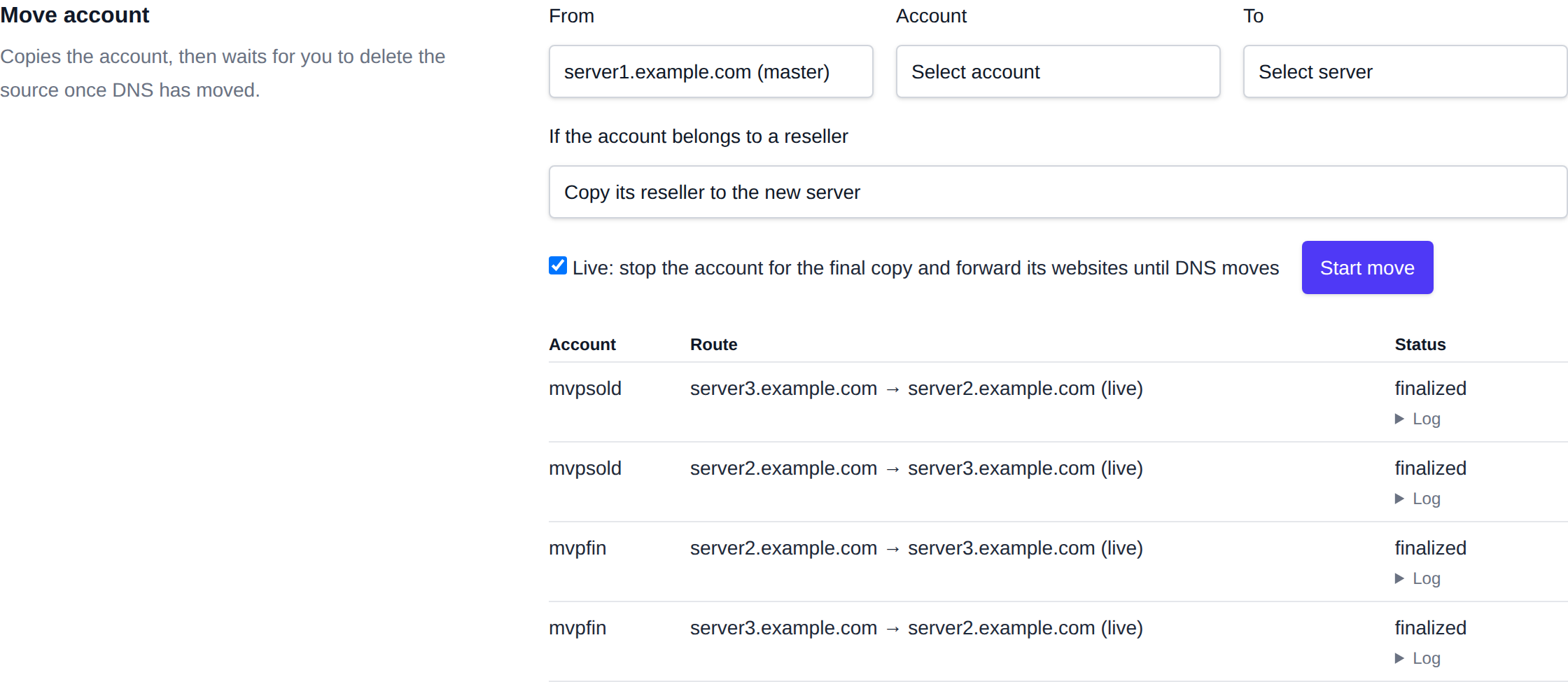
Pick the account, the server it's on and the server it goes to. OpenPanel copies everything (files, databases, domains, DNS zones, SSL, FTP and email) while the account keeps running.
With Live checked, the account is suspended on the old server only for one last copy, so nothing written in the meantime is lost, and its websites are forwarded to the new server while DNS catches up. Once DNS has moved, Delete from source copies any newer mail and removes the old copy. If something isn't right, Cancel puts the account back where it was. Accounts owned by a reseller can bring their reseller along.
The master sets up a temporary SSH key between the two servers for the move and removes it afterwards, so you never type a password.
Adding servers
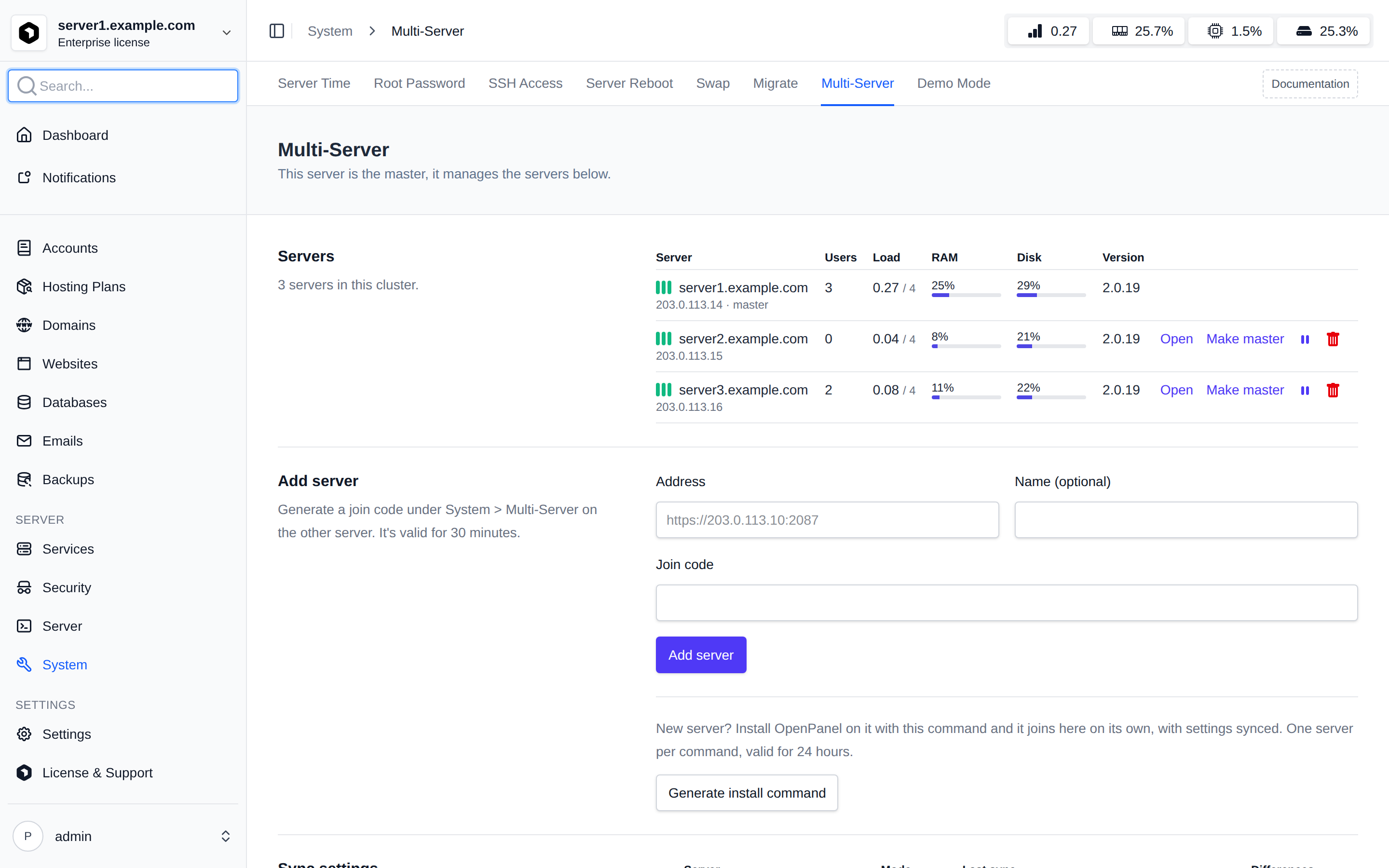
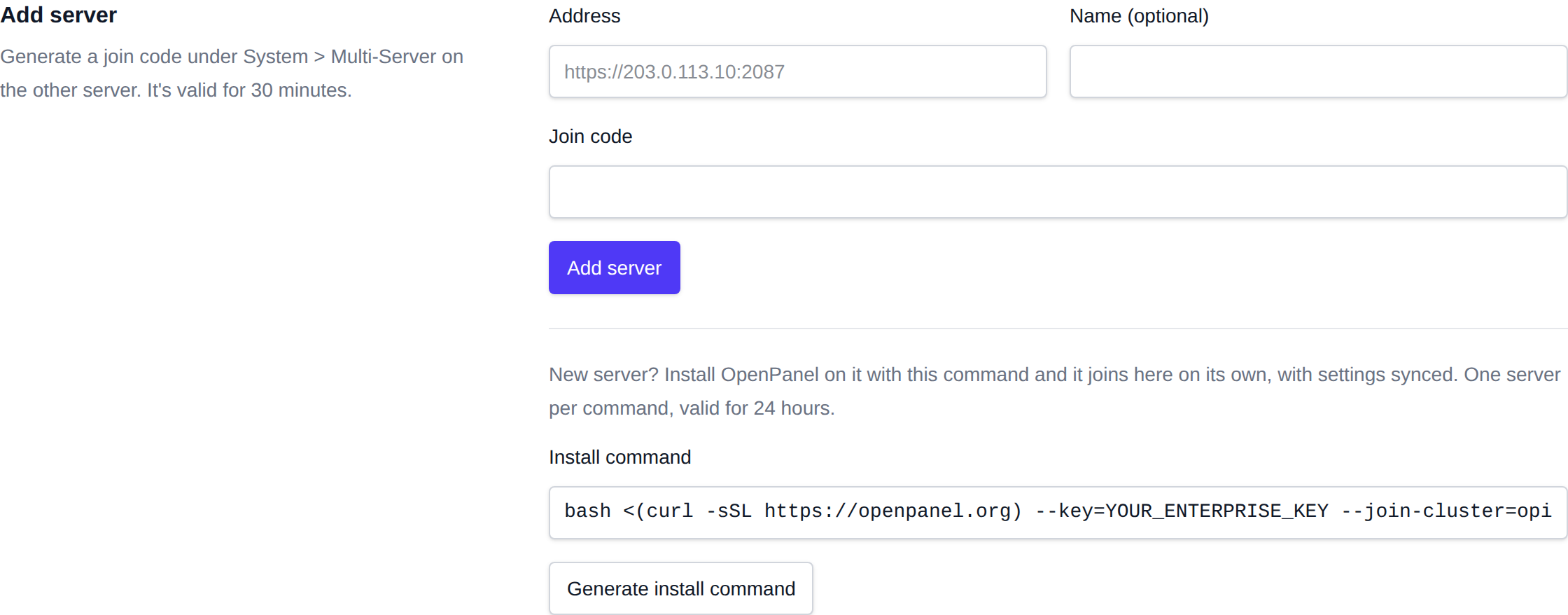
An existing server: open System > Multi-Server on it and click Generate join code, then paste the code and the server's address into Add server on the master. The first server you add makes the current one the master.
A brand new server: click Generate install command on the master. You get the usual OpenPanel install command with one extra option:
bash <(curl -sSL https://openpanel.org) --key=YOUR_ENTERPRISE_KEY --join-cluster=opinvite-...
Run it on the new VPS. When the installation finishes, the server joins the cluster on its own, the master syncs your settings to it straight away, and from then on it follows the master. Each command adds one server and is valid for 24 hours.
Keeping track
Cluster events are written to Notifications: a server added, paused or removed, settings synced, accounts moved, updates started, and a server going offline or coming back. Problems, like a server going offline or a failed sync, are also sent by email or webhook, like any other Sentinel alert.
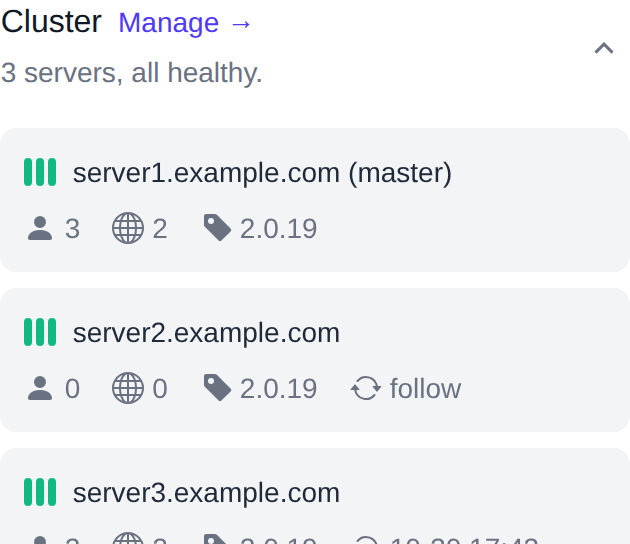
The Servers table on the master lists every server with its users, load, memory, disk, version and health. From there you can update a server, pause it, remove it, or make it the master. The Cluster widget on the dashboard shows the same at a glance.
Pricing
Multi-Server is part of OpenPanel Enterprise at no extra cost. The license is still €14.95 per server per month, and every Enterprise feature works the same on every server in the cluster. There are no cluster add-ons and no per-account fees.
Get started
Update to OpenPanel 2.0.20, then open System > Multi-Server in OpenAdmin. The Multi-Server documentation covers each step: adding servers, working with all servers, syncing settings, moving accounts and managing servers.
Questions or feedback? Let us know on Discord or in GitHub Discussions.