Move Accounts
Move an account from one server to another under Move account on the master, or from the Transfer tab of the account. The master handles the SSH keys between the two servers for the move and removes them when it's done.
- Pick the server to move from, the account and the server to move to.
- If the account belongs to a reseller, choose to copy the reseller to the new server or to leave the account without a reseller there.
- Click Start move.
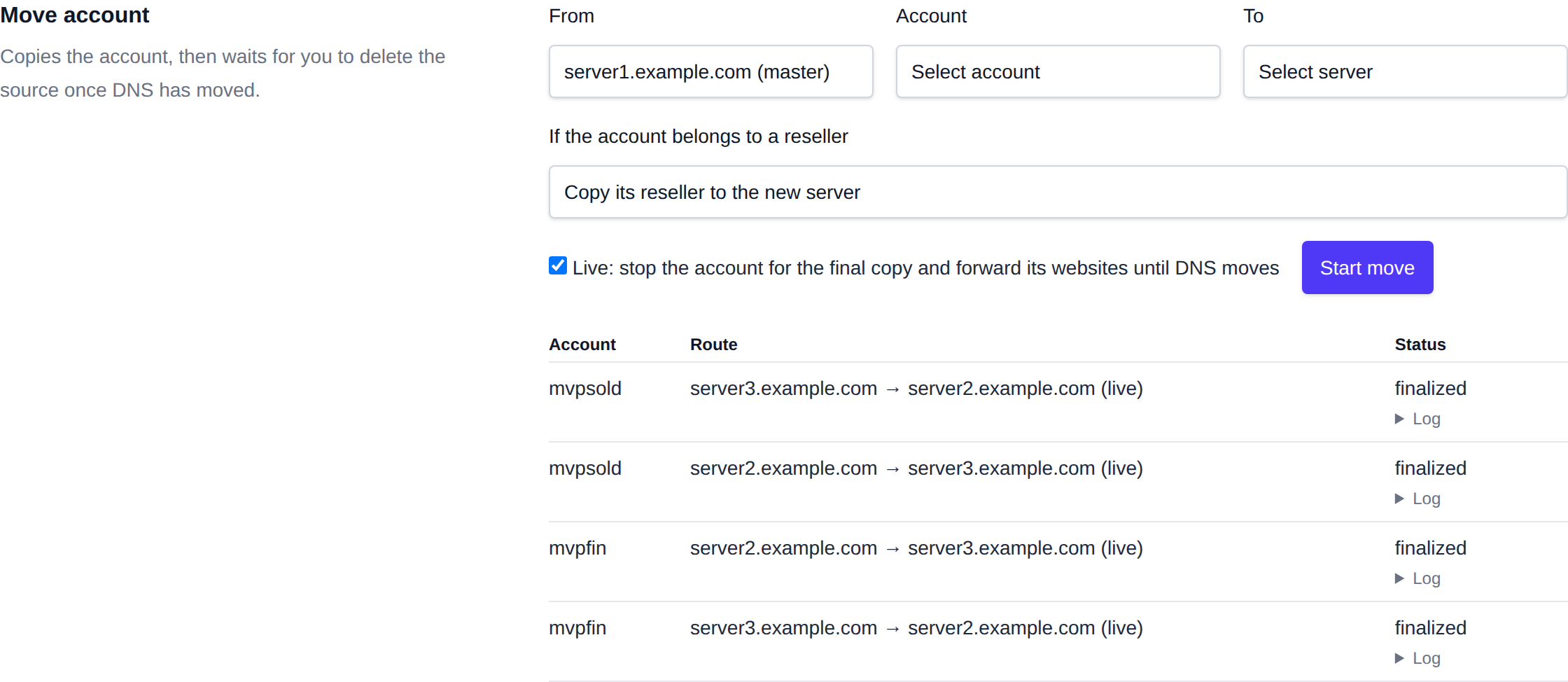
The account is copied while it keeps running on the source. With Live checked, the account is then suspended on the source for one last copy, so nothing written in the meantime is lost, and its websites are forwarded to the new server while DNS catches up.
When the copy is done the move waits for you:
- Delete from source copies any newer mail first and then removes the account from the old server. Do this once DNS points to the new server.
- Cancel, delete copy removes the copy and puts the account back on the source, websites included.
An account with a dedicated IP address gets the shared IP address of the new server, since the dedicated one belongs to the old server. Assign it another dedicated IP there if it needs one.
The move uses opencli user-transfer, which you can also run yourself between any two servers.