Work With All Servers
Switch servers
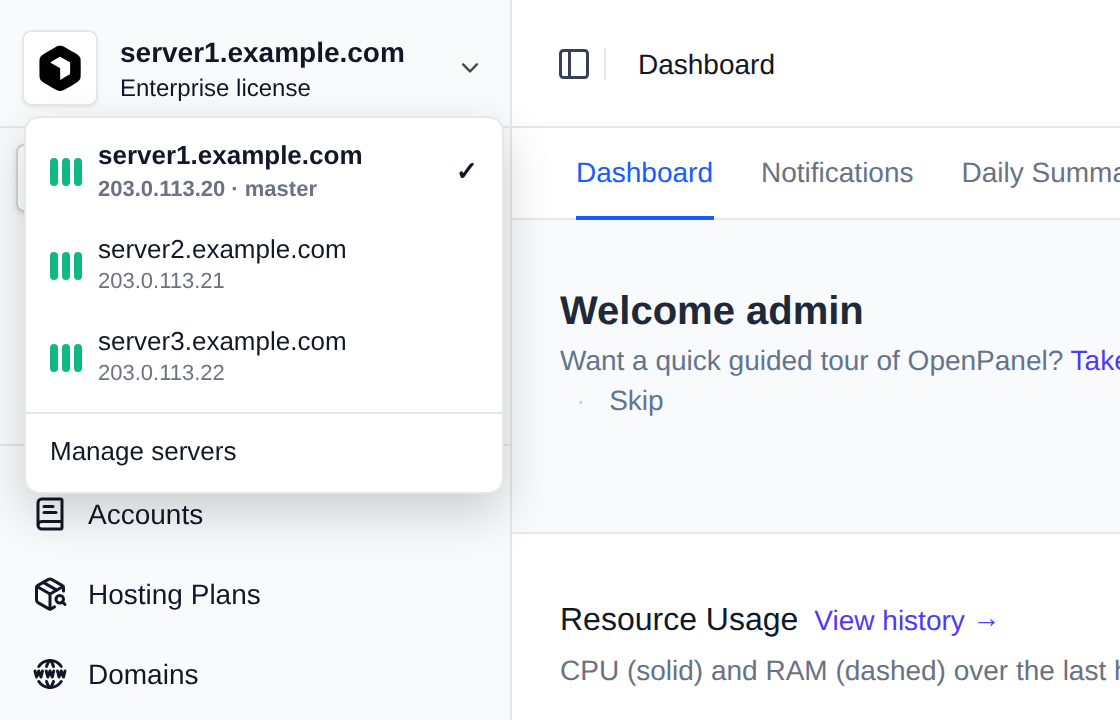
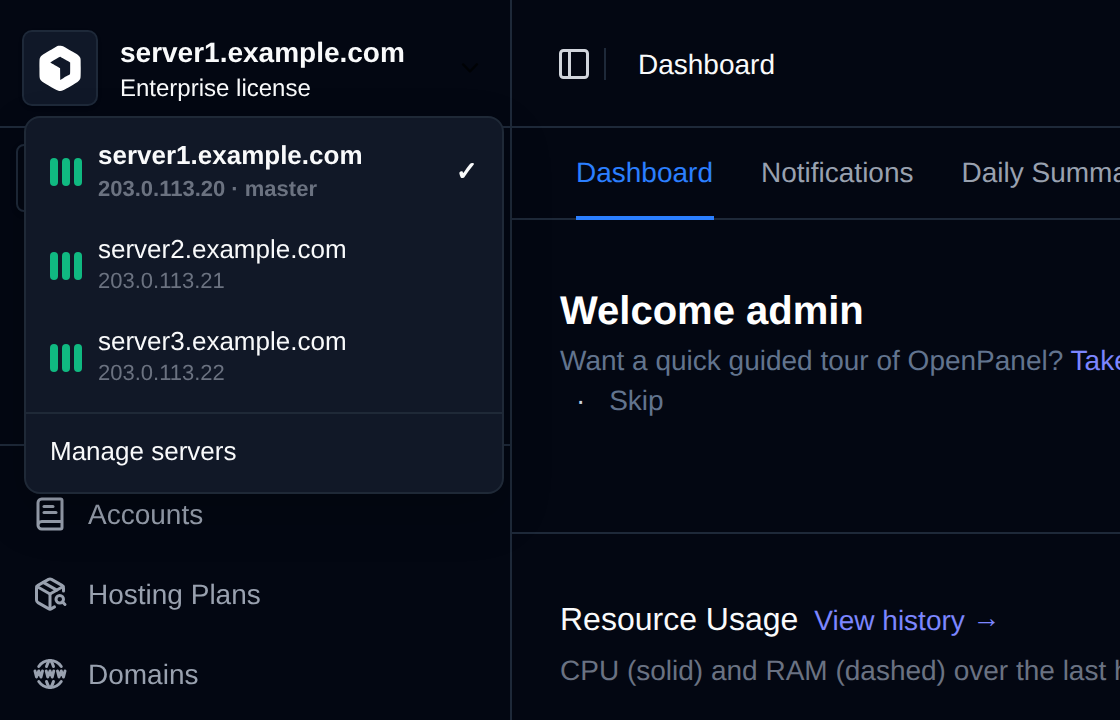
Click the server name at the top of the sidebar and pick a server. Every page you open after that is the page of that server, served through the master. A red dot next to a server means the master can't reach it.
Pages that only make sense for one server, like logs, services or resource usage, also have a server picker, so you can look at another server without switching.
Data from all servers
On the master, lists show the rows of every server:
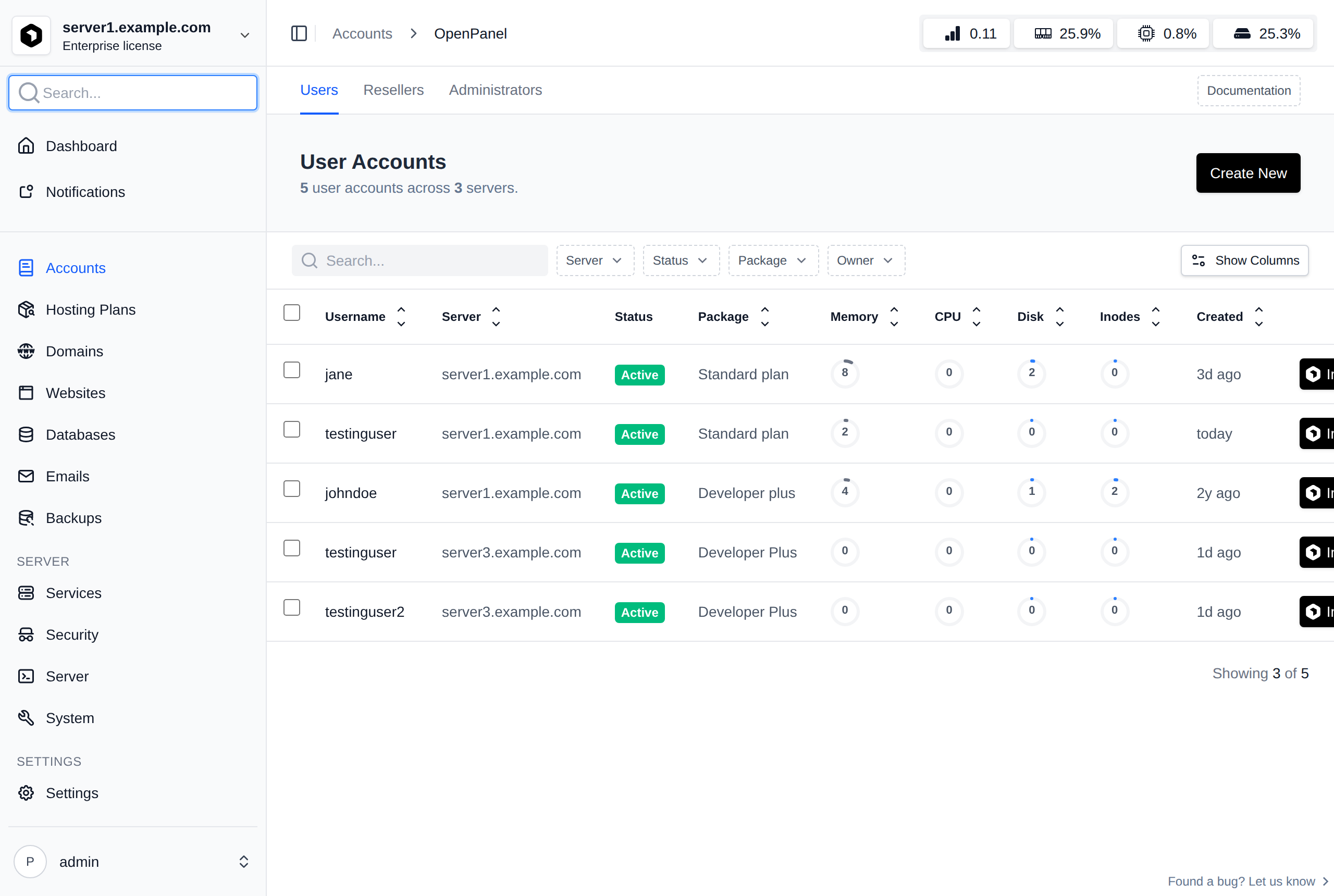
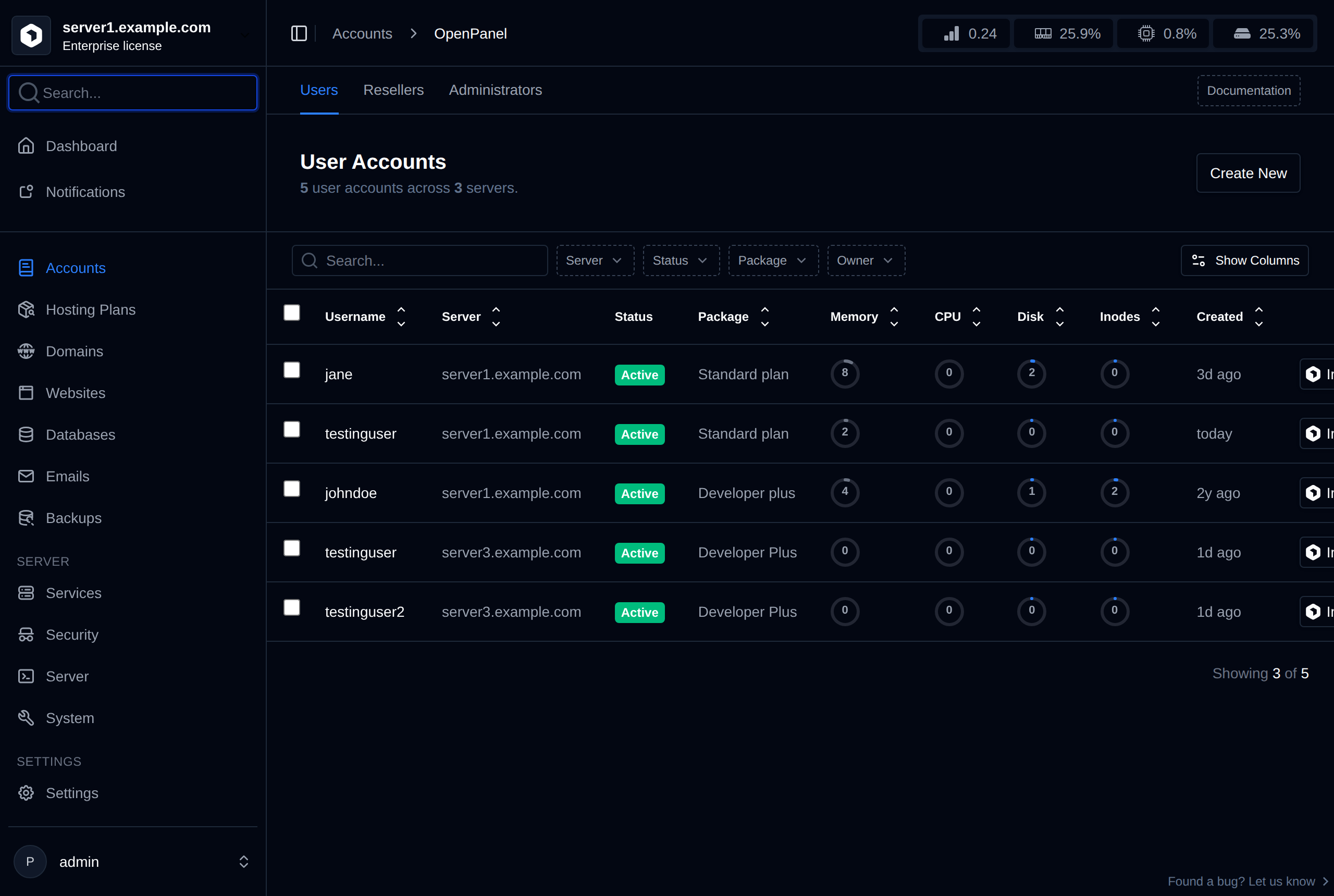
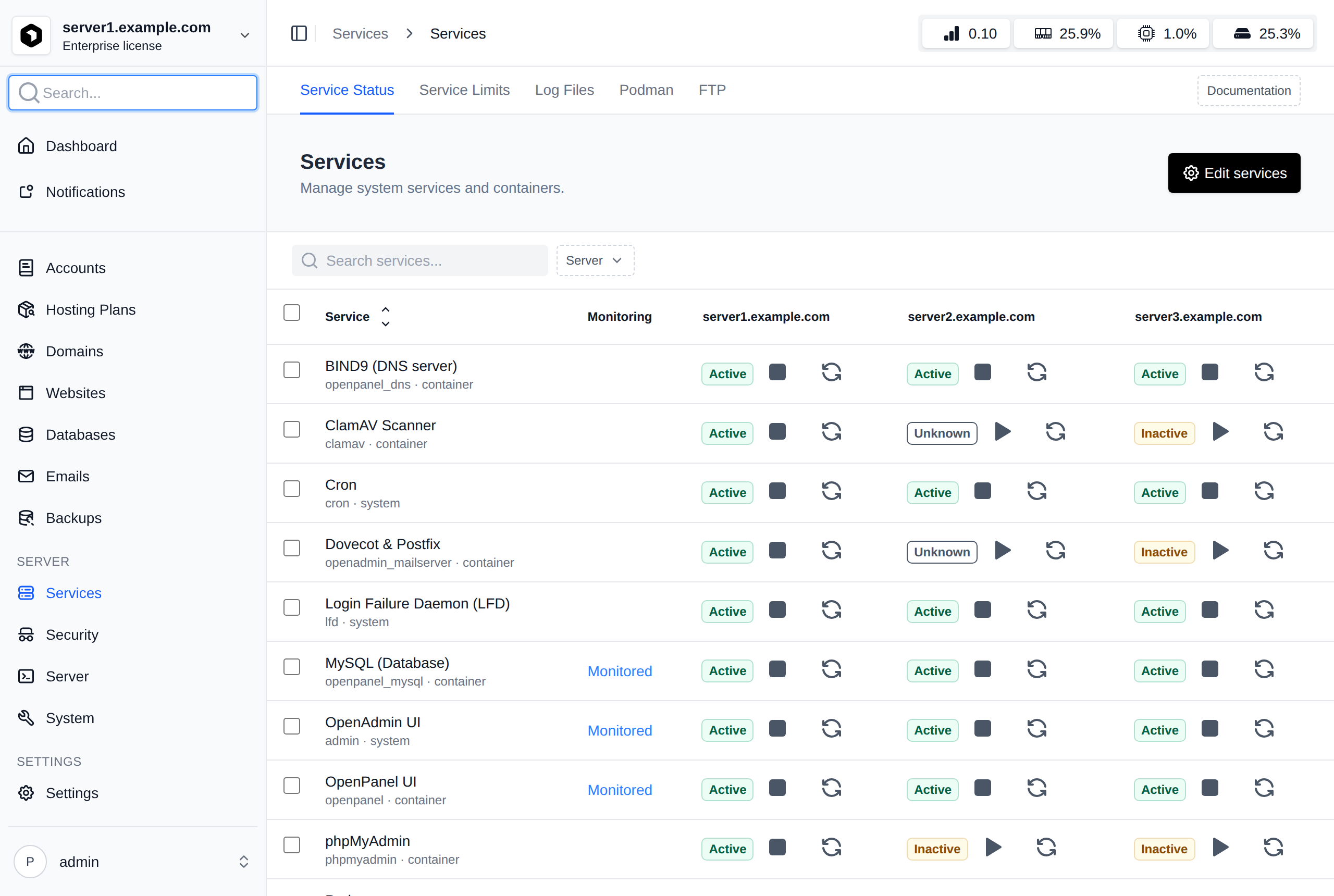
- Tables like users, domains, websites, plans, email accounts, FTP accounts and notifications get a Server column and a filter next to the search box. Click the column header to sort by server.
- Counts above tables, like "8 plans across 3 servers", count all servers.
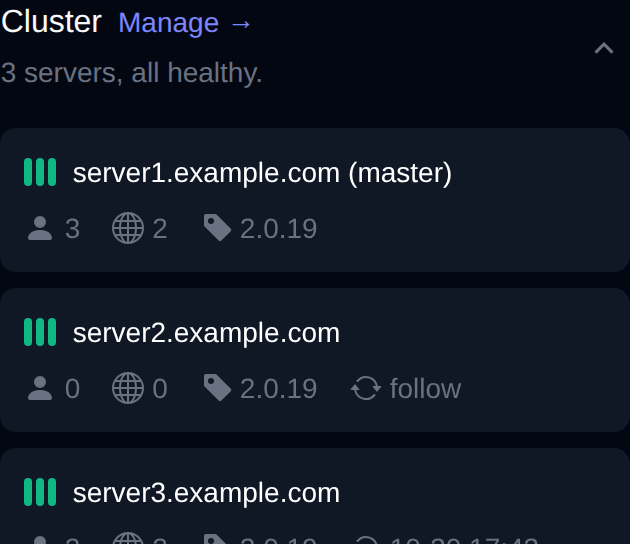
- The dashboard totals, the daily summary and the Servers widget cover all servers.
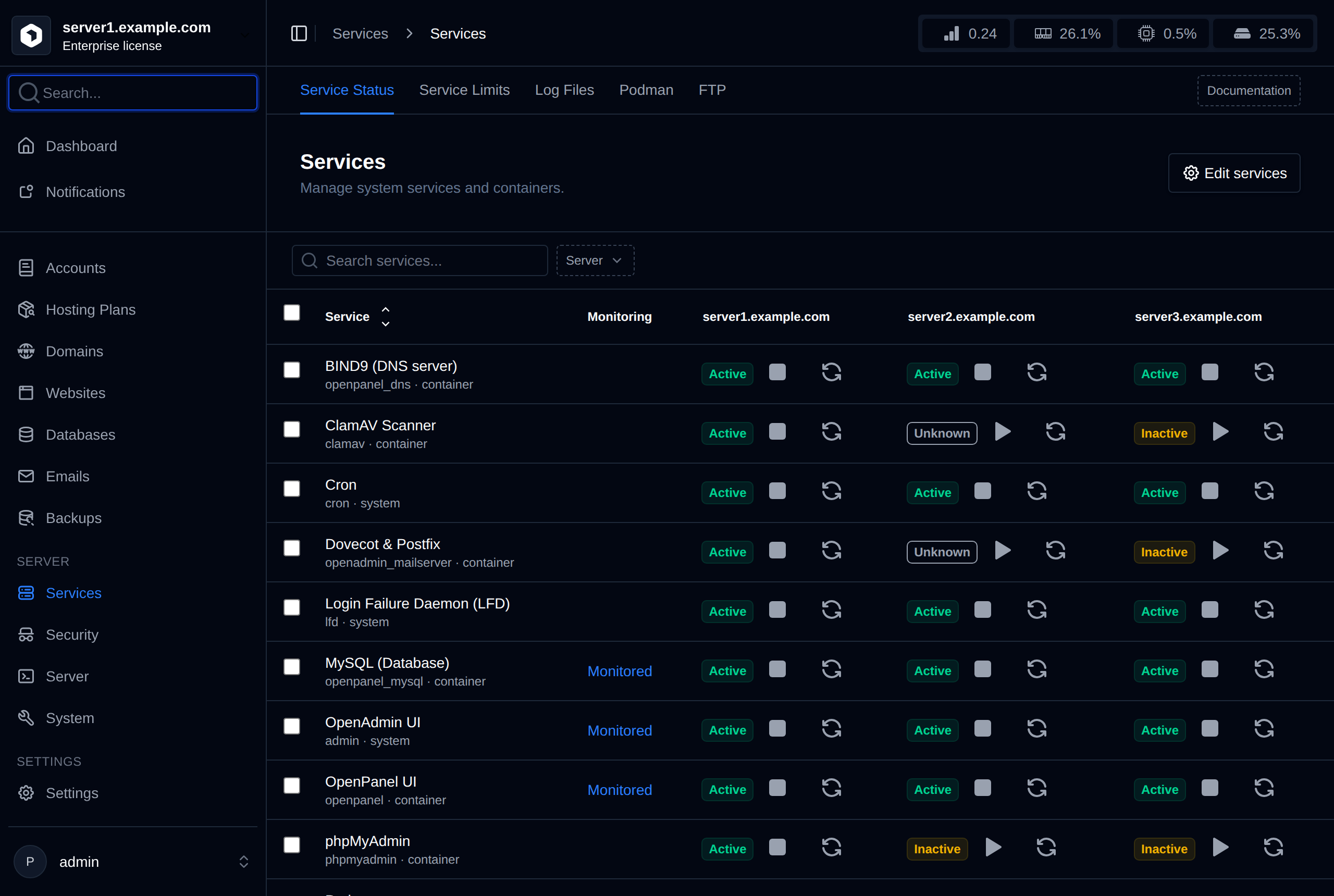
- Services shows the status of each service on every server, with RESTART NEEDED in the column of the server that needs it. When several servers need the same restart, Restart on all servers under the service name restarts it everywhere at once.
- The resource usage in the header shows the highest value of all servers, and the tooltip lists each server.
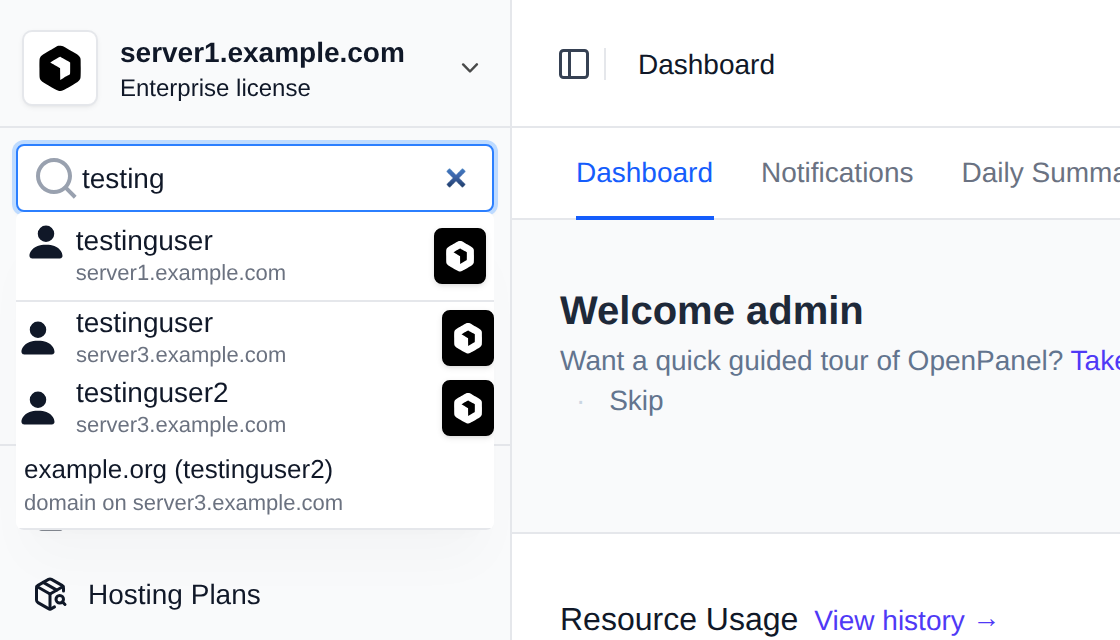
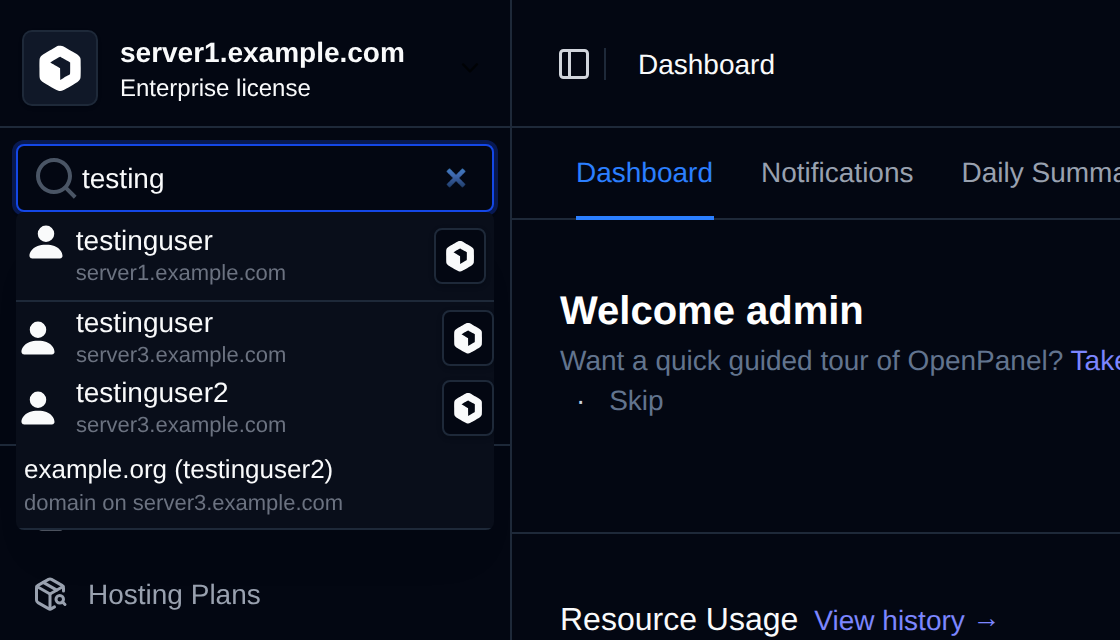
- Search finds pages and accounts on every server. Accounts from another server are shown with its name, like
john (server2). - Notifications from all servers are listed together, and Acknowledge all applies to every server.
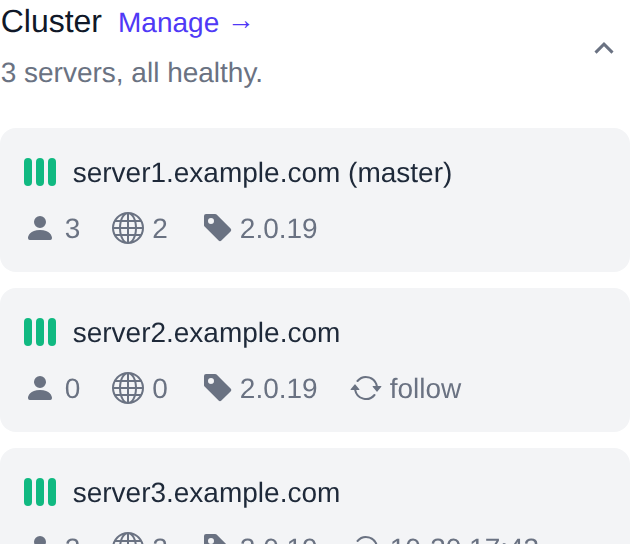
Actions on rows of other servers
Links, menus and buttons in a row act on the server the row belongs to. Opening a user from another server switches to that server. Bulk actions split the selection and run on each row's own server.
When creating something, like a user, administrator or reseller, pick the server in the form.
Apply on all servers
Pages that save settings have an Apply on all servers box next to the Save button. When it's checked, the master saves the change on the current server first and then applies the same change on the others. A notice at the top of the page shows the result for each server.
The box is checked by default. To use a different value on one server, clear the box, or log in on that server directly and change it there.


Some settings always stay on one server:
- Domain, ports and SSL under Settings > General.
- License.
- 2FA and passkeys of your own account.
The timezone, root password, SSH and cron pages start with the box cleared, since those usually differ per server.
These changes always go to every server:
- WAF profiles and rules under Security > WAF.
- Updating or rolling back from Settings > Updates.