"Error establishing a database connection" is one of the most common WordPress errors. The whole site turns into a blank page with that one line, both for visitors and in wp-admin.
It means one thing: PHP could not talk to the MySQL or MariaDB database. WordPress stores all posts, pages, users and settings in the database, so without it there is nothing to show.
This guide goes through the causes in the order you should check them, from the most common to the least, and shows how to fix each one.
What causes the error?
Almost every case comes down to one of these:
| Cause | How often | Typical sign |
|---|---|---|
Wrong credentials or host in wp-config.php | Very common | Started after a migration, a password change or a new install |
| The database server is stopped or crashed | Very common | Every site on the server is down, not only one |
| The database user has no privileges on the database | Common | Started after moving or recreating the database |
| Too many connections | Common on busy sites | The error comes and goes under traffic |
| Corrupted tables | Rare | wp-admin shows "One or more database tables are unavailable" |
| Disk full | Rare | MySQL stops and won't start again |
The first step for all of them is the same: find out what error MySQL actually returns.
Step 1: Get the real error message
The one-line message hides the real reason. There are two ways to see it.
Turn on WP_DEBUG
In OpenPanel, open the site in WordPress Manager, go to the Debugging tab and turn on WP_DEBUG and WP_DEBUG_DISPLAY. No need to edit wp-config.php by hand:


From the terminal, set them with WP-CLI in the site's folder:
wp config set WP_DEBUG true --raw
wp config set WP_DEBUG_DISPLAY true --raw
Or add these lines to wp-config.php yourself, above the line /* That's all, stop editing! */:
define( 'WP_DEBUG', true );
define( 'WP_DEBUG_DISPLAY', true );
Reload the site. Instead of the one-line error, WordPress now shows a longer message that names the database host it tried to connect to and lists the usual causes. It doesn't show the exact MySQL error, so for that use the script below.
Turn WP_DEBUG off again when you're done, so visitors don't see error details. Switch it off on the Debugging tab, or run wp config set WP_DEBUG false --raw.
Test the connection with a small PHP script
To test the credentials without WordPress, create a file named db-test.php in the site's folder, with the same values that are in wp-config.php. In OpenPanel, use New File in the File Manager. On other servers, use any editor, like nano db-test.php:
<?php
mysqli_report(MYSQLI_REPORT_ERROR | MYSQLI_REPORT_STRICT);

try {
    $db = new mysqli('localhost', 'wp_blog_user', 'your-password', 'wp_blog');
    echo 'Connected to MySQL ' . $db->server_info;
} catch (mysqli_sql_exception $e) {
    echo 'Error ' . $e->getCode() . ': ' . $e->getMessage();
}
Open https://yourdomain.com/db-test.php in the browser. The error code tells you which step to go to:
| Error | Meaning | Go to |
|---|---|---|
1045 Access denied for user | Wrong username or password | Step 2 |
1049 Unknown database | Wrong database name, or the database is gone | Step 2 |
2002 No such file or directory / Connection refused | Wrong host, or the server isn't running | Step 2, then Step 3 |
2002 php_network_getaddresses: getaddrinfo failed | The host name can't be resolved | Step 2 |
1044 Access denied for user ... to database | The user exists but has no privileges on the database | Step 4 |
1040 Too many connections | The server has reached max_connections | Step 5 |
db-test.php contains your database password. Delete it as soon as you have the result.
Step 2: Check the credentials in wp-config.php
WordPress connects with four values from wp-config.php: the database name, user, password and host. If any one of them is wrong, you get this error.
In OpenPanel, open the site in WordPress Manager. The Overview tab shows the database the site uses: the host, name, table prefix, user and password, and a link to open it in phpMyAdmin.
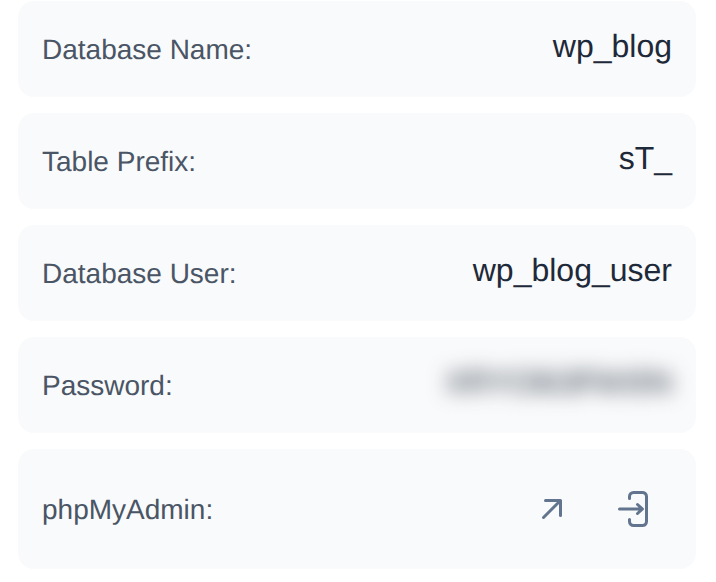
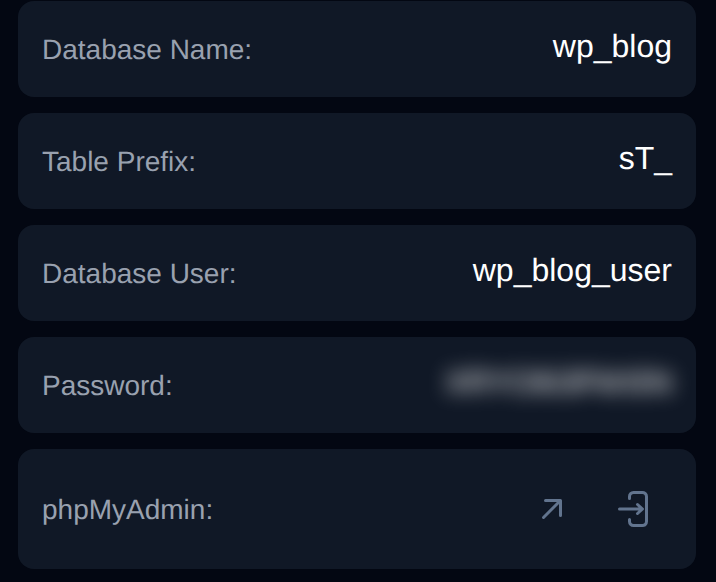
Each OpenPanel user has their own MySQL or MariaDB service, so the host is a bit different from shared hosting:
localhostconnects through a socket shared between the database and PHP. This is the default.- Never
127.0.0.1. PHP runs in its own container, and nothing listens on port 3306 inside it.
If you don't know the password, don't guess. Go to MySQL > Users and click Change Password next to the user:
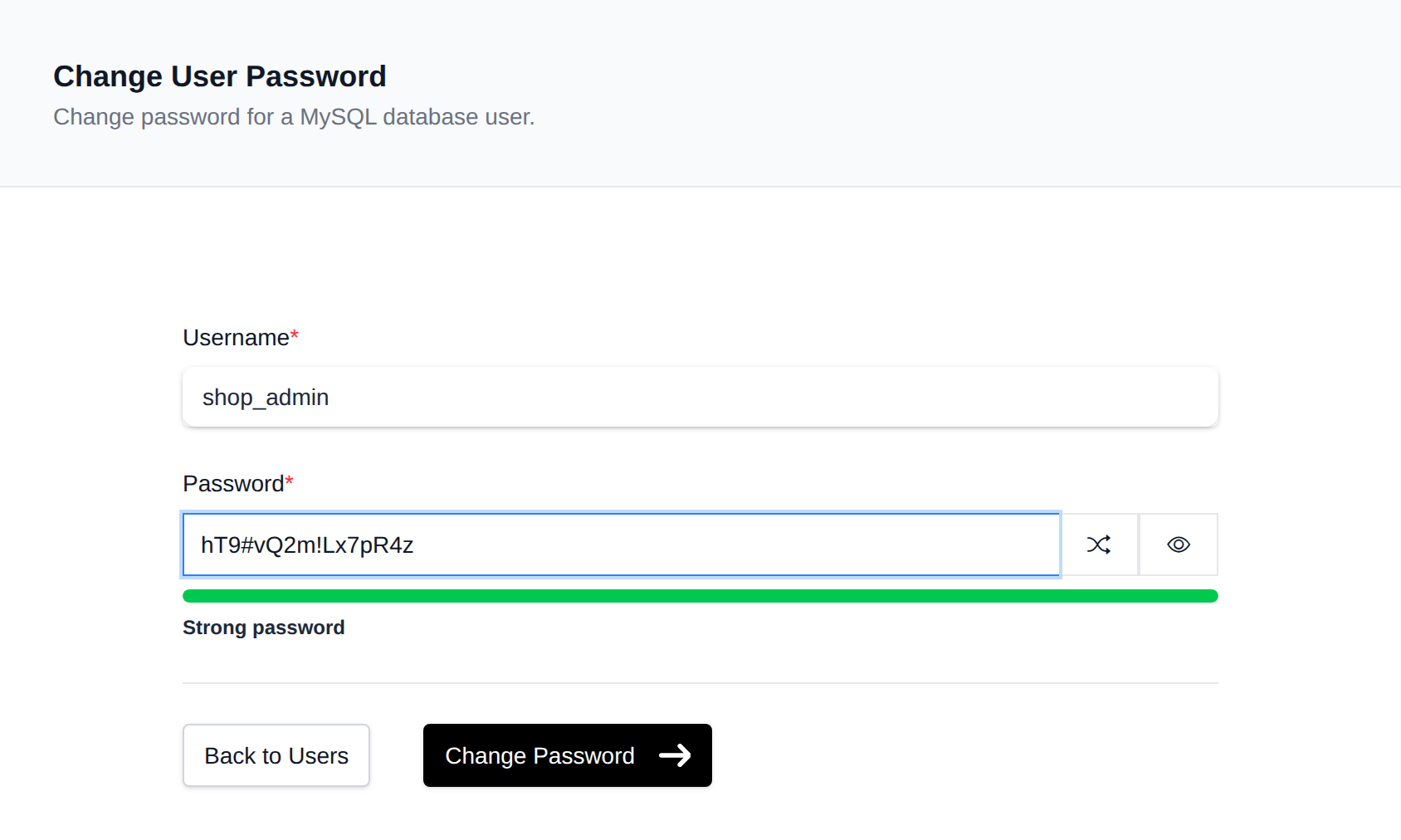
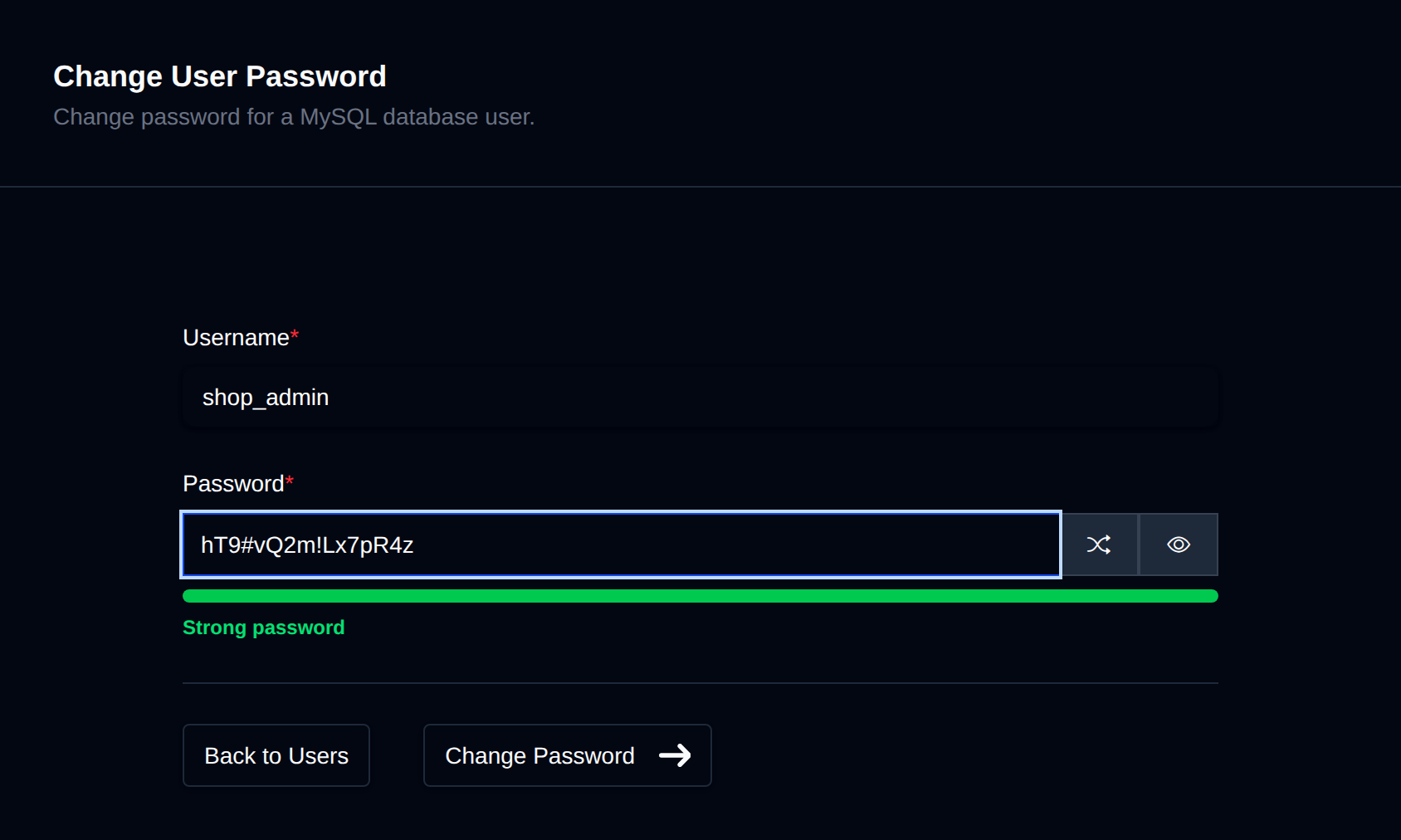
Then open wp-config.php in the File Manager, put in the new password and click Save:

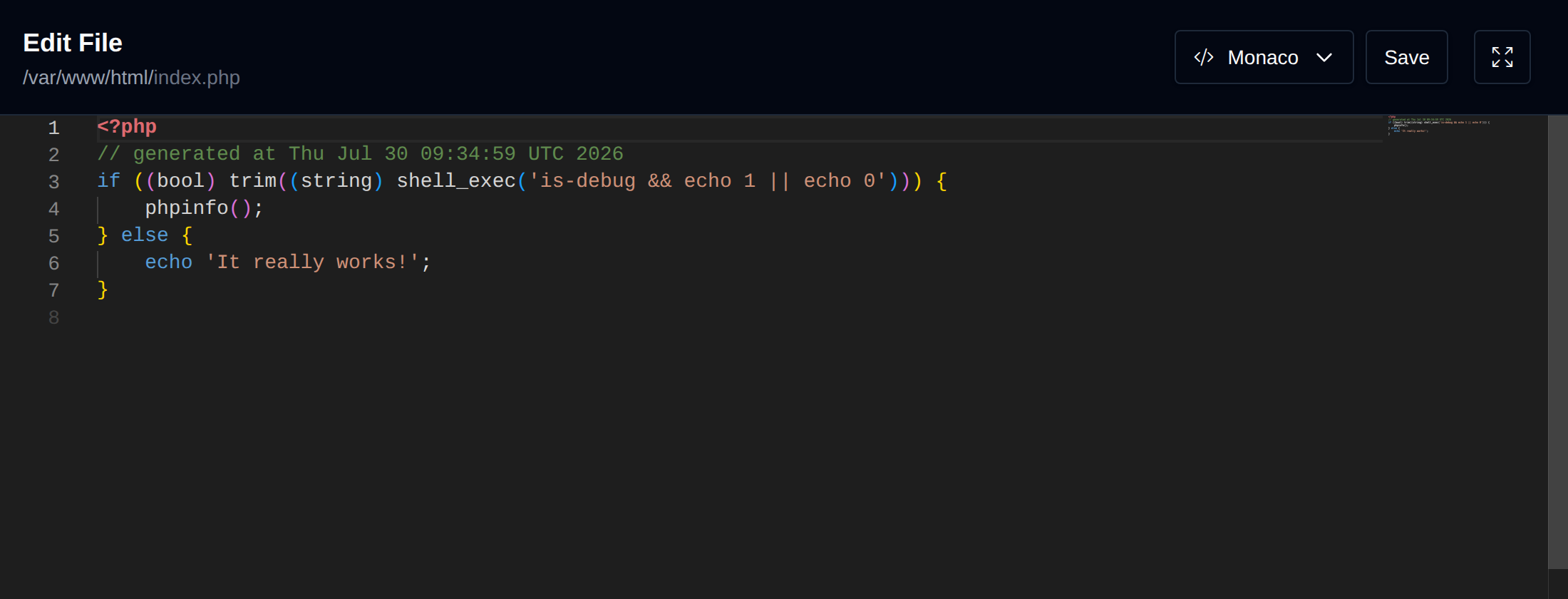
On any other server, open wp-config.php in the site's root folder and find these four lines:
define( 'DB_NAME', 'wp_blog' );
define( 'DB_USER', 'wp_blog_user' );
define( 'DB_PASSWORD', 'your-password' );
define( 'DB_HOST', 'localhost' );
Or print them with WP-CLI:
wp config get DB_NAME
wp config get DB_USER
wp config get DB_HOST
Check each value carefully:
- DB_NAME and DB_USER: many hosts add a prefix to database and user names, like
john_wp_blog. After a migration the old prefix is often still there. - DB_PASSWORD: look for copy-paste mistakes like a space at the end. If the password contains a
', it has to be escaped as\'. - DB_HOST: the most common mistake after moving to a new server.
localhostconnects through a Unix socket,127.0.0.1connects over TCP, and on some servers only one of them works. A remote database needs its host name, and a port if it isn't3306, likedb.example.com:3307.
To set a new password from the terminal:
ALTER USER 'wp_blog_user'@'localhost' IDENTIFIED BY 'new-password';
wp config set DB_PASSWORD 'new-password'
Step 3: Make sure the database server is running
If the credentials are right, the next suspect is the server itself. If all sites that use the same database server show the error, it's almost always this.
In OpenPanel, the MySQL page has a Logs tab that shows the log of your database service, and Containers > Logs shows the same for any service. Here MariaDB logs that connections were aborted:
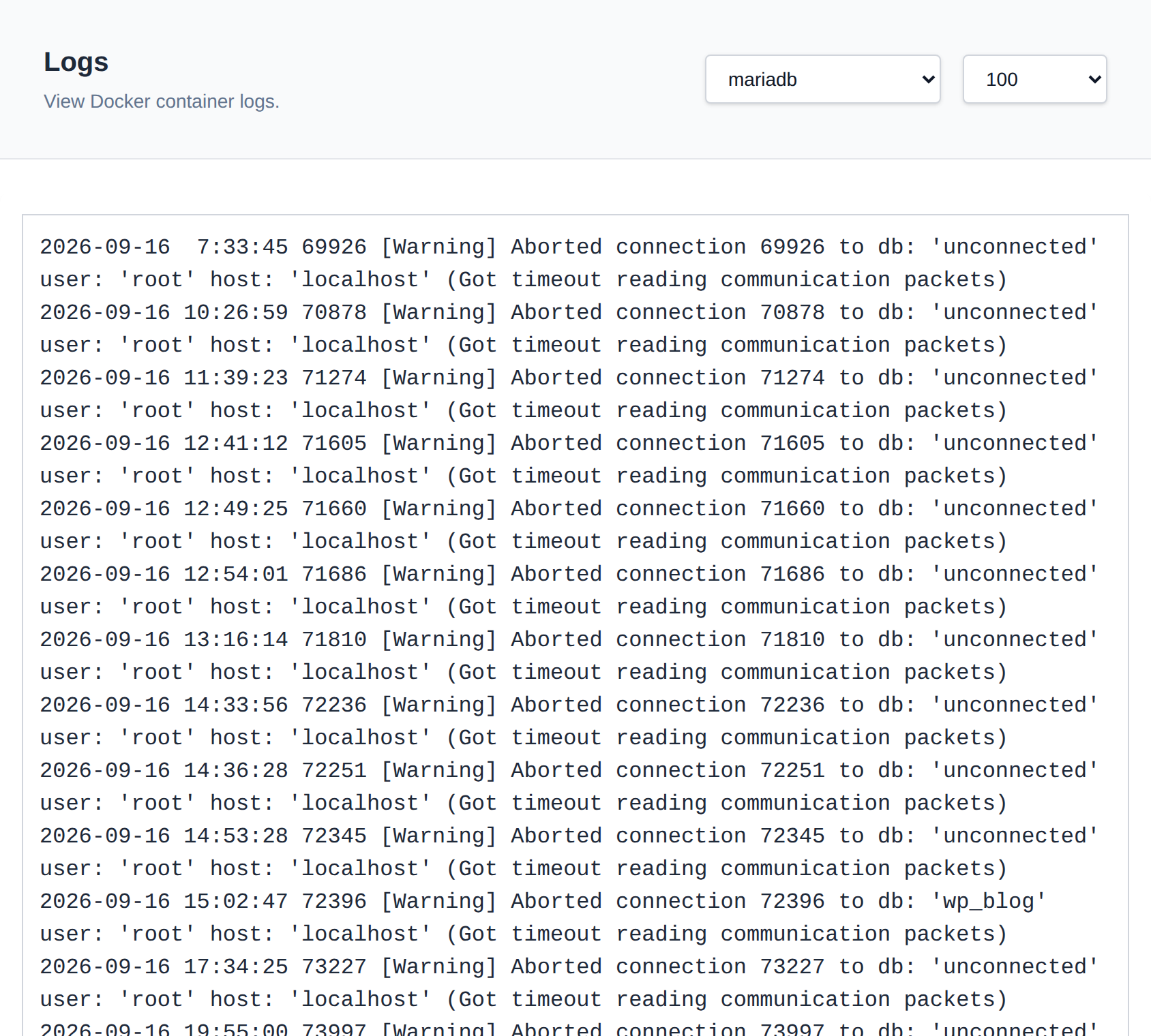
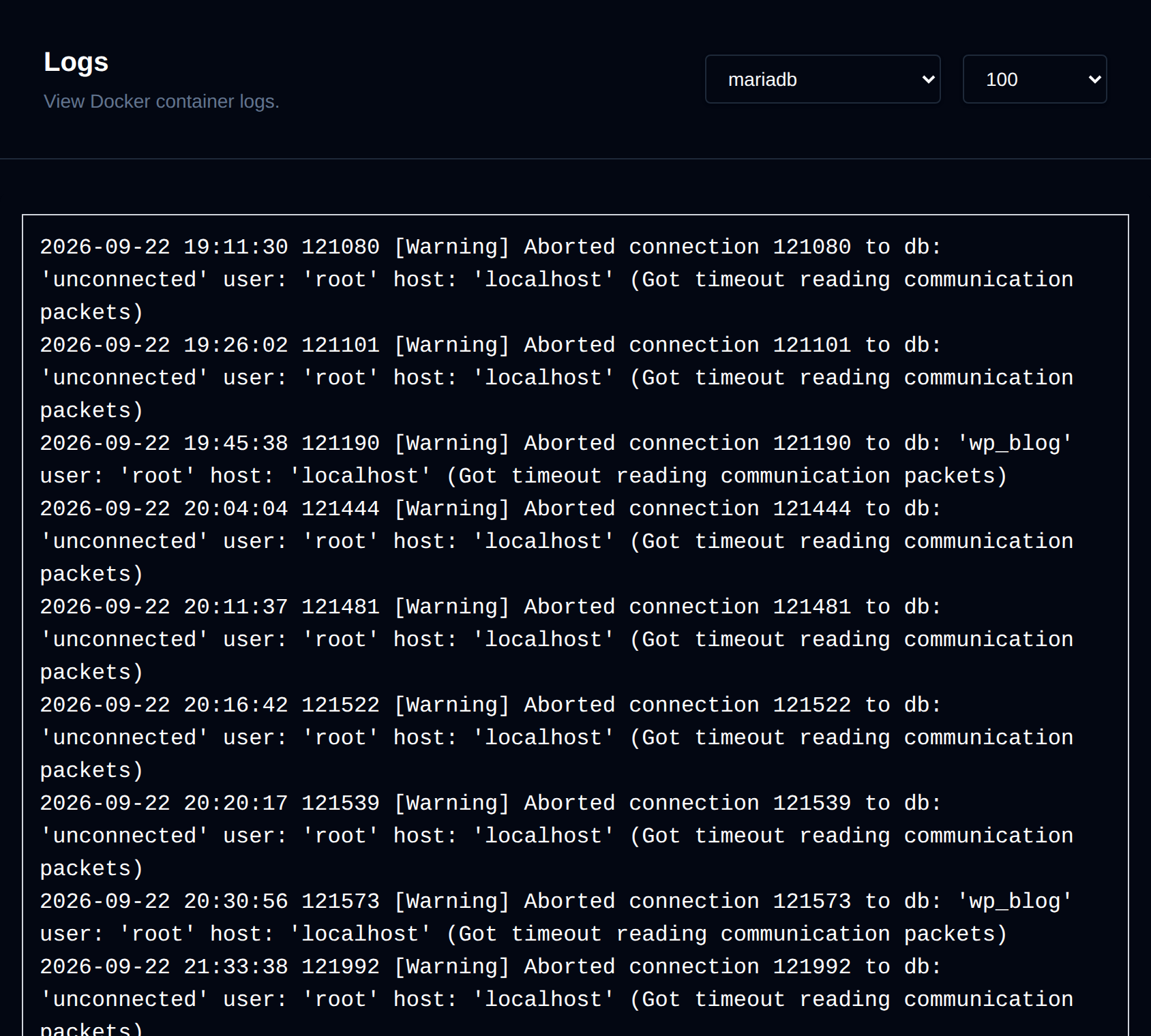
Opening MySQL > Databases starts the database service if it's stopped. If your plan includes the Docker feature, the Containers page shows how much memory the database service uses compared to its limit, and lets you start, stop or restart it and give it more memory:
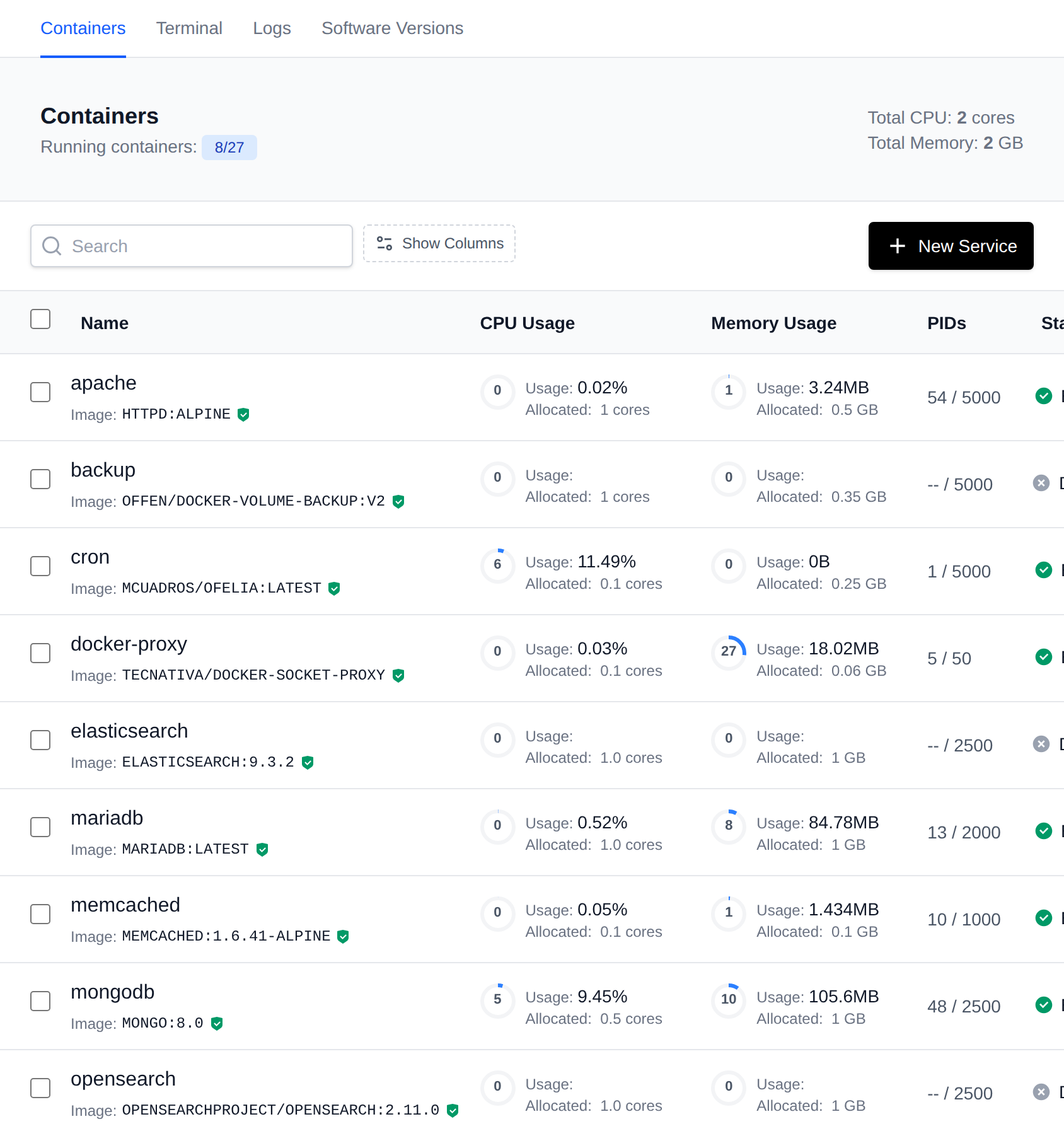
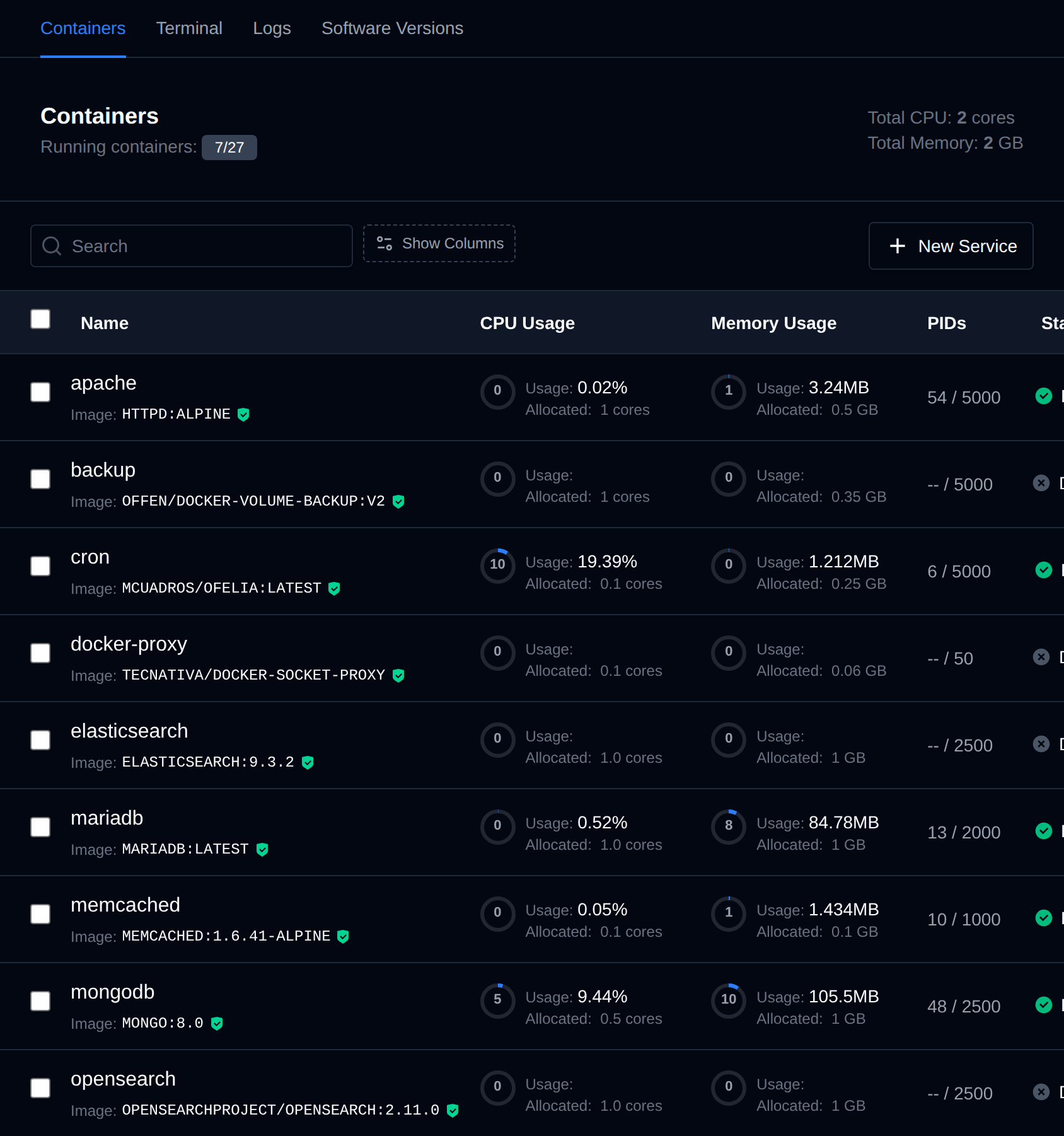
If it keeps running out of memory, the Optimize Database check on MySQL > Configuration notices when the service was stopped for running out of memory, and suggests a buffer pool size and other settings that fit its limit. To see if the disk is full, open Disk Usage.
On other servers, check if it's running:
systemctl status mysql # or mariadb
If it's stopped, look at the error log before you start it, so you know why it stopped:
journalctl -u mysql -n 100
# or
tail -n 100 /var/log/mysql/error.log
The usual reasons:
- Out of memory: the kernel killed MySQL to free memory. You'll see
Out of memory: Killed process ... (mysqld)indmesg. Lowerinnodb_buffer_pool_size, or give the server more RAM. - Disk full: MySQL can't write and stops. Check with
df -h, then clear old logs, backups or the slow query log. - Crashed after an update or corrupted InnoDB files: the error log names the table or file.
Then start it again:
systemctl start mysql
Step 4: Check the user's privileges
A user can log in to MySQL and still not be allowed to use the database. This often happens when the database is imported or recreated under the same name: the new database has no privileges for the old user.
In OpenPanel, go to MySQL > Users and click Assign User to Database. Pick the user and the database, keep all privileges checked and save:
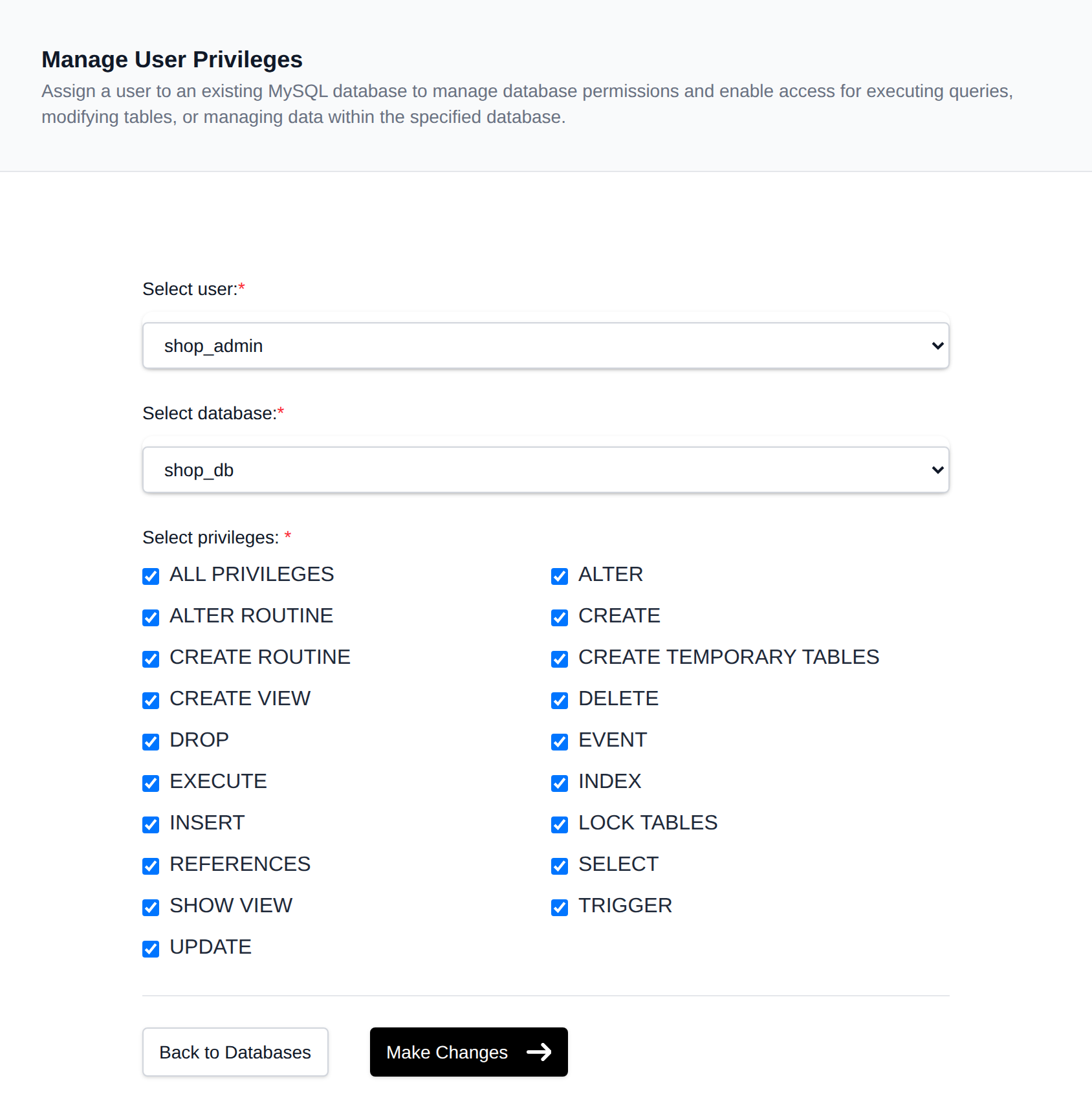
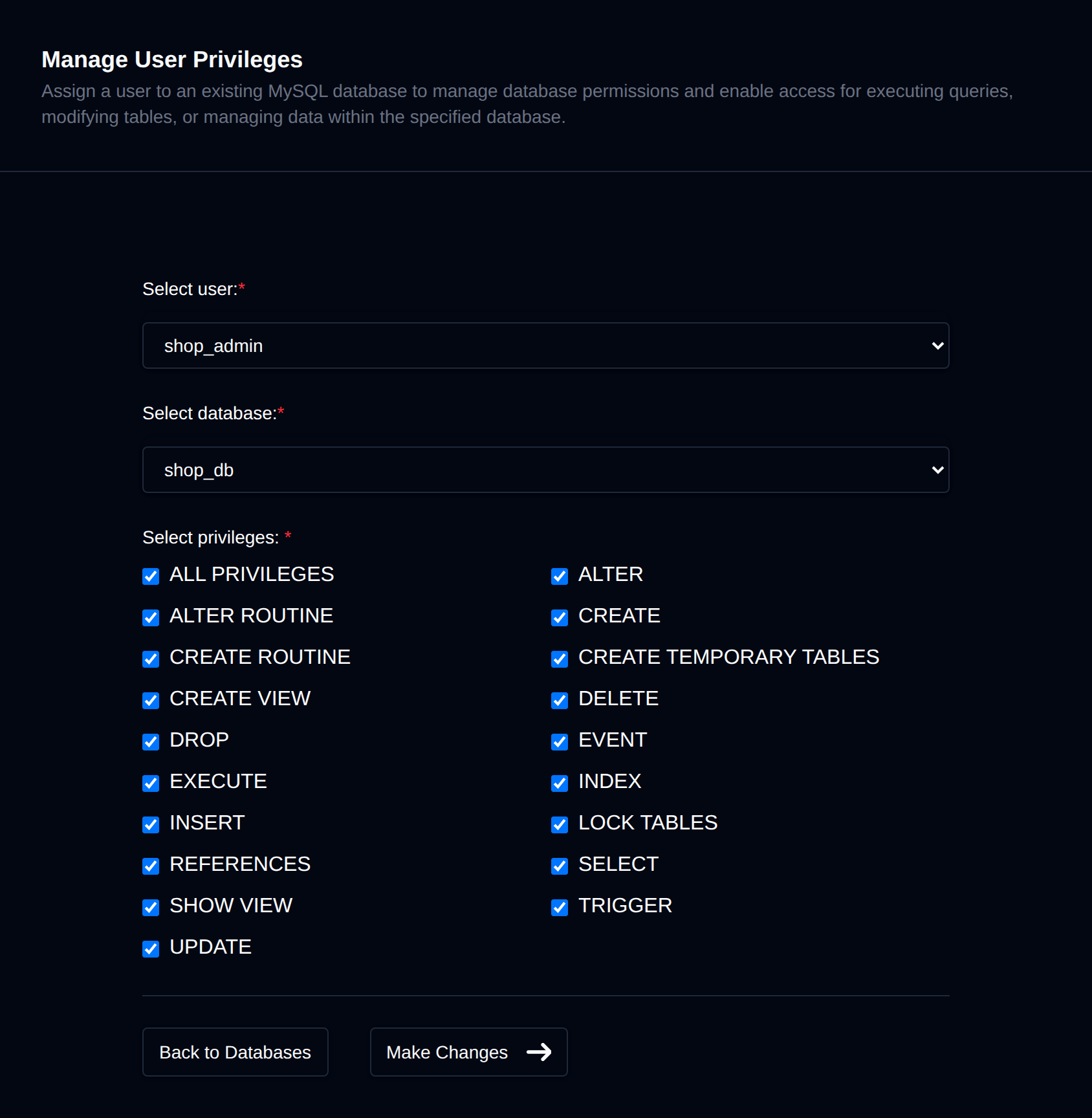
From the terminal, check what the user is allowed to do:
SHOW GRANTS FOR 'wp_blog_user'@'localhost';
If the WordPress database isn't listed, grant access:
GRANT ALL PRIVILEGES ON wp_blog.* TO 'wp_blog_user'@'localhost';
The host part matters. 'wp_blog_user'@'localhost' and 'wp_blog_user'@'%' are two different users in MySQL, and the one that's used depends on how PHP connects.
Step 5: Too many connections
If the error shows up only now and then, usually during traffic spikes, the server is probably hitting its connection limit. Each PHP request opens its own connection, and once max_connections is reached, new ones are refused.
Raising the limit is often not the real fix. Connections pile up because something keeps them busy:
- Slow queries: if each request waits seconds for the database, connections stay open longer and pile up. See How to Use mysqldumpslow for Slow Query Analysis to find them.
- Bots: brute-force attacks on
wp-login.phpandxmlrpc.phpcan open hundreds of connections a minute. - Idle connections: a high
wait_timeoutkeeps idle connections open for hours.
In OpenPanel, MySQL > Show Processes lists the queries that are running now. A long-running query can be stopped with Kill:
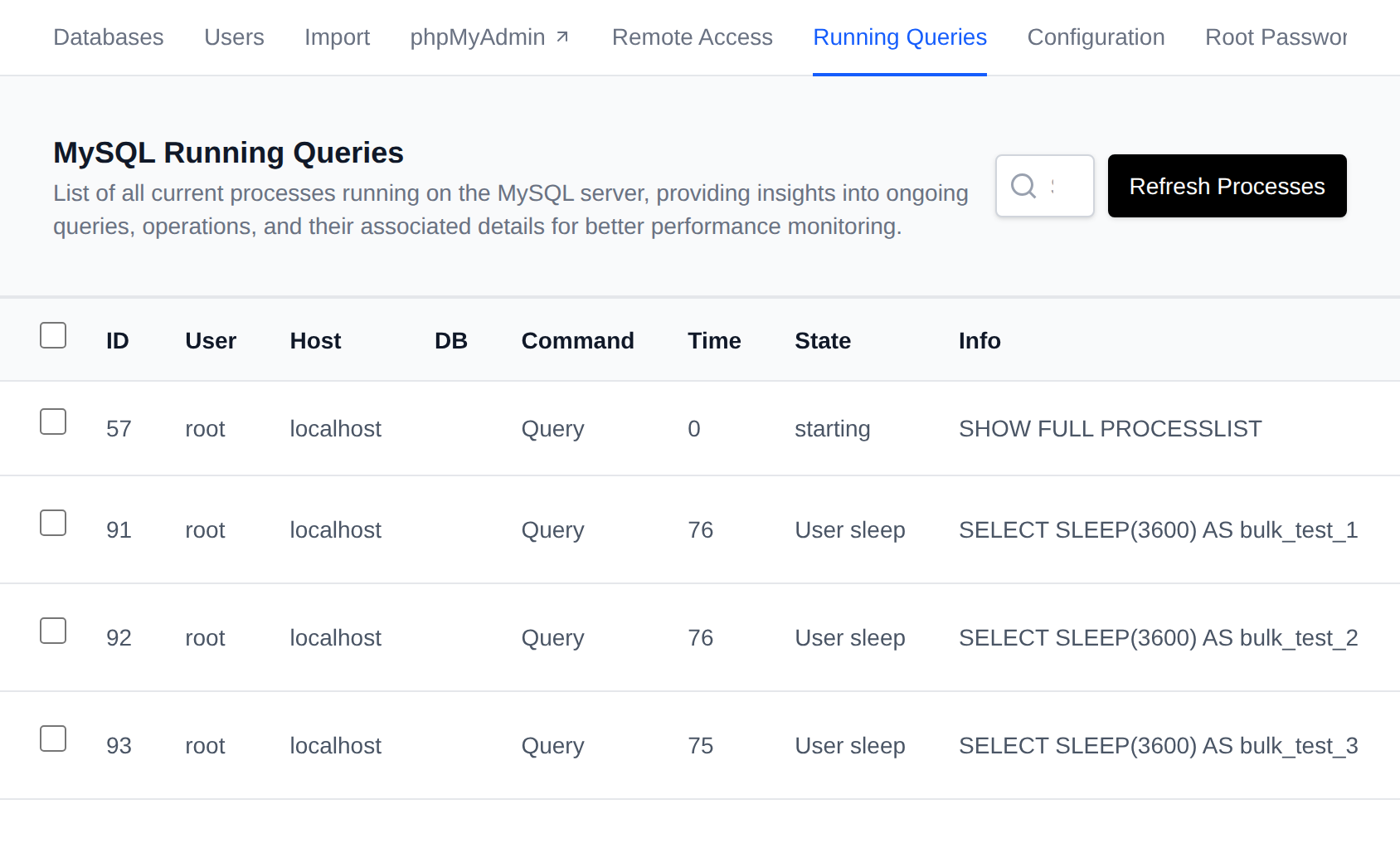
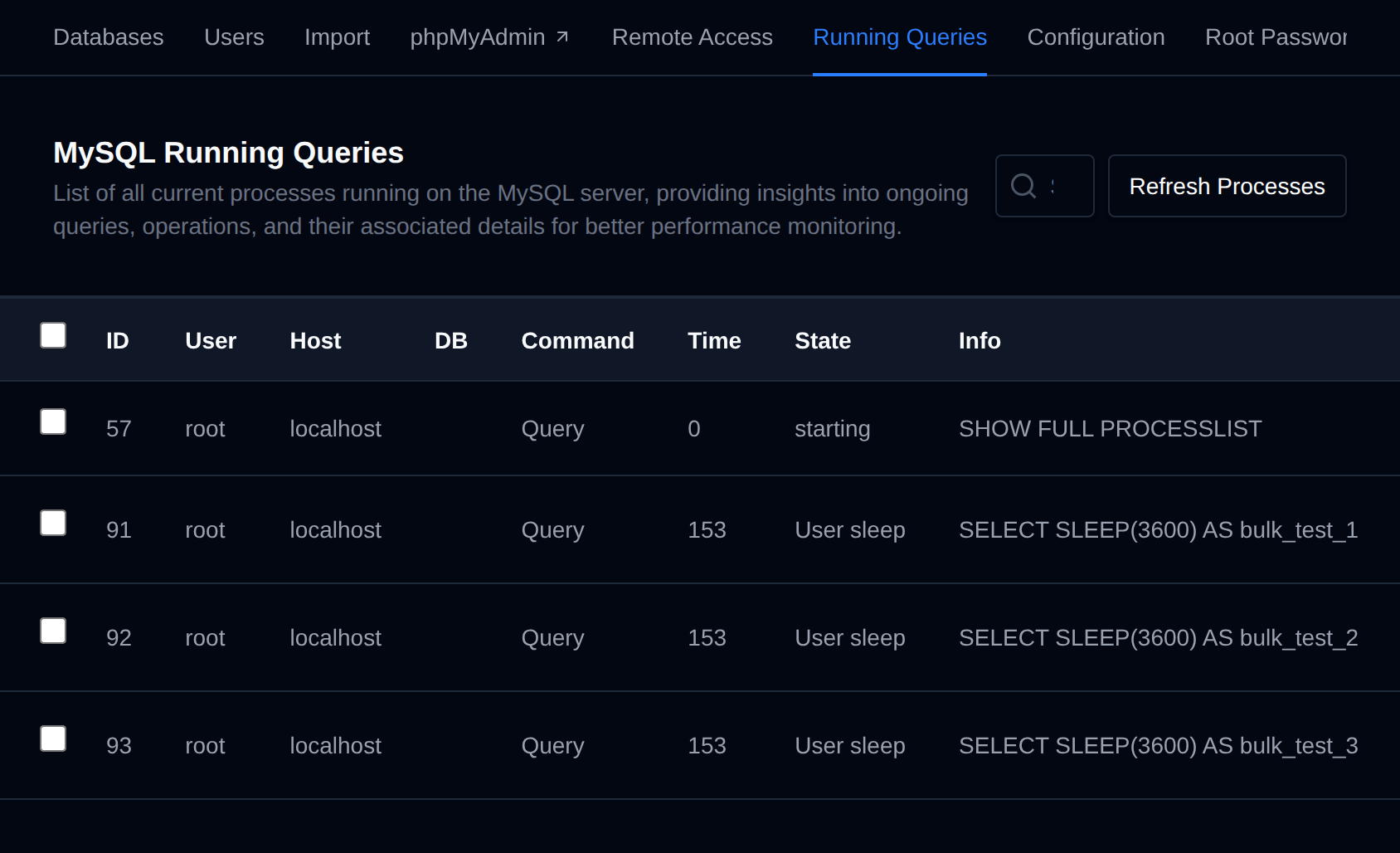
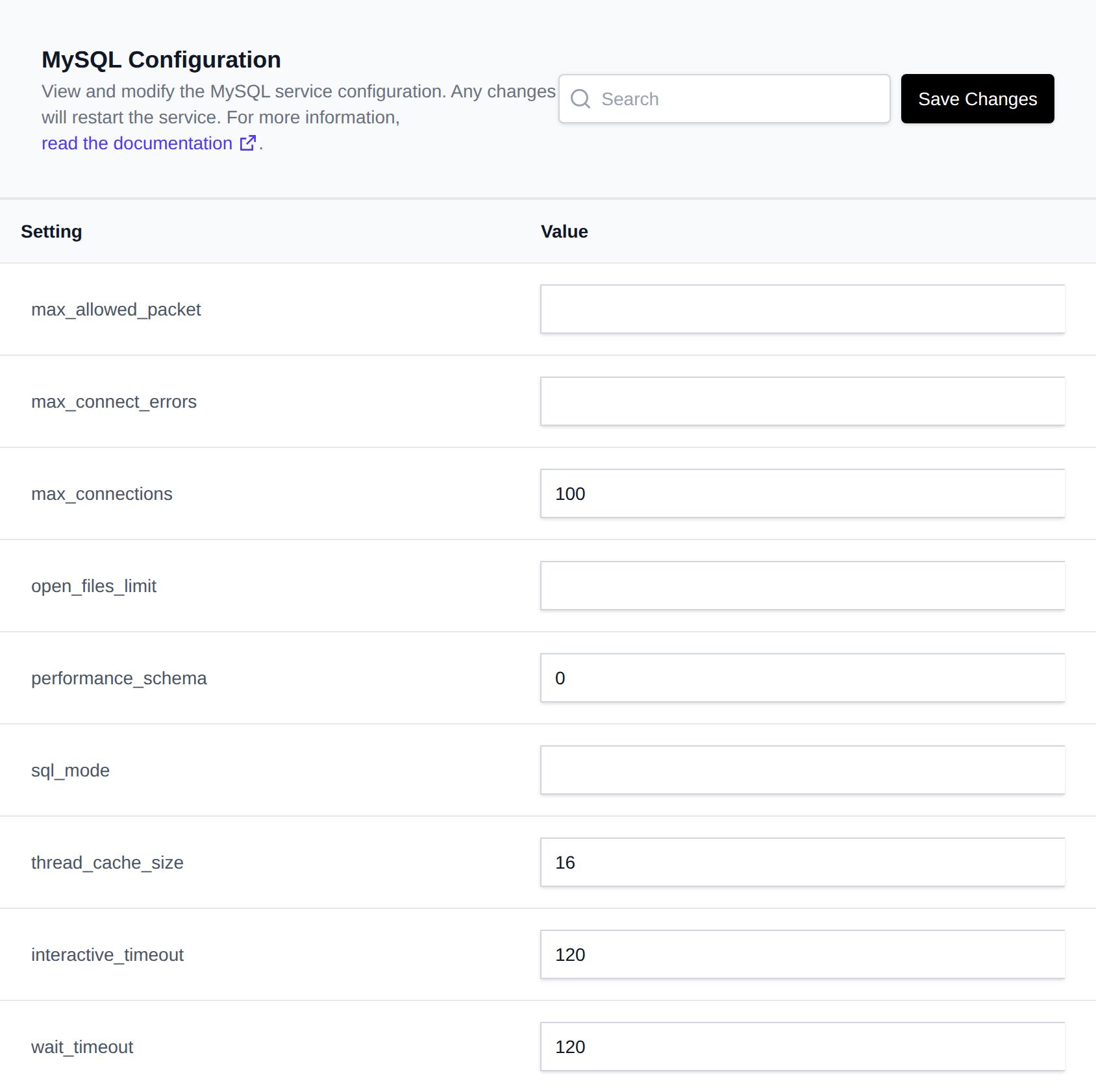
max_connections and wait_timeout can be changed on MySQL > Configuration. The Optimize Database check there looks for Too many connections errors and refused connections, and for many idle ones, and suggests values for both.
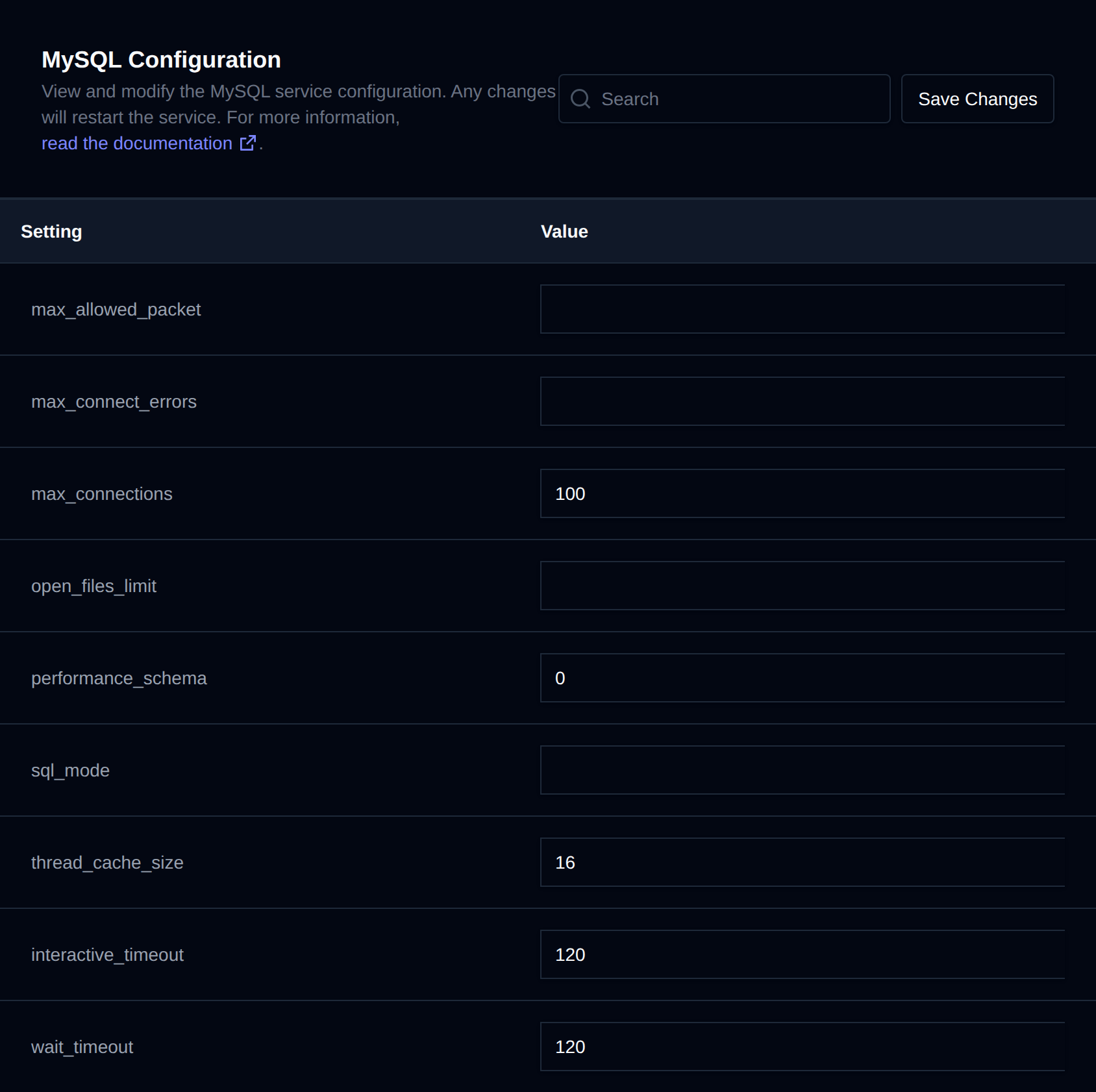
To cut the bot traffic, turn on Block access to xmlrpc.php and Mitigate Spam Logins and Comments in the site's Security tab in WordPress Manager. Turning on the Varnish page cache and Redis object cache on the Cache tab also means fewer requests reach the database at all.
From the terminal, compare the limit with the highest number of connections since the server started:
SHOW VARIABLES LIKE 'max_connections';
SHOW GLOBAL STATUS LIKE 'Max_used_connections';
SHOW GLOBAL STATUS LIKE 'Threads_connected';
If Max_used_connections is equal to max_connections, the limit was reached. To see what's running right now:
SHOW FULL PROCESSLIST;
Step 6: Repair corrupted tables
If the front of the site shows the error but wp-admin shows "One or more database tables are unavailable. The database may need to be repaired.", the connection works and a table is damaged. This mostly happens to MyISAM tables after a crash or a full disk.
In OpenPanel, go to MySQL > Databases and click Repair next to the database. A dialog lists every table with its engine and size, and checks and fixes the MyISAM and Aria ones. InnoDB tables are shown as Not needed.
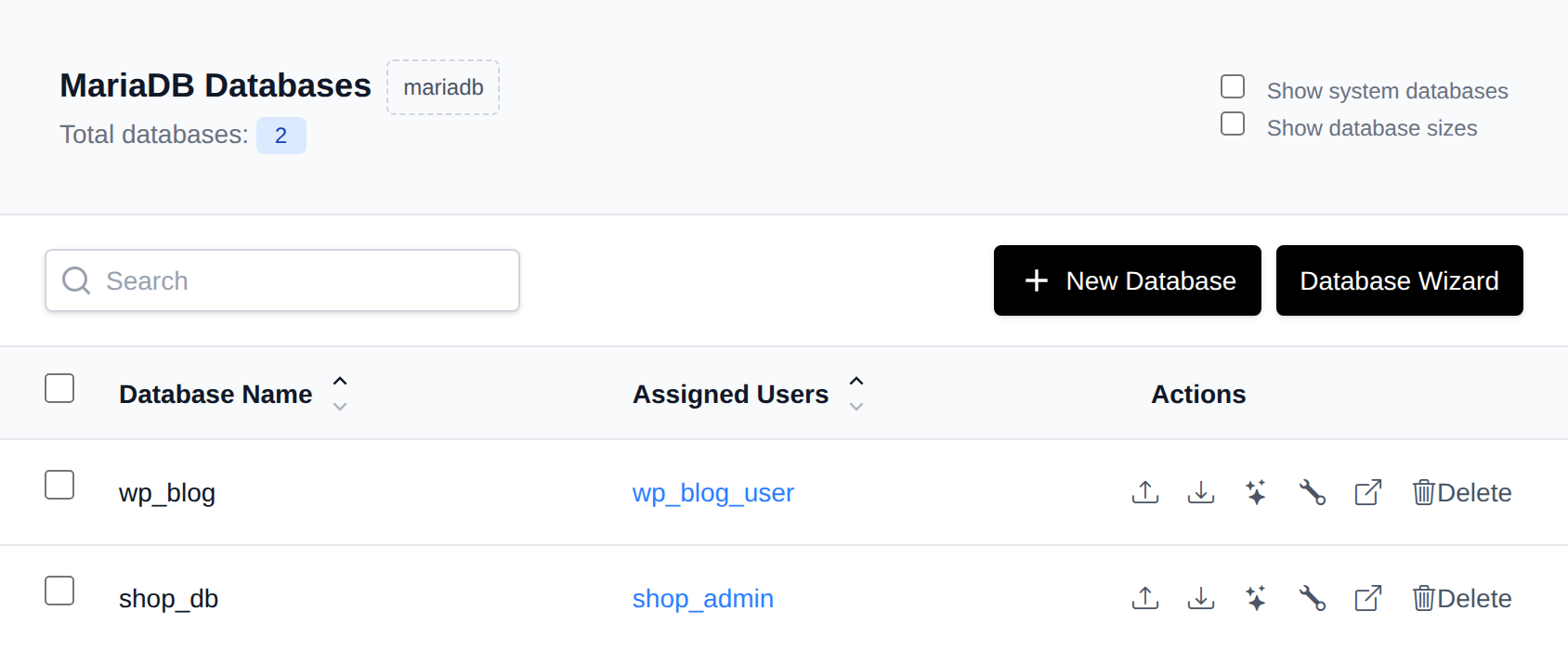
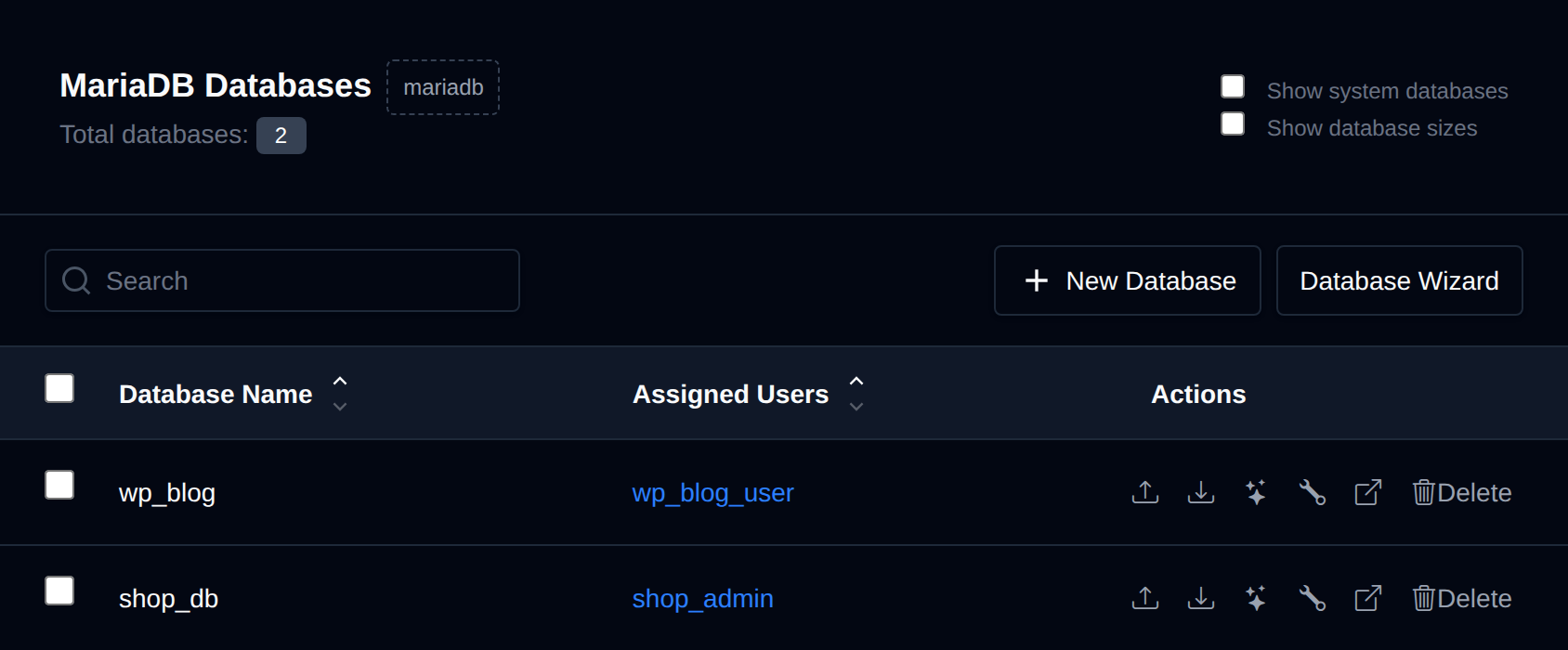
From the terminal, mysqlcheck does the same:
mysqlcheck --repair wp_blog -u wp_blog_user -p
WordPress also has a built-in repair page. Add this to wp-config.php:
define( 'WP_ALLOW_REPAIR', true );
Open https://yourdomain.com/wp-admin/maint/repair.php and click Repair Database. The page works without logging in, so remove the line again as soon as the repair is done.
InnoDB tables can't be repaired this way. InnoDB recovers on its own when the server starts, and if it can't, the error log says so. Convert old MyISAM tables to InnoDB when you get the chance, so it doesn't happen again:
ALTER TABLE wp_options ENGINE=InnoDB;
If nothing helps and the database is beyond repair, restore it from a backup, for example from the site's Backups tab in WordPress Manager.
Still not working?
A few less common causes:
- The database was deleted or never imported: the
1049 Unknown databaseerror. Import it from a backup. - Wrong table prefix: if
$table_prefixinwp-config.phpdoesn't match the tables in the database, WordPress connects but finds no tables, and starts the install screen instead. Compare it with the table names in phpMyAdmin. - Corrupted WordPress core files: rare, but a broken
wp-includes/class-wpdb.phpafter a failed update causes the same error. Reinstall the core files (in OpenPanel, Reinstall on the site's Security tab). - The database server is on another host: check that its firewall allows connections from your web server on port 3306.
Quick checklist
# 1. What does MySQL say?
php db-test.php        # or turn on WP_DEBUG

# 2. Are the credentials right?
grep DB_ wp-config.php

# 3. Is the server running, and why did it stop?
systemctl status mysql
journalctl -u mysql -n 100
df -h

# 4. Does the user have privileges?
mysql -e "SHOW GRANTS FOR 'wp_blog_user'@'localhost'"

# 5. Too many connections?
mysql -e "SHOW GLOBAL STATUS LIKE 'Max_used_connections'; SHOW VARIABLES LIKE 'max_connections'"

# 6. Damaged tables?
mysqlcheck --repair wp_blog
Summary
"Error establishing a database connection" always means WordPress can't reach its database. Get the real MySQL error first, and it points you to the cause: credentials, a stopped server, missing privileges, too many connections or damaged tables.
With OpenPanel, every user has their own isolated MySQL or MariaDB service, so a busy or broken site on the same server can't take your database down with it. And you can work through every step in this guide from the panel, no SSH or root access needed: database details in WordPress Manager, passwords and privileges on MySQL Users, logs and restarts in Containers, and connection limits and table repairs on the Configuration and Databases pages.