Databases
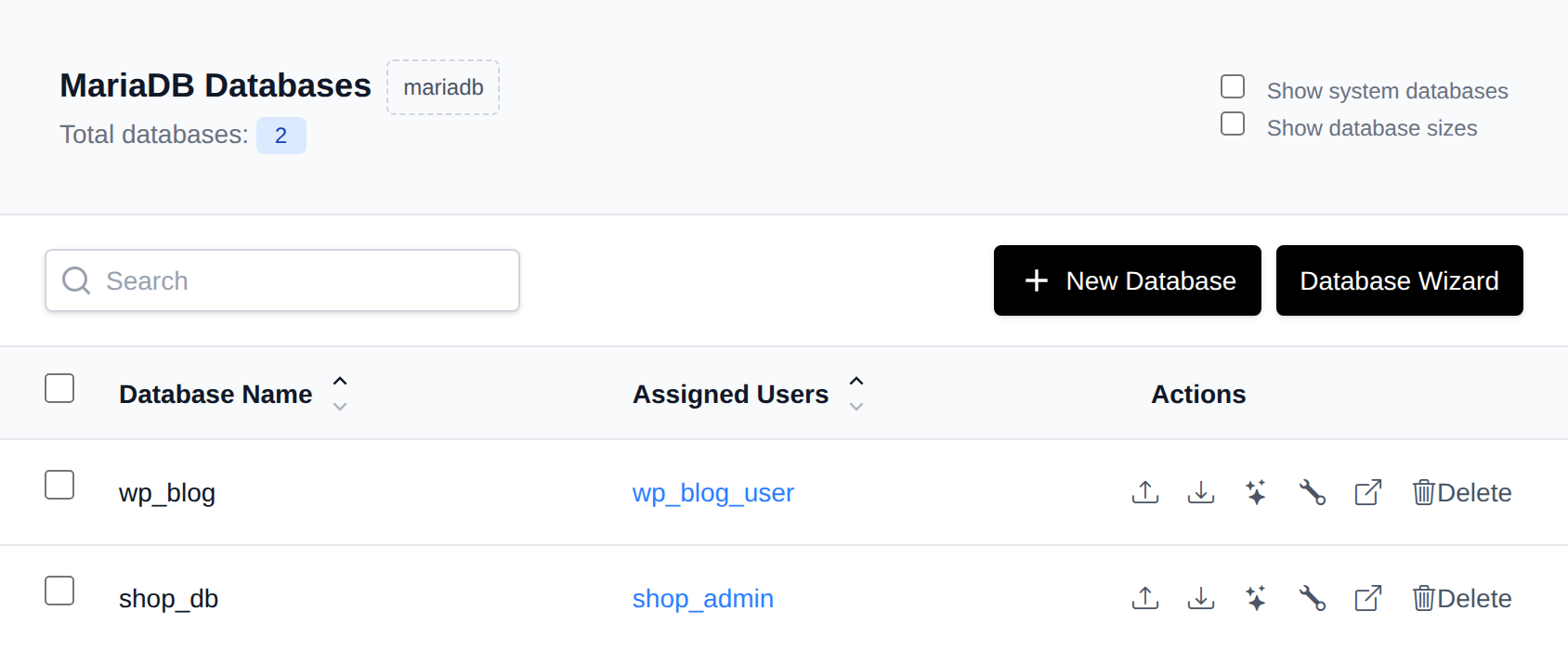
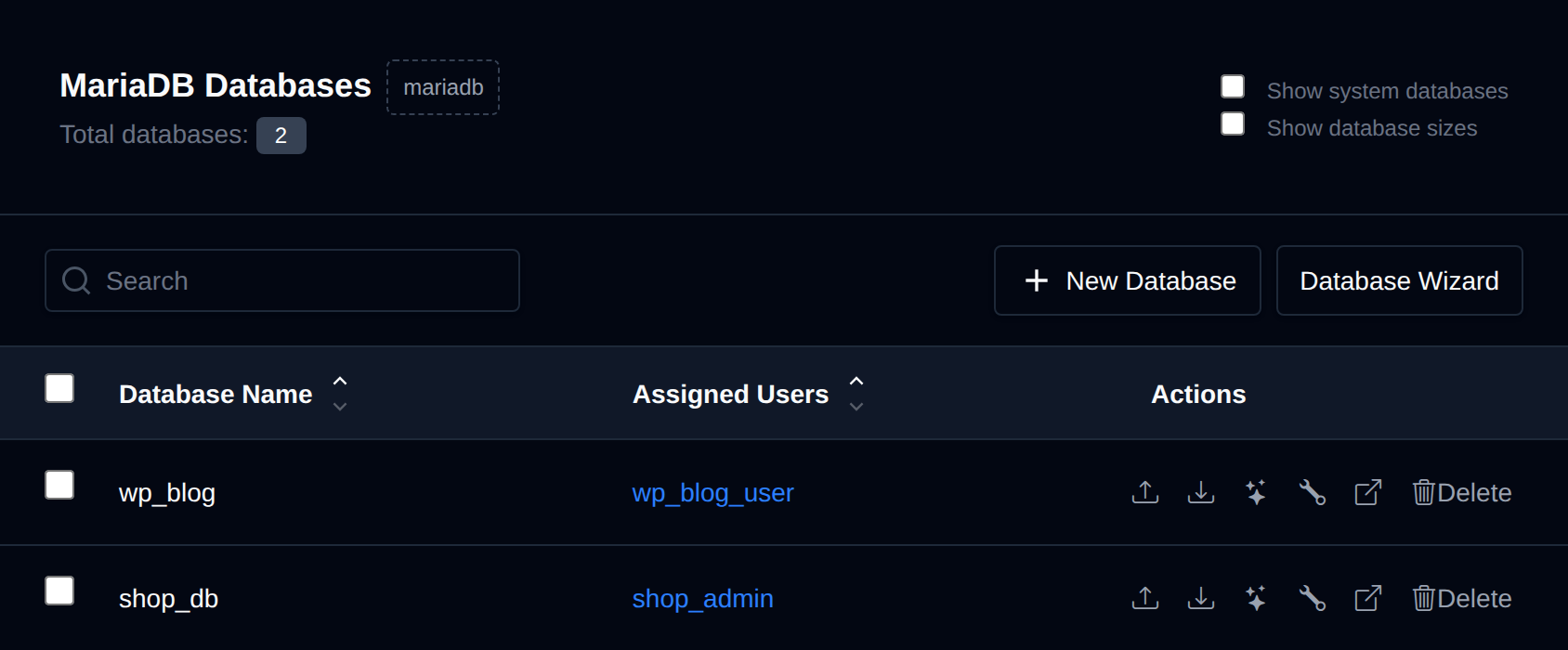
MySQL databases are used to store and manage your website's data, such as content, user information, and product details, making it accessible and organized for your web applications.
On the Databases page, you can view and manage your MySQL databases.
The page provides a table containing your Databases, along with options related to them. By default, internal/system databases are hidden — enable Show system databases to display them. Sizes are not loaded by default either; enable Show database sizes to fetch and display each database's size, and pick the unit (B, KB, MB, or GB) from the dropdown next to it.
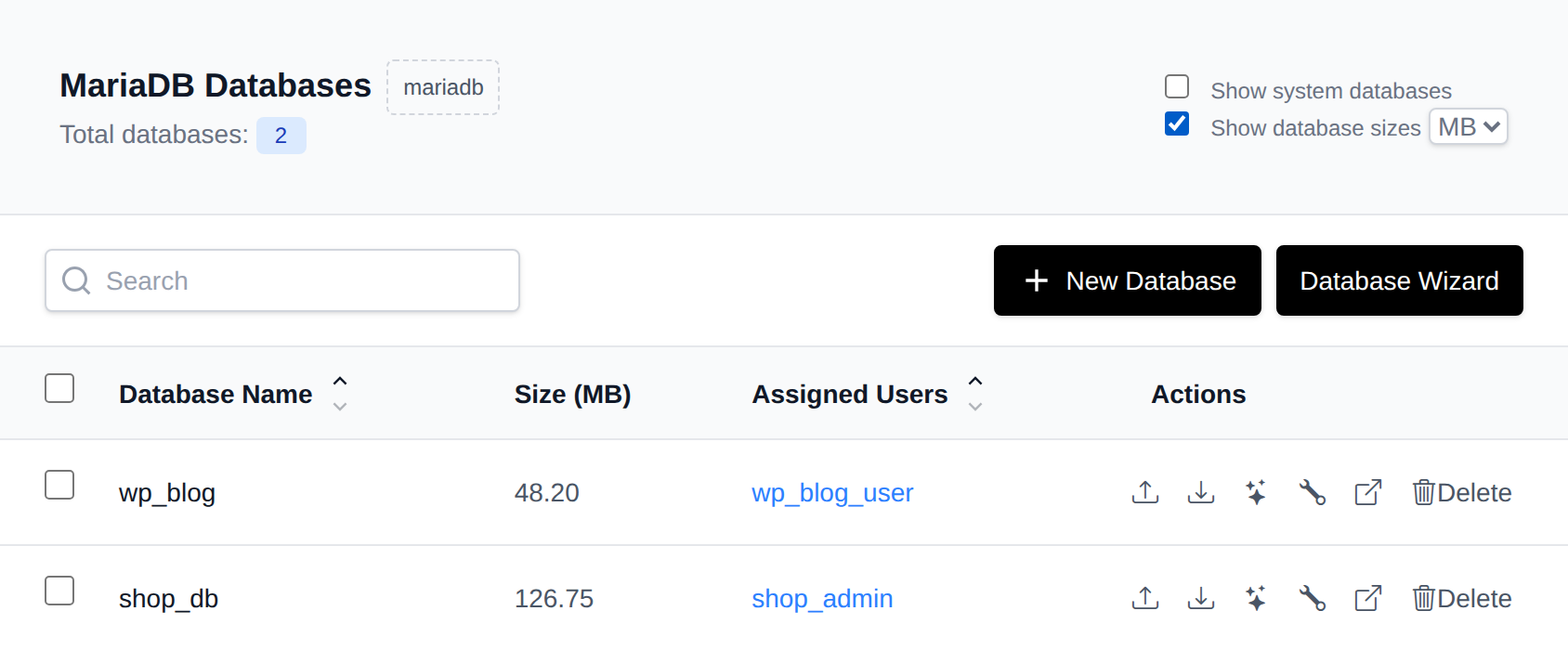
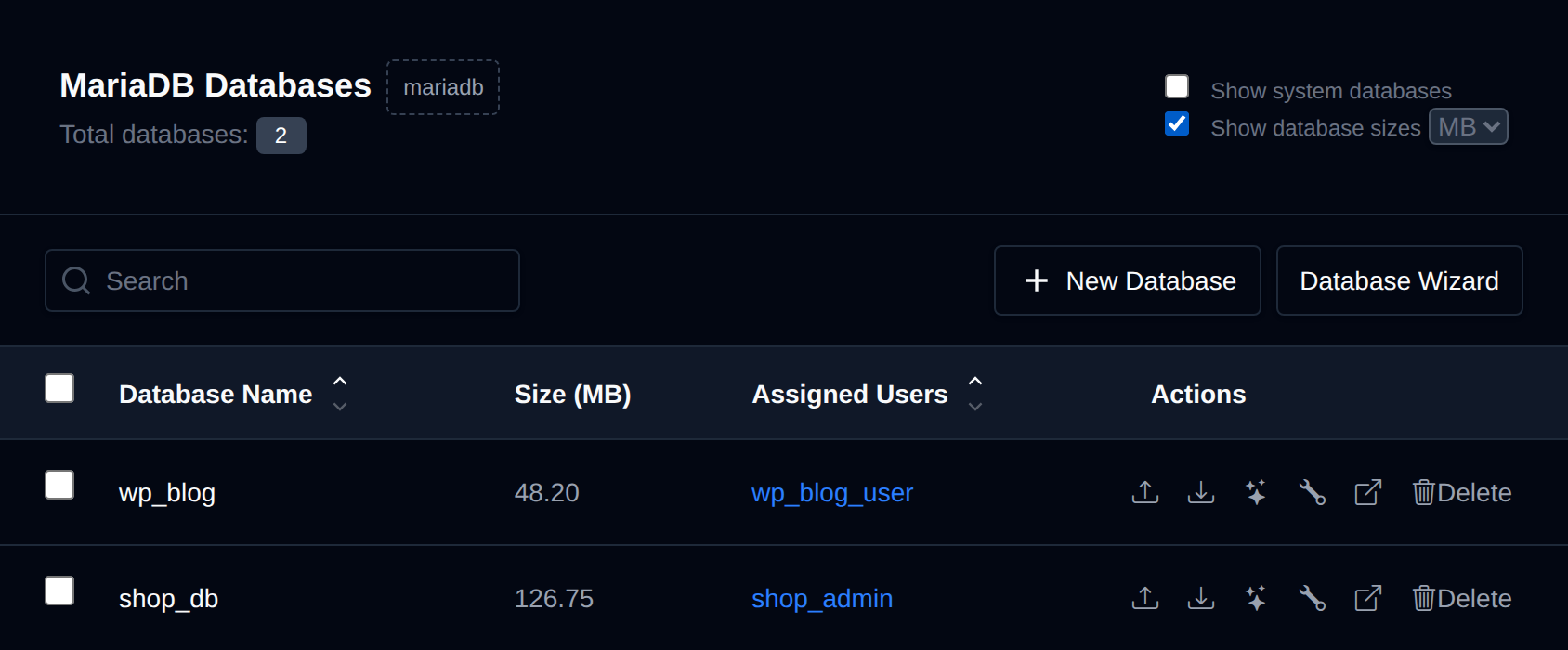
Available options on the Databases page are:
- View Databases and assigned Users
- Create a new database
- Import, export, optimize, or repair a database
- Open a database in phpMyAdmin
- Delete a MySQL Database
The New Database and Database Wizard buttons are disabled while the database service is not running.
Connection info
When connecting to a database from PHP applications (for example in wp-config.php or a Laravel .env file), use localhost as the database host. PHP reaches the database through a Unix socket shared between the database and PHP containers, so no port is needed.
Non-PHP applications (Node.js, Python, Ruby, Java...) run in their own containers, so they connect with the service name, mysql or mariadb, on port 3306. That also still works from PHP, and it's what accounts created before the socket was added need to use.
Never use 127.0.0.1. More examples: Connecting to MySQL from applications.
Create a MySQL Database
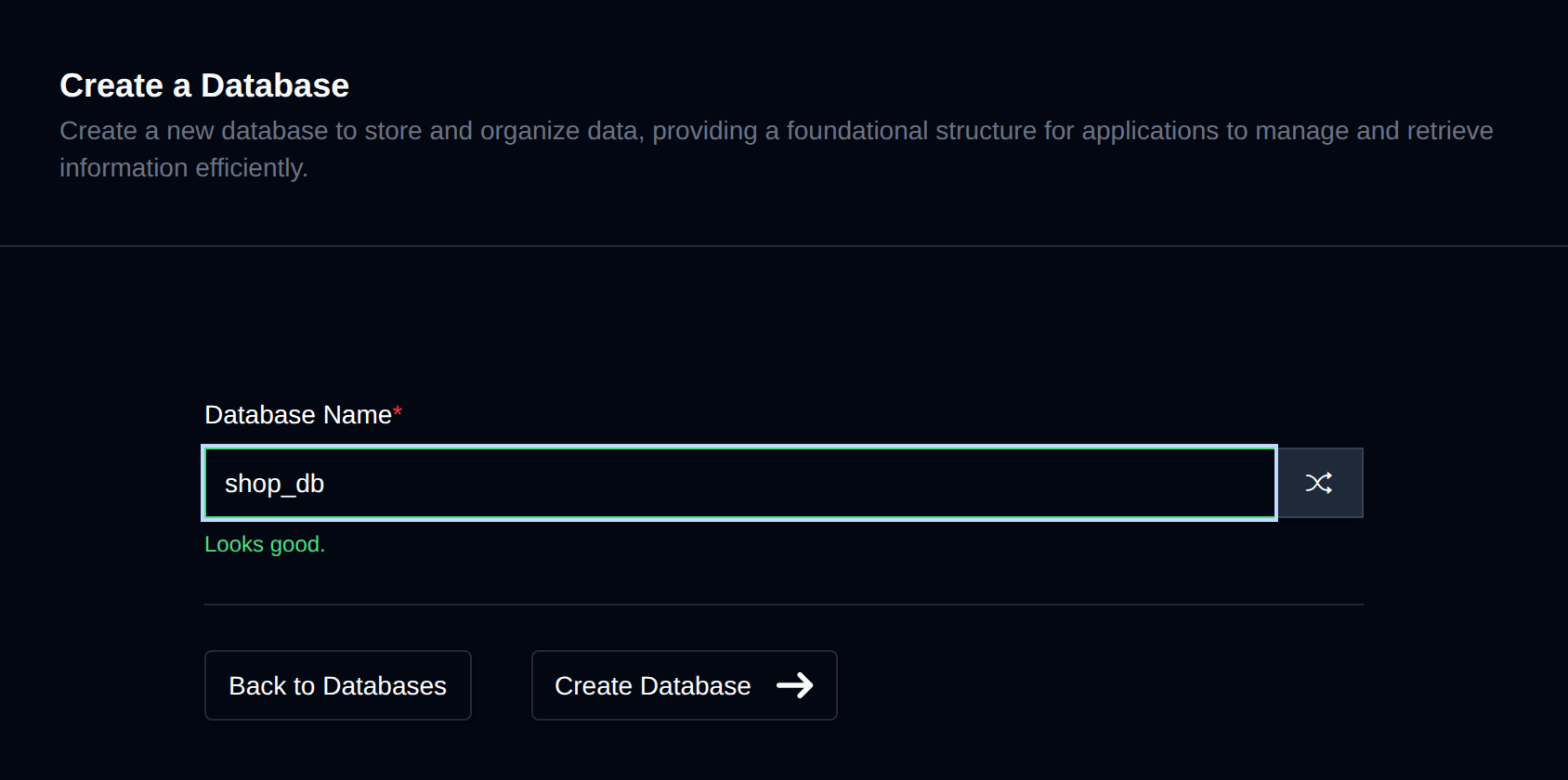
To create a new MySQL database, click on the "New Database" button and fill in the name of the new database:
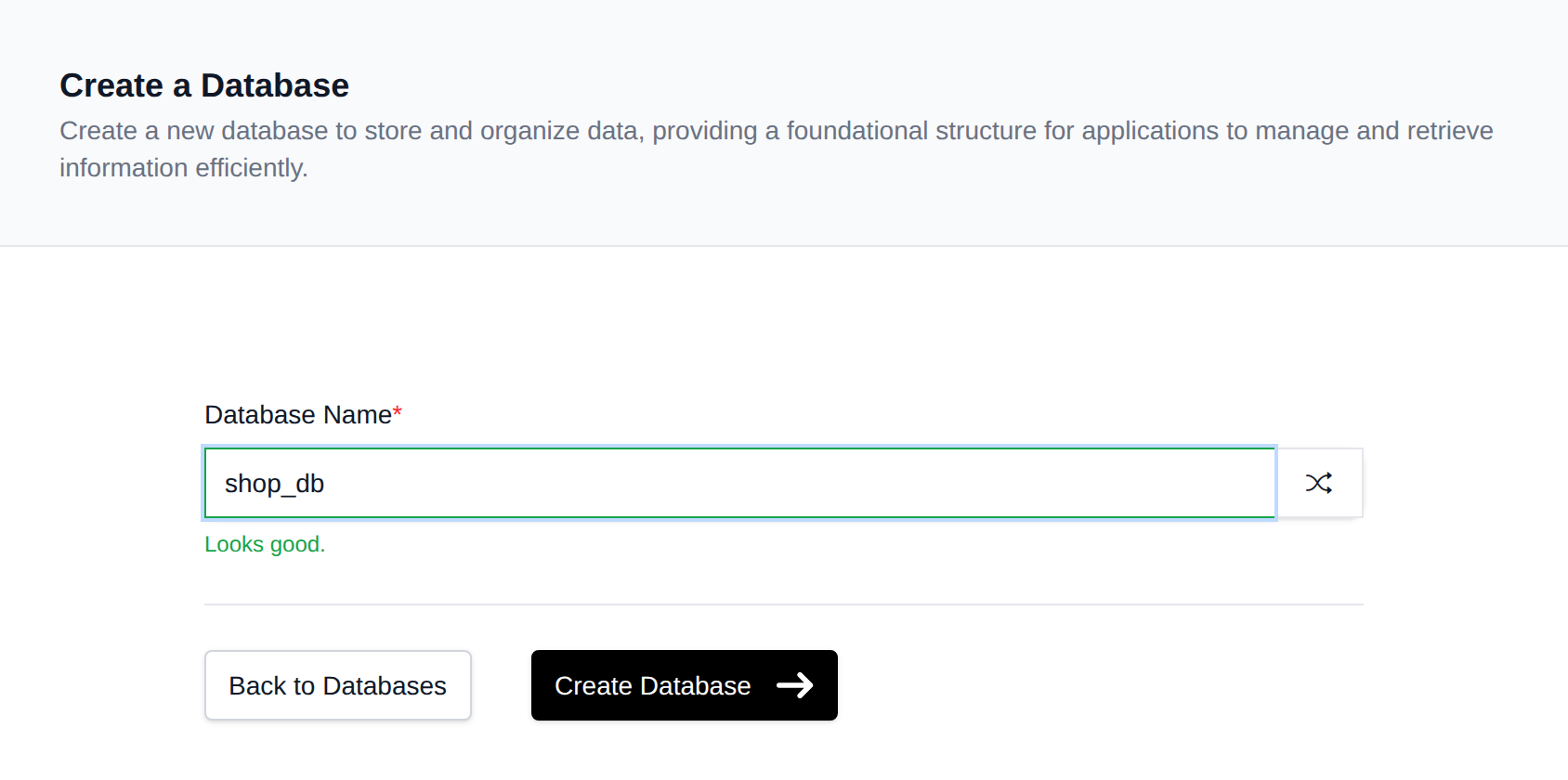
You can also use the Database Wizard to create a database, a user, and assign it in one step.
Database Actions
Each database row (except system databases) has a row of action buttons:
-
Import – Only shown if the Import feature is enabled for your account. Opens the Import page with this database pre-selected.
-
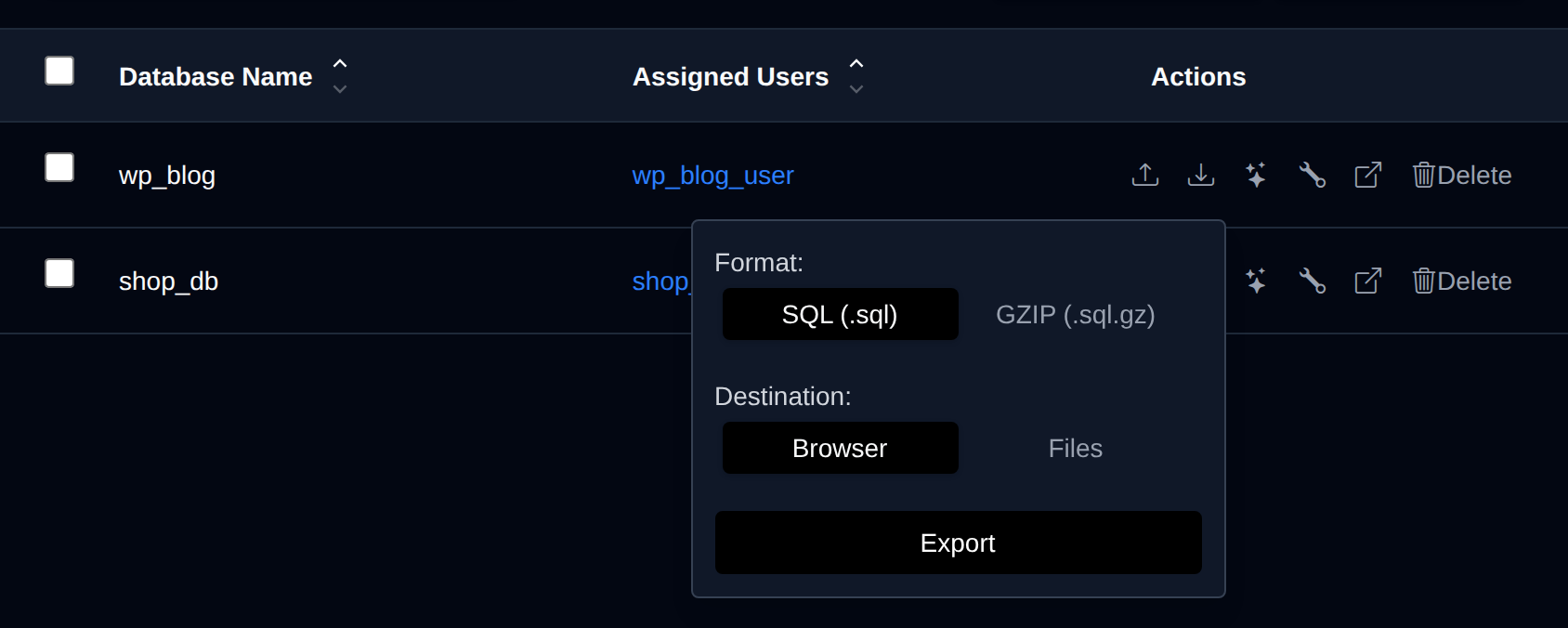
Export – Opens a small panel where you choose the export Format (
SQLorGZIP) and Destination (download to your Browser, or save to a Files path under/var/www/html/), then click Export.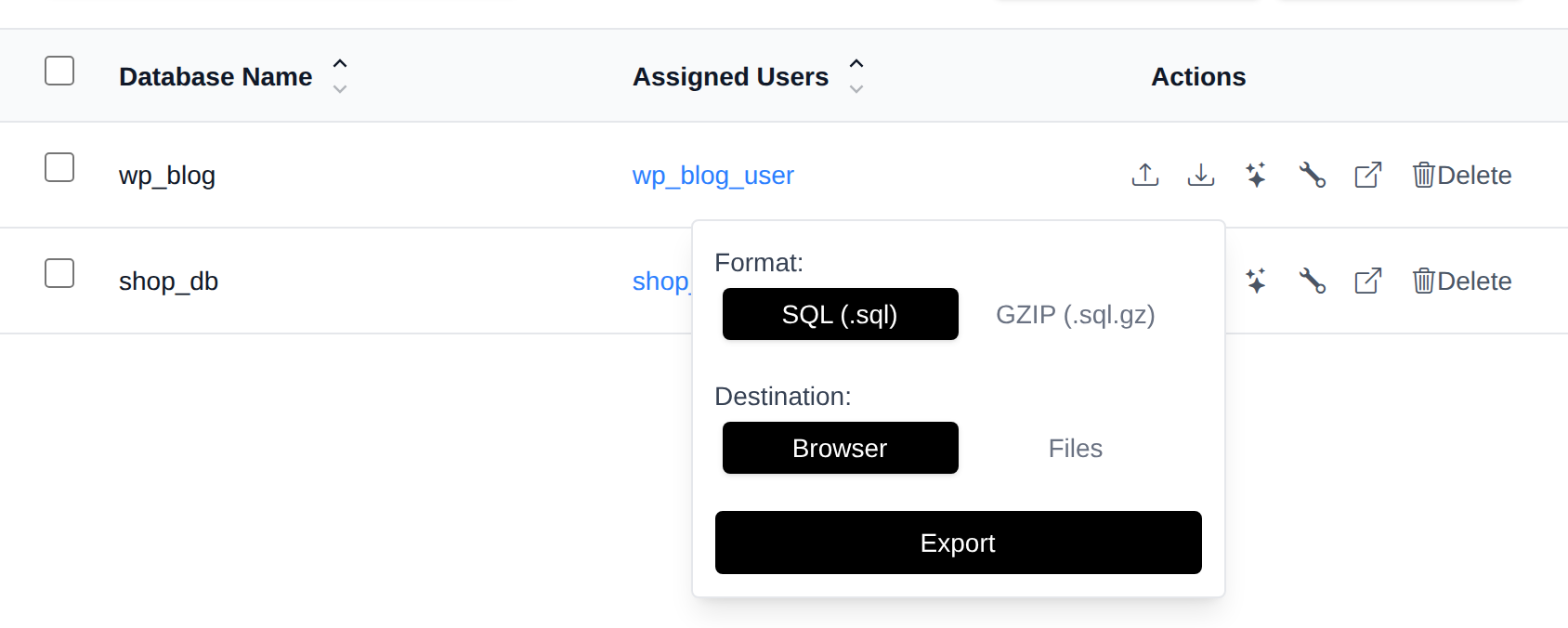
-
Optimize – Opens the Optimize and Repair dialog to rebuild the tables and free up unused space.
-
Repair – Opens the Optimize and Repair dialog to check and fix damaged tables.
-
phpMyAdmin – Only shown if phpMyAdmin is enabled for your account. Opens phpMyAdmin directly on this database in a new tab.
-
Delete – Permanently deletes the database.
Optimize and Repair
Clicking Optimize or Repair opens a dialog that lists every table in the database with its storage engine and size. For Optimize it also shows how much Unused space each table has, and the footer shows the total. Nothing runs until you click Optimize tables or Repair tables.
- Optimize rebuilds each table to free up unused space left behind by deleted rows and to defragment indexes. Tables are briefly locked while they are rebuilt, so run it when your site is quiet. When it finishes, the footer shows how much space was freed.
- Repair checks each table for damage and fixes it. Only MyISAM, Aria and ARCHIVE tables can be repaired. InnoDB tables recover on their own, so they show Not needed.
After it runs, each table shows a short result:
| Result | Meaning |
|---|---|
| OK | The table was optimized or checked and is fine. |
| Rebuilt | InnoDB doesn't support OPTIMIZE directly, so the table was recreated and analyzed instead, which has the same effect. |
| Not needed | The table doesn't need this action, for example Repair on an InnoDB table. |
| Failed | Something went wrong. Hover over the result to see the message from MySQL. |
Views are not listed, since they don't store any data.
Bulk Actions
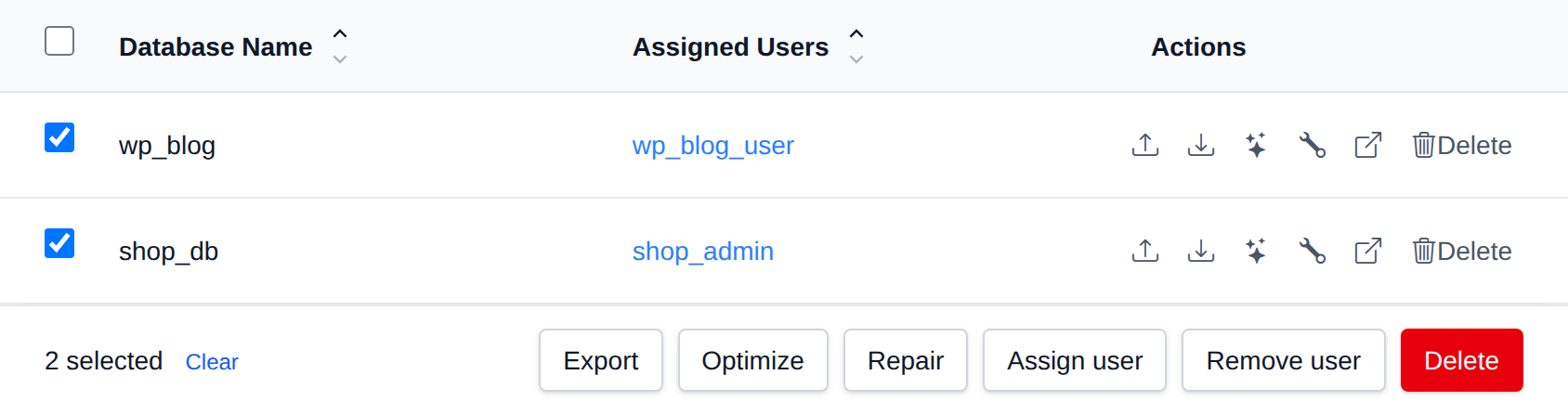
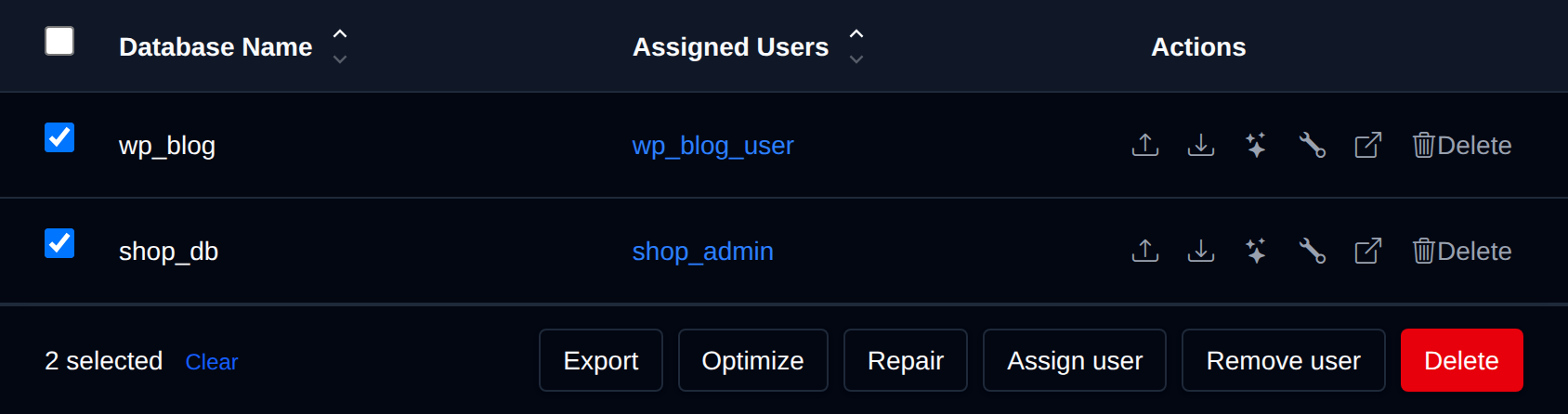
Tick the checkbox of one or more databases, or the checkbox in the table header to select every database shown by the current search. A bar appears at the bottom of the page with the number selected, a Clear link and these actions:
| Action | What it does |
|---|---|
| Export | Exports each selected database as a .sql.gz file to the folder you enter under /var/www/html. |
| Optimize | Optimizes all tables in the selected databases. |
| Repair | Repairs all tables in the selected databases. |
| Assign user | Gives the user you pick all privileges on the selected databases. |
| Remove user | Removes the user you pick from the selected databases. |
| Delete | Permanently deletes the selected databases. |
System databases can't be selected.
Click an action, confirm it, and it runs on the selected databases one after another. When it's done the page reloads with a notice listing the databases it worked for, or which ones failed and why.
Delete a MySQL Database
To delete an existing MySQL database, click on the "Delete" button next to the database name in the table.
The button turns into Confirm with a 5-second countdown. Click it again before the countdown ends to delete the database; otherwise it reverts to Delete.


⚠️ Deleting a MySQL database will permanently delete all tables and data for that database.