Custom Code
The Custom Code section, accessible via OpenAdmin > Settings > Custom Code, allows you to inject and manage custom code that extends or modifies the behavior and appearance of the OpenPanel UI.
Custom CSS, Custom JS, Code in Header, Code in Footer, and Custom Section below require an active Enterprise license (and a non-reseller account) to edit. The remaining options on this page (WordPress Plugins/Themes Sets, After Update, Before Startup) are available on all license types.
How-to Articles, PageSpeed API Key, Forbidden Usernames, and Restricted Domains moved to OpenAdmin > Settings > OpenPanel.
Custom CSS
Inject your own CSS styles that will be applied across all pages of the OpenPanel UI.
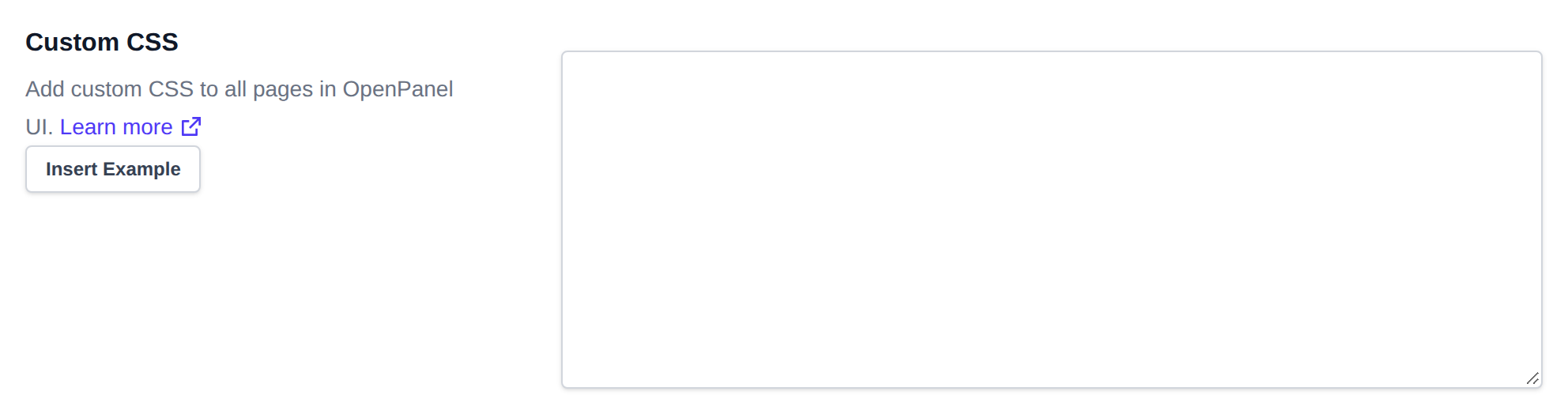
Stored in /etc/openpanel/openpanel/custom_code/custom.css file.
Custom JS
Add custom JavaScript to all pages. This is ideal for extending UI functionality, adding widgets, or integrating third-party tools.
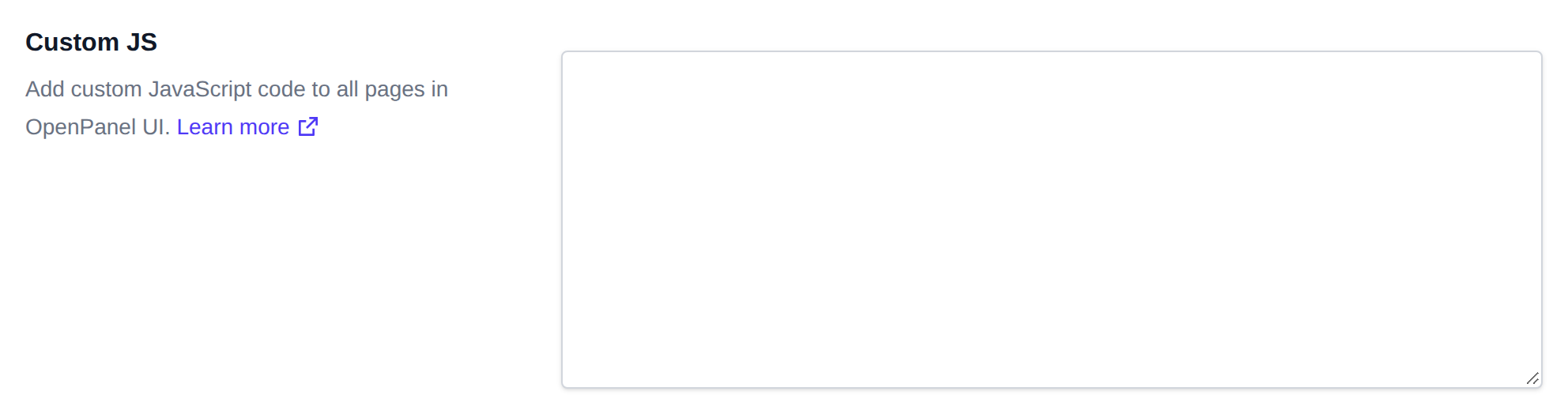
Stored in /etc/openpanel/openpanel/custom_code/custom.js file.
Code in Header
Insert custom code directly into the head tag of every page. Useful for meta tags, analytics scripts, and global settings.
Stored in /etc/openpanel/openpanel/custom_code/in_header.html file.
Code in Footer
Insert custom code directly into the footer section of all pages. This is commonly used for tracking scripts, analytics, or deferred JavaScript.
Stored in /etc/openpanel/openpanel/custom_code/in_footer.html file.
Custom Section
You can add a custom section with icon-based items to the Dashboard in OpenPanel.
custom section supports the following fields:
-
section_title(string): The title displayed at the top of your custom section. -
section_position(string): Determines where your section appears relative to other built-in sections. Acceptable values:before_filesbefore_domainsbefore_mysqlbefore_postgresqlbefore_applicationsbefore_emailsbefore_cachebefore_phpbefore_dockerbefore_advancedbefore_account
-
items(array of objects): A list of clickable items shown as cards with icons. Each item has:label(string) – The text shown on the card.icon(string) – The icon class from Bootstrap Icons. Example:bi bi-person-fill-gear.url(string) – The link to navigate to when the item is clicked.
Example:
{
  "section_title": "Billing Account",
  "section_position": "before_domains",
  "items": [
    {
      "label": "Manage Profile",
      "icon": "bi bi-person-fill-gear",
      "url": "https://panel.hostio.rs/clientarea.php?action=details"
    },
    {
      "label": "Manage Billing Information",
      "icon": "bi bi-credit-card",
      "url": "https://panel.unlimited.rs/clientarea.php?action=details"
    },
    {
      "label": "View Email History",
      "icon": "bi bi-envelope-open",
      "url": "https://panel.unlimited.rs/clientarea.php?action=emails"
    },
    {
      "label": "News & Announcements",
      "icon": "bi bi-megaphone-fill",
      "url": "https://panel.unlimited.rs/index.php?rp=/announcements"
    },
    {
      "label": "Knowledgebase",
      "icon": "bi bi-book-half",
      "url": "https://panel.unlimited.rs/index.php?rp=/knowledgebase"
    },
    {
      "label": "Server Status",
      "icon": "bi bi-hdd-network",
      "url": "https://panel.unlimited.rs/serverstatus.php"
    },
    {
      "label": "Invoices",
      "icon": "bi bi-receipt",
      "url": "https://panel.unlimited.rs/clientarea.php?action=invoices"
    },
    {
      "label": "Support Tickets",
      "icon": "bi bi-life-preserver",
      "url": "https://panel.unlimited.rs/supporttickets.php"
    },
    {
      "label": "Open Ticket",
      "icon": "bi bi-journal-plus",
      "url": "https://panel.unlimited.rs/submitticket.php"
    },
    {
      "label": "Register New Domain",
      "icon": "bi bi-globe",
      "url": "https://panel.unlimited.rs/cart.php?a=add&domain=register"
    },
    {
      "label": "Transfer Domain",
      "icon": "bi bi-arrow-repeat",
      "url": "https://panel.unlimited.rs/cart.php?a=add&domain=transfer"
    }
  ]
}
WordPress Plugins Set
List the WordPress plugins you want to automatically install on all new WordPress sites. Enter one item per row. Supported formats:
- wp_org_slug — the plugin slug from the WordPress.org plugin page
- URL — a direct link to a
.zipplugin file hosted online
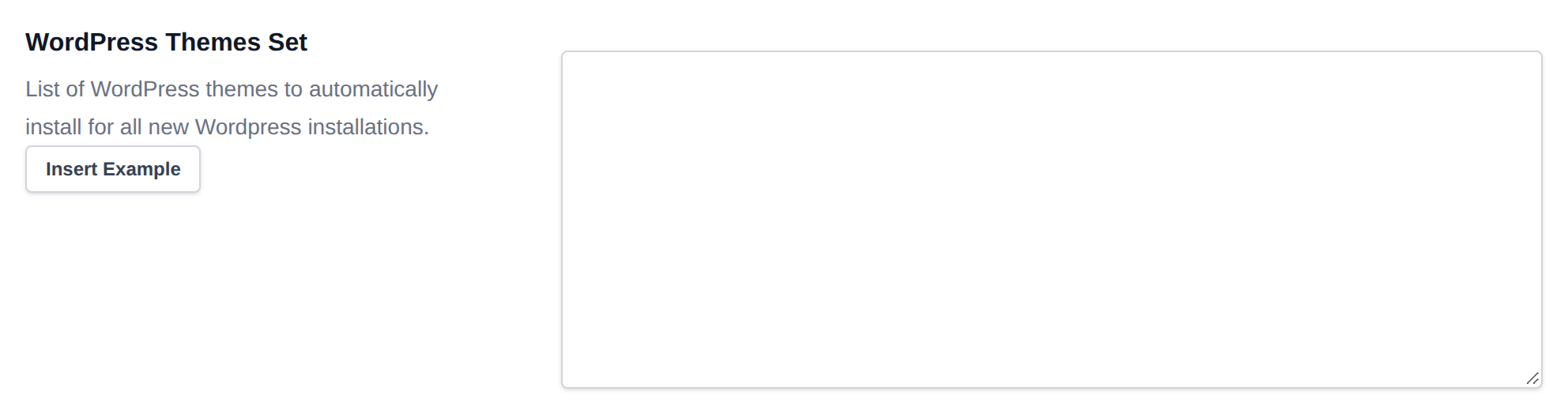
WordPress Themes Set
List the WordPress themes to automatically install for all new WordPress sites. Enter one item per row. Supported formats:
- wp_org_slug — the theme slug from the WordPress.org themes page
- URL — a direct link to a
.ziptheme file hosted online
After Update
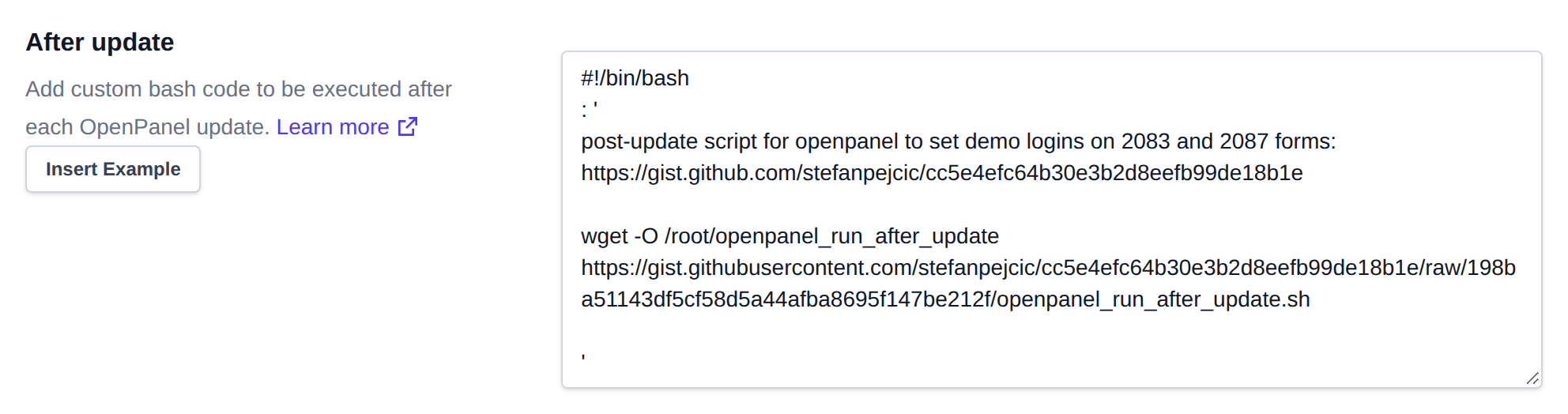
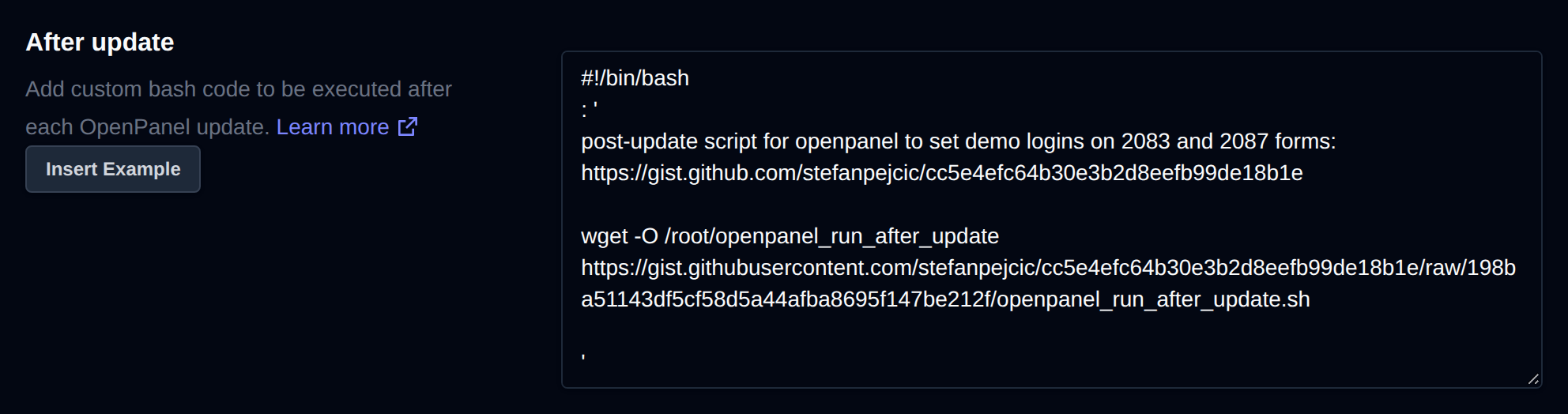
Define custom bash commands that will automatically run after each OpenPanel update. Ideal for restoring customizations or triggering automation scripts.
This powerful customization layer helps ensure OpenPanel fits seamlessly into your environment.
Examples:
Stored in /root/openpanel_run_after_update file.
Before Startup
Add custom bash code to be executed before starting OpenPanel.
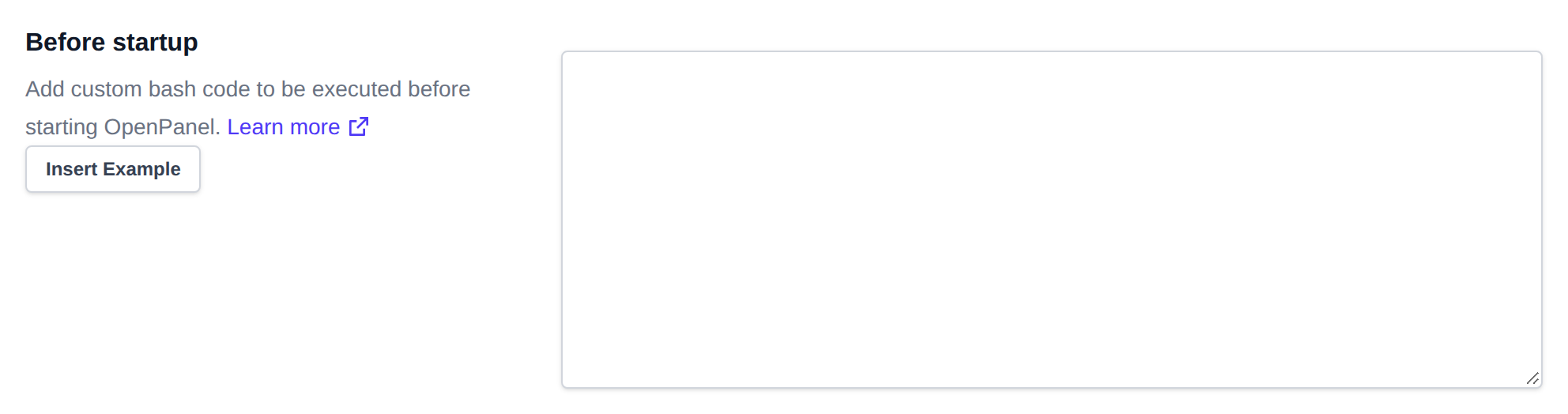
Stored in /root/openpanel_run_on_startup file.