Manage Domains
Domains page displays all domains currently hosted on server.
List domains
- With OpenAdmin
- With OpenCLI
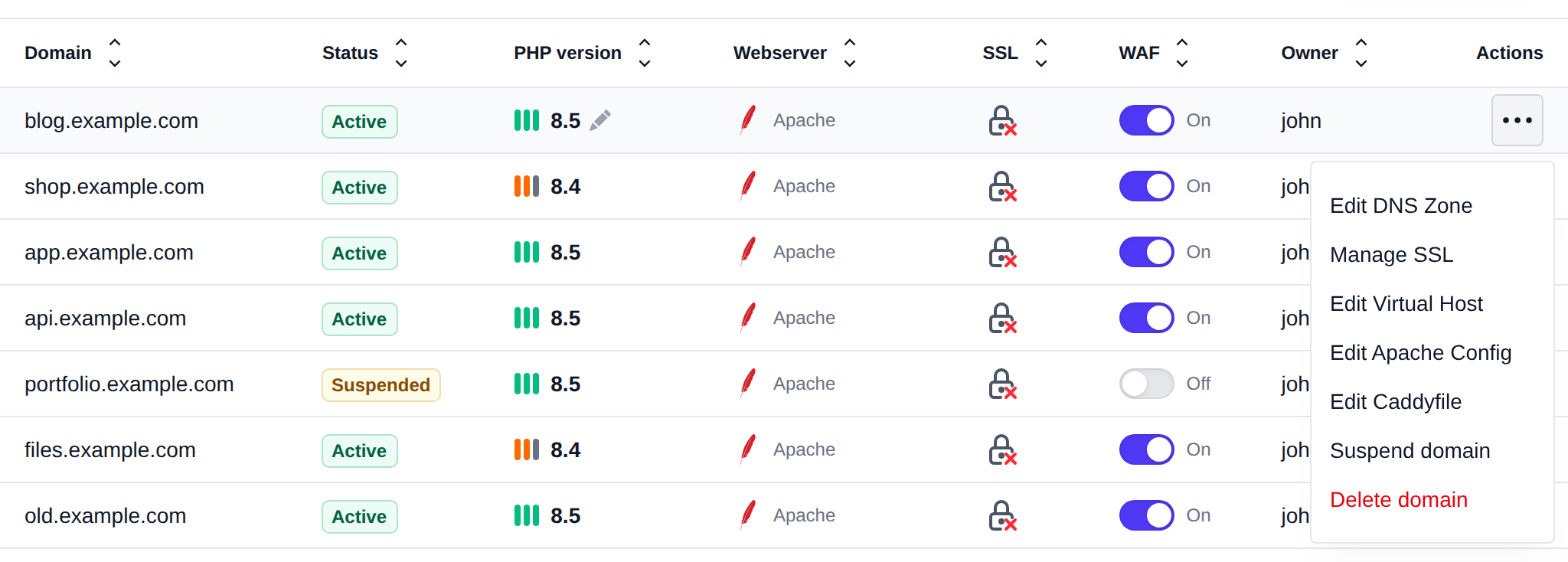
To list all current domains navigate to Domains page.
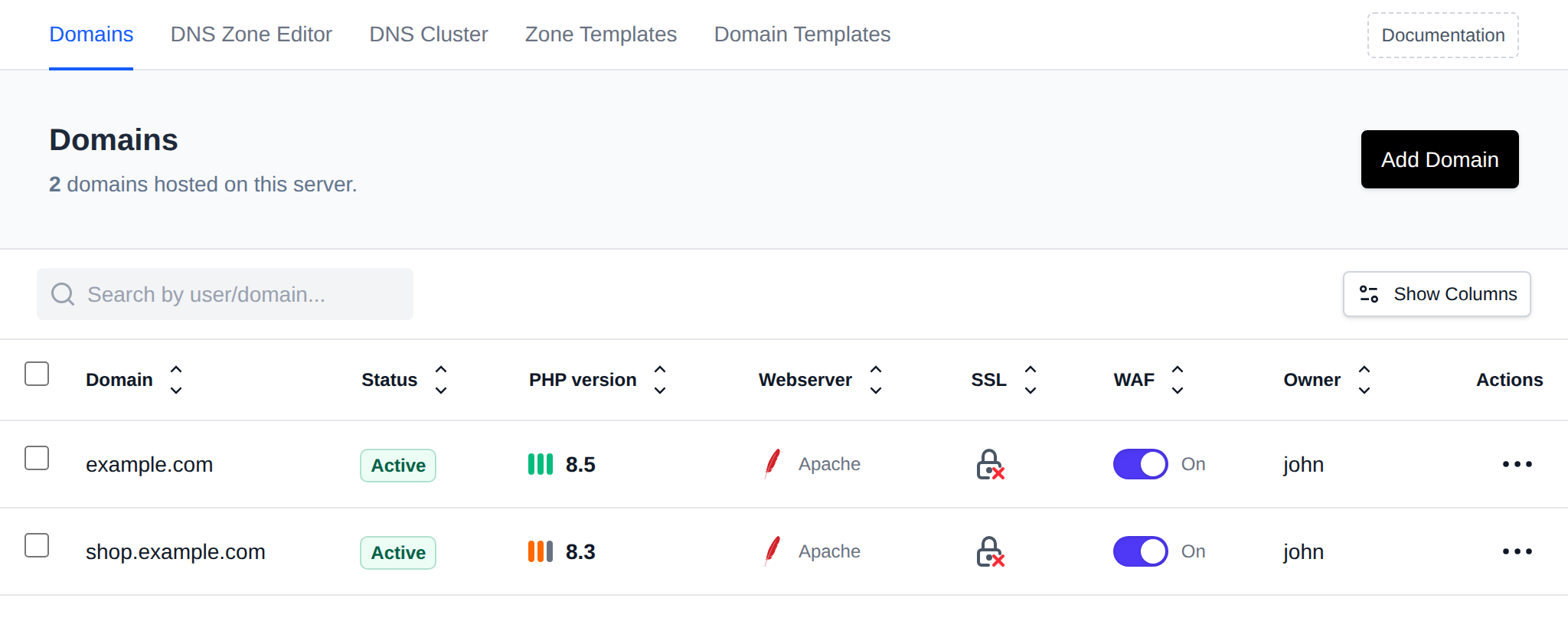
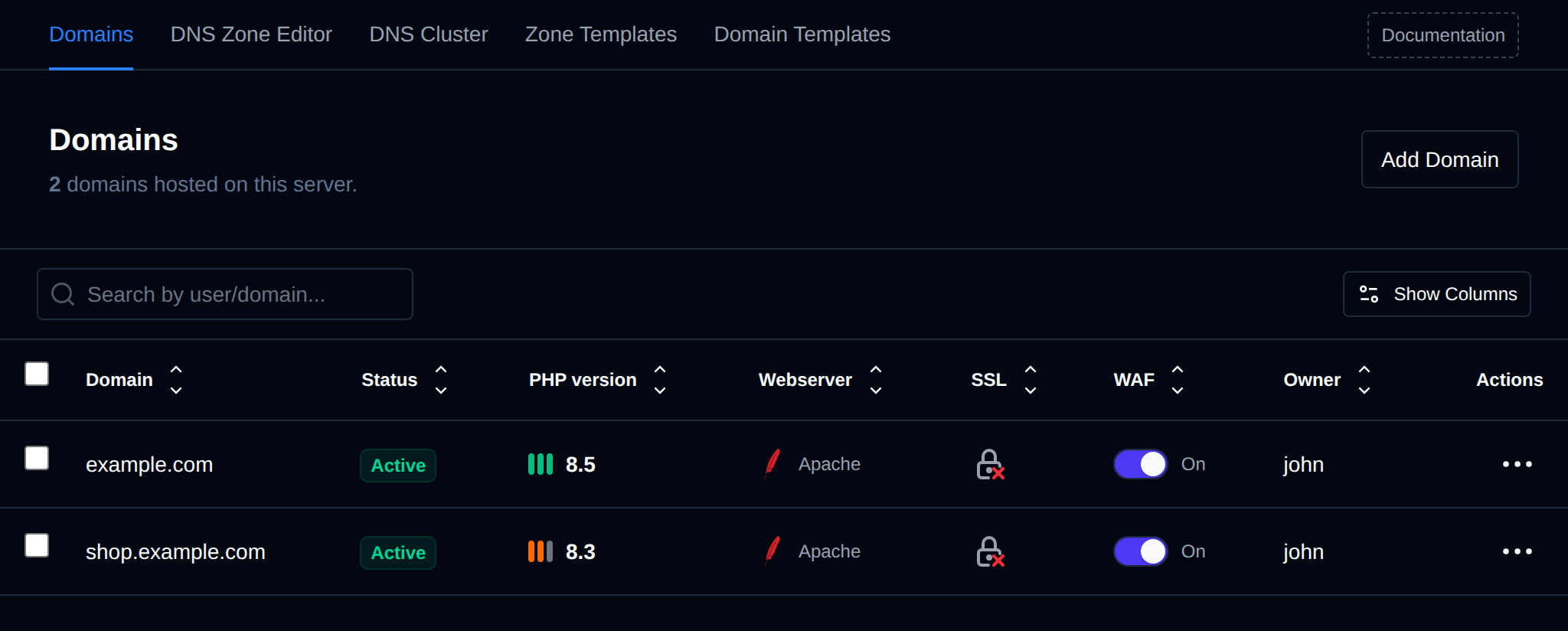
The table shows these columns by default:
| Column | Description |
|---|---|
| Domain | The domain name. |
| Status | Whether the domain is Active or Suspended. |
| PHP version | The PHP version configured for the domain. Hover over it and click the pencil icon to change it. |
| Webserver | The webserver of the account that owns the domain (Apache, Nginx, OpenResty or OpenLiteSpeed). |
| SSL | Whether the domain has an SSL certificate. |
| WAF | Toggle to enable or disable Coraza WAF for the domain. |
| Owner | The OpenPanel user who owns the domain. |
| Actions | Menu with the domain actions. |
Click Show Columns to show or hide columns. These optional columns are hidden by default:
| Column | Description |
|---|---|
| ID | The internal ID of the domain. |
| Docroot | The document root directory of the domain. |
| HTTP Strict Transport Security (HSTS) | Toggle to enable or disable HSTS for the domain, like WAF. |
Any default column except Actions can be hidden the same way. Column visibility is remembered for your browser.
Use the search box (Search by user/domain...) to filter the list by domain name or owning username.
To list all current domains run:
opencli domains-all
Example output:
root@server:~# opencli domains-all
openpanel.com
openpanel.org
community.openpanel.org
api.openpanel.com
support.openpanel.org
ip.openpanel.com
my.openpanel.com
Add domain
- With OpenAdmin
- With OpenCLI
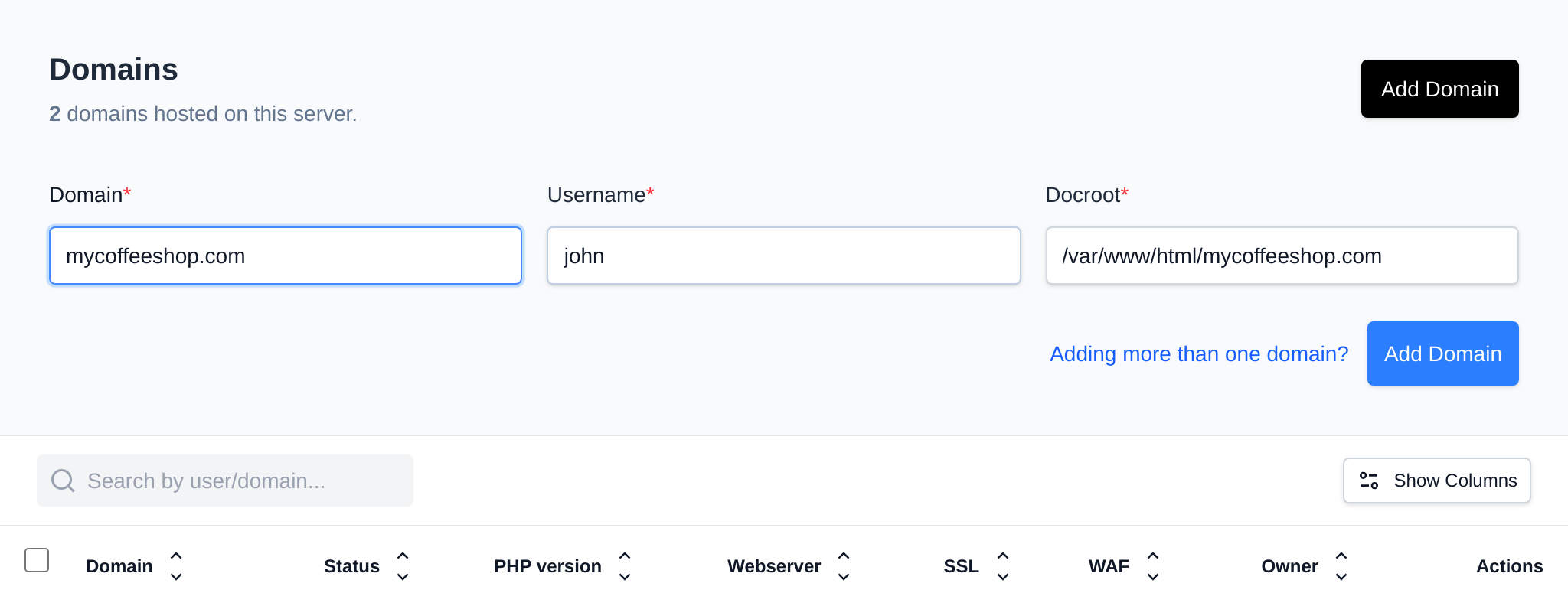
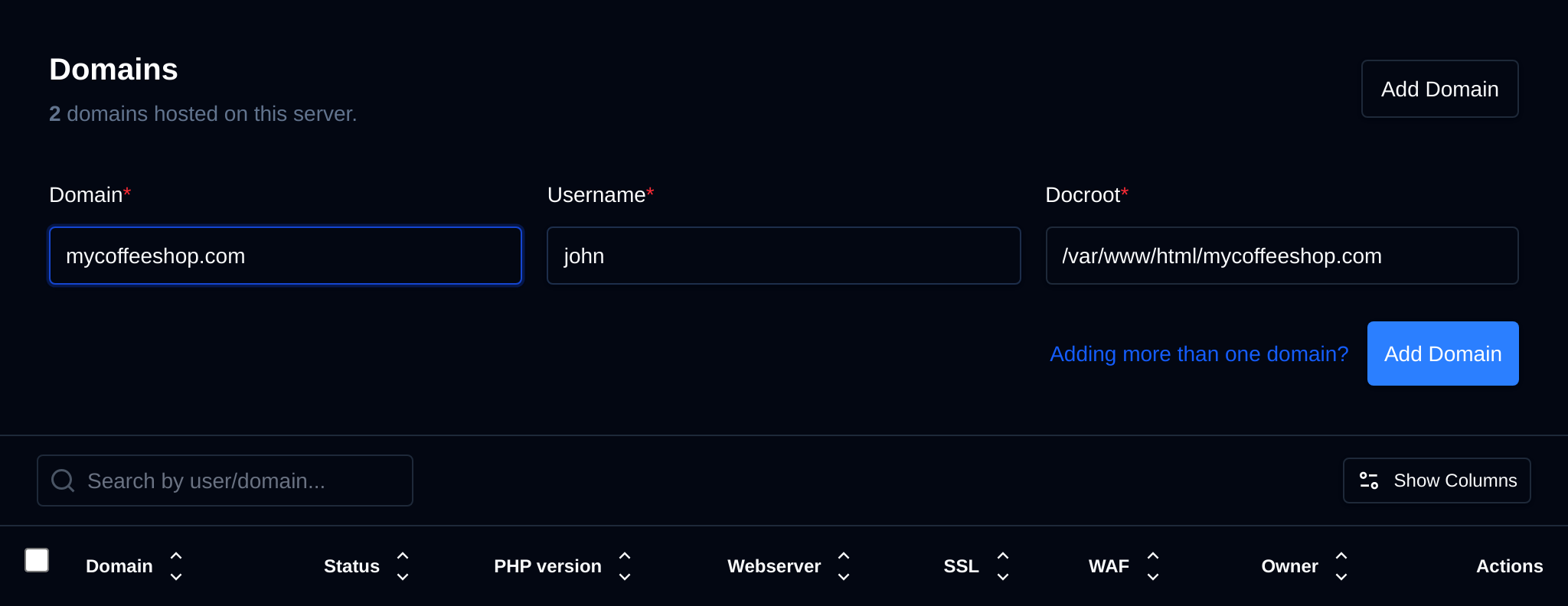
Click on 'Add Domain' button, insert the domain and select the user to add it, then click on 'Add Domain'.
To create a new plan run the following command:
opencli domains-add <DOMAIN_NAME> <USERNAME> [--debug]
Example:
root@stefan:/usr/local/admin# opencli domains-add pejcci.rs wzs11p2i --debug
Checking if domain already exists on the server
Adding pejcci.rs to the domains database
Purging cached list of domains for the account
Creating document root directory /home/wzs11p2i/pejcci.rs
Checking webserver configuration
Checking if default vhosts file exists for Nginx
Checking IPv4 address for the account
Creating /etc/nginx/sites-available/pejcci.rs.conf
Restarting nginx to apply changes
Creating vhosts proxy file for Nginx
Webserver is running, reloading configuration
Creating DNS zone file: /etc/bind/zones/pejcci.rs.zone
DNS service is running, adding the zone
Adding the newly created zone file to the DNS server
Checking and setting nginx service to automatically start on reboot
Starting service for the default PHP version 8.2
Checking and setting PHP service to automatically start on reboot
Checking and starting the ssl generation service
Starting Let'sEncrypt SSL generation in background
Domain pejcci.rs added successfully
Domain actions
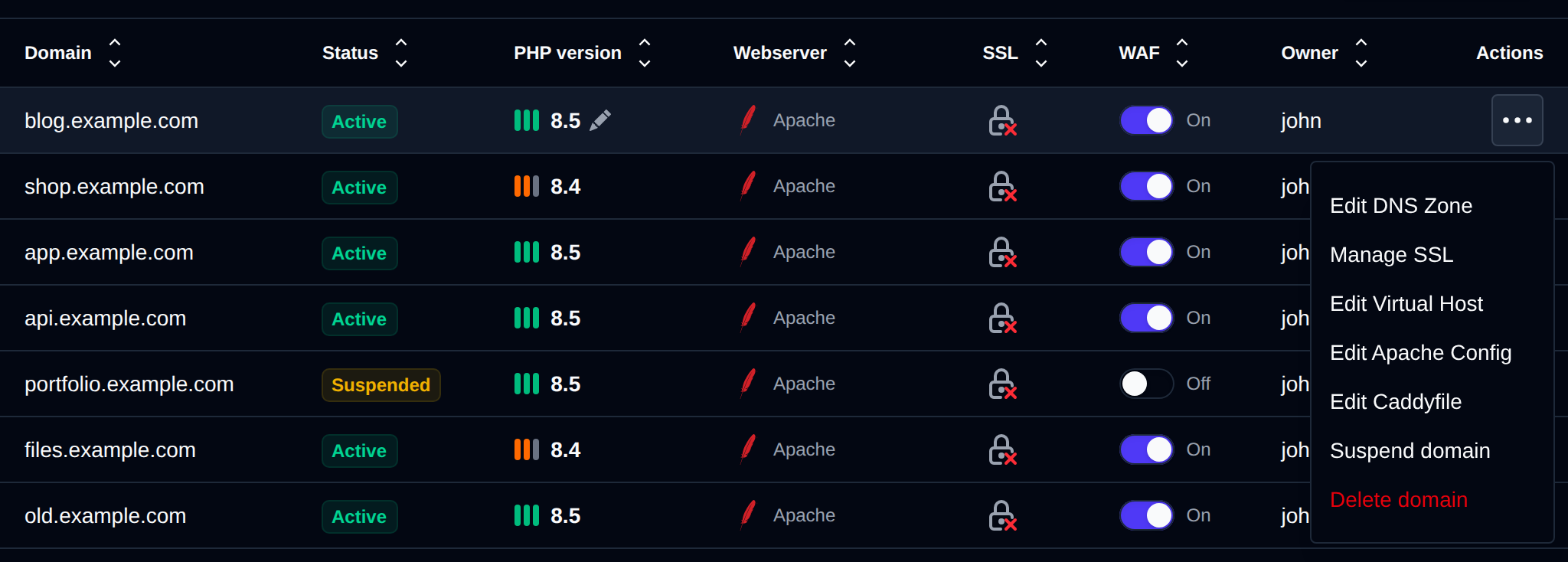
Each row in the Domains table has an actions menu (the ⋮ button) with the following options:
- Edit DNS Zone — opens the DNS Zone Editor for this domain. Only shown if the dns module is enabled.
- Suspend domain / Unsuspend domain — toggles the domain's status.
- Manage SSL — opens the SSL page for the domain. Not shown for suspended domains.
- Edit Virtual Host — opens the VirtualHost config editor for the domain.
- Edit Apache Config — opens the webserver configuration file of the domain owner (the label follows the owner's webserver).
- Edit Caddyfile — opens the Caddy config editor for the domain.
- Delete domain — permanently deletes the domain, see Delete domain below.
Move domain
This is currently not possible.
Delete domain
Domains can be deleted directly from OpenAdmin:
- Open the domain's actions menu (
⋮) in the Domains table and click Delete domain. - A confirmation dialog lists what will be removed: VHost configuration files, Caddyfile entries, SSL certificates, and email accounts & redirects. Website files and the docroot directory are not deleted.
- Type the domain name to confirm, then click Delete Permanently.
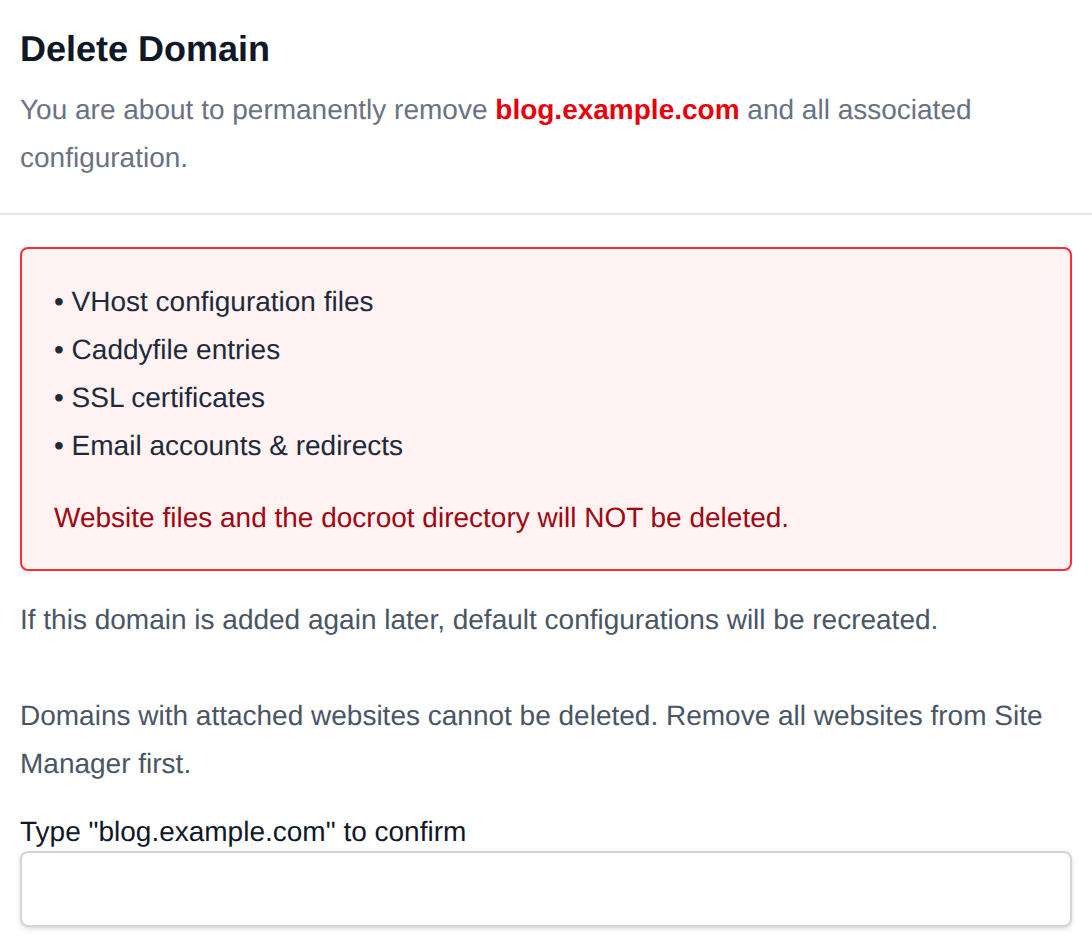
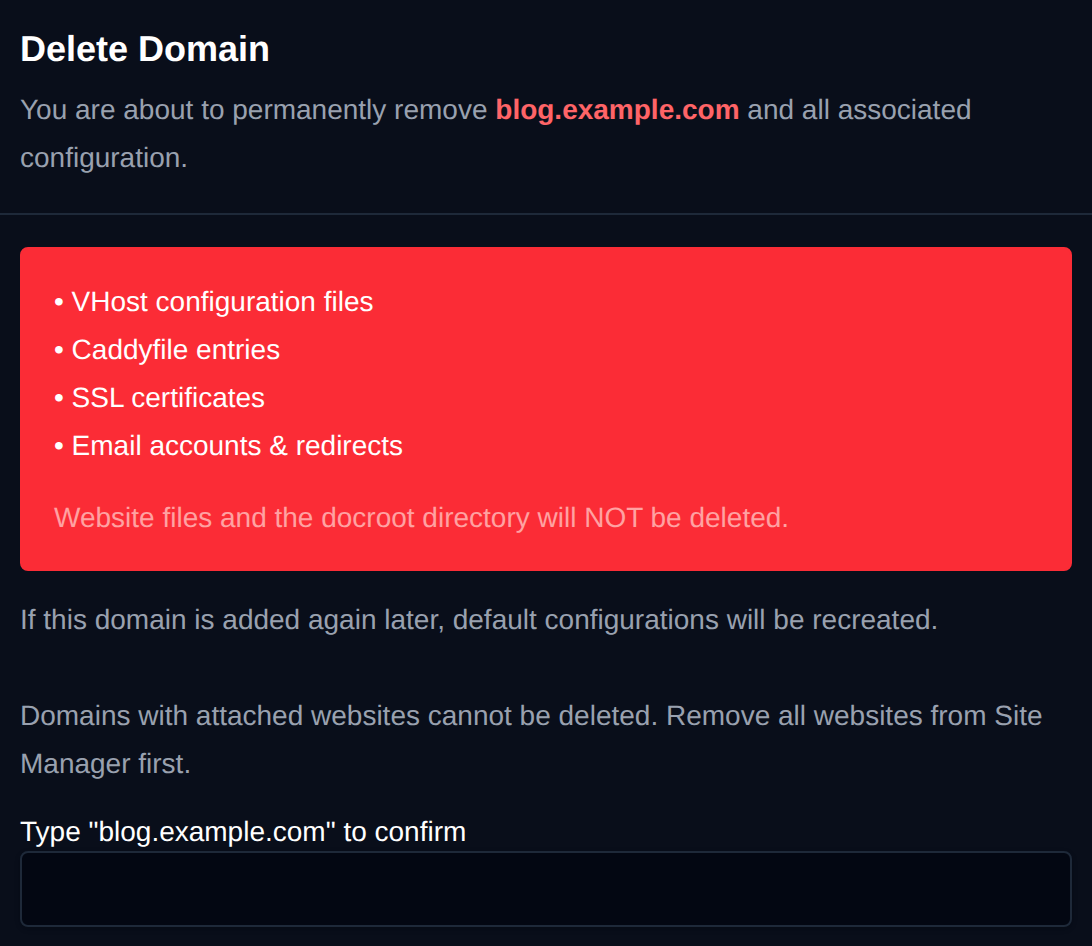
Domains with attached websites cannot be deleted — remove all websites from Site Manager first. If the domain is added again later, default configurations are recreated.