WAF
The WAF section allows you to manage CorazaWAF, a powerful Web Application Firewall integrated into OpenPanel.
Use this interface to enhance security by enabling protection against common web threats such as SQL injection, XSS, and other malicious behavior.
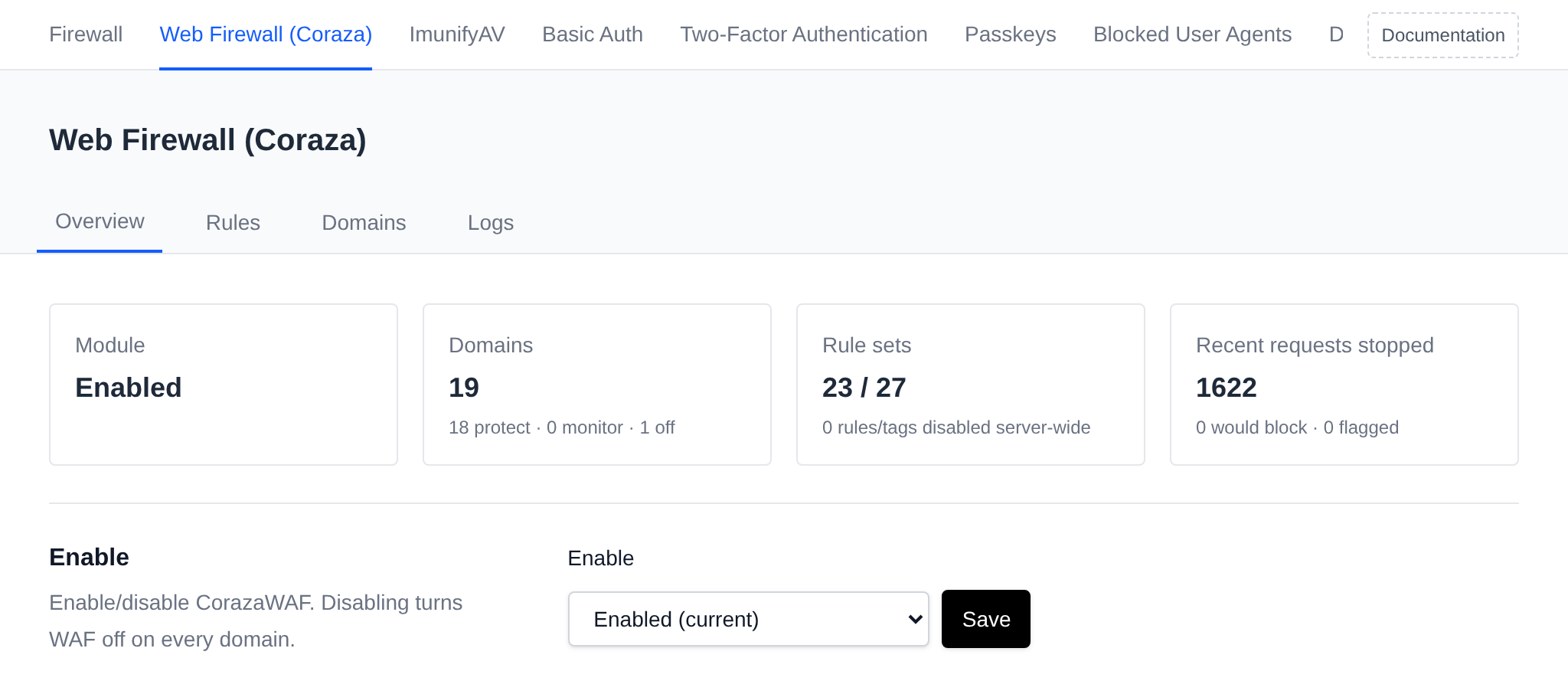
Enable
Toggle the Web Application Firewall (WAF) on or off.
When enabled, CorazaWAF inspects incoming requests in real time and blocks suspicious activity according to the configured rules.
- Enabled: Executes the command
opencli waf enable, activating the WAF module. This makes WAF manageable by users and automatically enables it for any new domains. - Disabled: Executes the command
opencli waf disable -y, deactivating the WAF module. This disables WAF management for users and turns off WAF for all existing and new domains.
Rule Sets
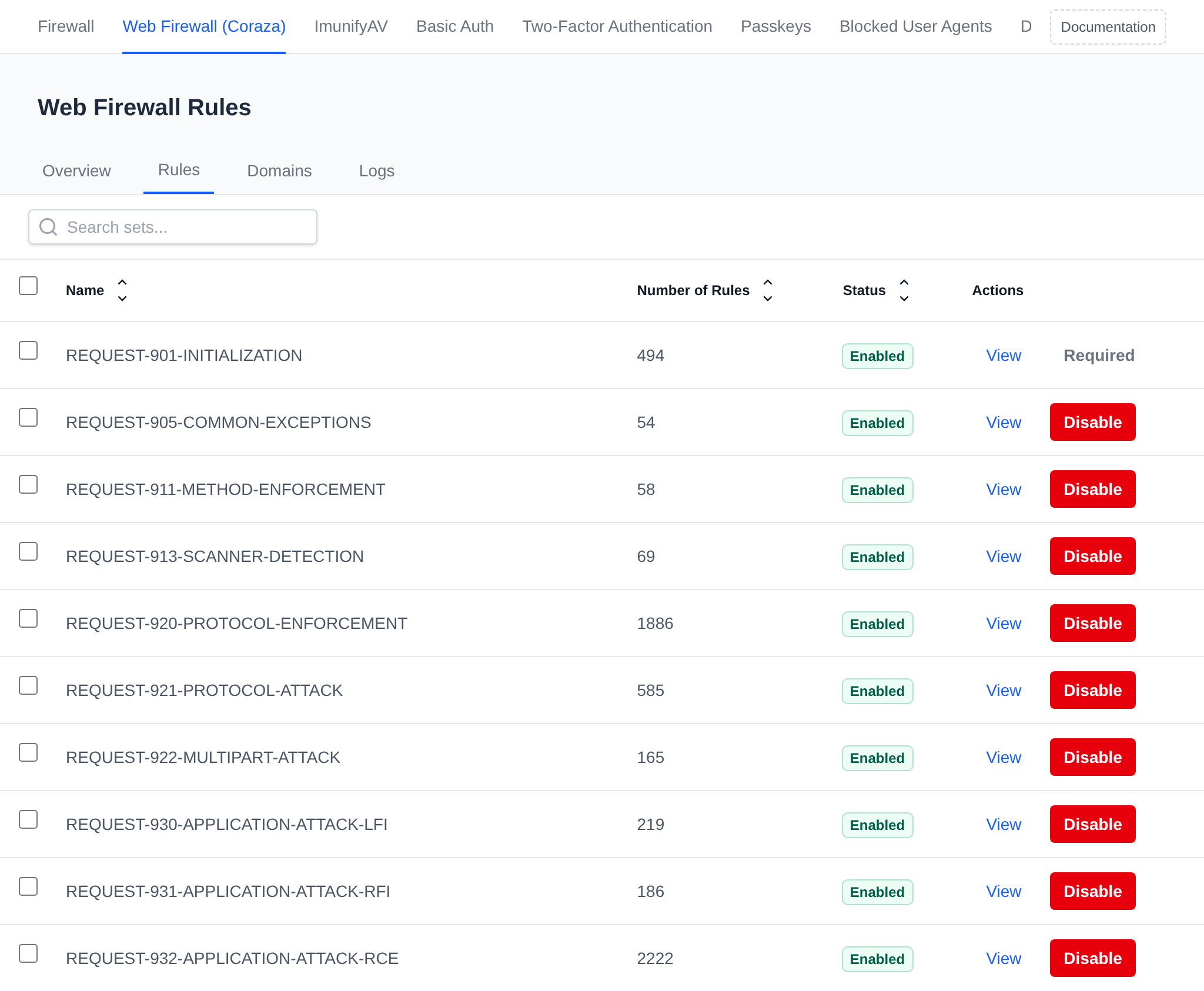
Manage the rule sets that CorazaWAF uses to protect your applications.
Active: Displays the number of currently active rule sets (e.g., 21 / 23).
Click Manage Rules to enable or disable individual WAF rule sets according to your security needs.
The rule set table includes the following columns:
-
Name – The name or identifier of the rule set.
-
Number of Rules – Total number of rules contained within the set.
-
Status – Indicates whether the rule set is currently enabled or disabled.
-
Actions – View to inspect the rule set's contents, and a toggle button whose label switches between Enable and Disable depending on the rule set's current status.
Properly configuring WAF rules helps maintain a balance between strong protection and minimizing false positives.