Modules
Modules extend the OpenPanel UI by adding new features and pages. To make a feature available to a user or plan, it must first be activated as a module.
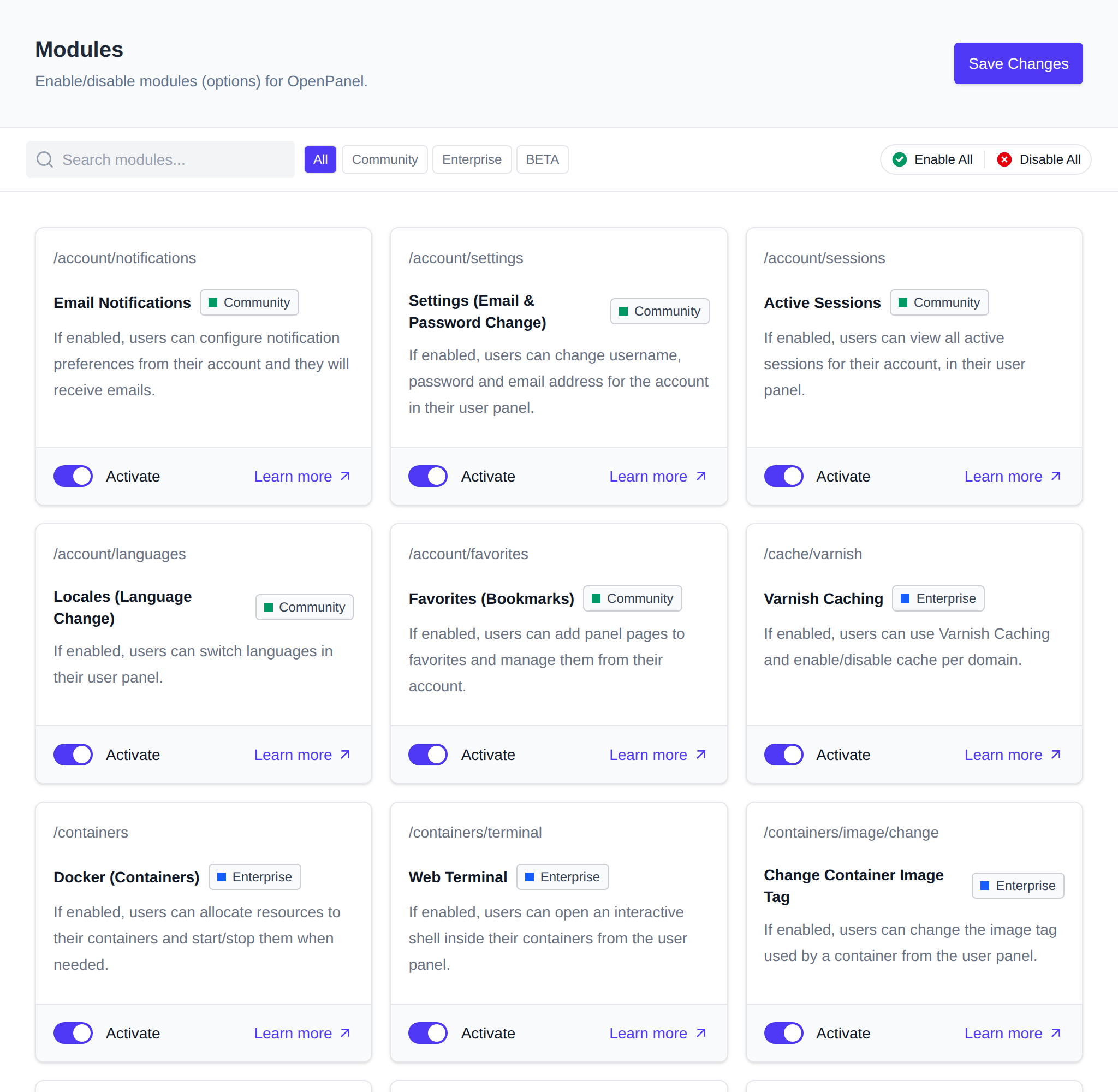
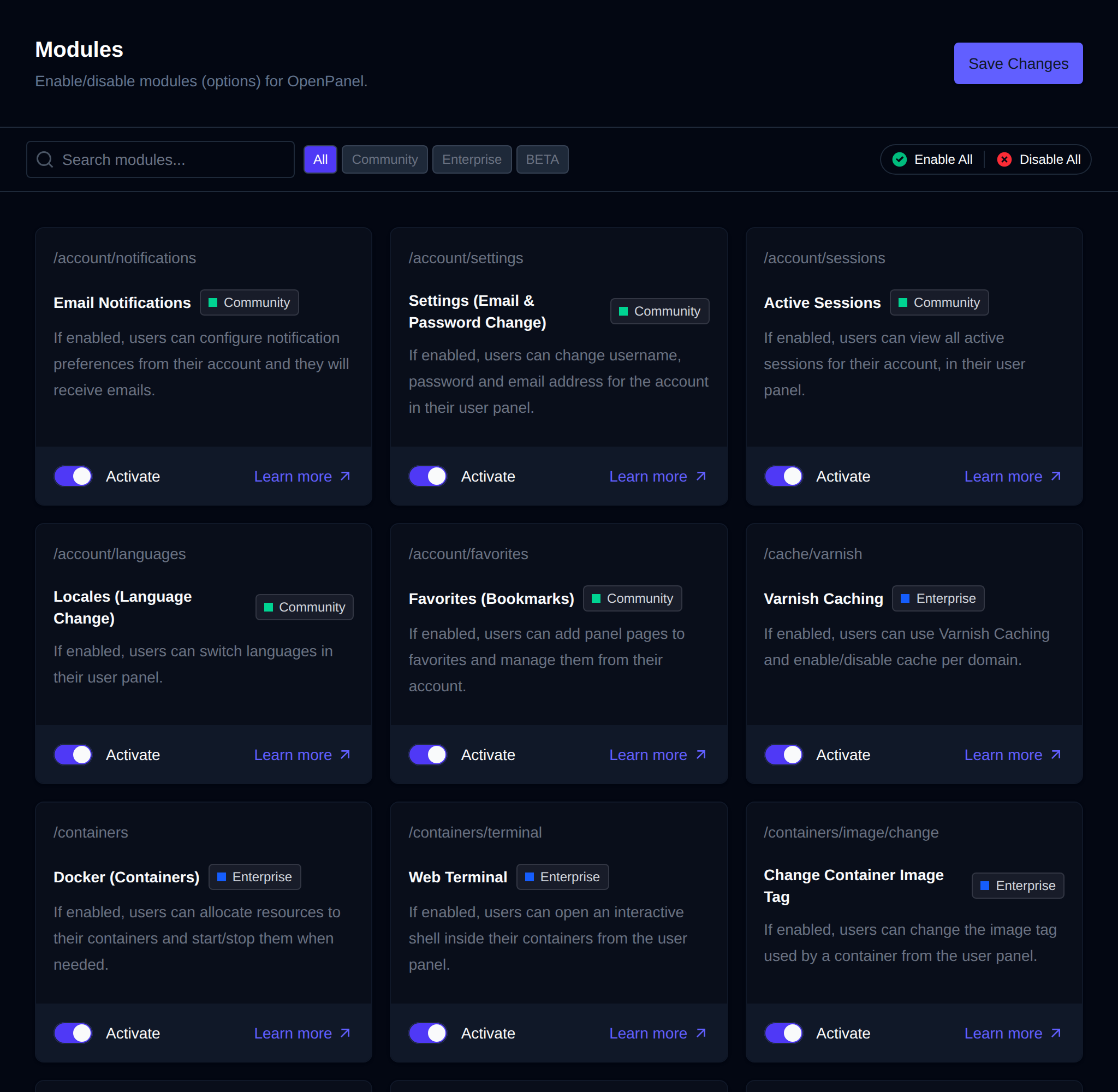
- Modules are core features that are already available on installation and are developed by OpenPanel.
Available Modules:
Notifications
The notifications module is required to send email notifications to users.
When enabled:
- Emails are sent according to each user’s notification preferences.
- Users can manage their preferences through the OpenPanel UI at: Account > Notifications.
When disabled:
- No emails will be sent, regardless of user preferences.
Customize email notifications:
- To set default preferences for new users edit the
/etc/openpanel/skeleton/notifications.yamlfile. - To customize email templates refer to Customizing OpenAdmin Email Templates.
- To configure custom SMTP use OpenAdmin > Settings > Notifications page.
Account
The account module is required for users to change their email, password or username.
When enabled:
- Users can change their email, password and username through the OpenPanel UI at: Account > Login Details.
When disabled:
- Users can not change their passwords from OpenPanel UI, only from 'Password Reset' on login form, if this option is enabled.
Customize password and username changes:
- To enable or disable password reset on login forms edit 'Enable password reset on login' setting from OpenAdmin > Settings > OpenPanel.
- To prevent users from changing their username edit 'Allow users to change username' setting from OpenAdmin > Settings > OpenPanel.
Sessions
The sessions module allows users to view and manage their active sessions.
When enabled:
- Users can view all their active sessions, logs and terminate any session through the OpenPanel UI at: Security > Active Sessions.
When disabled:
- Users can not access the Accounts > Active Sessions page.
Customize sessions duration:
- To control session duration edit 'Session duration' setting from OpenAdmin > Settings > OpenPanel.
- To control session lifetime edit 'Session lifetime' setting from OpenAdmin > Settings > OpenPanel.
Locale
The locale (Languages) module allows users to change panel language.
When enabled:
- Users can change their preferred language for OpenPanel UI from the login page and Account > Language page.
When disabled:
- Users can not access the Accounts > Change Language page to change their locale.
- Users are forced to the Admin defined default locale.
Customize locales:
- To set the default locale use OpenAdmin > Settings > Locales.
- To install new locales for users use the OpenAdmin > Settings > Locales.
- To create a new translation please see How to Create a New Locale
Favorites
The favorites module allows users to pin items in their sidebar menu for quick navigation.
When enabled:
- Users can add pages to favorites with left-click on ⭐ icon in top-right corner of the page.
- Users can remove pages from favorites with right-click on ⭐ icon in top-right corner of the page.
- Users can access favorites from sidebar menu.
- Users can access the Account > Favorites page.
When disabled:
- Users can not access the Accounts > Favorites page to manage favorites.
- Users are not see favorites in the sidebar nor the ⭐ icon in top-right corner of pages.
Customize favorites:
- To control the total number of favorites for user (default is 10) use
favorites-itemsconfig. - To edit user's favorites from terminal edit their:
/etc/openpanel/openpanel/core/users/{current_username}/favorites.jsonfile.
Varnish
The varnish module allows users to control varnish caching for their domains.
When enabled:
- Varnish server starts for user and proxies traffic back to their webserver.
- Users can access the Cache & Search > Varnish page.
- Users can enable/disable Varnish service.
- Users can enable/disable Varnish caching per domain.
- Users can view logs for the Varnish service.
When disabled:
- Users do not have access to the Caching > Varnish page.
- Varnish is used only if Administrator enabled it for user when creating the account.
Customize options:
- To enable/disable Varnish for all new users use OpenAdmin > Settings > User Defaults page and Enable Varnish Proxy option.
- To enable/disable Varnish for a single user when creating their account use the Enable Varnish Cache option.
- To change default CPU/RAM for service use the OpenAdmin > Settings > User Defaults page.
- To edit the default.vcl file for Varnish use the OpenAdmin > Domains > VirtualHost Templates page or edit file:
/etc/openpanel/varnish/default.vcl. - To purge Varnish cache refer to How-to Guides > Purging Varnish Cache
Docker
The docker module allows users to manage and add new docker containers.
When enabled:
- Users can access the Containers page to view and manage services.
- Users can use the Add Service form on the Containers page to add new services.
- Users can access Containers > Logs page to view service logs.
When disabled:
- Users can not access any of the Containers pages.
The web terminal, changing a service's image tag, and switching the webserver/MySQL type each live behind their own module below rather than docker - see Web Terminal, Change Container Image Tag, Switch WebServer, and Switch MySQL Type.
Web Terminal
The terminal module allows users to run podman exec commands from an interactive shell inside their containers.
When enabled:
- Users can access Containers > Terminal page to run podman exec commands.
When disabled:
- Users do not have access to the Terminal page.
Customize options:
Change Container Image Tag
The change_image module allows users to change the image tag used by a container.
When enabled:
- Users can access Containers > Software Versions page to change images tag.
When disabled:
- Users do not have access to the Change Image Tag page.
Switch WebServer
The change_ws module allows users to switch the webserver used for their account.
When enabled:
- Users can access Web Server Config > Web Server Type page to switch webservers.
When disabled:
- Users do not have access to the Switch Web Server page.
Switch MySQL Type
The change_db module allows users to switch between MySQL, MariaDB and Percona for their account.
When enabled:
- Users can access MySQL > Server Type page to switch between MySQL, MariaDB and Percona.
When disabled:
- Users do not have access to the Switch Database Server page.
Fix Permissions
The fix_permissions module allows users to reset file/folder permissions.
When enabled:
- Users can access the Files > Fix Permissions page.
When disabled:
- Users can not access the Files > Fix Permissions page.
FTP
The ftp module allows users to create and manage FTP sub-accounts.
When enabled:
- Users can access the Files > FTP Accounts page to manage FTP accounts.
When disabled:
- Users can not create and manage FTP accounts.
Customize options:
- To configure FTP server refer to *How-to Guides > Setup FTP.
- To edit VSFTPD configuration edit the
/etc/openpanel/ftp/vsftpd.conffile. - To view all ftp accounts on a server use the OpenAdmin > Services > FTP page.
- To limit number of ftp accounts per user edit the ftp accounts limit when creating/editing hosting packages.
Emails
The emails module allows users to create and manage Email accounts.
When enabled:
- Users can access the Emails pages to manage Email accounts.
When disabled:
- Users can not create and manage Email accounts.
Customize options:
- To configure email server refer to How-to Guides > Configure Email Server.
- To configure email client refer to How-to Guides > How to setup your email client.
- To view all email accounts on a server use the OpenAdmin > Emails > Accounts page.
- To set up fail2ban refer to *How-to Guides > Setup Fail2ban.
- To set up Rspamd refer to *How-to Guides > RSPAMD GUI.
- To set up DKIM for a domain refer to *How-to Guides > Setup DKIM.
- To limit number of email accounts per user edit the email accounts limit when creating/editing hosting packages.
Webmail
The webmail module allows users to auto-login to Roundcube webmail for their Email accounts.
When enabled:
- Users can access the Webmail button.
When disabled:
- Users can not auto-login to webmail.
Customize options:
- To set webmail domain or relay hosts use the OpenAdmin > Emails > Email Settings page.
Email Filters
The email_filters module allows users to configure filters and forwarders for their emails.
When enabled:
- Users can access the Email Filters page
When disabled:
- Users can not access the Email Filters page.
Email Aliases
The email_aliases module allows users to forwards mail from a non-existing address to one or more destinations.
When enabled:
- Users can access the Email Aliases page
When disabled:
- Users can not access the Email Aliases page.
Address Importer
The email_import module allows users to import email addresses from a CSV file.
When enabled:
- Users can access the Address Importer page
When disabled:
- Users can not access the Address Importer page.
Email Migration
The email_migrate module allows users to copy emails from another IMAP server into their email accounts.
When enabled:
- Users can access the Migrate Emails page
When disabled:
- Users can not access the Migrate Emails page.
Address Exporter
The email_export module allows users to export to CSV file all their email addresses.
When enabled:
- Users can export email addresses by visiting:
/emails/export
When disabled:
- Users can not access the Address Exporter page.
Default Address
The email_default module allows users to create default (catch-all) email addresses.
When enabled:
- Users can access the Default Email Address page
When disabled:
- Users can not access the Default Email Address page.
Email Deliverability
The email_deliverability module allows users to check and validate SPF, DKIM and DMARC records for their domains.
When enabled:
- Users can access the Email Deliverability page to view DNS records.
When disabled:
- Users can not access the Email Deliverability page.
MySQL
The mysql module allows users to create and manage mysql databases.
When enabled:
- MySQL/MariaDB auto-starts when user accesses Databases section, opens phpMyAdmin or installs WordPress.
- Users can access the MySQL > Databases page to manage databases.
- Users can access the MySQL > Databases > New Database page to create databases.
- Users can access the MySQL > Databases > Database Wizard page to create database, user and assign privileges.
- Users can access the MySQL > Users page to manage users.
- Users can access the MySQL > Users > Create User page to create users.
- Users can access the MySQL > Users > Change Password page to change password for a user.
- Users can access the MySQL > Users > Assign User page to assign all privileges to user over a database.
- Users can access the MySQL > Users > Remove User page to revoke all privileges to user over a database.
When disabled:
- Users do not have access to the MySQL section.
Customize options:
- To set mysql or mariadb for all new users use OpenAdmin > Settings > User Defaults page and MySQL type option.
- To set mysql, percona or mariadb for a single user when creating their account use the MySQL Type option.
- To change default CPU/RAM for service use the OpenAdmin > Settings > User Defaults page.
- To restrict access to system users edit the
mysql_restricted_usernamessetting. - To restrict access to system databases edit the
mysql_restricted_databasessetting. - To increase the startup time allowed for waiting MySQL to initalize increase
mysql_startup_time.
How-to guides:
- To connect to a database refer to *How-to Guides > Connecting to MySQL Server from Applications in OpenPanel.
- To troubleshoot errors refer to *How-to Guides > How to troubleshoot: Error establishing a database connection.
MySQL Root Password
The mysql_root_password module allows users to change password for their MySQL root user from the user panel.
When enabled:
- Users can access the MySQL > Root Password page to change root user password.
When disabled:
- Users do not have access to the MySQL Root Password page.
MySQL Show Processes
The mysql_processlist module allows users to view the MySQL process list.
When enabled:
- Users can access the MySQL > Running Queries page to view all active processes.
When disabled:
- Users do not have access to the MySQL Process List page.
Remote MySQL
The remote_mysql module allows users to enable/disable remote access to mysql.
When enabled:
- Remote access is disabled by default.
- Random port is allocated per user for their mysql instances.
- Users can access the MySQL > Remote Access page to enable/disable remote access.
- Users can connect to any database from remote location once the option is enabled.
When disabled:
- Remote access is disabled.
Customize options:
- None
phpMyAdmin
The phpmyadmin module allows users to manage phpMyAdmin service.
When enabled:
- phpMyAdmin can be accessed by the user.
- phpMyAdmin is available on a
https://DOMAIN:2053when domain is set, orhttp://IP:8888when IP is set for panel access.
When disabled:
- Users do not have access to the phpMyAdmin service.
Customize options:
- To change CPU/RAM for phpMyAdmin service or values: php_max_execution_time, php_memory_limit, php_upload_limit use *OpenAdmin > Services > Service Limits.
How-to guides:
- To import tables into a database refer to the Documentation.
MySQL Import
The mysql_import module allows users to import files into their databases.
When enabled:
- Users can access the MySQL > Import page to import files into a database.
When disabled:
- Users can not access the MySQL > Import Database page.
Customize options:
- To set the max file size allowed for import increase
mysql_import_max_size_gbvalue.
How-to guides:
- To import into a database refer to *How-to Guides > Importing a Database.
MySQL Conf
The mysql_conf module allows users to edit mysql server configuration.
When enabled:
- Users can access the MySQL > Configuration page to edit service .cnf file.
When disabled:
- Users can not access the MySQL > Edit Configuration page.
Customize options:
- To set available options for configuration edit file:
/etc/openpanel/mysql/keys.txt. - To edit the mysql.cnf file for a single user edit file:
/home/${username}/custom.cnf. - To edit the mysql.cnf file for all new users edit file:
/etc/openpanel/mysql/user.cnf.
MongoDB
The mongodb module allows users to create and manage MongoDB databases.
When enabled:
- Users can access the MongoDB section to manage databases and users.
When disabled:
- Users do not have access to the MongoDB section.
PostgreSQL
The postgresql module allows users to create and manage PostgreSQL databases and users.
When enabled:
- Users can access the PostgreSQL section.
When disabled:
- Users do not have access to the PostgreSQL section.
Remote PostgreSQL
The remote_postgresql module allows users to enable/disable remote access to PostgreSQL.
When enabled:
- Remote access is disabled by default.
- Random port is allocated per user for their PostgreSQL instances.
- Users can access the PostgreSQL > Remote Access page to enable/disable remote access.
- Users can connect to any database from remote location once the option is enabled.
When disabled:
- Remote access is disabled.
Customize options:
- None
pgAdmin
The pgadmin module allows users to manage pgAdmin service.
When enabled:
- pgAdmin can be managed by the user.
- Users have access to the pgAdmin section.
- pgAdmin is available on a custom per-user port.
When disabled:
- Users do not have access to the pgAdmin section.
Customize options:
- To change default CPU/RAM for pgAdmin use the 'manage' button in top-rgiht corner.
PostgreSQL Import
The postgresql_import module allows users to import files into their databases.
When enabled:
- Users can access the PostgreSQL > Import page to import files into a database.
When disabled:
- Users can not access the PostgreSQL > Import Database page.
Customize options:
- None
PostgreSQL Conf
The postgresql_conf module allows users to edit PostgreSQL server configuration.
When enabled:
- Users can access the PostgreSQL > Configuration page to edit service .cnf file.
When disabled:
- Users can not access the PostgreSQL > Edit Configuration page.
Crons
The crons module allows users to schedule Ofelia cron jobs.
When enabled:
- Users can access the Cron Jobs page.
- Users can add cronjobs
- Users can edit cronjobs
- Users can view logs for cronjobs
- Users can edit crons file
- Users can import and export cronjobs
When disabled:
- Users can not access the Advanced > Cron Jobs page nor modify crons.
Customize options:
- To pre-set cronjobs for new users edit the
/etc/openpanel/ofelia/users.inifile. - To set max file size for the cron file to be editable via OpenPanel UI set the
cron_max_file_size_kbvalue.
Process Manager
The process_manager module allows users to view and terminate processes from all running services.
When enabled:
- Users can access the Processes & Services > Processes page.
When disabled:
- Users can not access the Advanced > Process Manager page.
Customize options:
- None
Server Info
The info module allows users to view server information, hosting plan information and OpenPanel information.
When enabled:
- Users can access the Server Info page.
When disabled:
- Users can not access the Advanced > Server Information page.
Customize options:
- None
Temporary Links
The temporary_links module allows users to test their websites using temporary subdomains (links are valid for 15 minutes).
When enabled:
- Users can access the Live Preview button on the Site Manager.
When disabled:
- Users can not access the Live Preview button on the Site Manager page.
Customize options:
- To self-host a proxy service - refer to How-to Guides > Temporary Links API.
- To configure a custom domain - update the
temporary_linksoption.
Login History
The login_history module allows users to view login history for their account.
When enabled:
- Users can access the Security > Login History page.
When disabled:
- Users can not access the Account > Login History page.
Customize options:
- To control number of logins stored per user edit 'Login records to keep per user' setting from OpenAdmin > Settings > OpenPanel.
2FA
The twofa module allows users to enable 2 factor authentication for their account.
When enabled:
- Users can access the Security > Two-Factor Auth page.
- 2FA is required on login page if account has enabled it.
When disabled:
- Users can not access the Advanced > Two-Factor Authentication page nor manage 2FA.
Customize options:
- To enable 2FA widget use OpenAdmin > Settings > OpenPanel page and Display 2FA widget option.
- To enforce 2FA for all users use OpenAdmin > Settings > OpenPanel page and Enforce 2FA option.
Passkeys
The passkeys module allows users to seup Passkeys for their account.
NOTE: Passkeys require that a domain name is used for panel access.
When enabled:
- Users can access the Security > Passkeys page.
- 'Sign up with Passkey' is shown on login page.
When disabled:
- Users can not login using Passkeys.
Activity
The activity module allows users to view their activity logs.
When enabled:
- Users can access the Security > Activity Log page.
When disabled:
- Users can not access the Account > Activity Log page.
Customize options:
- To edit activity log from terminal open file:
/etc/openpanel/openpanel/core/users/{username}/activity.log. - To set total number of lines per user edit
activity_lines_retentionsetting. - To set total size of log per user edit
activity_max_size_bytessetting.
Backups
The backups module allows users to configure their own backups: what to backup, destination, retention, schedule, etc.
When enabled:
- Users can access the Backups page.
- Users can configure backup schedule, encryption, retention and destination.
When disabled:
- Users do not have access to the Files > Backups page.
- Administrators need to configure backups for the user.
Backup Wizard
The backup_wizard module allows users to generate and download a full account backup.
When enabled:
- Users can access the Backup Wizard to generate and download a full backup of their account.
When disabled:
- Users can not access the Backup Wizard.
Services
The services module allows users to enable/disable services without the Docker module.
When enabled:
- Users can access the Processes & Services > Services page.
- Users can enable/disable services.
- User view current service status, resource usage (CPU%, Memory%, Disk I/O, PIDs..), container name (to be used to connect to service from other containers).
- Users can view logs for services.
When disabled:
- Users do not have access to the Advanced > Services page.
Memcached
The memcached module allows users to enable/disable Memcached service.
When enabled:
- Users can access the Cache & Search > Memcached page.
- Users can enable/disable Memcached service.
- User can connect to the instance from other containers using:
elasticsearch:11211 - Users can view logs for the Memcached service.
When disabled:
- Users do not have access to the Caching > Memcached page.
Redis
The redis module allows users to enable/disable Redis service.
When enabled:
- Users can access the Cache & Search > Redis page.
- Users can enable/disable Redis service.
- User can connect to the instance from other containers using:
redis:6379 - Users can view logs for the Redis service.
When disabled:
- Users do not have access to the Caching > Redis page.
Valkey
The valkey module allows users to enable/disable Valkey service.
When enabled:
- Users can access the Cache & Search > Valkey page.
- Users can enable/disable Valkey service.
- User can connect to the instance from other containers using:
valkey:6379 - Users can view logs for the Valkey service.
When disabled:
- Users do not have access to the Caching > Valkey page.
ElasticSearch
The elasticsearch module allows users to enable/disable ElasticSearch service.
When enabled:
- Users can access the Cache & Search > Elasticsearch page.
- Users can enable/disable ElasticSearch service.
- User can connect to the instance from other containers using:
elasticsearch:9200 - Users can view logs for the ElasticSearch service.
When disabled:
- Users do not have access to the Caching > ElasticSearch page.
OpenSearch
The opensearch module allows users to enable/disable OpenSearch service.
When enabled:
- Users can access the Cache & Search > OpenSearch page.
- Users can enable/disable OpenSearch service.
- User can connect to the instance from other containers using:
opensearch:9200 - Users can view logs for the OpenSearch service.
When disabled:
- Users do not have access to the Caching > OpenSearch page.
Disk Usage Explorer
The disk_usage module allows users to view disk usage per-directory.
When enabled:
- Users can access the Statistics > Disk Usage page.
When disabled:
- Users do not have access to the Files > Disk Usage page.
Inodes Explorer
The inodes module allows users to view inode usage per-directory.
When enabled:
- Users can access the Statistics > Inode Usage page.
When disabled:
- Users do not have access to the Files > Inodes Explorer page.
AutoInstaller
The autoinstaller module allows users to autoinstall WordPress, website Builder, Mautic, Python/NodeJS applications, etc.
When enabled:
- Users can access the Websites > Install App page.
When disabled:
- Users do not have access to the Websites > Auto Installer page.
Drupal
The drupal module allows users to install and manage Drupal websites.
When enabled:
- Drupal is available on the Autoinstaller page.
- Users can install Drupal using Auto Installer.
- Users can manage Drupal websites using Site Manager: clone a site, run/restore backups, generate a one-time admin login link, rebuild the cache, and view watchdog logs.
- Users can update Drupal core in place using the Update tab (drush-based, one click).
When disabled:
- Drupal is not available on the Autoinstaller page.
- Drupal websites can not be managed via Openpanel.
Joomla
The joomla module allows users to install and manage Joomla websites.
When enabled:
- Joomla is available on the Autoinstaller page.
- Users can install Joomla using Auto Installer.
- Users can manage Joomla websites using Site Manager: clone a site and run/restore backups.
- The Update tab shows whether a newer Joomla version is available and links directly into the site's own Joomla Admin to run the update (Joomla has no safe unattended CLI updater).
When disabled:
- Joomla is not available on the Autoinstaller page.
- Joomla websites can not be managed via Openpanel.
OpenCart
The opencart module allows users to install and manage OpenCart websites.
When enabled:
- OpenCart is available on the Autoinstaller page.
- Users can install OpenCart using Auto Installer.
- Users can manage OpenCart websites using Site Manager: clone a site and run/restore backups.
- The Update tab shows whether a newer OpenCart version is available and links directly into the site's own admin panel to run the update.
When disabled:
- OpenCart is not available on the Autoinstaller page.
- OpenCart websites can not be managed via Openpanel.
Nextcloud
The nextcloud module allows users to install and manage Nextcloud websites.
When enabled:
- Nextcloud is available on the Autoinstaller page.
- Users can install Nextcloud using Auto Installer.
- Users can manage Nextcloud websites using Site Manager: clone a site, run/restore backups, and view logs.
- Users can update Nextcloud in place using the Update tab (one click).
When disabled:
- Nextcloud is not available on the Autoinstaller page.
- Nextcloud websites can not be managed via Openpanel.
PrestaShop
The prestashop module allows users to install and manage PrestaShop websites.
When enabled:
- PrestaShop is available on the Autoinstaller page.
- Users can install PrestaShop using Auto Installer.
- Users can manage PrestaShop websites using Site Manager: clone a site and run/restore backups.
- The Update tab shows whether a newer PrestaShop version is available and links directly into the site's own admin panel to run the update.
When disabled:
- PrestaShop is not available on the Autoinstaller page.
- PrestaShop websites can not be managed via Openpanel.
Matomo
The matomo module allows users to install and manage Matomo websites.
When enabled:
- Matomo is available on the Autoinstaller page.
- Users can install Matomo using Auto Installer.
- Users can manage Matomo websites using Site Manager: clone a site and run/restore backups.
- Users can update Matomo in place using the Update tab (one click).
When disabled:
- Matomo is not available on the Autoinstaller page.
- Matomo websites can not be managed via Openpanel.
Moodle
The moodle module allows users to install and manage Moodle websites.
When enabled:
- Moodle is available on the Autoinstaller page.
- Users can install Moodle using Auto Installer.
- Users can manage Moodle websites using Site Manager: clone a site and run/restore backups.
- Users can update Moodle in place using the Update tab (one click).
When disabled:
- Moodle is not available on the Autoinstaller page.
- Moodle websites can not be managed via Openpanel.
OJS
The ojs module allows users to install and manage Open Journal Systems (OJS) websites.
When enabled:
- OJS is available on the Autoinstaller page, under Education.
- Users can install OJS using Auto Installer, choosing a specific release from the version dropdown.
- Users can manage OJS websites using Site Manager: clone a site, run/restore backups, view logs, purge caches, and log in as the site administrator with one click (auto-login).
- Users can update OJS in place using the Update tab (one click).
When disabled:
- OJS is not available on the Autoinstaller page.
- OJS websites can not be managed via Openpanel.
NOTE: OJS requires PHP 8.2+. Its own release tarballs aren't published as GitHub Releases, and a plain GitHub source download would be missing several required submodules, so installs and updates download the official bundled package from PKP's own release server instead.
MediaWiki
The mediawiki module allows users to install and manage MediaWiki websites.
When enabled:
- MediaWiki is available on the Autoinstaller page.
- Users can install MediaWiki using Auto Installer, choosing a specific release from the version dropdown.
- Users can manage MediaWiki websites using Site Manager: clone a site and run/restore backups.
- Users can update MediaWiki in place using the Update tab (one click).
When disabled:
- MediaWiki is not available on the Autoinstaller page.
- MediaWiki websites can not be managed via Openpanel.
Flarum
The flarum module allows users to install and manage Flarum forums.
When enabled:
- Flarum is available on the Autoinstaller page.
- Users can install Flarum using Auto Installer, choosing a specific version from the version dropdown.
- Users can manage Flarum forums using Site Manager: clone a forum, run/restore backups, and view logs.
- Users can update Flarum in place using the Update tab (Composer-based, one click).
When disabled:
- Flarum is not available on the Autoinstaller page.
- Flarum forums can not be managed via Openpanel.
SofaWiki
The sofawiki module allows users to install and manage SofaWiki wikis.
When enabled:
- SofaWiki is available on the Autoinstaller page.
- Users can install SofaWiki using Auto Installer.
- Users can manage SofaWiki wikis using Site Manager: clone a wiki and run/restore backups.
When disabled:
- SofaWiki is not available on the Autoinstaller page.
- SofaWiki wikis can not be managed via Openpanel.
NOTE: SofaWiki has no database, no tagged releases, and no CLI installer - the Update tab is not available for this type; the site owner completes SofaWiki's own setup wizard in the browser after install.
TinyPhotoGallery
The tinyphotogallery module allows users to install and manage TinyPhotoGallery photo galleries.
When enabled:
- TinyPhotoGallery is available on the Autoinstaller page.
- Users can install TinyPhotoGallery using Auto Installer.
- Users can remove TinyPhotoGallery installations using Site Manager.
When disabled:
- TinyPhotoGallery is not available on the Autoinstaller page.
- TinyPhotoGallery installations can not be managed via Openpanel.
NOTE: TinyPhotoGallery has no database, no admin account, no tagged releases, and no CLI installer - install is just downloading a single
index.phpfile and creating an emptyphotos/folder next to it. Files-only backup/restore is supported (whole-docroot tar/untar); there is no clone support and no Update tab.
TinyFileManager
The tinyfilemanager module allows users to install and manage TinyFileManager instances.
When enabled:
- TinyFileManager is available on the Autoinstaller page.
- Users can install TinyFileManager using Auto Installer.
- Users can remove TinyFileManager installations using Site Manager.
When disabled:
- TinyFileManager is not available on the Autoinstaller page.
- TinyFileManager installations can not be managed via Openpanel.
NOTE: TinyFileManager has no database, no tagged releases, and no CLI installer - install downloads a single
tinyfilemanager.phpfile and writes the admin username/password provided on the install form directly into that file's$auth_usersarray (bcrypt-hashed). Files-only backup/restore is supported; there is no clone support and no Update tab.
DokuWiki
The dokuwiki module allows users to install and manage DokuWiki wikis.
When enabled:
- DokuWiki is available on the Autoinstaller page.
- Users can install DokuWiki using Auto Installer - the admin account and site configuration are created automatically, no browser setup wizard needed.
- Users can manage DokuWiki wikis using Site Manager: clone a wiki and run/restore backups.
- Users can update DokuWiki in place using the Update tab (one click) -
conf/,data/andlib/plugins/are always preserved.
When disabled:
- DokuWiki is not available on the Autoinstaller page.
- DokuWiki wikis can not be managed via Openpanel.
phpBB
The phpbb module allows users to install and manage phpBB forums.
When enabled:
- phpBB is available on the Autoinstaller page.
- Users can install phpBB using Auto Installer, choosing a specific version from the version dropdown (populated from phpBB's GitHub releases).
- Users can manage phpBB forums using Site Manager: clone a forum and run/restore backups.
- The Update tab links directly into the site's own Admin Control Panel to run phpBB's Automatic Update Package (phpBB has no safe unattended CLI updater).
When disabled:
- phpBB is not available on the Autoinstaller page.
- phpBB forums can not be managed via Openpanel.
PHP.INI Editor
The php_ini module allows users to edit the PNP.INI files using a text editor.
When enabled:
- Users can access the PHP > php.ini Editor page.
When disabled:
- Users do not have access to the PHP > PHP.INI Editor page.
WordPress
The wordpress module allows users to install and manage WordPress websites.
When enabled:
- Users can access the Websites > WordPress page.
- Users can manage WordPress websites using WP Manager.
- WordPress is available on the Autoinstaller page.
- Users can install WordPress using Auto Installer.
- Users can scan and import existing installations.
- Users can set themes and plugins to auto-install.
When disabled:
- Users can not access the Websites > WP Manager page.
- WordPress is not available in Autoinstaller.
- WordPress websites can not be managed via Openpanel.
Customize options:
- To auto install themes or plugins on new installations refer to: WordPress Themes and Plugins Sets
- To add a custom Google PageSpeed Insights API Key refer to: How-to Guides > Google PageSpeed Insights API Key
- To setup a mu-plugin on all new websites edit
/etc/openpanel/wordpress/mu-plugin.phpfile. - To set a custom WP-CLI for all websites replace the
/etc/openpanel/wordpress/wp-cli.pharfile. - To customize .htaccess files used for new websites edit files in
/etc/openpanel/wordpress/htaccess/folder.
Website Builder
The website_builder module allows users to create simple websites using the HTML Drag & Drop Website Builder.
When enabled:
- Users can access the Websites > Install App > Website Builder page.
- Users can manage static websites using Site Manager.
- Website Builder is available on the Autoinstaller page.
- Users can create static websites using Auto Installer.
When disabled:
- Users can not access the Websites > Website Builder page.
- Website Builder is not available in Autoinstaller.
- Static websites can not be managed via Openpanel.
ClamAV
The malware_scan module starts a ClamAV service and allows users to scan files.
NOTE: This module is tagged BETA.
When enabled:
- Users can access the Security > Malware Scanner page.
- ClamAV service is started on the server.
When disabled:
- Users can not access the Files > Malware Scanner page.
- ClamAV service is not started on the server.
Customize options:
- To customize the cpu/memory limits for the ClamAV service refer to: OpenAdmin > Services > Service Limits.
Files
The filemanager module allows users to manage files and folders using the File Manager.
When enabled:
- Users can access the Files > File Manager page.
- File Manager links are available on other pages: Domains, WP Manager, etc.
When disabled:
- Users can not access the Files > File Manager page.
- No links to manage files are shown on other pages.
Trash
The trash module allows users to manage their Trash folder.
When enabled:
- Users can access the Files > Trash page.
- User can delete to trash instead of permanently deleting files.
When disabled:
- Users can not access the Files > Trash page.
Domains
The domains module allows users to add and manage domains.
When enabled:
- Users can access the Domains page.
- Users can manage domains.
- Users can access the 'Domains' sub-pages in the menu.
When disabled:
- Users can not access the Domains page.
- Users can not manage domains.
Customize options:
- To enable HSTS for a domain refer to: How-to Guides > How to Enable HSTS on a Domain in OpenPanel
- To customize default pages refer to: OpenAdmin > Domains > Domain Templates
SSL
The ssl module allows users to view SSL configuration for their domains and add custom certificates.
When enabled:
- Users can access the Domains > SSL Certificates page to view SSL status and add custom certificates.
When disabled:
- Users can not access the Domains > SSL page.
Suspend Domains
The domain_suspend module allows users to suspend/unsuspend website access.
When enabled:
- Users can access the Suspend a Domain page.
- Users can access the Unsuspend a Domain page.
When disabled:
- Users can not suspend/unsuspend domains.
Customize options:
- To customize the suspended domain template use: OpenAdmin > Domains > Domain Templates
Raw Access Logs
The domain_logs module allows users to view the raw access log for their domains.
When enabled:
- Users can access the Statistics > Access Logs page.
When disabled:
- Users can not access the Domains > Raw Access Logs page.
GoAccess
The goaccess module runs the GoAccess service on a scheduled basis to process raw domain logs and produce HTML reports accessible through the OpenPanel UI.
When enabled:
- GoAccess service is run on the server.
- Users can access the Statistics > Visitor Statistics page.
When disabled:
- Users can not access the Domains > GoAccess page.
Customize options:
- To disable GoACcess report generation update the:
goaccess_enablevalue - To change how often the reports are generated (default = @daily) edit the schedule for
domains-statscron and thegoaccess_schedulevalue. - To generate the data manually execute
domains-statscron. - To *force regeneration of the reports refer to: OpenCLI Documentation > Parse domain access logs.
Error Logs
The error_logs module lets users see PHP, web server, database, application and HTTP 5xx errors for all of their websites on a single page, without opening individual containers.
When enabled:
- Users can access the Statistics > Error Logs page.
- WordPress sites show their latest errors on the Debugging tab of the site manager.
- Users can turn on the Daily error report email on the Notifications page, sent by the
opencli user-error_report --allcron job at 07:30. - The same data is available from the
/api/error-logsAPI endpoint.
When disabled:
- Users can not access the Statistics > Error Logs page and get no error report emails.
Errors are read live from the user's PHP-FPM, web server, database and application containers (for OpenLiteSpeed and LiteSpeed, from /usr/local/lsws/logs/error.log inside the container) and from the Caddy domain access logs (5xx responses only), so nothing extra runs in the background.
Daily Summary
The summary module saves a summary of each day for every user: what needs their attention first, with a link to the page that fixes it, then the day's traffic, logins and account changes.
When enabled:
- The
opencli user-daily_summary --allcron job saves the previous day's summary for each user at 06:15, kept for 90 days. - Users can access the Statistics > Daily Summary page.
- Users can turn on the Daily summary email on the Notifications page.
When disabled:
- No summaries are saved, and users can not access the Statistics > Daily Summary page.
The checks in a summary follow the user's features, for example vulnerable plugins are only checked when the user has WordPress, and backups are left out when you manage backups for the user.
Docroot
The docroot module allows users to set a custom docroot (folder) when adding domains, and later change the path.
When enabled:
- Users can access the Domains > Change Docroot page.
- Users can set a custom docroot when adding a domain.
When disabled:
- Users can not set a custom docroot when adding a domaina, and can not later change the docroot.
Redirects
The redirects module allows users to create redirects for domains.
When enabled:
- Users can access the Domains > Redirects page.
When disabled:
- Users can not access the Domains > Redirects page.
Capitalize Domains
The capitalize_domains module allows users to set a capitalized version fo the domain for dispaly in the OpenPanel.
When enabled:
- Users can access the Domains > Capitalize Domains page.
When disabled:
- Users can not access the Domains > Capitalize Domains page.
Edit VirtualHosts
The edit_vhost module allows users to edit the VirtualHosts files for their domains.
When enabled:
- Users can access the Web Server Config > Domain VHosts page.
When disabled:
- Users can not access the Domains > Edit VHosts File page.
Customize options:
- To customize the vhost files for Apache/Nginx/OpenLiteSpeed refer to: OpenAdmin > Domains > VirtualHost Templates
Webserver
The webserver_conf module allows users to edit the main configuration files for their webservers.
When enabled:
- Users can access the Web Server Config > Server Settings page.
- Users can edit the
httpd.conffile for Apache. - Users can edit the
nginx.conffile for Nginx/OpenResty. - Users can edit the
openlitespeed.conffile for OpenLiteSpeed.
When disabled:
- Users can not access the Advanced > WebServer Settings page.
Customize options:
- To customize the default
httpd.conffile for Apache edit/etc/openpanel/apache/httpd.conffile. - To customize the default
nginx.conffile for Nginx edit/etc/openpanel/nginx/nginx.conffile. - To customize the default
openlitespeed.conffile for OpenLiteSpeed edit/etc/openpanel/openlitespeed/httpd_config.conffile. - To customize the default
nginx.conffile for OpenResty edit/etc/openpanel/openresty/nginx.conffile.
DNS
The dns module runs a local BIND9 service, creates zone files for domains and allows users to manage DNS records.
When enabled:
- BIND9 service is run on the server.
- Users can access the Domains > DNS Zone Editor page.
- DNS zone files are created for new domains.
- Users can manage DNS records.
- 'Edit Zone' links are available for domains under the OpenPanel > Domains page.
- Administrators can access the OpenAdmin > Domains > DNS Cluster page.
- Administrators can access the OpenAdmin > Domains > Zone Templates page.
- Administrators can access the OpenAdmin > Domains > DNS Zone Editor page.
When disabled:
- Users can not access the Domains > DNS Zone Editor page.
- Administrators can not access the DNS Zone Editor, Edit Zone Templates, and DNS Cluster pages in OpenAdmin.
Customize options:
- To configure nameservers refer to: How-to Guides > Configure Nameservers
- To customize DNS zone templates refer to: OpenAdmin > Domains > Zone Templates
- To configure a DNS cluster refer to: How-to Guides > DNS Clustering
Dynamic DNS
The dynamic_dns module allows users to create subdomains that will be updated via webhooks.
When enabled:
- Users can access the Domains > Dynamic DNS page.
When disabled:
- Users can not access the Domains > Dynamic DNS page.
IP Blocker
The ip_blocker module allows users to block IP addresses from accessing their websites.
When enabled:
- Users can access the Security > IP Blocker page.
When disabled:
- Users can not access the Advanced > IP Blocker page.
WAF
The waf module runs a custom Caddy image with CorazaWAF and allows users to manage WAF rules and on/off protection per domain.
When enabled:
SecRuleEngine Onis set for new domains.- Users can access the Security > Web Firewall page.
- OWASP CRS is setup on installation.
- Users can edit WAF rules and enable/disable protection per domain.
- 'Firewall' widget is displayed in Site Manager.
When disabled:
SecRuleEngine Offis set for new domains.SecRuleEngine Onis replaced withSecRuleEngine Offfor all existing domains.- Users can not access the Advanced > WAF page.
- 'Firewall' widget is not displayed in Site Manager.
Customize options:
PHP
The php module allows users to manage PHP versions and settings.
When enabled:
- Users can access the PHP > Version per Domain page.
- Users can access the PHP > Default Version page.
- Users can access the PHP > Extensions page.
- Users can set PHP version per domain, set default version for new domains, edit options and view installed extensions.
When disabled:
- Users can not access the Select PHP Version, Default Version, Options, Extensions pages.
- Users can not set PHP version per domain, set default version for new domains, edit options and view installed extensions.
Customize options:
- To set the default PHP version to be used for new users refer to: OpenAdmin > Settings > User Defaults > Default PHP version
- To set default cpu/memory limits for PHP versions and additional PHP options refer to: OpenAdmin > Settings > User Defaults > Services
- To install a PHP extension refer to: How-to Guides > How to install a PHP extension in OpenPanel.
- To increase PHP INI memory_limit refer to: How-to Guides > How to set or increase PHP INI memory_limit or other values?.
- To set PHP settings per website refer to: How-to Guides > PHP settings per website (folder).
- To edit default .INI files refer to: OpenAdmin > Settings > PHP > Default PHP.INI Files or edit files in
/etc/openpanel/php/inifolder.
PHP Options
The php_options module allows users to manage options (limits) for their PHP versions.
When enabled:
- Users can access the PHP > Options page.
When disabled:
- Users can not access the PHP Options page.
Customize options:
- To customize PHP options available to users refer to: OpenAdmin > Settings > PHP > Available Options or edit /etc/openpanel/php/options.txt file.
PHP Extensions
NOTE: This module is tagged BETA.
The php_extensions module allows users to manage extensions for their PHP versions.
When enabled:
- Users can access the PHP > Extensions page.
When disabled:
- Users can not access the PHP > Extensions page.
NodeJS
The nodejs module allows users to setup and manage containerized NodeJS applications. It is toggled independently from the Python module below.
When enabled:
- Users can manage NodeJS applications using Site Manager.
- NodeJS is available on the Autoinstaller page.
- Users can setup NodeJS applications using Auto Installer.
When disabled:
- NodeJS is not available on the Autoinstaller page.
- NodeJS applications can not be managed via Openpanel.
Customize options:
- To customize docker service template for new Node.JS applications edit
/etc/openpanel/docker/compose/nodejs.ymlfile. - To customize headers for Nginx proxy of new NodeJS applications edit
/etc/openpanel/nginx/vhosts/1.1/nginx_proxy_headers.txtfile. - To add a custom Google PageSpeed Insights API Key refer to: How-to Guides > Google PageSpeed Insights API Key
Python
The python module allows users to setup and manage containerized Python applications. It is toggled independently from the NodeJS module above.
When enabled:
- Users can manage Python applications using Site Manager.
- Python is available on the Autoinstaller page.
- Users can setup Python applications using Auto Installer.
When disabled:
- Python is not available on the Autoinstaller page.
- Python applications can not be managed via Openpanel.
Customize options:
- To customize docker service template for new Python applications edit
/etc/openpanel/docker/compose/python.ymlfile. - To customize headers for Nginx proxy of new Python applications edit
/etc/openpanel/nginx/vhosts/1.1/nginx_proxy_headers.txtfile. - To add a custom Google PageSpeed Insights API Key refer to: How-to Guides > Google PageSpeed Insights API Key
Ruby
The ruby module allows users to setup and manage containerized Ruby applications. It is toggled independently from the NodeJS and Python modules above.
When enabled:
- Users can manage Ruby applications using Site Manager.
- Ruby is available on the Autoinstaller page.
- Users can setup Ruby applications using Auto Installer, choosing a Ruby version from Docker Hub's official
rubyimage tags.
When disabled:
- Ruby is not available on the Autoinstaller page.
- Ruby applications can not be managed via Openpanel.
Customize options:
- To customize docker service template for new Ruby applications edit
/etc/openpanel/docker/compose/ruby.ymlfile. - To customize headers for Nginx proxy of new Ruby applications edit
/etc/openpanel/nginx/vhosts/1.1/nginx_proxy_headers.txtfile.
Java
The java module allows users to setup and manage containerized Java applications. It is toggled independently from the NodeJS, Python and Ruby modules above.
When enabled:
- Users can manage Java applications using Site Manager.
- Java is available on the Autoinstaller page.
- Users can setup Java applications using Auto Installer, choosing a JDK version (Docker Hub's official
eclipse-temurinLTS tags).
When disabled:
- Java is not available on the Autoinstaller page.
- Java applications can not be managed via Openpanel.
Customize options:
- To customize docker service template for new Java applications edit
/etc/openpanel/docker/compose/java.ymlfile. - To customize headers for Nginx proxy of new Java applications edit
/etc/openpanel/nginx/vhosts/1.1/nginx_proxy_headers.txtfile.
NOTE: Java apps run via Java 11+'s single-file source-code launch (
java Main.java) by default - no build step needed for a simple app. Projects with apom.xmlcan enable the "Run Maven install before starting the app" option to runmvn installfirst.
Resources Usage
The usage module allows users to view resource usage for their services.
When enabled:
- Users can access the Statistics > Resource Usage page.
When disabled:
- Users can not access the Advanced > Resource Usage page.
Customize options:
- To edit page settings refer to: OpenAdmin > Settings > OpenPanel > Statistics page.
- To change how often the stats are collected (default = @hourly) edit the schedule for
docker-collect_stats --allcron. - To display one combined or separate charts for cpu/ram edit
resource_usage_charts_modevalue. - To change the number of items per page edit
resource_usage_items_per_pagevalue. - To rotate the edit
resource_usage_retentionvalue.
API
The api module allows users to access the OpenPanel API using JWT tokens.
When enabled:
- Users can access the Account > API Reference page.
- Users can use the OpenPanel API.
When disabled:
- Users can not use the OpenPanel API.
MCP
The mcp module allows users to use the Model Context Protocol (MCP) to perform panel actions.
When enabled:
- Users can access the Account > AI Assistant (MCP) page.
When disabled:
- Users can not access the Account > MCP page.
- Notifications
- Account
- Sessions
- Locale
- Favorites
- Varnish
- Docker
- Web Terminal
- Change Container Image Tag
- Switch WebServer
- Switch MySQL Type
- Fix Permissions
- FTP
- Emails
- Webmail
- Email Filters
- Email Aliases
- Address Importer
- Email Migration
- Address Exporter
- Default Address
- Email Deliverability
- MySQL
- MySQL Root Password
- MySQL Show Processes
- Remote MySQL
- phpMyAdmin
- MySQL Import
- MySQL Conf
- MongoDB
- PostgreSQL
- Remote PostgreSQL
- pgAdmin
- PostgreSQL Import
- PostgreSQL Conf
- Crons
- Process Manager
- Server Info
- Temporary Links
- Login History
- 2FA
- Passkeys
- Activity
- Backups
- Backup Wizard
- Services
- Memcached
- Redis
- Valkey
- ElasticSearch
- OpenSearch
- Disk Usage Explorer
- Inodes Explorer
- AutoInstaller
- Drupal
- Joomla
- OpenCart
- Nextcloud
- PrestaShop
- Matomo
- Moodle
- OJS
- MediaWiki
- Flarum
- SofaWiki
- TinyPhotoGallery
- TinyFileManager
- DokuWiki
- phpBB
- PHP.INI Editor
- WordPress
- Website Builder
- ClamAV
- Files
- Trash
- Domains
- SSL
- Suspend Domains
- Raw Access Logs
- GoAccess
- Error Logs
- Daily Summary
- Docroot
- Redirects
- Capitalize Domains
- Edit VirtualHosts
- Webserver
- DNS
- Dynamic DNS
- IP Blocker
- WAF
- PHP
- PHP Options
- PHP Extensions
- NodeJS
- Python
- Ruby
- Java
- Resources Usage
- API
- MCP