Nextcloud
Install and manage Nextcloud sites in an existing domain, via Nextcloud's own occ maintenance:install CLI installer — deliberately simpler than the WordPress Manager: no dedicated Nextcloud Manager sidebar page, no cloning, no filesystem scan for existing installs, no hardening rules, and no dedicated backup system. Install, a read-only overview with live status, cache clearing, one-time admin login, error logs, and uninstall.
Install Nextcloud
Navigate to OpenPanel > AutoInstaller and click Install Nextcloud.
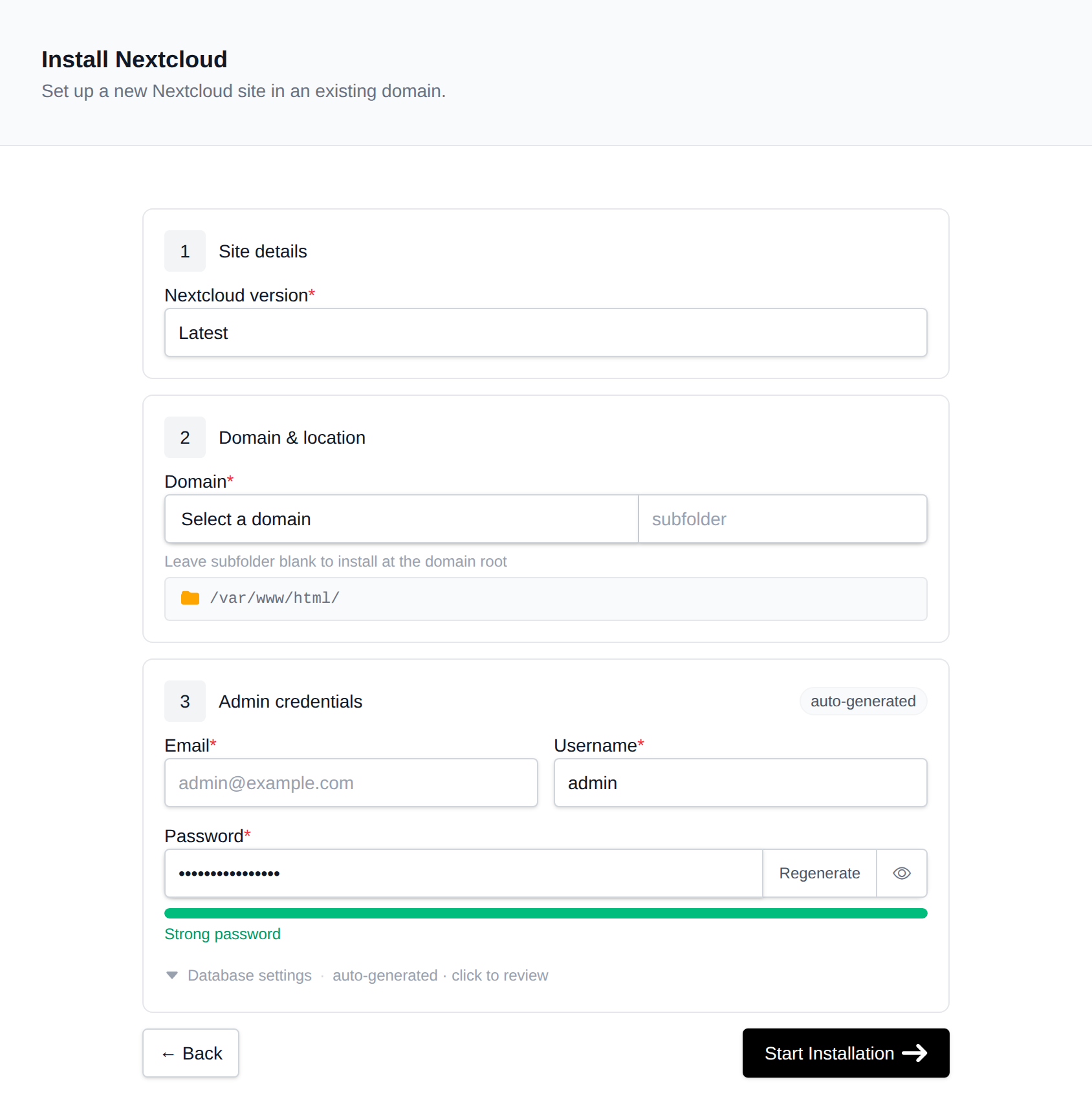
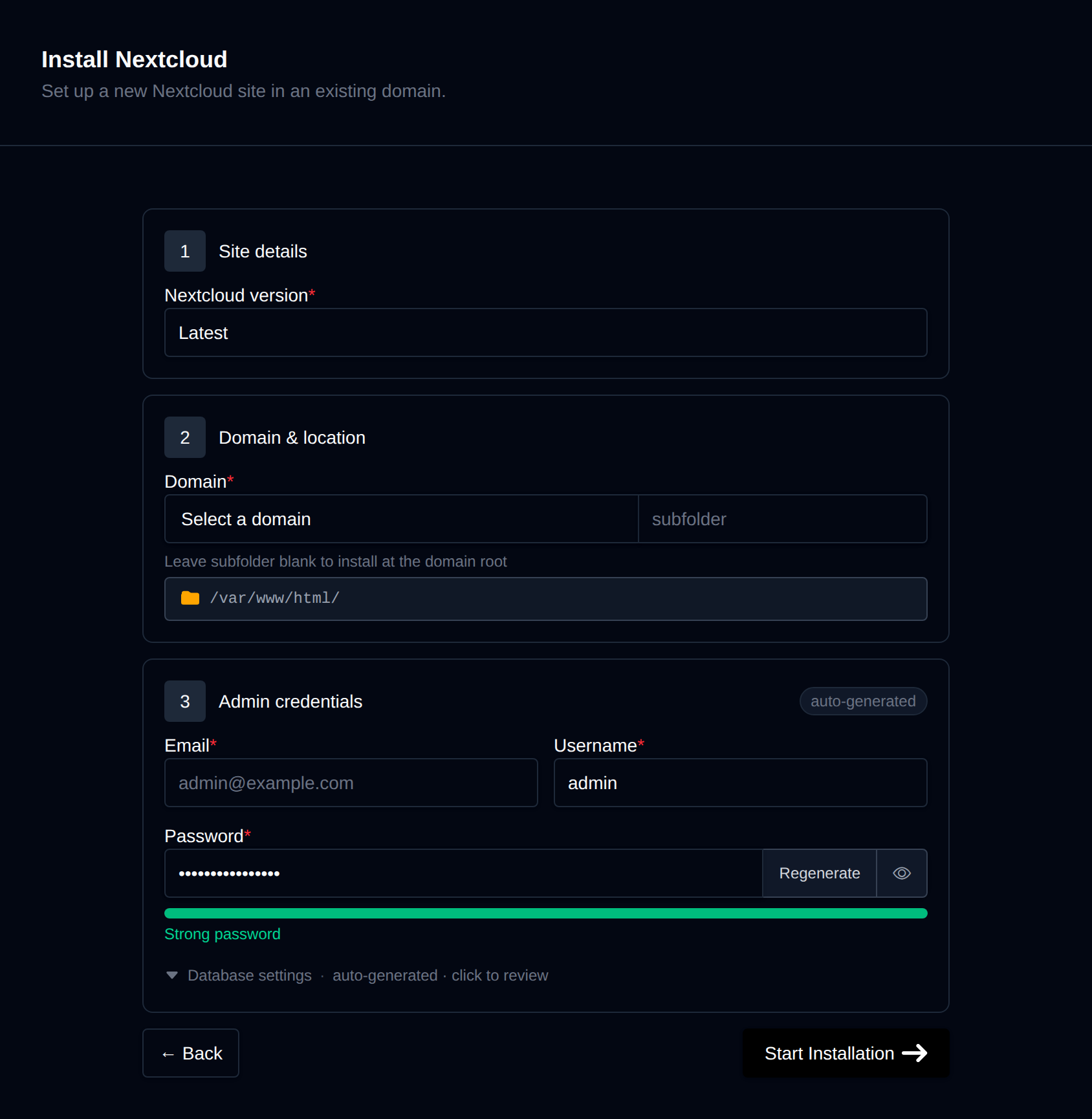
On the install page, configure:
- Domain – The domain (and optional subfolder) to install into. Leave the subfolder blank to install at the domain root.
- Nextcloud version – Latest, or pin to a specific release, fetched live from download.nextcloud.com (Nextcloud doesn't publish release assets on GitHub, so this is scraped from the official releases directory instead).
- Admin username / password / email – The initial administrator account Nextcloud creates during install. Leave the password blank to generate one.
Behind the scenes, this downloads the matching nextcloud-<version>.zip release archive, extracts it into the docroot, creates a dedicated MySQL/MariaDB database, and runs Nextcloud's own occ maintenance:install CLI installer with the details you provided. It then sets trusted_domains and overwrite.cli.url to the installed domain — required steps, since a fresh Nextcloud install otherwise refuses requests from any domain other than localhost. Progress is streamed live as each step completes.
Manage a Nextcloud site
Every Nextcloud install shows up on the general Site Manager page (/sites) alongside your other websites. Click Manage on a Nextcloud site to open its overview page:
- Screenshot and Nextcloud / PHP / MariaDB / Created status cards, matching the other CMS managers.
- Files – Docroot path, a File Manager shortcut, and live folder size.
- Database – Host, name, table prefix, and password (read live from
config/config.php, not stored anywhere separately), plus a phpMyAdmin shortcut. - PHP version – Editable for root-level installs; subdirectory installs inherit the domain's PHP version.
Login as Admin
The Login as Admin button generates a one-time login link and opens the Nextcloud dashboard already authenticated, without needing the admin password. Nextcloud core has no built-in CLI command for this, so OpenPanel deploys a small login helper file into the docroot at install time that authenticates through Nextcloud's own public IUserSession::completeLogin() API; each click issues a fresh token valid for 10 minutes and usable once.
Cache
The Cache widget clears Nextcloud's generated preview/thumbnail cache and, if a distributed memcache backend is configured, its entries too. Nextcloud has no single "clear all caches" CLI command, and the common local object cache (APCu) is per-PHP-process and can't be cleared remotely.
Logs
The Logs tab shows the tail of data/nextcloud.log — Nextcloud's default JSON-lines application log.
Remove
The Remove tab's Delete Application button fully uninstalls the site: drops the database and database user, deletes every file in the docroot, and removes it from Site Manager. This cannot be undone.
Not included
To keep this feature simple, the following are not part of Nextcloud support (unlike the WordPress Manager):
- A dedicated "Nextcloud Manager" sidebar page — manage installed sites from Site Manager instead
- Cloning a site
- Scanning the filesystem for untracked installations
- Security hardening rules
- App/plugin installation (install additional Nextcloud apps from its own Apps page after setup)
- A dedicated backup/restore system (use the account-level Backups feature instead)
- Only MySQL/MariaDB databases are supported