DNS
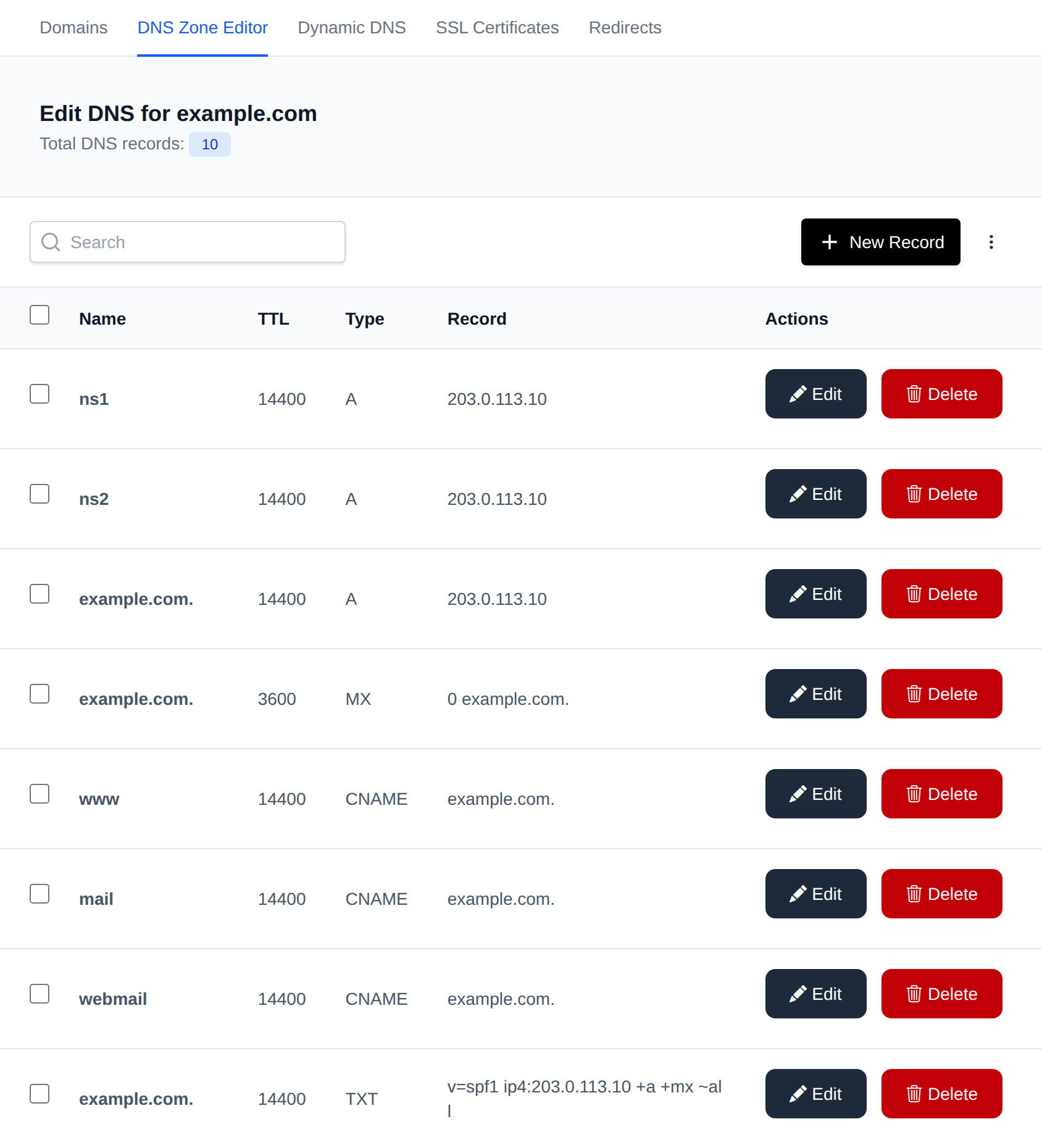
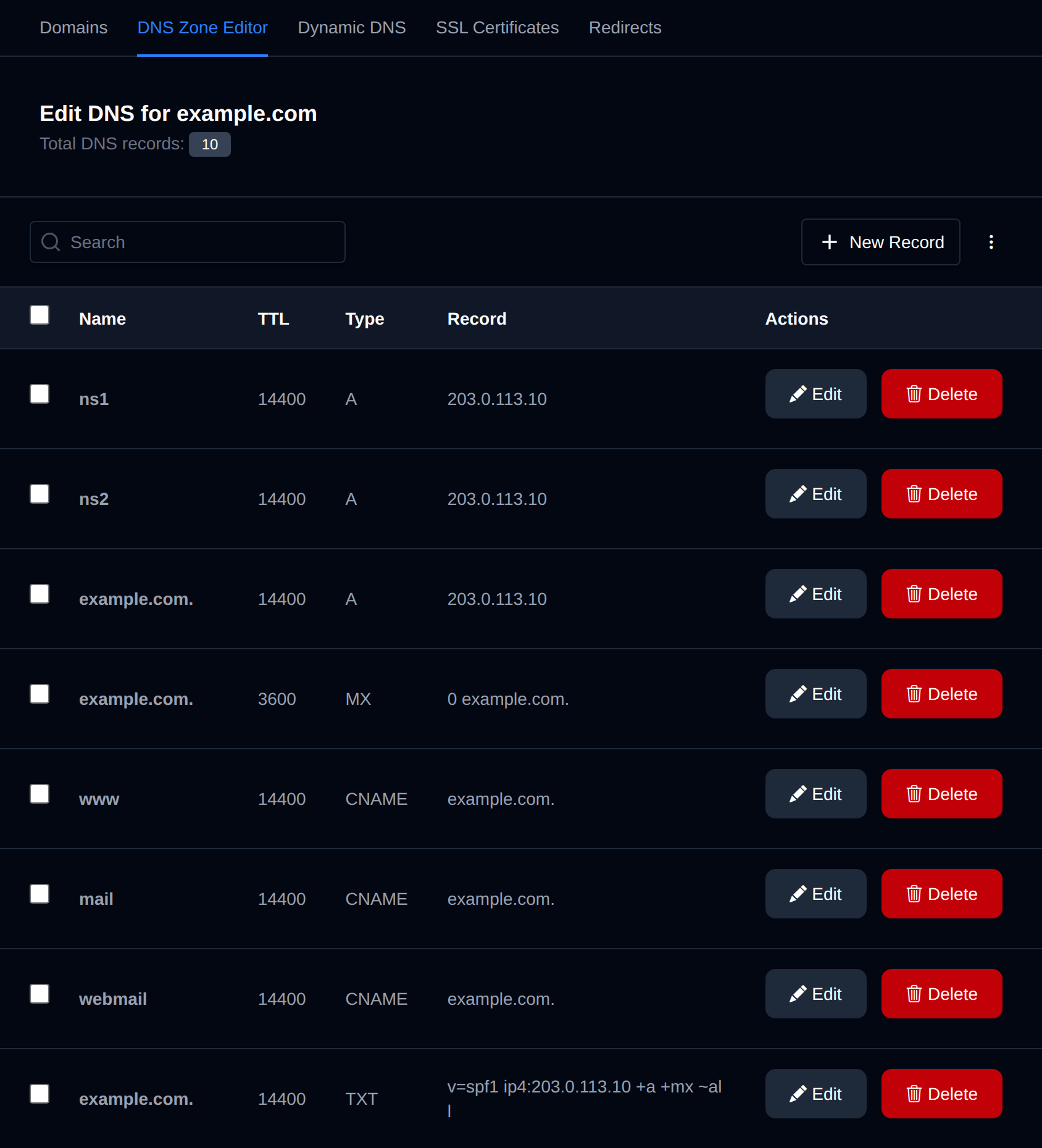
The DNS Zone Editor enables you to manage and edit Domain Name System (DNS) zone files, which are essential for mapping domain names to IP addresses and handling various DNS records such as A, CNAME, MX, and TXT records.
On the main DNS Zone Editor page, you can choose a domain name to view and modify its records.
Edit record
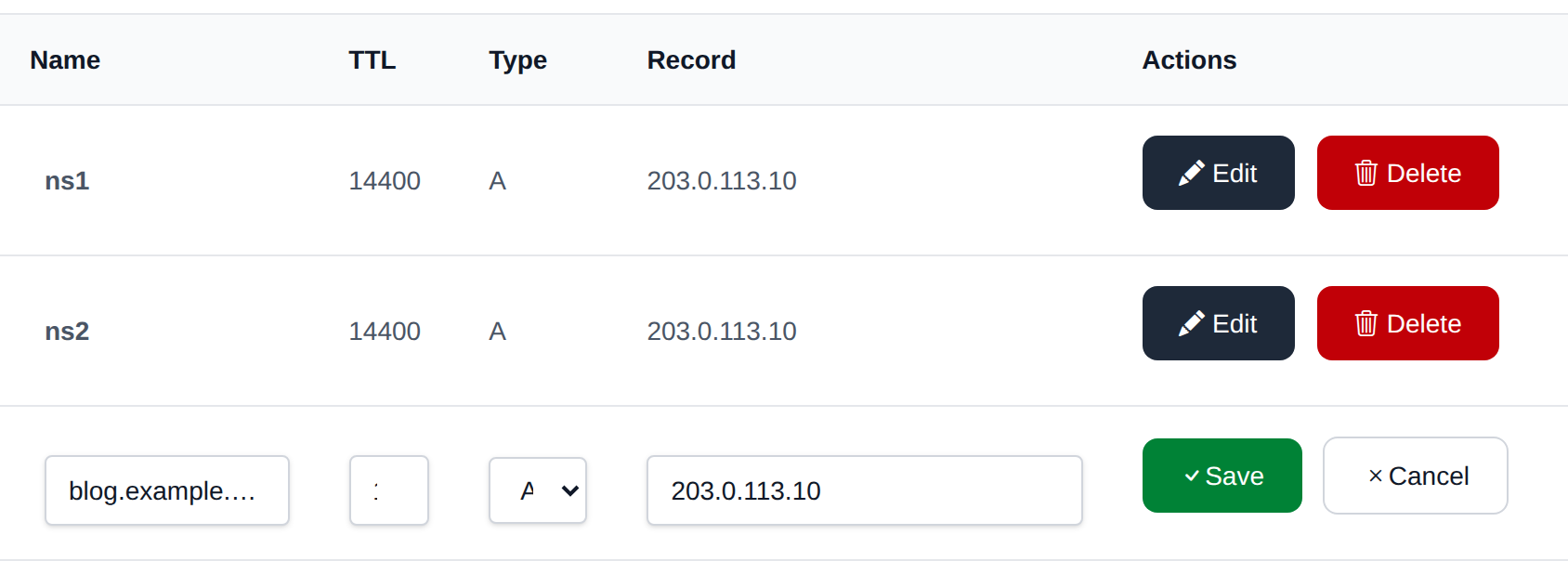
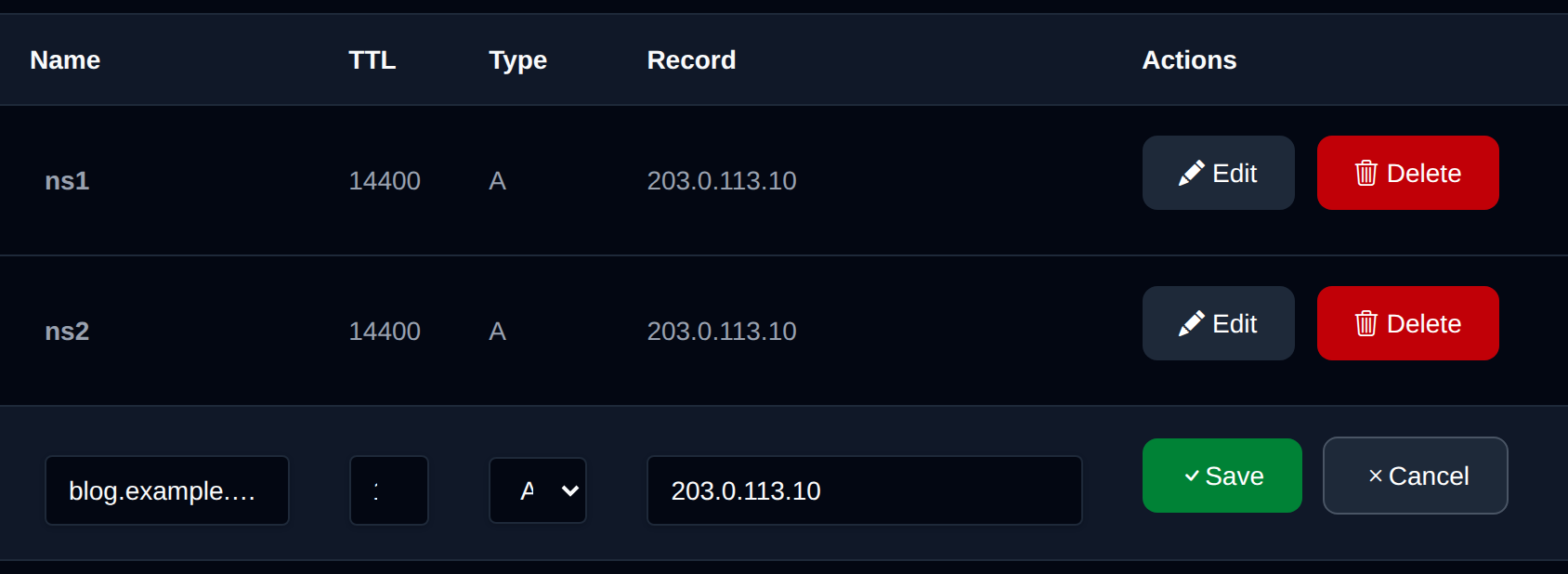
To modify an existing record, click on the 'Edit' button next to it. This will make the row editable, allowing you to save changes by clicking the 'Save' button or discard them by selecting the 'Cancel' button.
Create record
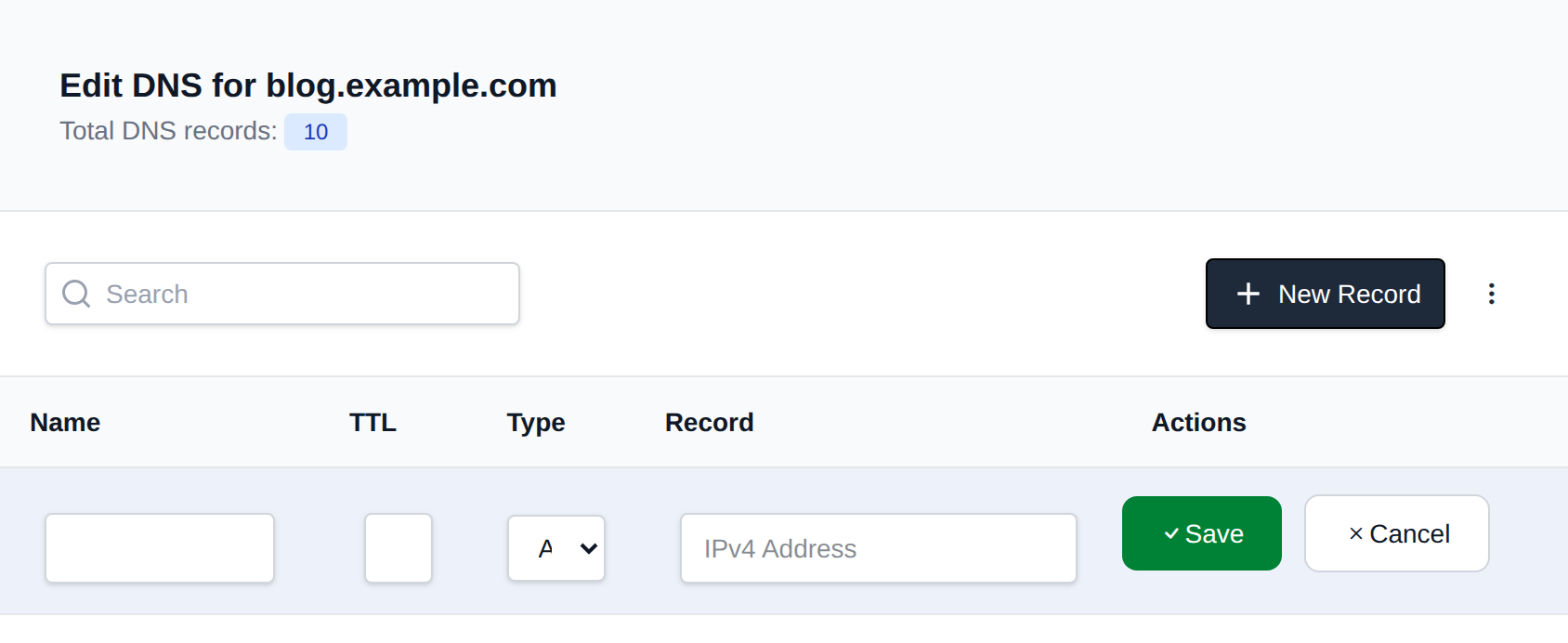
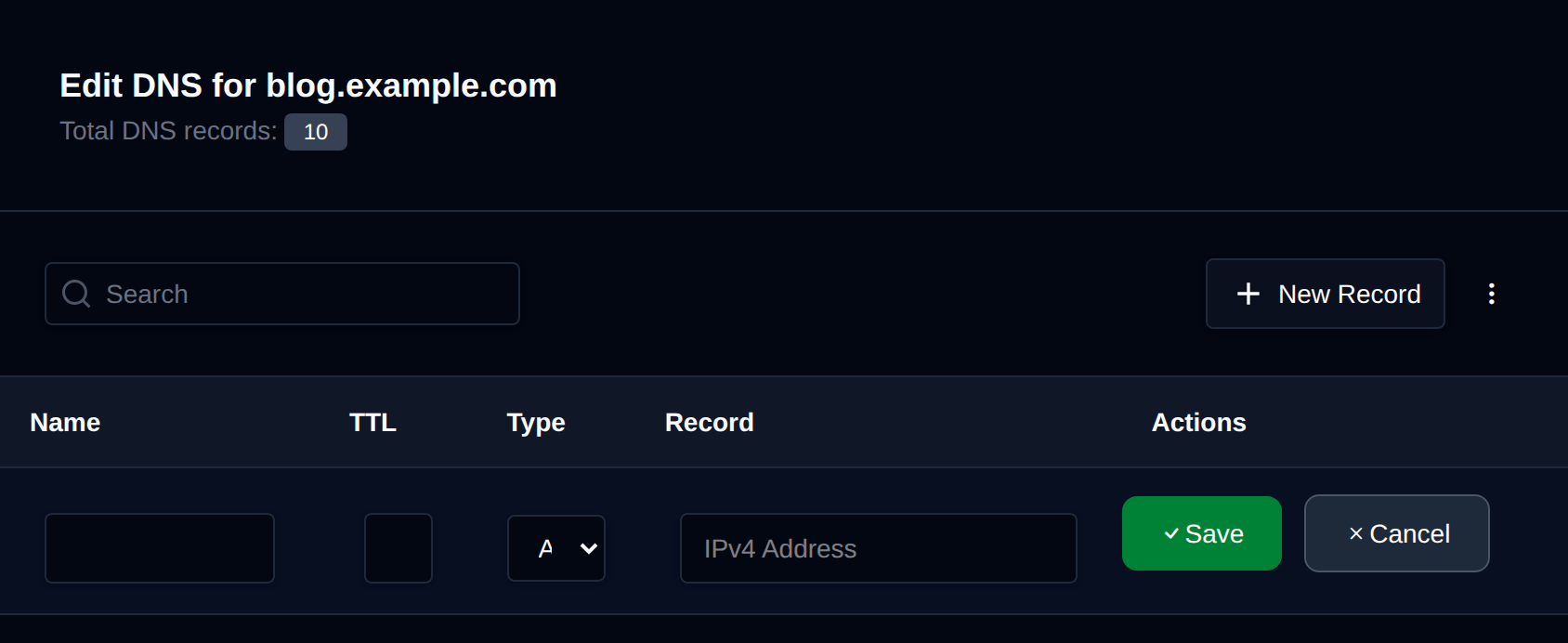
To create a new DNS record, click on the 'New Record' button.
This will add a new row at the top of the table where you can enter the record.
Supported DNS types: A, AAAA, CAA, CNAME, MX, SRV, TLSA, TXT
Delete record
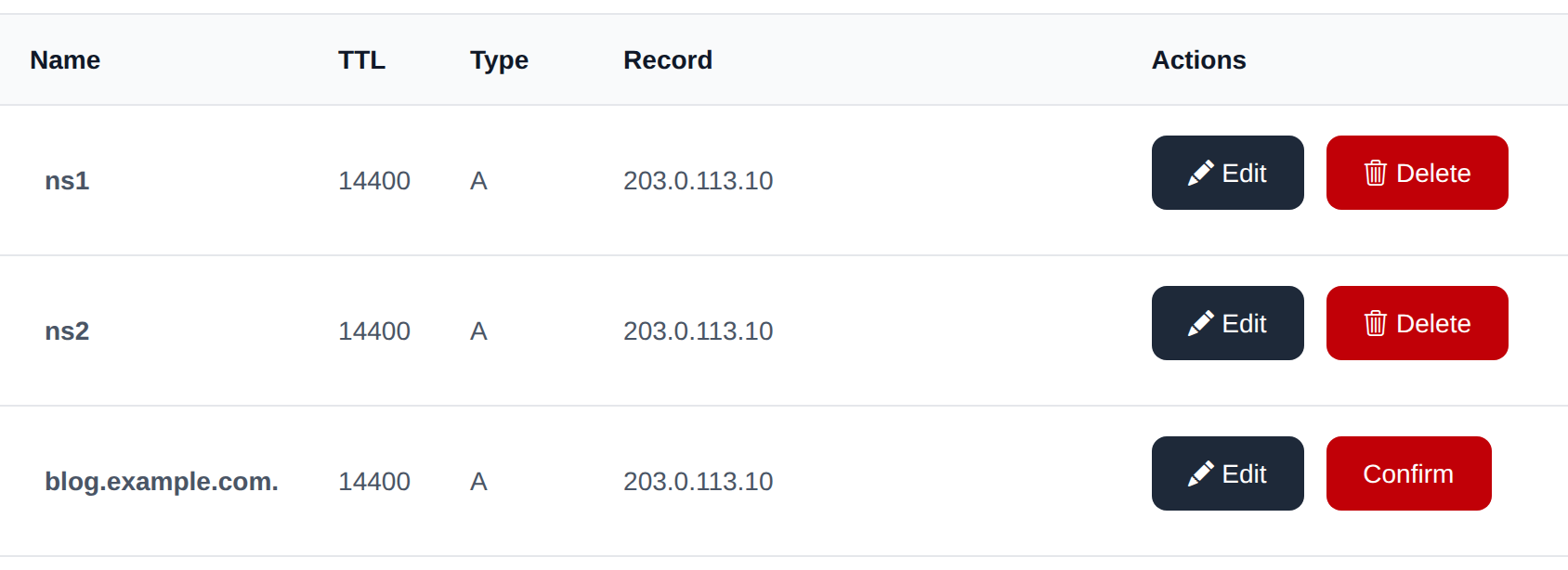
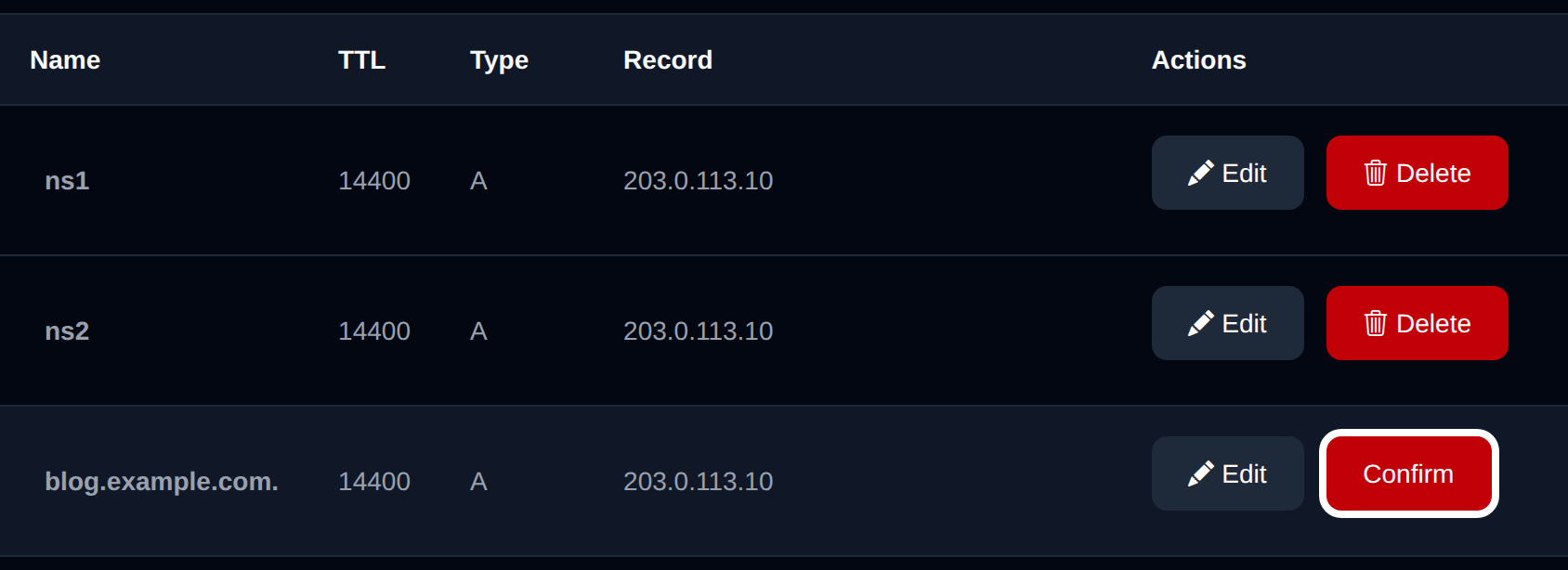
To remove an existing DNS record, click the delete button next to it. The button text will change to 'Confirm', and on the second click, it will permanently delete the record.
Export Zone
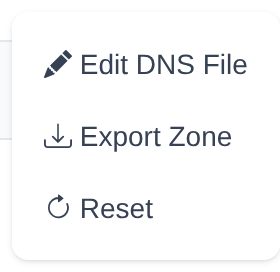
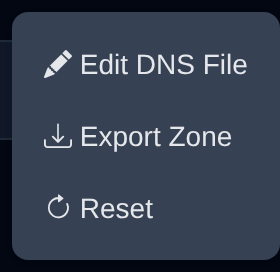
To export a DNS zone, click on the 'Export Zone' button. The zone file will be downloaded immediately.
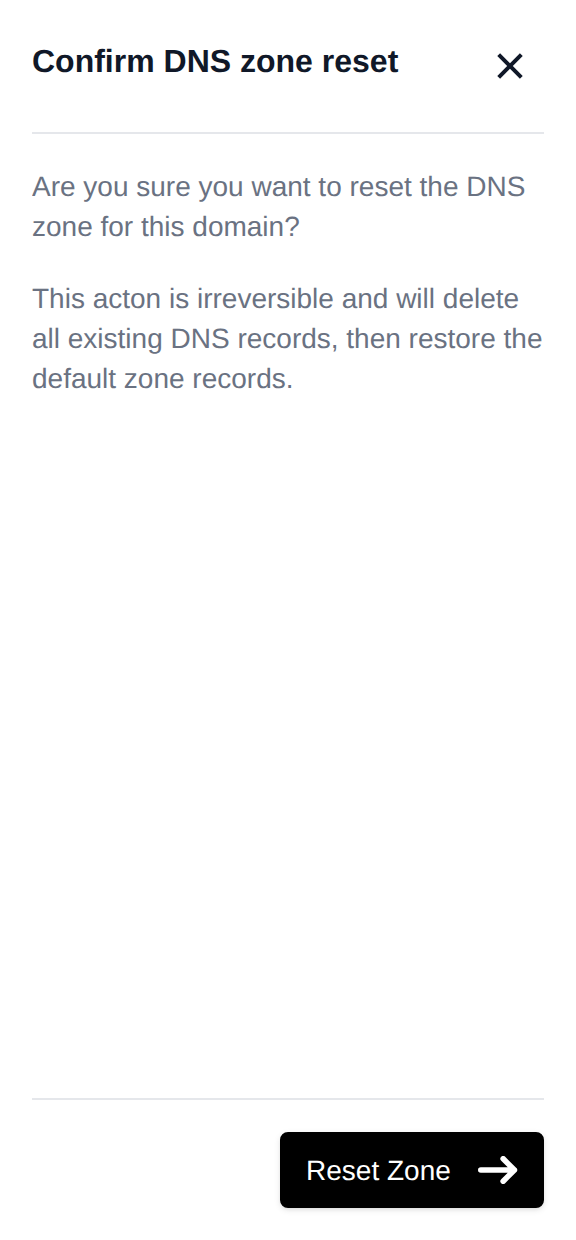
Reset Zone
Resetting the zone will delete all existing records and create a default DNS zone, as if the domain had just been added again.
Advanced Editor
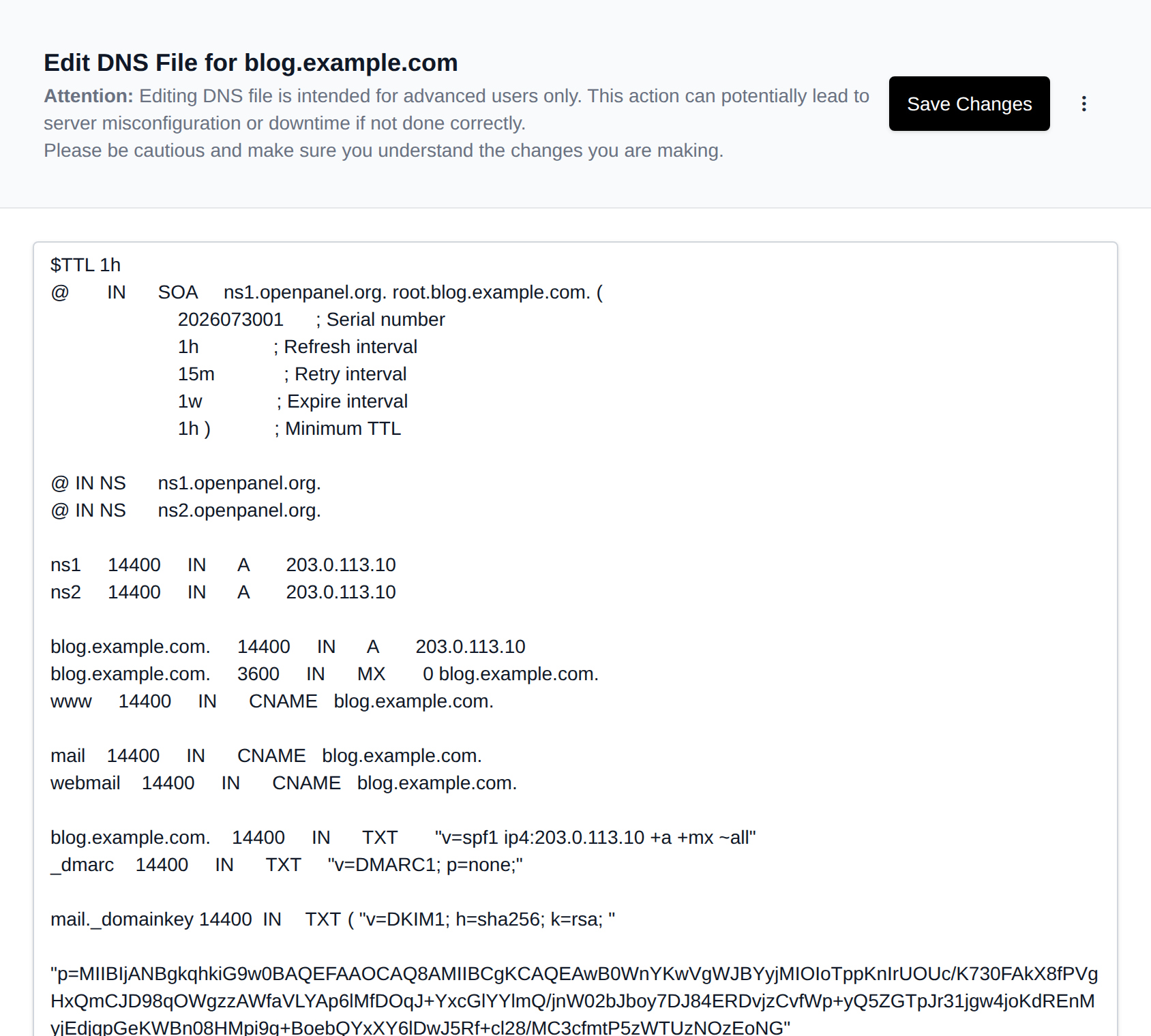
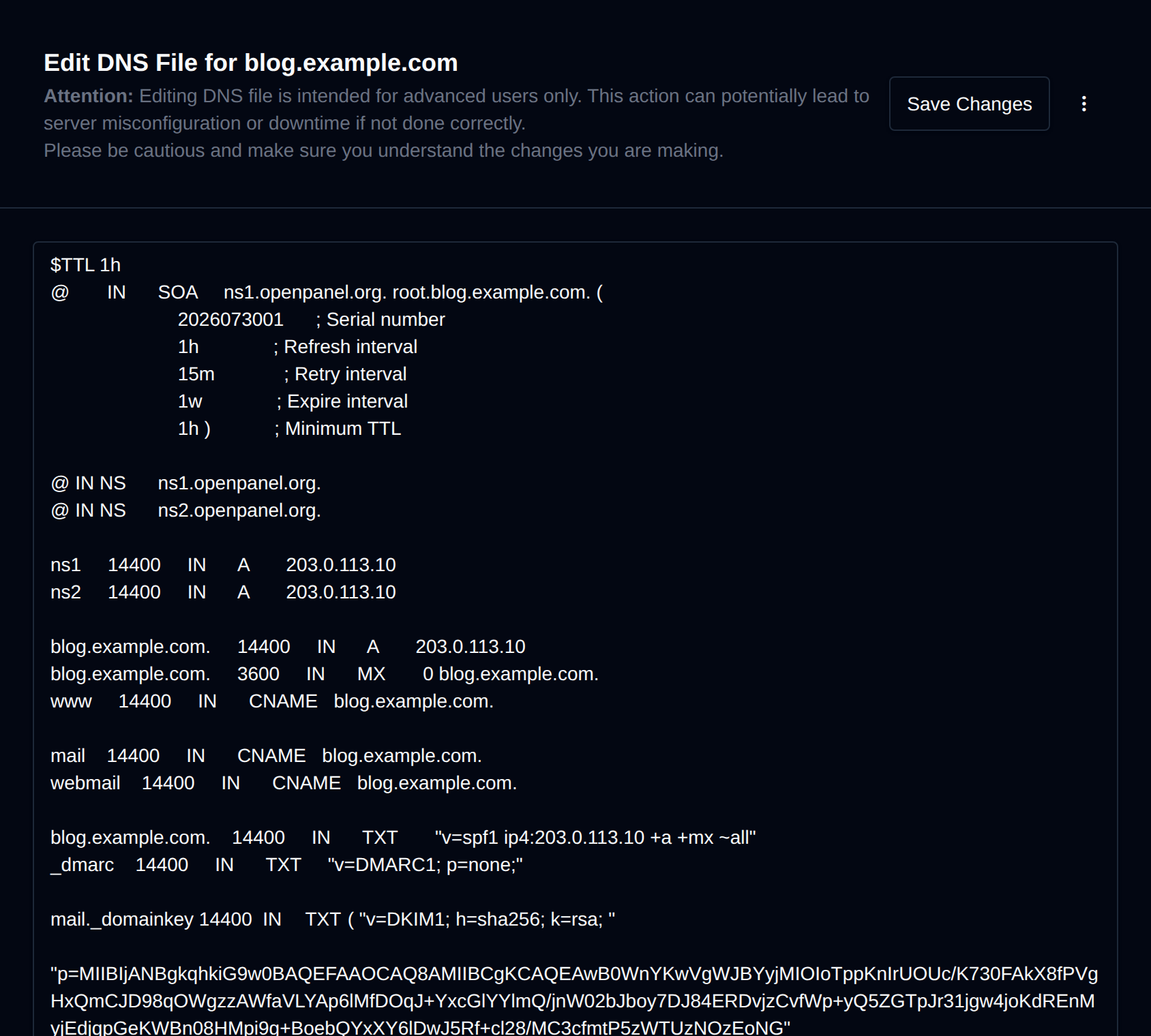
The Advanced Editor allows direct editing of the DNS zone file, including adding custom records or comments. It can also be used to import a DNS zone by pasting content from another server.