Version: 2.0.10
Suspend a domain
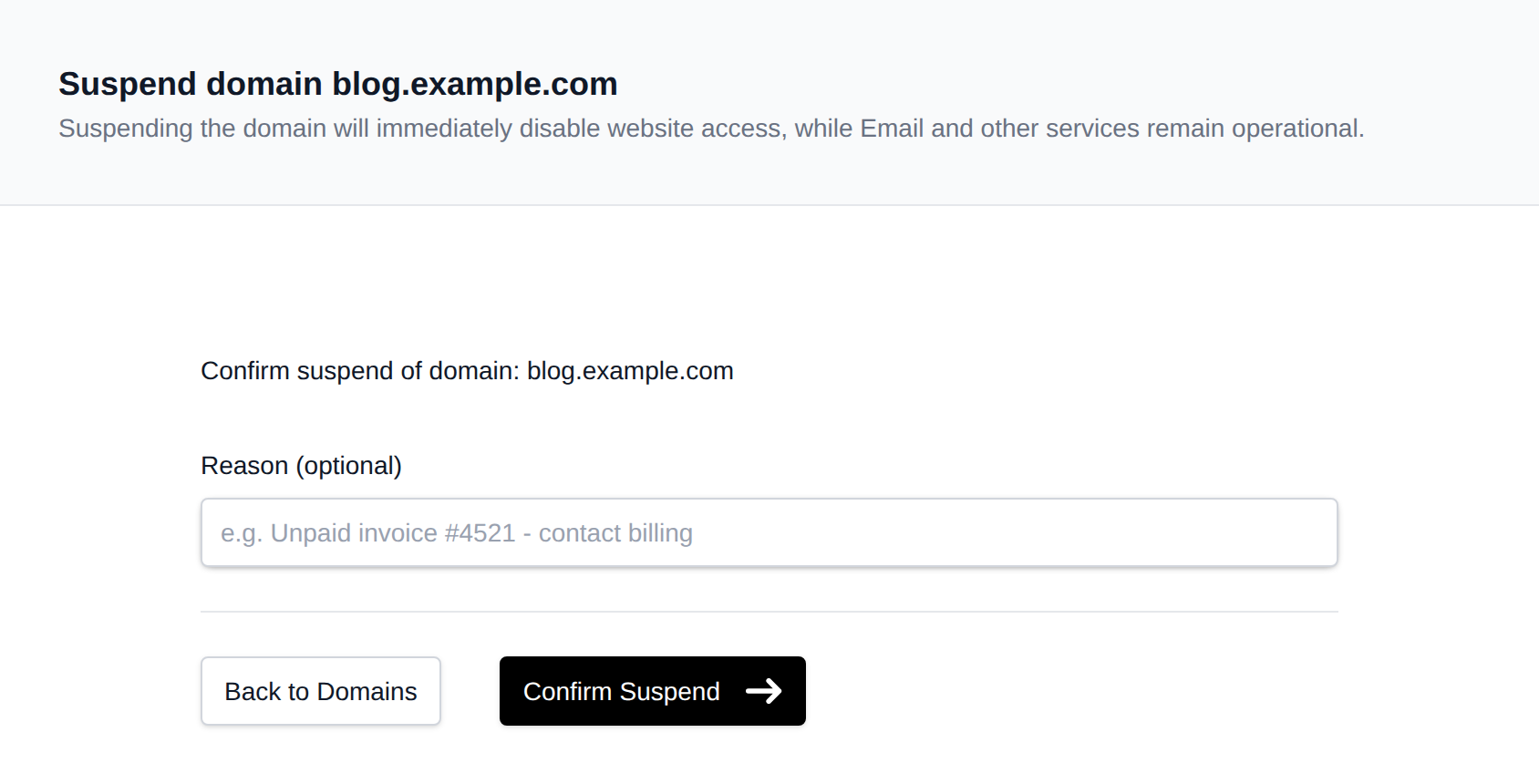
You can temporarily suspend a domain from the Domains page. When a domain is suspended, its website content is replaced with a Suspended Website page, as configured by the Administrator.
This feature is useful for quickly disabling a website while keeping all other services—such as email, FTP, and more - fully functional.
To suspend a domain:
- Open the Actions menu for the domain on the Domains page and click Suspend.
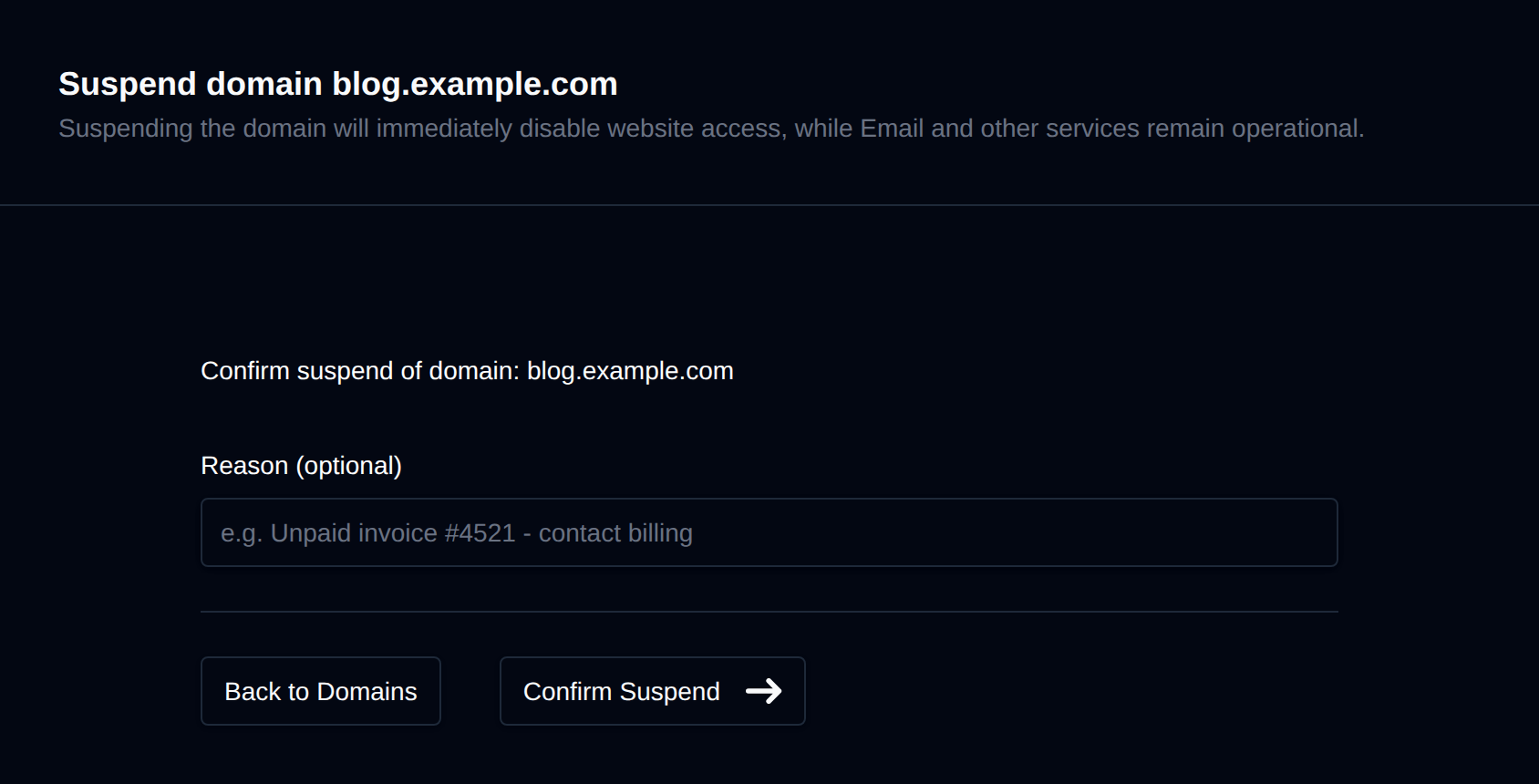
- Optionally enter a Reason (e.g. "Unpaid invoice #4521 - contact billing"). This is shown next to the domain's status on the Domains page.
- Click Confirm Suspend.
Was this helpful?