Databases
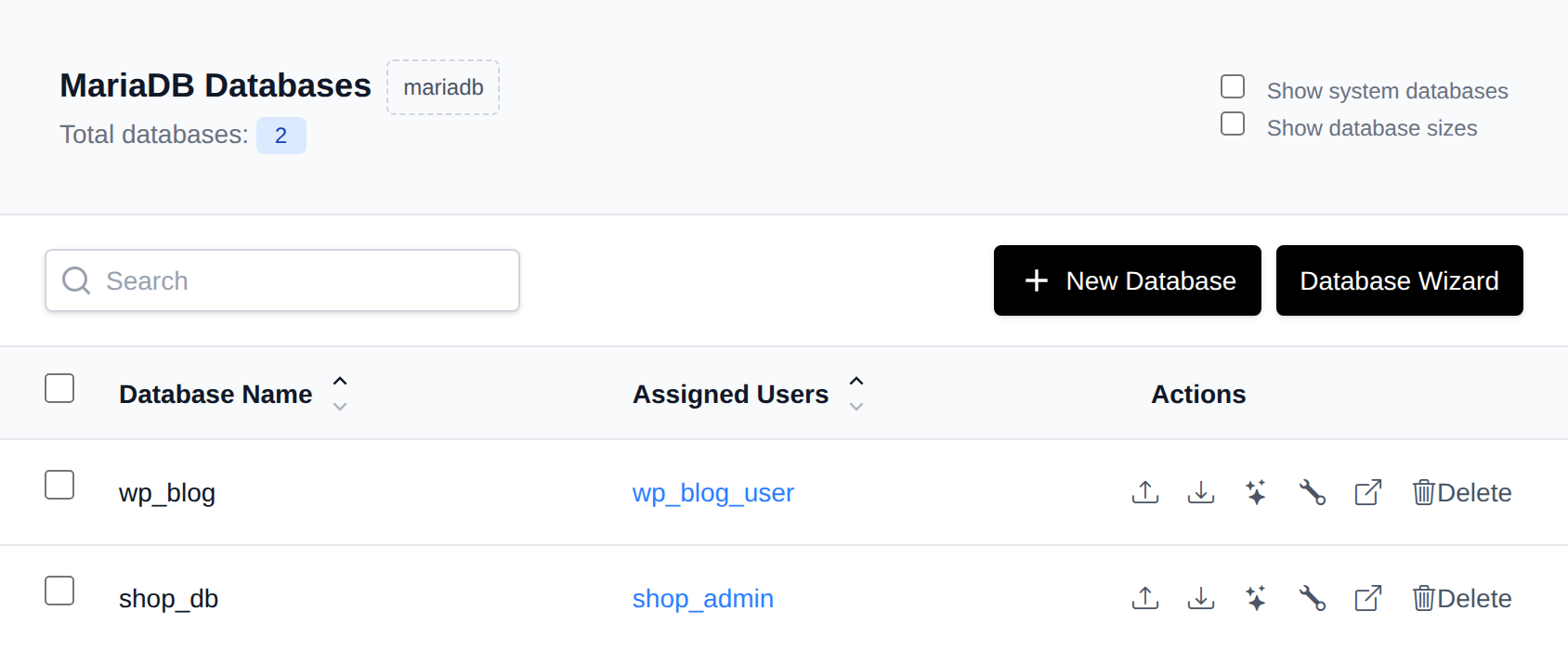
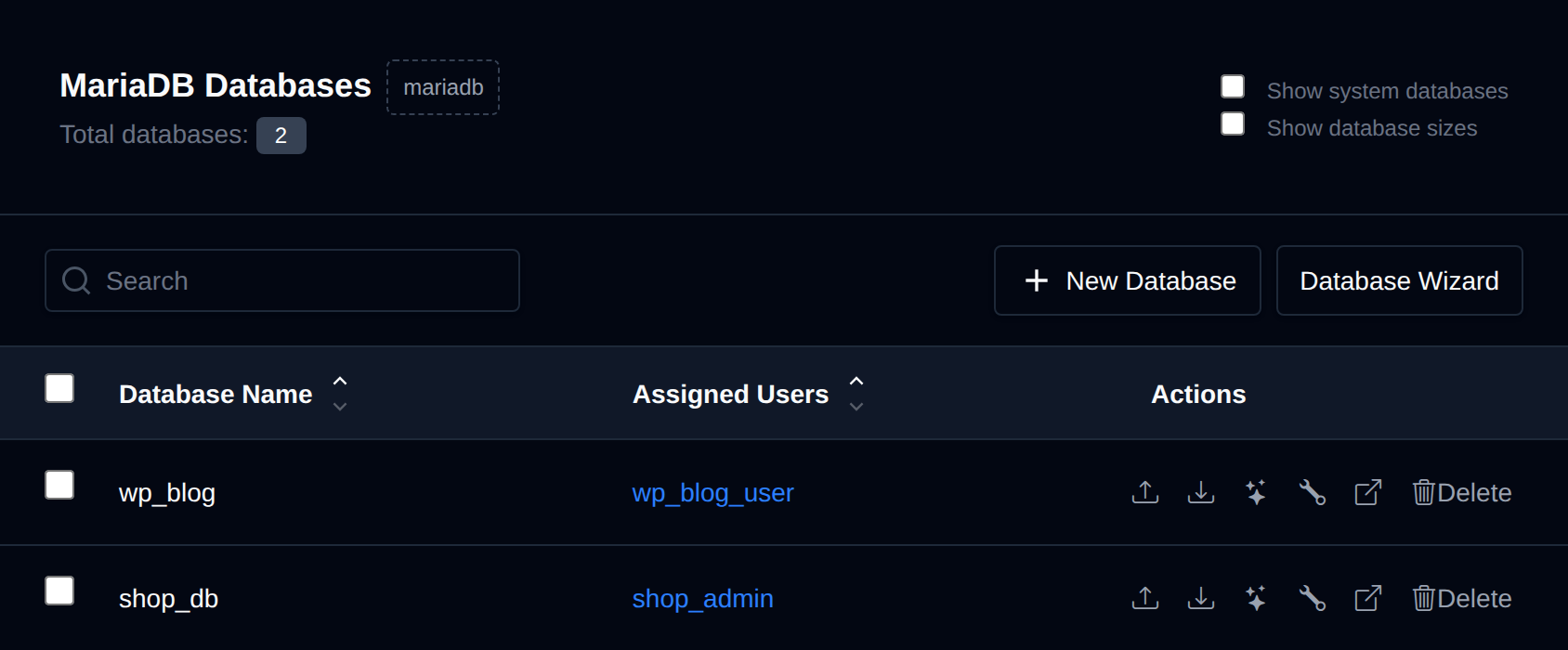
MySQL databases are used to store and manage your website's data, such as content, user information, and product details, making it accessible and organized for your web applications.
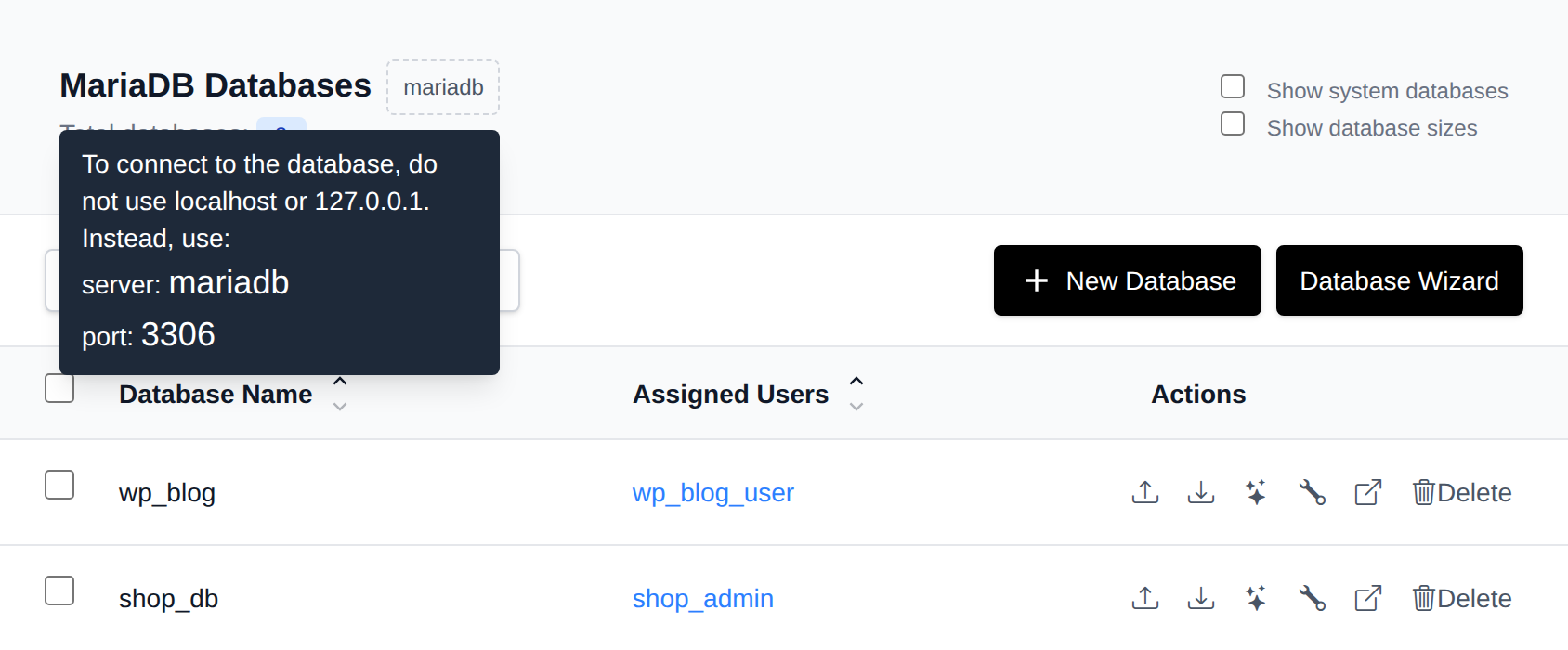
On the Databases page, you can view and manage your MySQL databases.
The page provides a table containing your Databases, along with options related to them. By default, internal/system databases are hidden — enable Show system databases to display them. Sizes are not loaded by default either; enable Show database sizes to fetch and display each database's size, and pick the unit (B, KB, MB, or GB) from the dropdown next to it.
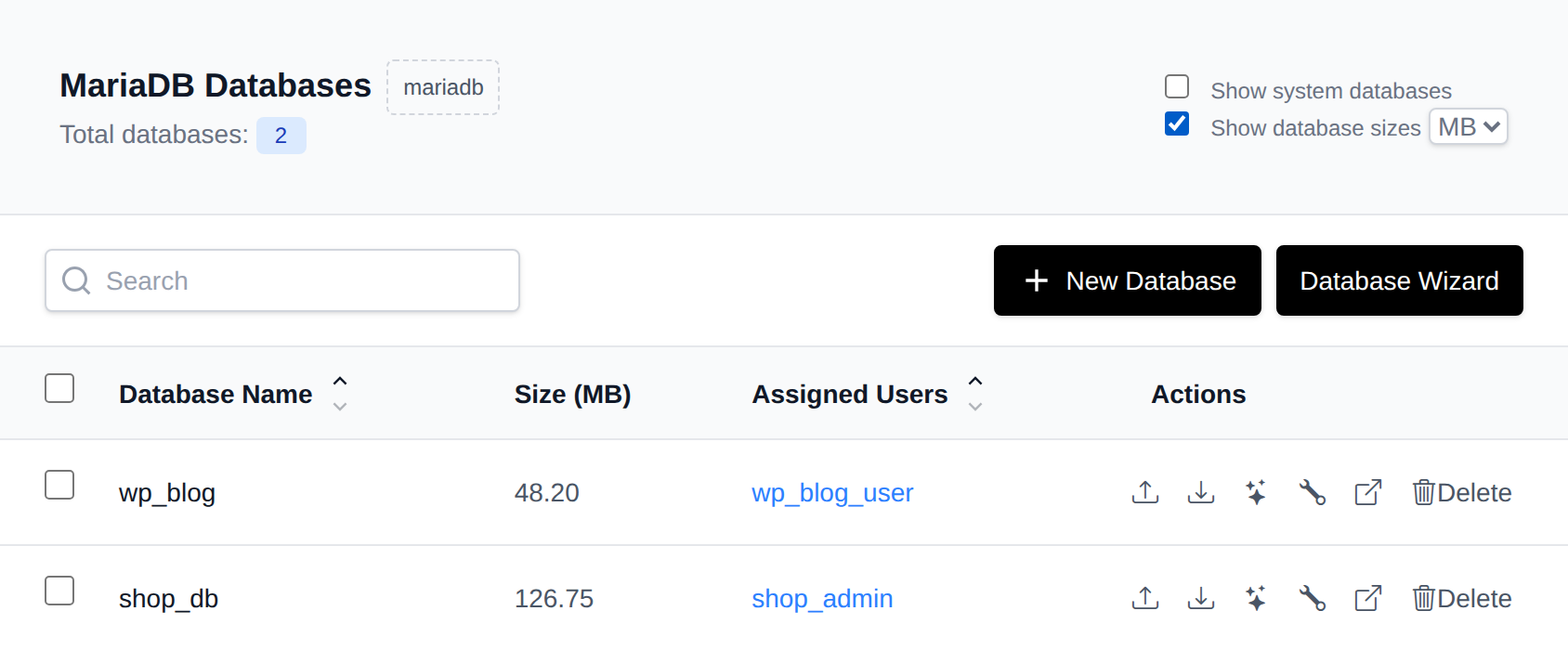
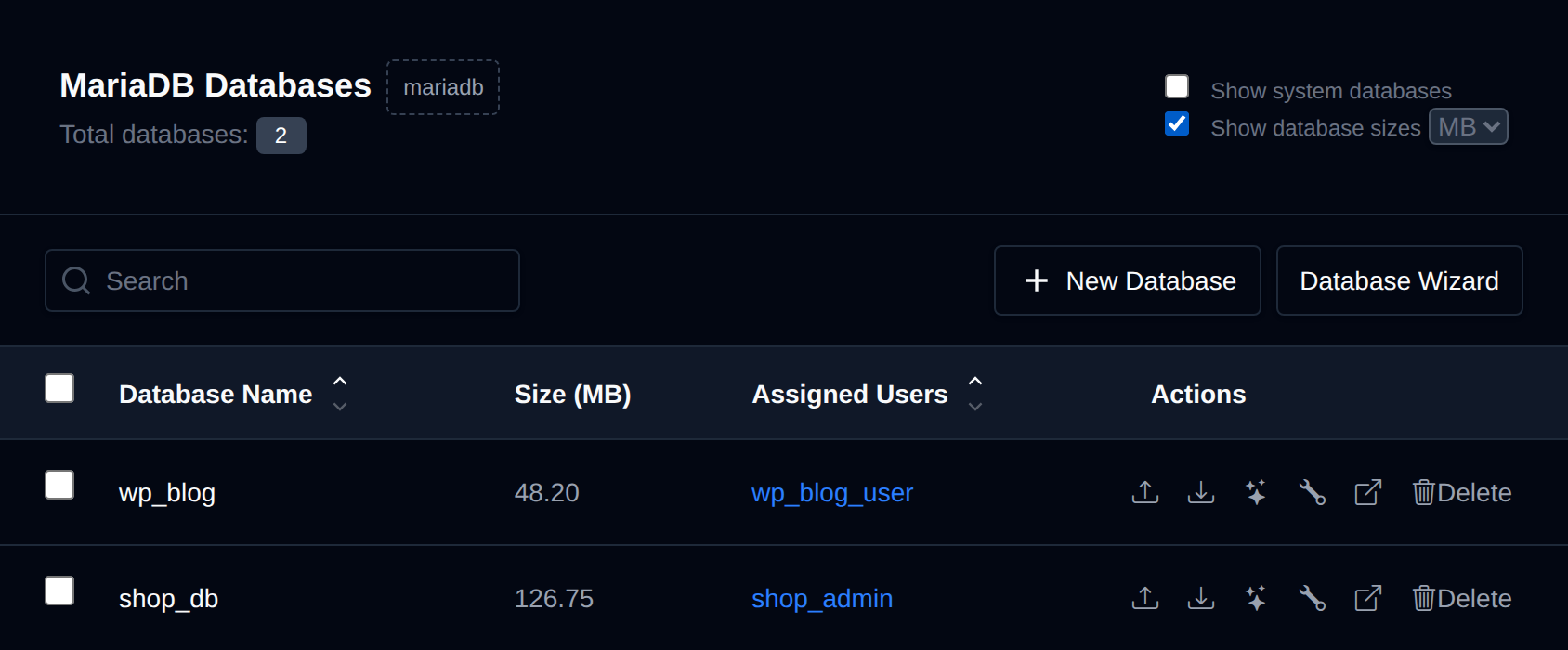
Available options on the Databases page are:
- View Databases and assigned Users
- Create a new database
- Import, export, optimize, or repair a database
- Open a database in phpMyAdmin
- Delete a MySQL Database
The New Database and Database Wizard buttons are disabled while the database service is not running.
Connection info
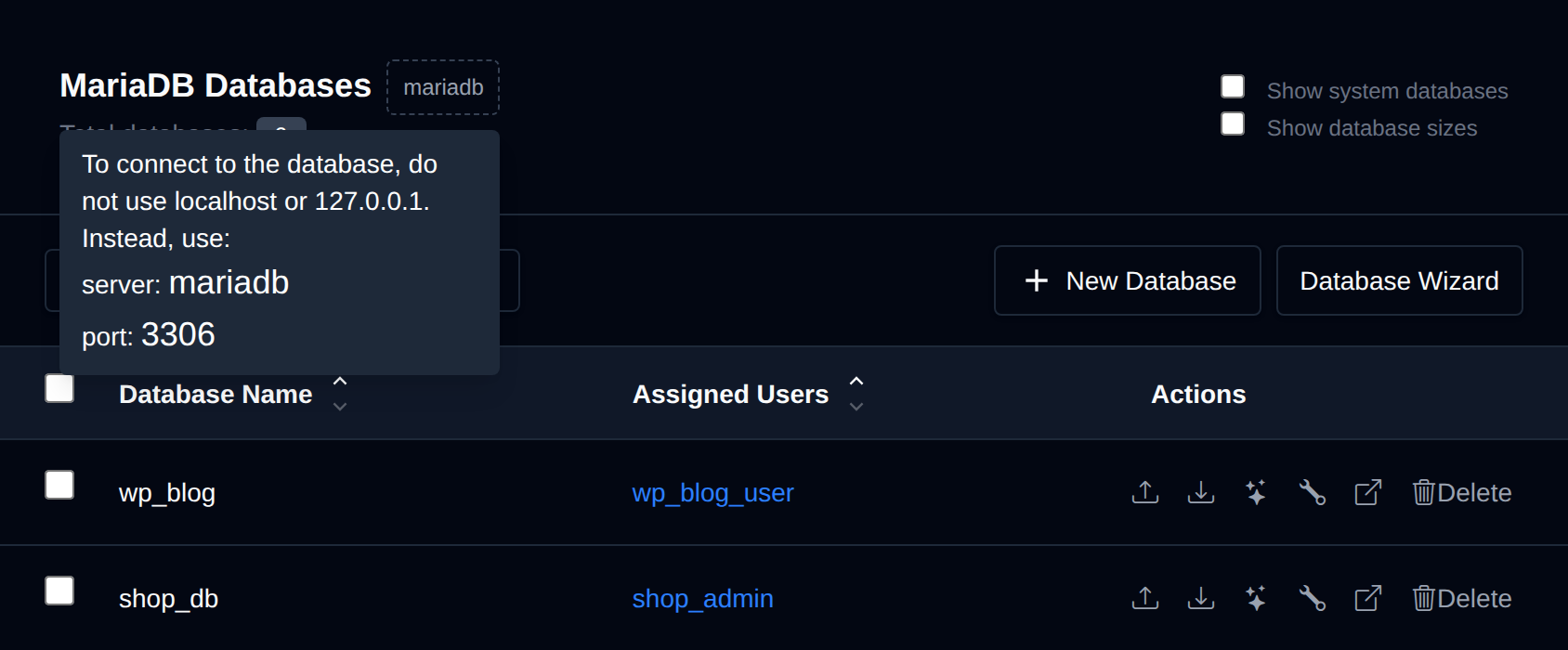
Hover over the mysql or mariadb badge next to the page title to see the connection details for your databases.
When connecting to a database from your applications (for example in wp-config.php or a .env file), always use the service name shown there, mysql or mariadb, as the database host, with port 3306. Never use localhost or 127.0.0.1: the database runs in its own container, so it can't be reached on those addresses.
Create a MySQL Database
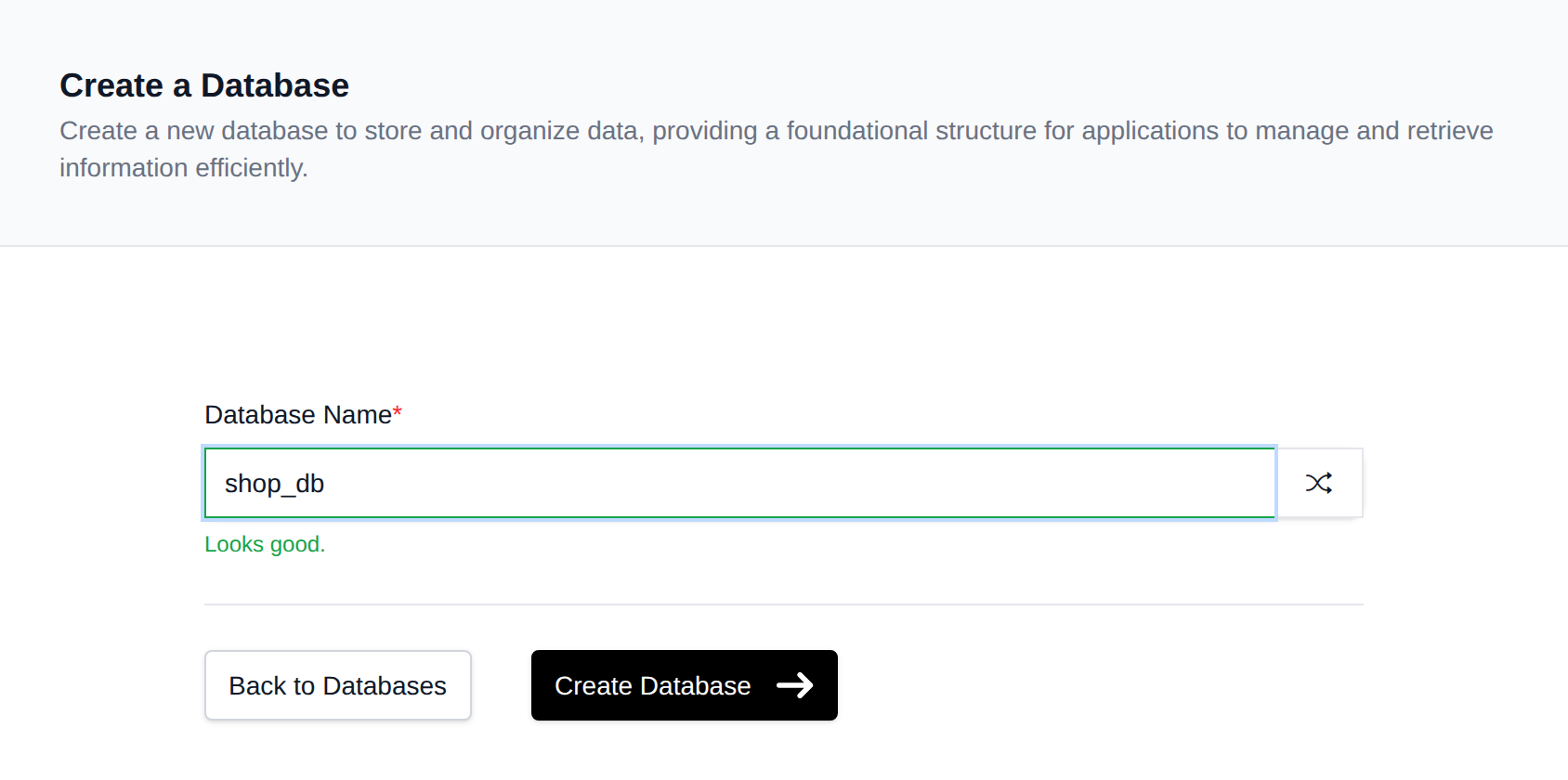
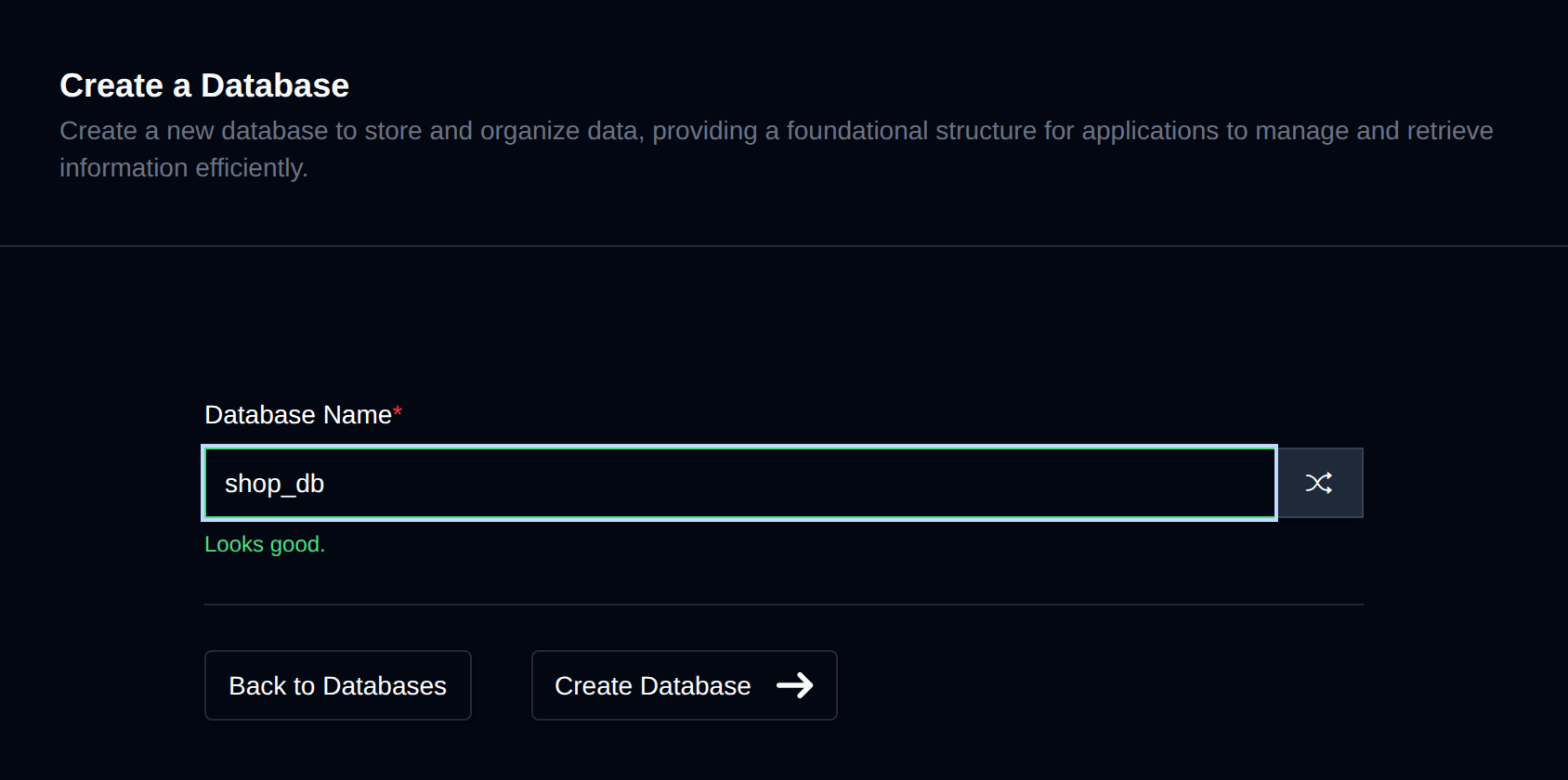
To create a new MySQL database, click on the "New Database" button and fill in the name of the new database:
You can also use the Database Wizard to create a database, a user, and assign it in one step.
Database Actions
Each database row (except system databases) has a row of action buttons:
-
Import – Only shown if the Import feature is enabled for your account. Opens the Import page with this database pre-selected.
-
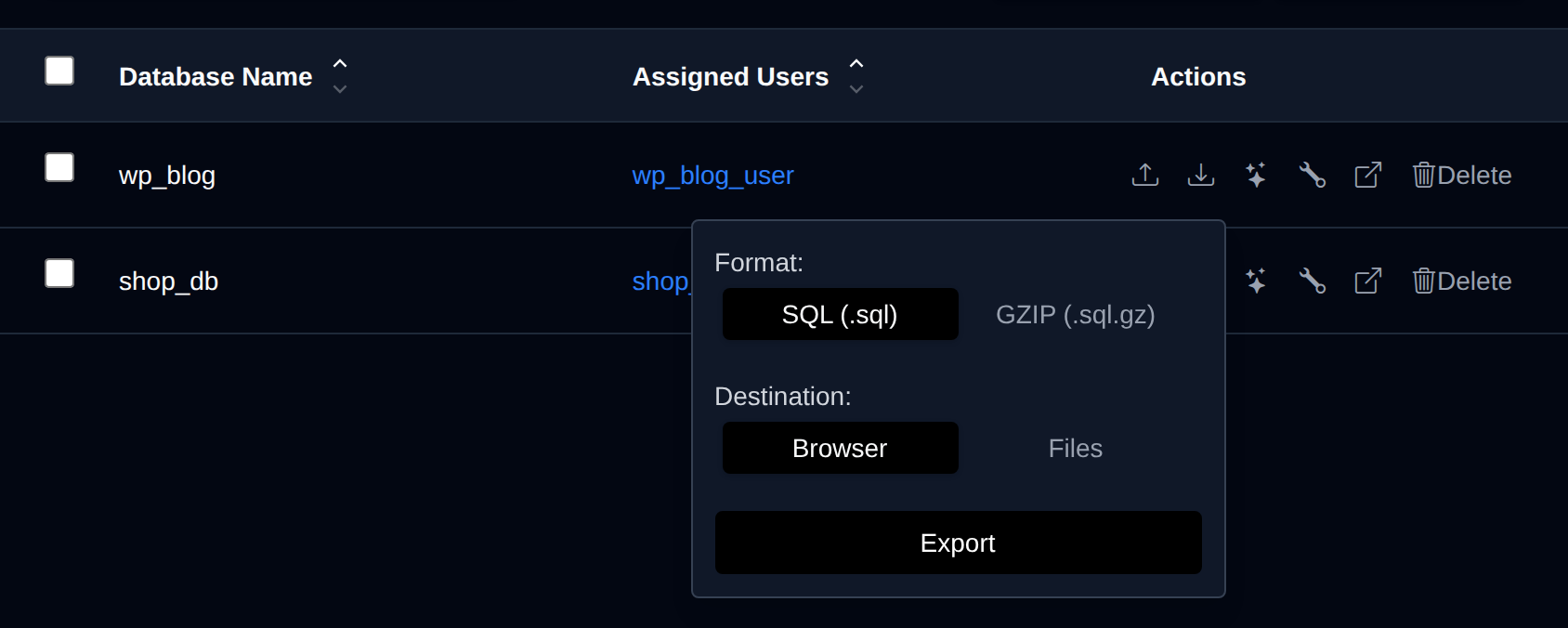
Export – Opens a small panel where you choose the export Format (
SQLorGZIP) and Destination (download to your Browser, or save to a Files path under/var/www/html/), then click Export.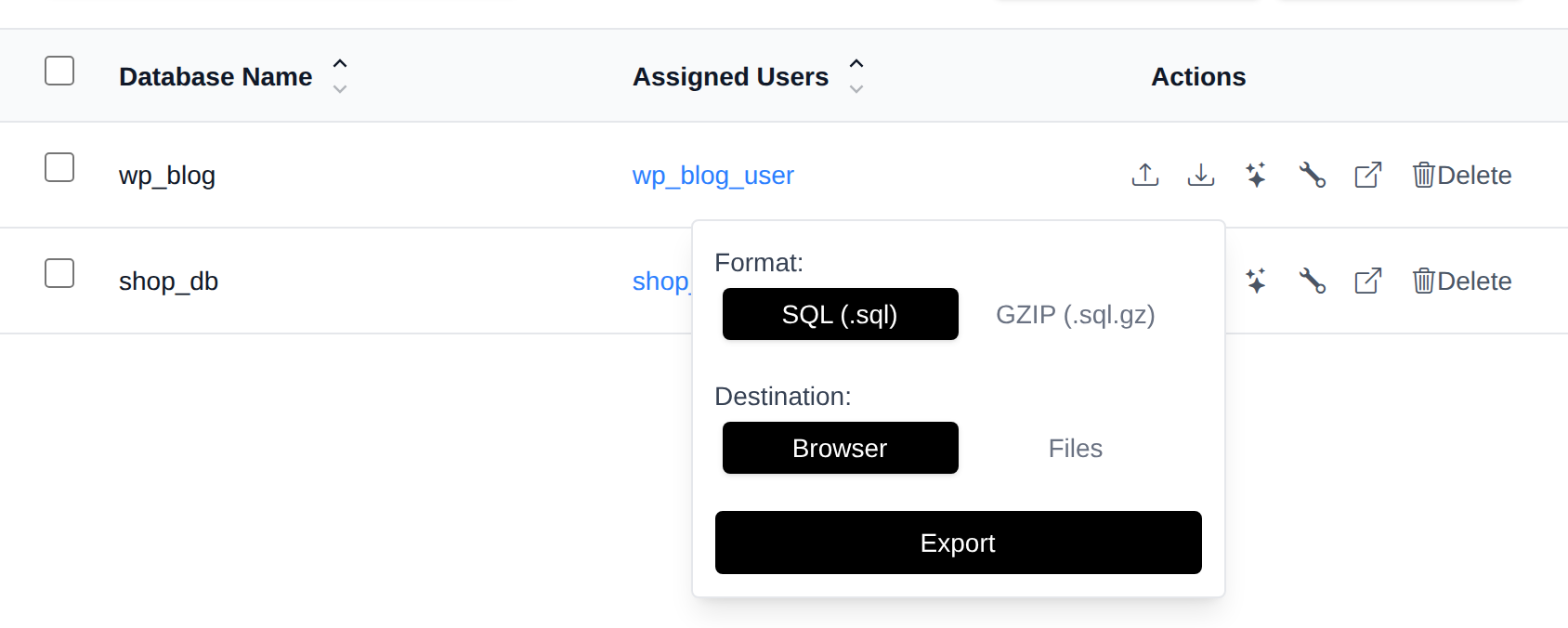
-
Optimize – Runs
OPTIMIZE TABLEon every table in the database. -
Repair – Runs
REPAIR TABLEon every table in the database. -
phpMyAdmin – Only shown if phpMyAdmin is enabled for your account. Opens phpMyAdmin directly on this database in a new tab.
-
Delete – Permanently deletes the database.
Delete a MySQL Database
To delete an existing MySQL database, click on the "Delete" button next to the database name in the table.
The button turns into Confirm with a 5-second countdown. Click it again before the countdown ends to delete the database; otherwise it reverts to Delete.


⚠️ Deleting a MySQL database will permanently delete all tables and data for that database.