MySQL Users
This section lists all your MySQL users and offers options to reset a user's password or delete a user.
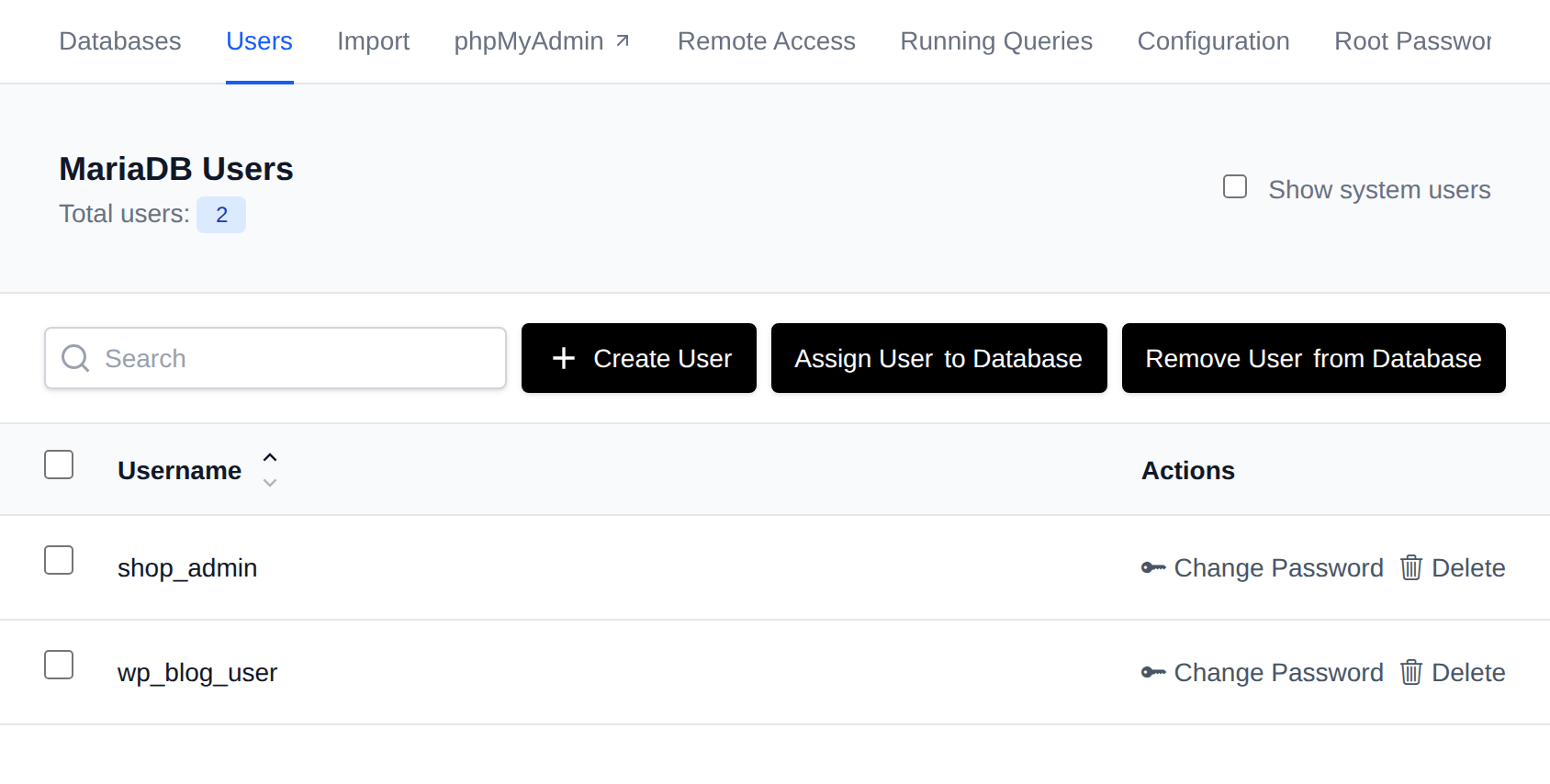
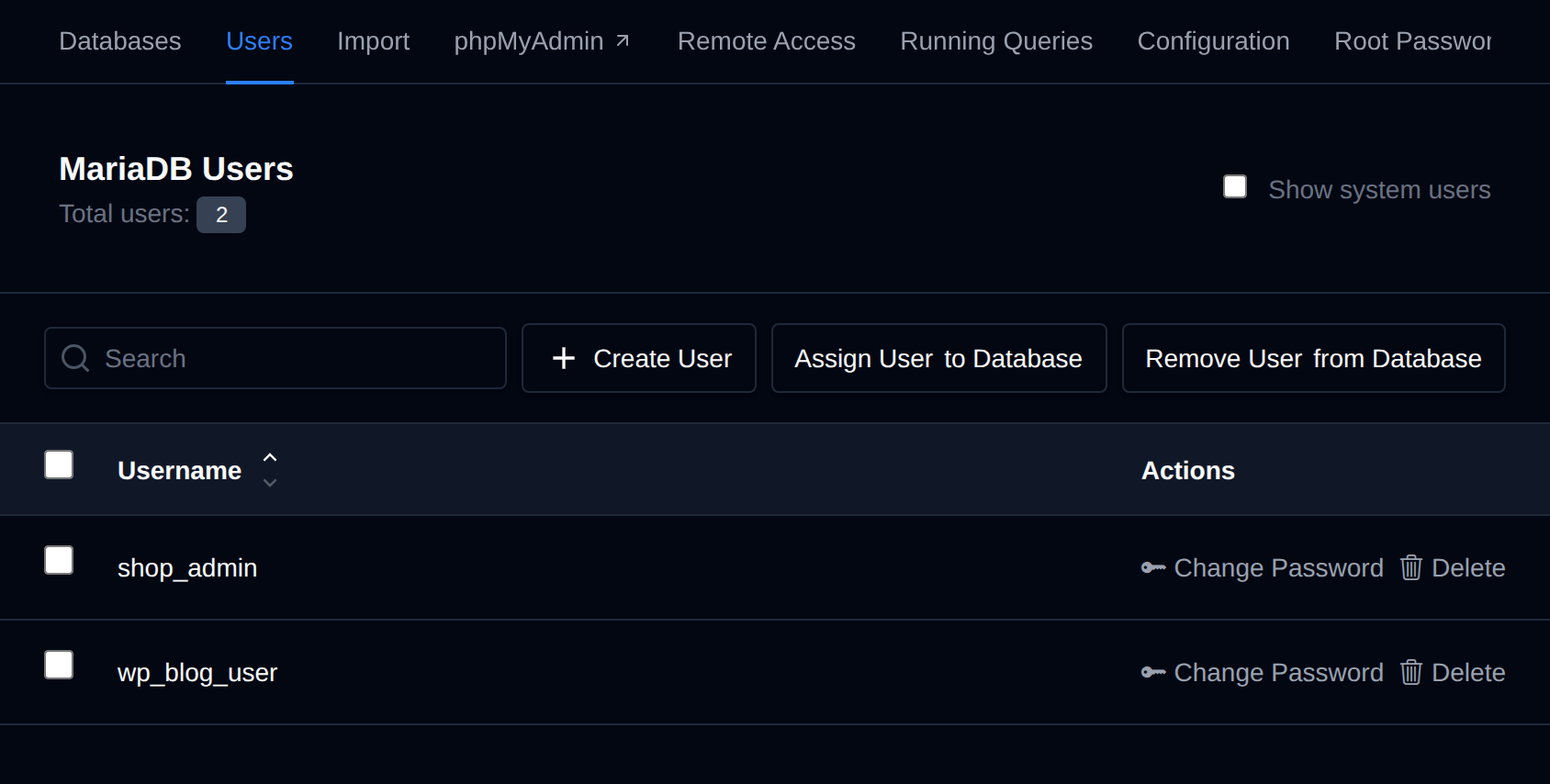
Enable Show system users at the top of the page to also display internal/system MySQL accounts, which are hidden by default.
Available options on the Users page are:
- Create a new user
- Assign a user to a database
- Remove a user from a database
- Reset a user's password
- Delete a user
The Create User, Assign User to Database, and Remove User from Database buttons are disabled while the database service is not running.
Create a New Database User
MySQL users are essential for controlling who can access and interact with your databases, ensuring data security and controlled access to your website's information.
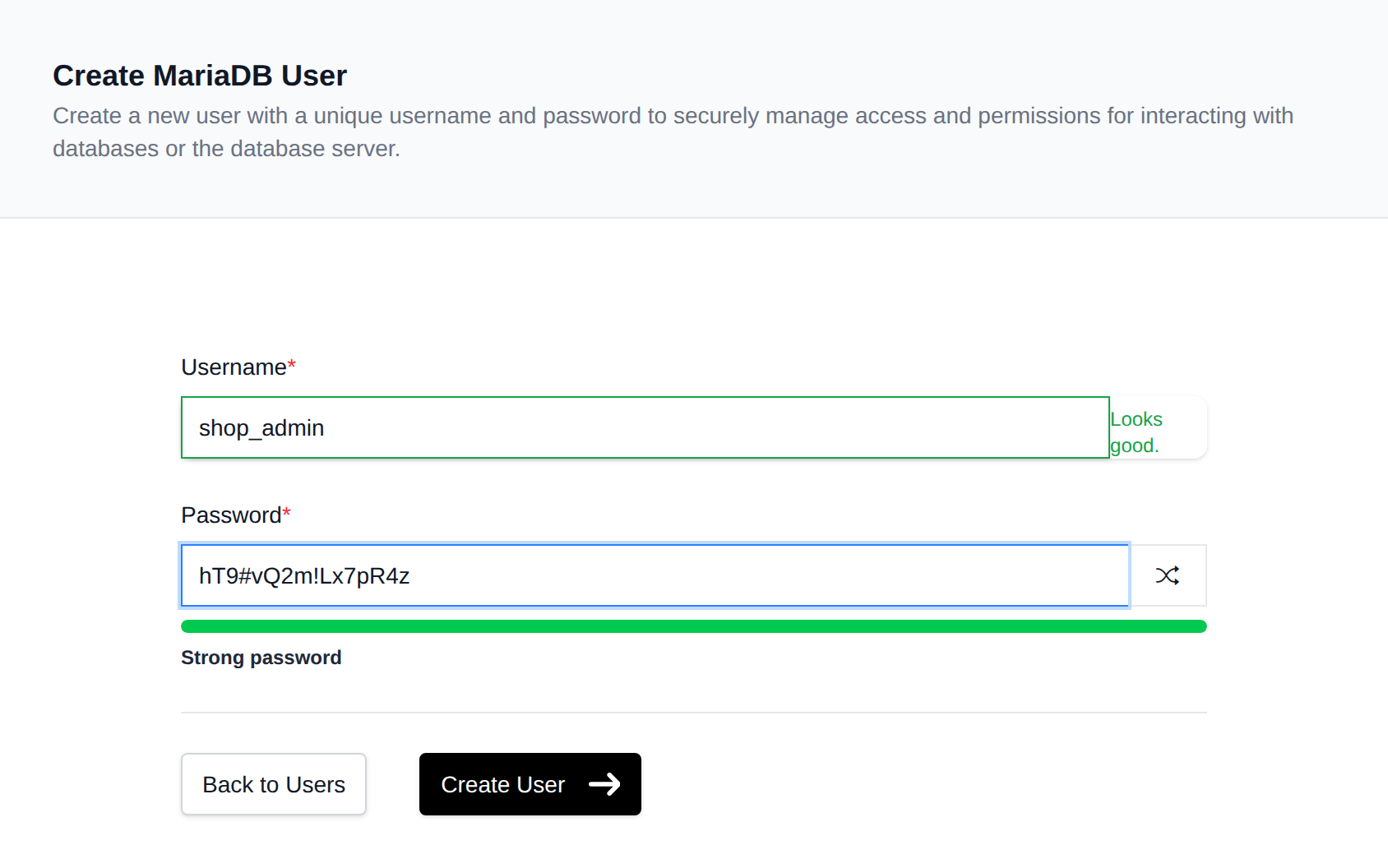
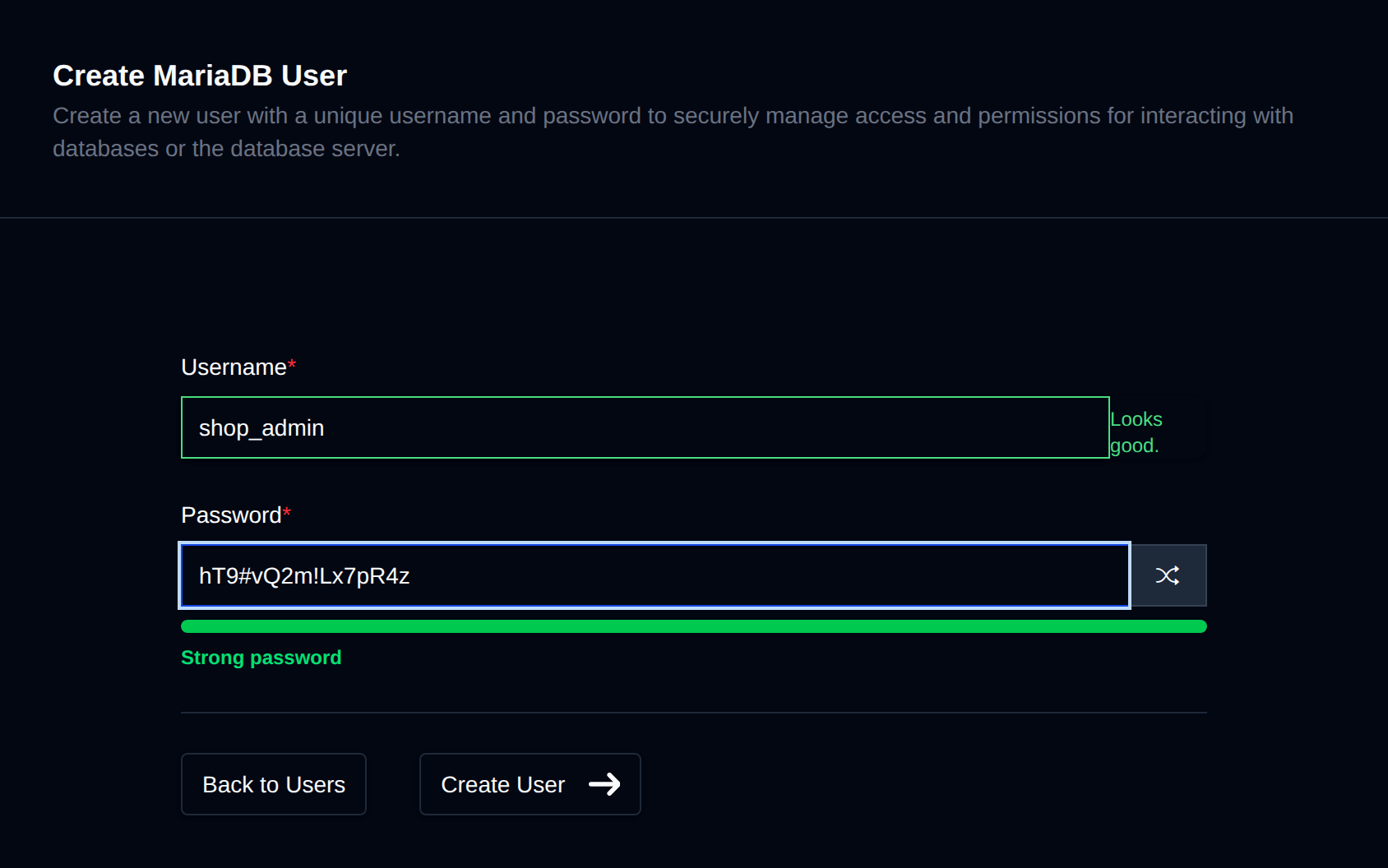
To create a new database user, click on the "Create User" button and fill in the name and password for the new user.
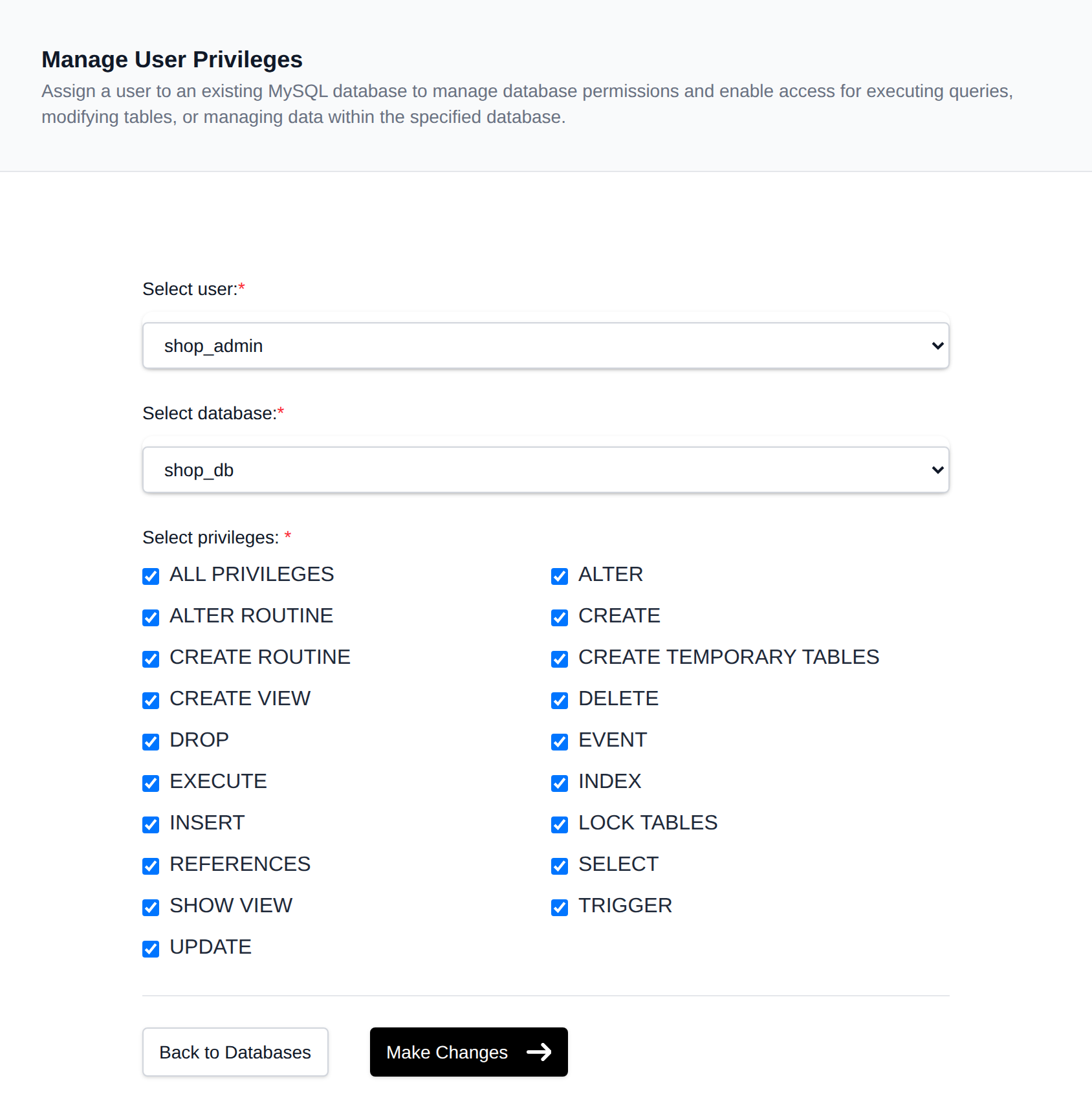
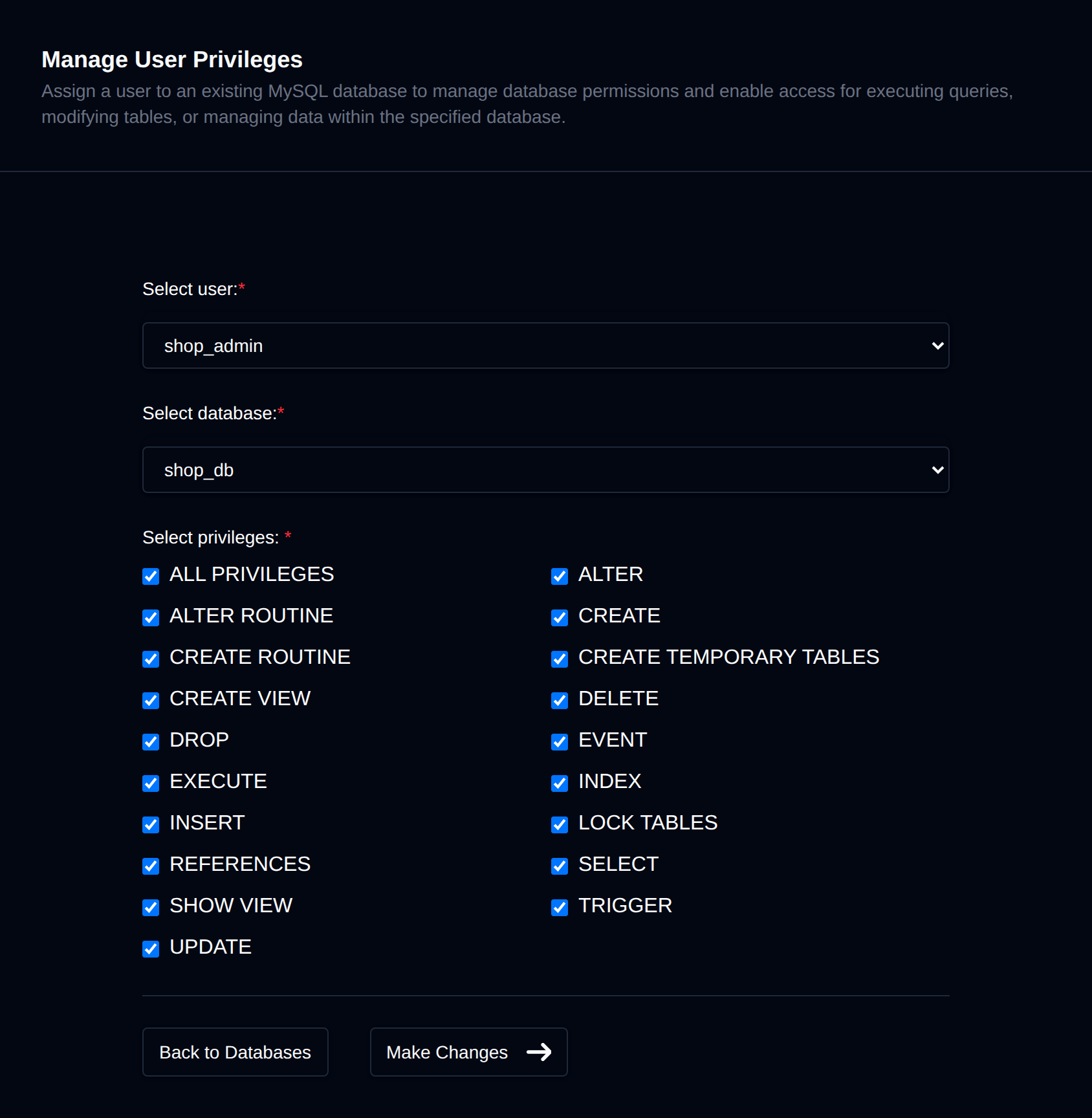
Assign a User to a Database
For a MySQL user to be allowed to connect to a database, they need to be added (assigned) to that database. To assign a user to a specific database, click on the "Assign User to Database" button, select a username and database, and choose which privileges to grant.
Remove a User from a Database
To remove a user from a database, simply click on the "Remove User from Database" button, and on that page select a username and database to revoke access from.
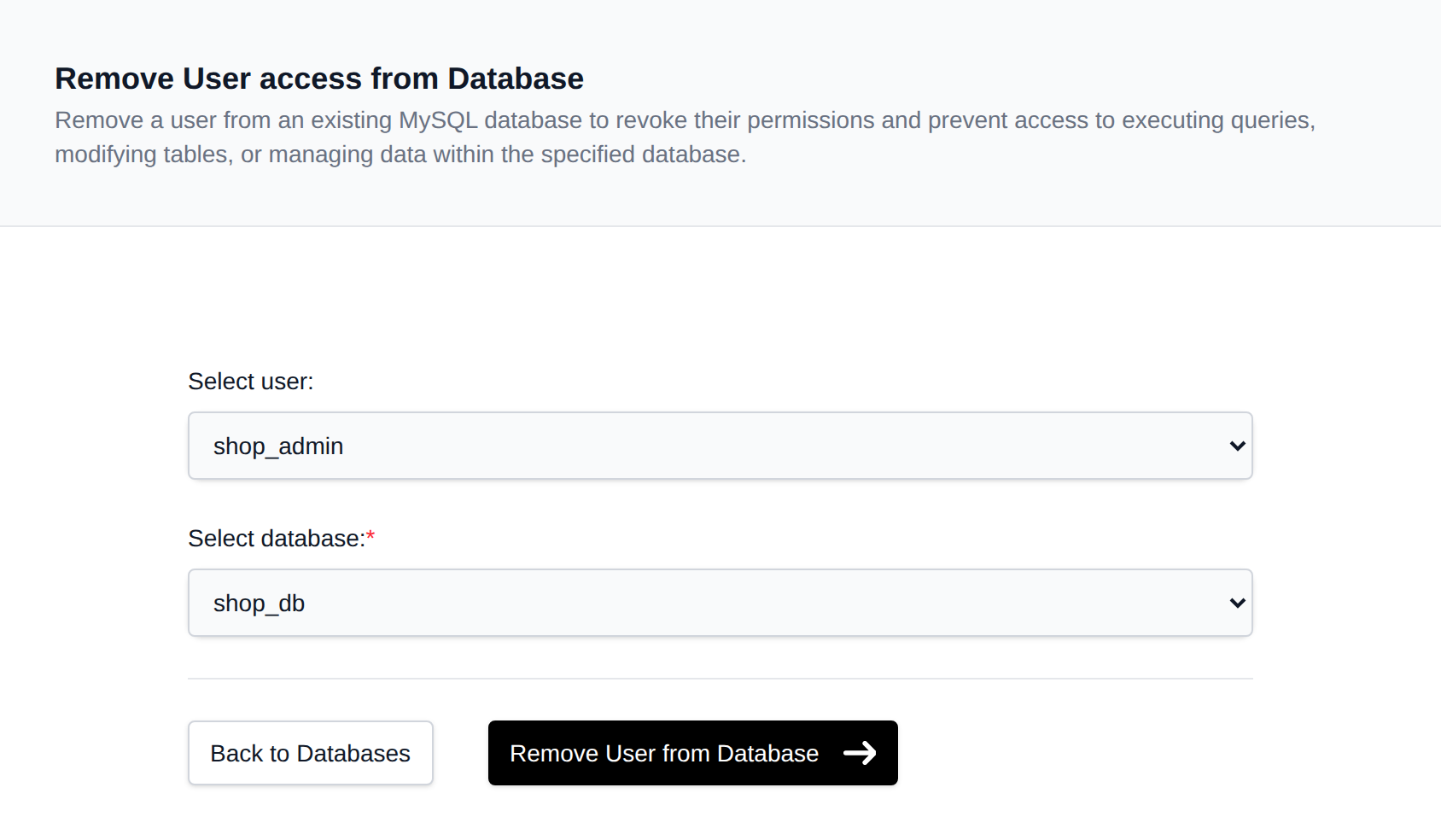
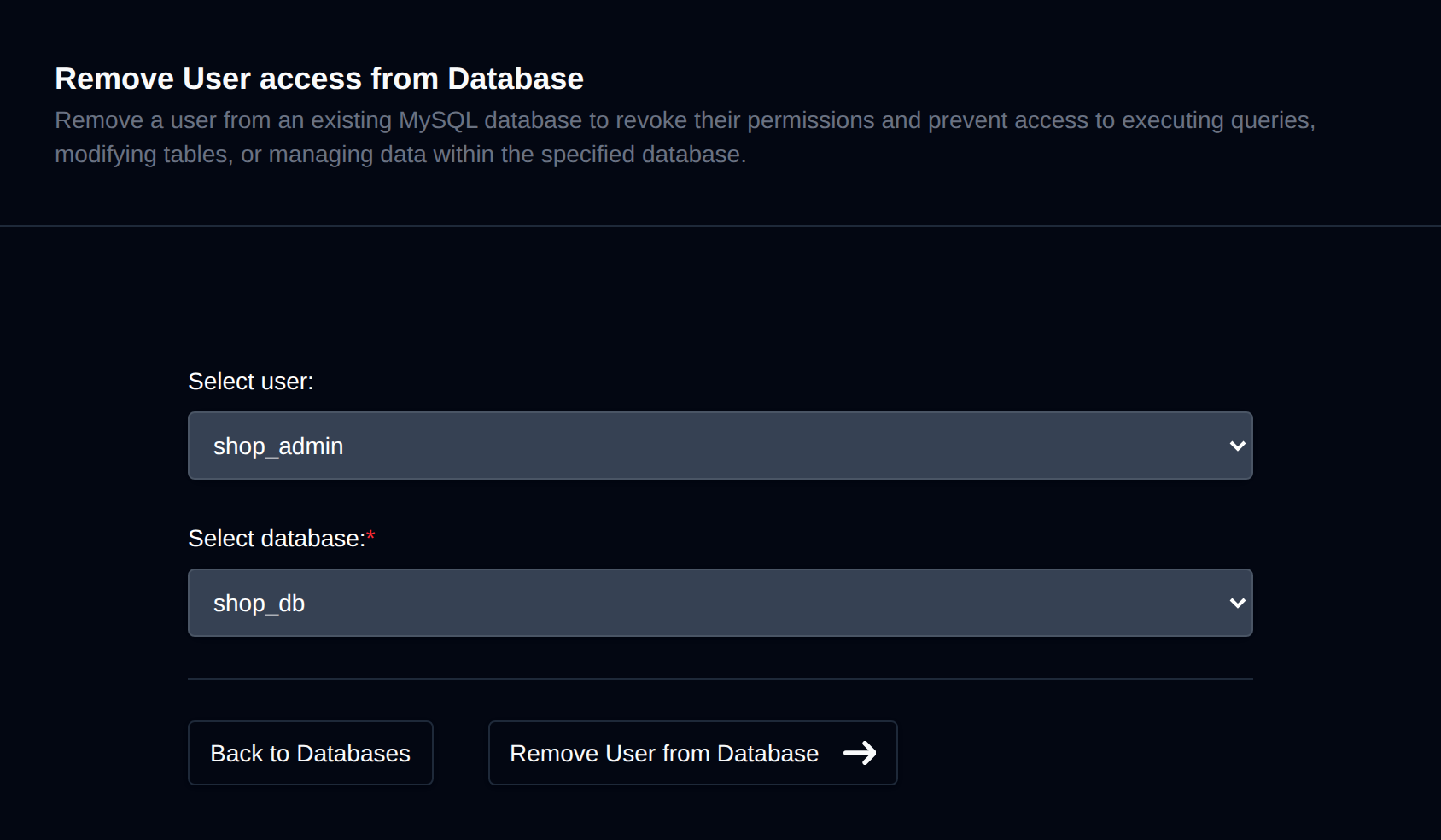
Removing a user will immediately remove all permissions for that user to the database and is useful when you want to temporarily disable a user's access to a database without actually deleting the user.
Change User Password
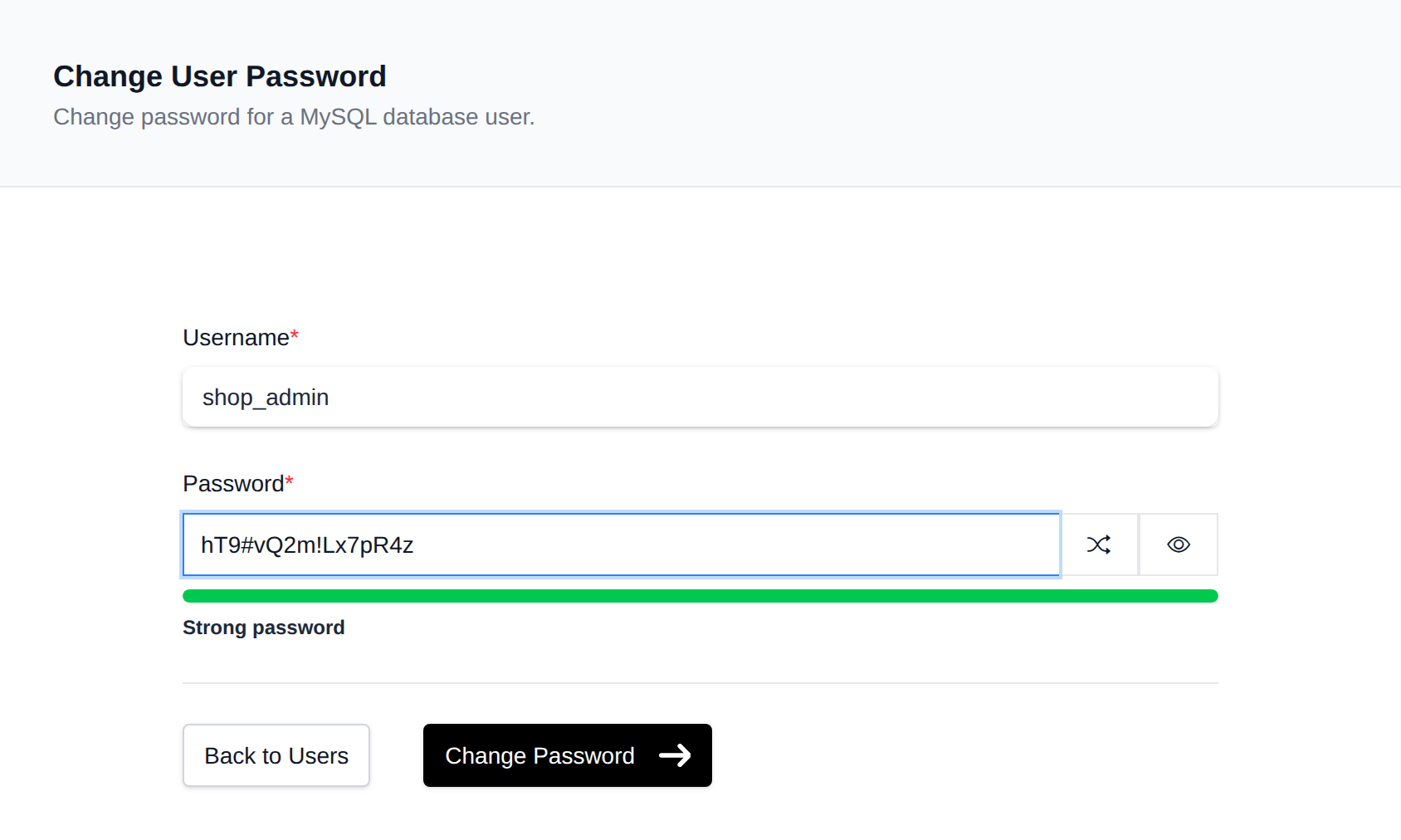
If you need to change a user's password, simply click on the "Change Password" button next to that user. On that page, enter the new password (or generate a random one), then click the "Change Password" button to save it.
Delete User
To delete a MySQL user, click the Delete button next to the user in the Users table. The button turns into Confirm with a 5-second countdown; click it again before the countdown ends to delete the user.


⚠️ Deleting a MySQL user will immediately remove that user and revoke all privileges to databases.