FTP Accounts
OpenPanel accounts can create FTP sub-users that share the FTP service with all other FTP users on the server. Connect using the server IP address and port 21.
FTP is available in the OpenPanel Enterprise edition. Administrator setup guide: How to setup FTP in OpenPanel
View Users
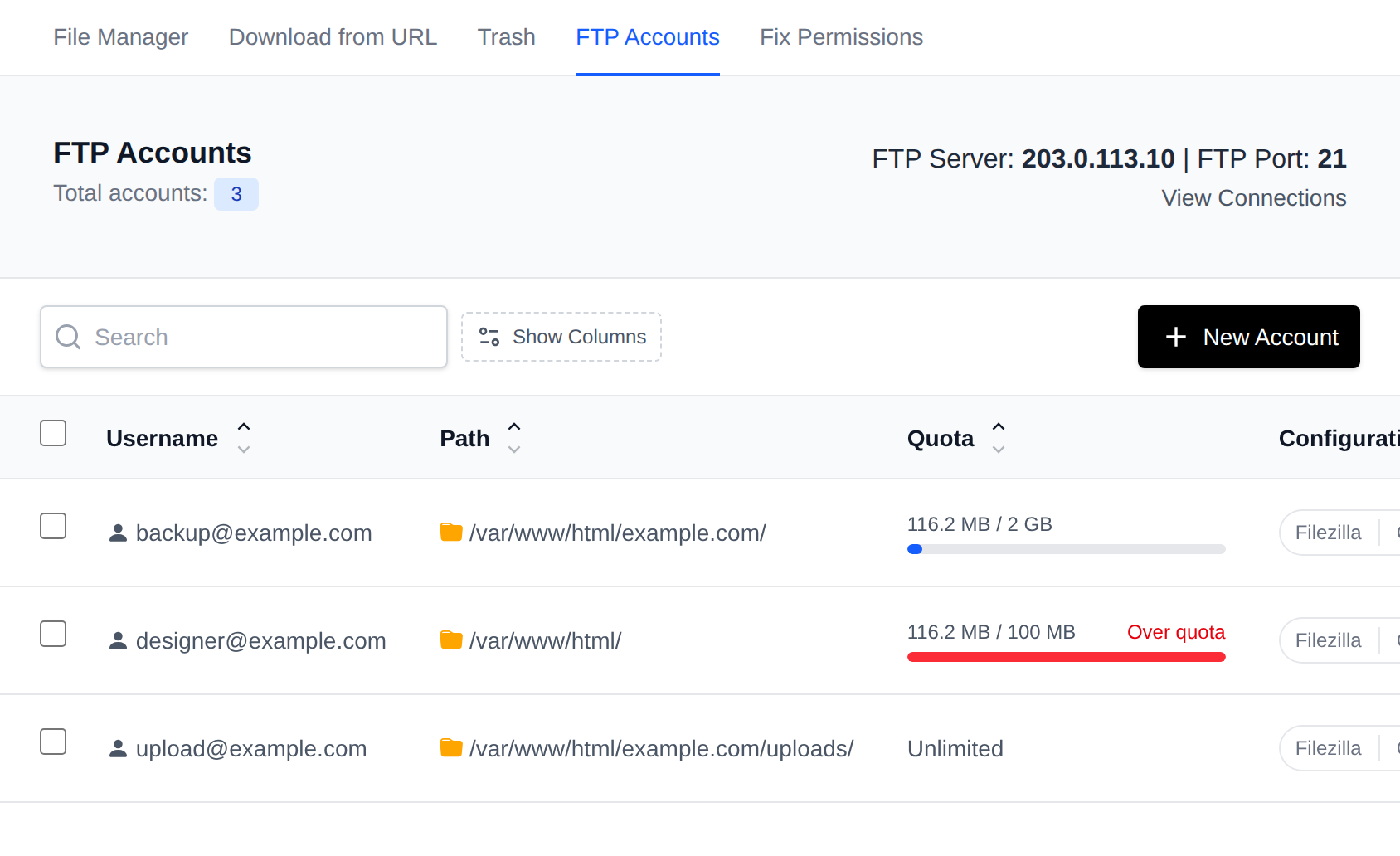
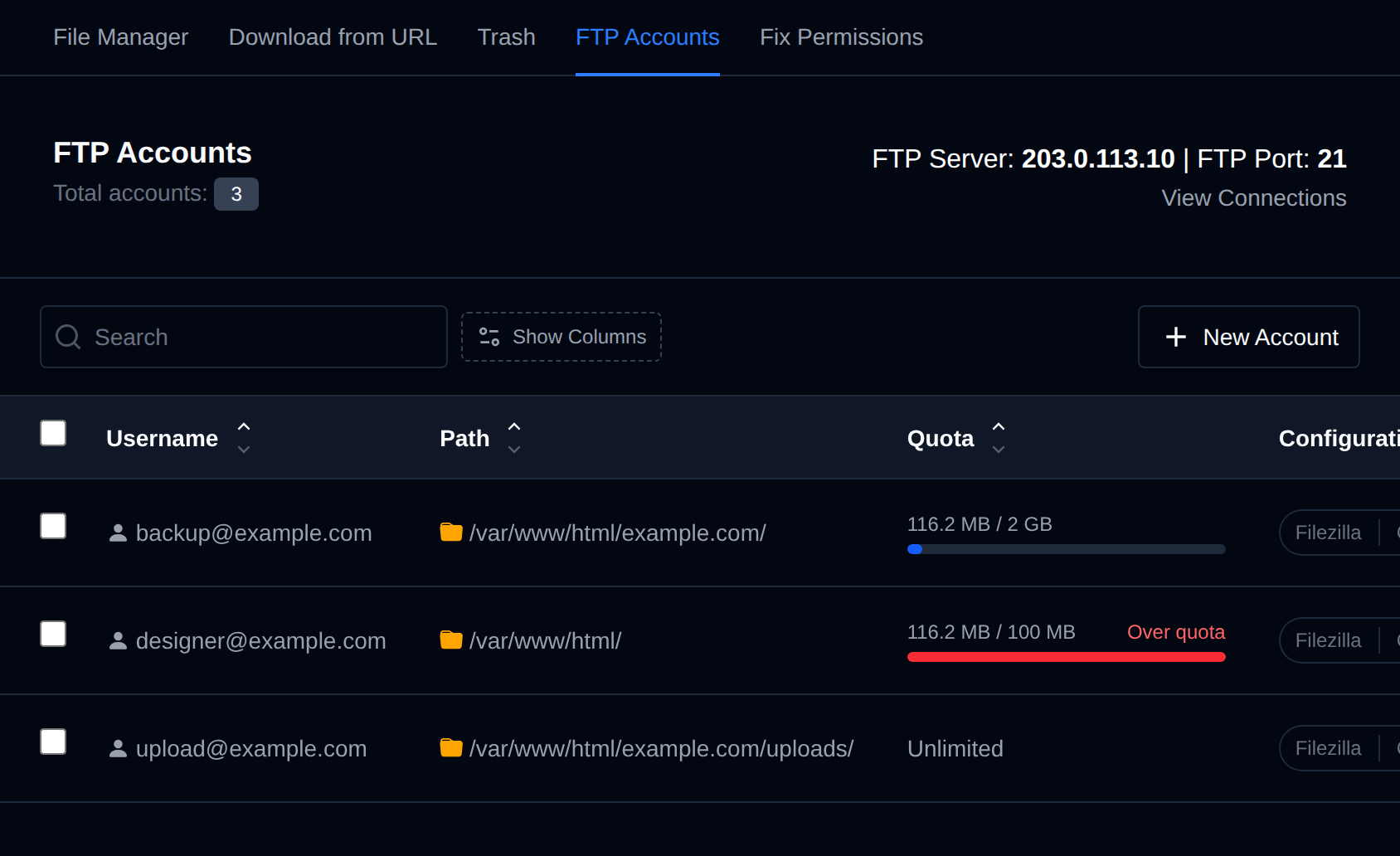
Go to OpenPanel > Files > FTP Accounts to see all FTP accounts, the directory each account is restricted to, and connection details including the server IP.
Create User
-
Go to OpenPanel > Files > FTP Accounts and click New Account.
-
Fill in the form:
Field Description Username The local part of the FTP username: the full username will be [email protected]Domain Select one of your domains Password Password for the FTP account Path (folder) Directory the account is restricted to: must start with /var/www/html/ -
Click Create Account to create the user.
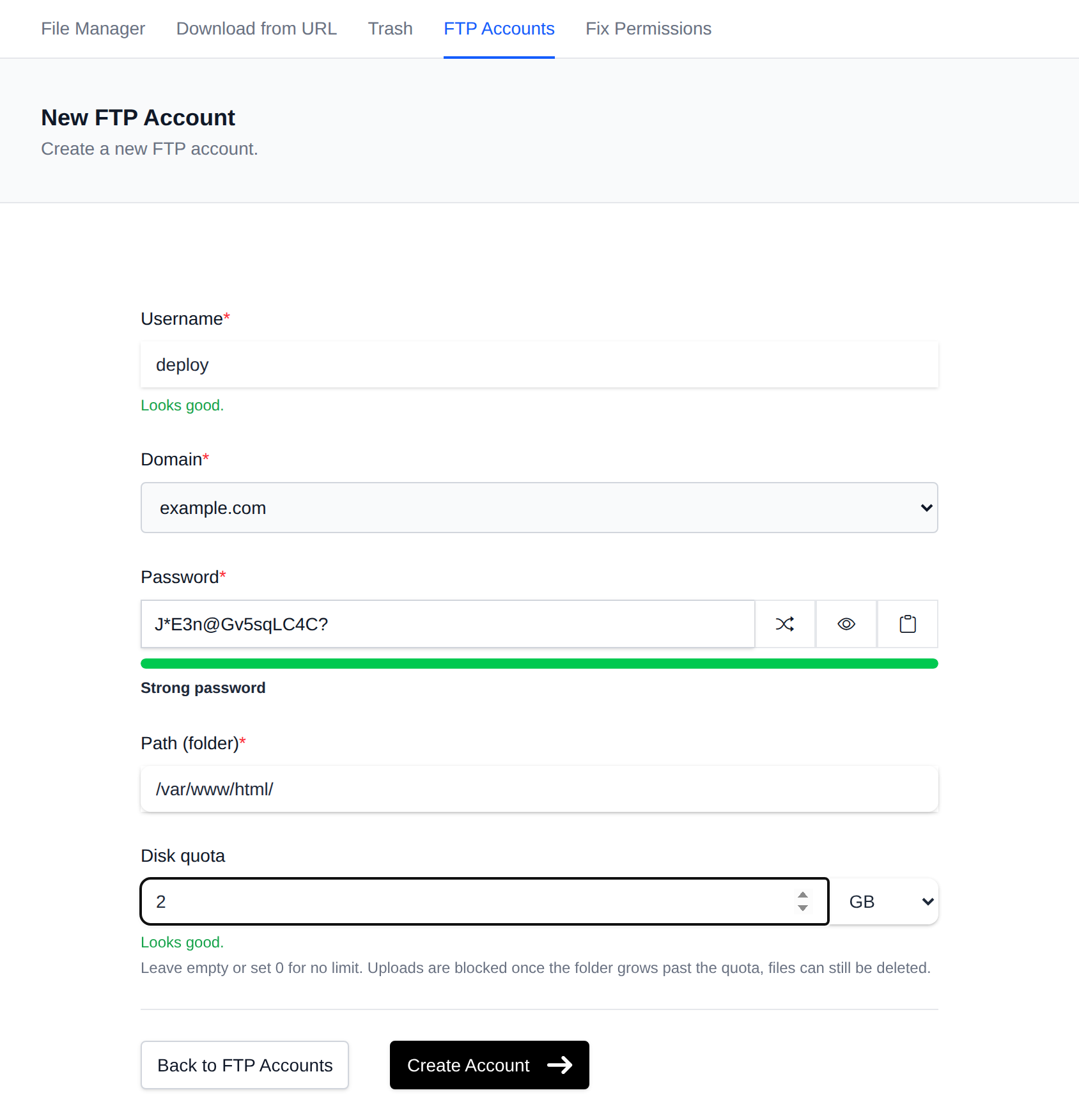
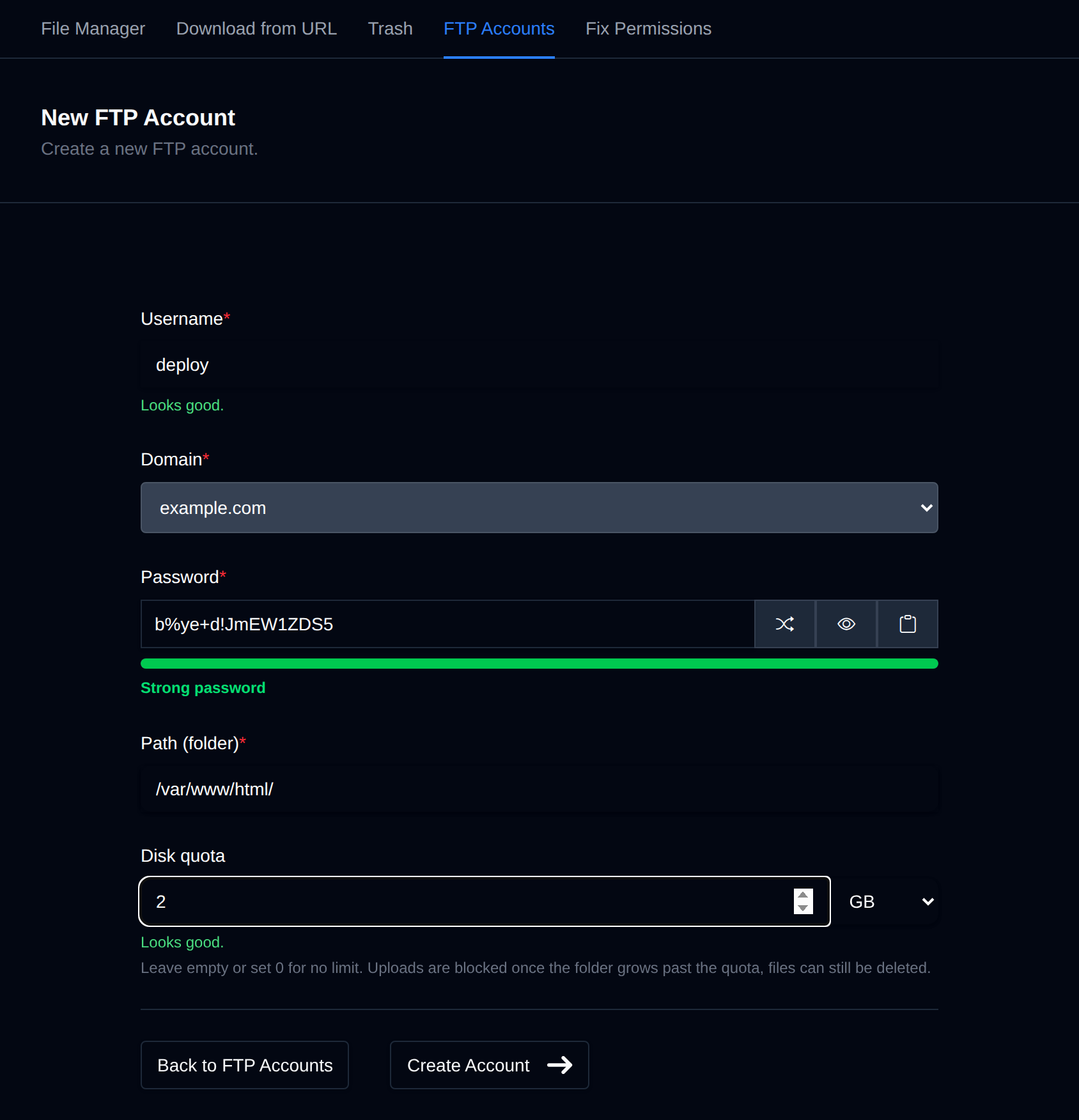
FTP usernames may only contain letters, numbers, and the characters -, _, @, .. FTP username requirements
Change Password
- Go to OpenPanel > Files > FTP Accounts and click Change Password next to the account.
- Enter the new password, confirm it, and click Update.
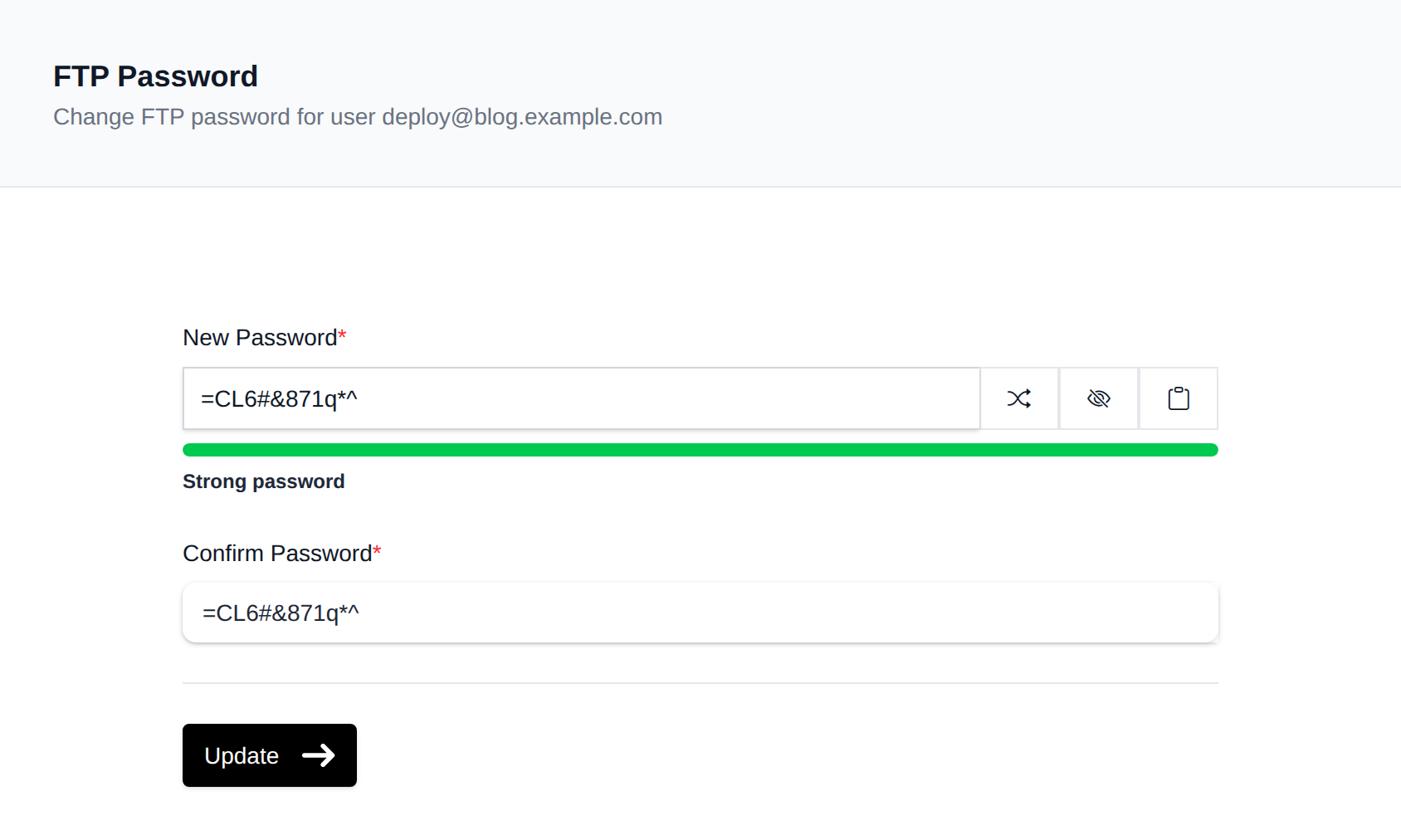
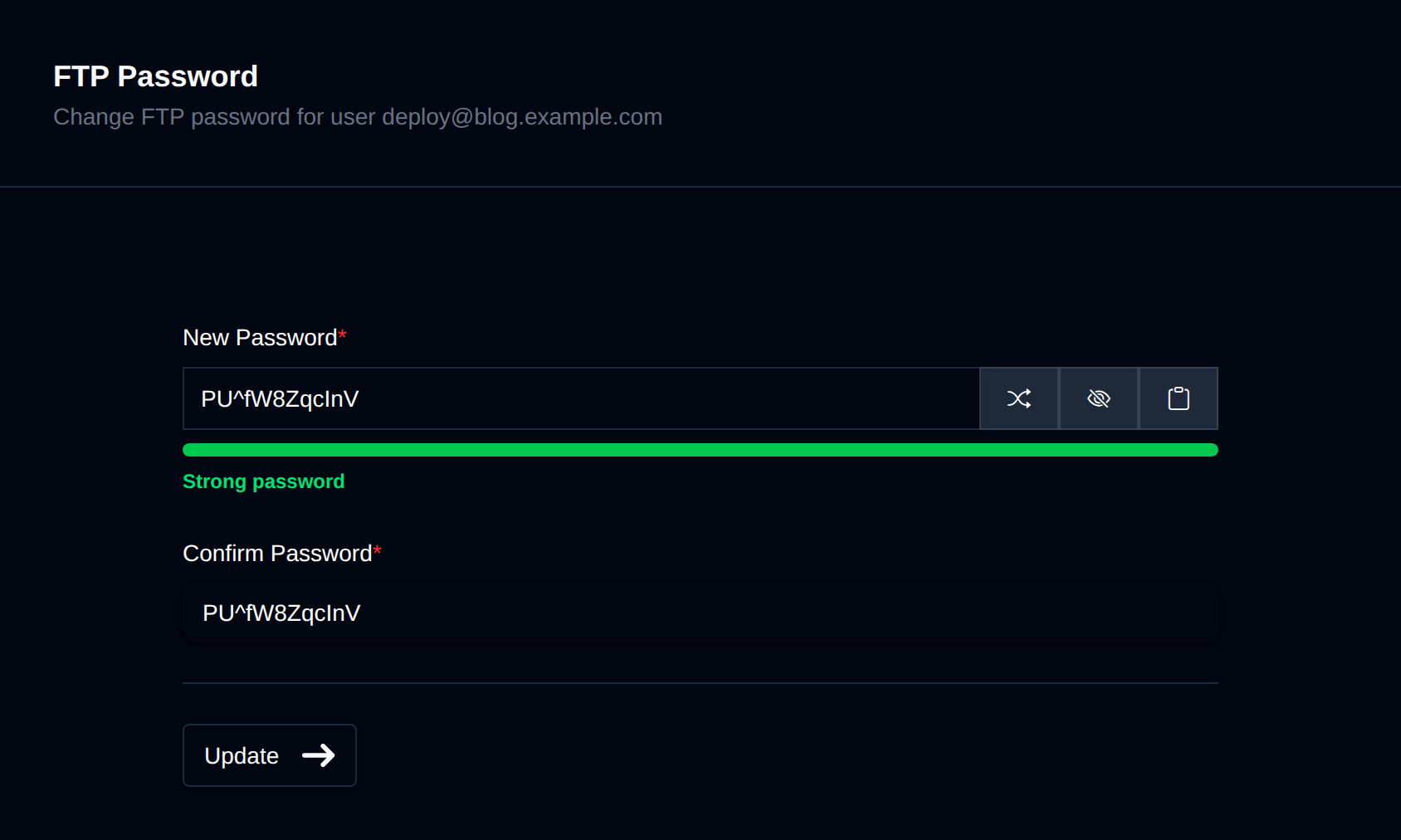
FTP passwords must be 8-30 characters long and contain at least one uppercase letter (A-Z), lowercase letter (a-z), digit (0-9), and special character. FTP password requirements
Change Path
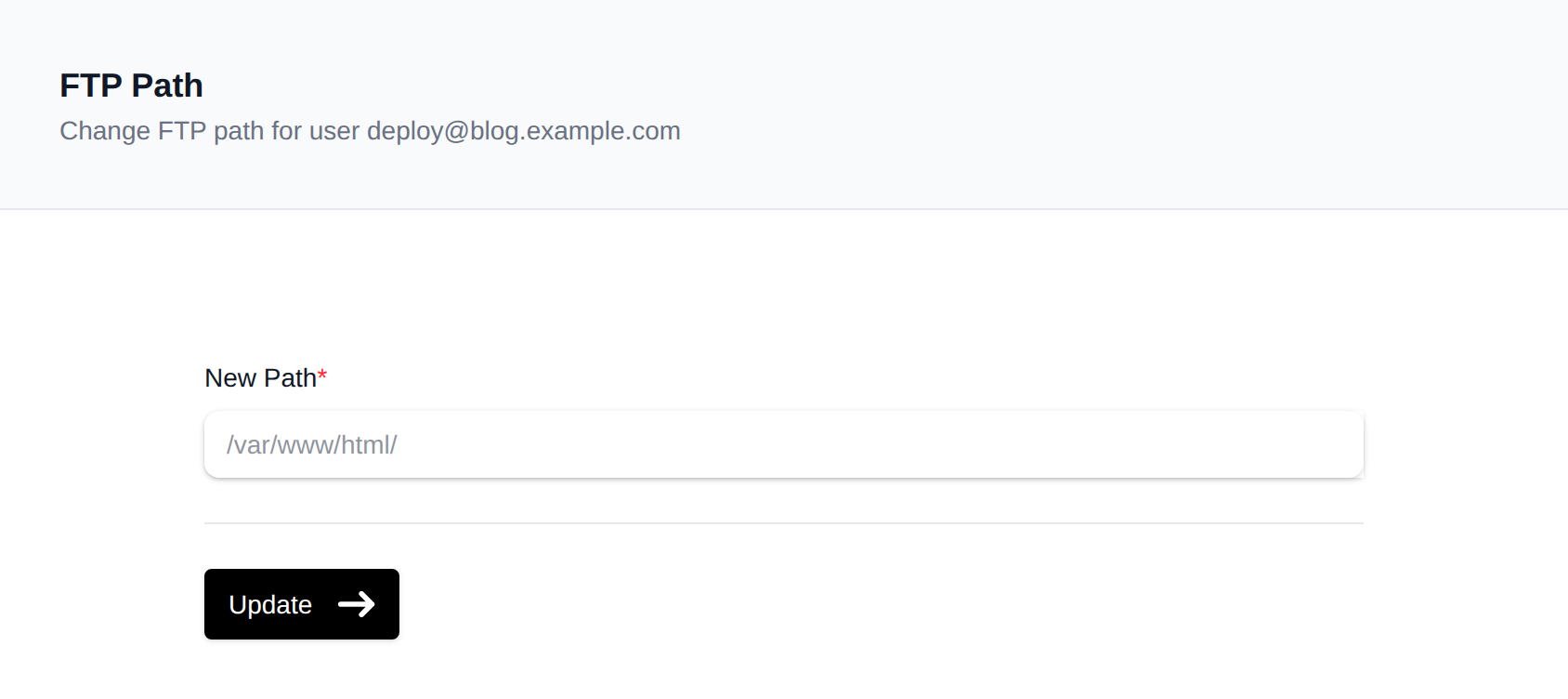
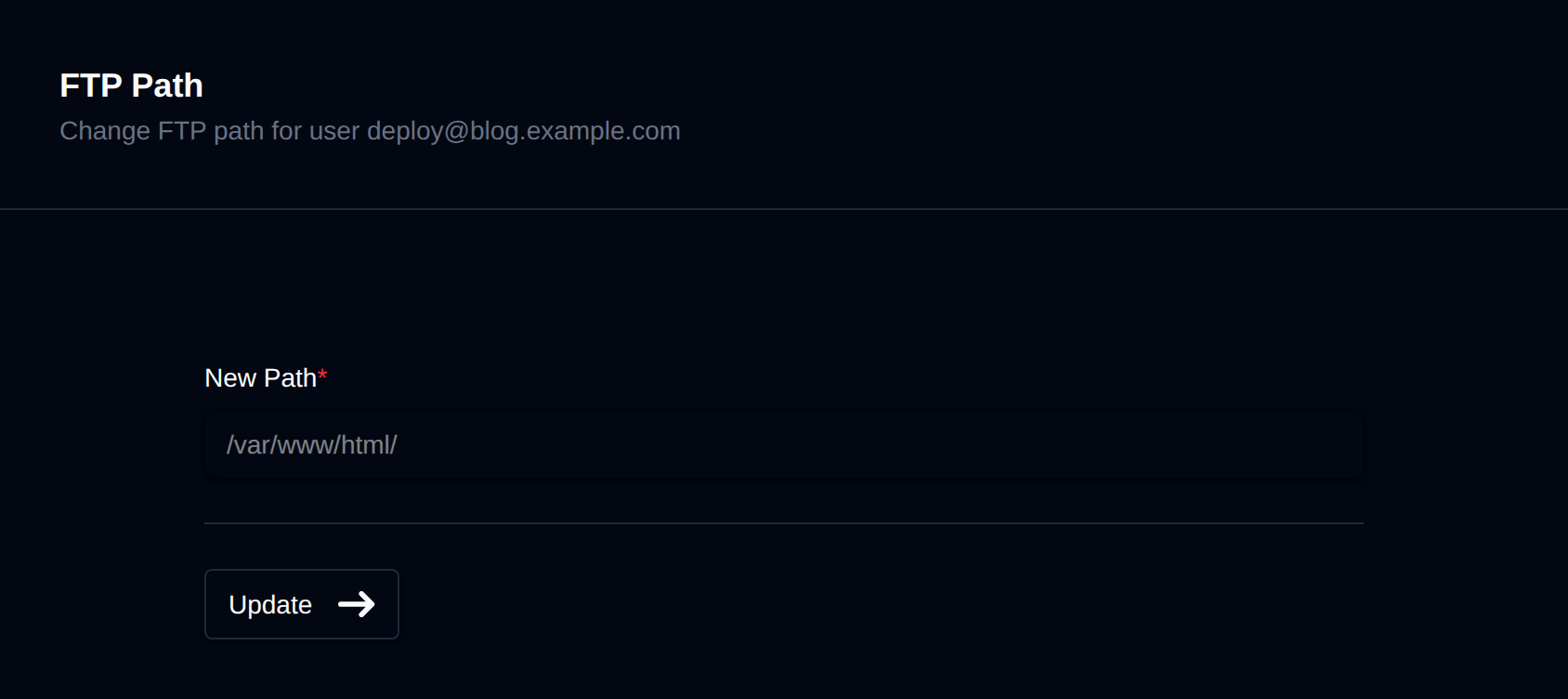
- Go to OpenPanel > Files > FTP Accounts and click Change Path next to the account.
- Enter the new directory path and click Update. The path must start with
/var/www/html/.
Delete User
Go to OpenPanel > Files > FTP Accounts and click Delete next to the account. The button turns into Confirm with a 5-second countdown; click it again before the countdown ends to delete the account.


Download Client Configuration
On the FTP accounts page you can download a ready-to-import configuration file for:
- FileZilla: downloads an
.xmlconnection file - Cyberduck: downloads an
.ftpbookmarkfile
Both files are pre-filled with the correct server IP, port, username, and remote directory.


View Active Connections
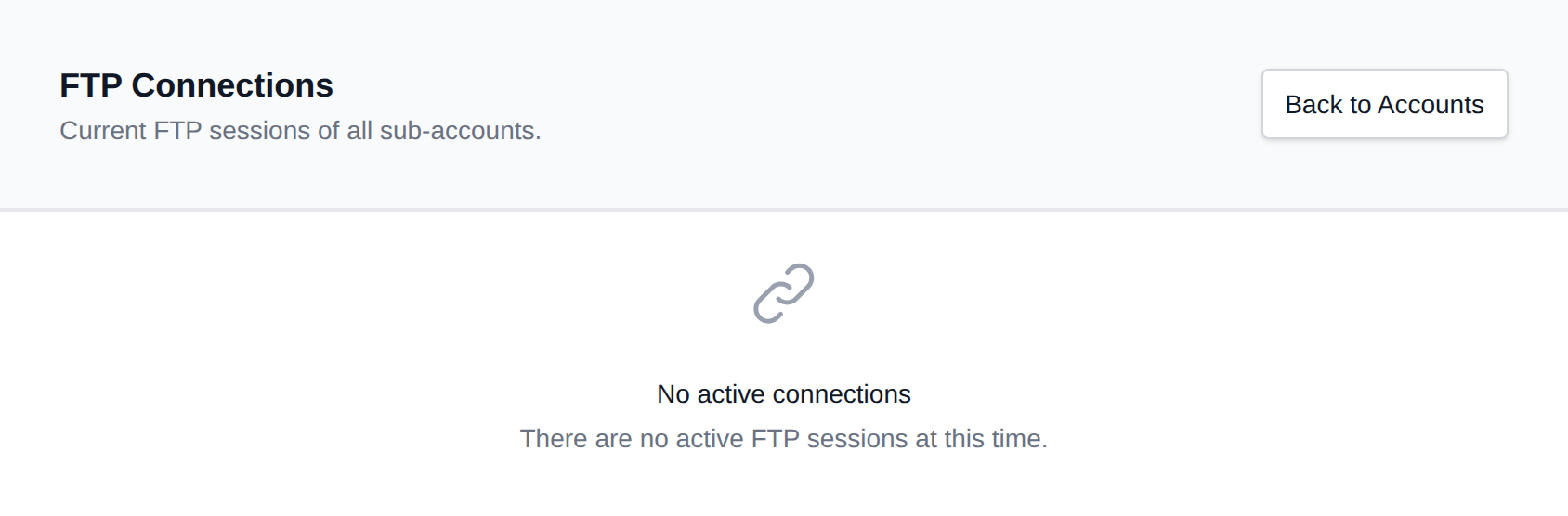
Go to OpenPanel > Files > FTP Accounts and click View Connections to see all currently active FTP sessions for your account.