FTP Accounts
OpenPanel accounts can create FTP sub-users that share the FTP service with all other FTP users on the server. Connect using the server IP address and port 21.
FTP is available in the OpenPanel Enterprise edition. Administrator setup guide: How to setup FTP in OpenPanel
View Users
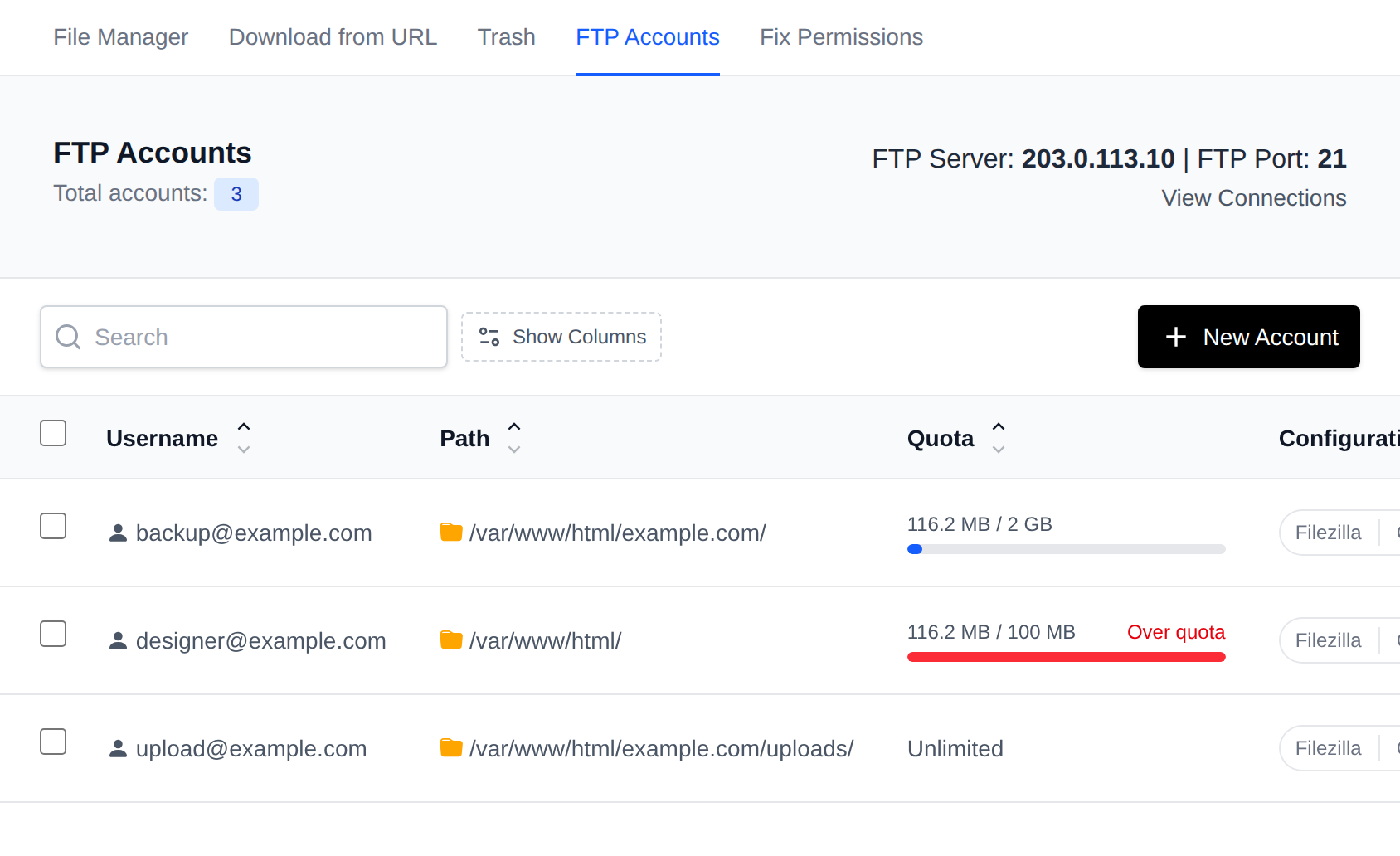
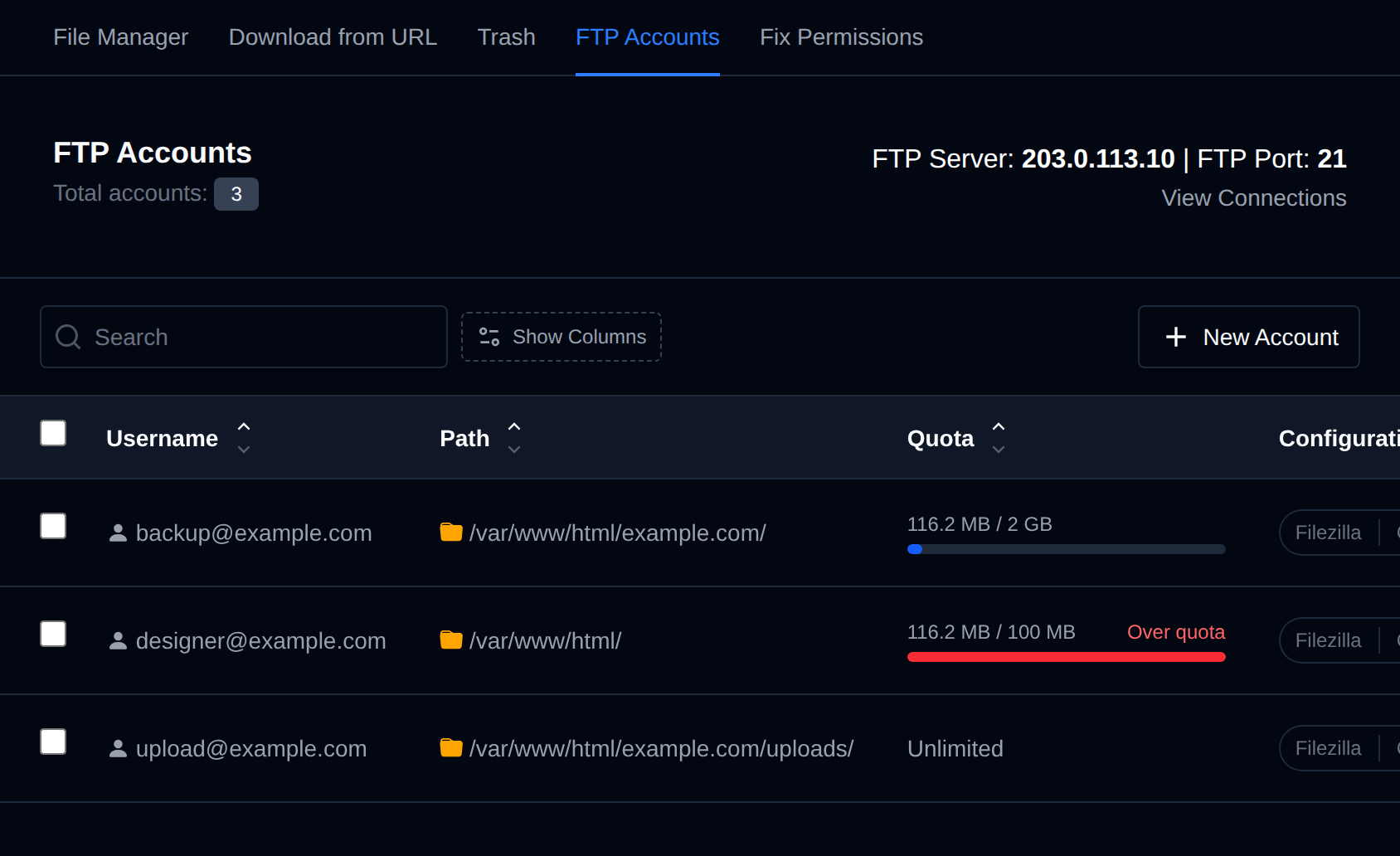
Go to OpenPanel > Files > FTP Accounts to see all FTP accounts, the directory each account is restricted to, and connection details including the server IP.
Create User
-
Go to OpenPanel > Files > FTP Accounts and click New Account.
-
Fill in the form:
Field Description Username The local part of the FTP username: the full username will be [email protected]Domain Select one of your domains Password Password for the FTP account Path (folder) Directory the account is restricted to: must start with /var/www/html/Disk quota Optional, the most the folder can hold in MB or GB. Leave empty for no limit -
Click Create Account to create the user.
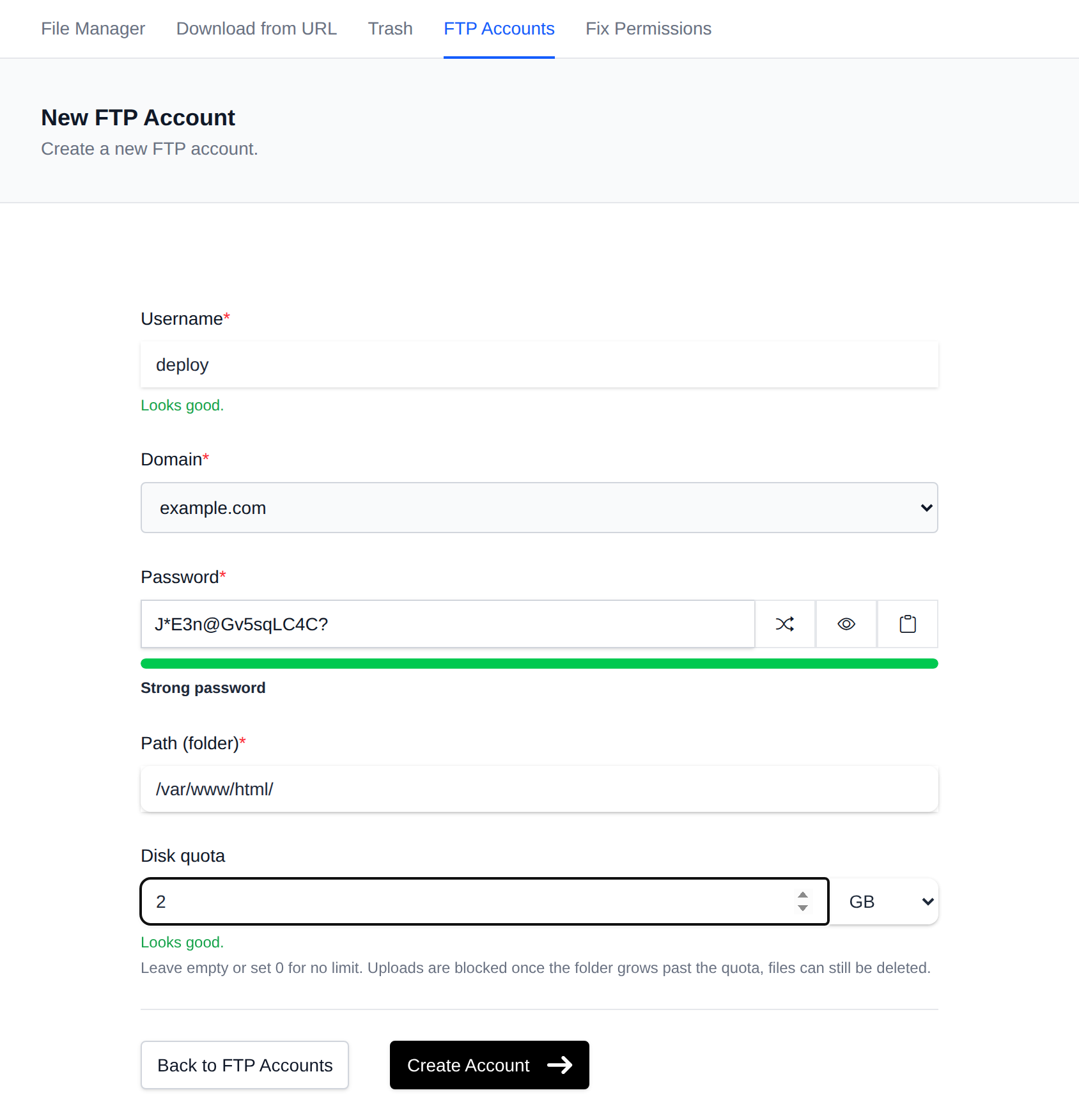
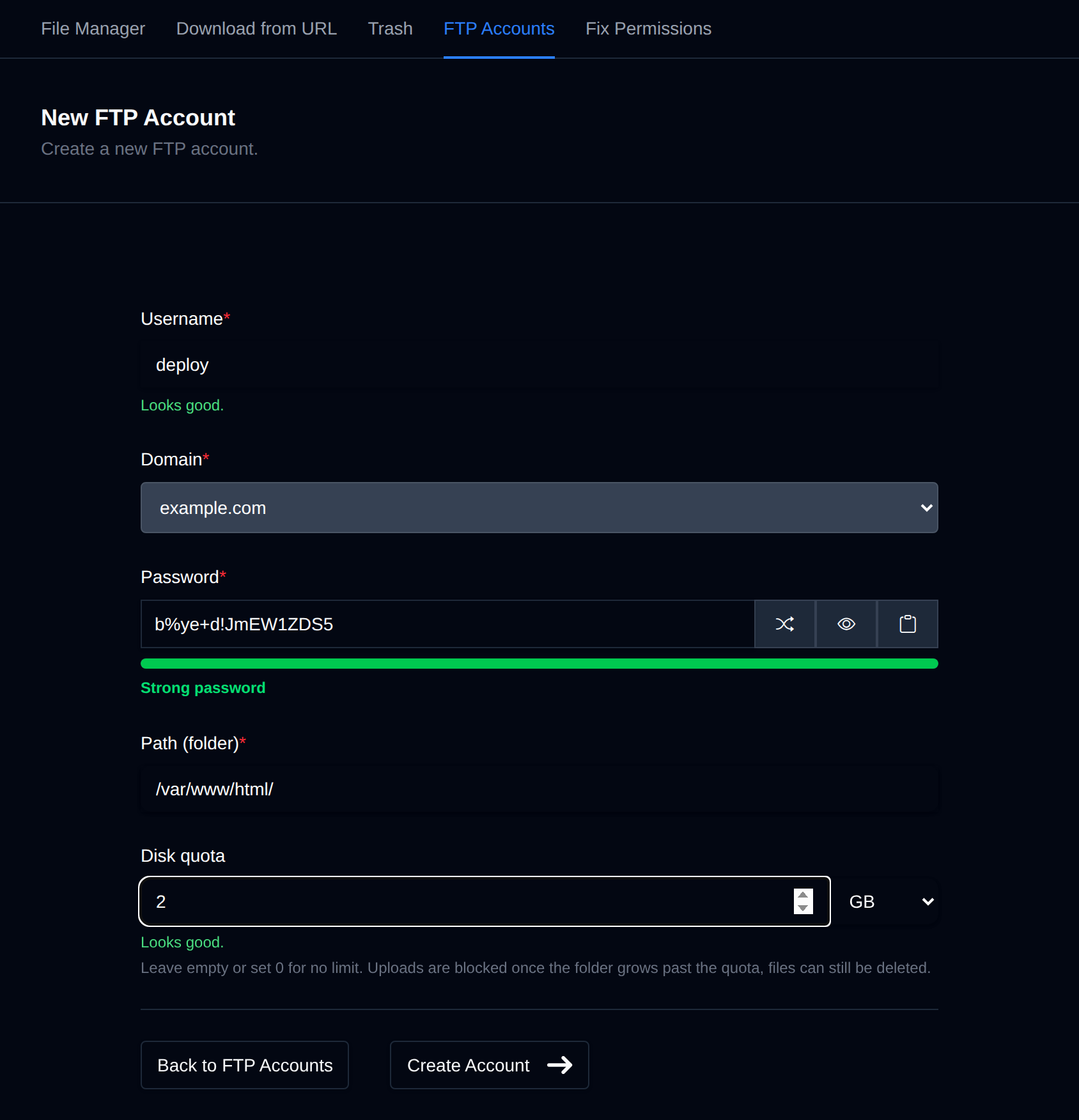
FTP usernames may only contain letters, numbers, and the characters -, _, @, .. FTP username requirements
Change Password
- Go to OpenPanel > Files > FTP Accounts and click the key icon (Change Password) next to the account.
- Enter the new password, confirm it, and click Update.
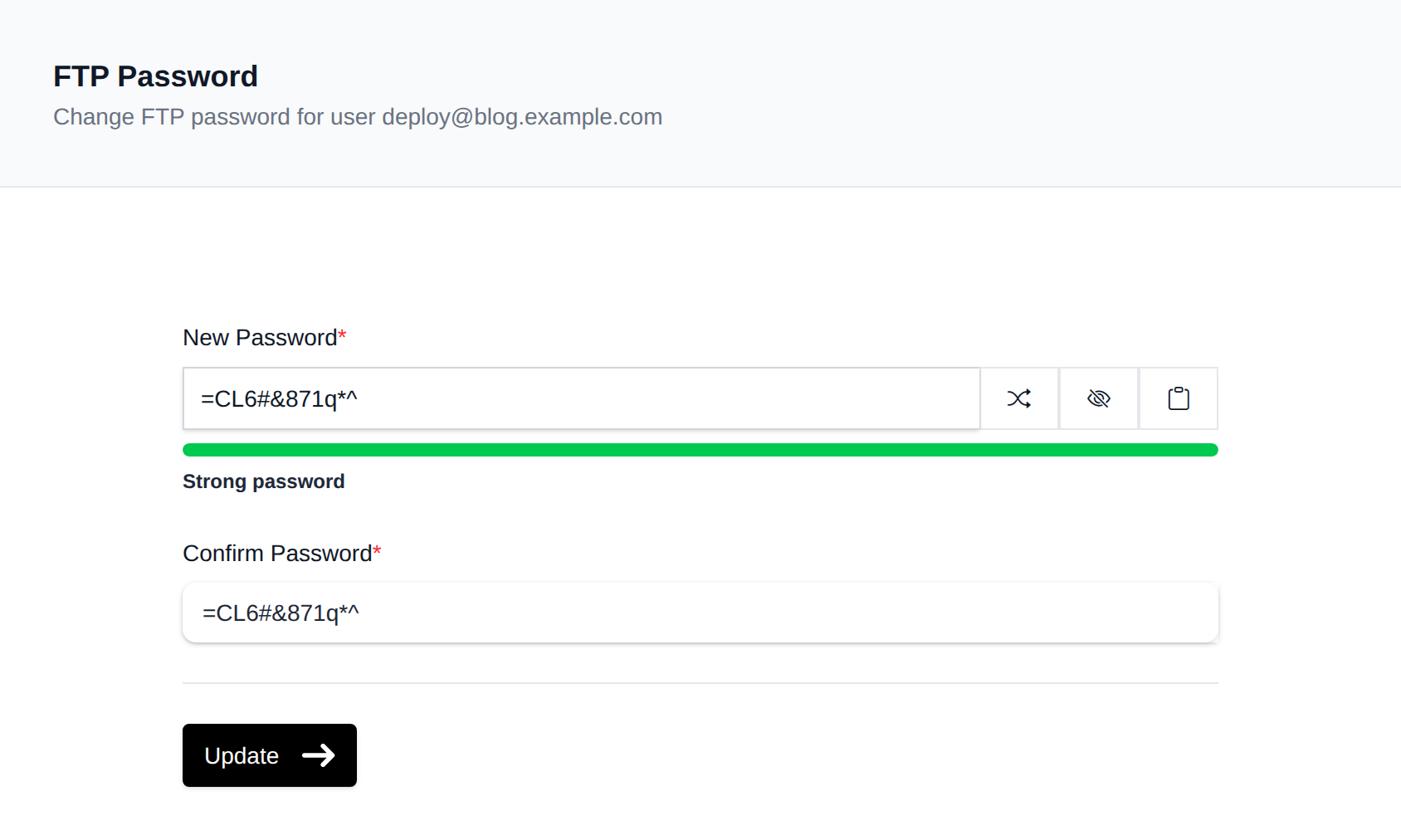
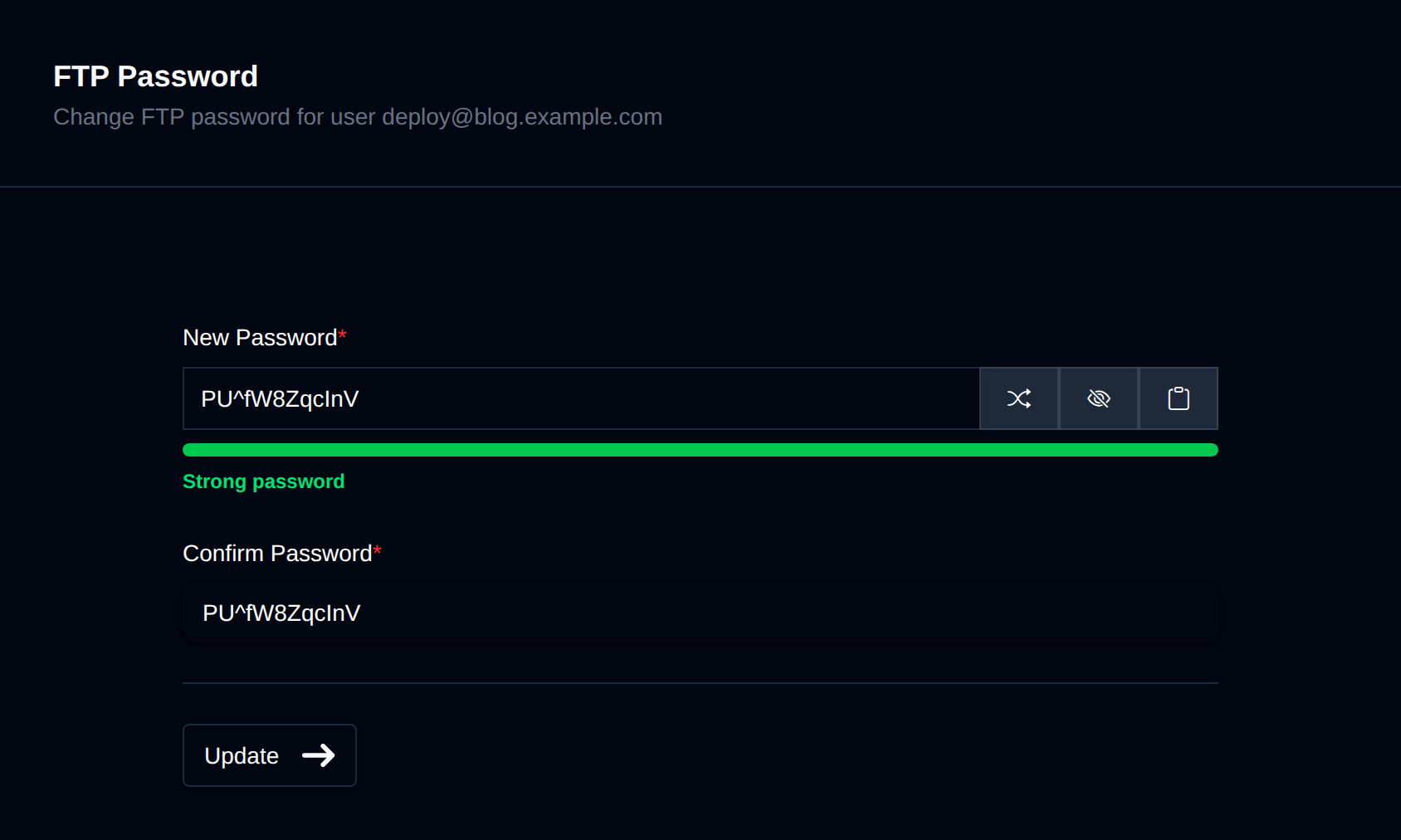
FTP passwords must be 8-30 characters long and contain at least one uppercase letter (A-Z), lowercase letter (a-z), digit (0-9), and special character. FTP password requirements
Change Path
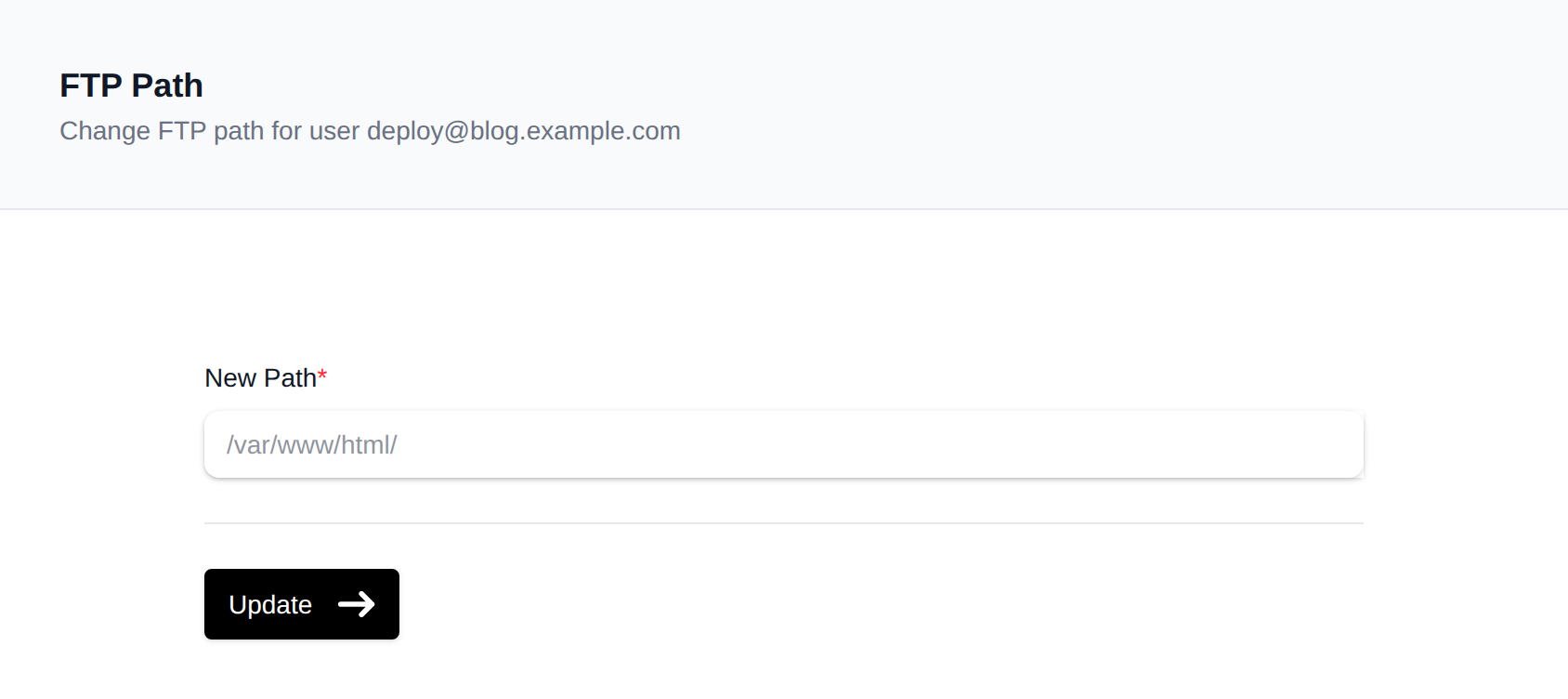
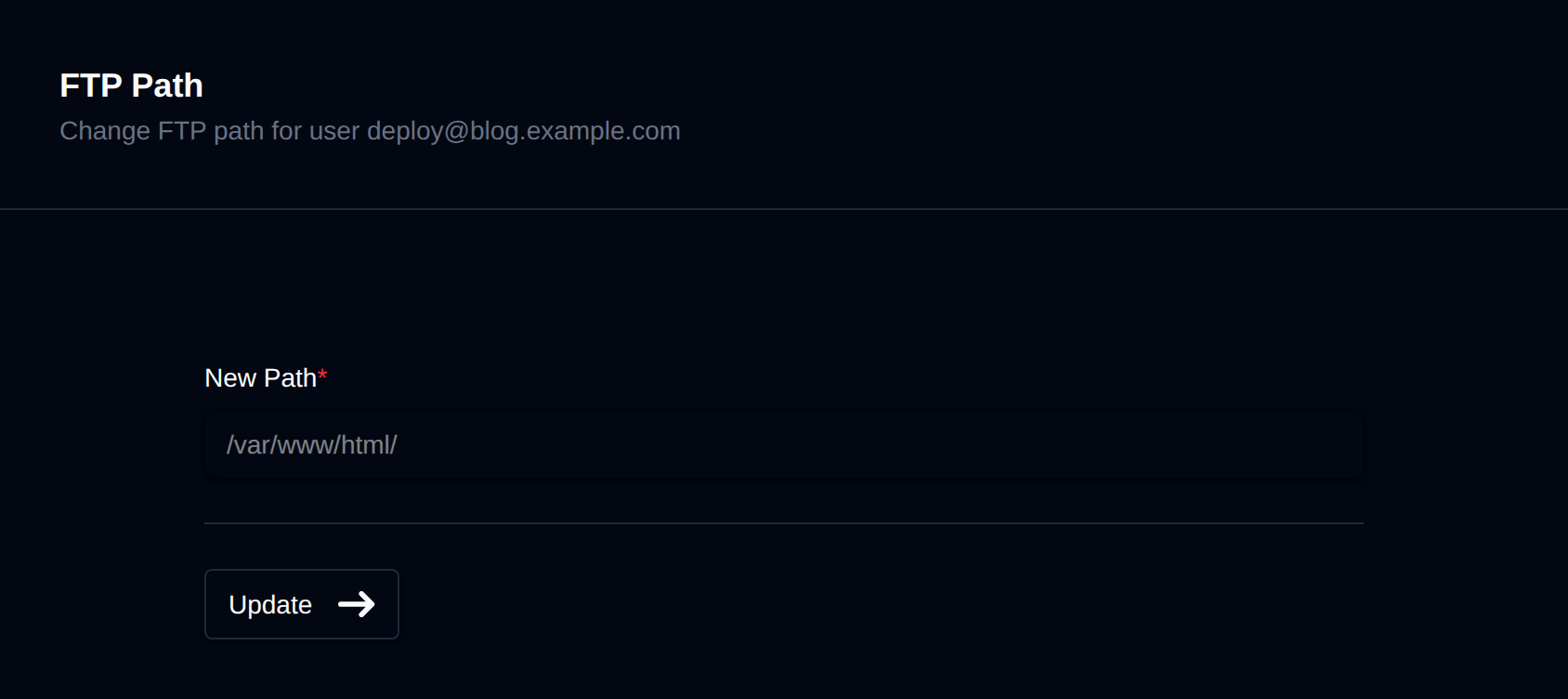
- Go to OpenPanel > Files > FTP Accounts and click the pencil icon (Change Path) next to the account.
- Enter the new directory path and click Update. The path must start with
/var/www/html/.
Change Quota
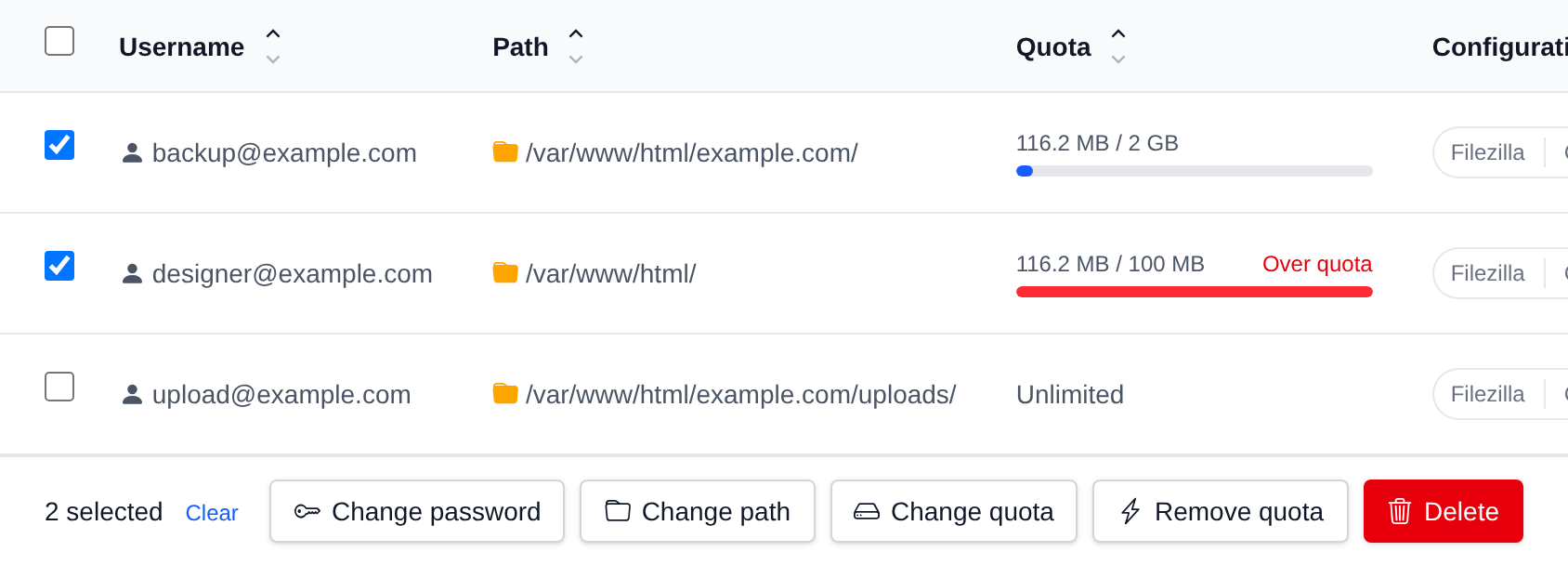
A disk quota limits how big the account's folder can grow. The Quota column on the FTP accounts page shows the space used and the quota, or Unlimited.
- Go to OpenPanel > Files > FTP Accounts and click the disk icon (Change Quota) next to the account.
- Enter the quota, pick MB or GB, and click Update. Leave the field empty or enter
0to remove the quota.
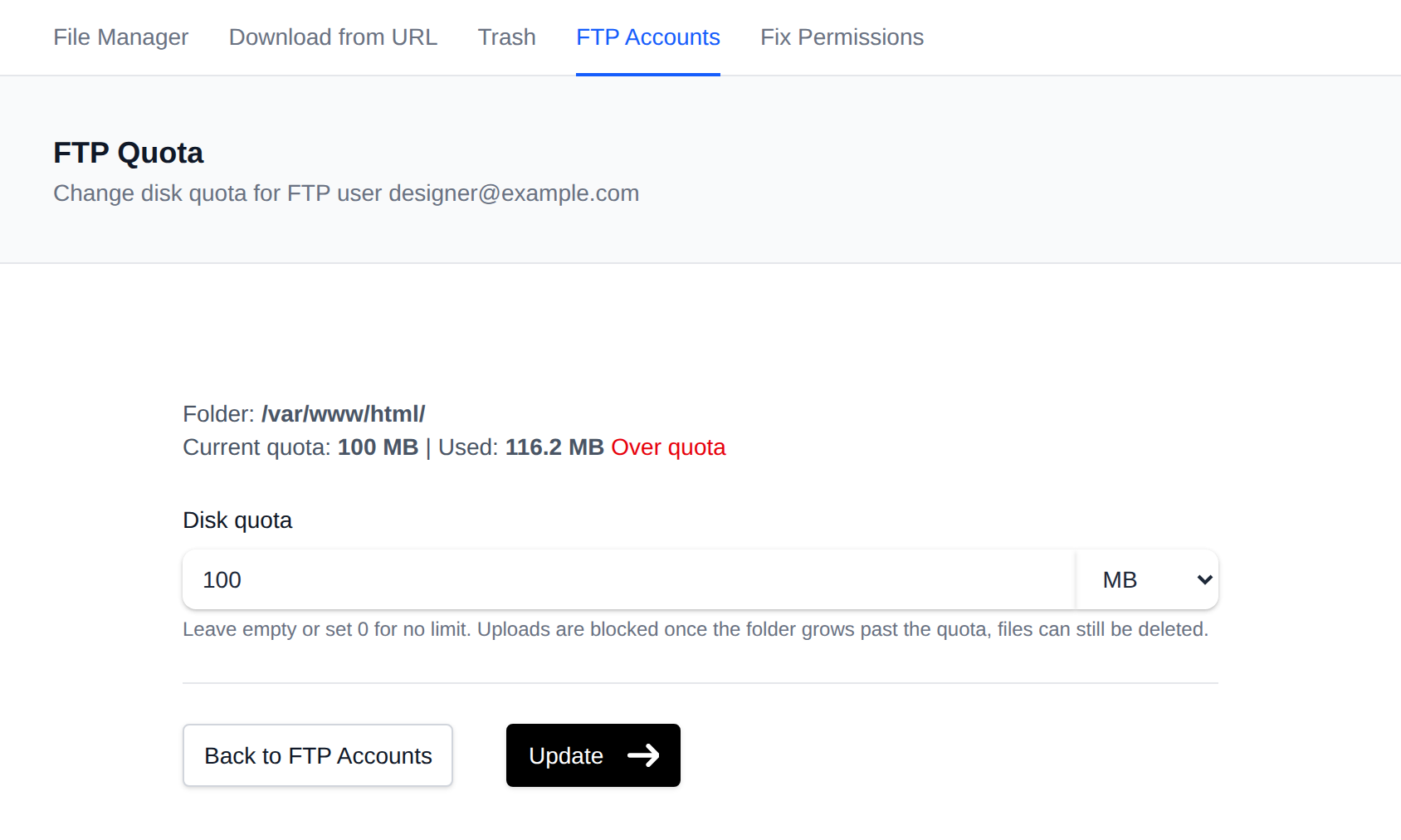
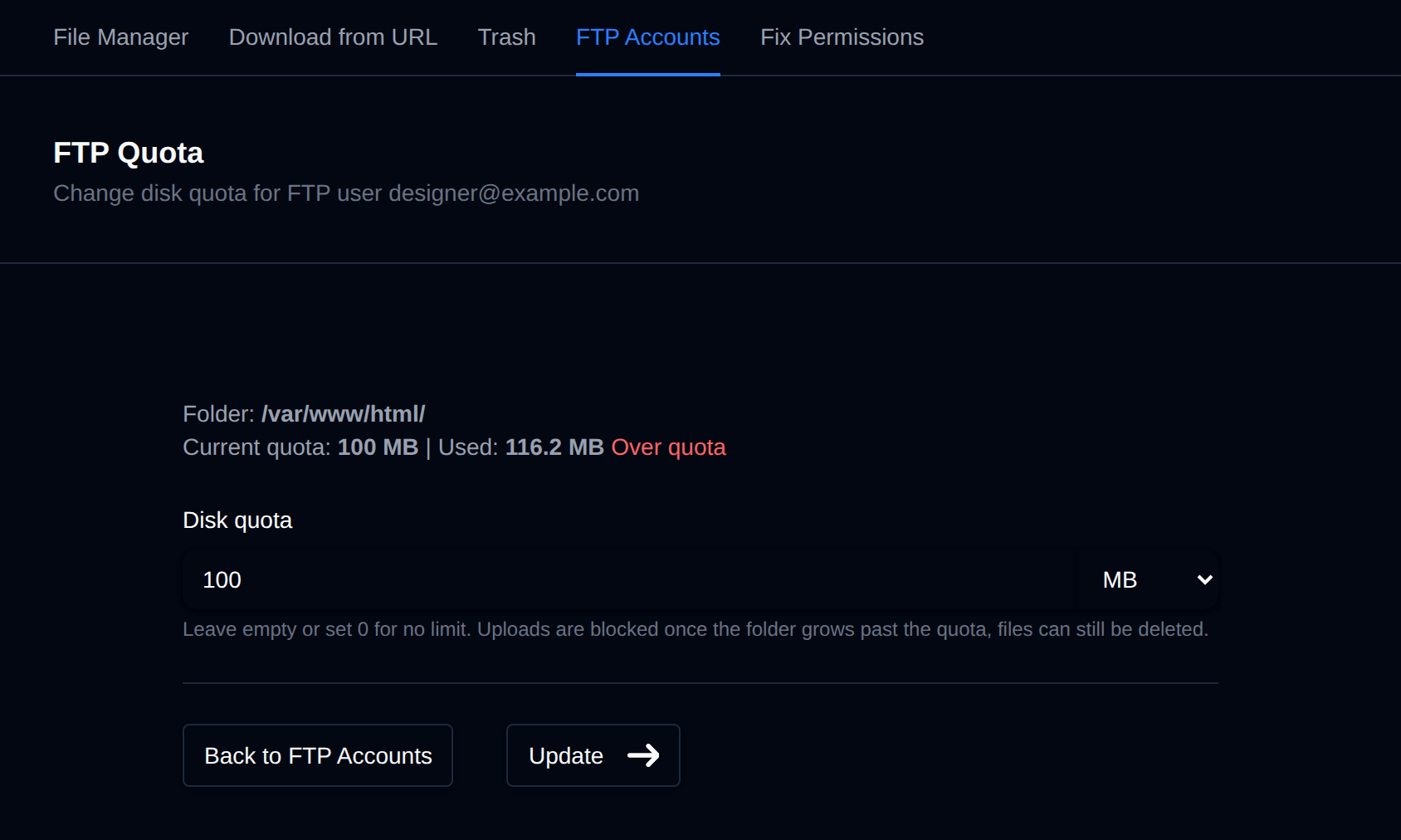
The quota counts everything in the account's folder, also files added from the File Manager or by your website. Usage is checked every minute. Once the folder is over the quota the account is marked Over quota, uploads are refused and open FTP sessions of that account are closed. Downloading and deleting files still works, so the account can free up space, and uploads work again within a minute after the folder is back under the quota.
Delete User
Go to OpenPanel > Files > FTP Accounts and click the trash icon (Delete) next to the account. The icon turns into Confirm with a 5-second countdown; click it again before the countdown ends to delete the account.


Bulk Actions
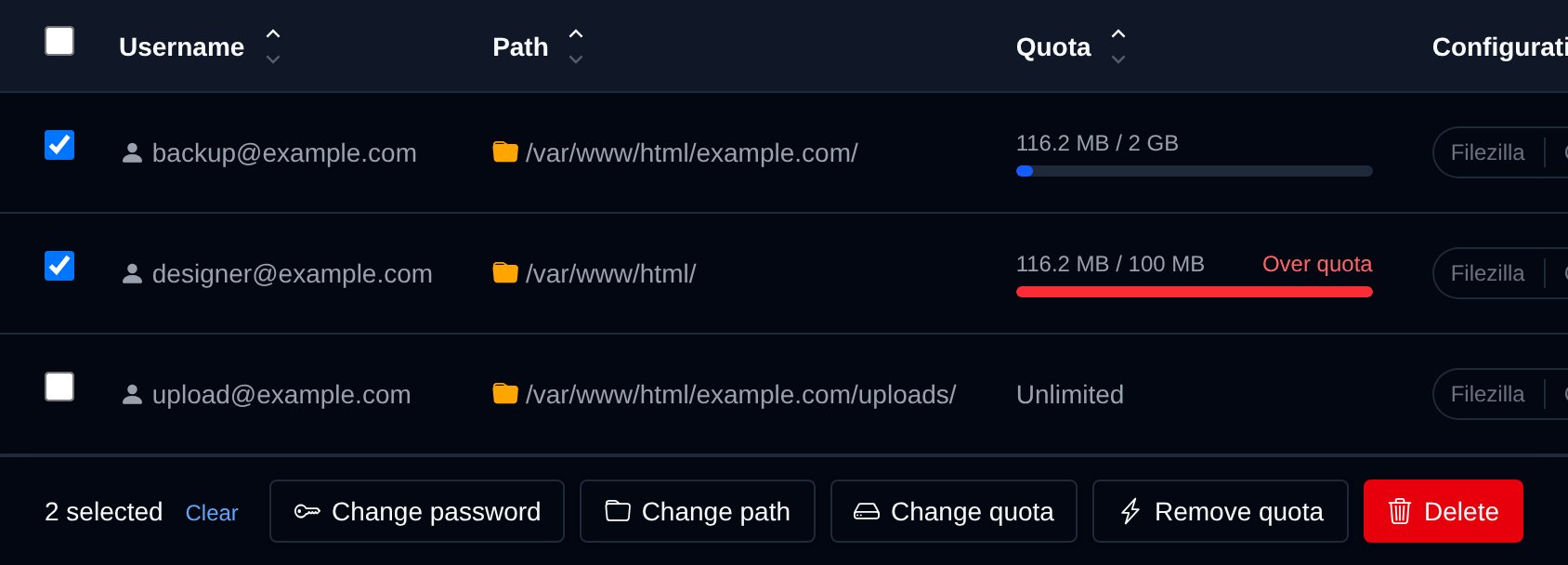
Tick the checkbox of one or more accounts, or the checkbox in the table header to select every account shown by the current search. A bar appears at the bottom of the page with the number selected, a Clear link and these actions:
| Action | What it does |
|---|---|
| Change password | Sets the same new password on the selected accounts. |
| Change path | Sets the home folder of the selected accounts, inside /var/www/html/. |
| Change quota | Sets the same disk quota on the selected accounts, e.g. 500M or 2G. |
| Remove quota | Removes the disk quota from the selected accounts. |
| Delete | Deletes the selected accounts. Their files are kept. |
Click an action, confirm it, and it runs on the selected accounts one after another. When it's done the page reloads with a notice listing the accounts it worked for, or which ones failed and why.
Download Client Configuration
On the FTP accounts page you can download a ready-to-import configuration file for:
- FileZilla: downloads an
.xmlconnection file - Cyberduck: downloads an
.ftpbookmarkfile
Both files are pre-filled with the correct server IP, port, username, and remote directory.


View Active Connections
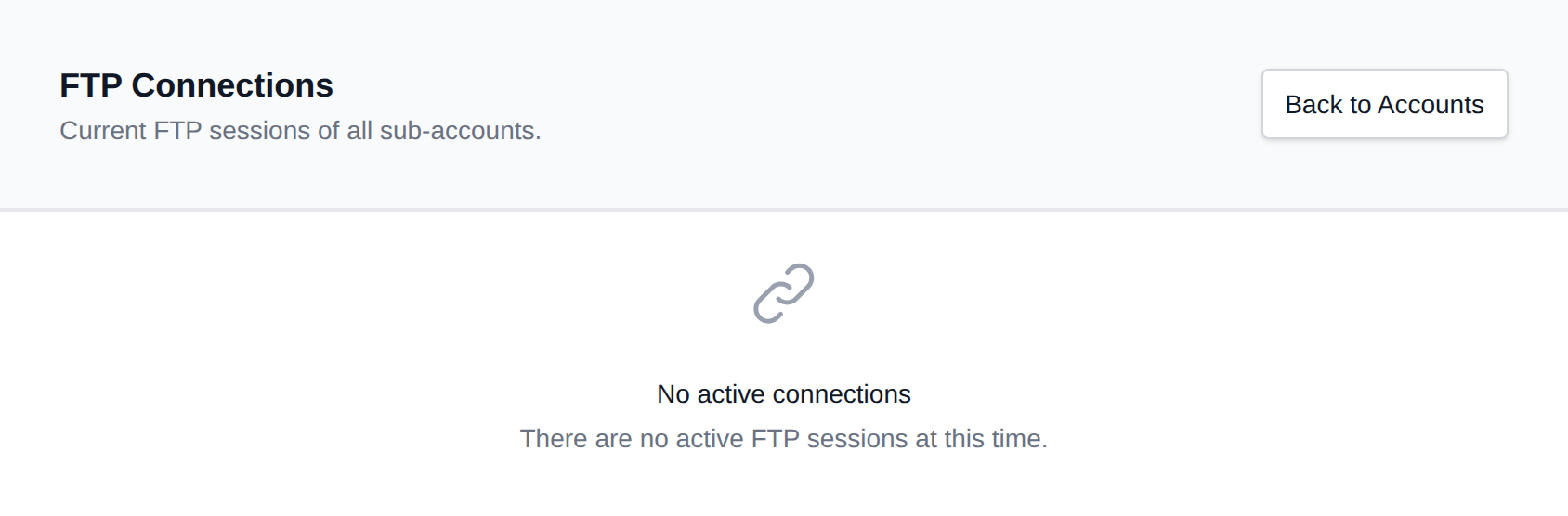
Go to OpenPanel > Files > FTP Accounts and click View Connections to see all currently active FTP sessions for your account.