Cron jobs
OpenAdmin > Server > Scheduled Actions lets Administrators view the scheduled cron tasks used by OpenPanel, modify their schedules, or enable/disable logging to the file /var/log/openpanel-cron.log.
Each job shows a one-line description of what that command does and a Learn more link to its OpenCLI docs page.
A warning is shown above the table for any job with an invalid schedule, or a schedule that can never run (for example 59 23 31 2 *, the 31st of February), since that job is effectively disabled. opencli docker-backup is skipped when it uses its default Disabled schedule, since admin-configured backups are off by default.
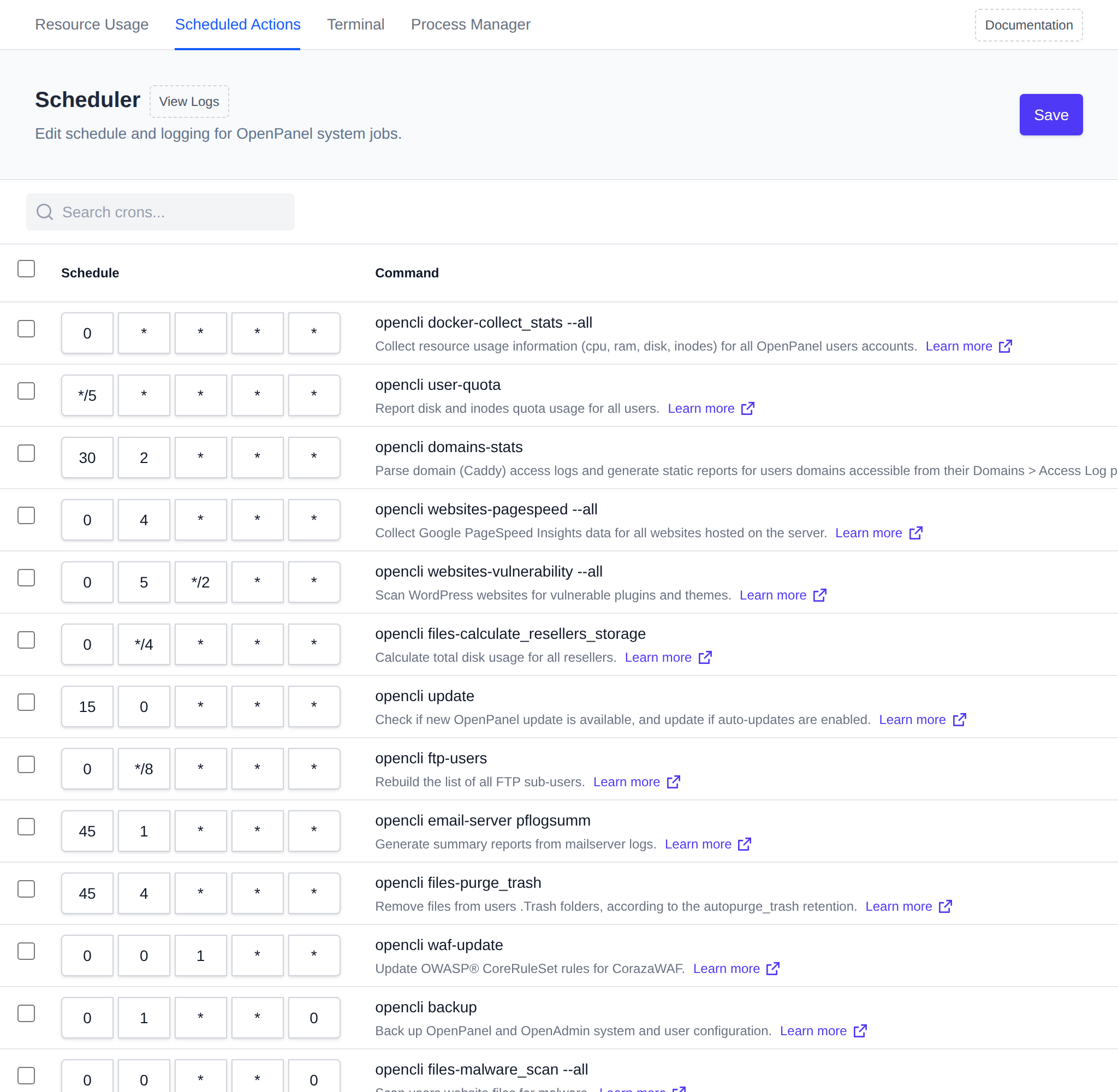
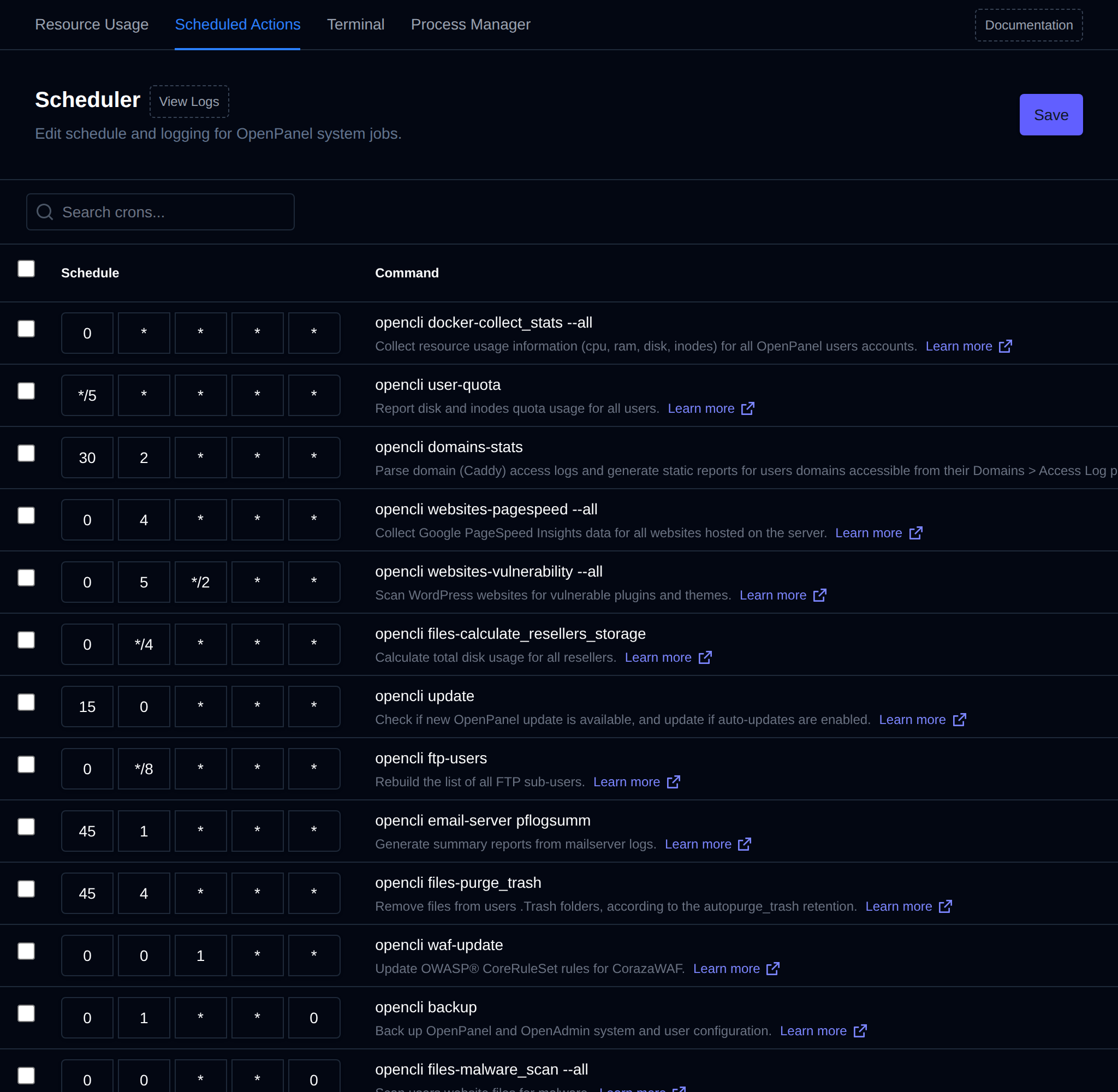
Changing schedules may cause some OpenPanel features to stop working correctly. Only adjust these settings if:
- You need to fine-tune execution on servers with limited resources, or
- You have been advised to do so by OpenPanel support.
These cron jobs are essential for OpenPanel’s internal operations.
If you want to add your own custom cron jobs, use the root user’s crontab.
Bulk Actions
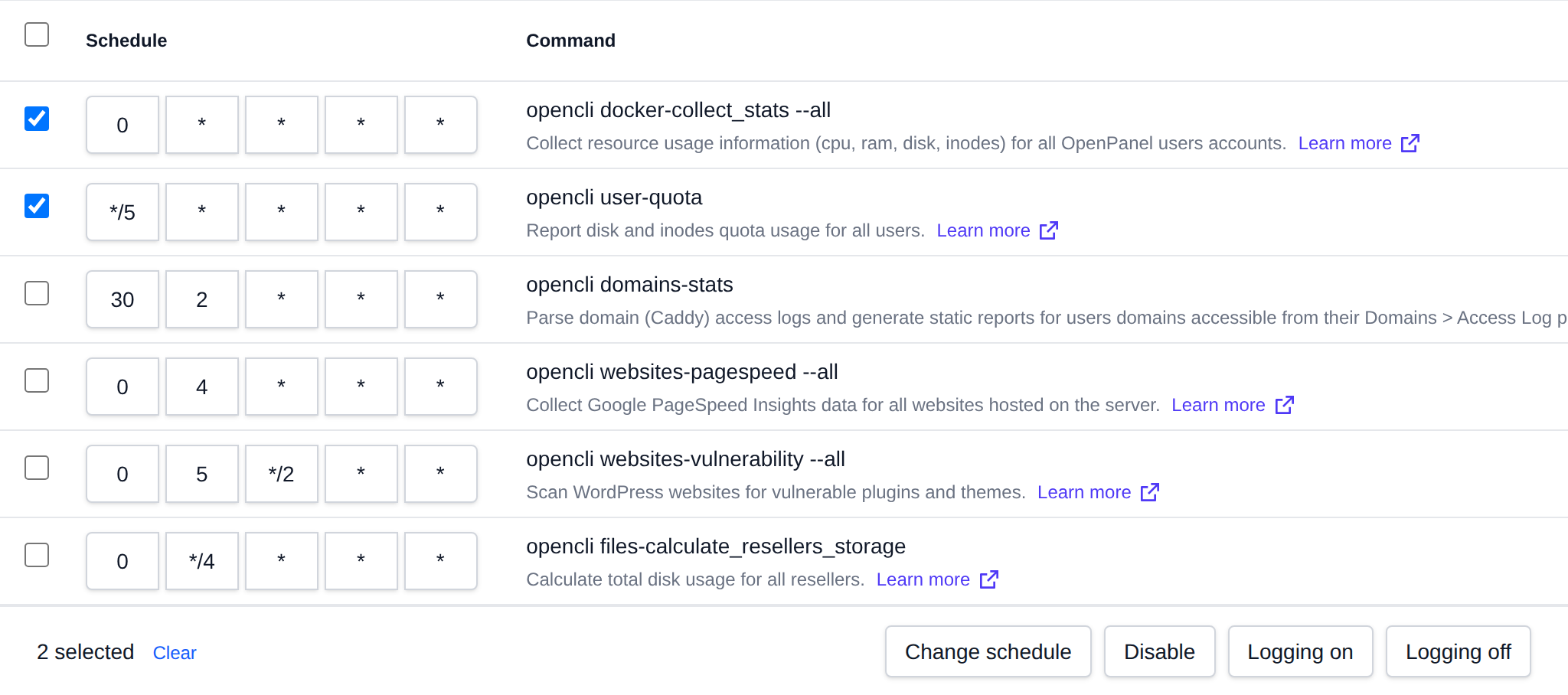
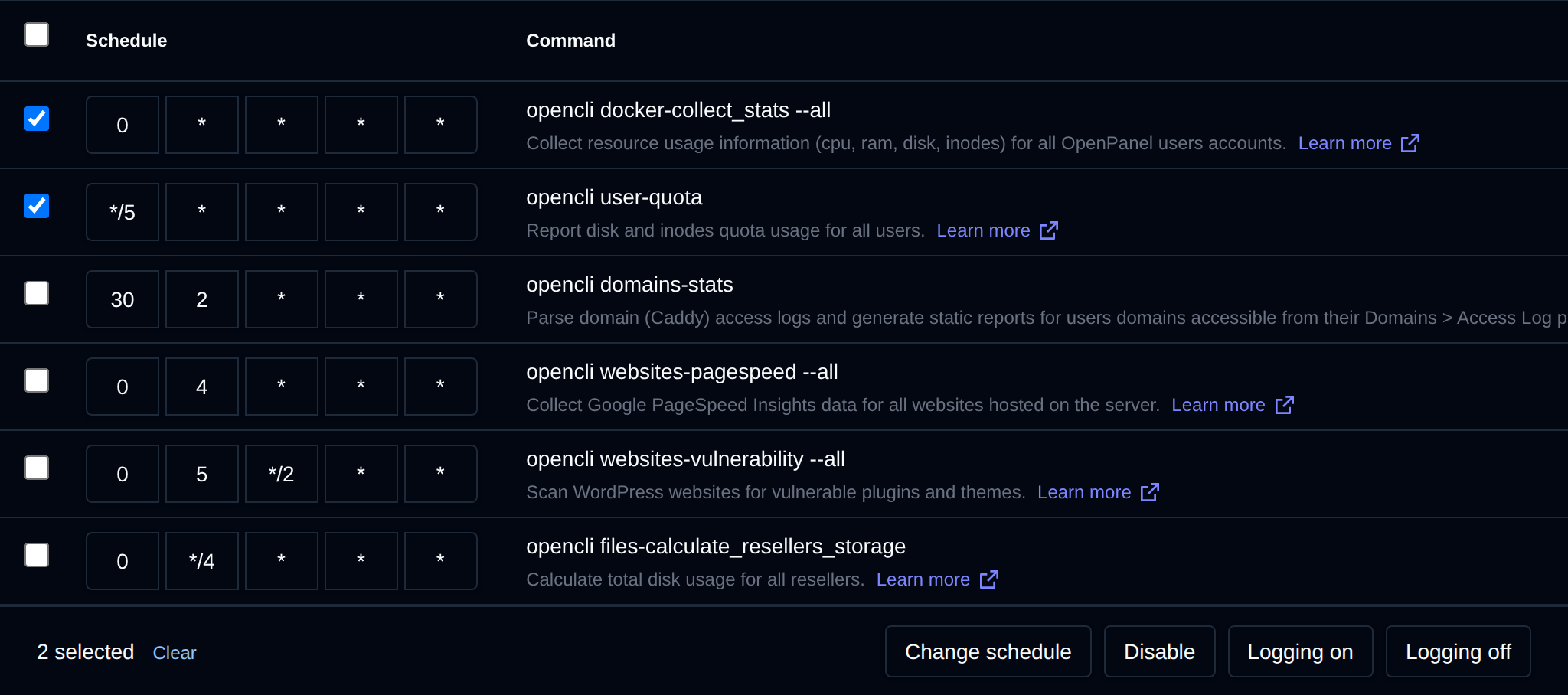
Tick the checkbox of one or more cron jobs, or the checkbox in the table header to select all cron jobs shown by the current search. A bar appears at the bottom of the page with the number selected, a Clear link and these actions:
| Action | What it does |
|---|---|
| Change schedule | Sets the schedule you enter as 5 fields, like 0 3 * * * (minute hour day month weekday). |
| Disable | Sets the schedule to 59 23 31 2 * (February 31st), so the job never runs until you give it a new schedule. |
| Logging on | Logs each run of the selected jobs to /var/log/openpanel-cron.log. |
| Logging off | Stops logging the runs of the selected jobs. |
A job keeps its logging setting when you change its schedule, and its schedule when you turn logging on or off. Click an action, confirm it, and it runs on the selected cron jobs one after another. When it's done the page reloads with a notice listing the cron jobs it worked for, or which ones failed and why.