Notifications
Notifications are accessible via the 'Notifications' menu item in OpenAdmin.
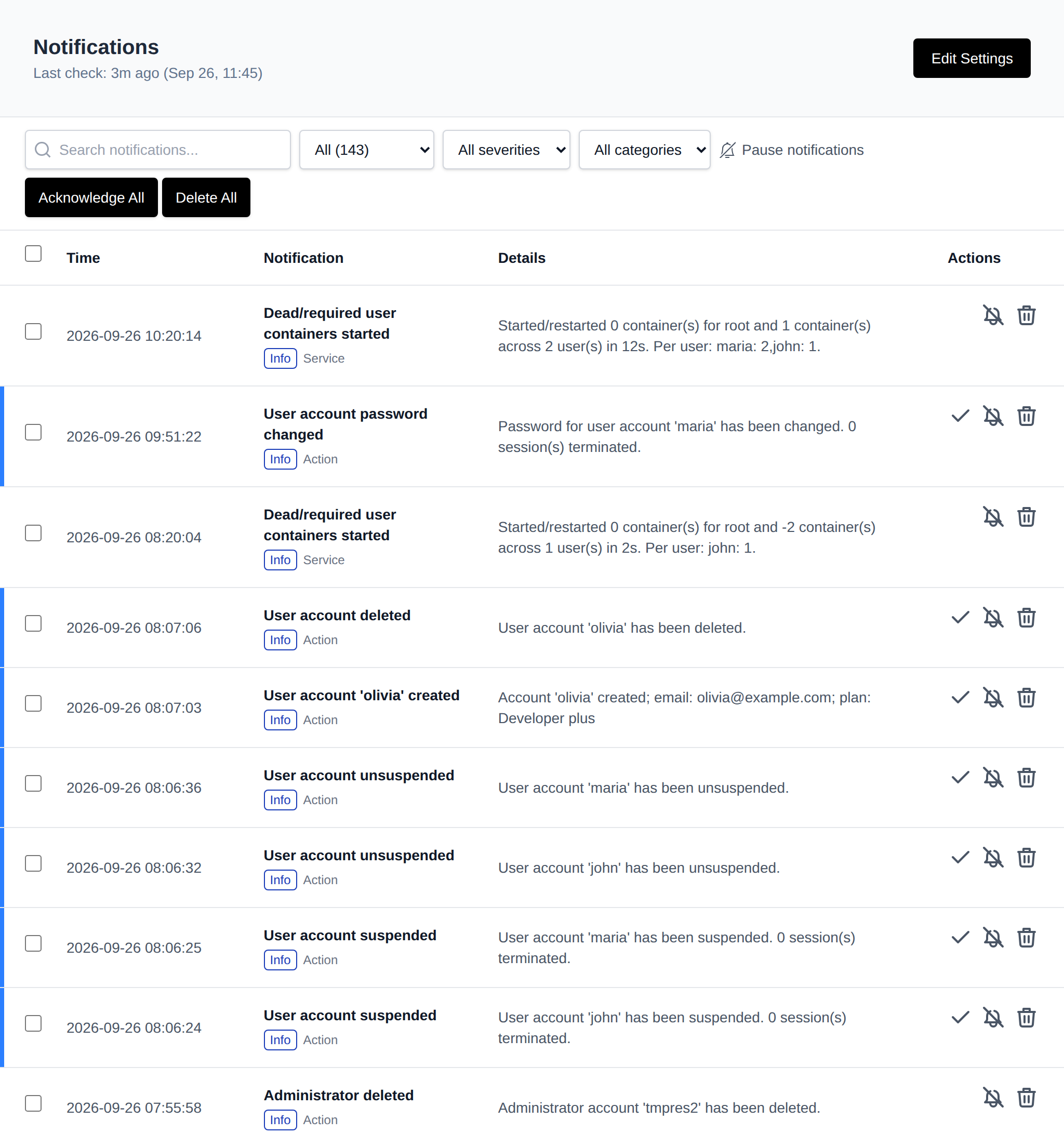
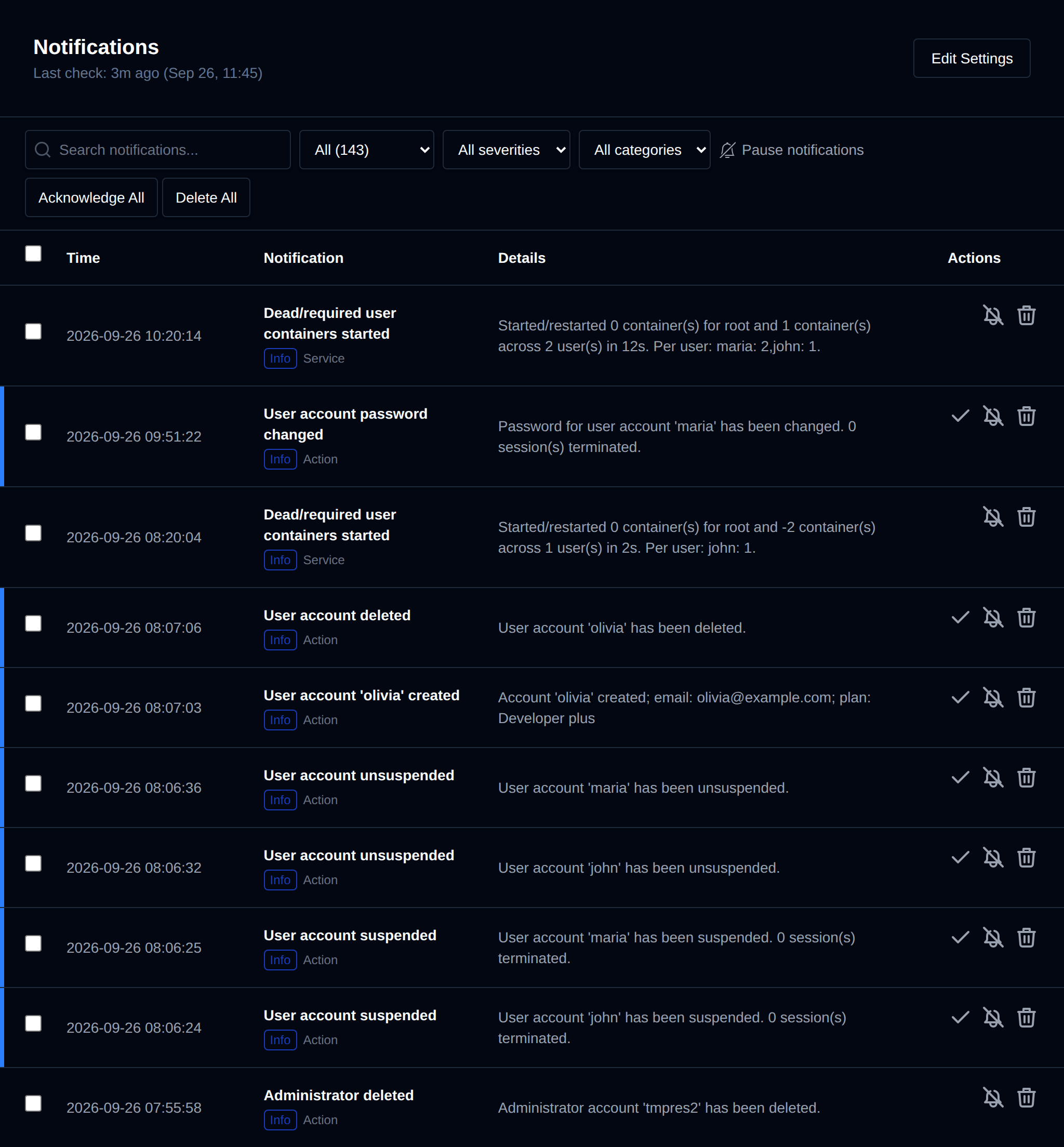
OpenPanel tracks and notifies you of these events, grouped into categories:
- Services: OpenPanel, OpenAdmin, Caddy, MySQL, Podman, BIND9, or Sentinel Firewall becoming unresponsive
- Resource Usage: Load average, CPU, Memory, Disk, and SWAP usage exceeding a set threshold
- Server actions: Server reboot, unusual traffic or SYN flood, Out of Memory (OOM) errors, DNS issues (misconfigured/unresolving domain or nameservers), OpenAdmin login from a new IP address, SSH login from a new IP address, and new version available
- Website traffic: Total connections or connections per IP exceeding a set threshold
- User actions: account and domain changes, such as admin/reseller/user accounts being created, suspended, renamed, or having their password changed; domains being added, removed, suspended, or having SSL/HSTS toggled; FTP accounts being created or deleted; and WAF being enabled or disabled
Each notification type can be individually disabled, and admins can set custom threshold limits.
Each notification has a severity: Critical (e.g. a service is down and Sentinel couldn't restart it), Warning (e.g. high resource usage or a DNS issue) or Info (e.g. an update finished, a user action, or something Sentinel fixed on its own). The severity and category are shown under each title, and unread notifications have a colored bar matching their severity.
Use the filters next to the search box to show only unread or resolved notifications, a single severity, or a single category (Service, Resources, Security, DNS, Traffic, System, Update, Action).
Notifications are shown 100 per page, newest first, with Previous and Next below the table.
Notifications that need attention are shown as unread. When Sentinel detects the same issue again while it's still unread, the notification shows how many times it was detected and when it was last seen, instead of adding a new one. Once the issue is gone, Sentinel marks it as read and shows a Resolved after … badge. Things Sentinel fixed on its own, like restarting a stopped container, are added as already-read Info entries for history and are not emailed. See opencli sentinel for details.
Under the page title, Last check shows when opencli sentinel last completed its checks (it runs from cron every 5 minutes). The line turns amber if Sentinel hasn't run in over 15 minutes, which usually means its cron job is disabled or failing.
Click the bell icon next to the search box to pause email/webhook alerts for a set time (10 min up to 1 day) — see Pause Notifications.
To manage notification settings, click the Edit Settings button on the Notifications page or navigate to: Settings > Notifications.
Bulk Actions
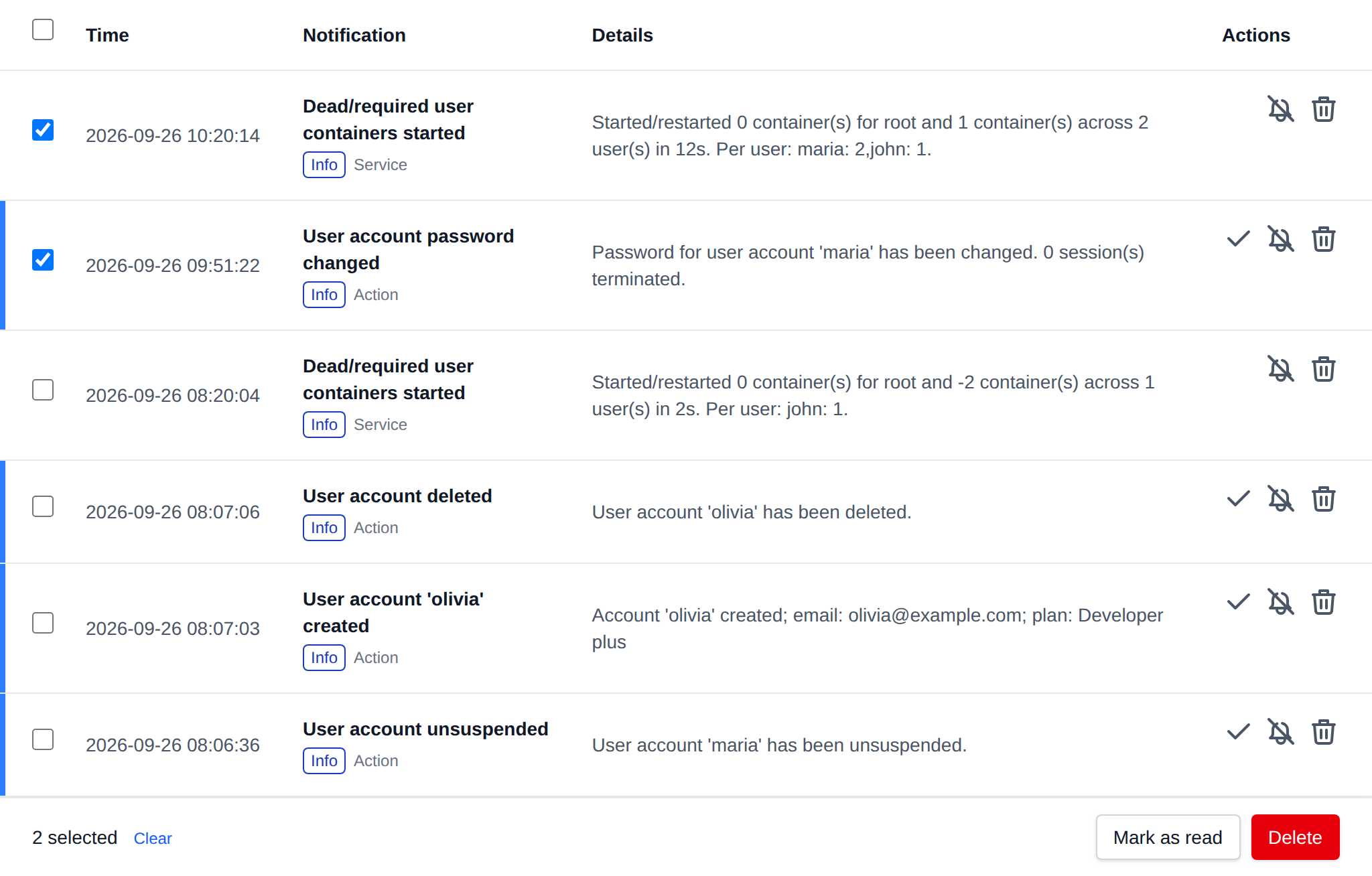
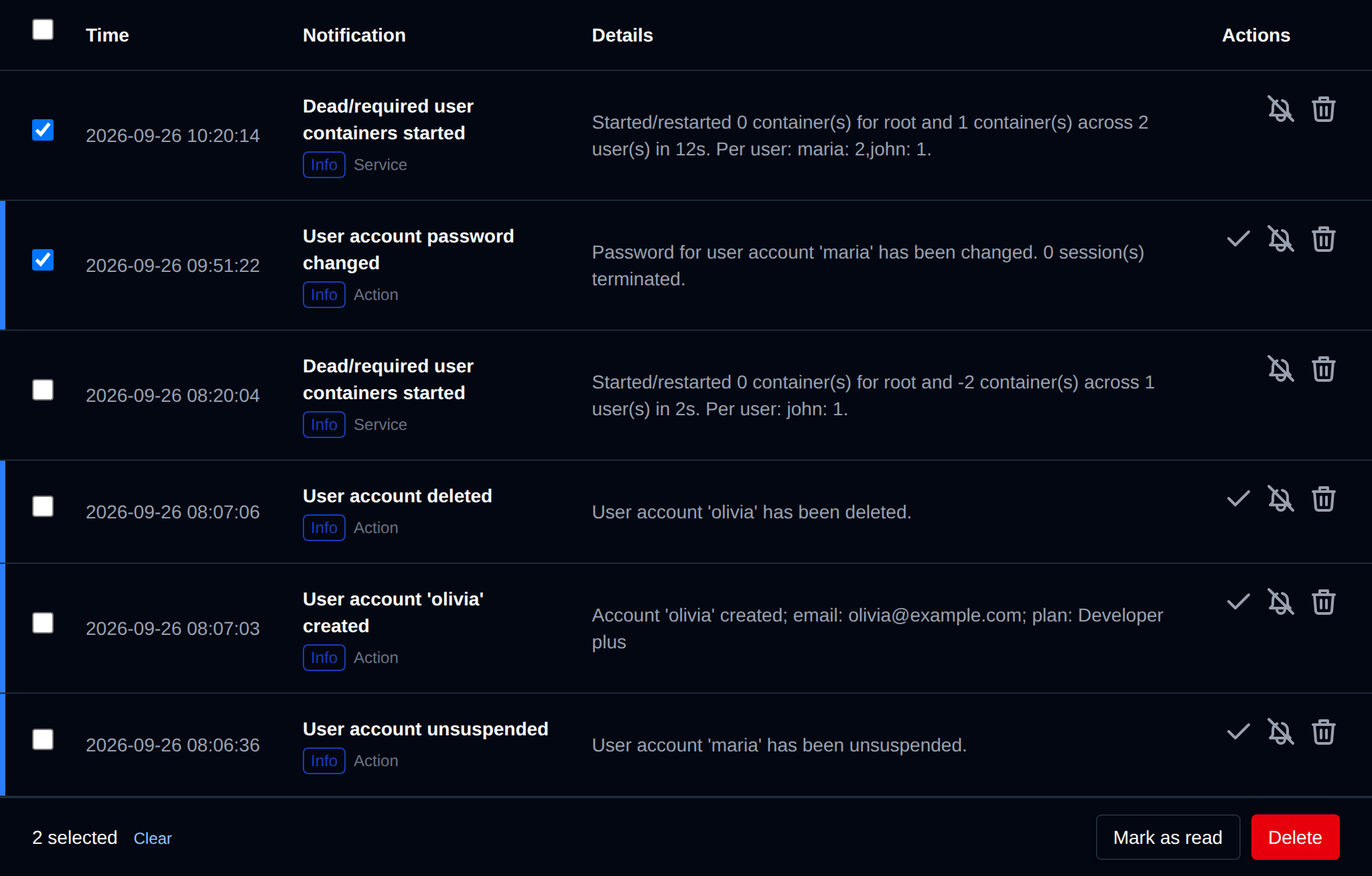
Tick the checkbox of one or more notifications, or the checkbox in the table header to select all notifications on the current page. A bar appears at the bottom of the page with the number selected, a Clear link and these actions:
| Action | What it does |
|---|---|
| Mark as read | Marks the selected unread notifications as read. |
| Delete | Deletes the selected notifications. |
Click an action, confirm it, and it runs on the selected notifications one after another. When it's done the page reloads with a notice listing the notifications it worked for, or which ones failed and why.