Version: 2.0.21
SSH Access
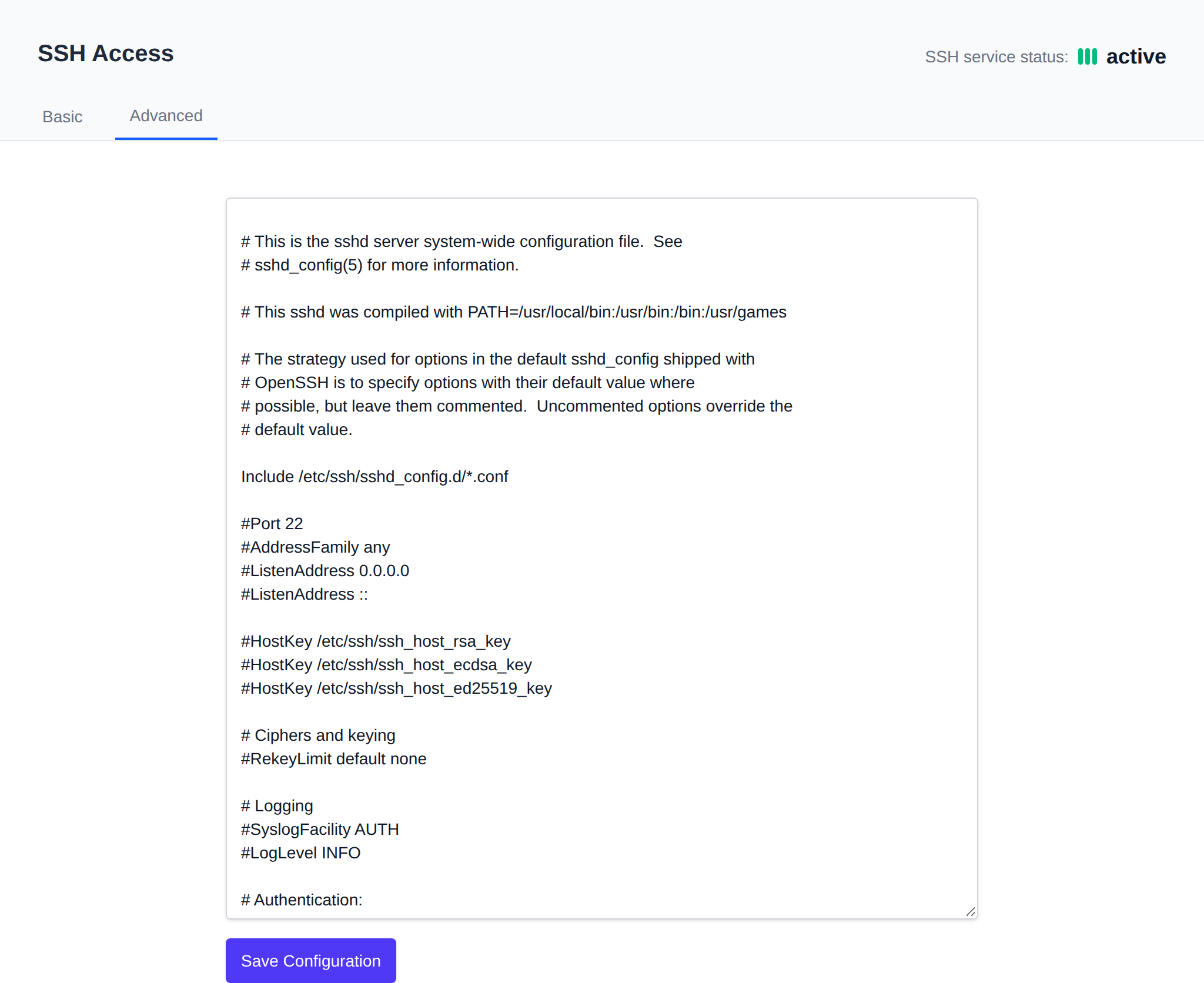
OpenAdmin > System > SSH Access allows Administrators to view and modify current server SSH configuration. The current SSH service status (active/inactive) is shown in the top-right of the page.
Basic SSH Settings
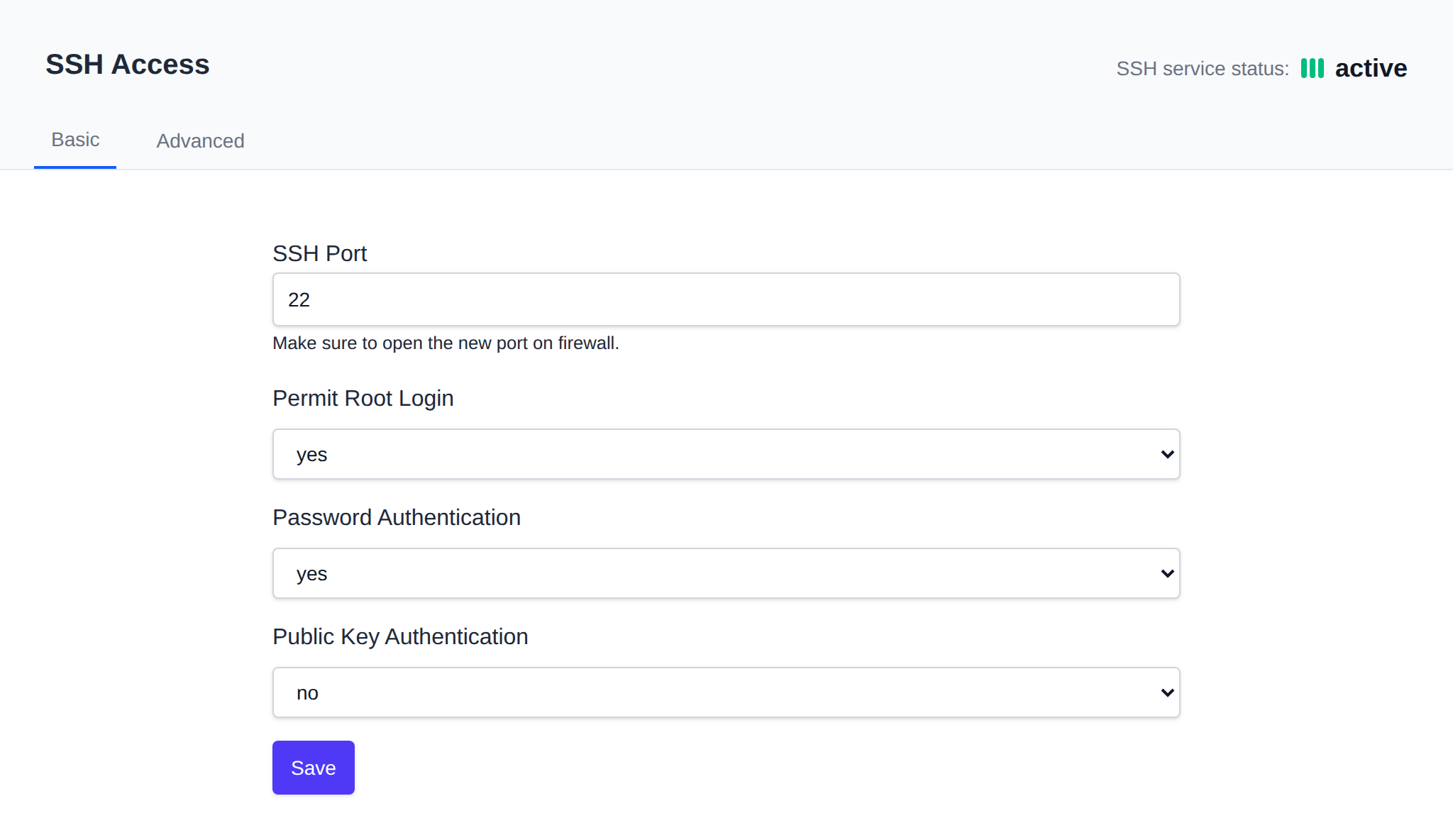
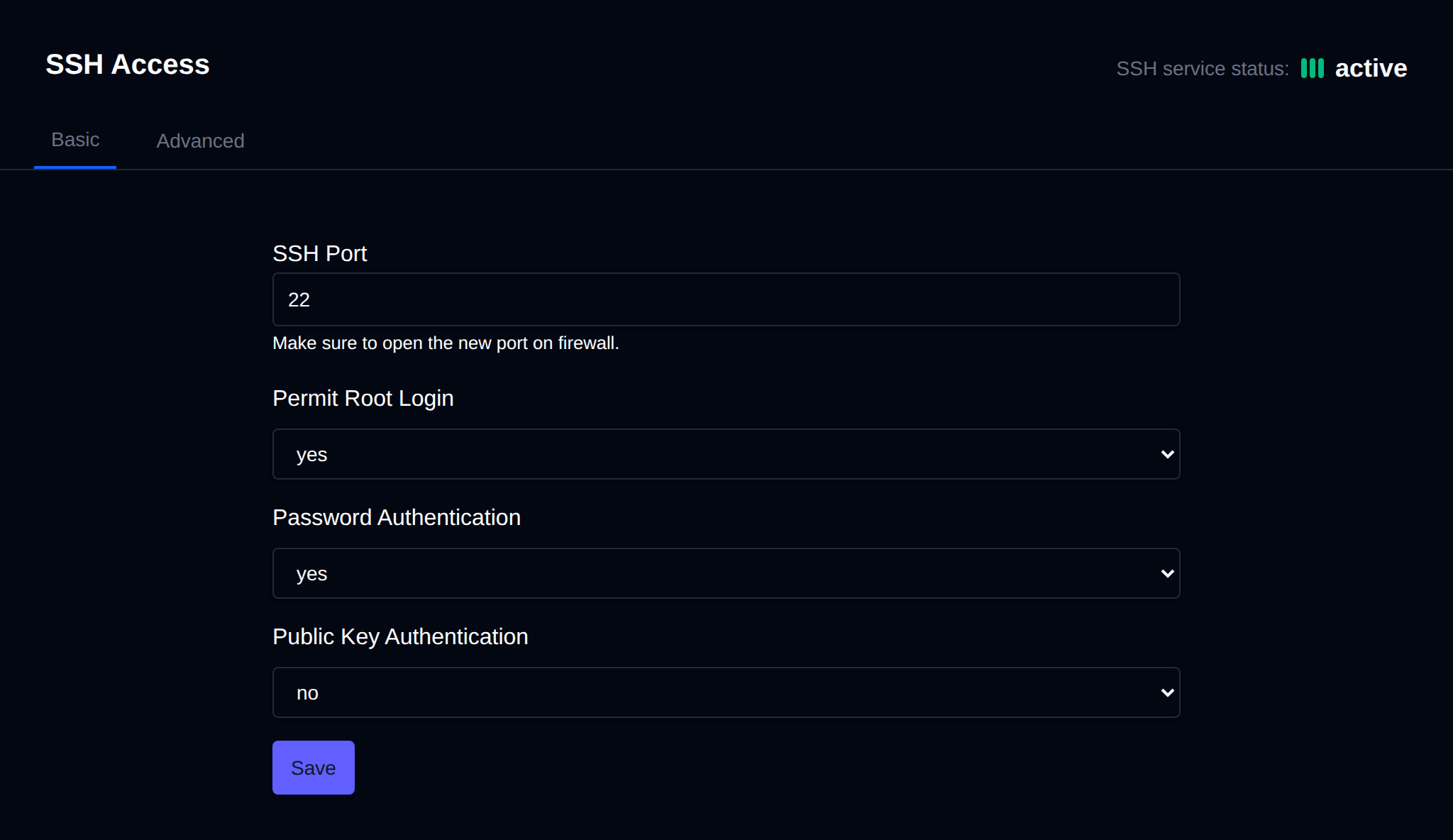
This tab displays:
- SSH Port - current SSH port
- Permit Root Login - allow login for root user (
PermitRootLogin) - Password Authentication - enable usage of passwords for ssh (
PasswordAuthentication) - Public Key Authentication - enable usage of ssh keys (
PubkeyAuthentication)
You can change any value and click on the save button to apply.
A recommendation is shown as you change the values:
- SSH Port 22: the default port is the first one bots try, so block it in the firewall and allow it only for the IPs admins connect from, or move SSH to another port.
- Password Authentication on: turn it off once public key authentication is on, so passwords can't be brute-forced. If there are no authorized keys yet, add yours first or you'll be locked out.
- Public Key Authentication off: enable it, since key logins can't be brute-forced like passwords.
Authorized Keys
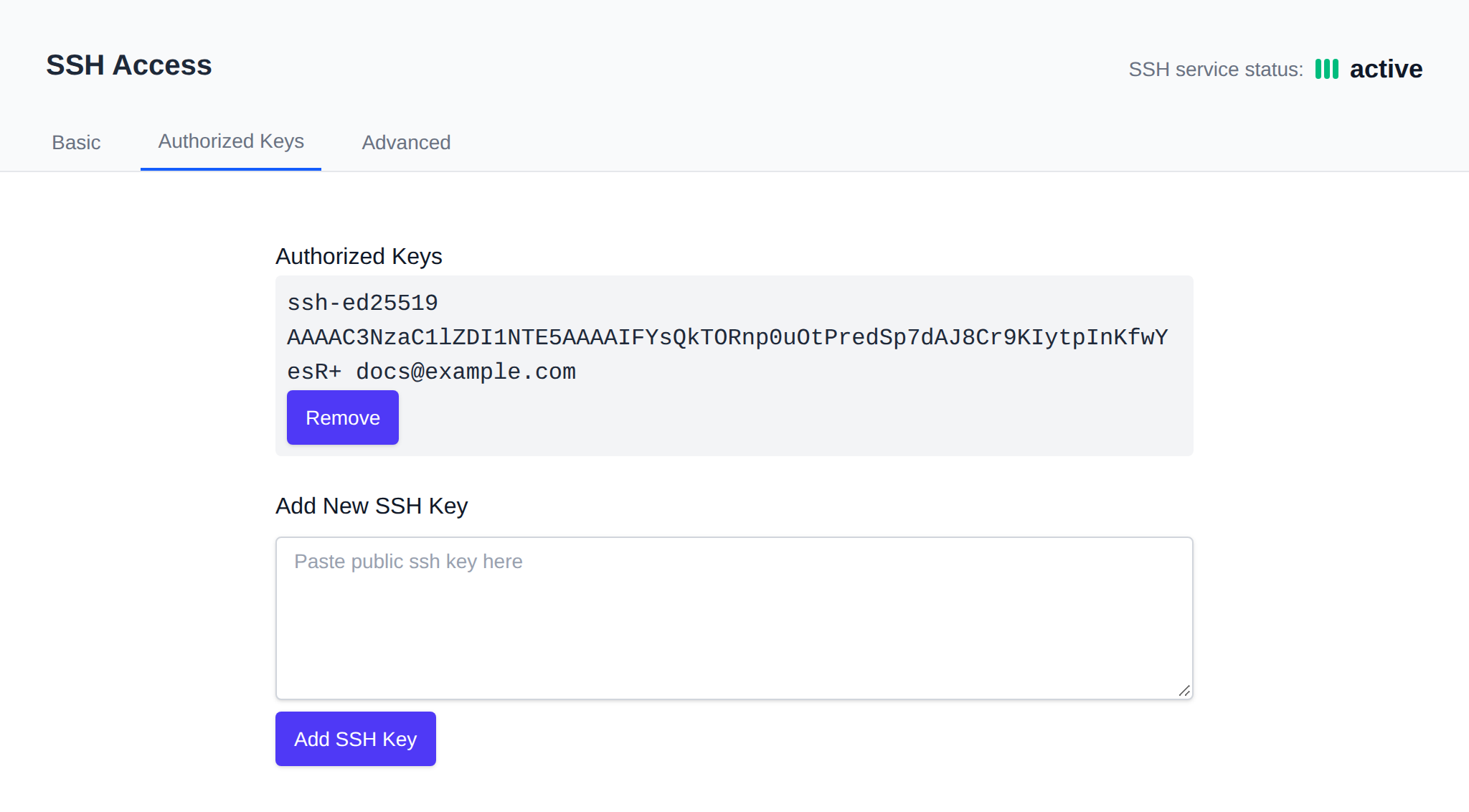
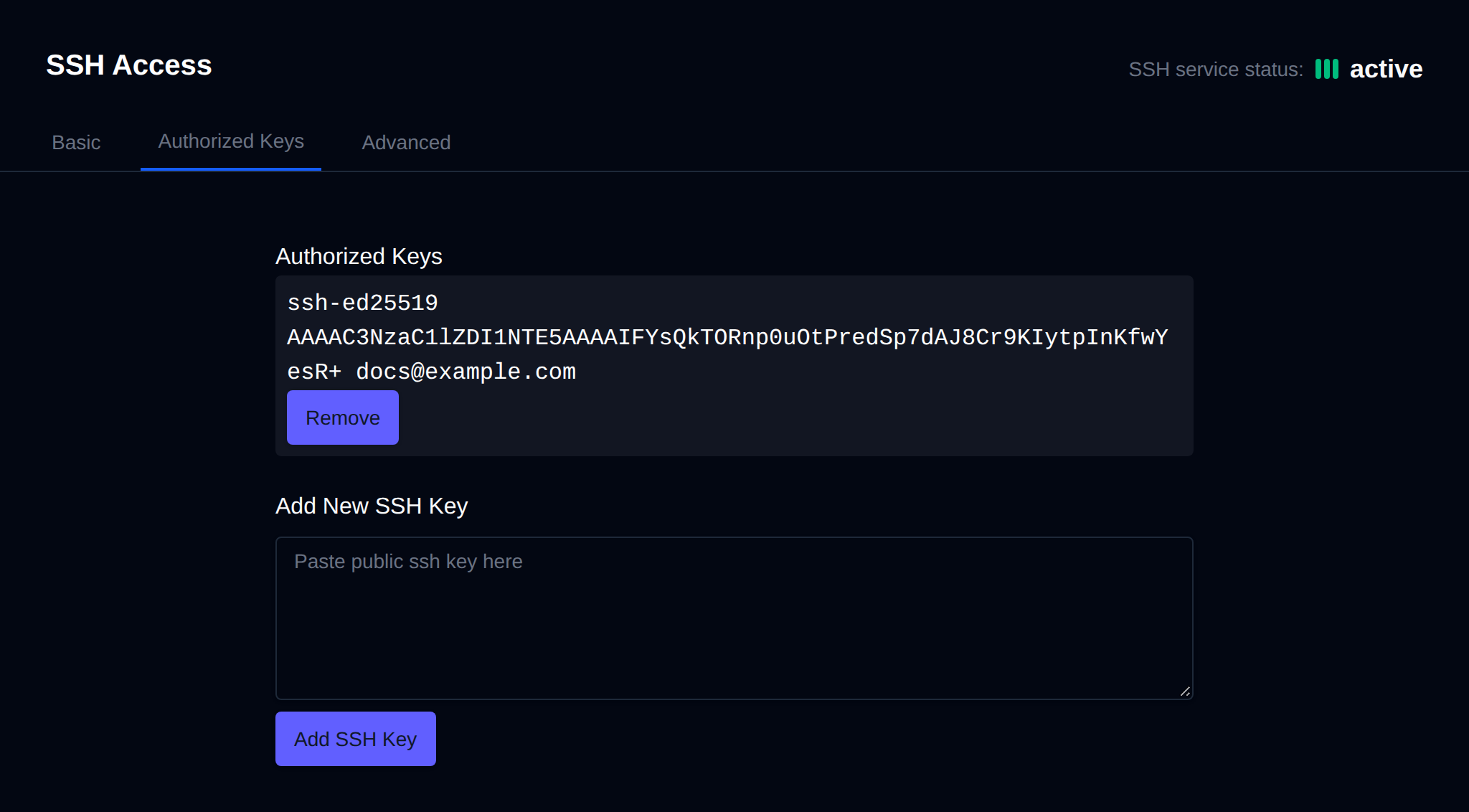
This tab is only shown when Public Key Authentication is enabled. Here you can view current authorized ssh keys, remove them, or add a new key.
Advanced
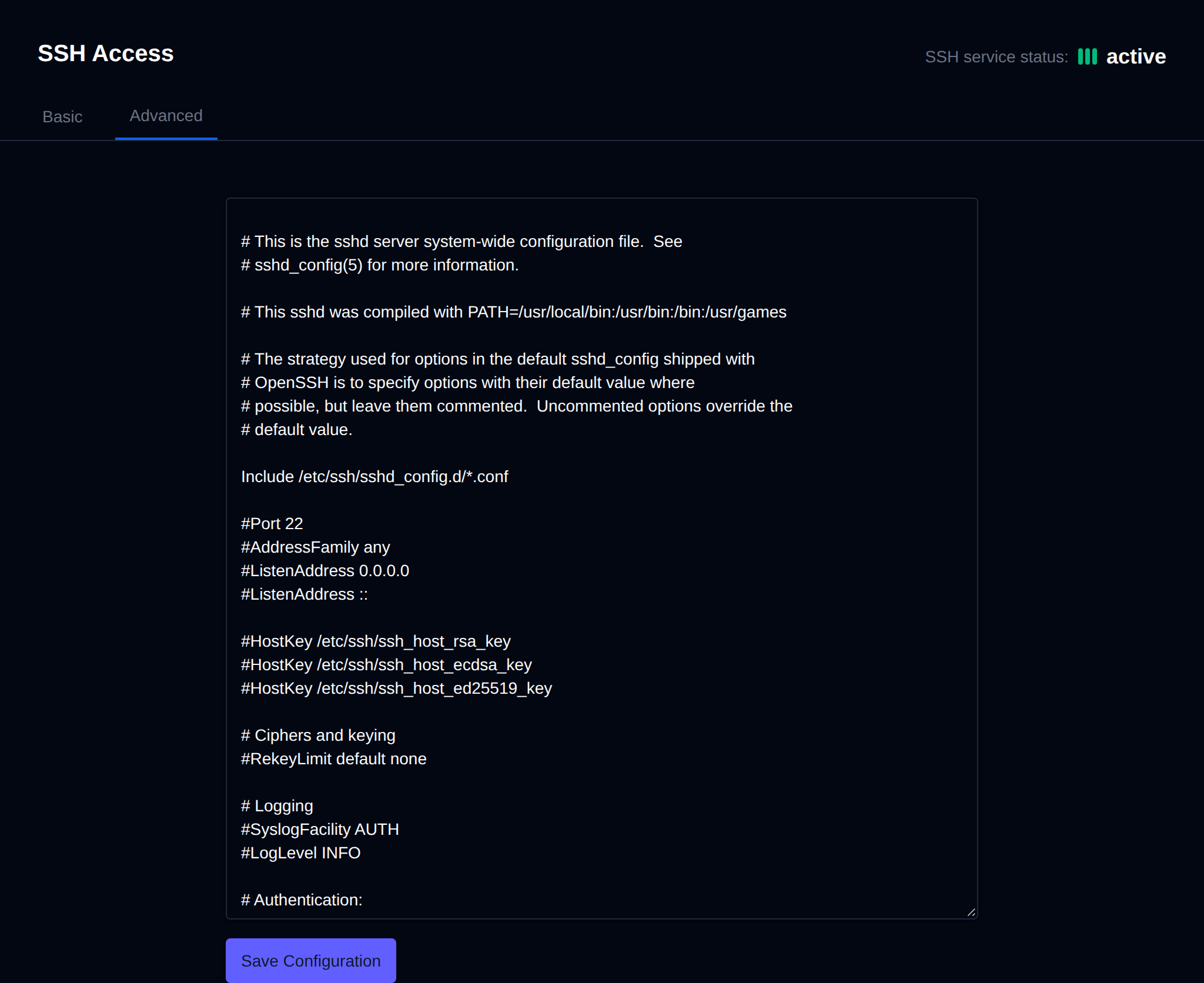
Here you can edit the raw SSH configuration file: /etc/ssh/sshd_config
Was this helpful?