Notifications
Configure OpenAdmin notifications and Email alerts settings.
- With OpenAdmin
- With OpenCLI
To view or edit current notification settings, go to OpenAdmin > Settings > Notifications or click the 'Edit Settings' button on the Notification page.


To view notification settings, run:
opencli admin notifications get <OPTION>
Example:
# opencli admin notifications get reboot
yes
To update notification settings, run:
opencli admin notifications update <OPTION> <NEW-VALUE>
Example:
opencli admin notifications update load 10
Updated load to 10
Pause Notifications
Temporarily silence email and webhook alerts without changing any of the settings below — useful during planned maintenance so a batch of expected service restarts doesn't flood your inbox.
The control lives on the Notifications page itself (next to the search box), not here — click the bell icon to pick a duration: 10 minutes, 30 minutes, 1 hour, 6 hours, or 1 day. While paused, the bell shows "Paused until <time>" and doubles as a button to resume immediately.
Pausing only skips the email/webhook sends — notifications still get logged and show up on the Notifications page as usual, and the pause always expires on its own even if you never click resume.
Under the hood this writes a timestamp to a flag file (/tmp/openpanel_notifications_paused) that opencli sentinel checks before sending any alert. See GET/POST /api/notifications/pause and POST /api/notifications/resume to control it via the API.
Email
Configure email address to be used for receiving system notifications and alerts.
Enter your email address in the Email address field. Leave it empty to disable email alerts.
To send alerts to more than one person, click + below the field to add another address, and − next to an address to remove it. Every address gets the same email. They're stored comma separated, so with opencli config update email or the API use [email protected],[email protected]. If the mail server rejects one of the addresses, the email is still sent to the rest and the rejected address is skipped.
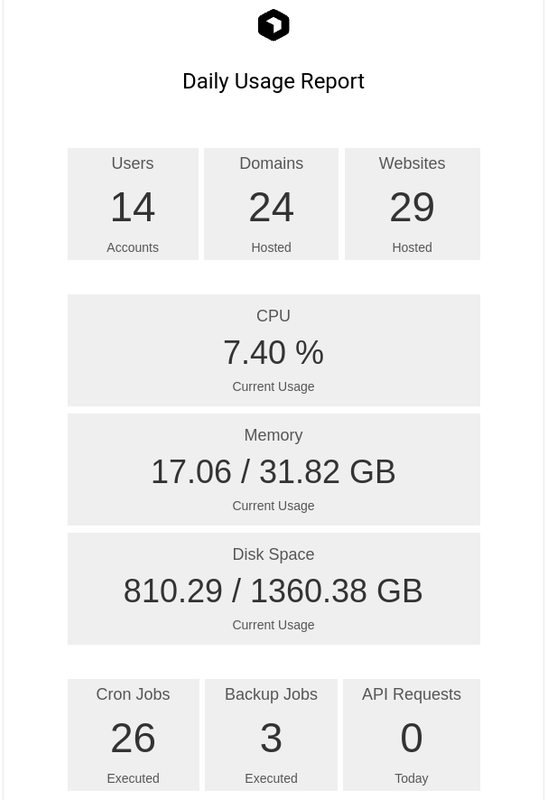
If email address is set, daily usage report will be sent to the address, schedule is configurable from 'Server > Scheduled Actions'.
Webhook
Send notifications to one or more webhook URLs (Discord, Slack or any other service that accepts a JSON POST).
- Each webhook has its own field. Once a field has a URL, a + button shows below it to add another one.
- Click − next to a field to remove that webhook (the first field can't be removed, leave it empty to disable webhooks).
- Click Test next to a field to send a test notification to that URL right away, even before saving. The result is shown under the field, with the error or HTTP status if the webhook didn't accept it.
Every alert is sent to all of the webhooks. Only http:// and https:// URLs are accepted.


Services
Receive notifications when services are down or unresponsive. Services are checked every 5 minutes.
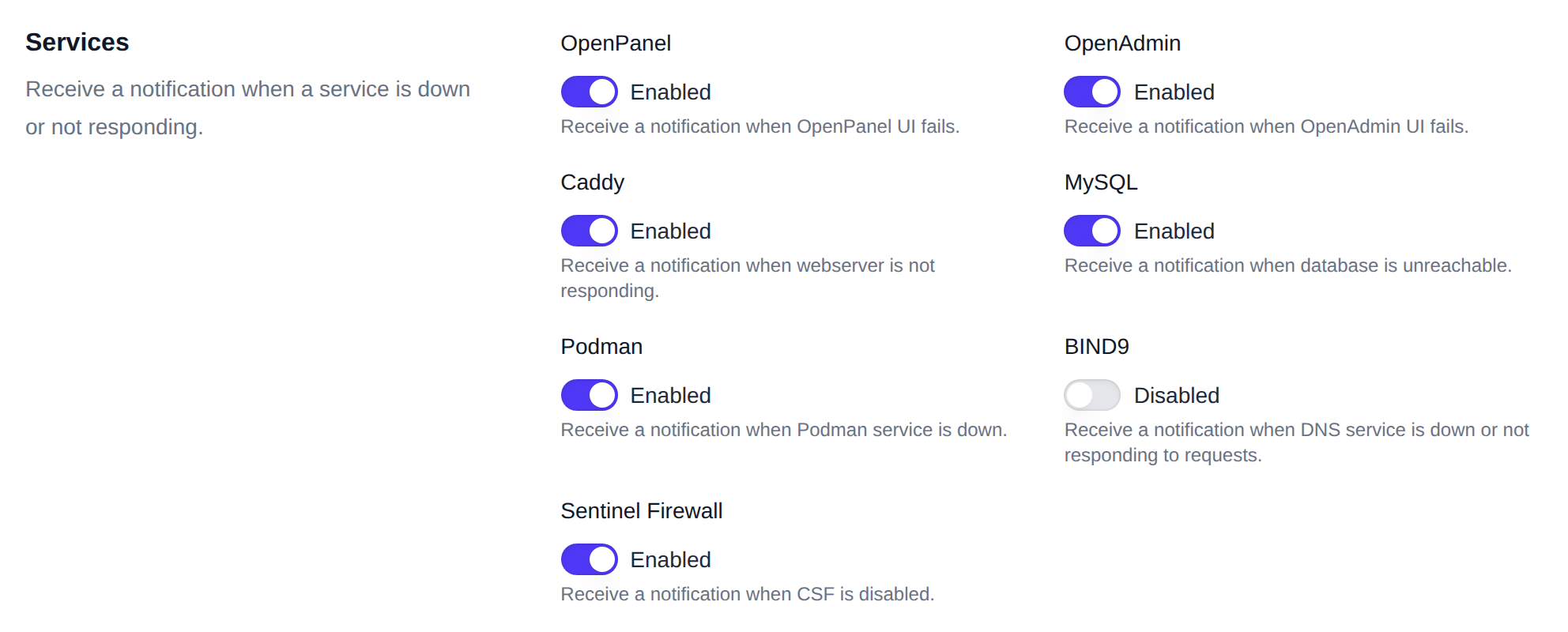
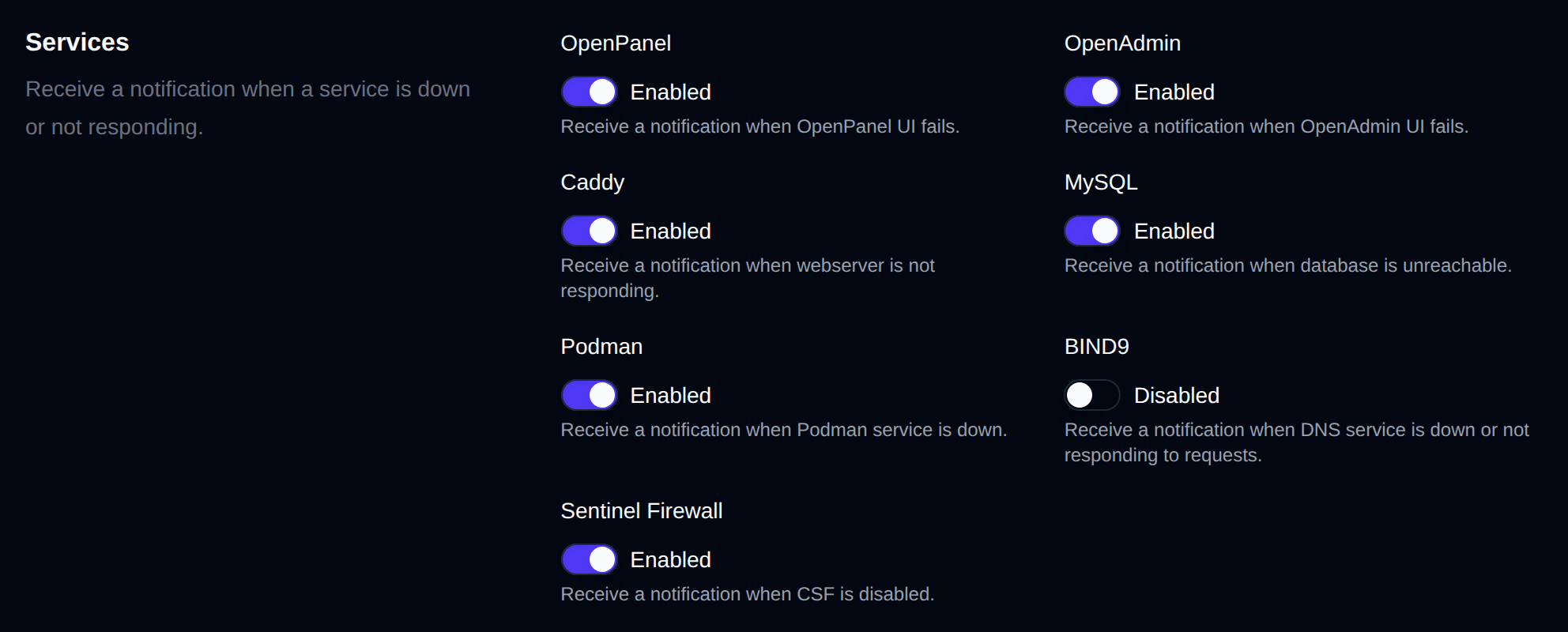
- OpenPanel: Notification if OpenPanel UI fails.
- OpenAdmin: Notification if OpenAdmin UI fails.
- Caddy: Notification if webserver is not responding.
- MySQL: Notification if database is unreachable.
- Podman: Notification if Podman service is down.
- BIND9: Notification if DNS service is down or unresponsive.
- Sentinel Firewall: Notification if Sentinel (CSF) is disabled.
When a service is turned off but should be monitored, a recommendation is shown under it: the core services (OpenPanel, OpenAdmin, Caddy, MySQL, Podman), BIND9 when the DNS module is enabled, and Sentinel Firewall when CSF is installed. A note is also shown when BIND9 is on but the DNS module is disabled, or Sentinel Firewall is on but CSF isn't installed.
Resource Usage
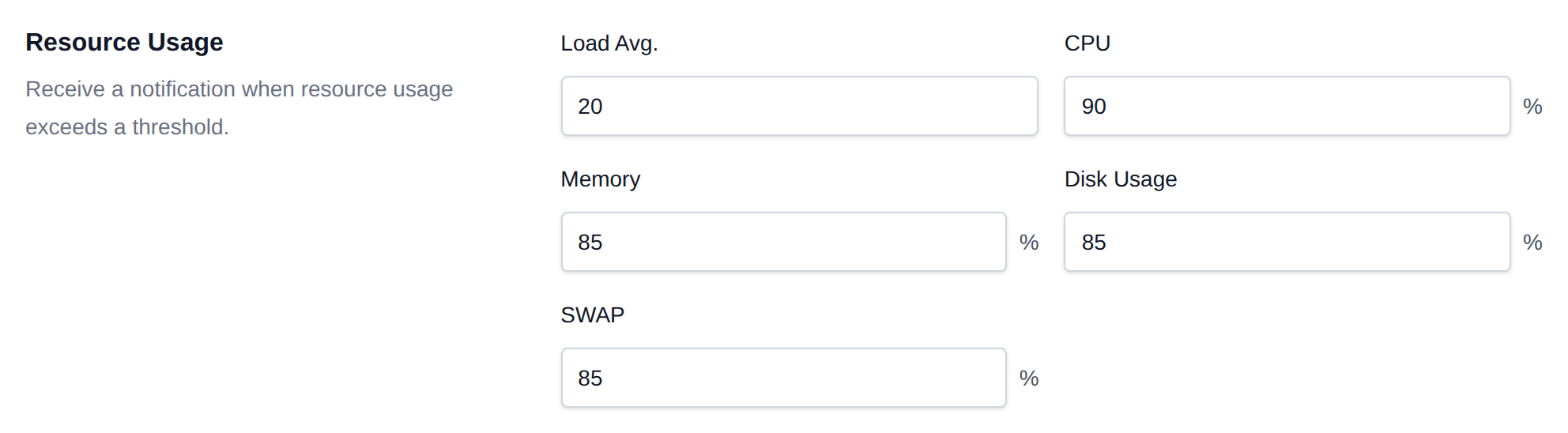
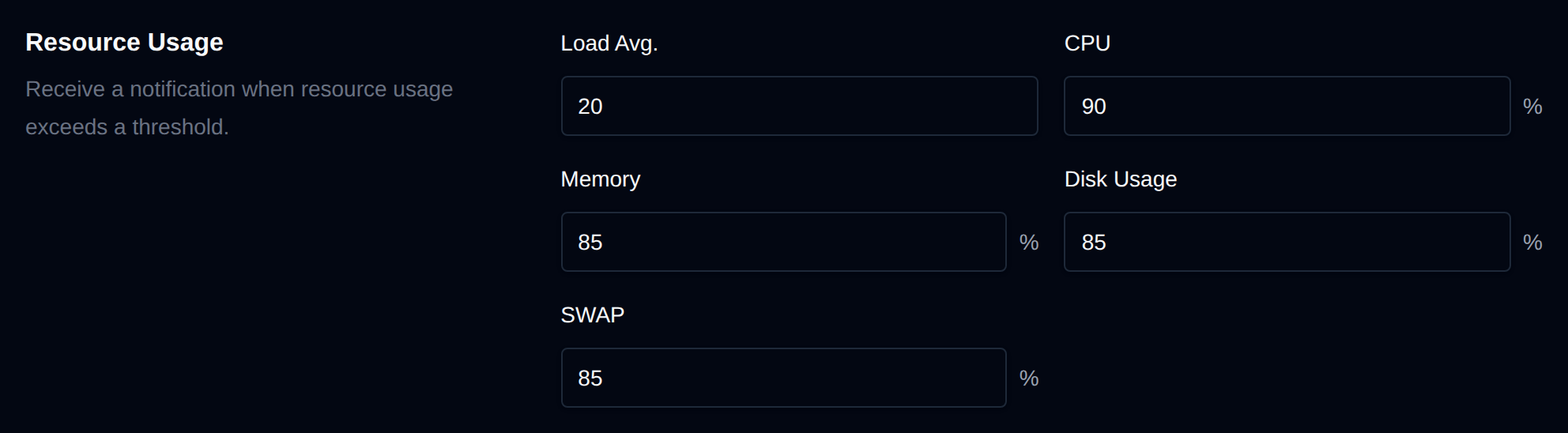
Get alerts when resource usage exceeds thresholds (checked every 5 minutes):
- Load Average - recommended at least 2× the number of CPU cores (max 100).
- CPU % - recommended 85-95%.
- RAM % - recommended 85-95%, cache isn't counted as used.
- Disk Usage % - recommended 85-95% of the
/disk, leaving at least 5 GB (or 10% on small disks) when the alert fires. - SWAP % - recommended 40-80%, above it Sentinel clears swap if there's enough free RAM. Skipped on servers without swap.
Under each field the recommended value is calculated for your server (CPU cores, RAM, disk and swap size), and a warning is shown when the value is set too low (alerts on normal usage) or, for disk, too high to react in time.
Server actions
Receive notifications when specific server-level actions are detected:
-
Server reboot: Triggered when the server is restarted.
-
Unusual traffic or SYN flood: Fires when suspicious traffic or DDoS attacks are detected. When enabled, an additional Website traffic section appears where you can set the Max total connections and Max connections per IP thresholds (on ports 80/443) that trigger the notification.
Under each field the highest value recorded by Sentinel (it saves the number of connections every 5 minutes, for up to 30 days) is shown with a recommended limit of 2× that peak, at least 500 total and 50 per IP. Click Use to fill it in. A warning shows if the limit is at or below the recorded peak, since you'd have been alerted then. Recommendations show once there are domains on the server and Sentinel has collected at least 24 hours of data.
-
Visitors blocked by rate limit: Checked every 6 hours, fires when visitors to a domain got 429 Too Many Requests from the request rate limits. The notification lists each domain with how many requests were blocked and the IPs blocked the most. Users who turned on Visitors blocked by rate limit on their Notifications page also get an email about their own domains. Off by default.
-
Out of Memory (OOM) errors: Checks journal logs for system services and user processes killed by OOM in the last 24 hours.
-
DNS issue detected: Triggered when the panel domain or nameservers are misconfigured or not resolving to this server. Disable if using external nameservers or a Cloudflare proxy.
-
OpenAdmin login from new IP: Triggered when the OpenAdmin panel is accessed from an unrecognized IP address.
-
SSH login from new IP: Triggered when root SSH access is detected from an unknown IP address. The IP can be whitelisted in the SSH Allowlist section below.
-
New update available: Triggered when a new version of OpenPanel is available for update.


User Actions
Get notified whenever an action occurs in the admin or user panels.
Actions are grouped into OpenAdmin, Web Firewall, Users, FTP, Domains, ImunifyAV and Backups. Each group shows how many are on and has All on / All off buttons to toggle the whole group at once.
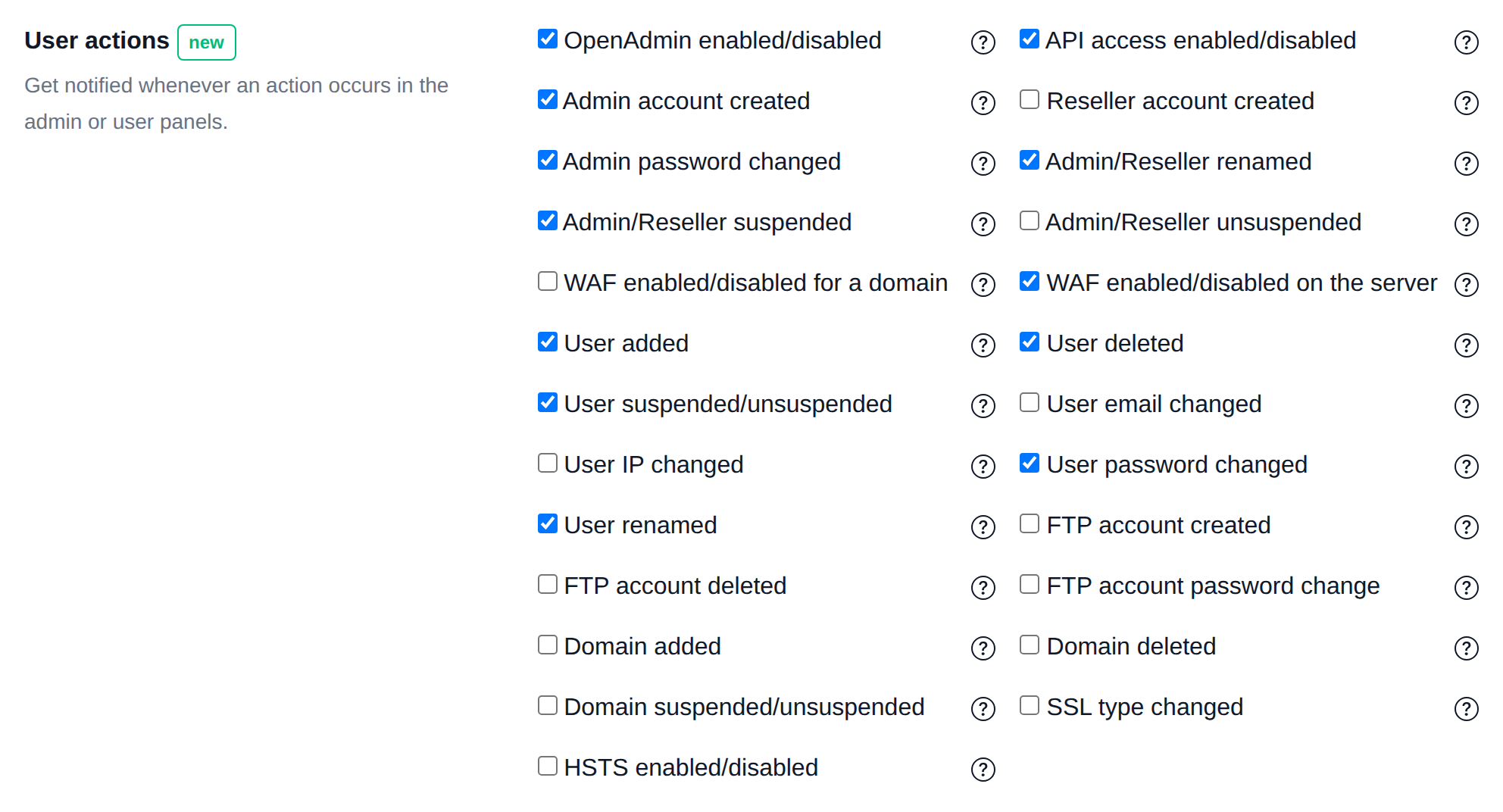
- OpenAdmin enabled/disabled
- API access enabled/disabled
- Admin account created
- Reseller account created
- Admin password changed
- Admin/Reseller renamed
- Admin/Reseller suspended
- Admin/Reseller unsuspended
- WAF enabled/disabled for a domain
- WAF enabled/disabled on the server
- User added
- User deleted
- User suspended/unsuspended
- User email changed
- User IP changed
- User password changed
- User renamed
- User transferred
- FTP account created
- FTP account deleted
- FTP account password change
- Domain added
- Domain deleted
- Domain suspended/unsuspended
- SSL type changed
- HSTS enabled/disabled
- ImunifyAV scan started/finished
- Backup failed (the scheduled
opencli docker-backuprun failed for one or more users)
SSH Allowlist
Specify IP addresses (or CIDRs) that will be exempt from SSH and OpenAdmin login checks.
Below the list, your current IP and the IPs that logged into OpenAdmin before (from /var/log/openpanel/admin/login.log, with the usernames and the last login date) are suggested. Click one to add it to the list. IPs already covered by the list aren't suggested.


SMTP Settings
No SMTP server is configured by default — email notifications will not be sent until you set one up here.
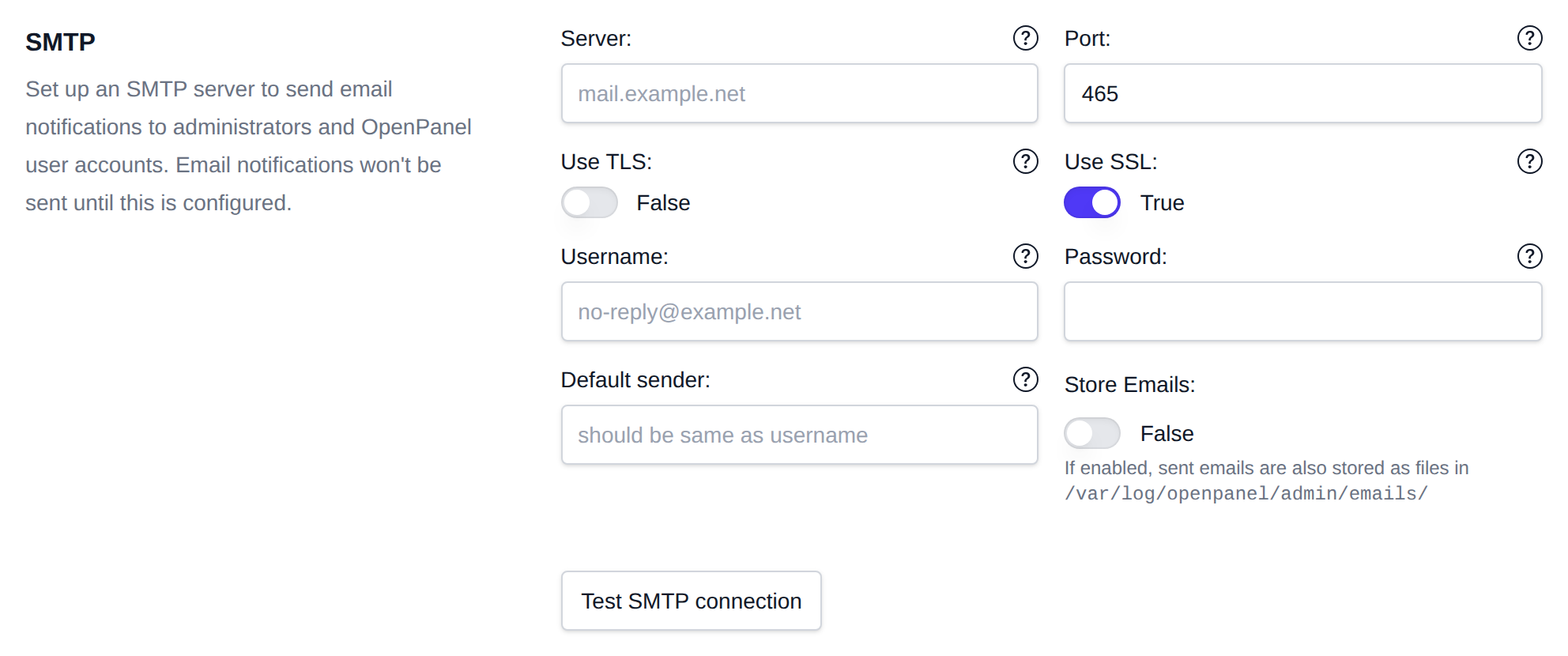
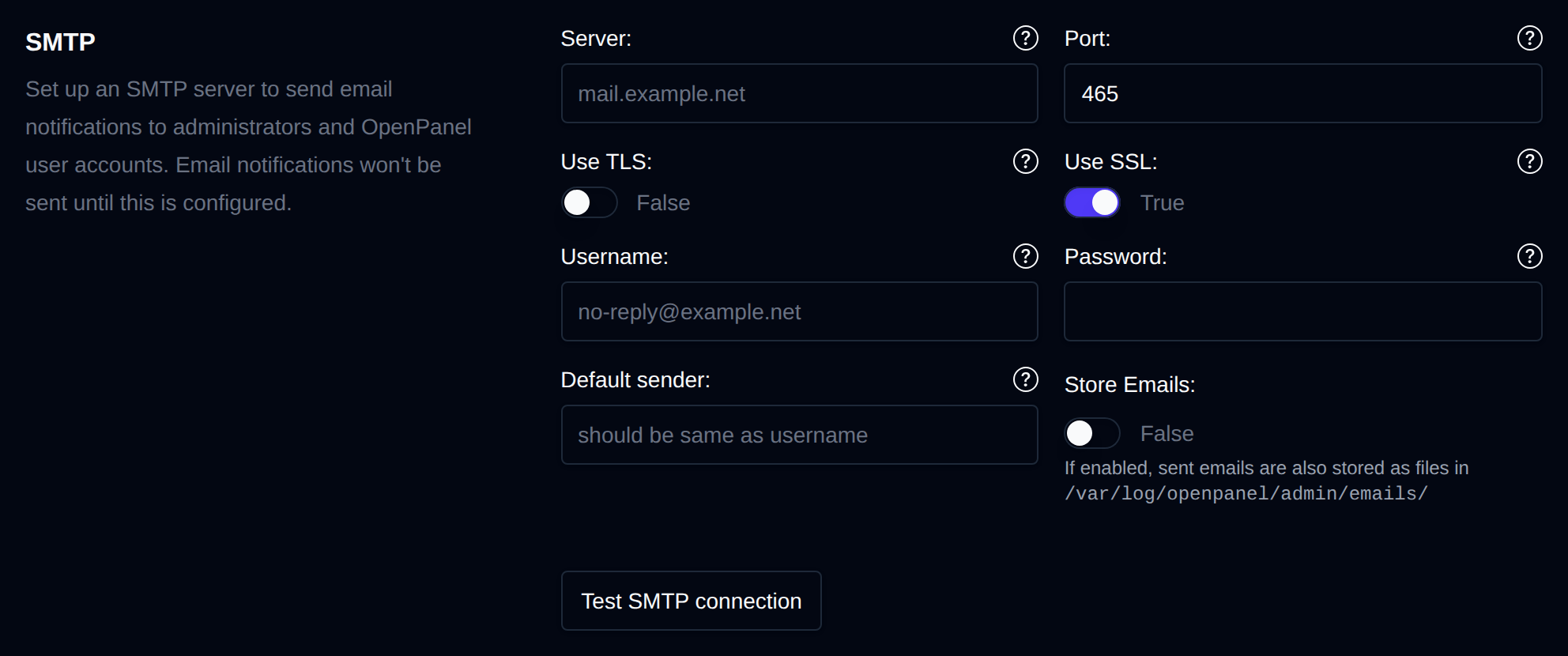
To configure an SMTP server for email delivery, configure the following:
- With OpenAdmin
- With OpenCLI
Set server port, TLS or SSL, Username and Password to use for authentication.
Configure each value via opencli config update commands, for example:
opencli config update mail_server example.net
opencli config update mail_port 465
opencli config update mail_use_tls False
opencli config update mail_use_ssl True
opencli config update mail_username [email protected]
opencli config update mail_password strongpassword123
opencli config update mail_default_sender [email protected]