Version: 2.0.15
Two-Factor Authentication
Two-Factor Authentication (2FA) adds a second login step for your own OpenAdmin account — a time-based one-time password (TOTP) from an authenticator app, in addition to your password.
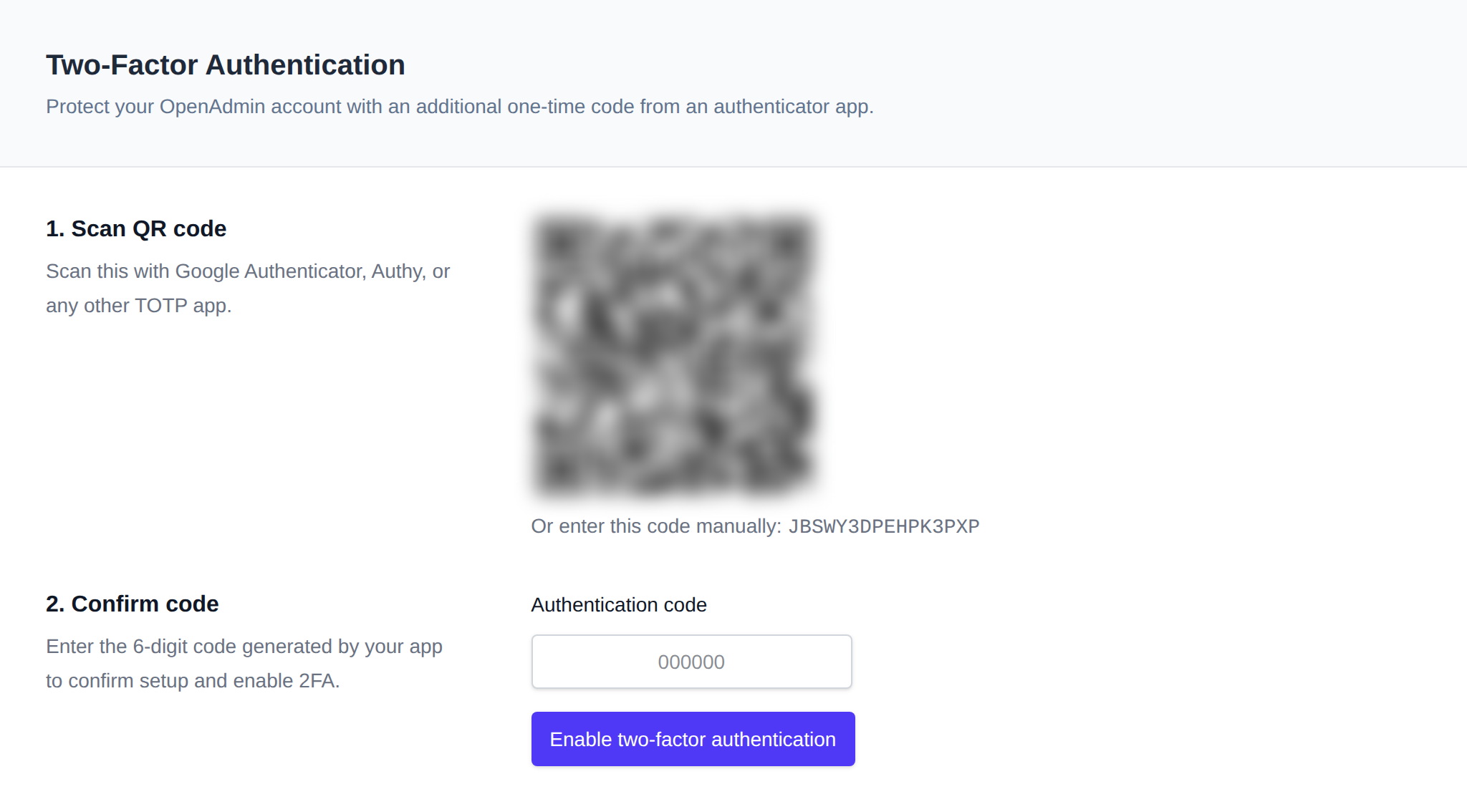
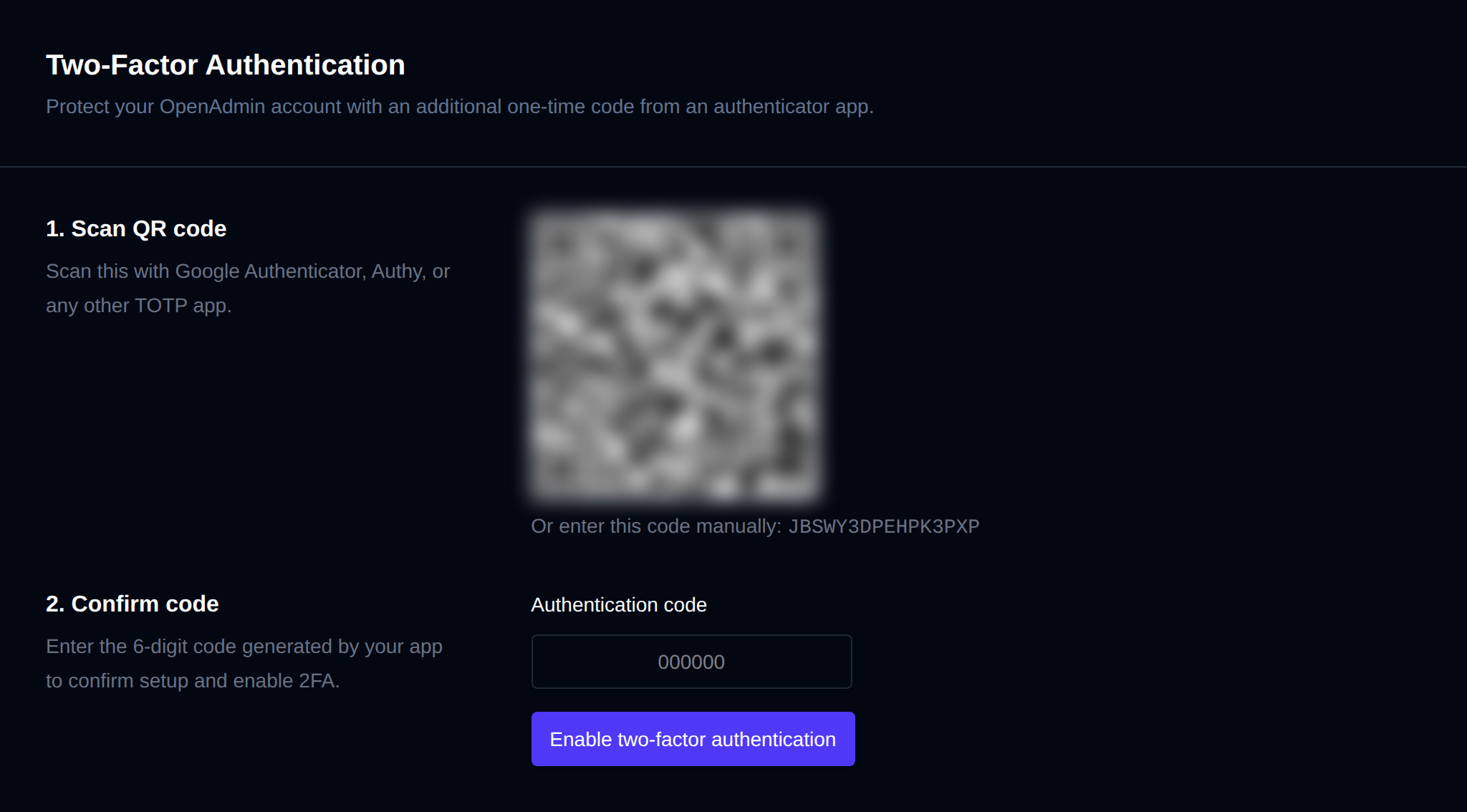
Use OpenAdmin > Security > Two-Factor Authentication to set it up.
Enable 2FA
- Open the Two-Factor Authentication page.
- Scan the displayed QR code with an authenticator app (e.g. Google Authenticator), or manually enter the shown secret key.
- Enter the generated code to confirm and enable 2FA.
Disable 2FA
From the same page, disable 2FA for your account at any time.
Was this helpful?