Update Preferences
The Update Preferences page in OpenPanel allows you to manage and control how updates are applied. It is organized into sections: Current Version, Auto Updates, Update Logs, and Rollback.
Current Version
This section displays information about the version of OpenPanel currently installed on your system, as well as the latest available version.


-
Installed Version: Shows the version of OpenPanel currently running.
-
Latest Version: Shows the most recent version available for update.
If the installed version matches the latest version, OpenPanel is fully up to date. If not, you can initiate a manual update via a button to upgrade to the latest version.
Auto Updates
The Auto Updates section lets you configure how OpenPanel should handle updates automatically. You can select the update policy that best fits your needs:
-
Minor Versions Only: Automatically apply updates that include only bug fixes and security patches. Major feature updates must be installed manually.
-
Both Minor and Major Versions: Automatically apply all updates, including new features, bug fixes, and security enhancements.
-
Major Versions Only: Automatically apply updates that introduce major new features. Bug fixes and security patches will require manual updates.
-
Never: Disable automatic updates. You will need to manually check for and install all updates.


Choosing the appropriate auto-update setting ensures that OpenPanel remains as stable, secure, and feature-rich as you need it to be.
A recommendation is shown under the dropdown for the two options that skip security patches:
- Never: update manually at least once a month.
- Major Versions Only: update manually at least once a quarter, to get the minor versions with bug fixes and security patches.
Both link to how to update manually, and also say how many days ago the last update ran when that's over a month (Never) or 90 days (Major Versions Only).
Update Logs
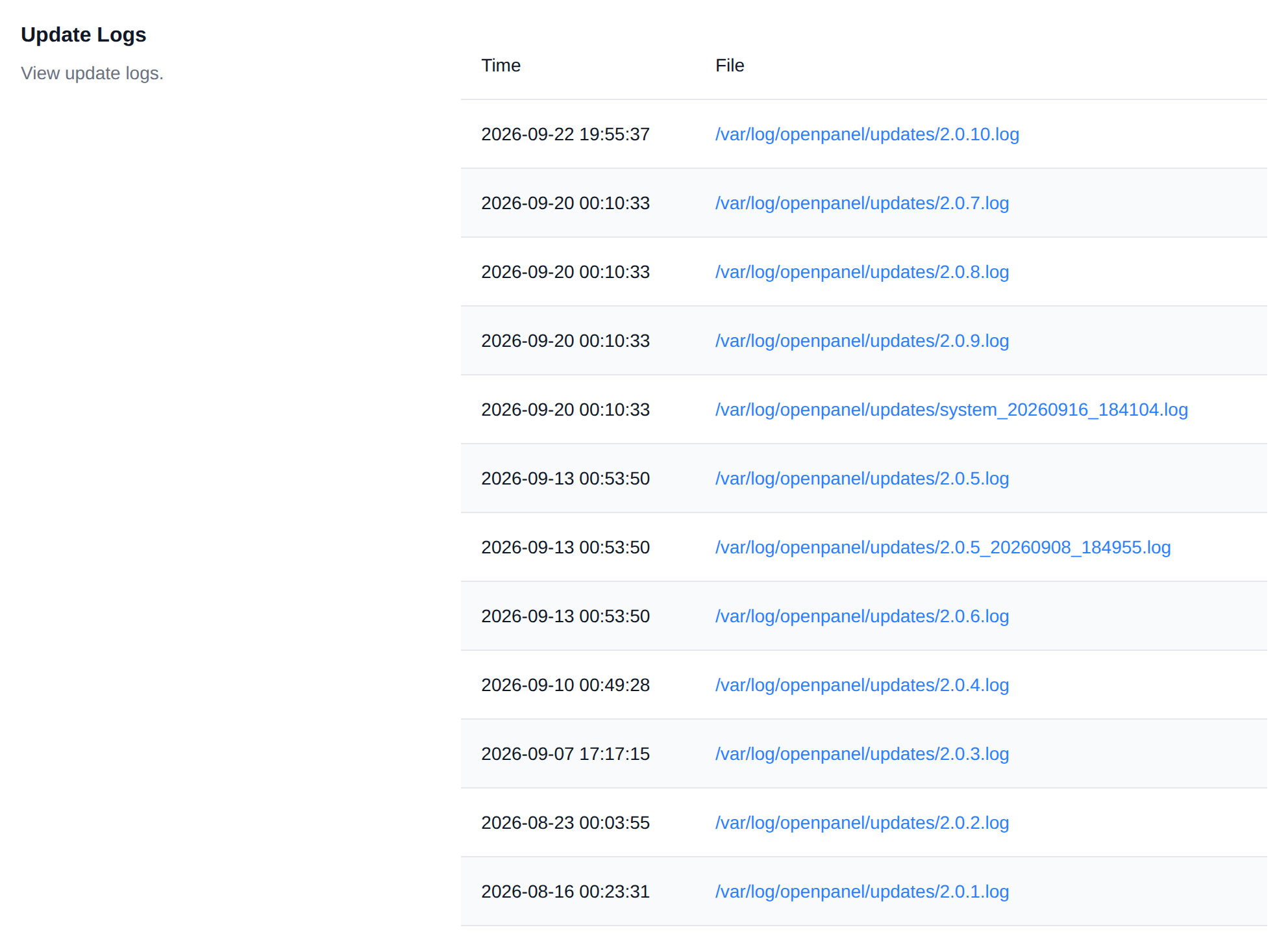
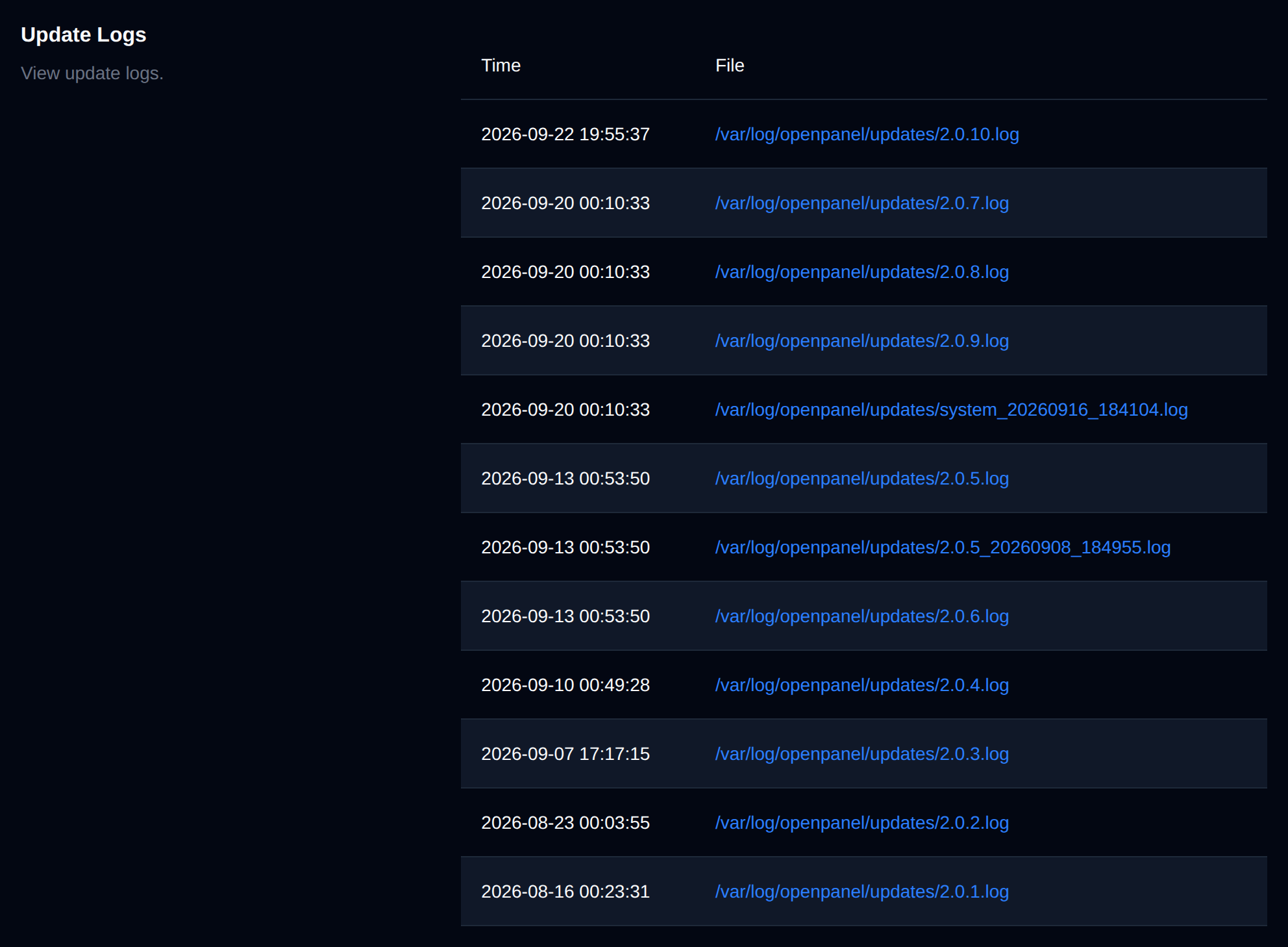
The Update Logs section provides a record of all updates that have been applied to OpenPanel.
Rollback
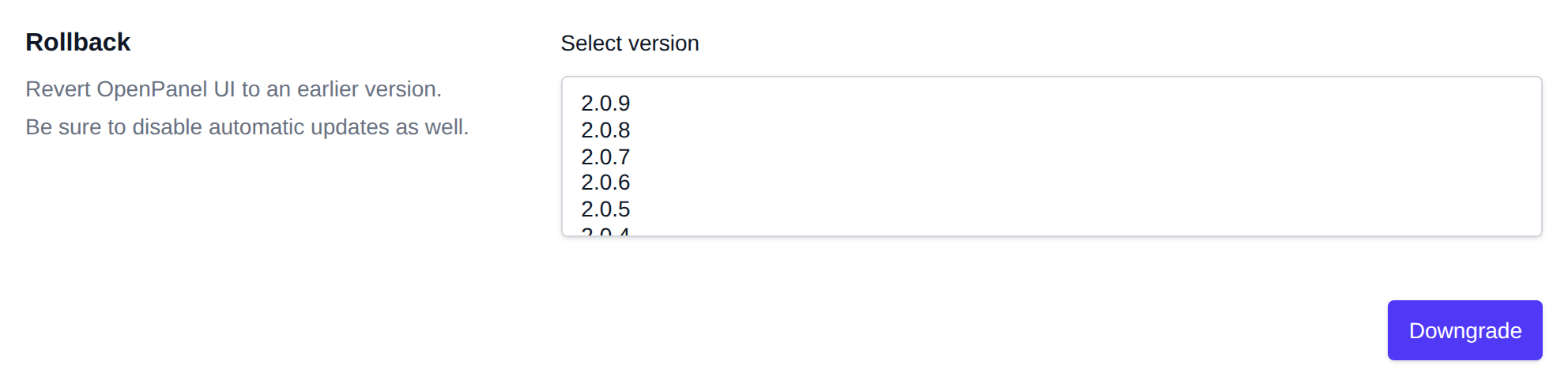
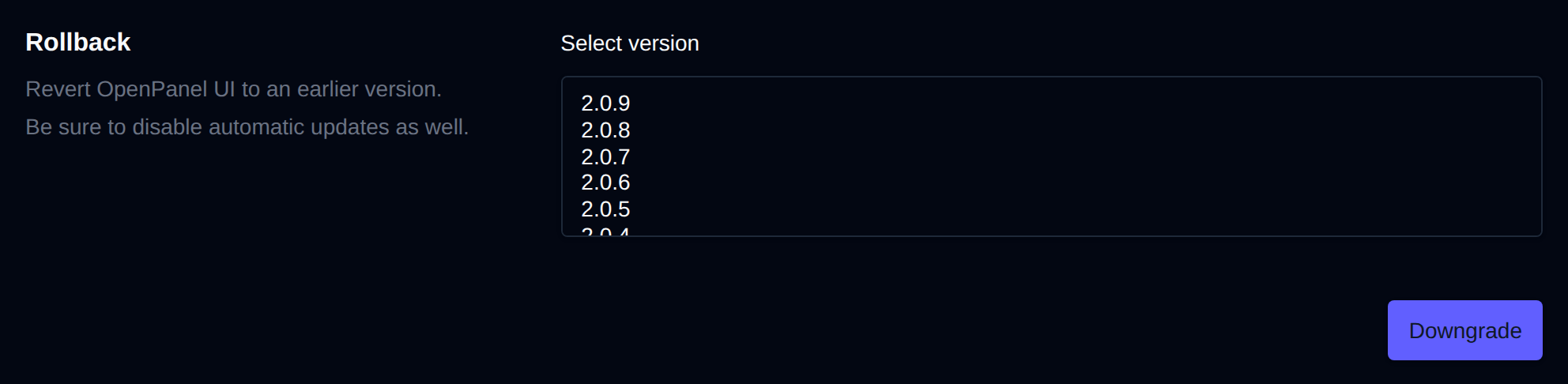
The Rollback section lets you revert the OpenPanel UI to an earlier version by selecting it from the list of available versions. Be sure to also disable automatic updates when rolling back, otherwise OpenPanel may automatically update again.
Control Updates
For more information about updates, check: