Valkey
Valkey is a high-performance, open-source in-memory key–value store designed as a community-driven fork of Redis for fast caching and data structure operations.
With its capability to store and serve data from RAM, it minimizes the need for time-consuming database queries, significantly enhancing website performance.
Enable / Disable
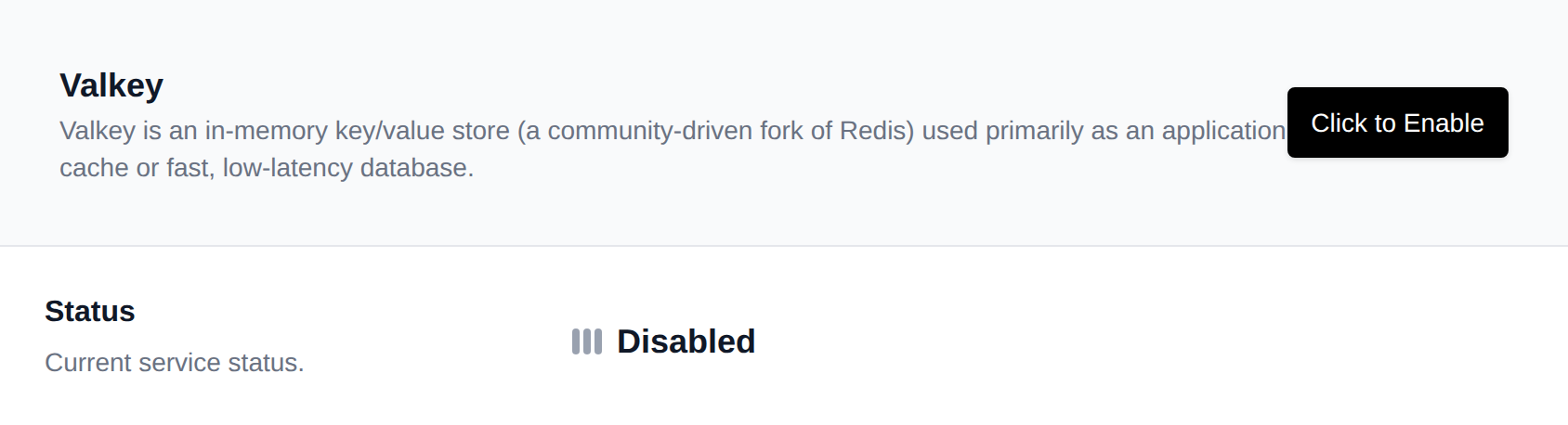
You have the option to enable or disable the Valkey service container as necessary. Choosing to disable it will promptly clear (delete) all existing Valkey data from memory.
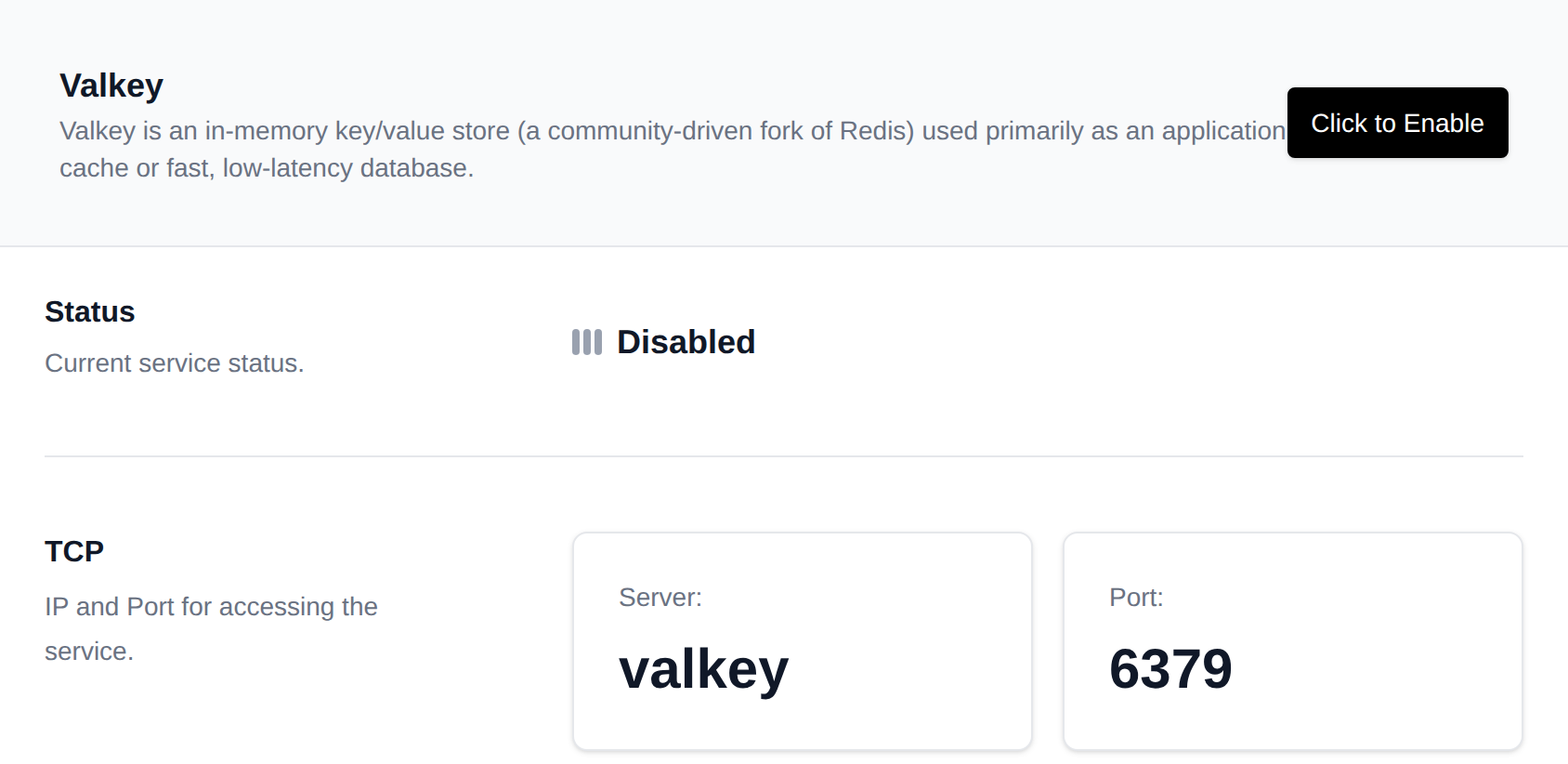
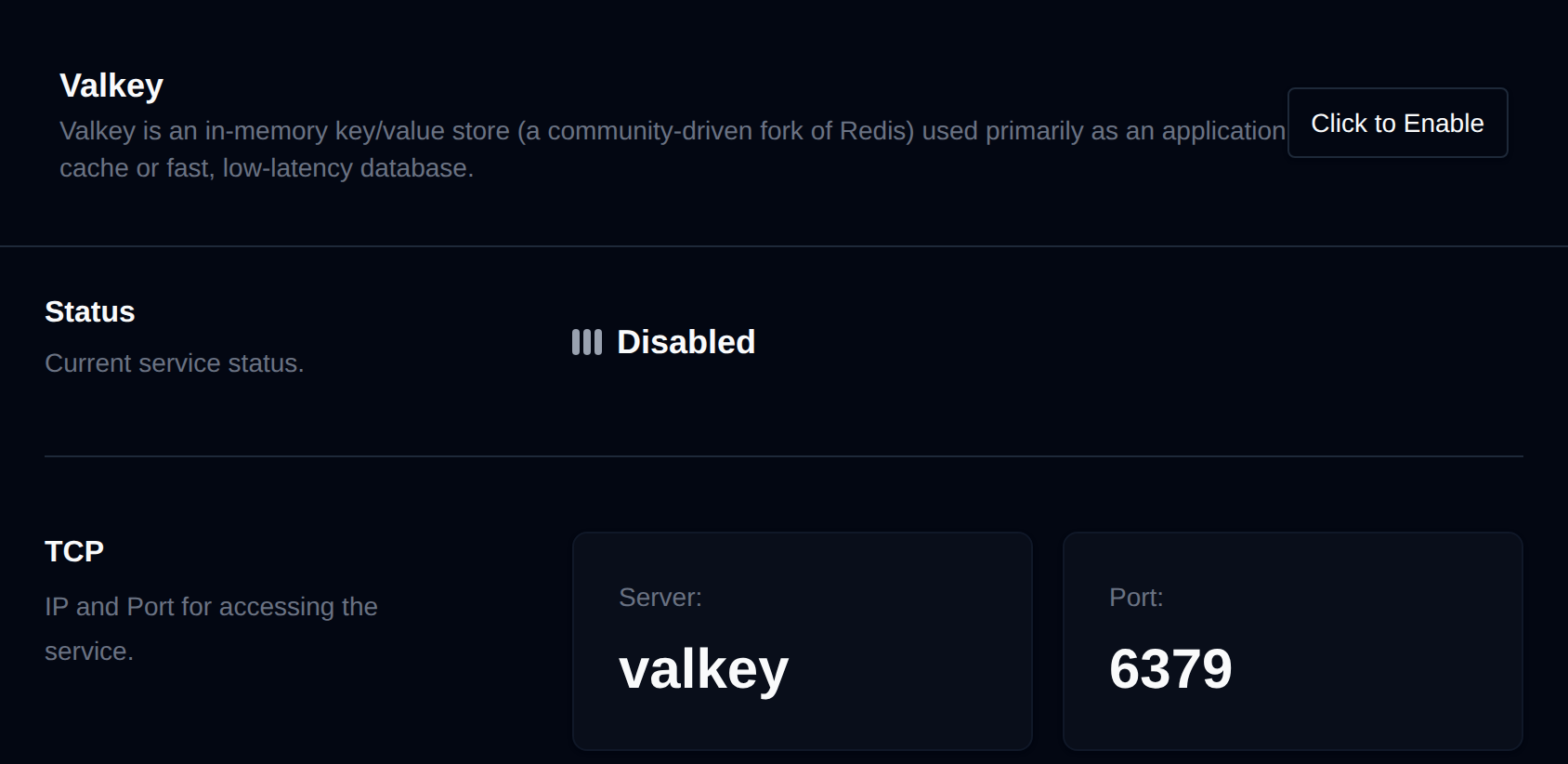
Enabling the Valkey service container will initiate the Valkey container service on the default port, which is 6379.
Set Memory Limits
Upon initialization the Valkey container has default memory limits set, it is advisable to set memory limits appropriate to your use case and needs.
While the service is running, real-time resource usage (CPU, memory, network and block I/O) is displayed on this page. Click Edit limits to set new limits on the /containers interface, which is accessible through the user panel navigation under Containers.
Modifying the memory limit will require the Valkey container to be restarted to apply the new restrictions, resulting in the removal of all existing data from the cache.
Connect to Valkey
To establish a connection to your Valkey instance, use the following details:
- Server address: valkey (not 127.0.0.1)
- Port: 6379 (the default Valkey port)
For testing the connection to the Valkey server, you can use the 'telnet' command in your terminal or refer to example scripts bellow.
Test connection with PHP
- Using FileManager enter the directory of your website
- Create a new file named valkey-test.php
- Add the following code in the newly created file and save:
<?php
   //Connecting to Valkey server on localhost
   $redis = new Redis();
   $redis->connect('redis', 6379);
   echo "Connection to server successfully";
   //check whether server is running or not
   echo "Server is running: ".$redis->ping();
?>
- In your browser navigate to your website and add /valkey-test.php for example, if your website is example.com you should open example.com/valkey-test.php
You should see the Server is running message.. indicating that the Valkey service is active and connection is established.
WordPress plugins
To incorporate Valkey caching into your WordPress website, a WordPress plugin is required. Below are some of the WordPress plugins we evaluated for Valkey/Redis caching:
View Logs
You have the option to view the Valkey service logs. By doing so, you can identify any service errors or, for instance, determine whether memory limits have been reached.