Remote MySQL
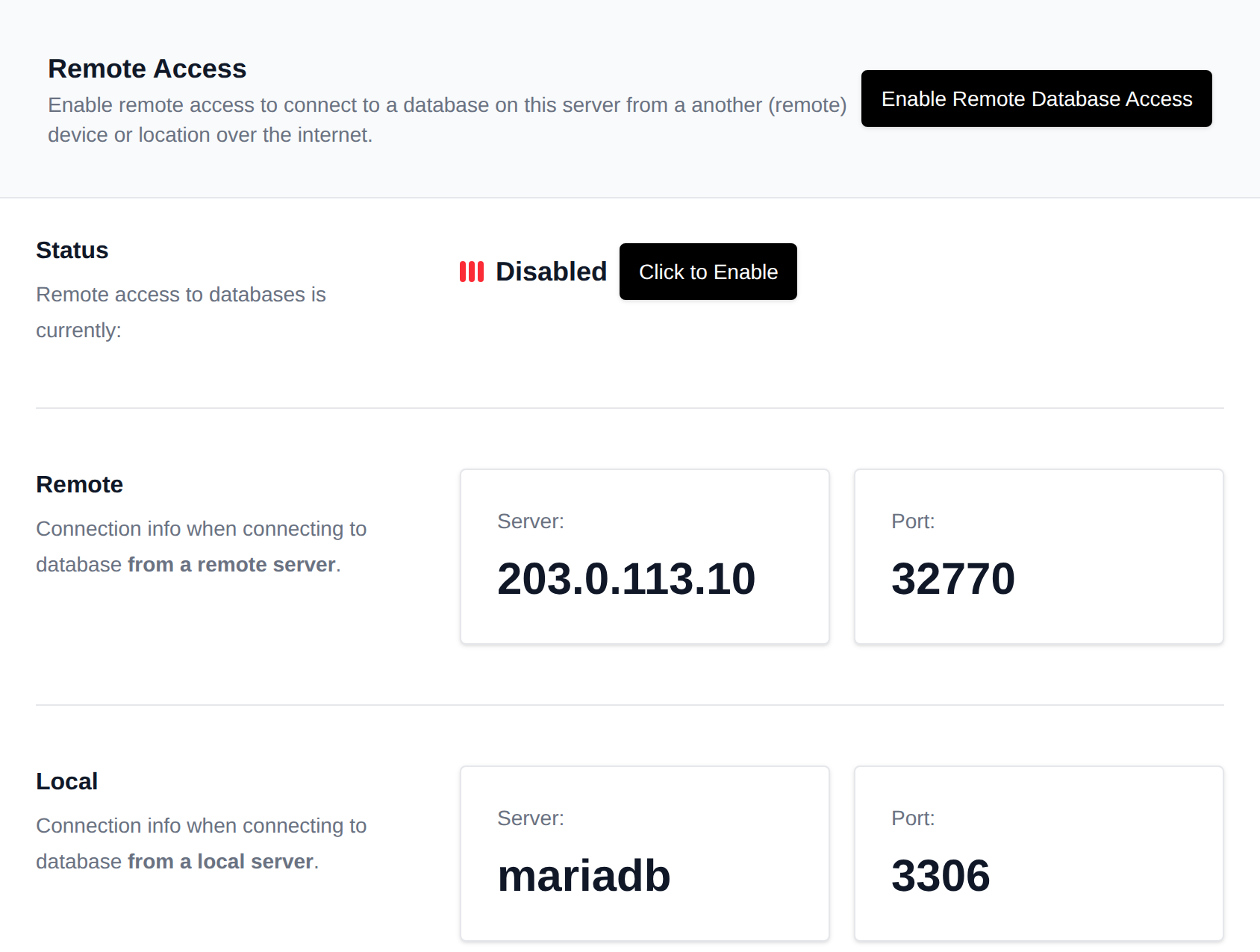
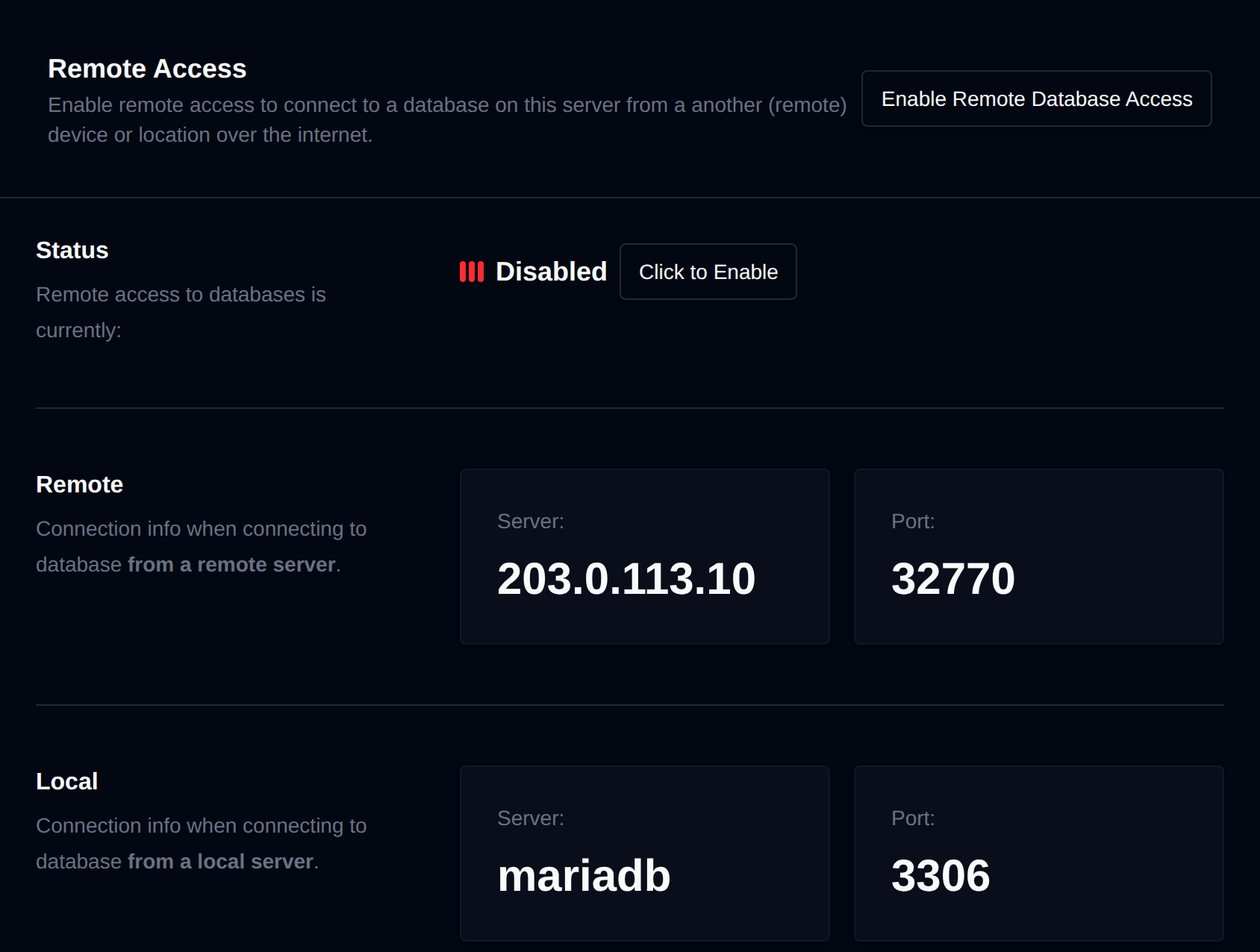
Remote MySQL access gives you the ability to connect to a MySQL database on this server from an another (remote) device or location over the internet.
Allowing remote MySQL access opens your database to connections from the entire internet, which may pose a security risk. Please consider the following:
- Security Vulnerabilities: Allowing access from the web can expose your database to potential security vulnerabilities, increasing the risk of unauthorized access, data breaches, and data loss.
- Data Privacy: Your sensitive data may be at risk if not properly secured. Make sure to use strong passwords and encryption to protect your information.
- Regular Backups: Ensure that you have regular database backups in place to recover data in case of any security incidents.
- Before enabling remote MySQL access, please review your security settings, and consider the potential risks carefully.
If you're unsure about the security implications or need assistance, consult with your hosting administrator.
Enable remote MySQL access
Remote MySQL access is disabled by default.
To enable remote access to your databases, click on the "Enable Remote Database Access" button in the "MySQL > Remote Access" page.
Once enabled, the page shows two sets of connection details:
- Remote - the server IP and port to use when connecting from a remote server over the internet.
- Local - the internal hostname and default port (
3306) to use when connecting from a local server inside the same account.
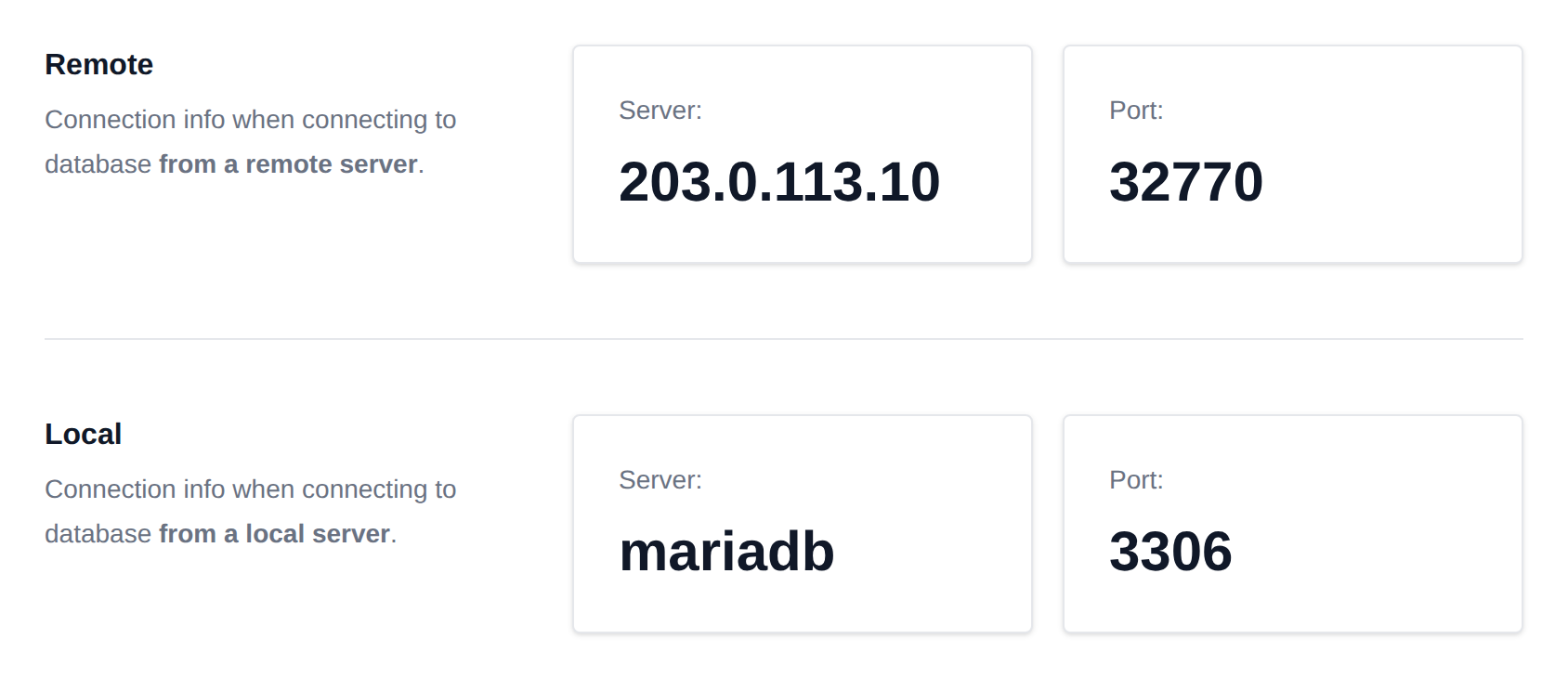
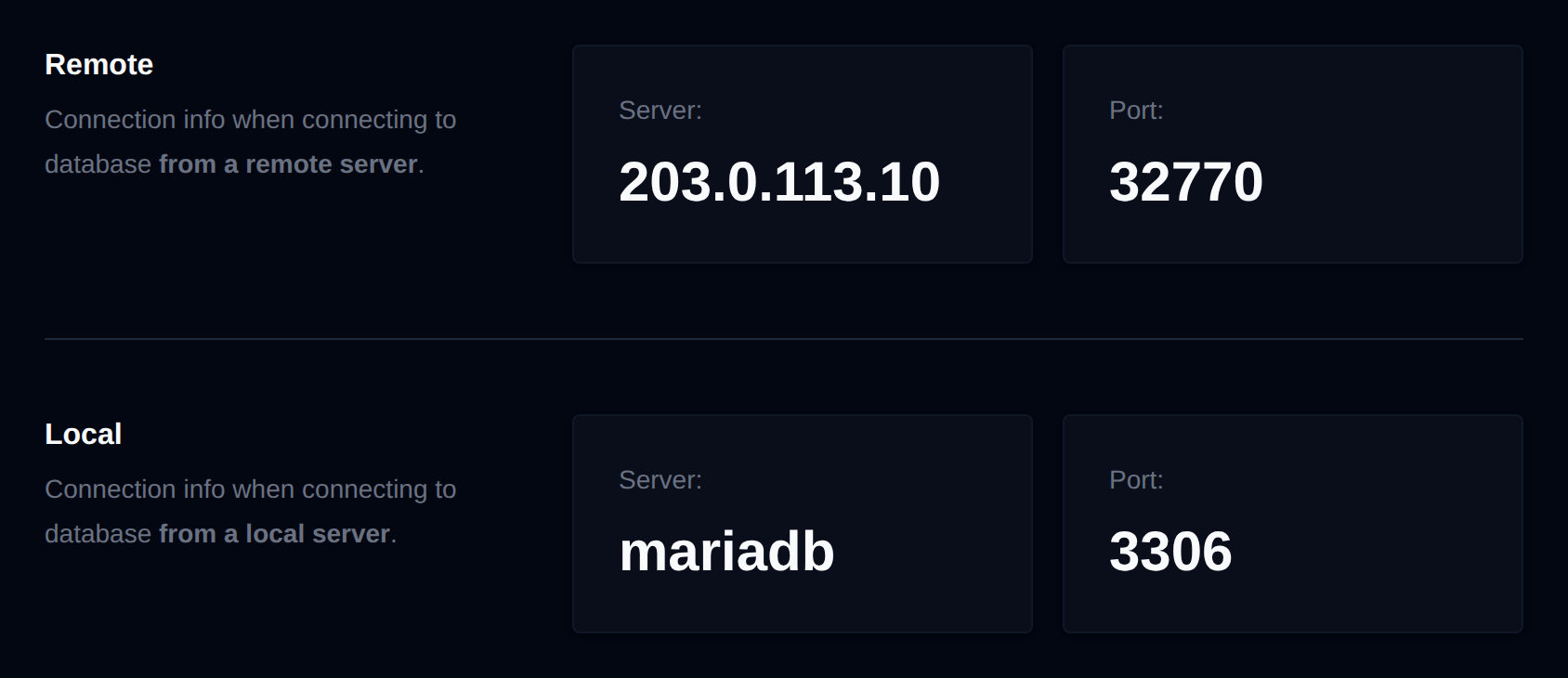
The remote port is unique to your MySQL instance. Avoid using the standard port 3306 for remote access, as it will not function.
Test remote MySQL access
To test remote MySQL access from another server, you can use the mysql command-line client or a database management tool.
mysql command-line client
Ensure that you have the MySQL client installed on the server from which you want to access the MySQL database.
Use the following command to connect to the MySQL server from the remote server:
mysql -h <IP_ADDRESS> -P <PORT> -u <USERNAME> -p <DATABASE_NAME>
PHP
To establish a PHP-based connection from a remote server to a MySQL instance hosted on OpenPanel, here's an example code snippet:
<?php
// MySQL server details
$hostname = 'IP_ADDRESS_HERE';
$port = 'CUSTOM_PORT'; // Custom port from the OpenPanel interface
$username = 'YOUR_MYSQL_USERNAME';
$password = 'YOUR_MYSQL_PASSWORD';
$database = 'YOUR_MYSQL_DATABASE';

// Create a connection
$conn = new mysqli($hostname, $username, $password, $database, $port);

// Check the connection
if ($conn->connect_error) {
   die("Connection failed: " . $conn->connect_error);
}

echo "Connected to the MySQL server on $hostname:$port successfully.";

// Close the connection
$conn->close();
?>
WordPress
To connect to a MySQL instance on OpenPanel from a remote WordPress installation, you need to edit the wp-config.php file and change the database connection information.
// ** MySQL settings - You can get this info from your web host **
/** The name of the database for WordPress */
define('DB_NAME', 'YOUR_MYSQL_DATABASE');

/** MySQL database username */
define('DB_USER', 'YOUR_MYSQL_USERNAME');

/** MySQL database password */
define('DB_PASSWORD', 'YOUR_MYSQL_PASSWORD');

/** MySQL hostname with custom port */
define('DB_HOST', 'IP_ADDRESS:PORT');
Per-User Access
While remote access is enabled, the page also shows a Per-User Access table that lets you control which hosts each MySQL user is allowed to connect from:
- Add Access – Click the "Add Access" button and fill in a Username (existing or new), an Allowed Host (e.g.
%for any host,localhost, or a specific IP such as192.168.1.10), and a Password. If the username already exists, the new host automatically inherits that user's existing database privileges. Click Grant Access to save. - Edit – Click Edit next to a host entry to change which host it applies to, then click Save.
- Delete – Click Delete next to a host entry and confirm within a few seconds to revoke access from that host.
System usernames (e.g. root, mysql, phpmyadmin) cannot be added, edited, or deleted here.
Bulk Actions
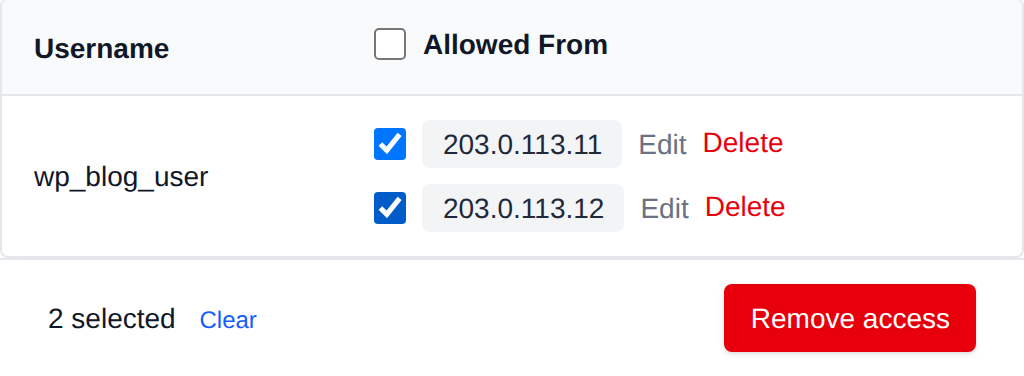
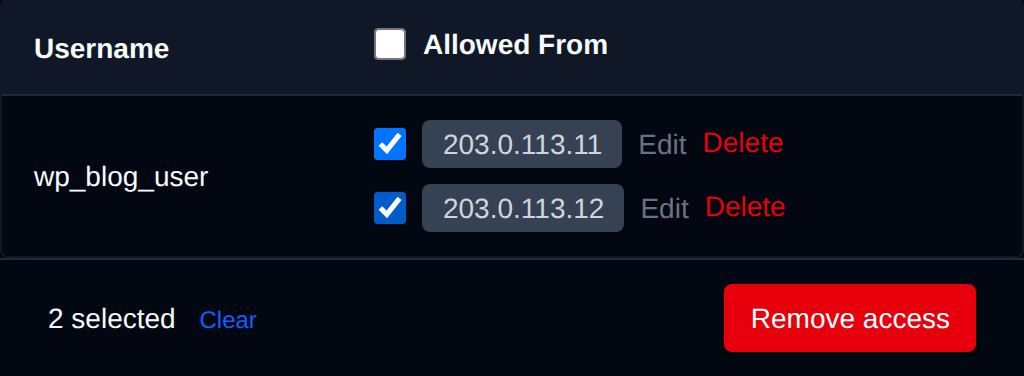
Tick the checkbox of one or more hosts, or the checkbox in the table header to select every host shown by the current search. A bar appears at the bottom of the page with the number selected, a Clear link and these actions:
| Action | What it does |
|---|---|
| Remove access | Removes remote access for the selected user and host pairs. |
Each allowed host of a user has its own checkbox, the checkbox in the Allowed From header selects all of them.
Click an action, confirm it, and it runs on the selected hosts one after another. When it's done the page reloads with a notice listing the hosts it worked for, or which ones failed and why.
Disable remote MySQL access
If you wish to disable access, simply click on the "Disable Remote Database Access" button, and it will immediately deactivate remote access in your MySQL configuration. Please be aware that this action will also necessitate a MySQL service restart to apply the new setting.

