MCP
OpenPanel exposes an MCP server at /mcp. Once connected, Claude (or any other MCP client) can manage your account directly: list and create databases, manage domains, DNS records, cron jobs, email accounts, and everything else available under /api/.
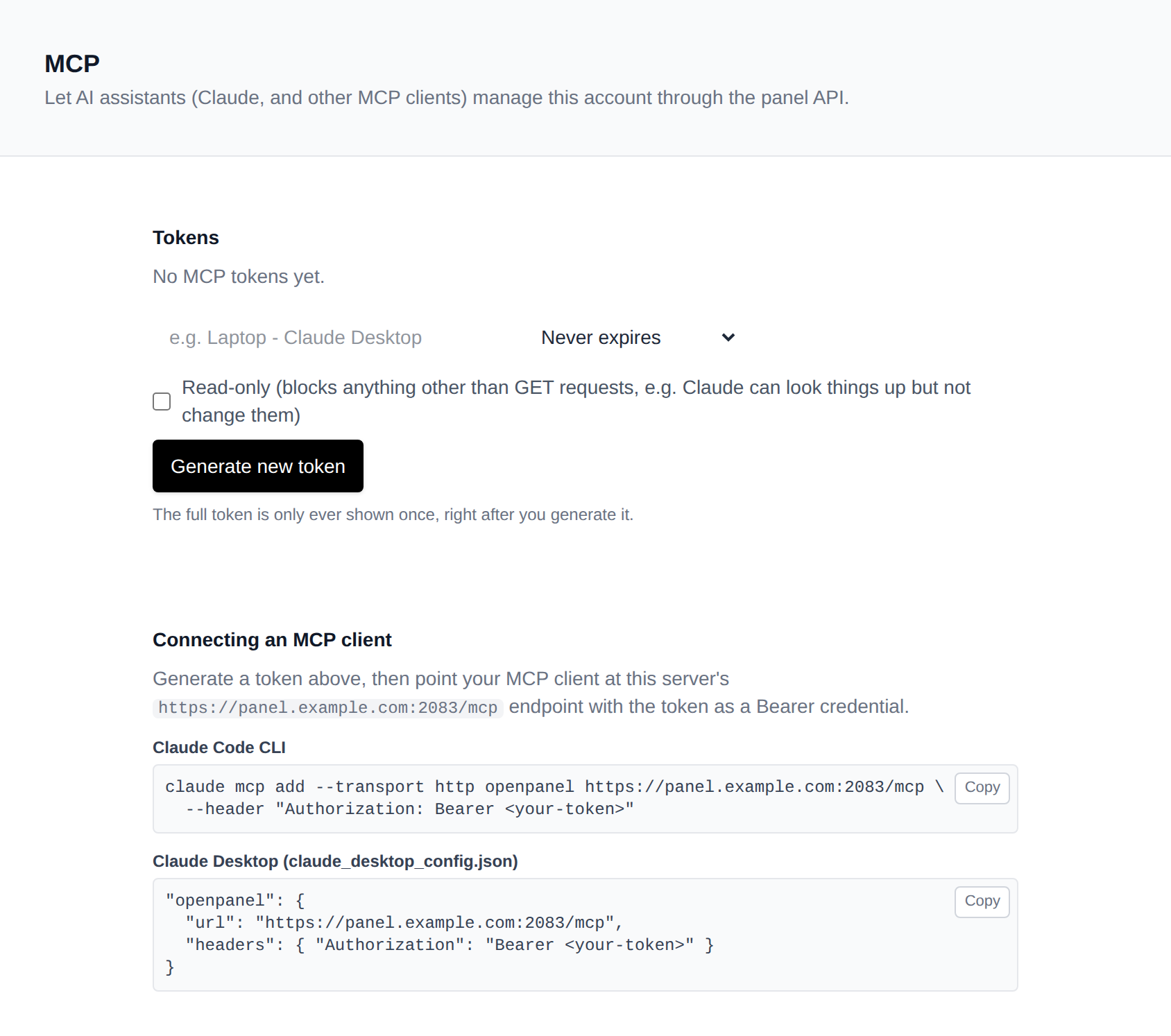
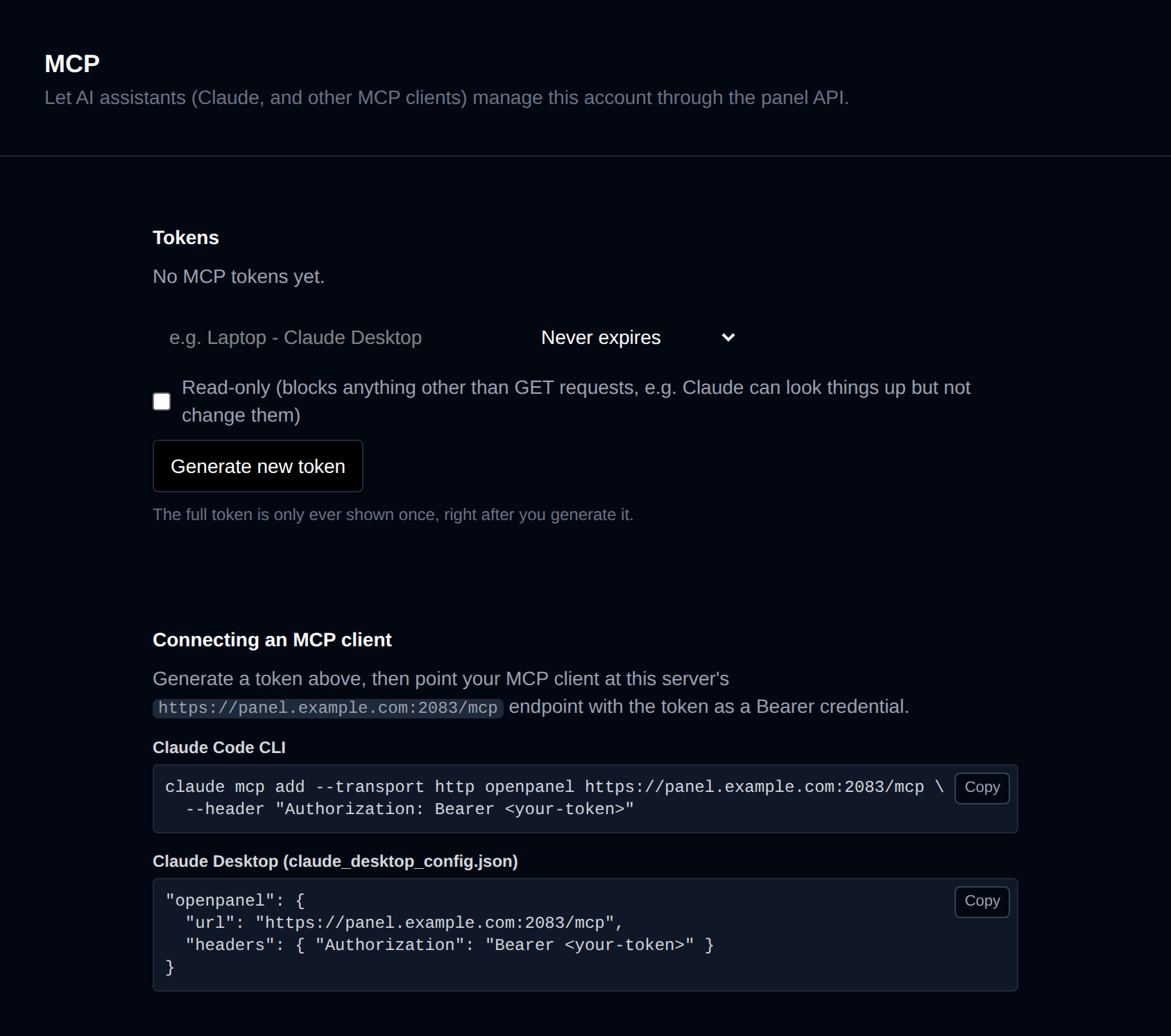
On Account > AI Assistant (MCP) page in the UI, you can generate and manage tokens to be used with Claude (MCP).
Requirements
- Server must be running the Enterprise edition.
- Your plan must have both the API and MCP features enabled. If
/account/mcpisn't visible in your account sidebar, ask your host to enable them.
1. Generate a token
- Go to Account → MCP (
/account/mcp). - Give the token a name (e.g.
Laptop - Claude Desktop) and click Generate new token. - Copy the token immediately: it's only shown once, right after creation.
When generating a token you can also set:
- Expiry: never, 30 days, 90 days, or 1 year. By default tokens don't expire, so set one of the time limits if you'd rather it stop working on its own after a while.
- Read-only: restricts the token to GET/HEAD requests only, so Claude can look things up (list sites, check disk usage, read DNS records, etc.) but can't create, change, or delete anything. Recommended for anything other than your own trusted assistant.
Both settings are shown next to each token afterwards, and revoking a token any time from the same page takes effect immediately if it's no longer needed or you think it leaked.
2. Connect
The panel's MCP endpoint is https://<your-panel-domain>:<port>/mcp (also shown on /account/mcp).
Claude Code (CLI)
claude mcp add --transport http openpanel https://<your-panel-domain>/mcp \
  --header "Authorization: Bearer <your-token>"
Claude Desktop
Add this to claude_desktop_config.json:
{
  "mcpServers": {
    "openpanel": {
      "url": "https://<your-panel-domain>:<port>/mcp",
      "headers": { "Authorization": "Bearer <your-token>" }
    }
  }
}
Restart Claude Desktop after saving. OpenPanel's tools should now show up in the tool picker.
3. Using it
Once connected, just ask Claude in plain language, e.g.:
- "List all my websites and their status"
- "Create a new MySQL database called
shopand a user for it" - "Add an A record for
shop.example.compointing to 1.2.3.4" - "Show me disk usage for example.com"
- "Create a daily cron job that runs
/var/www/html/backup.shat 2am"
Every action Claude takes runs through the exact same /api/ endpoints and permission checks as the panel UI and REST API: Claude only ever operates within your account and your plan's enabled features. If a request fails with a permission error, it usually means that feature isn't enabled on your plan. With a read-only token, anything beyond looking things up will be blocked instead.
Bulk Actions
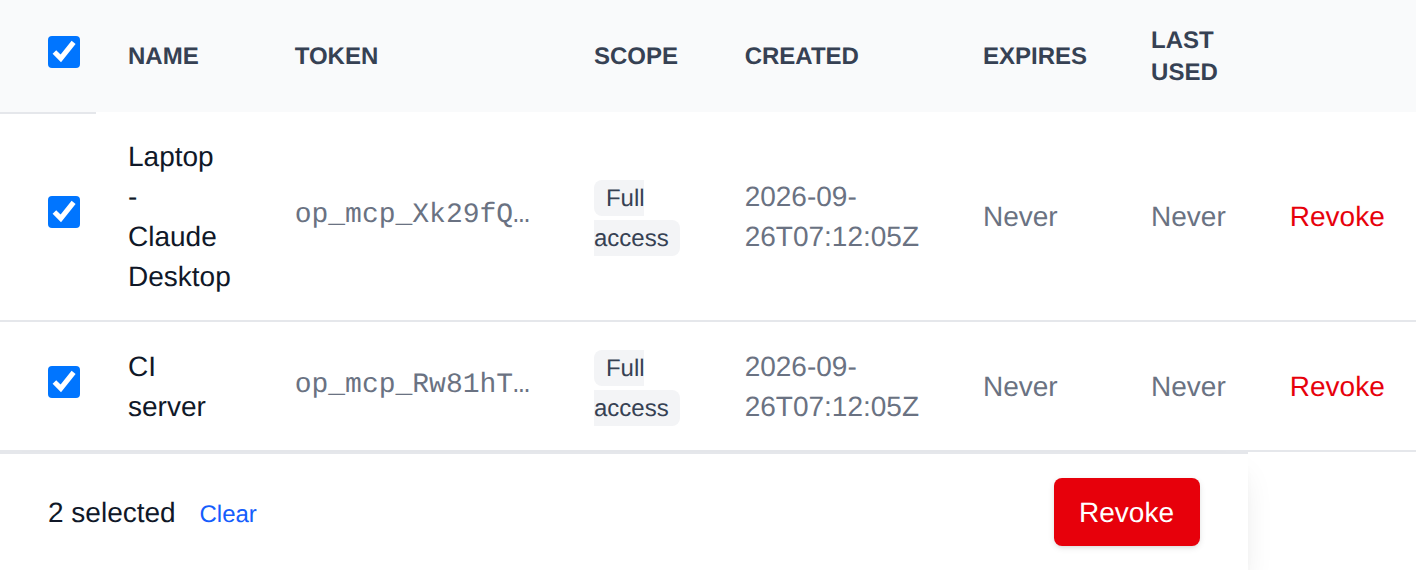
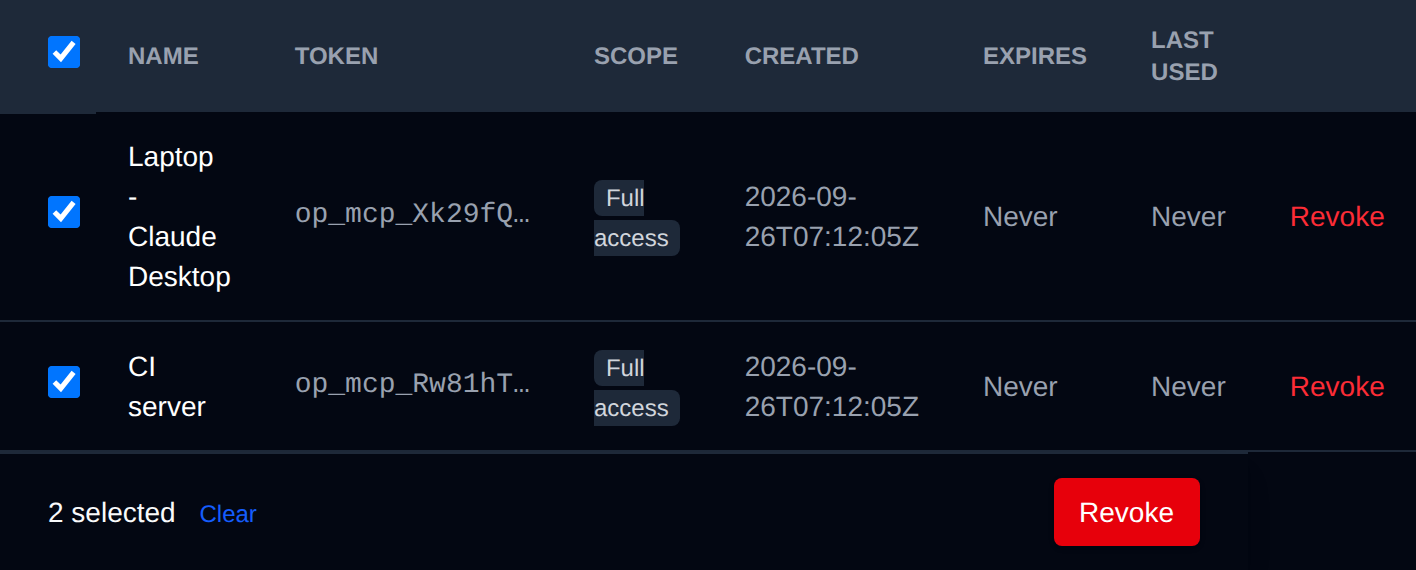
Tick the checkbox of one or more tokens, or the checkbox in the table header to select every token shown by the current search. A bar appears at the bottom of the page with the number selected, a Clear link and these actions:
| Action | What it does |
|---|---|
| Revoke | Revokes the selected tokens. MCP clients using them stop working immediately. |
Click an action, confirm it, and it runs on the selected tokens one after another. When it's done the page reloads with a notice listing the tokens it worked for, or which ones failed and why.
Troubleshooting
| Symptom | Likely cause |
|---|---|
/account/mcp not visible | The mcp (or api) feature isn't enabled on your plan. |
| Client can't connect / 401 | Token is wrong, was revoked, expired, or the header isn't set correctly. |
| Tool call returns "Access denied" | The specific feature it needs (e.g. mysql, dns) isn't enabled on your plan, even though MCP itself is. |
| Tool call returns "This token is read-only" | The token was created with the read-only option and the action needs to create, change, or delete something. Generate a new, non-read-only token instead. |
| Tool list is empty or very short | The panel admin hasn't enabled the api module panel-wide, so most /api/* routes don't exist yet. |
Security notes
- Treat an MCP token like a password: anyone with it can act on your account through every
enabled
/api/endpoint (unless it's read-only). - Prefer a read-only token and/or a short expiry for anything other than your own trusted assistant: it meaningfully limits what a leaked token could do.
- Tokens are stored hashed; support cannot recover a lost token, only issue a new one.
- Revoking a token takes effect immediately.