How to Test Your Email Setup with mail-tester
mail-tester.com gives your email a spam score from 0 to 10 and explains exactly what's wrong. It's the quickest way to check SPF, DKIM, DMARC, reverse DNS and blocklists after setting up email in OpenPanel.
Step 1: Get a Test Address
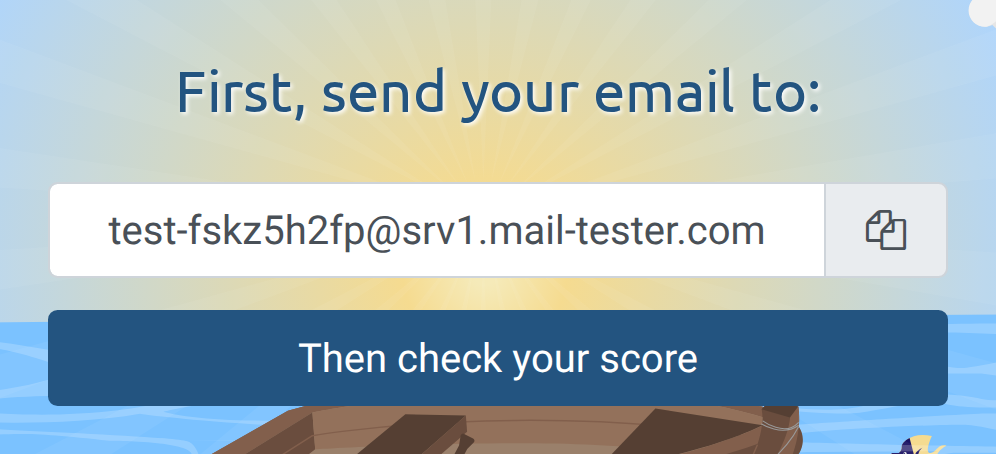
Open mail-tester.com. It shows a unique address like:
Keep the page open.
Step 2: Send a Real Email
Send an email to that address from the mailbox you want to test - for example from Roundcube webmail, or your email client set up with your OpenPanel mailbox.
- Use a real subject and a few sentences of text - an empty "test" message loses points for content, not for your setup.
- To test website email (WordPress, contact forms), send the test from the website instead - e.g. with a plugin's "send test email" option.
Step 3: Check Your Score
Go back to mail-tester and click Then check your score. Aim for 9/10 or 10/10.
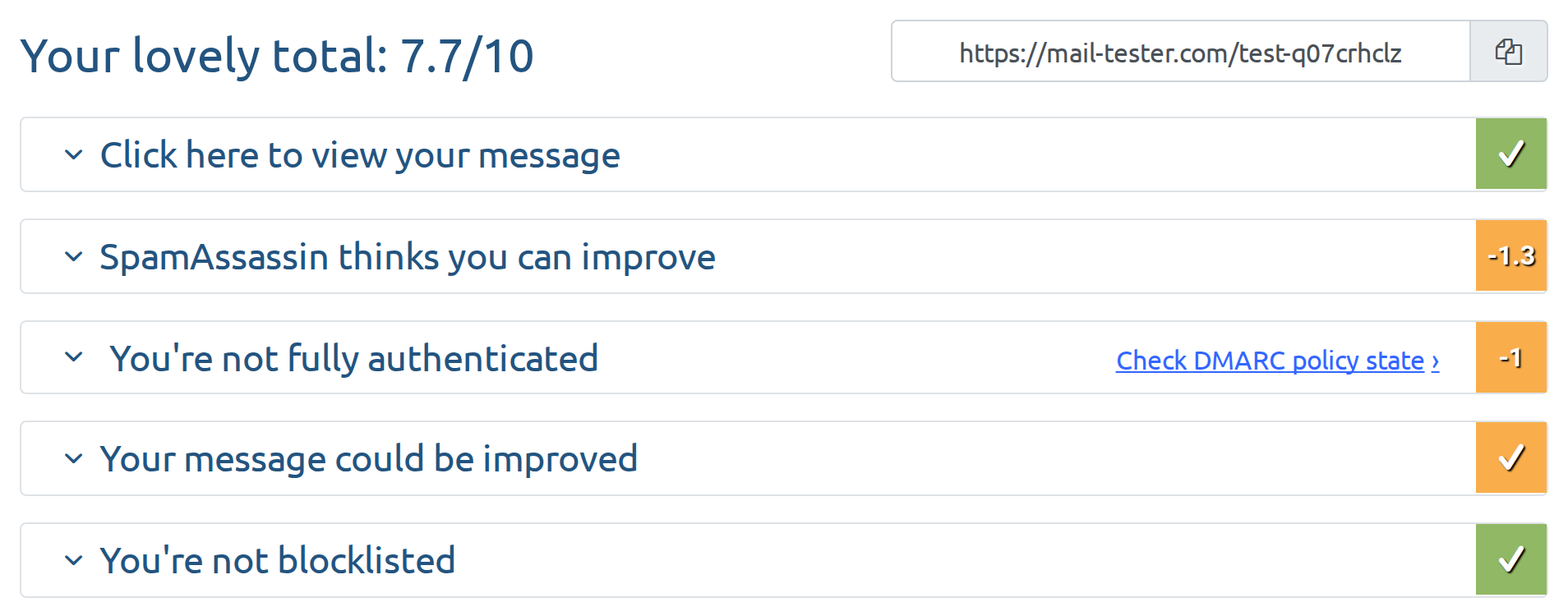
Expand each section to see details:
| Section | What it checks | If it fails |
|---|---|---|
| You're authenticated (SPF, DKIM, DMARC) | Your DNS authentication records | See below |
| Reverse DNS | PTR record of the sending IP matches the hostname | Set up reverse DNS |
| You're not blocklisted | Your server IP and domain on public blocklists | Request delisting; see Why emails go to spam |
| SpamAssassin | Content and formatting rules | Improve the message content |
| Broken links / formatting | HTML and links | Fix the message template |
Fixing the Most Common Problems
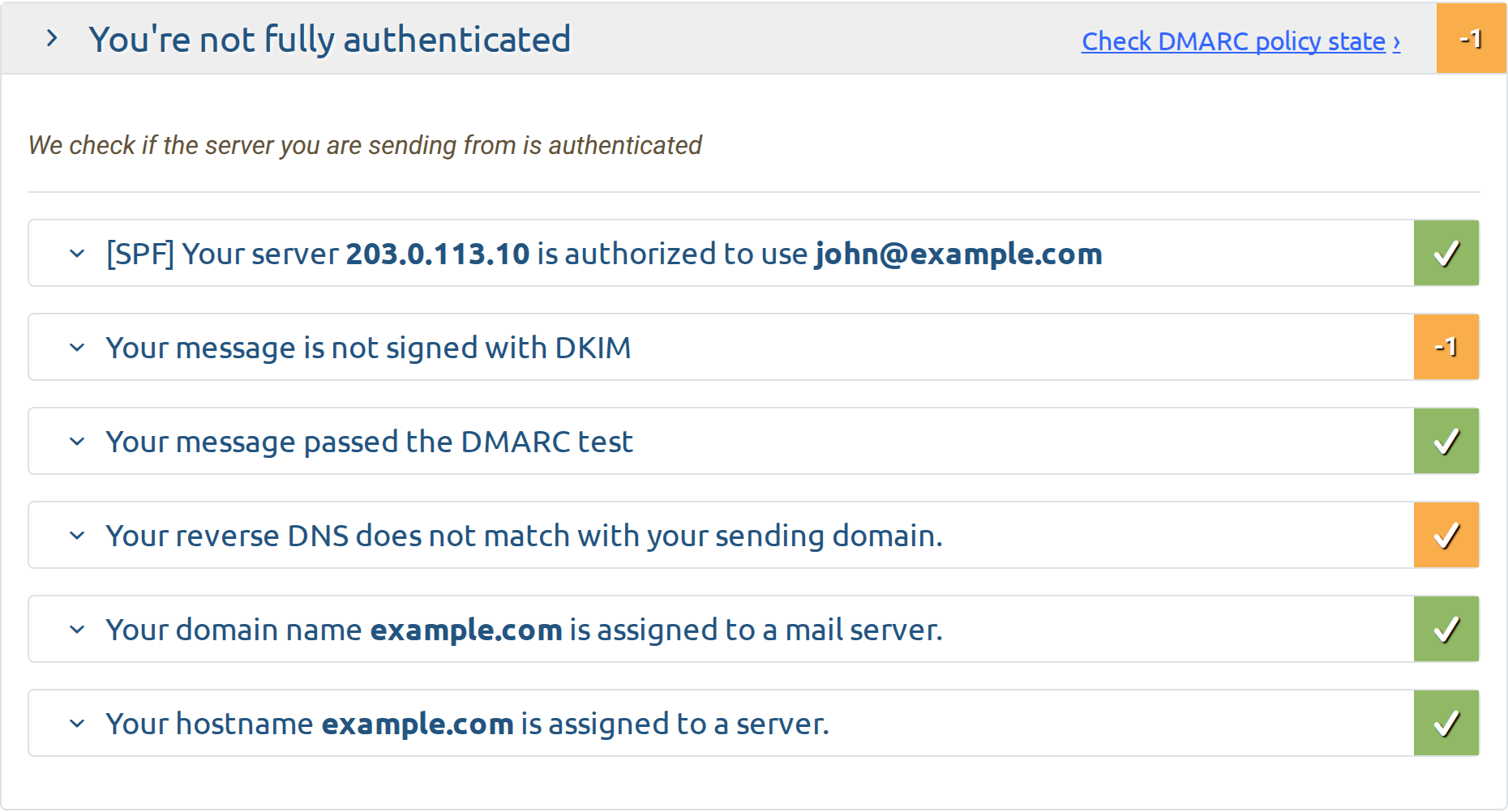
Expand You're not fully authenticated to see which check failed. In this example SPF and DMARC pass, but the message isn't signed with DKIM and the reverse DNS doesn't match the sending domain:
SPF: "Your server is not allowed to send"
The sending IP isn't in the domain's SPF record. Check the record in OpenPanel → Domains → DNS and make sure it includes your server's IP (and any relay you use). See Add additional hosts to SPF.
DKIM: "Your message is not signed"
Generate the DKIM key and publish the mail._domainkey record - see Set up DKIM. If your DNS is at Cloudflare or your registrar, add the record there.
DMARC: "Your message failed the DMARC test" or no record
Publish a DMARC record - see Set up DMARC.
Reverse DNS doesn't match
Set the PTR record of your server IP to the server's hostname at your provider.
"Your hostname is ... local.host" / HELO mismatch
The mail server doesn't have a proper hostname. Set a domain for the server in OpenAdmin → Settings → General - see Change the server hostname.
In OpenPanel → Email → Deliverability, you can check SPF, DKIM and DMARC for all your domains at once, and see the exact records OpenPanel expects. See Email Deliverability.
Re-Test After Fixing
DNS changes can take a while to propagate. Wait until the new records are visible (dig +short TXT example.com), then send a new test email to a new mail-tester address. The free plan allows a few tests per day.
Related
- Step 1: Get a Test Address
- Step 2: Send a Real Email
- Step 3: Check Your Score
- Fixing the Most Common Problems
- SPF: "Your server is not allowed to send"
- DKIM: "Your message is not signed"
- DMARC: "Your message failed the DMARC test" or no record
- Reverse DNS doesn't match
- "Your hostname is ... local.host" / HELO mismatch
- Re-Test After Fixing
- Related