Version: 2.0.19
How to Install a Hosting Control Panel on AWS EC2
This guide will walk you through deploying OpenPanel on an AWS EC2 instance with Ubuntu or Debian.
Prerequisites
- An active AWS account.
- Basic familiarity with EC2, SSH, and terminal commands.
Step 1: Launch an EC2 Instance
- Log in to the AWS Management Console.
- Navigate to EC2 → Instances → Launch instances.
- Select an operating system (choose one of the following):
- Ubuntu 24.04
- Debian 11
(x86 or ARM architecture is supported).
- Choose an instance type meeting the minimum requirements:
- 1 CPU
- 1 GB RAM
(Recommended:t3.smallor equivalent).
Step 2: Configure SSH Access
- Create or select an existing key pair for SSH access.
- Download the private key (
.pem) and store it securely.
Step 3: Configure Network Settings
- Select the desired VPC and subnet.
- Create a security group allowing all TCP traffic:
OpenPanel manages its own firewall, so allowing all TCP is acceptable.
- Allocate and associate an Elastic IP to your instance for a fixed public IP.
Step 4: Connect to Your Instance
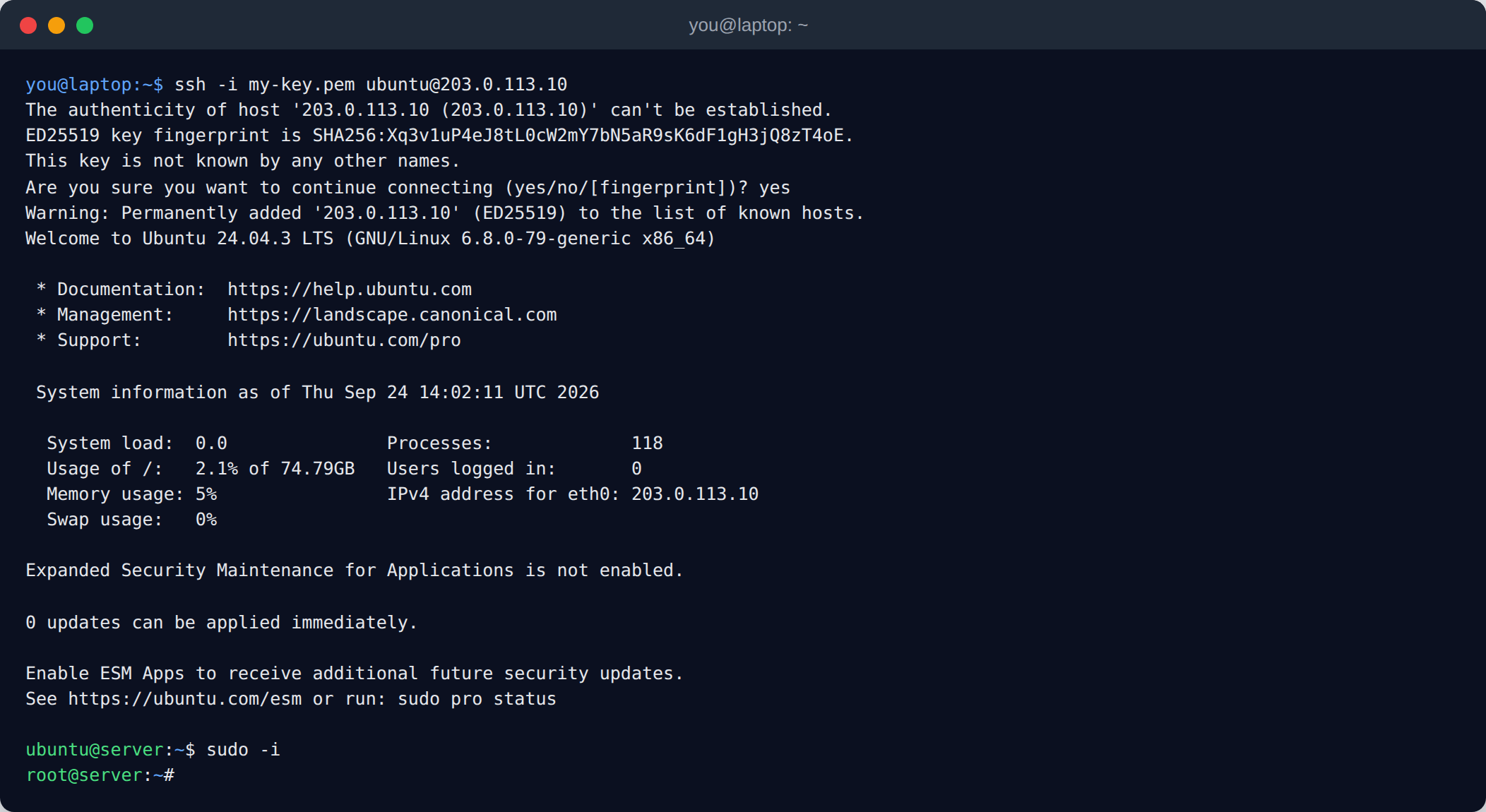
Use SSH to connect to your EC2 instance:
ssh -i your_private_key.pem ubuntu@yourElasticIpAddress
Replace
your_private_key.pemwith your key file andyourElasticIpAddresswith the allocated Elastic IP.
The installer must run as root, so switch to the root user:
sudo -i
Step 5: Run the OpenPanel Installer
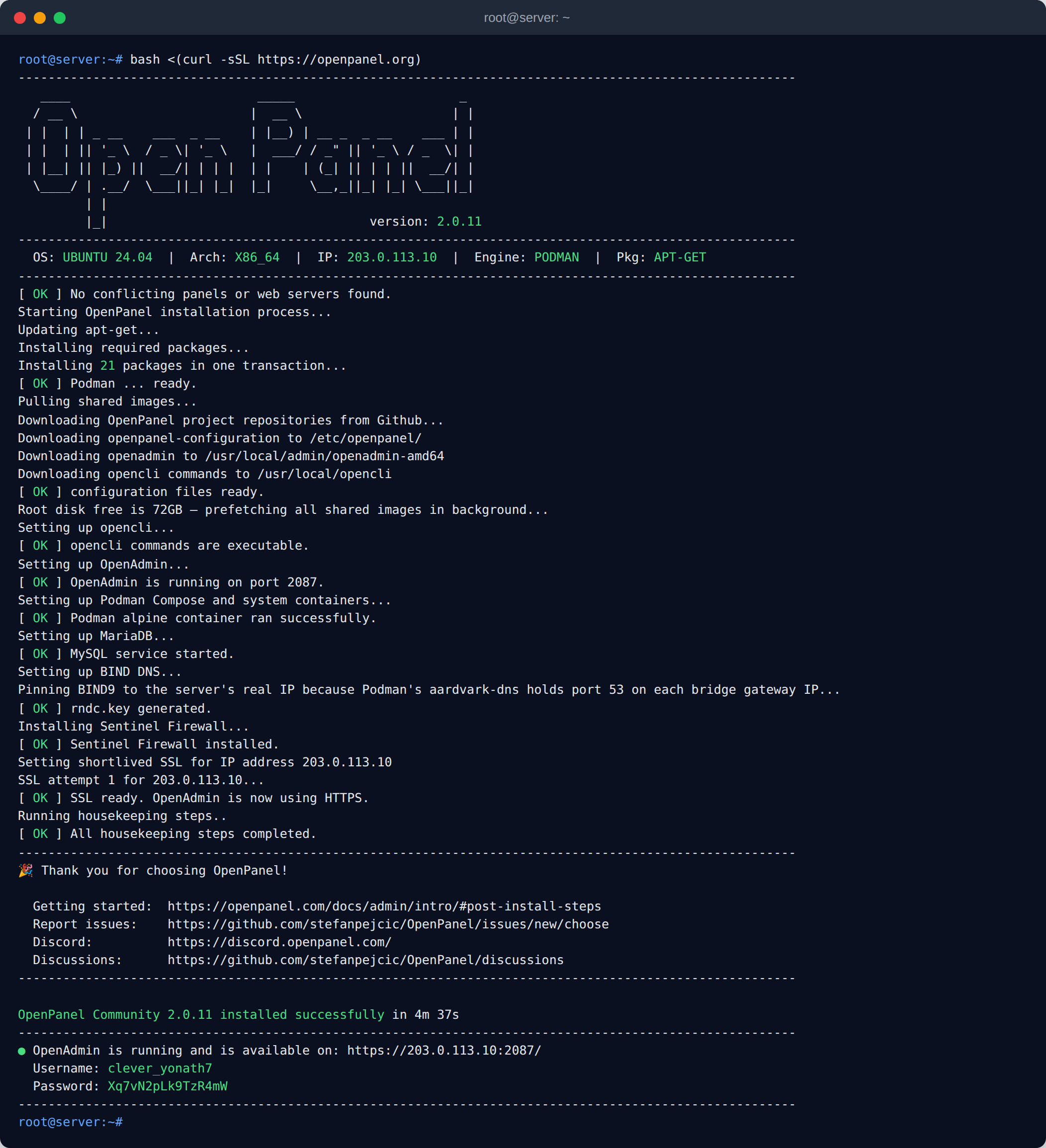
Once logged in, run the installer script:
bash <(curl -sSL https://openpanel.org)
Step 6: Access OpenPanel
After installation:
- Open your browser and navigate to your Elastic IP and port
2087.
Notes
- Ensure your server meets the minimum requirements for OpenPanel.
- For production environments, consider restricting access to your security group after installation for security.
- Refer to the OpenPanel Install Command Generator for advanced configuration.
Congratulations! You have successfully installed OpenPanel on AWS EC2.
Was this helpful?