How to troubleshoot: Error establishing a database connection
If your website/application is alerting you that there was an error establishing database connection you should take the following steps in order to troubleshoot the issue:
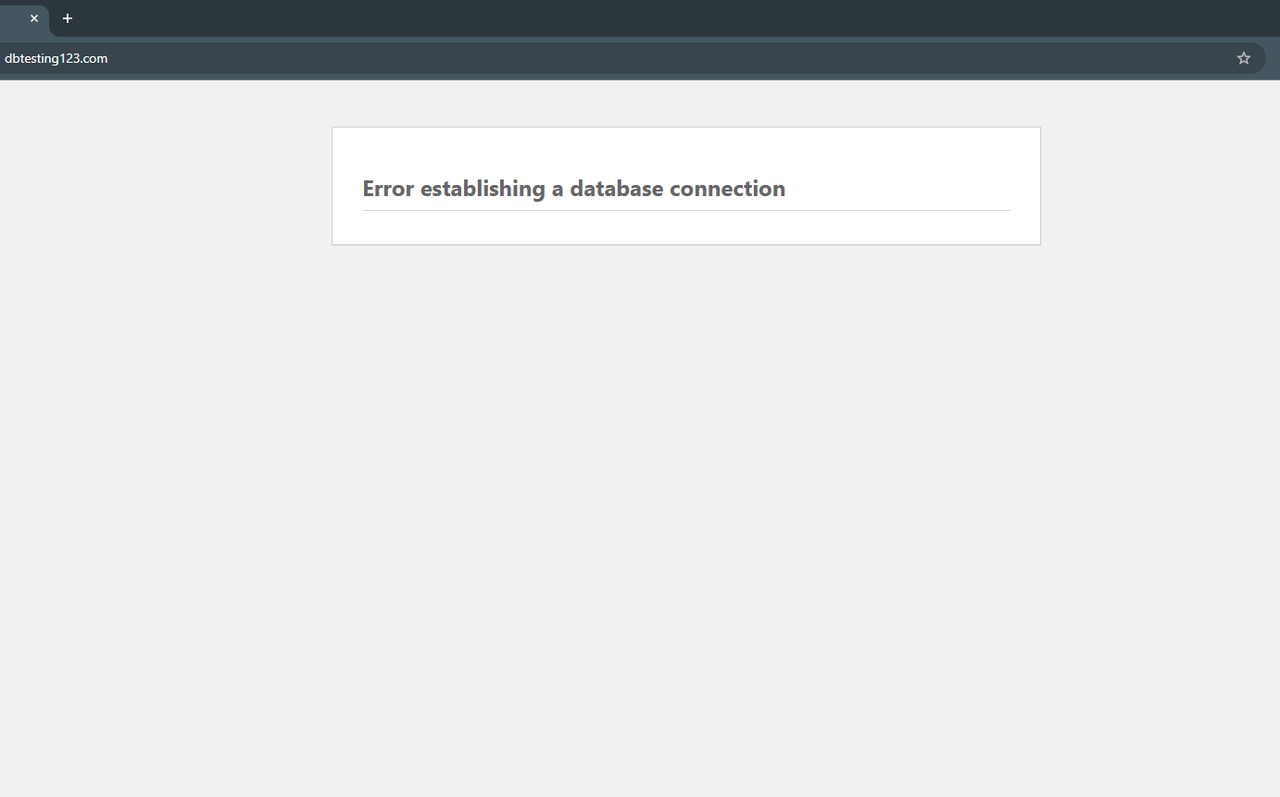
Check the configuration file for errors
OpenPanel runs each user service inside its own container. PHP applications reach the database through a Unix socket shared between the MySQL/MariaDB and PHP containers, so the database host in their config should be:
localhost- the default for PHP apps, connects through the socketmysqlormariadb- the database container name, works too, and is required on accounts created before the socket was added- never
127.0.0.1- that connects over TCP inside the PHP container, where no database is listening
Non-PHP apps (Node.js, Python...) always use mysql or mariadb on port 3306. More details: Connecting to MySQL from applications.
Compare this with the website's configuration file, in this example we are editing the wp-config.php file of a WordPress installation using File Manager:
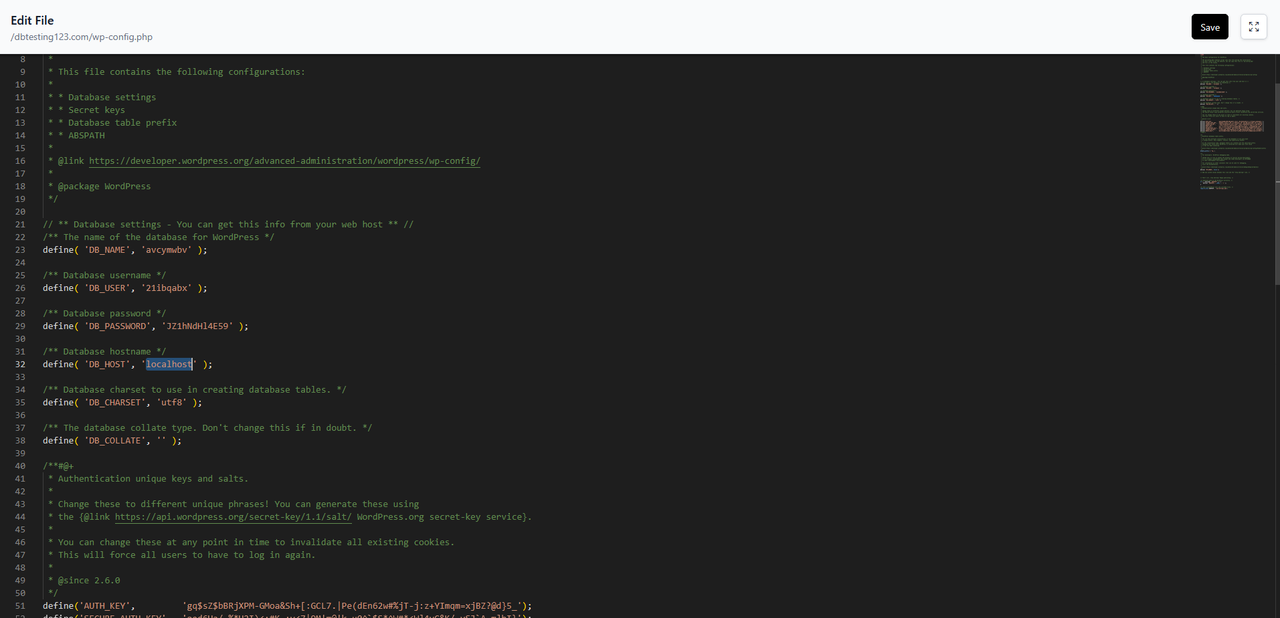
If the host is 127.0.0.1, or localhost on an older account, the connection fails. To fix it, set the host to localhost (or to the database container name, mariadb in our case) and click save at the top right corner of the editor:
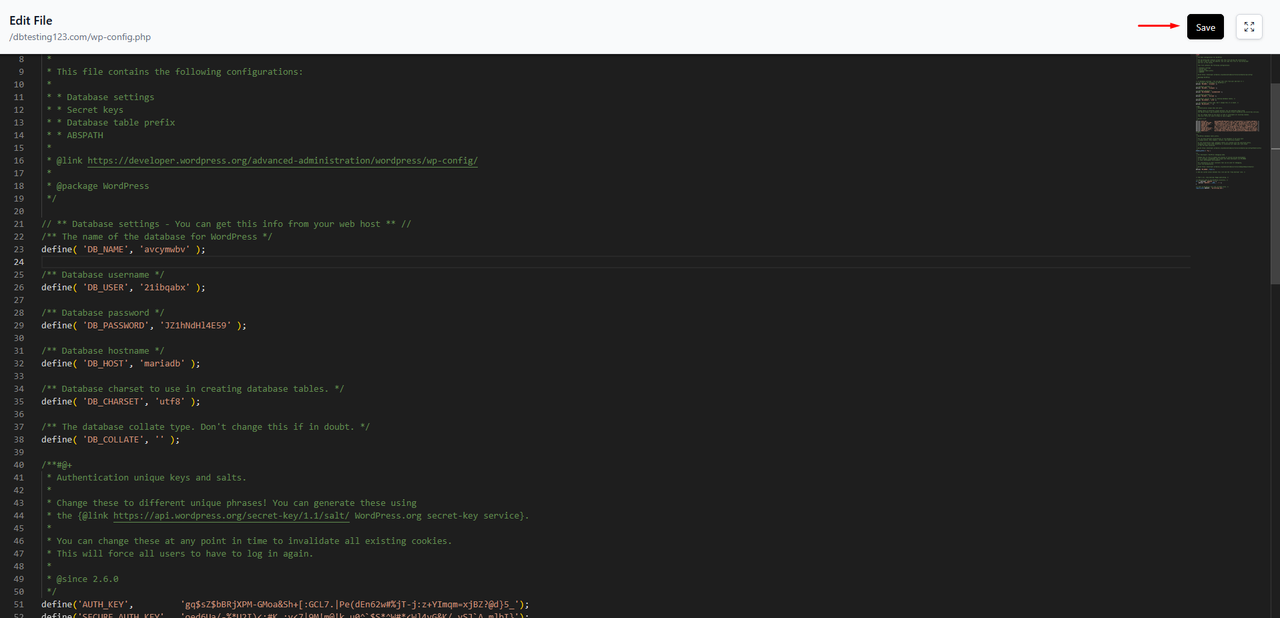
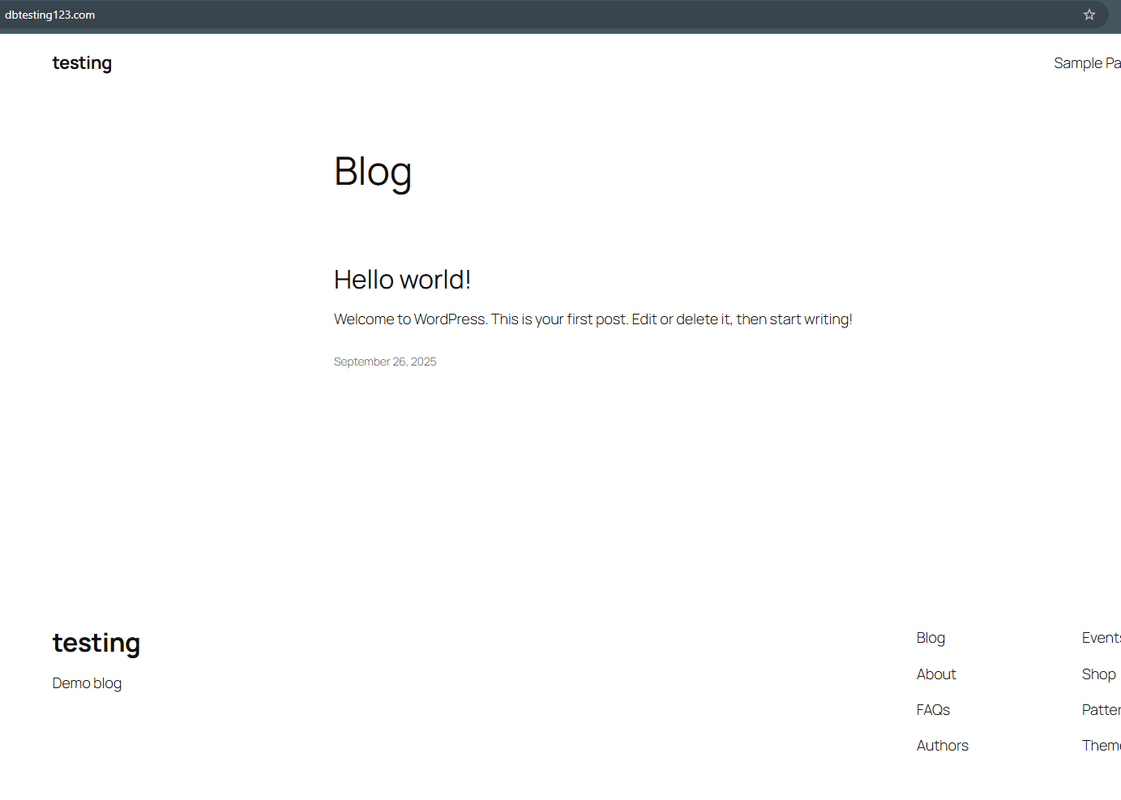
After saving this change the new configuration is applied and our WordPress instalation connects to the database successfully:
Make sure the database service (container) is running
The easiest way to make sure the database service is running is by accessing the Openpanel > MySQL/Databases page, if your databases are listed on that page that means the container is healthy and running.
If you get a blank page or an empty table instead it means that the database container is inactive, simply accessing this page will send a trigger to start the container automatically.
However if data doesn't appear on the page in a couple of minutes there's an issue with the database container.
If the Docker feature is enabled for your plan you can check the database container's logs on OpenPanel > Containers/Logs , you can also stop and start the container on OpenPanel > Containers .
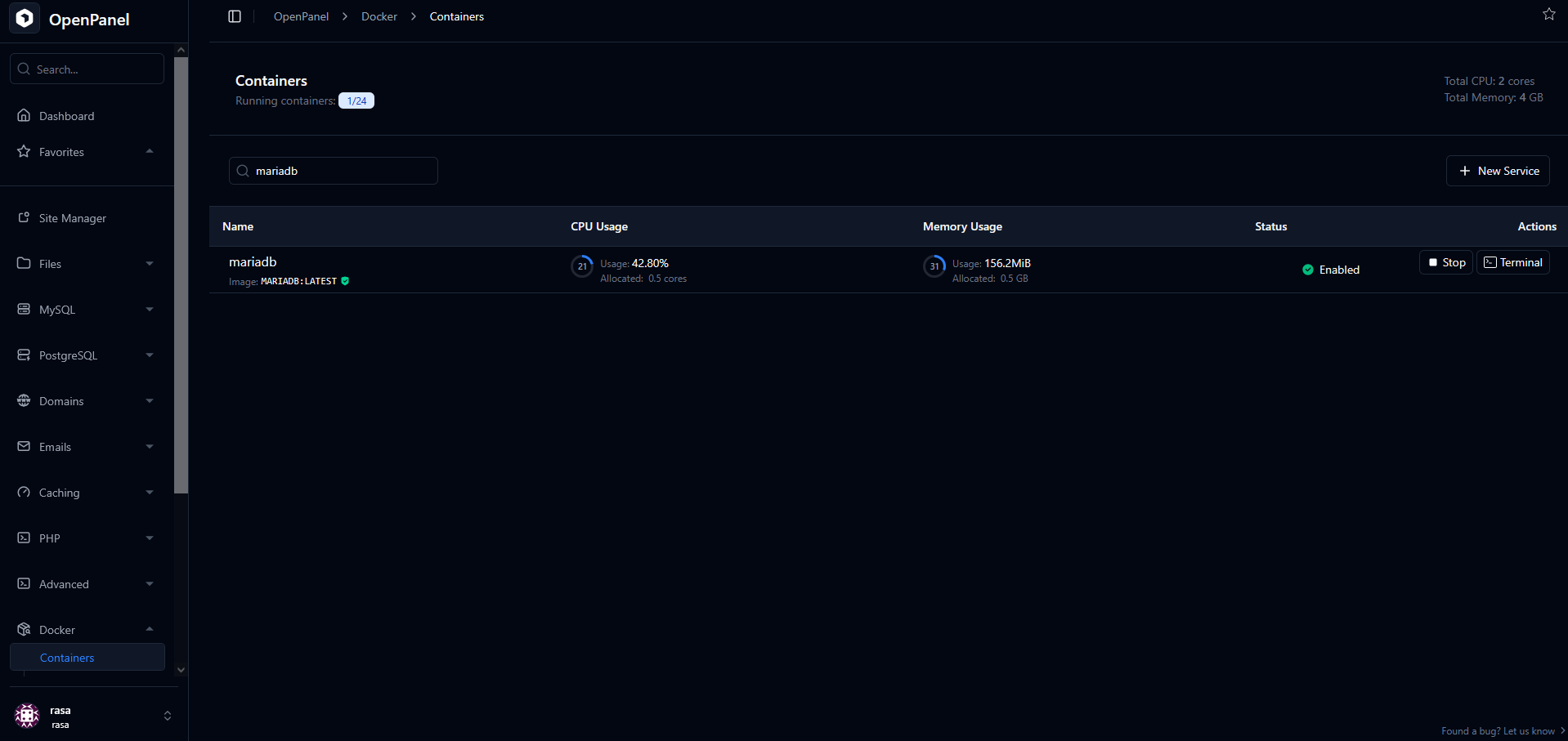
If the Docker feature is not enabled for your plan and data doesn't appear on the Openpanel > MySQL/Databases page contact your server administrator so that they can check further.
Make sure that the website's database user is properly assigned to the database
You can reassign a user to a database at any time on OpenPanel > MySQL/Assign User to DB:
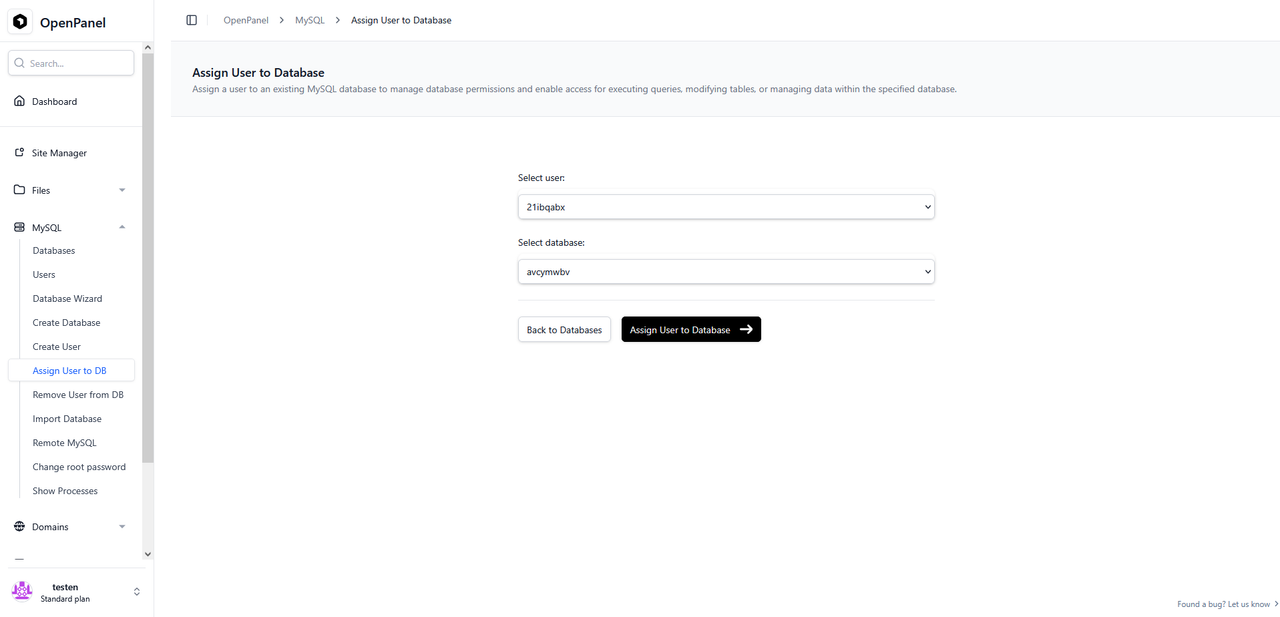
Simply select your user and database from the dropdown menus and click the "Assign User to Database" button.
Try Resetting the password of your database user
You can change your database user's password on OpenPanel > MySQL/Users:
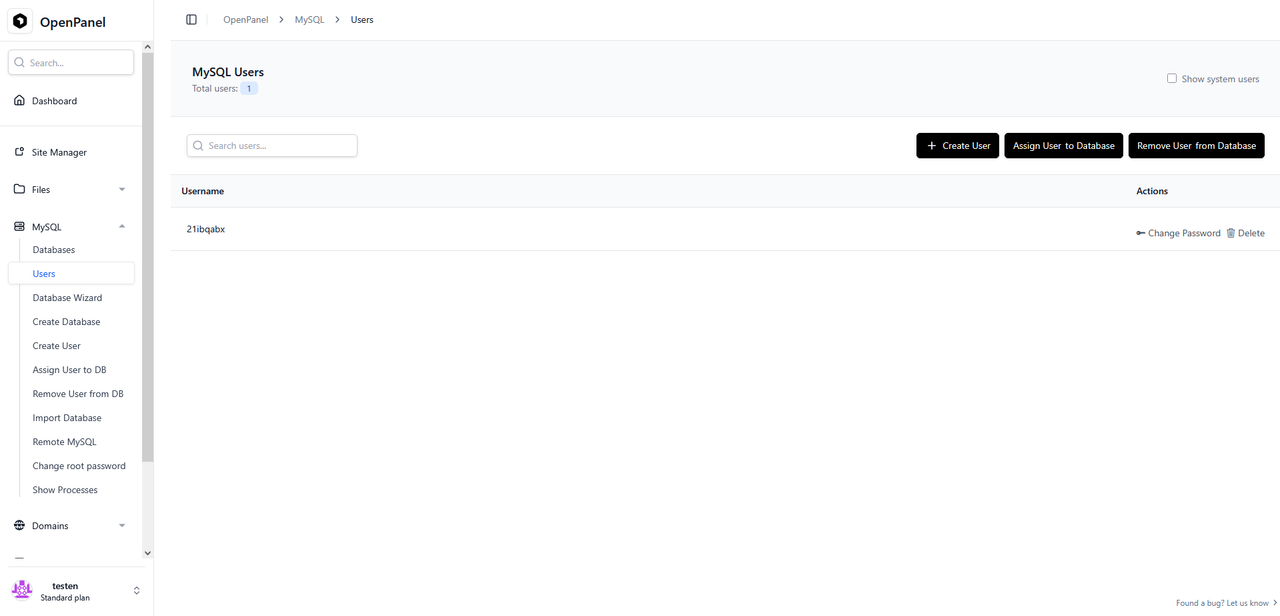
Click on the "Change Password" button next to your database user, you will be taken to the password reset page.
On this page make sure to copy the new password before clicking the "Change Password" button to confirm the change.
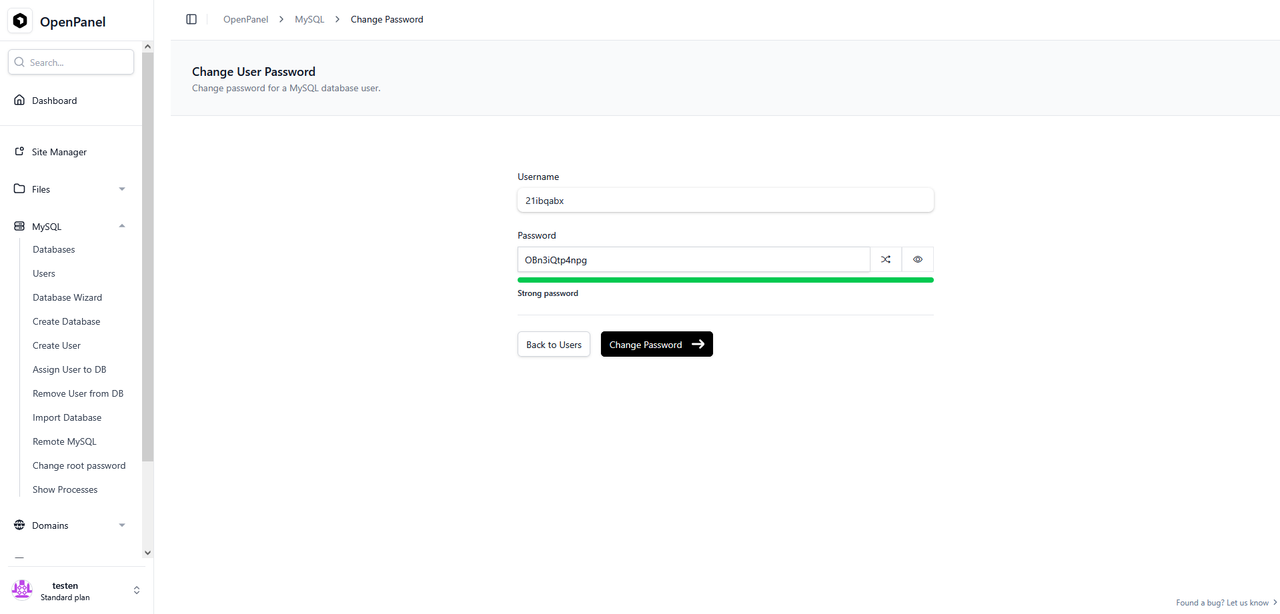
Edit your website's configuration file using File Manager and switch the existing password with the new one that you've just set, click save at the top right corner of the editor when you're done.
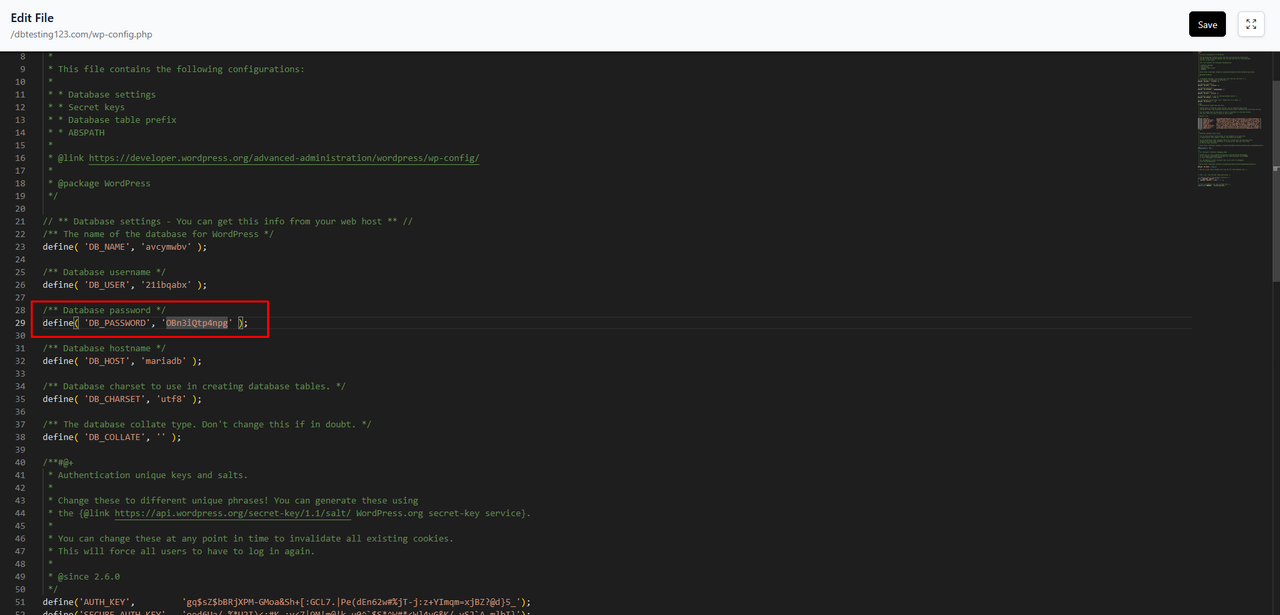
Test the connection manually
In order to connect to your database from a remote location you'll first need to open the following page: OpenPanel > MySQL/Remote MySQL .
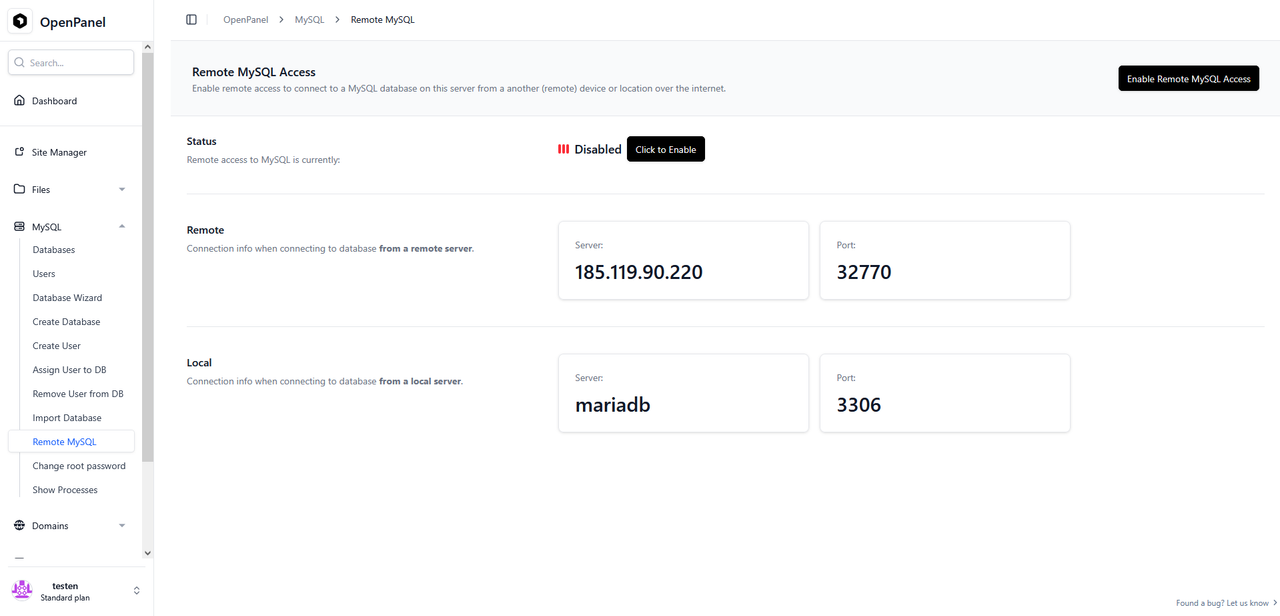
To enable remote database access click on the "Click to Enable" button and wait for confirmation that the remote access feature has been enabled.
Next open your database client, in our example we'll be using DBeaver for Windows.
Create a new remote connection within your client, copy the server and port parameters from the "Remote" section of the Remote MySQL page on OpenPanel and paste them inside your client.
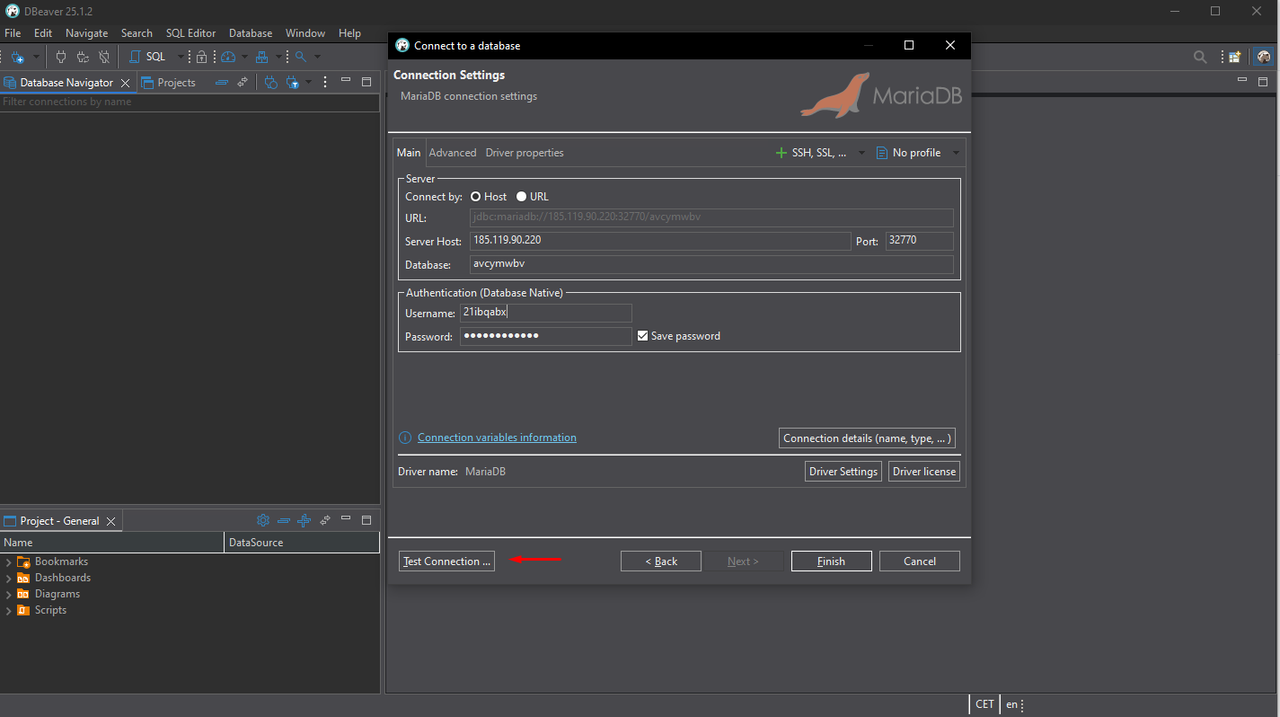
Fill the database, user and password with your db parameters and attempt the connection via the client for this test.