How to Deploy a Node.js App (Express, Next.js and More)
This guide shows how to host a Node.js application on OpenPanel - an Express API, a Next.js or Nuxt site, NestJS, or any other Node server. The app runs in its own Node.js container, and OpenPanel's web server forwards your domain to it with free SSL.
Node.js applications are available in OpenPanel Enterprise, and the feature must be enabled for your hosting plan.
How It Works
- Your code lives in the domain folder, e.g.
/var/www/html/example.com/. - OpenPanel runs an official
nodecontainer with that folder as the working directory. - On every start it can run
npm install, then your startup command. - The web server proxies
https://example.comto the port your app listens on. WebSockets are supported.
Your app must listen on 0.0.0.0 (all interfaces), not 127.0.0.1.
Step 1: Add the Domain and Upload the Code
- Add the domain in OpenPanel → Domains (Add a new domain).
- Upload the project to the domain folder with the File Manager or FTP - without
node_modules/. Or deploy it from Git (below).
Step 2: Create the Application
Go to OpenPanel → Websites → Install App → Setup Node.js Application and fill in:
| Field | Express example | Next.js example |
|---|---|---|
| Name | api | web |
| Domain | api.example.com | example.com |
| Port | 3000 | 3000 |
| Startup File | app.js | server.js (any .js file - the custom command is used) |
| Custom Startup Command | (empty - runs node app.js) | npm run build && npx next start -H 0.0.0.0 -p 3000 |
| Version | current LTS, e.g. 22 | current LTS, e.g. 22 |
| Run Install | ✅ runs npm install | ✅ runs npm install |
| Git repository | optional | optional |
| CPU / Memory | 0.5 / 0.5 GB | 1 / 2 GB (builds need memory) |
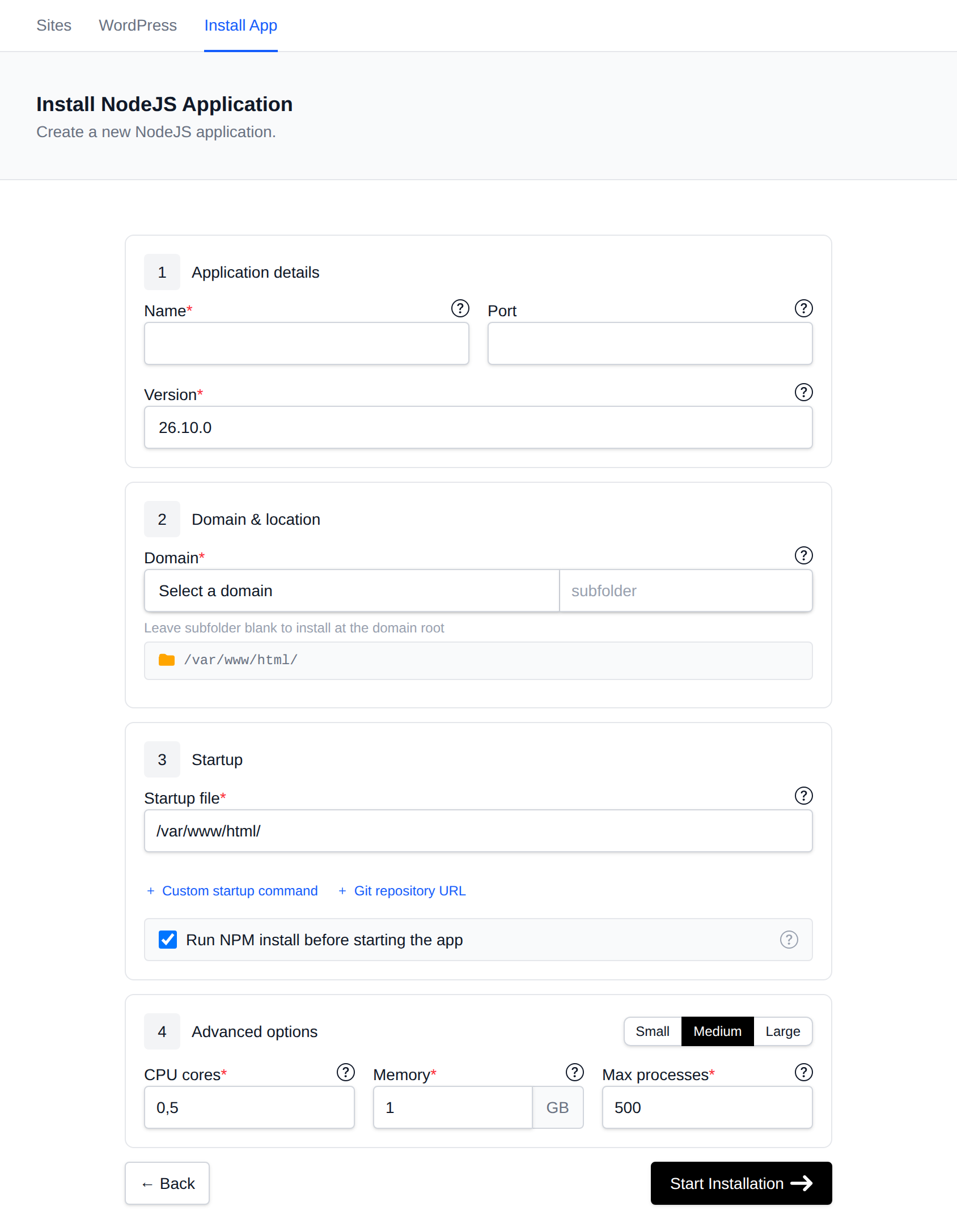
Click Start Installation, then open your domain.
Minimal Express app
// app.js
const express = require("express");
const app = express();
const port = process.env.PORT || 3000;

app.get("/", (req, res) => res.send("Hello from Node.js on OpenPanel!"));

app.listen(port, "0.0.0.0", () => console.log(`Listening on ${port}`));
Other frameworks
| Framework | Custom Startup Command |
|---|---|
| Next.js | npm run build && npx next start -H 0.0.0.0 -p 3000 |
| Nuxt 3 | npm run build && node .output/server/index.mjs (set PORT=3000, HOST=0.0.0.0 in .env) |
| NestJS | npm run build && node dist/main.js |
| Remix / React Router | npm run build && npm start |
| Static React / Vue / Vite build | No Node app needed - build locally and upload dist/ as a static site |
Building on every start makes restarts slow. For large apps, build locally or in CI, upload the built output, and use only the start command (e.g. npx next start -H 0.0.0.0 -p 3000).
Deploy from Git
Enter an https:// Git repository URL when creating the app. Every time the container starts, it fetches the latest commit of the default branch.
To deploy a new version: push to the repository, then Restart the app from its manage page. Only public repositories over https:// are supported.
Environment Variables
Put settings and secrets in a .env file in the app folder and load them with dotenv (Next.js and Nuxt read .env automatically):
NODE_ENV=production
DATABASE_URL=mysql://dbuser:dbpass@mysql:3306/dbname
Restart the app after changing .env. Don't commit it to Git.
Databases and Redis
Inside OpenPanel, services are reached by name - never localhost:
| Service | Host | Port |
|---|---|---|
| MySQL / MariaDB | mysql / mariadb | 3306 |
| PostgreSQL | postgres | 5432 |
| MongoDB | mongodb | 27017 |
| Redis | redis | 6379 |
See connecting to MySQL from applications.
Managing the App
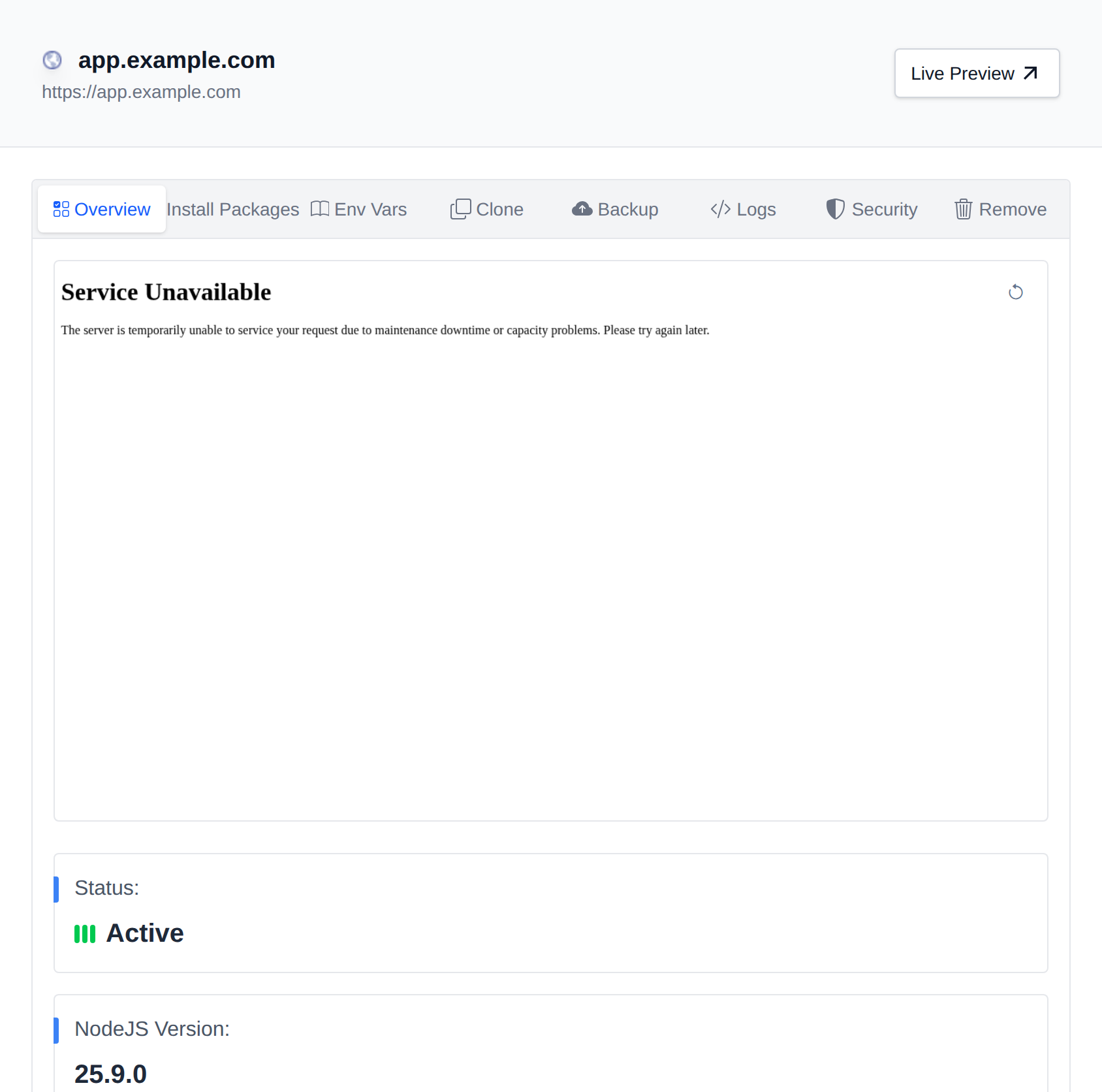
In OpenPanel → Websites → Sites, click Manage next to the app to start, stop or restart it, view Logs (console.log output and errors), edit package.json and run npm under Install Packages, and change the Node version, startup command and CPU/memory limits under Overview.
More: Node.js applications.
Troubleshooting
| Problem | Fix |
|---|---|
| 502 Bad Gateway | The app crashed or listens on a different port / on 127.0.0.1. Check Logs and match the Port field. |
Cannot find module | Enable Run Install, or make sure the dependency is in dependencies (not only devDependencies if you run npm install --production). |
Build killed / JavaScript heap out of memory | Increase the memory limit, or build outside the server. |
| Changes don't show up | Restart the app - Node doesn't reload code automatically. |