How to Install a Custom or Paid SSL Certificate
Every domain in OpenPanel gets a free Let's Encrypt certificate automatically. If you need a certificate from a commercial authority instead - for example an OV/EV certificate, a wildcard certificate you already own, or one required by a client or payment provider - you can install it on any domain from the panel.
What You Need
From your certificate provider (Sectigo, DigiCert, GoDaddy, Namecheap, ...):
- The certificate (
.crt/.pem) - issued for your domain. - The CA bundle / intermediate certificates - often called
ca-bundle,intermediateorchain. - The private key (
.key) - created together with the CSR when you ordered the certificate.
All files must be in PEM format - text files that start with -----BEGIN ...-----.
The private key is generated on the machine where the CSR was created. If you lost it, generate a new key and CSR and reissue the certificate with your provider:
openssl req -new -newkey rsa:2048 -nodes -keyout example.com.key -out example.com.csr -subj "/CN=example.com"
Step 1: Build the Full Chain
Browsers need your certificate followed by the intermediate certificates. Combine them into one block - your certificate first, then the CA bundle:
cat example.com.crt ca-bundle.crt > fullchain.pem
Or paste them one after another in a text editor:
-----BEGIN CERTIFICATE-----
(your domain certificate)
-----END CERTIFICATE-----
-----BEGIN CERTIFICATE-----
(intermediate certificate)
-----END CERTIFICATE-----
Step 2: Install It in OpenPanel
- Go to OpenPanel → Domains and click SSL next to the domain.
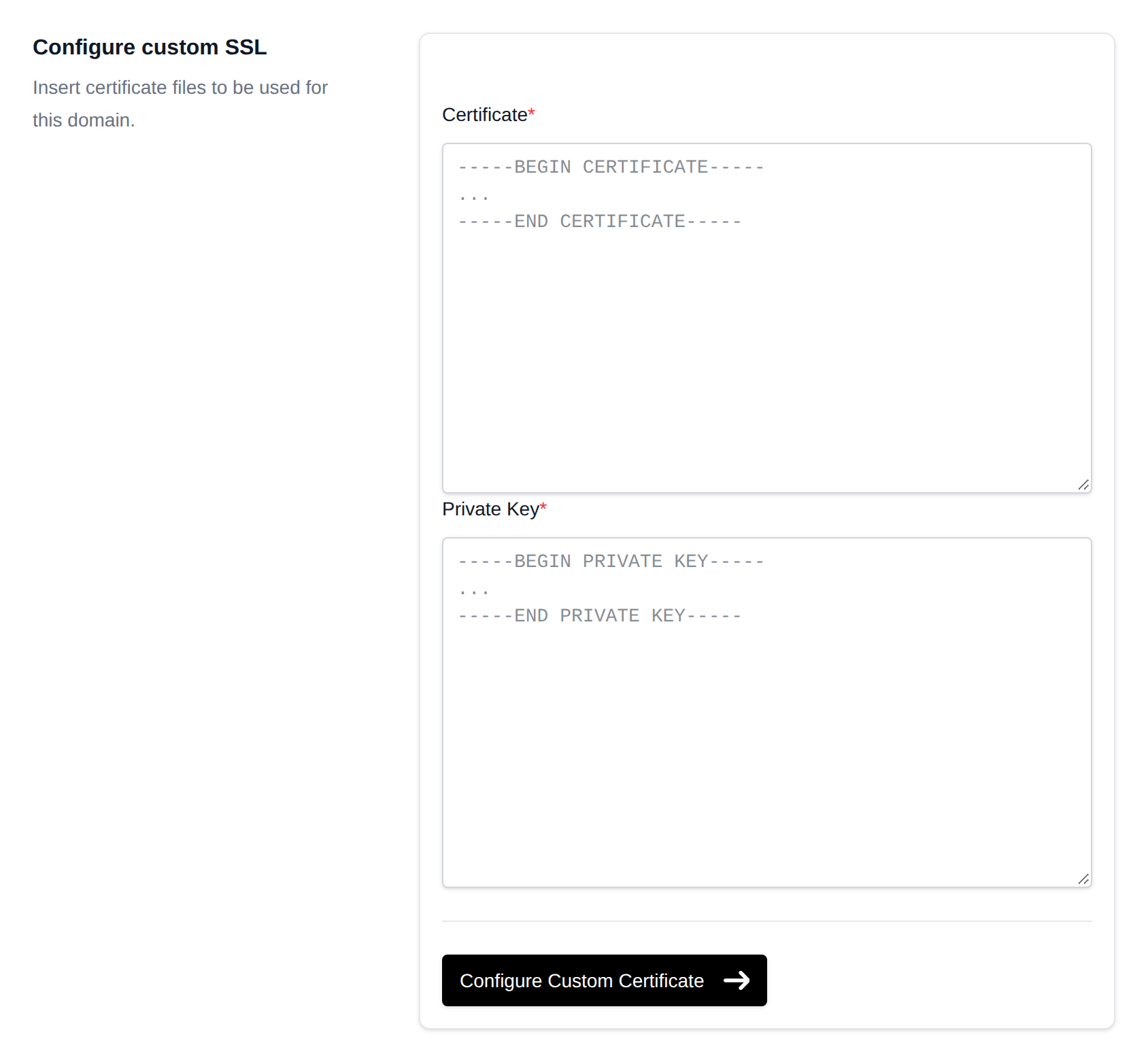
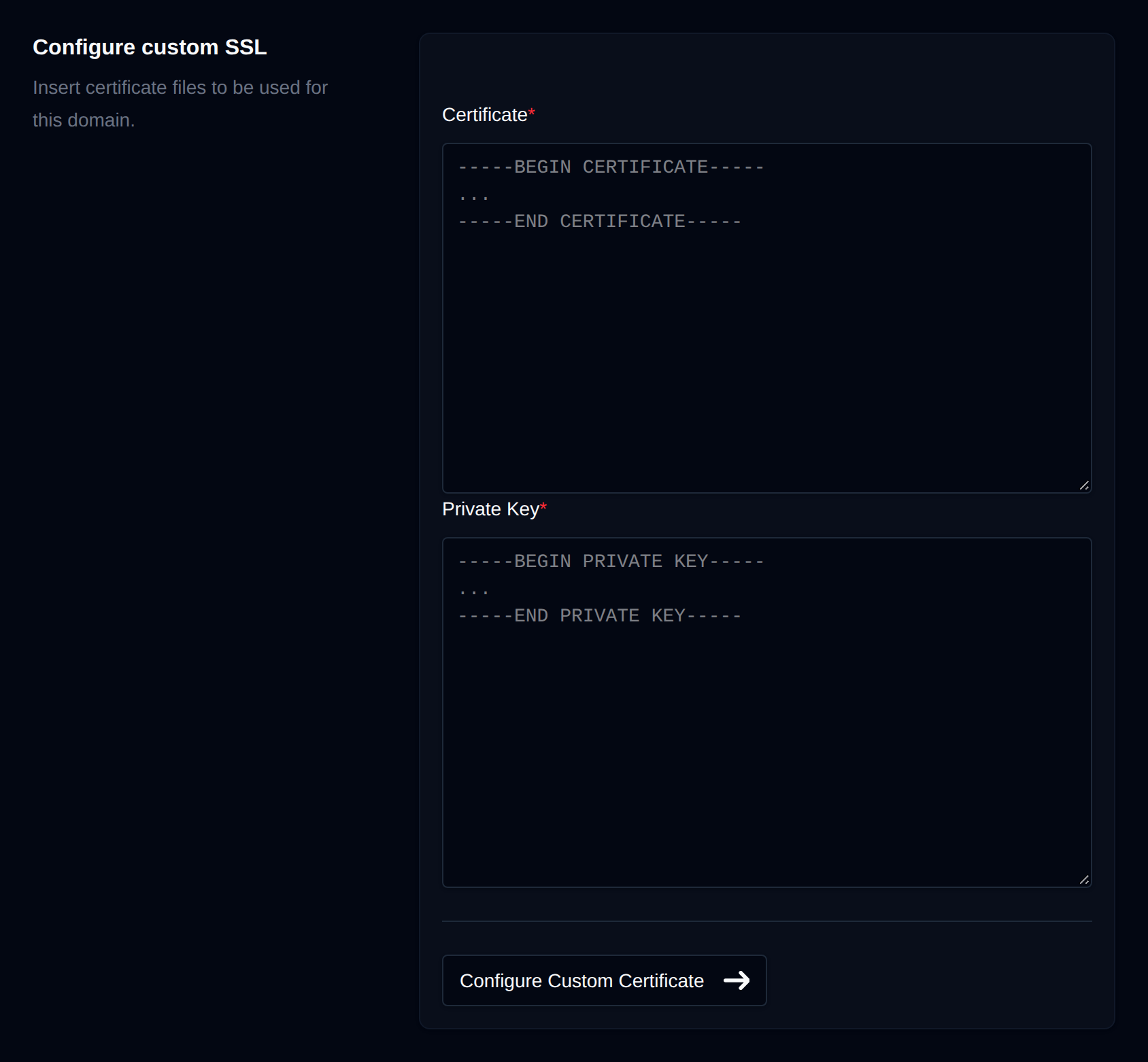
- Under Configure custom SSL:
- paste the full chain into Certificate,
- paste the private key (
-----BEGIN PRIVATE KEY-----... ) into Private Key.
- Click Configure Custom Certificate.
The SSL status changes to Custom SSL and the certificate details (issuer, expiry date) are shown on the same page. See SSL.
Repeat for every domain the certificate covers - for example example.com and shop.example.com for a multi-domain or wildcard certificate.
From the terminal (administrators)
Upload fullchain.pem and key.pem to the user's files, then:
opencli domains-ssl example.com custom /var/www/html/fullchain.pem /var/www/html/key.pem
Delete the key file from the website files afterwards.
Step 3: Check It
- Open
https://example.comand click the padlock - the issuer should be your provider. - Or:
curl -vI https://example.com 2>&1 | grep -E "issuer|expire". - Test the chain with SSL Labs - "Chain issues: Incomplete" means the CA bundle is missing from the certificate field.
Renewing a Custom Certificate
Custom certificates are not renewed automatically. Before the certificate expires, get the renewed certificate from your provider and repeat Step 2 - the new certificate replaces the old one.
Switch Back to Free Let's Encrypt SSL
On the domain's SSL page, click Switch to Let's Encrypt and generate. OpenPanel switches the domain back to automatic SSL and requests a new certificate right away.
Troubleshooting
| Problem | Fix |
|---|---|
| "Private key does not match certificate" | The key belongs to a different CSR. Use the key created with this certificate's CSR, or reissue. |
| Browser warns "certificate not trusted" on some devices | The intermediate certificates are missing - add the CA bundle after your certificate. |
| "Certificate is for another name" | The certificate doesn't cover this exact hostname (check www too). |
| Old certificate still shown | Clear the browser cache or test in a private window; check the expiry date on the SSL page. |