How to Self-Host Matomo Analytics (Google Analytics Alternative)
Matomo is an open-source web analytics platform and the most popular self-hosted alternative to Google Analytics. Because the data stays on your server, it's easier to comply with GDPR - and you own 100% of your data.
OpenPanel installs and configures Matomo in one click.
Requirements
- OpenPanel Community or Enterprise - the Matomo module must be enabled for your hosting plan.
- A domain or subdomain for the dashboard, e.g.
analytics.example.com. - MySQL or MariaDB (Matomo doesn't support PostgreSQL).
Install Matomo
- Add
analytics.example.comin OpenPanel → Domains (Add a new domain). - Go to OpenPanel → Websites → Install App and click Install Matomo.
- Choose the Matomo version (Latest), the domain, and the admin login, email and password.
- Optionally expand Database settings - the name, user and password are generated for you.
- Start the installation.

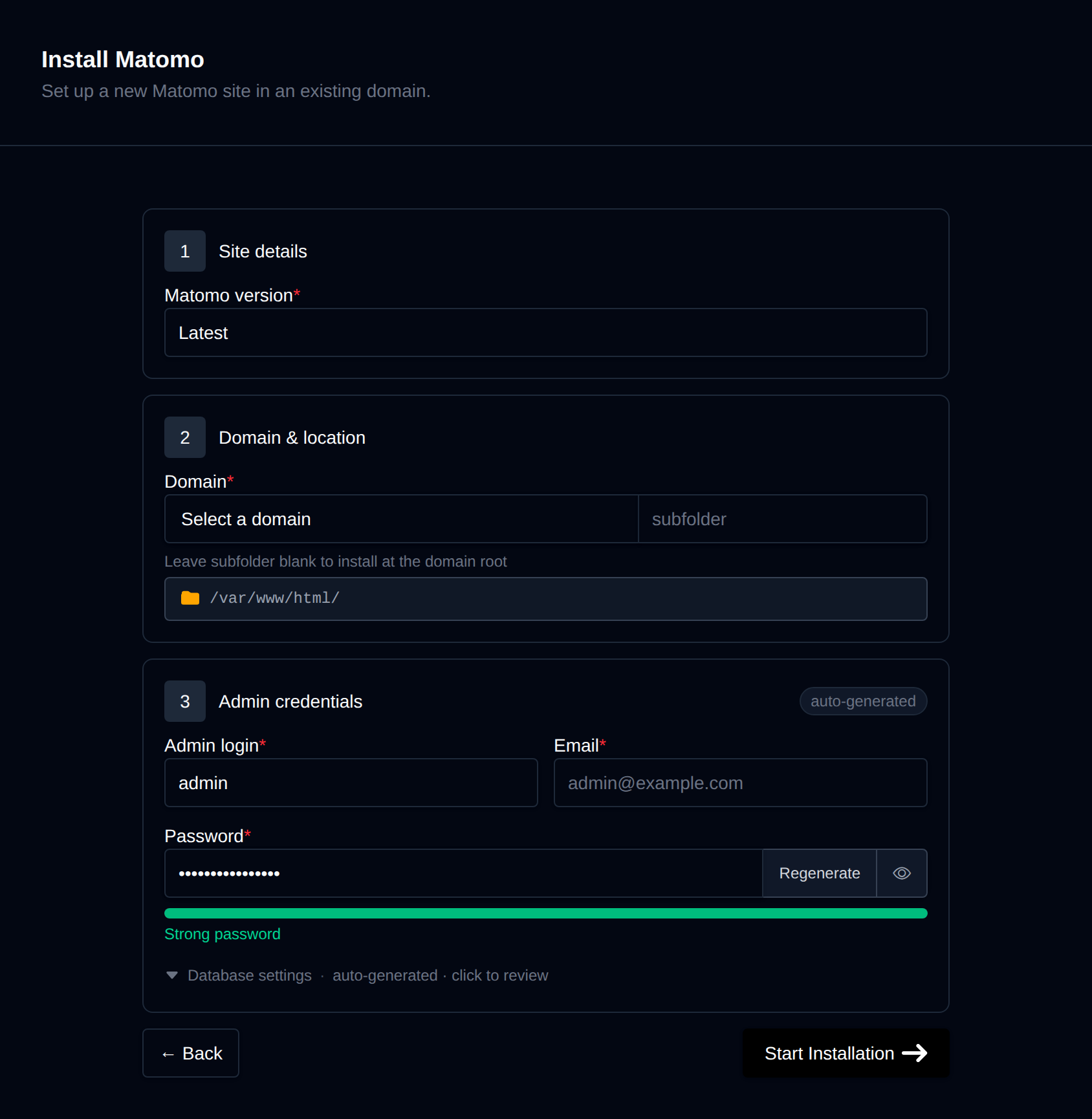
OpenPanel downloads Matomo, creates the database, and completes Matomo's setup wizard for you - no browser wizard needed.
Open https://analytics.example.com, or click Login as Admin on the app's manage page.
Track Your Websites
- In Matomo, go to Administration → Websites → Manage and add each website you want to track.
- Open Administration → Websites → Tracking Code and copy the JavaScript snippet.
- Paste it before
</head>on every page of the tracked website.- For WordPress, use the official Connect Matomo plugin or paste the code in your theme's header.
You'll see visits in the Matomo dashboard within a few seconds.
Set Up Report Archiving (Recommended)
By default, Matomo builds reports when someone opens the dashboard, which gets slow on busy sites. Switch to cron-based archiving:
- In Matomo, go to Administration → System → General settings and set Archive reports when viewed from the browser to No.
- In OpenPanel → Cron Jobs, create a job:
- Container: the domain's PHP container, e.g.
php-fpm-8.3 - Schedule: Hourly
- Command:
- Container: the domain's PHP container, e.g.
php /var/www/html/analytics.example.com/console core:archive --url=https://analytics.example.com/
See Cron Jobs.
Managing Matomo
Matomo appears in OpenPanel → Websites → Sites. Its manage page has:
- Login as Admin - one-click login to the dashboard.
- Cache - runs
core:clear-caches. - Update - checks for a new release and updates it, including the database schema.
- Backups - full or partial backups and restores.
- Clone - copies Matomo to another domain, updating
trusted_hostsautomatically. - Logs - Matomo's own log files.
More: Matomo in OpenPanel.
Tips
- Exclude your own visits: in Administration → Websites → Manage, add your IP address to the excluded IPs.
- Privacy: in Administration → Privacy, enable IP anonymization and respect Do Not Track to reduce the need for cookie banners.
- Disk usage grows with traffic - check it now and then in Disk Usage.