How to Deploy a Java App (Spring Boot and Plain Java)
This guide shows how to run a Java web application on OpenPanel - a Spring Boot (or Quarkus, Micronaut, Javalin) JAR, or a simple single-file Java server. The app runs in its own container with an official Eclipse Temurin JDK, and OpenPanel's web server forwards your domain to it with free SSL.
Java applications are available in OpenPanel Enterprise, and the feature must be enabled for your hosting plan.
Option 1: Spring Boot (or Any Executable JAR)
Build the JAR
Build the application on your computer or in CI:
./mvnw clean package -DskipTests     # Maven
# or
./gradlew bootJar                    # Gradle
This produces a file such as target/myapp-1.0.0.jar. The container image contains the JDK only - not Maven or Gradle - so upload the built JAR rather than building on the server.
Configure the port
Spring Boot listens on port 8080 by default and on all interfaces. Keep that, or set it in application.properties:
server.port=8080
server.forward-headers-strategy=framework
forward-headers-strategy makes Spring generate correct https:// links behind OpenPanel's proxy.
Upload and create the app
- Add the domain in OpenPanel → Domains and upload the JAR to the domain folder, e.g.
/var/www/html/example.com/app.jar, with the File Manager or FTP. - Go to OpenPanel → Websites → Install App → Setup Java Application:
| Field | Value |
|---|---|
| Domain | example.com |
| Port | 8080 |
| Startup File | Main.java (required field - the custom command is what runs) |
| Custom Startup Command | java -Xmx512m -jar app.jar |
| Version | the JDK your app targets - 17 or 21 for Spring Boot 3 |
| Run Install | ❌ off |
| CPU / Memory | 1 core, 1 GB |
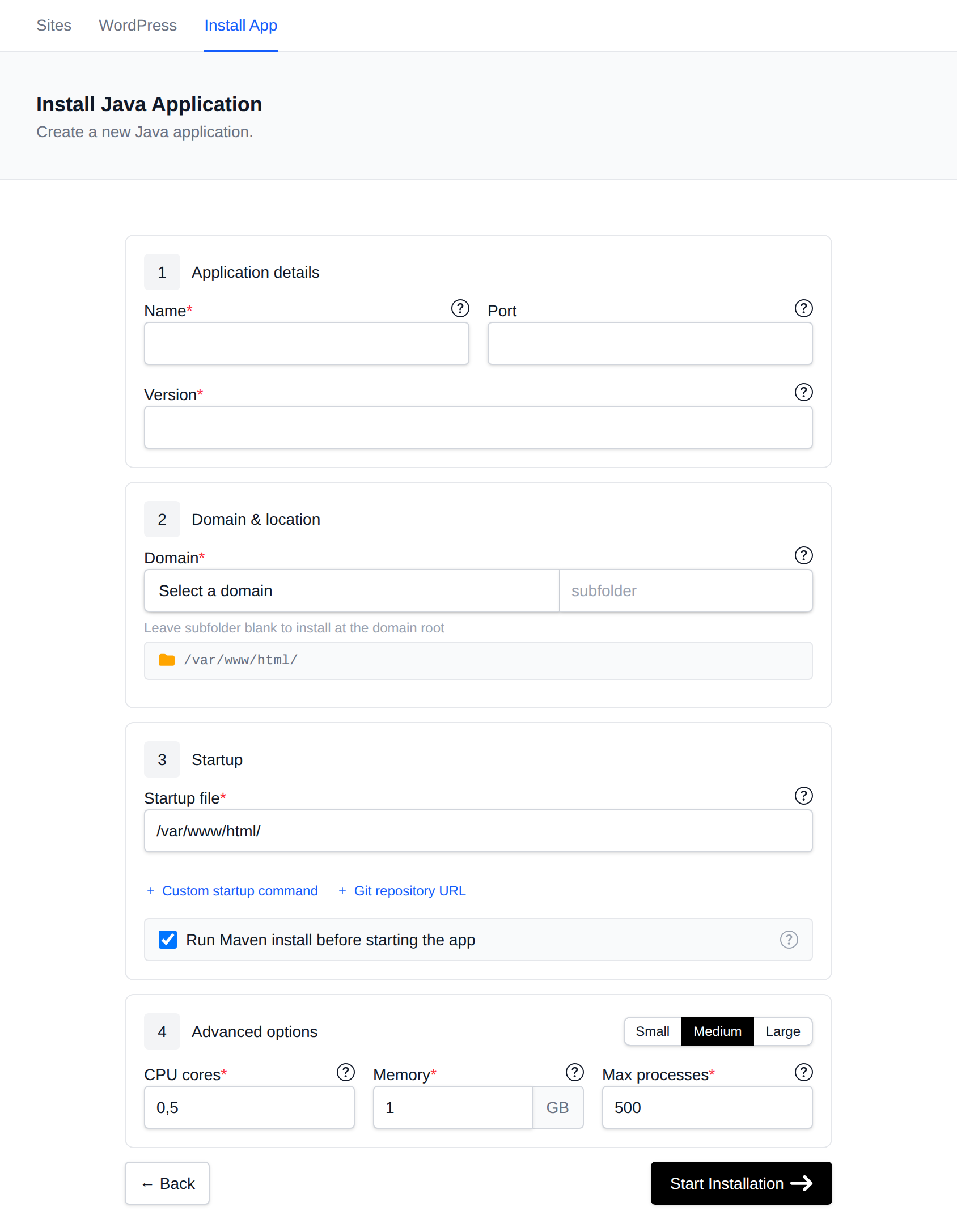
Set -Xmx (maximum Java heap) to about half to two-thirds of the container's memory limit - the JVM also needs memory outside the heap.
To deploy a new version, upload the new JAR over the old one and Restart the app.
Option 2: Single-File Java Server
Since Java 11, java Main.java compiles and runs a single source file directly - no build tool needed. This is the default when you set the Startup File to Main.java:
import com.sun.net.httpserver.HttpServer;
import java.net.InetSocketAddress;

public class Main {
    public static void main(String[] args) throws Exception {
        HttpServer server = HttpServer.create(new InetSocketAddress(3000), 0);
        server.createContext("/", exchange -> {
            byte[] body = "Hello from Java on OpenPanel!".getBytes();
            exchange.sendResponseHeaders(200, body.length);
            exchange.getResponseBody().write(body);
            exchange.close();
        });
        server.start();
    }
}
Use port 3000 in the app form and leave Run Install off.
Databases
Inside OpenPanel, databases are reached by service name - never localhost:
spring.datasource.url=jdbc:mysql://mysql:3306/user_myapp
spring.datasource.username=user_myapp
spring.datasource.password=${DB_PASSWORD}
Use mariadb for MariaDB, or jdbc:postgresql://postgres:5432/dbname for PostgreSQL.
Managing the App
In OpenPanel → Websites → Sites, click Manage to start, stop or restart the app, view Logs (stdout and stack traces), and change the JDK version, startup command and CPU/memory limits under Overview.
More: Java applications.
Troubleshooting
| Problem | Fix |
|---|---|
| 502 Bad Gateway right after start | Spring Boot can take 10-30 seconds to start - wait and reload. If it persists, check Logs and that the Port matches server.port. |
| Container is killed / restarts in a loop | The JVM uses more memory than the limit. Lower -Xmx or raise the memory limit. |
UnsupportedClassVersionError | The JAR was built for a newer Java than the container's JDK. Pick a matching version. |
mvn: not found | The image has no Maven - build the JAR locally and upload it. |