Version: 2.0.21
How to Build a Website Without Coding (Drag-and-Drop Website Builder)
OpenPanel includes a drag-and-drop Website Builder based on GrapesJS. You can design a page visually and publish it as a fast, static HTML website styled with Tailwind CSS - no WordPress, database or coding needed.
It's a good fit for landing pages, "coming soon" pages, portfolios and simple business sites.
Create a Website
- Add the domain in OpenPanel → Domains (Add a new domain).
- Go to OpenPanel → Websites → Install App and, under Website Builder, click Create website.
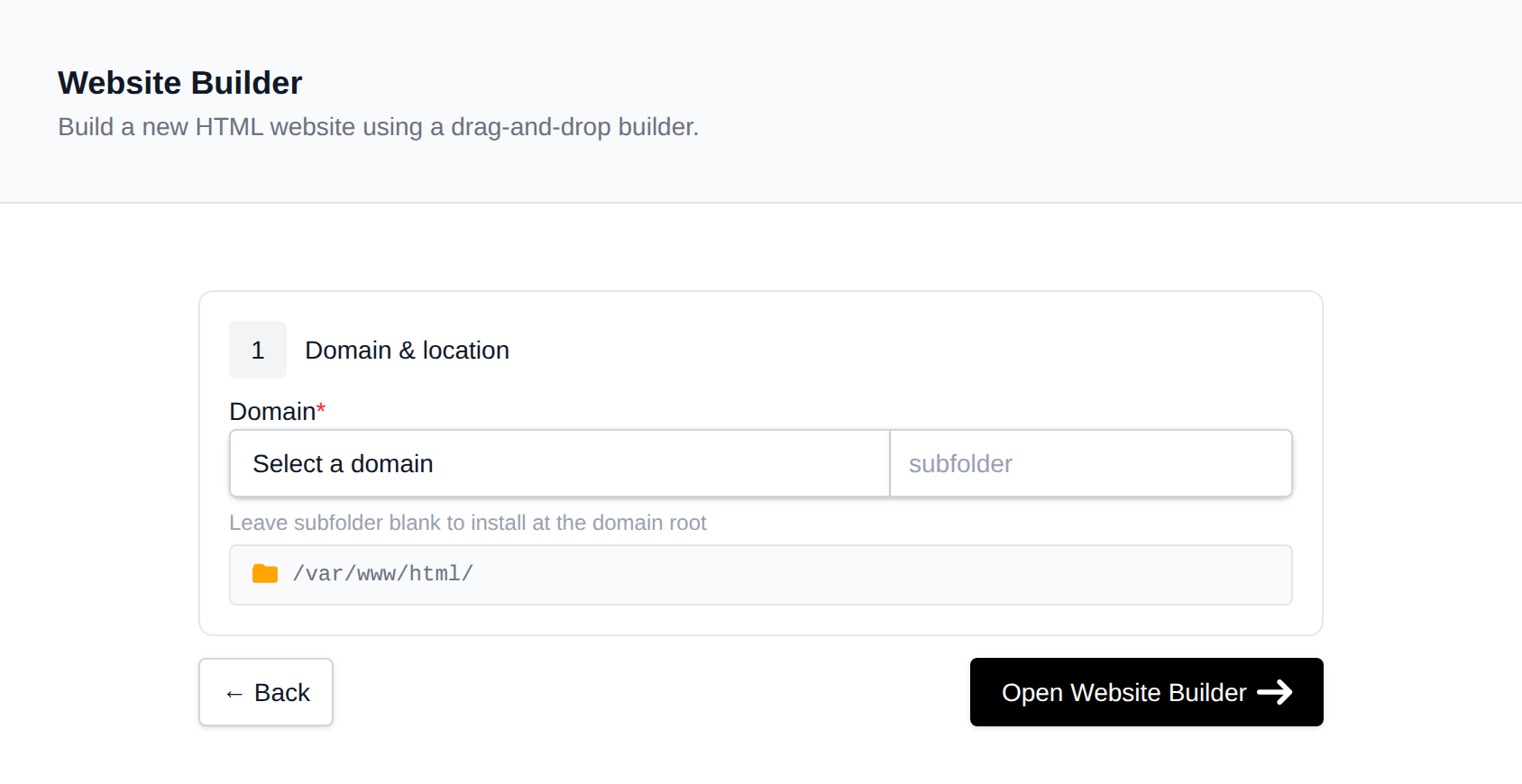
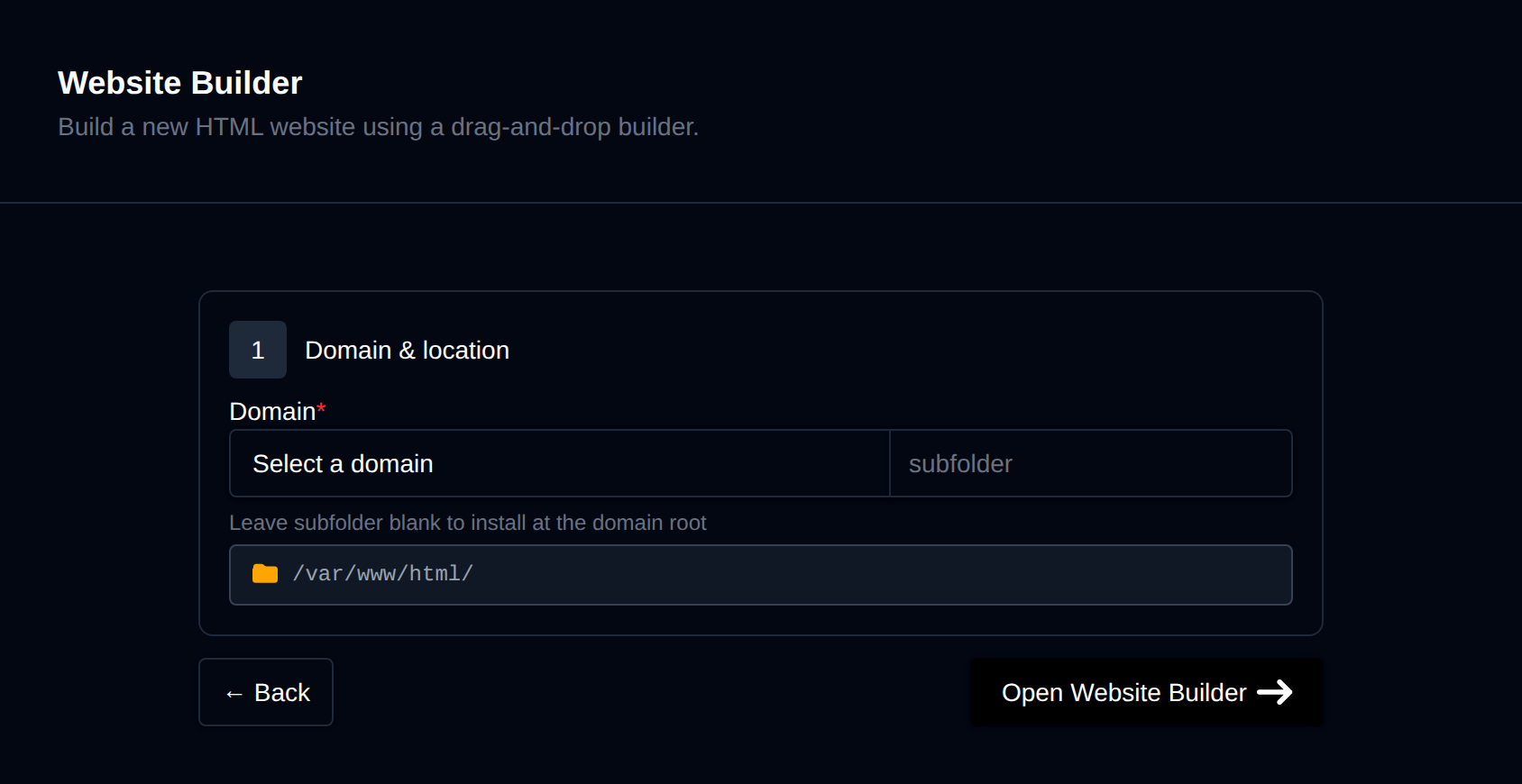
- Choose the domain and, optionally, a subdirectory.
- Click Open Website Builder.
Edit the Page
- Click the blocks icon in the top-right corner to browse sections (headers, text, images, buttons, columns) and drag them onto the page.
- Click any element to edit its text, links and styles in the panel on the right.
- Use the device icons to check how the page looks on desktop, tablet and mobile.
- Save to publish. The site is written as
index.htmlandstyle.cssin the domain folder and is live immediately.
To edit later, open OpenPanel → Websites → Sites and click Open Editor next to the site.
For more editing features, see the GrapesJS documentation.
Backups
On the site's page in Sites, open the Backups tab:
- Generate Backup saves the current website files.
- Display Backups → pick a date → Start Restore brings back an earlier version.
Removing the Site
In the Remove tab, Detach website stops managing it in the builder but keeps the files; Delete website removes the files.
More: Website Builder in OpenPanel.
Related
Was this helpful?