How to Install Moodle (LMS) on Your Own Server
Moodle is the world's most popular open-source learning management system (LMS), used by schools, universities and companies for online courses. OpenPanel installs Moodle in one click, including its database, data folder and cron job.
Requirements
- OpenPanel Enterprise - the Moodle module must be enabled for your hosting plan.
- A domain or subdomain, e.g.
learn.example.com, pointed to the server. - A PHP version supported by the Moodle release (PHP 8.2 or 8.3 for Moodle 4.5 / 5.x).
- At least 1 GB of RAM for small sites; more for many concurrent students.
Install Moodle
- Add the domain in OpenPanel → Domains (Add a new domain).
- Go to OpenPanel → Websites → Install App and click Install Moodle.
- Fill in:
- Domain (and optional subfolder),
- Site name and short name,
- Moodle version - Latest is recommended,
- Admin username, password and email - leave the password empty to generate one.
- Start the installation.

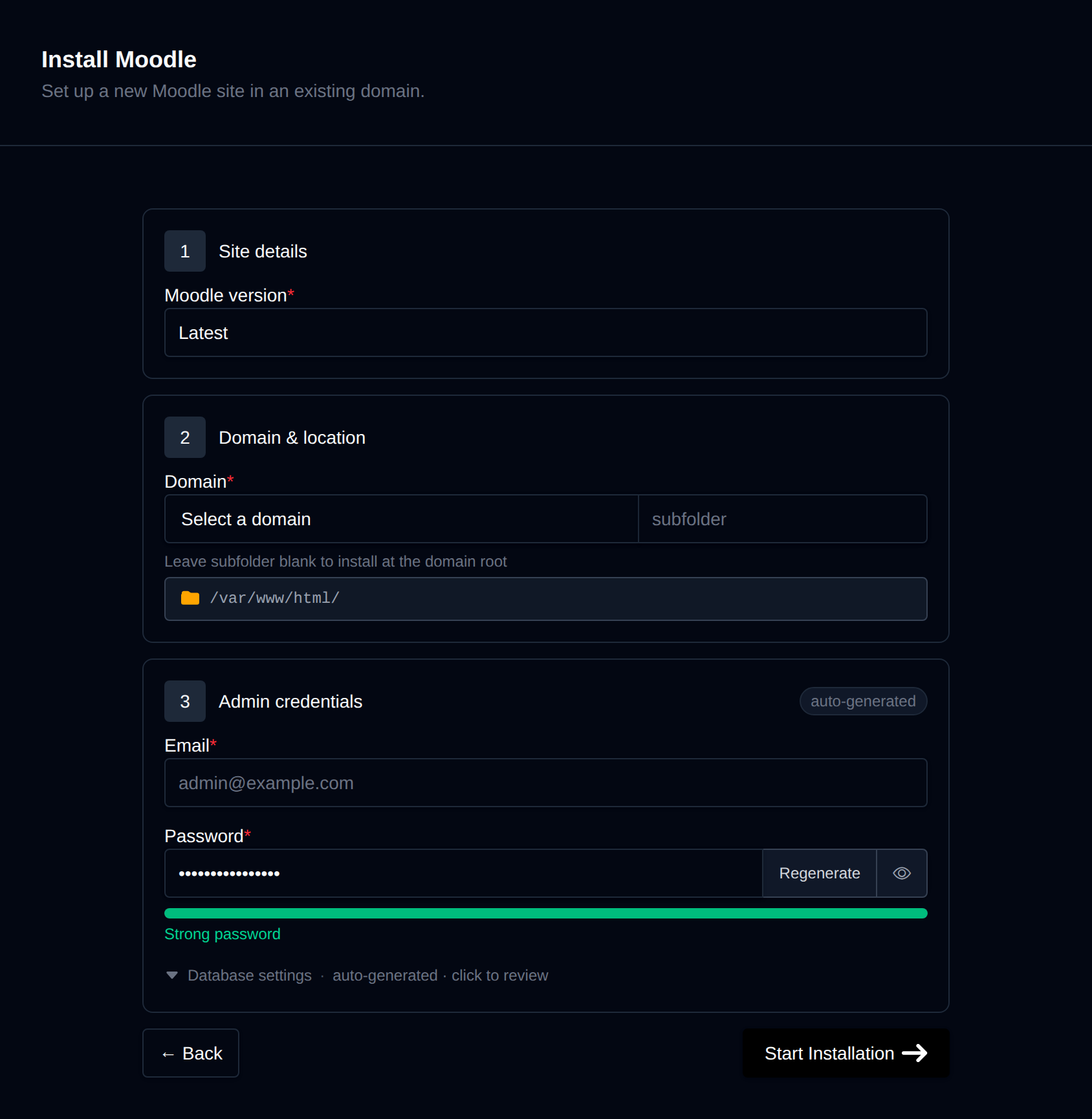
OpenPanel downloads the official Moodle package, creates a MySQL/MariaDB database, runs Moodle's CLI installer and registers Moodle's cron job automatically.
Log in at https://learn.example.com/login/ with the admin account.
How the Files Are Laid Out
Moodle keeps its code and its data separately:
- App root - the Moodle code, next to your domain folder. Moodle 5.x serves only its
public/subfolder, so the domain's document root is linked to<app root>/publicandconfig.phpstays outside the web root. - moodledata - uploaded files, course materials, caches and sessions. This is where the real content lives.
When you back up or move the site, you need the database and moodledata - the code can always be downloaded again.
Recommended Settings
Upload limits for course files
Moodle's maximum upload size is capped by PHP. For videos and large SCORM packages, raise the limits in OpenPanel → PHP → PHP.INI Editor:
upload_max_filesize = 512M
post_max_size = 512M
max_execution_time = 300
memory_limit = 512M
Then set Site administration → Security → Site security settings → Maximum uploaded file size in Moodle. See How to increase PHP limits.
Caching with Redis
For sites with many users, enable the Redis service and add a Redis cache store in Site administration → Plugins → Caching → Configuration, using redis as the server (not localhost). See Redis.
Outgoing email
Moodle sends enrolment and forum emails. Configure Site administration → Server → Email → Outgoing mail configuration with your mailbox or an SMTP relay - see Why do my emails go to spam?.
Managing Moodle
Moodle appears in OpenPanel → Websites → Sites. Its manage page offers:
- Cache - purges all Moodle caches.
- Maintenance mode - shows a maintenance page to students while you work.
- Backups - back up and restore the database,
moodledata, or both. - Clone - copy the site to a new domain (e.g. a staging site), including the database, data and cron.
- Update - updates to the latest release, with maintenance mode turned on automatically.
- Logs - PHP errors from
moodledata.
Take a backup from the Backups tab before running Update, and test big upgrades on a clone first.
More: Moodle in OpenPanel.