How to Self-Host Websites on a Home Server with OpenPanel
You can run OpenPanel on a spare PC, mini PC, NAS or small ARM board at home and host your own websites, apps and services. Installation is the same as on a VPS - the extra work is making the server reachable from the internet.
For a Raspberry Pi, see Install OpenPanel on a Raspberry Pi. For a VM on Proxmox, see Install OpenPanel on Proxmox VE.
What You Need
- A dedicated machine or VM - OpenPanel needs a clean OS with nothing else installed (no other web server, Docker or panel).
- CPU: any 64-bit x86 (AMD64) or ARM64 (AArch64) processor.
- RAM: at least 2 GB, 4 GB or more recommended.
- Disk: at least 20 GB, an SSD is strongly recommended.
- OS: Ubuntu 24.04 LTS (recommended), Debian, AlmaLinux or Rocky Linux - see the supported systems.
- Wired network connection - more reliable than Wi-Fi for a server.
Use the resource calculator to see how many websites your hardware can handle.
Some home internet plans don't allow running servers, and some ISPs block incoming ports 80 and 443. If yours does, use a Cloudflare Tunnel instead of port forwarding.
Step 1: Install the Operating System
- Install Ubuntu Server 24.04 LTS on the machine and enable OpenSSH server during setup.
- Give the server a fixed local IP - either set a static IP during installation, or create a DHCP reservation for it in your router. Port forwarding breaks if the local IP changes.
Step 2: Install OpenPanel
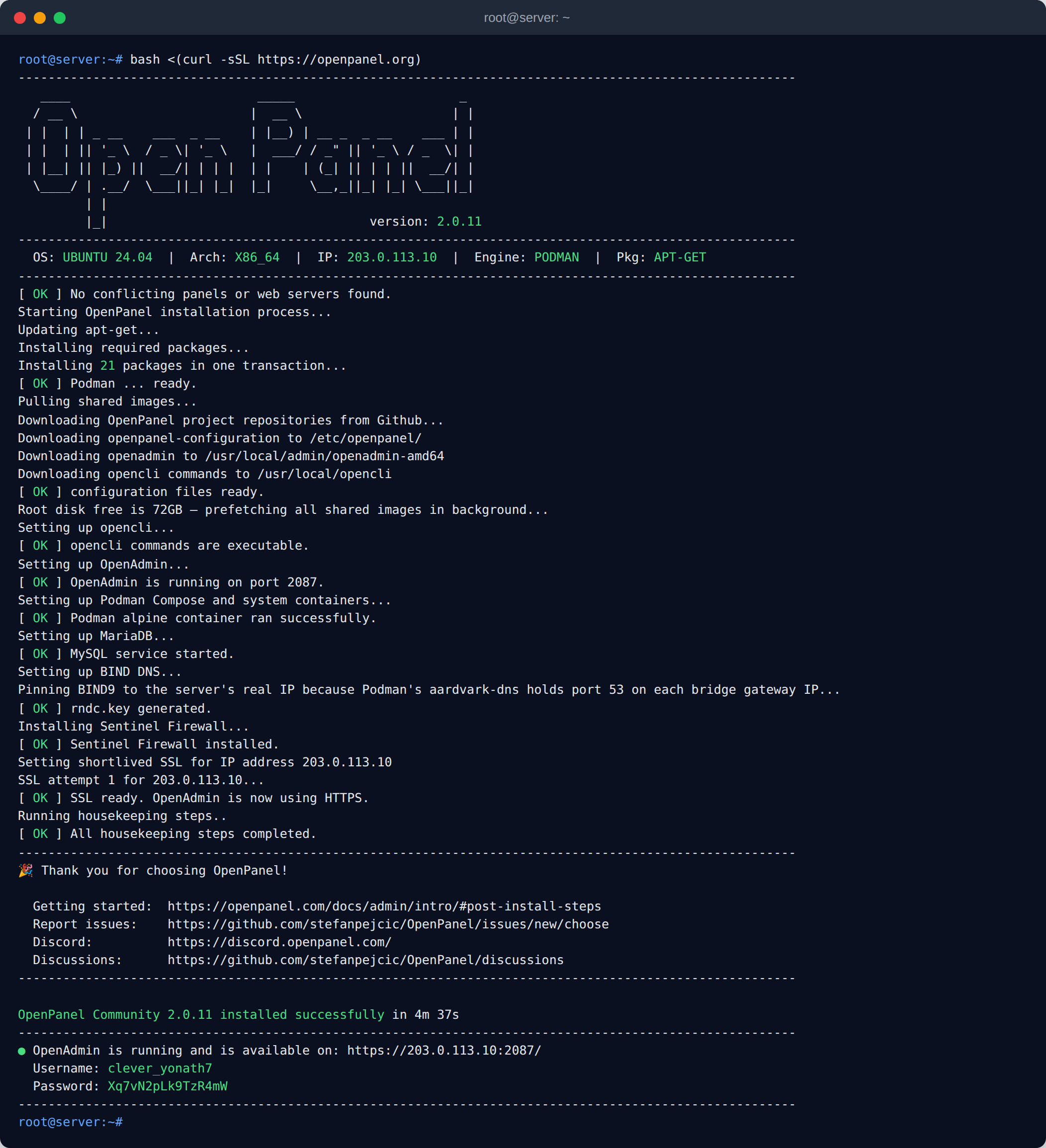
Connect from another computer and run the installer as root:
sudo -i
bash <(curl -sSL https://openpanel.org)
When the installation finishes, open https://192.168.1.50:2087 from your local network and log in with the printed credentials.
Step 3: Make Websites Reachable from the Internet
Option A: Port Forwarding
In your router's admin page (often under NAT, Port Forwarding or Virtual Servers), forward these ports to the server's local IP:
| Port | Needed for |
|---|---|
80, 443 TCP (+ 443 UDP) | Websites and SSL certificates - required |
2083 TCP | OpenPanel user panel |
2087 TCP | OpenAdmin - better to keep it local-only or restrict it by IP |
53 TCP/UDP | Only if you use OpenPanel as the DNS server for your domains |
Then point your domain's A record to your public IP (the one shown at ip.openpanel.com). OpenPanel detects the public IP automatically and uses it in new DNS zones.
At home it is usually easier to keep DNS at your registrar or Cloudflare instead of running OpenPanel as your nameserver - you don't need to forward port 53, and DNS keeps working when your server is offline.
CGNAT check
If your router's WAN IP is different from the IP shown on ip.openpanel.com, or starts with 100.64-100.127, your ISP uses CGNAT and port forwarding will not work. Ask your ISP for a public IP, or use option B.
Option B: Cloudflare Tunnel (No Port Forwarding)
A Cloudflare Tunnel makes an outgoing connection from your server to Cloudflare, so you don't need a public IP or open ports. It works behind CGNAT and on networks where the ISP blocks incoming traffic.
Follow Host Websites Behind a Cloudflare Tunnel.
Step 4: Handle a Changing Public IP
Most home connections get a dynamic public IP that changes from time to time. When it changes, your domains point to the old IP and the websites go offline.
Options:
- Ask your ISP for a static IP - the simplest fix, often available for a small fee.
- Use a Cloudflare Tunnel - the IP doesn't matter at all.
- Keep DNS at Cloudflare or another provider with an API, and run a dynamic DNS client (such as
ddclient) on the server to update theArecords when the IP changes.
If you host DNS on another OpenPanel server, its Dynamic DNS feature gives you an update URL you can call from a cron job at home to keep a record in sync.
Step 5: Accessing Your Sites from Inside Your Network
Many home routers don't support NAT loopback (hairpin NAT), so opening https://yourdomain.com from a device on the same network may time out even though it works from outside.
Fixes:
- Enable NAT loopback / NAT reflection in the router, if available.
- Or add a local DNS override (in your router, Pi-hole, or the
hostsfile of your computer) that points your domains to the server's local IP, e.g.192.168.1.50 yourdomain.com.
Email from a Home Server
Sending email directly from a home connection almost never works:
- Most ISPs block outgoing port 25.
- Home IP ranges are listed on spam blocklists, and you can't set reverse DNS (PTR) for them.
Websites can still send email through an external SMTP relay - see Port 25 Blocked: How to Use an SMTP Relay.
Keeping It Running
- Power: a small UPS protects the server and disks from power cuts.
- Backups: configure OpenPanel backups to an external drive or remote storage - a home server has no provider snapshots.
- Security: keep OpenAdmin (
2087) off the internet or restrict it by IP, and follow the server hardening checklist.
- What You Need
- Step 1: Install the Operating System
- Step 2: Install OpenPanel
- Step 3: Make Websites Reachable from the Internet
- Option A: Port Forwarding
- CGNAT check
- Option B: Cloudflare Tunnel (No Port Forwarding)
- Step 4: Handle a Changing Public IP
- Step 5: Accessing Your Sites from Inside Your Network
- Email from a Home Server
- Keeping It Running