How to Install PrestaShop and Start an Online Store
PrestaShop is a free, open-source e-commerce platform used by hundreds of thousands of online stores. OpenPanel installs it in one click, with a database, SSL and a secure admin folder.
Requirements
- OpenPanel Enterprise - the PrestaShop module must be enabled for your hosting plan.
- A domain pointed to the server.
- A PHP version supported by your PrestaShop version (PHP 8.1 for PrestaShop 8.x).
- At least 1 GB of RAM for the account - stores use more memory than simple websites.
Install PrestaShop
- Add the domain in OpenPanel → Domains (Add a new domain).
- Go to OpenPanel → Websites → Install App and click Install PrestaShop.
- Choose the domain, the PrestaShop version (Latest), and enter the admin first name, last name, email and password.
- Start the installation.
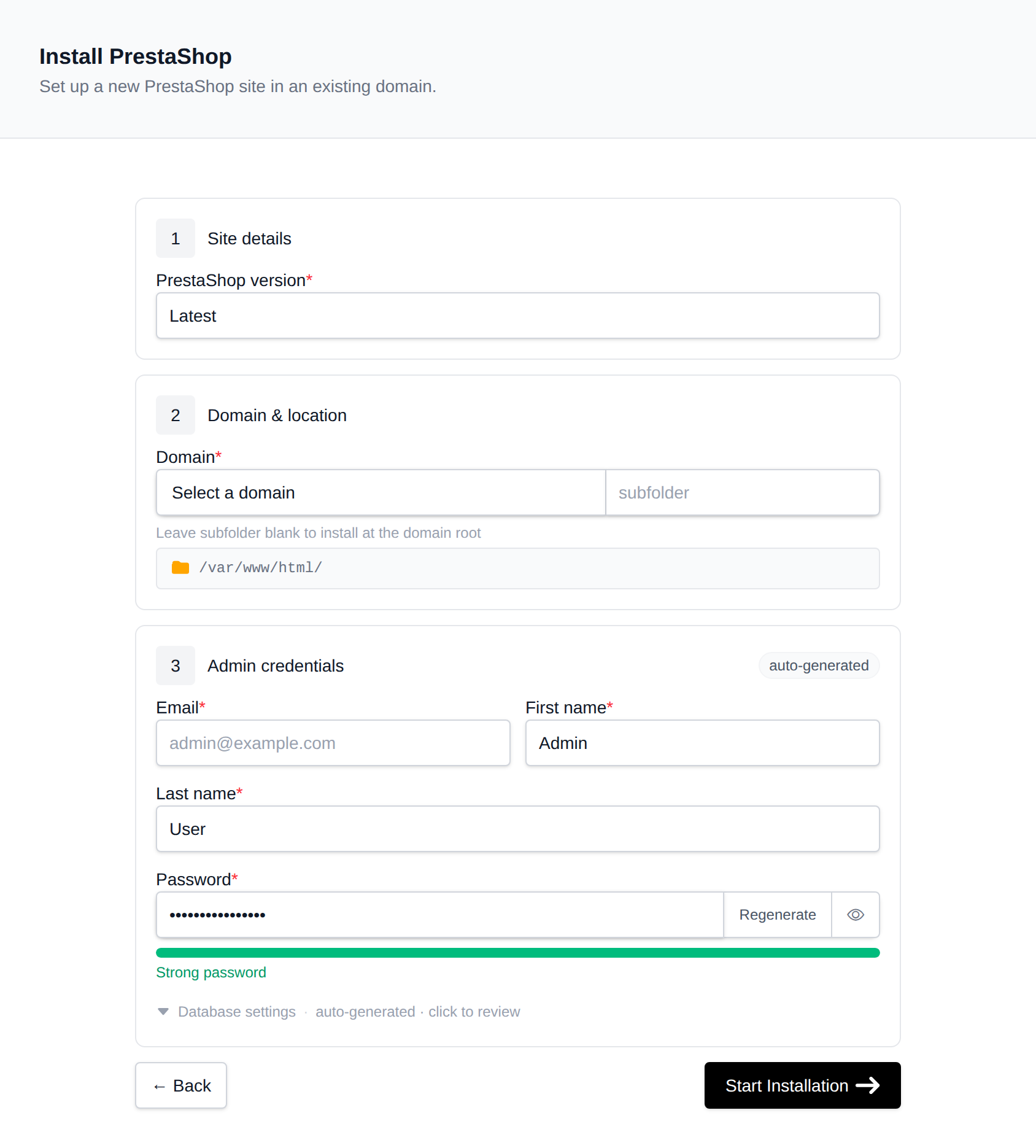
OpenPanel downloads the official release, creates a MySQL/MariaDB database, runs PrestaShop's CLI installer, removes the install/ folder and renames the admin/ folder to a random name for security.
Log in to the Back Office
Because the admin folder has a random name, the easiest way in is the Login as Admin button on the store's manage page in OpenPanel → Websites → Sites. It opens the back office already logged in.
The back-office URL (with the random folder name) is also shown in the File Manager - look for the folder starting with admin in the store's directory. Bookmark it.
Recommended Settings
Force HTTPS
SSL is issued automatically. In the back office, go to Shop Parameters → General and enable Enable SSL and Enable SSL on all pages.
Friendly URLs
Go to Shop Parameters → Traffic & SEO and enable Friendly URL.
- On Apache and OpenLiteSpeed, PrestaShop writes the rewrite rules to
.htaccessautomatically. - On Nginx and OpenResty, PrestaShop needs extra rewrite rules in the domain's vhost - add them in Domains → Edit VHosts File (Enterprise, see Edit VHosts), or switch the account to Apache for simpler setup.
PHP limits
For large product imports, raise memory_limit to 512M and max_execution_time to 300 - see How to increase PHP limits.
Email
Configure Advanced Parameters → E-mail to send through SMTP, so order confirmations don't land in spam. See Why do my emails go to spam?.
Cron tasks
Some modules (currency rates, abandoned carts, feeds) need cron. Install the Cron tasks manager module, then add its URL as a job in OpenPanel → Cron Jobs with curl, for example:
curl -s "https://example.com/modules/cronjobs/cron.php?token=YOUR_TOKEN"
Managing the Store
The store's manage page shows the PrestaShop, PHP and database versions, and has:
- Login as Admin - one-click back-office login.
- Cache - clears PrestaShop's production cache (do this after changing themes or modules).
- Logs - PrestaShop's daily log files from
var/logs/. - Remove - uninstalls the store, including the database.
Back up the store with the account-level Backups before installing modules or updating.
More: PrestaShop in OpenPanel.