PrestaShop
Install and manage PrestaShop sites in an existing domain, via PrestaShop's own install/index_cli.php CLI installer — deliberately simpler than the WordPress Manager: no dedicated PrestaShop Manager sidebar page, no cloning, no filesystem scan for existing installs, no hardening rules, and no dedicated backup system. Install, a read-only overview with live status, cache clearing, one-time admin login, error logs, and uninstall.
Install PrestaShop
Navigate to OpenPanel > Websites > Install App and click Install PrestaShop.
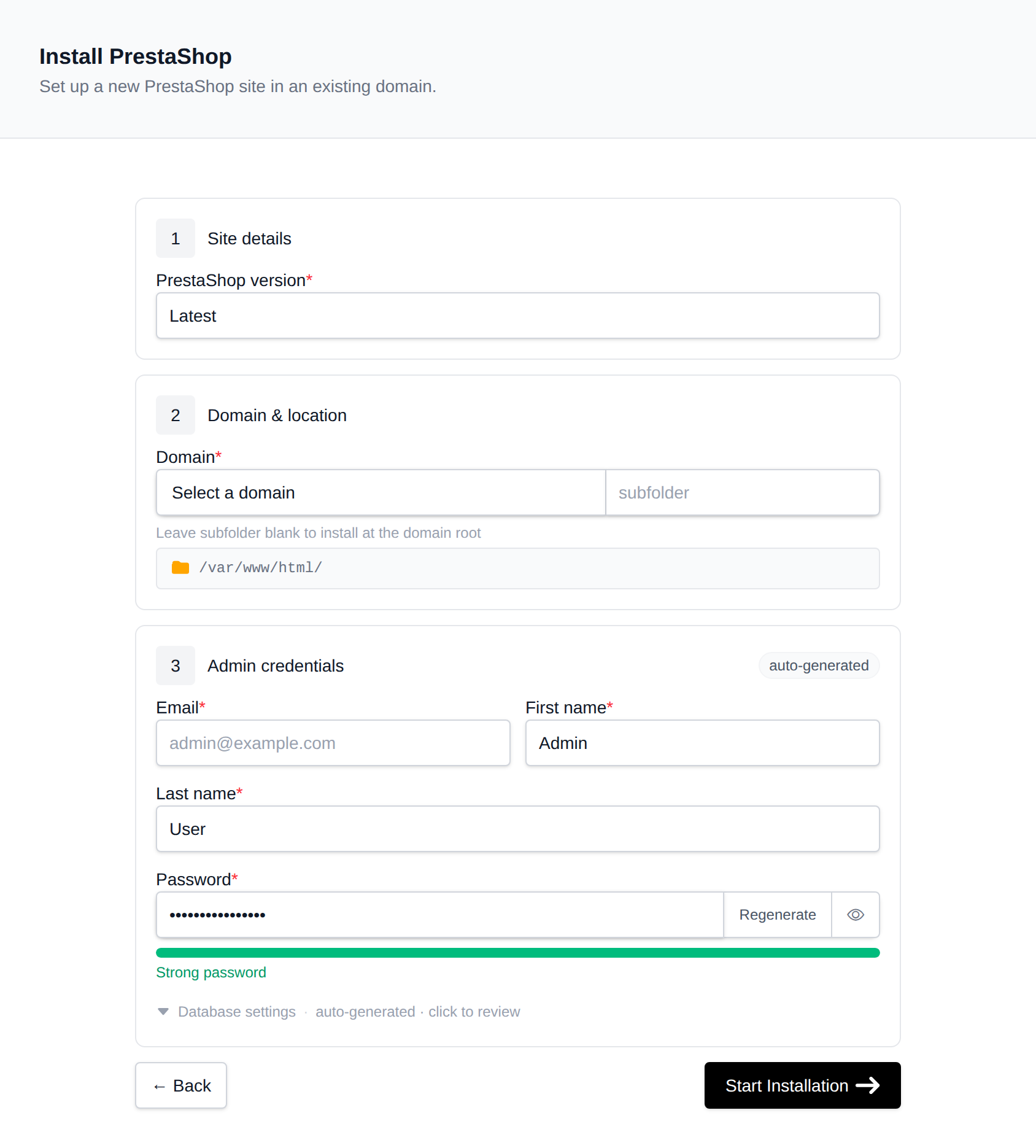
On the install page, configure:
- Domain – The domain (and optional subfolder) to install into. Leave the subfolder blank to install at the domain root.
- PrestaShop version – Latest, or pin to a specific release, fetched live from GitHub's releases API (only versions that actually ship a downloadable
prestashop_<version>.ziprelease asset are listed). - Admin first/last name / password / email – The initial administrator account PrestaShop creates during install. Leave the password blank to generate one.
Behind the scenes, this downloads the matching prestashop_<version>.zip GitHub release asset (a two-layer package: the outer zip contains an inner prestashop.zip, which is the actual flat-root application), extracts it into the docroot, creates a dedicated MySQL/MariaDB database, and runs PrestaShop's own install/index_cli.php CLI installer with the details you provided. Immediately afterward, OpenPanel renames the admin/ directory to a random name and removes the leftover install/ folder — PrestaShop's own admin panel does this rename automatically the first time anyone visits it in a browser, but doing it right away means the directory is never left at the guessable default. Progress is streamed live as each step completes.
Manage a PrestaShop site
Every PrestaShop install shows up on the general Site Manager page (/sites) alongside your other websites. Click Manage on a PrestaShop site to open its overview page:
- Screenshot and PrestaShop / PHP / MariaDB / Created status cards, matching the other CMS managers.
- Files – Docroot path, a File Manager shortcut, and live folder size.
- Database – Host, name, table prefix, and password (read live from
app/config/parameters.php, not stored anywhere separately), plus a phpMyAdmin shortcut. - PHP version – Editable for root-level installs; subdirectory installs inherit the domain's PHP version.
Login as Admin
The Login as Admin button generates a one-time login link and opens the PrestaShop back office already authenticated, without needing the admin password. PrestaShop core has no built-in CLI command for this, so OpenPanel deploys a small login helper file into the (randomly-named) admin directory at install time that binds an employee session the same way PrestaShop's own login controller does after a successful password check — it never touches password verification itself. Each click issues a fresh token valid for 10 minutes and usable once.
Cache
The Cache widget clears PrestaShop's Symfony production cache (bin/console cache:clear --env=prod), PrestaShop's standard, documented cache-clearing mechanism.
Logs
The Logs tab shows the tail of the newest file under var/logs/ — PrestaShop's Symfony logger writes one file per environment per day (e.g. prod-2026-08-15.log).
Remove
The Remove tab's Delete Application button fully uninstalls the site: drops the database and database user, deletes every file in the docroot, and removes it from Site Manager. This cannot be undone.