Matomo
Install and manage Matomo — self-hosted, privacy-focused web analytics software, not a website CMS — in an existing domain or subfolder, the same install pattern as OpenPanel's other app managers even though Matomo serves an analytics dashboard rather than a public site. Simpler than the WordPress Manager in a few ways: no dedicated Matomo Manager sidebar page, no scanning the filesystem for existing installs, no hardening rules, and no maintenance-mode toggle (Matomo has no offline-mode primitive to switch). It does get its own backup/restore system, cloning, in-place updates, one-click admin login, cache clearing, and a log viewer.
Install Matomo
Navigate to OpenPanel > Websites > Install App and click Install Matomo.

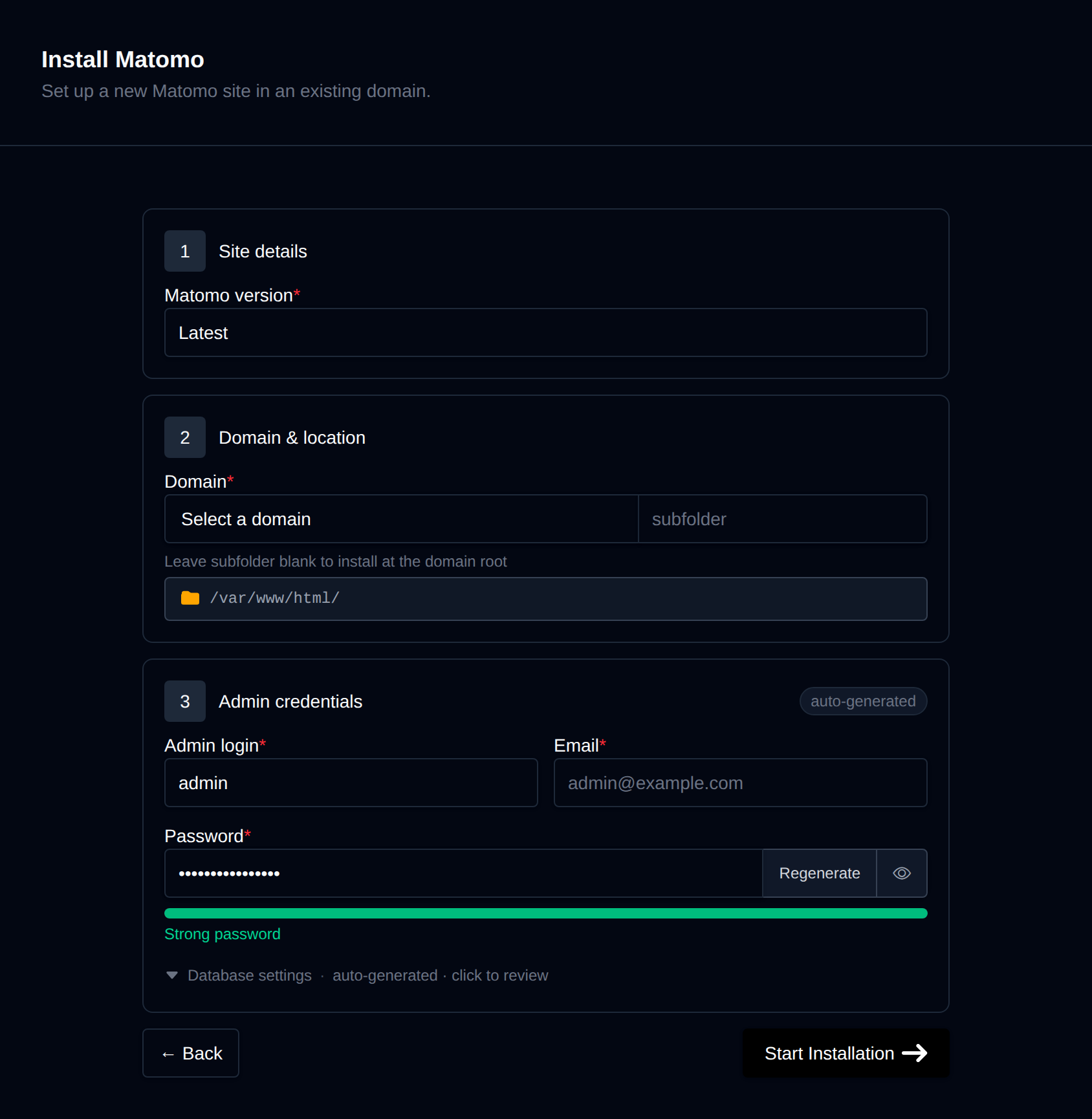
On the install page, configure:
- Matomo version – Latest, or pin to a specific release, fetched live from Matomo's GitHub releases.
- Domain – The domain (and optional subfolder) to install into. Leave the subfolder blank to install at the domain root.
- Admin login / email / password – The Matomo superuser account. A strong password is generated by default.
- Database settings (collapsed by default, auto-generated) – Database name, username, and password.
Behind the scenes, this downloads the matching matomo-<version>.zip release asset, extracts it into the docroot, creates a dedicated MySQL/MariaDB database and user, and drives Matomo's own browser installation wizard (plugins/Installation/Controller.php) as a sequence of plain HTTP requests — Matomo ships no non-interactive CLI installer, so this replicates field-for-field what a browser would submit at each step (database setup, table creation, superuser creation, first website setup, finish). A small login-helper file is deployed into the docroot at install time to support one-click admin login later. Progress is streamed live as each step completes.
Manage a Matomo site
Every Matomo install shows up on the general Site Manager page (/sites) alongside your other websites. Click Manage on a Matomo site to open its overview page:
- Screenshot, Matomo / PHP / MariaDB / Created status cards.
- Files – Docroot path, a File Manager shortcut, and live folder size.
- Database – Host, name, user, table prefix, live size, and password (read live from
config/config.ini.php), plus a phpMyAdmin shortcut. - PHP version – Editable for root-level installs; subdirectory installs inherit the domain's PHP version.
Login as Admin
The Login as Admin button (in the page header) generates a one-time login link and opens the Matomo dashboard already authenticated. Matomo has no CLI or database-level one-time-login primitive to hook into, so OpenPanel's login helper replays Matomo's own public login form server-side (via a loopback request), then re-issues the resulting session cookie to your browser. It's gated by a random 64-character token baked into the helper file at install time.
Cache
The Cache widget runs Matomo's own console core:clear-caches.
Logs
The Logs tab tails the newest file under tmp/logs/ — Matomo's own Monolog output.
Update
The Update tab checks the installed version against the latest available release and, if newer, offers an Update now button. Updating downloads the latest release and replaces every core file except config/ (which holds live database credentials), then runs console core:update -n to bring the database schema up to date. A backup beforehand is recommended.
Clone
The Clone tab copies a Matomo instance's files and database to a new domain or subdirectory: files are copied, the database is dumped and restored under a new name/user, and config/config.ini.php is rewritten with the new database credentials. Matomo hardcodes a trusted_hosts[] allow-list of permitted HTTP Host headers in that same config file, so the clone's domain is appended there automatically — otherwise Matomo would reject every request to the clone as an "untrusted host." Hardcoded source-domain URLs left in page content are also rewritten via a database search-replace, since Matomo's own CLI has no search-replace equivalent.
Backups
The Backups tab generates and restores full backups (database dump plus a files tarball) or either piece individually, stored under backups/<domain>/<timestamp>/ in the account's html-data volume — the same layout every other CMS module uses.
Remove
The Remove tab's Delete Application button fully uninstalls the site: drops the database and database user (parsed from config/config.ini.php), deletes every file in the docroot, removes the stored admin credentials, and removes it from Site Manager. This cannot be undone.