OpenCart
Install and manage OpenCart sites in an existing domain, via OpenCart's own CLI installer — deliberately simpler than the WordPress Manager: no dedicated OpenCart Manager sidebar page, no cloning, no filesystem scan for existing installs, no hardening rules, and no dedicated backup system. Install, a read-only overview with live status, cache clearing, one-time admin login, error logs, and uninstall.
Install OpenCart
Navigate to OpenPanel > Websites > Install App and click Install OpenCart.
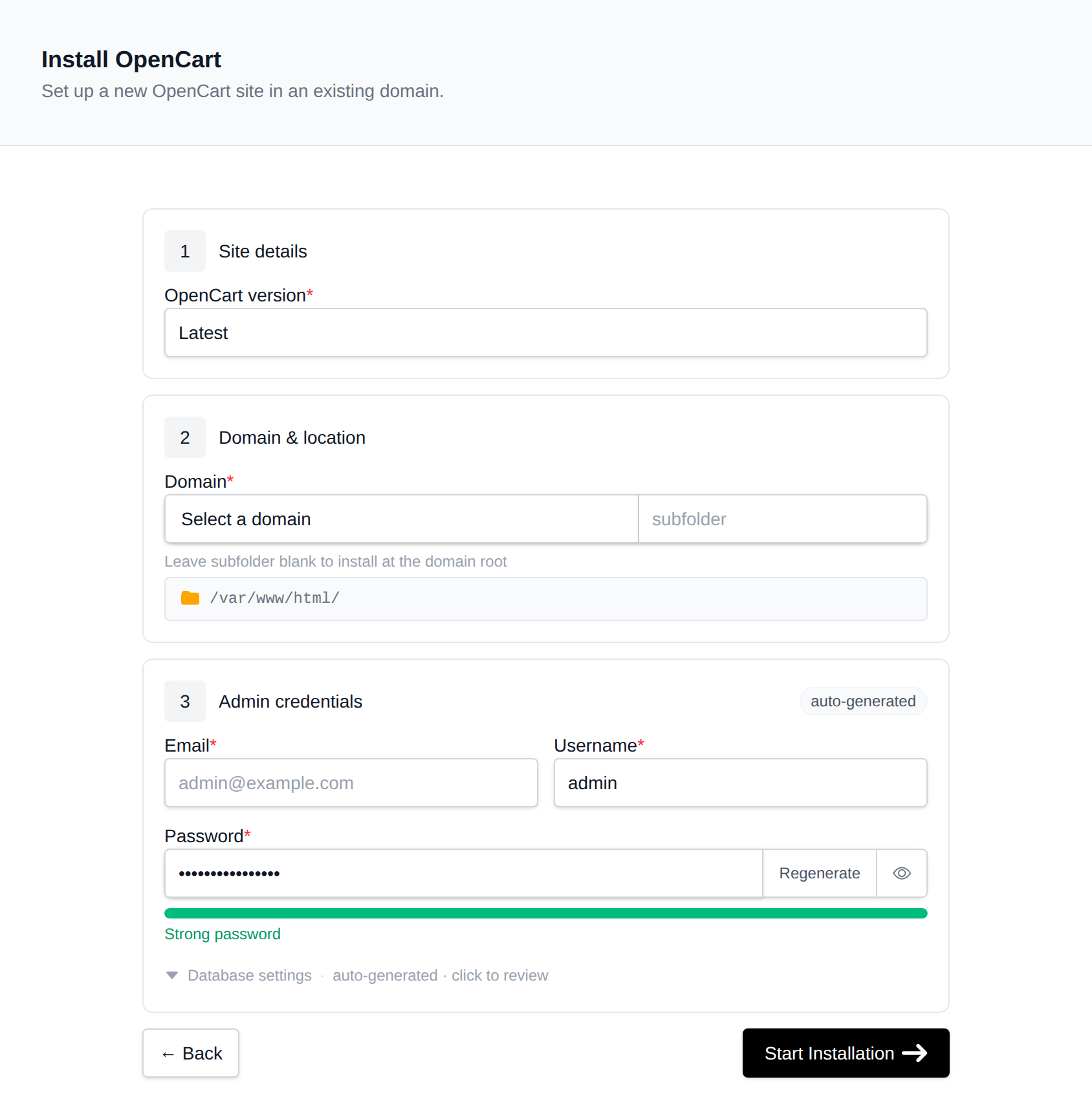
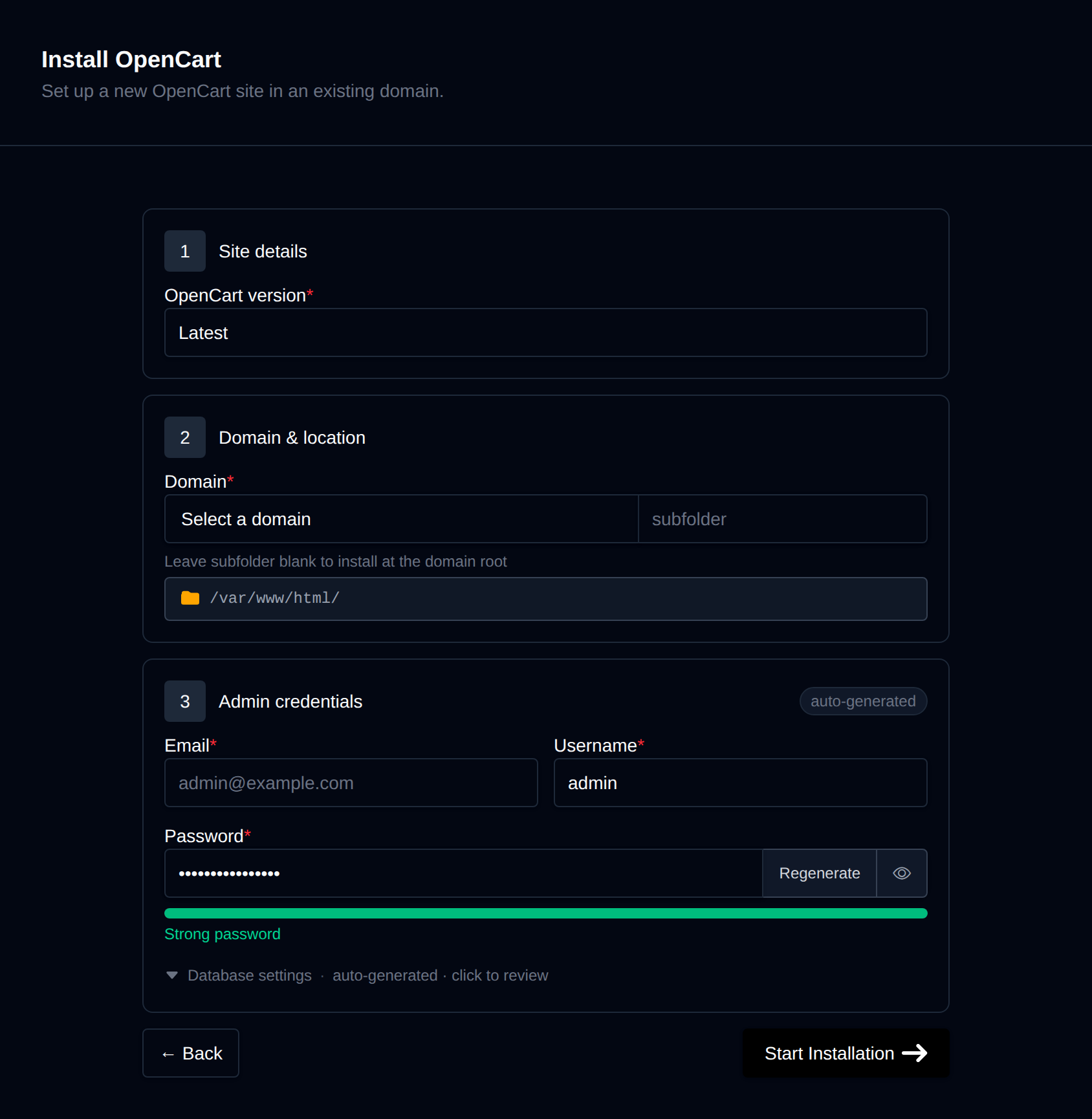
On the install page, configure:
- Domain – The domain (and optional subfolder) to install into. Leave the subfolder blank to install at the domain root.
- OpenCart version – Latest, or pin to a specific release, fetched live from OpenCart's GitHub releases.
- Admin username / password / email – The initial administrator account OpenCart creates during install. Leave the password blank to generate one.
Behind the scenes, this downloads the matching opencart-<version>.zip release archive, extracts its upload/ contents into the docroot, creates a dedicated MySQL/MariaDB database, prepares config.php and admin/config.php from their -dist templates, and runs OpenCart's own install/cli_install.php install CLI installer with the details you provided. The install/ folder is removed automatically once the install succeeds. Progress is streamed live as each step completes.
Manage an OpenCart site
Every OpenCart install shows up on the general Site Manager page (/sites) alongside your other websites. Click Manage on an OpenCart site to open its overview page:
- Screenshot and OpenCart / PHP / MariaDB / Created status cards, matching the other CMS managers.
- Files – Docroot path, a File Manager shortcut, and live folder size.
- Database – Host, name, table prefix, and password (read live from
config.php, not stored anywhere separately), plus a phpMyAdmin shortcut. - PHP version – Editable for root-level installs; subdirectory installs inherit the domain's PHP version.
Login as Admin
The Login as Admin button generates a one-time login link and opens the OpenCart admin dashboard already authenticated, without needing the admin password. OpenCart core has no built-in CLI command for this, so OpenPanel deploys a small login helper file into the docroot at install time; each click issues a fresh token valid for 10 minutes and usable once.
Cache
The Cache widget deletes every cache.* file under system/storage/cache/ — the same thing the admin panel's own "Refresh Cache" tool does.
Logs
The Logs tab shows the tail of system/storage/logs/error.log — the PHP warnings/errors OpenCart logs by default. A freshly installed, healthy site typically has none yet.
Remove
The Remove tab's Delete Application button fully uninstalls the site: drops the database and database user, deletes every file in the docroot, and removes it from Site Manager. This cannot be undone.