Joomla
Install and manage Joomla sites in an existing domain, via Joomla's own CLI installer — deliberately simpler than the WordPress Manager: no dedicated Joomla Manager sidebar page, no cloning, no filesystem scan for existing installs, no hardening rules, and no dedicated backup system. Install, a read-only overview with live status, cache clearing, one-time admin login, error logs, and uninstall.
Install Joomla
Navigate to OpenPanel > Websites > Install App and click Install Joomla.
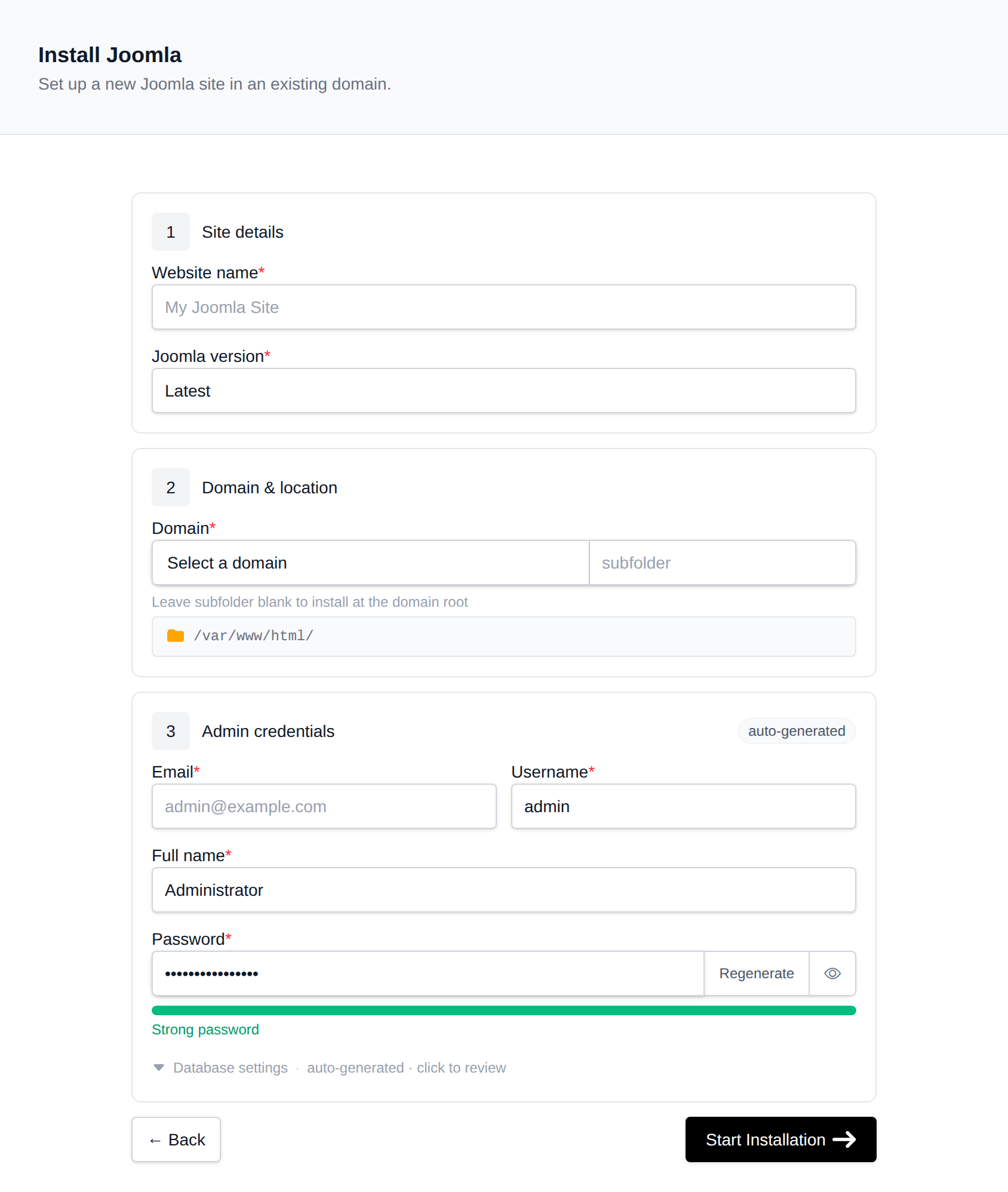
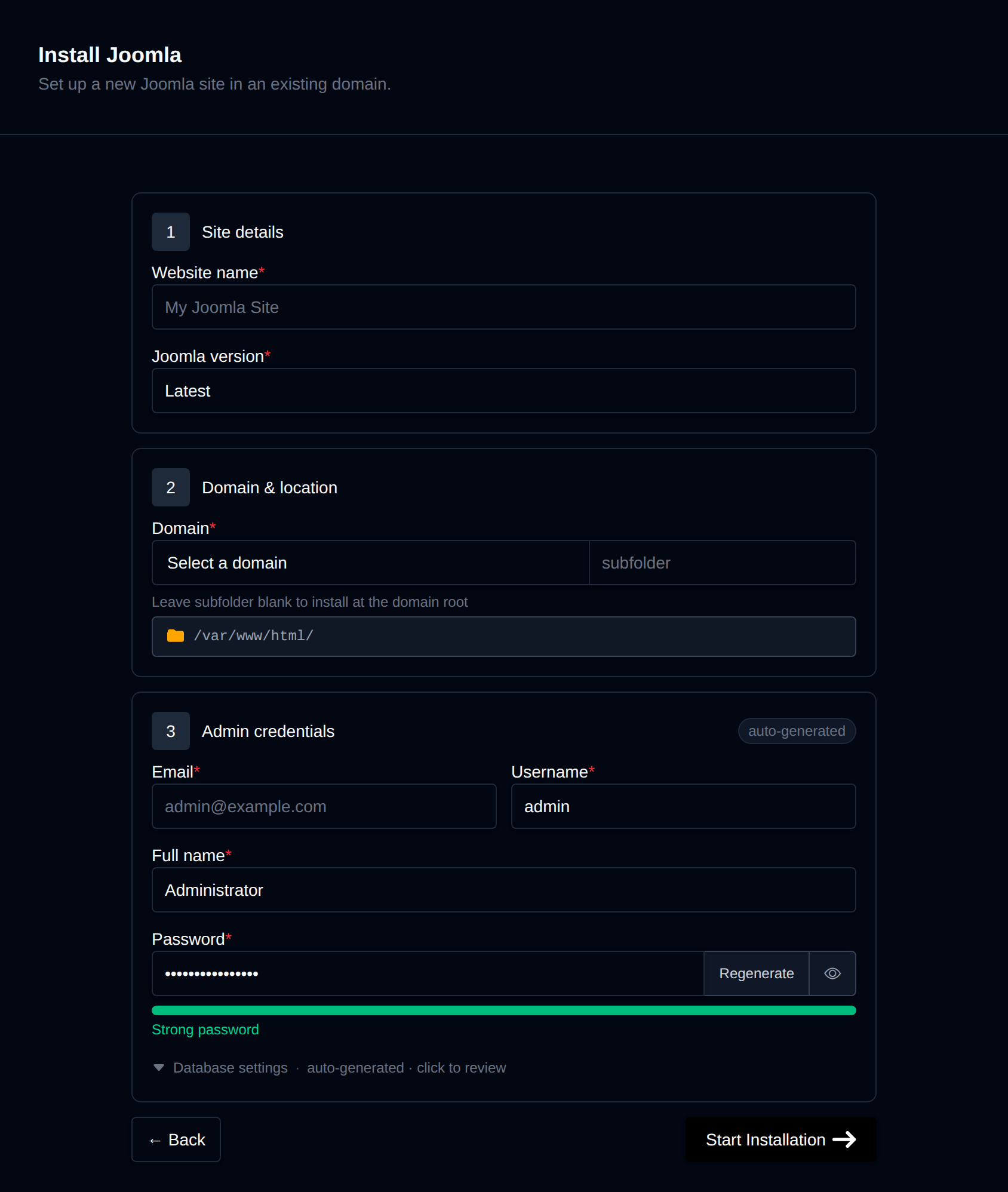
On the install page, configure:
- Domain – The domain (and optional subfolder) to install into. Leave the subfolder blank to install at the domain root.
- Site name – Displayed as the site's title.
- Joomla version – Latest, or pin to a specific release, fetched live from Joomla's GitHub releases.
- Admin full name / username / password / email – The initial Super User account Joomla creates during install. Leave the password blank to generate one.
Behind the scenes, this downloads the matching Joomla_<version>-Stable-Full_Package.tar.gz release archive, extracts it into the docroot, creates a dedicated MySQL/MariaDB database, and runs Joomla's own installation/joomla.php install CLI installer with the details you provided. Progress is streamed live as each step completes.
Manage a Joomla site
Every Joomla install shows up on the general Site Manager page (/sites) alongside your other websites. Click Manage on a Joomla site to open its overview page:
- Screenshot and Joomla / PHP / MariaDB / Created status cards, matching the other CMS managers.
- Files – Docroot path, a File Manager shortcut, and live folder size.
- Database – Host, name, table prefix, and password (read live from
configuration.php, not stored anywhere separately), plus a phpMyAdmin shortcut. - PHP version – Editable for root-level installs; subdirectory installs inherit the domain's PHP version.
Login as Admin
The Login as Admin button generates a one-time login link and opens the Joomla administrator dashboard already authenticated, without needing the admin password. Joomla core has no built-in CLI command for this (unlike Drupal's drush user:login), so OpenPanel deploys a small login helper file into the docroot at install time; each click issues a fresh token valid for 10 minutes and usable once.
Cache
The Cache widget runs Joomla's own cli/joomla.php cache:clean, clearing the system cache.
Logs
The Logs tab shows the contents of administrator/logs/*.php — the PHP warnings/errors Joomla logs by default. A freshly installed, healthy site typically has none yet.
Remove
The Remove tab's Delete Application button fully uninstalls the site: drops the database and database user, deletes every file in the docroot, and removes it from Site Manager. This cannot be undone.