phpBB
Install and manage phpBB forums in an existing domain, via phpBB's own dedicated CLI installer — deliberately simpler than the WordPress Manager: no dedicated phpBB Manager sidebar page, no scanning the filesystem for existing installs, no hardening rules, and no one-click self-update. Install, a read-only overview with live status, cloning, a full backup/restore system, and uninstall — updates are pointed at phpBB's own Admin Control Panel rather than automated.
Install phpBB
Navigate to OpenPanel > Websites > Install App and click Install phpBB.
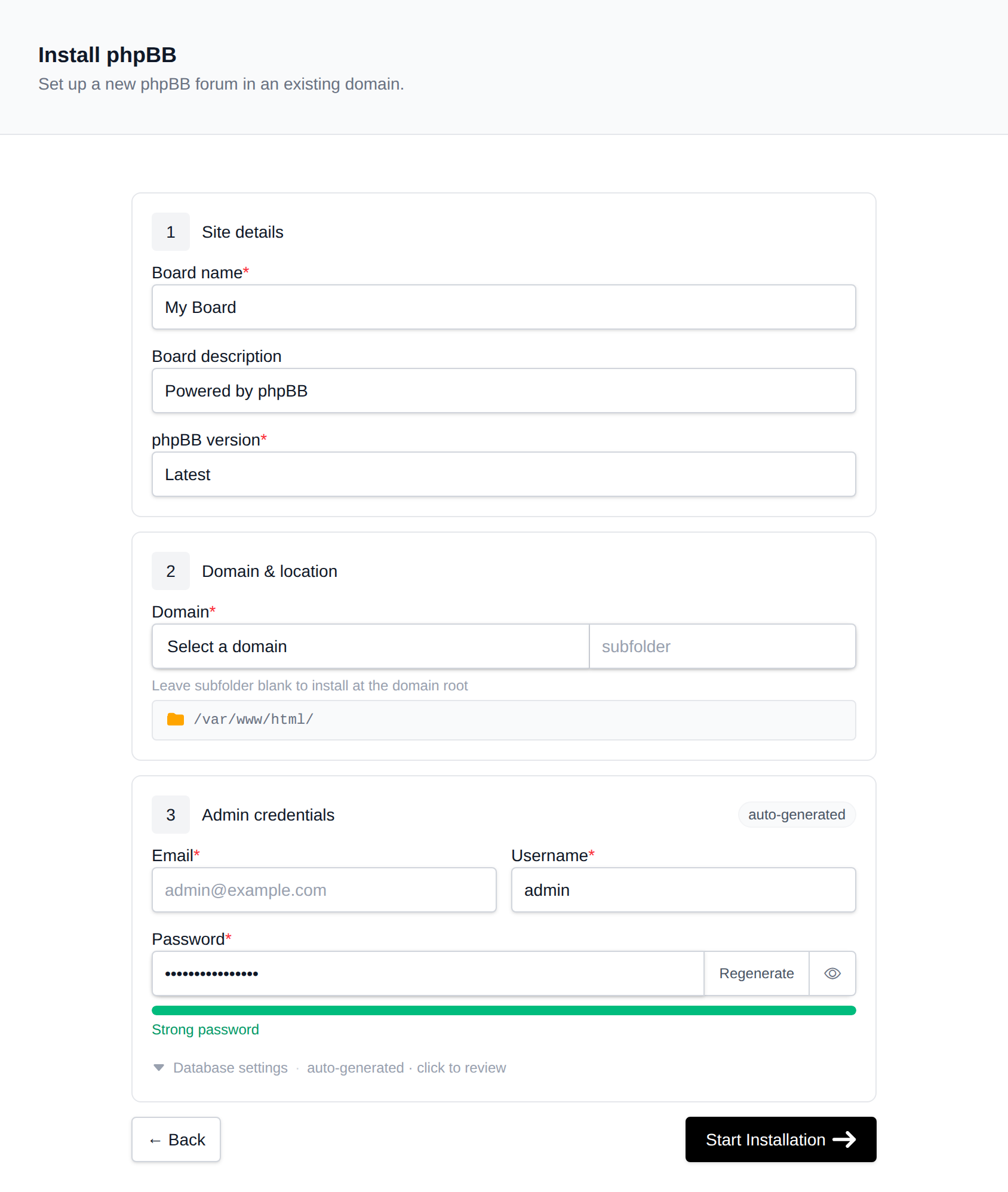
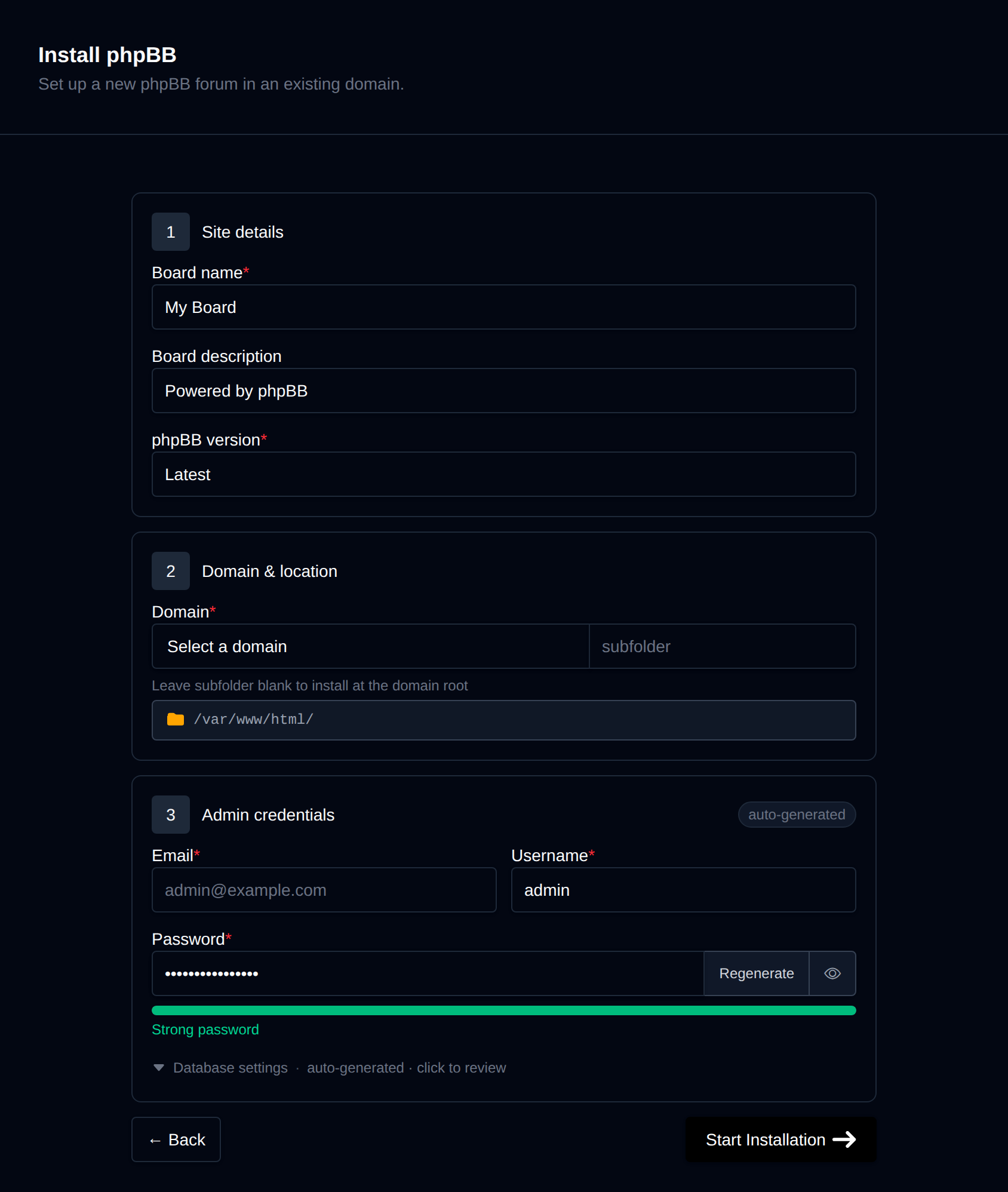
On the install page, configure:
- Domain – The domain (and optional subfolder) to install into. Leave the subfolder blank to install at the domain root.
- phpBB version – Latest, or pin to a specific release, fetched live from the phpBB GitHub repository's tags (
release-x.y.ztags). - Board name / description – The forum's display name and tagline.
- Admin username / password / email – The initial administrator account phpBB creates during install. Leave the password blank to generate one.
Behind the scenes, this downloads the matching phpBB-<version>.tar.bz2 release archive, extracts it into the docroot, creates a dedicated MySQL/MariaDB database, and runs phpBB's own install/phpbbcli.php install CLI installer — a full non-interactive equivalent of the browser setup wizard — against it. The install/ folder is removed automatically once the install succeeds (phpBB's own documented post-install security step). Progress is streamed live as each step completes.
Manage a phpBB forum
Every phpBB install shows up on the general Site Manager page (/sites) alongside your other websites. Click Manage on a phpBB site to open its overview page:
- Screenshot and phpBB / PHP / MariaDB / Created status cards, matching the other CMS managers.
- Files – Docroot path, a File Manager shortcut, and live folder size.
- Database – Host, name, and password (read live from
config.php, not stored anywhere separately), plus a phpMyAdmin shortcut. - PHP version – Editable for root-level installs; subdirectory installs inherit the domain's PHP version.
Update
phpBB has no safe unattended CLI updater, so the Update tab shows the currently installed version and an Open Admin Control Panel button linking to /adm/index.php?i=acp_help. Updating is done from phpBB's own ACP > System > Update using its Automatic Update Package, following phpBB's documented procedure — a backup beforehand is recommended.
Clone
The Clone tab copies a phpBB forum — files and database — to another domain or subfolder. You can optionally set the destination database name, user, and password; otherwise they're auto-generated. Cloning copies the docroot, dumps and imports the database, rewrites the dbname/dbuser/dbpasswd values in the new config.php, and runs a search-and-replace across the database for the old domain URL (phpBB derives its base URL from the request at runtime rather than storing it in config.php, so this only fixes hardcoded links left in post/page content, not the config itself).
Backups
The Backups tab generates on-demand backups (database, files, or both) into a timestamped folder, and lists existing backups for one-click restore. A files backup is a tar.gz of the docroot; a database backup is a plain SQL dump of the phpBB database, resolved from config.php. There's no scheduled/automatic backup — each one is triggered manually.
Remove
The Remove tab's Delete Application button fully uninstalls the site: drops the database, deletes every file in the docroot, and removes it from Site Manager. This cannot be undone.