Ruby
Containerized Ruby applications can be created and managed in OpenPanel Enterprise Edition.
Step-by-step guide: Deploy a Ruby / Rails app
Create an Application
To create a new Ruby application, navigate to OpenPanel > Websites > Install App and click Setup Ruby Application.
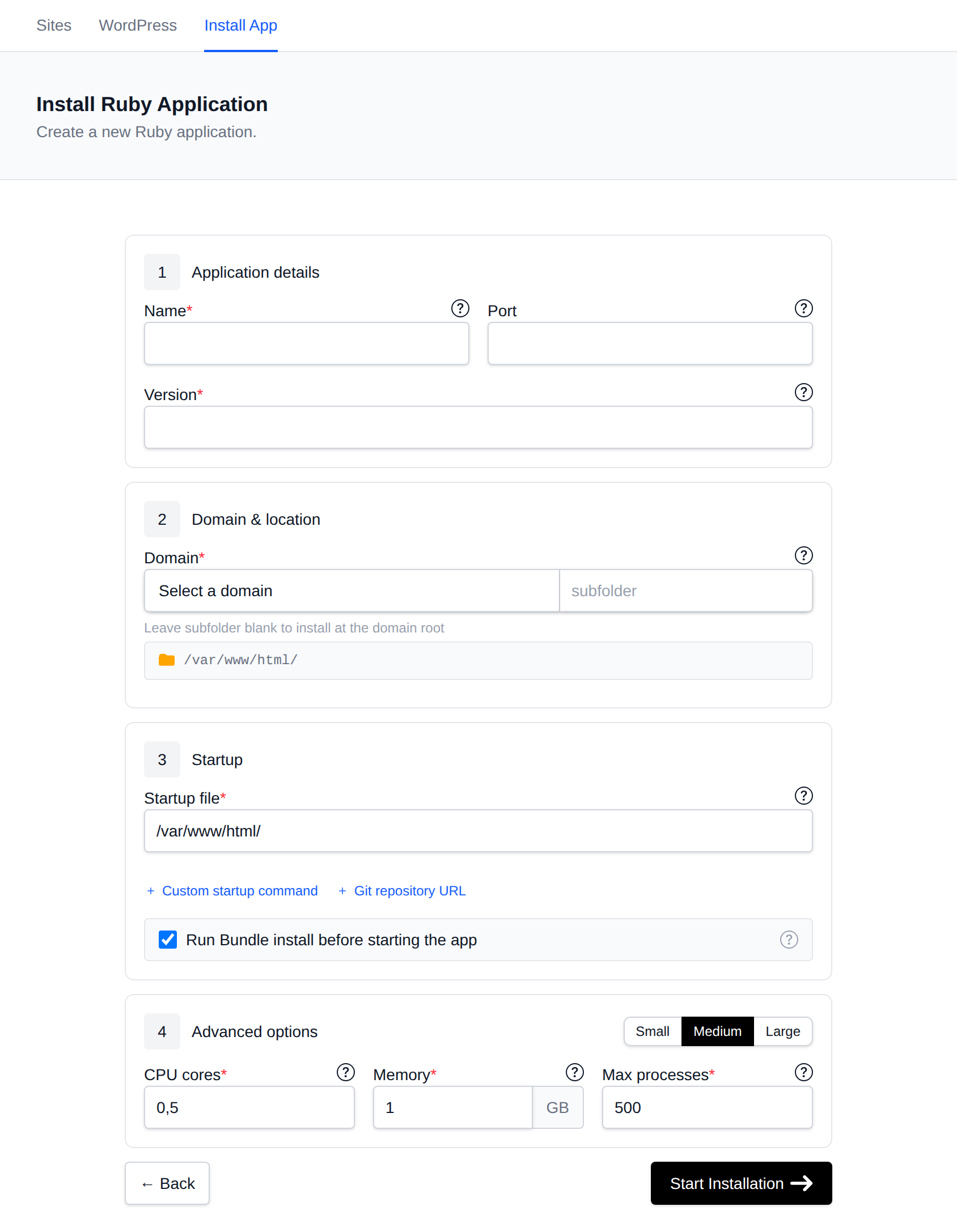
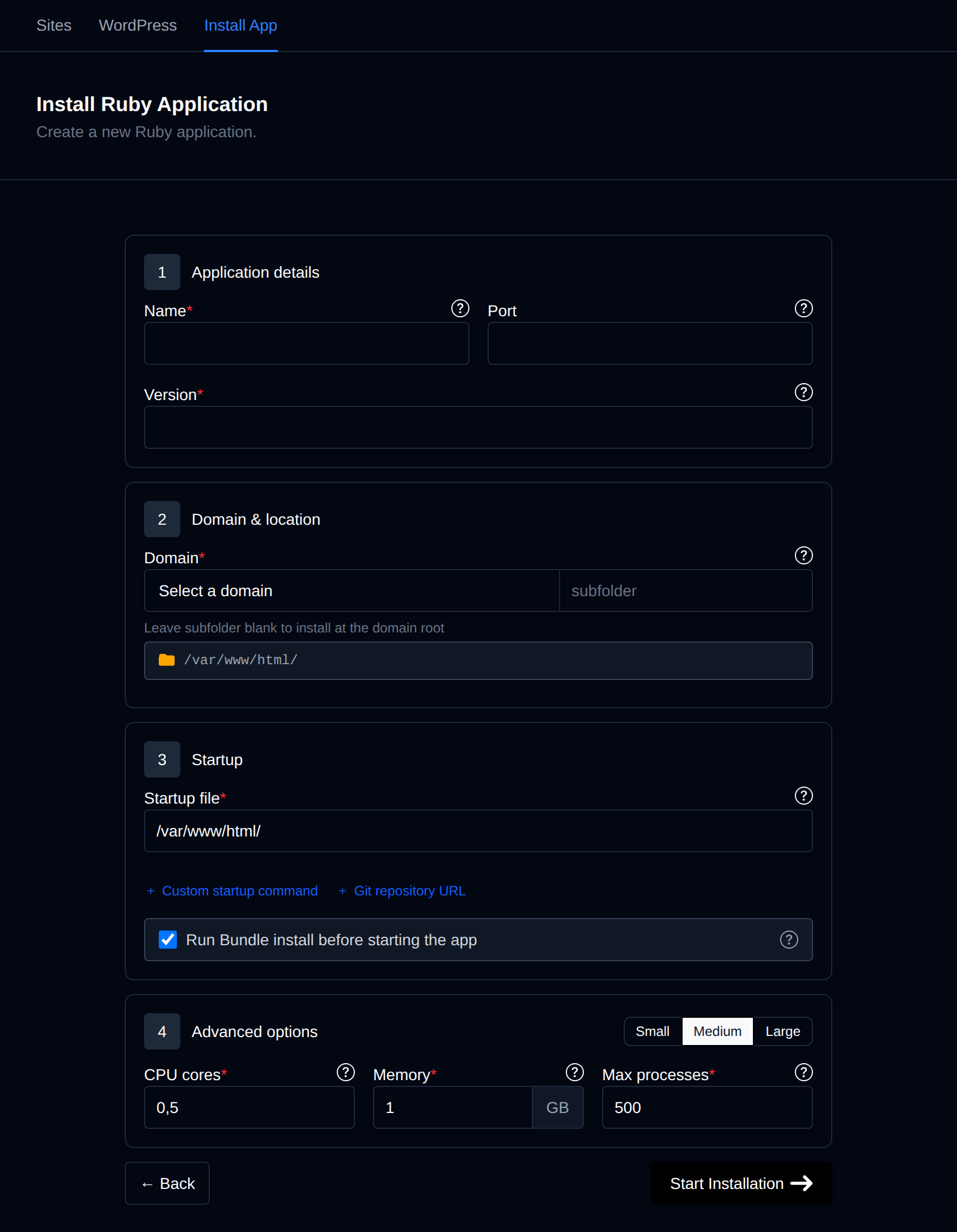
On the next page, you can configure the following settings:
- Name – The name of the application and container as displayed in OpenPanel.
- Port – Set a custom port if your app uses one. Otherwise, port 80 is used by default.
- Domain Name / Subfolder – The domain (and optional subfolder) where the application will be publicly accessible.
- Startup File – The file executed at startup with the
rubycommand. Defaults toapp.rb. - Custom Startup Command – Use a custom startup command instead of the default
ruby. - Type – Fixed to Ruby.
- Version – Select any available Ruby version from Docker Hub's official
rubyimage tags. - Run Install – Run
bundle installusing theGemfilebefore starting the application. Skip this if your application is already built or has no gem dependencies. - Resource presets – Small (0.25 CPU, 0.25 GB, 100 processes), Medium (0.5 CPU, 1 GB, 500 processes) or Large (1 CPU, 2 GB, 1000 processes) fill in the three limits below in one click. Medium is the default.
- CPU Cores – Number of CPU cores allocated to the application.
- Memory – Amount of memory (in GB) allocated to the application.
- Max processes – The most processes the application's container can run at once.
After completing the form, click Start Installation. The installation process will be displayed below the form. Once complete, you’ll be redirected to the management page where you can view all your applications.
Example App
A minimal Sinatra application.
Example app.rb file:
require 'sinatra'

set :port, 3000
set :bind, '0.0.0.0'

get '/' do
  'Hello World from Ruby on port 3000!'
end
Example Gemfile:
source 'https://rubygems.org'

gem 'sinatra'
Enable Run Install so bundle install runs before the app starts.
Manage Applications
Once your application is created, you can manage it from OpenPanel > Websites > Sites.
Click Manage next to the application name to open its management page.
On this page, you can view important details such as:
- Screenshot – Preview of the application’s domain.
- Status – Current container status.
- Version – Ruby version in use.
- CPU Limit – Configured CPU allocation.
- Memory Limit – Configured memory allocation.
- Speed – Google PageSpeed Insights data for the website.
- Files – Current folder path and size.
- Firewall – WAF (Web Application Firewall) status for the domain (if enabled).
You also have several management options:
- Actions – Start, stop, or restart the container.
- Overview – Modify startup file or command, working directory, package installation settings (Bundler), version, and resource limits (CPU, Memory, PIDs).
- Install Packages – View and manage the
Gemfile, and runbundle install. - Logs – View container logs for troubleshooting.
- Remove – Delete the application.