OJS
Install and manage Open Journal Systems (OJS) sites — open-source journal and scholarly publishing management software from the Public Knowledge Project — in an existing domain, via OJS's own CLI installer. Install, a read-only overview with live status, cache clearing, one-time admin login, error logs, a dedicated backup/restore system, cloning, self-update, and uninstall.
Install OJS
Navigate to OpenPanel > Websites > Install App and click Install OJS.

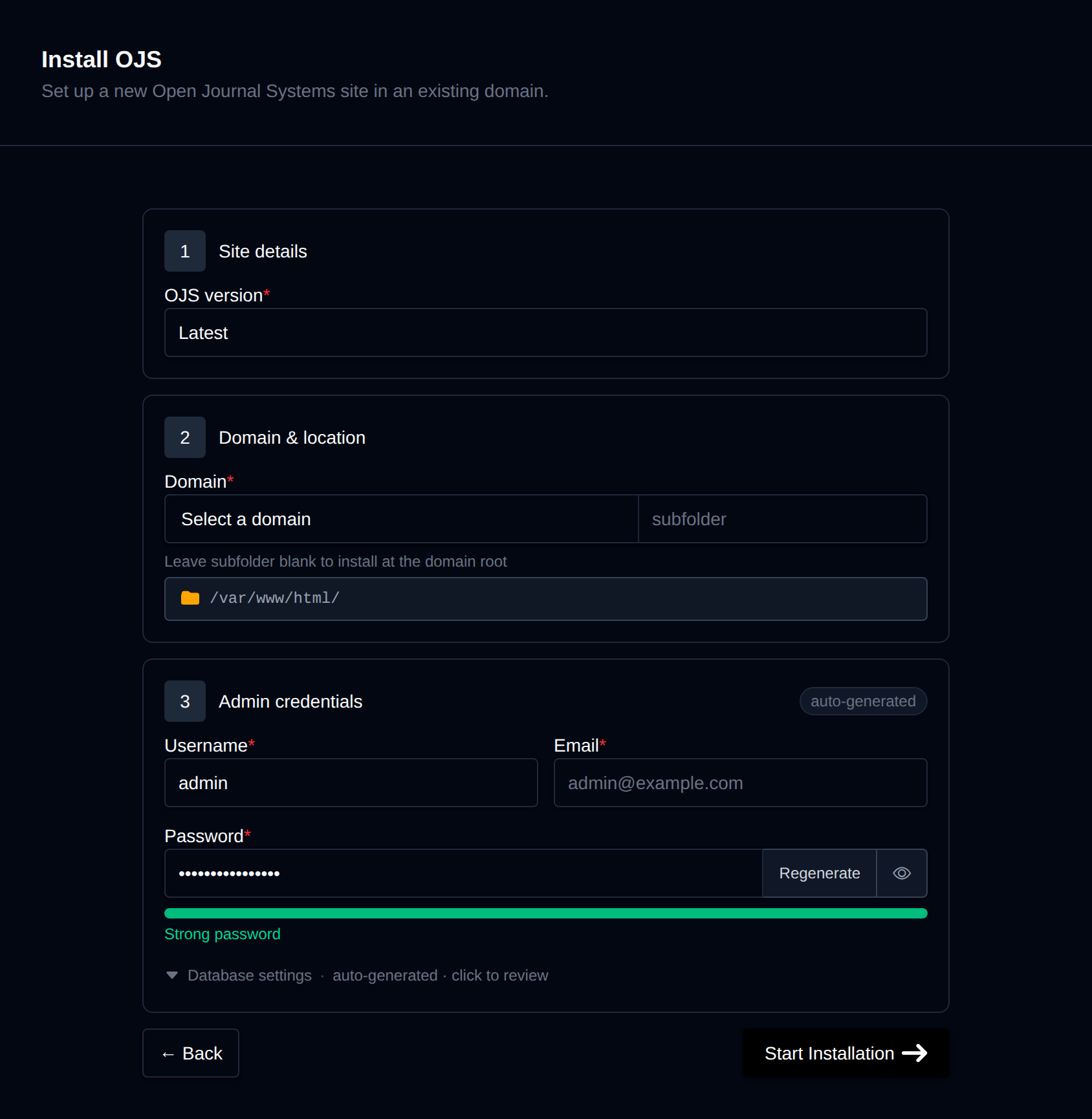
On the install page, configure:
- Domain – The domain (and optional subfolder) to install into. Leave the subfolder blank to install at the domain root.
- OJS version – Latest, or pin to a specific release, resolved live against pkp/ojs's GitHub tags.
- Admin username / password / email – The initial Site Administrator account OJS creates during install. Leave the password blank to generate one.
Behind the scenes, this downloads the matching packaged tarball directly from pkp.sfu.ca rather than GitHub — OJS's repository uses git submodules (lib/pkp, several plugins, ui-library) that a plain GitHub archive silently omits, which would produce a broken install, so PKP hosts already-bundled release packages instead. The archive is extracted into a sibling "app root" directory next to the domain's docroot, and the docroot is replaced with a symlink to it (the same technique the Moodle module uses, kept here mainly so Update has an atomic swap-and-rollback target). A separate sibling directory is created for OJS's file storage (submission uploads, etc.), kept outside the docroot/app-root tree entirely so it's never web-accessible. OpenPanel then creates a dedicated MySQL/MariaDB database, installs the PHP ftp extension if missing (required by OJS's Composer platform check), and runs OJS's own tools/install.php — which, unlike Moodle's or Joomla's installers, takes no CLI flags and only accepts its answers piped in over stdin. Afterwards, OpenPanel fixes up base_url, time_zone, and allowed_hosts in config.inc.php — all three are left wrong or blank by a non-interactive tools/install.php run and would otherwise lock the fresh site out of itself — deploys a one-time admin login helper file, and registers a per-minute cron job running lib/pkp/tools/scheduler.php run, OJS's documented way to run scheduled tasks in production instead of its discouraged built-in end-of-request task runner. Progress is streamed live as each step completes.
Manage an OJS site
Every OJS install shows up on the general Site Manager page (/sites) alongside your other websites. Click Manage on an OJS site to open its overview page:
- Screenshot and OJS / PHP / MariaDB / Created status cards, matching the other CMS managers.
- Files – The docroot is a symlink to the app root directory; a File Manager shortcut, and live folder size.
- Database – Name and username, read live from
config.inc.php(not stored anywhere separately) — OJS has no per-site table prefix, plus a phpMyAdmin shortcut. - PHP version – Editable for root-level installs; subdirectory installs inherit the domain's PHP version.
Login as Admin
The Login as Admin button generates a one-time login link and opens the OJS dashboard already authenticated, without needing the admin password. OJS core has no built-in CLI command for this, so OpenPanel deploys a small login helper PHP file into the app root at install time. Each click resolves the site's active Site Administrator account, issues a fresh token (stored in a dedicated openpanel_login_tokens table) valid for 10 minutes and usable once, and signs the browser in via PKP's own Validation::registerUserSession() helper — the same mechanism a real login uses, short of checking the password.
Cache
OJS ships no dedicated CLI cache-purge command, so the Cache widget empties the on-disk template/data cache (the cache/ directory under the app root) directly — the same technique the PKP community documents for troubleshooting a stuck install.
Logs
The Logs tab tails the newest *.log file it can find under the app root's cache/ directory or the files directory. OJS itself logs PHP-level errors through PHP's own configured error_log rather than a flat per-site file, so a site with no plugin writing logs there may show nothing yet — check the PHP container's own logs from Services instead.
Backups
OJS sites get a dedicated backup system, separate from the account-level Backups feature. Real site content — submission uploads, etc. — lives in a separate "files" directory outside the docroot (the docroot itself contains only the stock release code), so that's what's backed up:
- Generate an on-demand backup of the database, files, or both. Since OJS has no per-site table prefix, a database backup dumps the whole database rather than a filtered subset. Backups are stored per-domain, per-timestamp (
backups/<domain>/<timestamp>/database.sqland/orfiles.tar.gz) under your account'shtml_datavolume. - Restore any previous backup date. Restoring the database imports
database.sqldirectly; restoring files extractsfiles.tar.gzover the current files directory.
Clone
The Clone action copies an OJS site to a new domain (or subfolder). It copies both the app root and files directories, creates a new database from a dump of the source database, rewrites the database name/username/password/base_url/files_dir inside the copy's config.inc.php (an INI-format file, unlike Moodle's PHP $CFG-> syntax), symlinks the destination docroot to the copy, registers the copy's own cron job, and runs a generic URL search-replace across the cloned database — OJS has no built-in equivalent of WP-CLI's search-replace, so OpenPanel handles it itself.
Update
The Update action updates an installed site by extracting the target version's tarball into a fresh sibling directory — never touching the live one in place — copying the existing config.inc.php across unmodified, and atomically repointing the docroot symlink at the new tree before running OJS's own tools/upgrade.php upgrade (genuinely non-interactive/flag-based, unlike the installer). If the upgrade step fails, the symlink is pointed back at the untouched old tree, so a bad upgrade never leaves the site down. Unlike Moodle's update, this can target a specific version or default to latest.
Remove
The Remove tab's Delete Application button fully uninstalls the site: removes the registered cron job, drops the database and database user, deletes the docroot symlink plus the app root and files directories, and removes it from Site Manager. This cannot be undone.